Chapter 5: tests, built
Chapter 5 asks two questions: how do you know a function gives the right answer, and how do you run one on its own when all you have run so far is a program? The answer to both is a test: square and cube, two pure functions, and the @Test programs that check them, kept in a dev/ directory of their own. The IDE's own tools make the structure - each function's whole signature, each test's @Test mark and stub - so what is left to type is the logic no tool can write: what square and cube compute, what each test claims, and the references block that brings the functions into the test file. To play it in the IDE: Help > Lessons > Writing code…, or ek9 -ide -lesson book-testing.
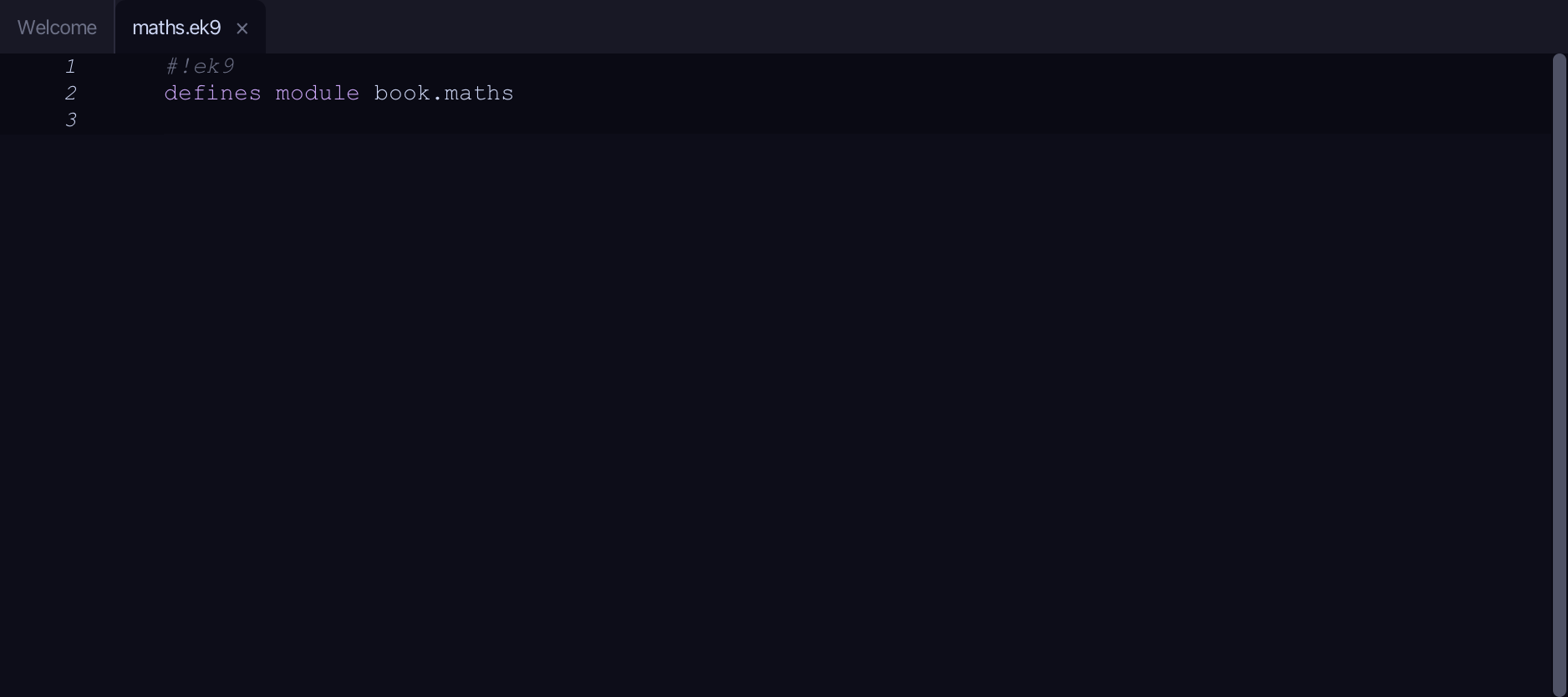
What you'll build
The lesson builds this program from a file holding only its module line - the finished file, as the book prints it.
maths.ek9
#!ek9
defines module book.maths

  defines function

    square() as pure
      -> n as Integer
      <- result as Integer: n * n

    cube() as pure
      -> n as Integer
      <- result as Integer: n * n * n
dev/tests.ek9
#!ek9
defines module book.maths.tests

  references
    book.maths::cube
    book.maths::square

  defines program

    @Test
    SquareTest()
      assert square(3) == 9

    @Test
    CubeTest()
      assert cube(2) == 8
Step 1: square — a pure function
Choose Code > New Construct > Function…
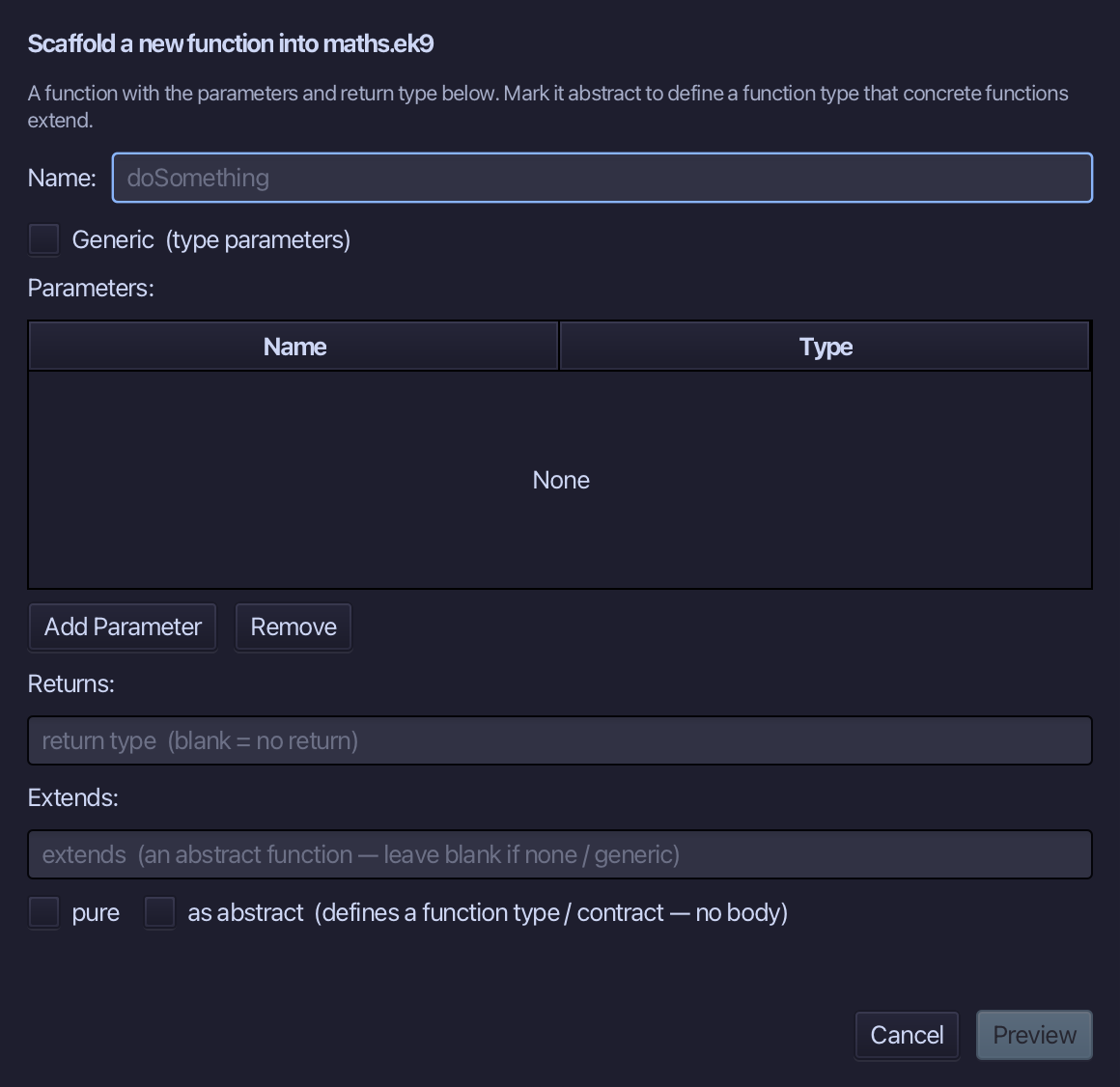
square is the function's name. Add one parameter, n of type Integer, set Returns to Integer, and tick pure. Choose Preview.
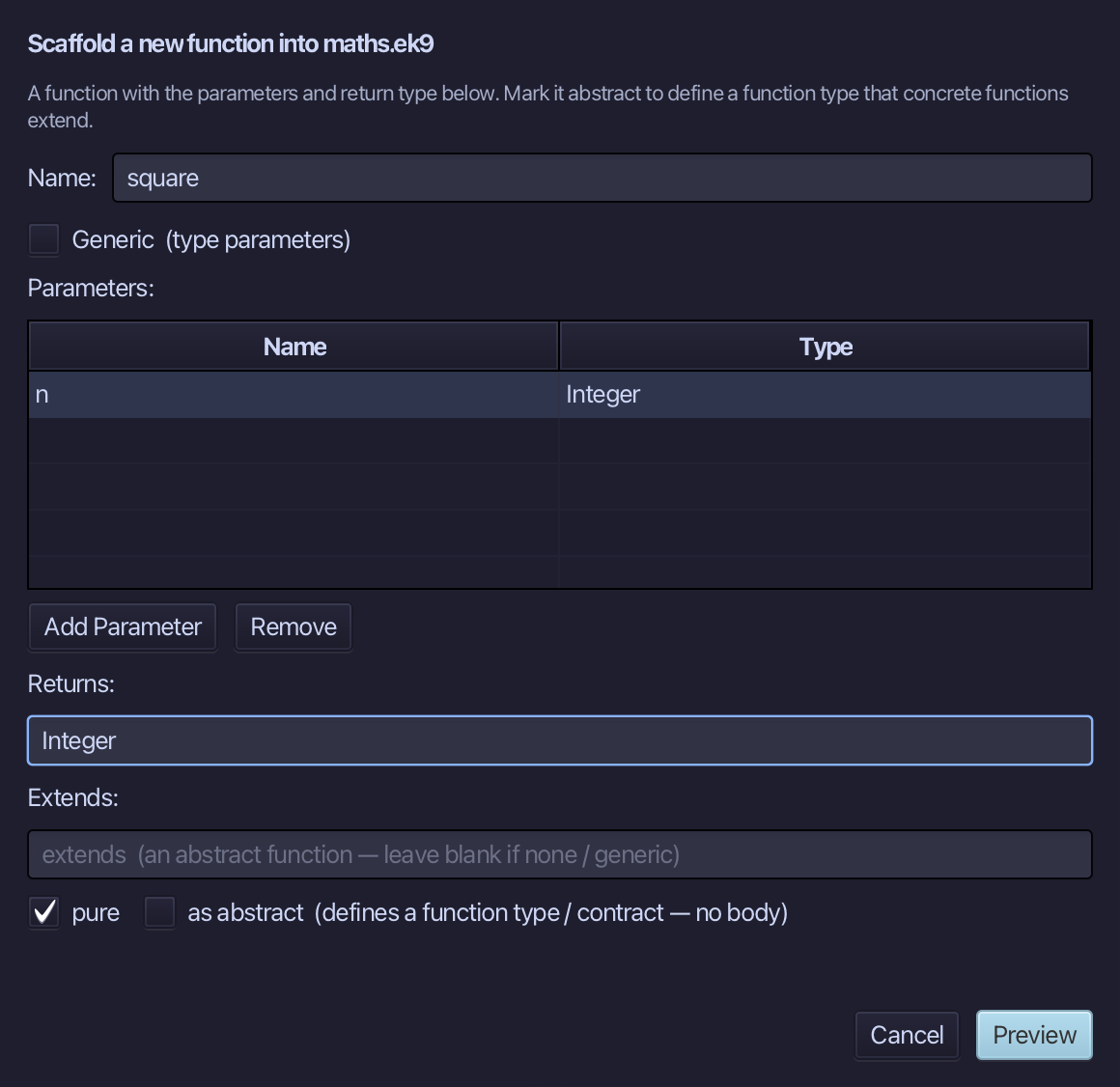
The preview shows square about to be written, pure, n in and Integer out. Choose Apply.
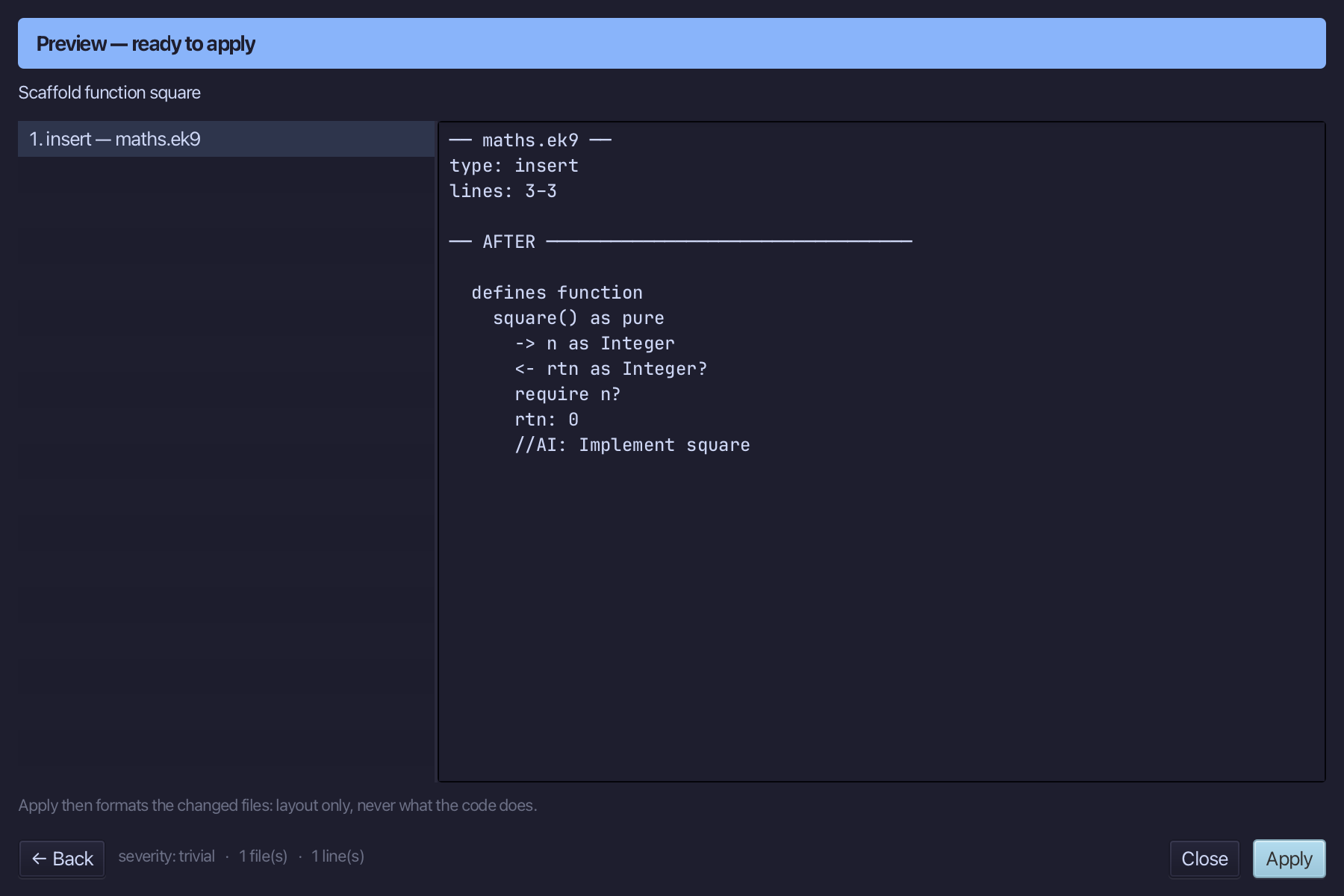
Select the square() as pure line, and above it type the blank line every chapter example opens its first member with. Saves when typed.
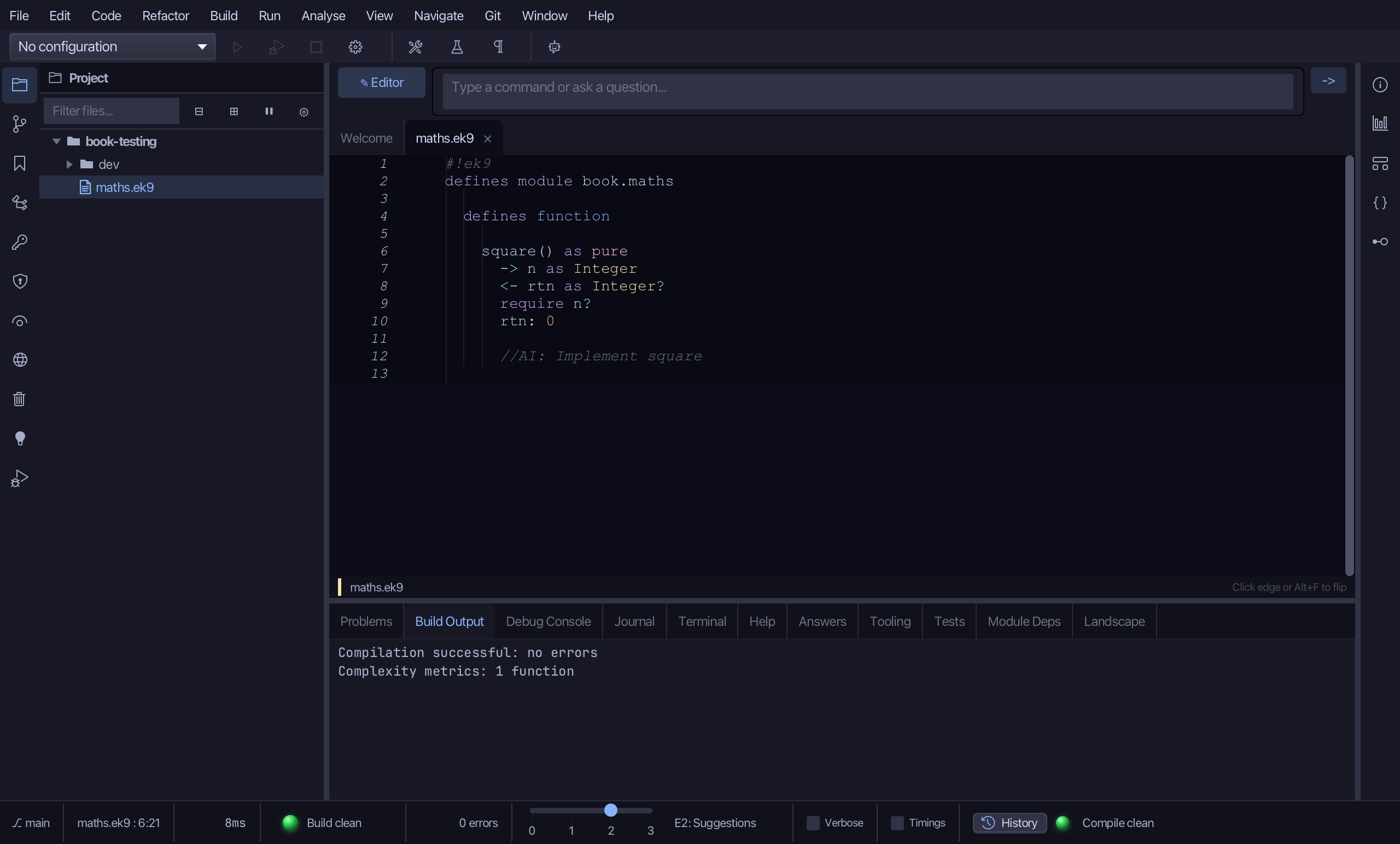
Select the stub, from <- rtn as Integer? down to its //AI line, and type the real calculation, returned as result: n * n. Saves when typed.
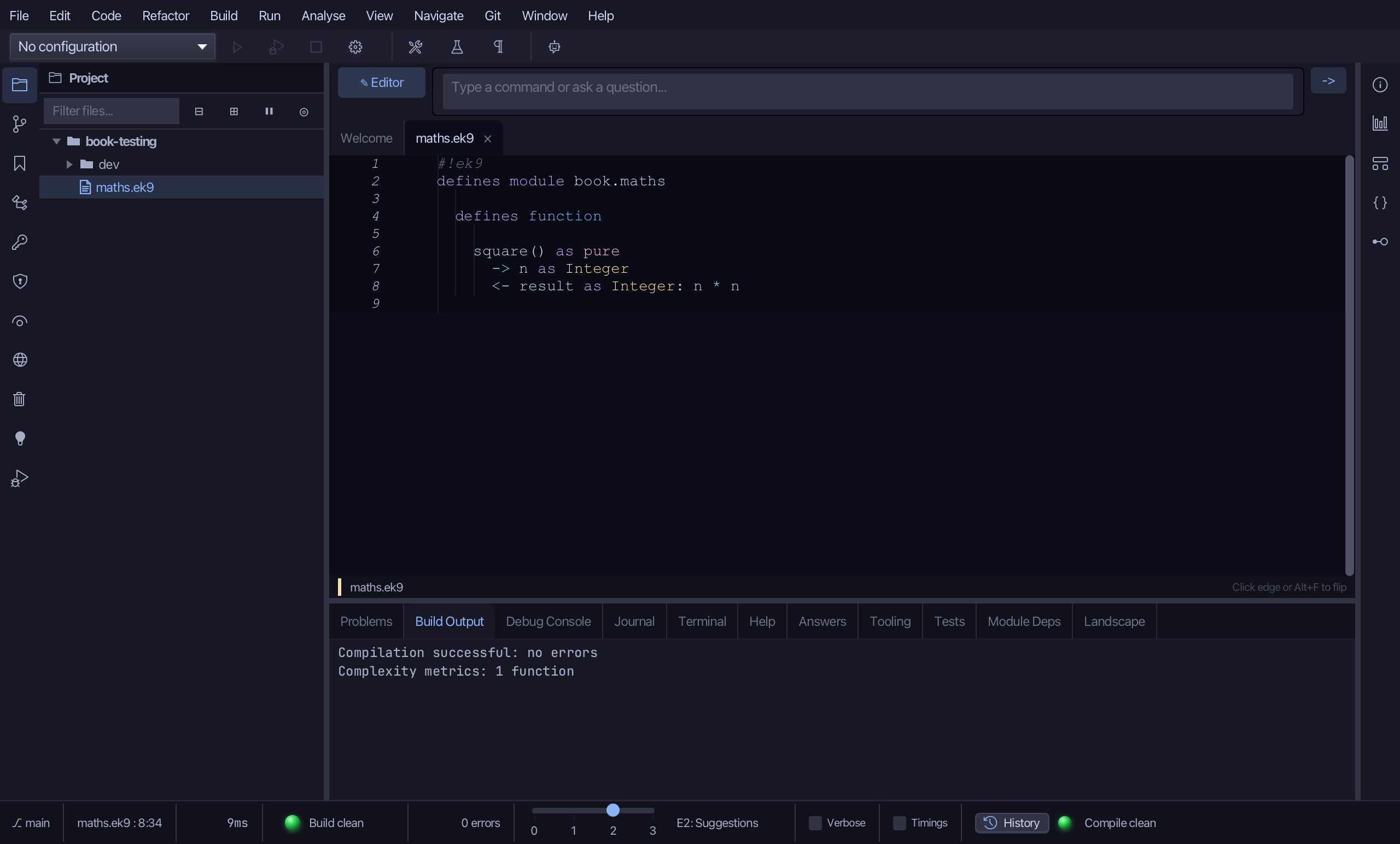
Step 2: cube — a pure function
Choose Code > New Construct > Function…
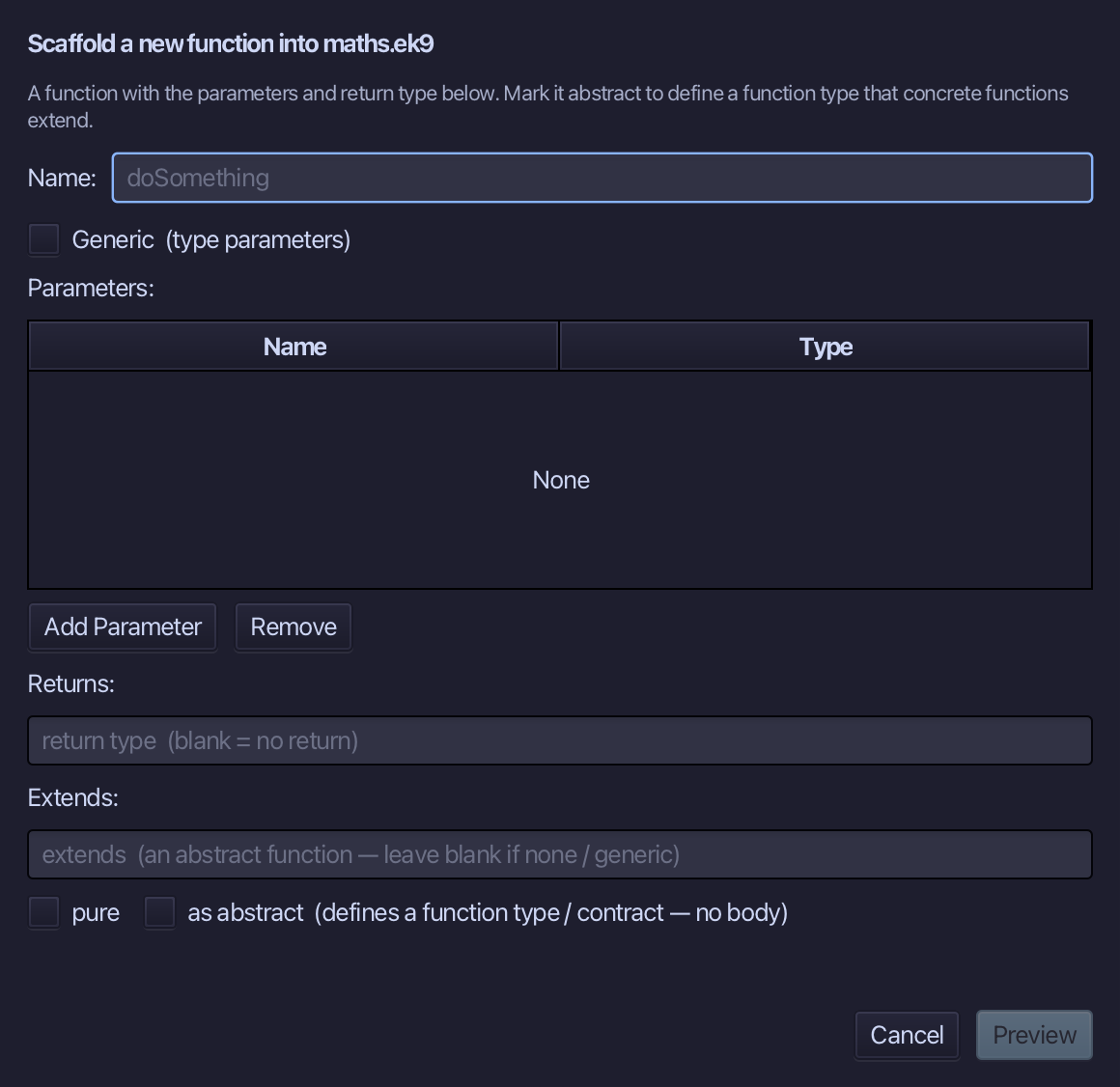
cube is the function's name. Add one parameter, n of type Integer, set Returns to Integer, and tick pure, as square's were. Choose Preview.
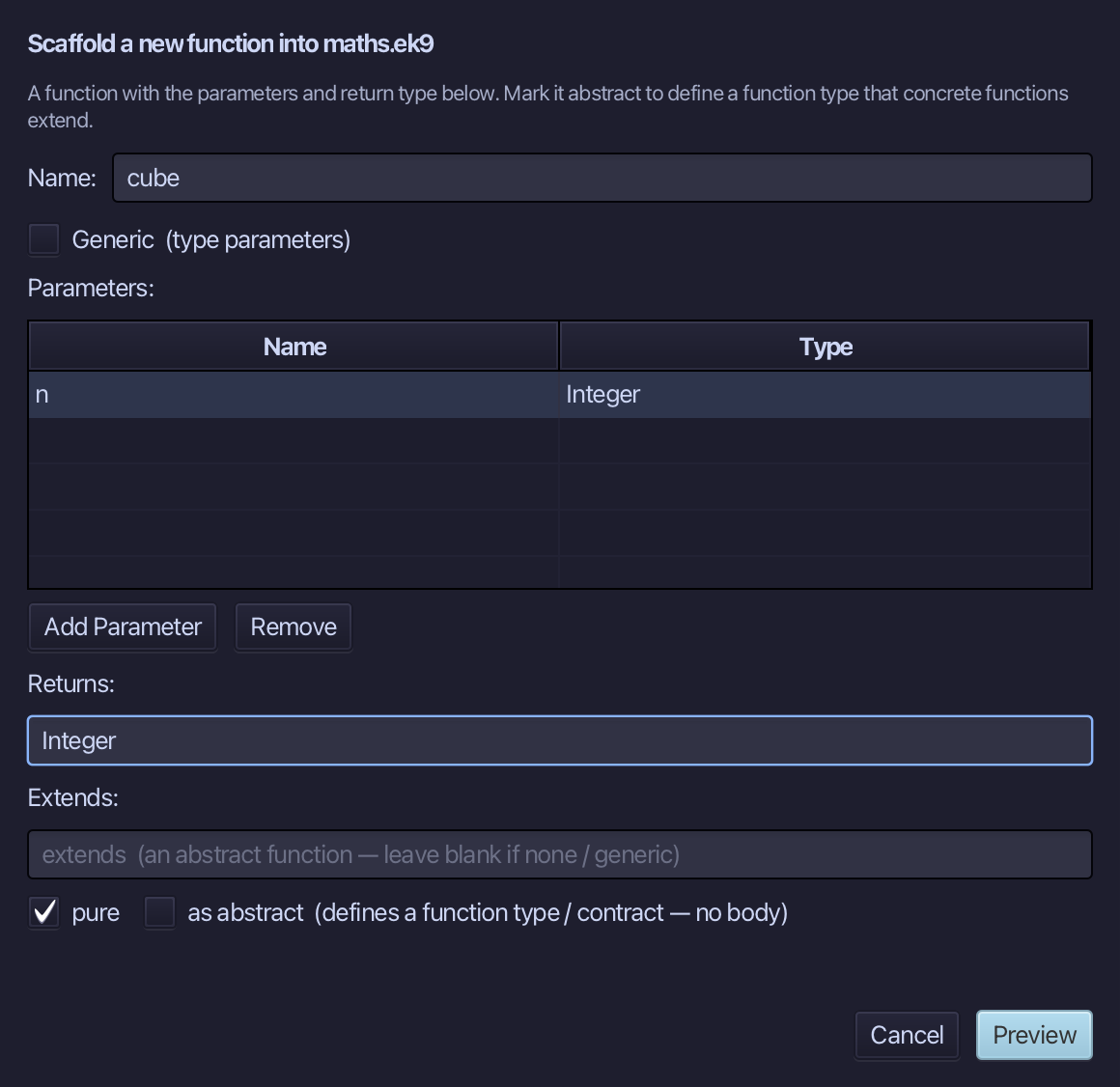
The preview shows cube about to be written, added to the same defines function block as square. Choose Apply.
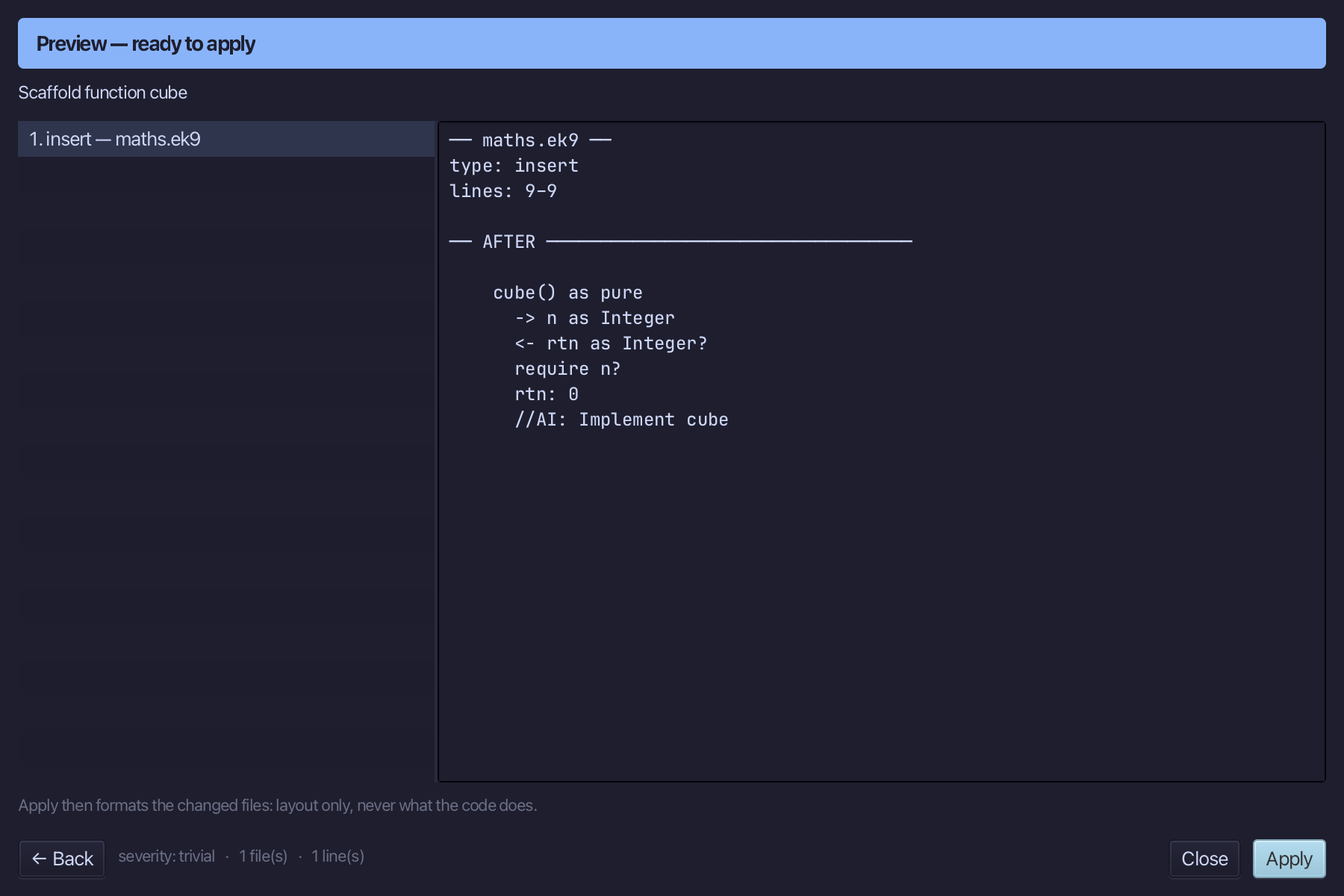
Select the stub, from <- rtn as Integer? down to its //AI line, and type the real calculation, returned as result: n * n * n. Saves when typed.
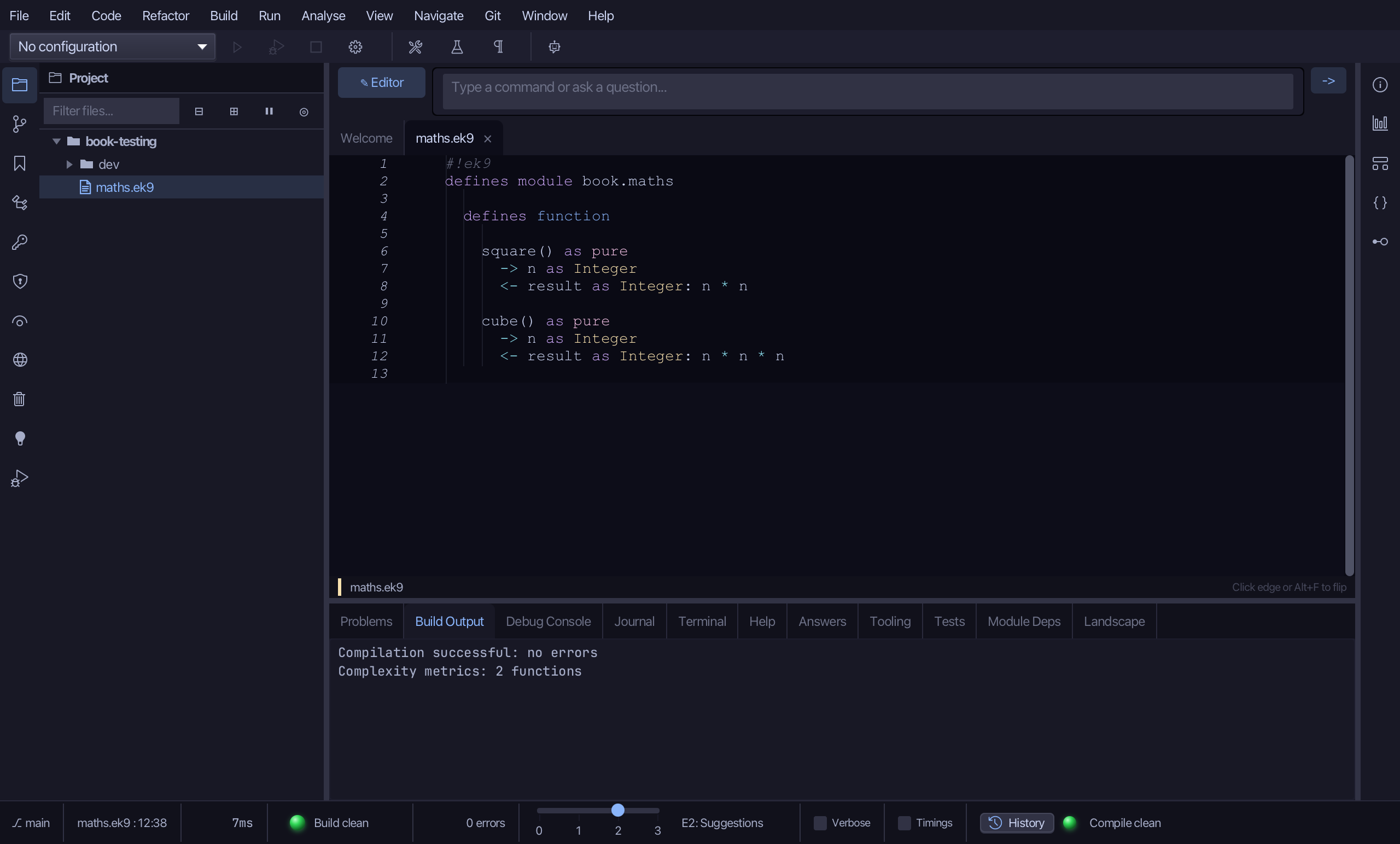
Step 3: Where tests live
Open dev/tests.ek9 - already there, with just its own module line. Test code goes in a directory named dev/, kept apart from the code you ship.
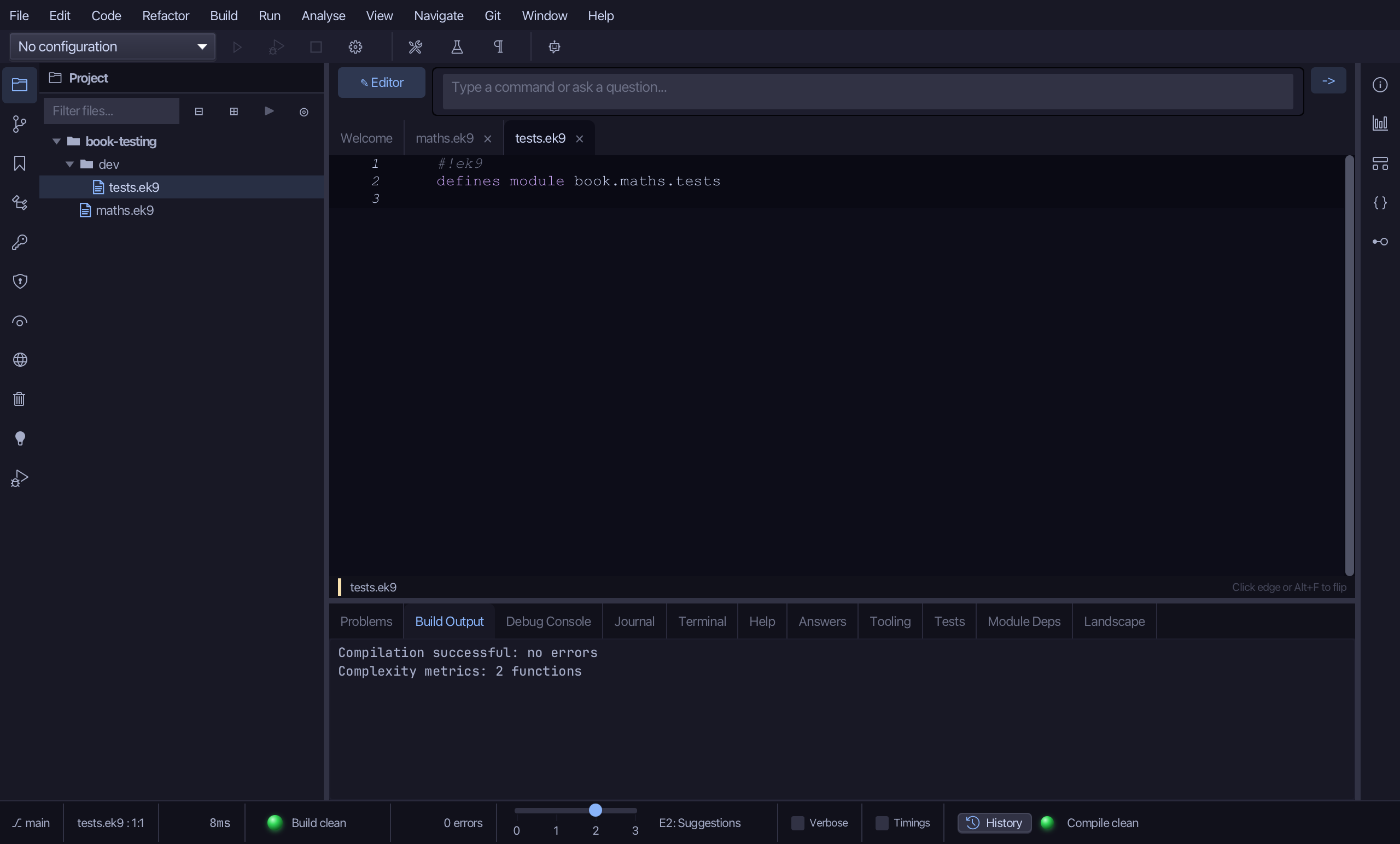
Select the module line, and below it type a references block bringing in cube and square from book.maths - in alphabetical order, which EK9 requires, so a long list of references is always easy to scan. Saves when typed.
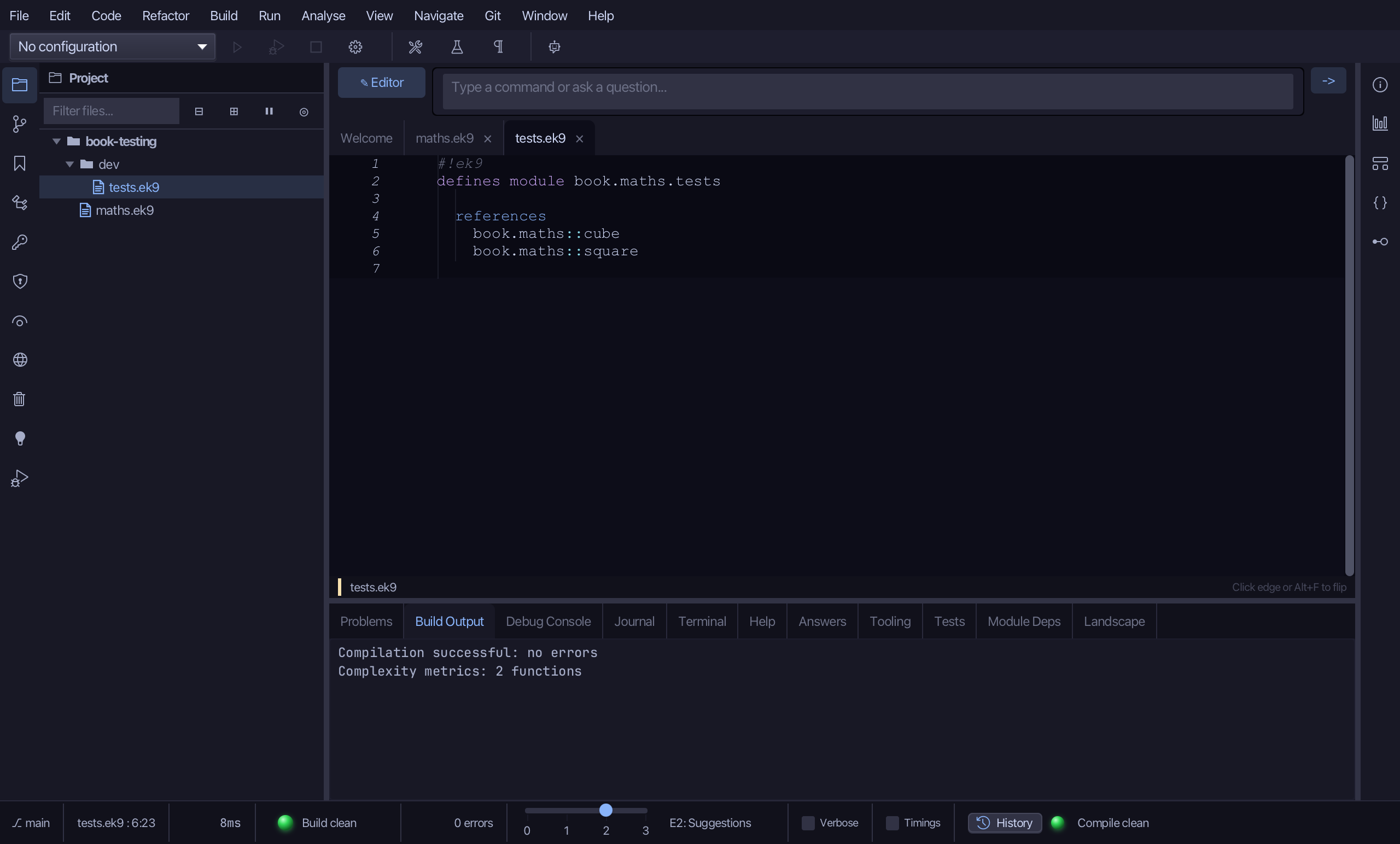
Step 4: SquareTest
Choose Code > New Construct > Test…
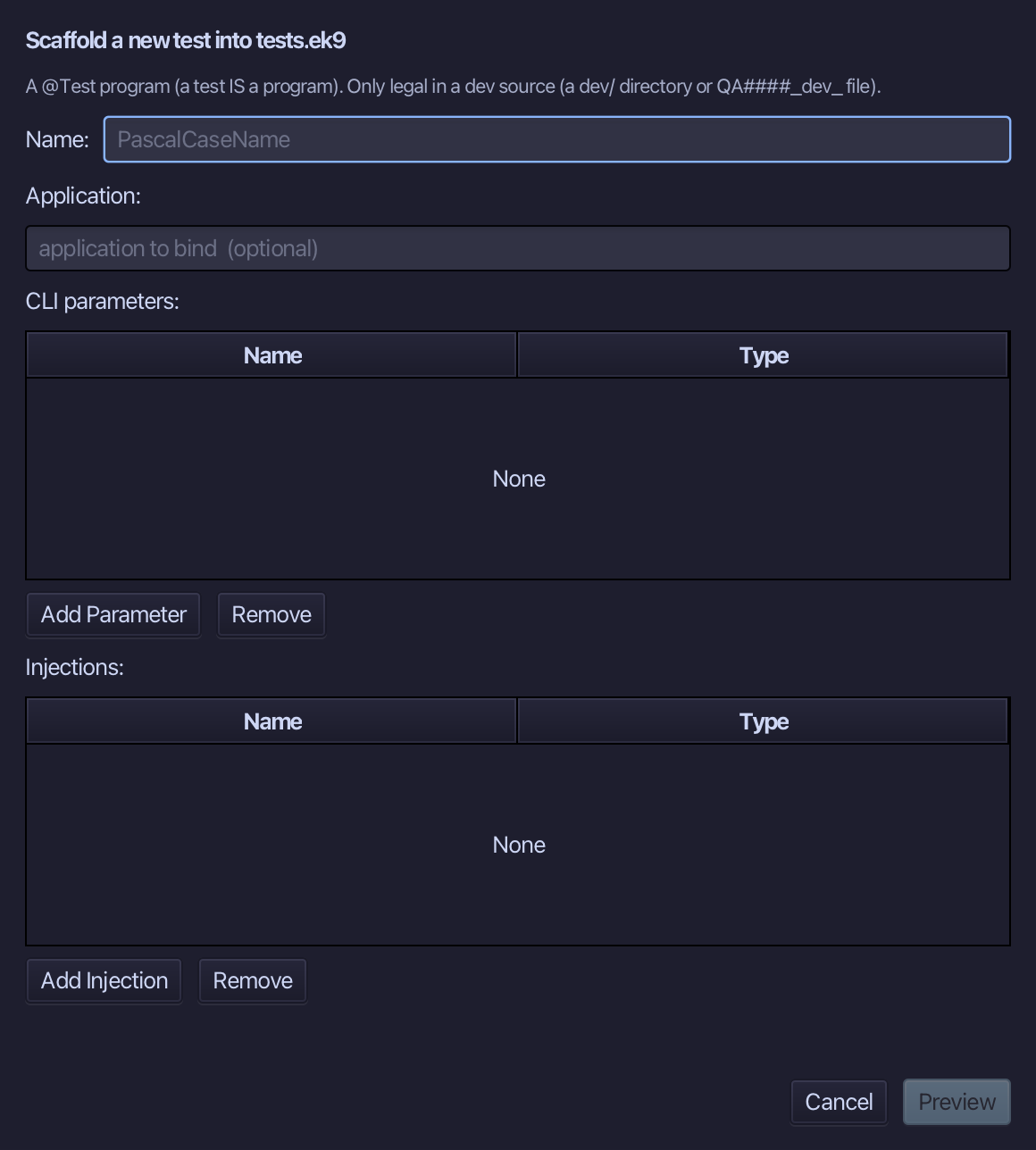
SquareTest is the test's name - a test IS a program, so it is named the same way: no application, no parameters, nothing injected. Type SquareTest and choose Preview.
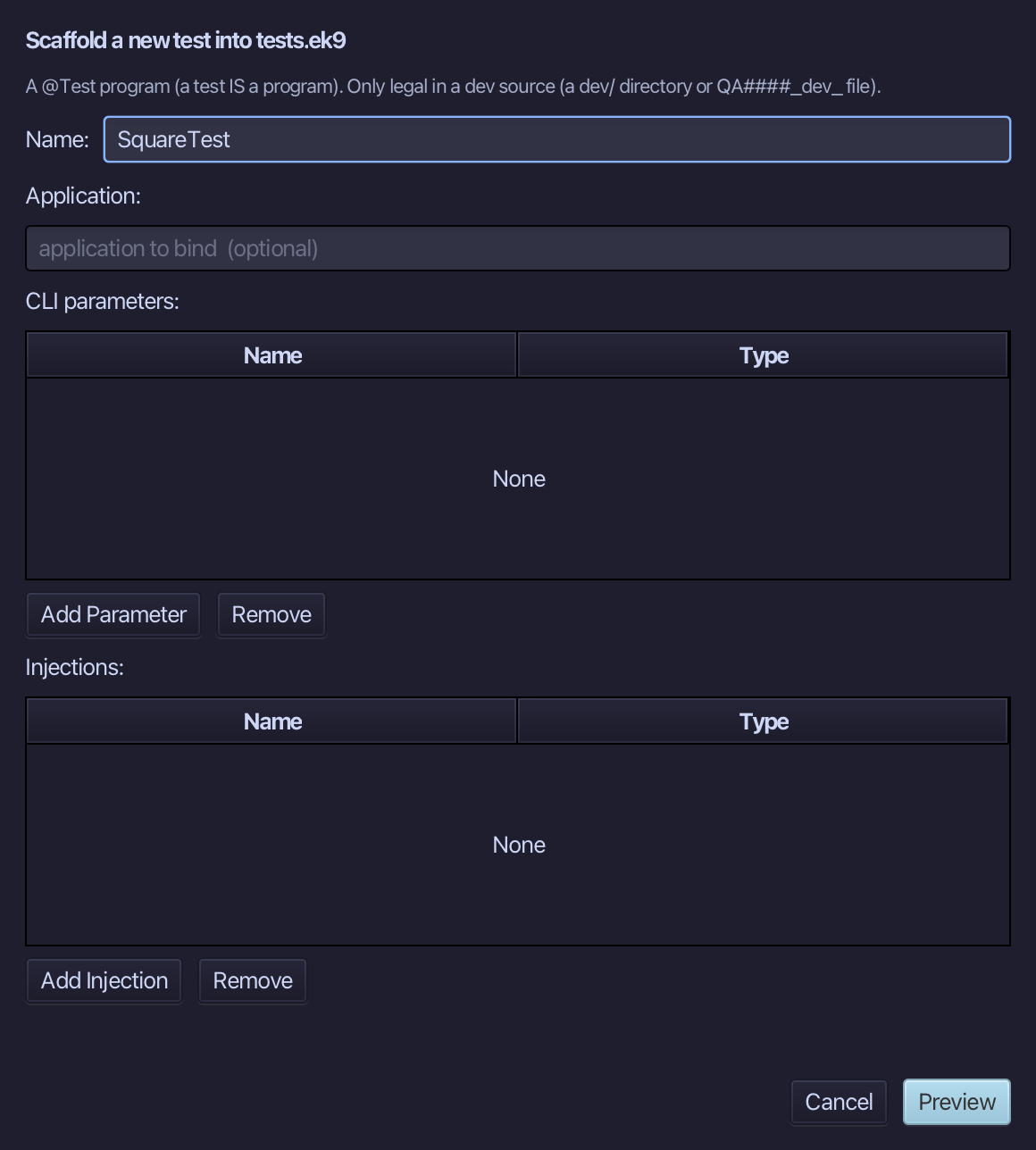
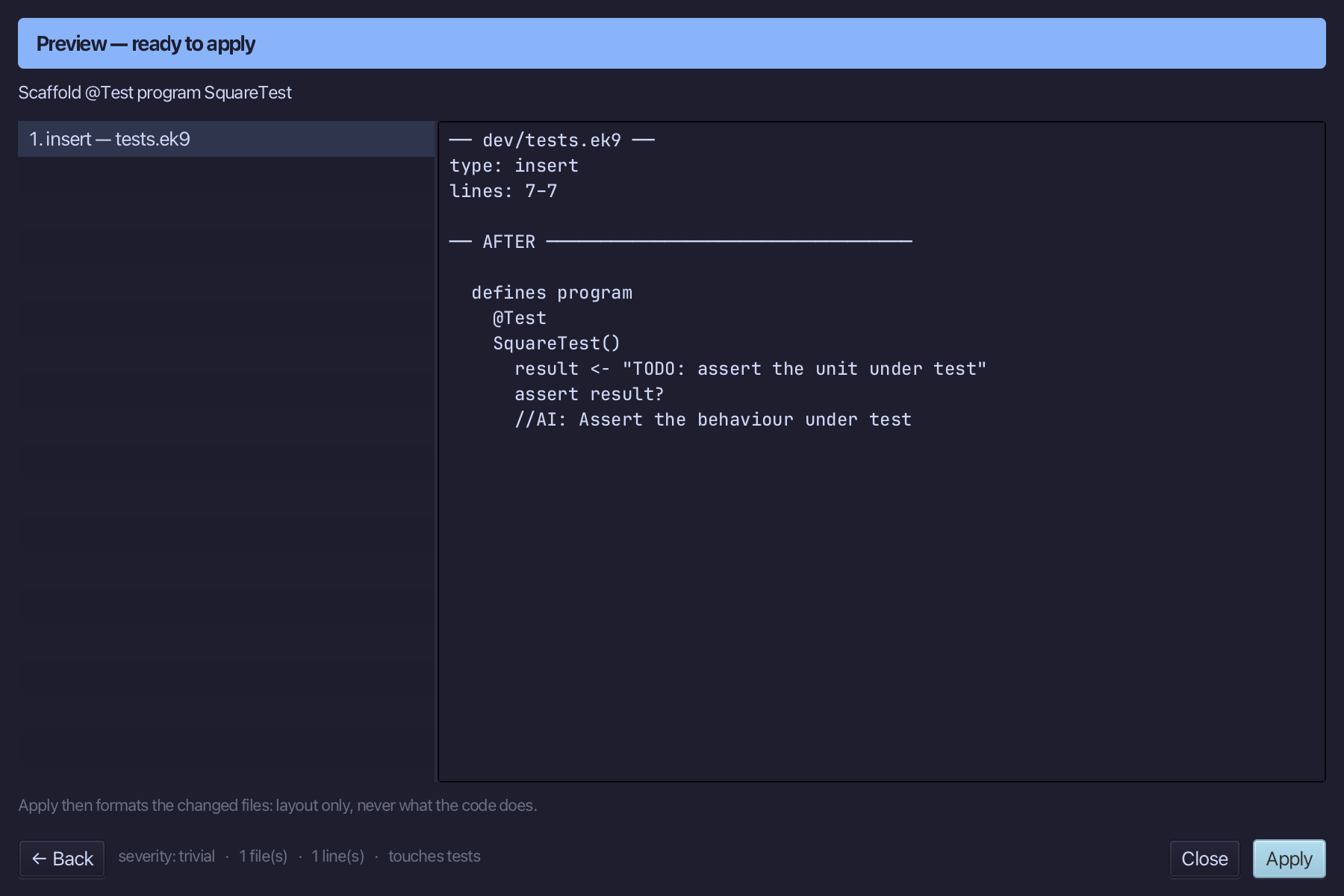
The preview shows SquareTest about to be written, marked @Test, with a placeholder assertion standing in for the real one. Choose Apply.
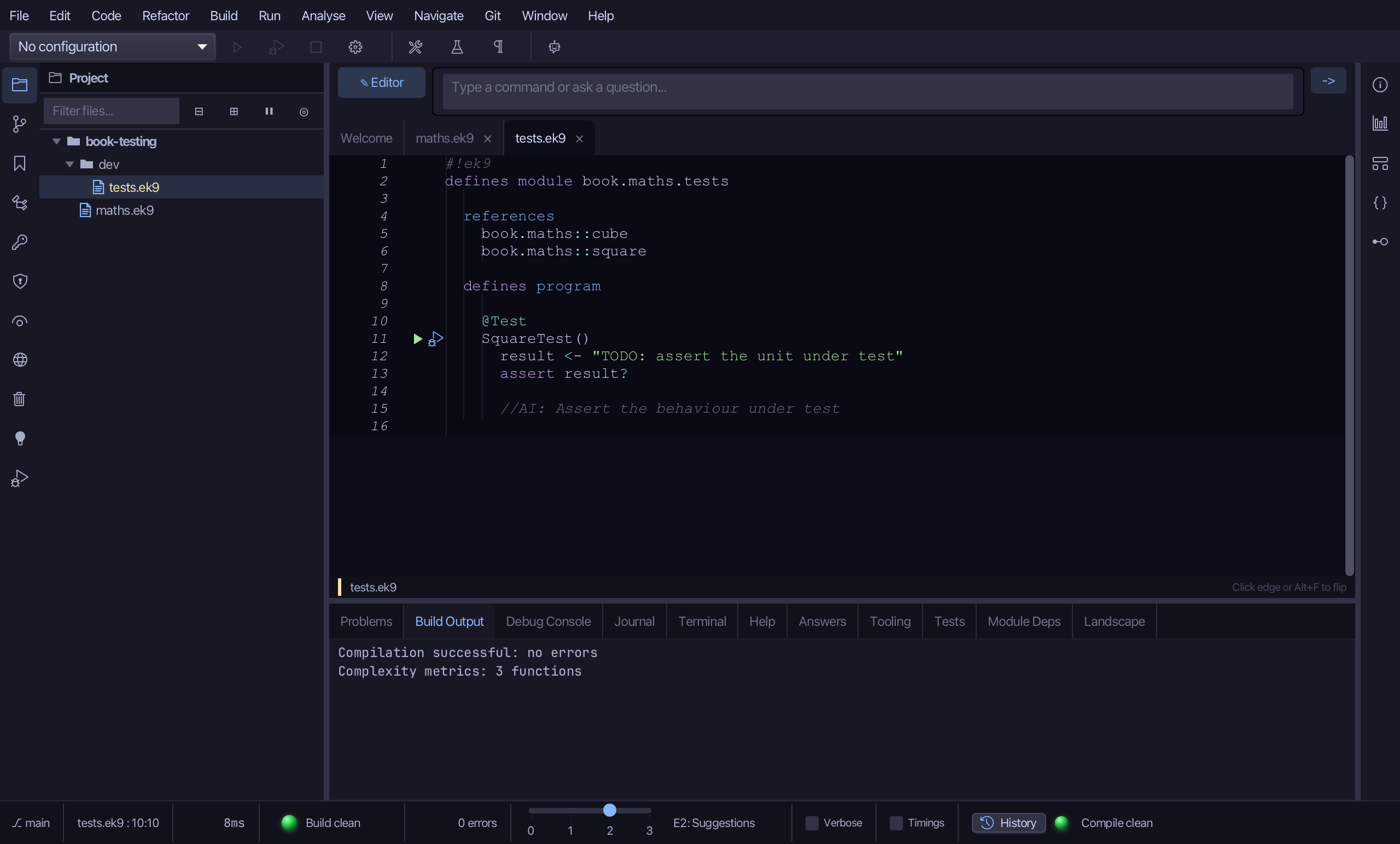
Select the @Test line, and above it type the blank line every chapter example opens its first member with. Saves when typed.
Select the stub, from result <- "TODO: assert the unit under test" down to its //AI line, and type the real claim: assert square(3) == 9. Saves when typed.
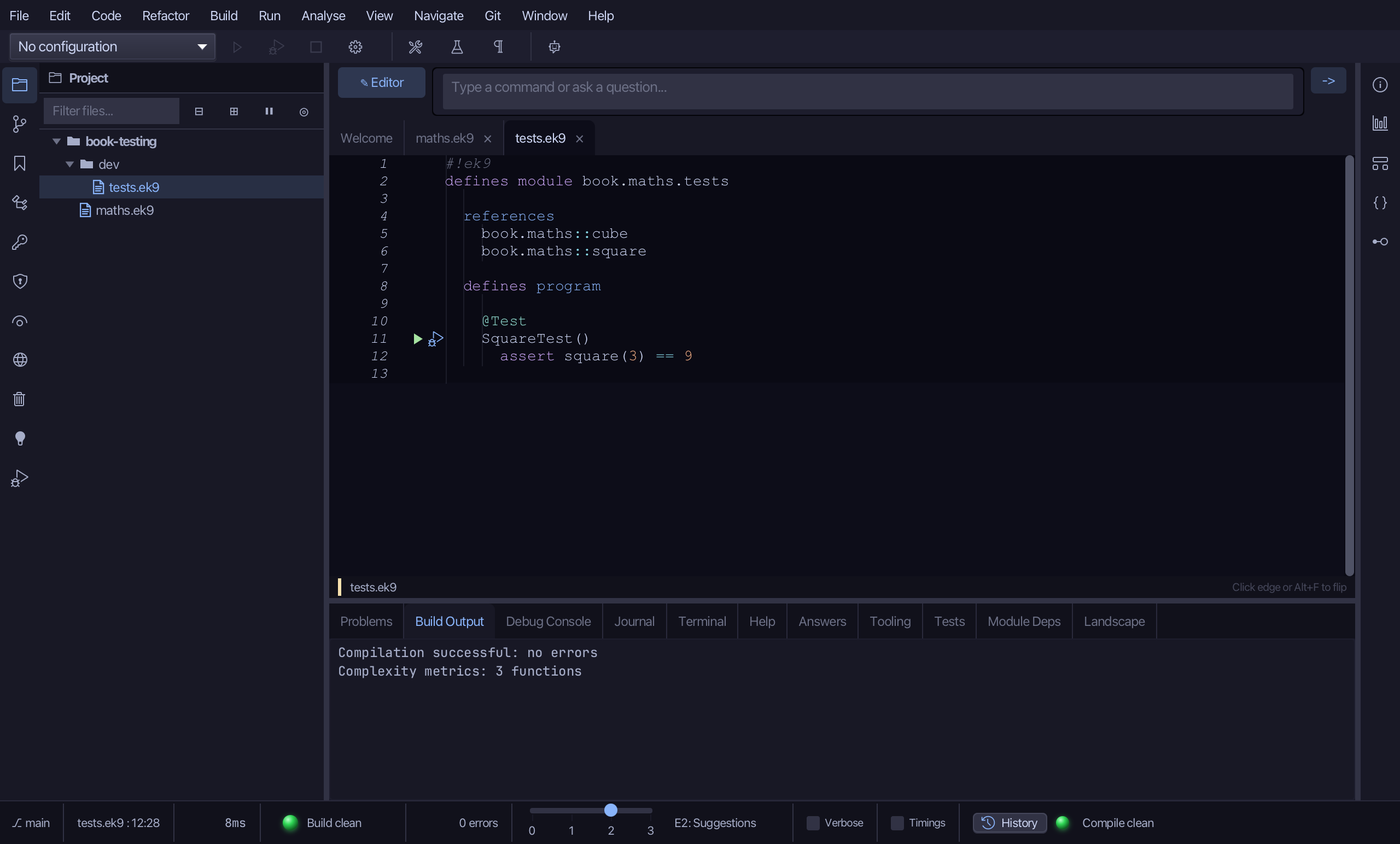
Step 5: CubeTest
Choose Code > New Construct > Test…
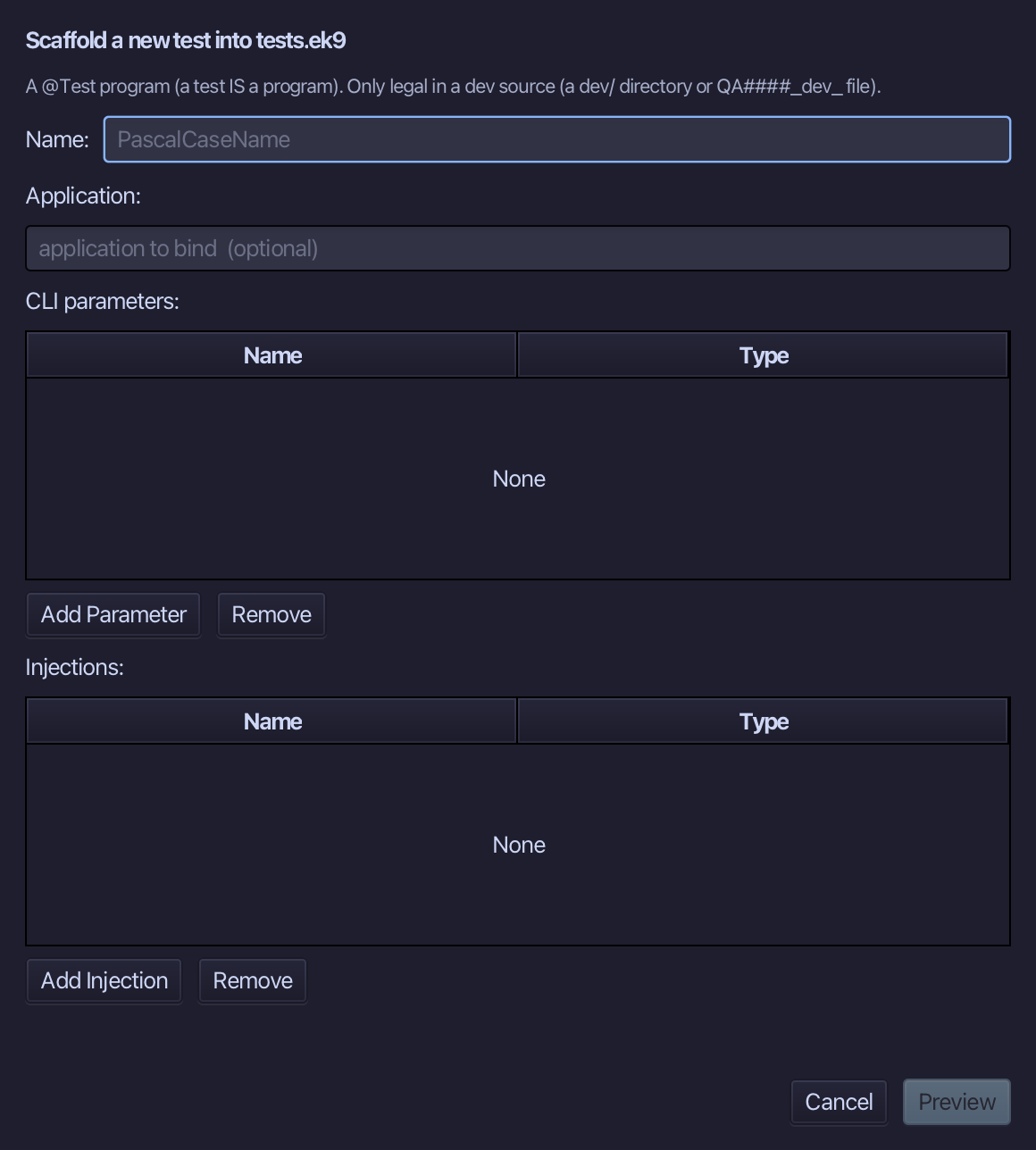
CubeTest is the name, as plain as SquareTest's. Type CubeTest and choose Preview.
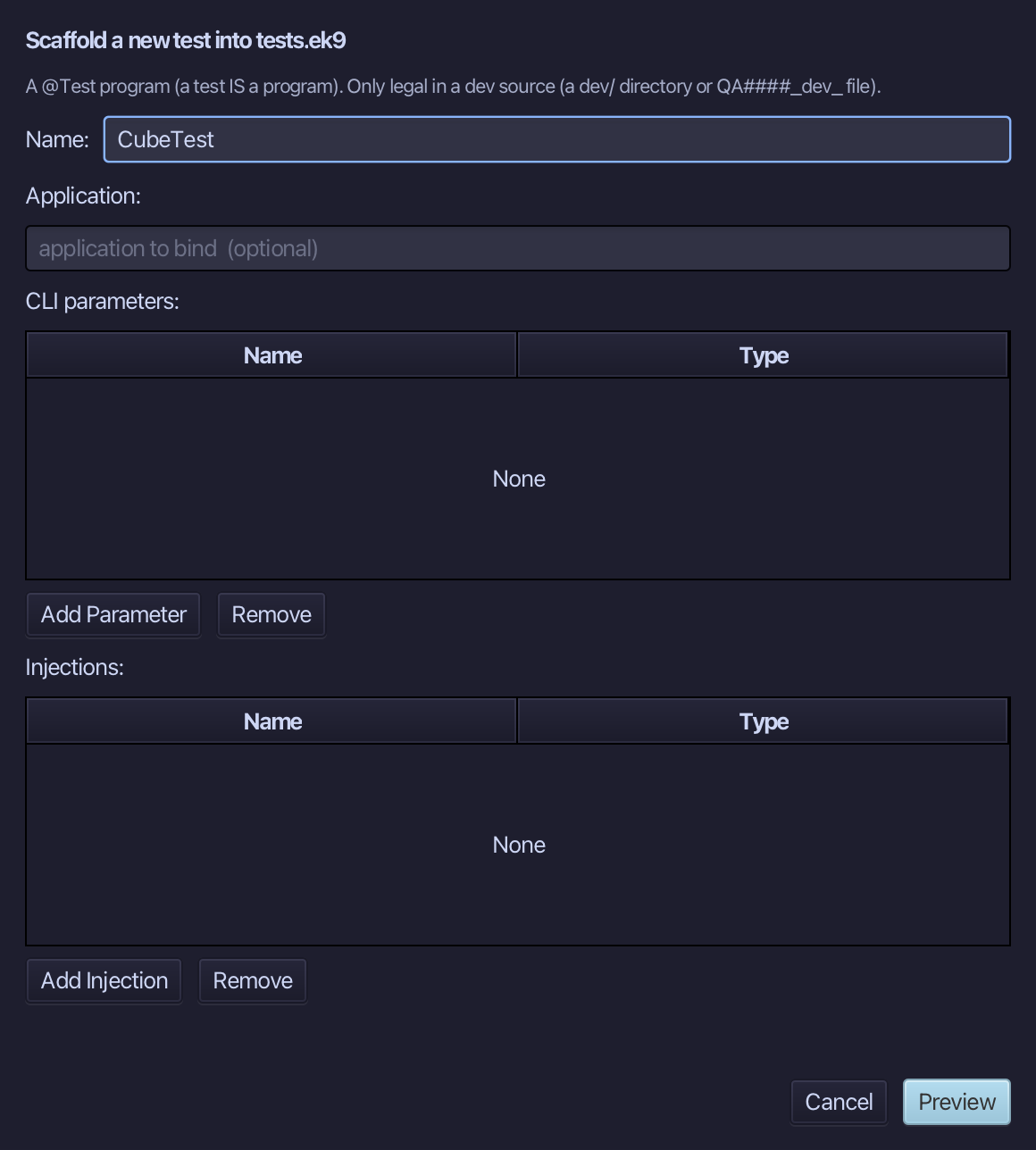
The preview shows CubeTest about to be written, added to the same defines program block as SquareTest. Choose Apply.
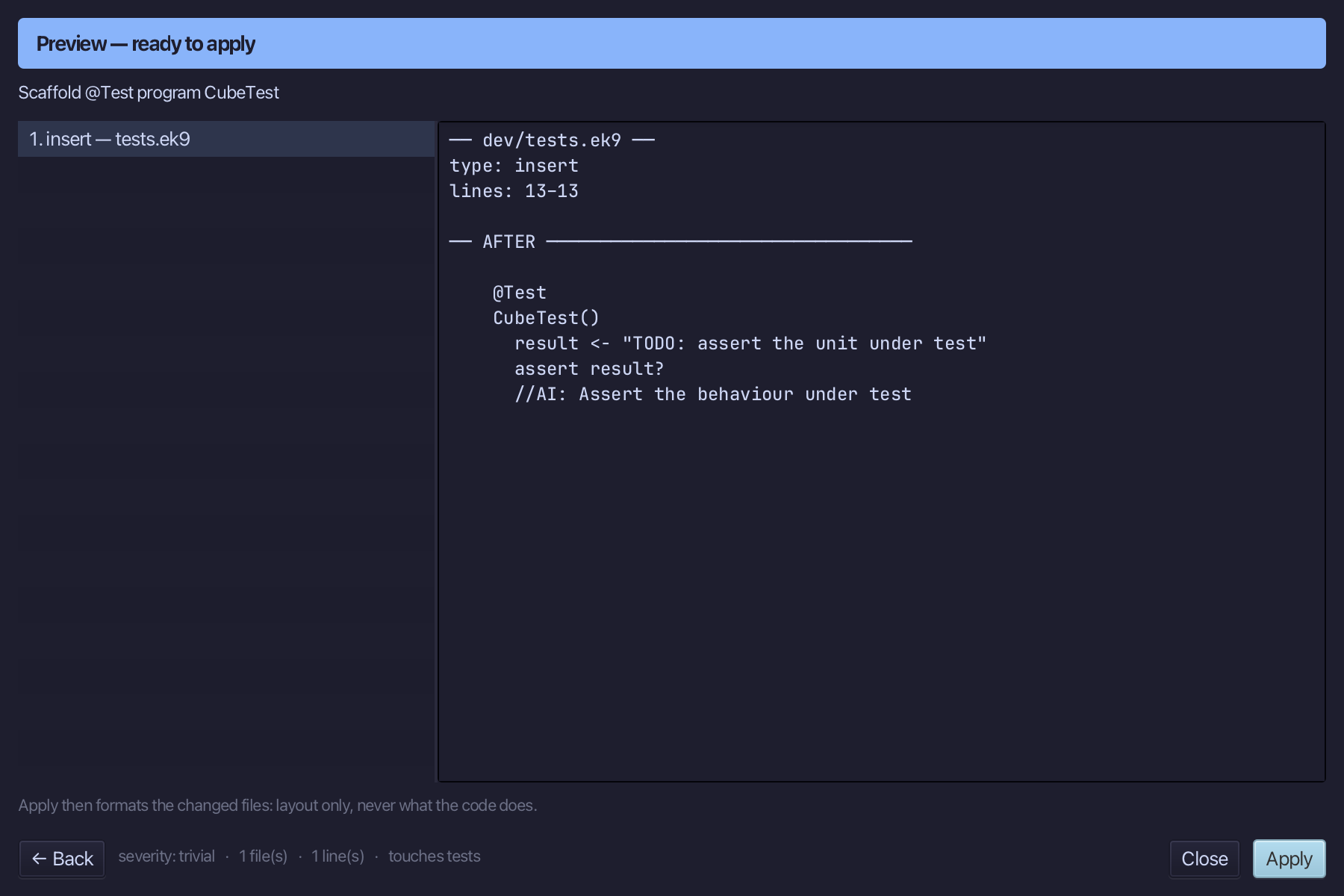
Select the stub, from result <- "TODO: assert the unit under test" down to its //AI line, and type the real claim: assert cube(2) == 8. Saves when typed.
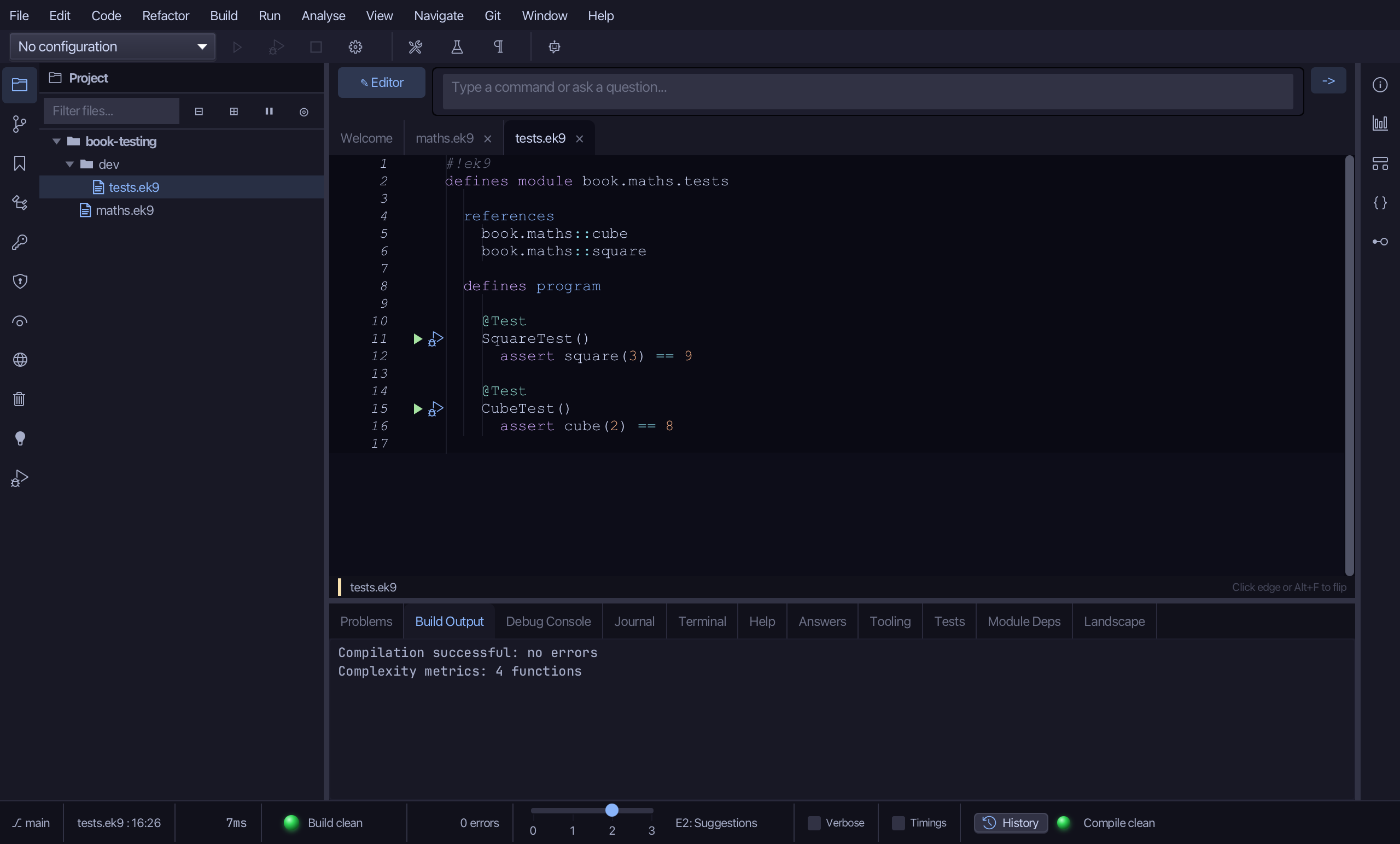
Step 6: Run the tests
Run ▸ Run Tests (⌘T) runs every @Test in the project - SquareTest and CubeTest both - and reports pass or fail, the same as ek9 -t at the command line. Choose Run Tests.
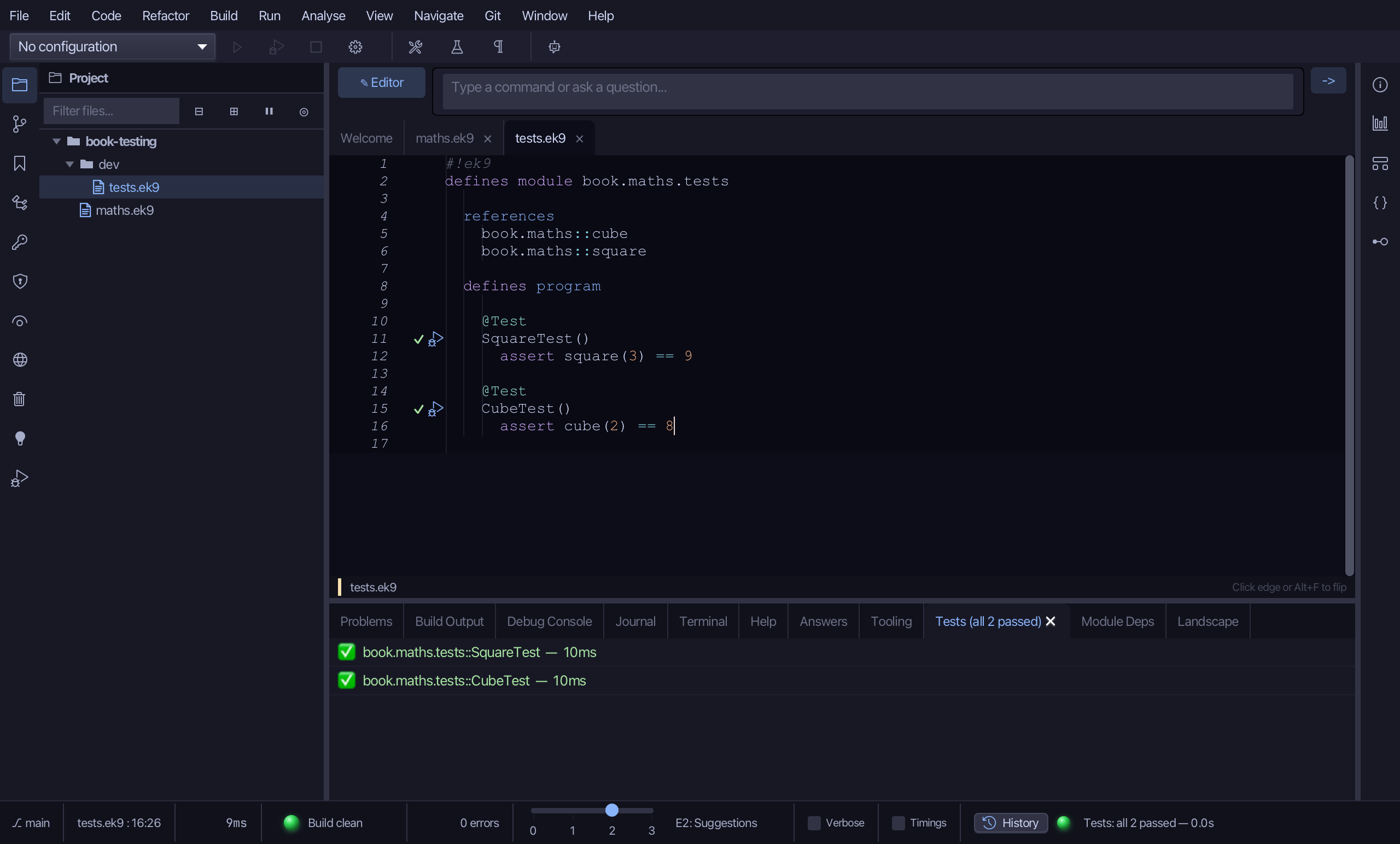
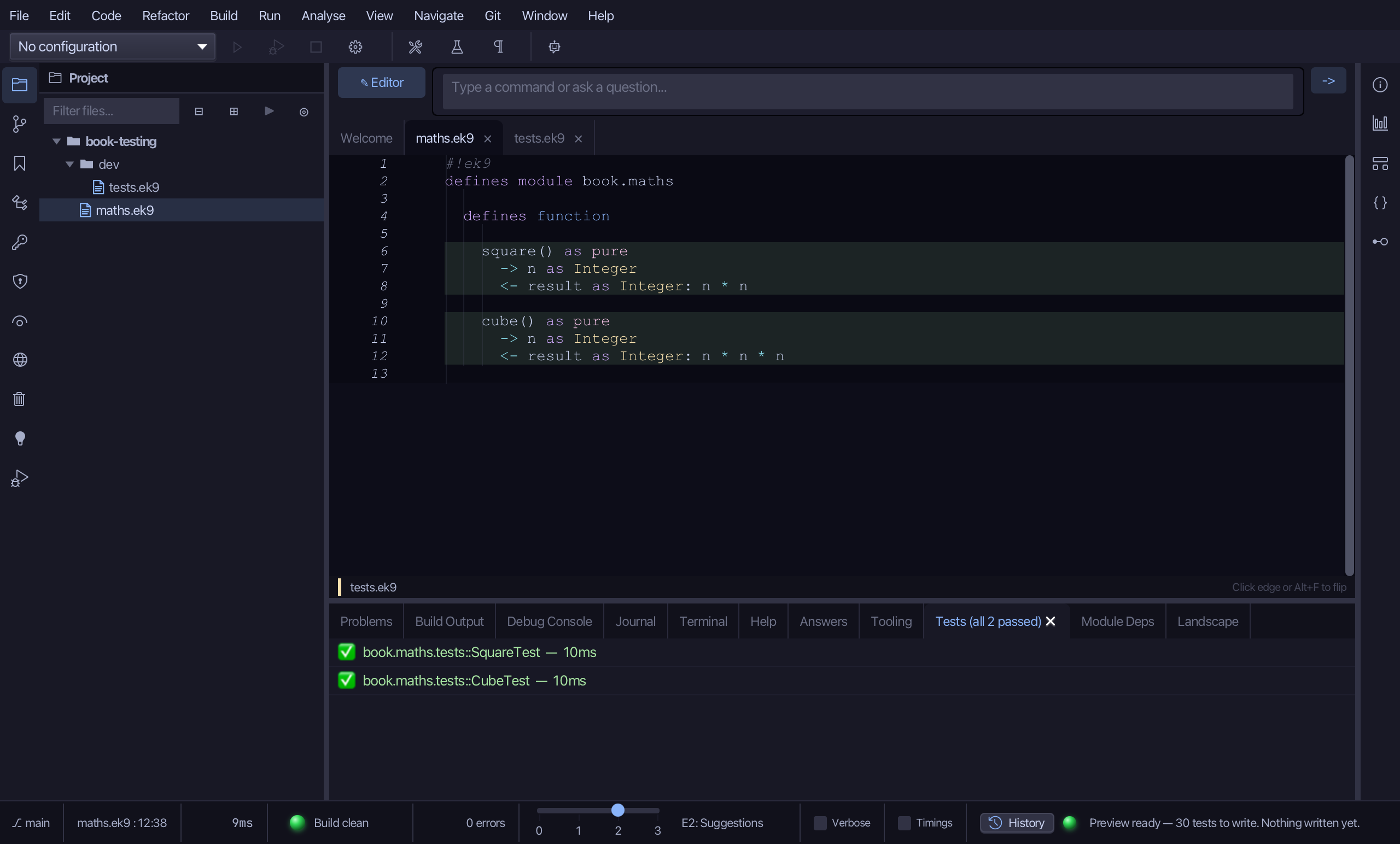
The Tests tab lists SquareTest and CubeTest, each with a green tick - both passed. The bodies of square and cube in the editor are shaded too: that is coverage, every line your tests ran, turned on automatically by the run (View ▸ Toggles ▸ Coverage Highlighting toggles it by hand). Covered is not the same as tested - square(3) and cube(2) are both small, positive numbers, one kind of input between them.
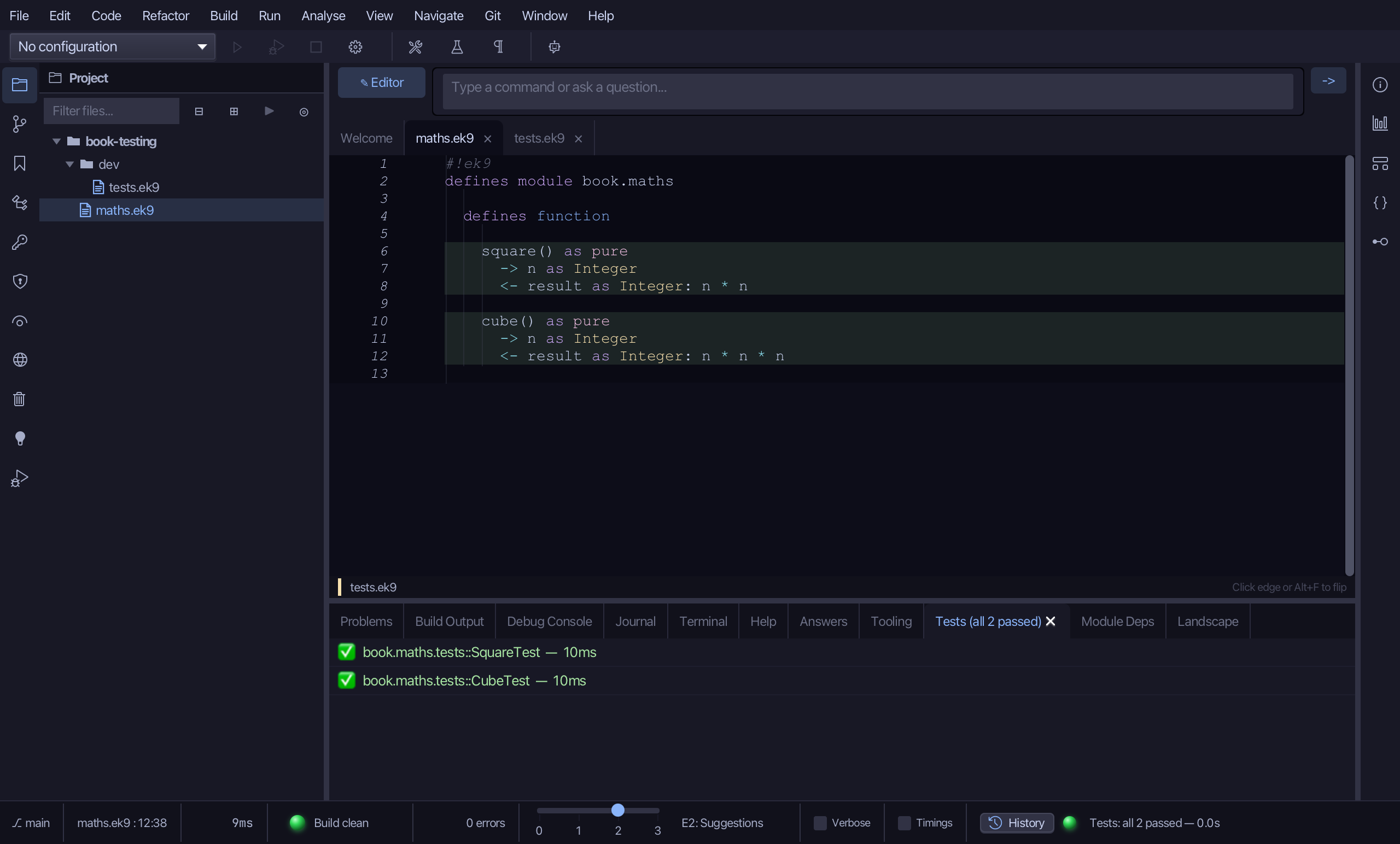
Step 7: Generate Edge-Case Tests
Choose Code > Generate > Edge-Case Tests (whole file)…
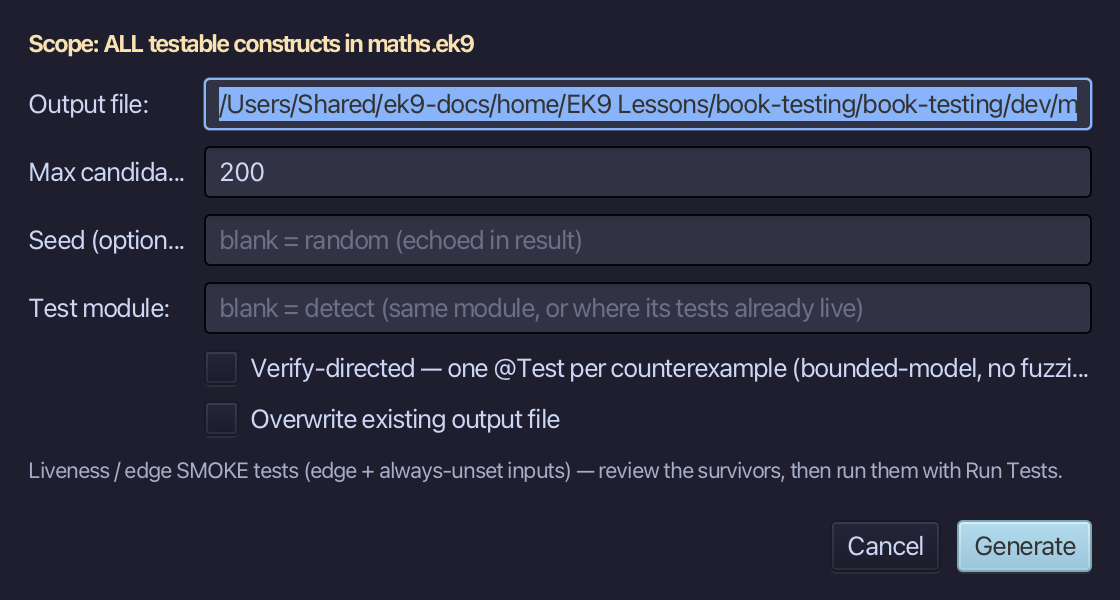
The dialog already has sensible defaults - the output routed to dev/, 200 candidates, a random seed. Choose Generate.
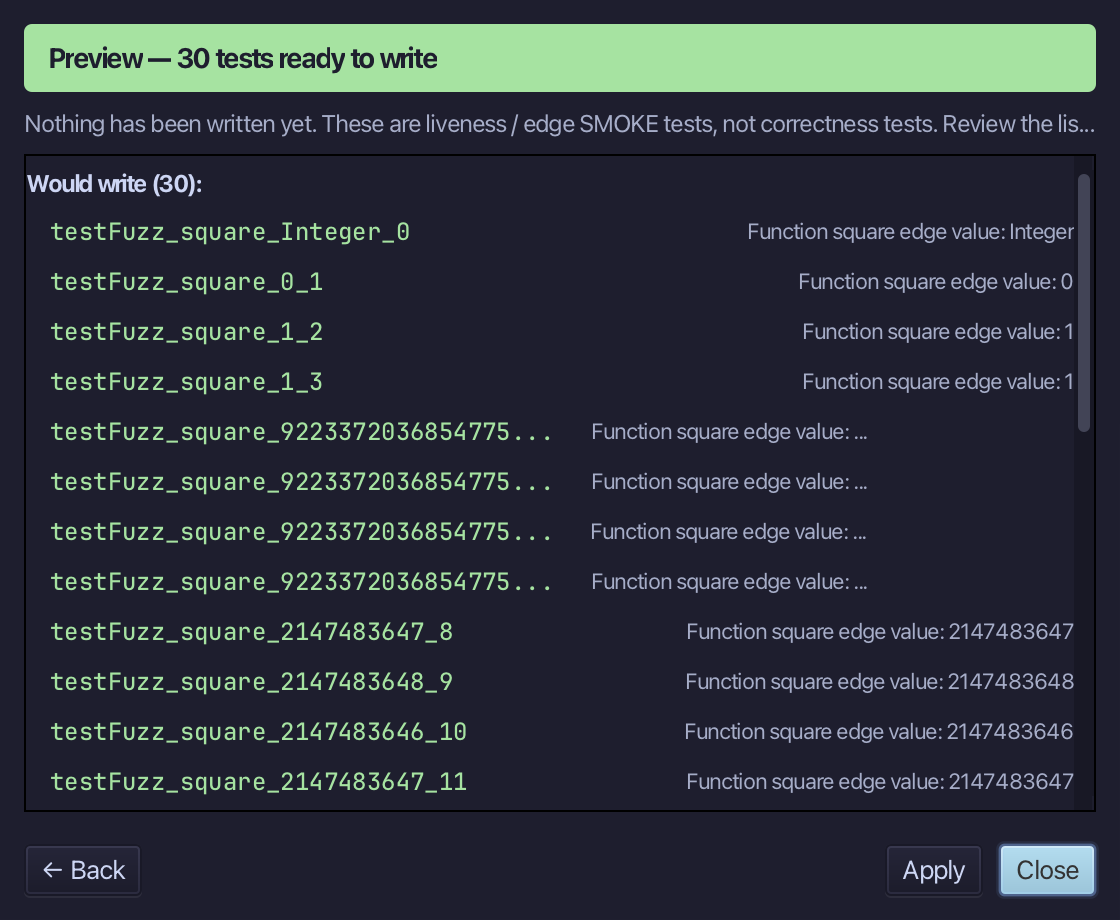
However many of the 200 candidates survive compiling and running clean are listed - edge and always-unset inputs that SquareTest and CubeTest never tried. These are liveness checks, not correctness tests: review them, then run them with Run Tests, the same as any other @Test. Choose Close.
The result
maths.ek9 and dev/tests.ek9 now read exactly as chapter 5 of Getting Started with EK9 shows them: two pure functions and the @Test programs that check them, each tool-built, each real claim typed. Run Tests found both passing and shaded every line they covered; Generate Edge-Case Tests then tried inputs neither test chose - the reminder that covered is not the same as tested. The same tools - ek9_new_construct, ek9_add_program and ek9_generate_edge_case_tests - are what an AI assistant calls to do the same thing.
Where this lesson comes from
- For AI assistants - the MCP tool
ek9_new_construct,ek9_add_program,ek9_run_tests,ek9_generate_edge_case_tests.