Run configurations
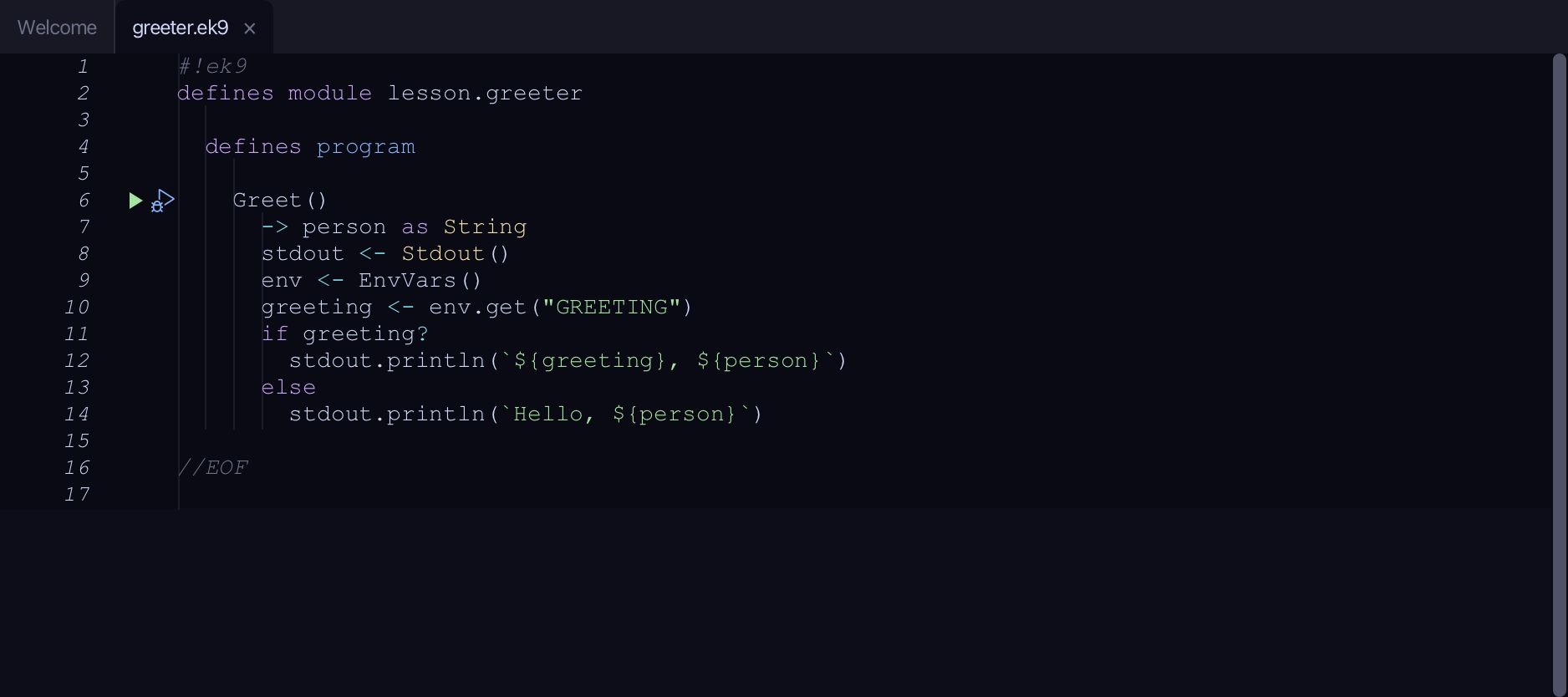
Greet takes a person's name as its argument and greets them with whatever the GREETING environment variable says - Hello when nothing sets it. The argument and the environment are two things a run needs that are not in the code. A run configuration keeps them, under a name, so you do not type them again; this lesson saves two for Greet and switches between them. Read greeter.ek9. To play it in the IDE: Help > Lessons > Running and testing…, or ek9 -ide -lesson run-configurations.
Start from
The code the lesson starts from: copy it into a file of your own and follow the steps.
#!ek9
defines module lesson.greeter

  defines program

    Greet()
      -> person as String
      stdout <- Stdout()
      env <- EnvVars()
      greeting <- env.get("GREETING")
      if greeting?
        stdout.println(`${greeting}, ${person}`)
      else
        stdout.println(`Hello, ${person}`)

//EOF
Step 1: A one-off run
Choose Run > Run Program…
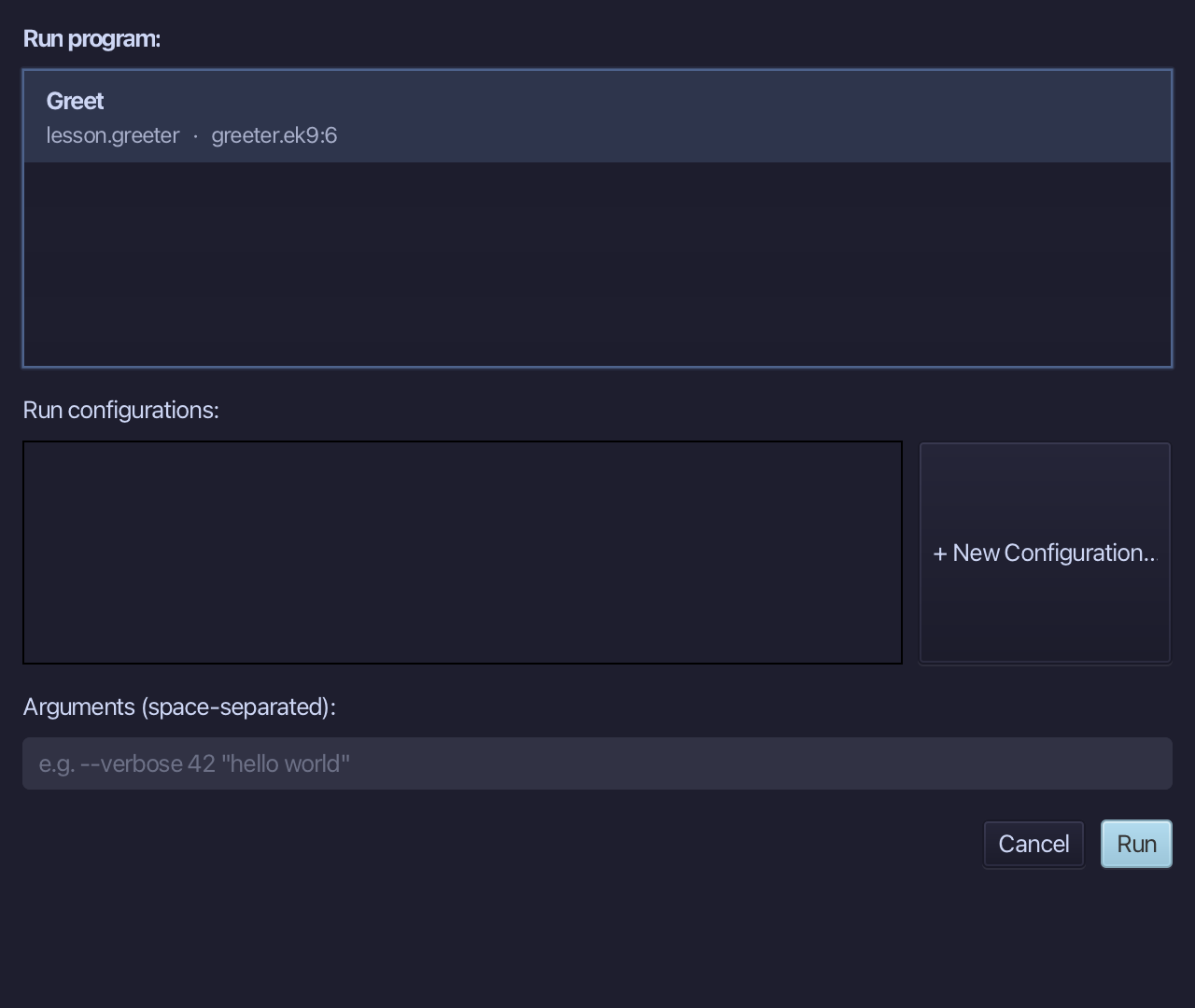
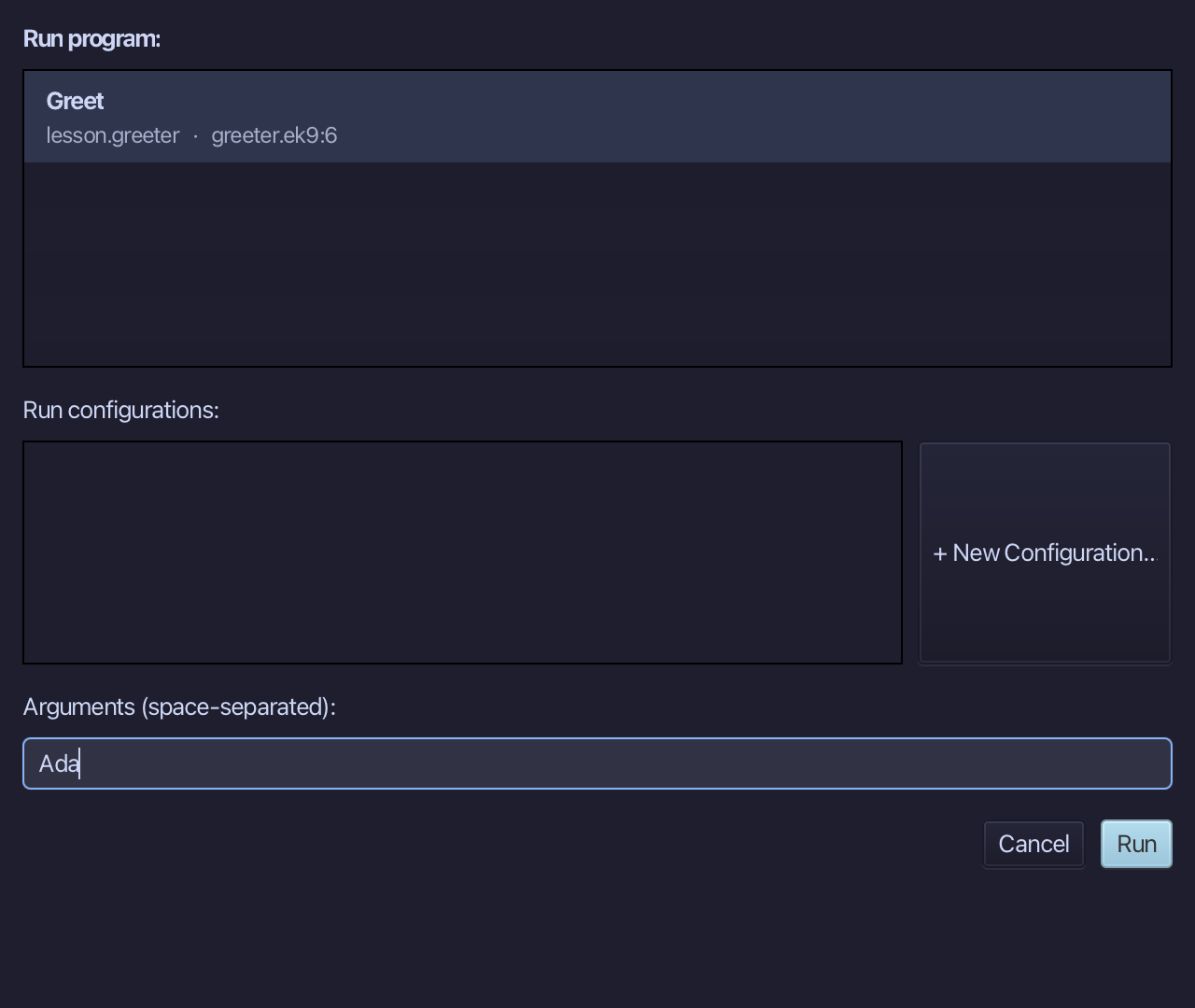
Type Ada into Arguments (space-separated), then choose Run.
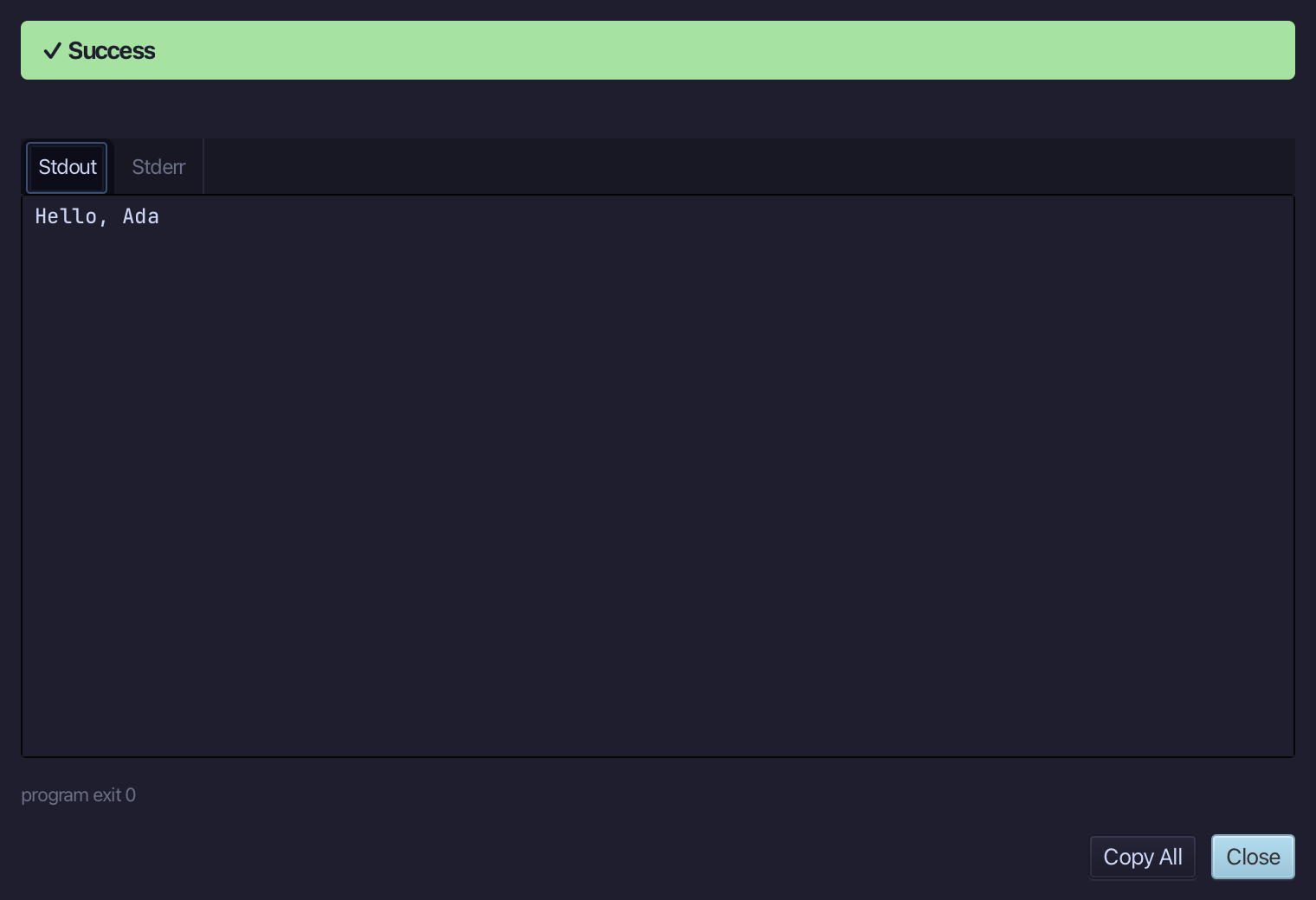
Hello, Ada - nothing sets GREETING, and the argument you typed was used once and not kept. Run Program… is for a run you will not repeat. Choose Close.
Step 2: Save two configurations
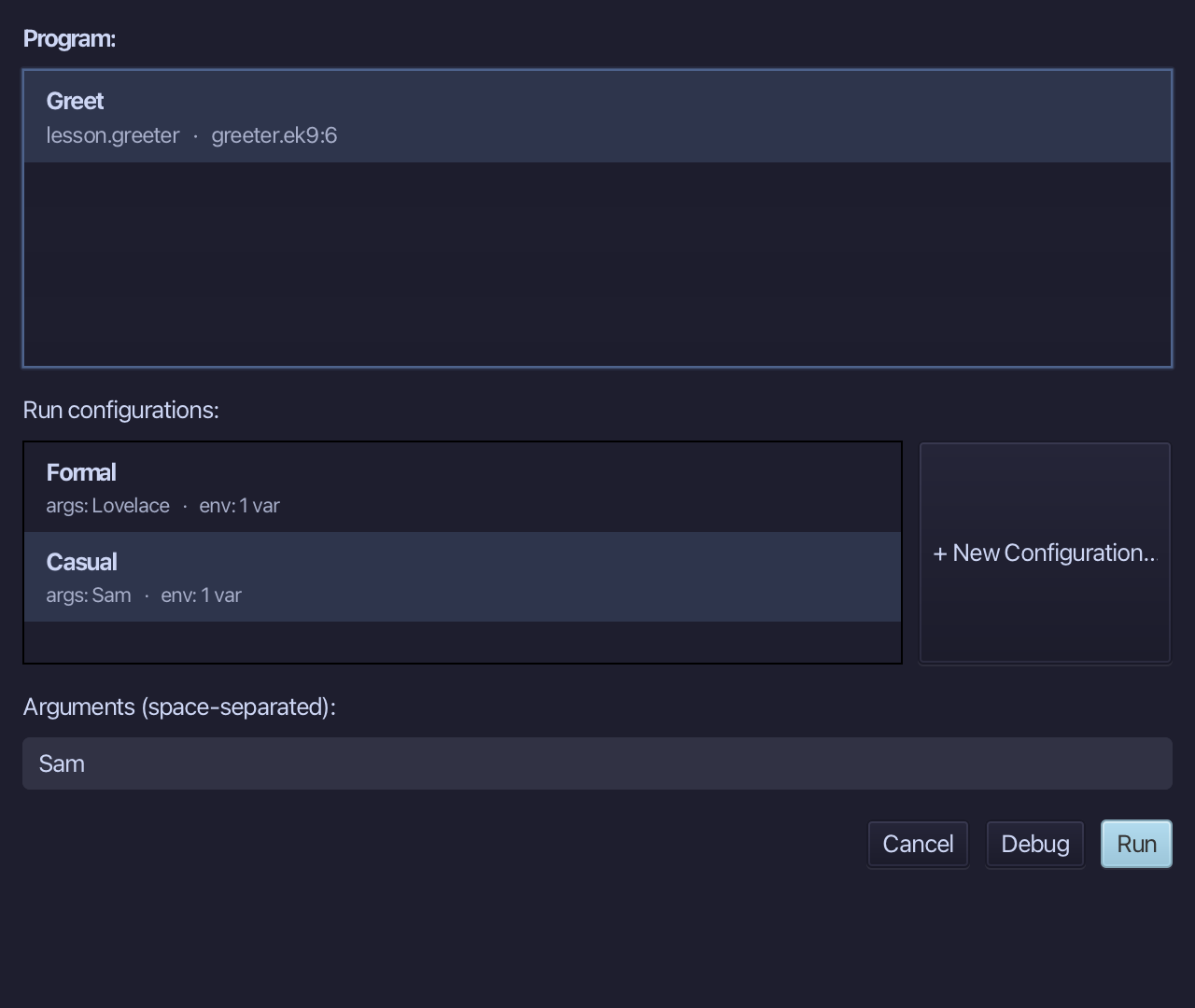
Choose Run > Configurations…
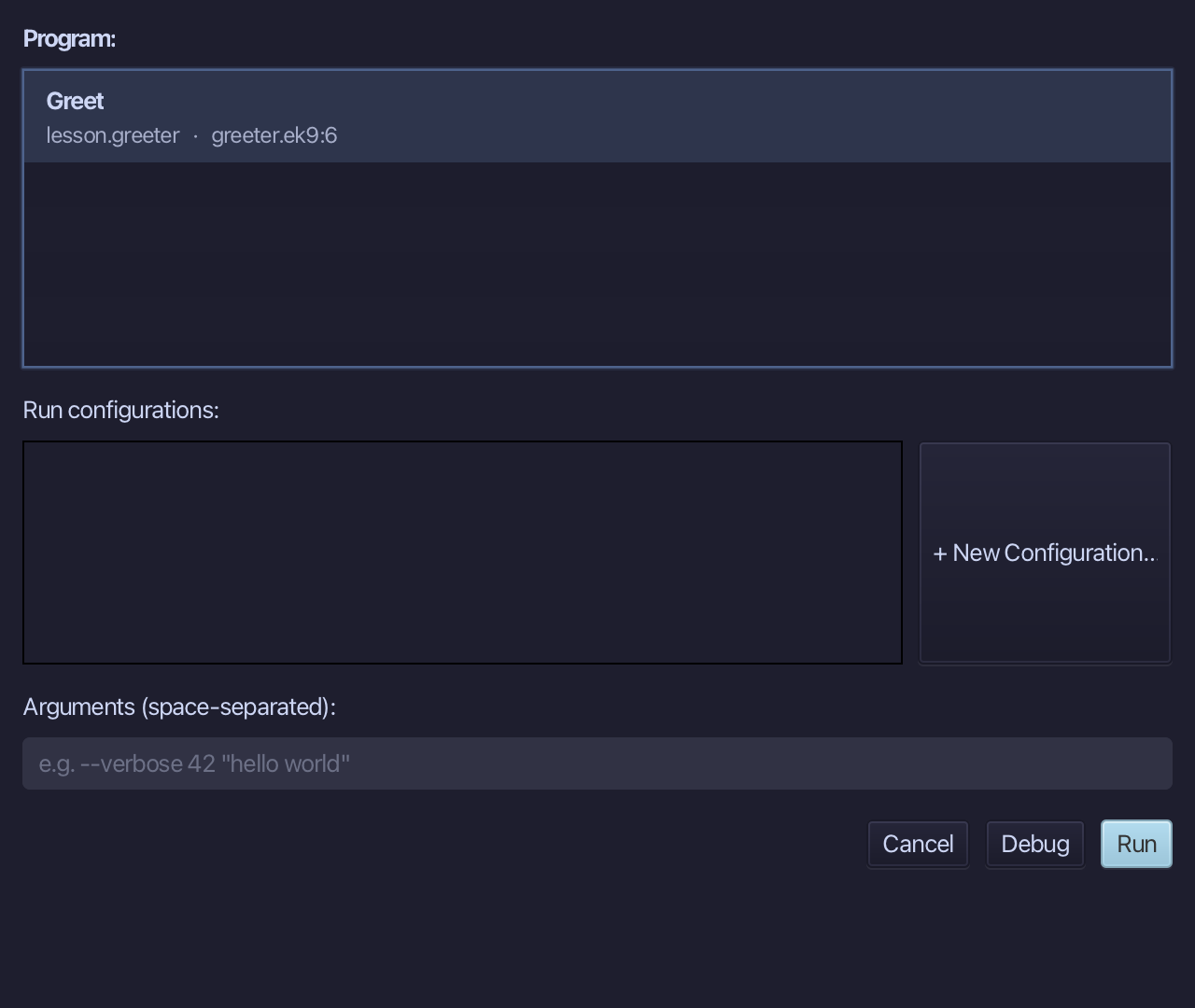
Greet is the only program, so it is already the one a new configuration will belong to. Choose + New Configuration…
Name it Formal, type Lovelace into Arguments and, into Environment, GREETING=Good morning. Choose Create.
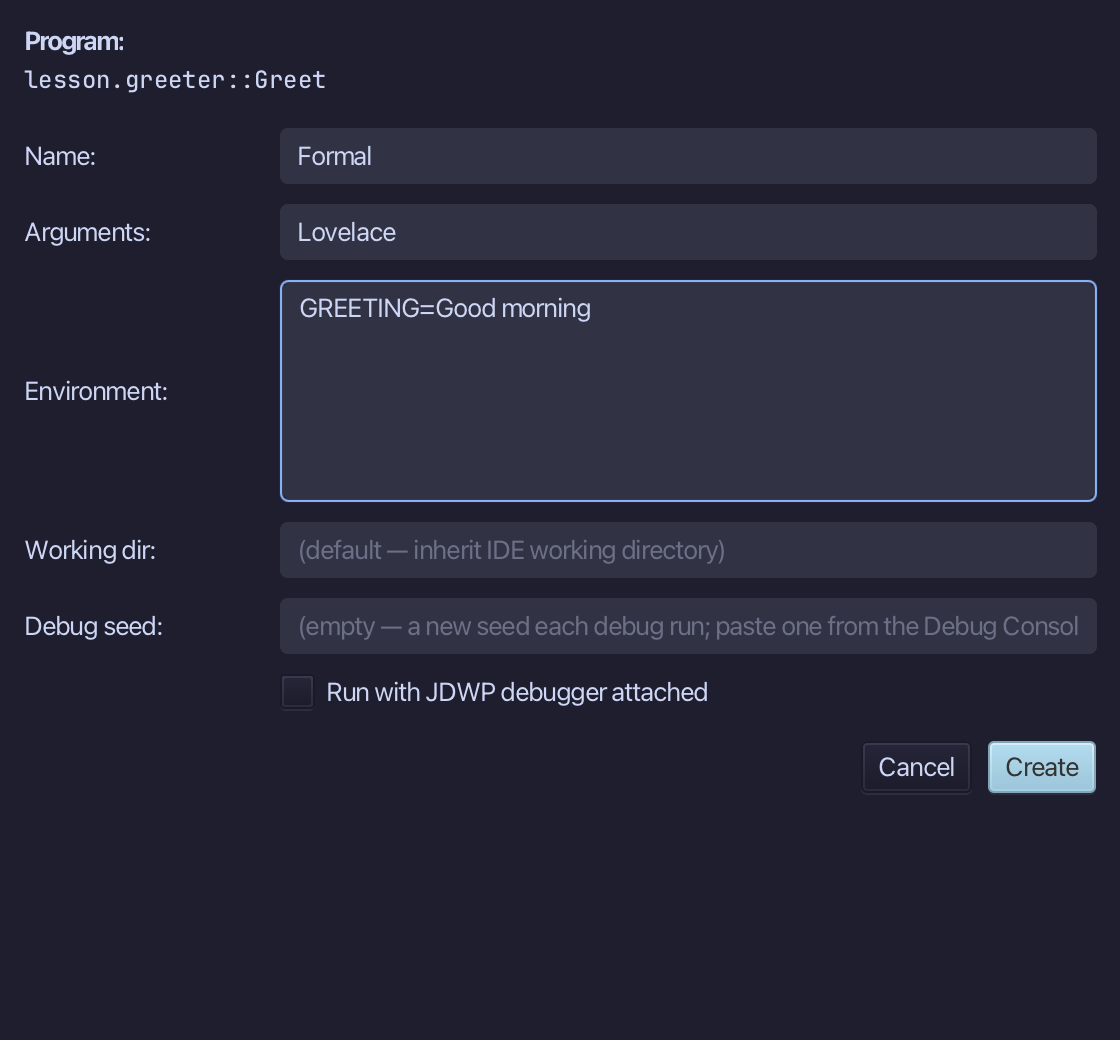
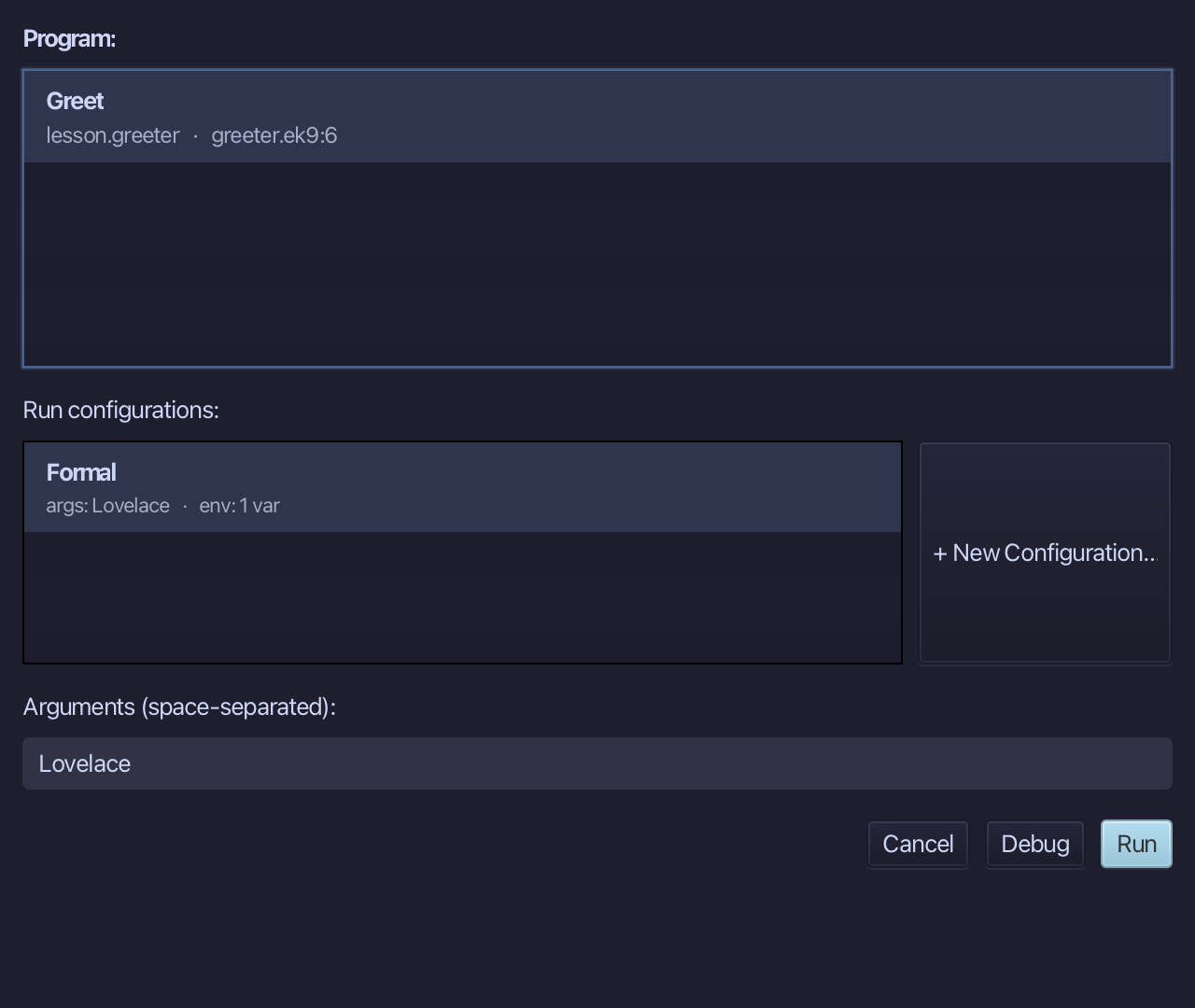
Choose + New Configuration… again, for a second one.
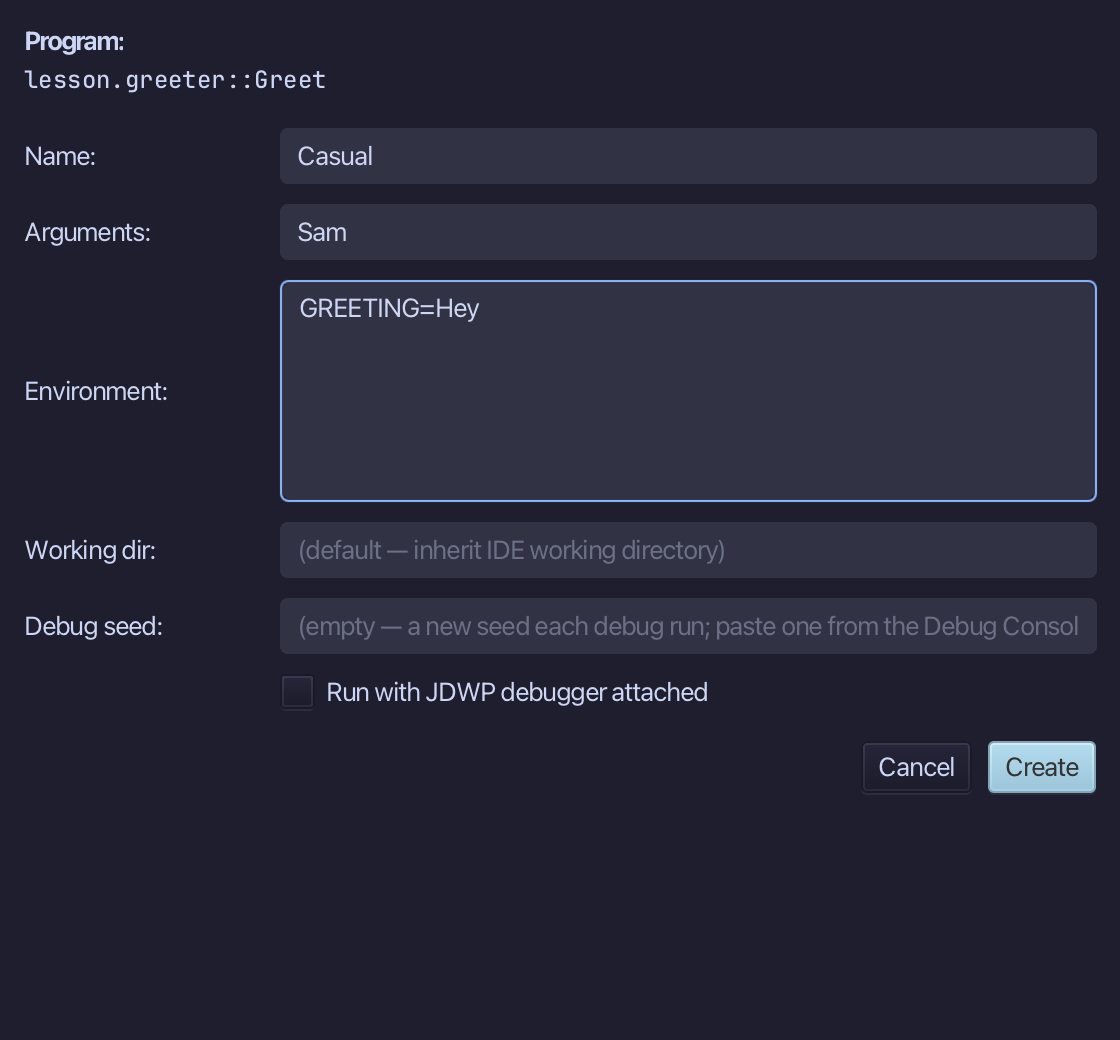
Name it Casual, type Sam into Arguments and GREETING=Hey into Environment. Choose Create.
Both are listed, each with its arguments and the number of environment variables it sets, and both are already kept - nothing here needs saving again. Choose Cancel. Nothing runs.
Step 3: Switch with the toolbar's picker
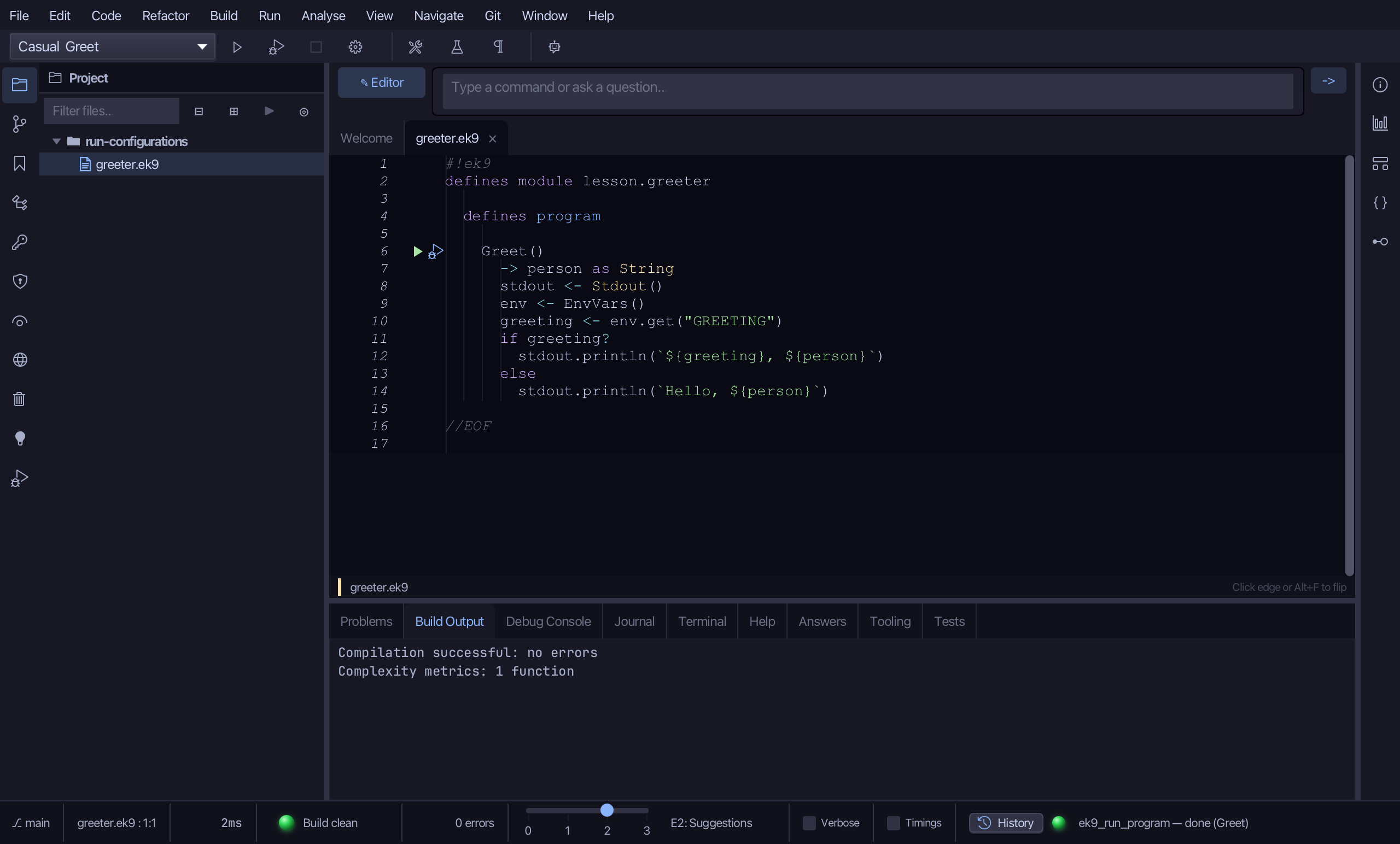
In the toolbar's picker, beside the green play icon, choose Casual.
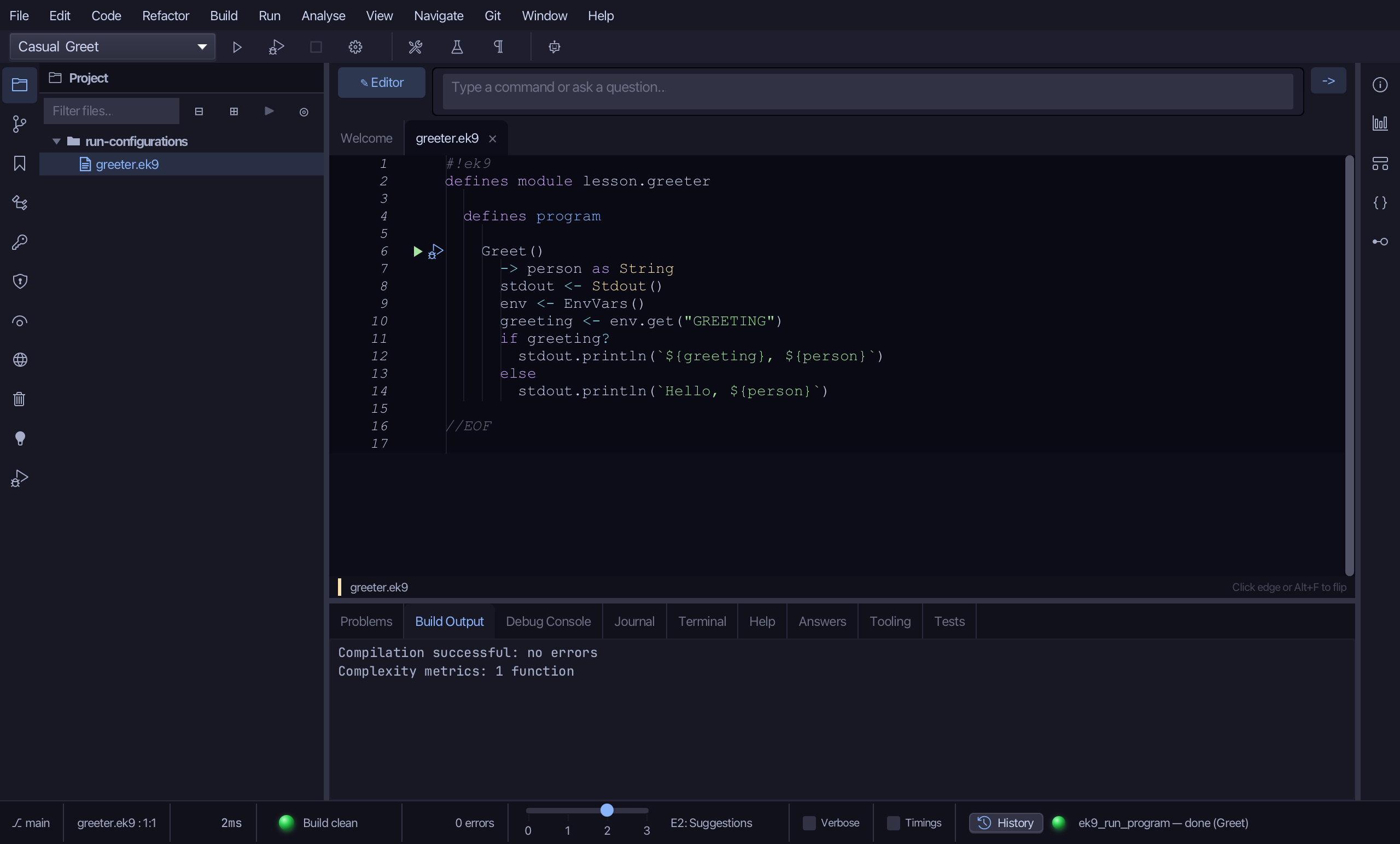
Choose the green play icon - Run selected configuration.
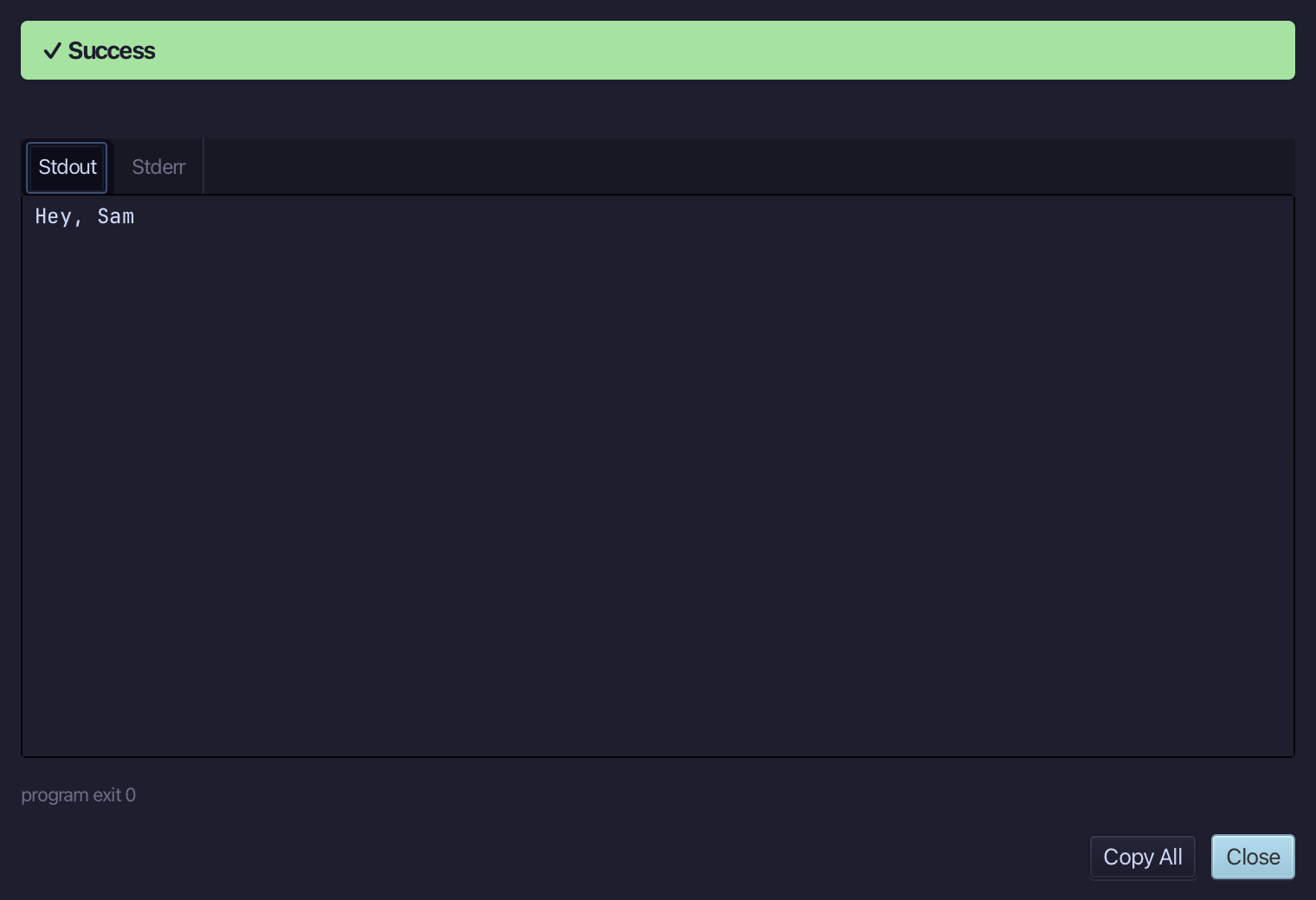
Hey, Sam - Casual's argument and its GREETING, both from the configuration. Choose Close.
In the toolbar's picker, beside the green play icon, choose Formal.
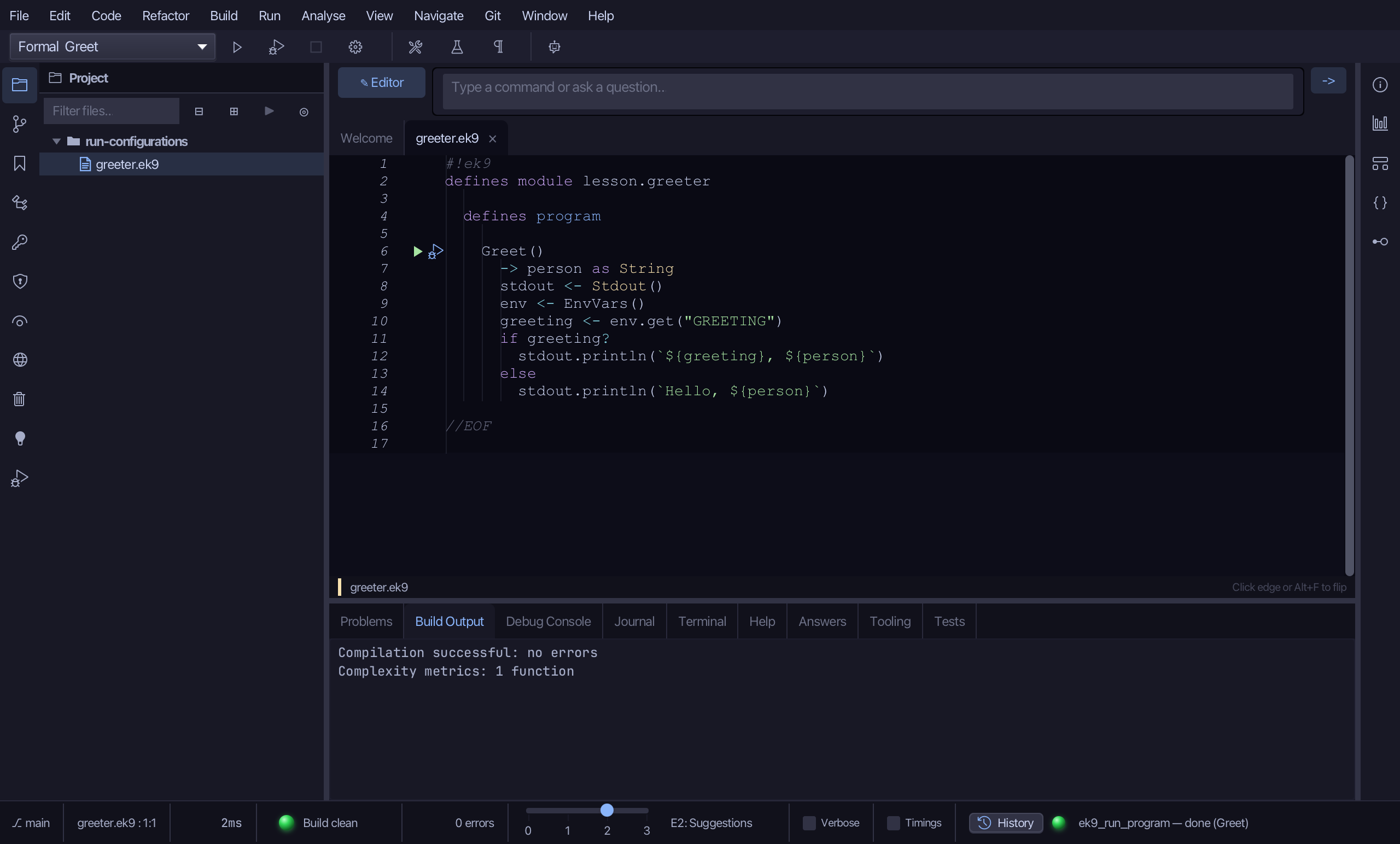
Choose the green play icon - Run selected configuration.
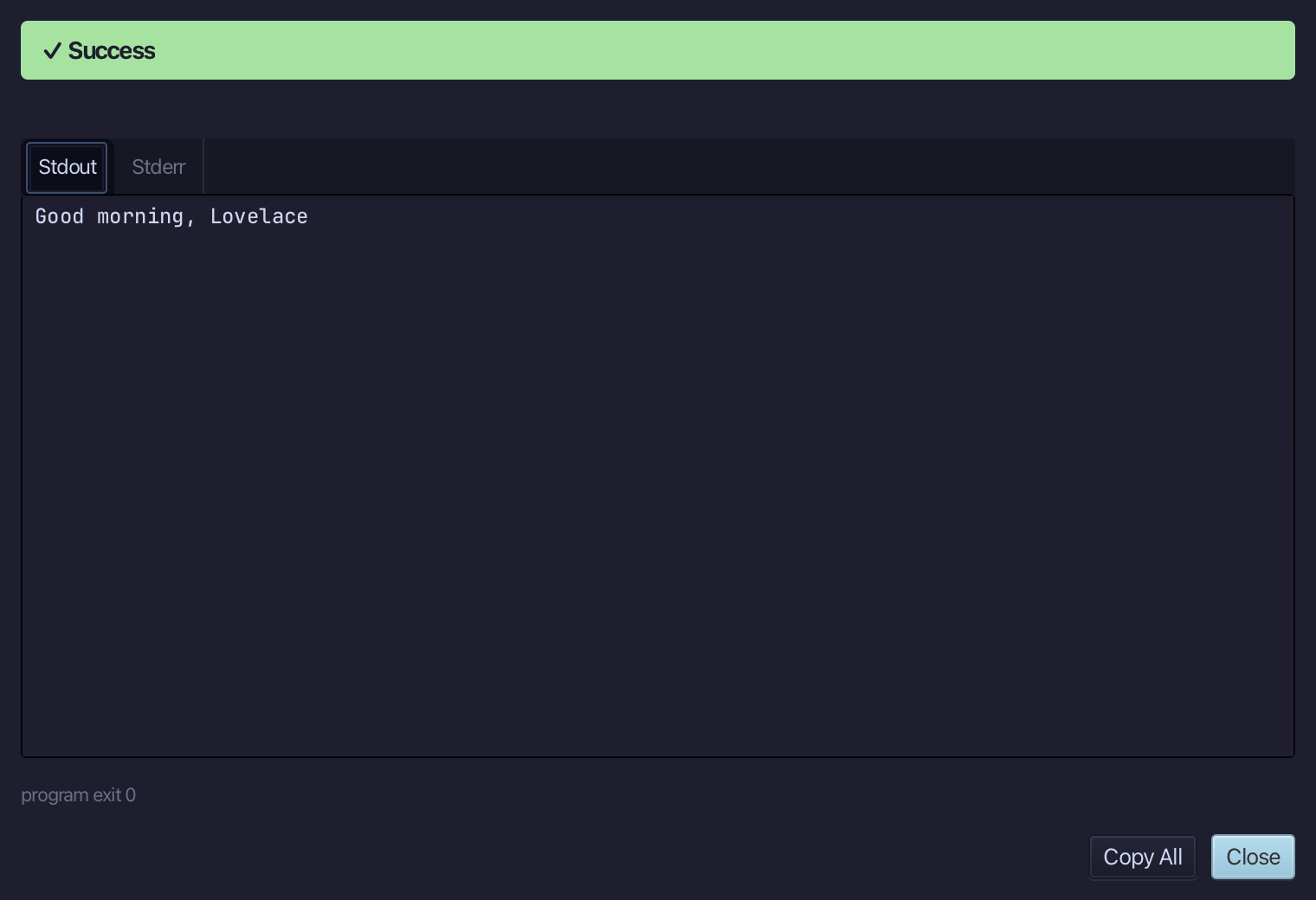
Good morning, Lovelace - the same program, a different argument and a different GREETING, one click after choosing it. Choose Close.
Step 4: Edit one, run it again
Choose the gear beside the picker - Edit Configurations… - which opens the same window as Run > Configurations….
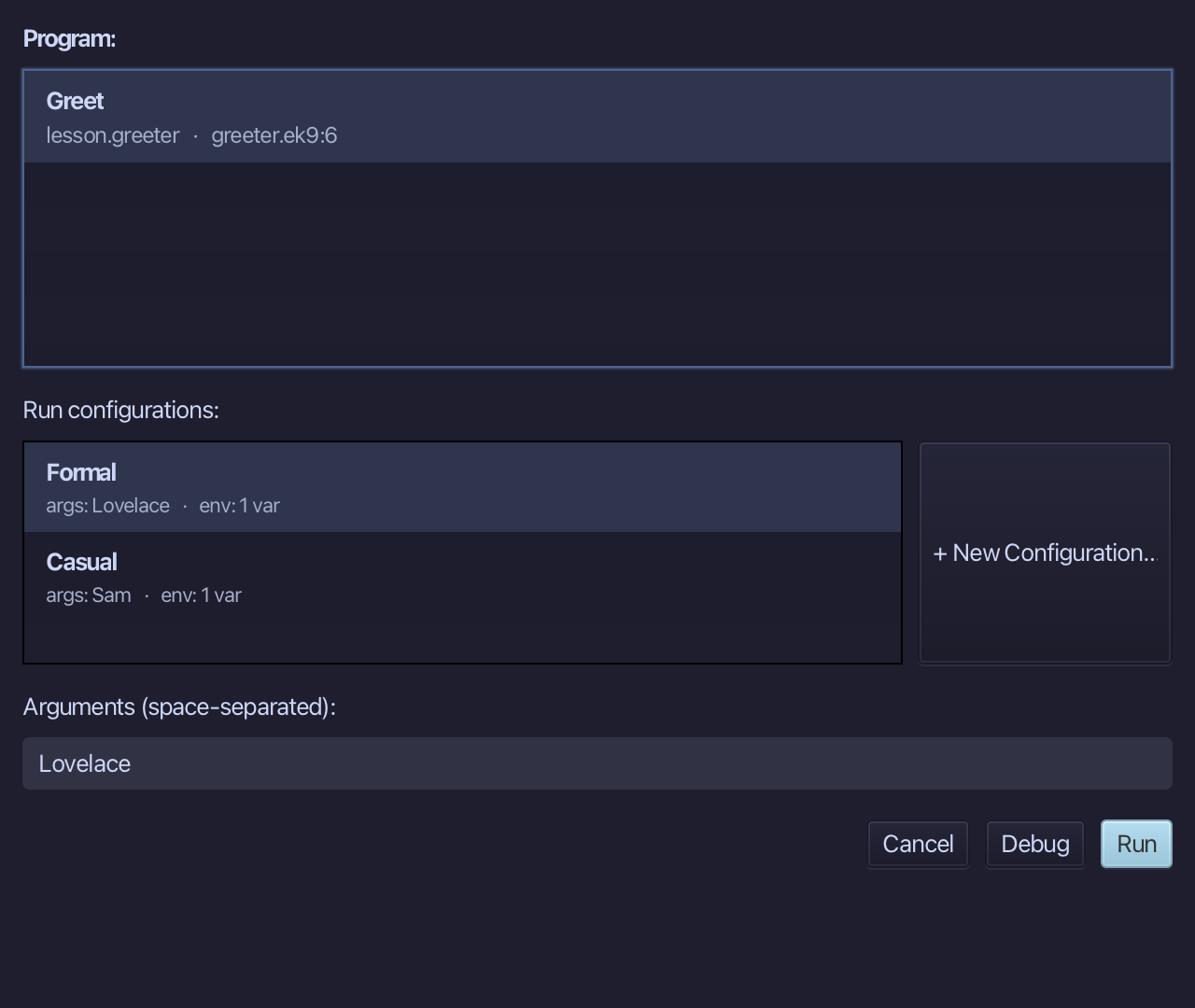
Double-click Casual in the list to edit it.
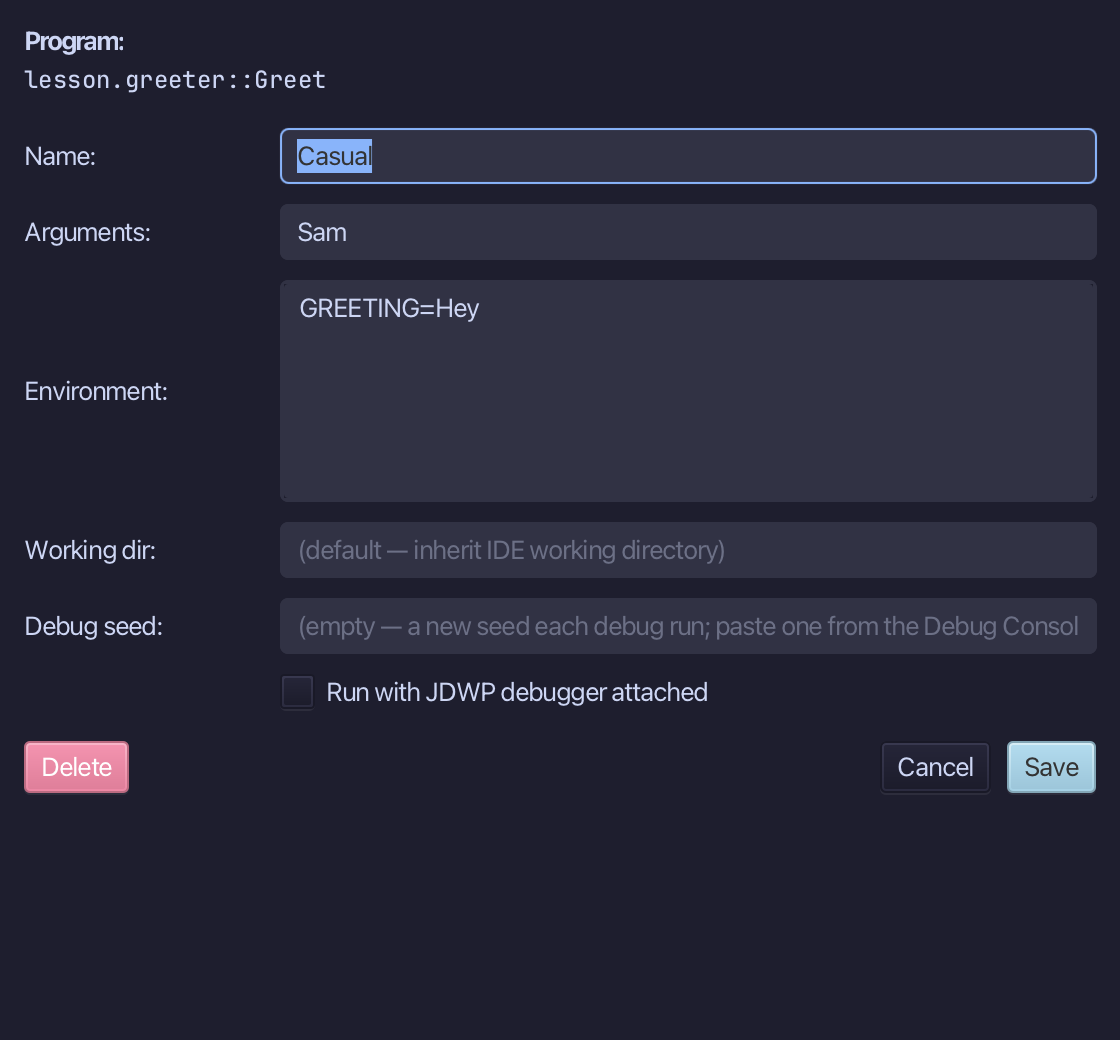
Change Arguments to Alex. Choose Save.
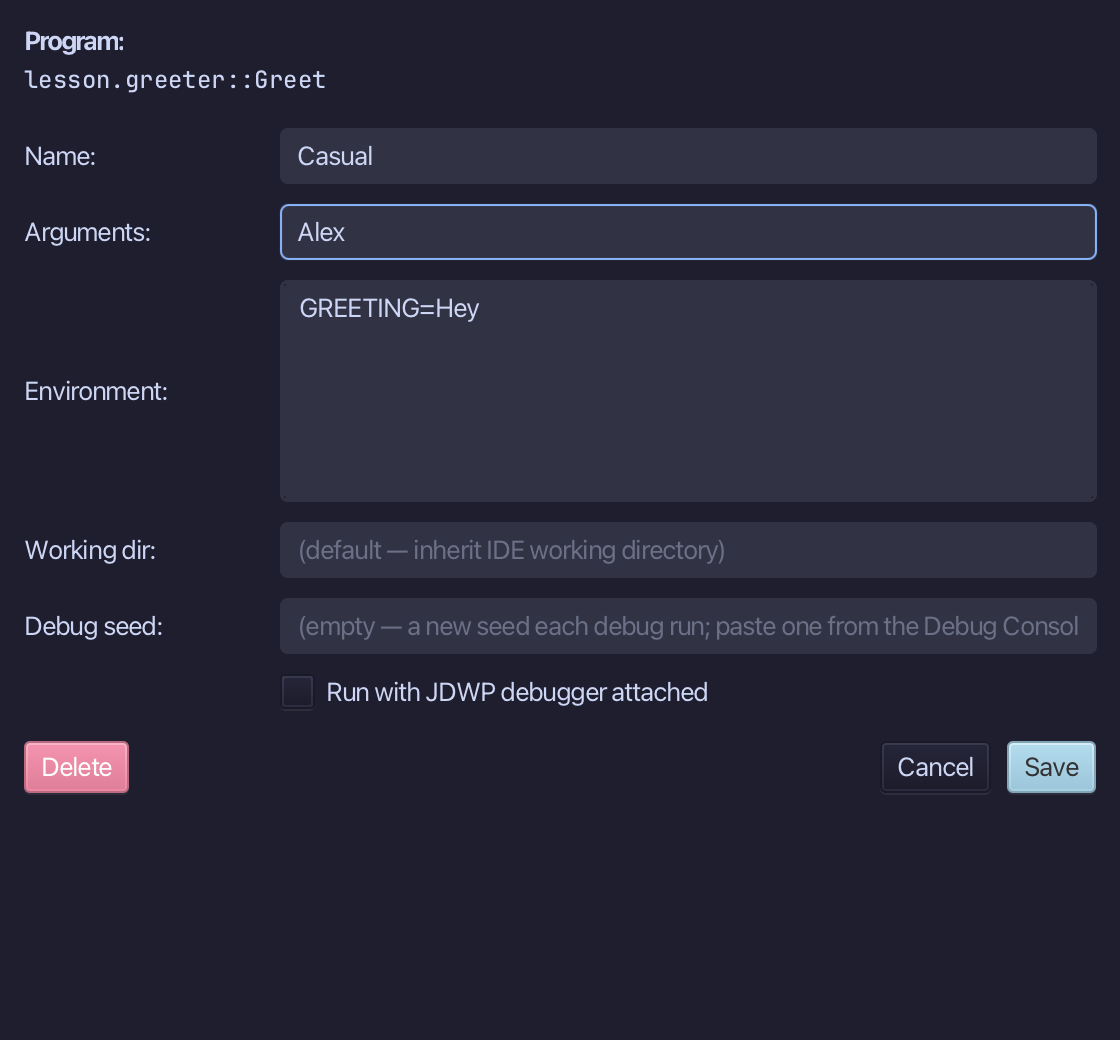
Casual is selected and now reads Alex. Choose Run. This window runs the selected configuration, as the toolbar does.
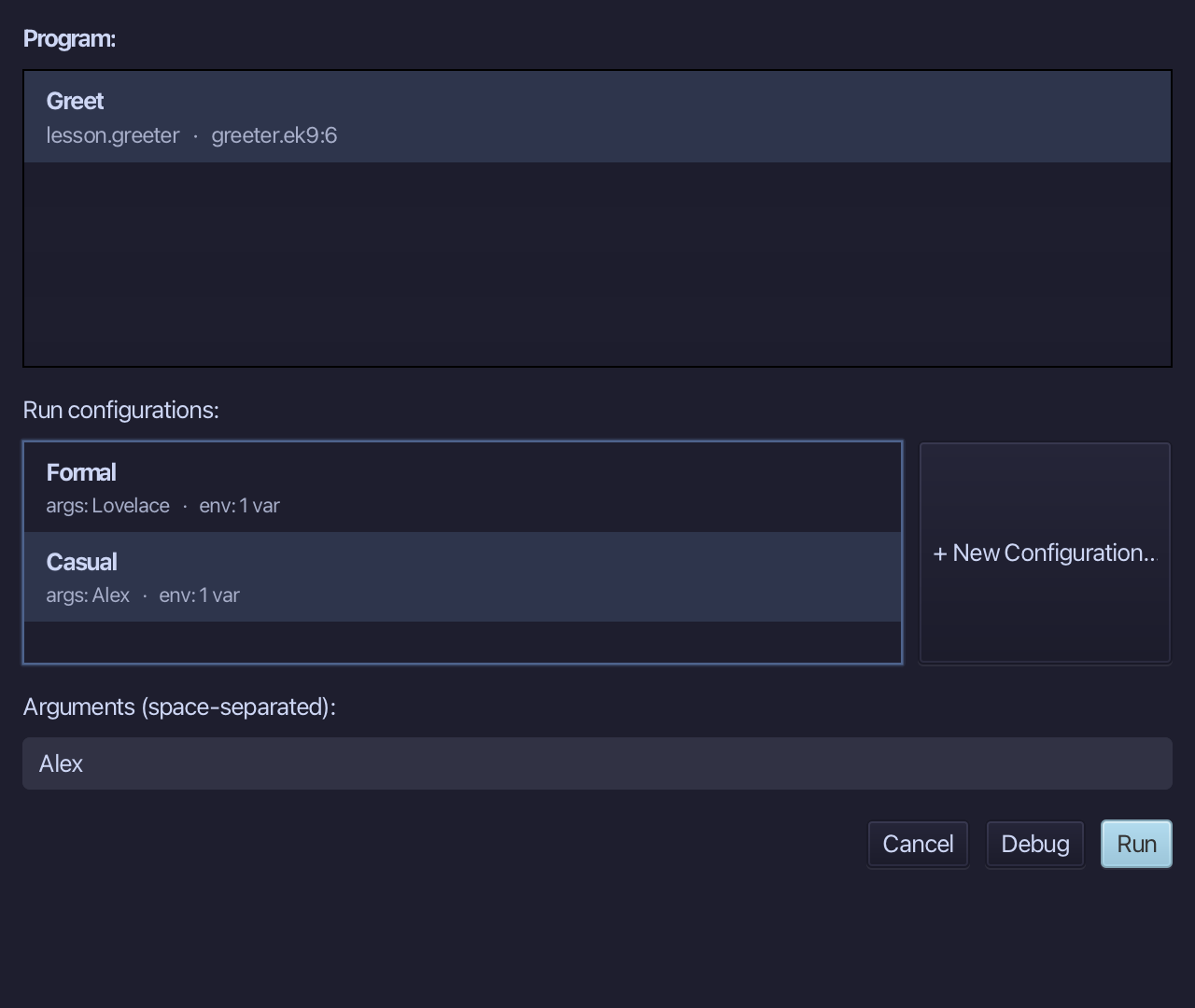
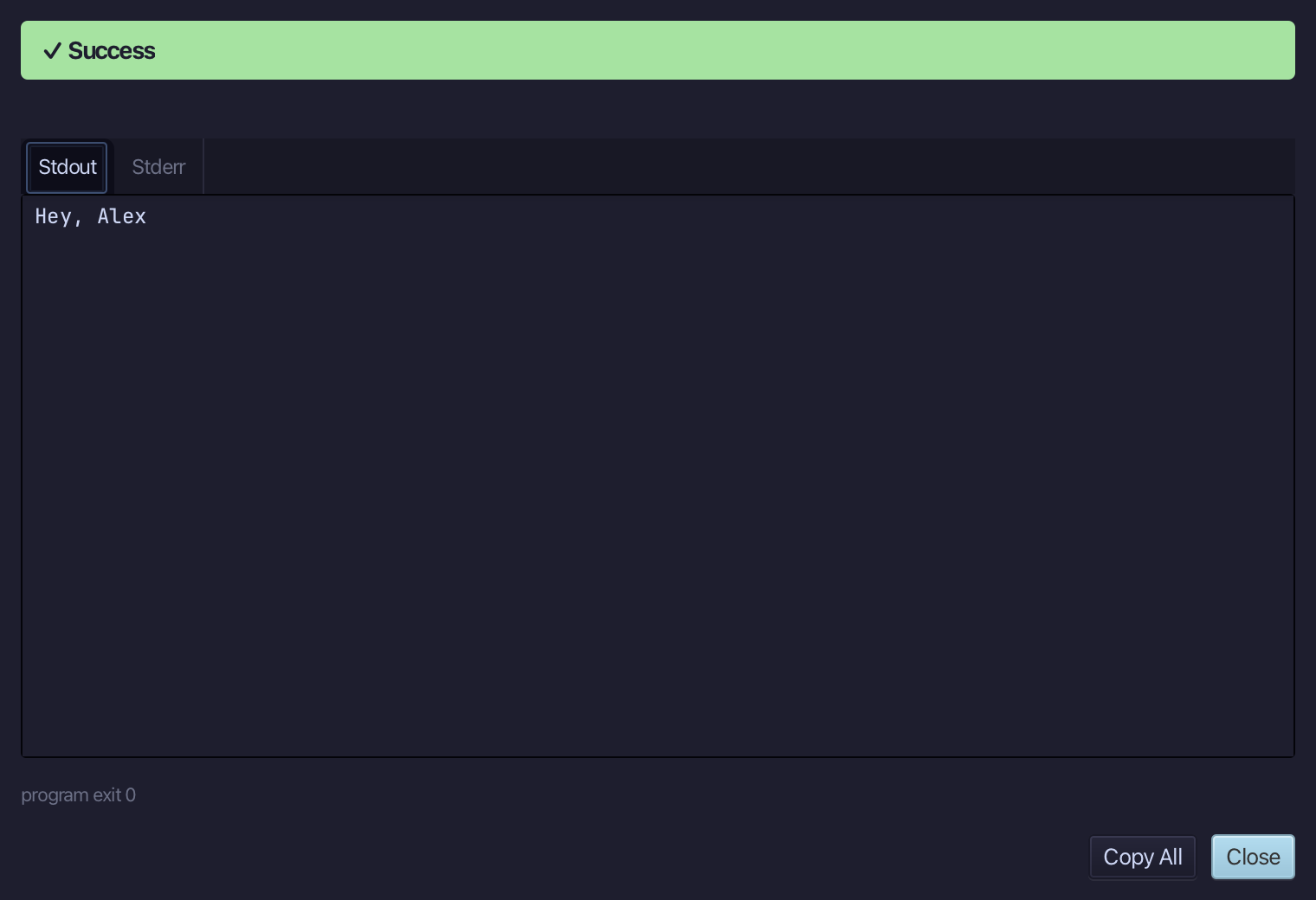
Hey, Alex - the edit was kept, and the configuration it changed is the one that ran. Choose Close.
The result
That is a run configuration: a name, an argument line and an environment, kept for one program - as many as you like. Run > Run Program… (or the gutter's play icon) is for a run you will not repeat; Run > Configurations… saves, edits and deletes them; the toolbar's picker switches between them and runs the chosen one with a click, and its gear opens the same Configurations window. A configuration is yours alone, kept beside your other IDE settings and never in the project - an environment value written ${NAME} is read from your own environment when it runs, so a secret is never saved. AI assistants run a program with the same settings through ek9_run_program {programName, args, env}.
Where this lesson comes from
- Answers -
ek9 -qand the IDE's Answers tab: 2, 947. - For AI assistants - the MCP tool
ek9_run_program.
In the EK9 reference: Programs in EK9