Breakpoints and stepping
Counting adds double(i) to a running total, once for each i from 1 to 5 - a loop whose own values change every pass, and a function to step into. Read it. To play it in the IDE: Help > Lessons > Debugging and the Journal…, or ek9 -ide -lesson breakpoints-and-stepping.
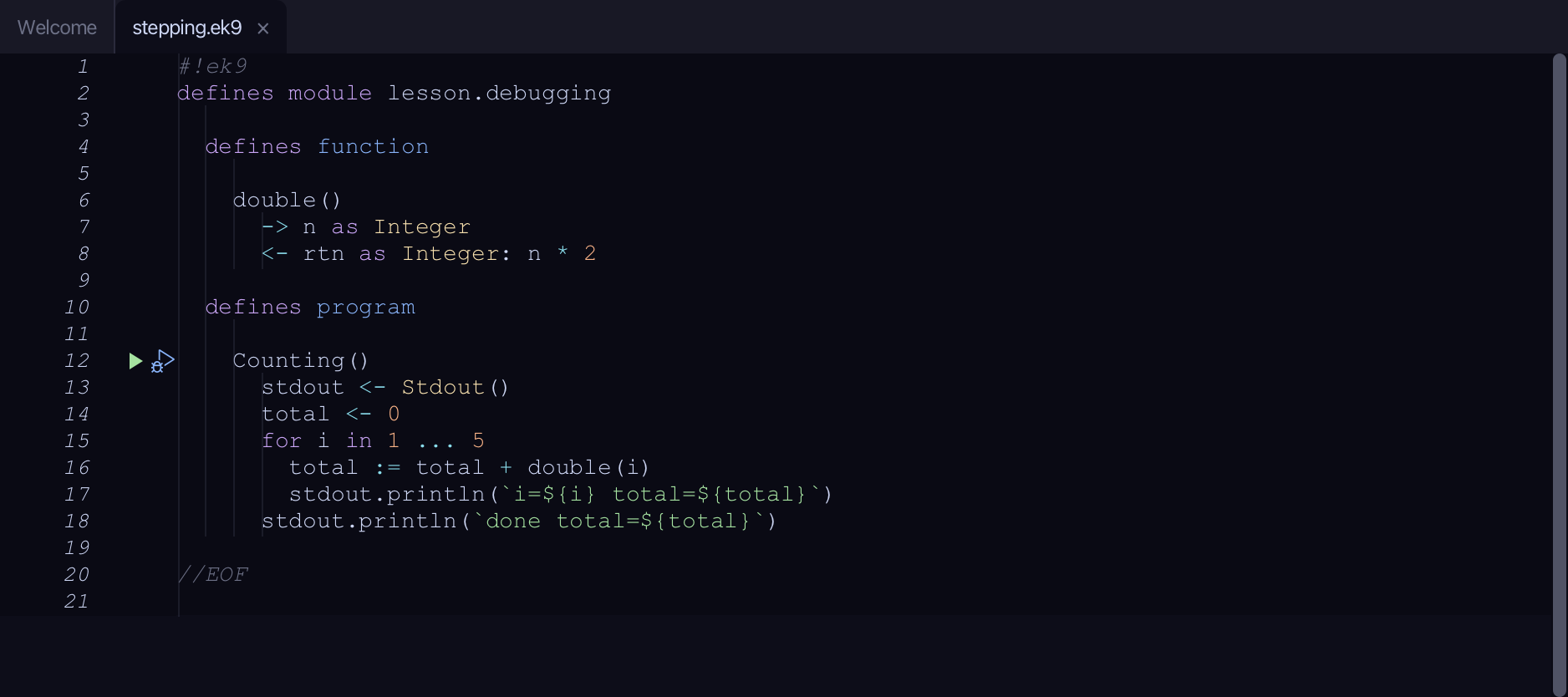
Start from
The code the lesson starts from: copy it into a file of your own and follow the steps.
#!ek9
defines module lesson.debugging

  defines function

    double()
      -> n as Integer
      <- rtn as Integer: n * 2

  defines program

    Counting()
      stdout <- Stdout()
      total <- 0
      for i in 1 ... 5
        total := total + double(i)
        stdout.println(`i=${i} total=${total}`)
      stdout.println(`done total=${total}`)

//EOF
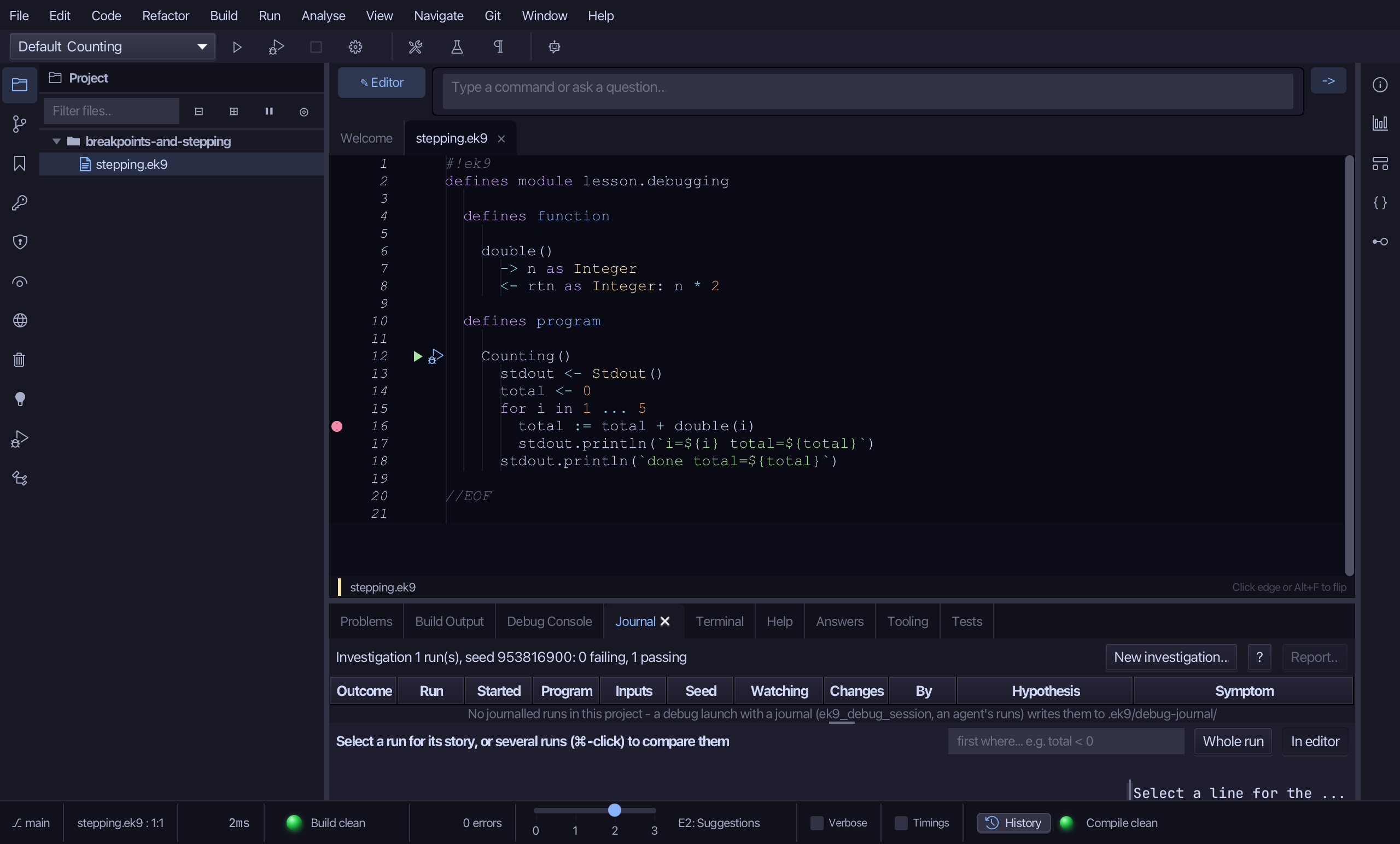
Step 1: A breakpoint
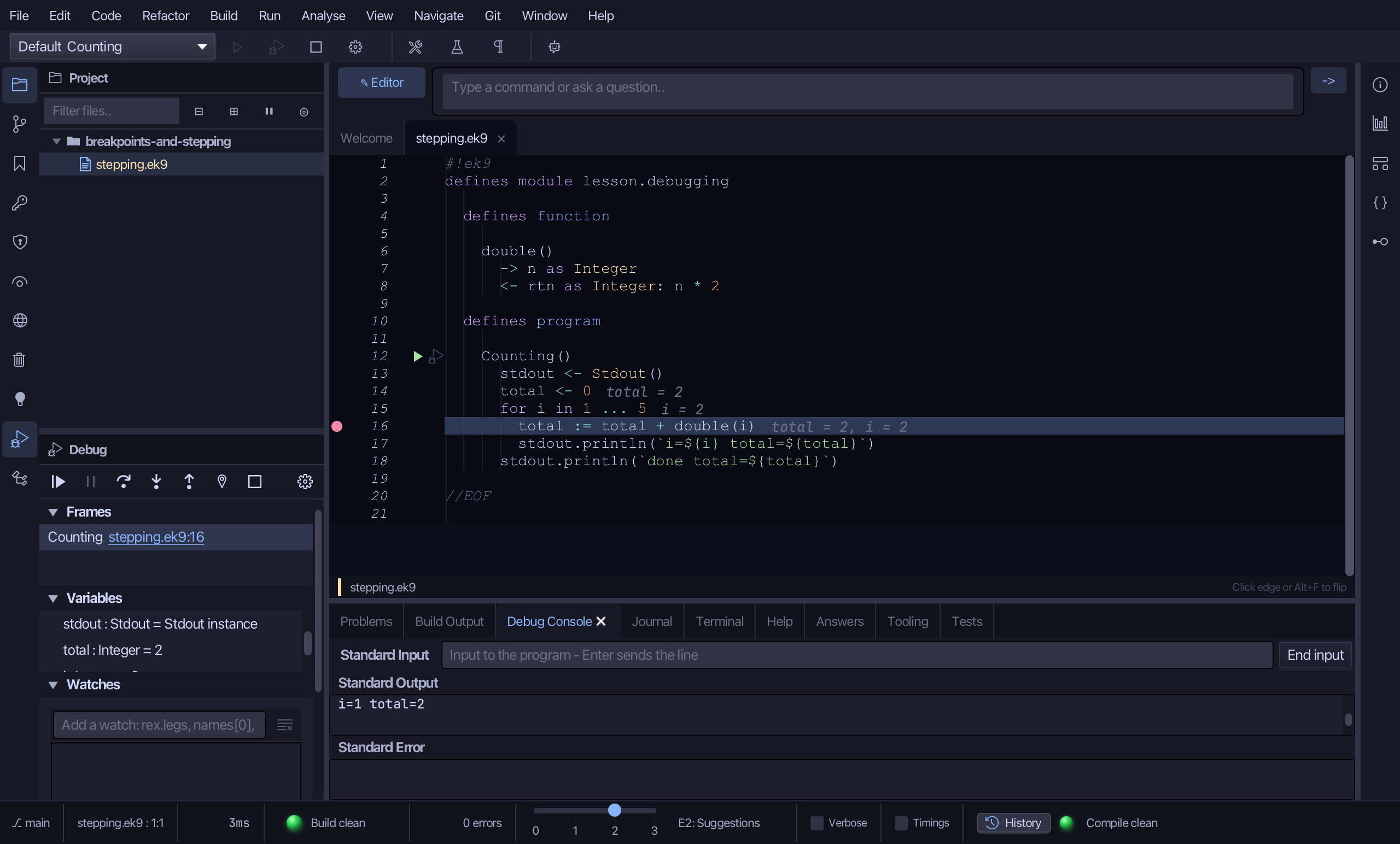
Click the breakpoint column beside line 16 (total := total + double(i)).
Step 2: Start debugging
Click the debug (bug) icon beside Counting() - no saved configuration exists for it yet.
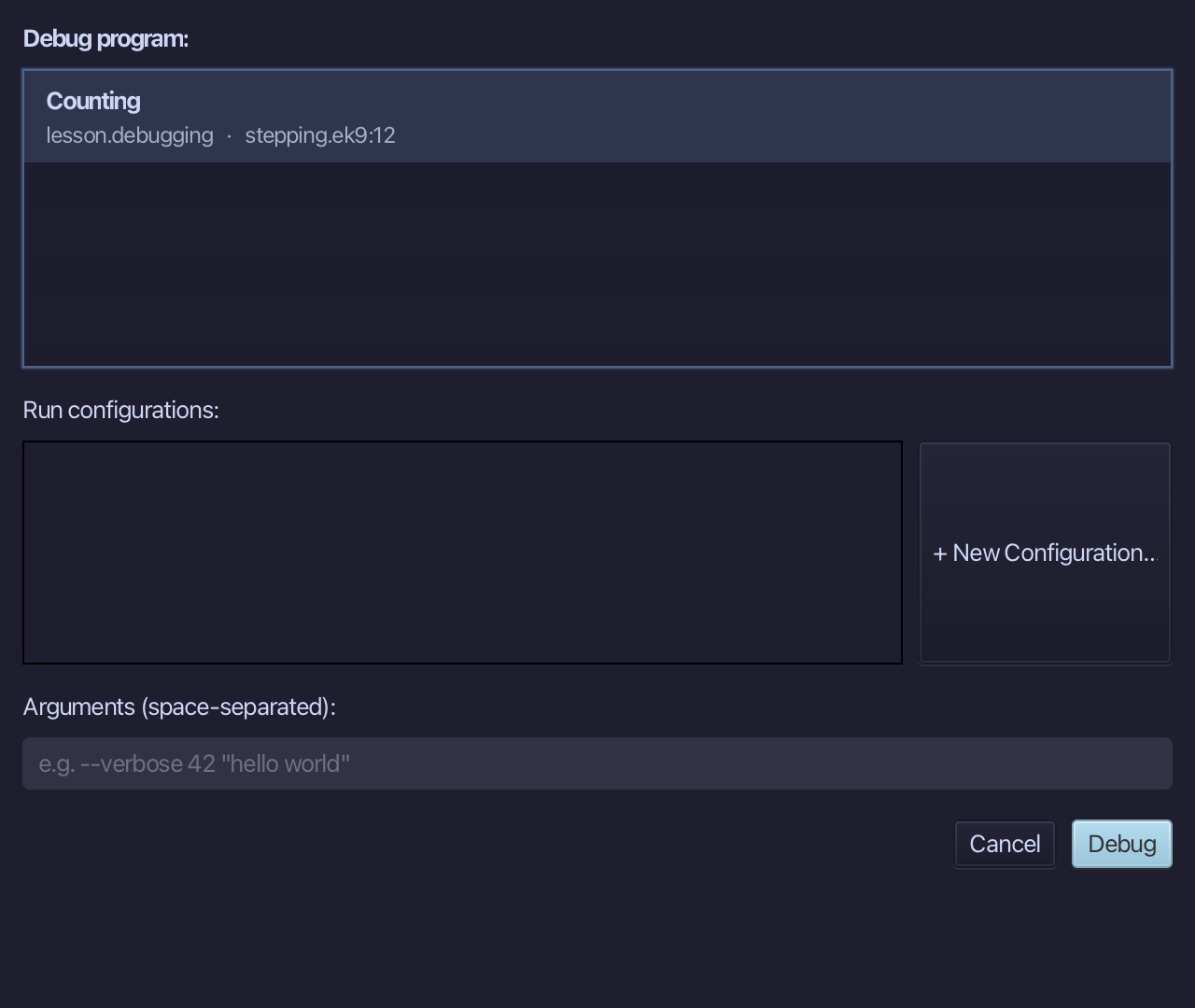
The project's only program is already chosen. Choose Debug.
The Debug window opened on its own: Frames shows Counting(), the one frame on the stack so far; Variables shows i (1) and total (still 0 - this pass has not added to it yet).
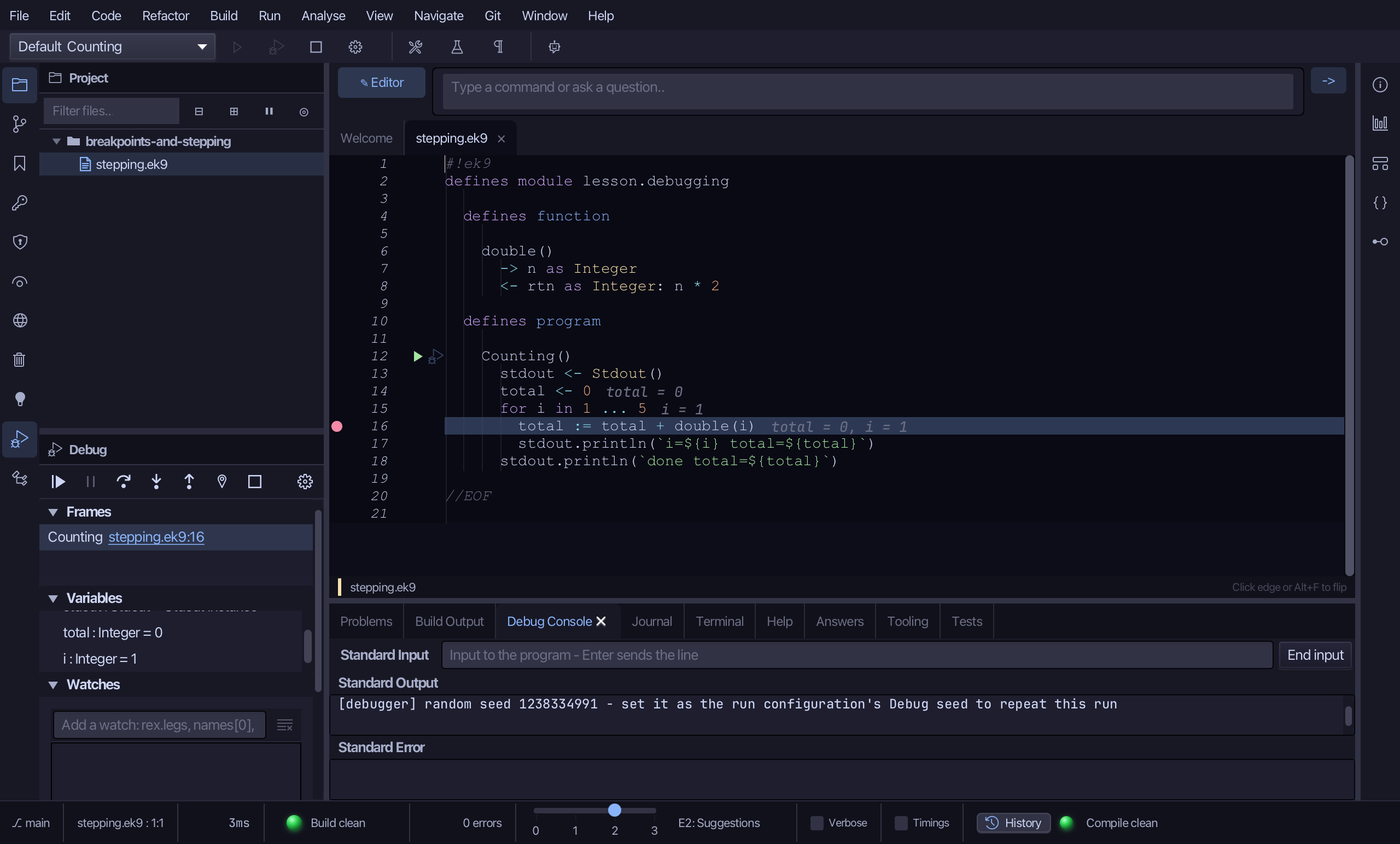
Step 3: Step Over
In the Debug window, choose Step Over - the call to double() runs, but stepping stays in Counting().
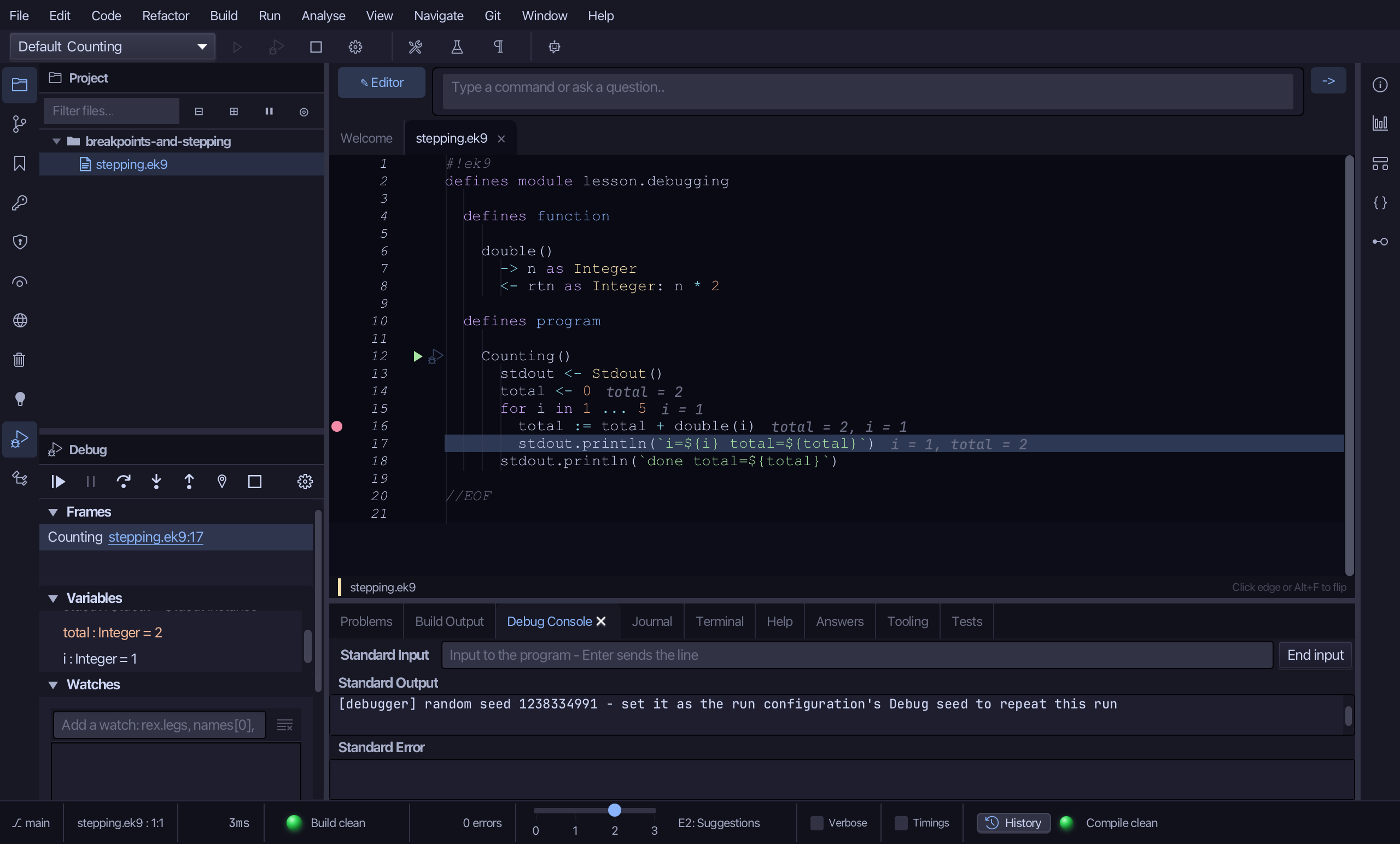
Step 4: Step Into, and Step Out
Choose Continue - the breakpoint is plain, so it stops again on the loop's next pass, at the same line.
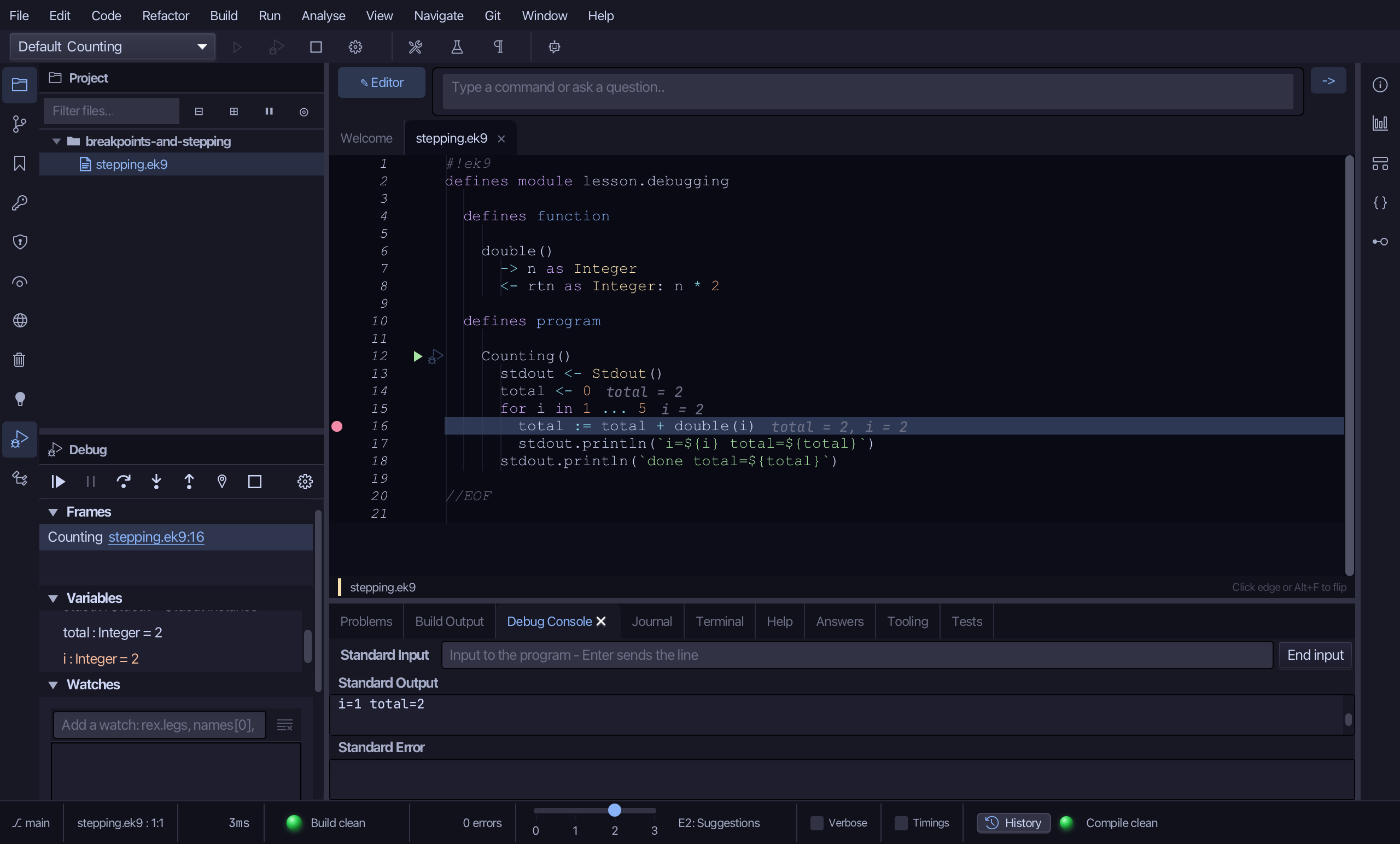
This time choose Step Into - stepping follows the call into double()'s own line.
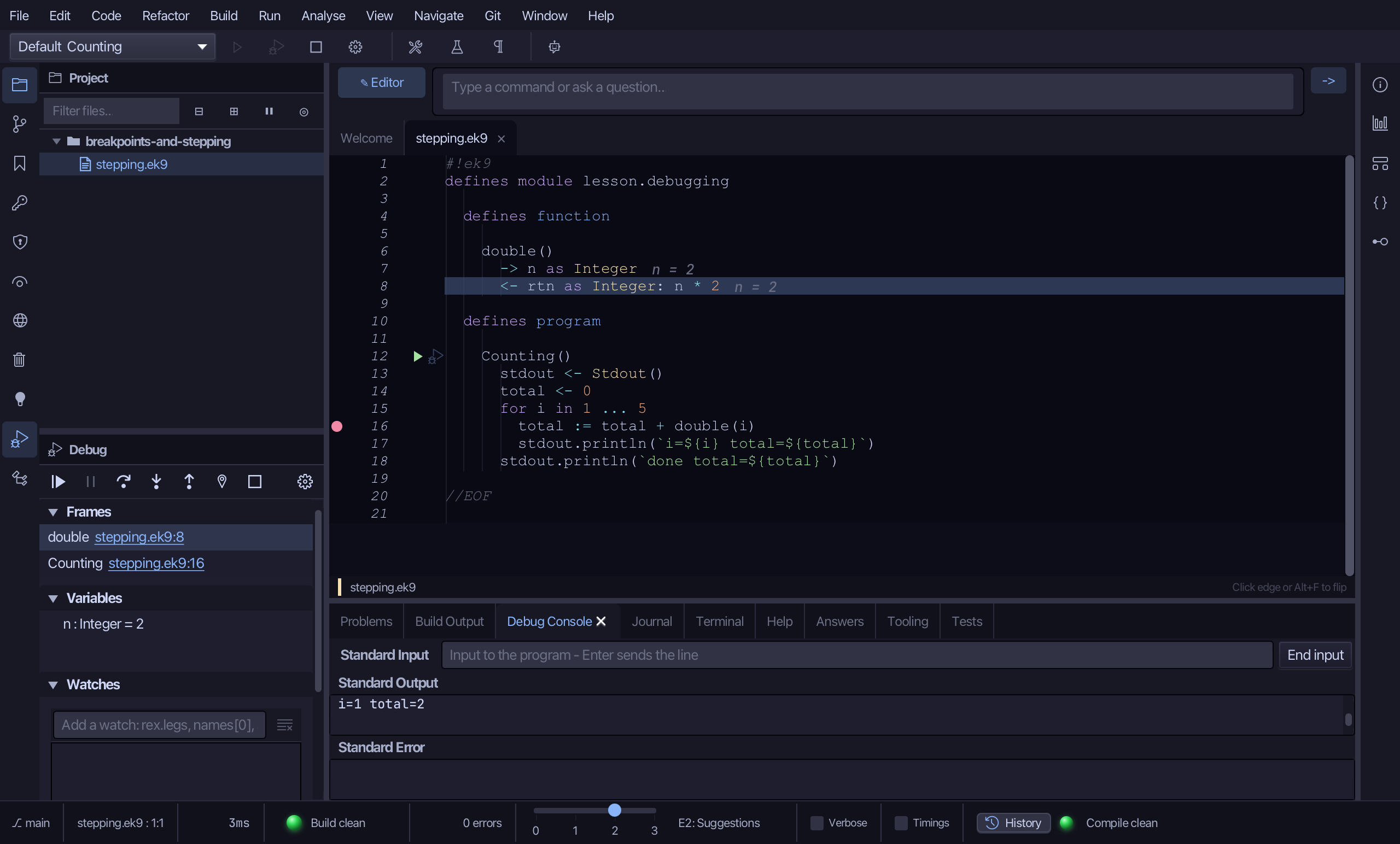
Frames now shows two: double(), on top of Counting() beneath it. Variables shows double()'s own parameter, n.
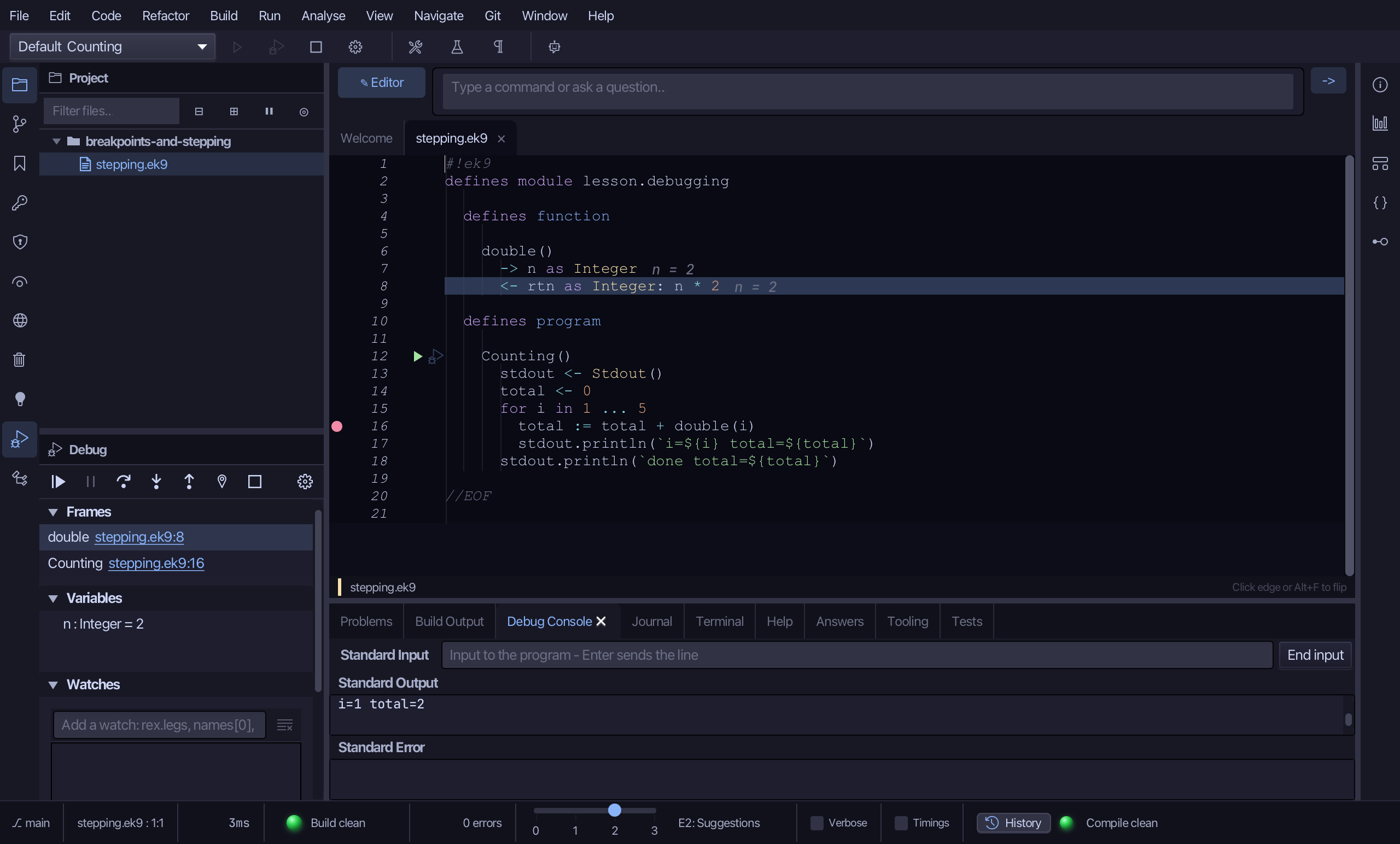
Choose Step Out - the rest of double() runs, and stepping returns to Counting().
Step 5: Run to Cursor, and ending the session
Click the breakpoint column beside line 16 again, to remove it - left there, it would catch the loop's next pass before Run to Cursor ever got to line 18.
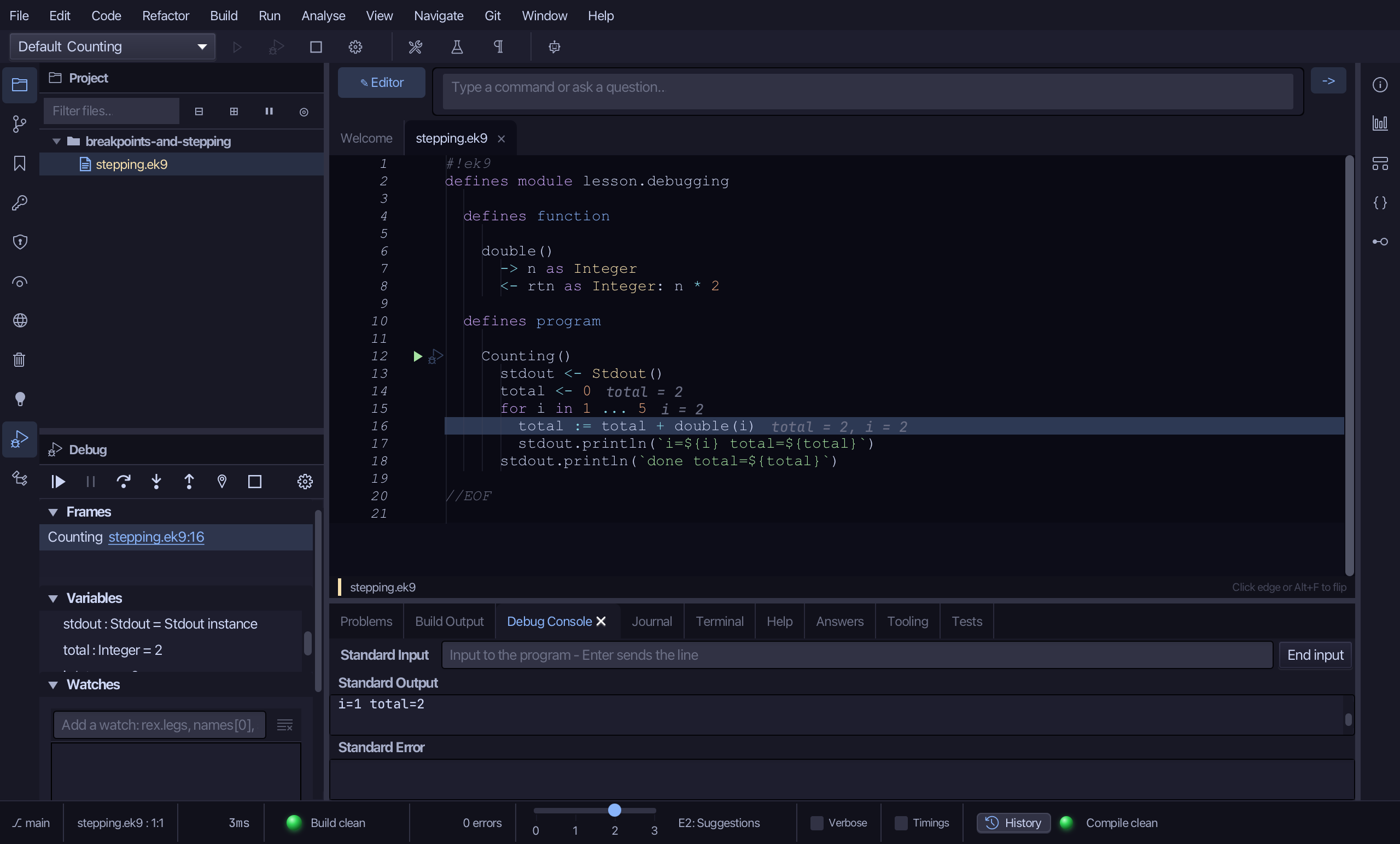
In the editor, place the caret on the last line, 18 (done total).
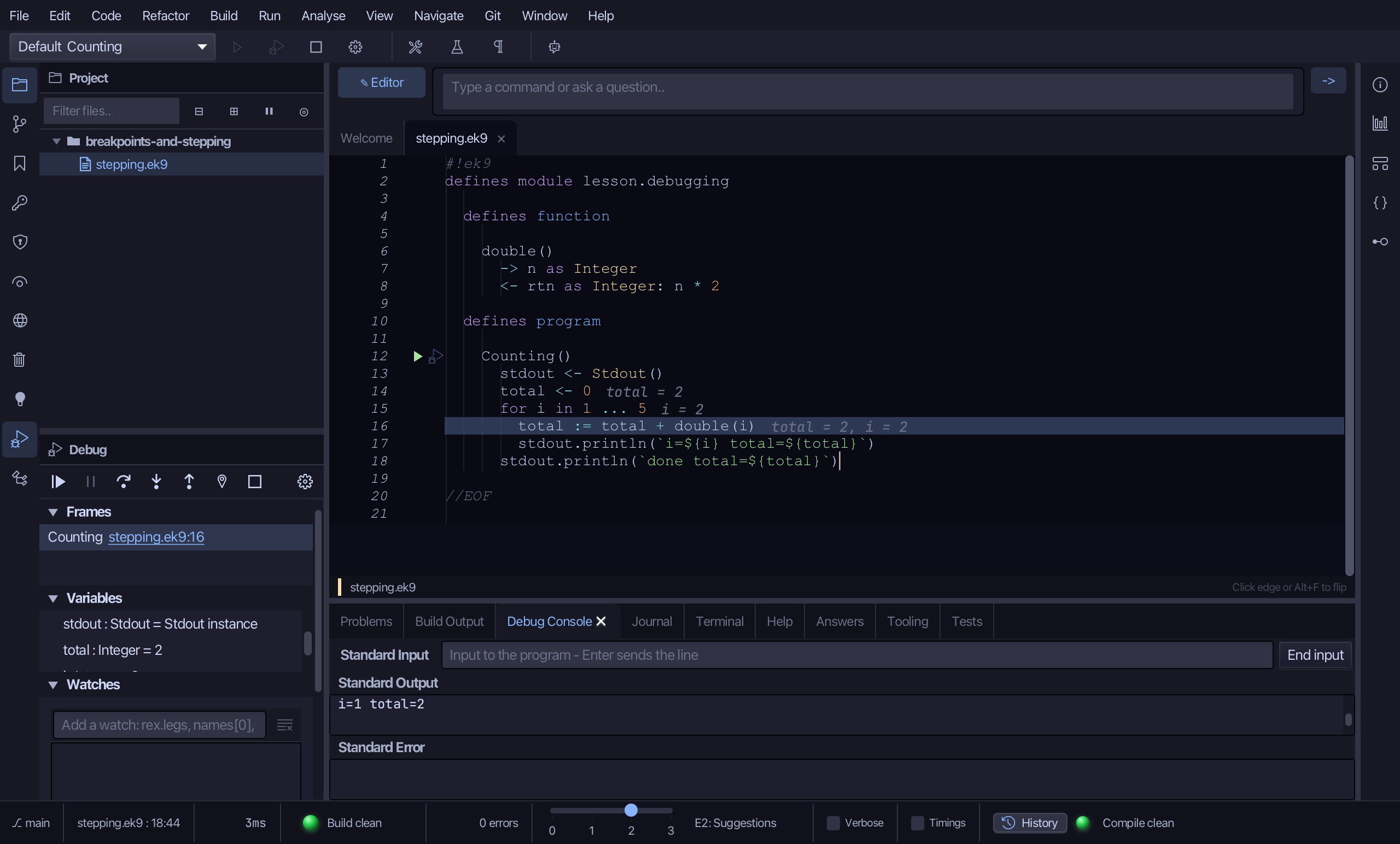
In the Debug window, choose Run to Cursor - the program runs on, with no breakpoint needed, straight to the caret's own line.
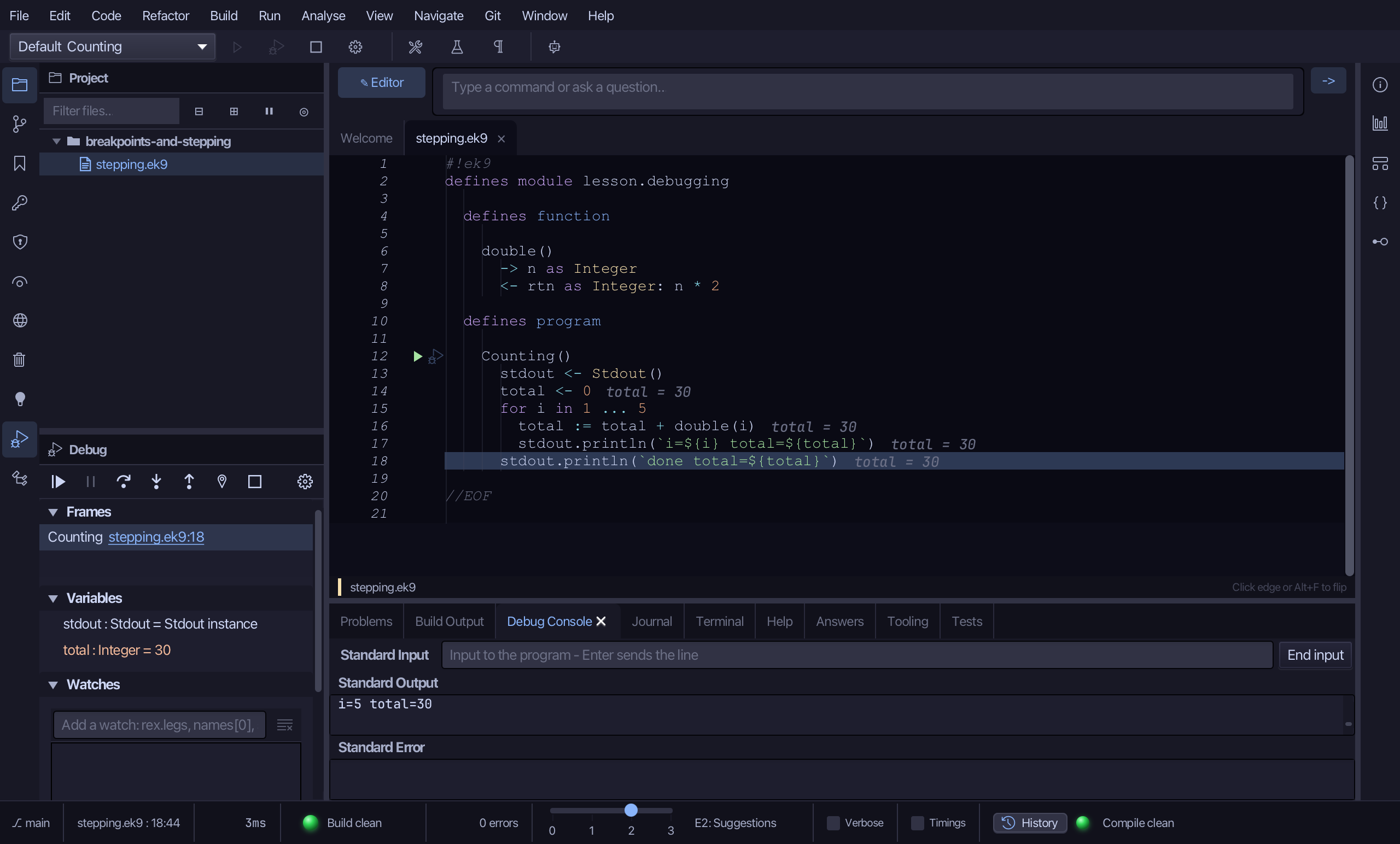
Choose Stop - leaving a run going is never how a session ends.
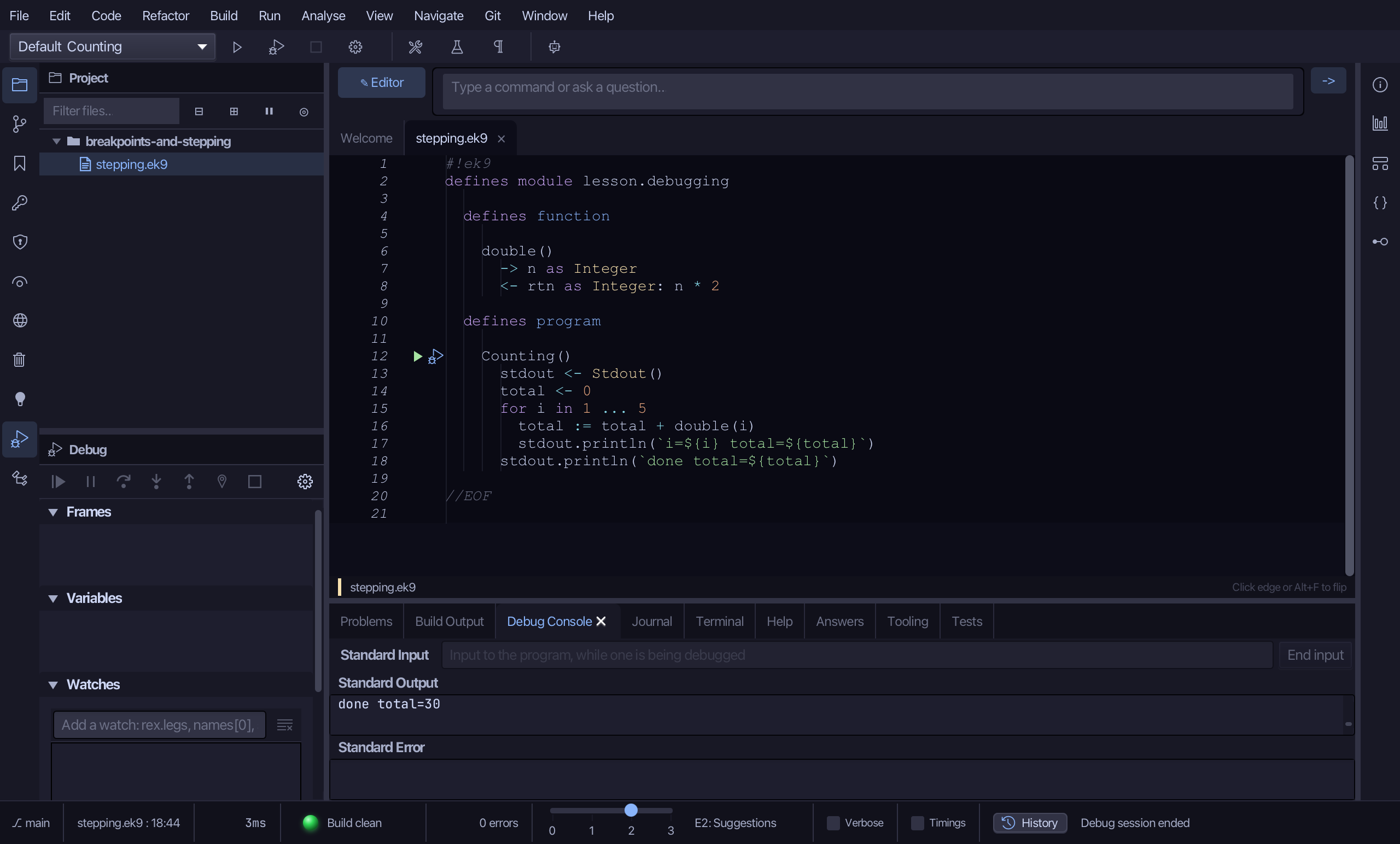
The result
That is the breakpoint column, the Debug window and the three steps: Over runs one line without leaving it, Into follows a call inside, Out runs the rest of the callee and comes back. Run to Cursor is a breakpoint for one run only - gone the moment it is reached. Breakpoint conditions - stopping only when a value holds, or only on the Nth hit - are the next lesson. AI assistants drive the same session over MCP: ek9_debug_session to start it with breakpoints already set, ek9_debug_control to continue, step and add more.
Where this lesson comes from
- For AI assistants - the MCP tool
ek9_debug_session,ek9_debug_control.