A TCP echo on localhost
Two programs that talk over TCP, both on localhost: a server that echoes each line back in capitals and stops when it is sent the word shutdown, and a client that sends hello and then shutdown. The port is a constant in this file, ECHO_PORT, and the server listens on the loopback address alone - it cannot be reached from anywhere else. The package block below declares Stdout and Stderr; it does not declare the network. To play it in the IDE: Help > Lessons > Applications and services…, or ek9 -ide -lesson networking.
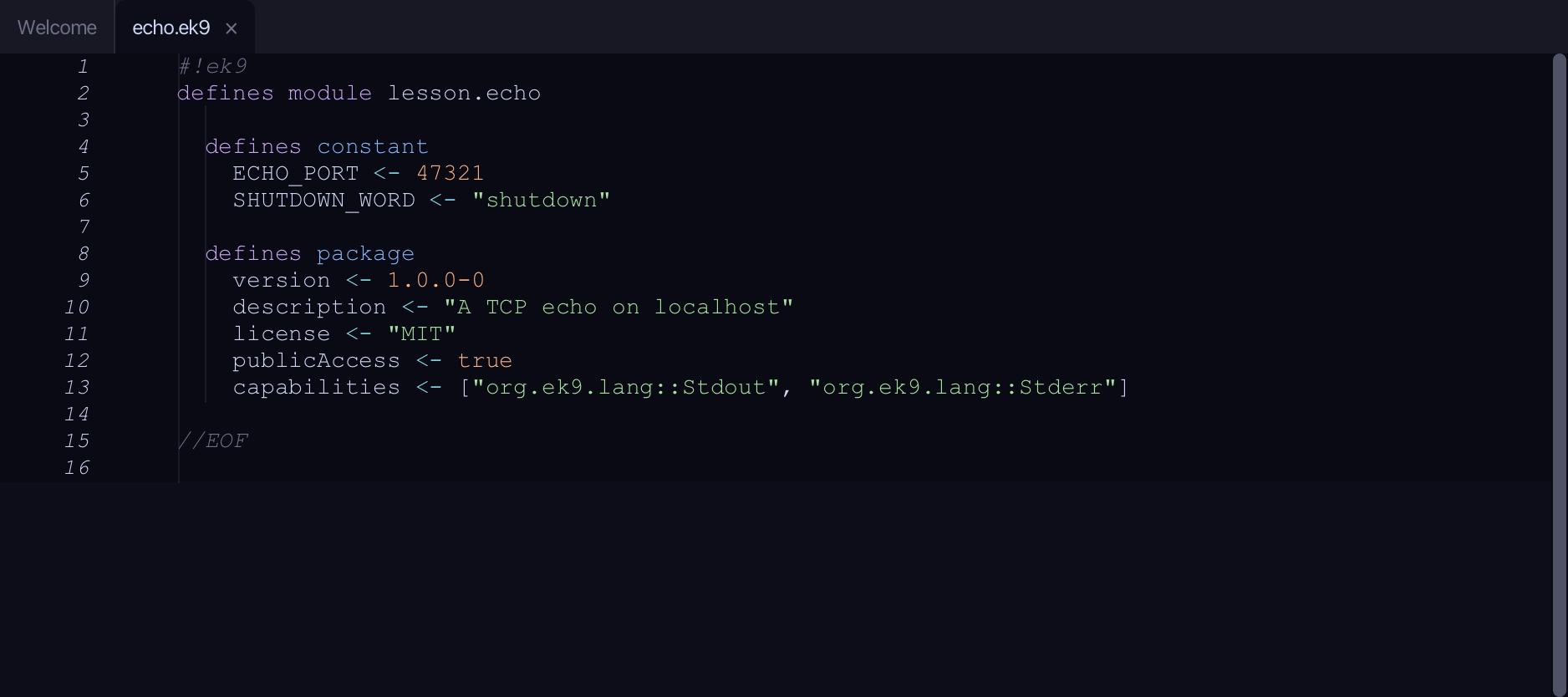
Start from
The code the lesson starts from: copy it into a file of your own and follow the steps.
#!ek9
defines module lesson.echo

  defines constant
    ECHO_PORT <- 47321
    SHUTDOWN_WORD <- "shutdown"

  defines package
    version <- 1.0.0-0
    description <- "A TCP echo on localhost"
    license <- "MIT"
    publicAccess <- true
    capabilities <- ["org.ek9.lang::Stdout", "org.ek9.lang::Stderr"]

//EOF
Step 1: The server
Choose Code > New Construct > Program…
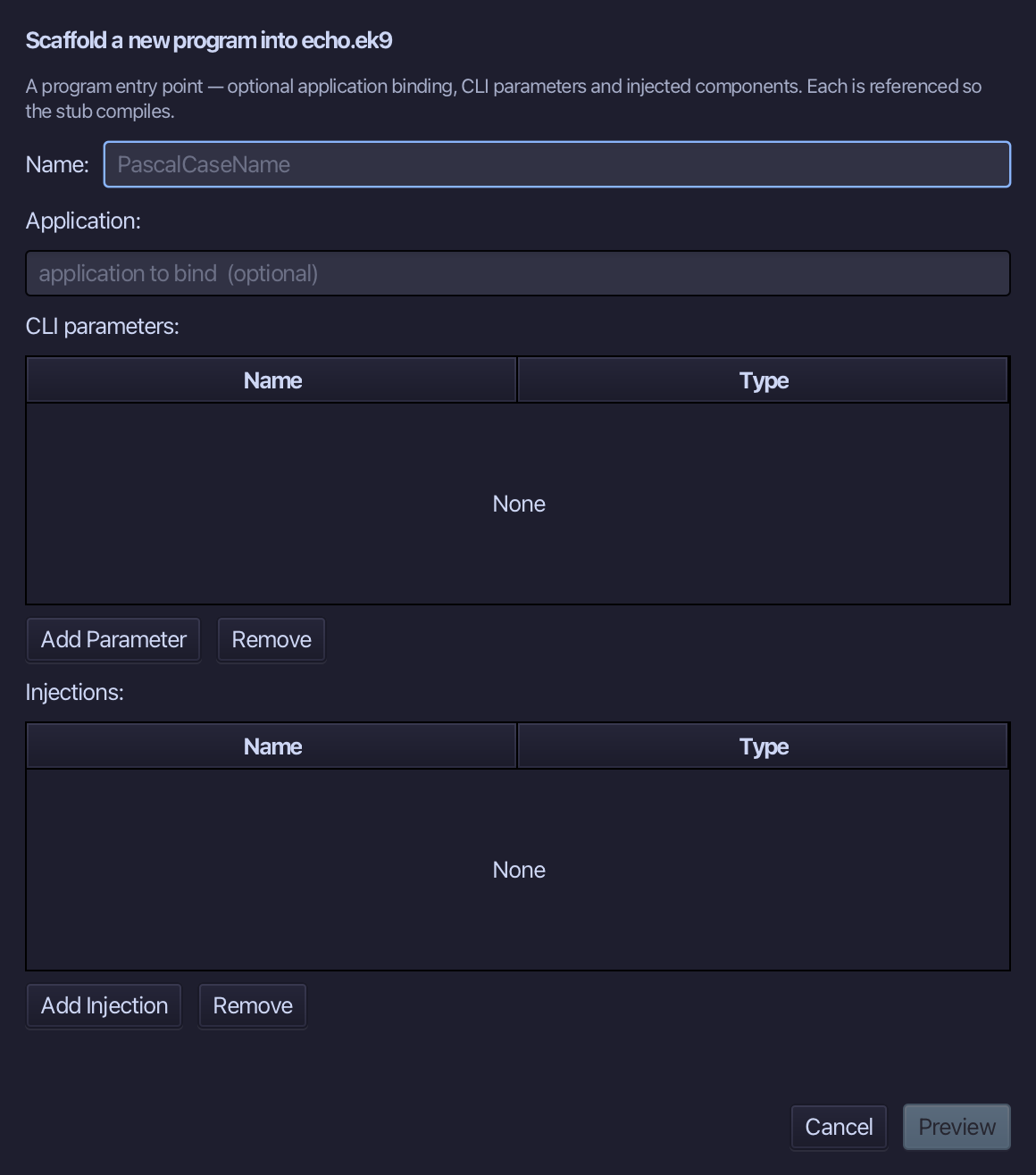
EchoServer is the program's name - no parameters. Type EchoServer and choose Preview.
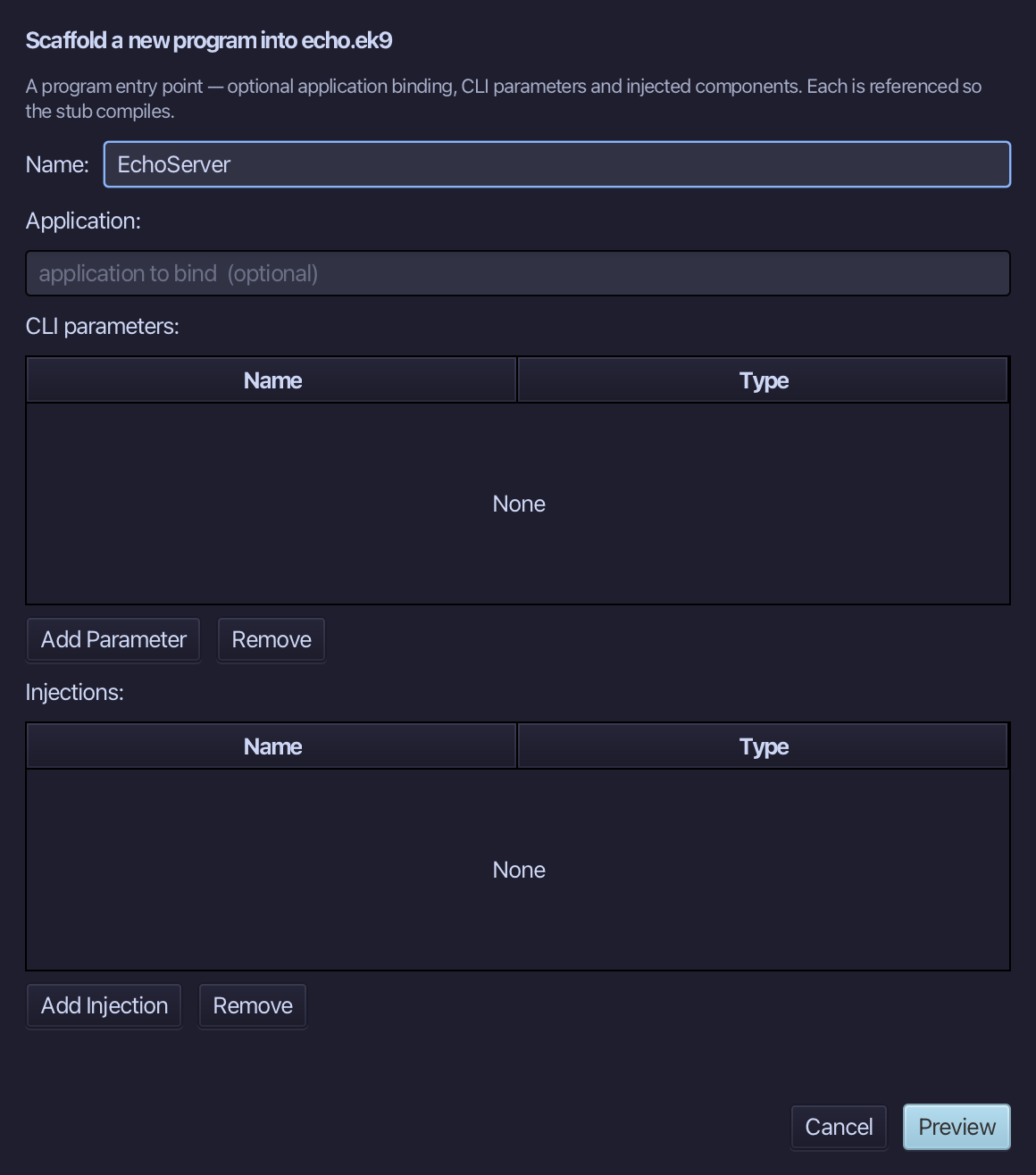
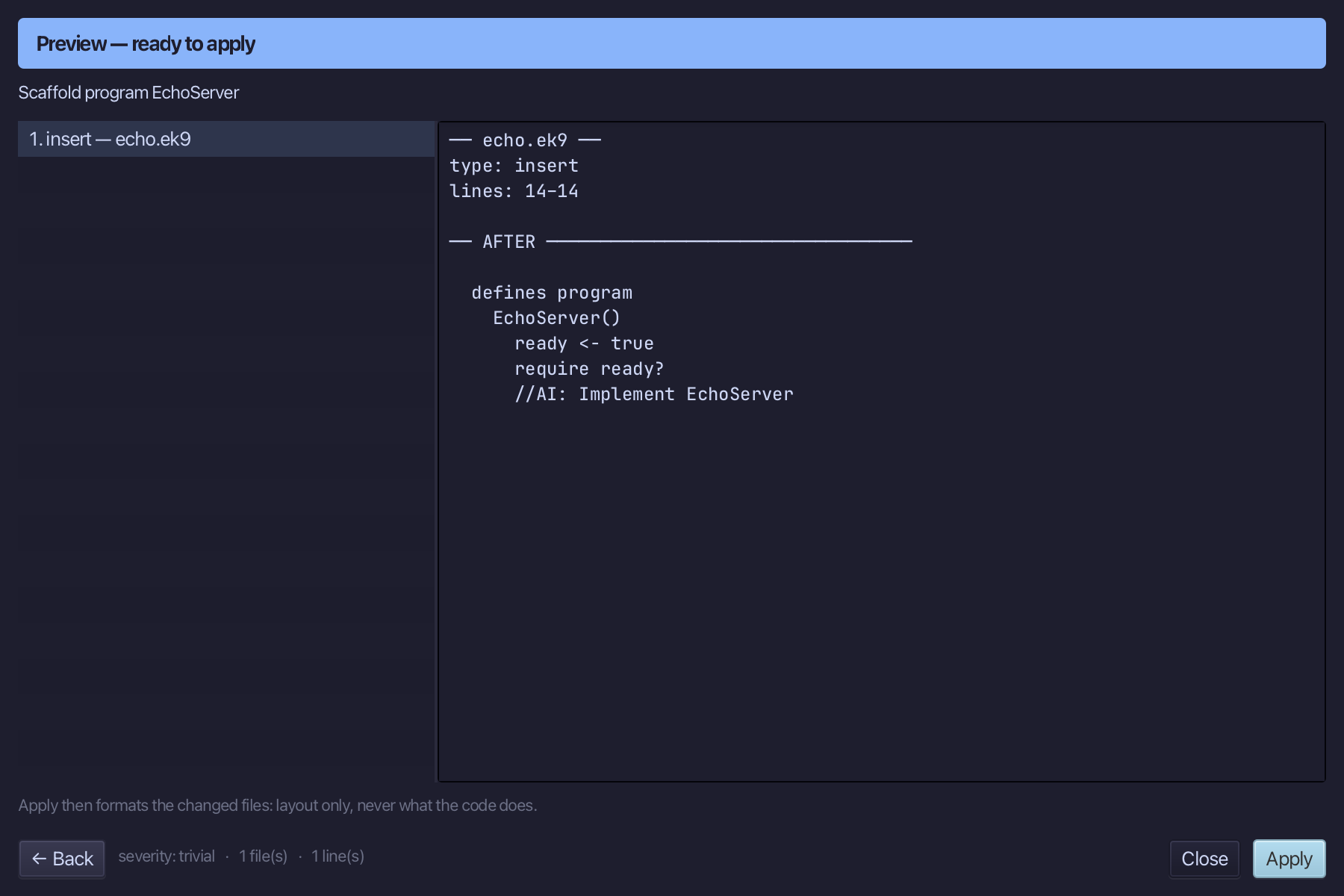
The preview shows EchoServer about to be written. Choose Apply.
Select the stub and type the server: a TCP listening on ECHO_PORT with localOnly true, a handler that answers each line in capitals and stops the server on SHUTDOWN_WORD, and accept, which serves until it is stopped. Saves when typed.
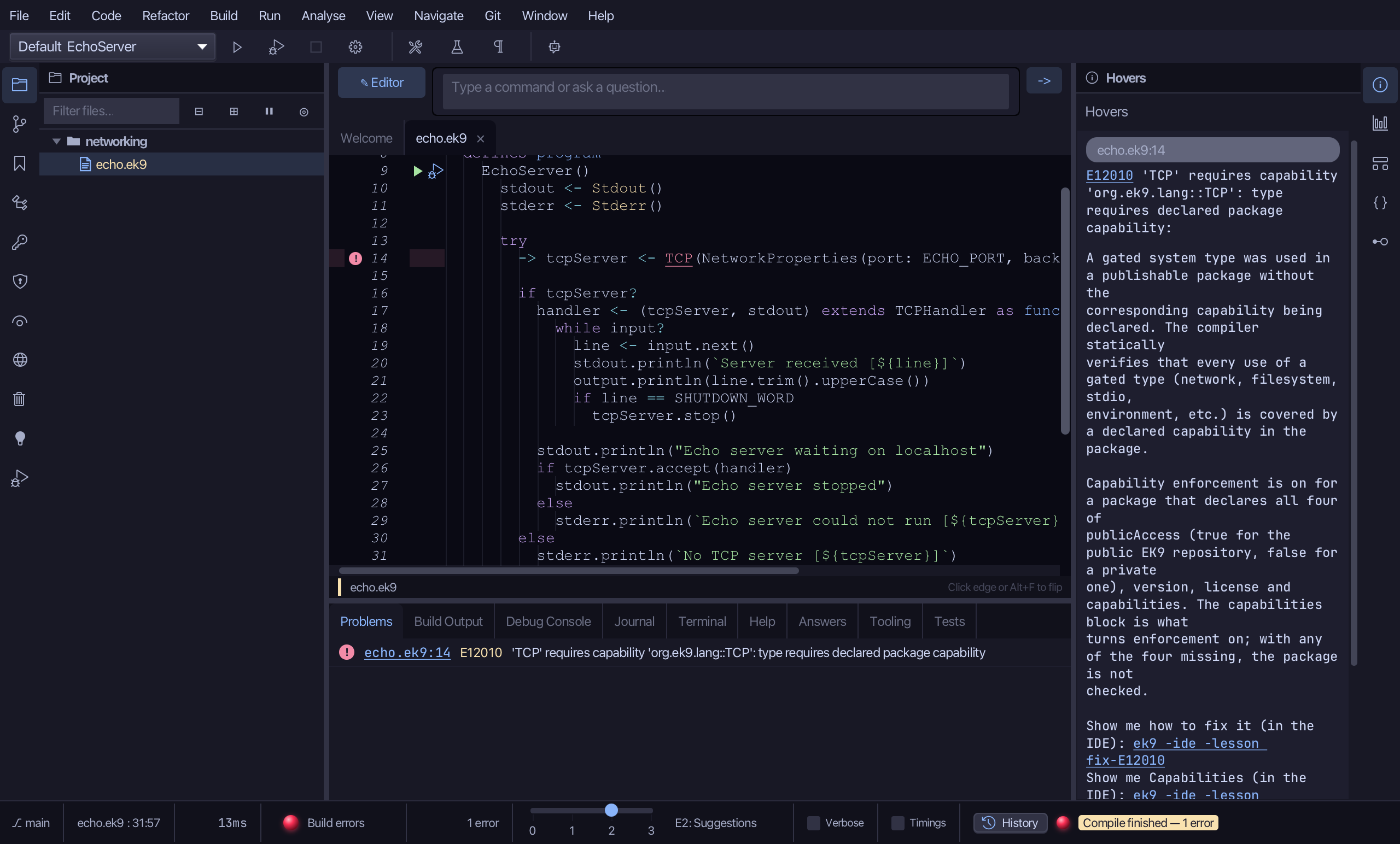
Step 2: The network is gated
E12010: TCP is a gated type - a program that opens a socket must say so. In EK9 that is the package block's capabilities list, checked by the compiler, not a permission prompt at run time. This package declares Stdout and Stderr only.
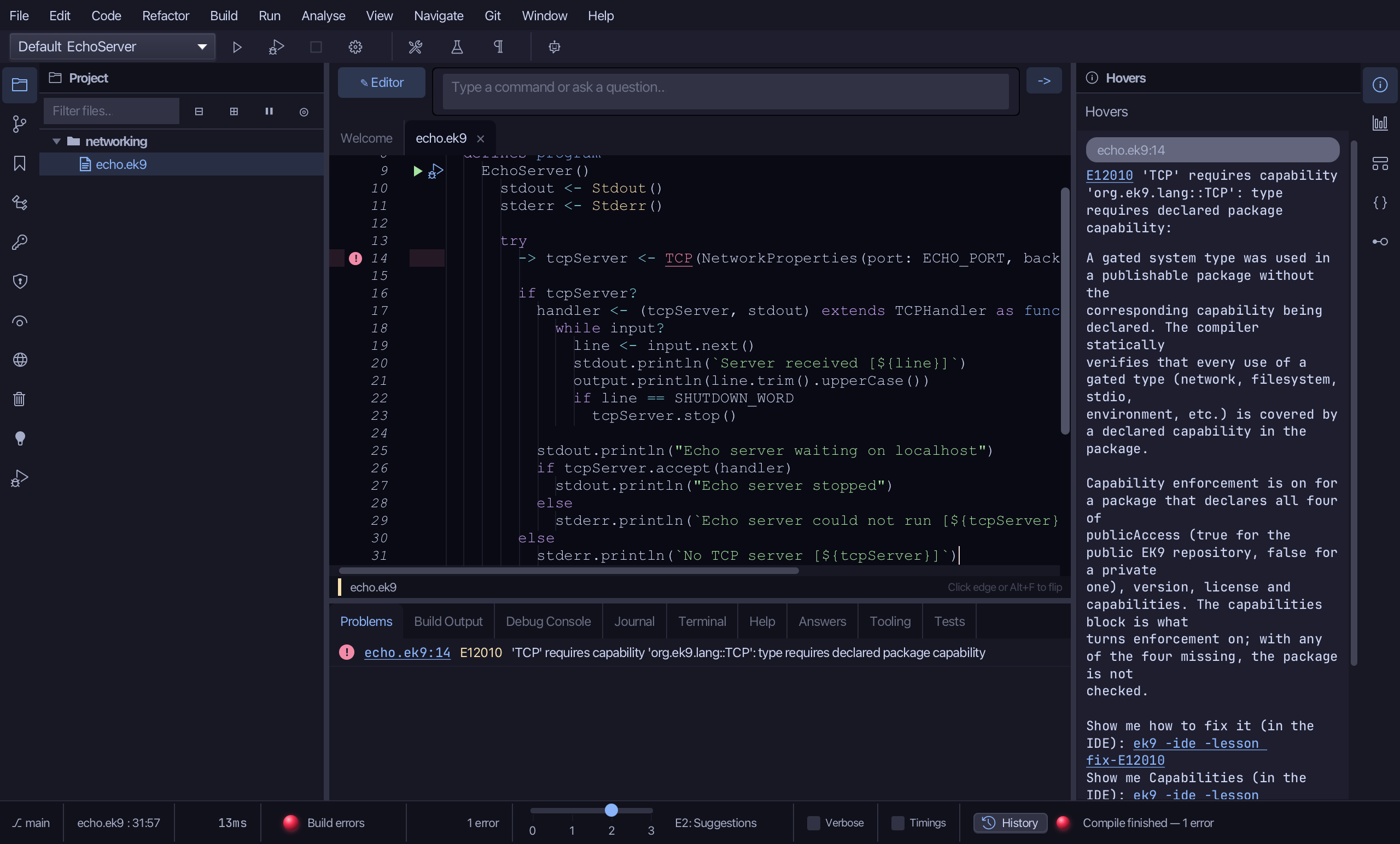
Right-click the line that creates the TCP and choose Add capability 'TCP' to package.
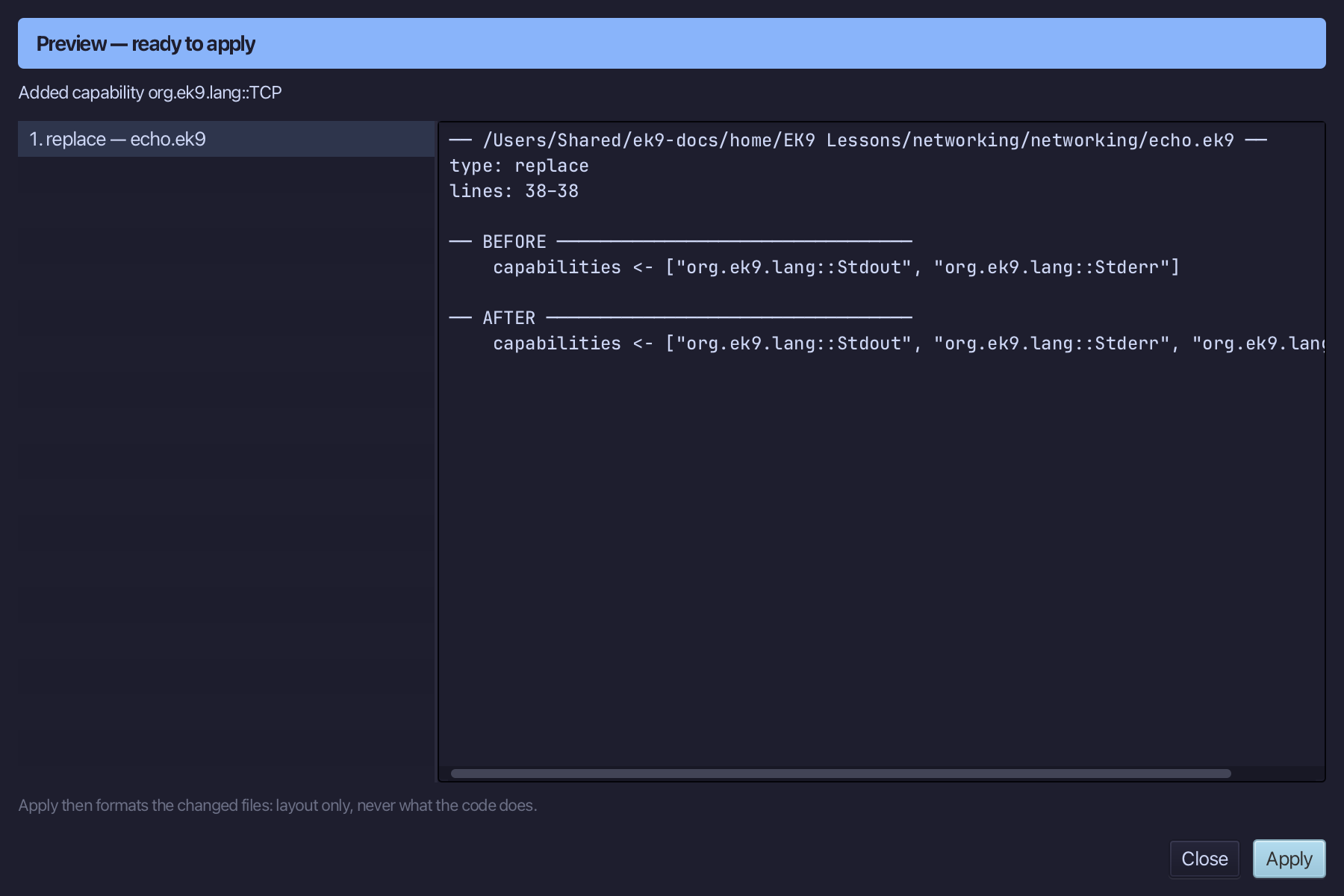
The preview shows TCP added to the capabilities list. Choose Apply.
Step 3: The client
Choose Code > New Construct > Program…
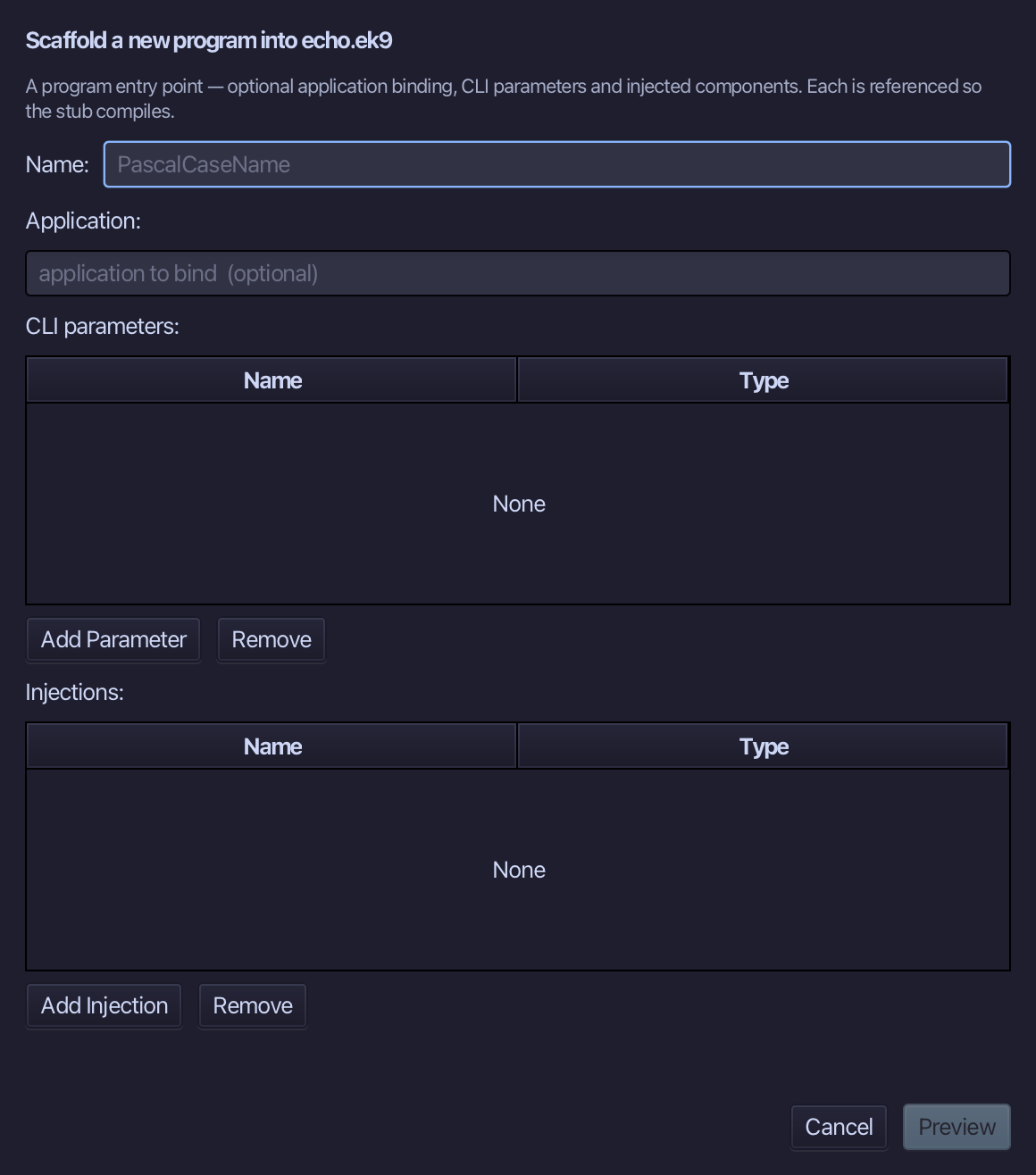
EchoClient is the program's name - no parameters. Type EchoClient and choose Preview.
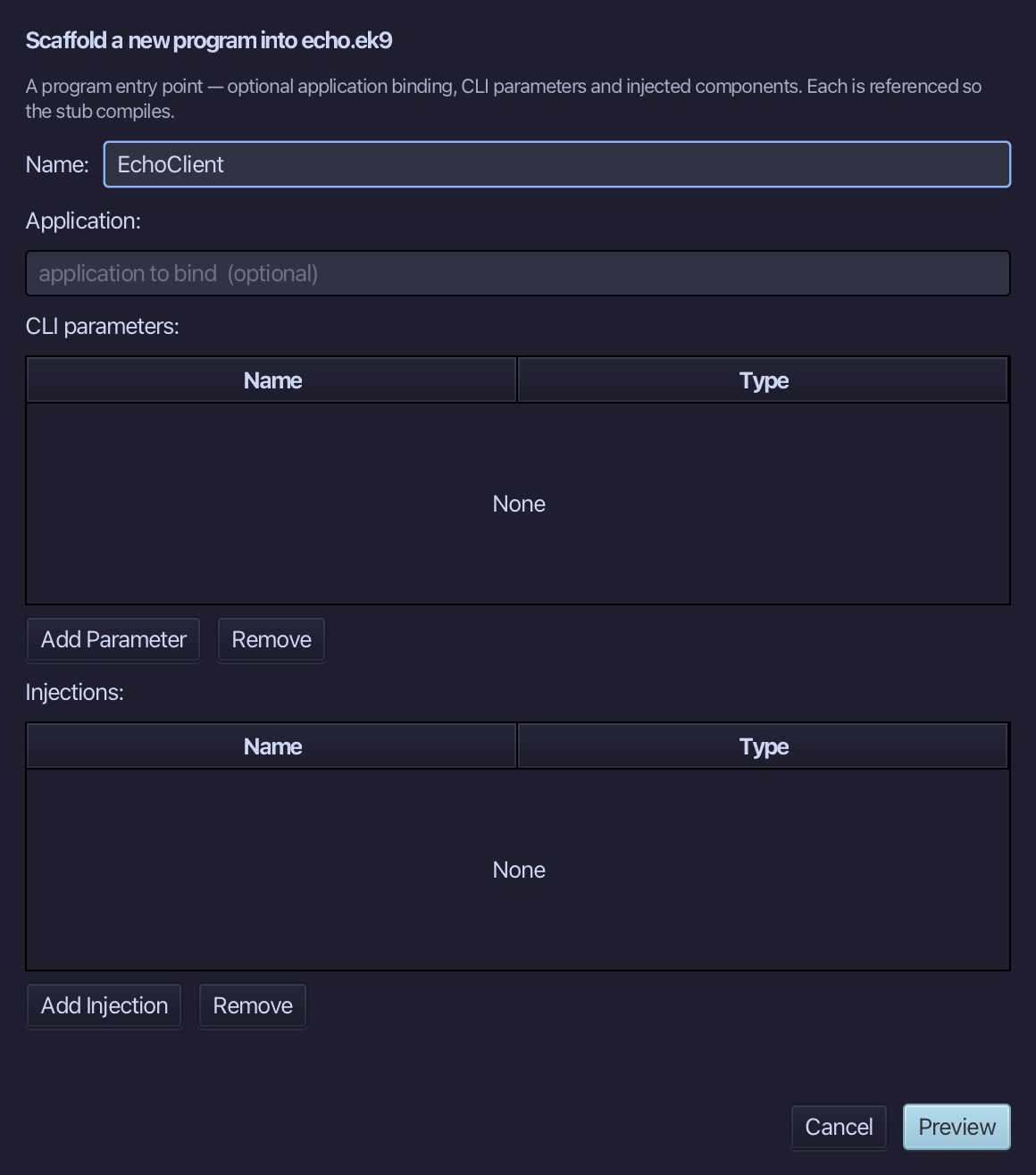
The preview shows EchoClient about to be written. Choose Apply.
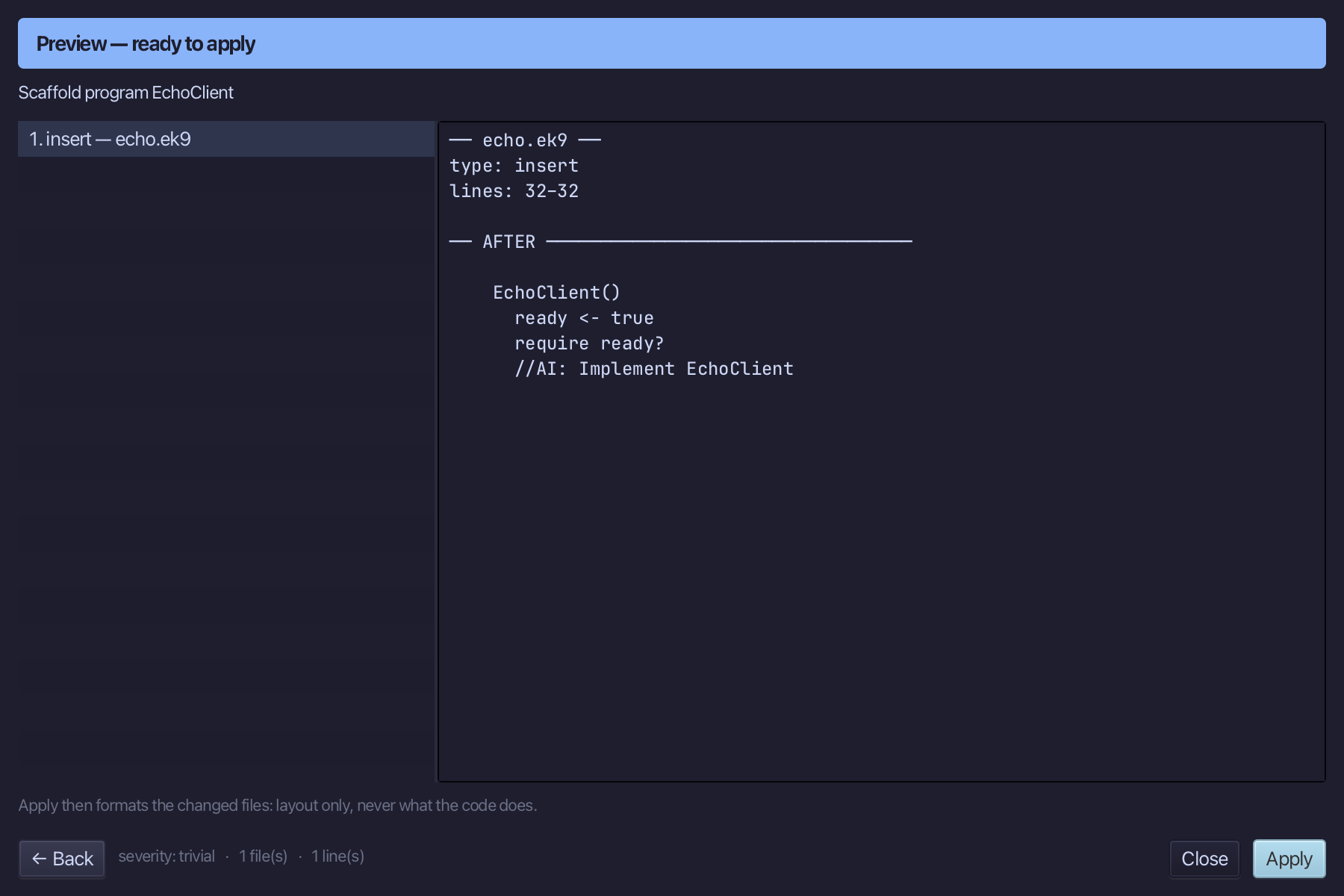
Select the stub and type the client: the loopback address from Networking, a TCP to ECHO_PORT, a connection, and two lines sent - hello, then SHUTDOWN_WORD - each answer read and printed. Saves when typed.
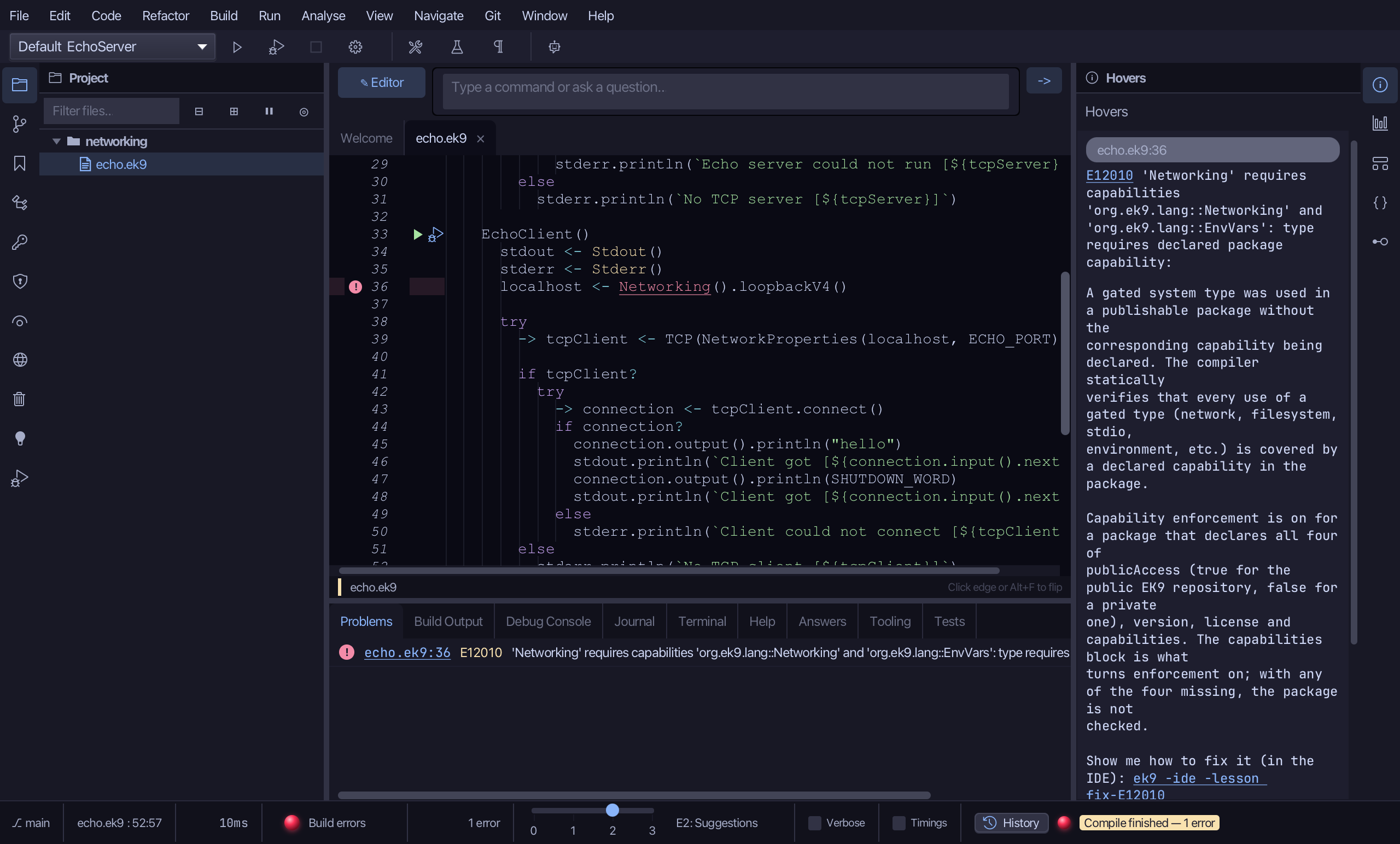
E12010 again: Networking is gated too. Right-click the line that uses it and choose Add capability 'Networking' to package.
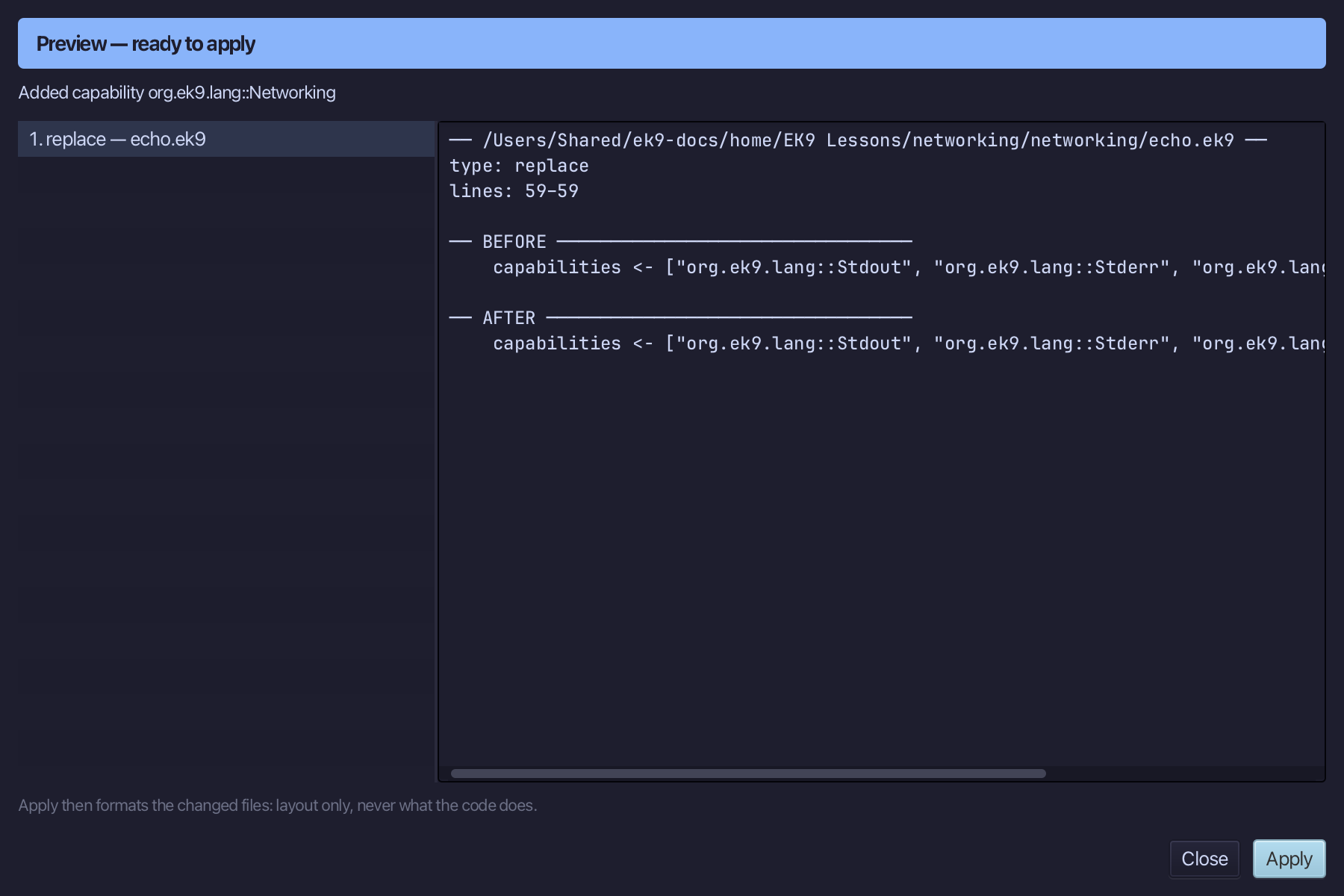
The preview shows Networking added. Choose Apply.
The same line still reports E12010: Networking reads the environment, so it needs EnvVars as well. Right-click it again and choose Add capability 'EnvVars' to package.
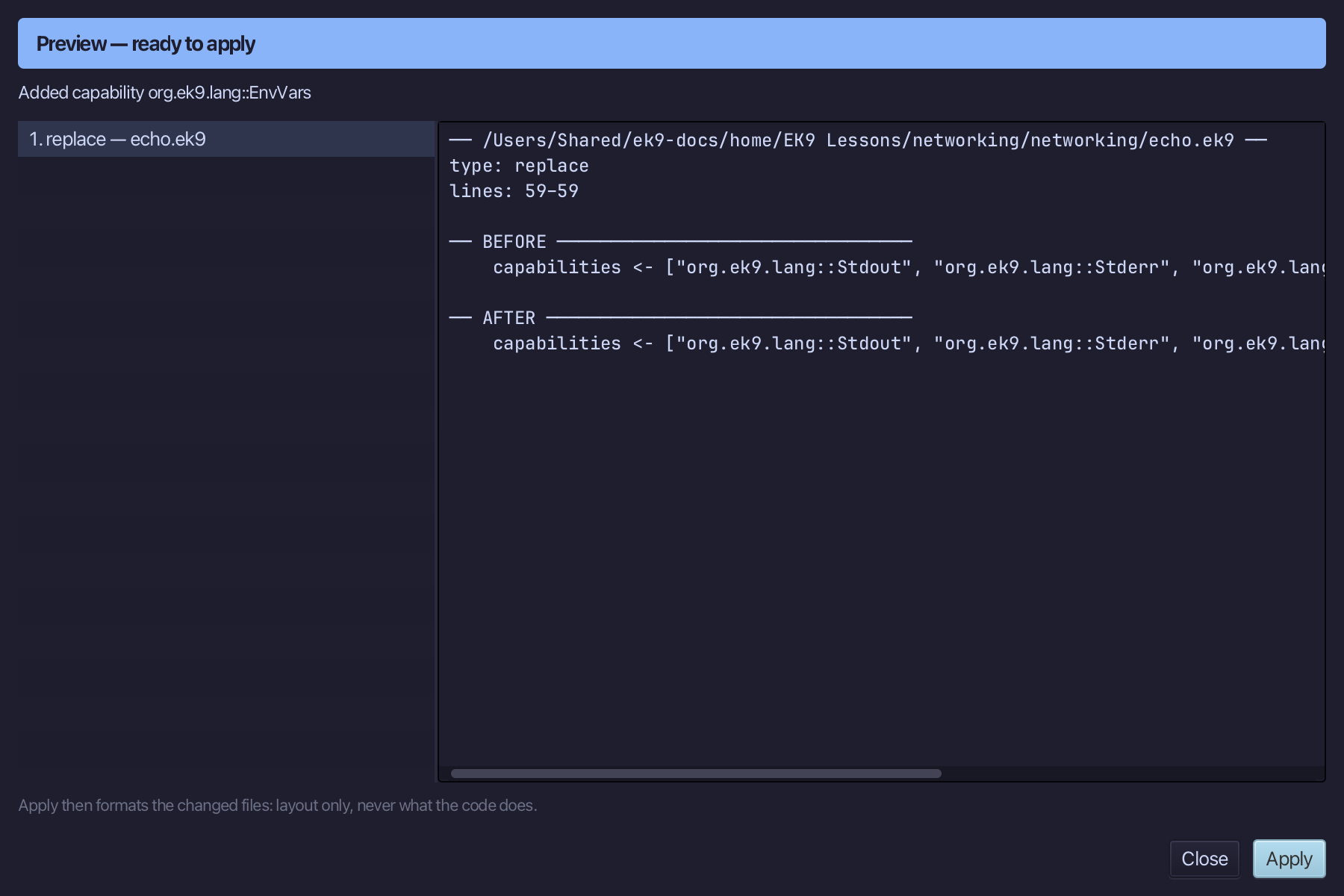
The preview shows EnvVars added - the package is now complete and the project compiles. Choose Apply.
Step 4: A run configuration for each
Choose Run > Configurations…
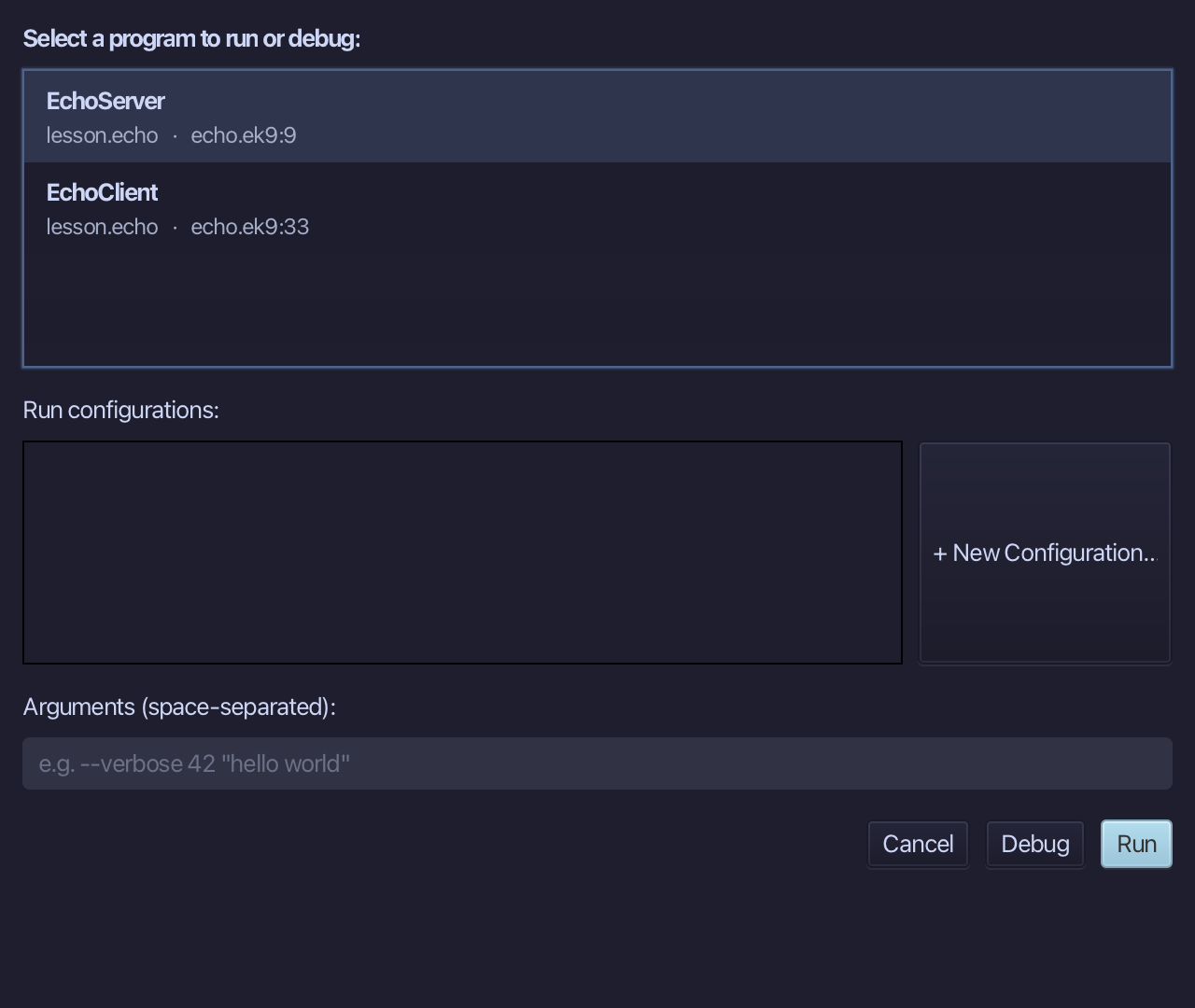
Select EchoServer in the list of programs, then choose + New Configuration….
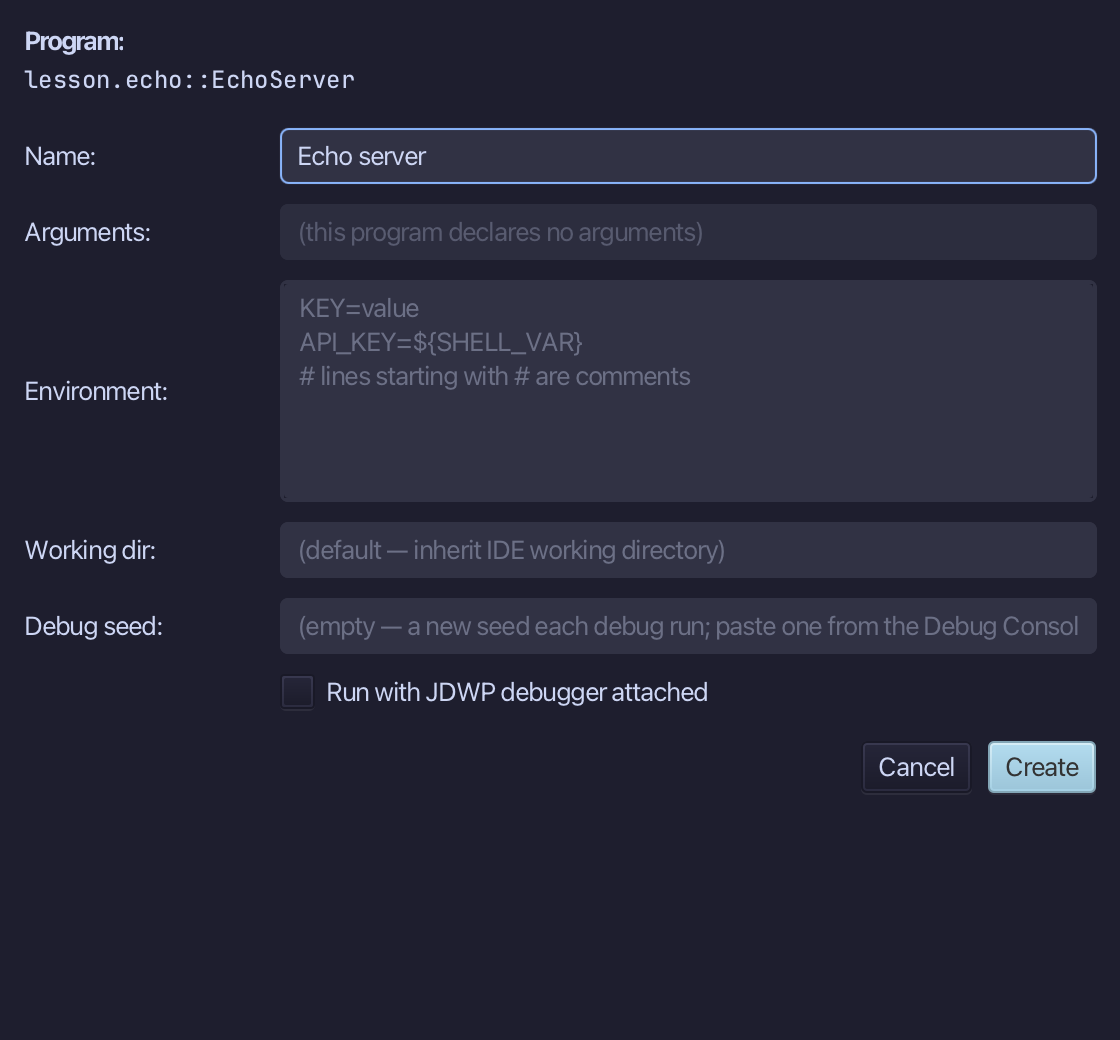
Name it Echo server. The program takes no arguments and needs no environment. Choose Create.
Select EchoClient in the list of programs, then choose + New Configuration….
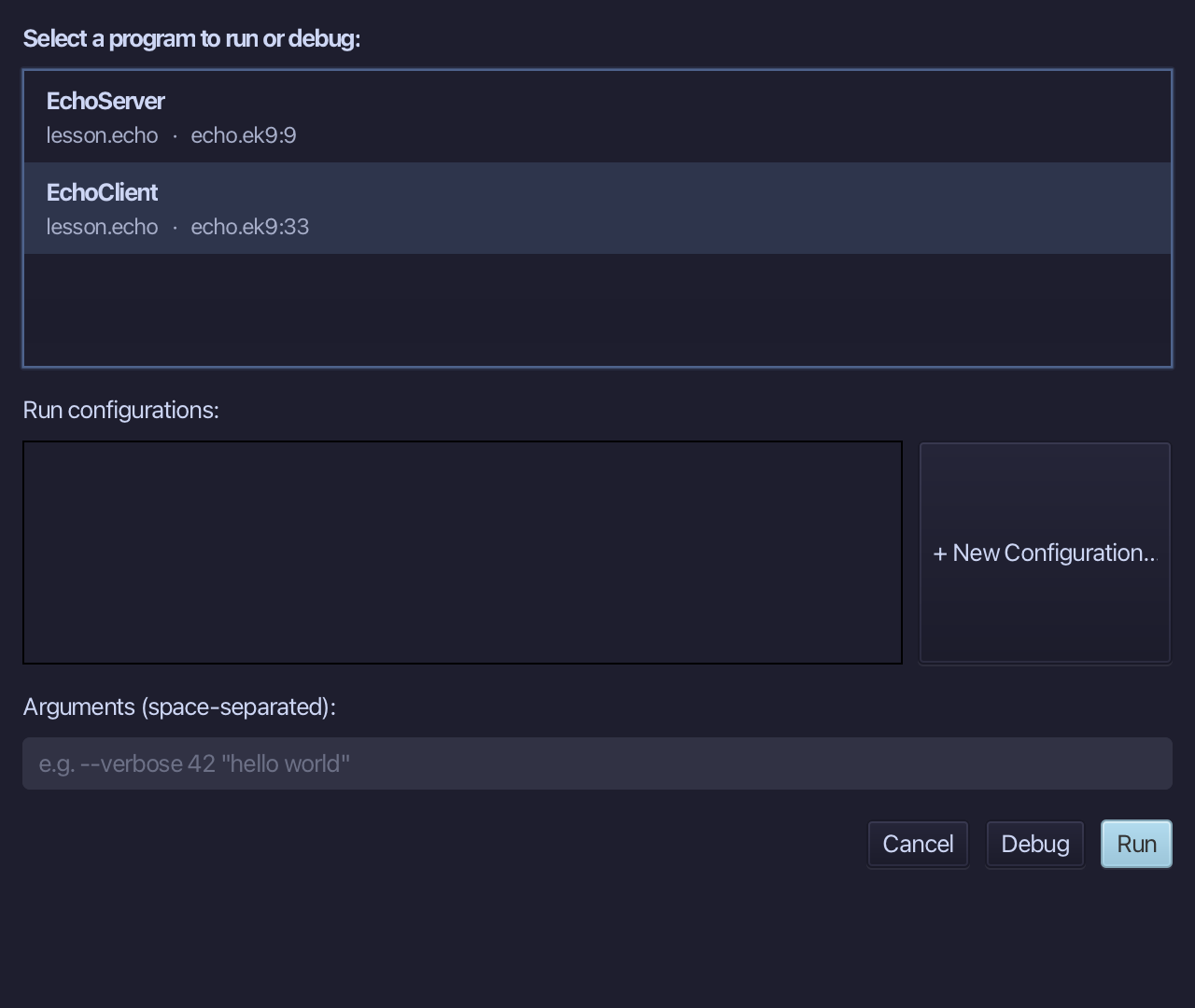
Name it Echo client. The program takes no arguments and needs no environment. Choose Create.
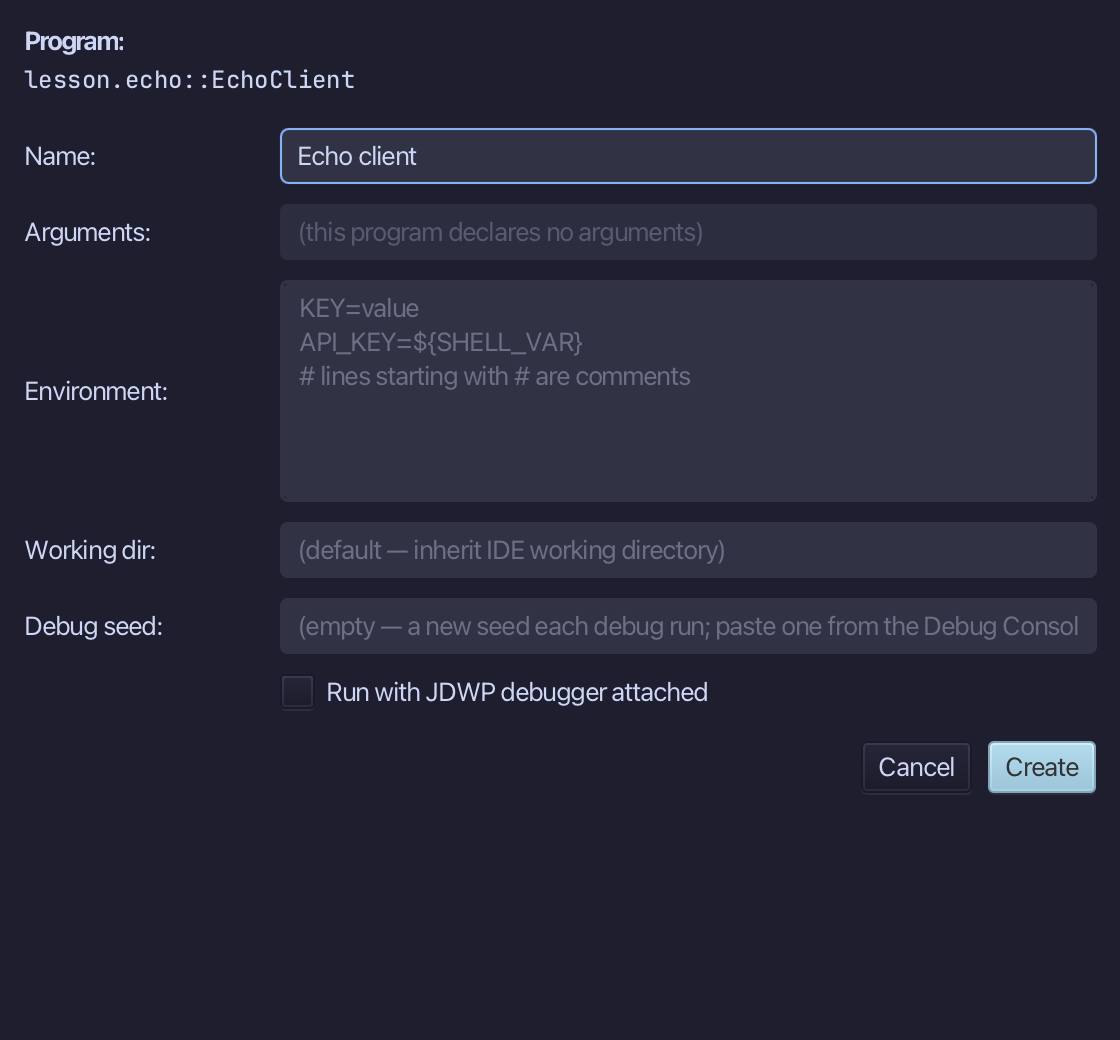
Both are saved, one for each program. Choose Cancel - nothing runs yet.
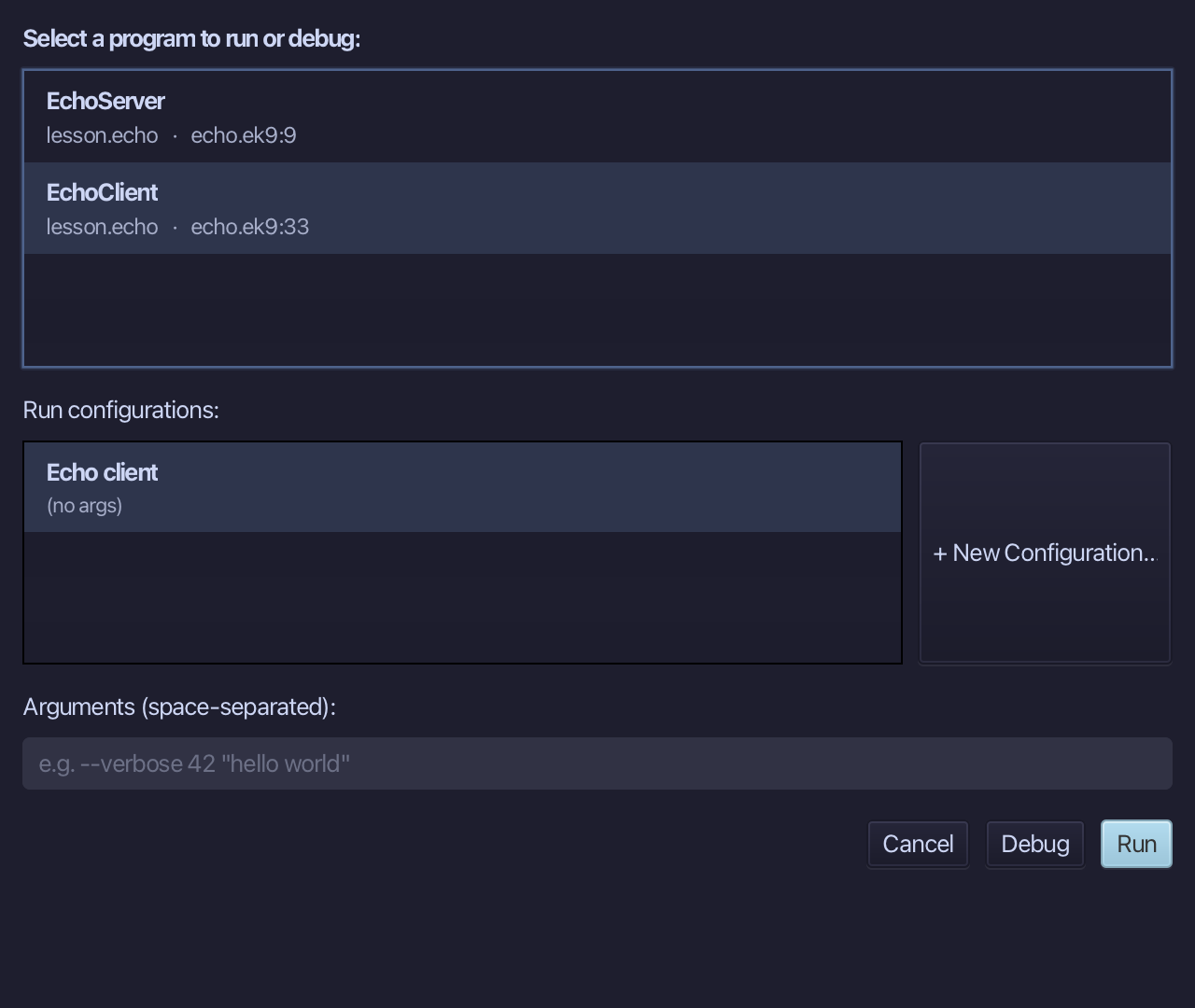
Step 5: Run the server
In the toolbar's picker, choose Echo server.
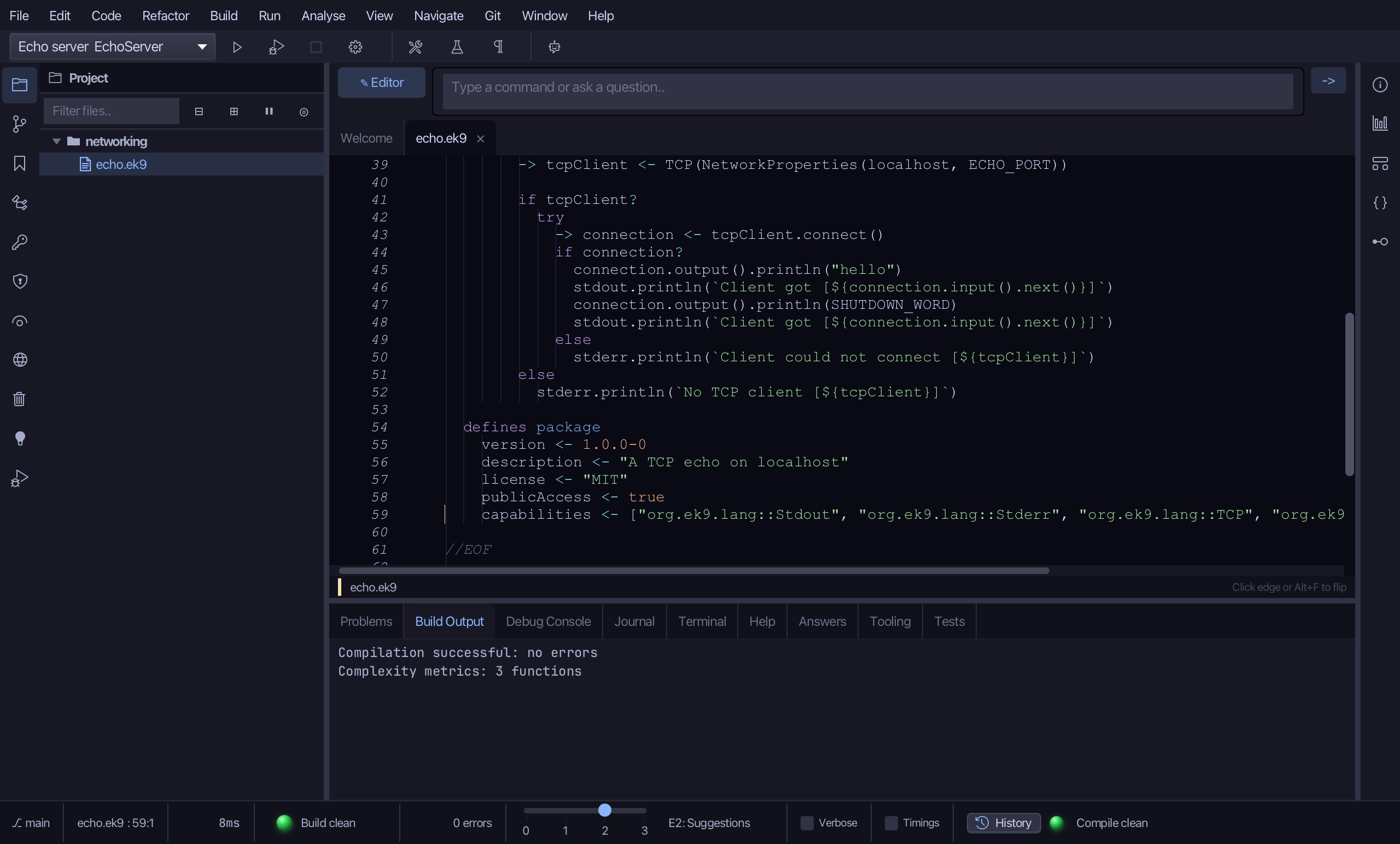
Choose the green play icon. The server starts and stays running: its window opens, blank until the server ends - a run's output arrives when the program finishes.
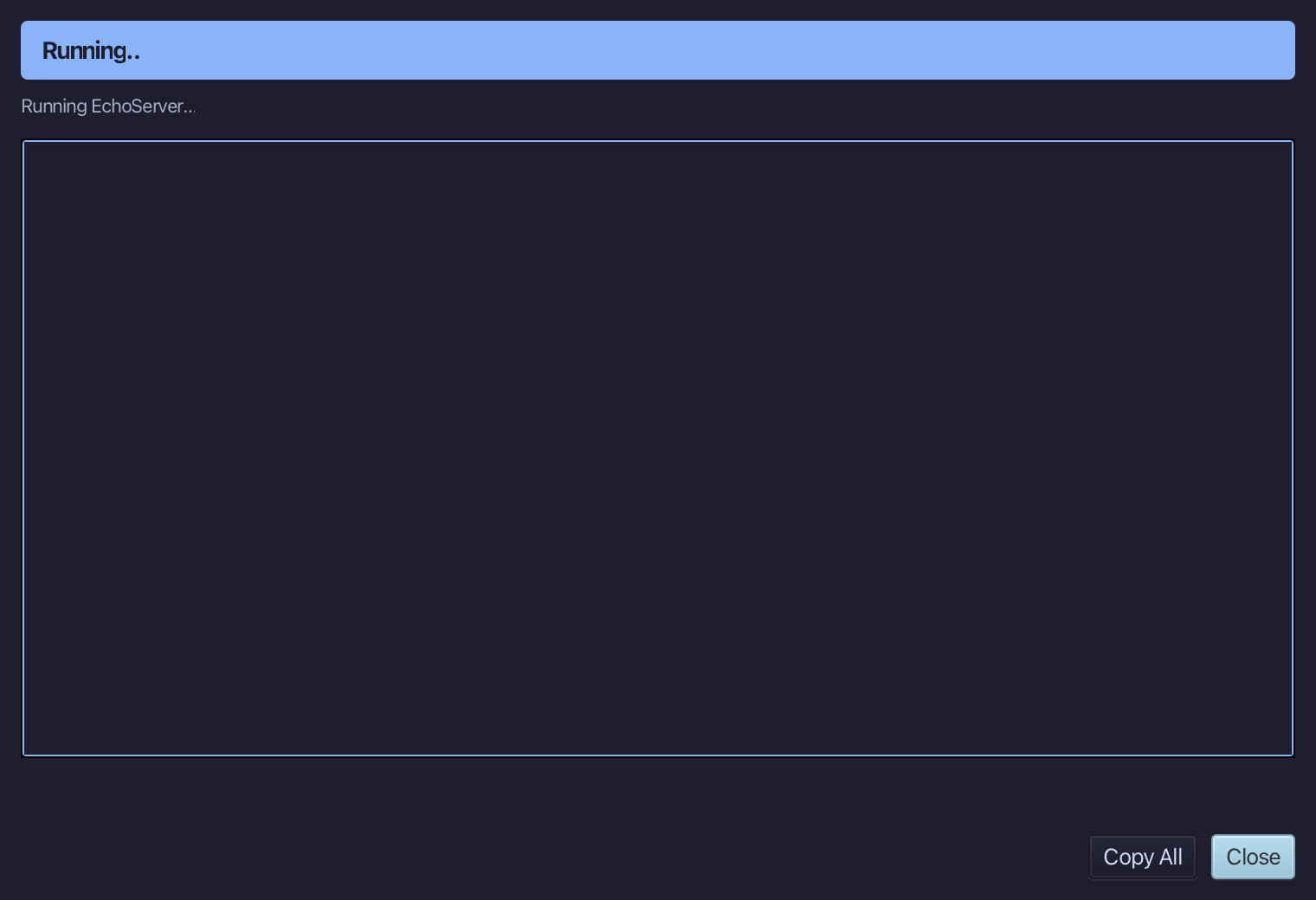
Step 6: Run the client
Something is now listening on localhost, port 47321. In the picker, choose Echo client.
Choose the green play icon again.
The client's window: HELLO and SHUTDOWN, each line it sent answered in capitals by the server.
Choose Close.
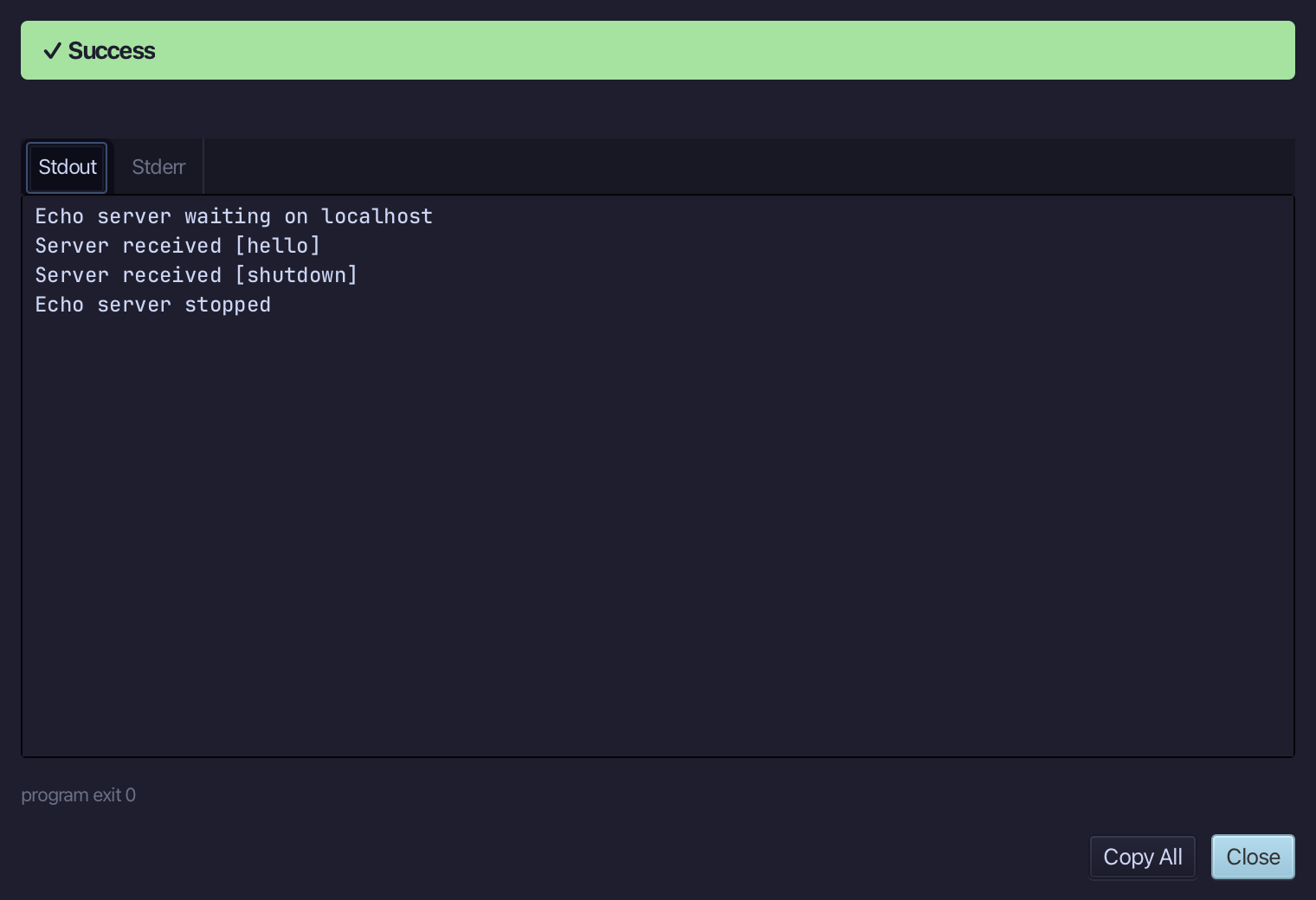
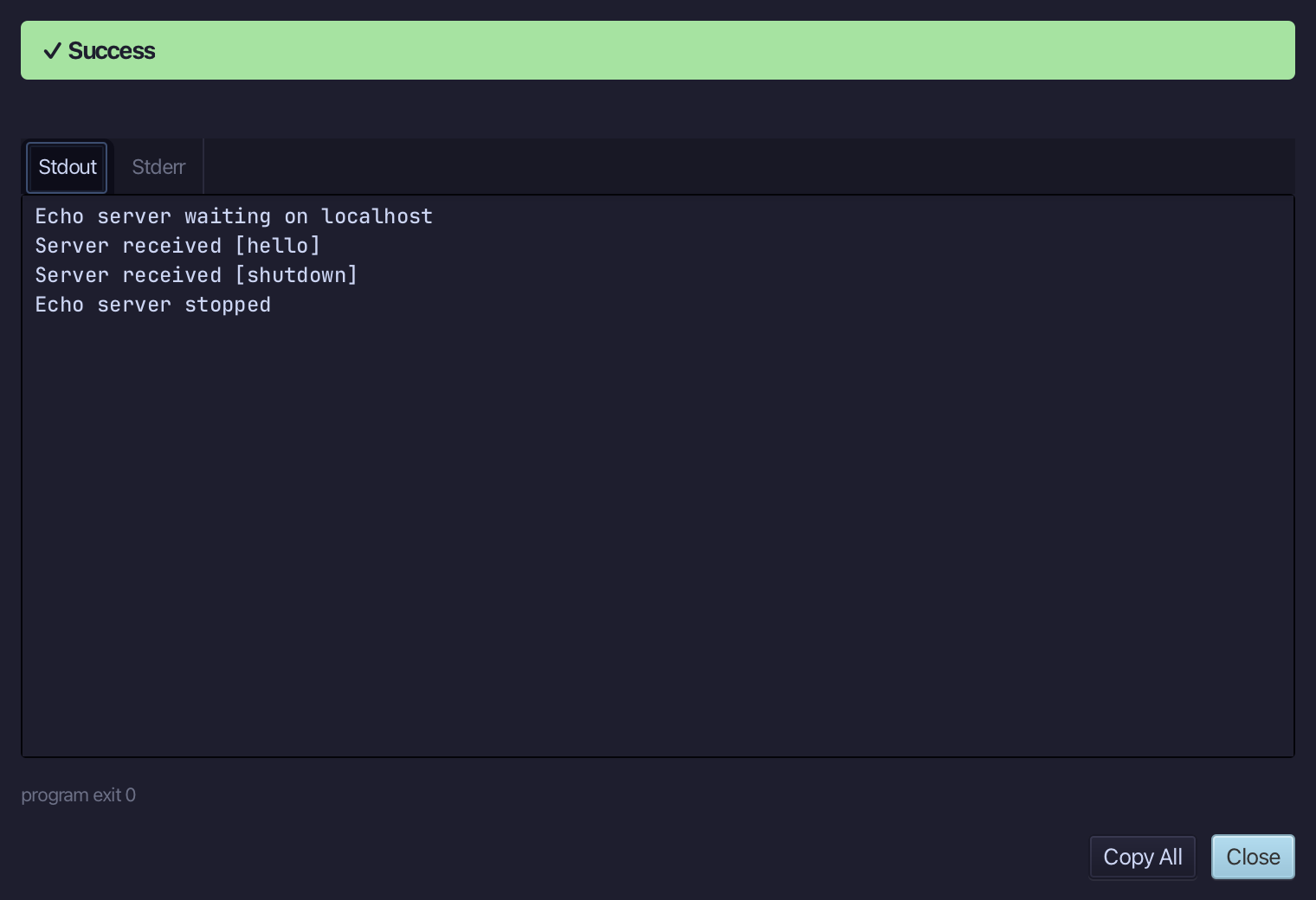
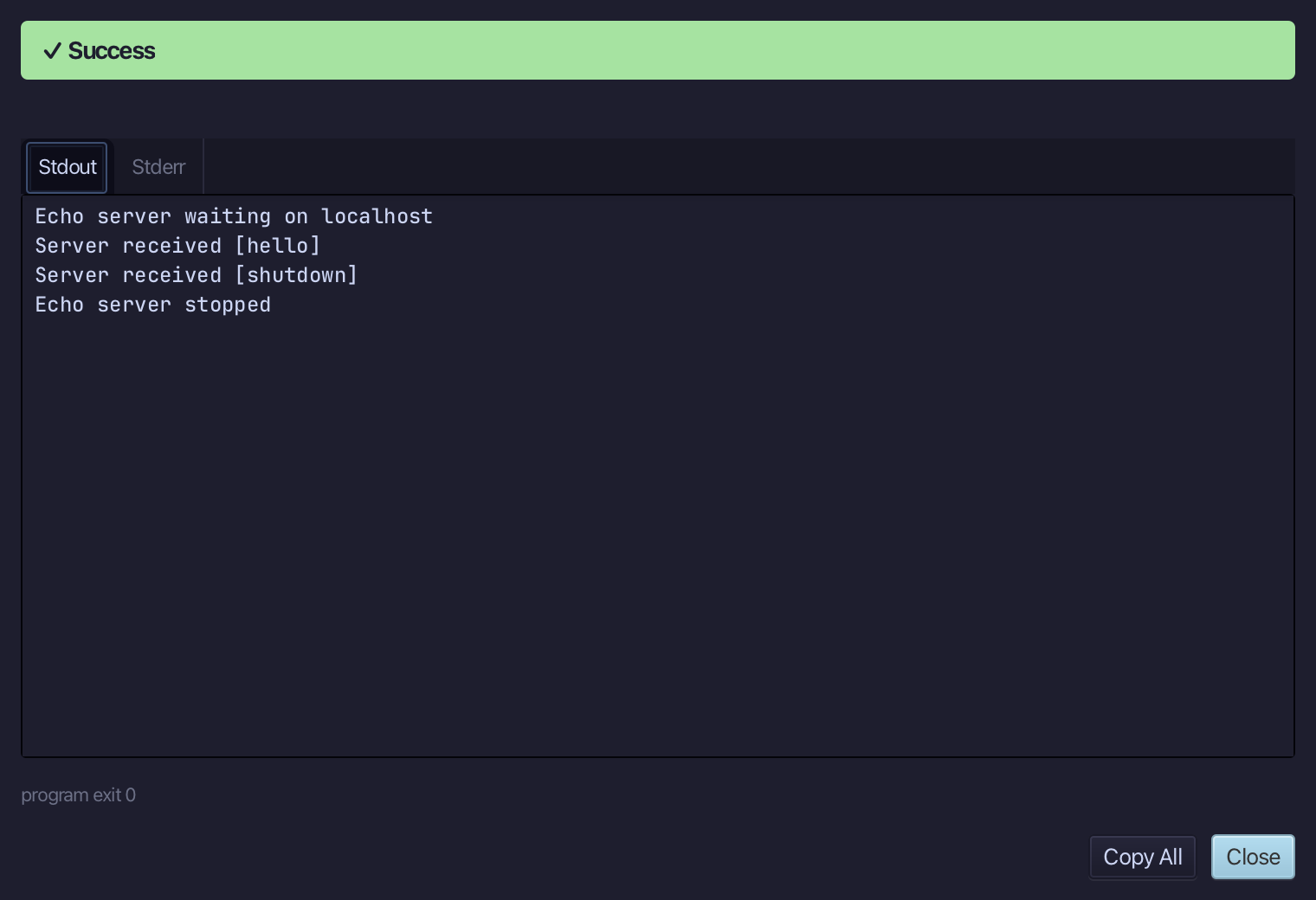
The client's last line was the word shutdown. That told the server's handler to stop it, so the server has finished by itself and its window now shows what it saw: the two lines received and Echo server stopped. Nothing is left listening.
Choose Close.
The result
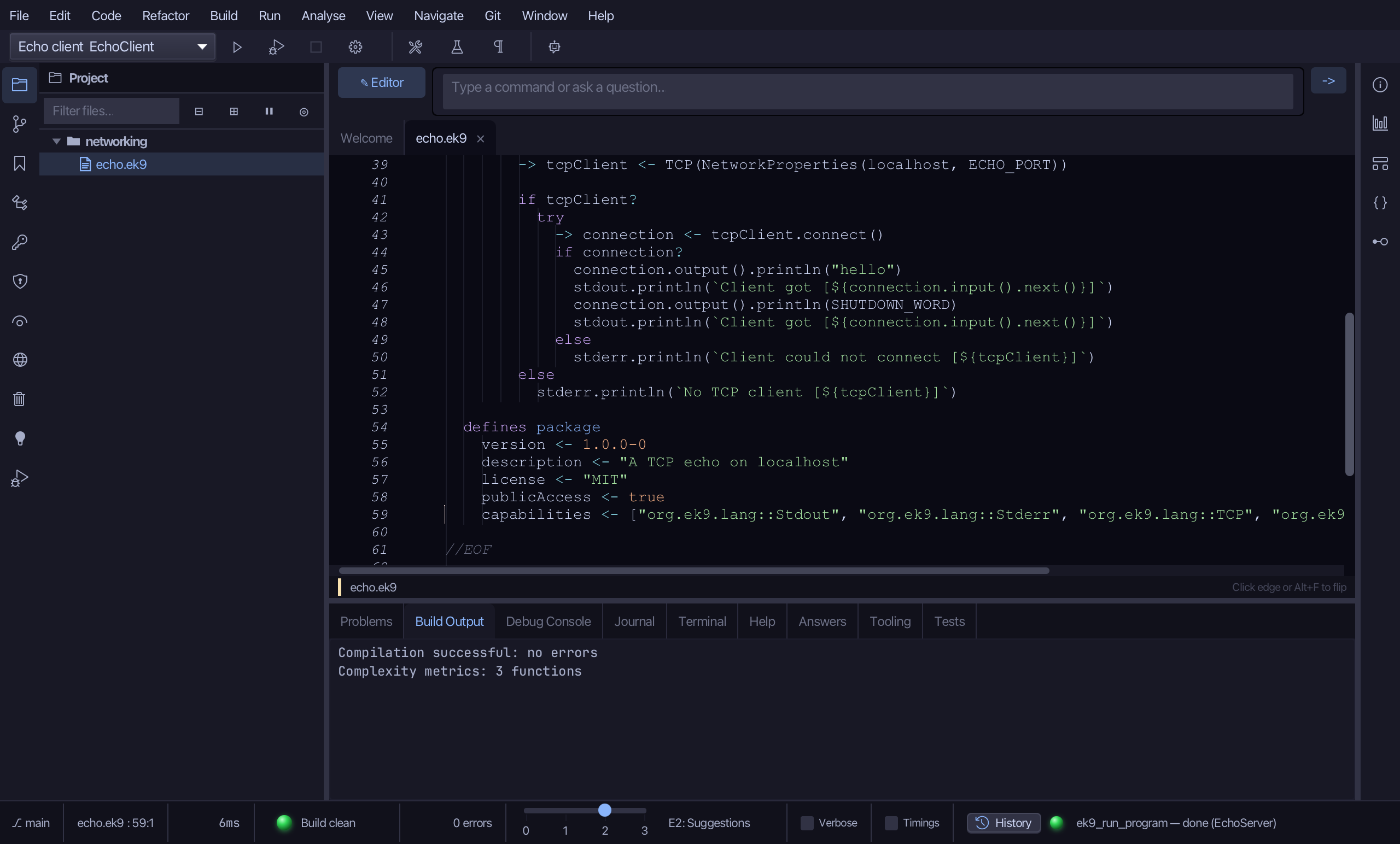
That is a TCP echo, start to finish, on localhost only: a server on one fixed port that upper-cases each line and stops on the word the project names, a client that sends two lines and reads two answers, and a package block that says out loud which network types it uses - E12010 is the compiler refusing a program whose package has not. The server needed no Stop button: its client's last line ended it, and nothing is listening afterwards. AI assistants add the capabilities with ek9_add_capability and run each program with ek9_run_program.
Where this lesson comes from
- Answers -
ek9 -qand the IDE's Answers tab: 1273, 1277, 1700. - For AI assistants - the MCP tool
ek9_add_program,ek9_add_capability,ek9_run_program.
In the EK9 reference: EK9 Network Types