Chapter 25: what pure promises, built
Chapter 25's PurityRules shows the pragmatic side of 'pure'. The rule is one-way: a pure function may call only pure code, but code that is not pure may call pure code freely - and a pure function may still print, because output is not the state purity protects. The IDE writes the four signatures with pure ticked where the book has it; you type the work. To play it in the IDE: Help > Lessons > EK9 in Depth…, or ek9 -ide -lesson depth-purity-rules.
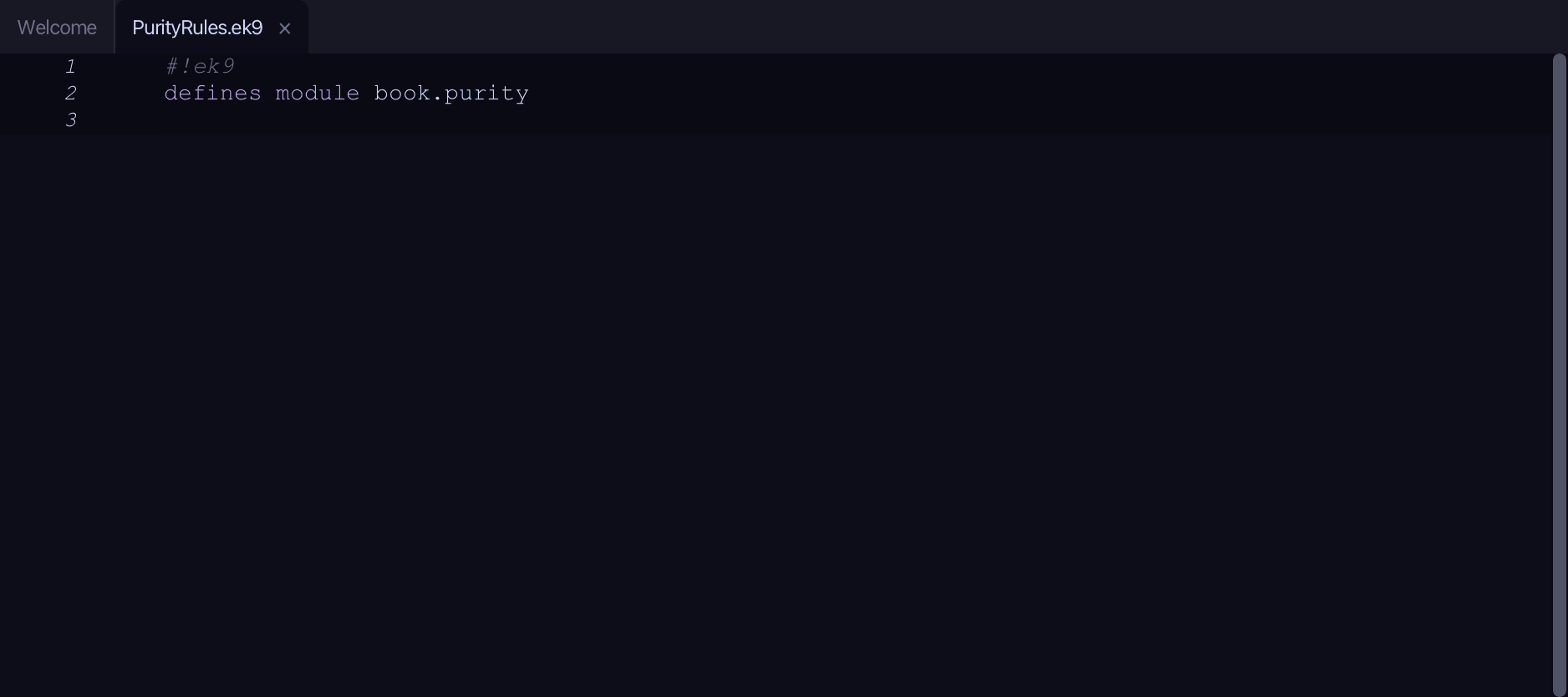
What you'll build
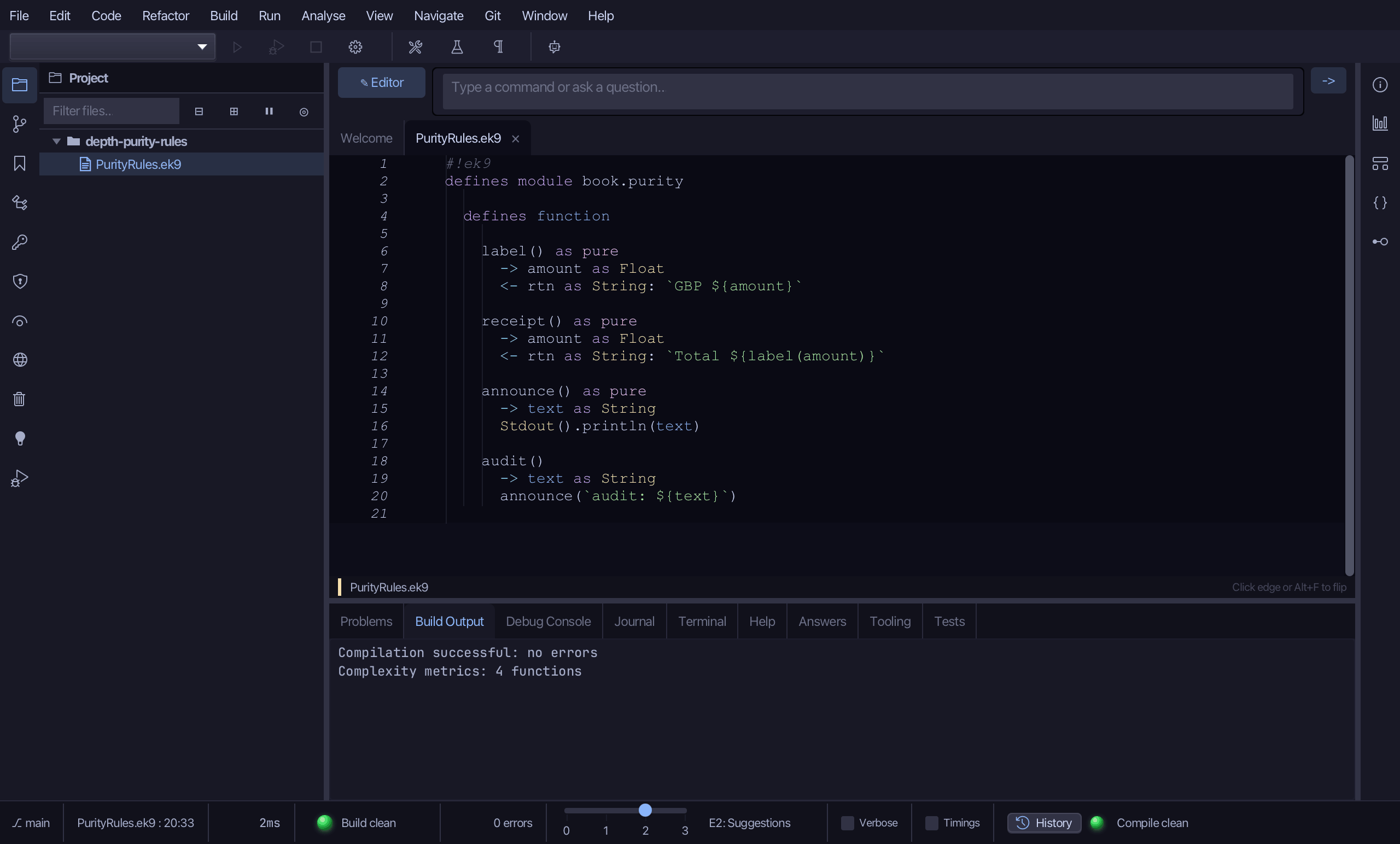
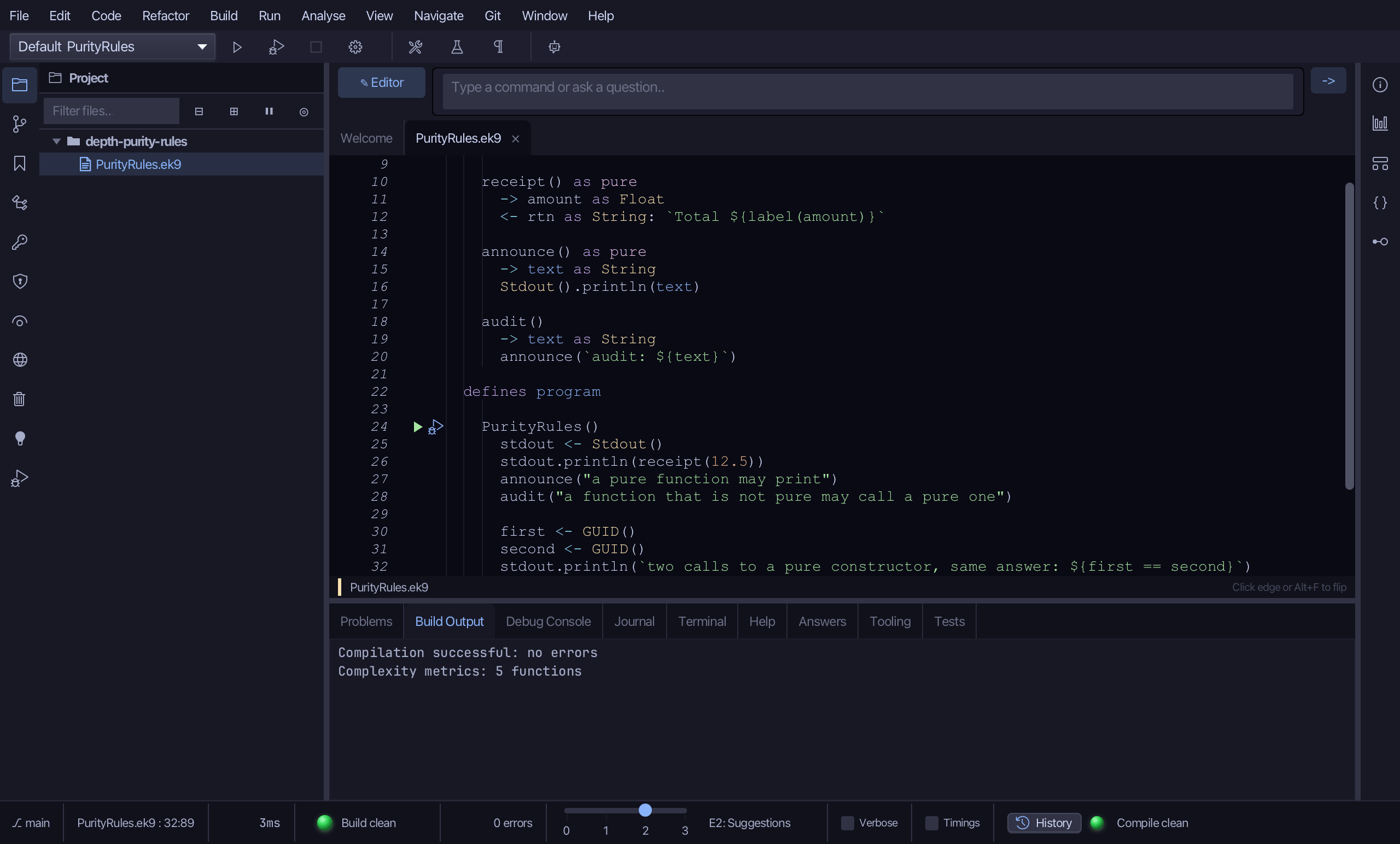
The lesson builds this program from a file holding only its module line - the finished file, as the book prints it.
#!ek9
defines module book.purity

  defines function

    label() as pure
      -> amount as Float
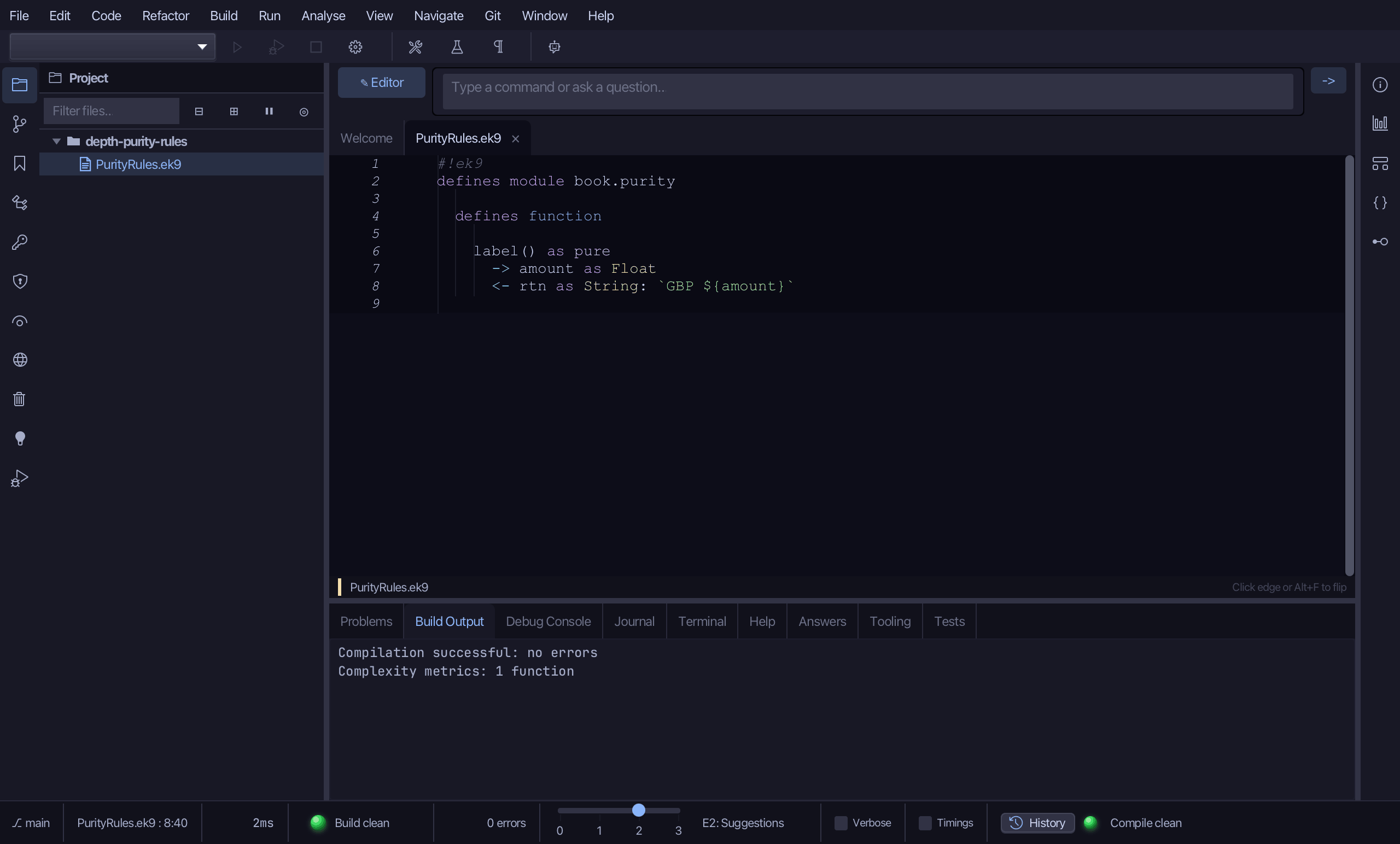
      <- rtn as String: `GBP ${amount}`

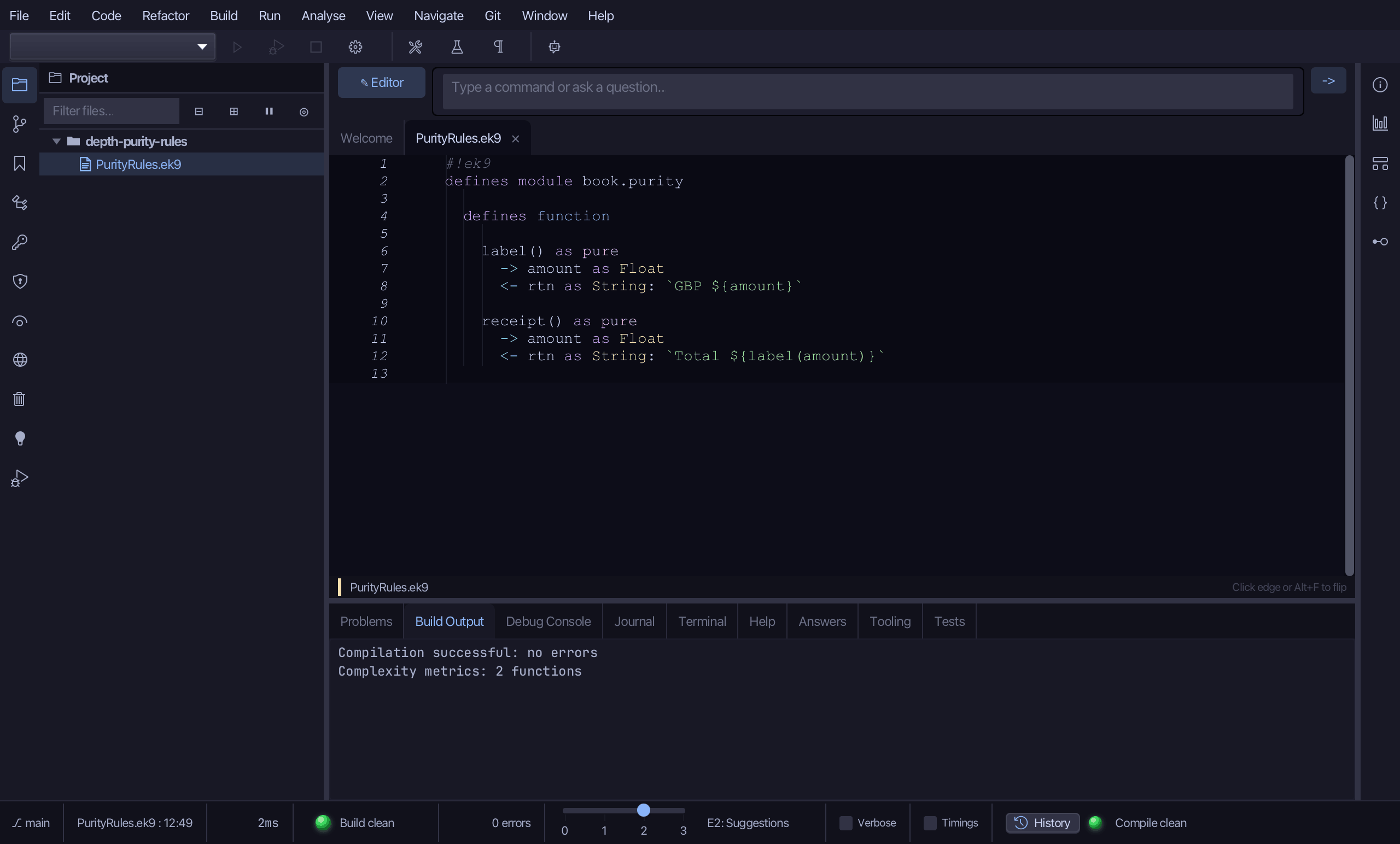
    receipt() as pure
      -> amount as Float
      <- rtn as String: `Total ${label(amount)}`

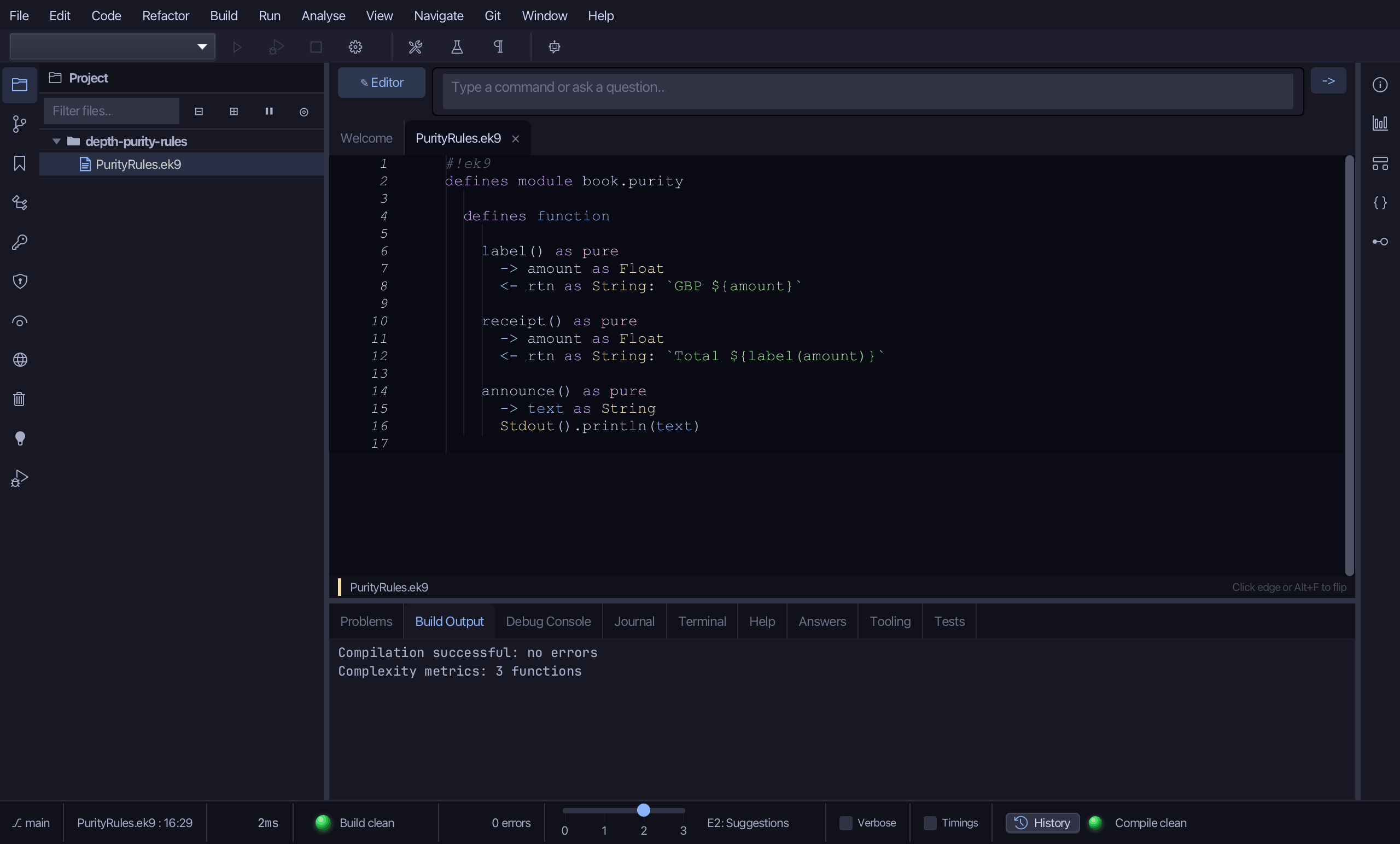
    announce() as pure
      -> text as String
      Stdout().println(text)

    audit()
      -> text as String
      announce(`audit: ${text}`)

  defines program

    PurityRules()
      stdout <- Stdout()
      stdout.println(receipt(12.5))
      announce("a pure function may print")
      audit("a function that is not pure may call a pure one")

      first <- GUID()
      second <- GUID()
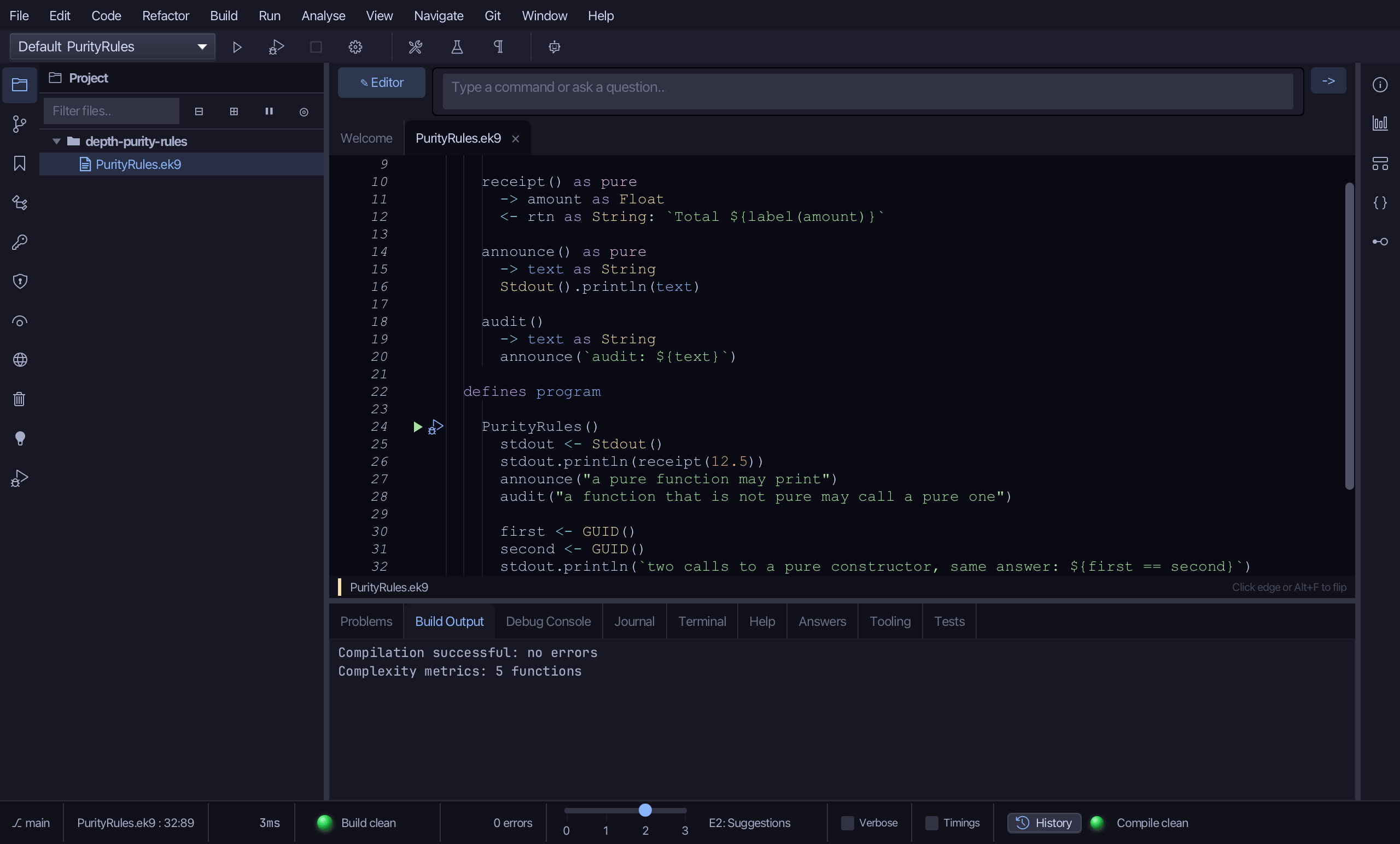
      stdout.println(`two calls to a pure constructor, same answer: ${first == second}`)
Step 1: label — a pure function
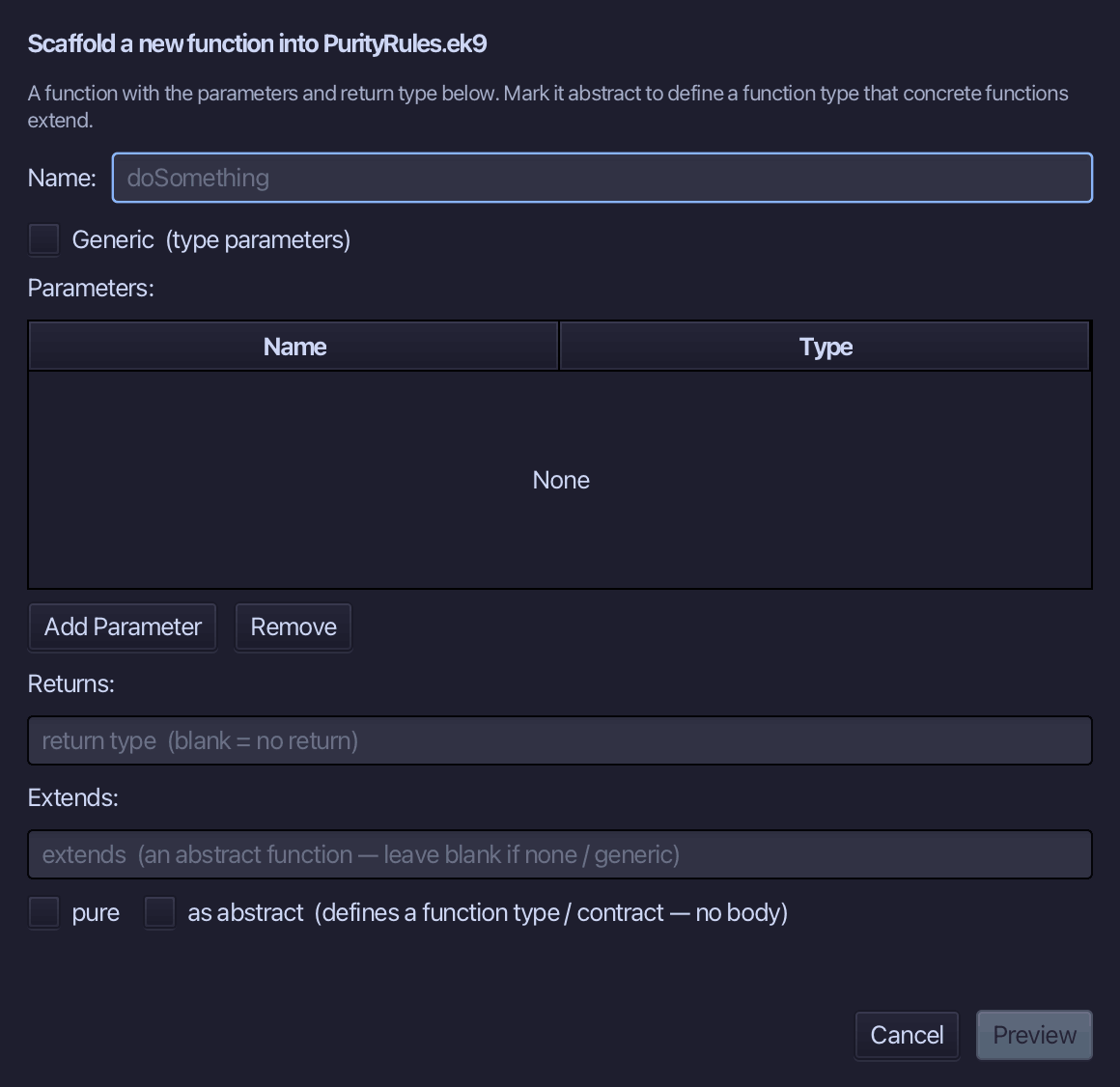
Choose Code > New Construct > Function…
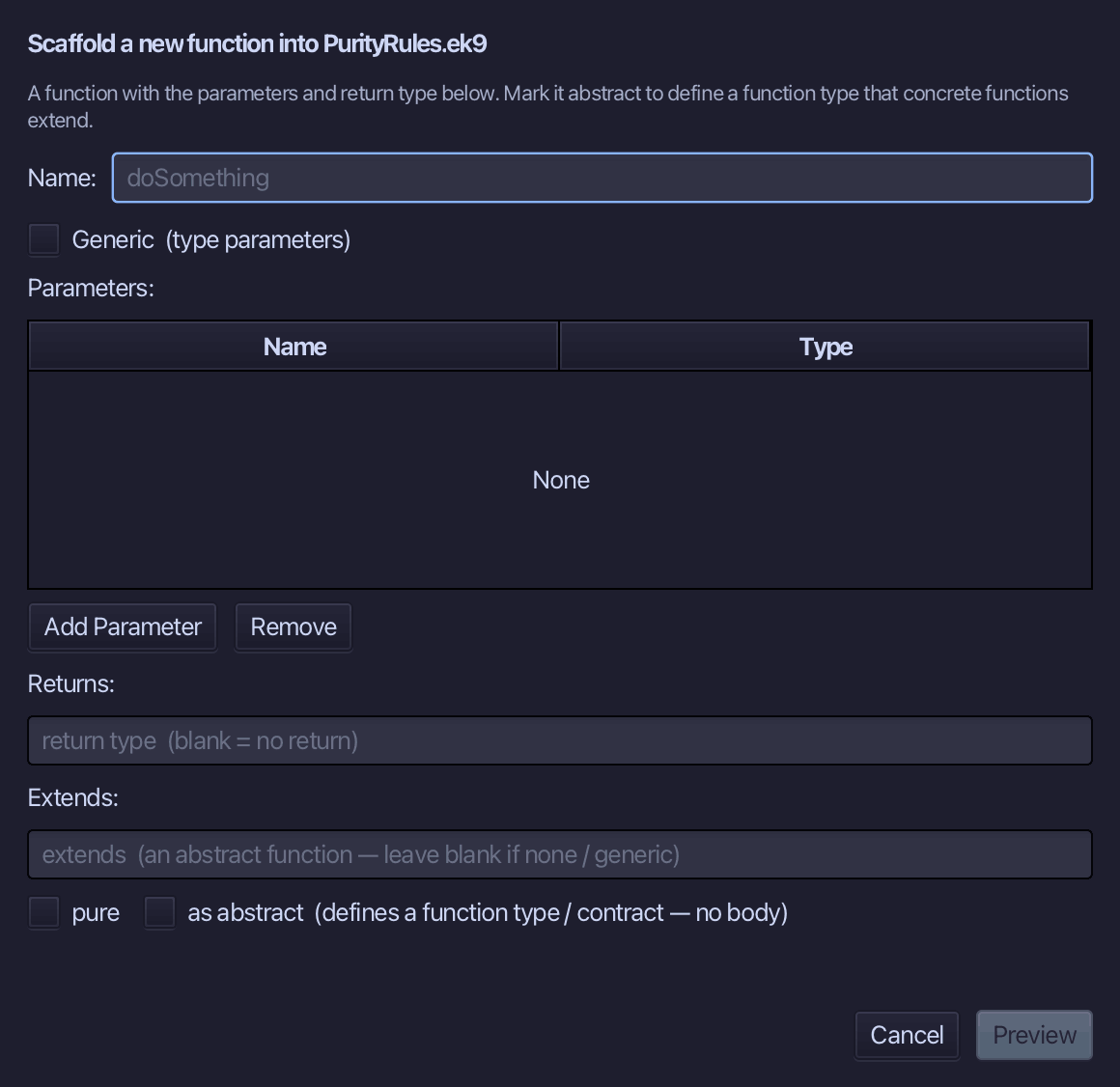
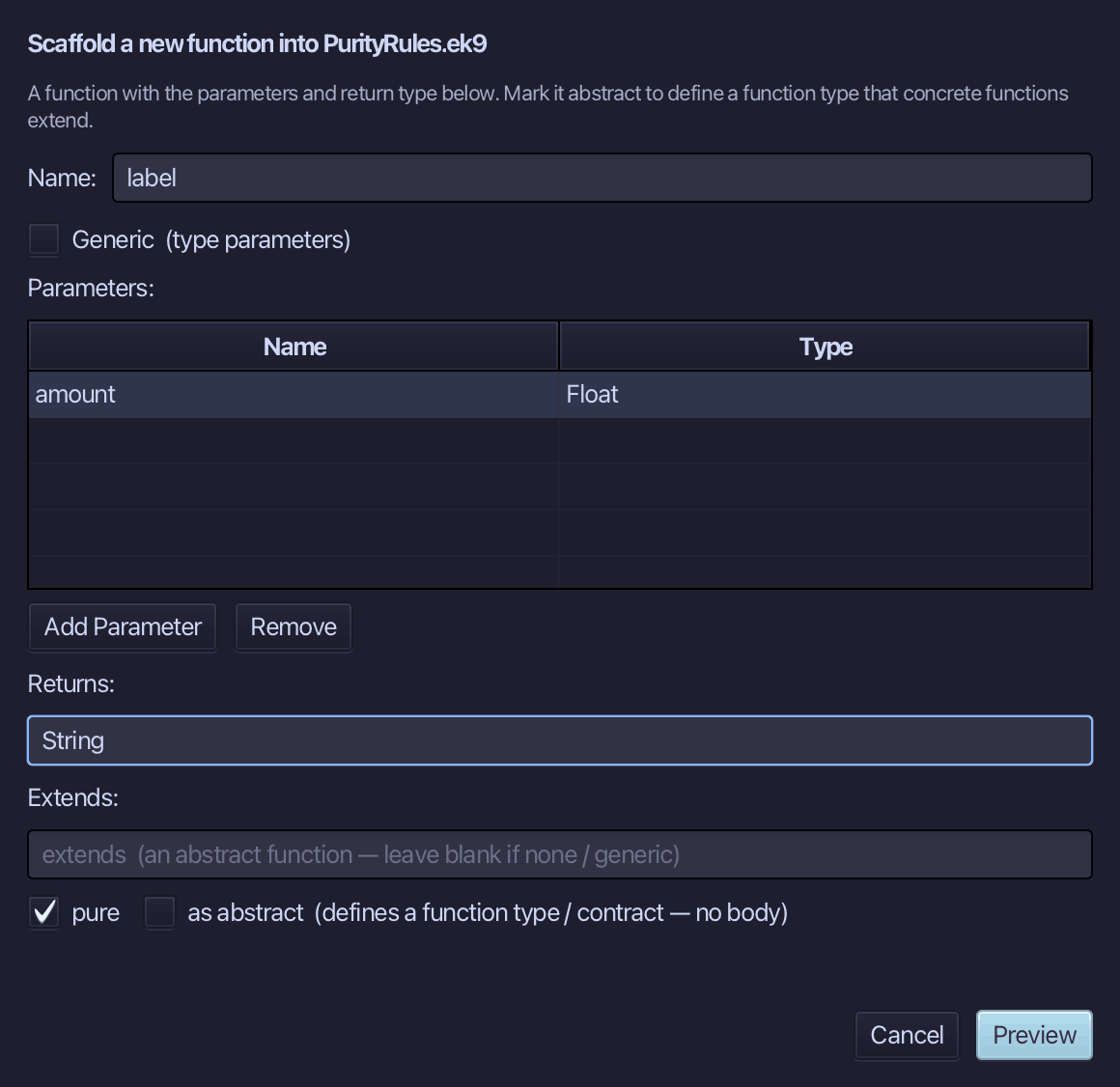
label is the function's name. Add one parameter, amount of type Float, set Returns to String and tick pure. Choose Preview.
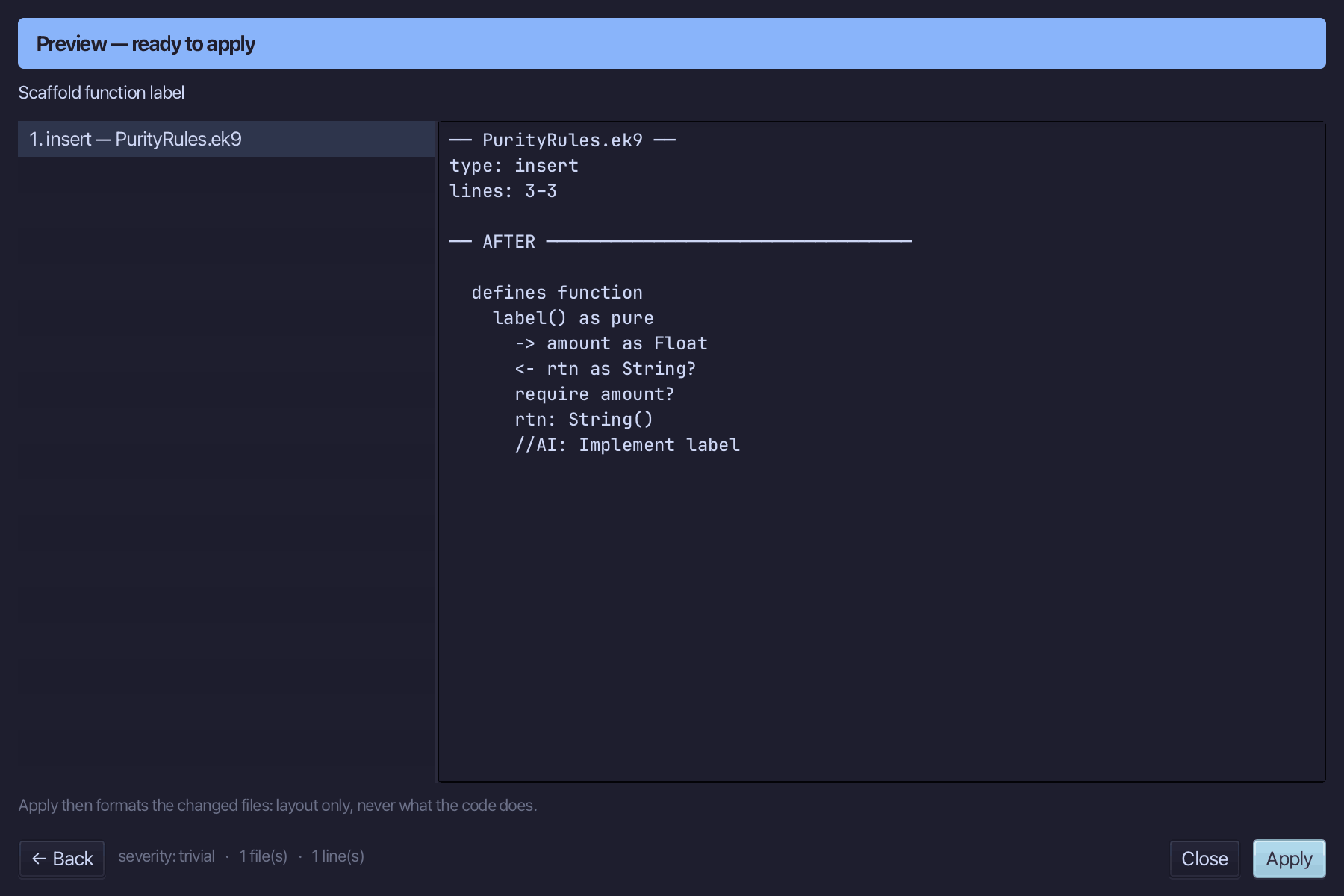
The preview shows label about to be written. Choose Apply.
Select the label() as pure line and, above it, type the blank line the book opens its first function with. Saves when typed.
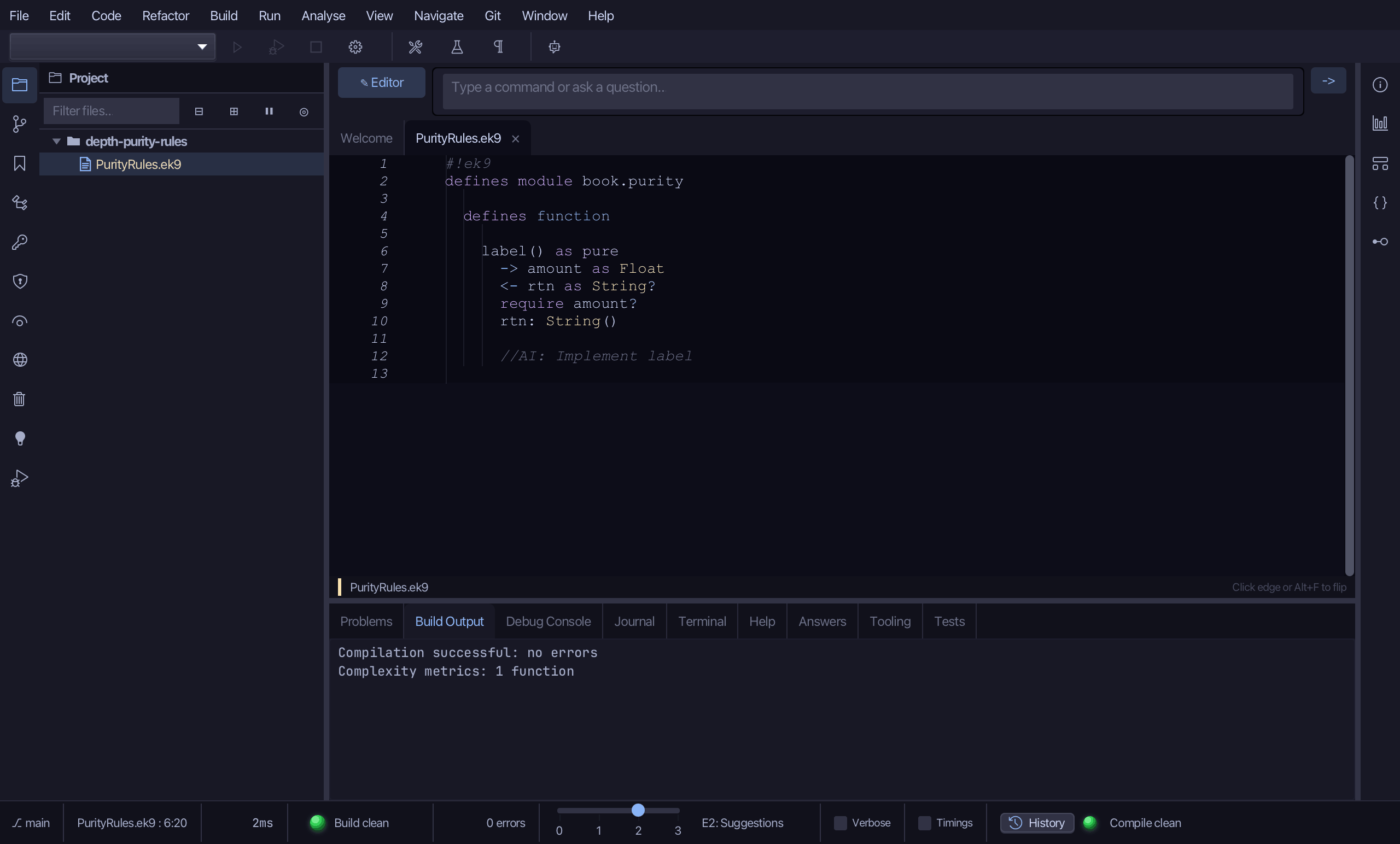
Select the stub, from <- rtn as String? down to its //AI line, and type label's own return and work, as the book writes them. Saves when typed.
Step 2: receipt — a pure function
Choose Code > New Construct > Function…
receipt is the function's name. Add one parameter, amount of type Float, set Returns to String and tick pure. Choose Preview.
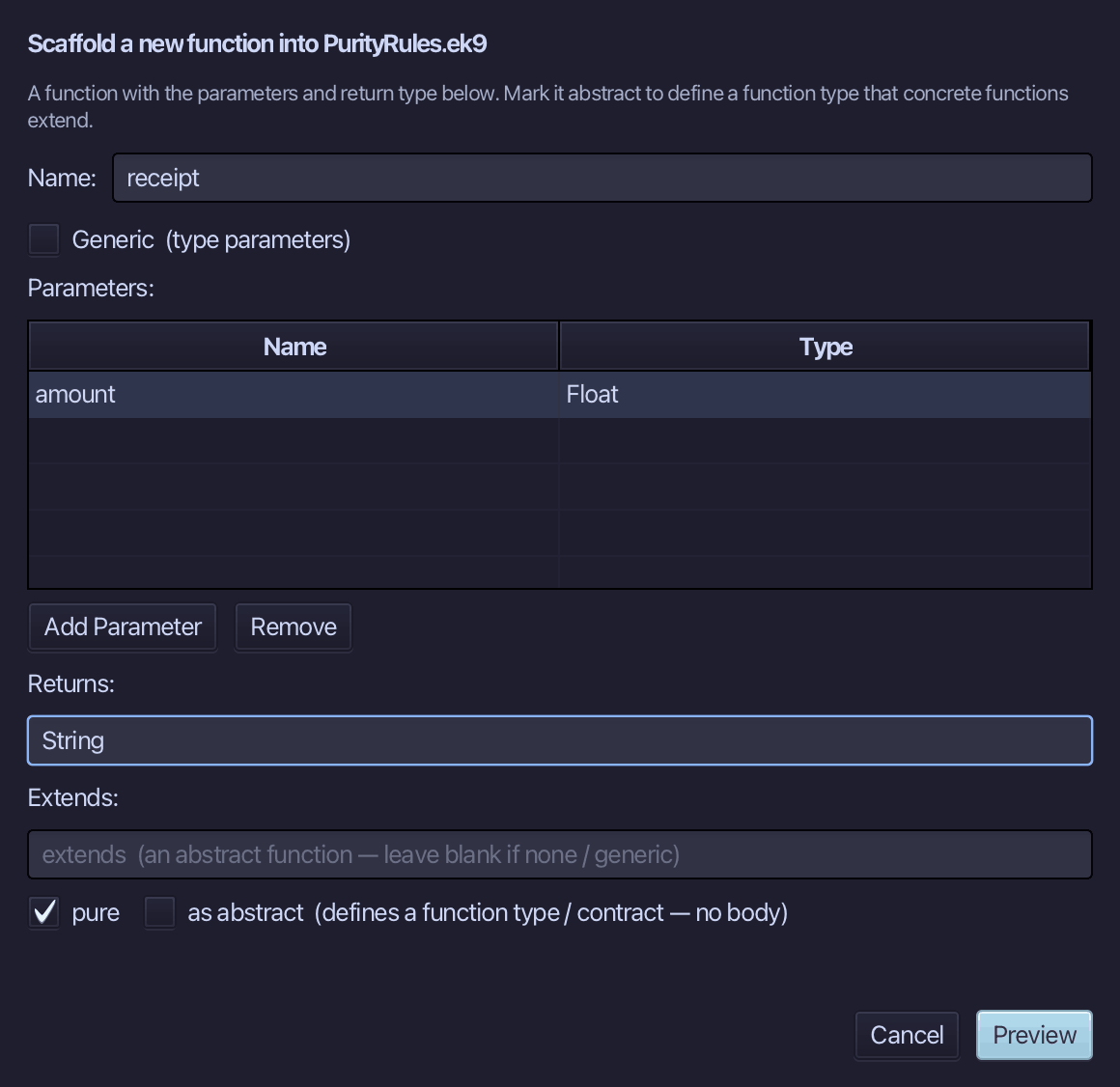
The preview shows receipt about to be written. Choose Apply.
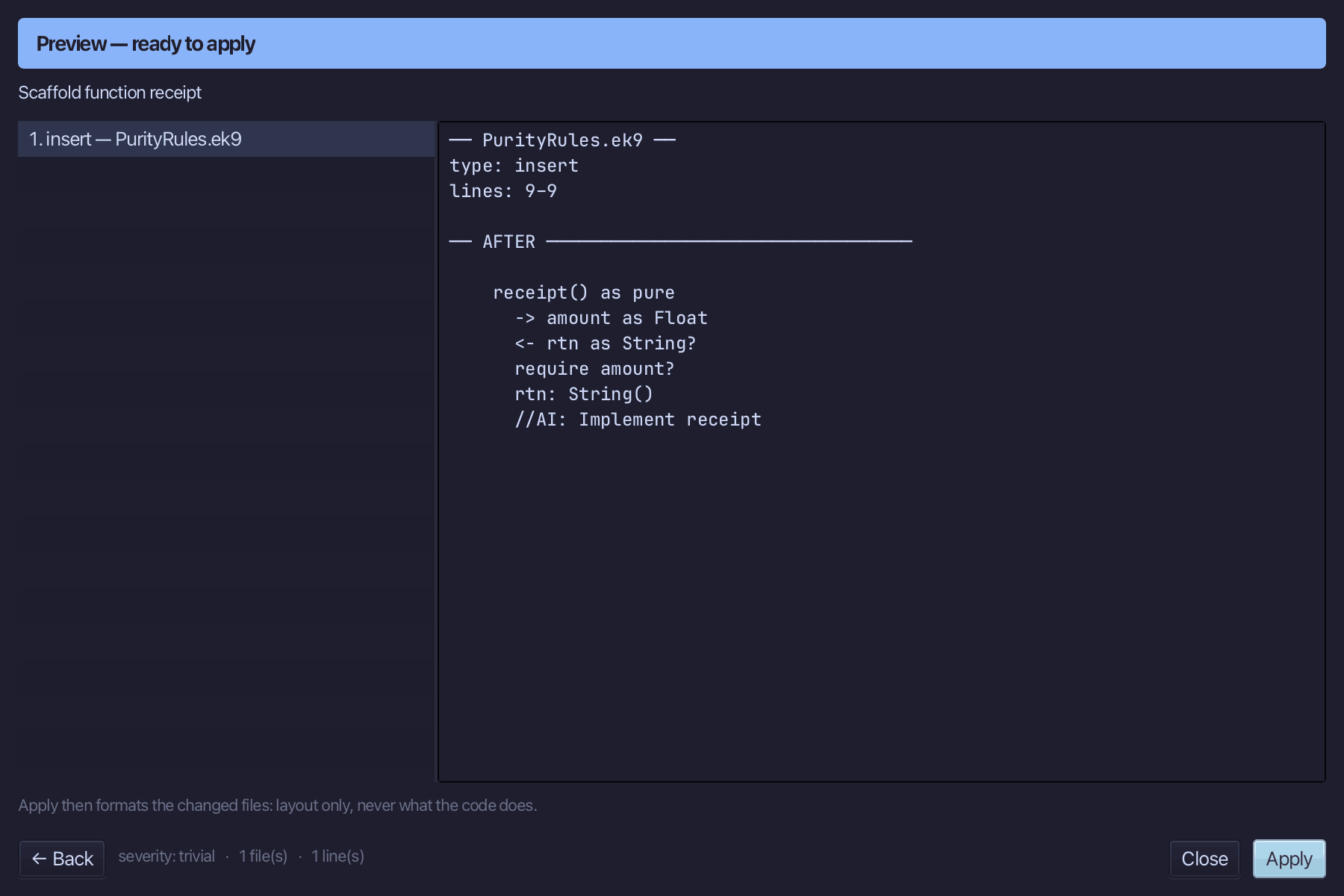
Select the stub, from <- rtn as String? down to its //AI line, and type receipt's own return and work, as the book writes them. Saves when typed.
Step 3: announce — a pure function
Choose Code > New Construct > Function…
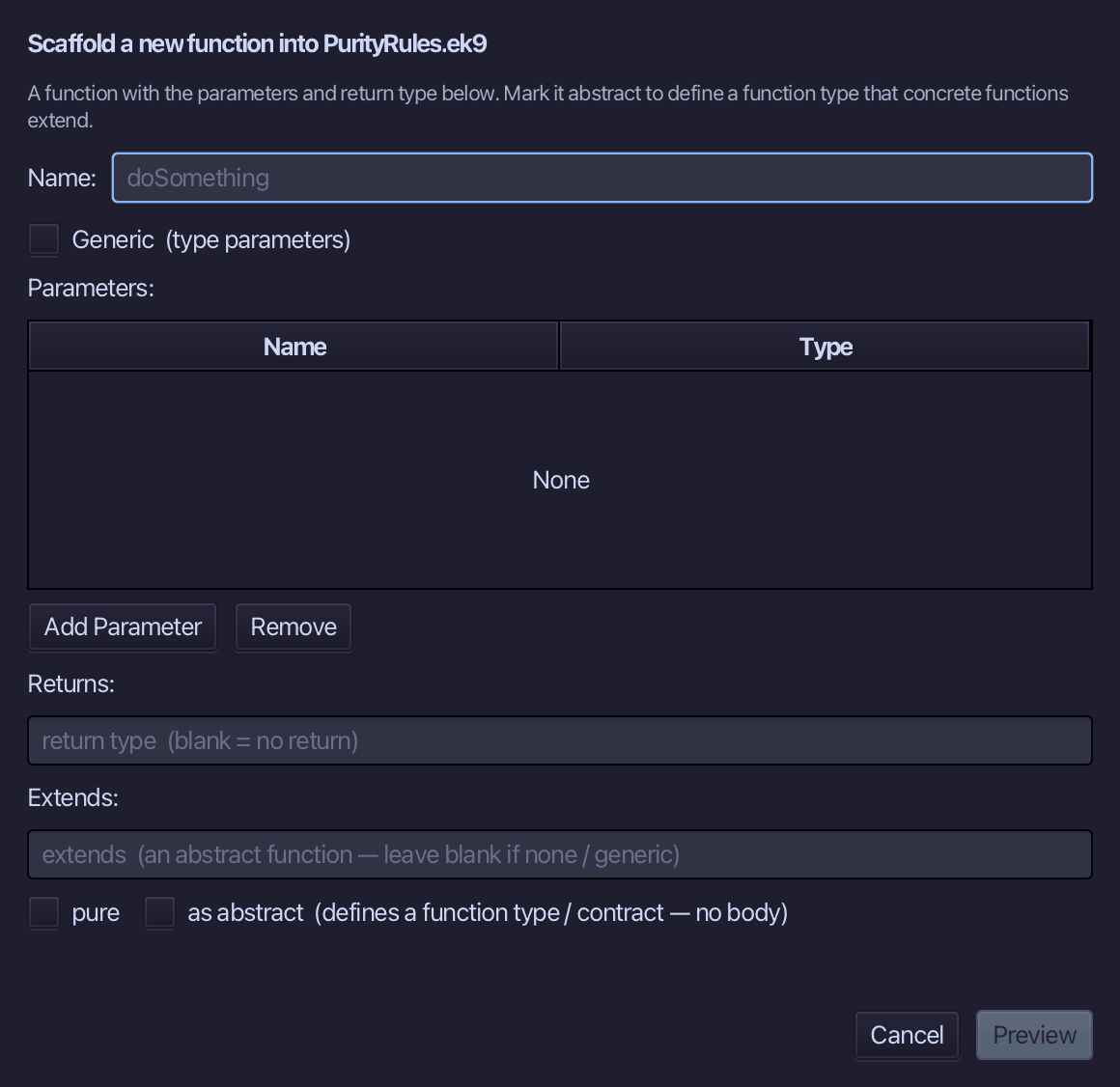
announce is the function's name. Add one parameter, text of type String and tick pure. Choose Preview.
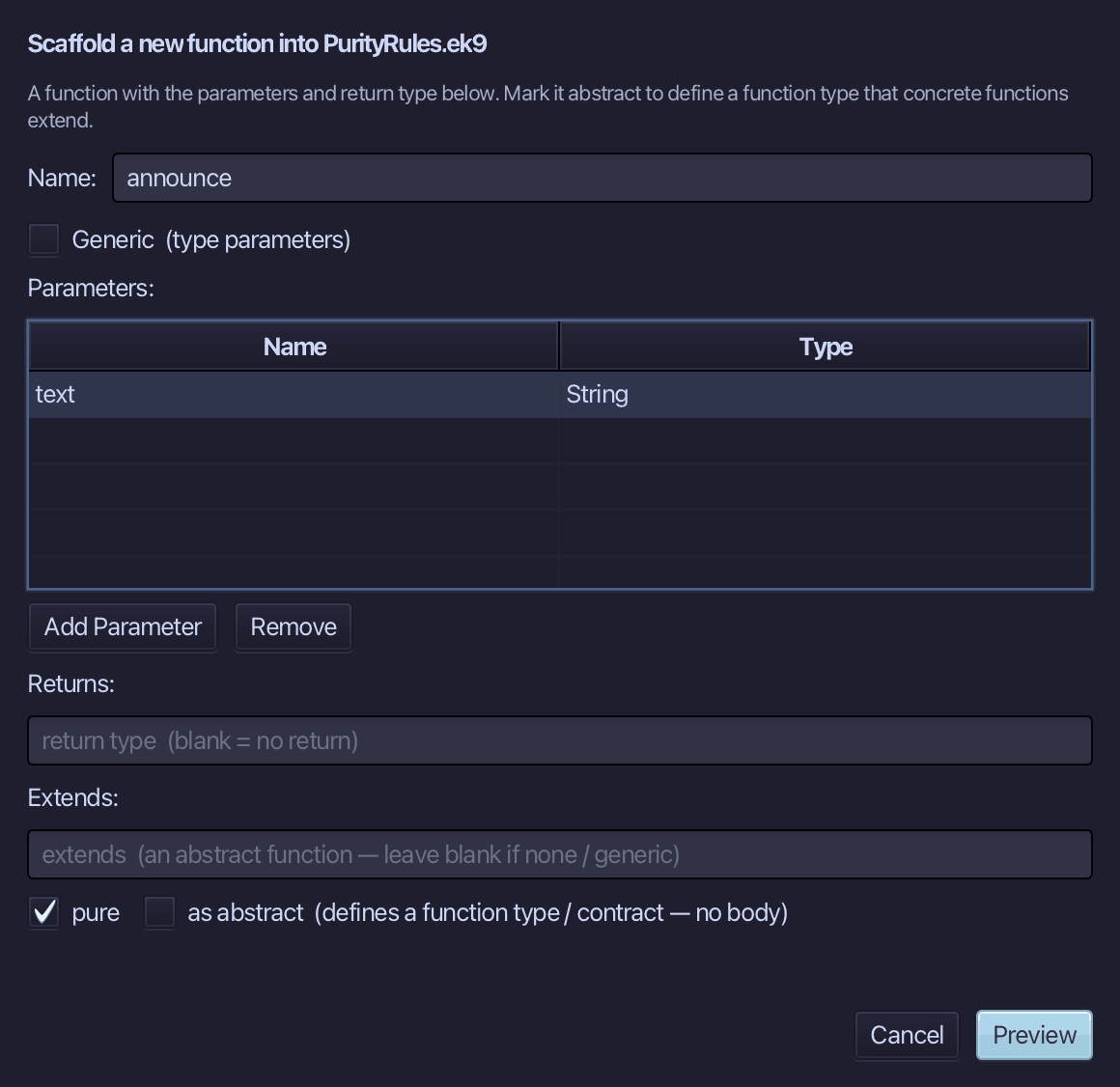
The preview shows announce about to be written. Choose Apply.
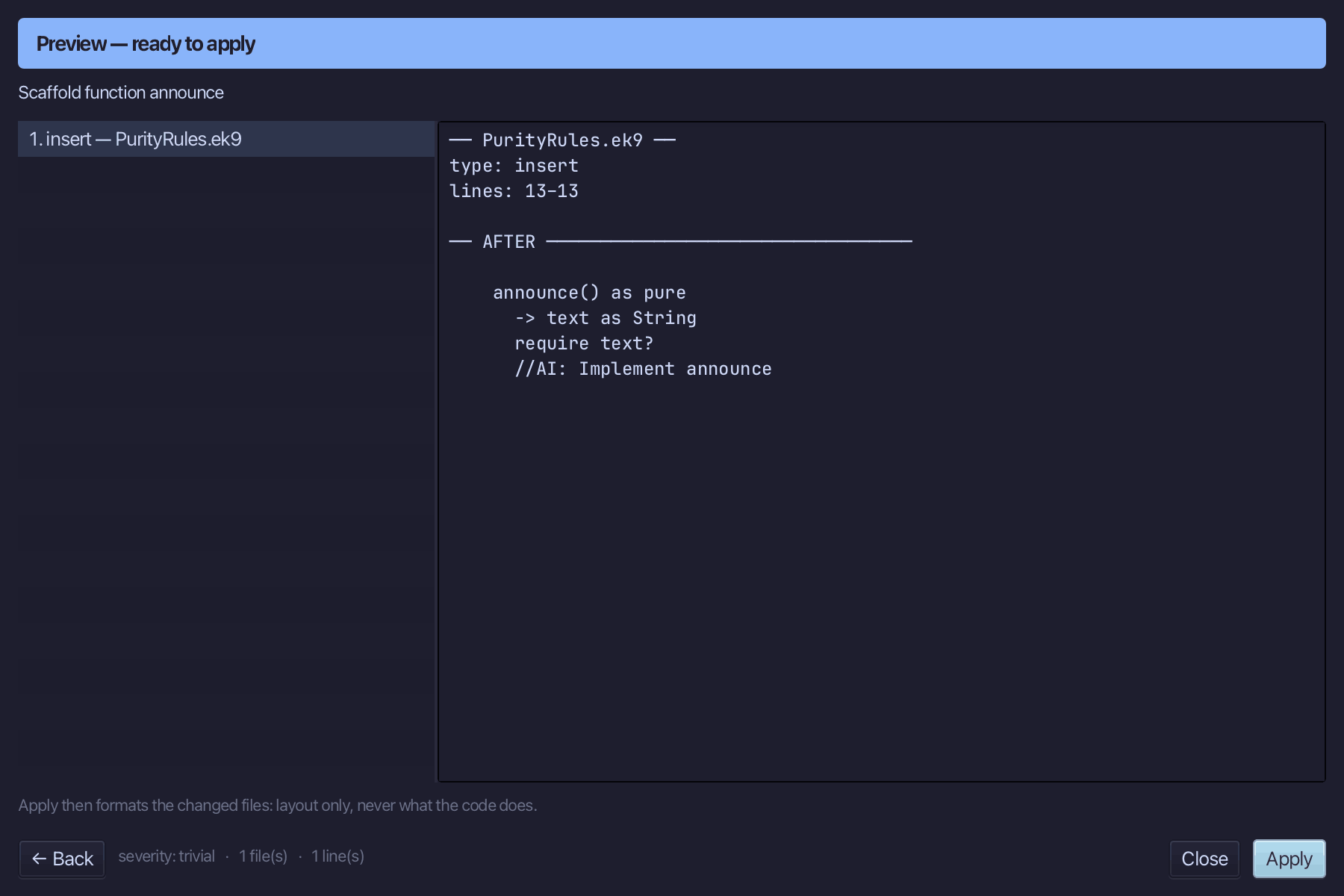
Select the stub, from require text? down to its //AI line, and type announce's own return and work, as the book writes them. Saves when typed.
Step 4: audit — a function
Choose Code > New Construct > Function…
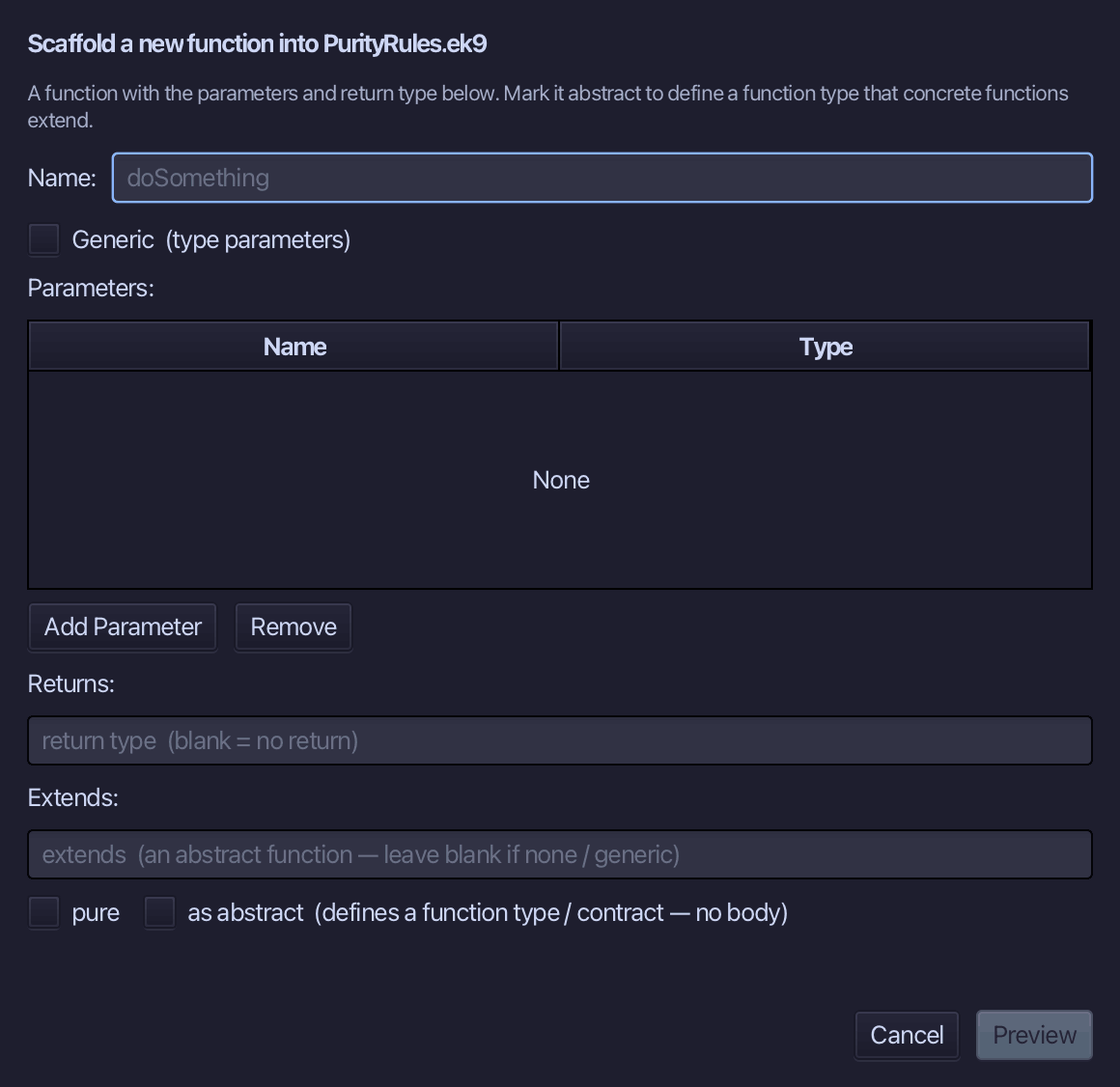
audit is the function's name. Add one parameter, text of type String. Choose Preview.
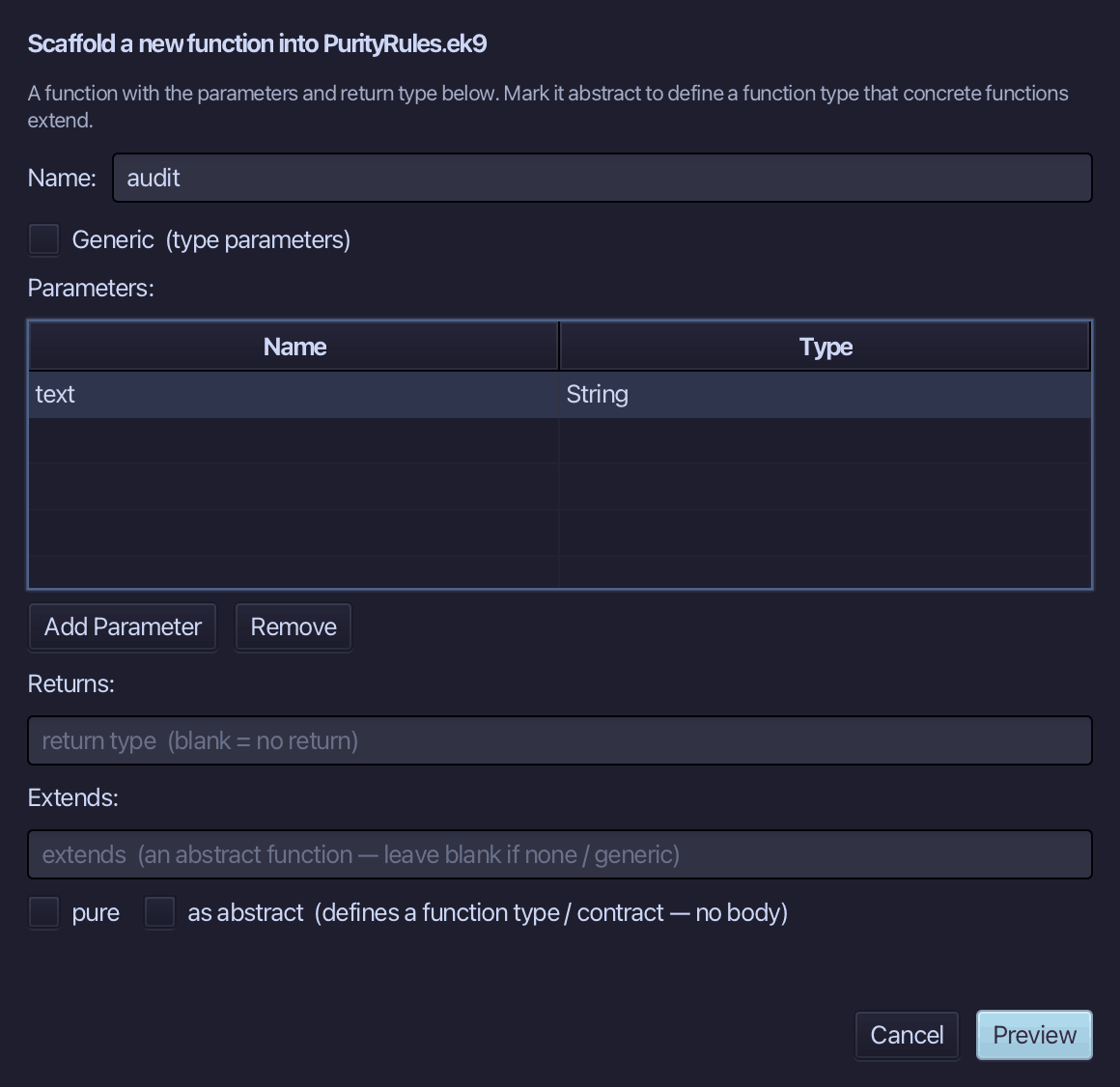
The preview shows audit about to be written. Choose Apply.
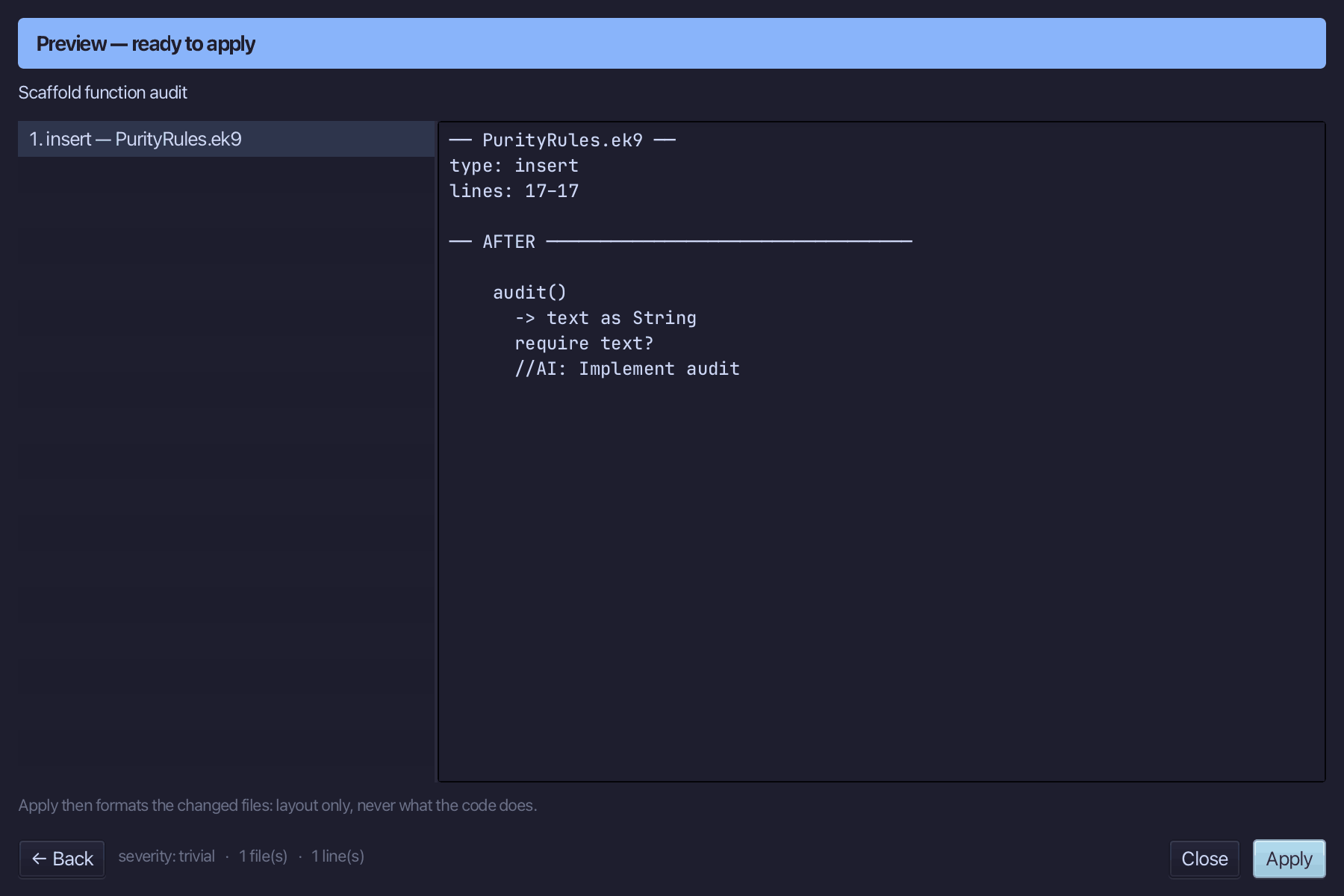
Select the stub, from require text? down to its //AI line, and type audit's own return and work, as the book writes them. Saves when typed.
Step 5: The program
Choose Code > New Construct > Program…
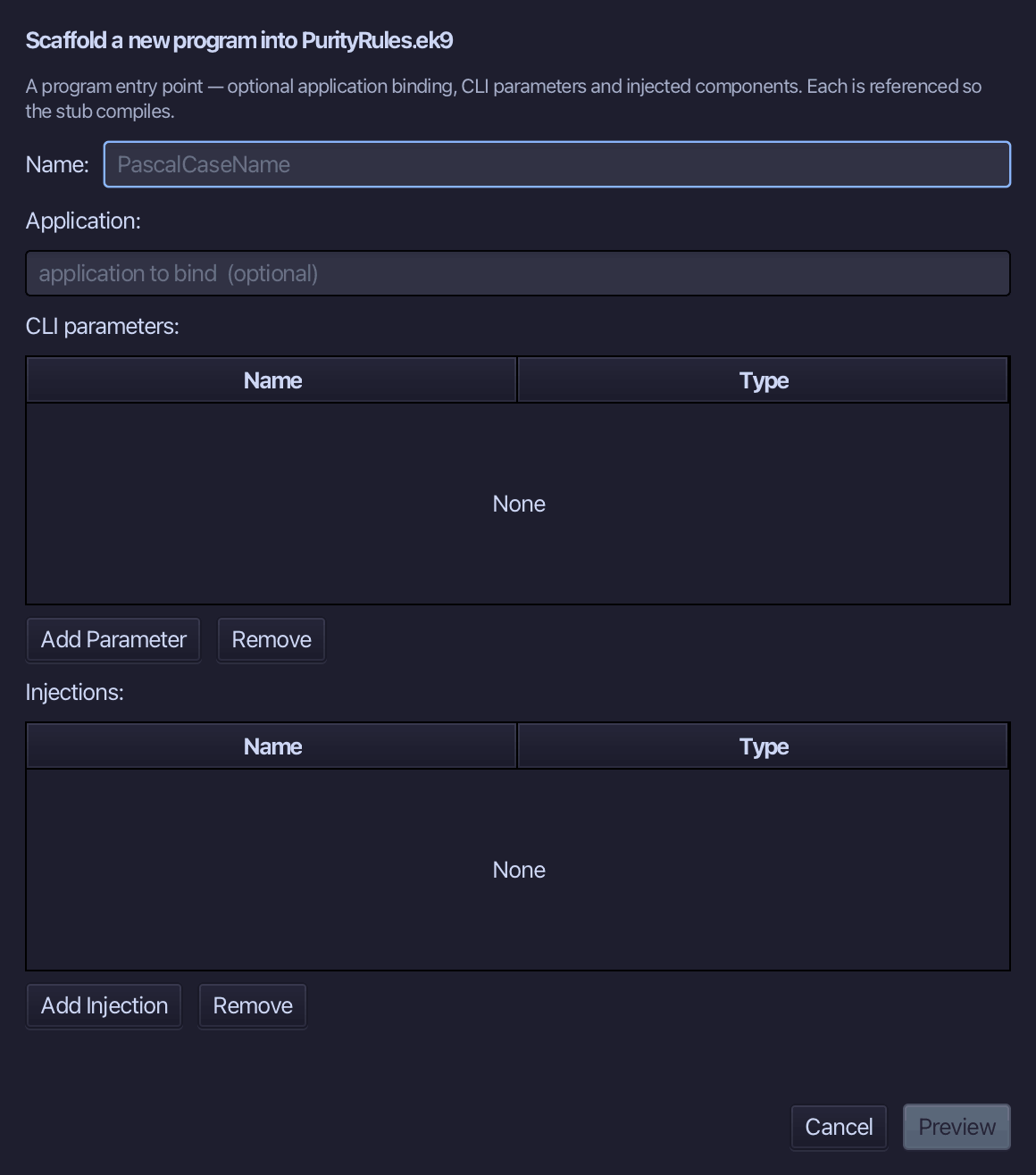
PurityRules is the program's name. Choose Preview.
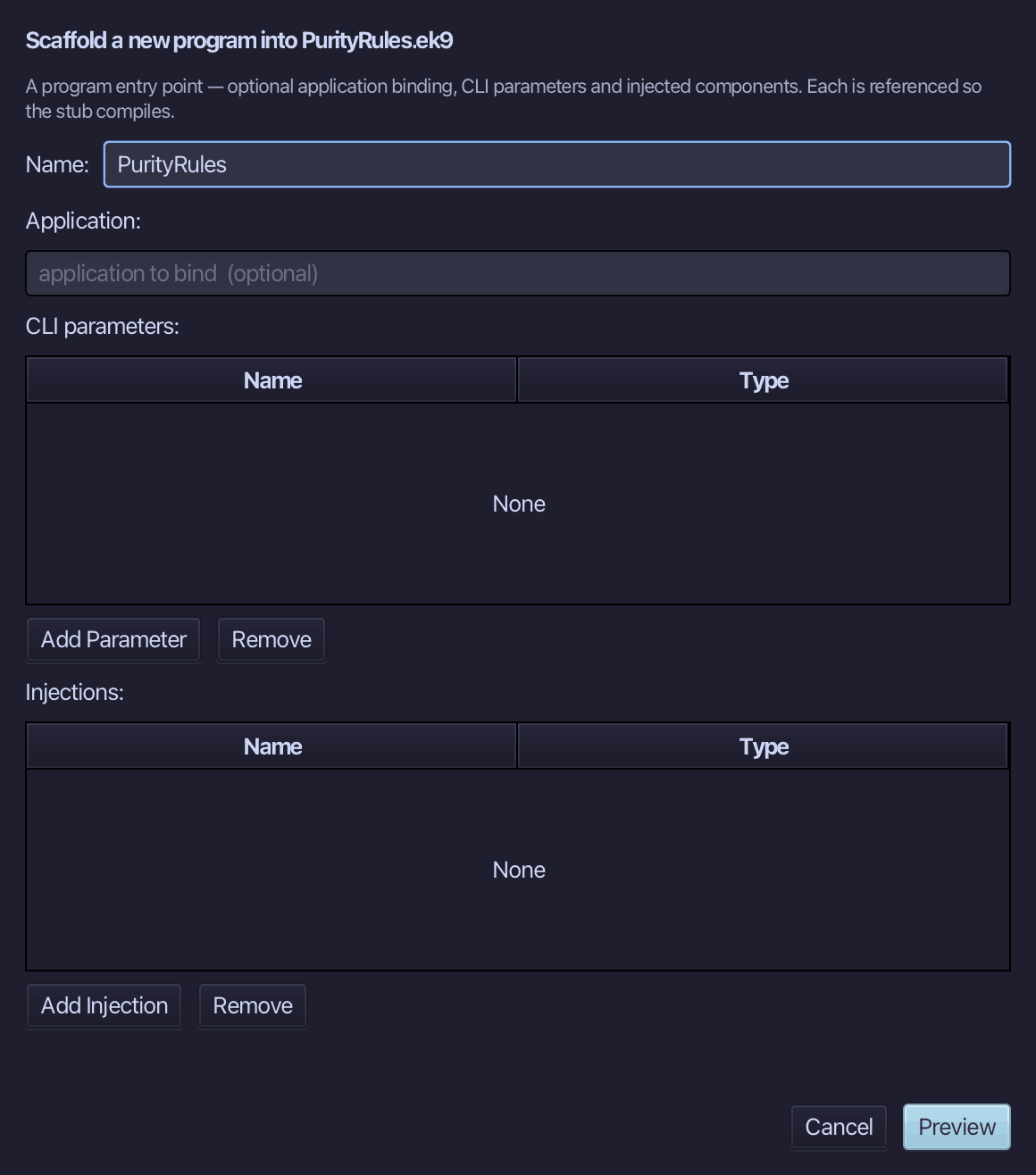
The preview shows PurityRules about to be written. Choose Apply.
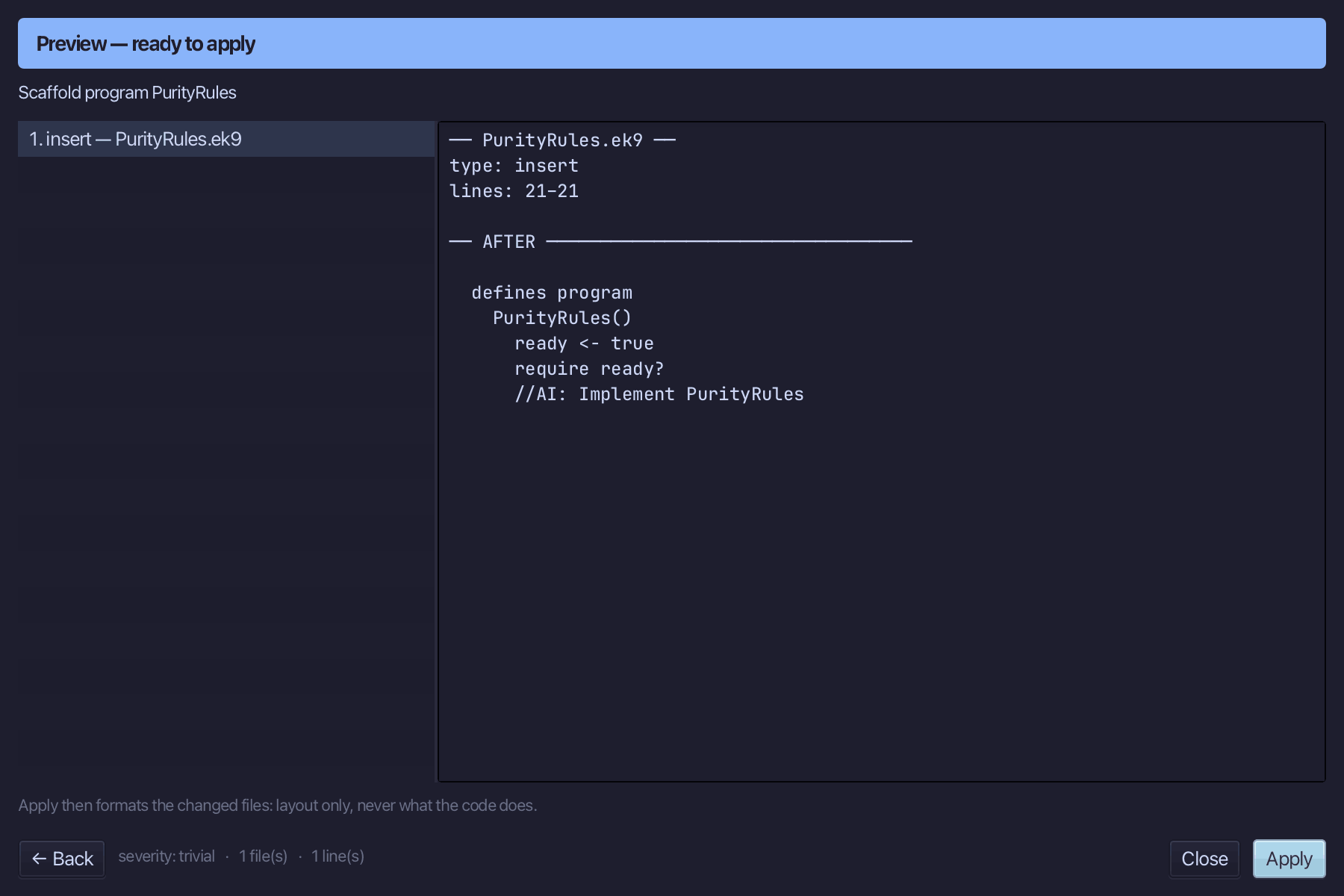
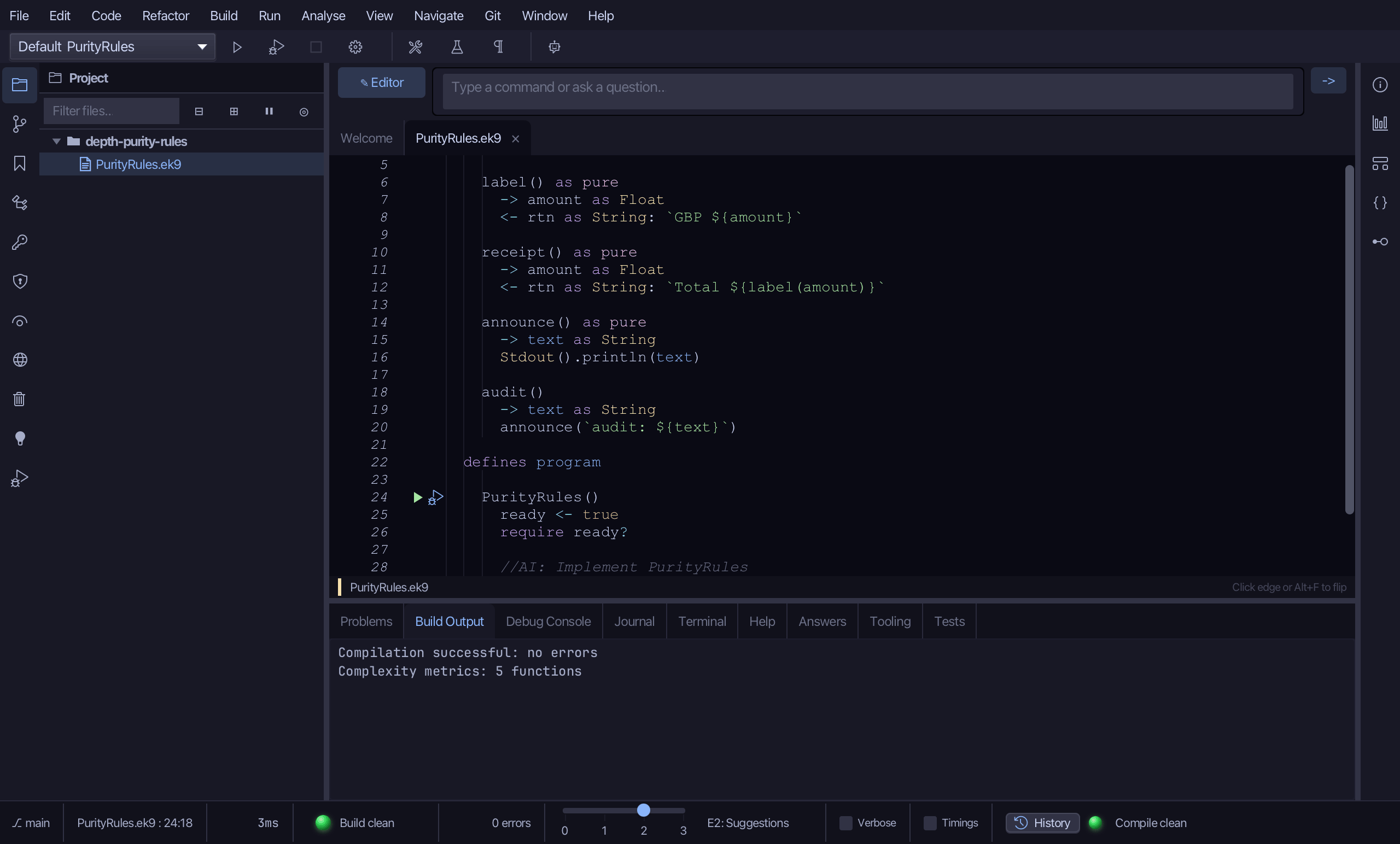
Select the PurityRules() line and, above it, type the blank line the book opens the program with. Saves when typed.
Select the stub, from ready <- true down to its //AI line, and type PurityRules's body exactly as the chapter shows it. Saves when typed.
Step 6: Run it
Choose Run > Run Program…
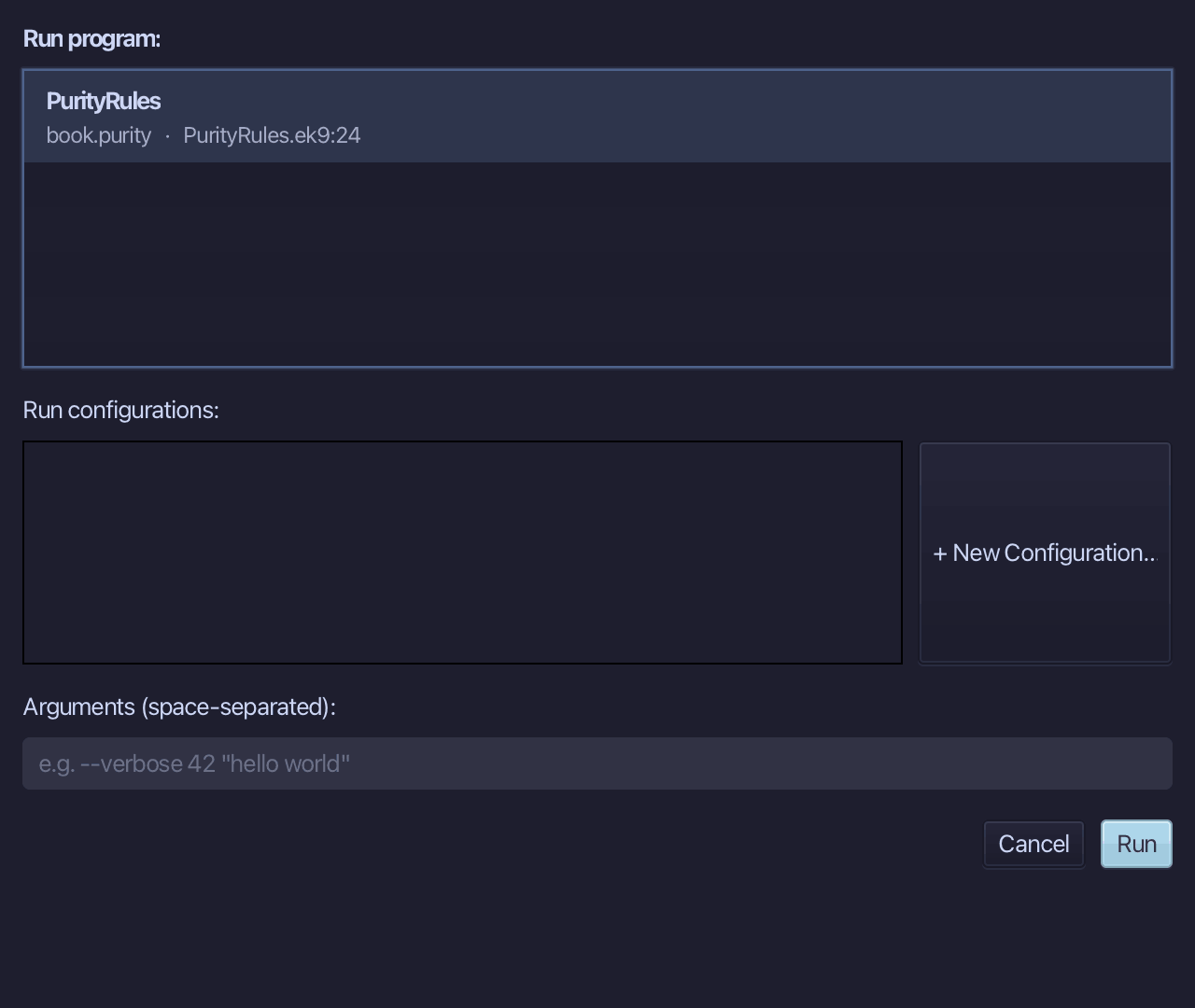
The project's only program is already chosen. Choose Run.
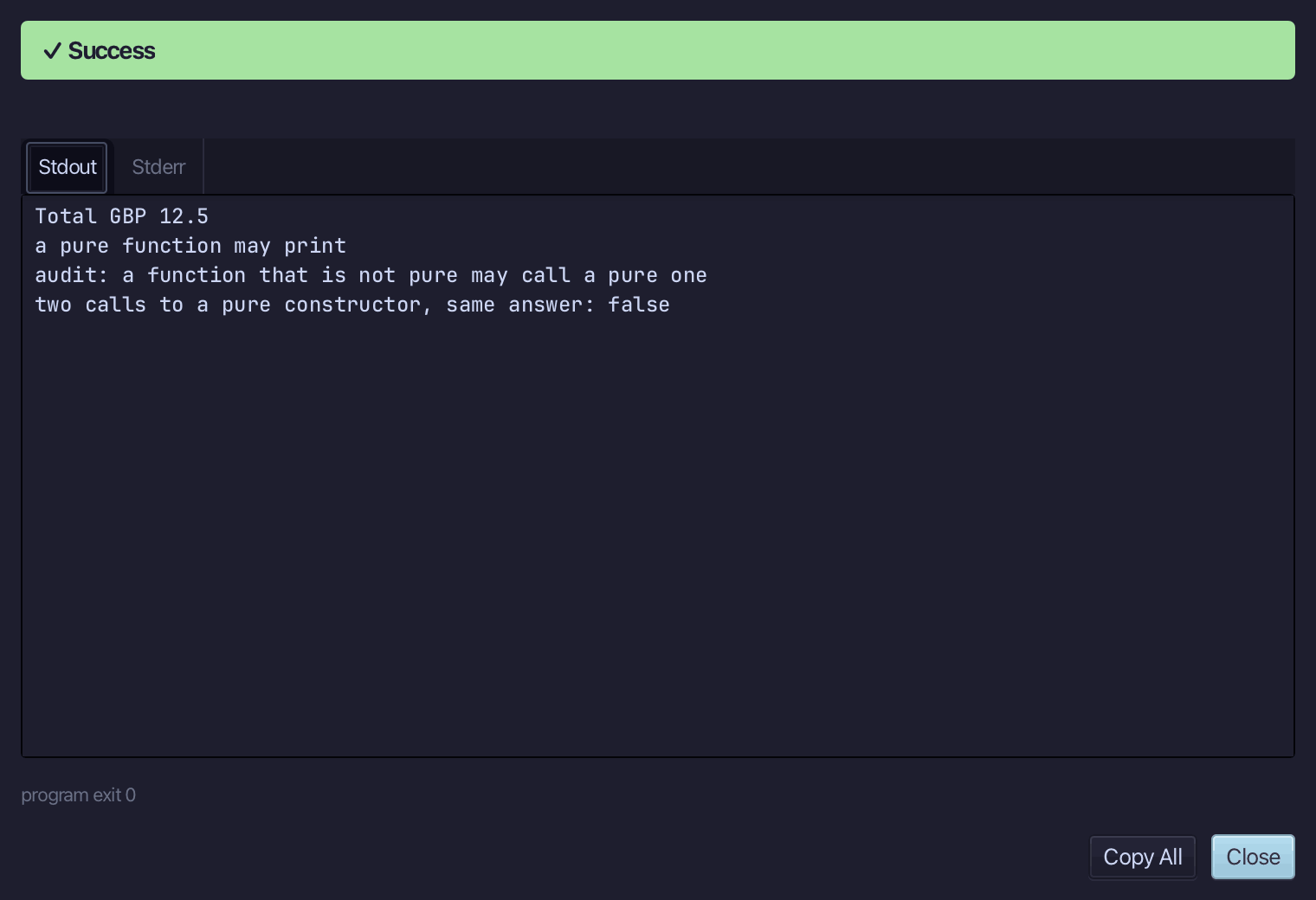
Total GBP 12.5, the two announcements, then false: the two GUIDs differ. Choose Close.
The result
PurityRules.ek9 now reads exactly as chapter 25 of EK9 in Depth shows it. announce is pure and prints; audit is not pure and calls it; and GUID() is a pure constructor that still gives two different values - pure here means no side effects on your state, not 'the same answer every time'.
Where this lesson comes from
- For AI assistants - the MCP tool
ek9_new_construct,ek9_add_program.