Running tests
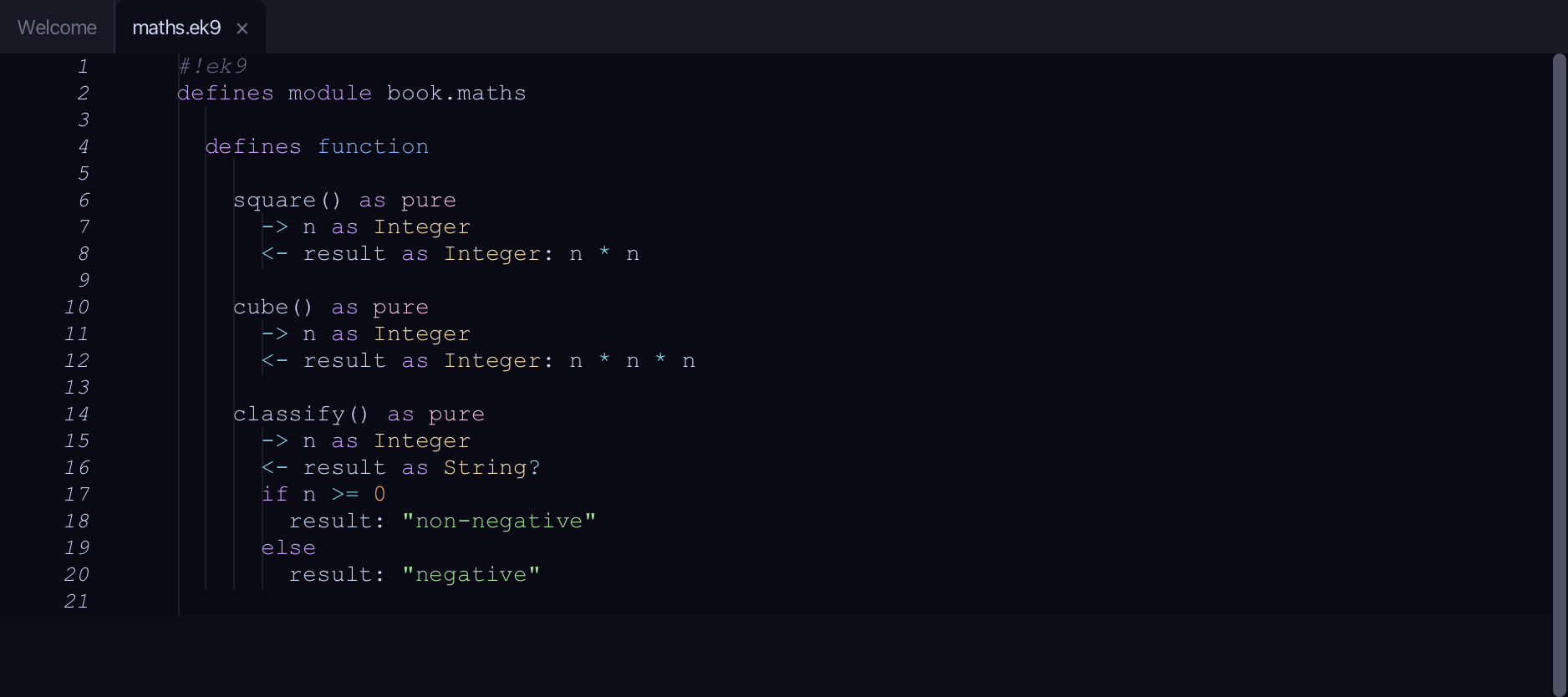
maths.ek9 declares three functions - square, cube and classify; dev/tests.ek9 holds three @Test programs that check them. SquareTest and CubeTest are right; ClassifyTest's own claim is wrong, on purpose, so there is a failing test to read. Read both files. To play it in the IDE: Help > Lessons > Running and testing…, or ek9 -ide -lesson tests.
Start from
The code the lesson starts from: copy it into a file of your own and follow the steps.
maths.ek9
#!ek9
defines module book.maths

  defines function

    square() as pure
      -> n as Integer
      <- result as Integer: n * n

    cube() as pure
      -> n as Integer
      <- result as Integer: n * n * n

    classify() as pure
      -> n as Integer
      <- result as String?
      if n >= 0
        result: "non-negative"
      else
        result: "negative"
dev/tests.ek9
#!ek9
defines module book.maths.tests

  references
    book.maths::classify
    book.maths::cube
    book.maths::square

  defines program

    @Test
    SquareTest()
      assert square(3) == 9

    @Test
    CubeTest()
      assert cube(2) == 8

    @Test
    ClassifyTest()
      assert classify(5) == "positive"
Step 1: The ▶ on a test
Open dev/tests.ek9 - the three @Test programs, each with its own ▶.
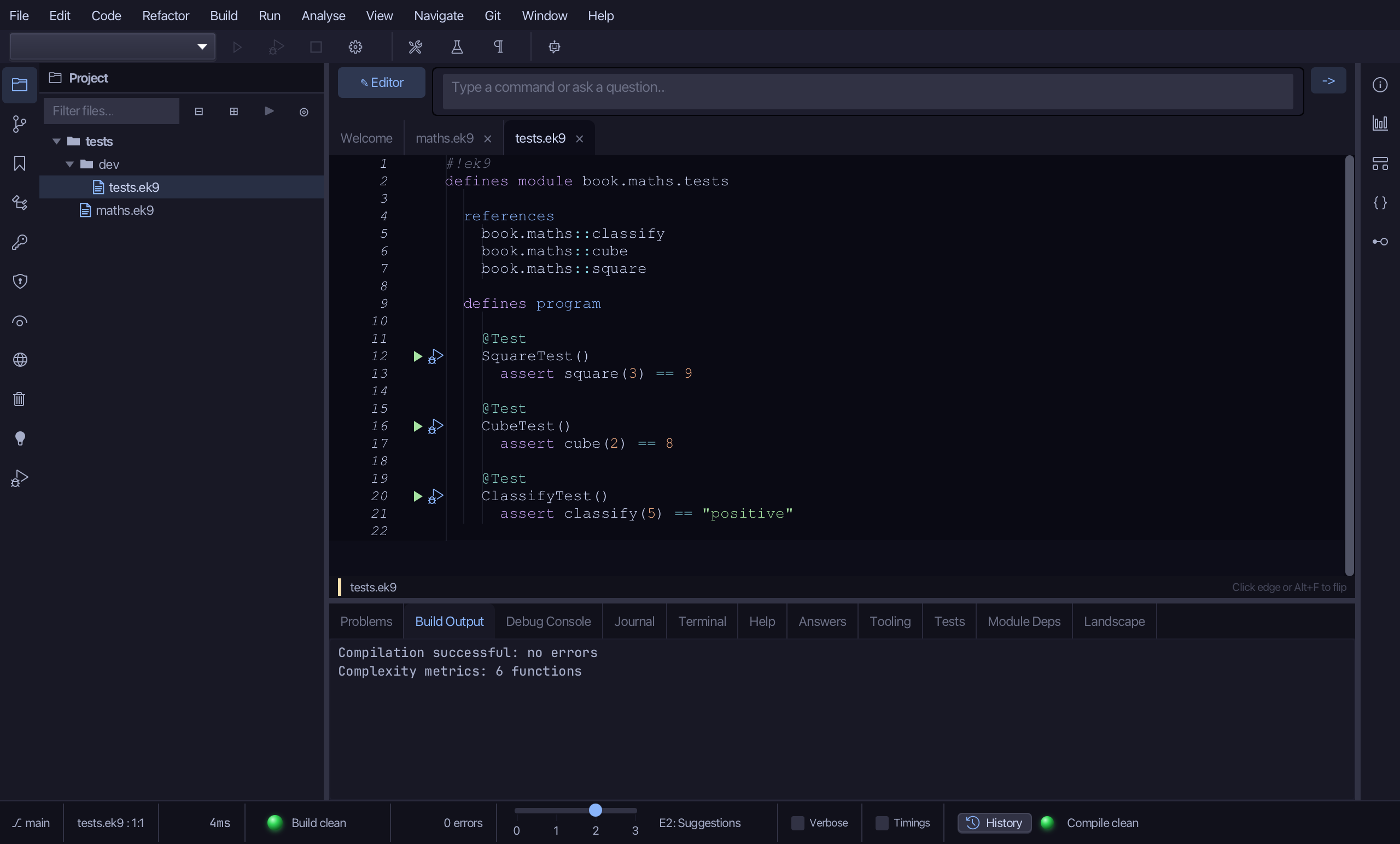
Click the ▶ beside SquareTest, on line 12, to run that one test on its own.
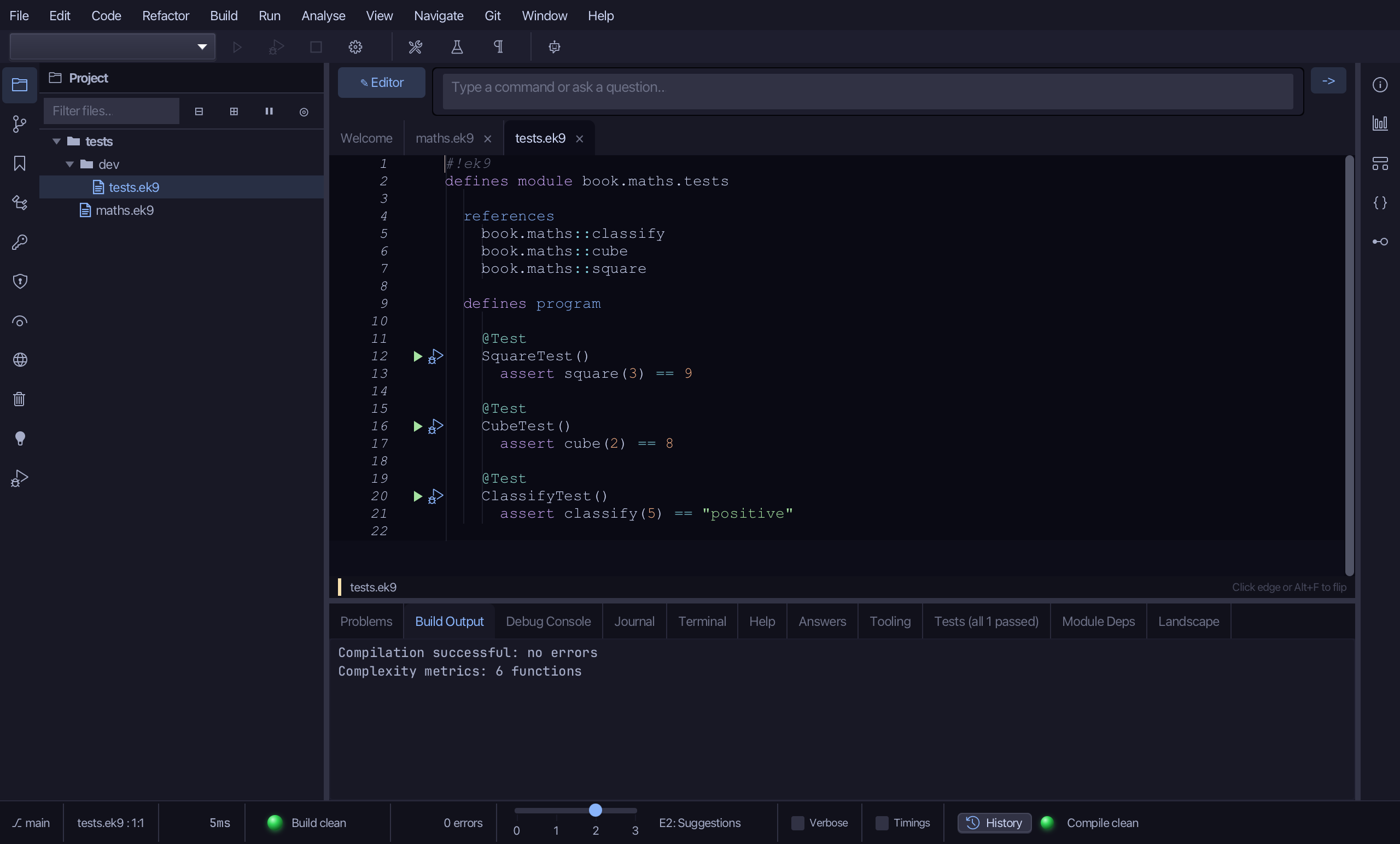
Step 2: Run every test
The ▶ only ran SquareTest. Run ▸ Run Tests (⌘T) runs every @Test in the project instead - SquareTest, CubeTest and ClassifyTest all three. Choose Run Tests.
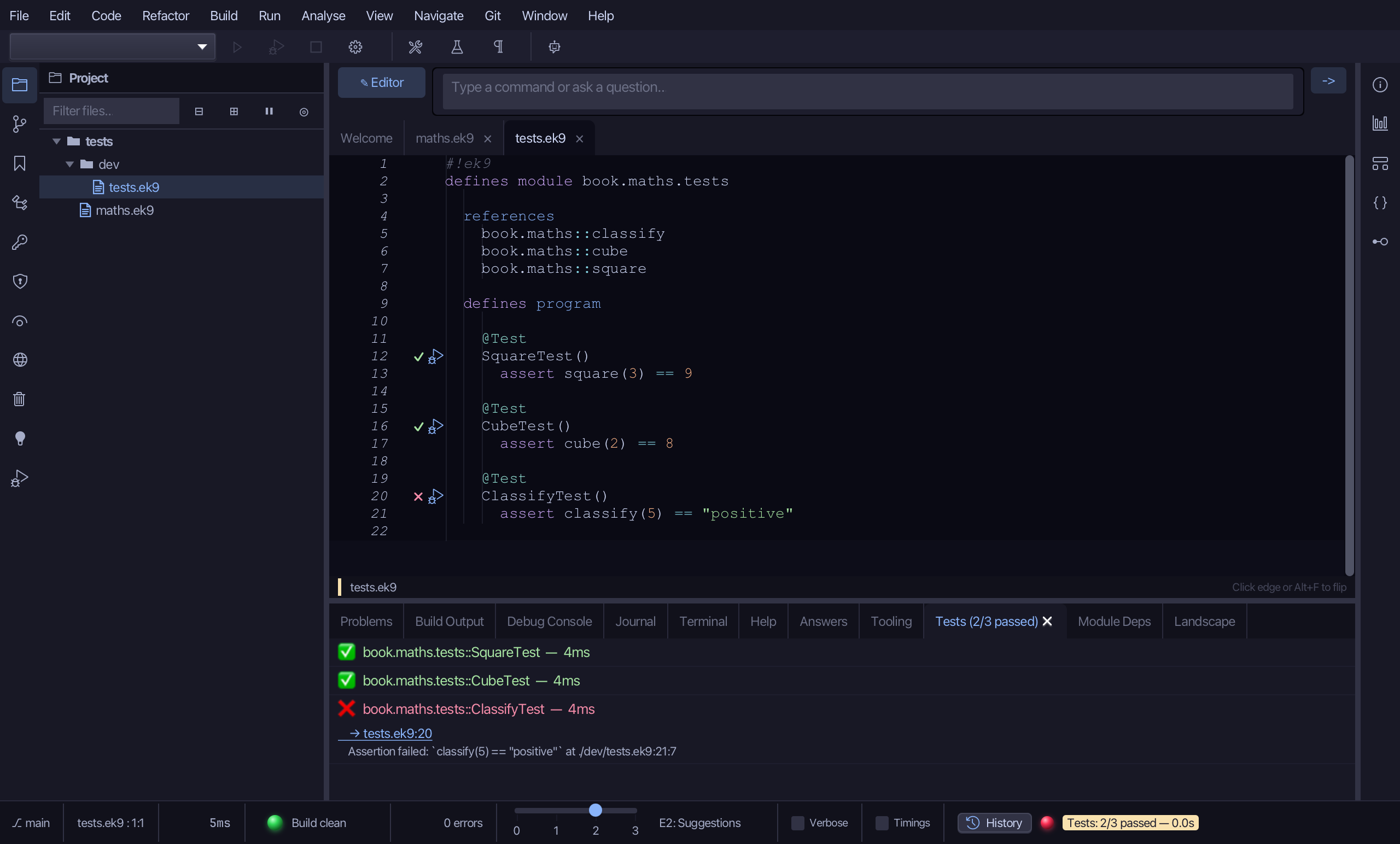
Step 3: A failing test
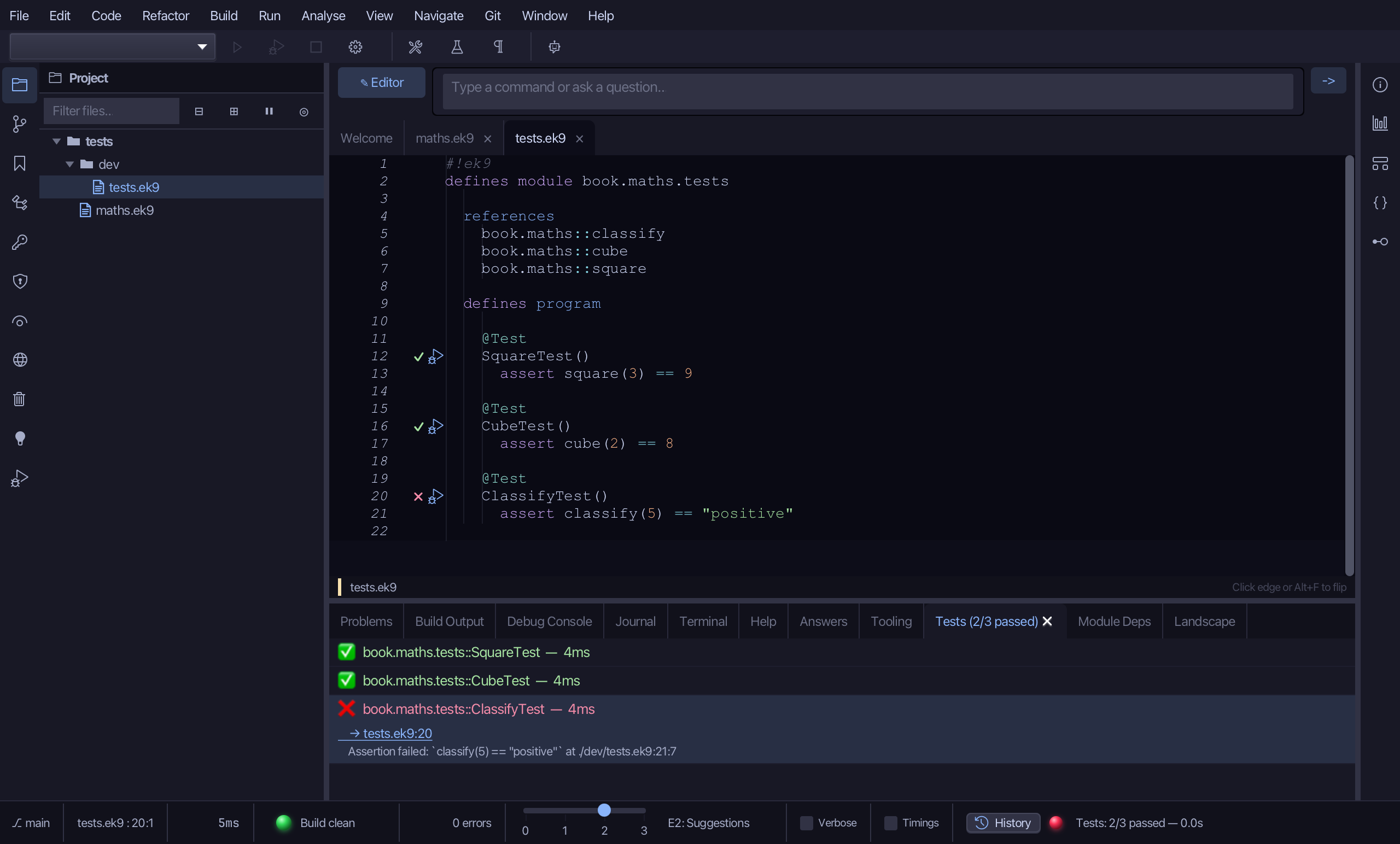
The Tests tab lists all three: SquareTest and CubeTest green, ClassifyTest red, with its own message - the assertion that failed, classify(5) == "positive", and the line it is on - and a link to where ClassifyTest is declared.
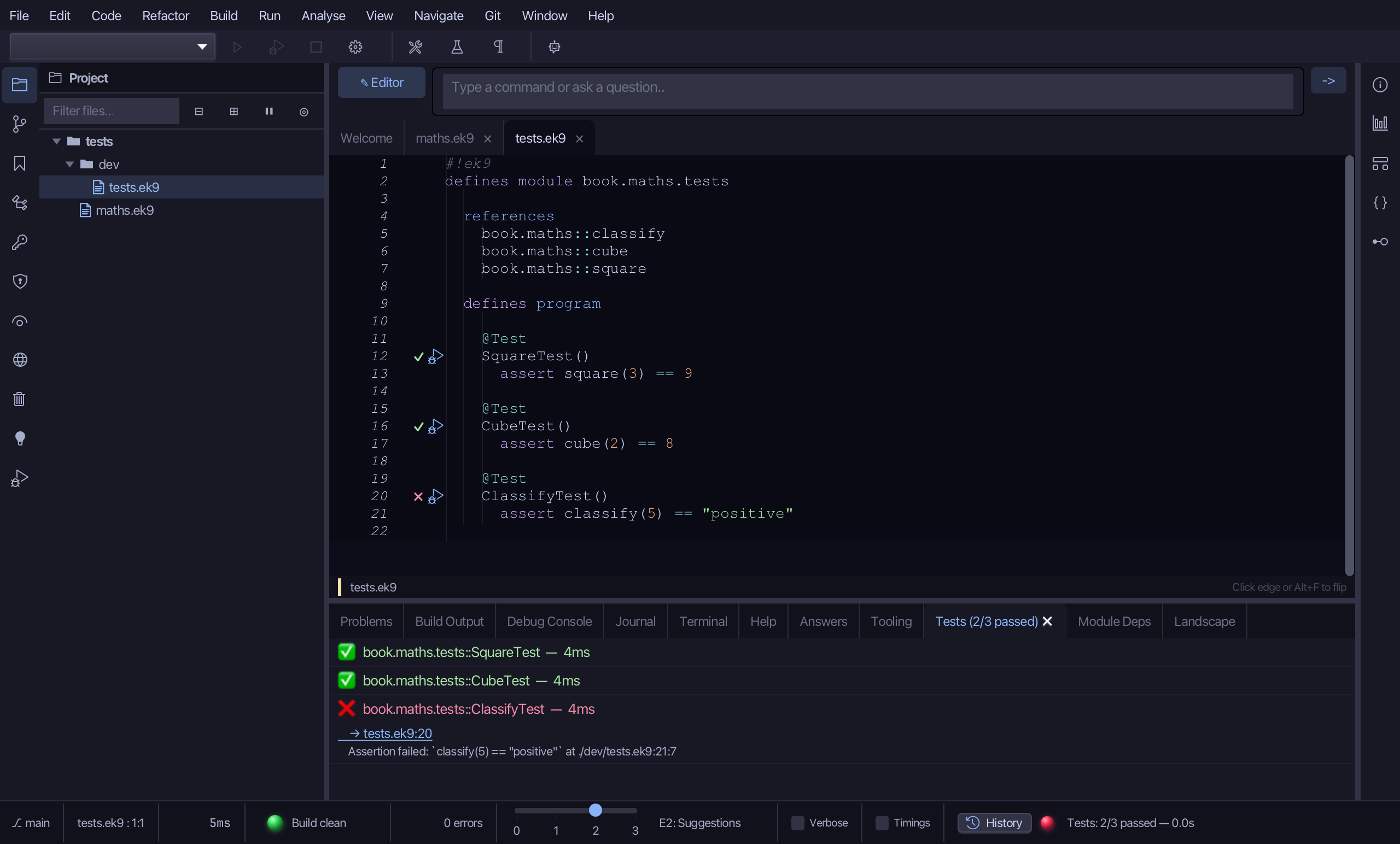
Click the → tests.ek9:20 link under ClassifyTest's message.
Step 4: Coverage highlighting
Open maths.ek9 again - coverage shows there, never in the test file itself.
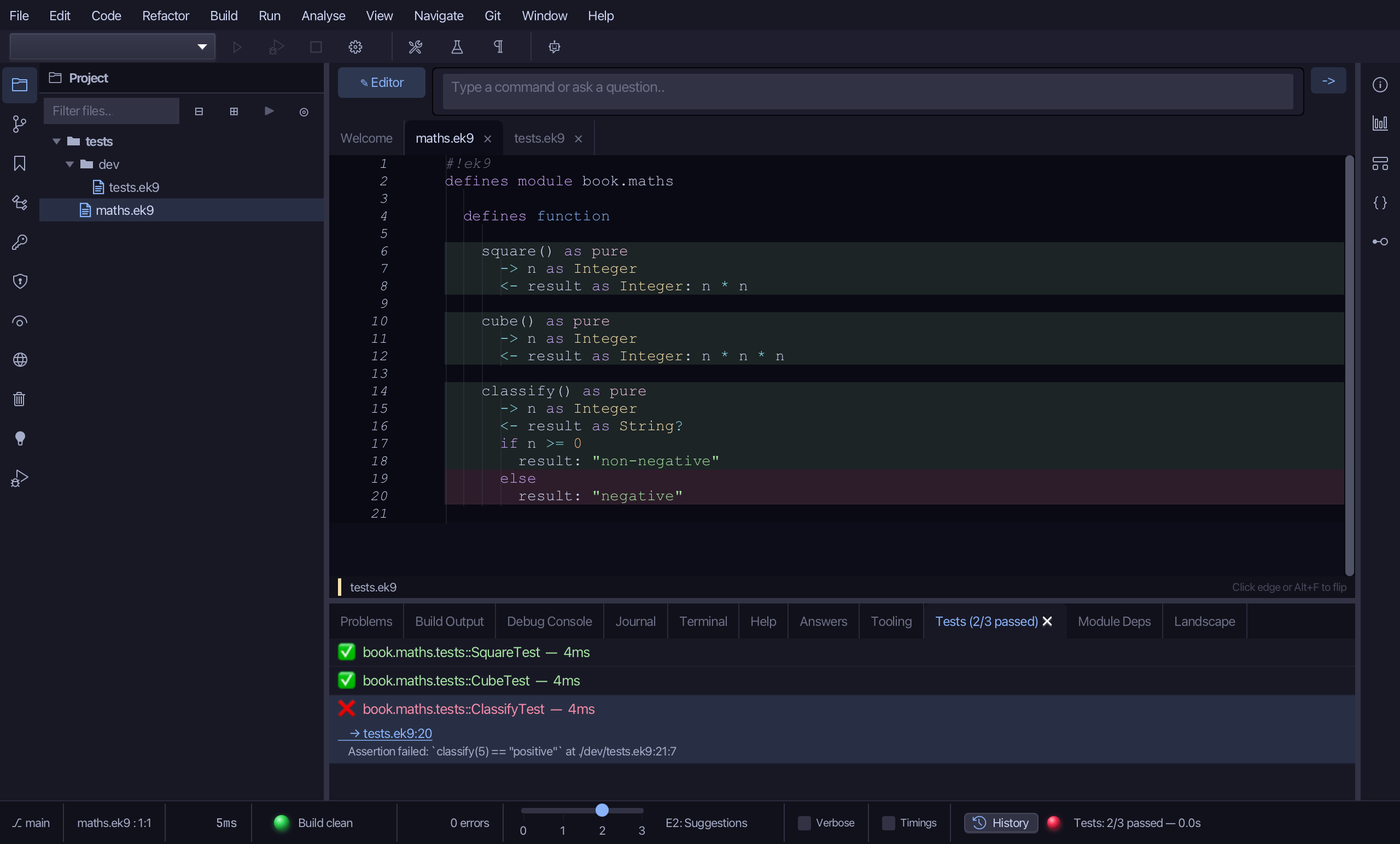
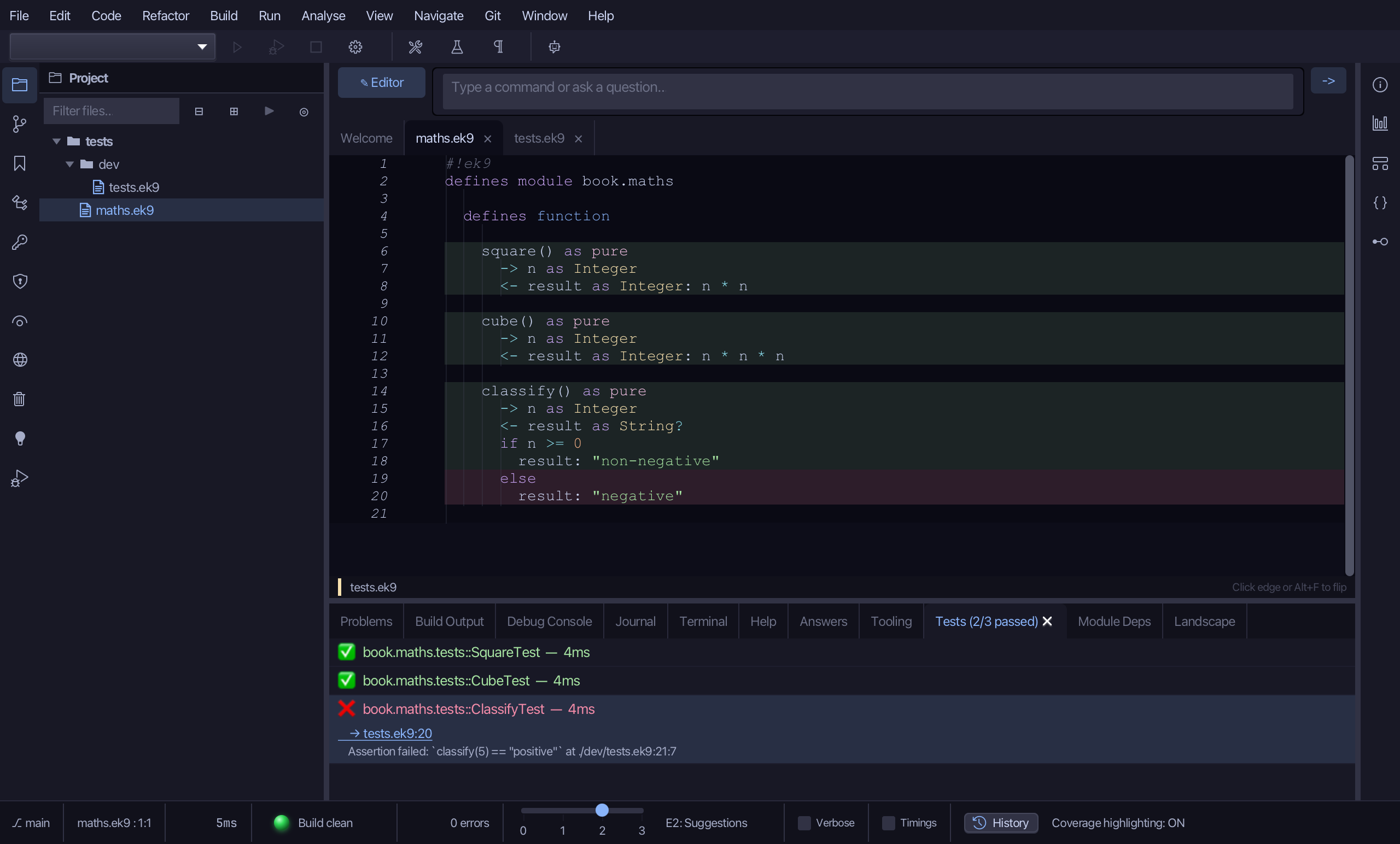
Coverage highlighting came on by itself the first time a run produced results: square's and cube's lines shade as covered - every test ran them - and classify's own "negative" line shades differently, uncovered - no test ever called classify with a negative number, so that branch never ran.
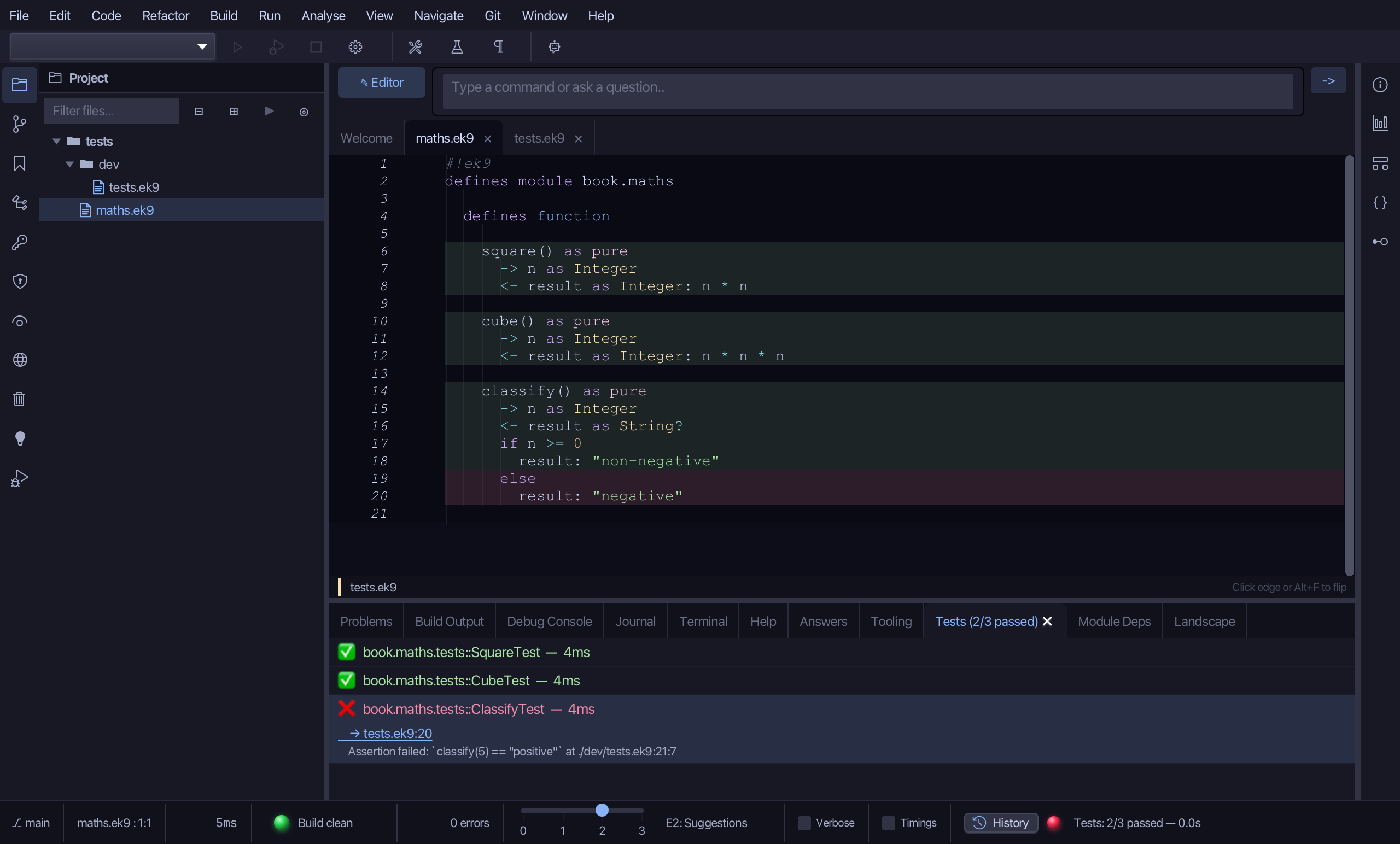
The same switch is View ▸ Toggles ▸ Coverage Highlighting, by hand. Choose it to turn the shading off.
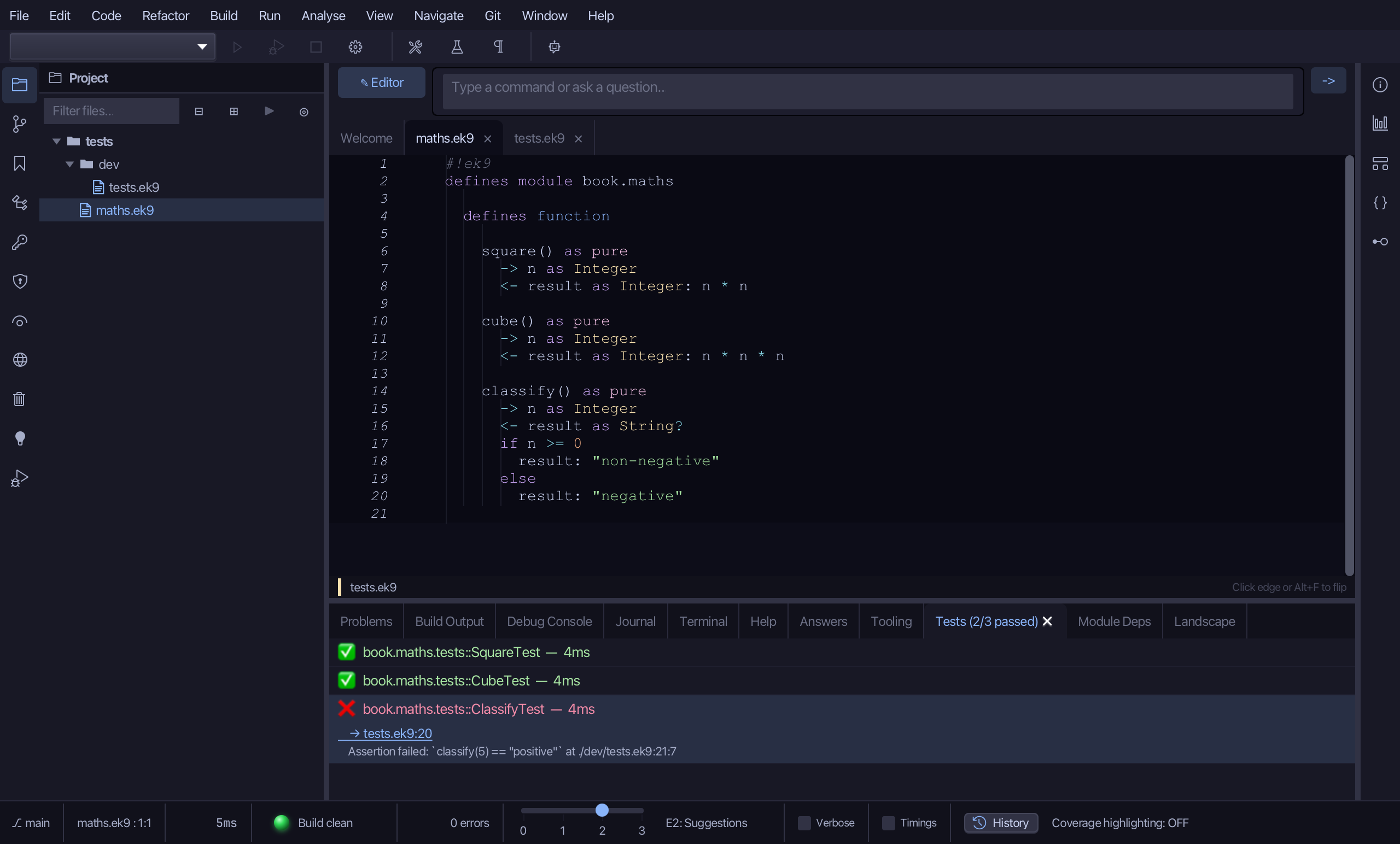
Choose View ▸ Toggles ▸ Coverage Highlighting again, to turn it back on.
The result
That is running and reading tests: the ▶ beside one @Test for a quick check, Run Tests (⌘T) for every @Test in the project, the Tests tab's own pass/fail list with a link from a failure straight to its declaration, and coverage highlighting - turned on by a run itself, or by hand from View ▸ Toggles ▸ Coverage Highlighting - shading every line a run actually executed, and shading classify's own untaken branch differently: covered is not the same as correct, and neither is the same as every branch tried. AI assistants use ek9_run_tests to do the same run and read its JSON answer: pass/fail per test, and the coverage summary.
Where this lesson comes from
- Answers -
ek9 -qand the IDE's Answers tab: 157. - For AI assistants - the MCP tool
ek9_run_tests.
In the EK9 reference: Code Coverage in EK9, Testing in EK9