Chapter 35: two aspects on one component, built
Chapter 35 asks what happens when more than one aspect wraps a component. This lesson builds the chapter's AspectOrder: one aspect class that takes a label, applied twice - outer, then inner - to a greeter, and a program that greets once. To play it in the IDE: Help > Lessons > EK9 in Depth…, or ek9 -ide -lesson depth-aspect-order.
What you'll build
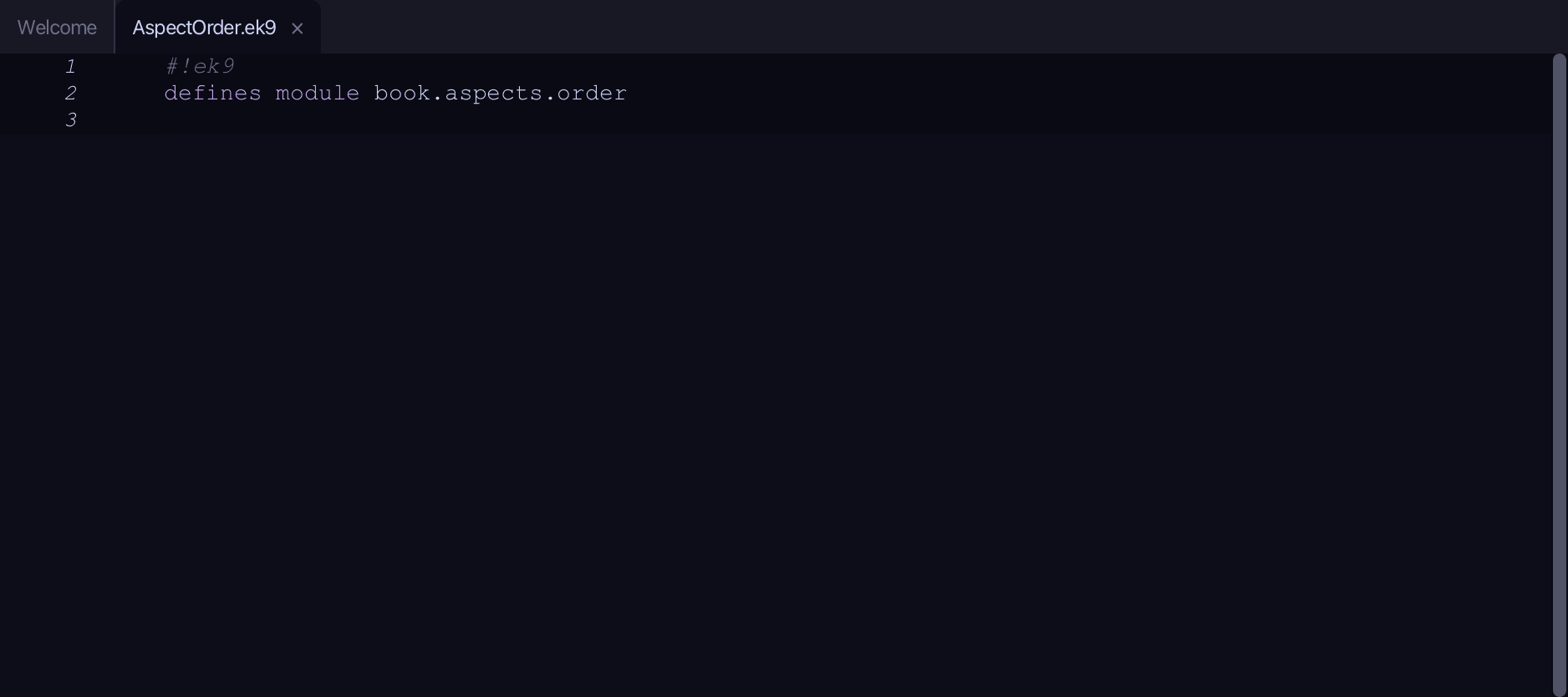
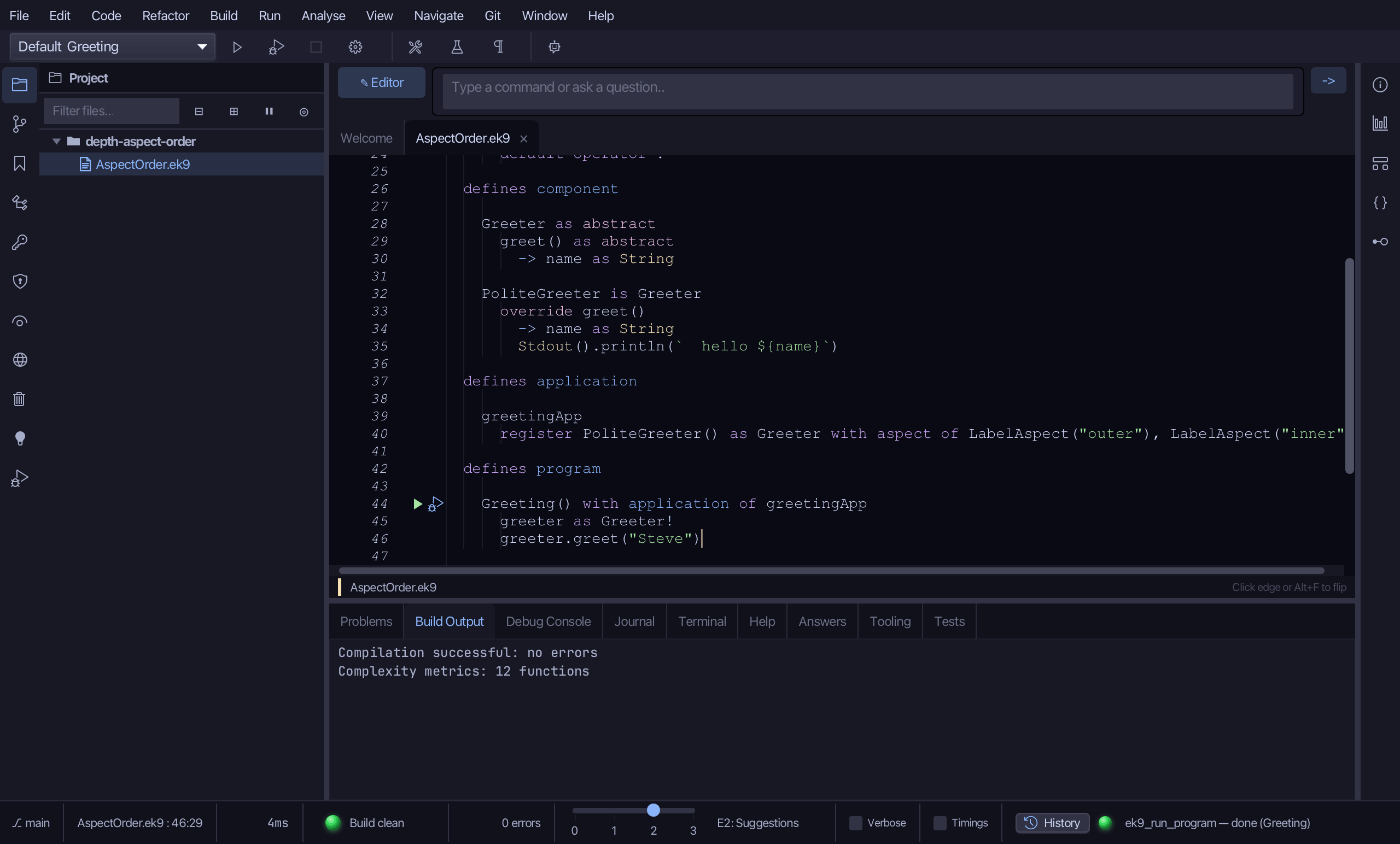
The lesson builds this program from a file holding only its module line - the finished file, as the book prints it.
#!ek9
defines module book.aspects.order

  defines class

    LabelAspect extends Aspect
      label as String?

      default private LabelAspect()

      LabelAspect()
        -> label as String
        this.label: label

      override beforeAdvice()
        -> joinPoint as JoinPoint
        <- rtn as PreparedMetaData: PreparedMetaData(joinPoint)
        Stdout().println(`${label} before ${joinPoint.componentName()}.${joinPoint.methodName()}`)

      override afterAdvice()
        -> preparedMetaData as PreparedMetaData
        Stdout().println(`${label} after ${preparedMetaData.joinPoint().methodName()}`)

      default operator ?

  defines component

    Greeter as abstract
      greet() as abstract
        -> name as String

    PoliteGreeter is Greeter
      override greet()
        -> name as String
        Stdout().println(`  hello ${name}`)

  defines application

    greetingApp
      register PoliteGreeter() as Greeter with aspect of LabelAspect("outer"), LabelAspect("inner")

  defines program

    Greeting() with application of greetingApp
      greeter as Greeter!
      greeter.greet("Steve")
Step 1: LabelAspect — a class
Choose Code > New Construct > Class…
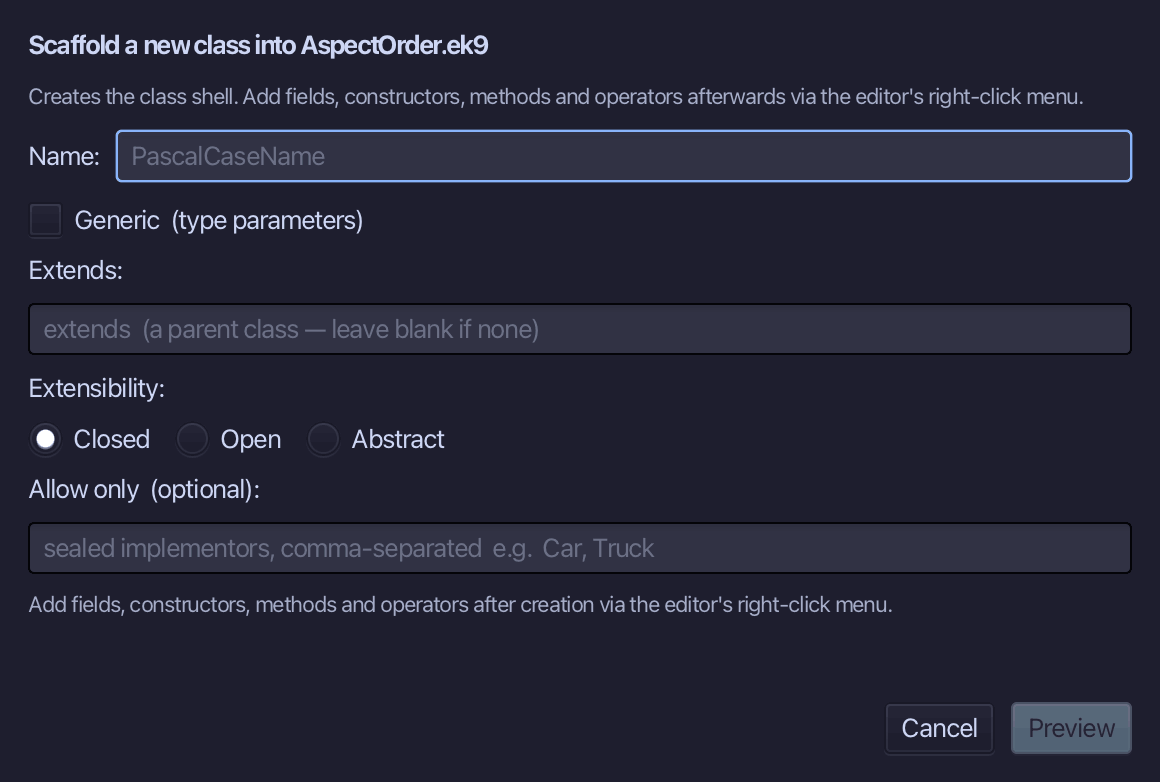
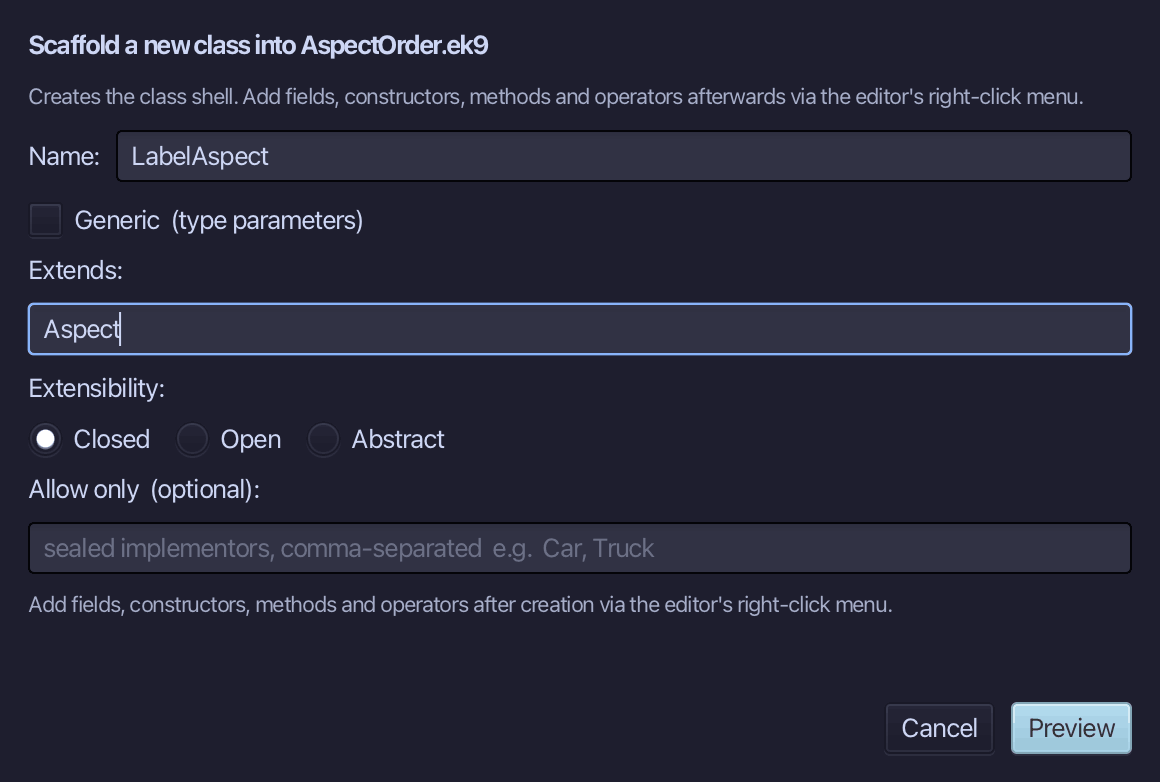
LabelAspect is the class's name. An aspect is a class that extends Aspect - no annotation, no pointcut language. This one takes a label, so it can be applied twice and the two told apart. Type Aspect into Extends. Choose Preview.
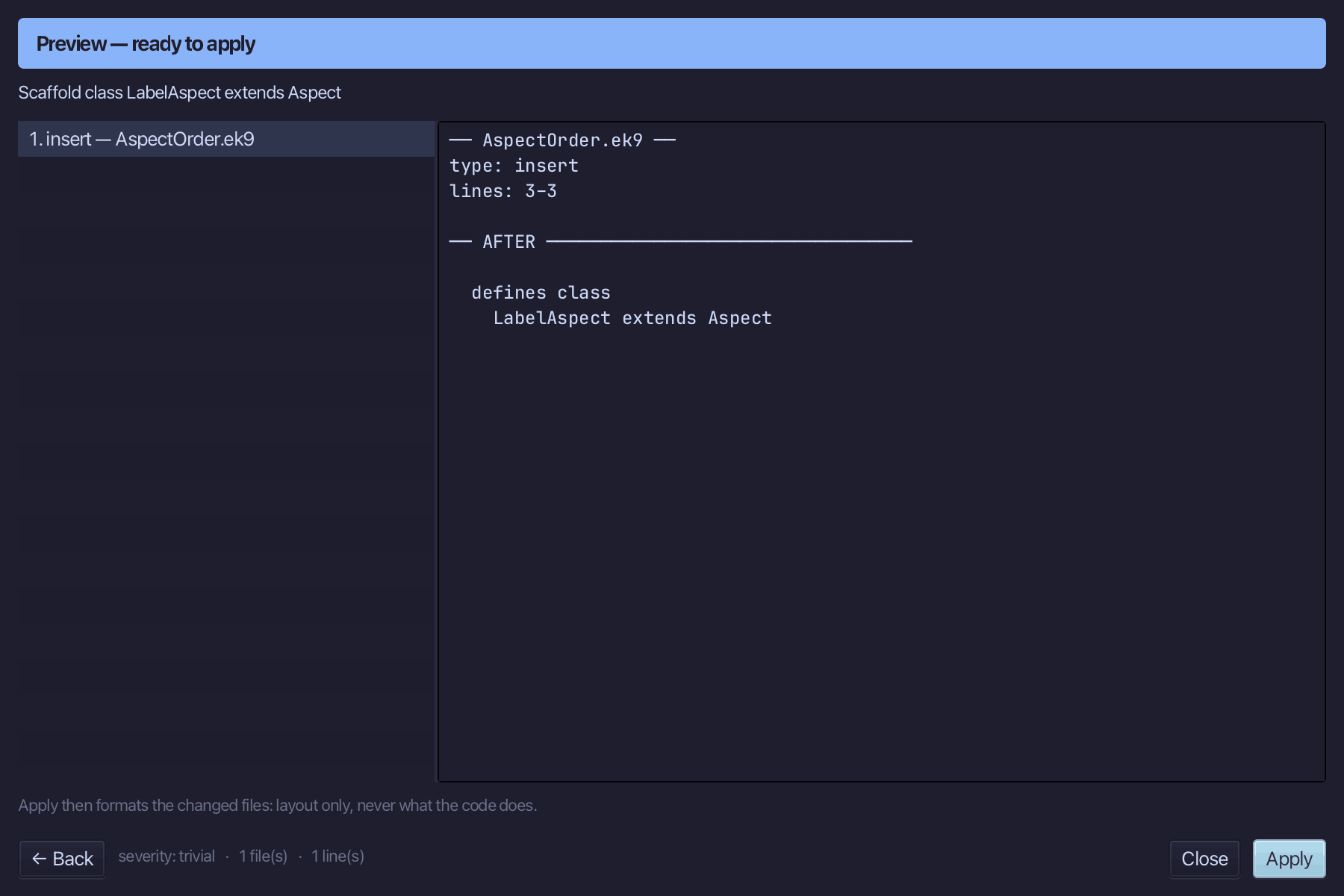
The preview shows LabelAspect about to be written - and, if Aspect owes any methods, an override stub for each. Choose Apply.
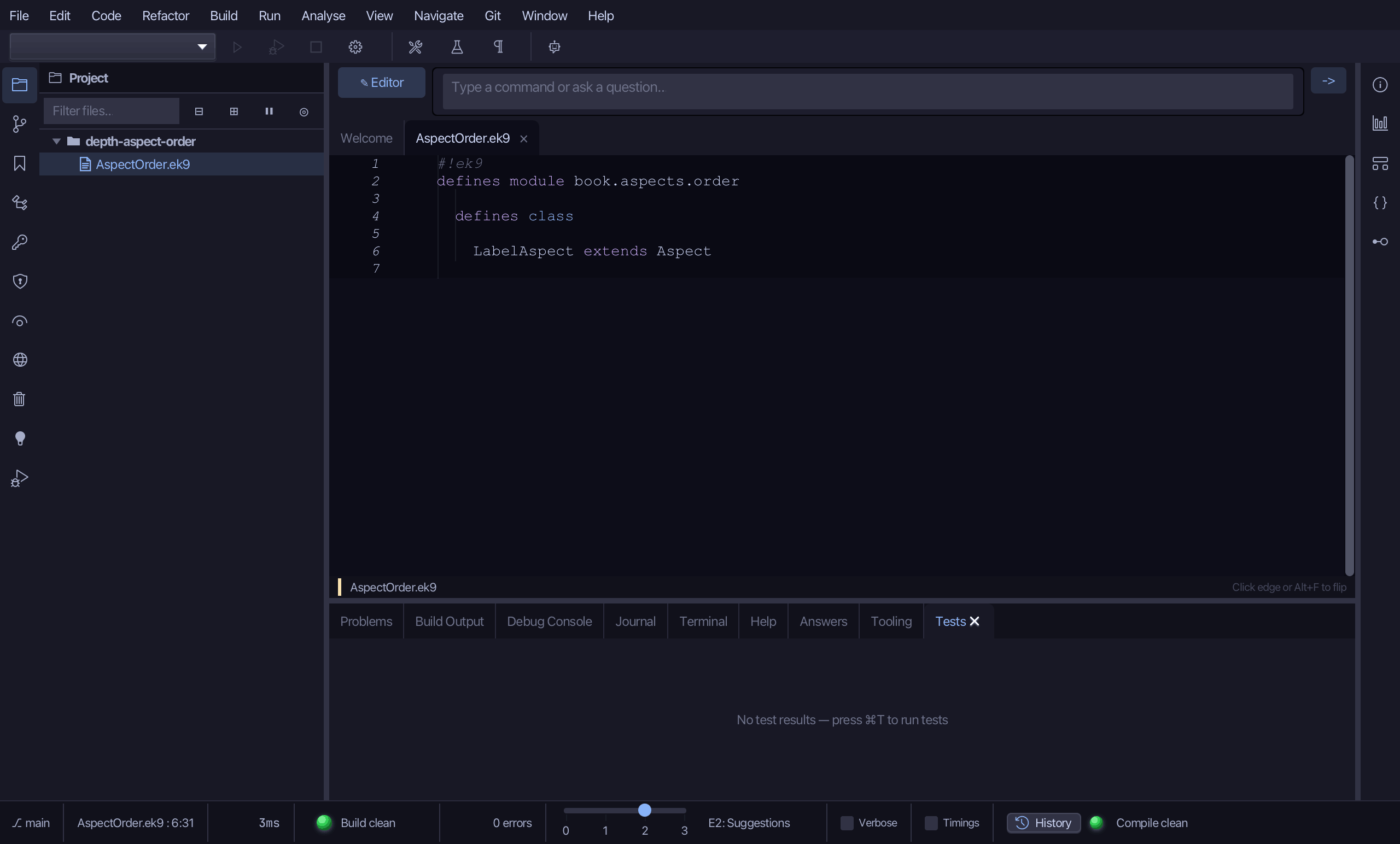
Select the LabelAspect line and, above it, type the blank line the book opens the block with. Saves when typed.
No tool writes a constructor that takes a label and keeps it, so type the pair under the header: the private default that stops a label-less aspect, and the constructor. They assign a field the next step declares. Saves when typed.
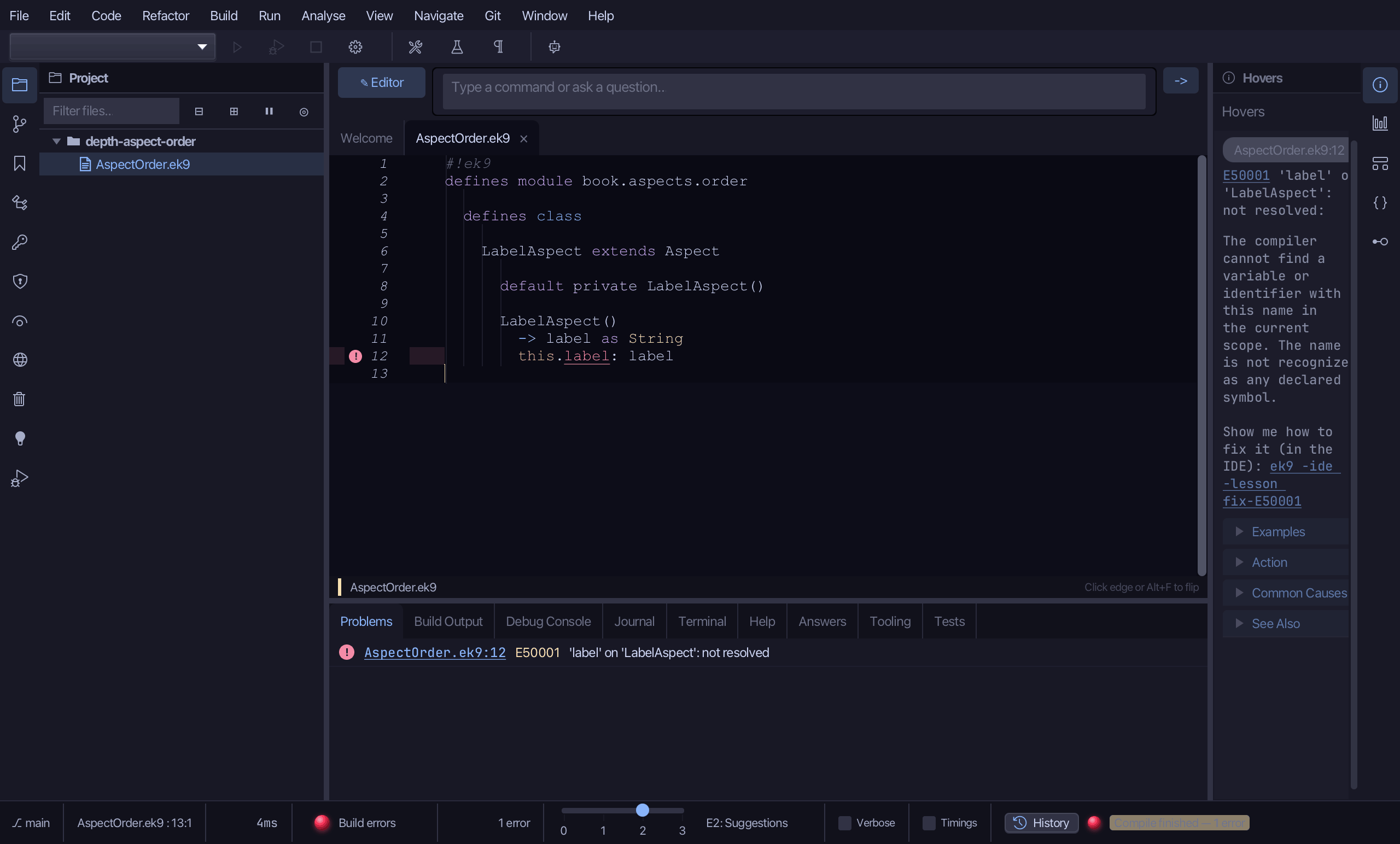
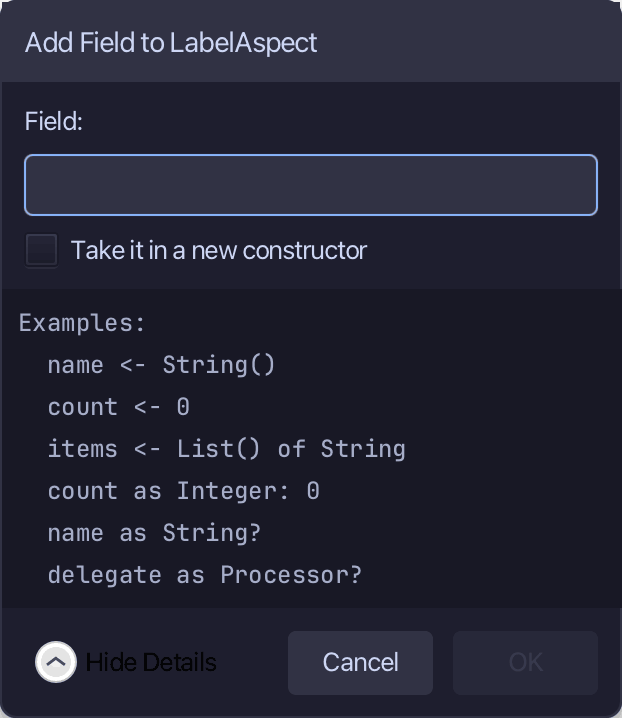
Right-click the LabelAspect line and choose Add Field…
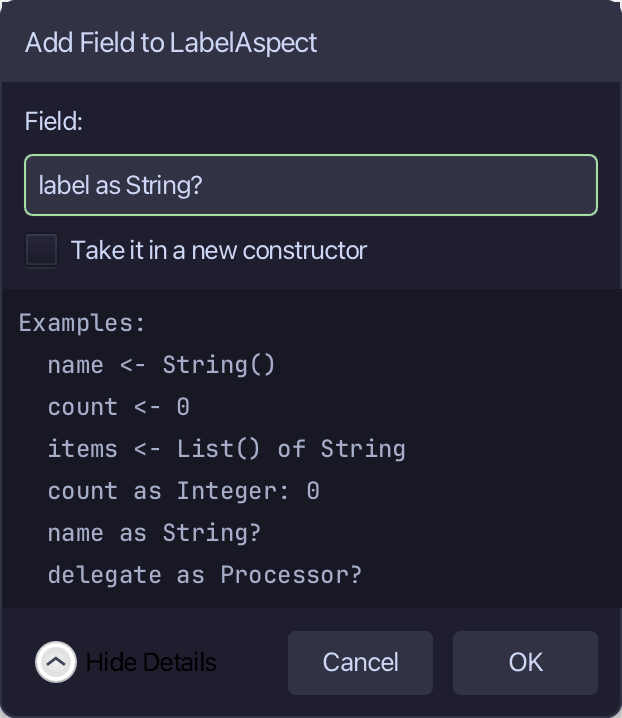
Type label as String?. The constructor assigns it, so the compiler accepts it unset. Untick 'Take it in a new constructor' - the constructor is the book's own. Choose OK.
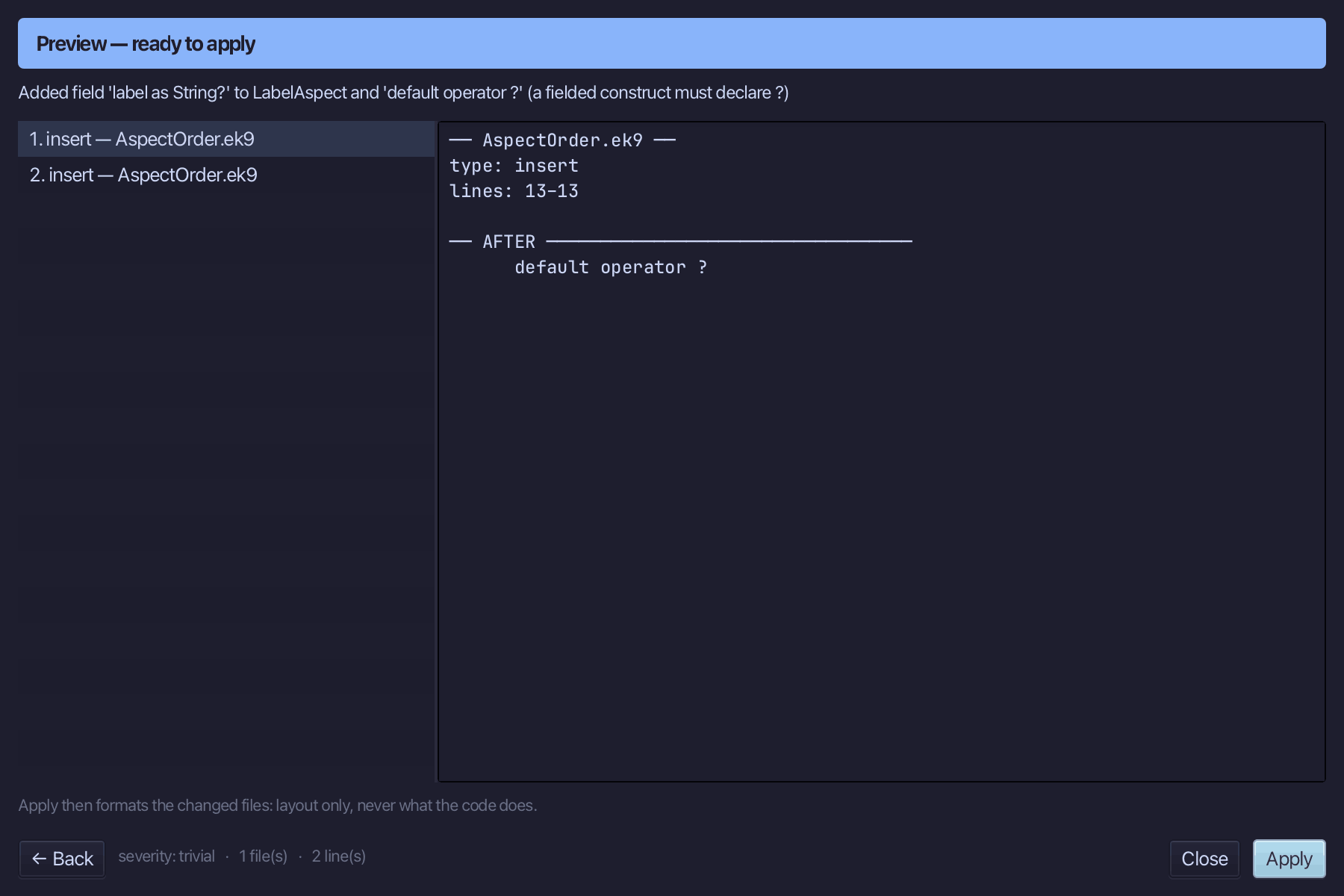
The preview shows label added - and default operator ? with it, LabelAspect's first field. Choose Apply.
Right-click the LabelAspect line and choose Add Method…
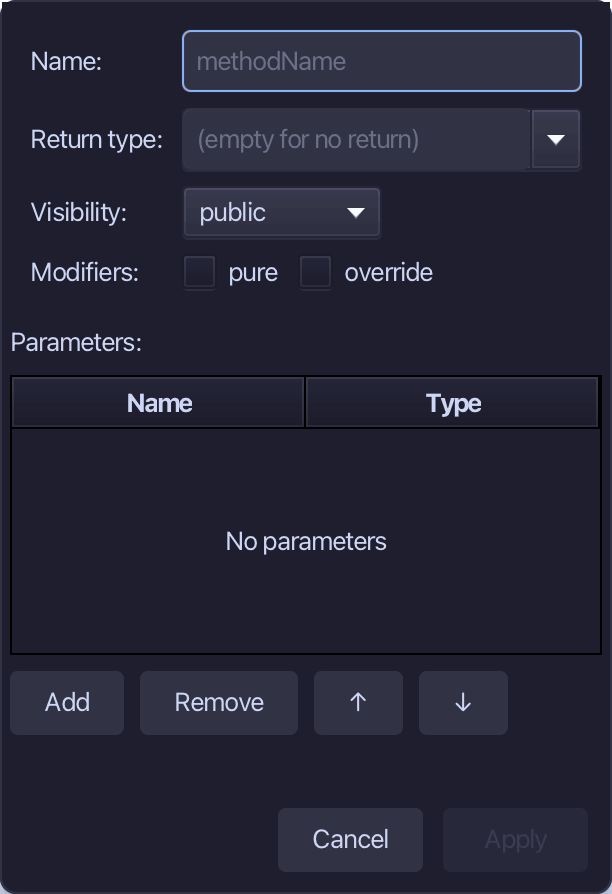
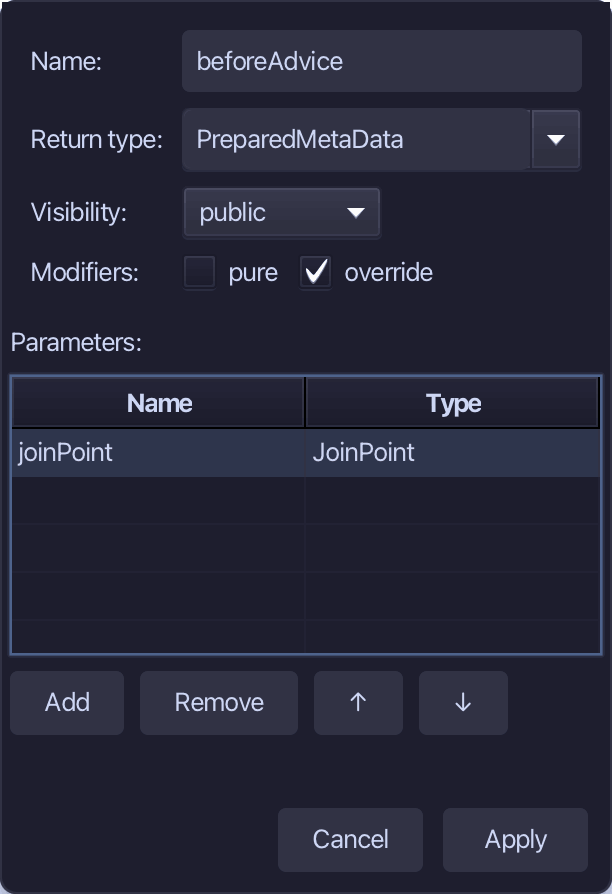
beforeAdvice is the method's name. It runs before each call and is handed a JoinPoint - which component and which method - and it answers with a PreparedMetaData that afterAdvice receives. Aspect already has it, so it is an override. Add one parameter, joinPoint of type JoinPoint, set Return type to PreparedMetaData and tick override. Choose Apply.
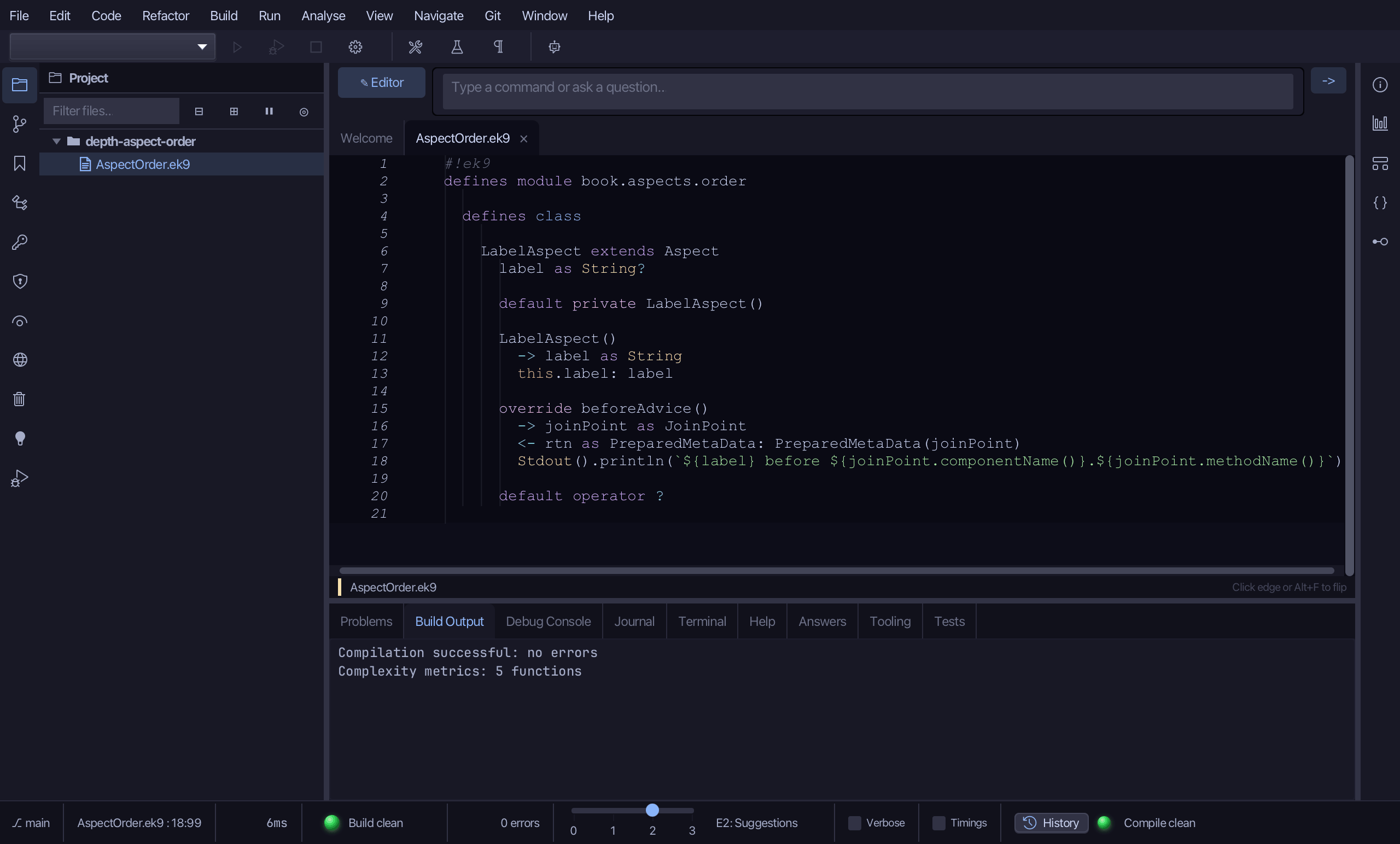
Select the stub and type the advice: print the label, and which component and method are about to run. Saves when typed.
Right-click the LabelAspect line and choose Add Method…
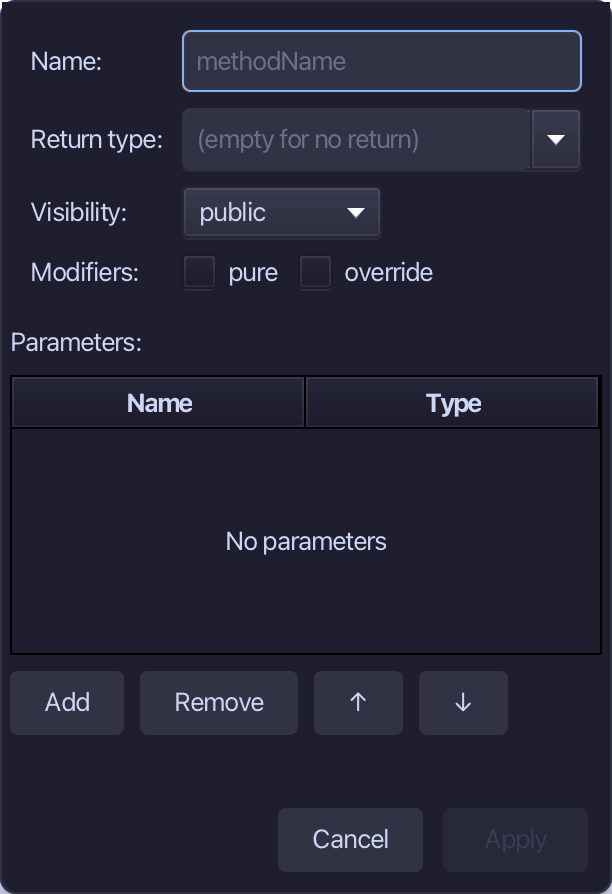
afterAdvice is the method's name. It runs after the call and is handed that PreparedMetaData back. Aspect already has it, so it is an override. Add one parameter, preparedMetaData of type PreparedMetaData and tick override. Choose Apply.
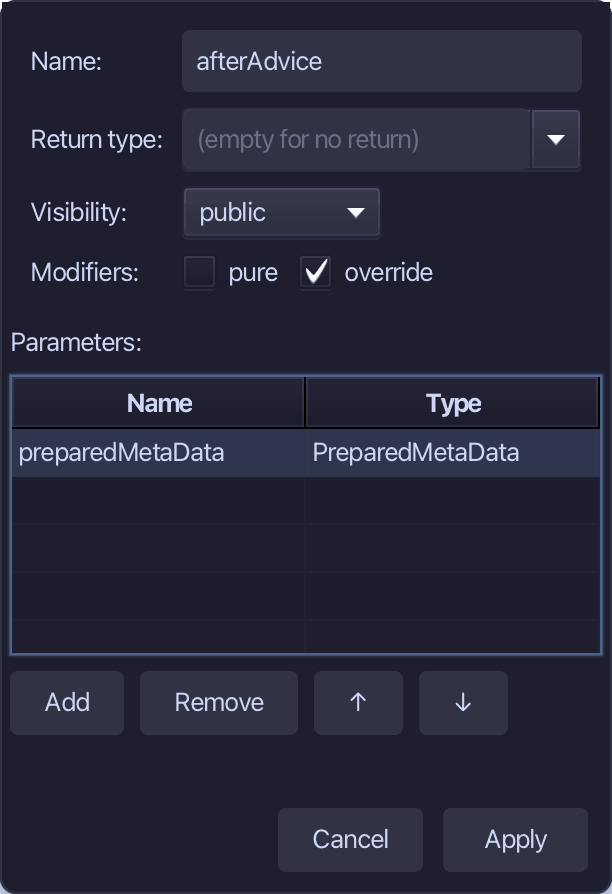
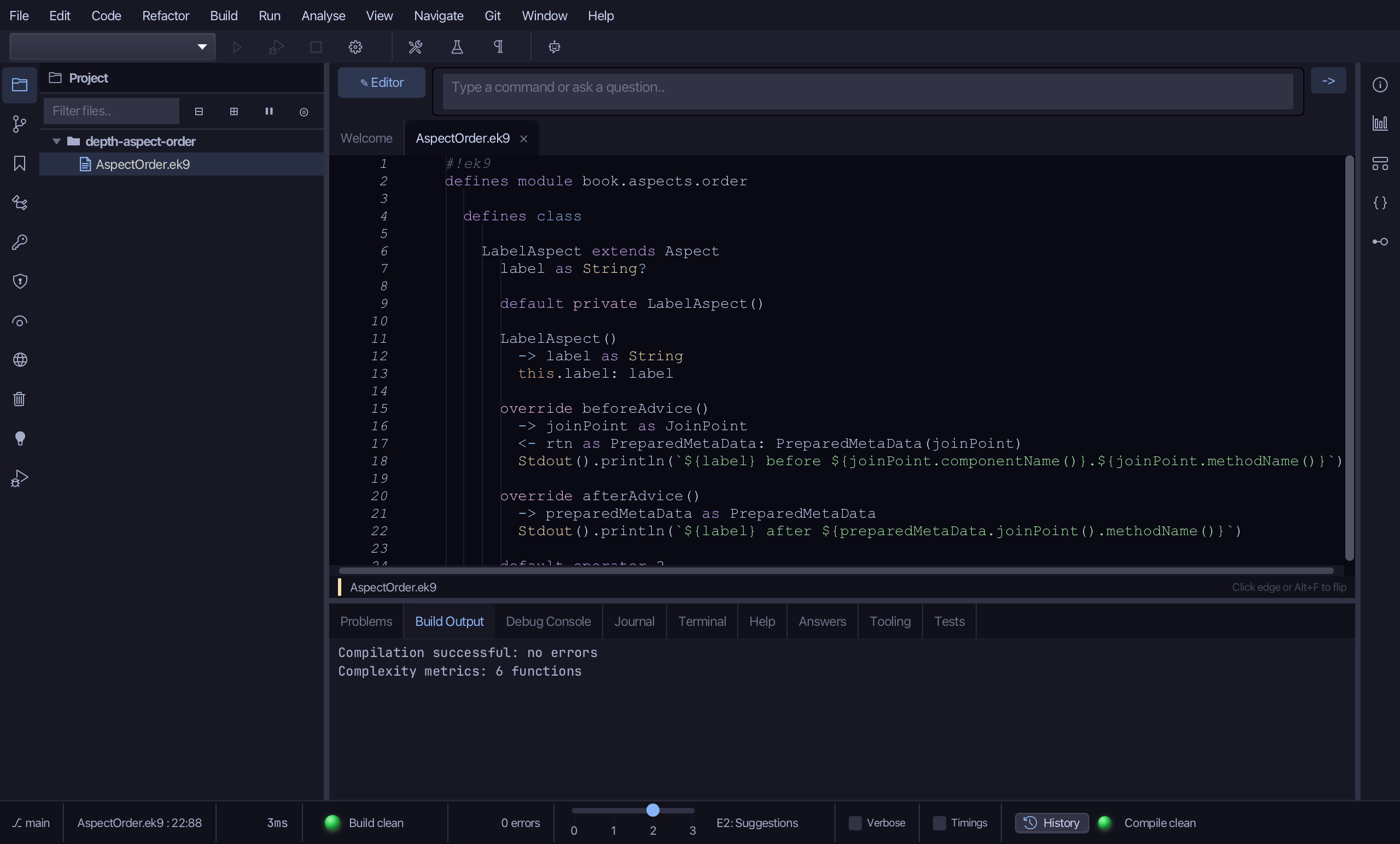
Select the stub and type the advice: the label and the method that has just run. Saves when typed.
Step 2: Greeter — a component
Choose Code > New Construct > Component…
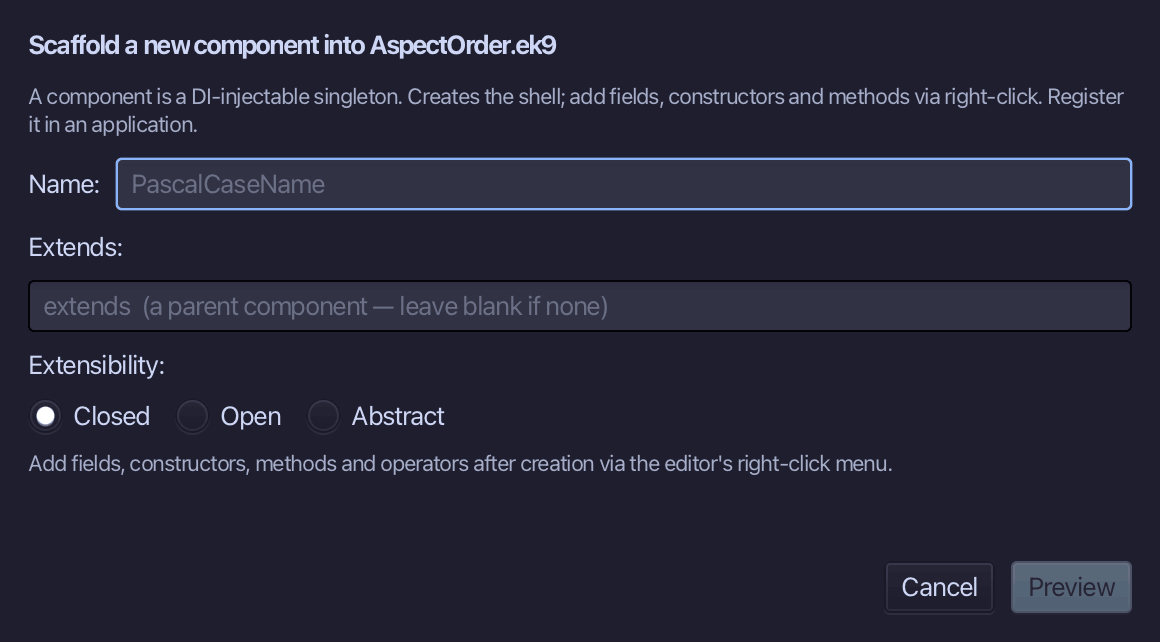
Greeter is the component's name. It is the contract. Choose Abstract under Extensibility. Choose Preview.
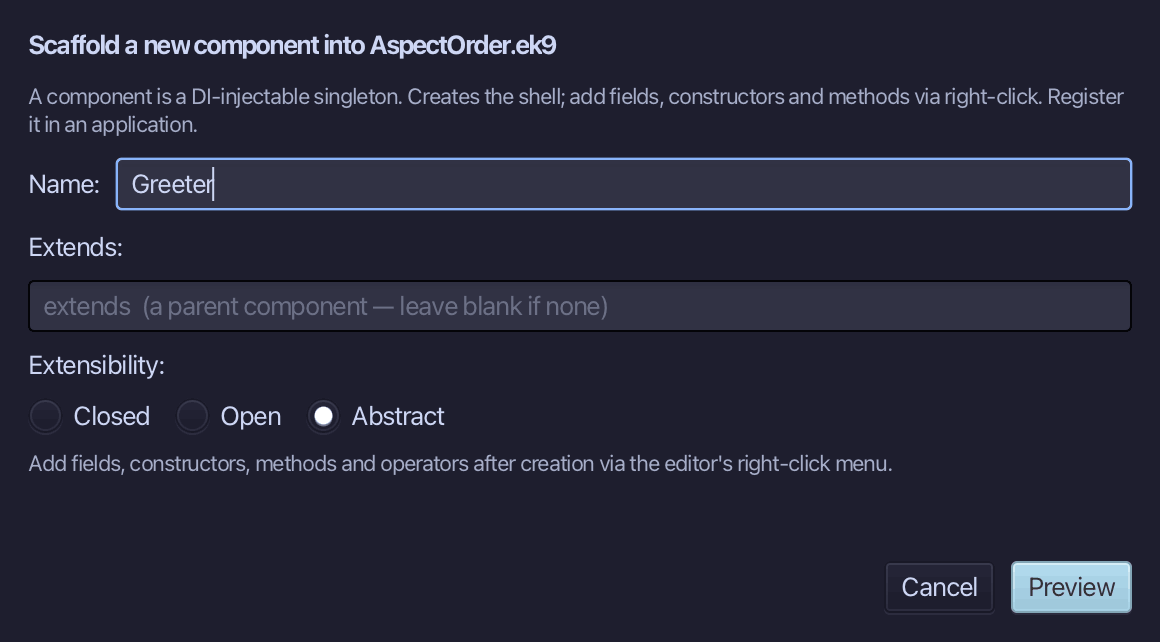
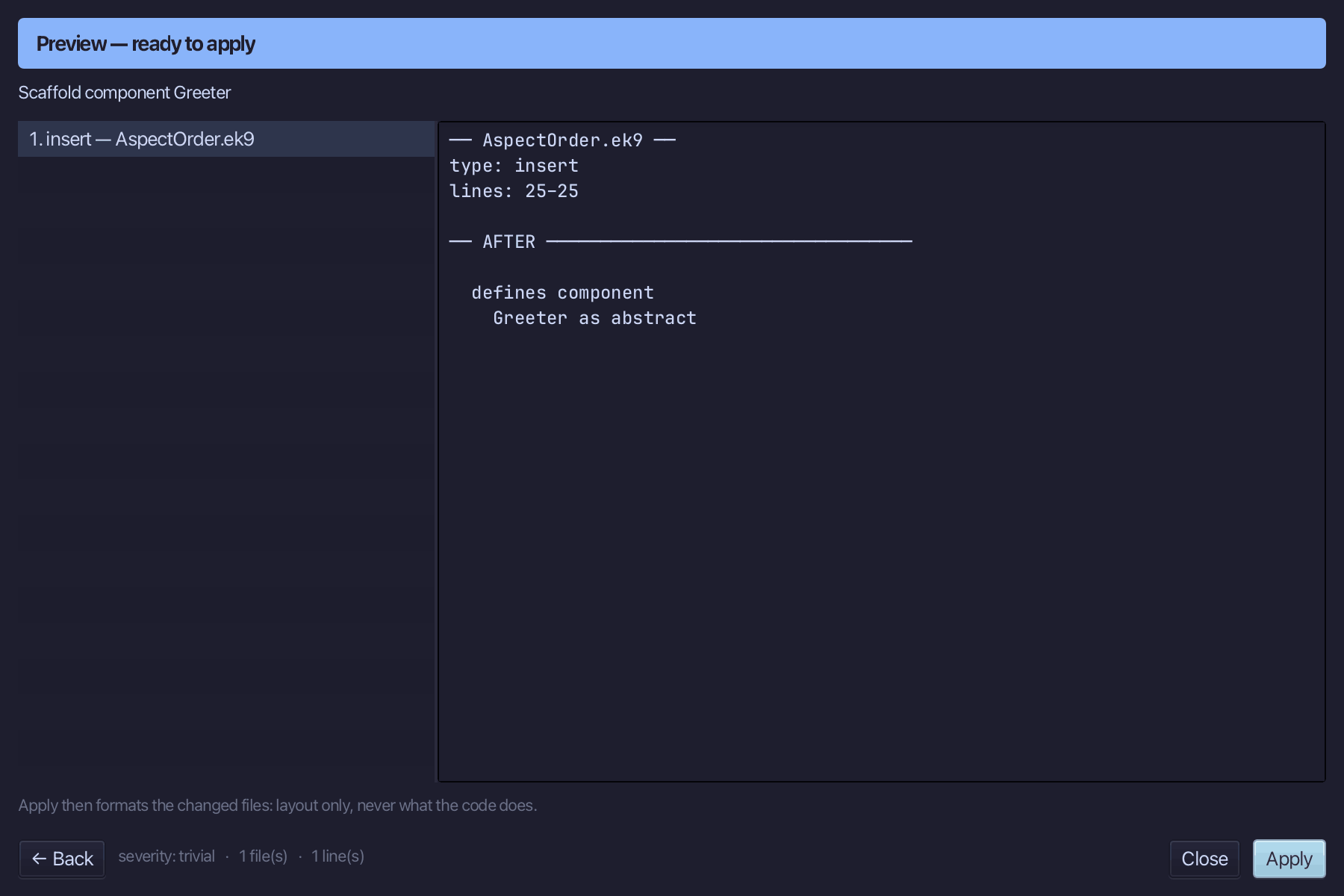
The preview shows Greeter about to be written. Choose Apply.
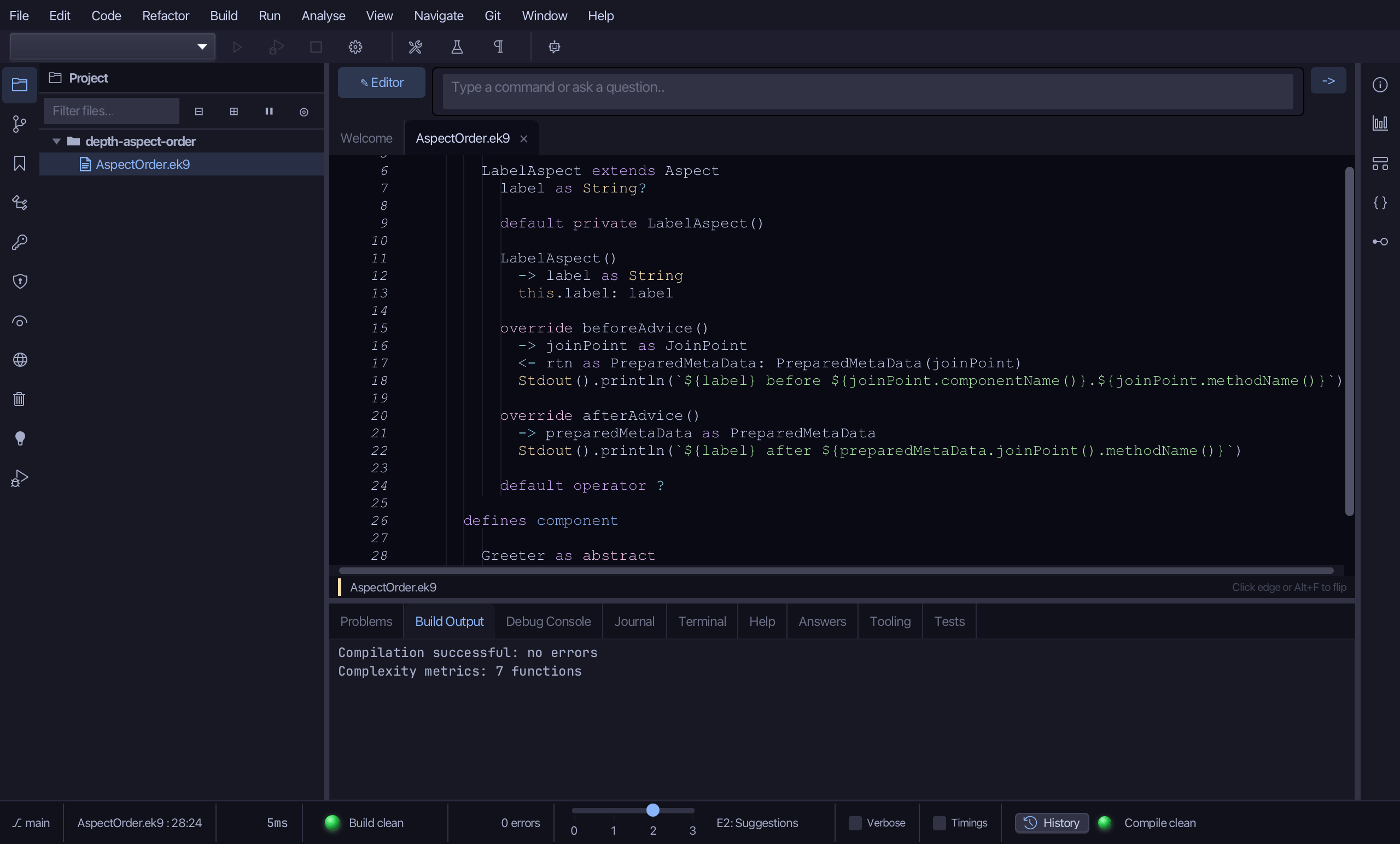
Select the Greeter line and, above it, type the blank line the book opens the block with. Saves when typed.
Right-click the Greeter line and choose Add Method…
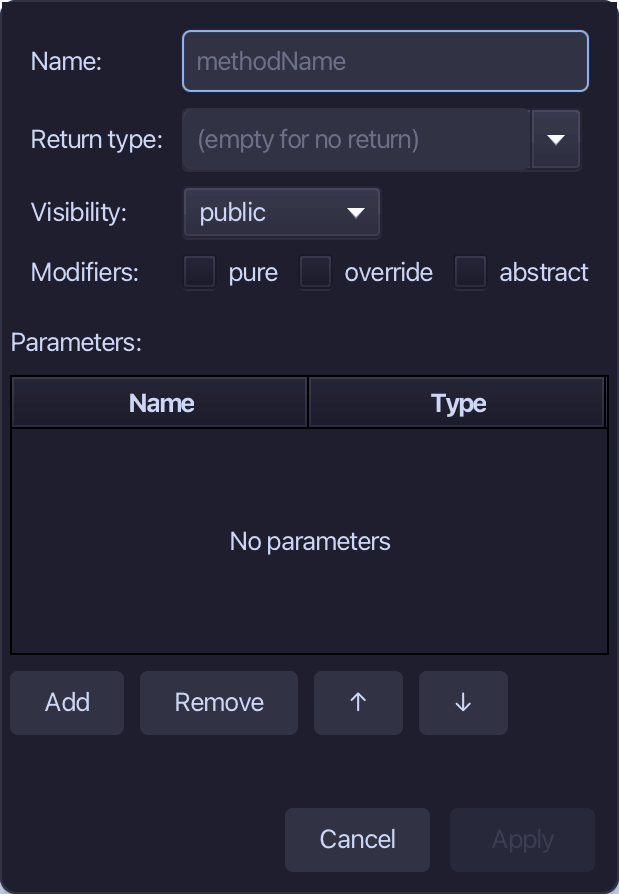
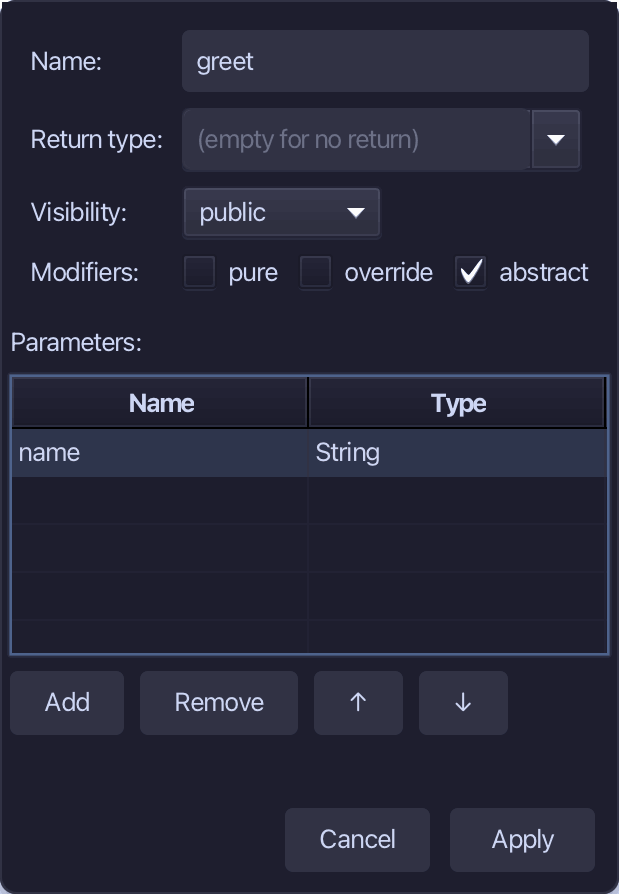
greet is the method's name. Add one parameter, name of type String and tick abstract - a contract with no body. Choose Apply.
Step 3: PoliteGreeter — a component
Choose Code > New Construct > Component…
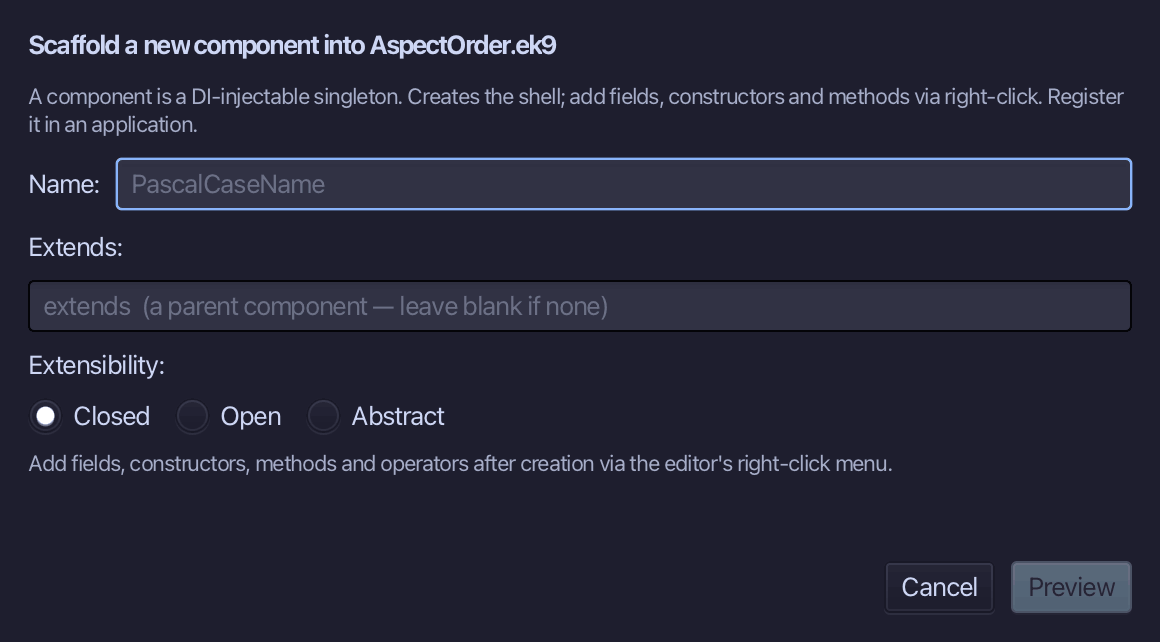
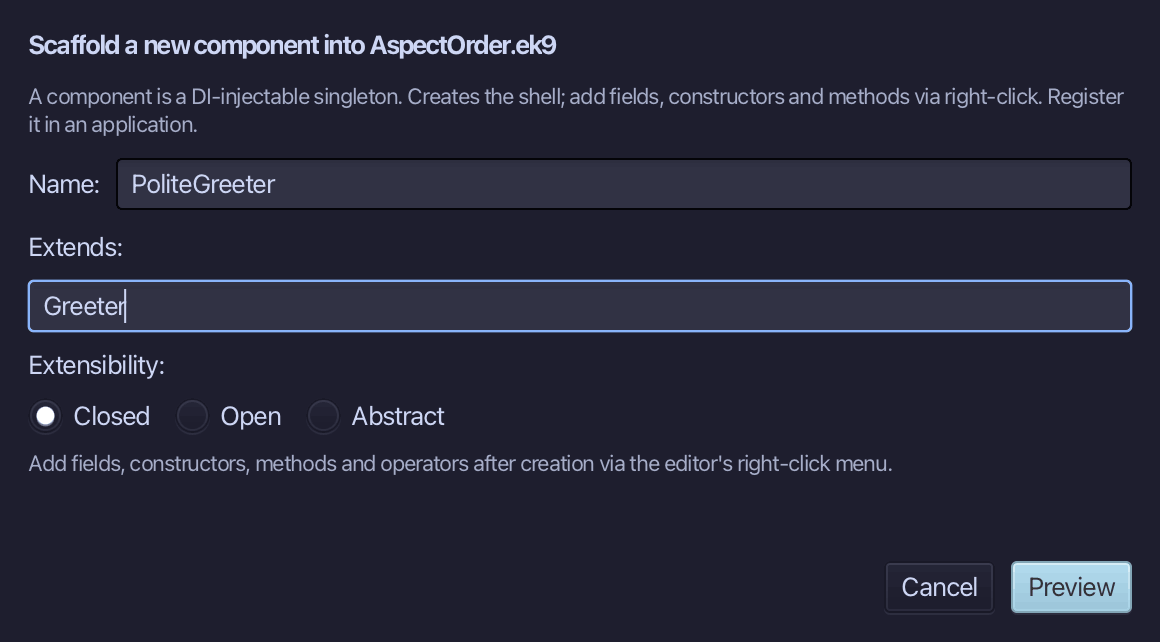
PoliteGreeter is the component's name. It does the greeting. Type Greeter into Extends. Choose Preview.
The preview shows PoliteGreeter about to be written - and, if Greeter owes any methods, an override stub for each. Choose Apply.
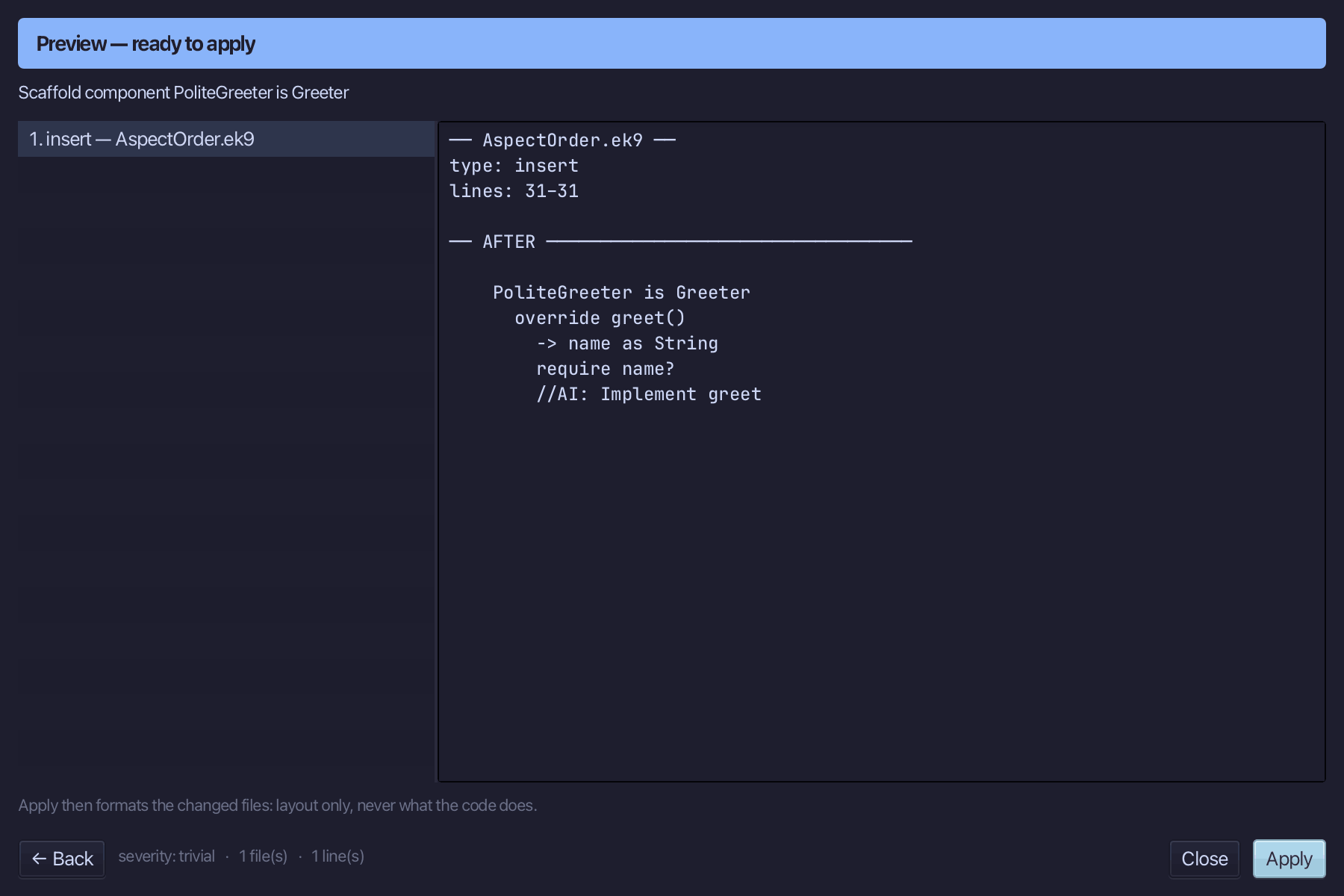
Select the stub and type the greeting. Saves when typed.
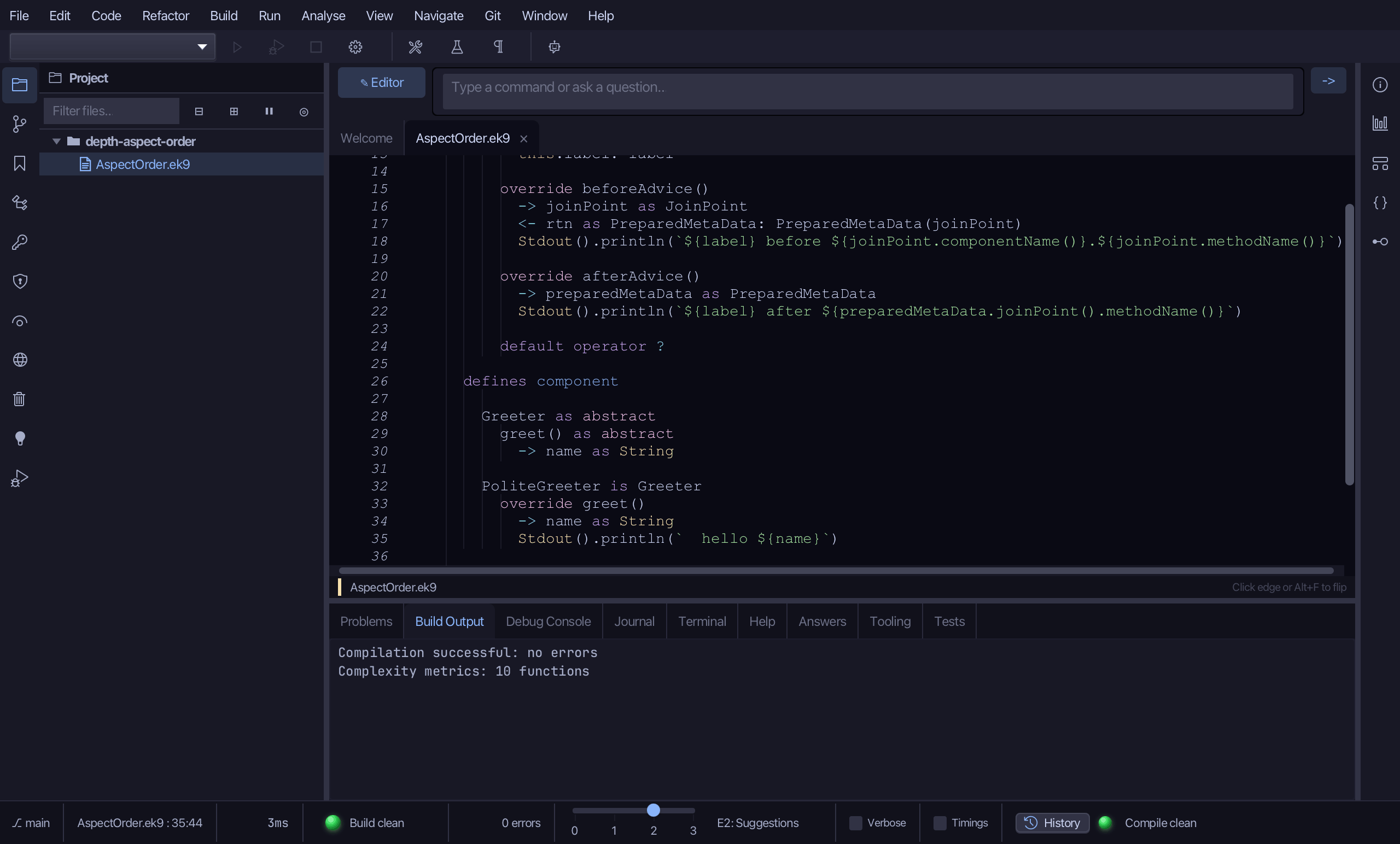
Step 4: greetingApp — an application
Choose Code > New Construct > Application…
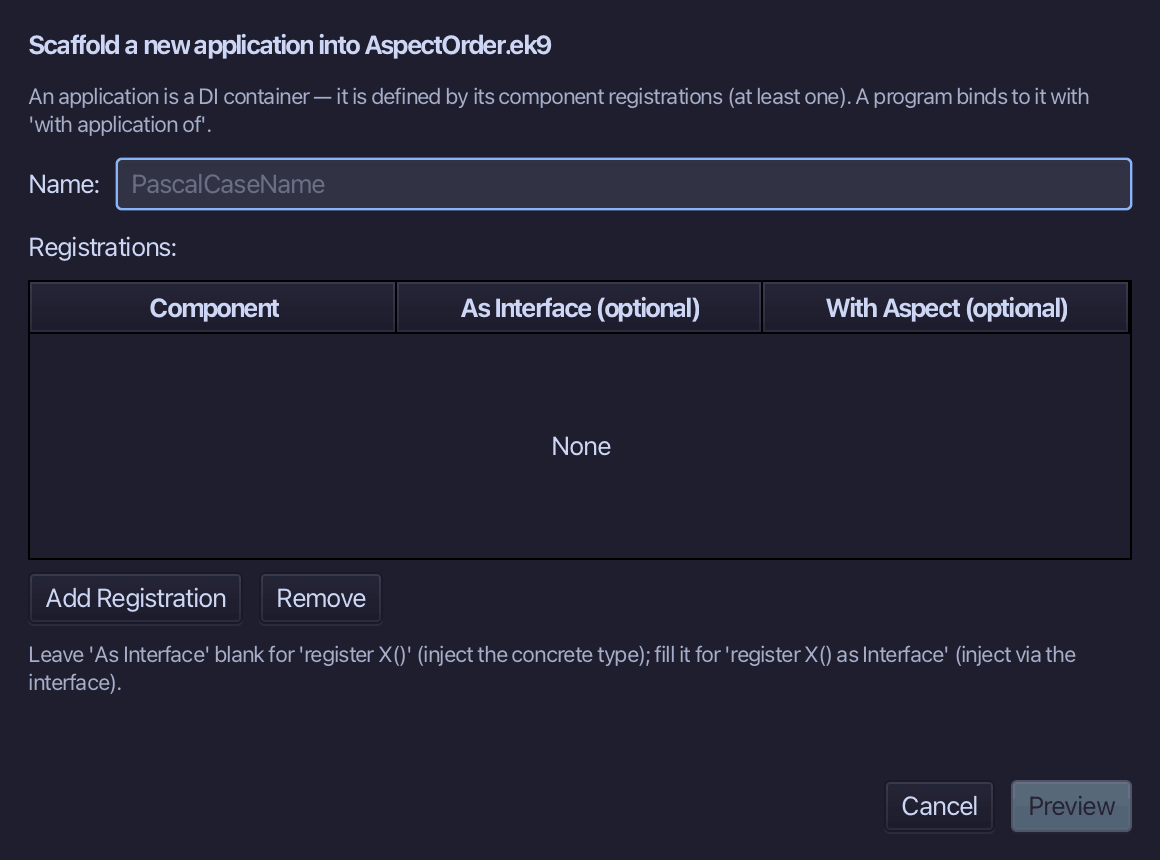
greetingApp is the application's name. It registers PoliteGreeter with TWO aspects, outer first. The order written is the order the before advice runs; the after advice runs in reverse. The Registrations table holds PoliteGreeter as Greeter, with the aspects LabelAspect("outer") and LabelAspect("inner"). Choose Preview.
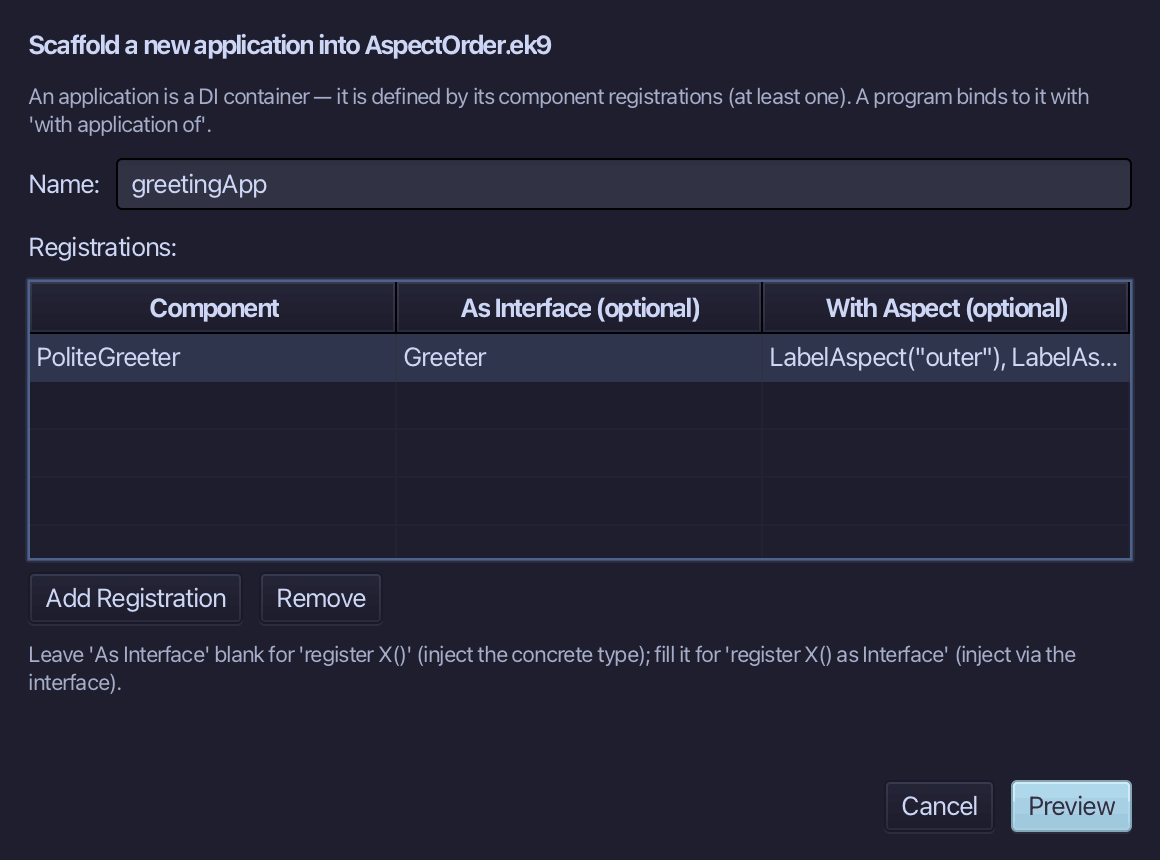
The preview shows greetingApp about to be written, with its register line. Choose Apply.
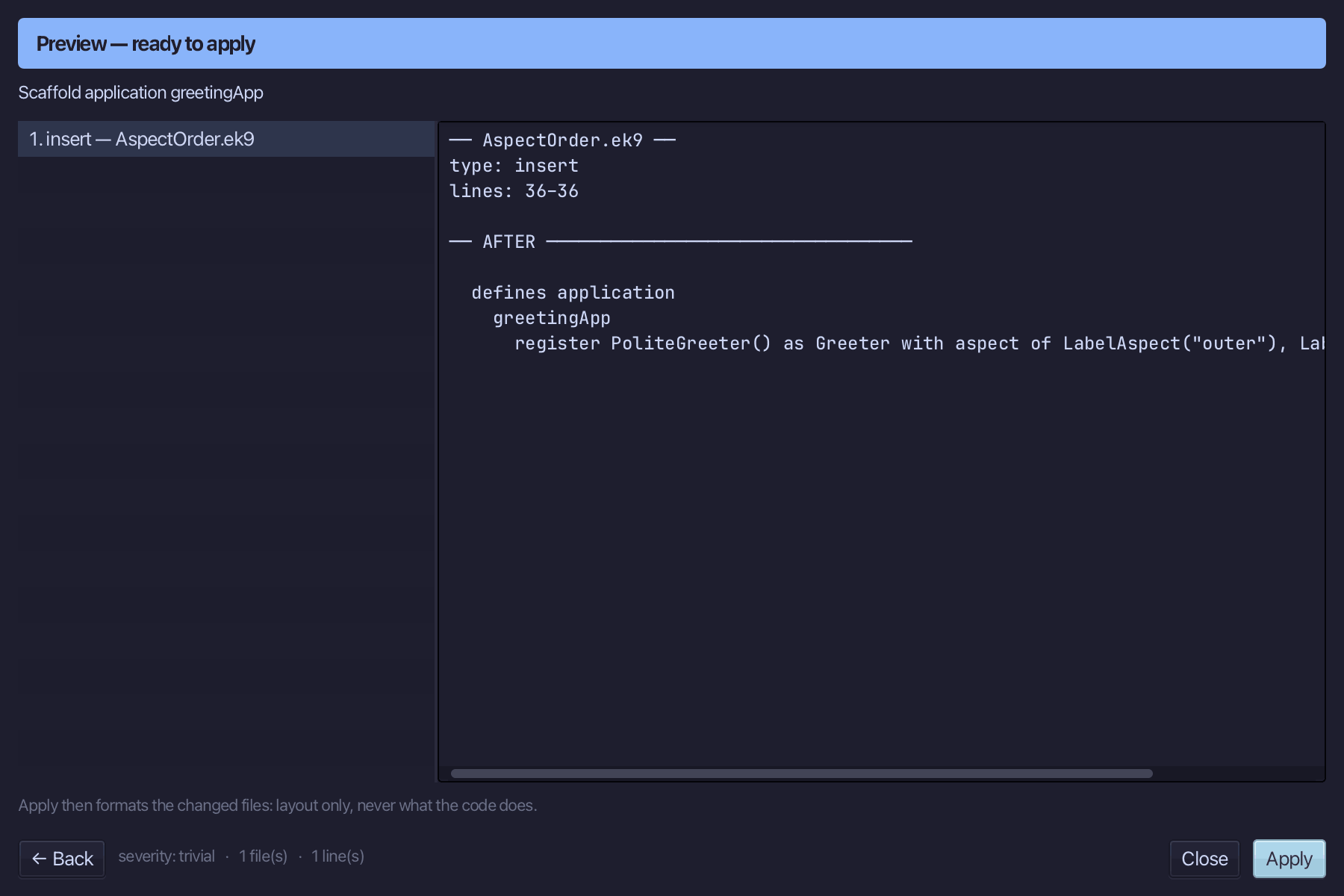
Select the greetingApp line and, above it, type the blank line the book opens the block with. Saves when typed.
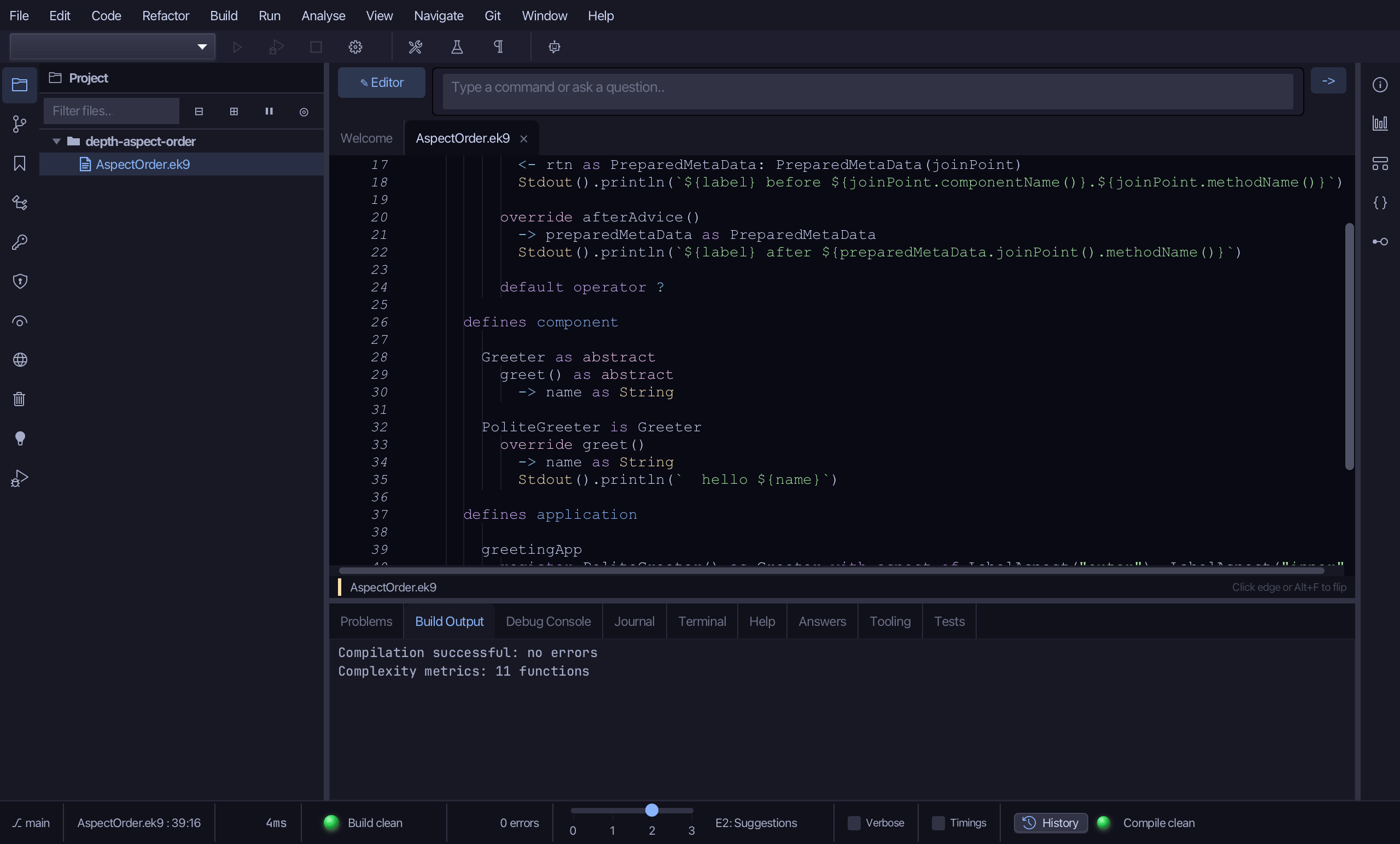
Step 5: Greeting — a program
Choose Code > New Construct > Program…
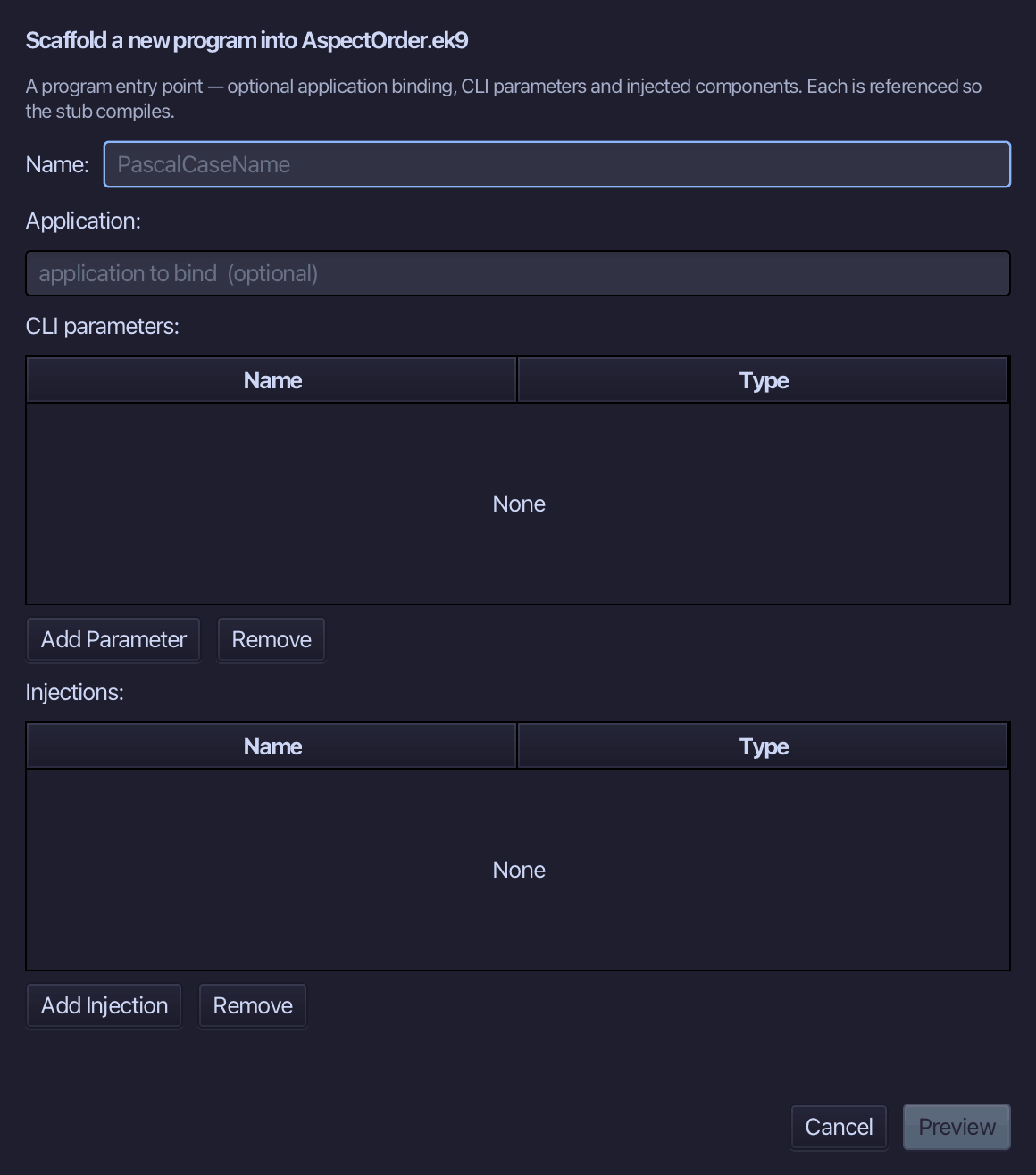
Greeting is the program's name. It runs under greetingApp and asks for a Greeter. Type greetingApp into Application. Add the injection greeter of type Greeter. Choose Preview.
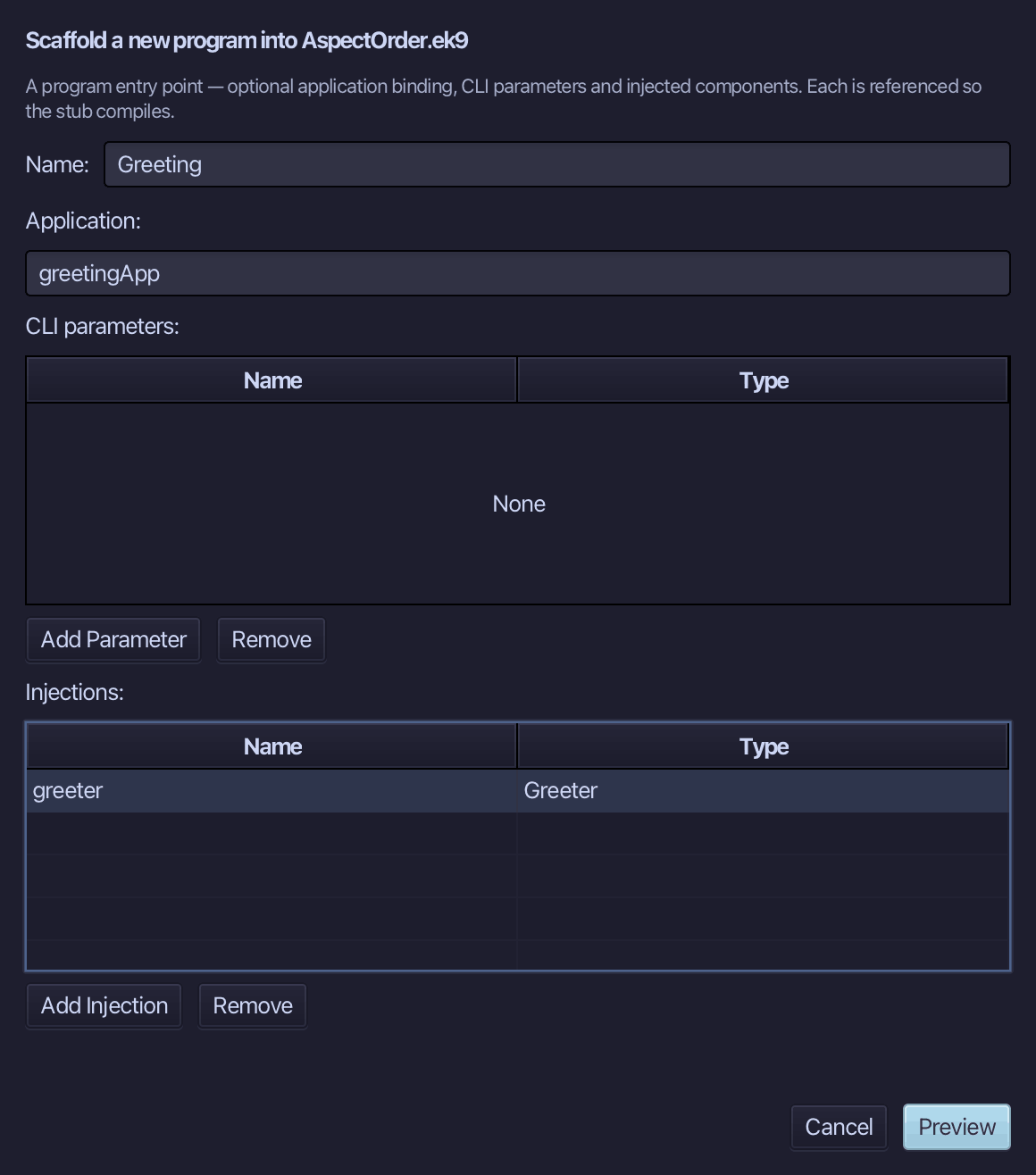
The preview shows Greeting about to be written, with application of greetingApp. Choose Apply.
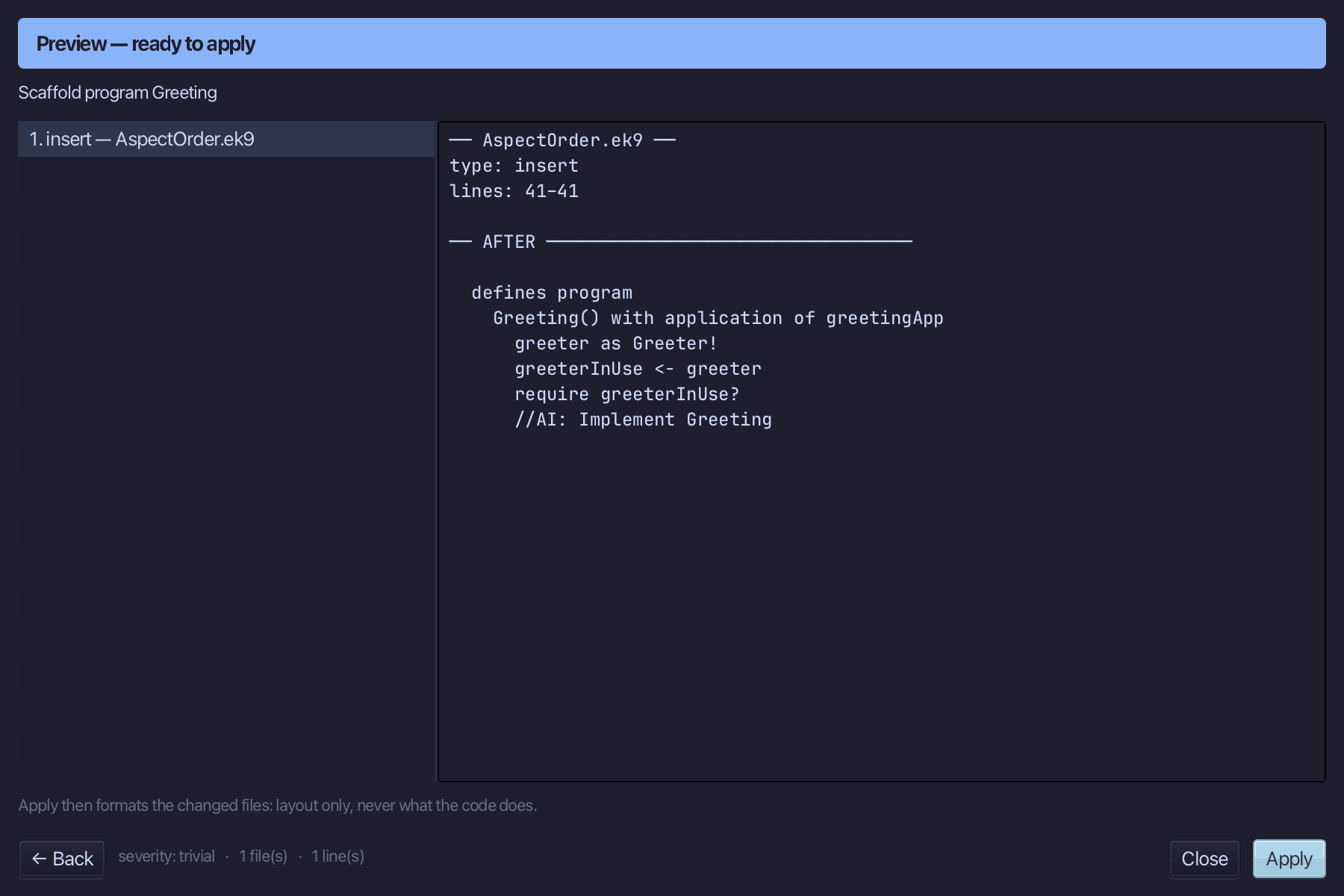
Select the Greeting line and, above it, type the blank line the book opens the block with. Saves when typed.
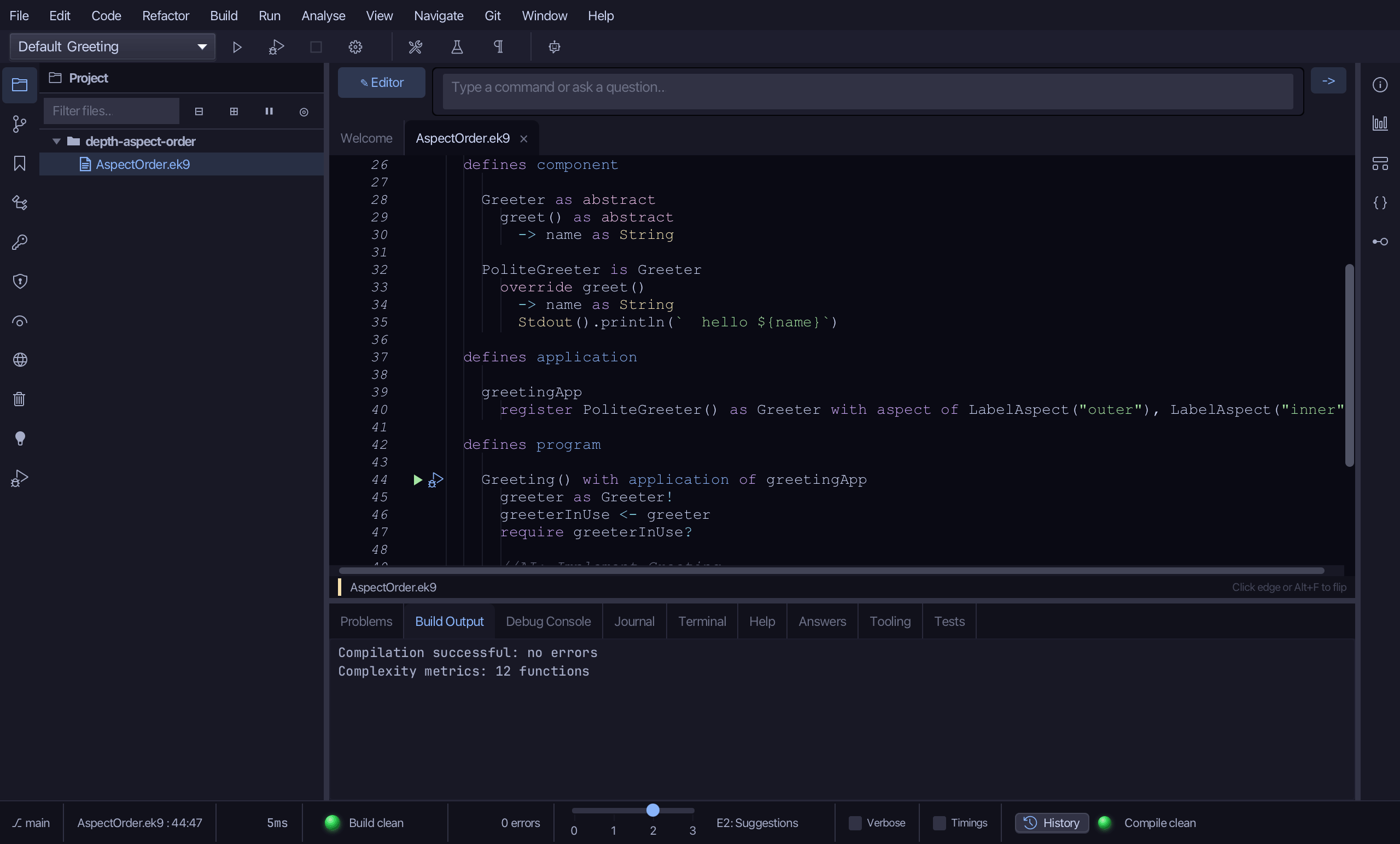
Select the stub and type the one call. Saves when typed.
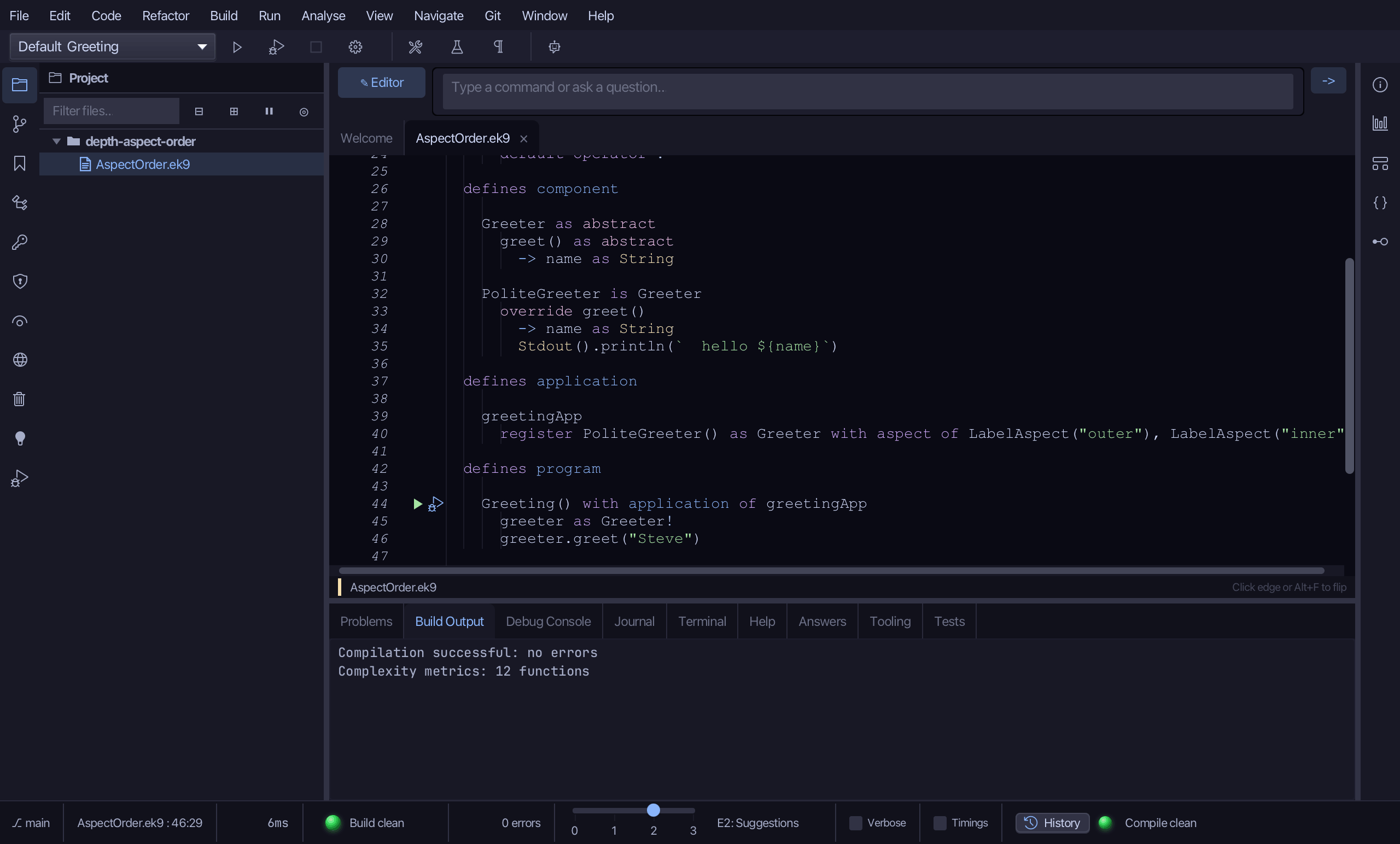
Step 6: Run it
Choose Run > Run Program…
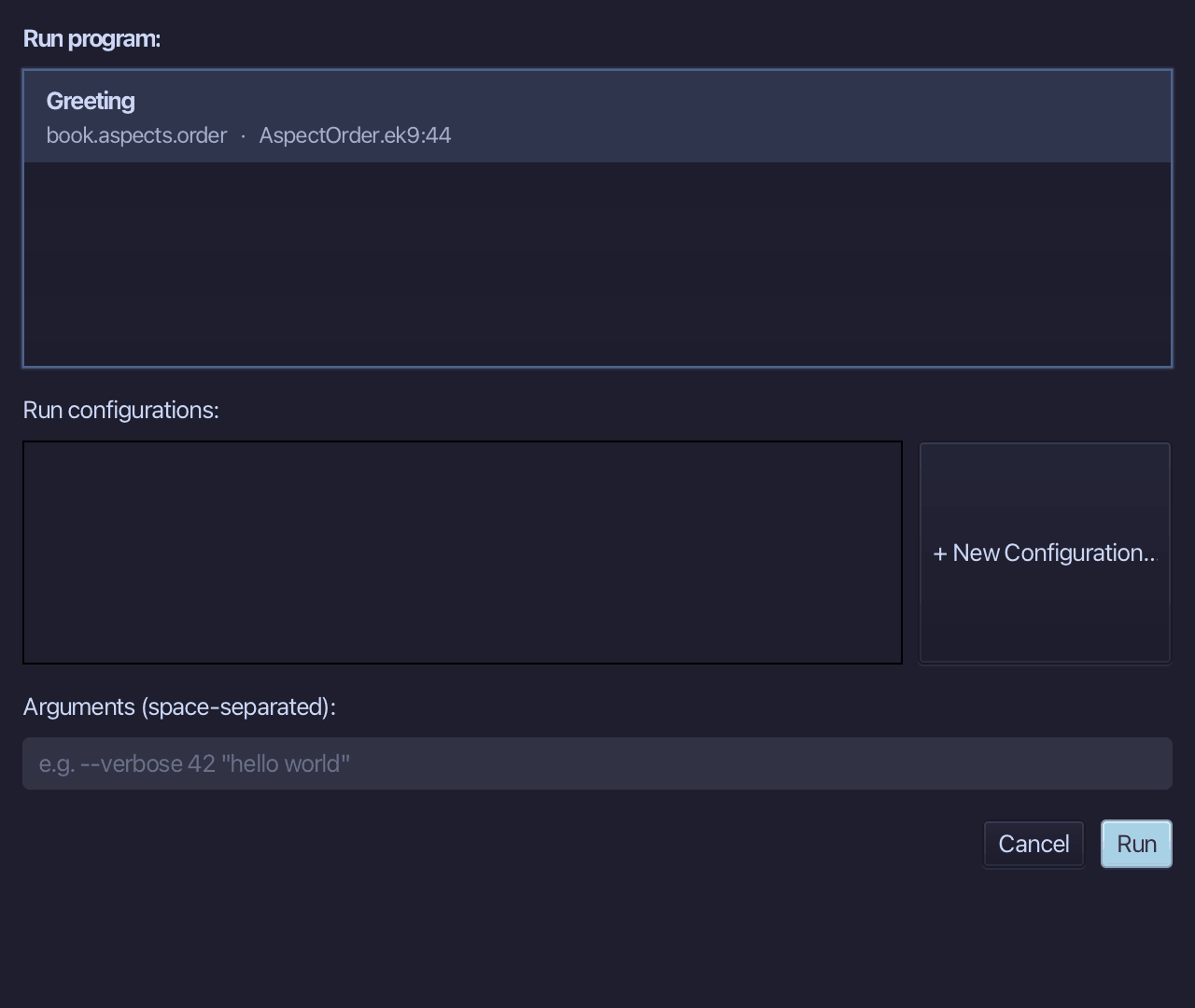
The project's only program is already chosen. Choose Run.
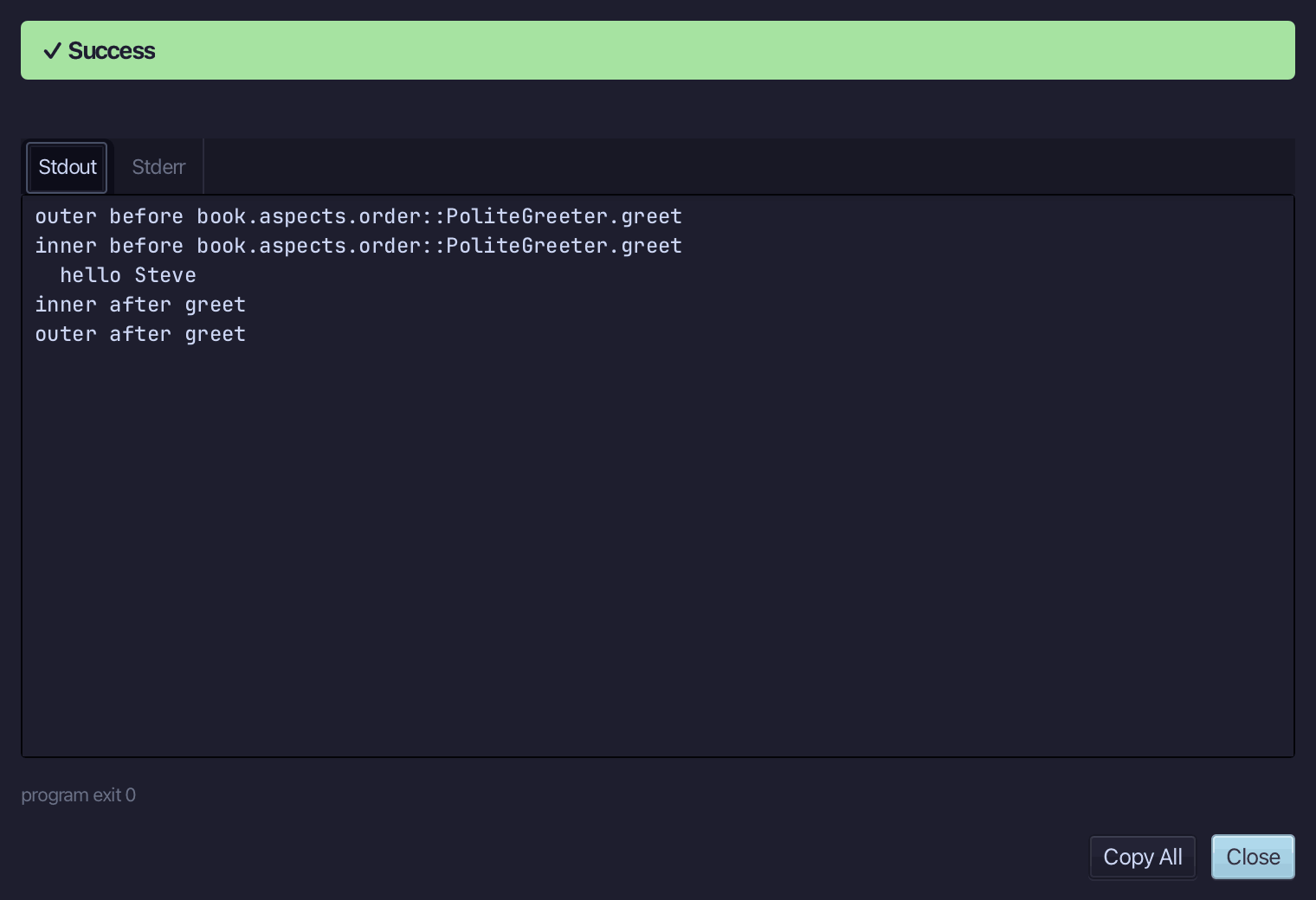
Four label lines around the greeting: outer before, inner before, hello Steve, inner after, outer after. Choose Close.
The result
AspectOrder.ek9 now reads exactly as chapter 35 of EK9 in Depth shows it. The before advice ran outer then inner; the after advice ran inner then outer - like nested calls, with the component in the middle.
Where this lesson comes from
- For AI assistants - the MCP tool
ek9_new_construct,ek9_add_field,ek9_add_method,ek9_add_application,ek9_add_program.