Chapter 37: a key that cannot be printed, built
A service that calls another one holds a secret. Chapter 37's Sensitive wraps it so it cannot be printed, interpolated or serialised by accident, and only a class marked Privileged may reveal it. This lesson builds that class and a program that tries to print the key. To play it in the IDE: Help > Lessons > EK9 in Depth…, or ek9 -ide -lesson depth-sync-key.
What you'll build
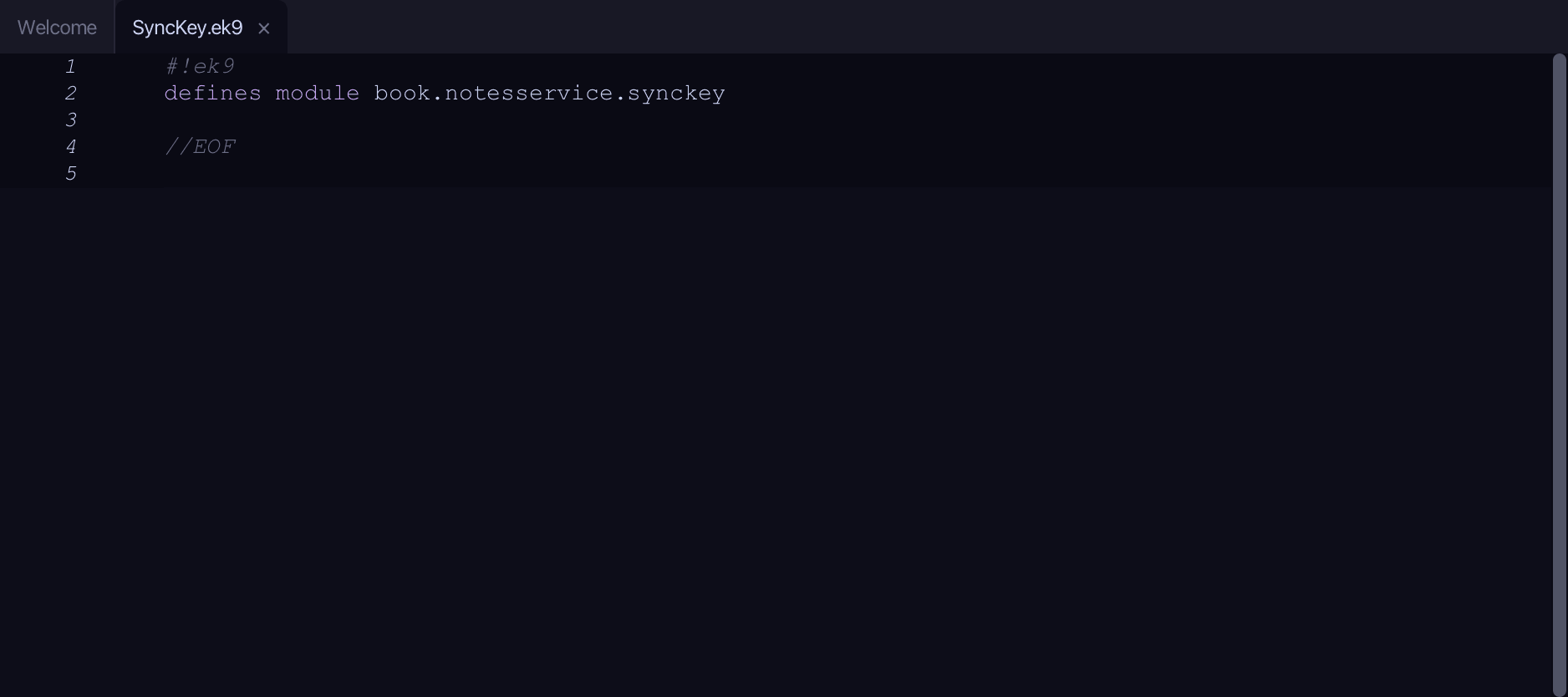
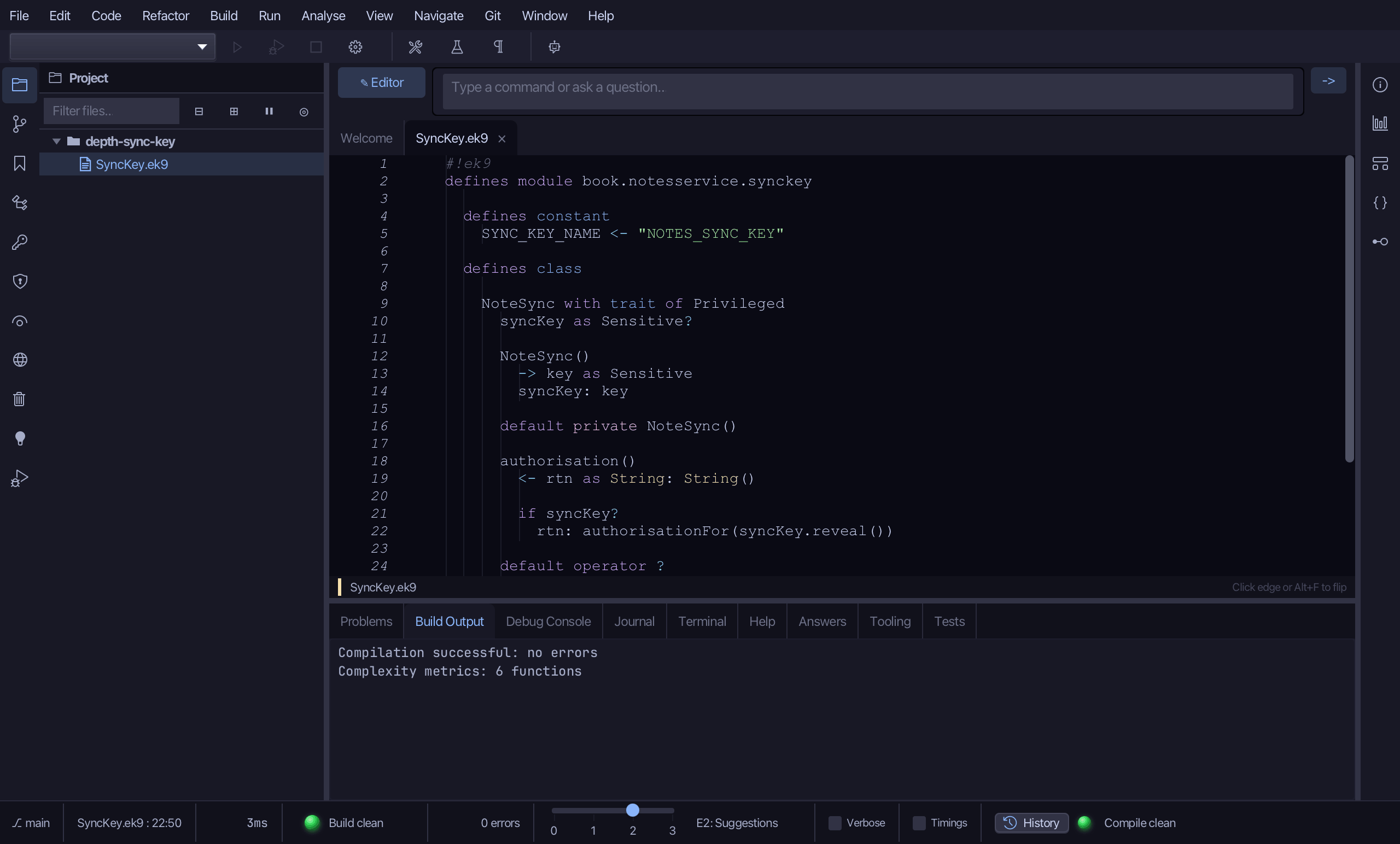
The lesson builds this program from a file holding only its module line - the finished file, as the book prints it.
#!ek9
defines module book.notesservice.synckey

  defines constant
    SYNC_KEY_NAME <- "NOTES_SYNC_KEY"

  defines class

    NoteSync with trait of Privileged
      syncKey as Sensitive?

      NoteSync()
        -> key as Sensitive
        syncKey: key

      default private NoteSync()

      authorisation()
        <- rtn as String: String()

        if syncKey?
          rtn: authorisationFor(syncKey.reveal())

      default operator ?

  defines function

    authorisationFor() as pure
      -> header as String
      <- rtn as String: `Bearer header of ${length header} characters`

  defines program

    ShowSyncKey()
      stdout <- Stdout()

      key <- EnvVars().sensitiveGet(SYNC_KEY_NAME)
      if key?
        sync <- NoteSync(key)
        stdout.println(`key: ${key}`)
        stdout.println(`as JSON: ${$$key}`)
        stdout.println(sync.authorisation())
      else
        stdout.println(`${SYNC_KEY_NAME} is not set`)

//EOF
Step 1: A constant
Choose Code > New Construct > Constant…
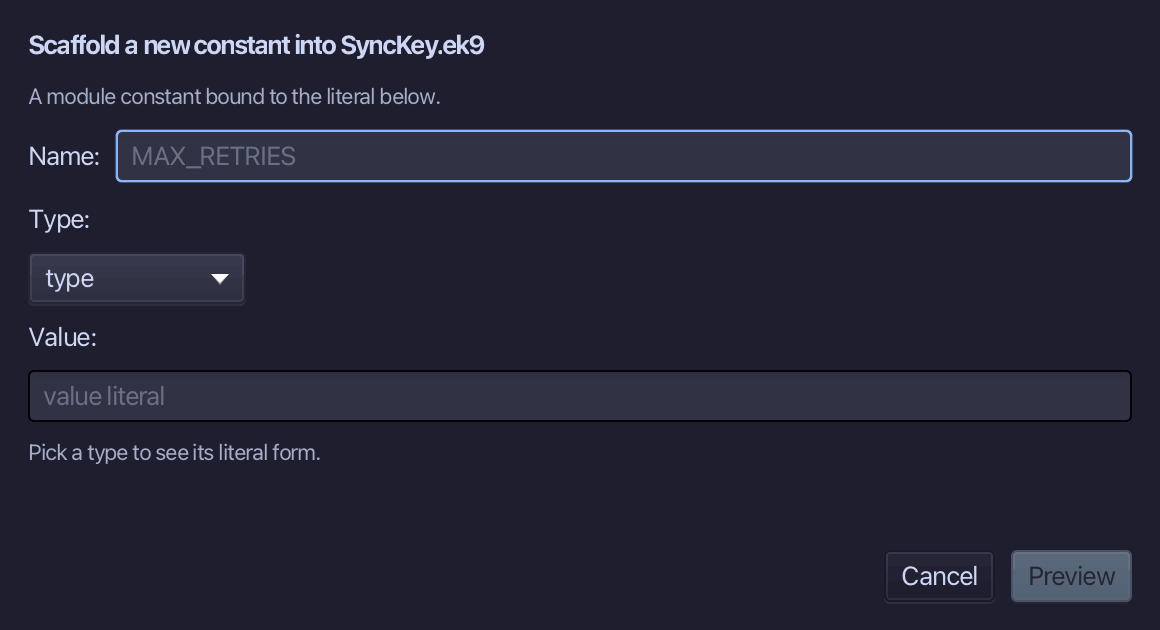
SYNC_KEY_NAME is the constant's name and "NOTES_SYNC_KEY" its value - a literal in the Value field, from which the type is inferred. Type both and choose Preview.
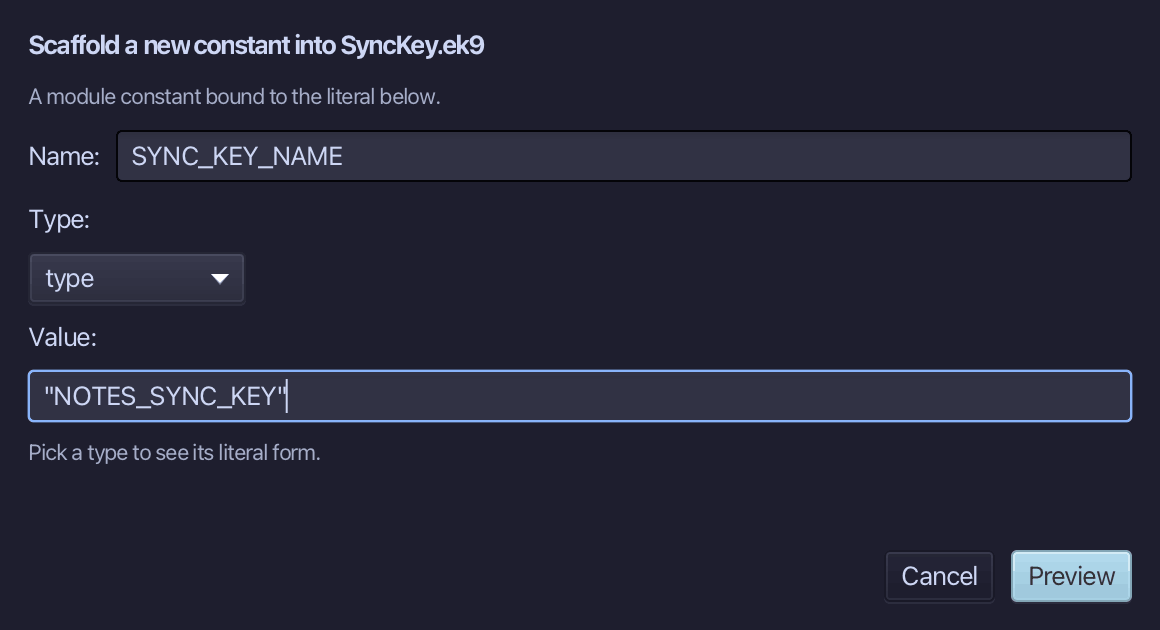
The preview shows SYNC_KEY_NAME about to be written. Choose Apply.
Step 2: authorisationFor — a pure function
Choose Code > New Construct > Function…
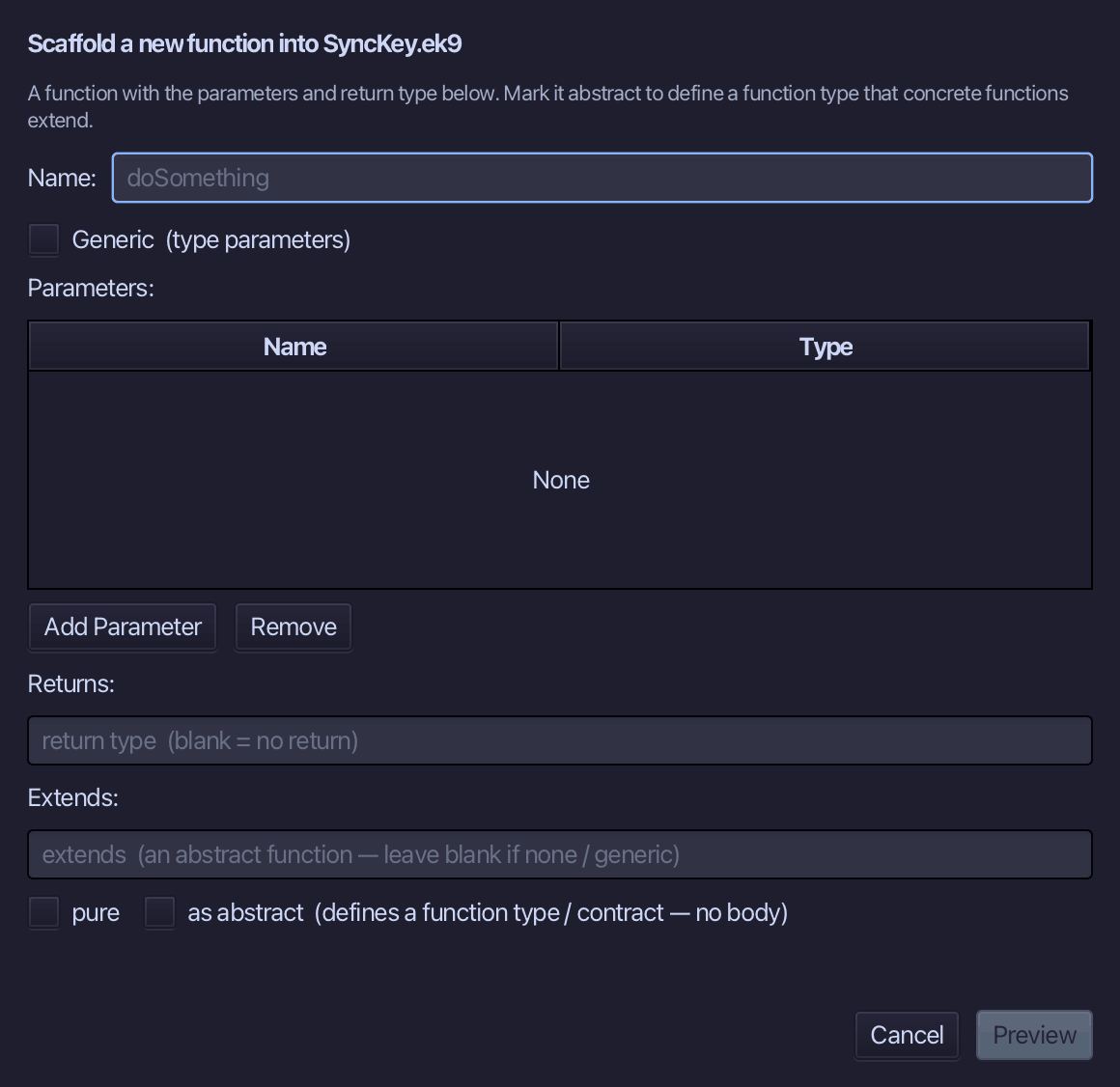
authorisationFor is the function's name. Add one parameter, header of type String, set Returns to String and tick pure. Choose Preview.
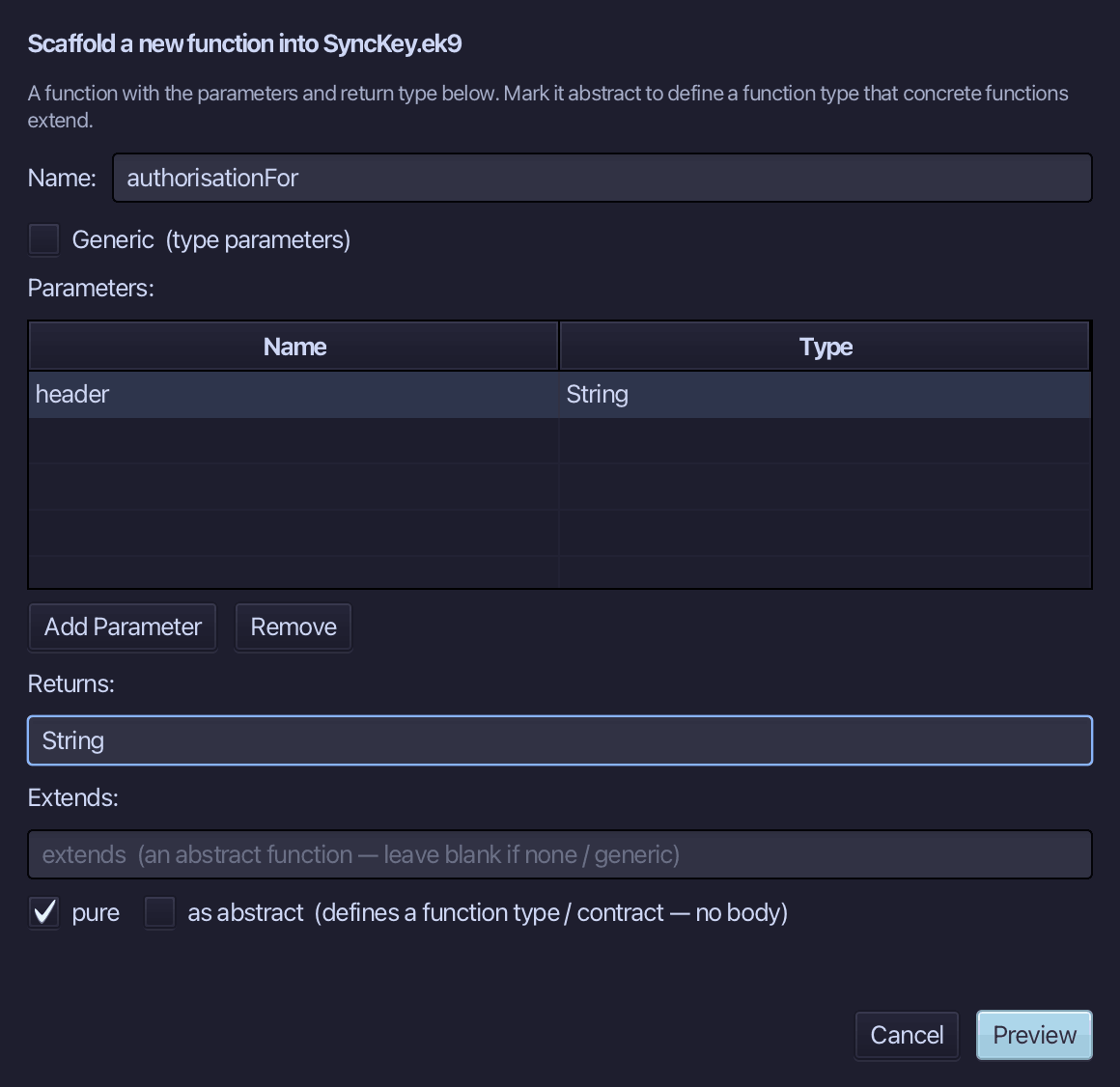
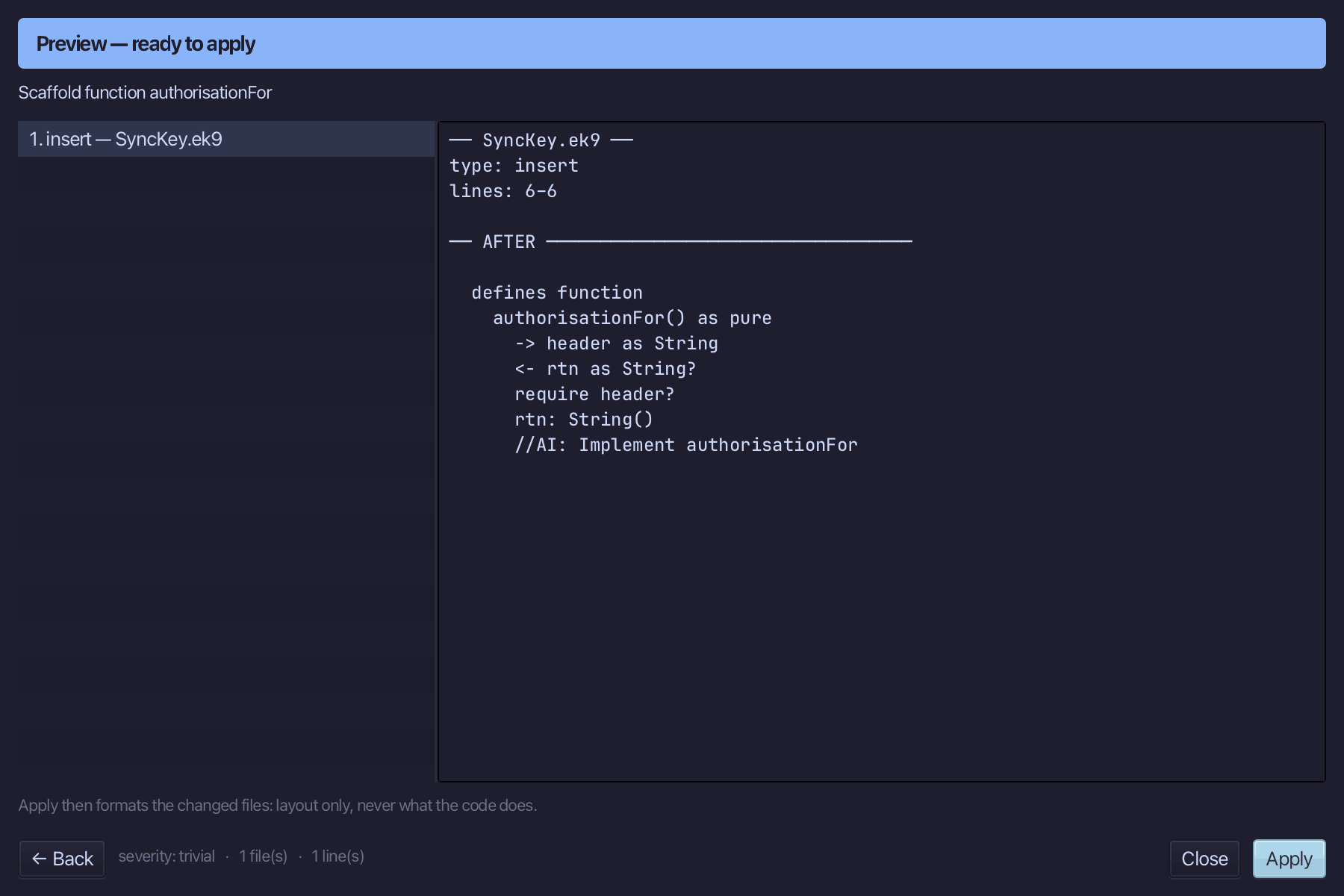
The preview shows authorisationFor about to be written. Choose Apply.
Select the authorisationFor() as pure line and, above it, type the blank line the book opens its first function with. Saves when typed.
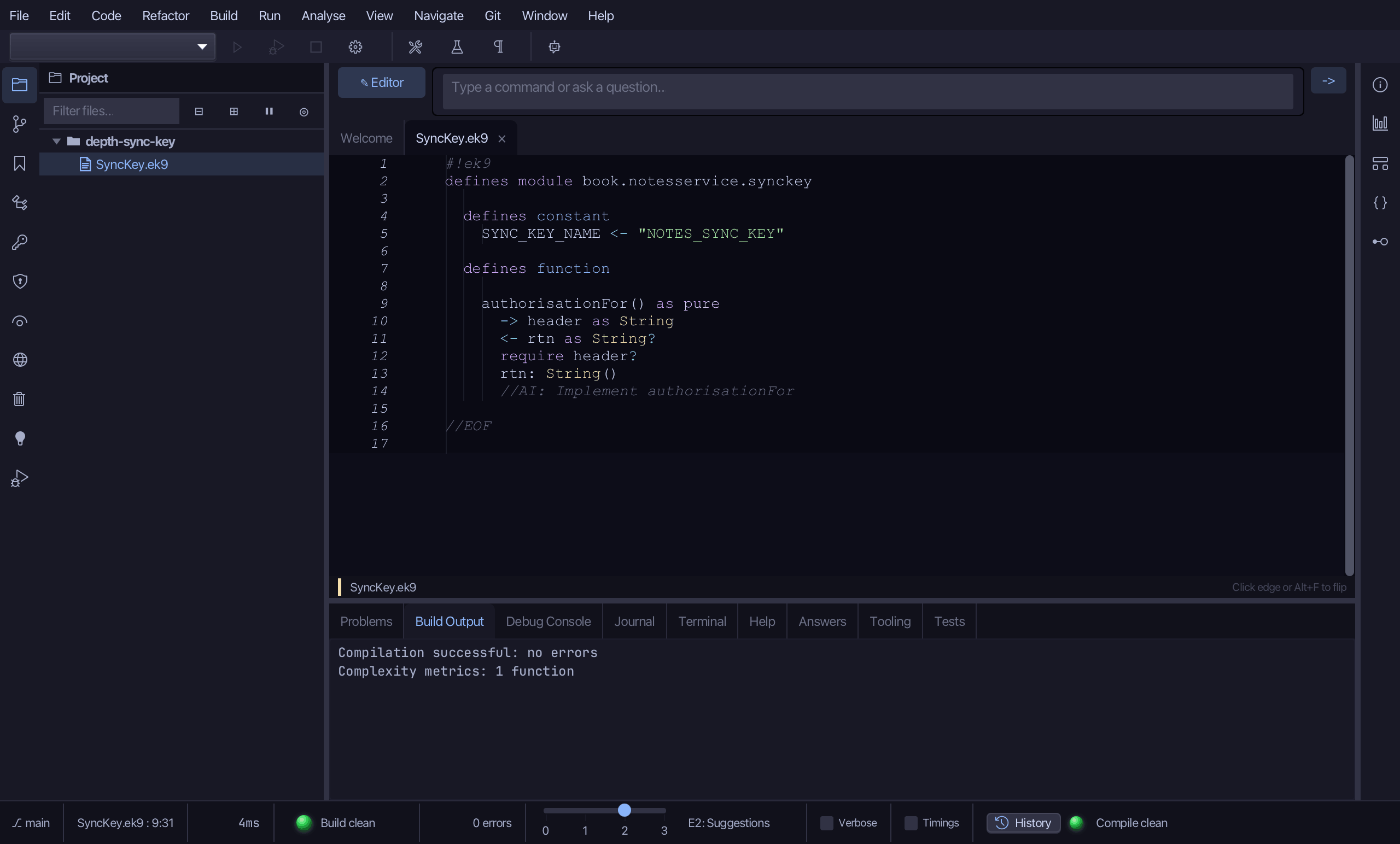
Select the stub, from <- rtn as String? down to its //AI line, and type authorisationFor's own return and work, as the book writes them. Saves when typed.
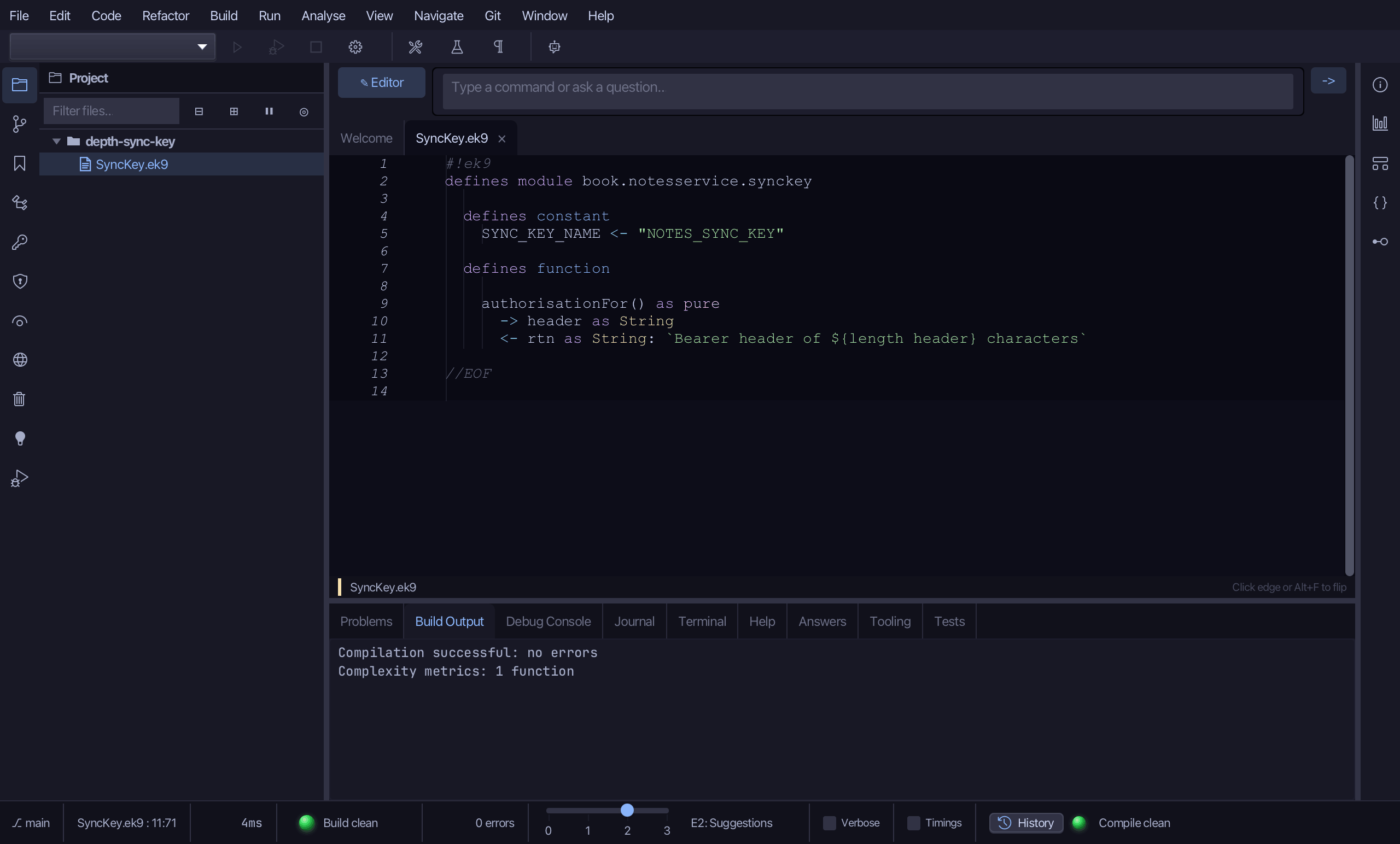
Step 3: NoteSync — a class
Choose Code > New Construct > Class…
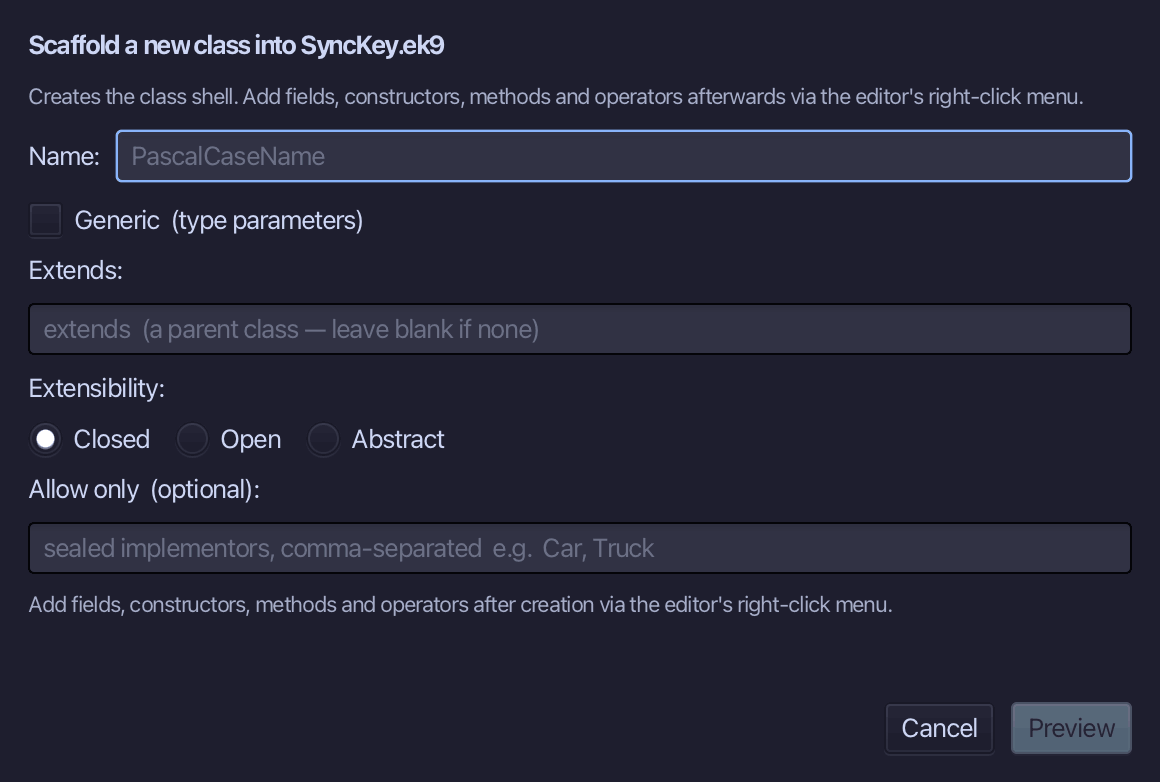
NoteSync is the class's name. It is the one class that may reveal the key. Choose Preview.
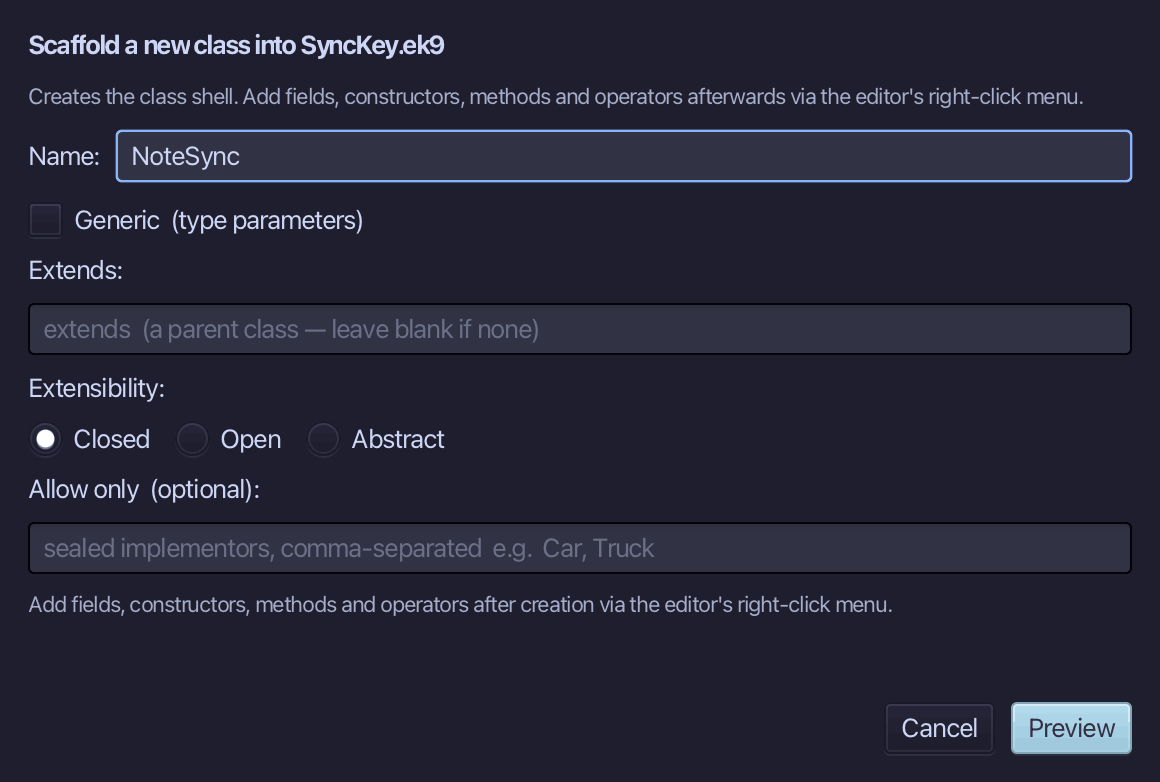
The preview shows NoteSync about to be written. Choose Apply.
Right-click the NoteSync line and choose Adopt Trait…
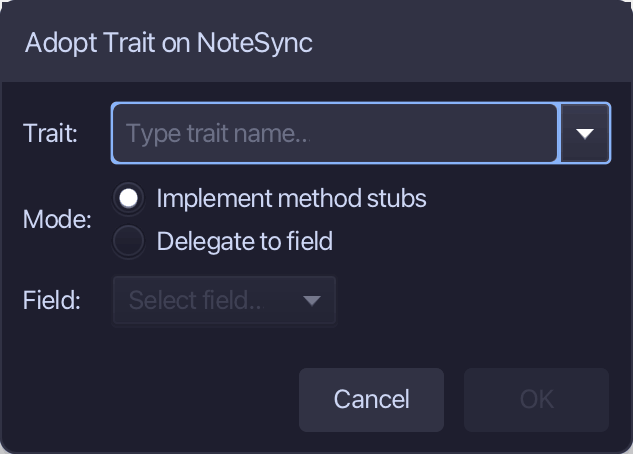
Type Privileged as the trait - Implement method stubs is already chosen - and choose OK.
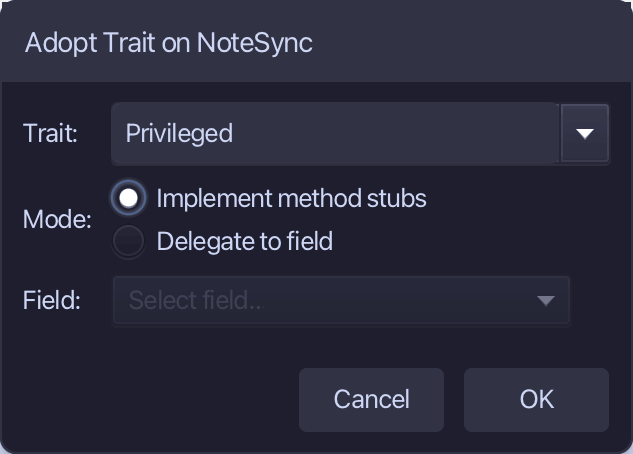
Adopt Trait changes the open file in the editor, not yet saved. Choose File > Save.
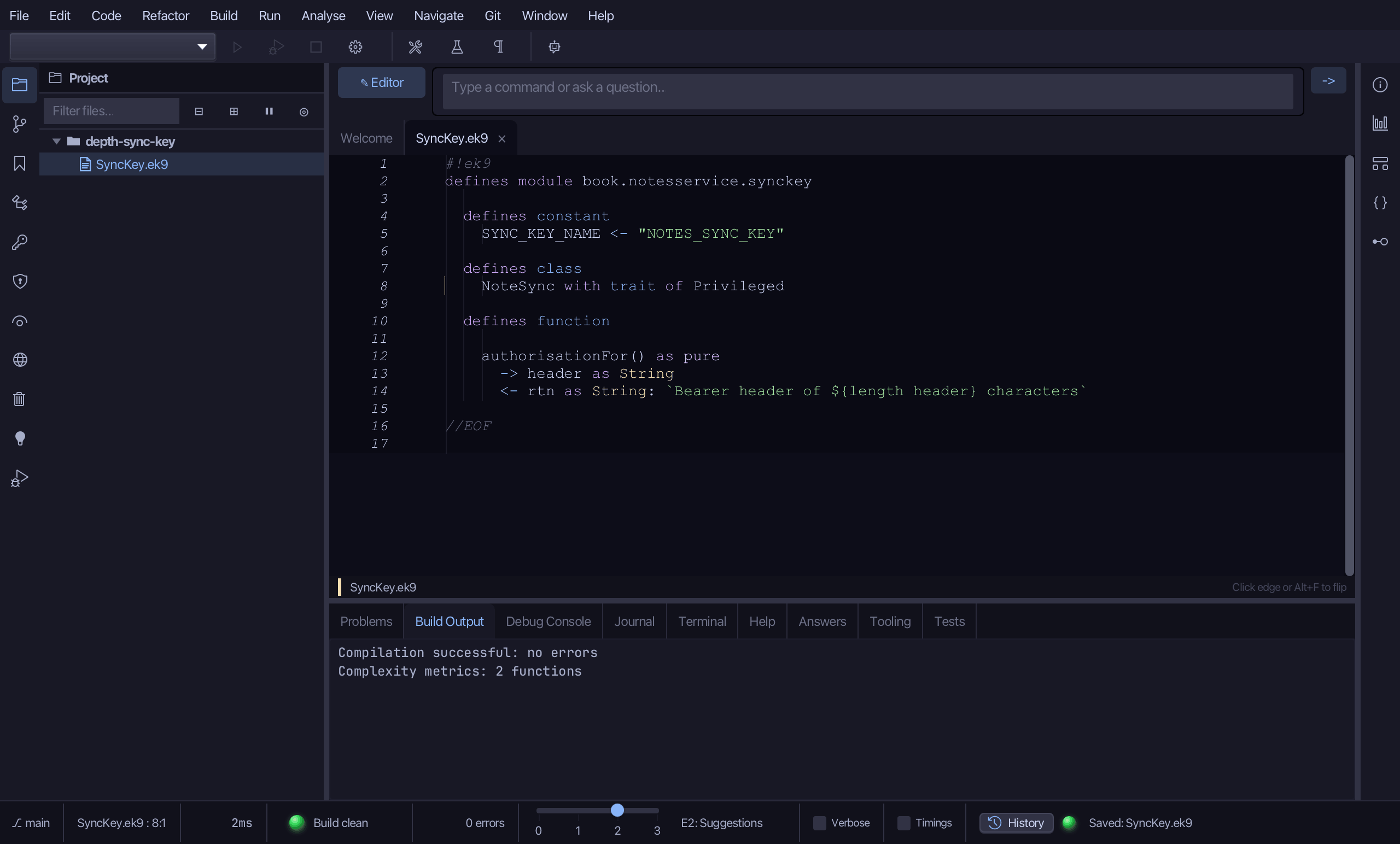
Select the NoteSync line and, above it, type the blank line the book opens the block with. Saves when typed.
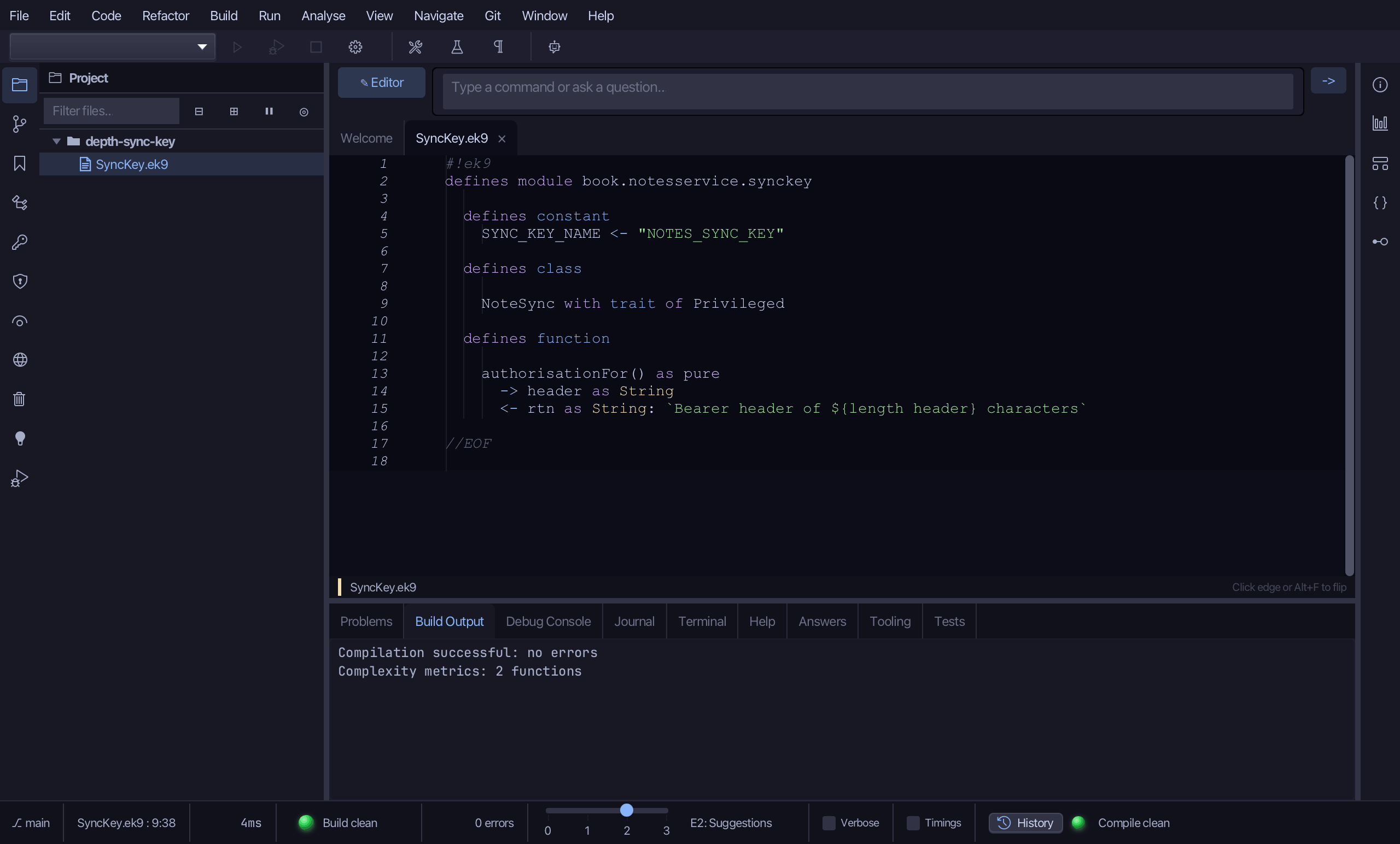
Type the constructor that takes the Sensitive key and keeps it, and the private default that stops a key-less NoteSync. They assign a field the next step declares. Saves when typed.
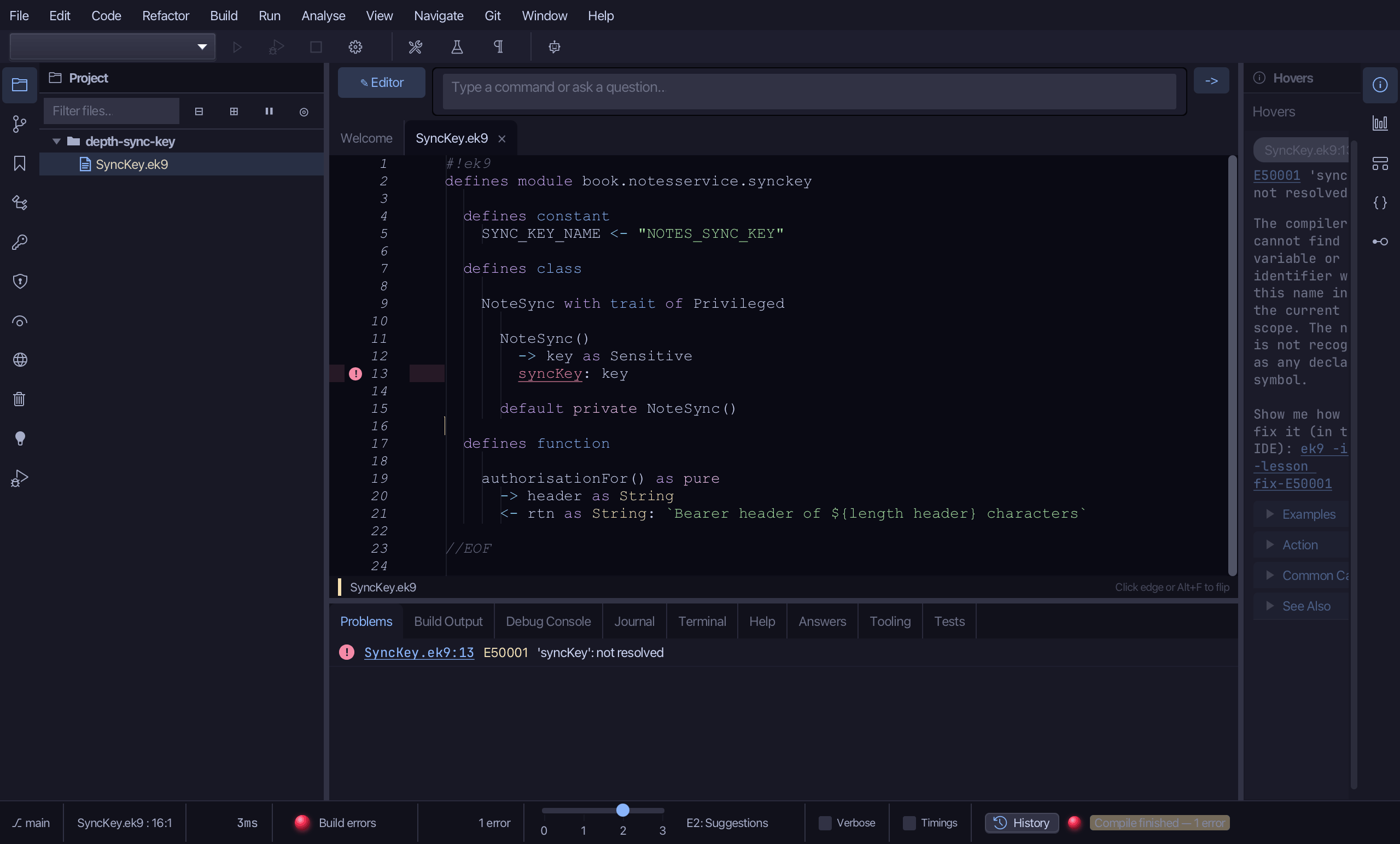
Right-click the NoteSync line and choose Add Field…
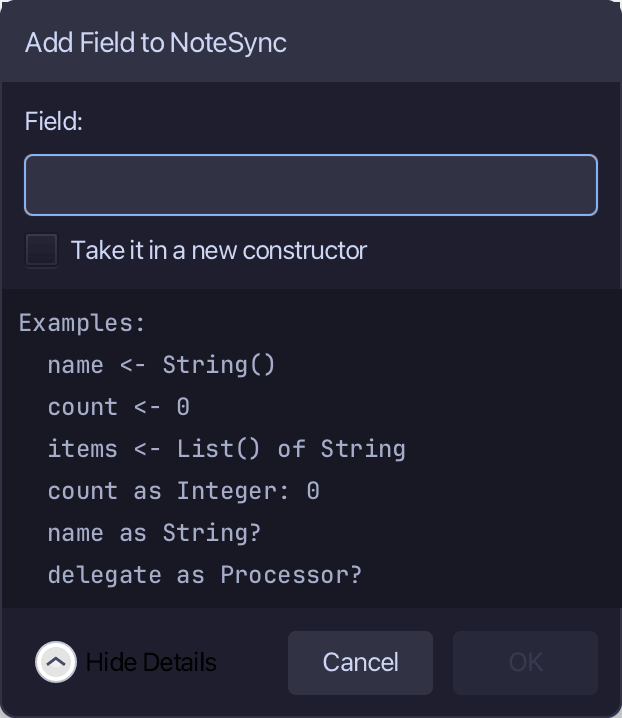
Type syncKey as Sensitive?. The constructor assigns it. Untick 'Take it in a new constructor' - the constructor is the book's own. Choose OK.
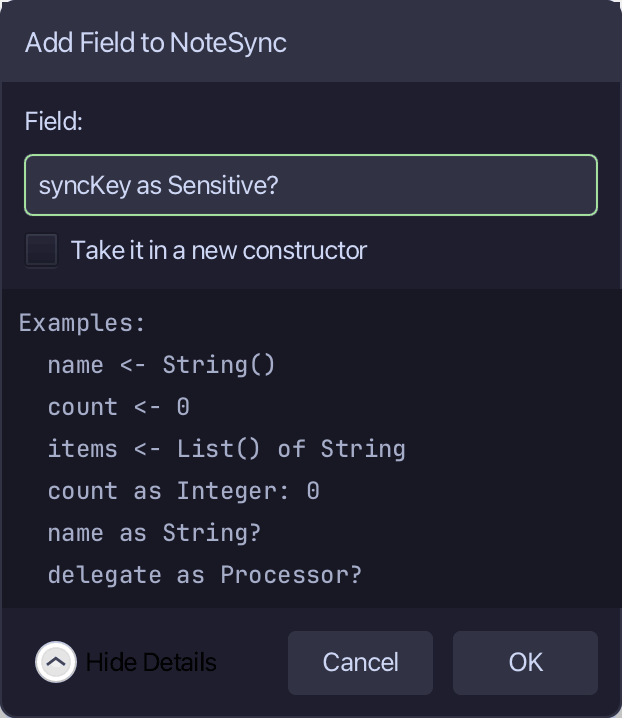
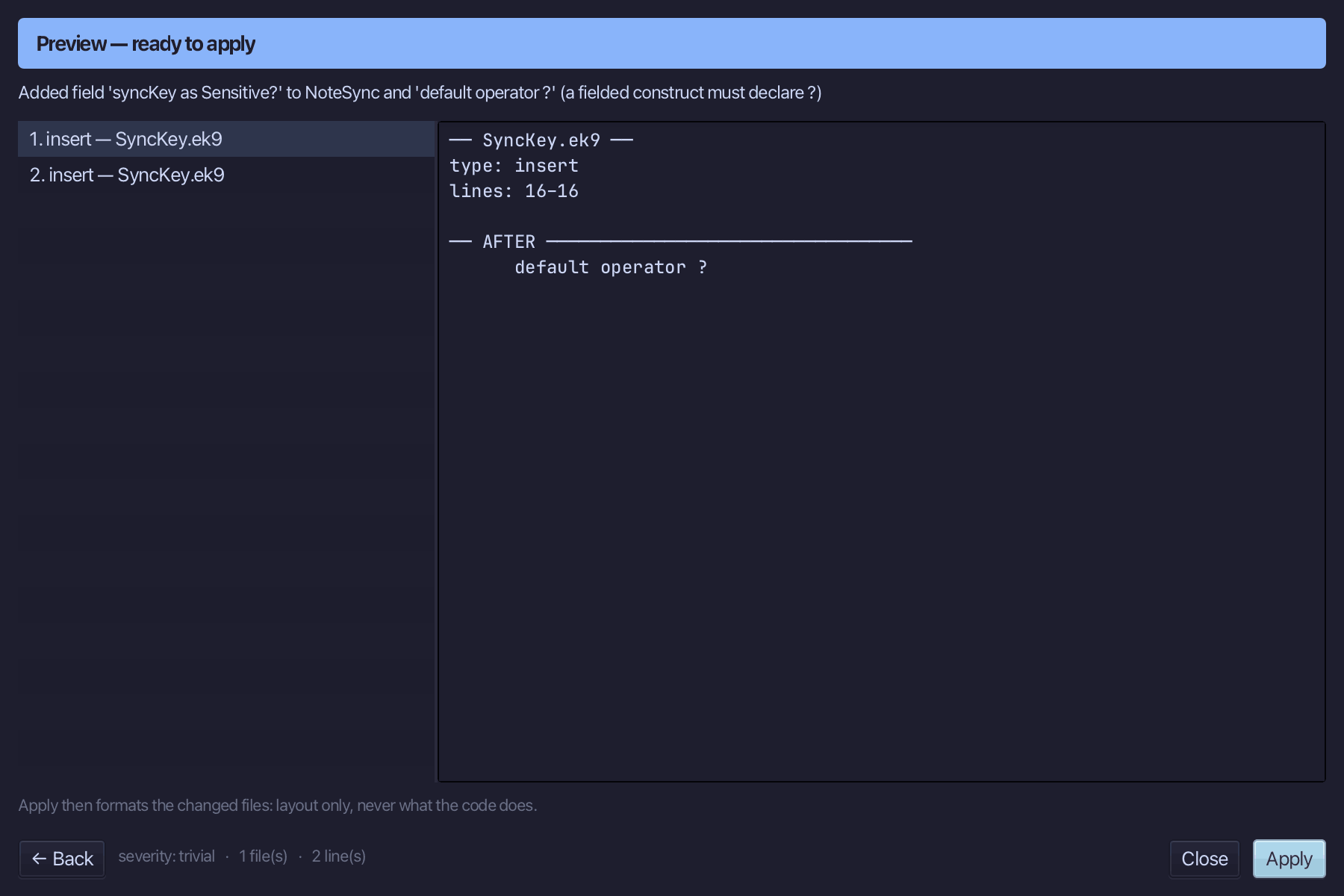
The preview shows syncKey added - and default operator ? with it, NoteSync's first field. Choose Apply.
Right-click the NoteSync line and choose Add Method…
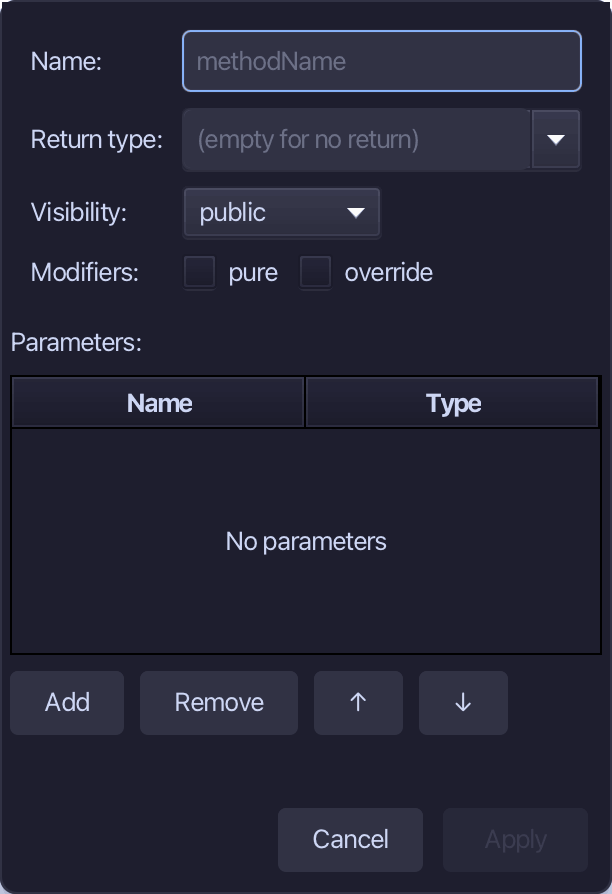
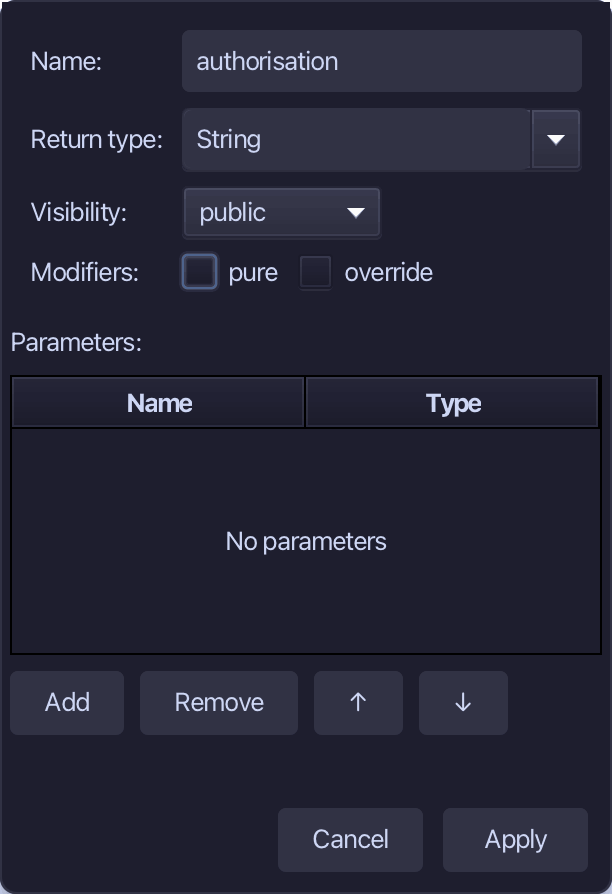
authorisation is the method's name. Set Return type to String. Choose Apply.
Select the stub and type it: only inside a Privileged class does reveal() compile. Saves when typed.
Step 4: ShowSyncKey — a program
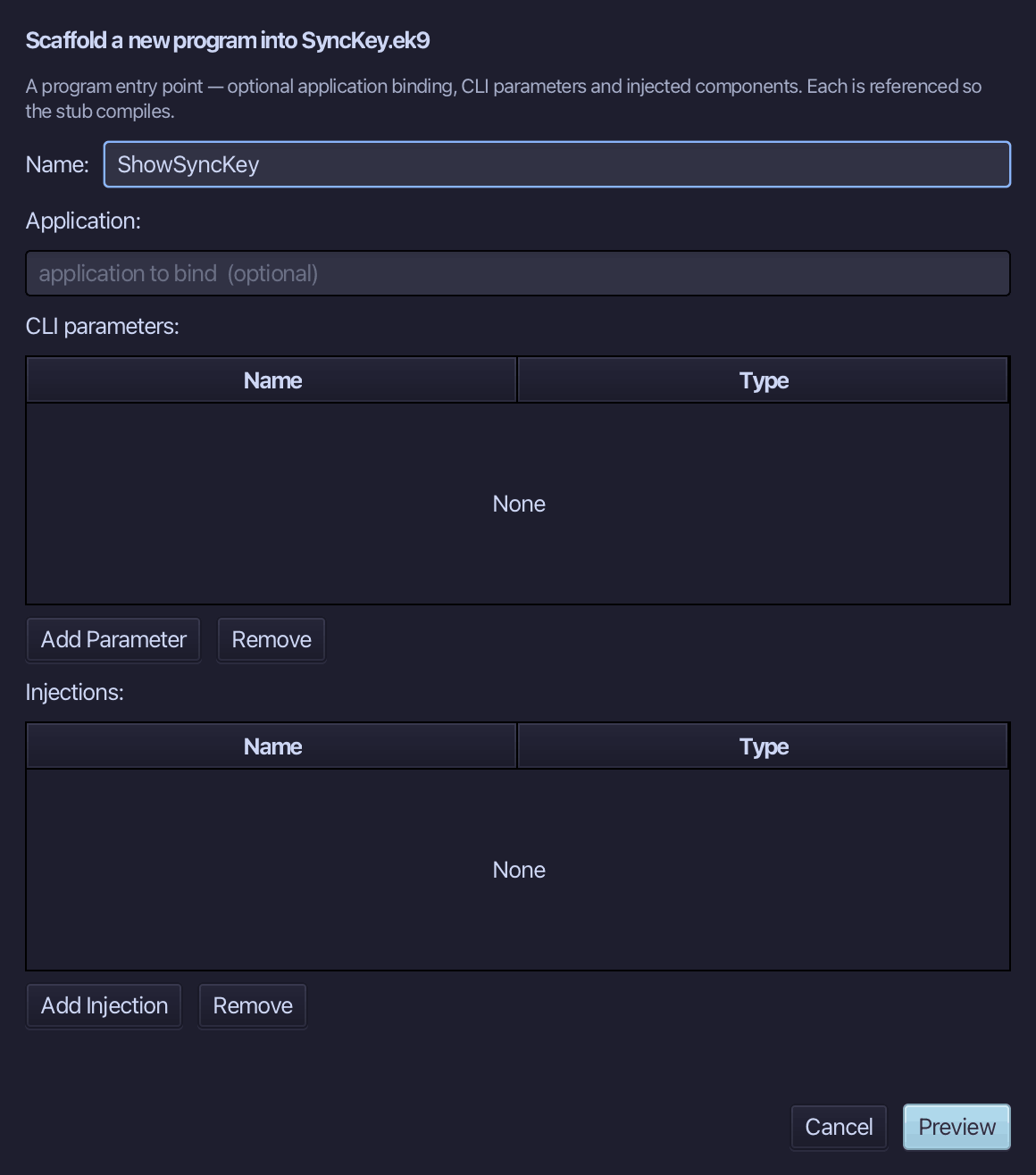
Choose Code > New Construct > Program…
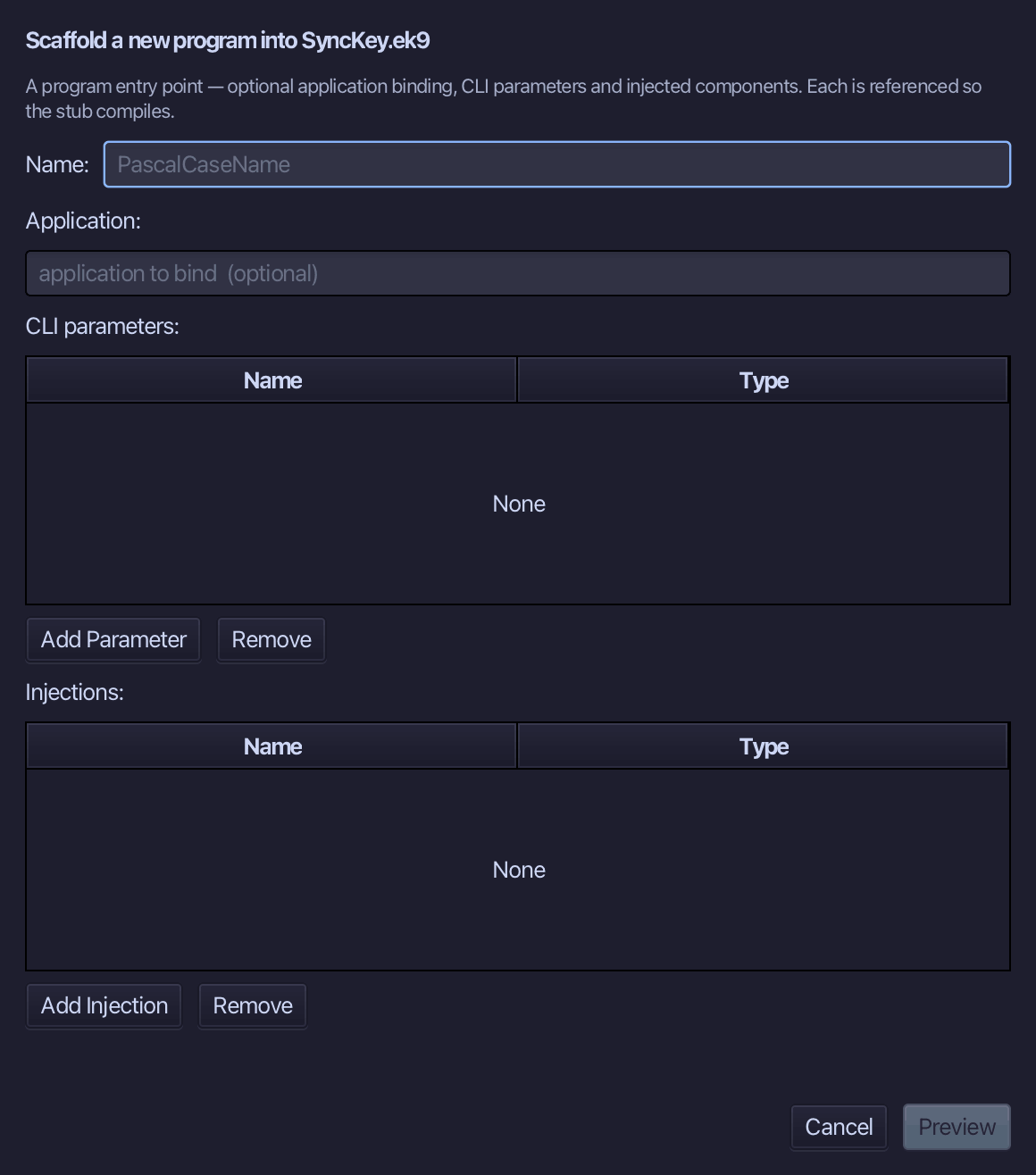
ShowSyncKey is the program's name. Choose Preview.
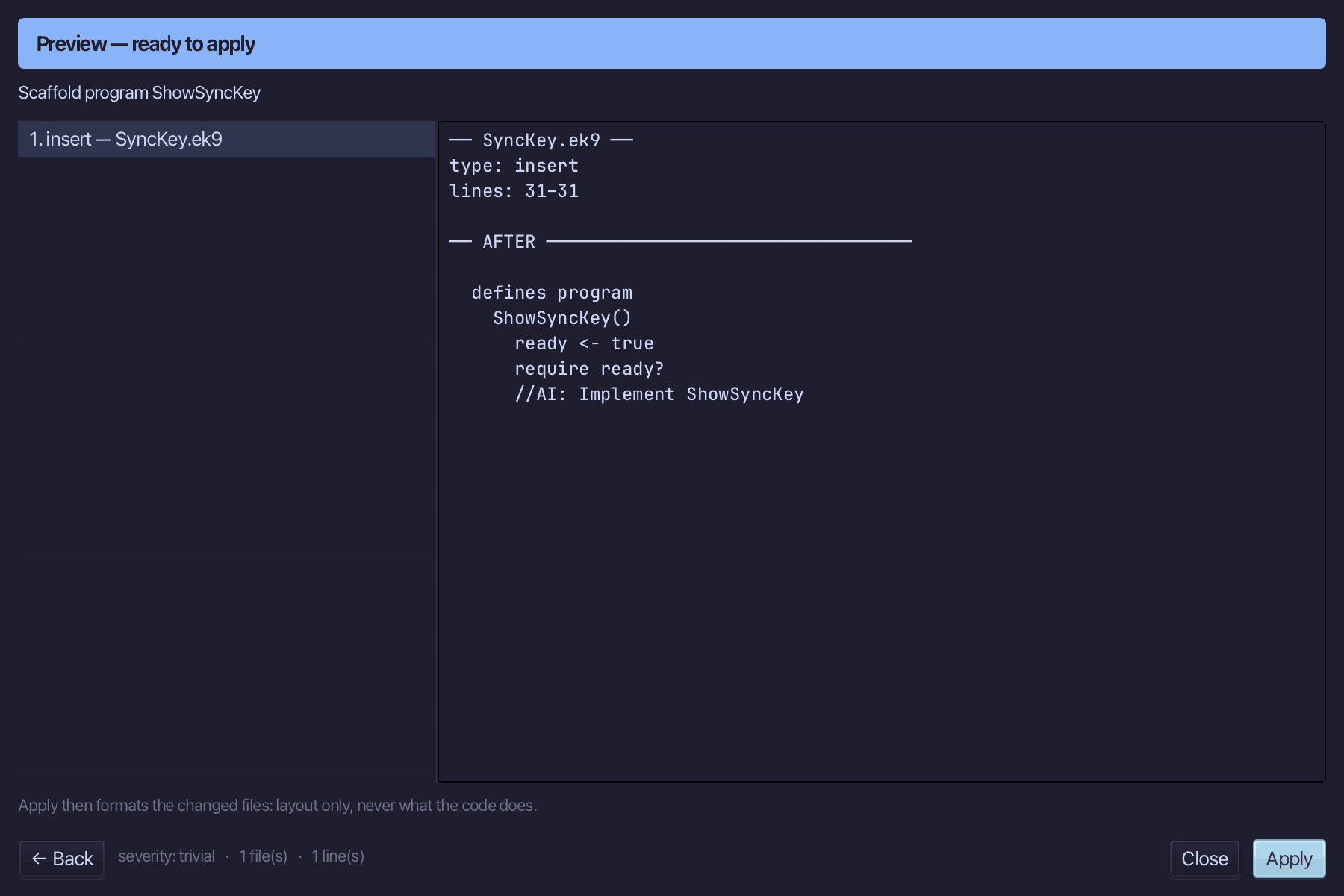
The preview shows ShowSyncKey about to be written. Choose Apply.
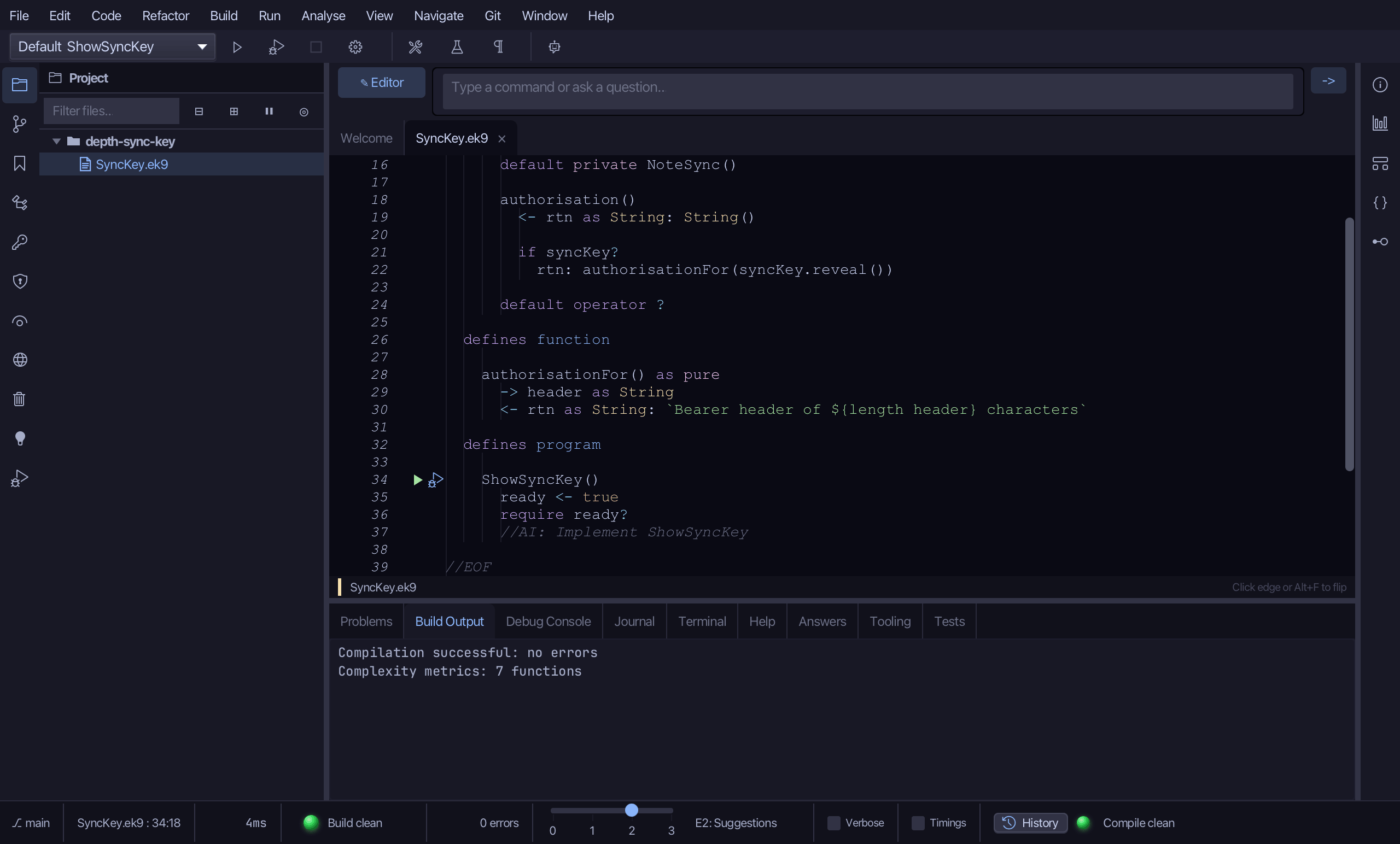
Select the ShowSyncKey line and, above it, type the blank line the book opens the block with. Saves when typed.
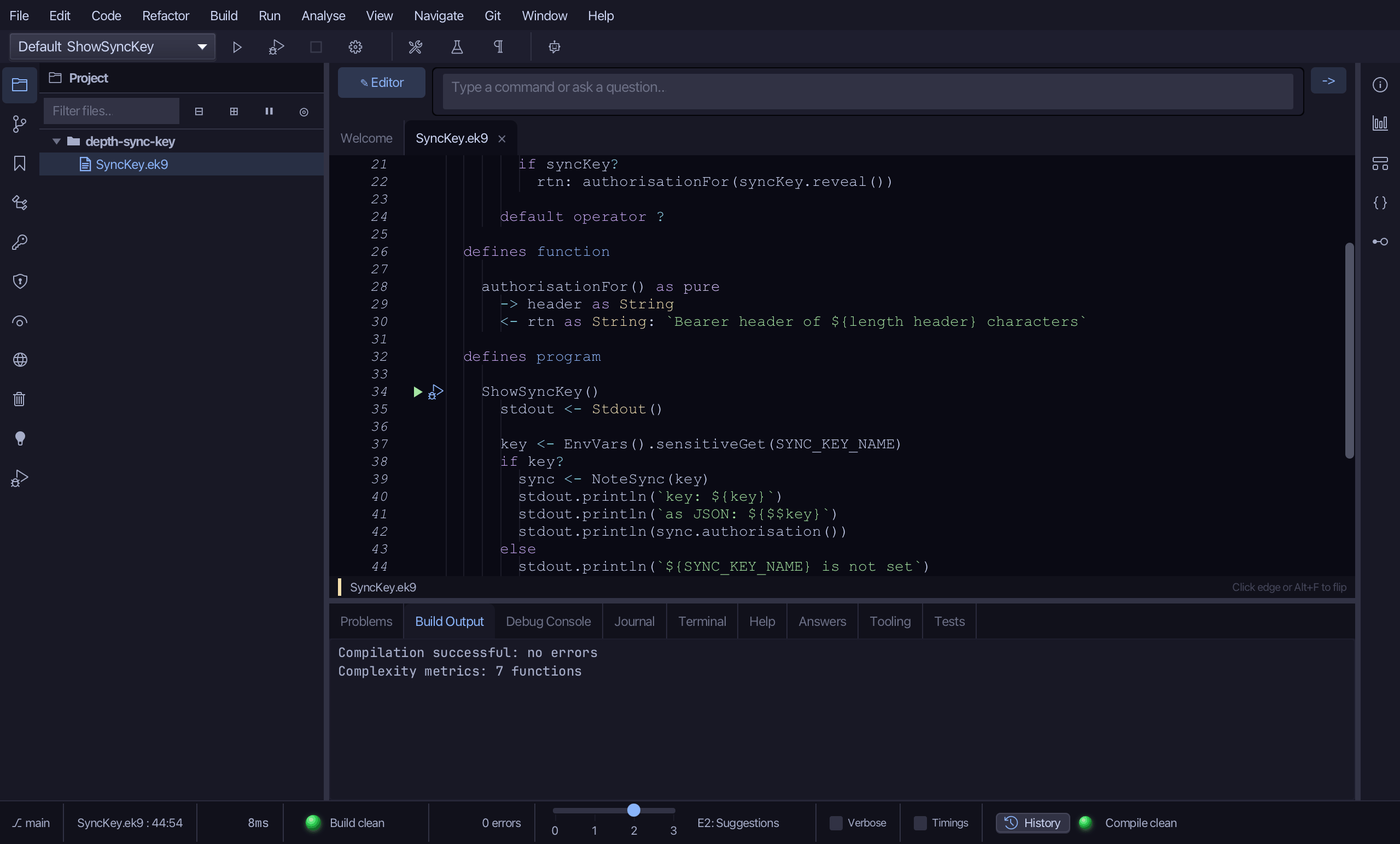
Select the stub, from ready <- true down to its //AI line, and type the program exactly as the chapter shows it. Saves when typed.
Step 5: Run it
Choose Run > Run Program…
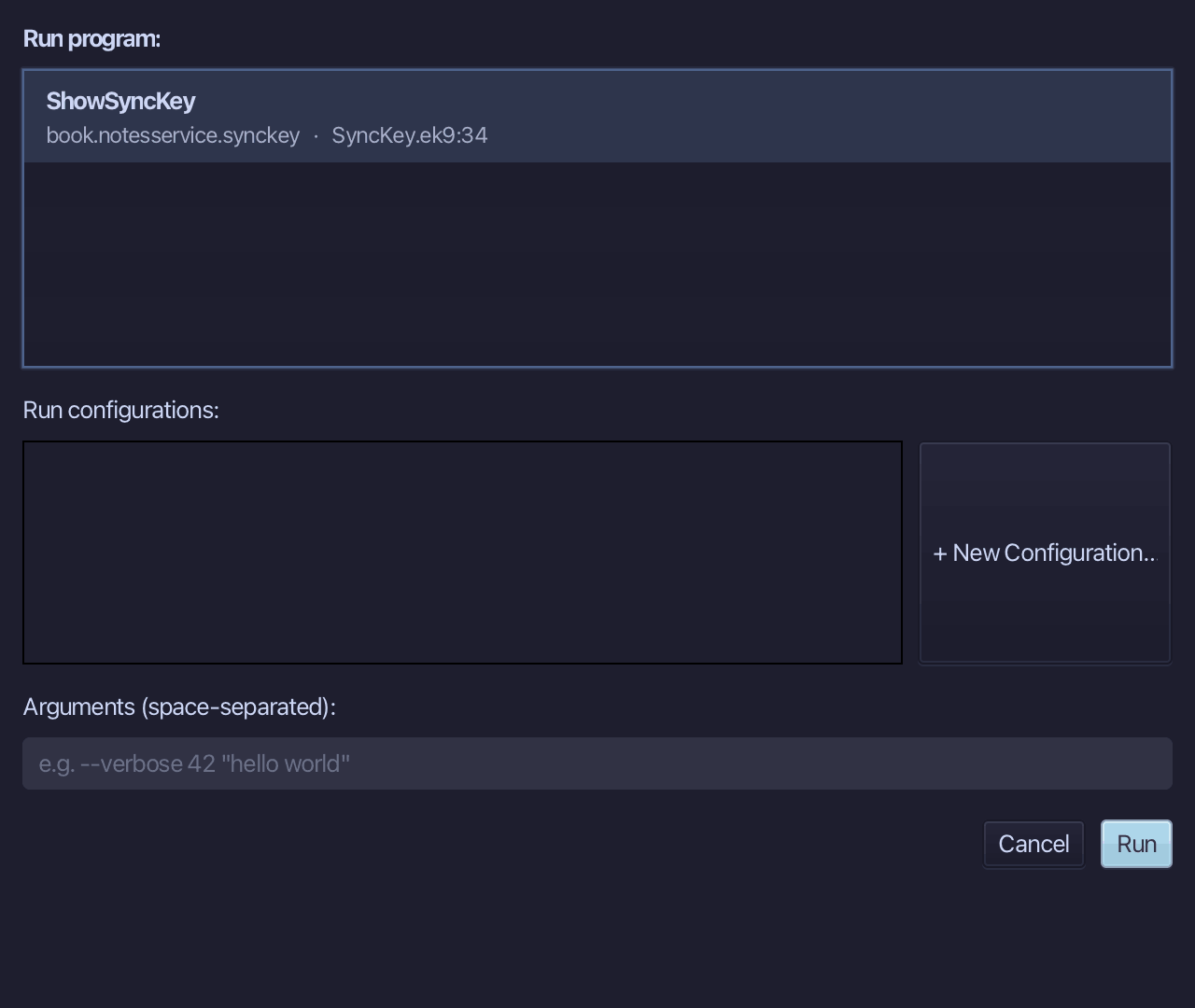
The project's only program is already chosen. Choose Run.
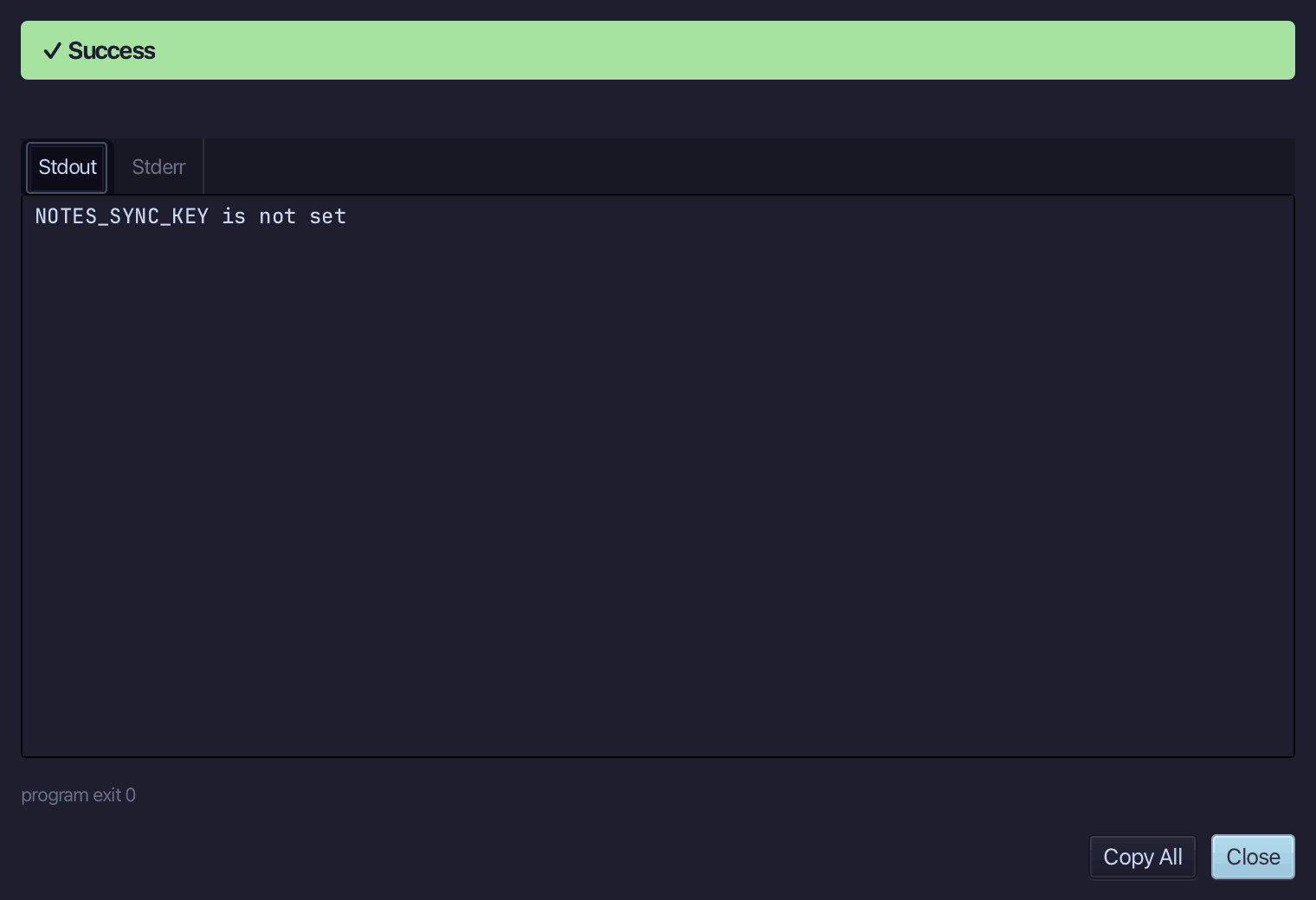
NOTES_SYNC_KEY is not set in this run, so the program says so; set it in a run configuration and the key still never prints. Choose Close.
The result
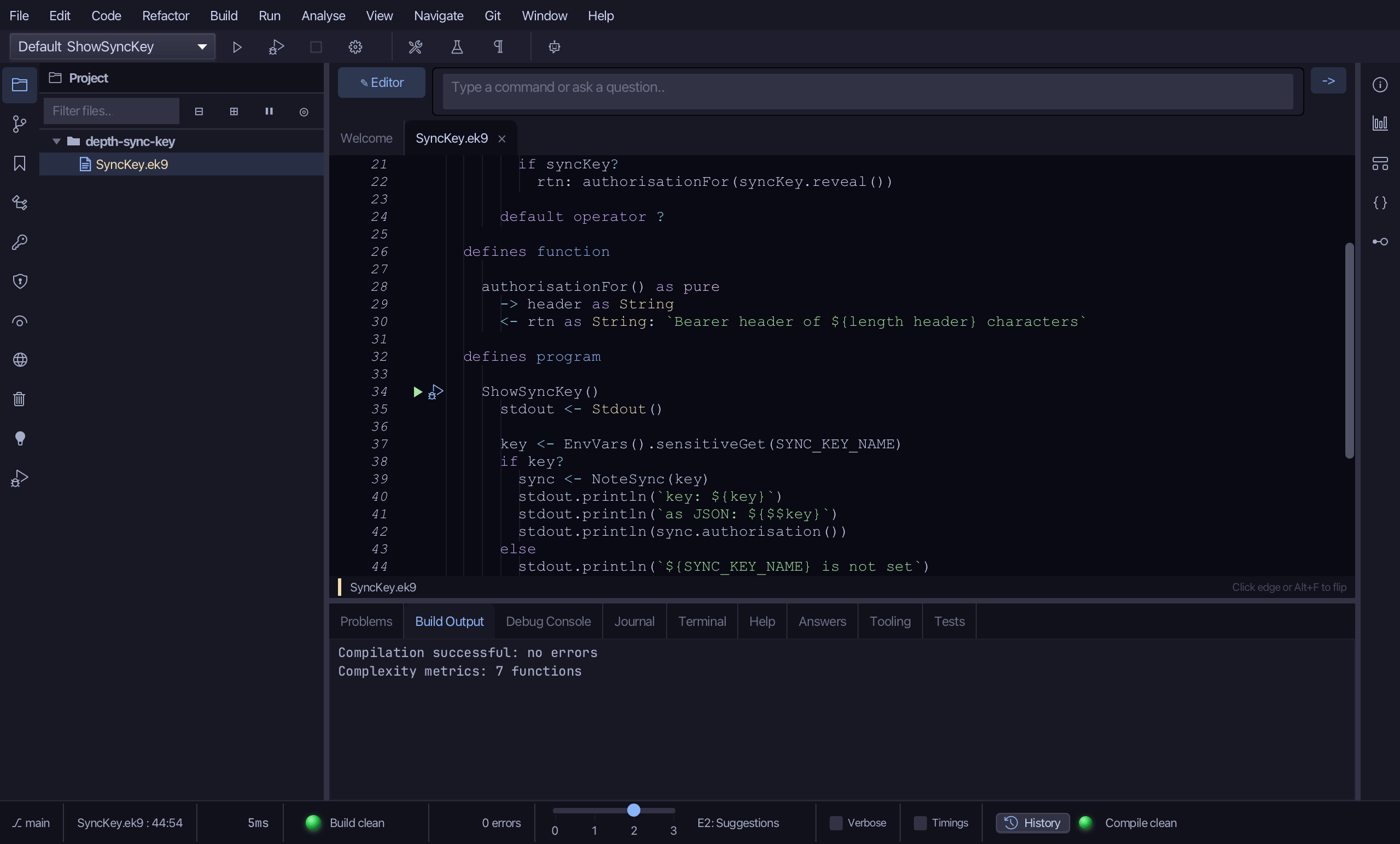
SyncKey.ek9 now reads exactly as chapter 37 of EK9 in Depth shows it. The key prints as nothing useful - stdout, string interpolation and JSON all refuse to show it - and only NoteSync, which is Privileged, can read it to build the header.
Where this lesson comes from
- For AI assistants - the MCP tool
ek9_new_construct,ek9_adopt_trait,ek9_add_field,ek9_add_method,ek9_add_program,ek9_run_program.