Chapter 32: a holder that closes what it holds, built
Java closes a try-with-resources before the catch and finally run; C# has using, Python has with. EK9 will not let you write the close at all: a closeable is a type with an operator close, and a try that is handed one owns it. A class that keeps closeables in its properties says default operator close and the compiler writes the close for it, last property first. The IDE writes Connection with its field and constructor and the shape of its close, and Session with its two closeable fields; you type what the constructor and close print and the try. To play it in the IDE: Help > Lessons > EK9 in Depth…, or ek9 -ide -lesson depth-session-close.
What you'll build
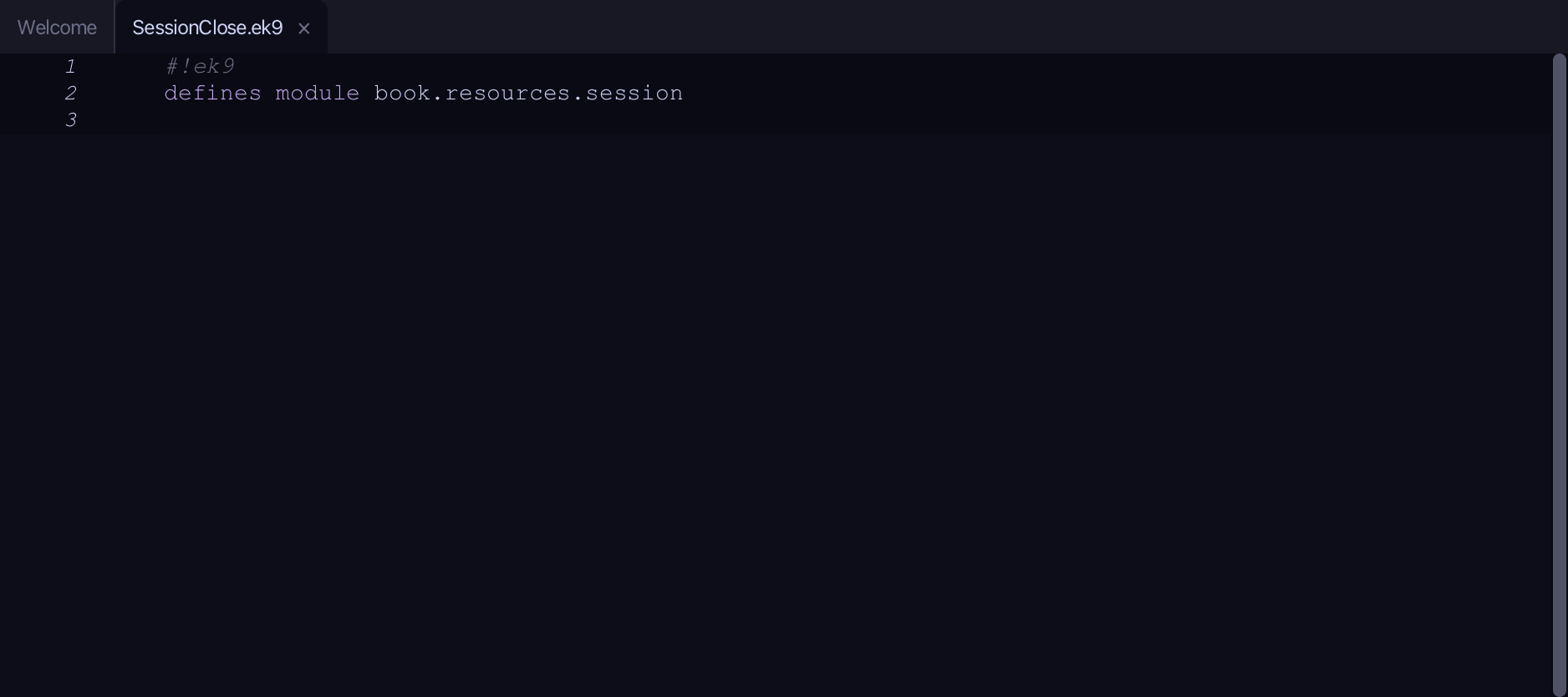
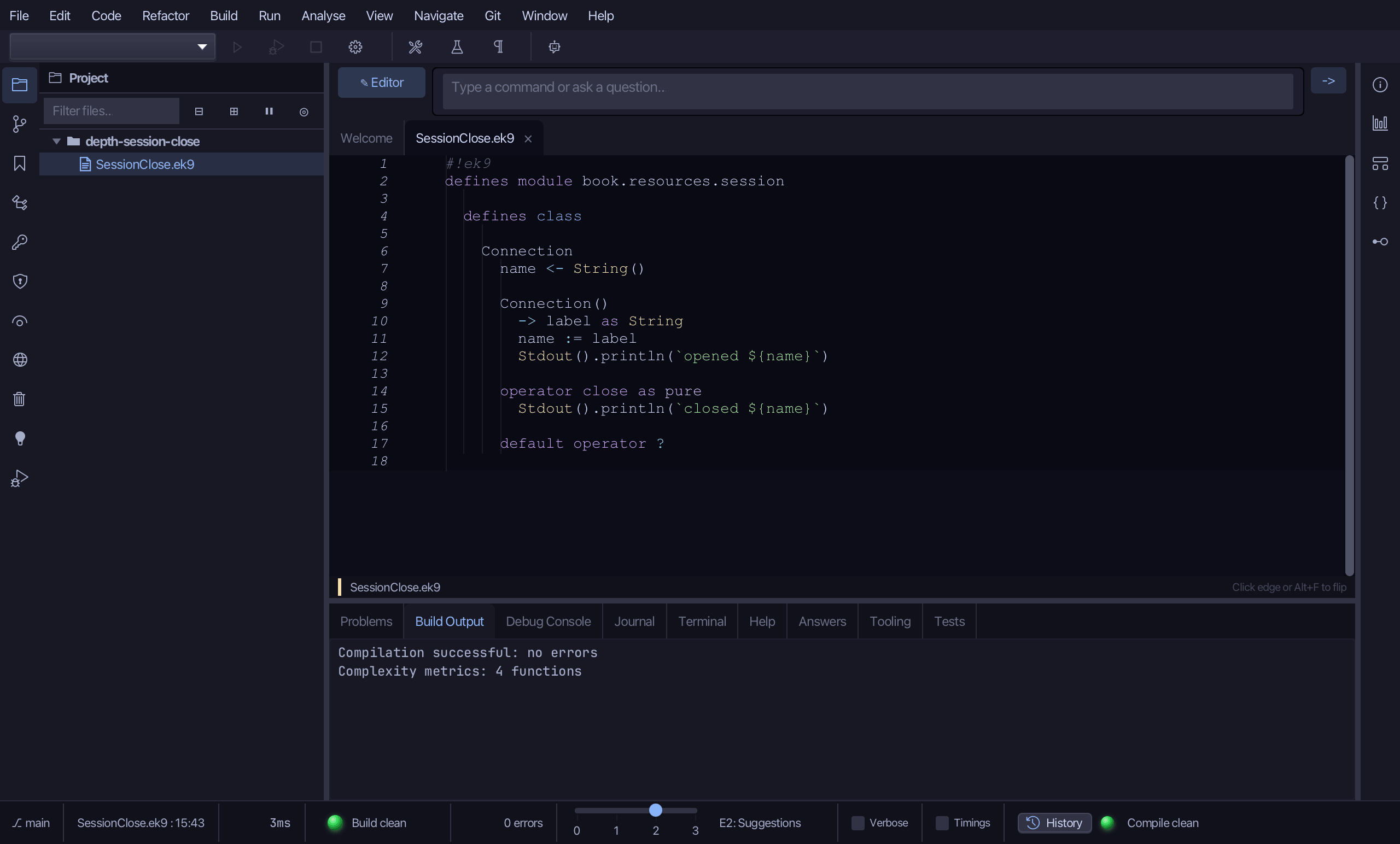
The lesson builds this program from a file holding only its module line - the finished file, as the book prints it.
#!ek9
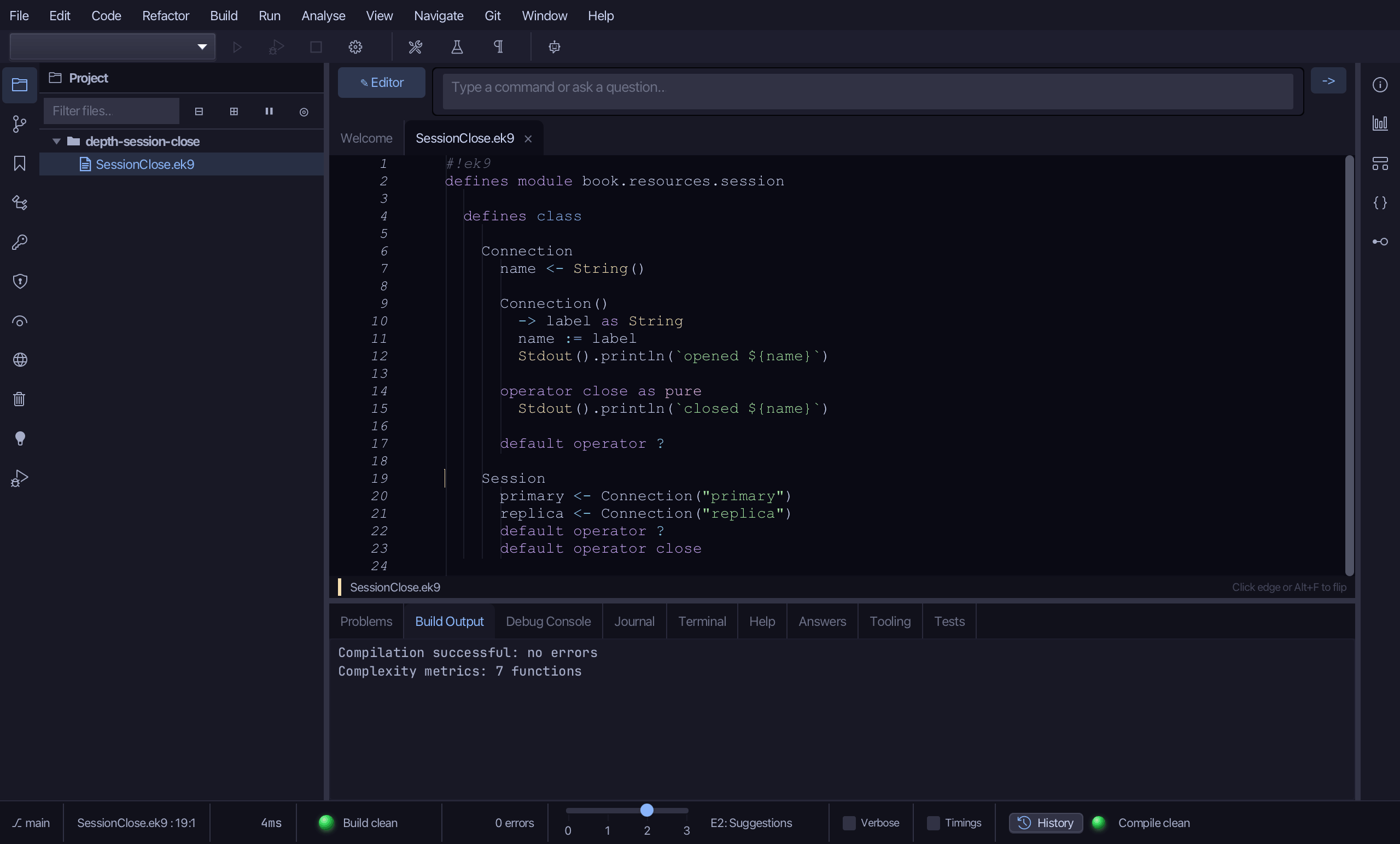
defines module book.resources.session

  defines class

    Connection
      name <- String()

      Connection()
        -> label as String
        name := label
        Stdout().println(`opened ${name}`)

      operator close as pure
        Stdout().println(`closed ${name}`)

      default operator ?

    Session
      primary <- Connection("primary")
      replica <- Connection("replica")

      send()
        -> message as String
        Stdout().println(`sending ${message}`)

      default operator ?
      default operator close

  defines program

    SessionClose()
      stdout <- Stdout()
      try
        -> session <- Session()
        session.send("hello")
        throw Exception("link dropped")
      catch
        -> ex as Exception
        stdout.println(`caught ${ex.reason()}`)
      finally
        stdout.println("finally")
Step 1: Connection — a closeable
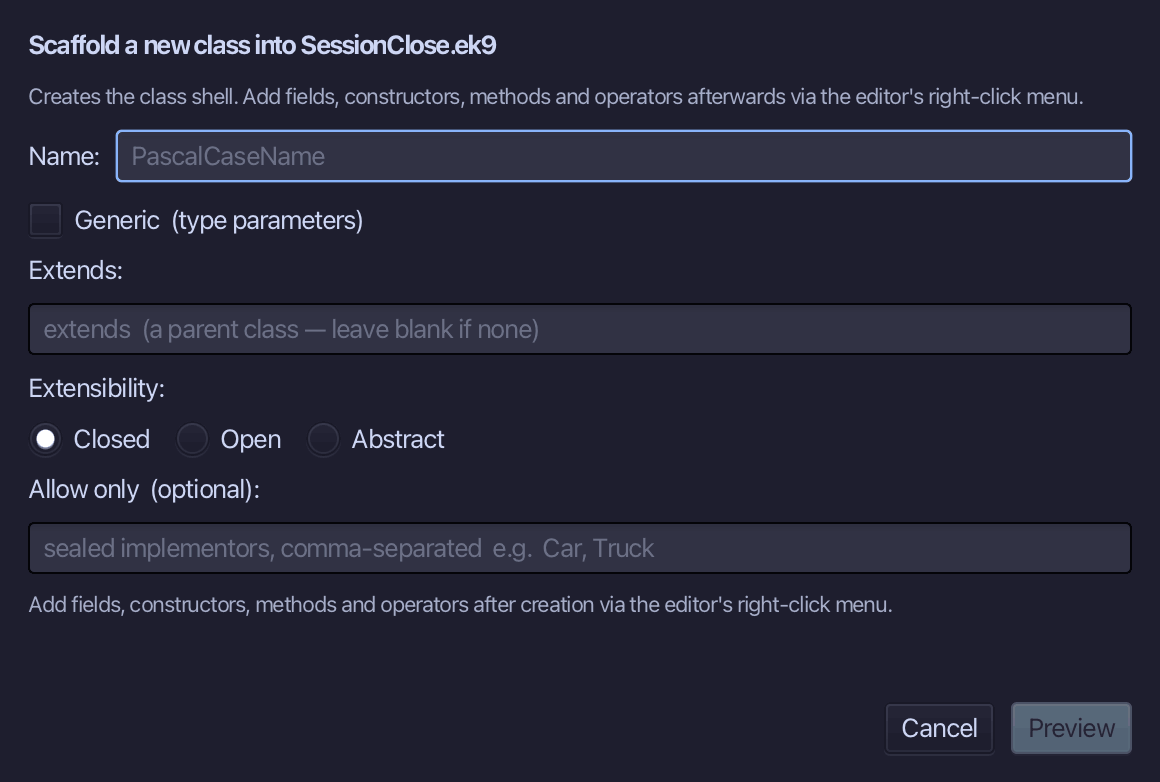
Choose Code > New Construct > Class…
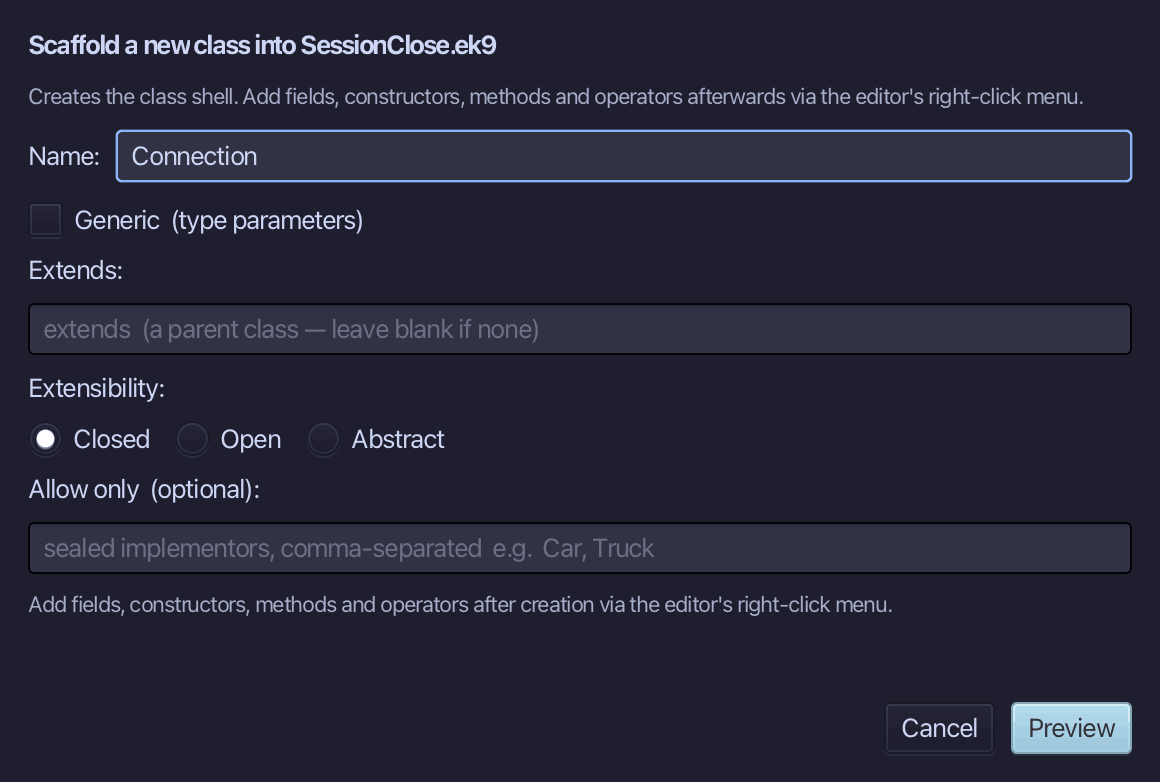
Connection is the class's name. Choose Preview.
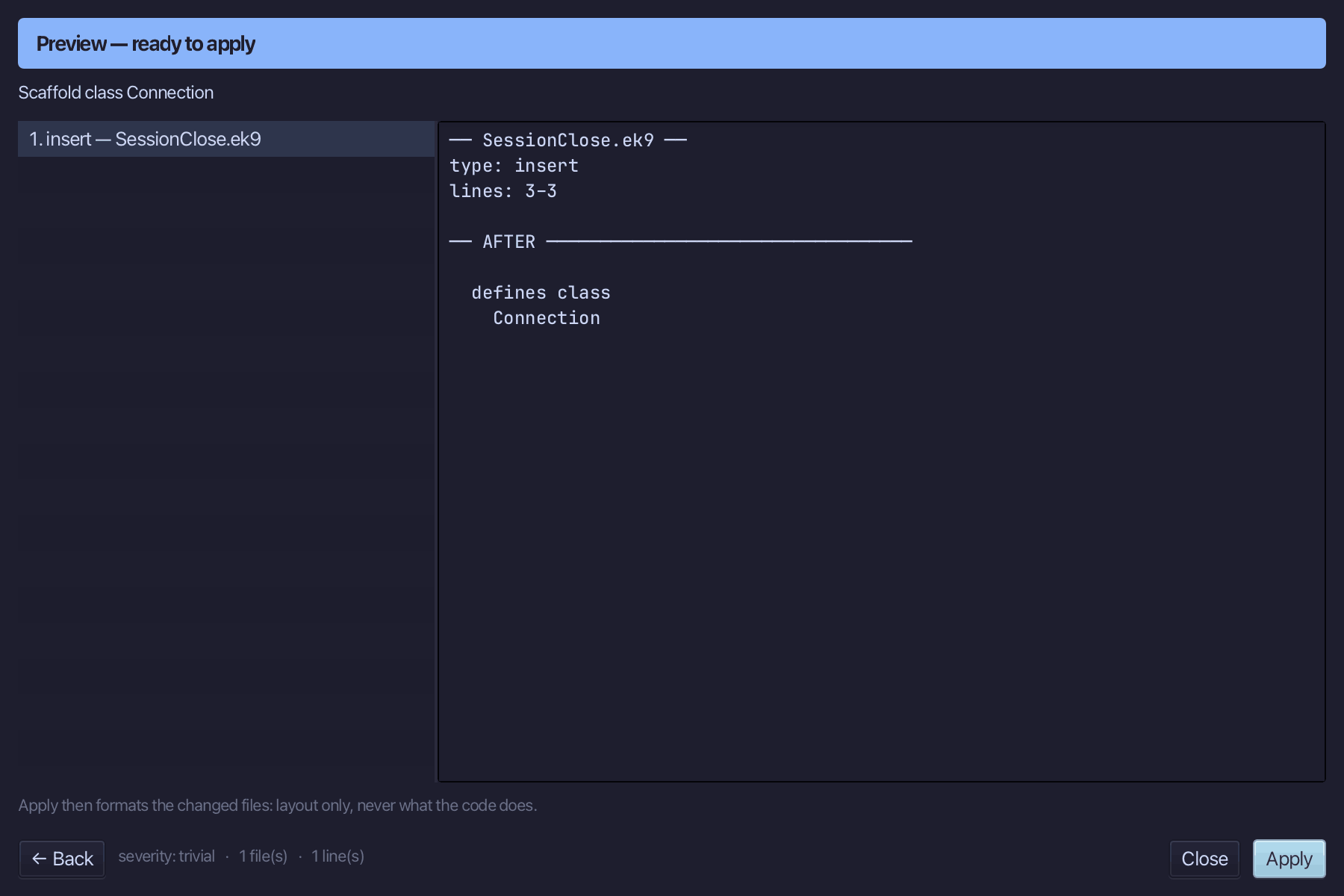
The preview shows Connection about to be written. Choose Apply.
Select the Connection line and, above it, type the blank line the book opens its first class with. Saves when typed.
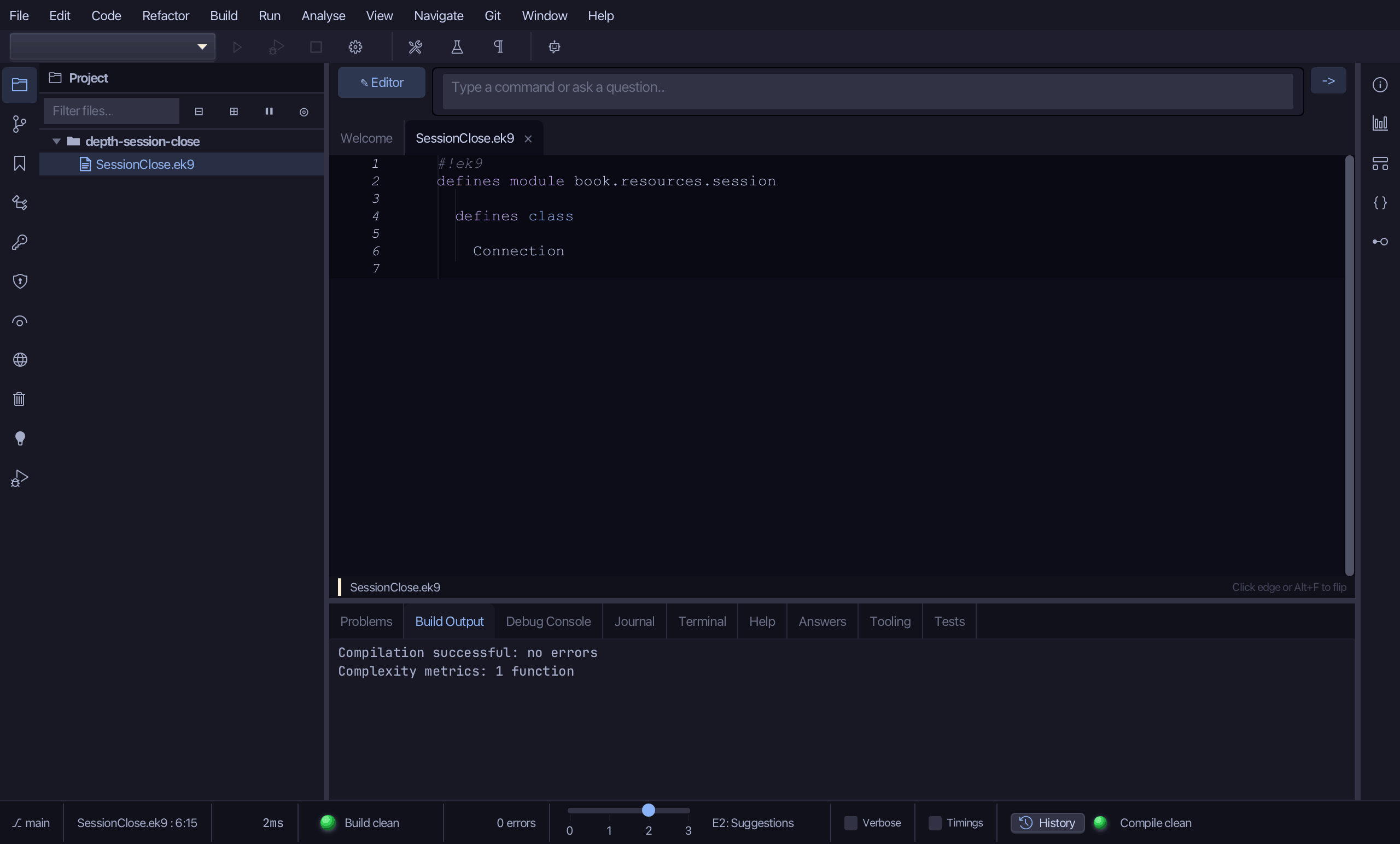
Right-click the Connection line and choose Add Field…
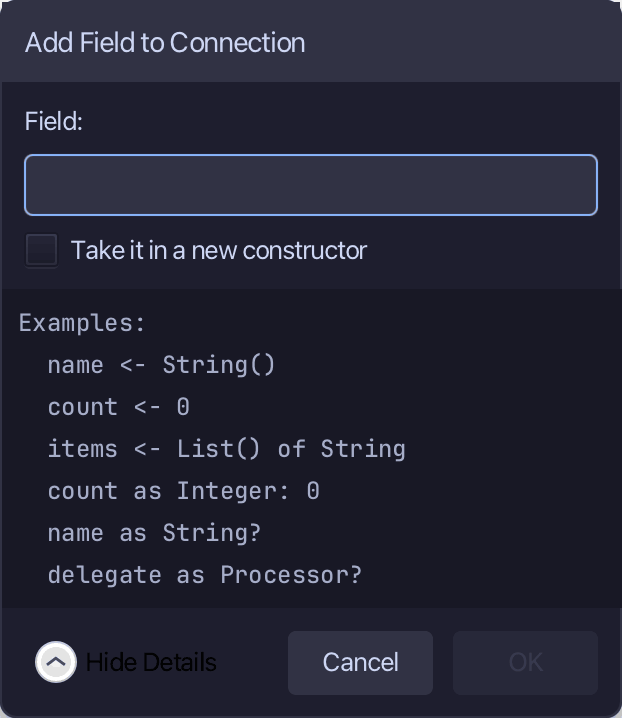
Type name <- String() - the field and the value it starts with. Choose OK.
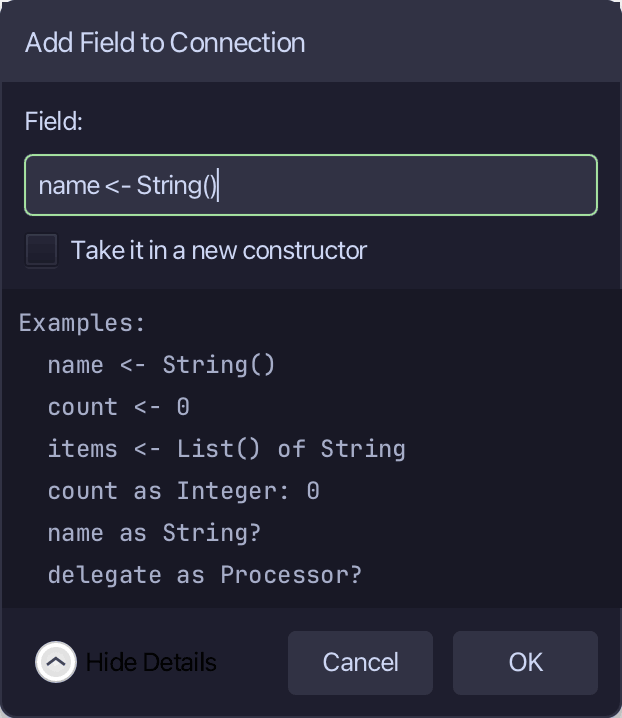
The preview shows name added - and default operator ? with it, Connection's first field. Choose Apply.
Right-click the Connection line and choose Add Constructor > From All Fields - a constructor that takes every field.
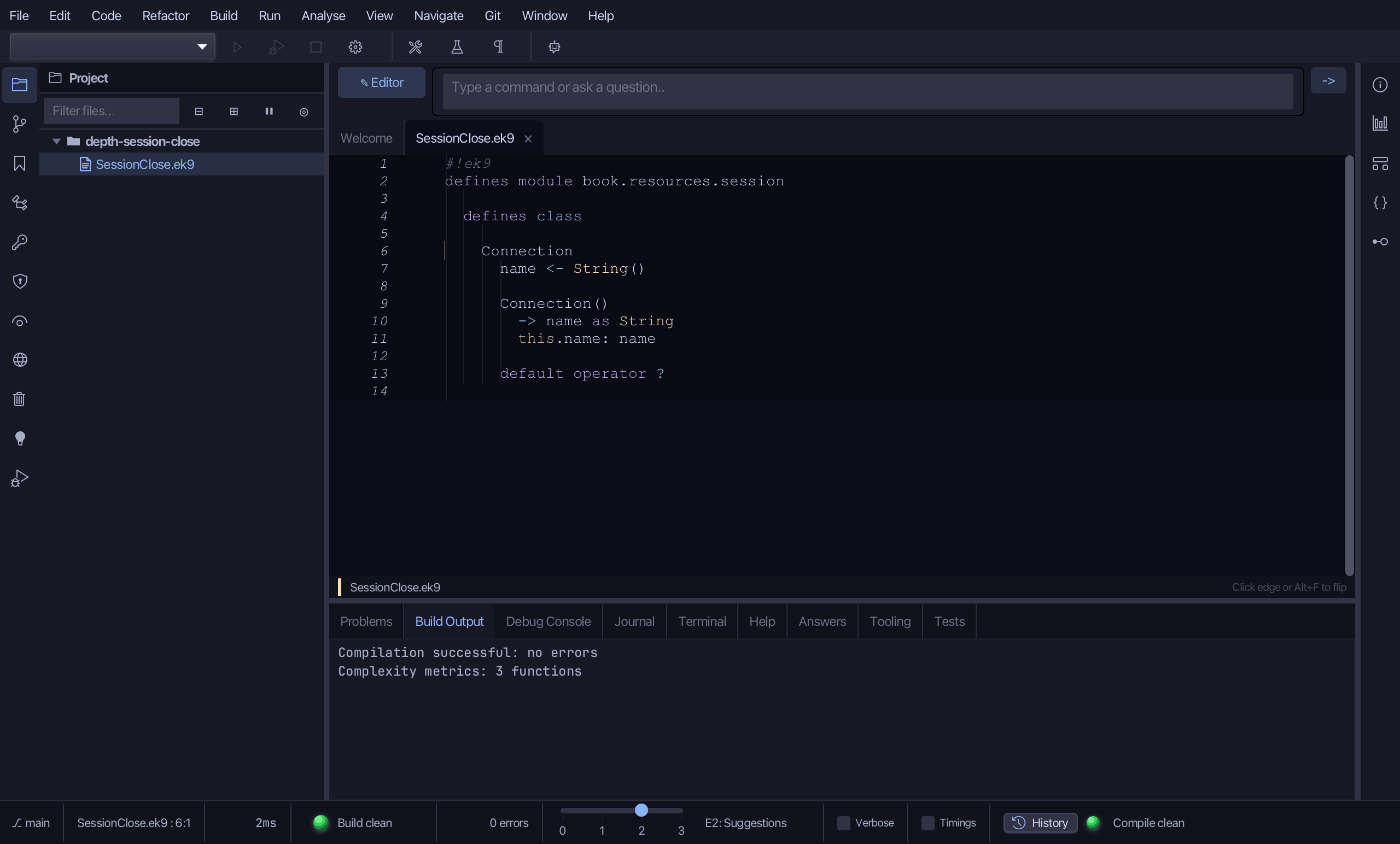
Select the constructor and type the book's: a label in, name set from it, and a line that says it opened. Saves when typed.
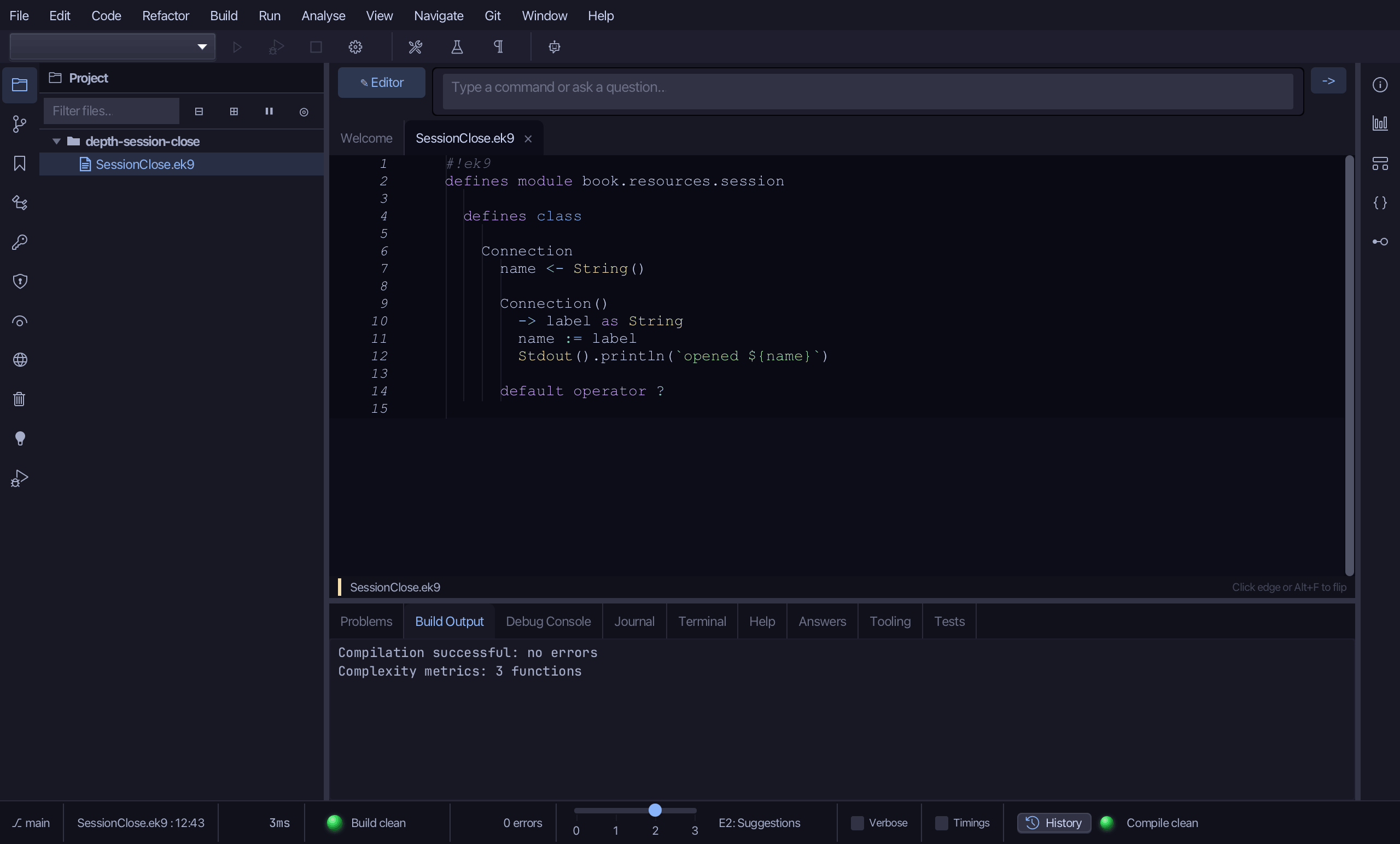
Right-click the Connection line and choose Add Operator > Custom Operator…
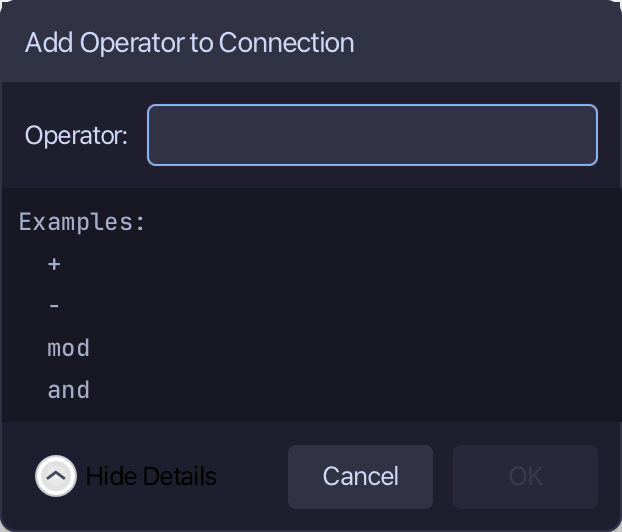
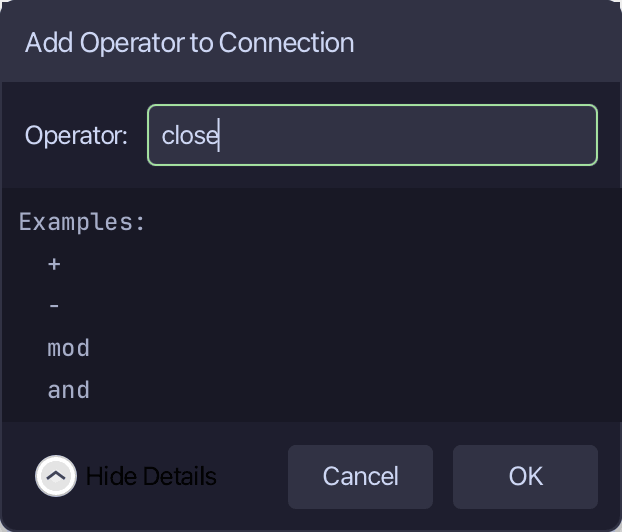
close is not one of the eight operators with their own menu entry - type it here, in Custom Operator…'s one field. Choose OK.
Select the stub and type the close: it says it closed. A type with an operator close is a closeable - the compiler calls it, you never do. Saves when typed.
Step 2: Session — it owns two connections
Choose Code > New Construct > Class…
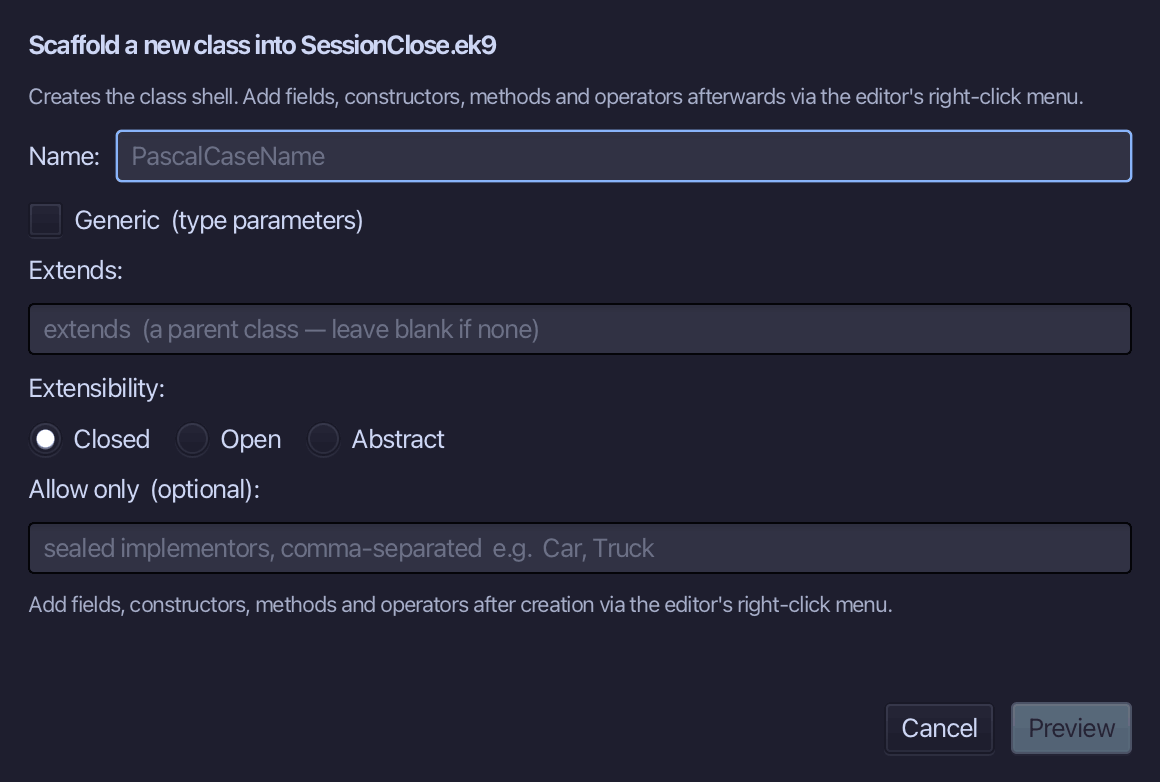
Session is the class's name. Choose Preview.
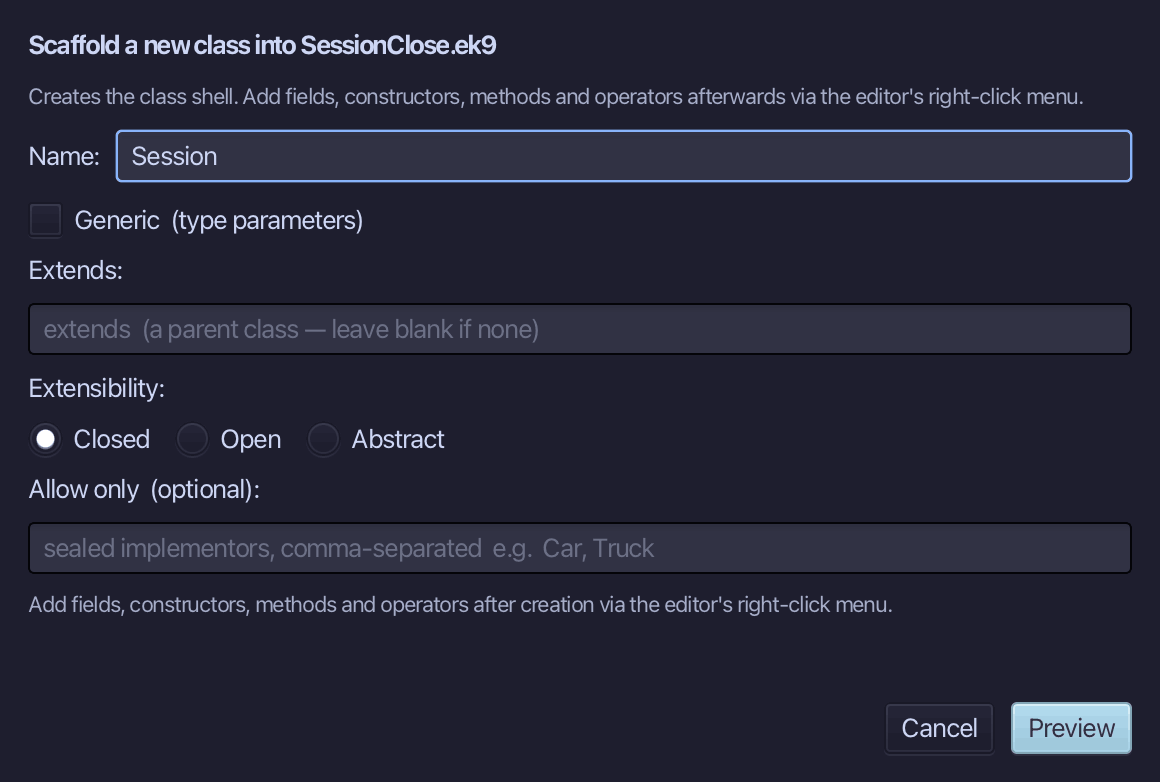
The preview shows Session about to be written. Choose Apply.
Type the two connections the session holds, below its line. Add Field cannot write the first of them: a class that holds a closeable must declare its close (E81067), and a close with nothing to close is refused (E81070) - so the fields come first, and the close right after. Saves when typed; the compile then reports E07235, a class with fields and no ? yet, which the next two steps put right.
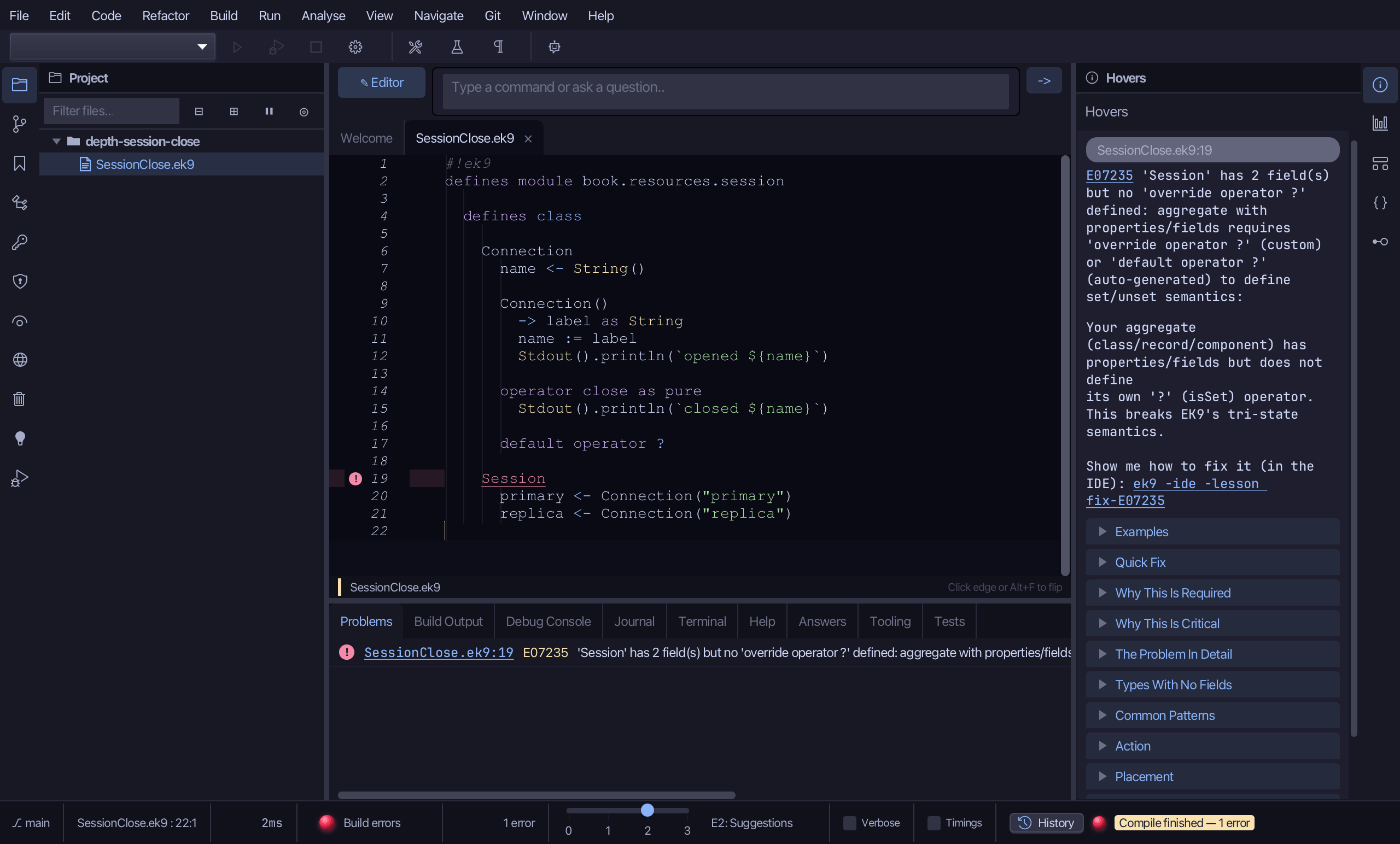
Right-click the Session line and choose Add Operator > close (closeable) > default - the compiler writes the operator from the fields.
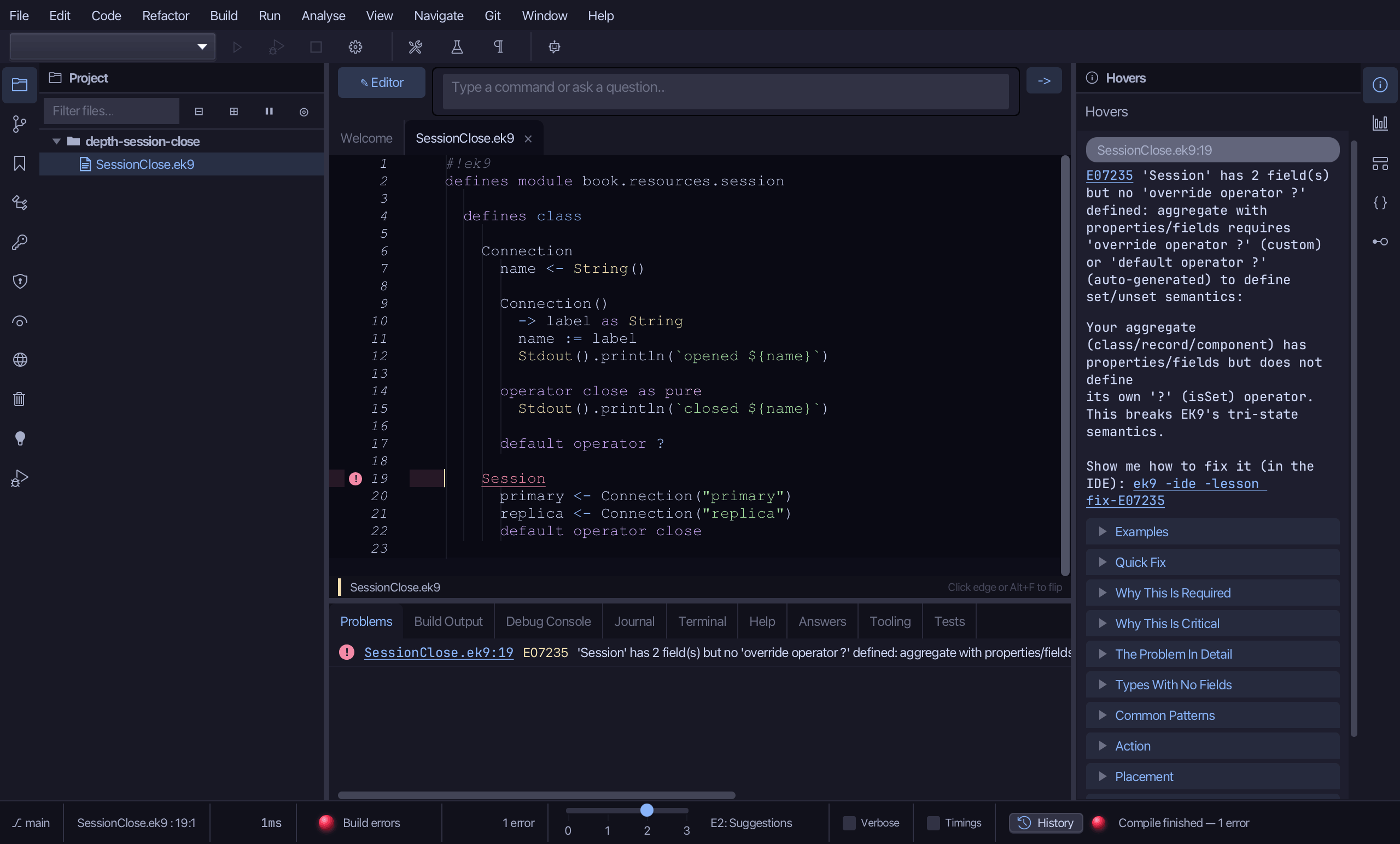
Right-click the Session line and choose Add Operator > ? (isSet) > default - the compiler writes the operator from the fields.
Right-click the Session line and choose Add Method…
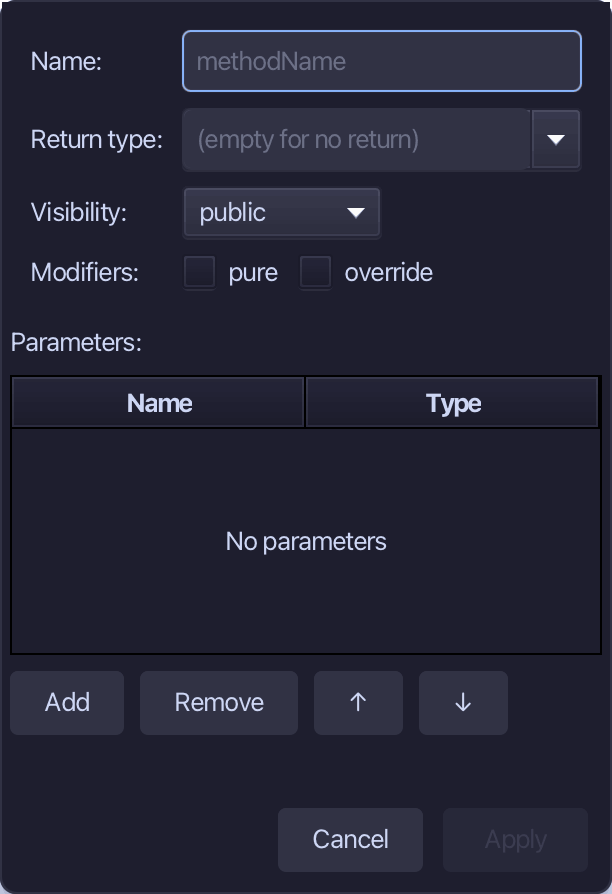
send is the method's name. Add one parameter, message of type String. Choose Apply.
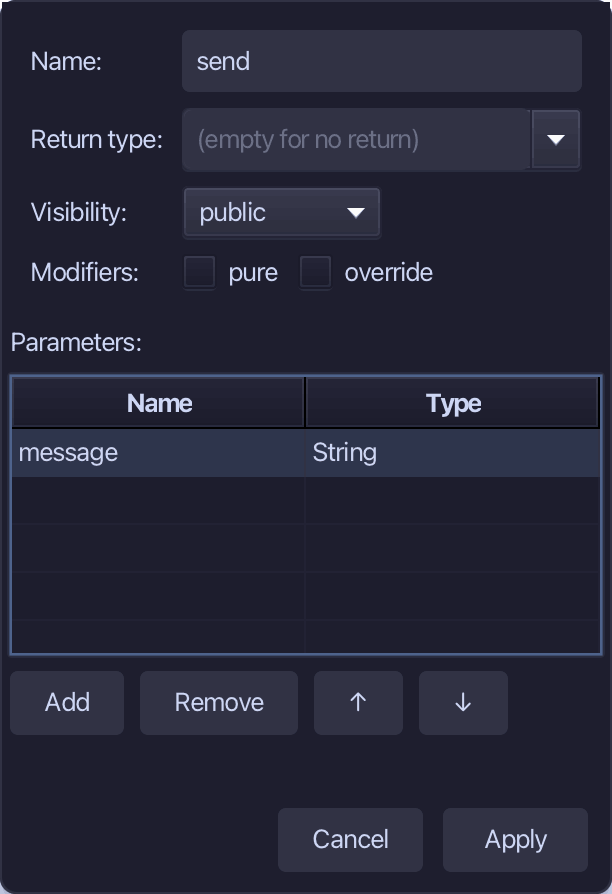
Select the stub and type send's work. Saves when typed.
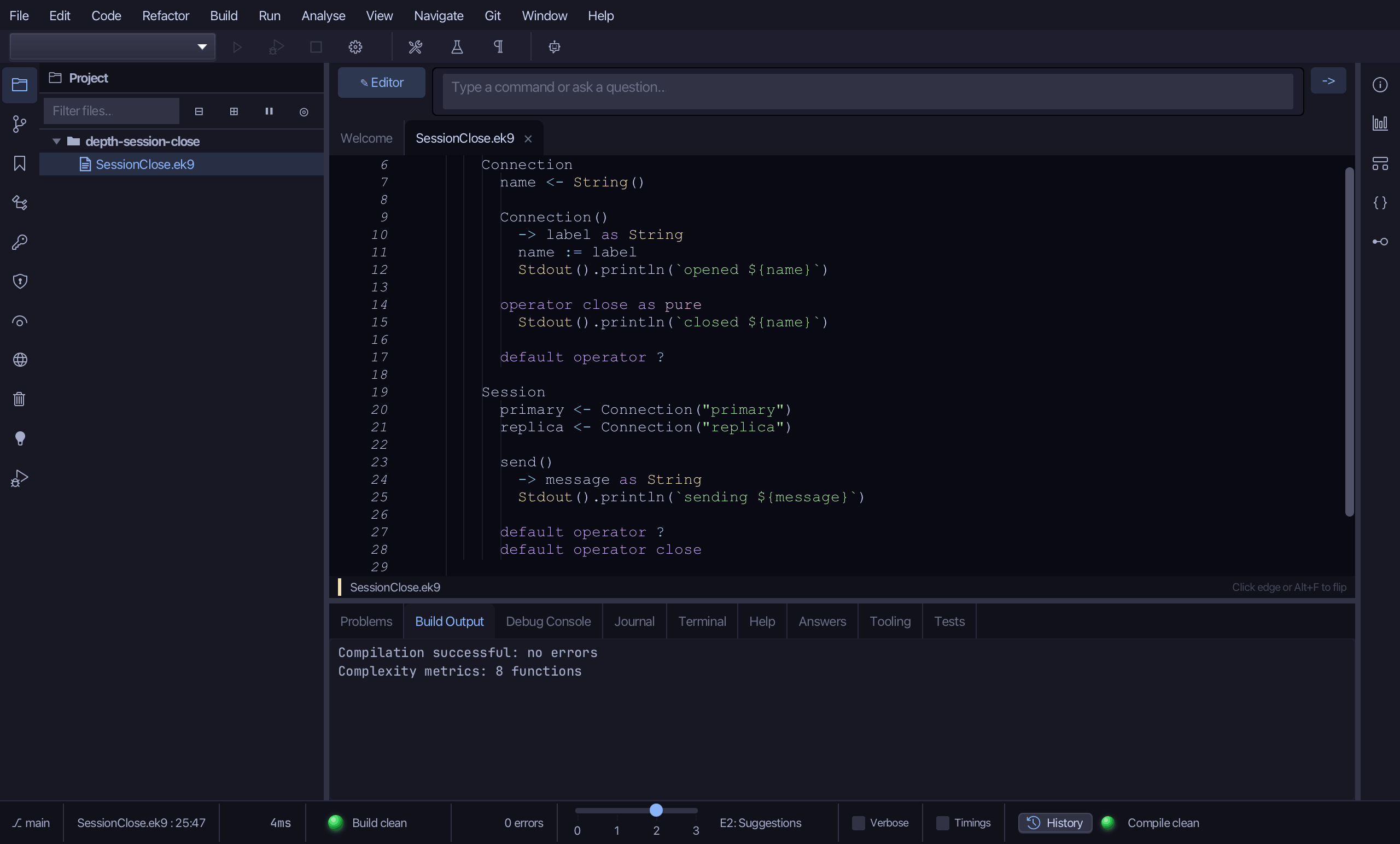
Step 3: The program
Choose Code > New Construct > Program…
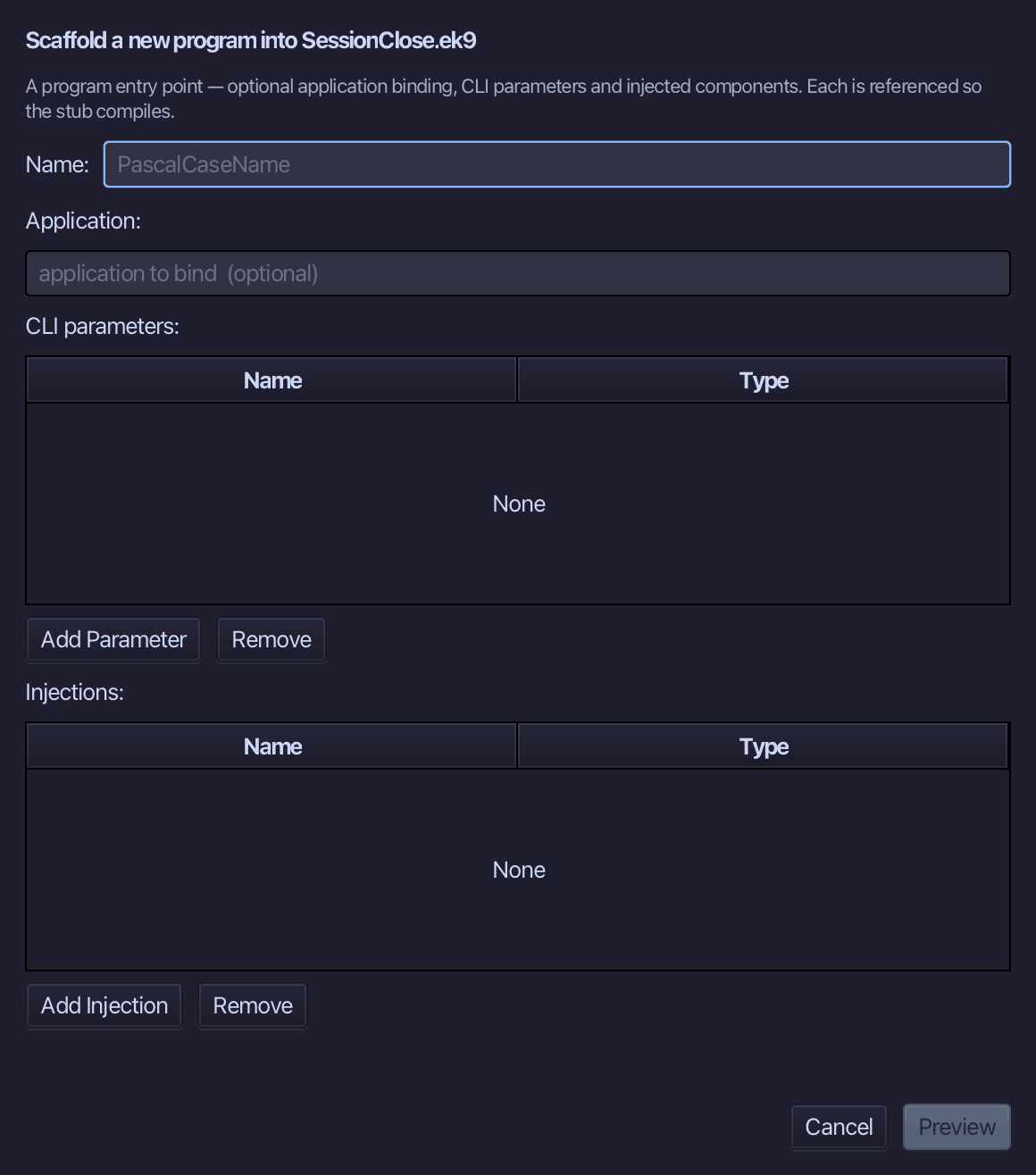
SessionClose is the program's name. Choose Preview.
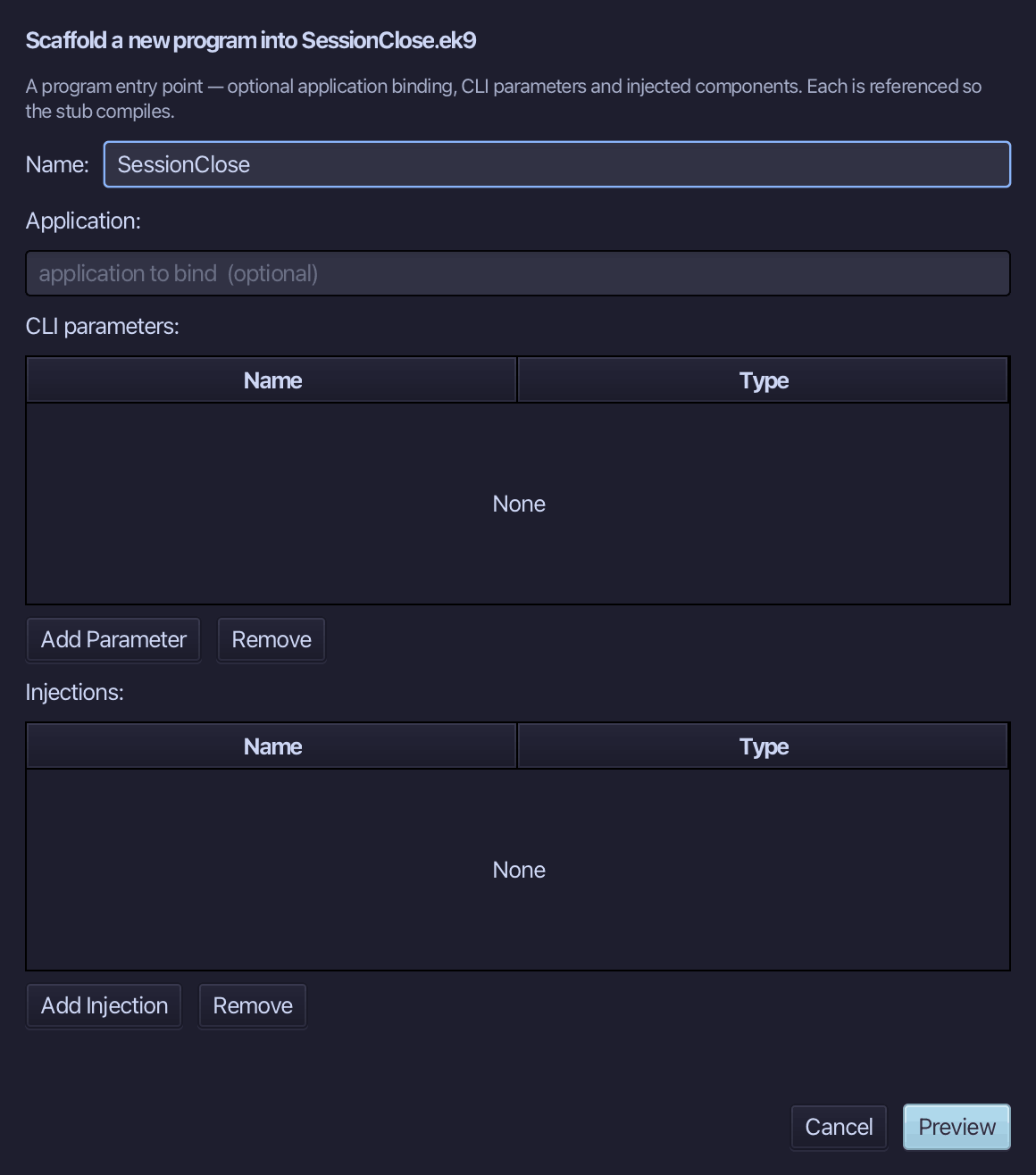
The preview shows SessionClose about to be written. Choose Apply.
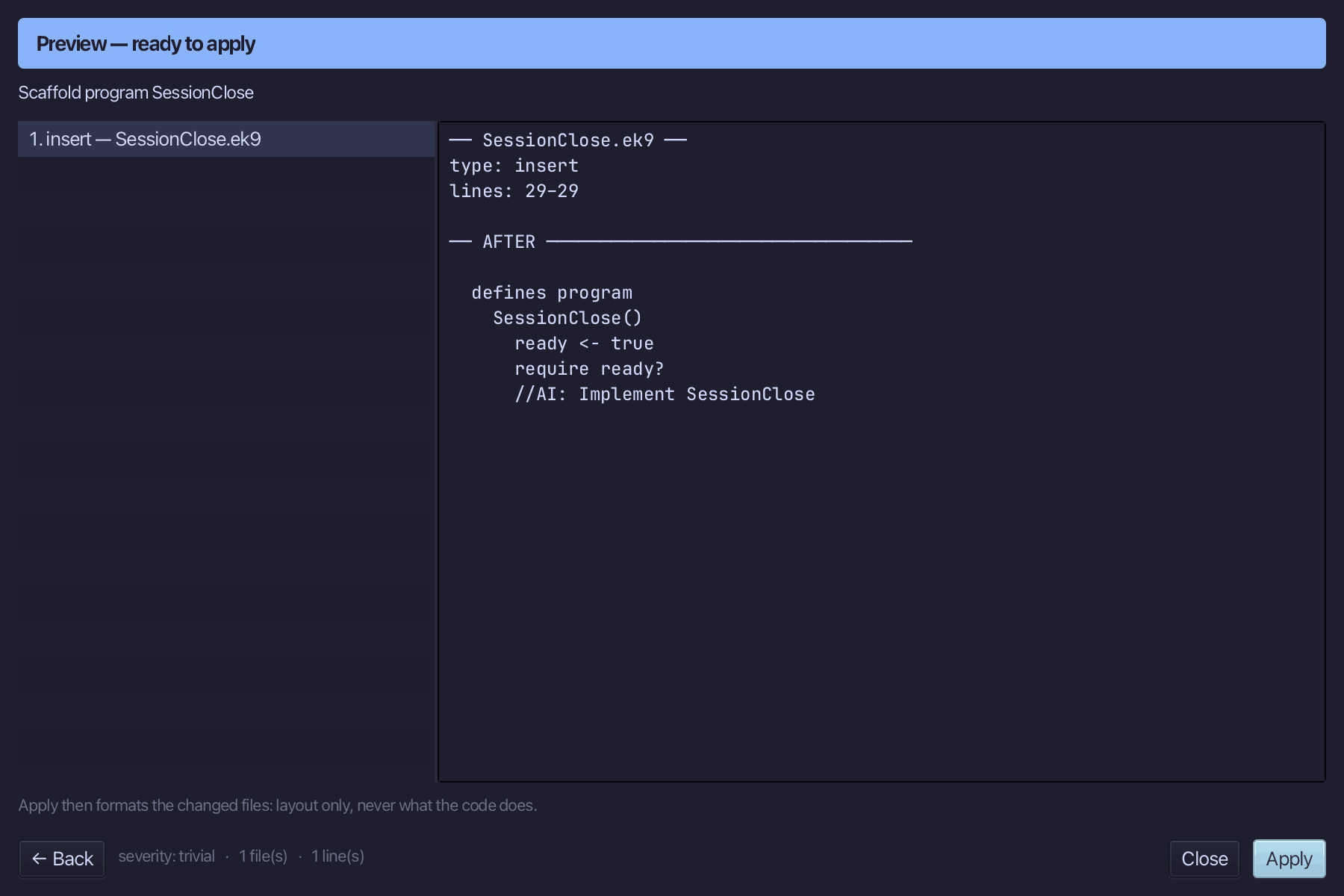
Select the SessionClose() line and, above it, type the blank line the book opens the program with. Saves when typed.
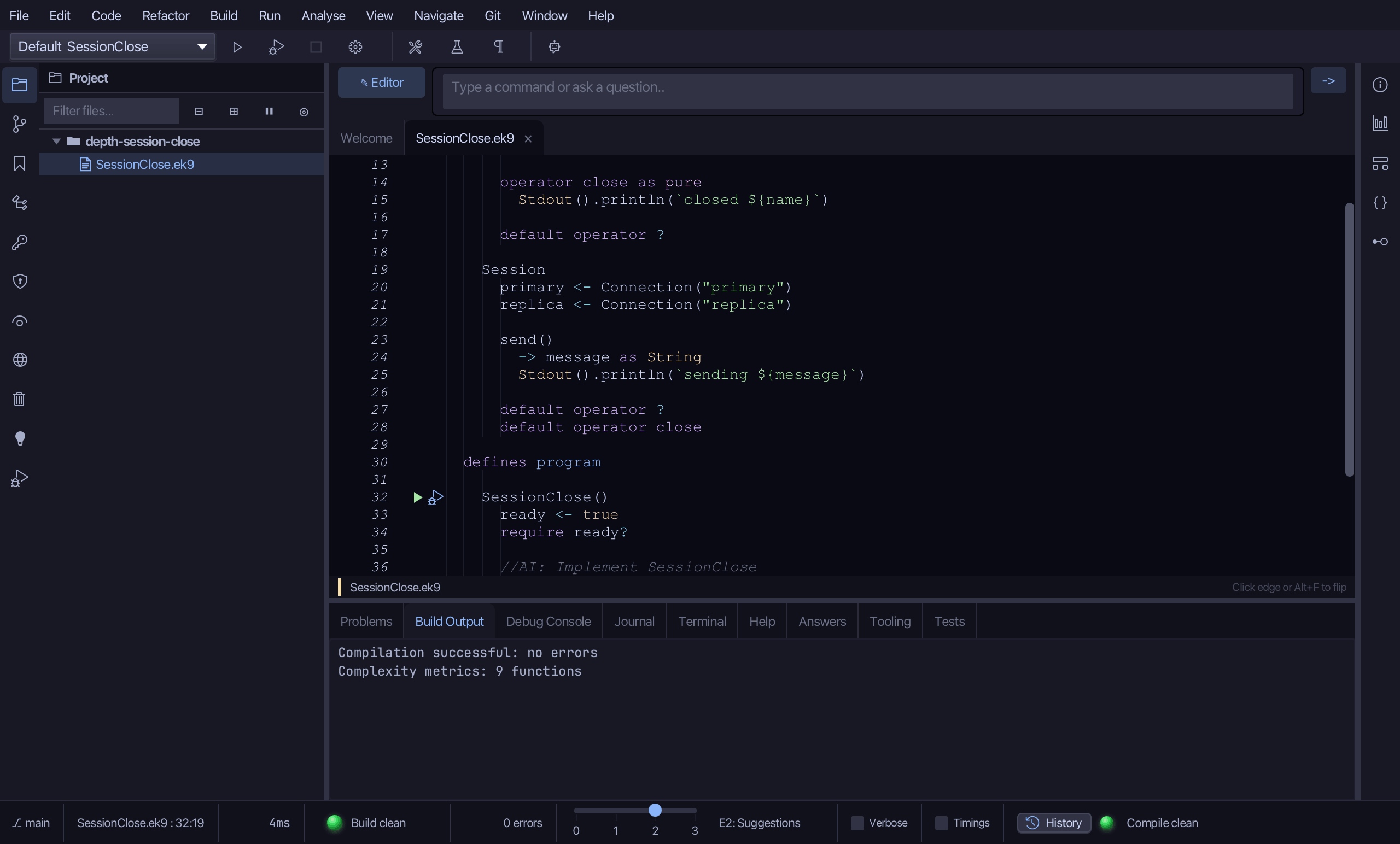
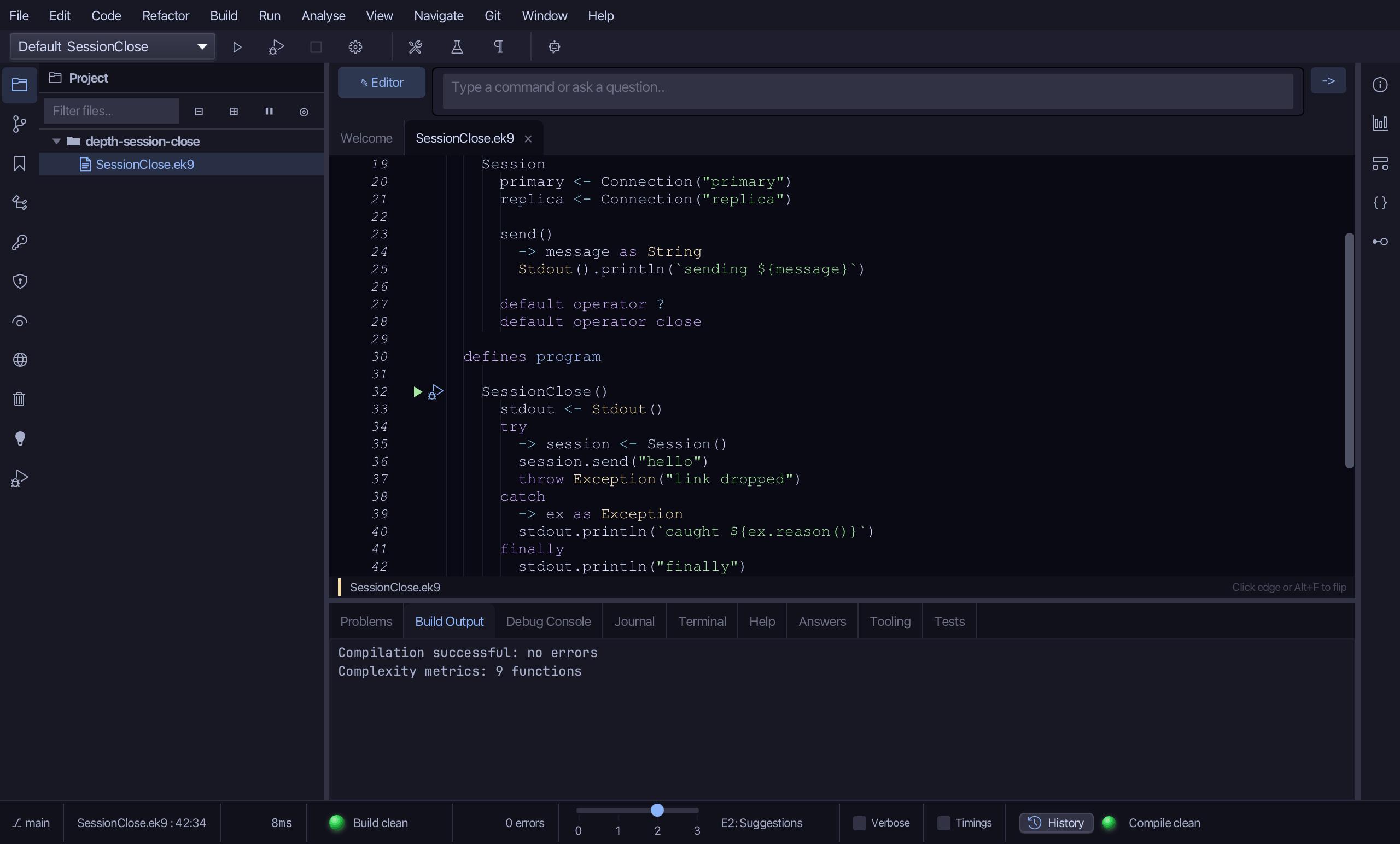
Select the stub, from ready <- true down to its //AI line, and type SessionClose's body exactly as the chapter shows it. Saves when typed.
Step 4: Run it
Choose Run > Run Program…
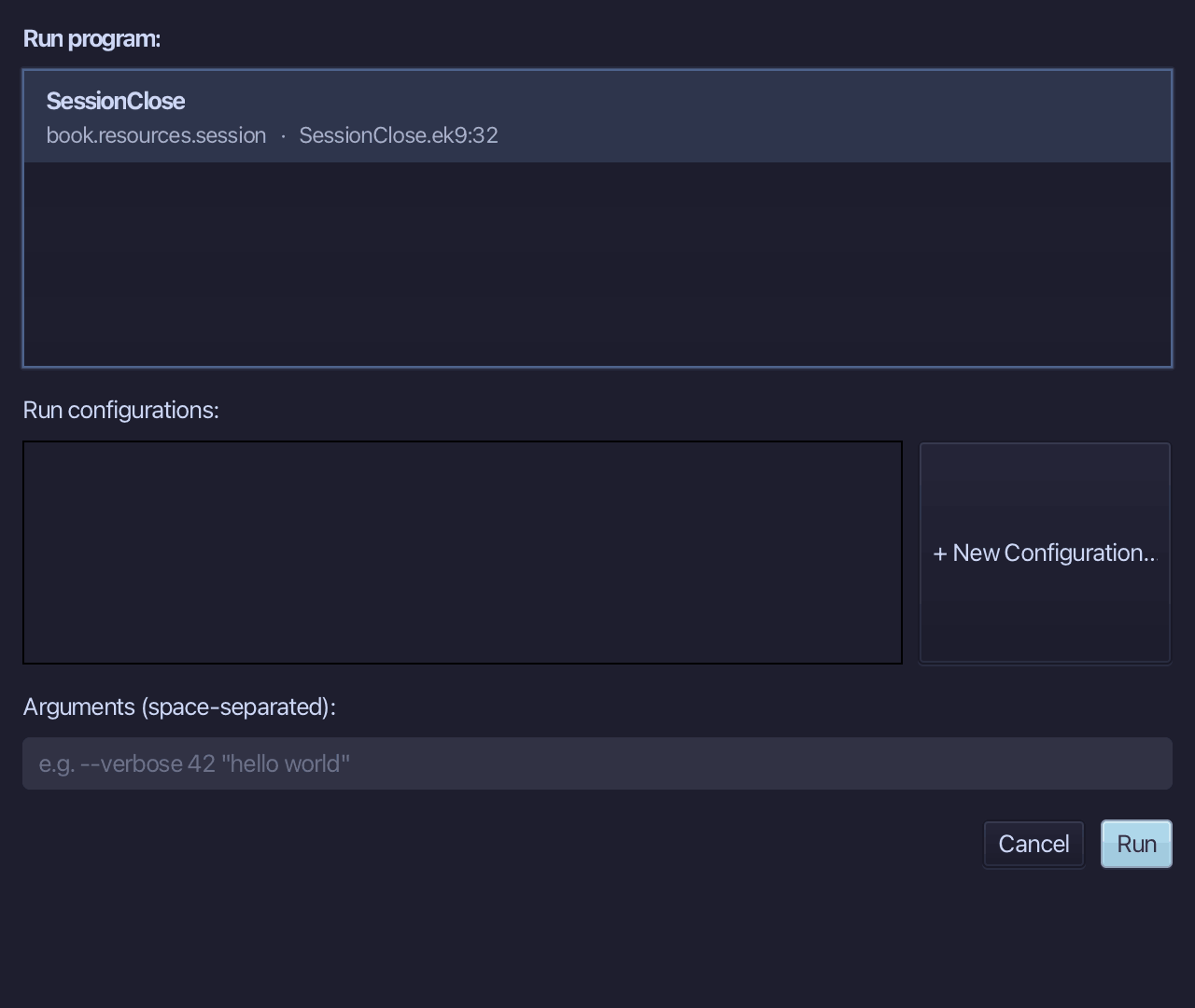
The project's only program is already chosen. Choose Run.
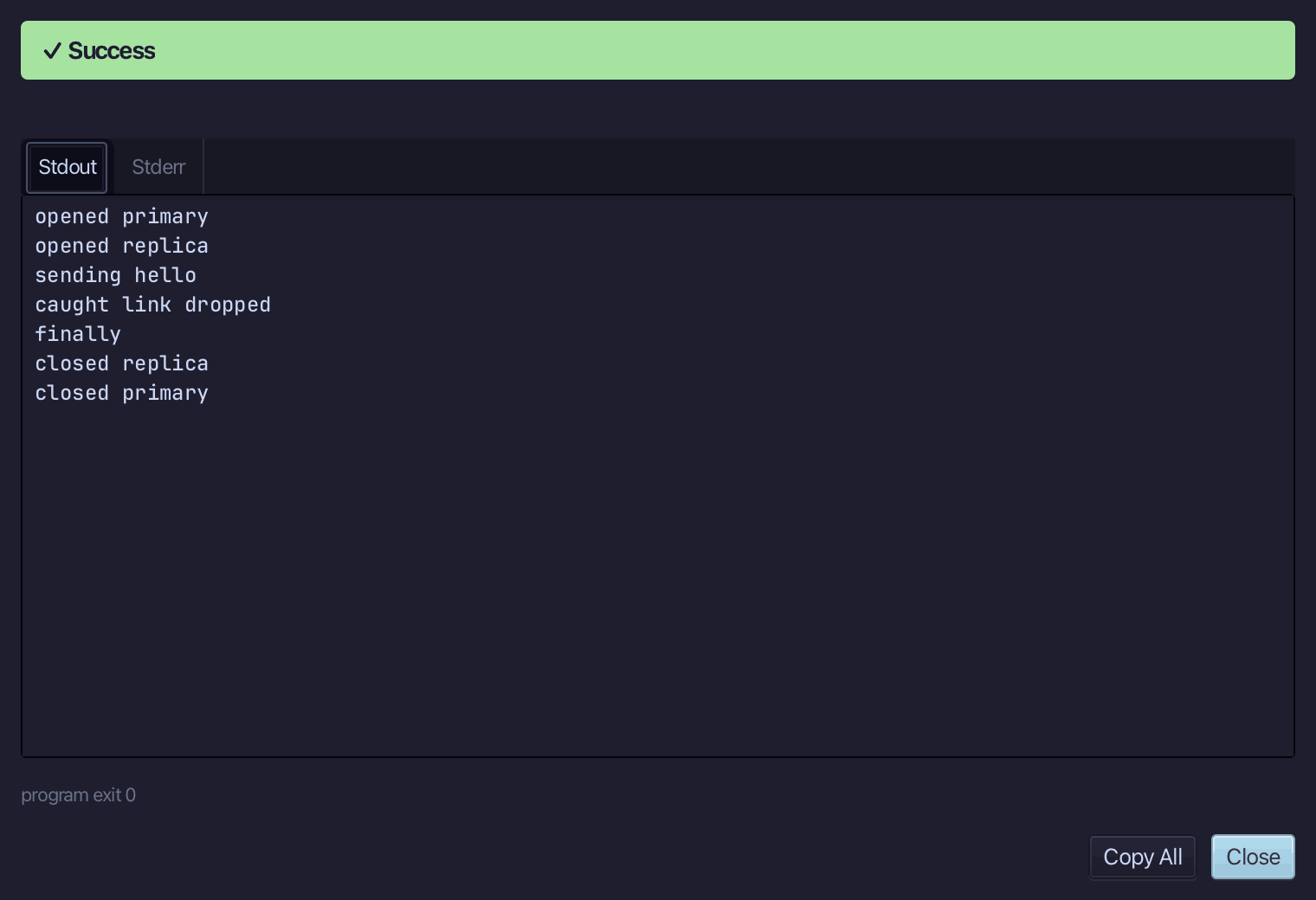
opened primary, opened replica, sending hello, caught link dropped, finally, closed replica, closed primary. Choose Close.
The result
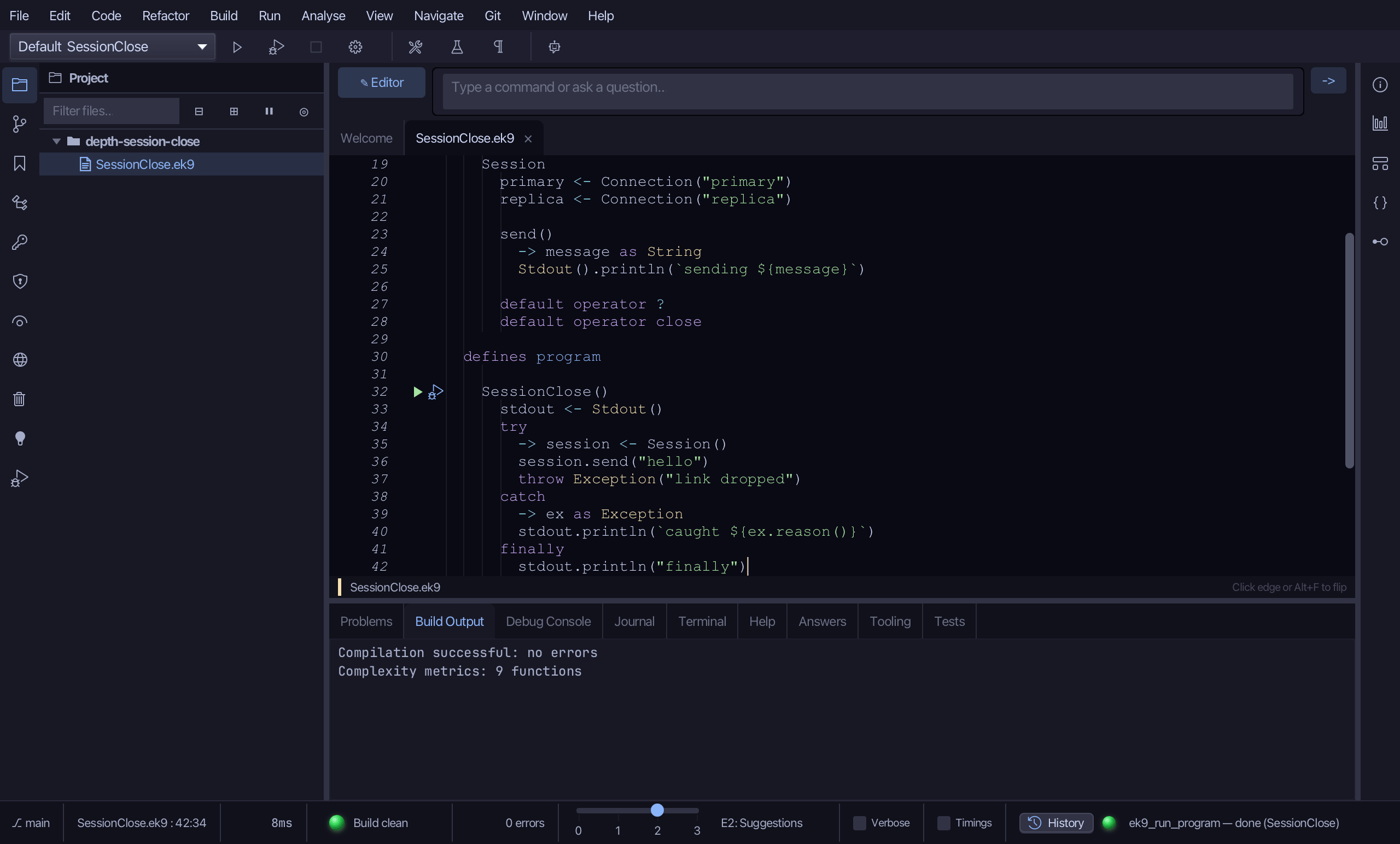
SessionClose.ek9 now reads exactly as chapter 32 of EK9 in Depth shows it. The session is the try's resource: it was closed after the catch and the finally, and it closed replica before primary - the close the compiler wrote for default operator close, last property first.
Where this lesson comes from
- Answers -
ek9 -qand the IDE's Answers tab: 137. - For AI assistants - the MCP tool
ek9_new_construct,ek9_add_field,ek9_add_constructor,ek9_add_operator,ek9_add_method,ek9_add_program.