Chapter 23: the game, built and played
Chapter 23 is the whole book in one program: a number-guessing game, built from a record, a class, six small functions and a thin program that ties them to the keyboard - the biggest example in the book. The IDE's own tools make the structure - every field's declaration, every constructor's and method's and function's whole signature - so what is left to type is the logic no tool can write. To play it in the IDE: Help > Lessons > Writing code…, or ek9 -ide -lesson book-game.
What you'll build
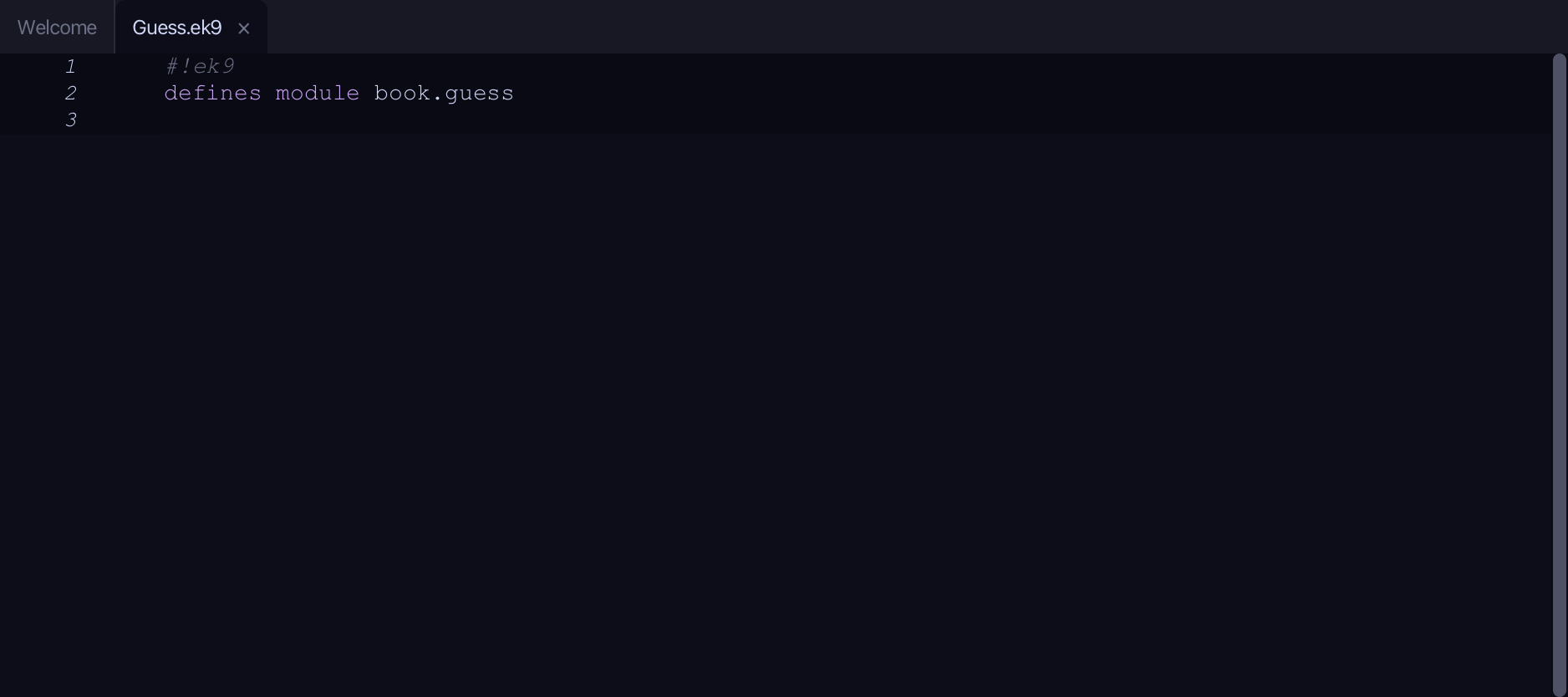
The lesson builds this program from a file holding only its module line - the finished file, as the book prints it.
#!ek9
defines module book.guess

  defines record

    Score
      who as String: String()
      attempts as Integer: Integer()

      default Score() as pure

      Score() as pure
        ->
          name as String
          tries as Integer

        who :=? String(name)
        attempts :=? Integer(tries)

      operator $ as pure
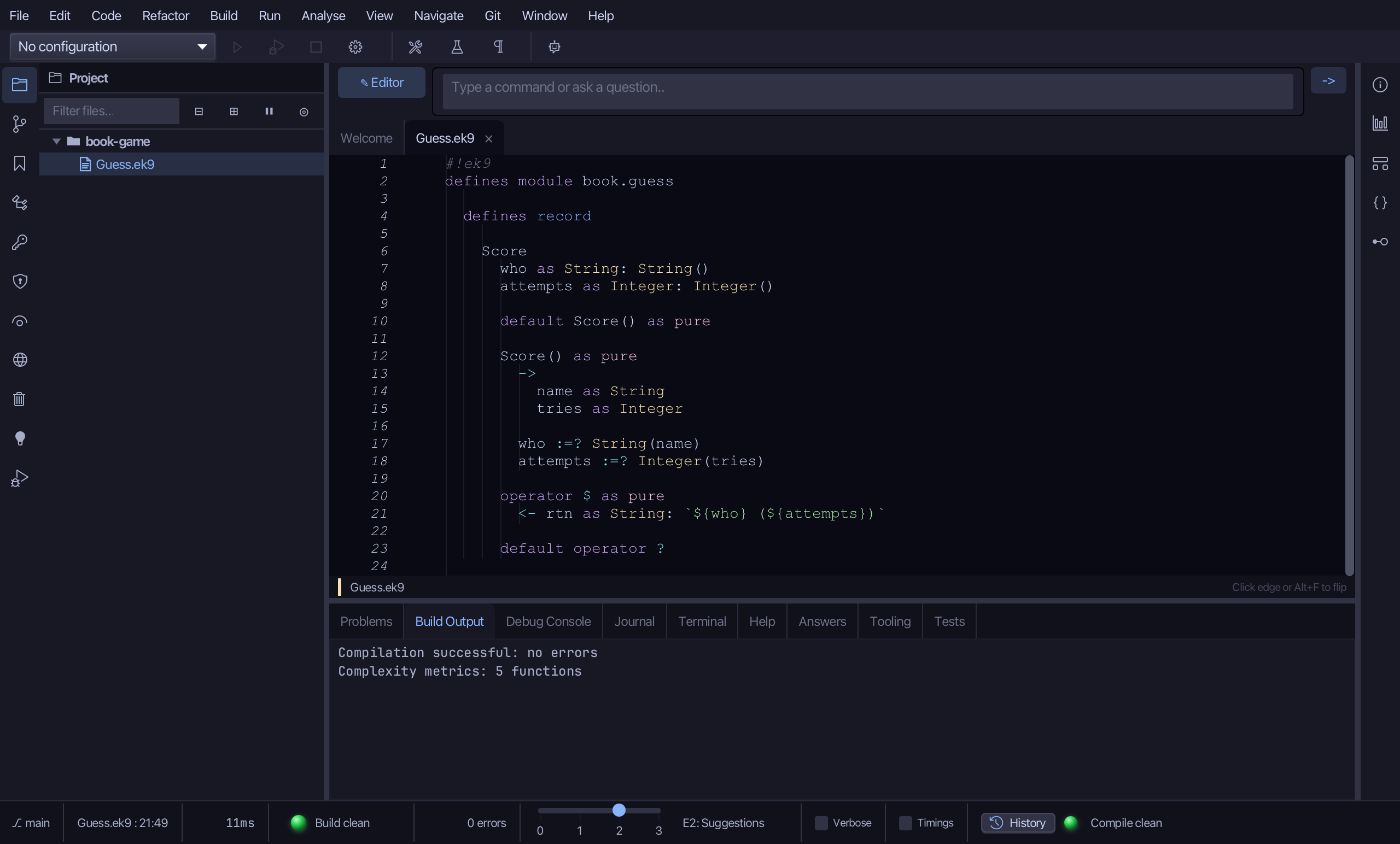
        <- rtn as String: `${who} (${attempts})`

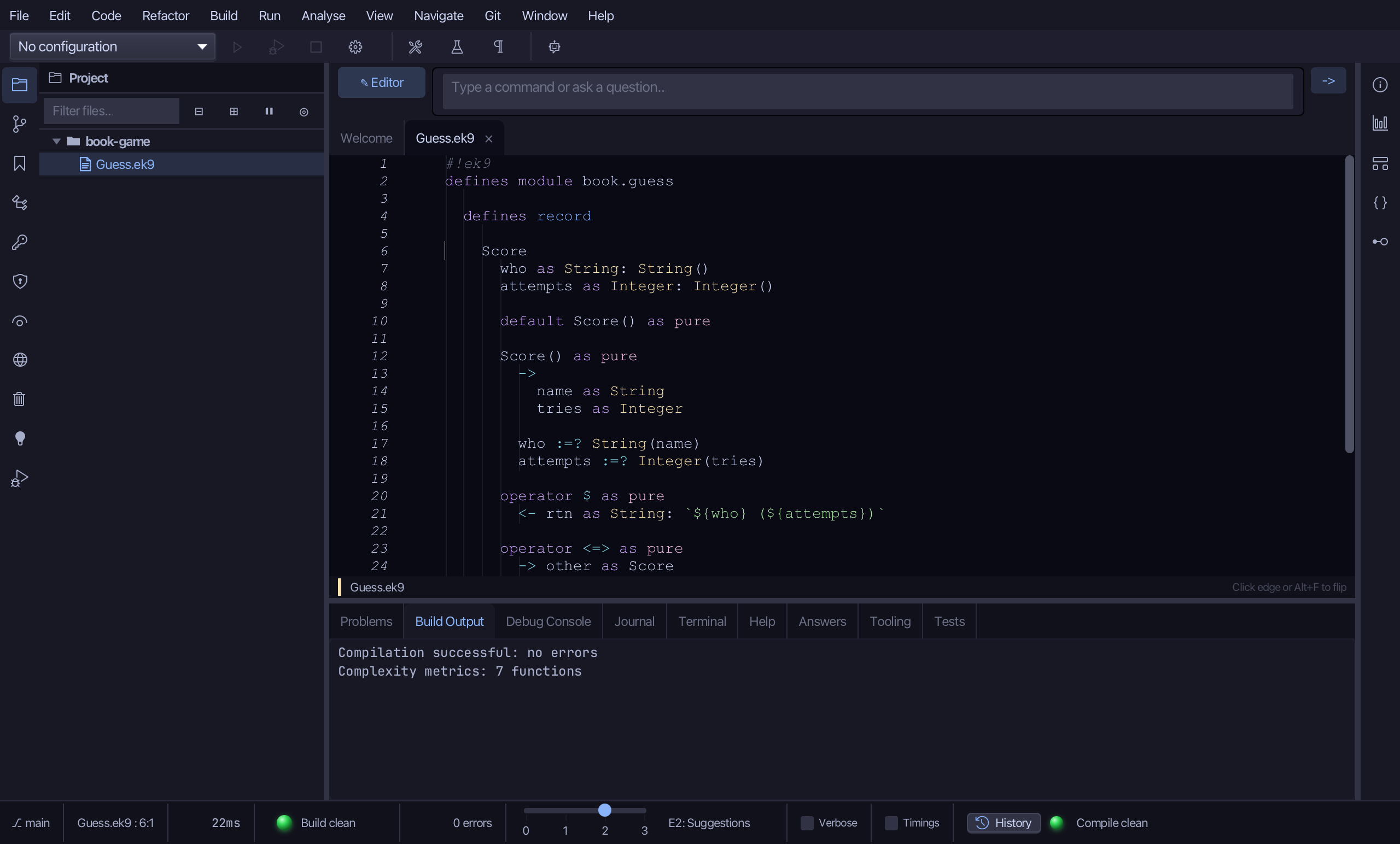
      operator <=> as pure
        -> other as Score
        <- rtn as Integer: attempts <=> other.attempts

      operator #? as pure
        <- rtn as Integer: #?attempts

      default operator ?

  defines class

    //Holds one game: the secret, how many tries are allowed, and how it is going.
    Game
      secret as Integer: Integer()
      maxTries as Integer: Integer()
      tries as Integer: 0
      solved as Boolean: false

      default private Game() as pure

      Game() as pure
        ->
          chosen as Integer
          allowed as Integer

        secret :=? Integer(chosen)
        maxTries :=? Integer(allowed)

      //Take one guess. Count it, say which way to go, and note a win.
      guess()
        -> number as Integer
        <- rtn as String: String()
        tries += 1
        rtn: hint(secret, number)
        if number == secret
          solved := true

      over() as pure
        <- rtn as Boolean: solved or tries >= maxTries

      triesUsed() as pure
        <- rtn <- Integer(tries)

      report() as pure
        -> player as String
        <- rtn as String: String()
        rtn: solved <- `Well done ${player} - ${tries} tries.` : `Out of tries - the number was ${secret}.`

      default operator ?

  defines function

    //Compare a guess against the secret and say which way to go.
    hint() as pure
      ->
        secret as Integer
        guess as Integer
      <- rtn as String: String()

      order <- guess <=> secret
      rtn: order < 0 <- "higher" : order > 0 <- "lower" : "correct"

    //Put a score board in order: fewest tries first.
    rank() as pure
      -> board as List of Score
      <- rtn as List of Score: List() of Score
      rtn: cat board | sort | collect as List of Score

    //The scores already on the board when a new game starts.
    startingBoard()
      <- rtn as List of Score: List() of Score
      rtn += Score("Ada", 3)
      rtn += Score("Alan", 5)

    //Add this game's score to the opening board.
    finalBoard()
      ->
        player as String
        tries as Integer
      <- rtn as List of Score: List() of Score

      rtn: startingBoard()
      rtn += Score(player, tries)

    //Render the ranked board as one block of text, best first.
    boardLines()
      -> board as List of Score
      <- rtn as String: ""
      for entry in rank(board)
        rtn += `  ${entry}\n`

    //Work out the player's name from the command-line options.
    playerName()
      -> argv as List of String
      <- rtn as String: String()
      usage <- "Usage: Guess [-p name]"
      supported <- {
        "-p": ":"
      }
      rtn: GetOpt(":", supported, usage).options(argv).getOrDefault("-p", "Player")

  defines program

    Guess()
      -> argv as List of String

      stdin <- Stdin()
      stdout <- Stdout()

      player <- playerName(argv)
      high <- 100
      maxTries <- 7
      game <- Game(OS().random(1, high), maxTries)

      stdout.println(`I am thinking of a number from 1 to ${high}. You have ${maxTries} tries.`)

      while not game.over()
        number <- Integer(stdin.next())
        stdout.println(`  ${number}: ${game.guess(number)}`)

      stdout.println(game.report(player))
      stdout.println("Fewest tries wins:")
      stdout.print(boardLines(finalBoard(player, game.triesUsed())))
Step 1: Score — a record, with its fields
Choose Code > New Construct > Record…
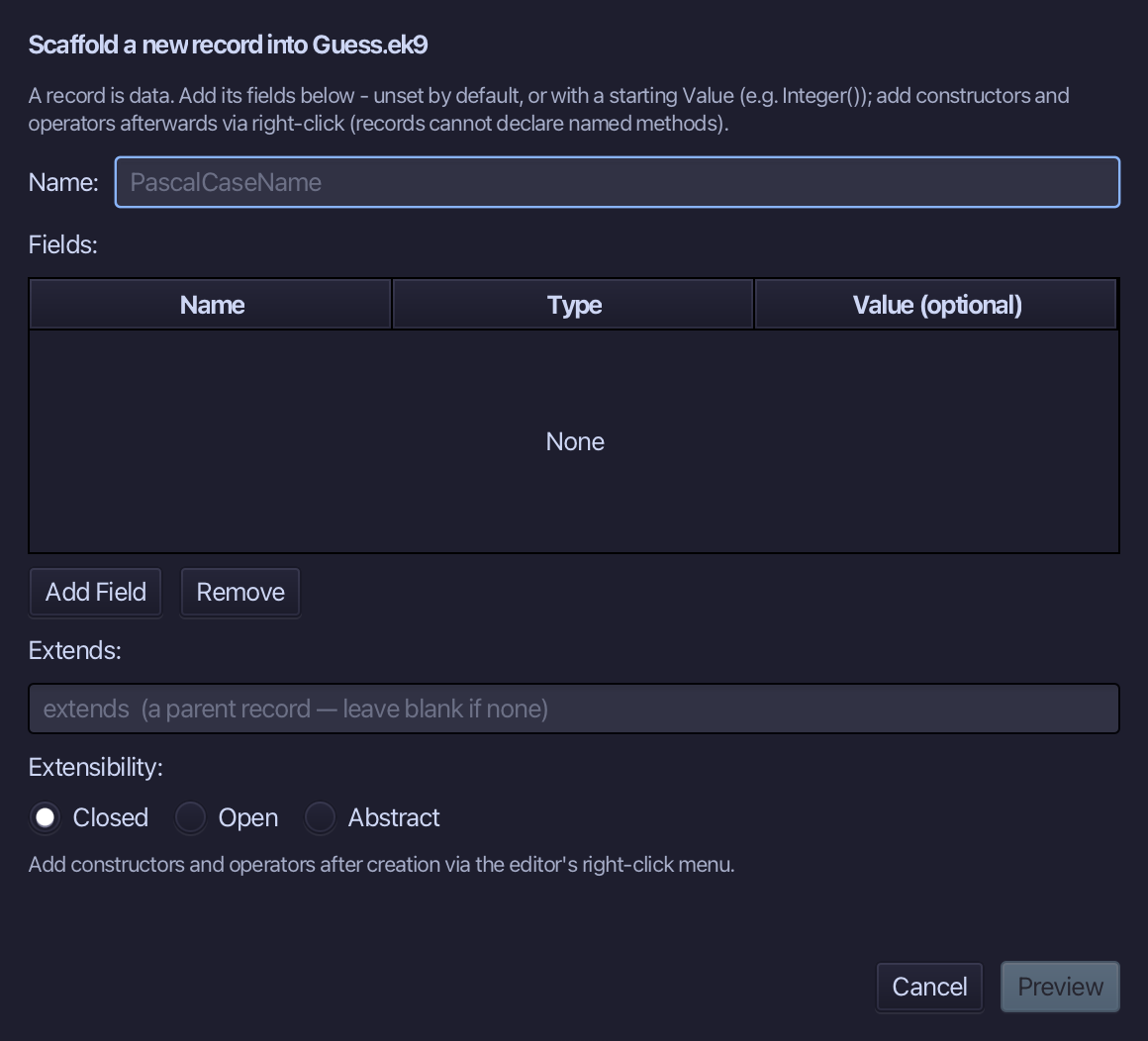
Score is the record's name. Add who (String) and attempts (Integer), each given a starting Value - String()/Integer(), a freshly made but unset value - so the record needs no constructor of its own yet. Choose Preview.
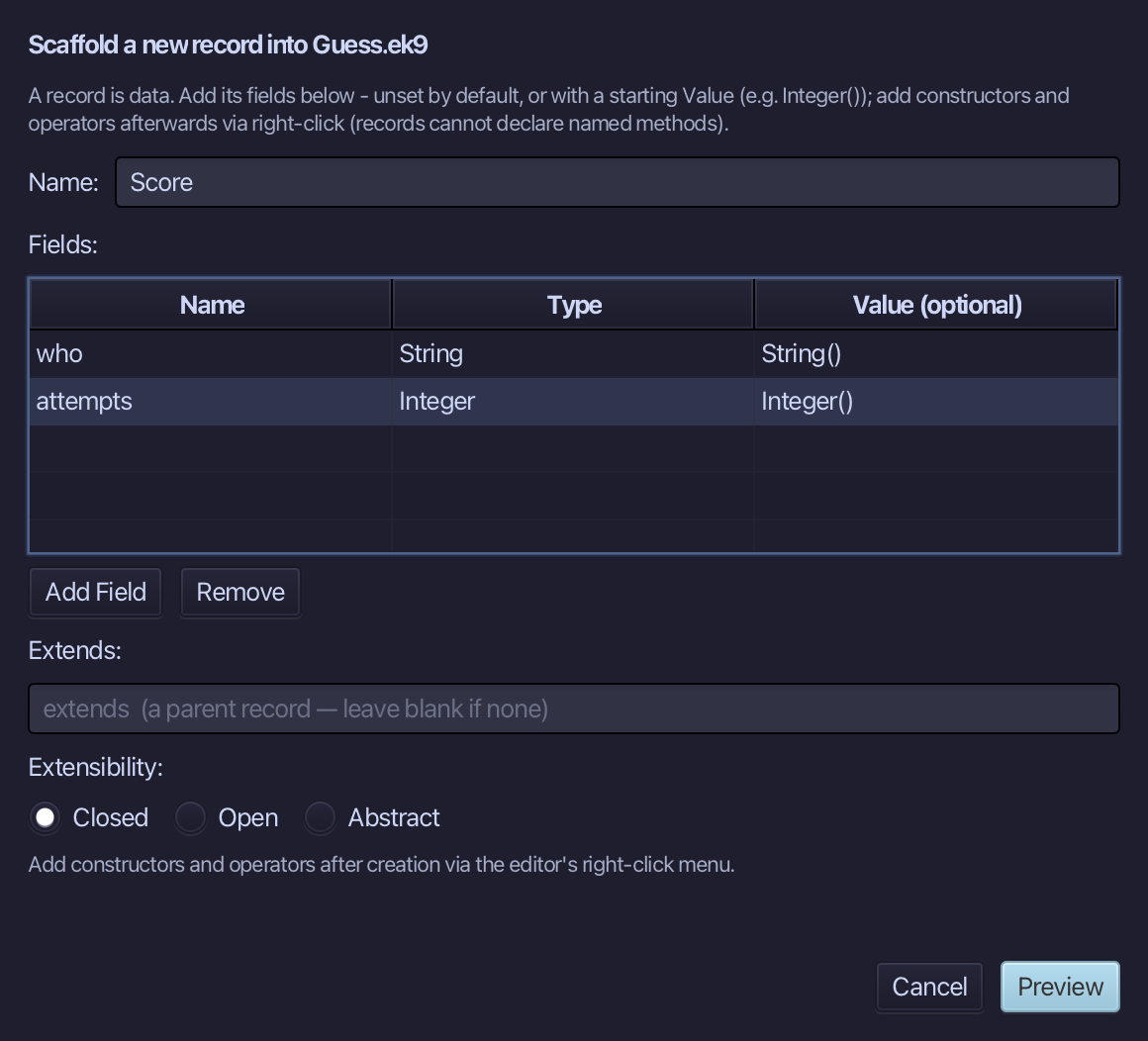
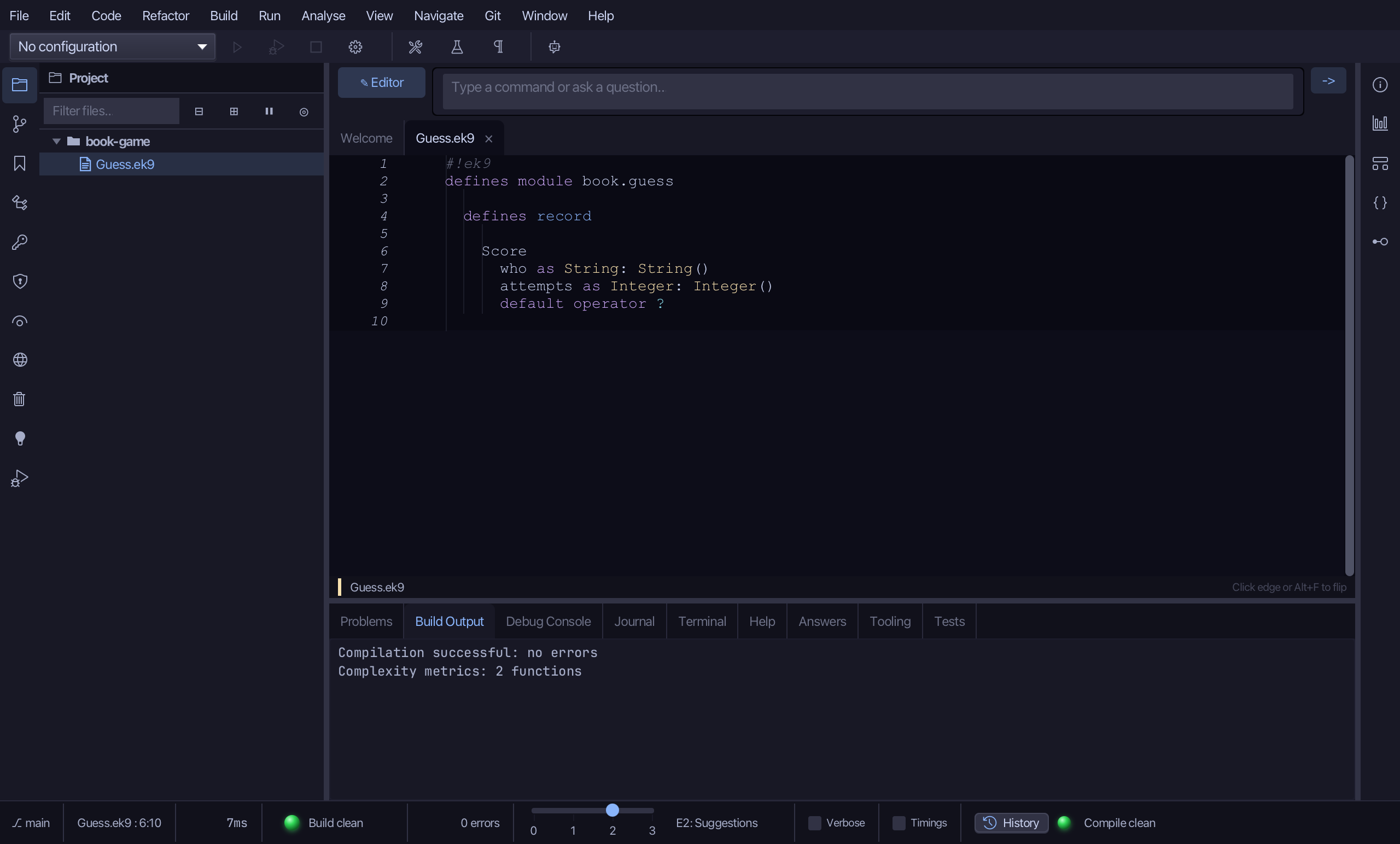
The preview shows Score about to be written, both fields together - and default operator ? with them: a record that holds fields must say when it counts as set. Choose Apply.
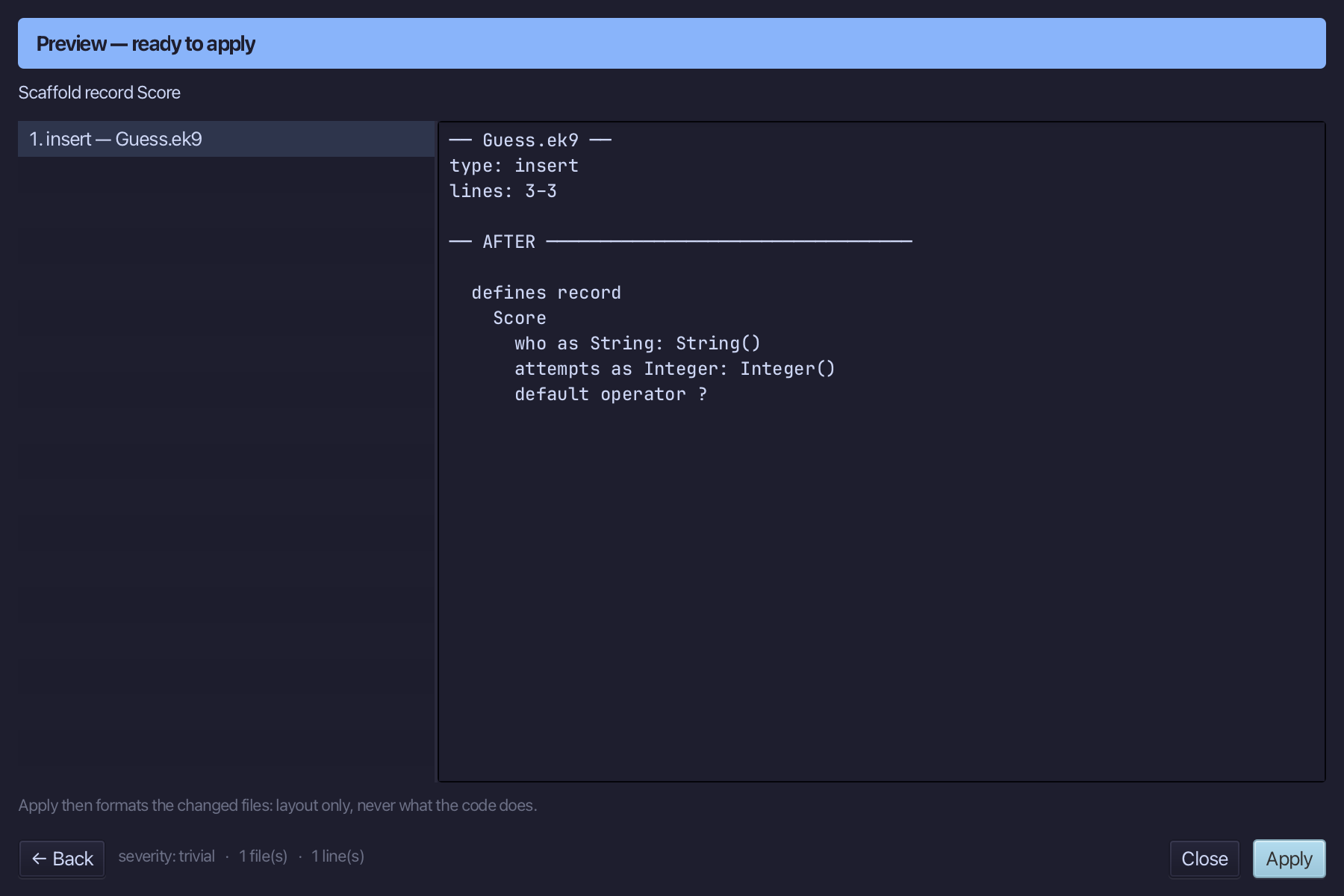
Select the Score line, and above it type the blank line every chapter example (but 16) opens its first member with. Saves when typed.
Step 2: Building a Score, blank then complete
Right-click the Score line and choose Add Constructor > No-Arg (default, pure) - a blank Score to fall back on.
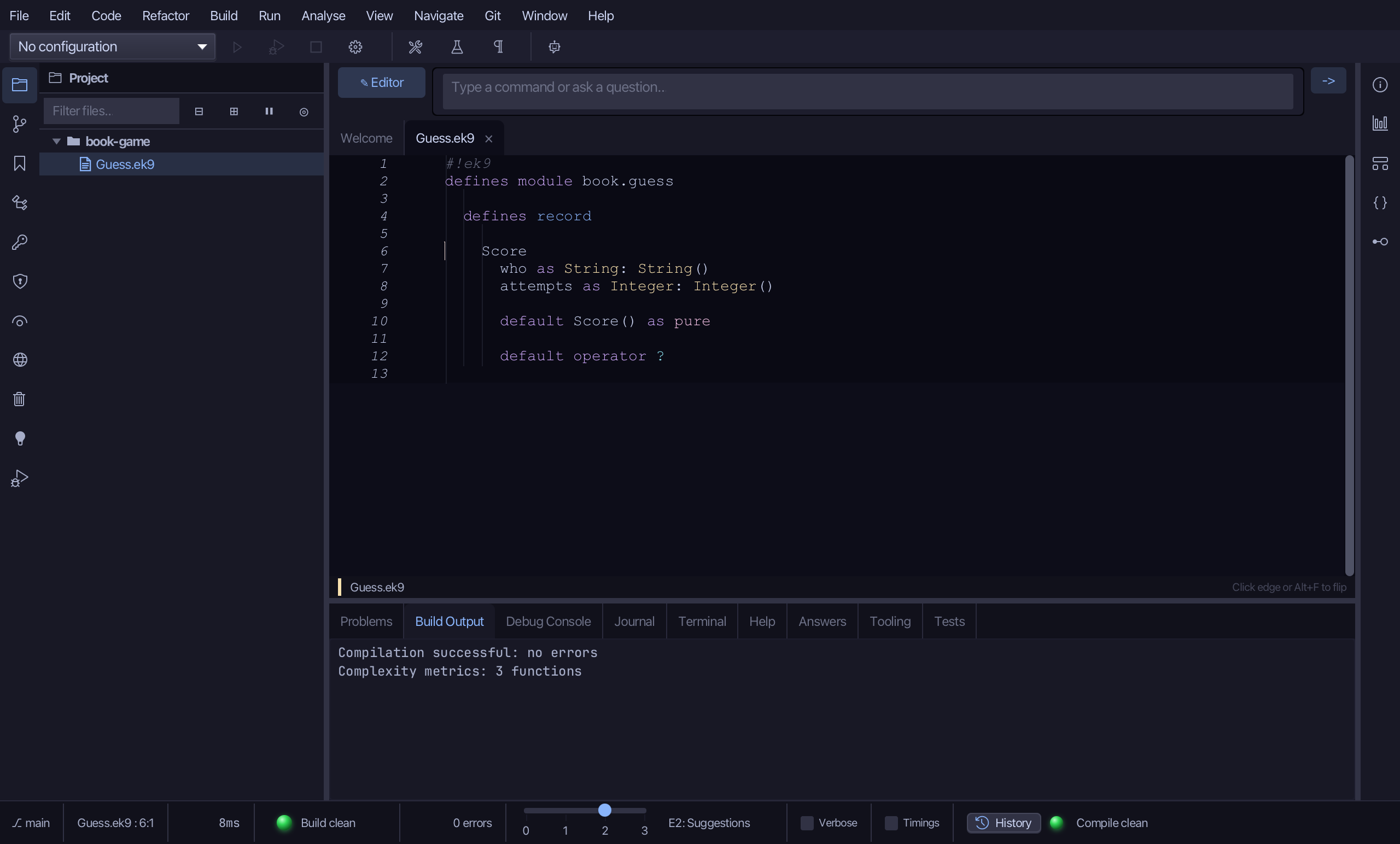
Right-click the Score line again and choose Add Constructor > From All Fields (pure) - a value built complete, in one step, added straight after the one just made.
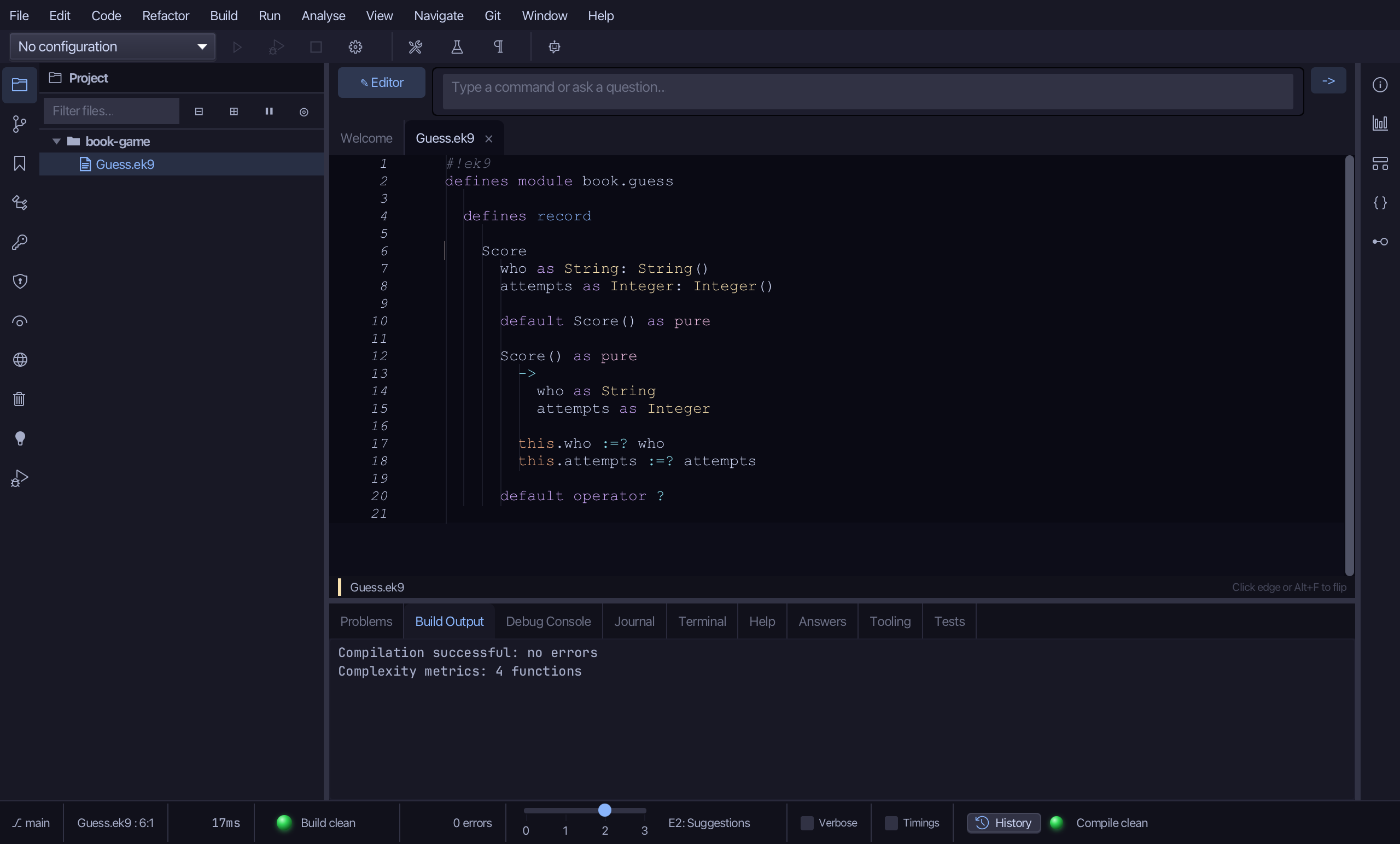
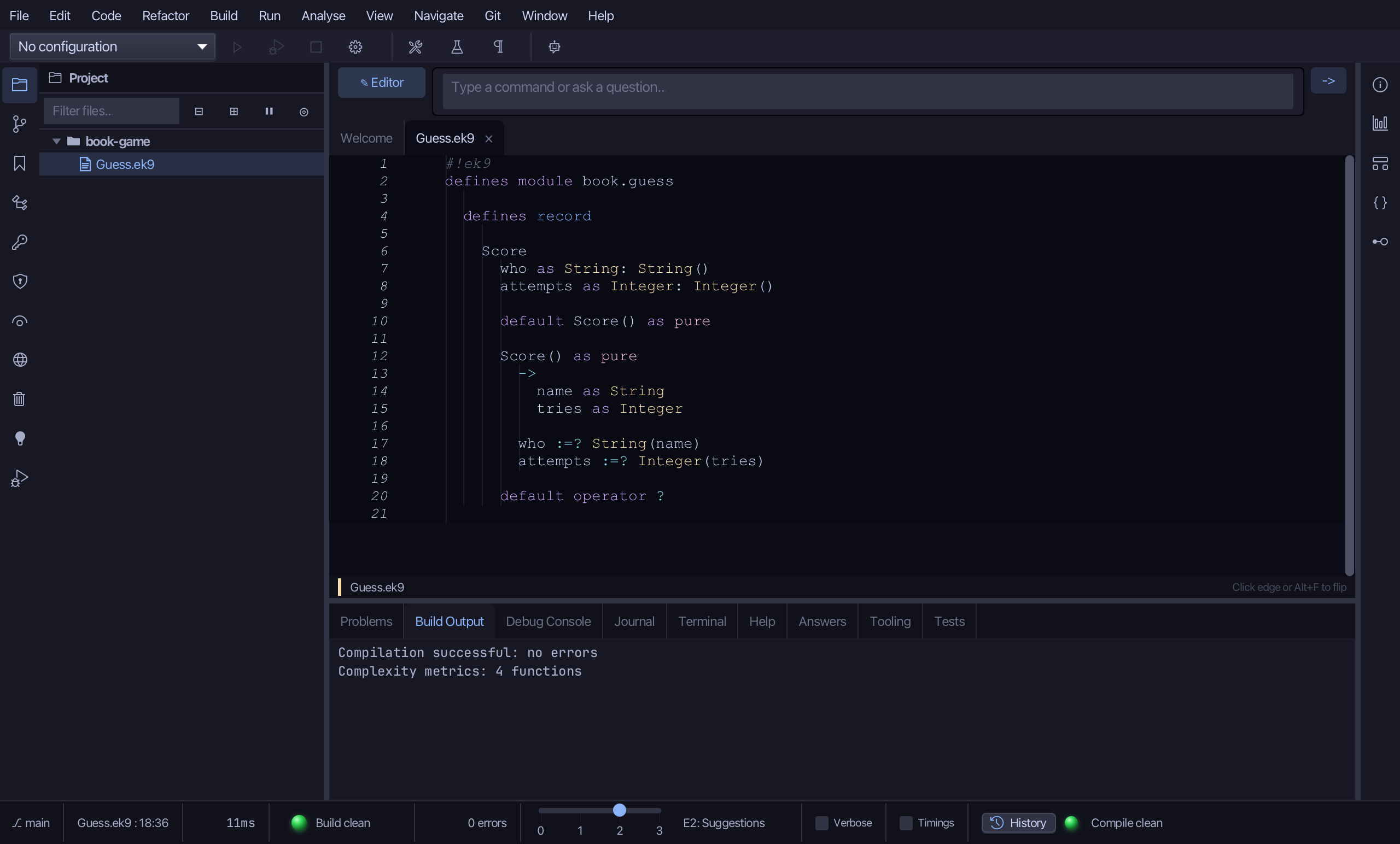
Select the stub, from Score() as pure down to its last assignment, and type the constructor's whole job: name/tries in, who and attempts set with :=? over String(...)/Integer(...). Saves when typed.
Step 3: Score's own operators
Right-click the Score line and choose Add Operator > $ (string) > skeleton.
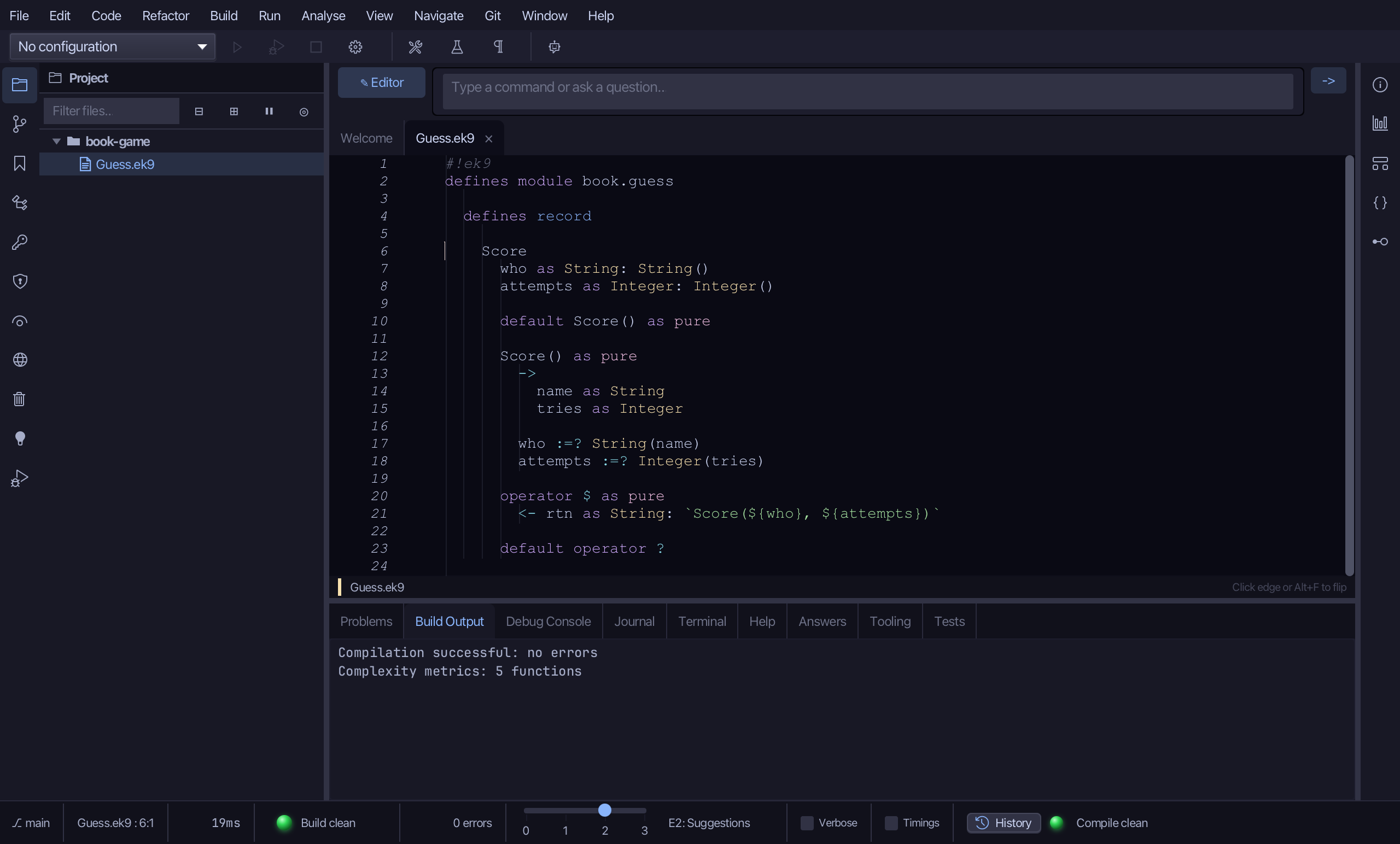
Select the stub line and type $'s own text form - the name, then the tries in parentheses. Saves when typed.
Right-click the Score line and choose Add Operator > <=> (compare) > skeleton - not default: Score orders by attempts alone, not both fields. A hand-written <=> needs a hand-written #? over the same fields (E07184), so the tool writes BOTH stubs together, in this one call.
Select the stub, from <- rtn as Integer: 0 down to its last line, and type the real comparison: attempts <=> other.attempts, in one line. Saves when typed.
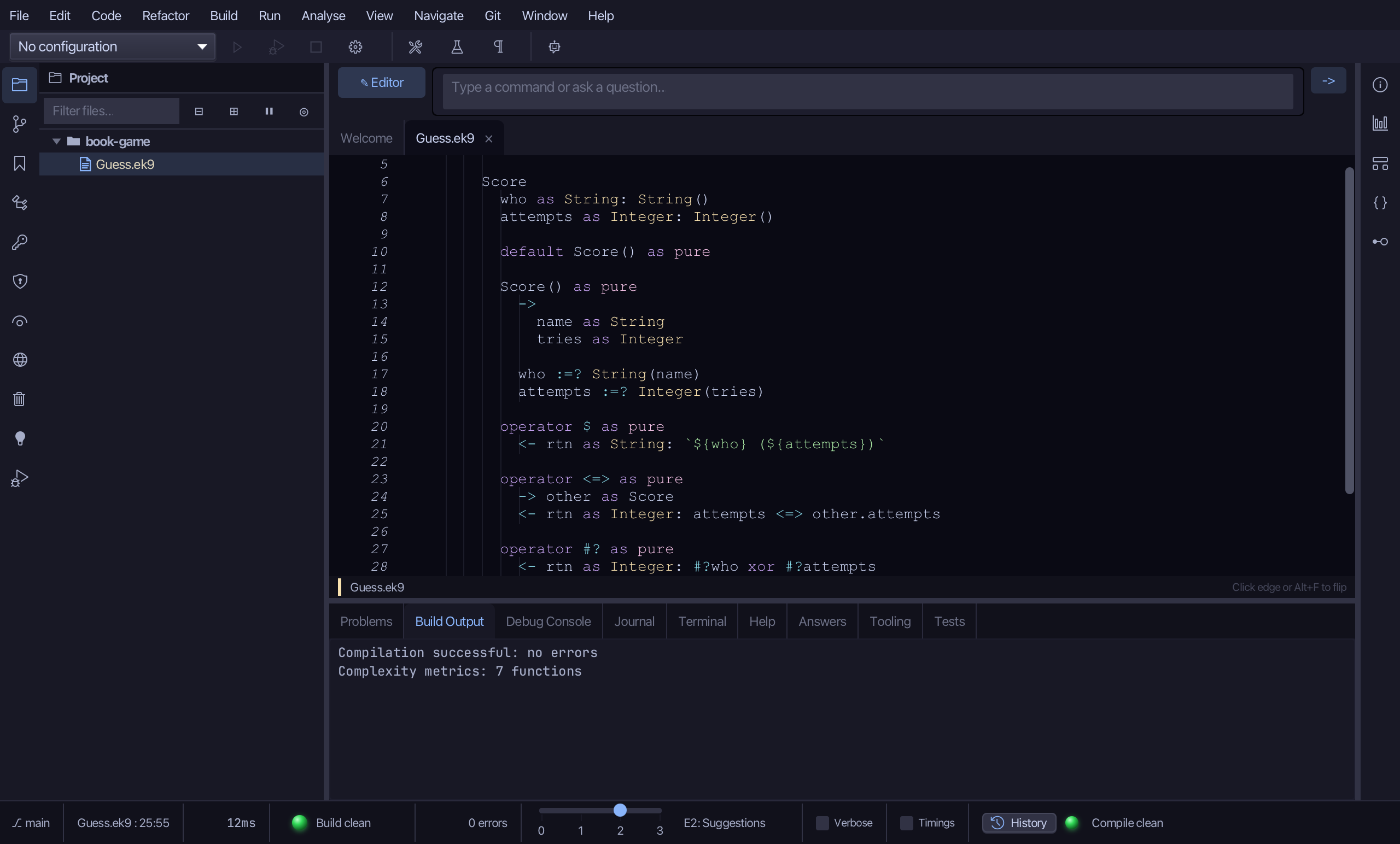
Select the #? stub line and type the real hash: #? attempts alone. Saves when typed.
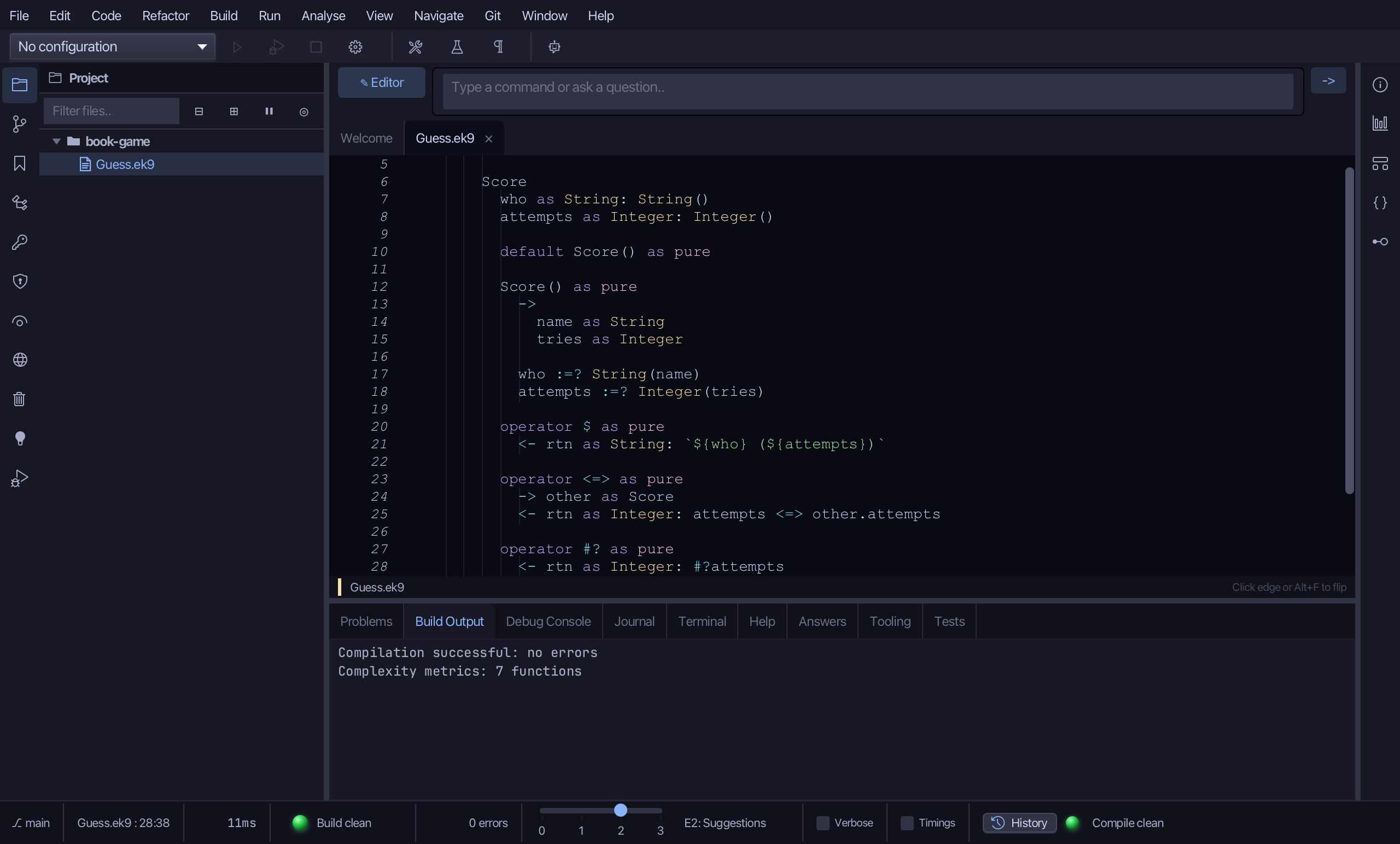
Step 4: Game — a class, with its first fields
Choose Code > New Construct > Class…
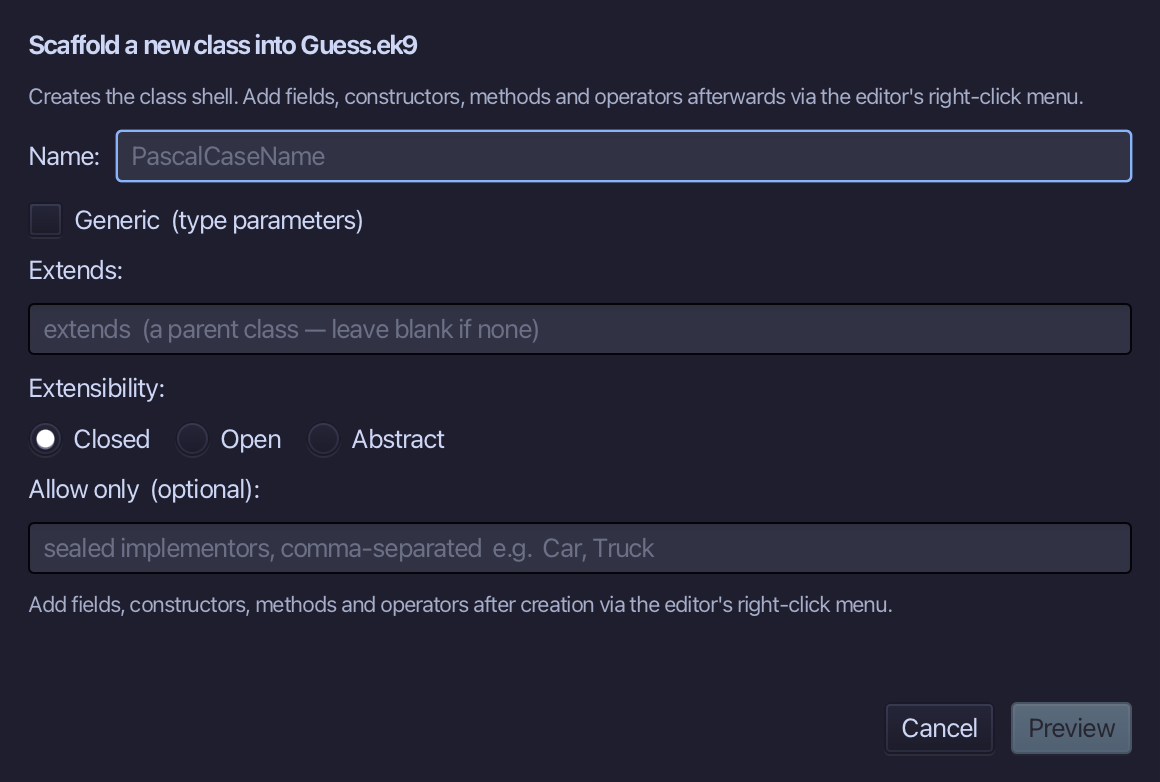
Game is the class's name. Closed is already selected - EK9's default. Type Game and choose Preview.
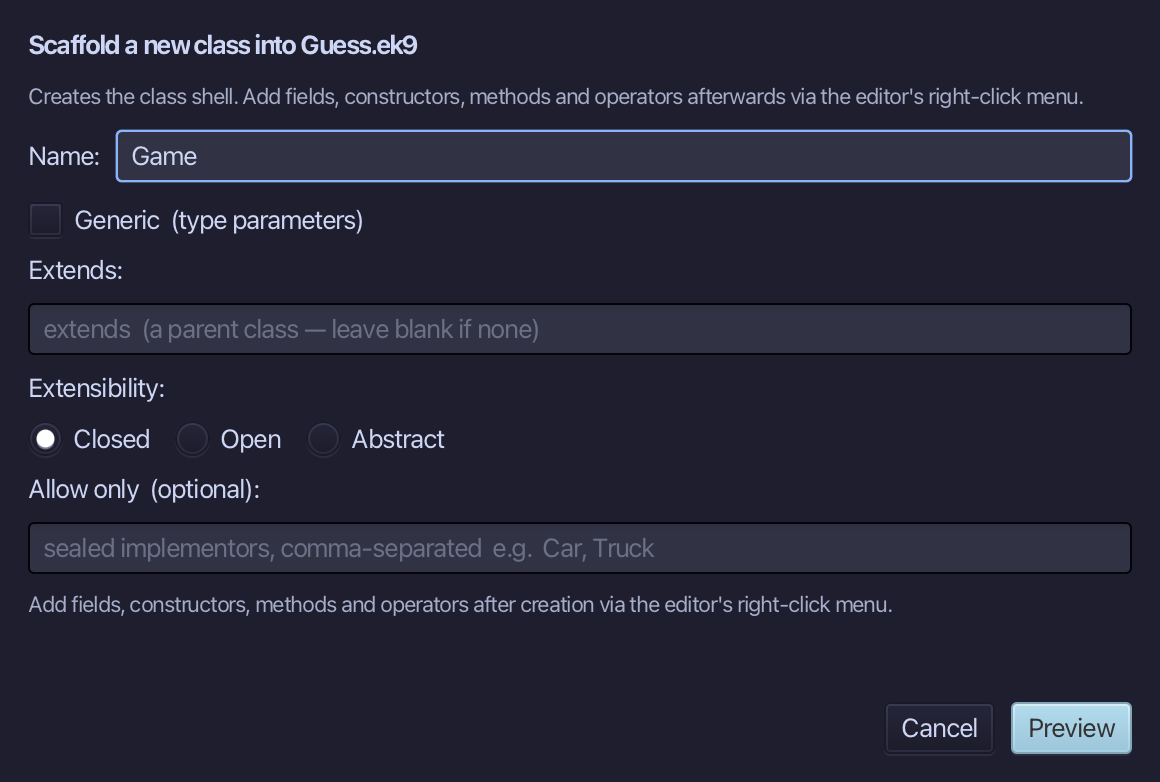
The preview shows Game about to be written - a shell, nothing inside it yet. Choose Apply.
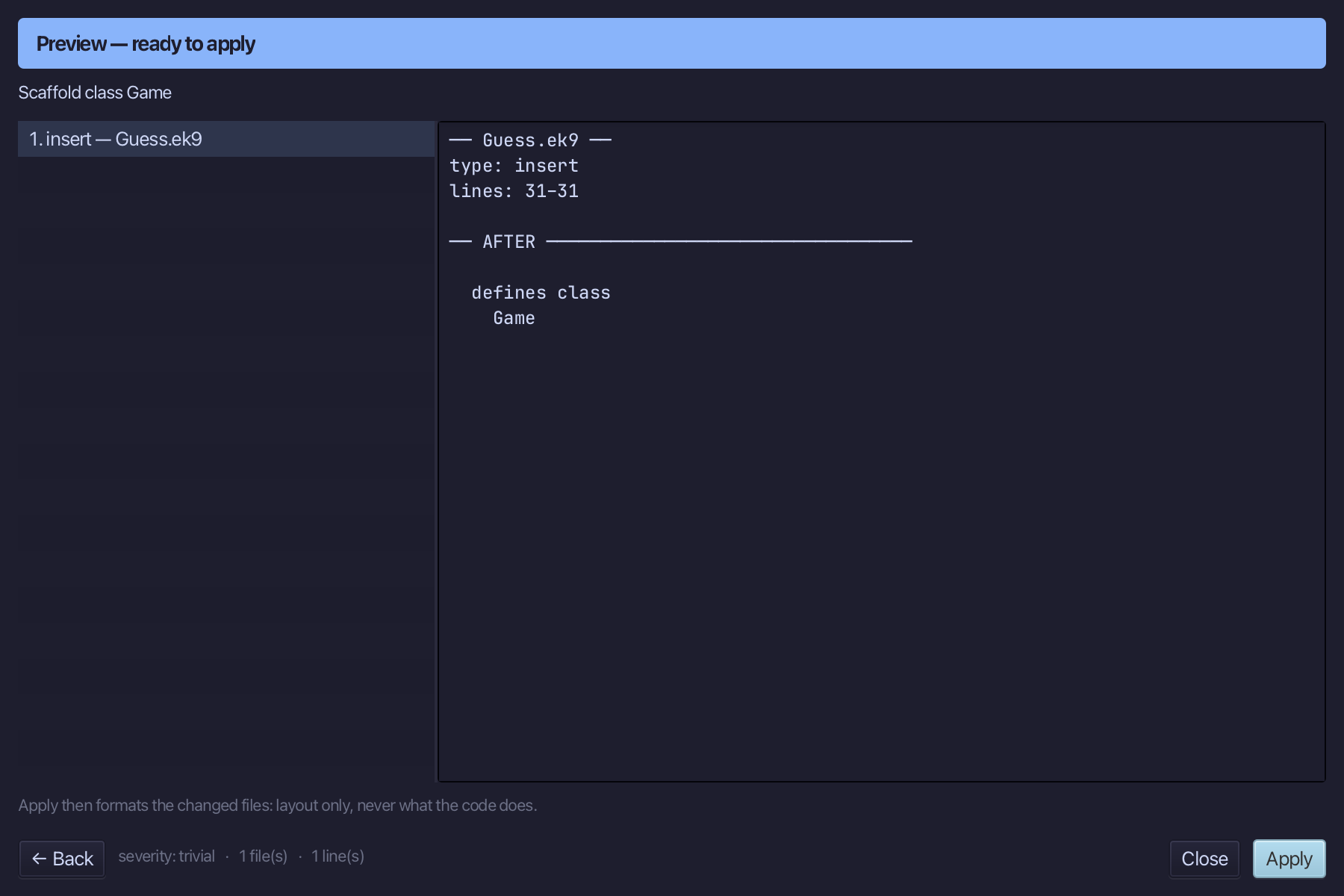
Select the Game line, and above it type the comment explaining what a game holds. Saves when typed.
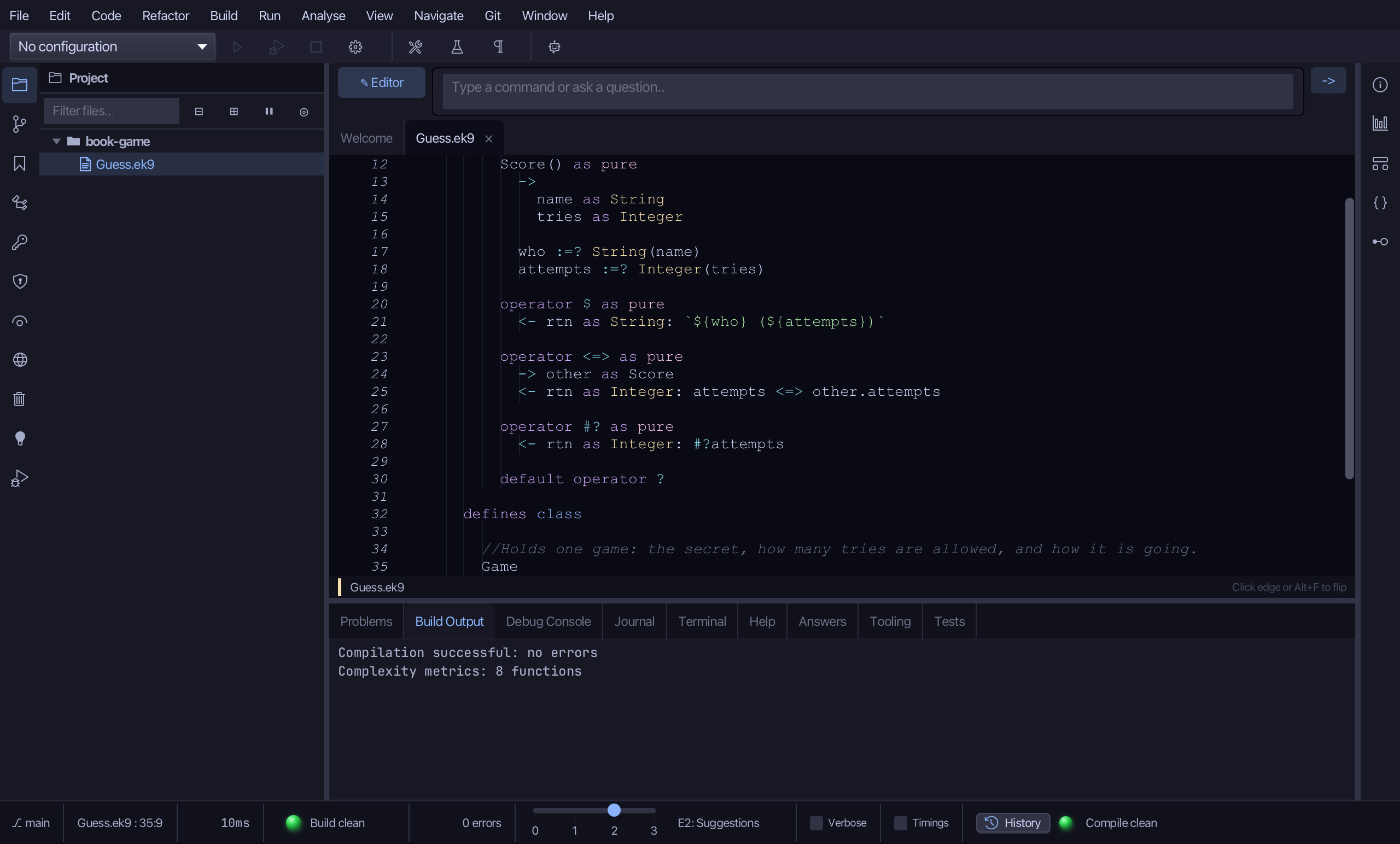
Right-click the Game line and choose Add Field…
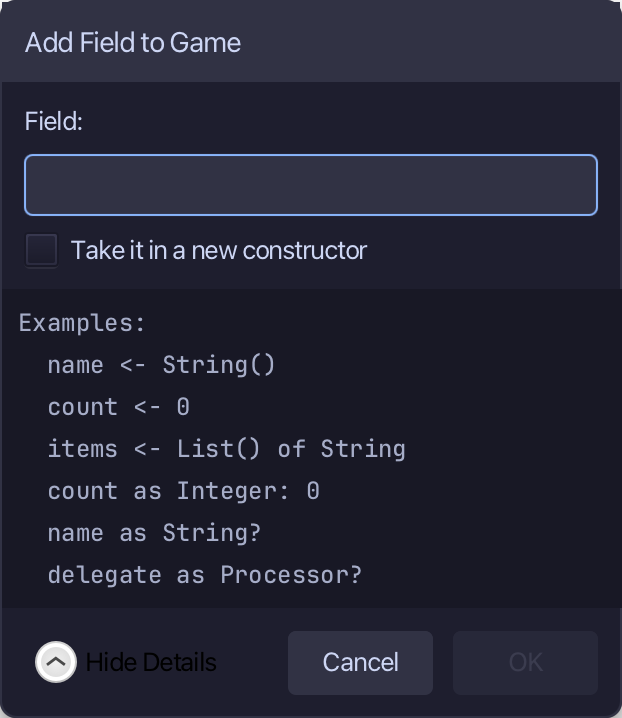
Type secret as Integer: Integer() - the chosen number, not yet known. Choose OK.
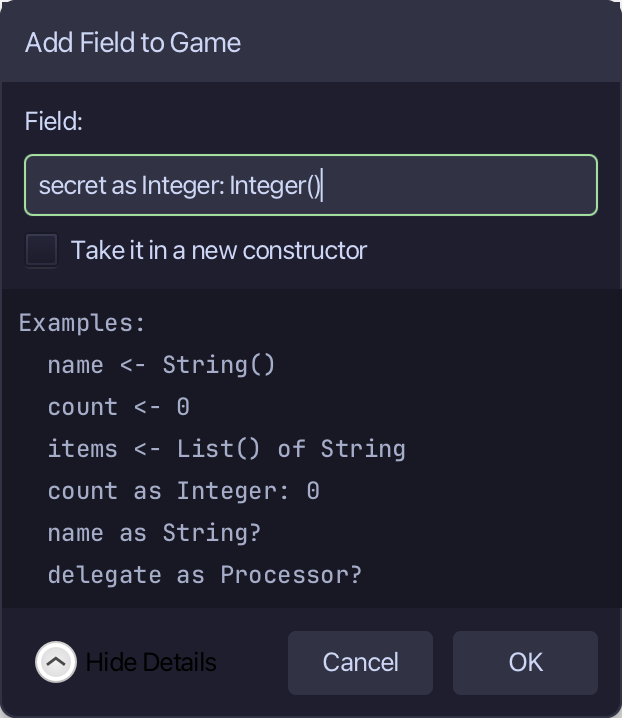
The preview shows secret added - and default operator ? with it: a class that holds fields must say when it counts as set. Choose Apply.
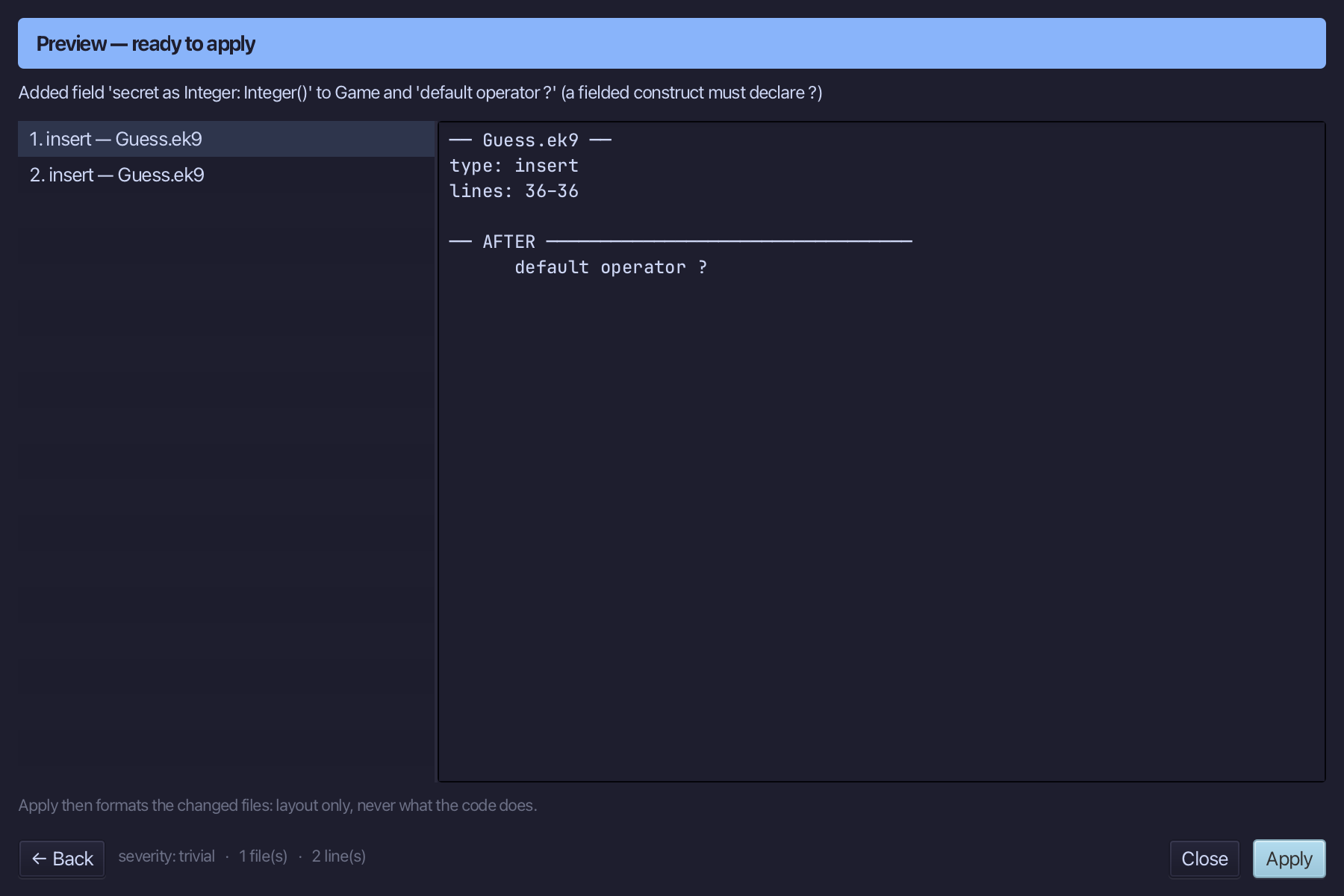
Right-click the Game line and choose Add Field…
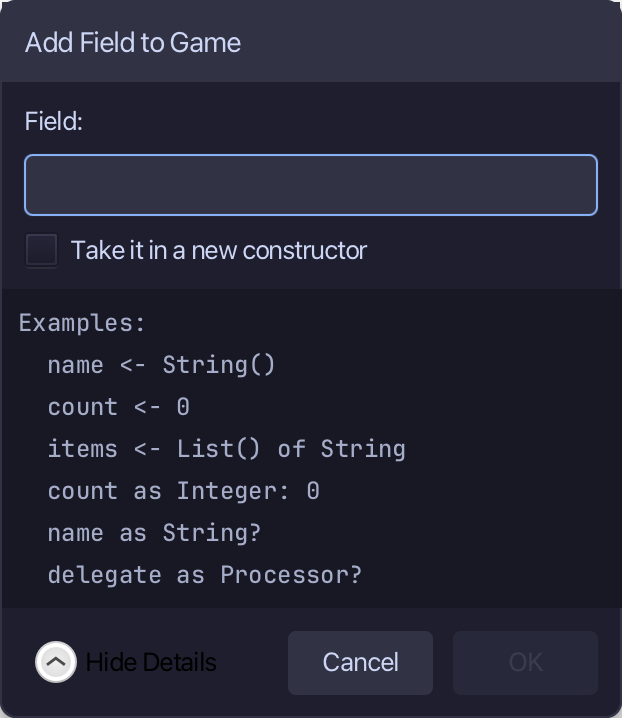
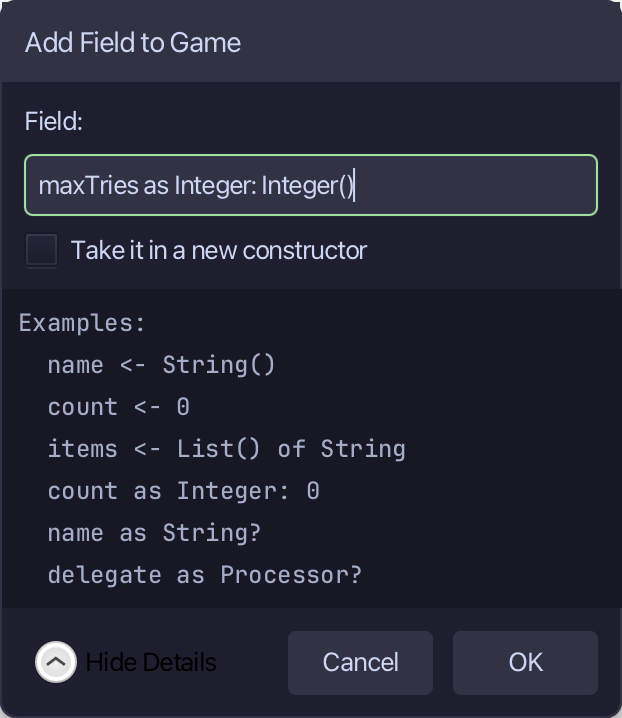
Type maxTries as Integer: Integer() - how many tries the game allows. Choose OK.
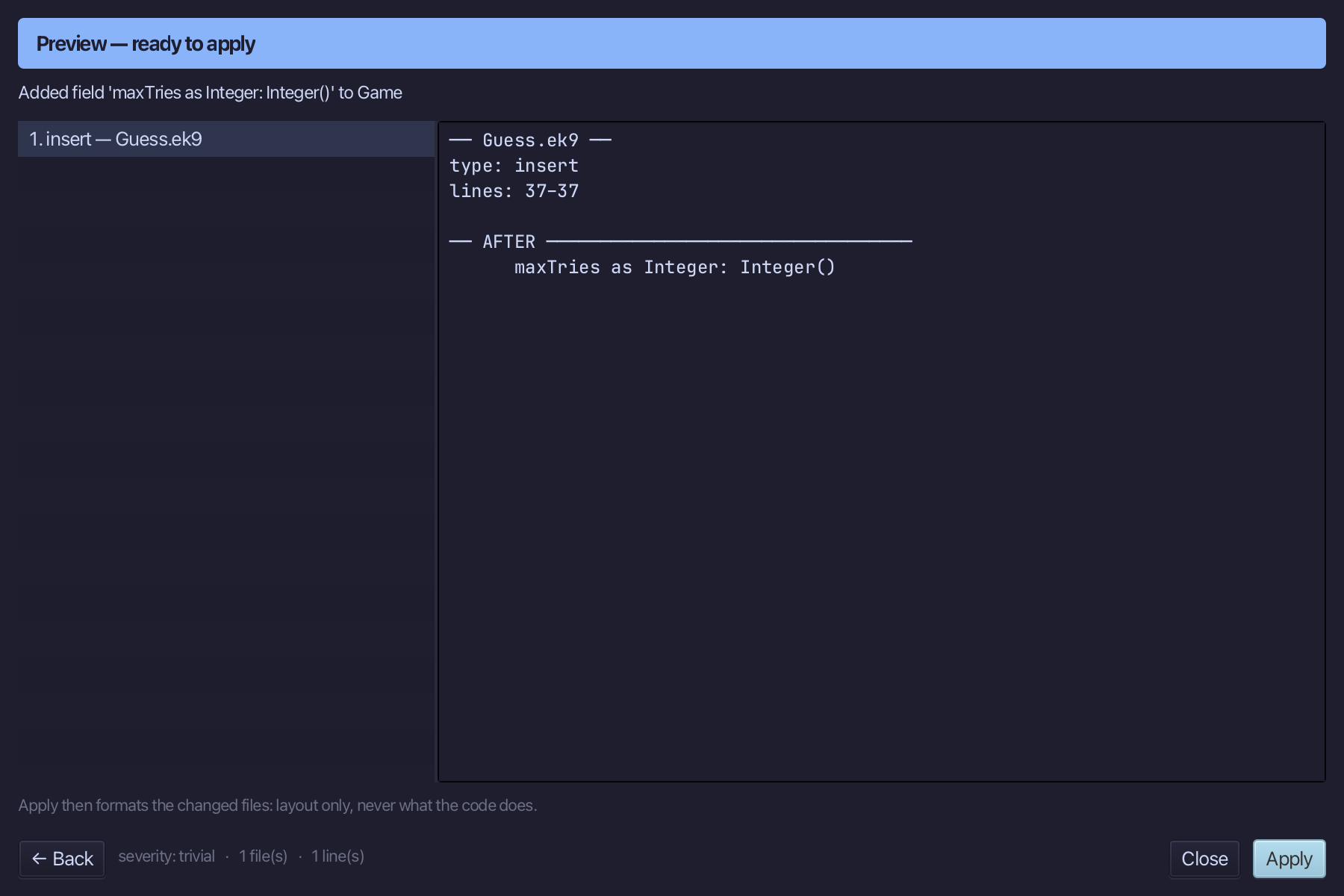
The preview shows maxTries added, beside secret. Choose Apply.
Step 5: Building a Game, blank then complete
Right-click the Game line and choose Add Constructor > Private No-Arg (default, pure) - private, so nothing outside the class can build a half-made game.
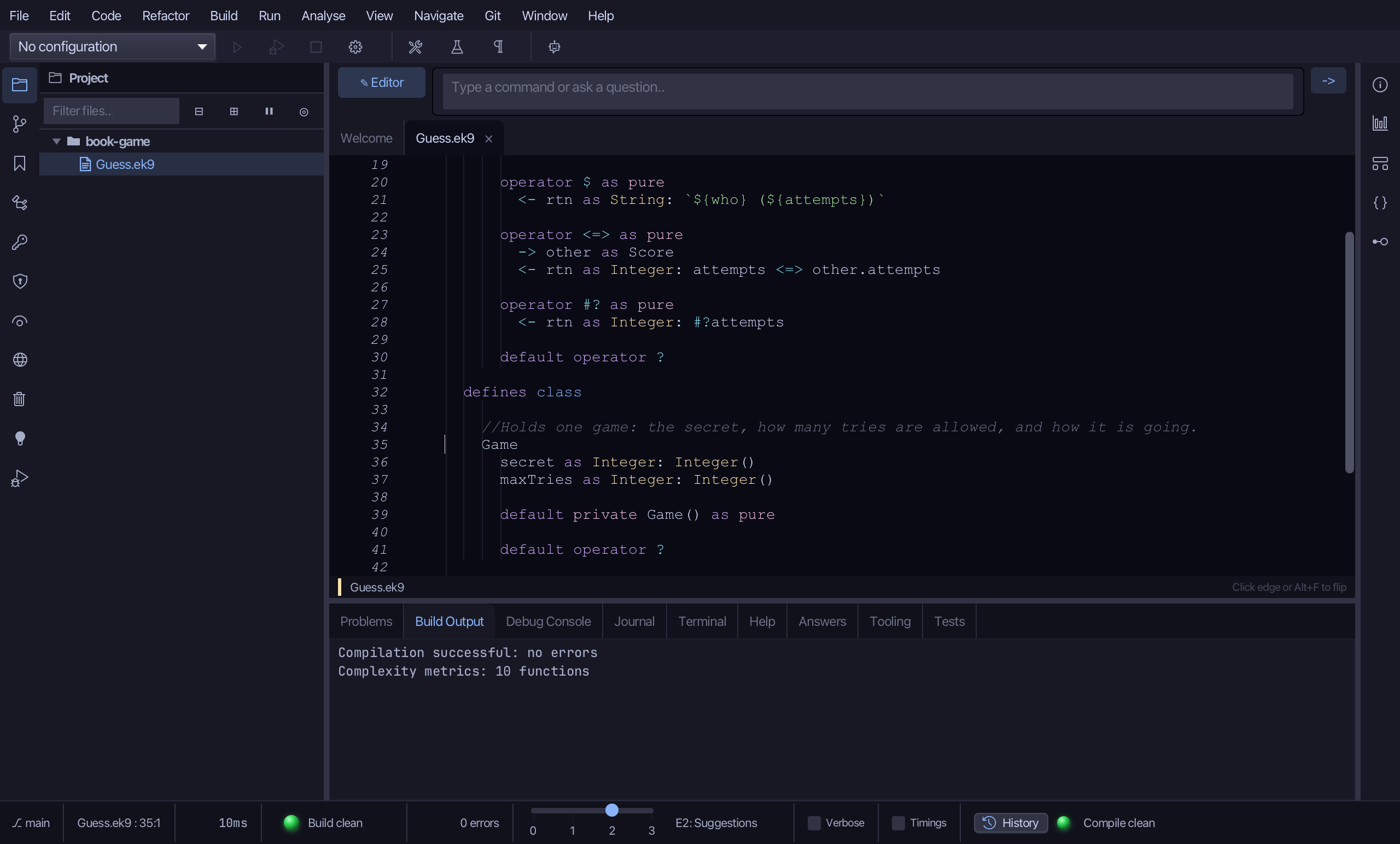
Right-click the Game line again and choose Add Constructor > From All Fields (pure) - over secret and maxTries, the only two fields there are so far.
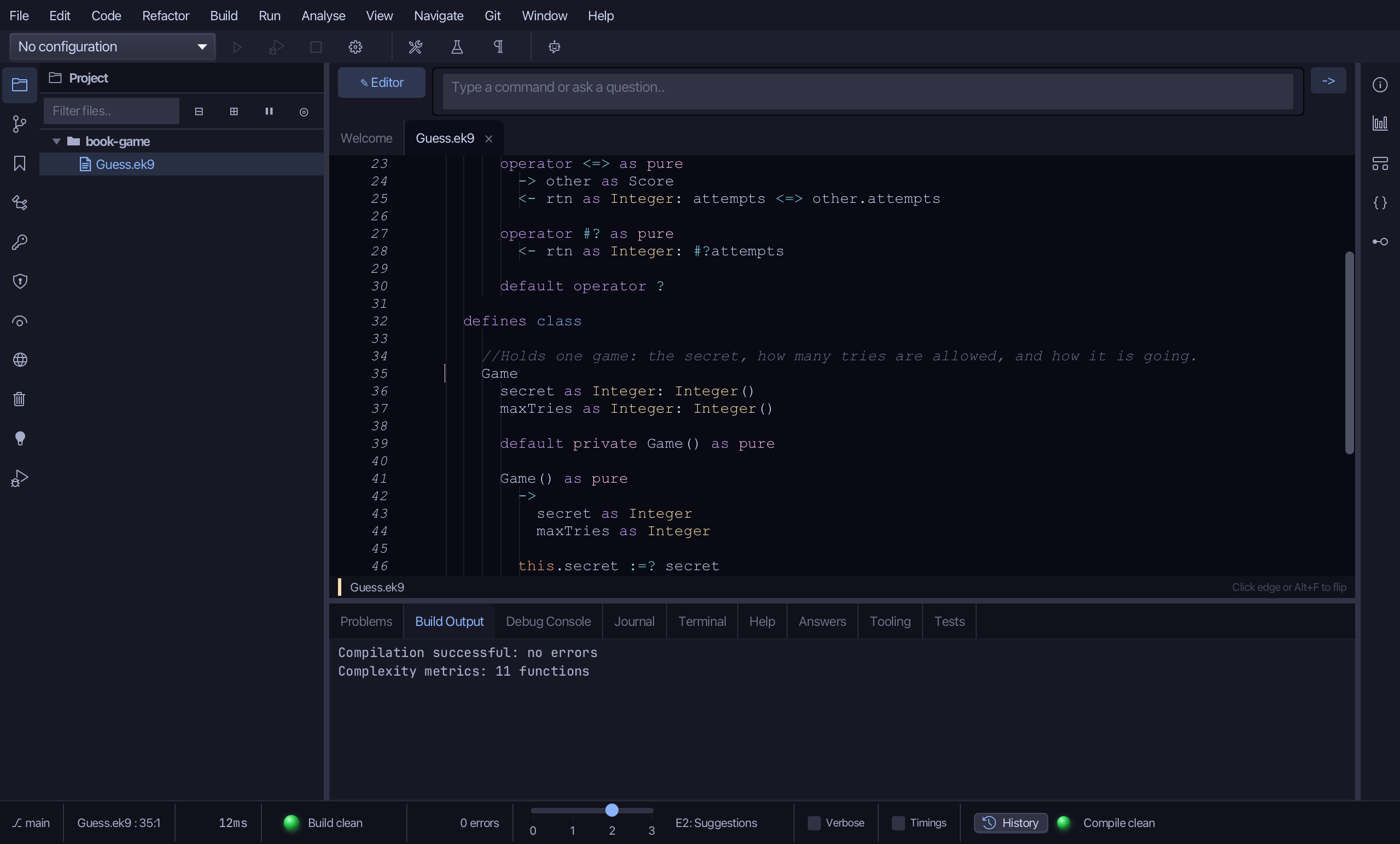
Select the stub, from Game() as pure down to its last assignment, and type the constructor's whole job: chosen/allowed in, secret and maxTries set with :=? over Integer(...). Saves when typed.
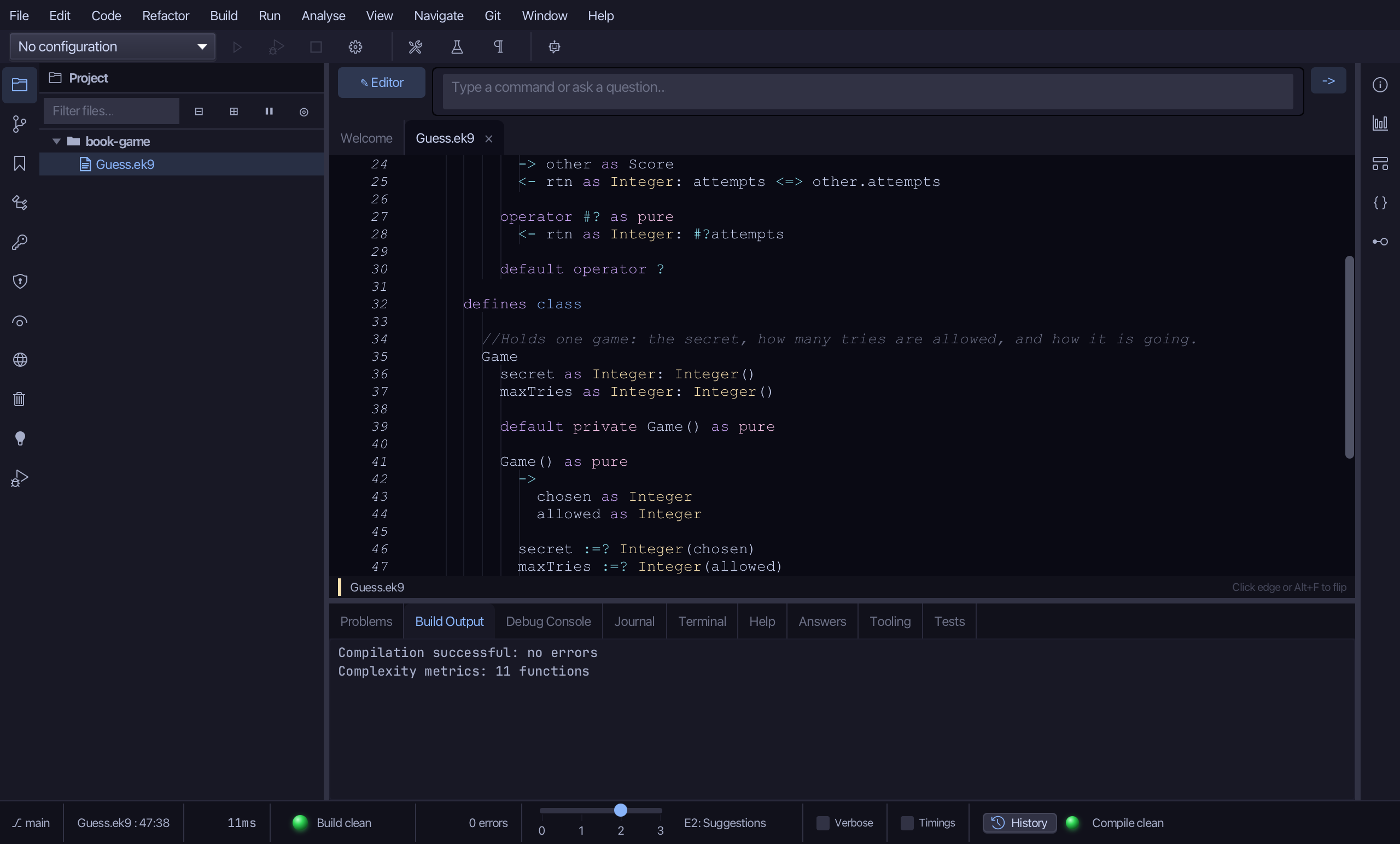
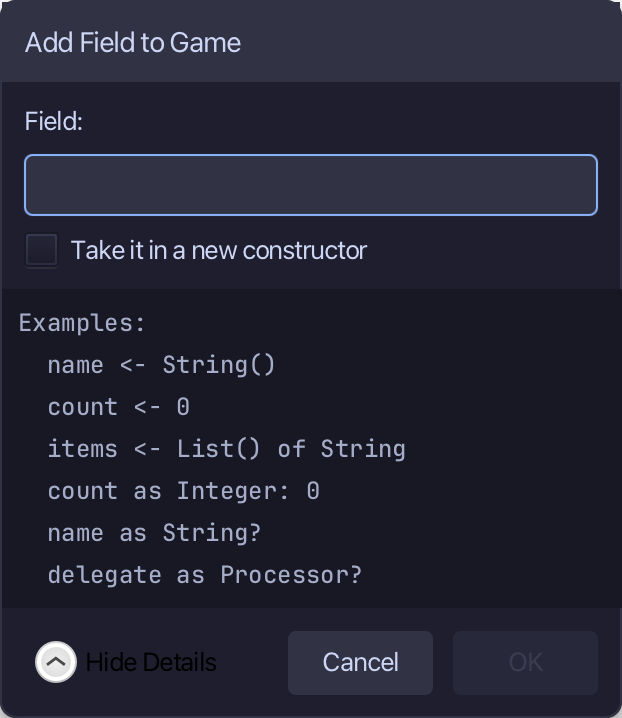
Right-click the Game line and choose Add Field…
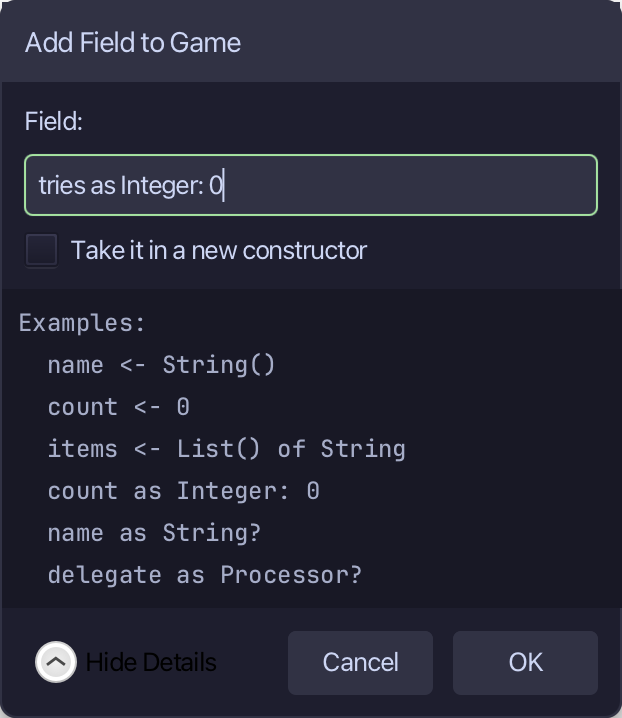
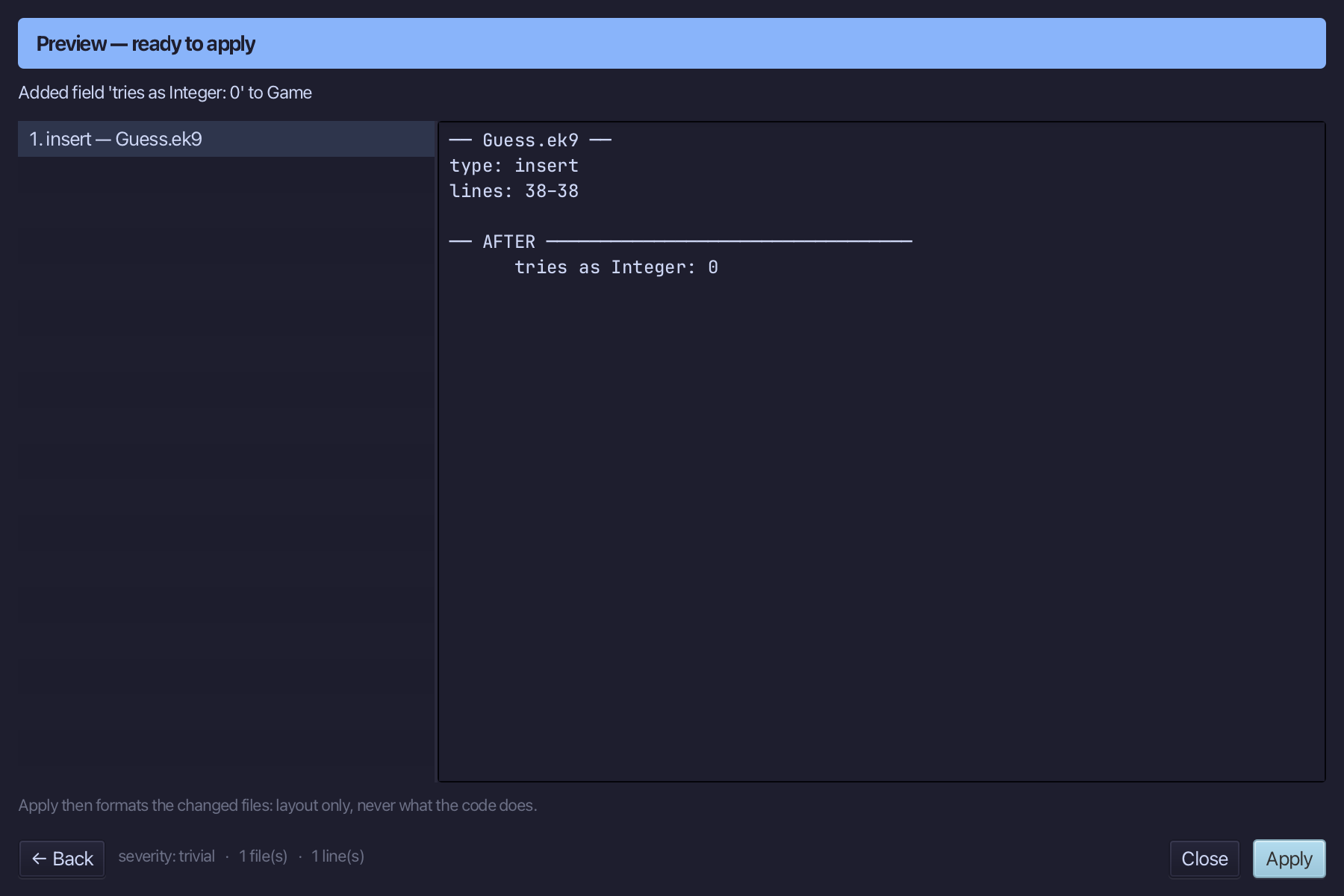
Type tries as Integer: 0 - how many guesses used so far, started at zero (a field that starts unset here would mean over() could never become true - this is the bug the book's own first test caught). Choose OK.
The preview shows tries landing right after maxTries - ahead of both constructors, where every field belongs. Choose Apply.
Right-click the Game line and choose Add Field…
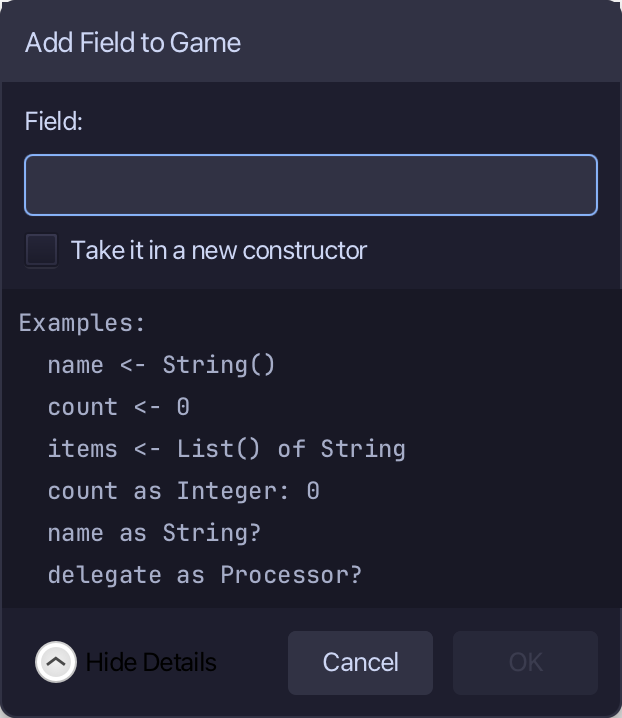
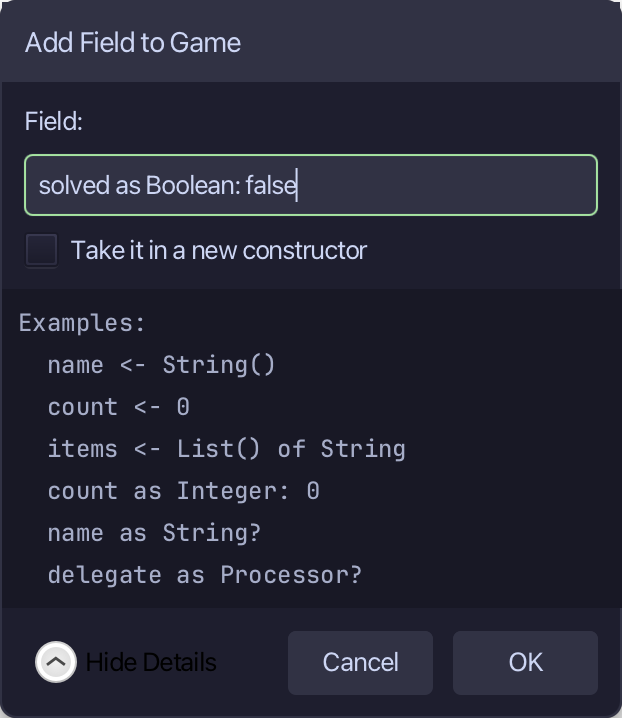
Type solved as Boolean: false - whether this game has been won yet. Choose OK.
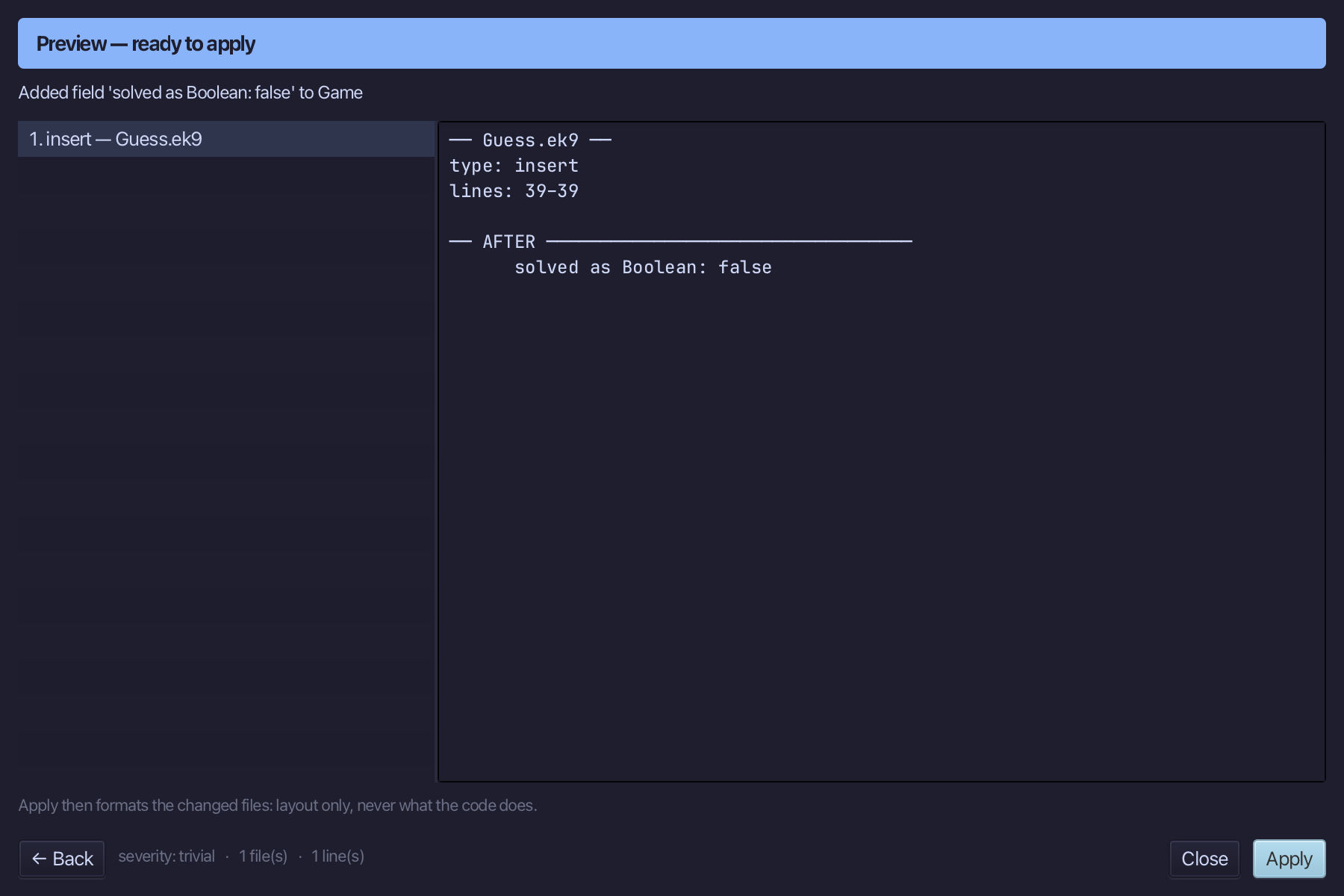
The preview shows solved landing last among the fields, all four together. Choose Apply.
Step 6: guess — taking one guess
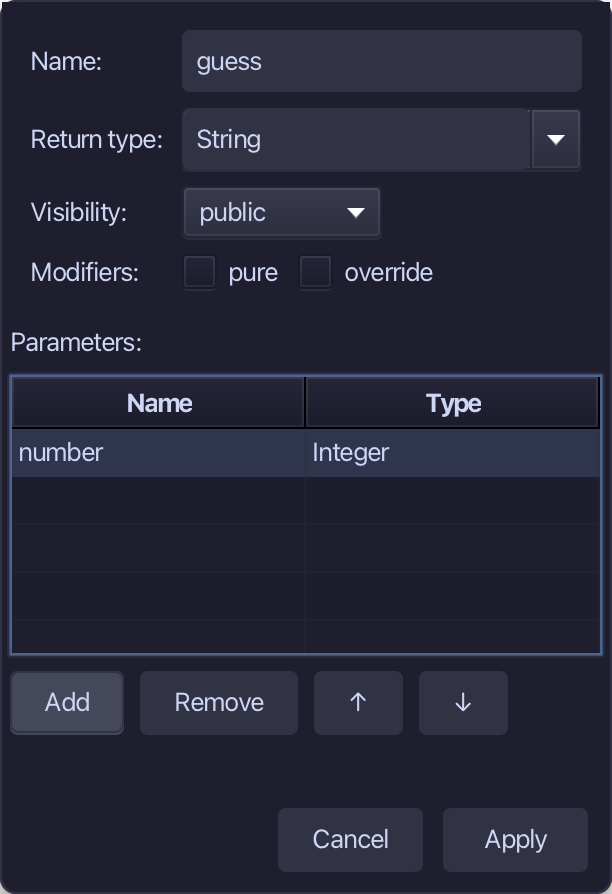
Right-click the Game line and choose Add Method…
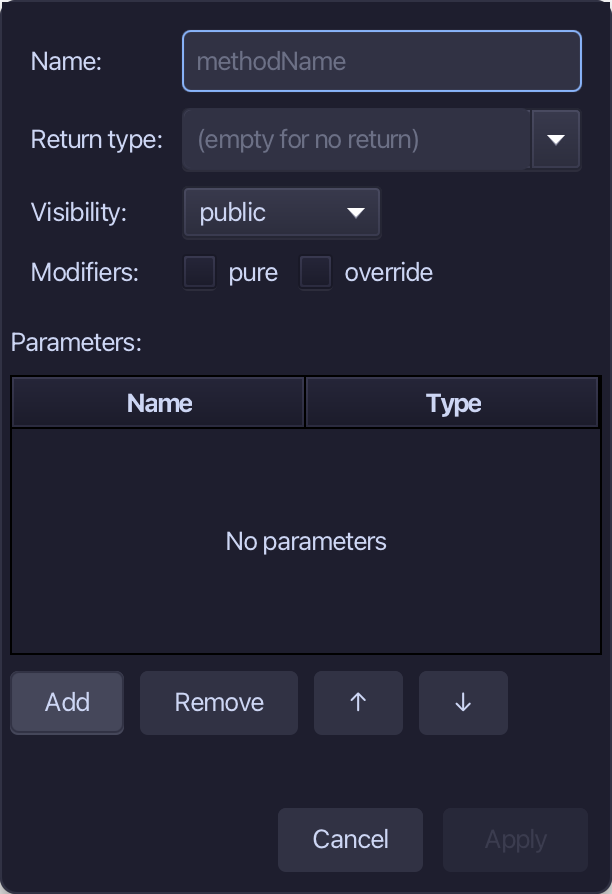
guess is the method's name - one parameter, number as Integer, returning String; not pure, since it changes tries and solved. Add the parameter, fill the rest in, and choose Apply.
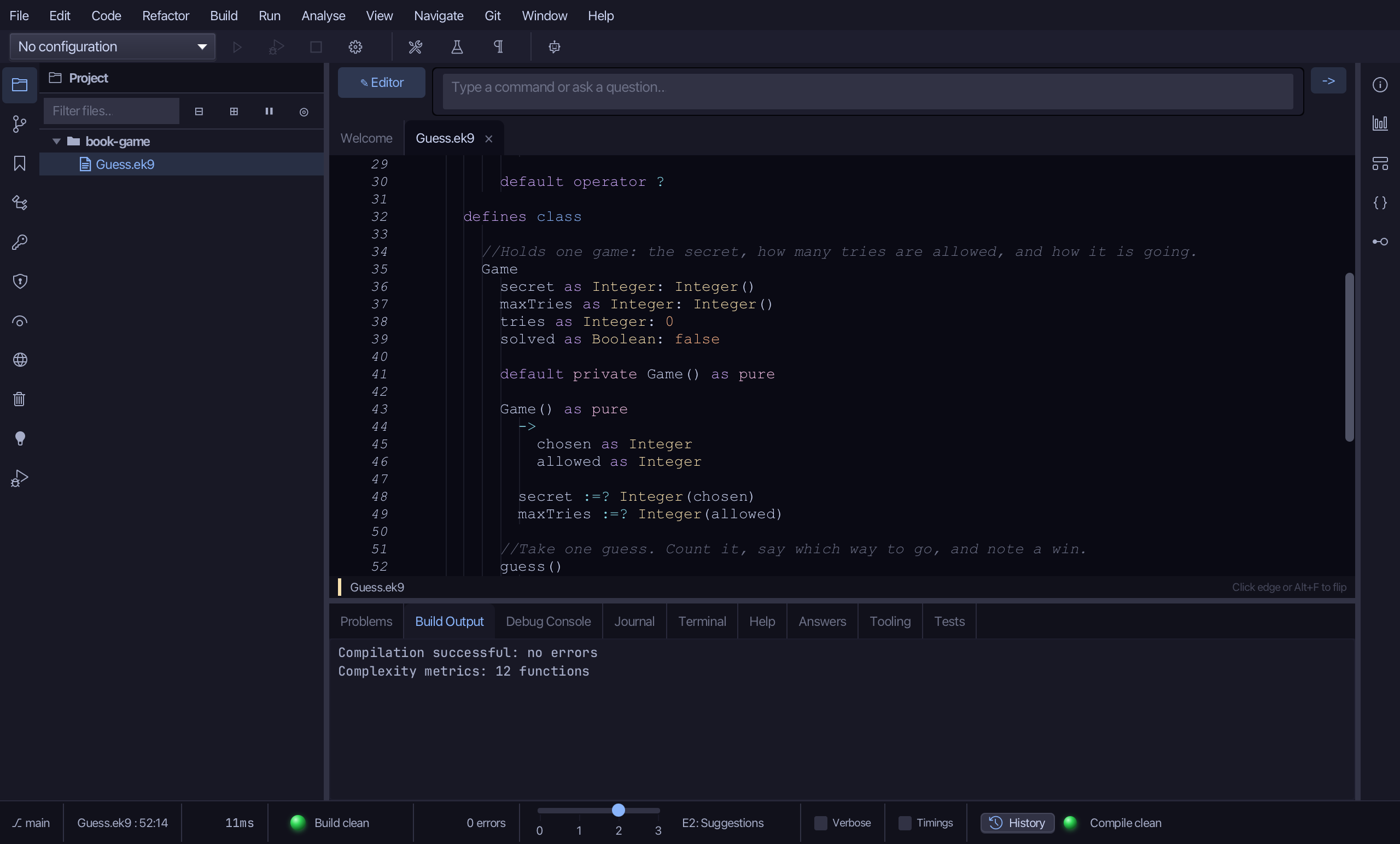
Select the Game line's guess() and above it type the comment - the blank line above it is already there (the tool's own separator between this method and the constructor before it). Saves when typed.
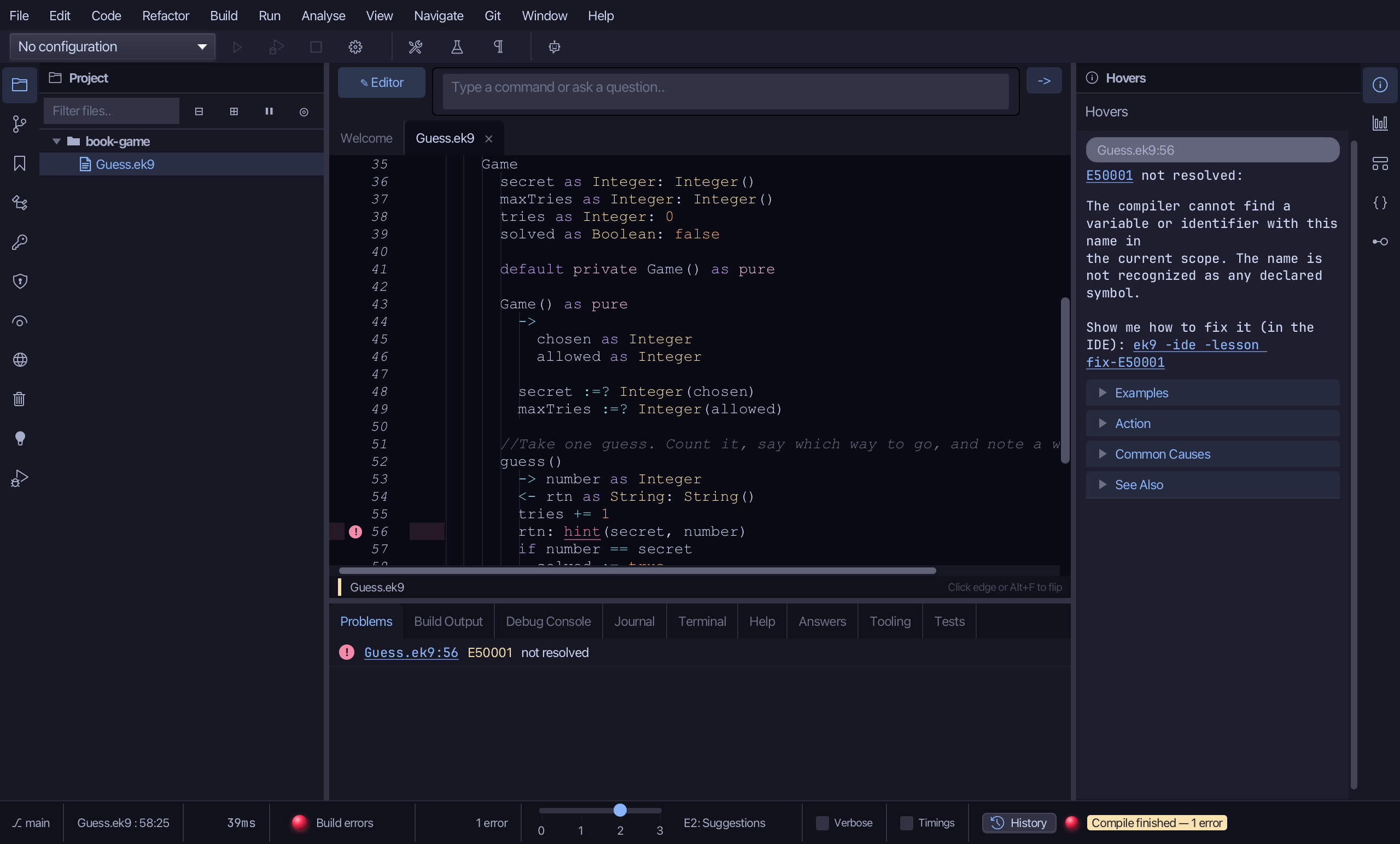
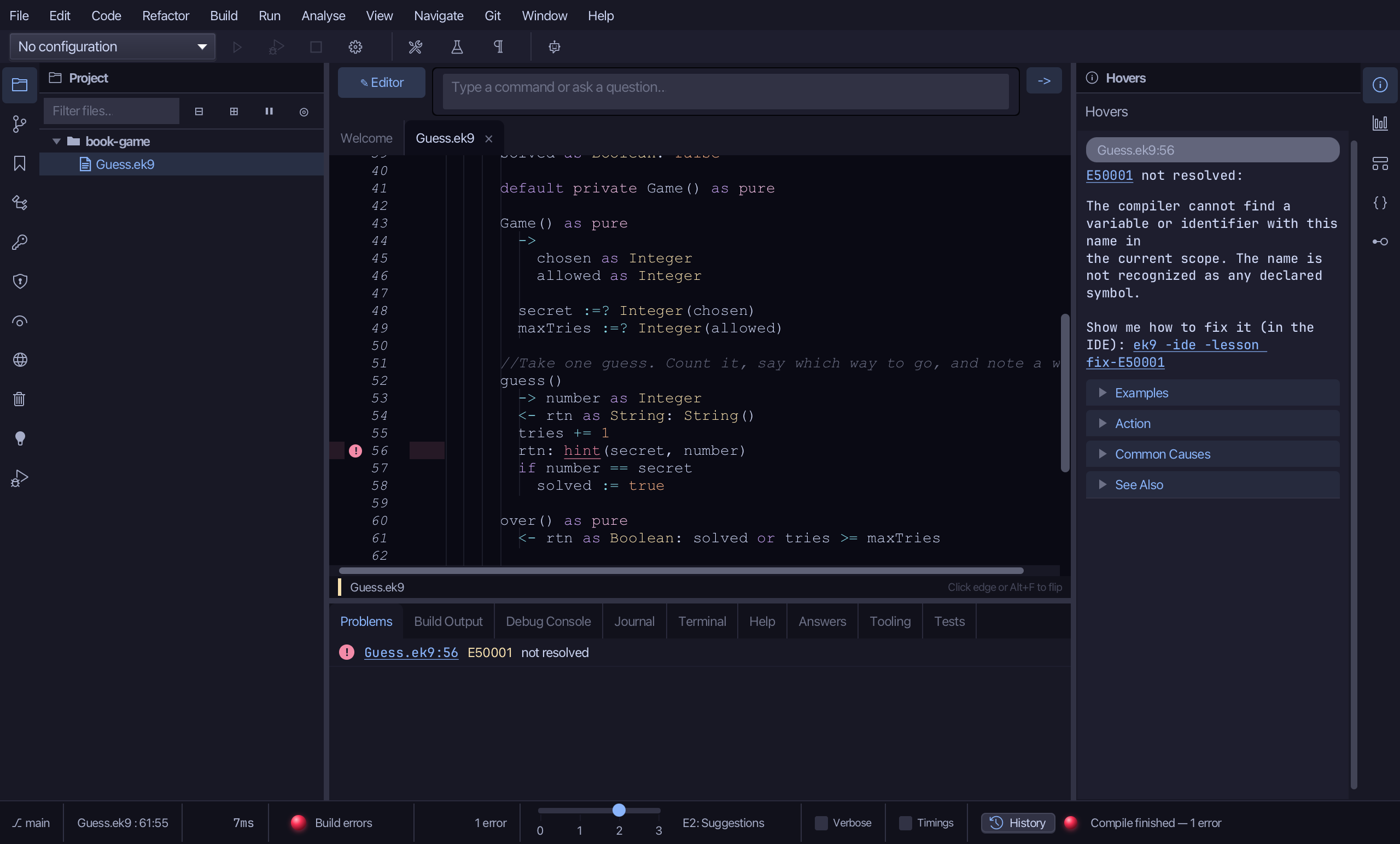
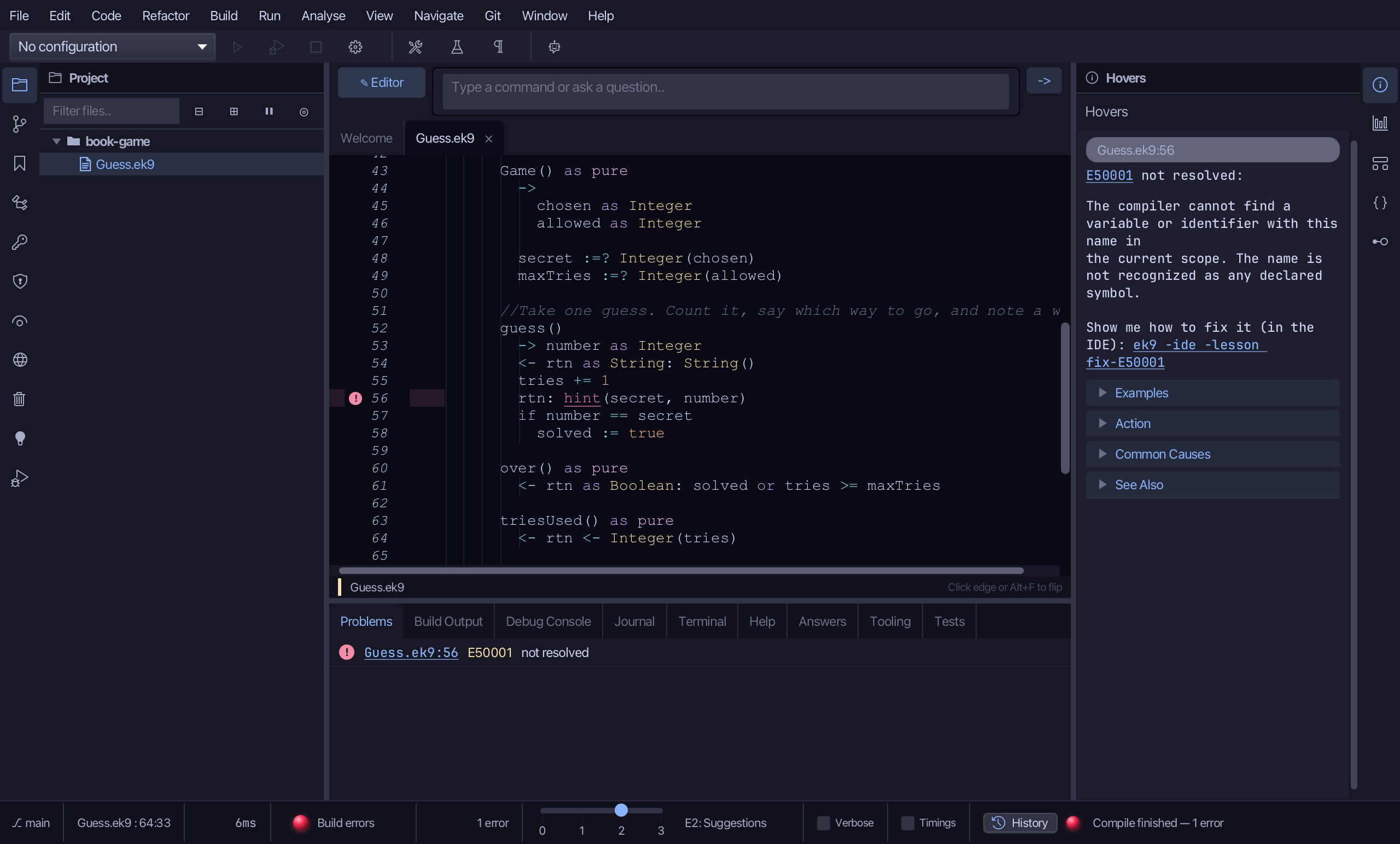
Select the stub, from <- rtn as String? down to its //AI line, and type guess's whole job: count the try, work out the hint, note a win. Saves when typed. guess calls hint(), which is not written yet, so the Problems tab shows one error (E50001) until part 8 writes it.
Step 7: over, triesUsed and report
Right-click the Game line and choose Add Method…
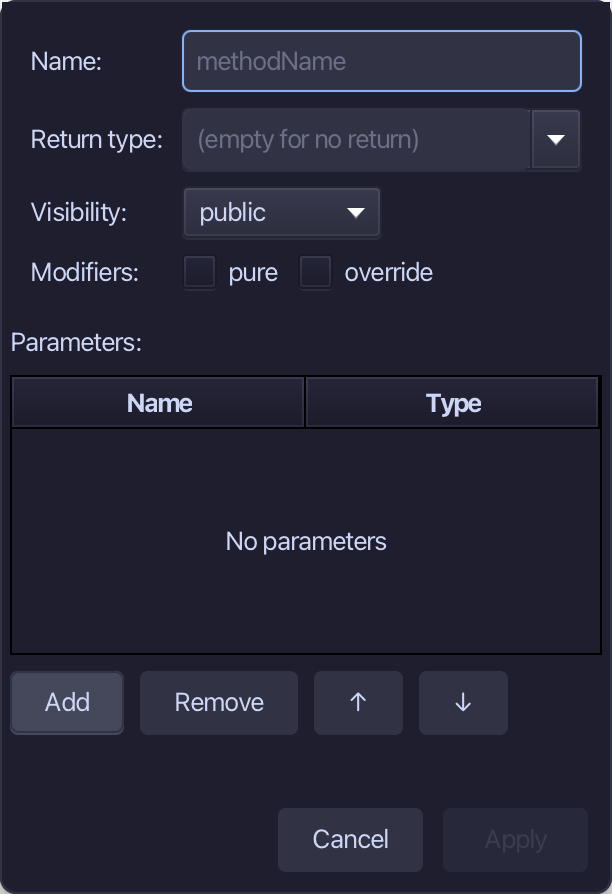
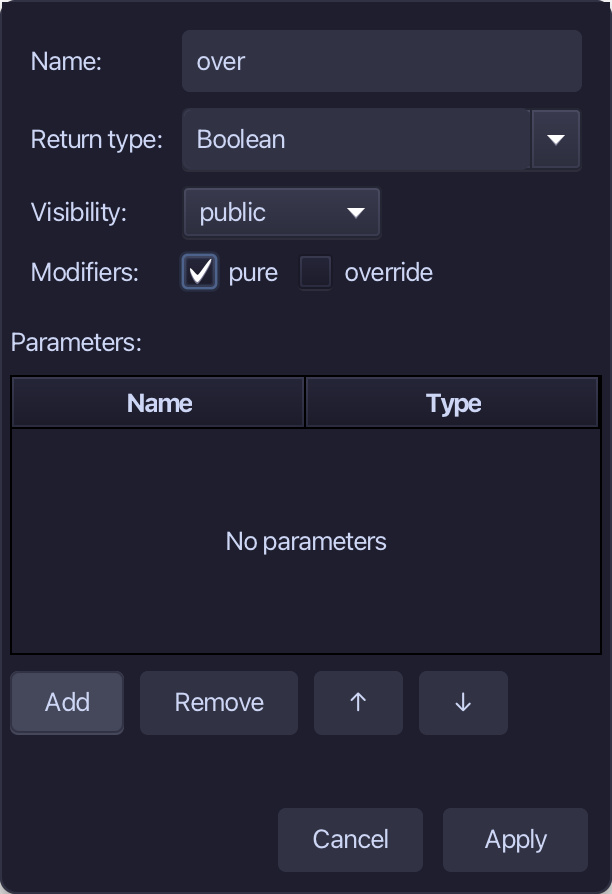
over is the name, Boolean the return type, pure ticked - over only reads the game's state. Fill it in and choose Apply.
Select the stub, from <- rtn as Boolean: false down to its //AI line, and type the real test: solved or tries >= maxTries. Saves when typed.
Right-click the Game line and choose Add Method…
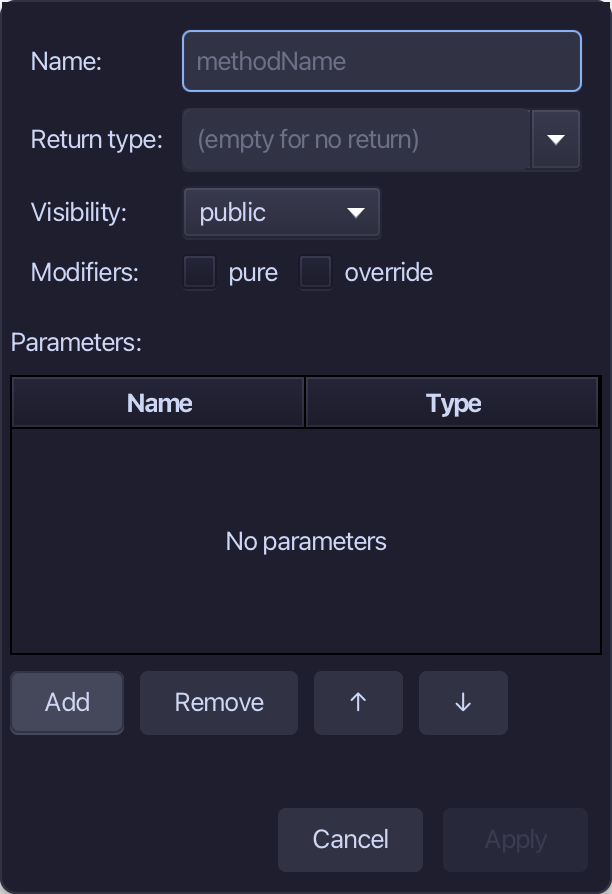
triesUsed is the name, Integer the return type, pure ticked. Fill it in and choose Apply.
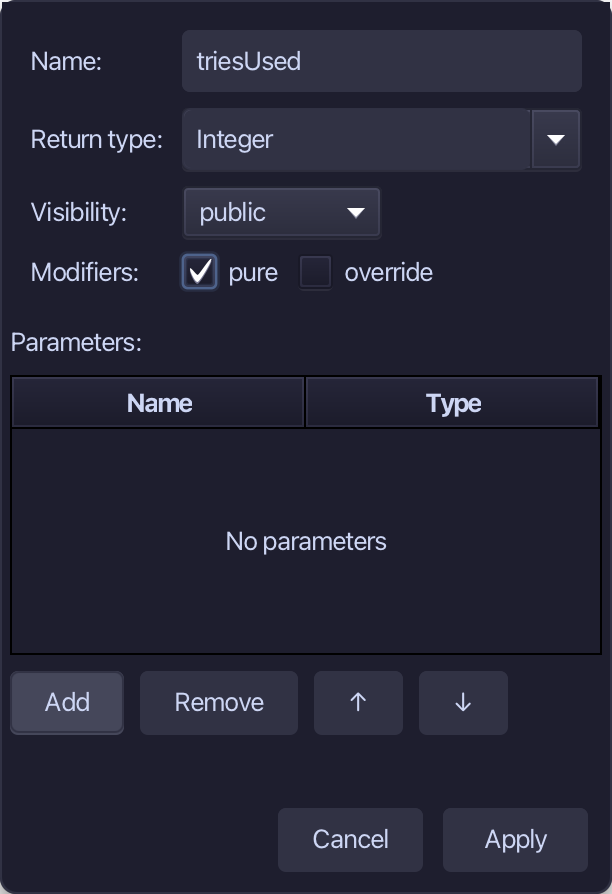
Select the stub, from <- rtn as Integer: 0 down to its //AI line, and type the real answer: tries handed back as an Integer in its own right. Saves when typed.
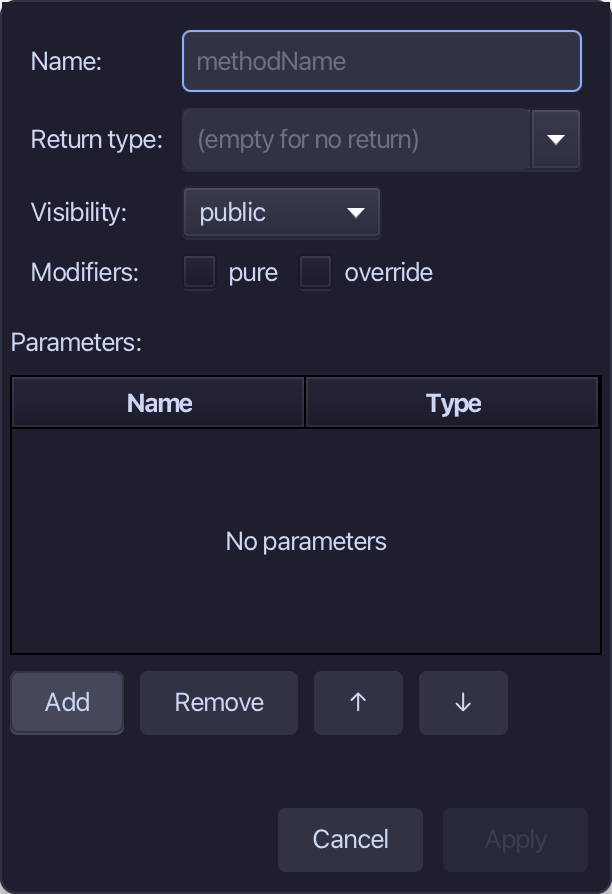
Right-click the Game line and choose Add Method…
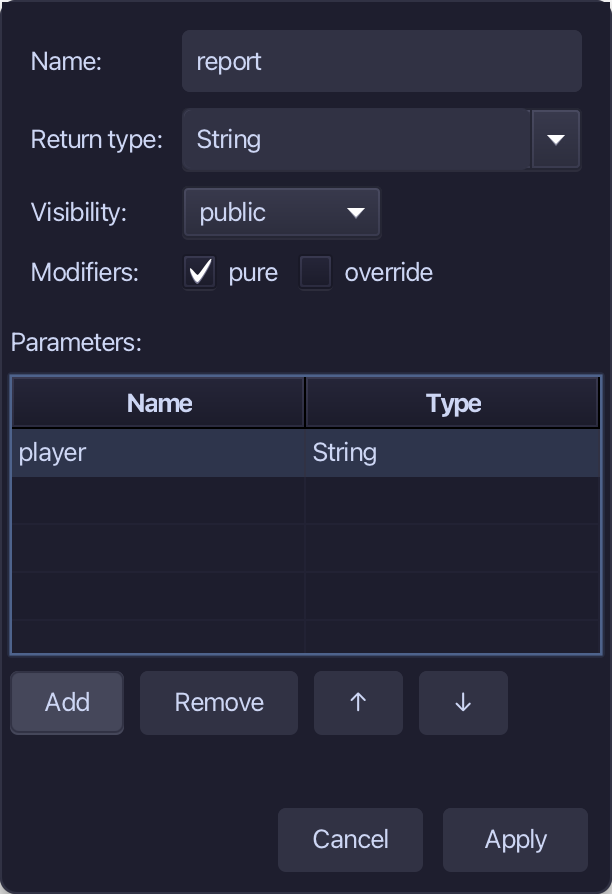
report is the name - one parameter, player as String, returning String, pure ticked. Add the parameter, fill the rest in, and choose Apply.
Select the stub, from <- rtn as String? down to its //AI line, and type report's whole job: a ternary choosing the win or loss sentence. Saves when typed.
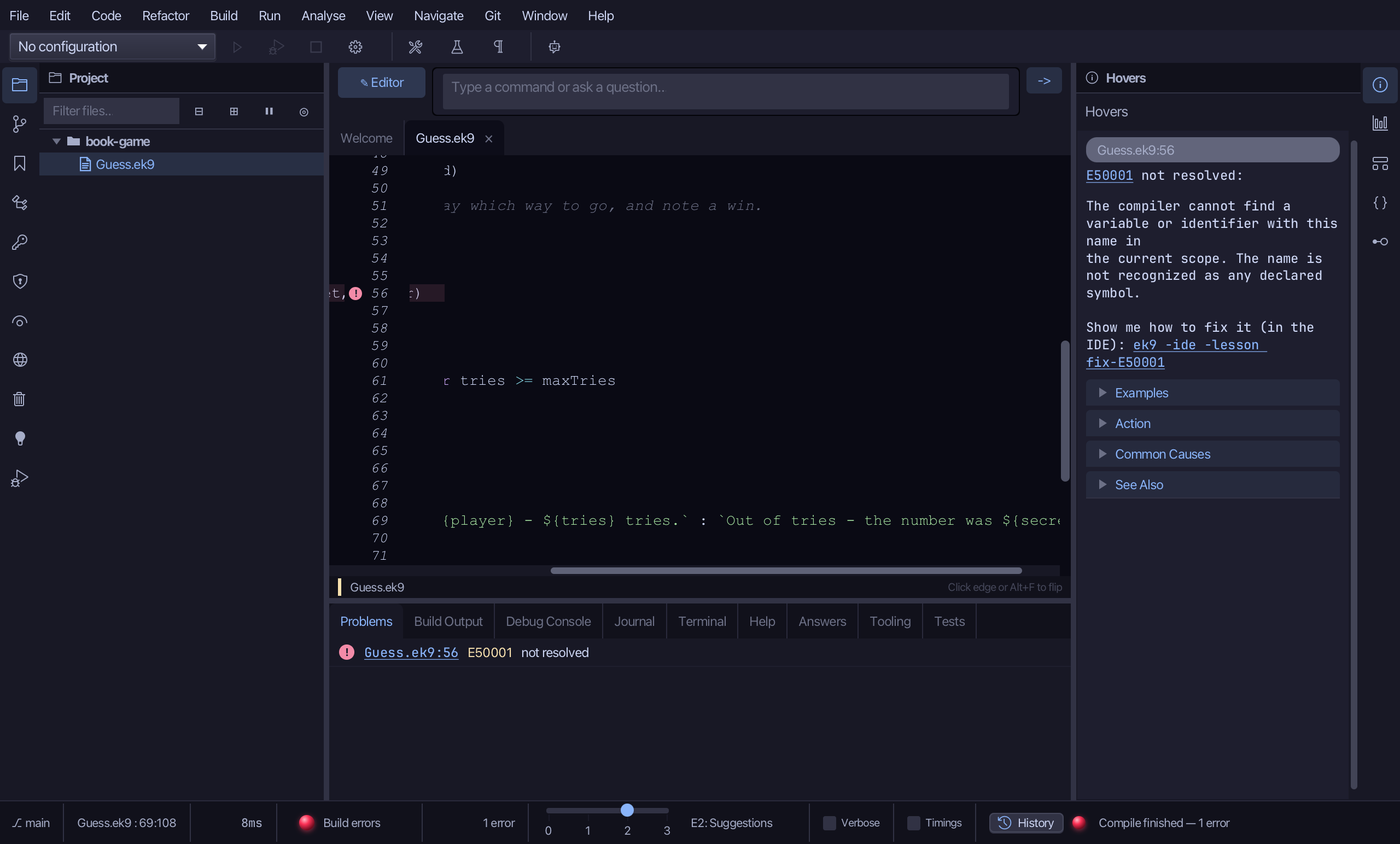
Step 8: hint and rank — two pure functions
Choose Code > New Construct > Function…
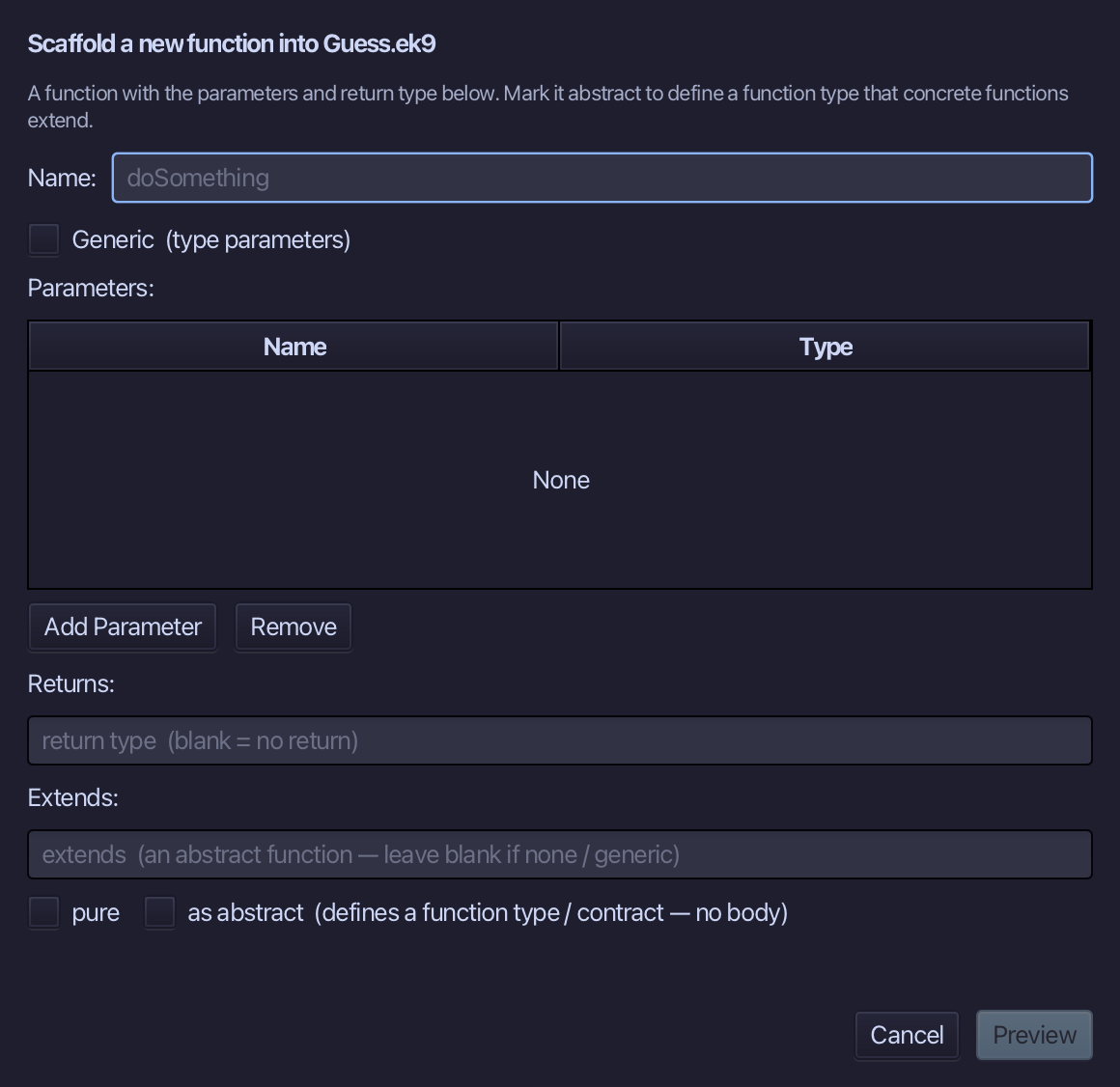
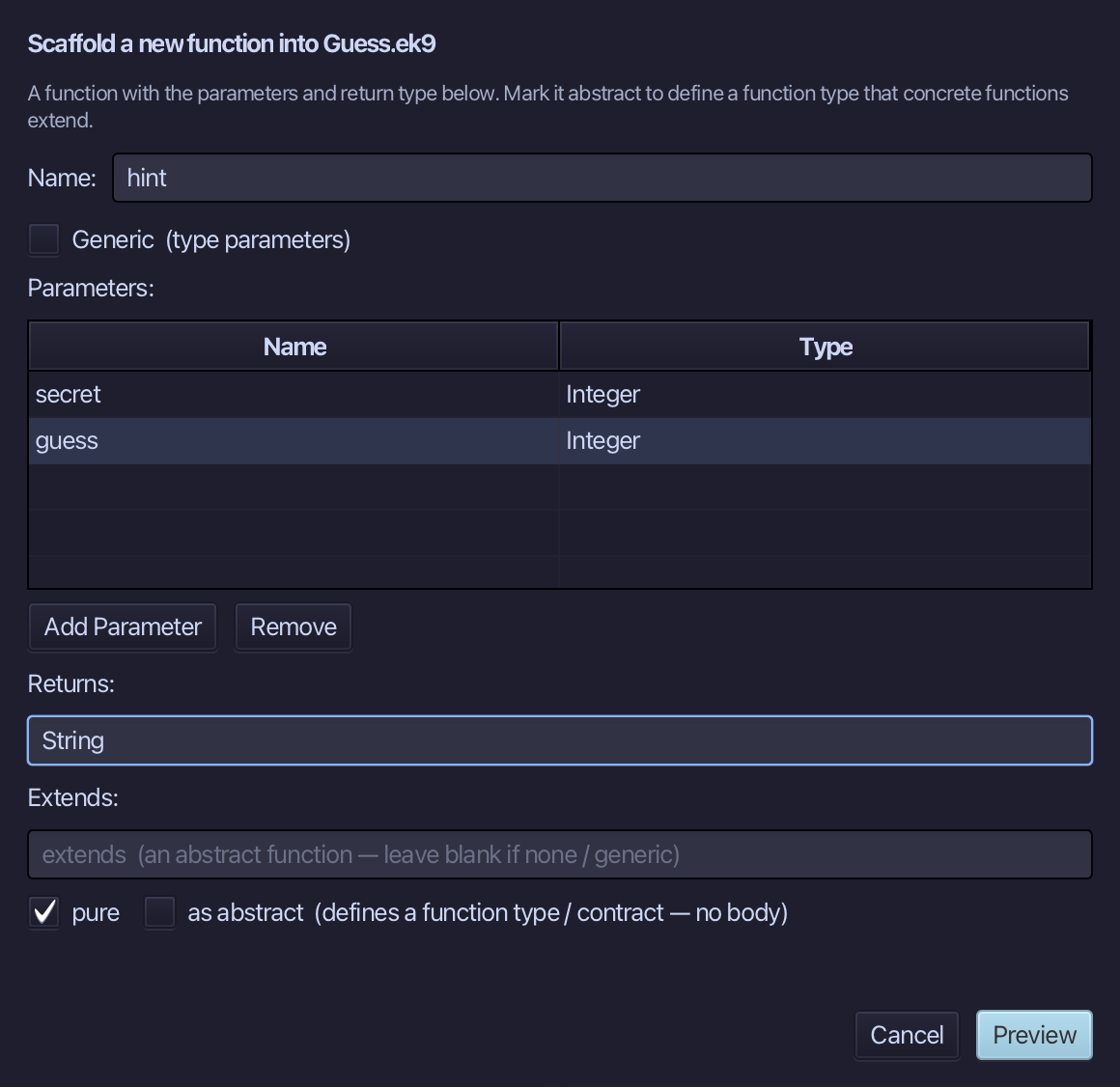
hint is the function's name. Add two parameters, secret and guess, both Integer, set Returns to String, and tick pure. Choose Preview.
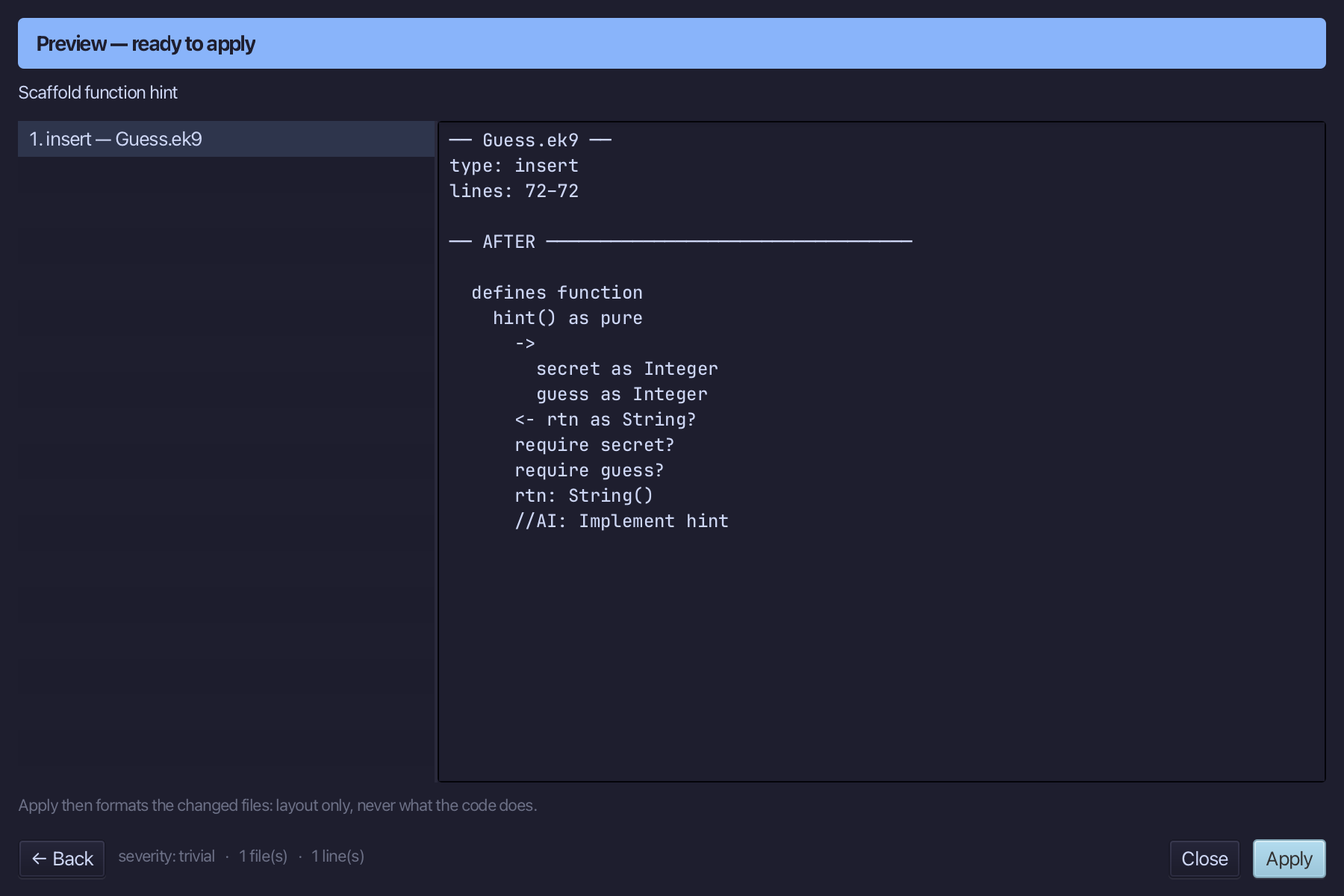
The preview shows hint about to be written, pure, two Integers in and String out. Choose Apply.
Select the hint() as pure line, and above it type the comment explaining what hint compares. Saves when typed.
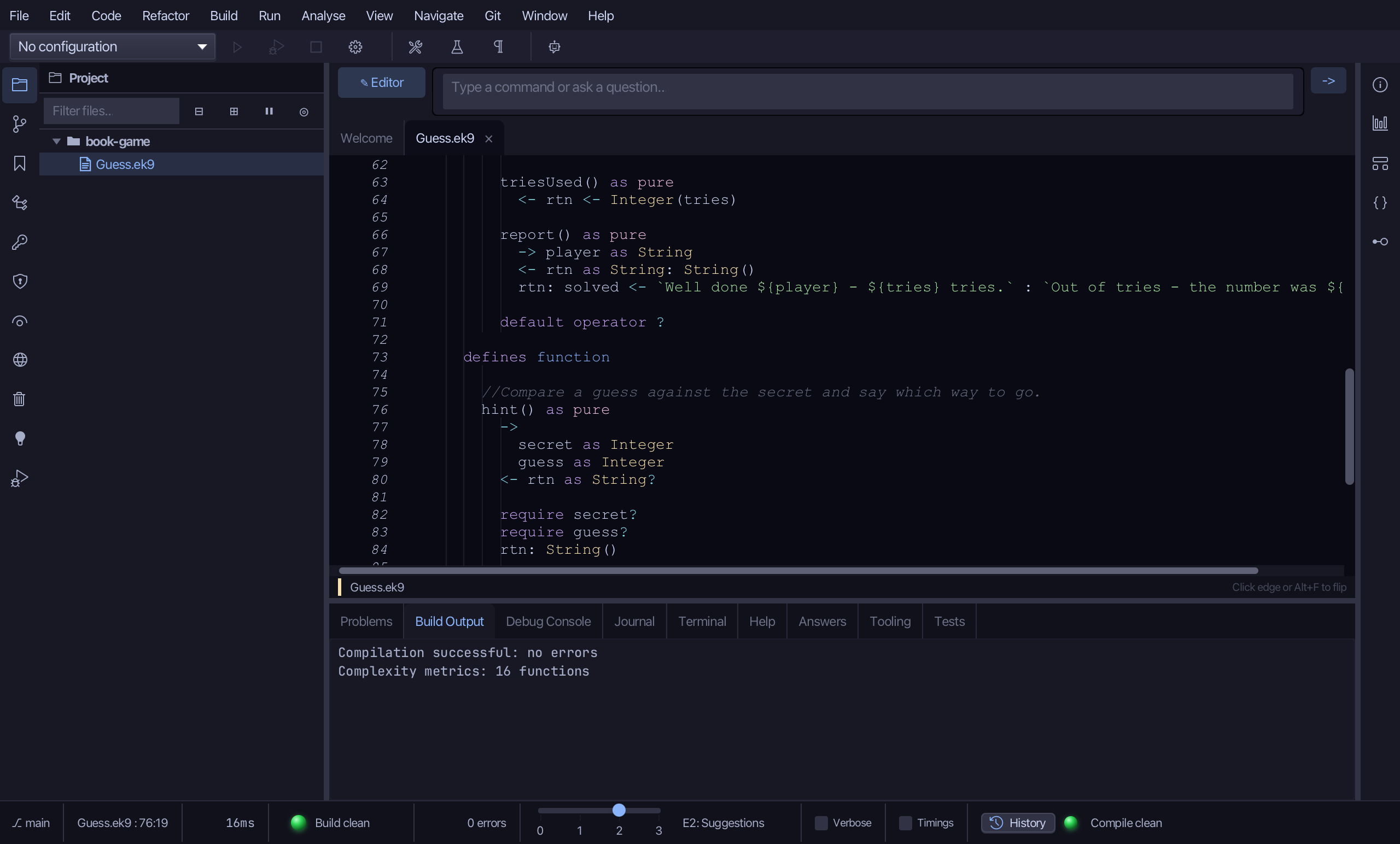
Select the stub, from <- rtn as String? down to its //AI line, and type the real comparison: order from <=>, then two ternaries in a row. Saves when typed.
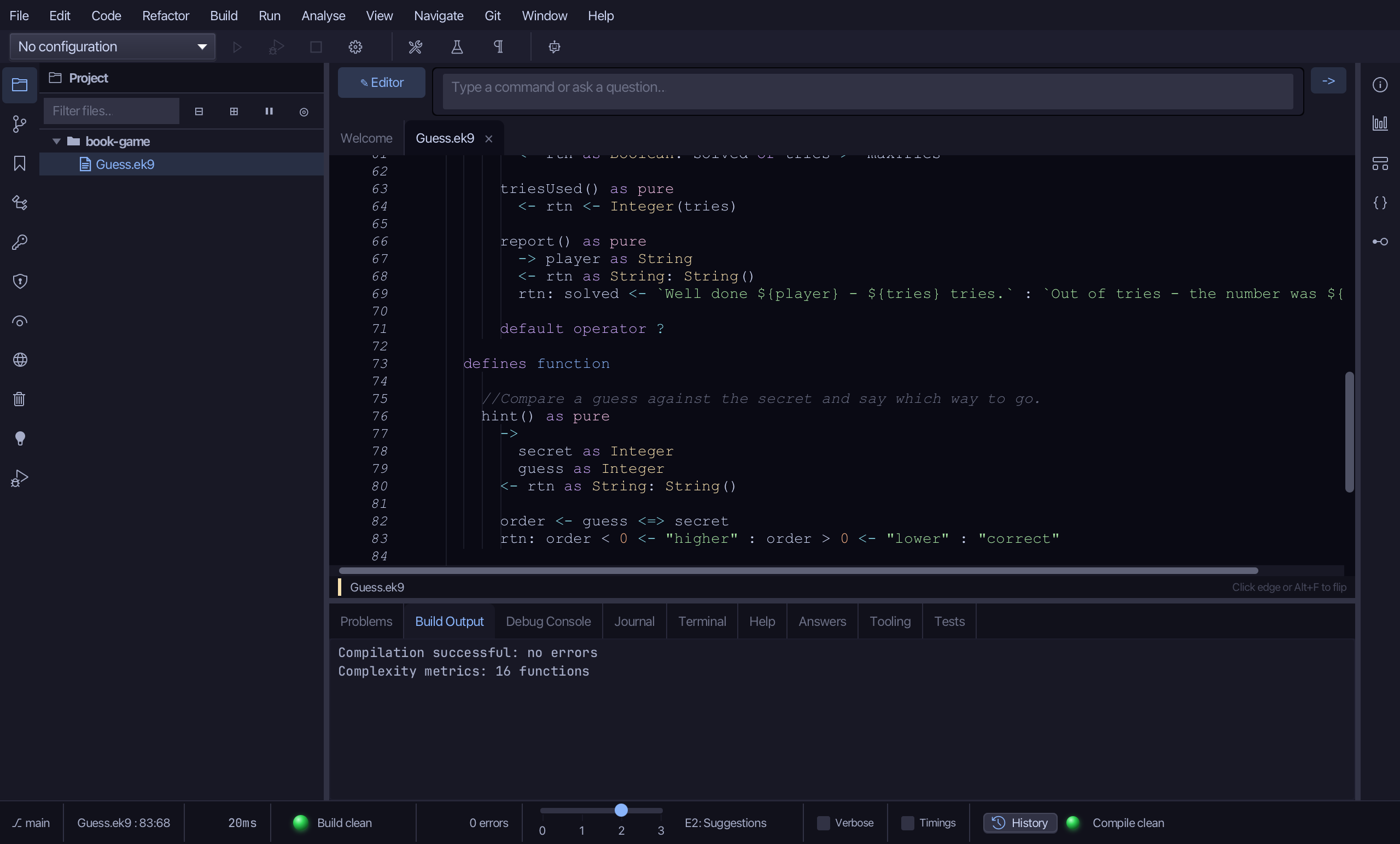
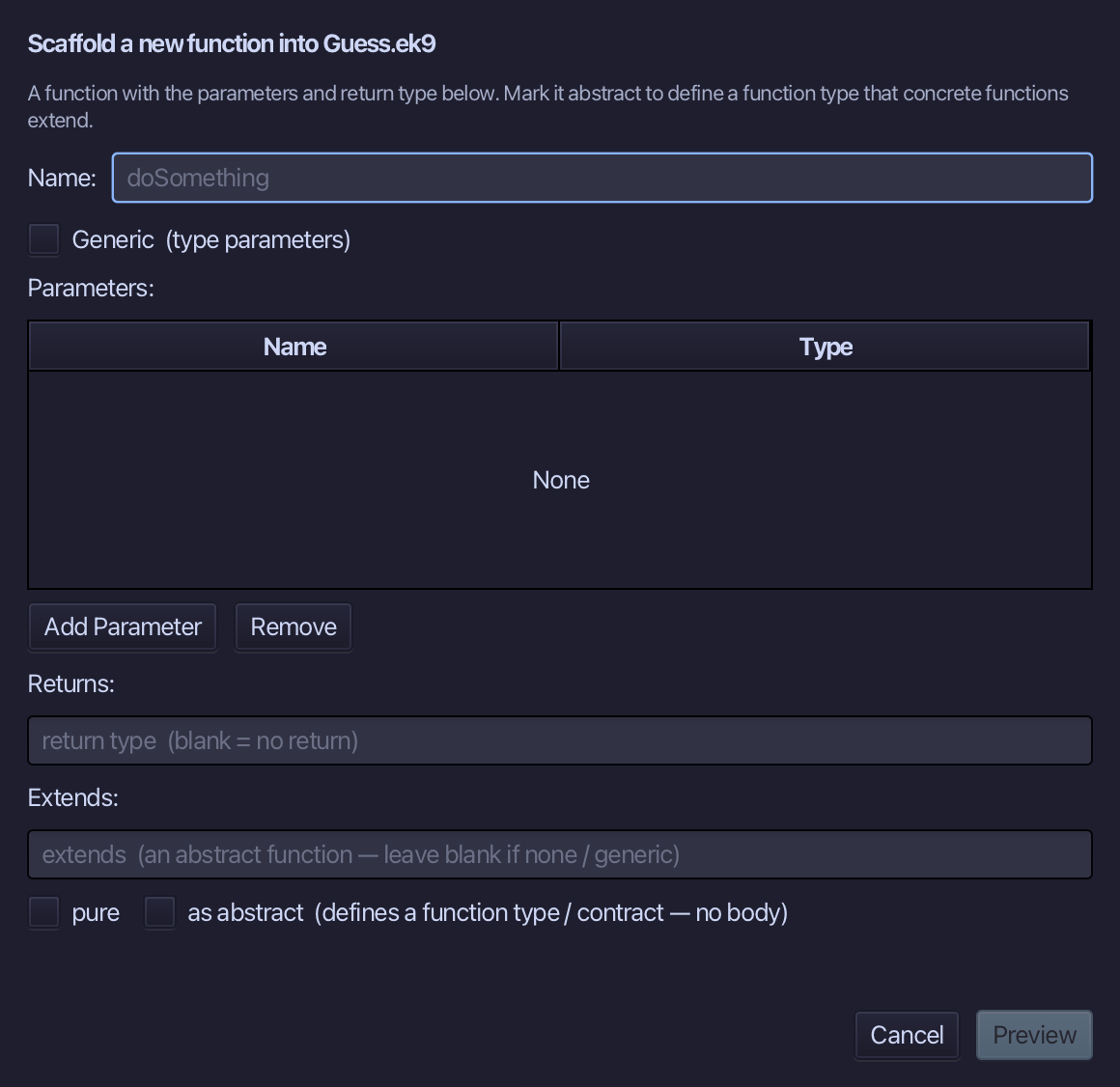
Choose Code > New Construct > Function…
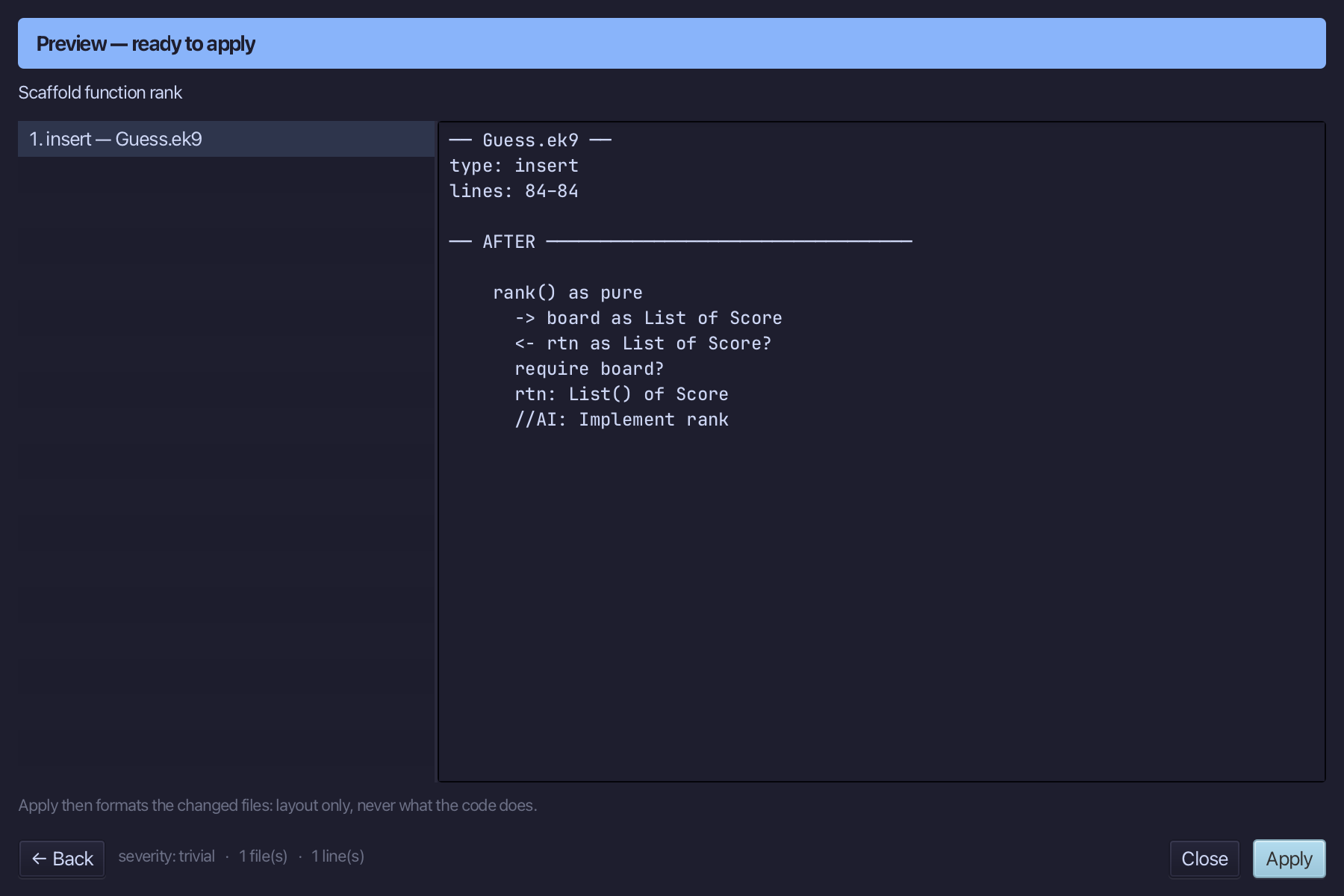
rank is the name. Add one parameter, board as List of Score, set Returns to List of Score, and tick pure. Choose Preview.
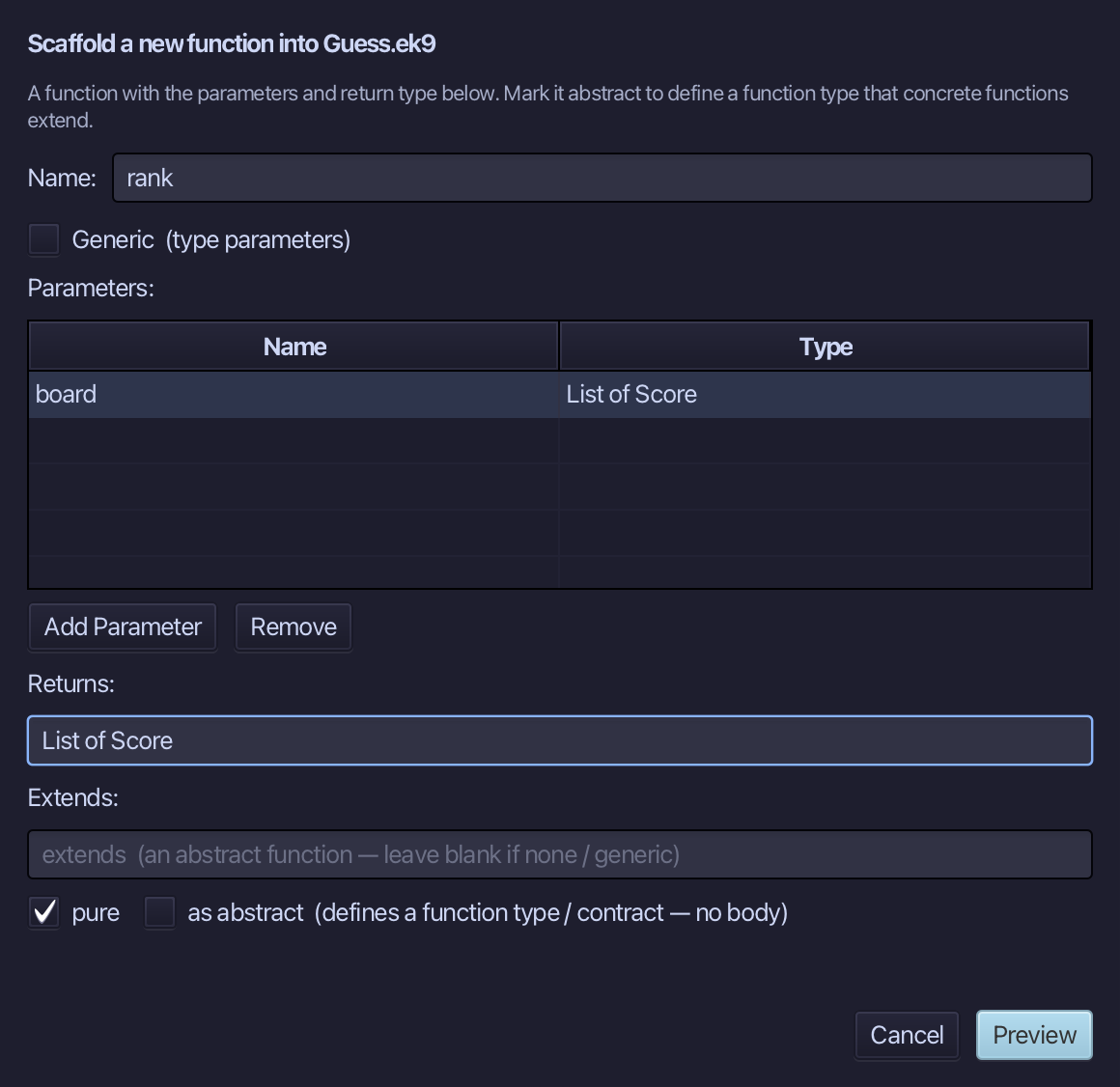
The preview shows rank about to be written, added to the same defines function block as hint. Choose Apply.
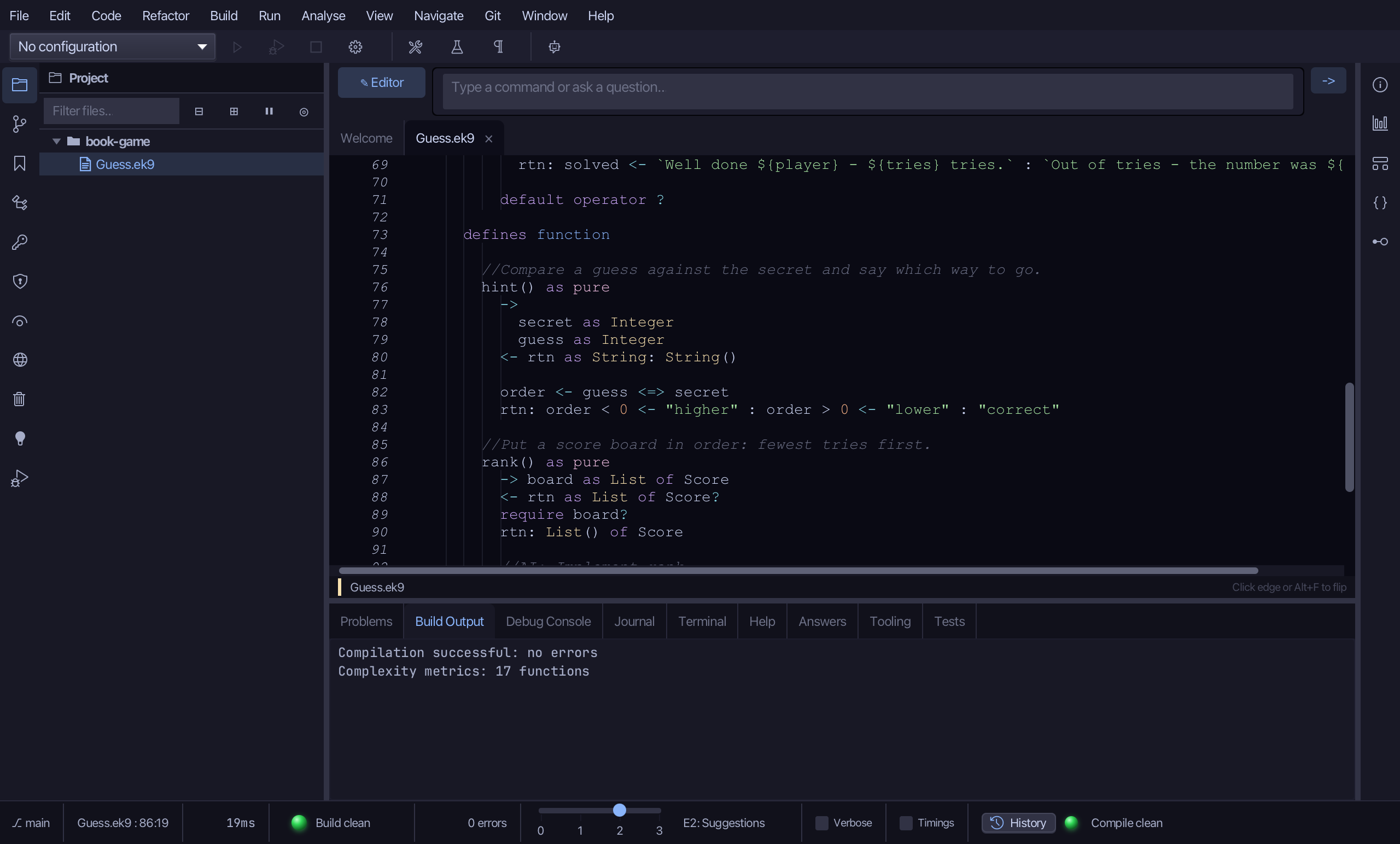
Select the rank() as pure line, and above it type the comment explaining what rank does - the blank line above it is already there. Saves when typed.
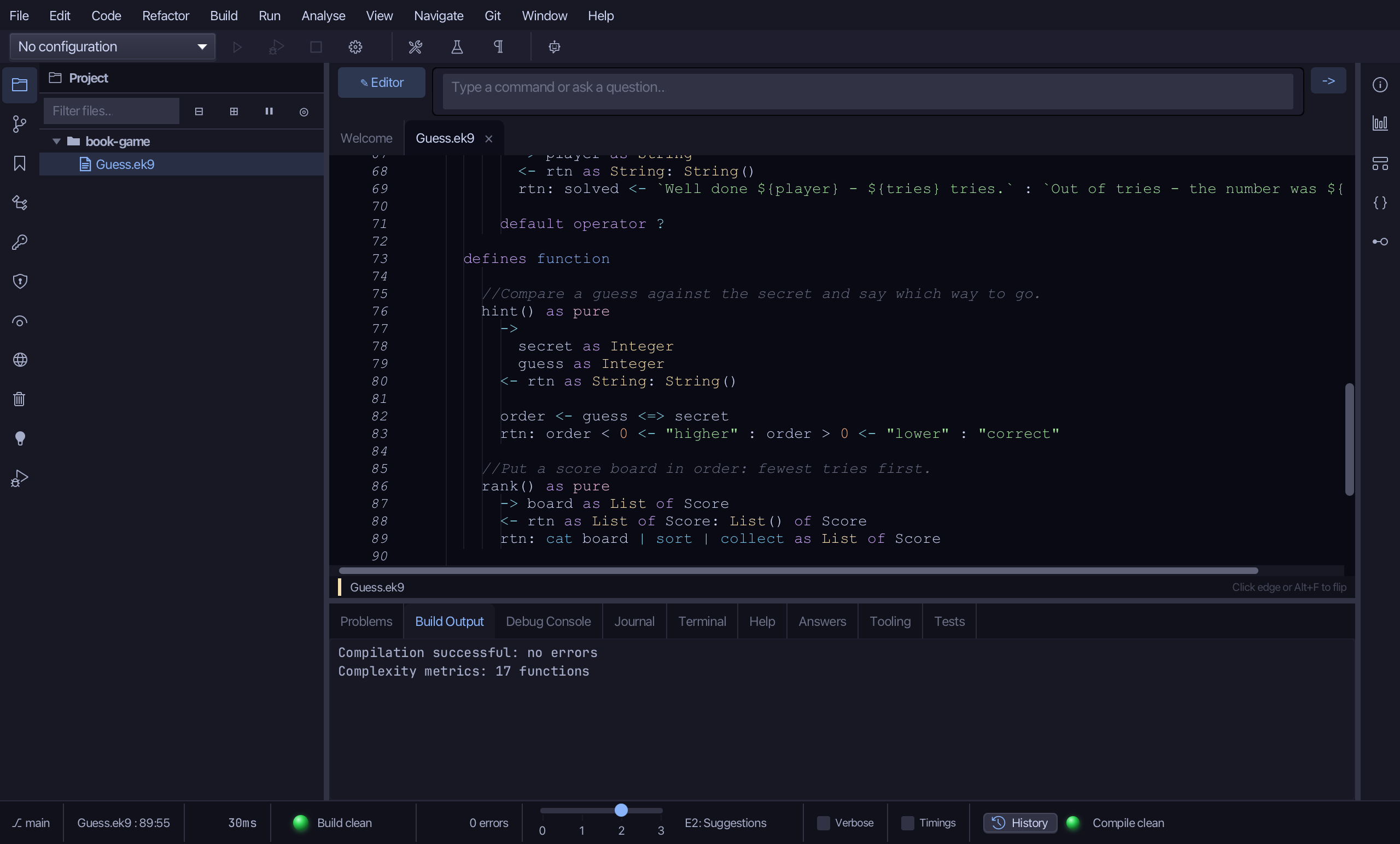
Select the stub, from <- rtn as List of Score? down to its //AI line, and type the one-line pipeline: sort, then collect. Saves when typed.
Step 9: The board helpers
Choose Code > New Construct > Function…
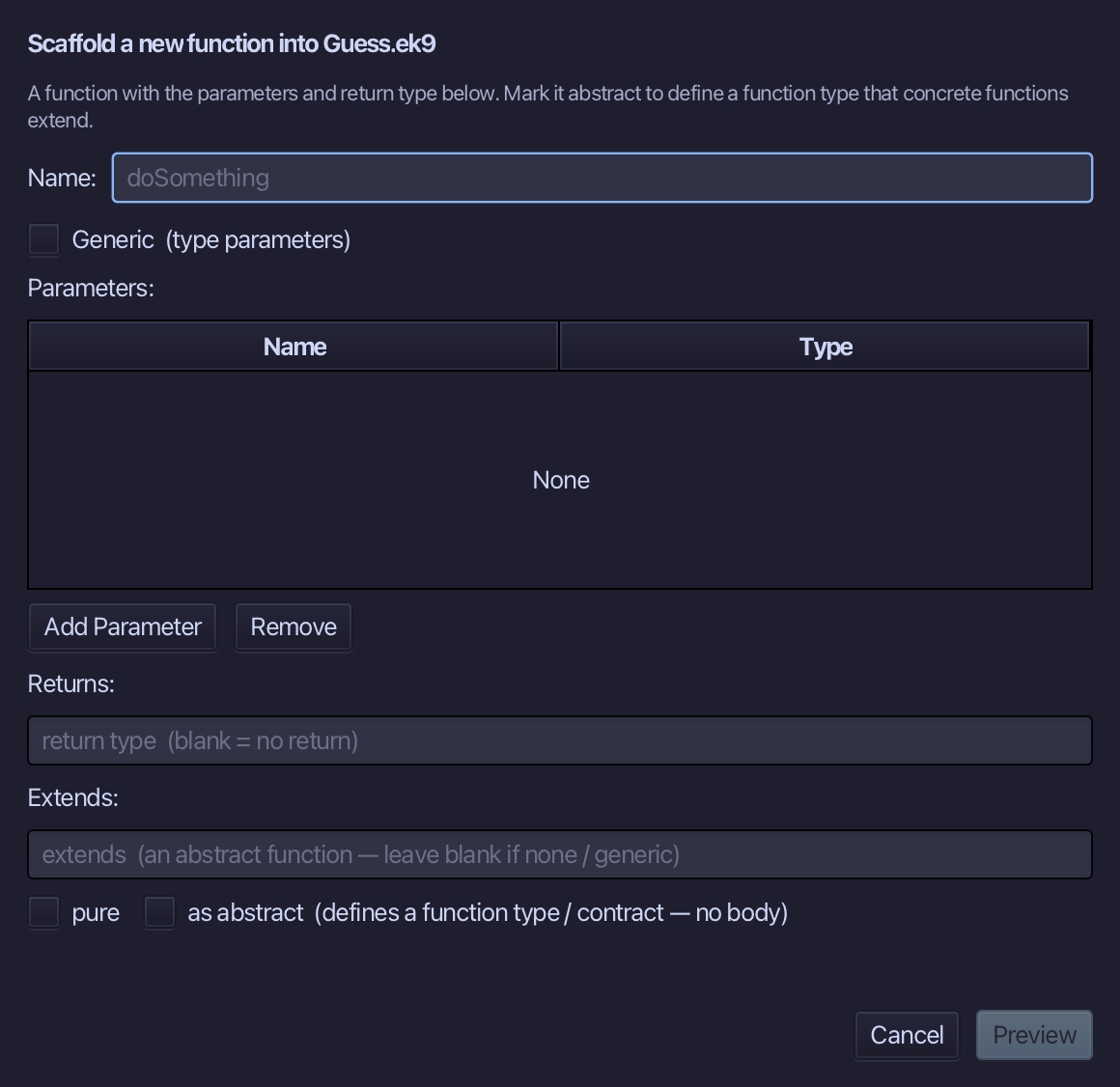
startingBoard is the name - no parameters, not pure. Set Returns to List of Score and choose Preview.
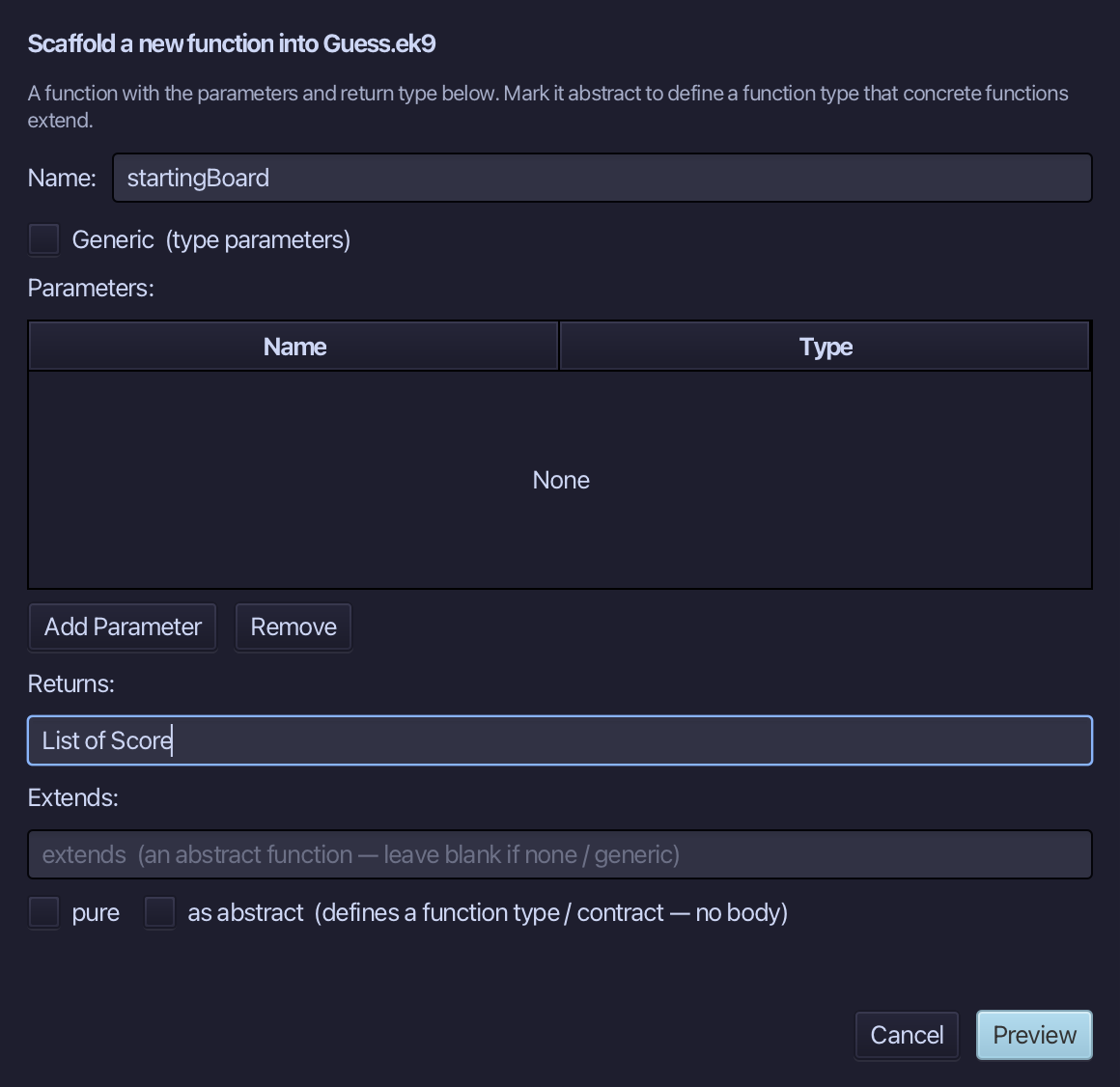
The preview shows startingBoard about to be written. Choose Apply.
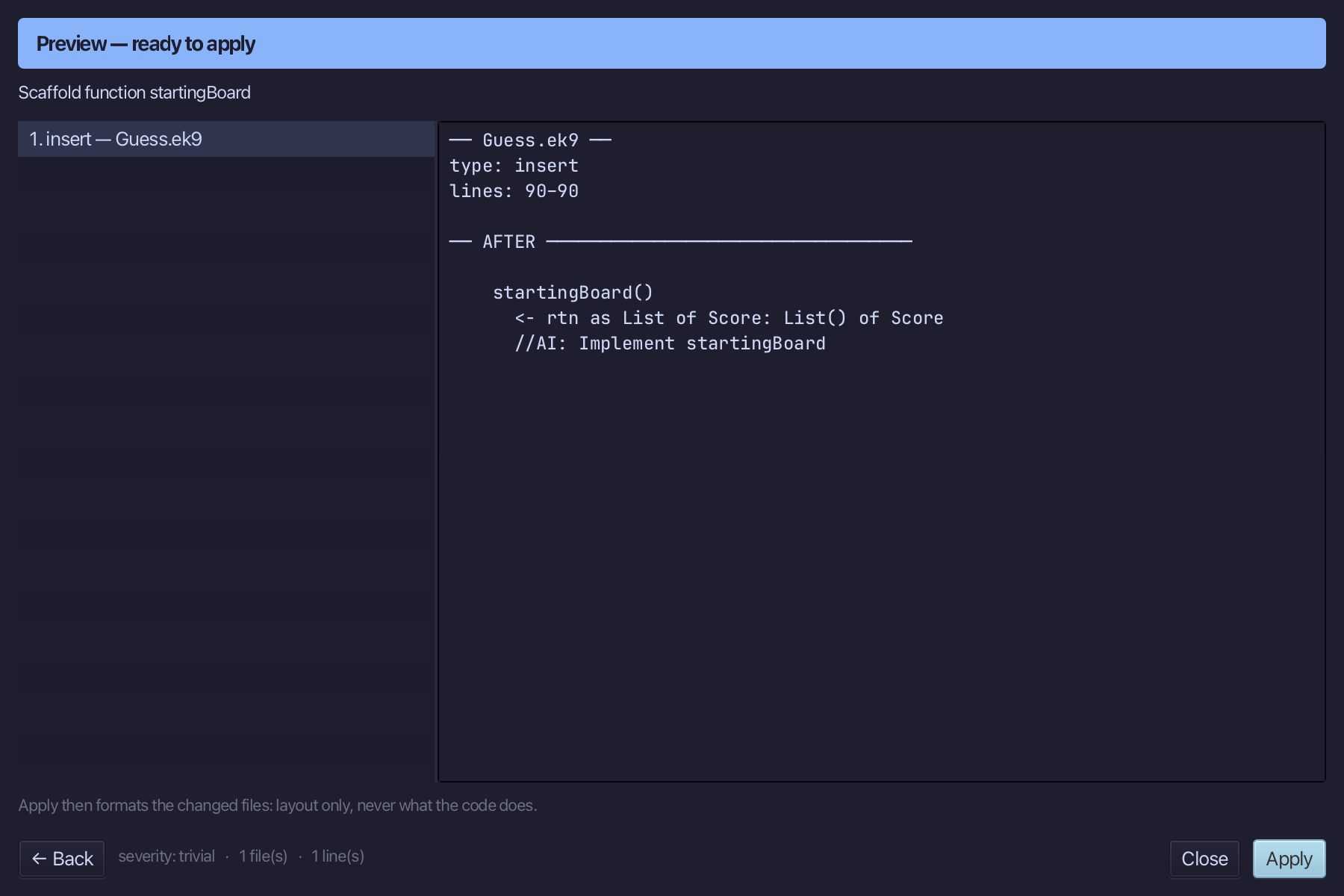
Select startingBoard() and above it type the comment - the blank line above it is already there. Saves when typed.
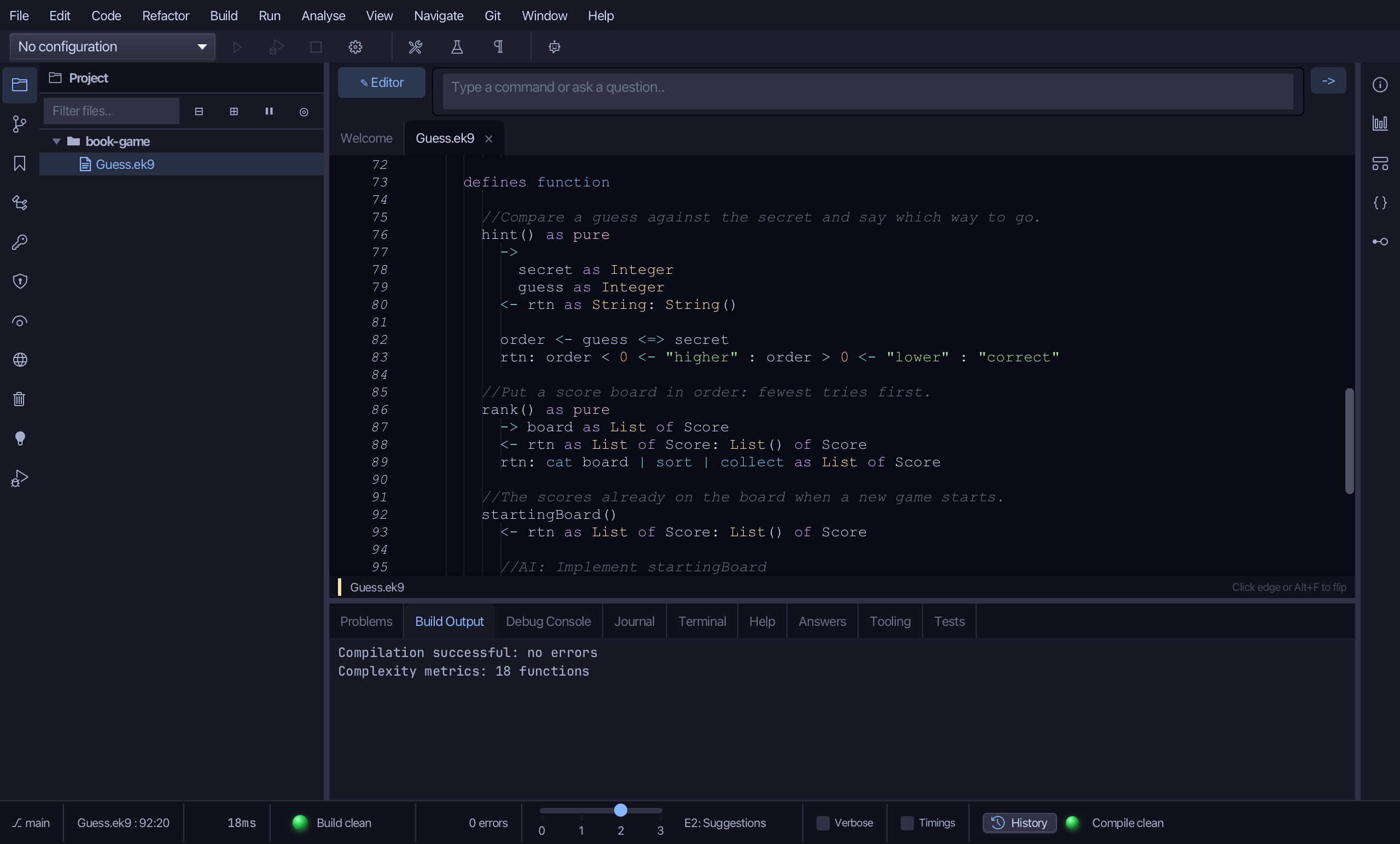
Select the stub, from <- rtn as List of Score: List() of Score down to its //AI line, and type the board's two opening scores. Saves when typed.
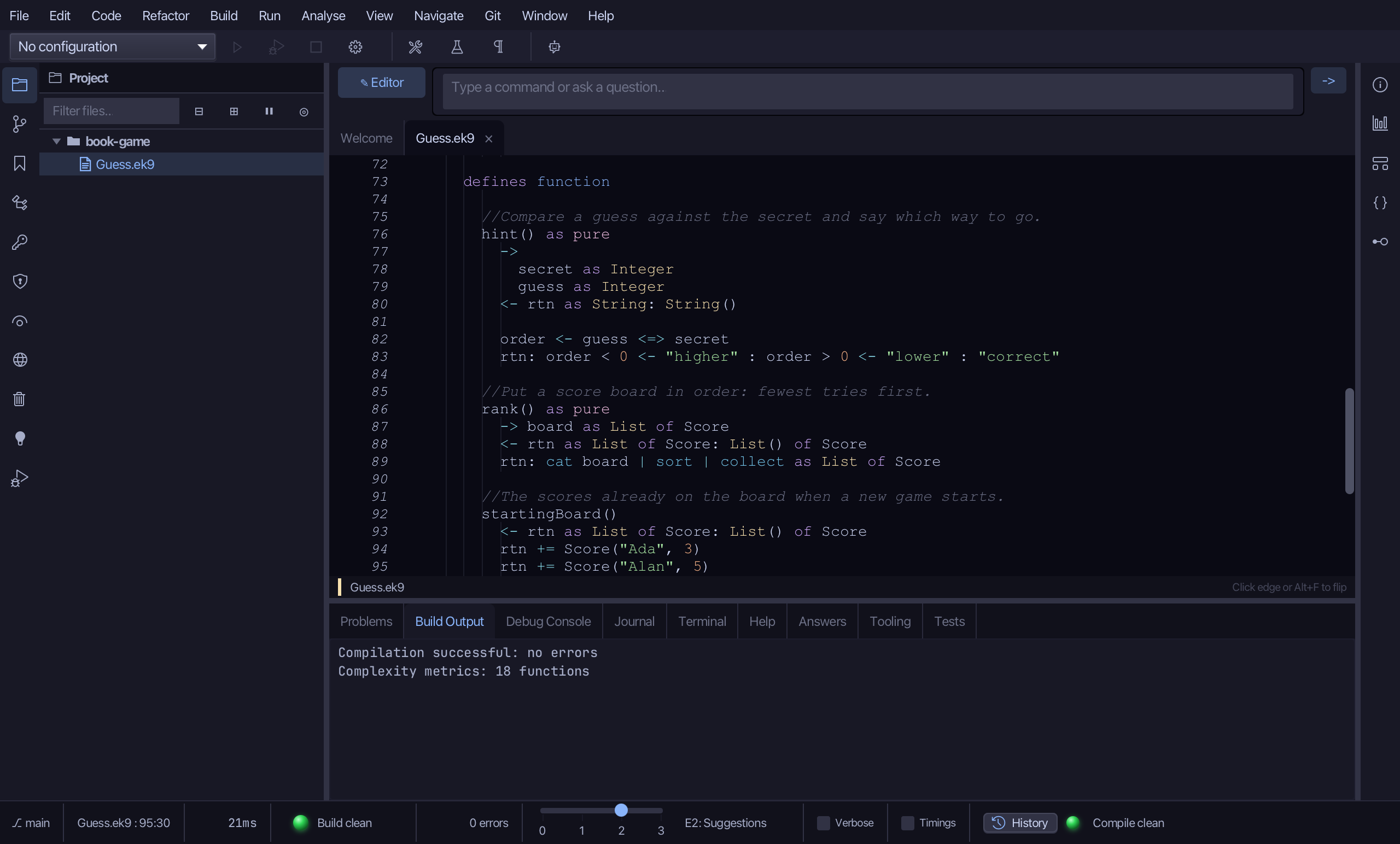
Choose Code > New Construct > Function…
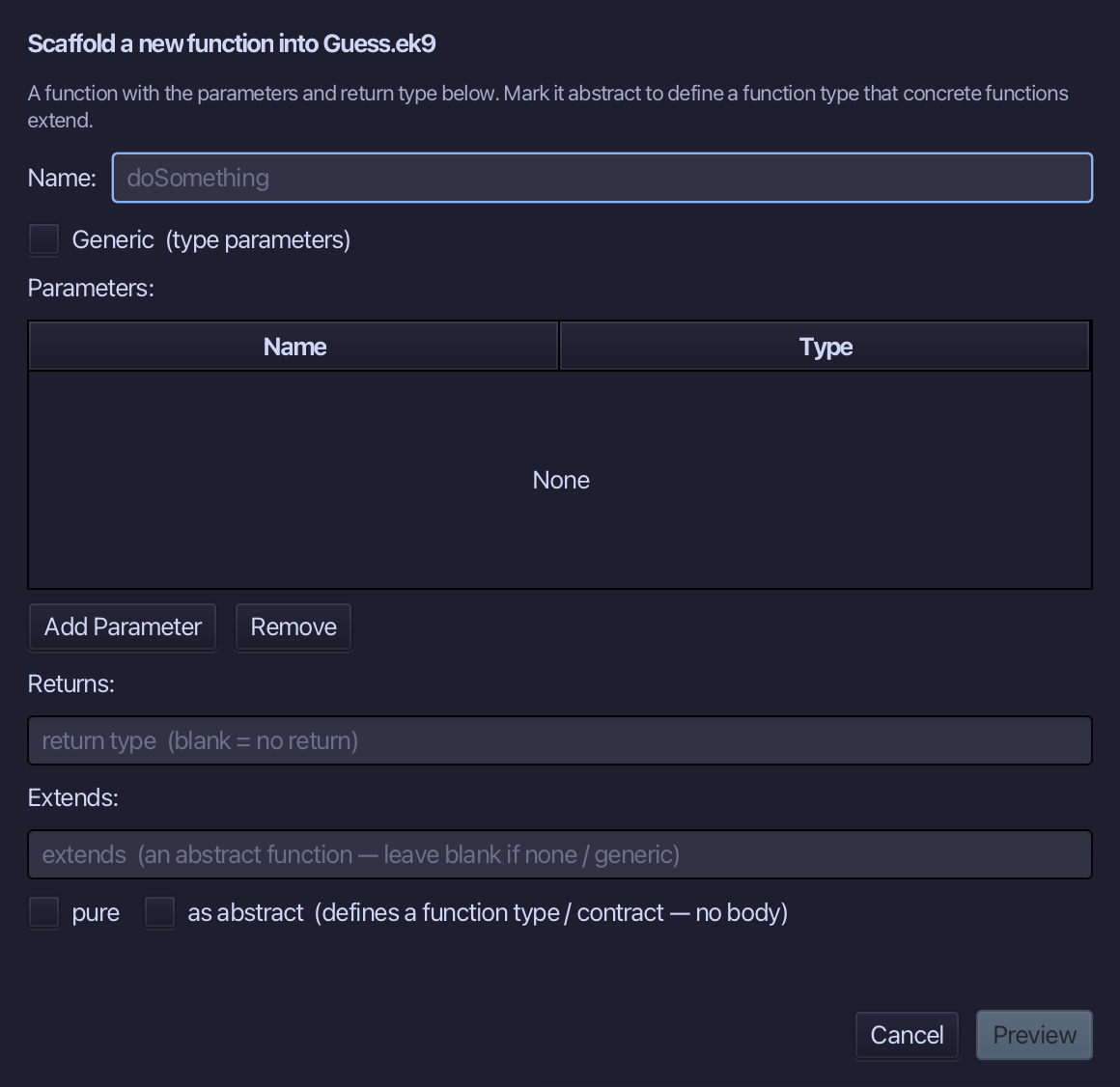
finalBoard is the name - two parameters, player as String and tries as Integer, not pure. Set Returns to List of Score and choose Preview.
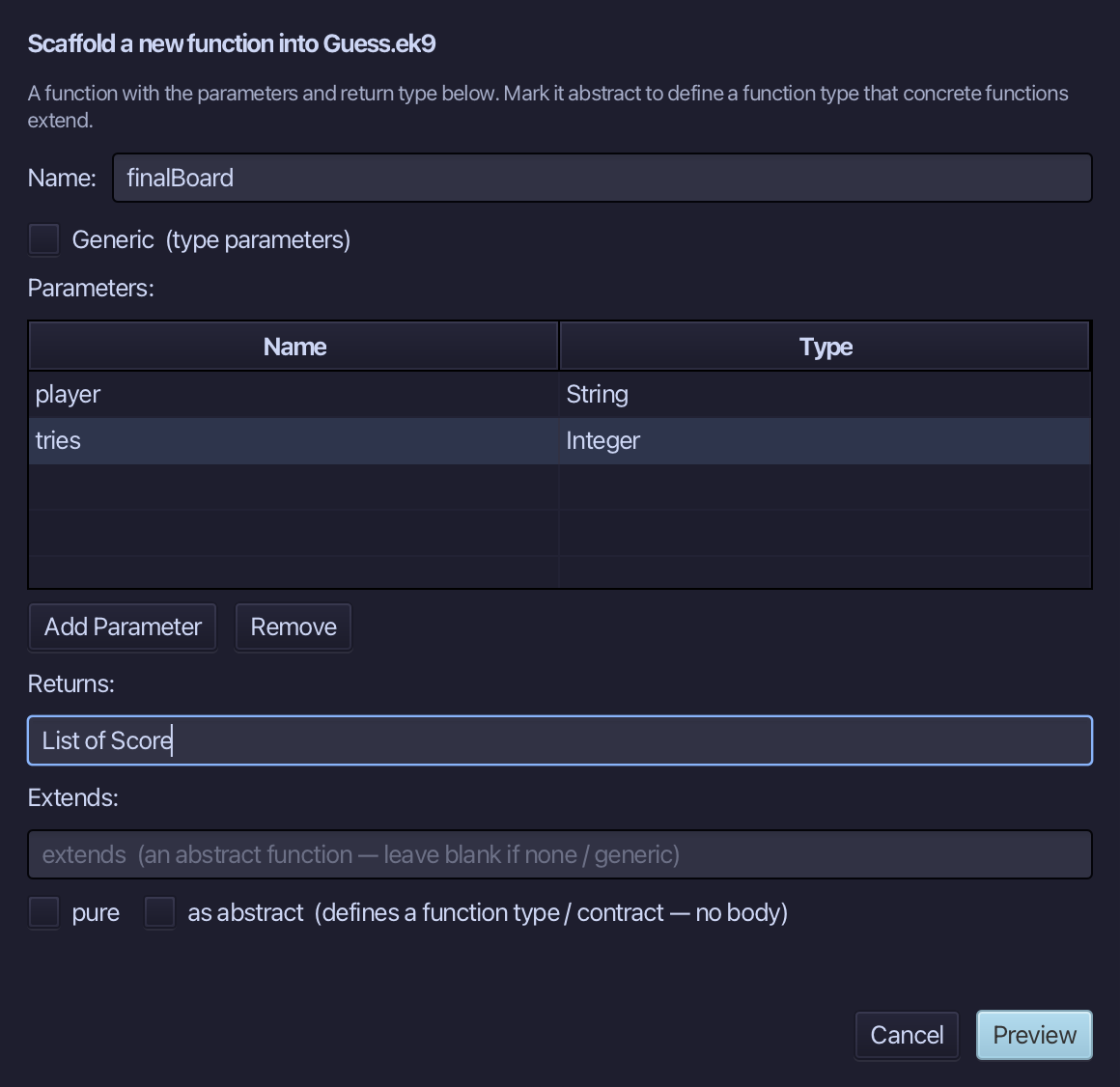
The preview shows finalBoard about to be written. Choose Apply.
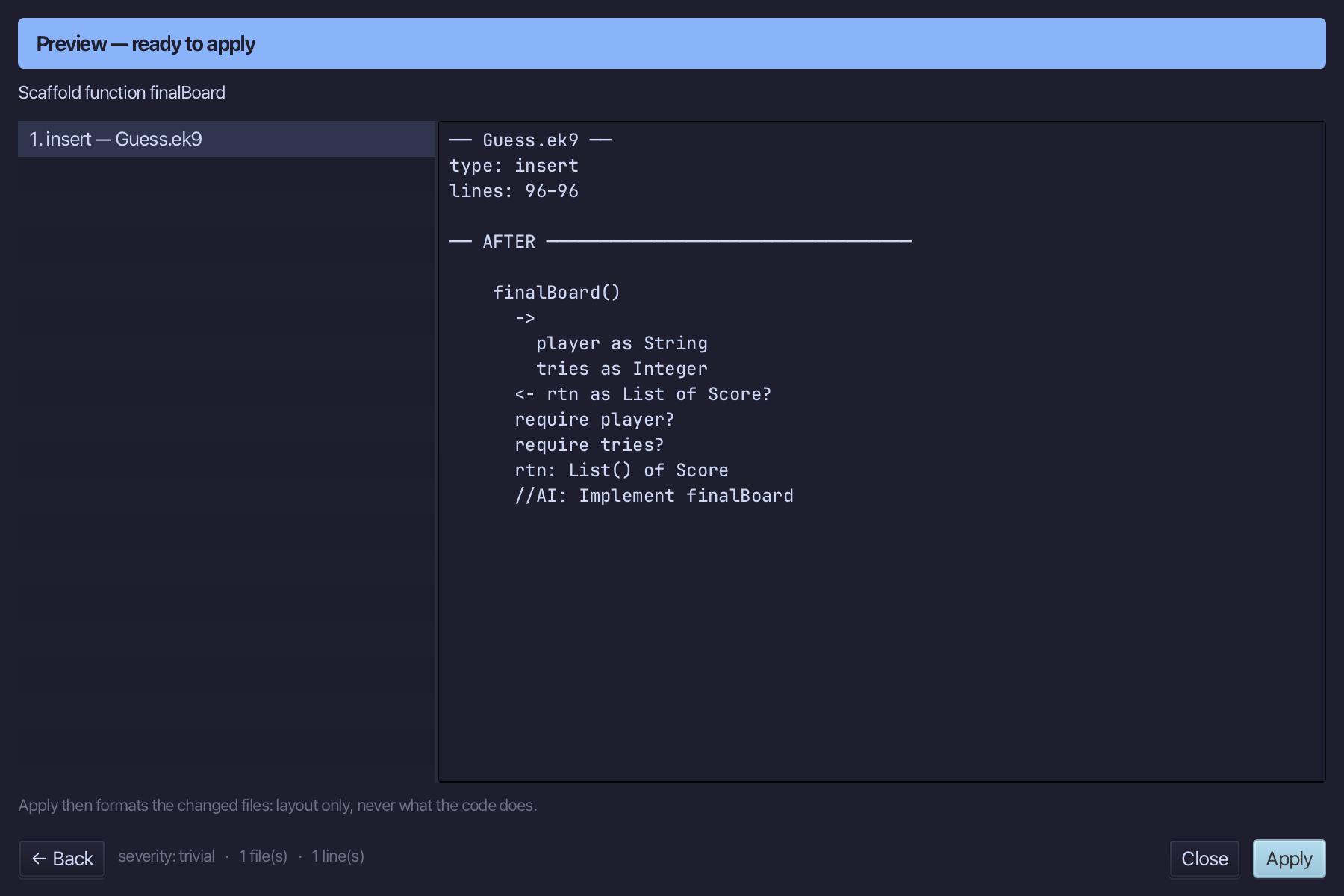
Select finalBoard() and above it type the comment - the blank line above it is already there. Saves when typed.
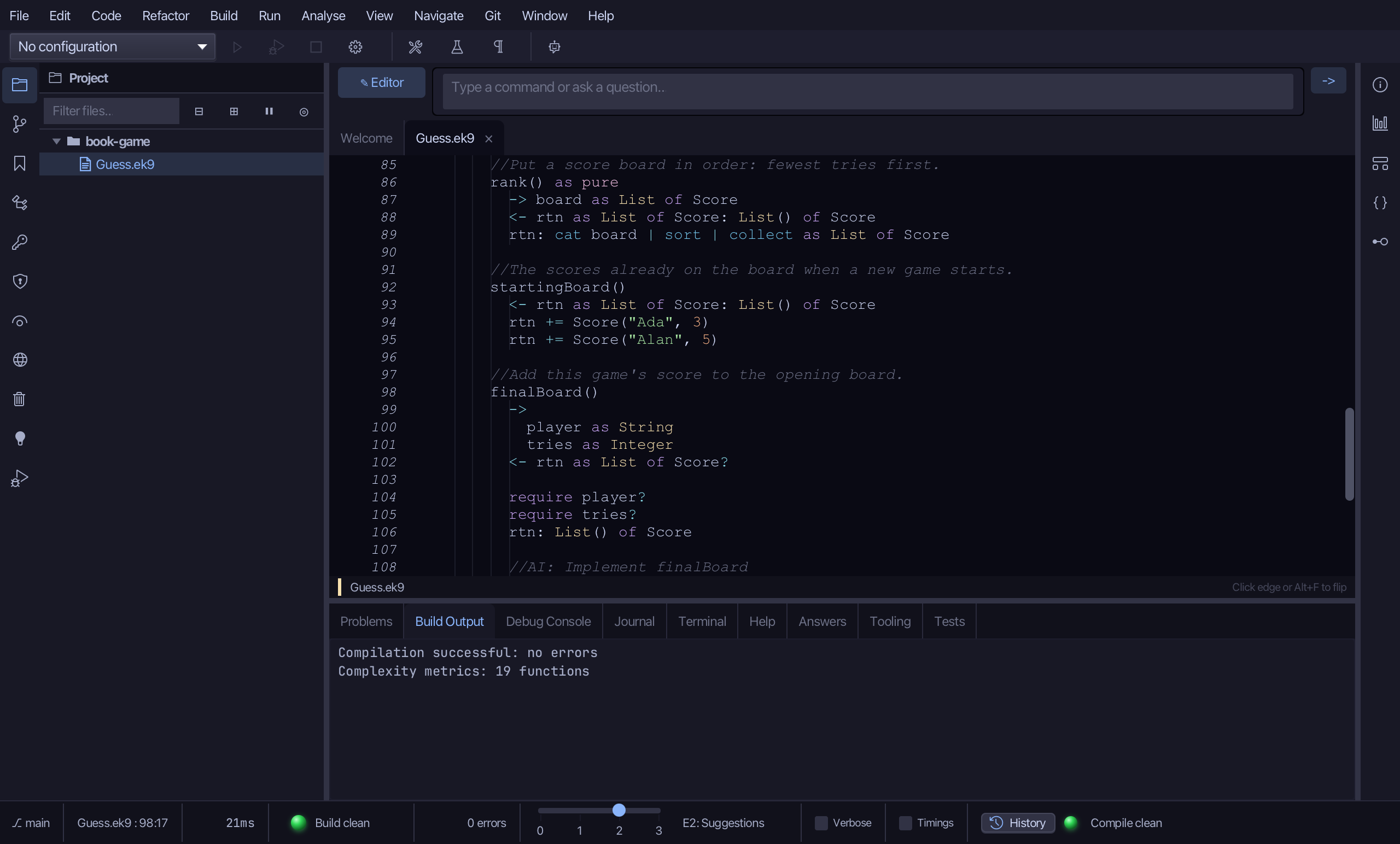
Select the stub, from <- rtn as List of Score? down to its //AI line, and type the real body: start from startingBoard(), add this game's score. Saves when typed.
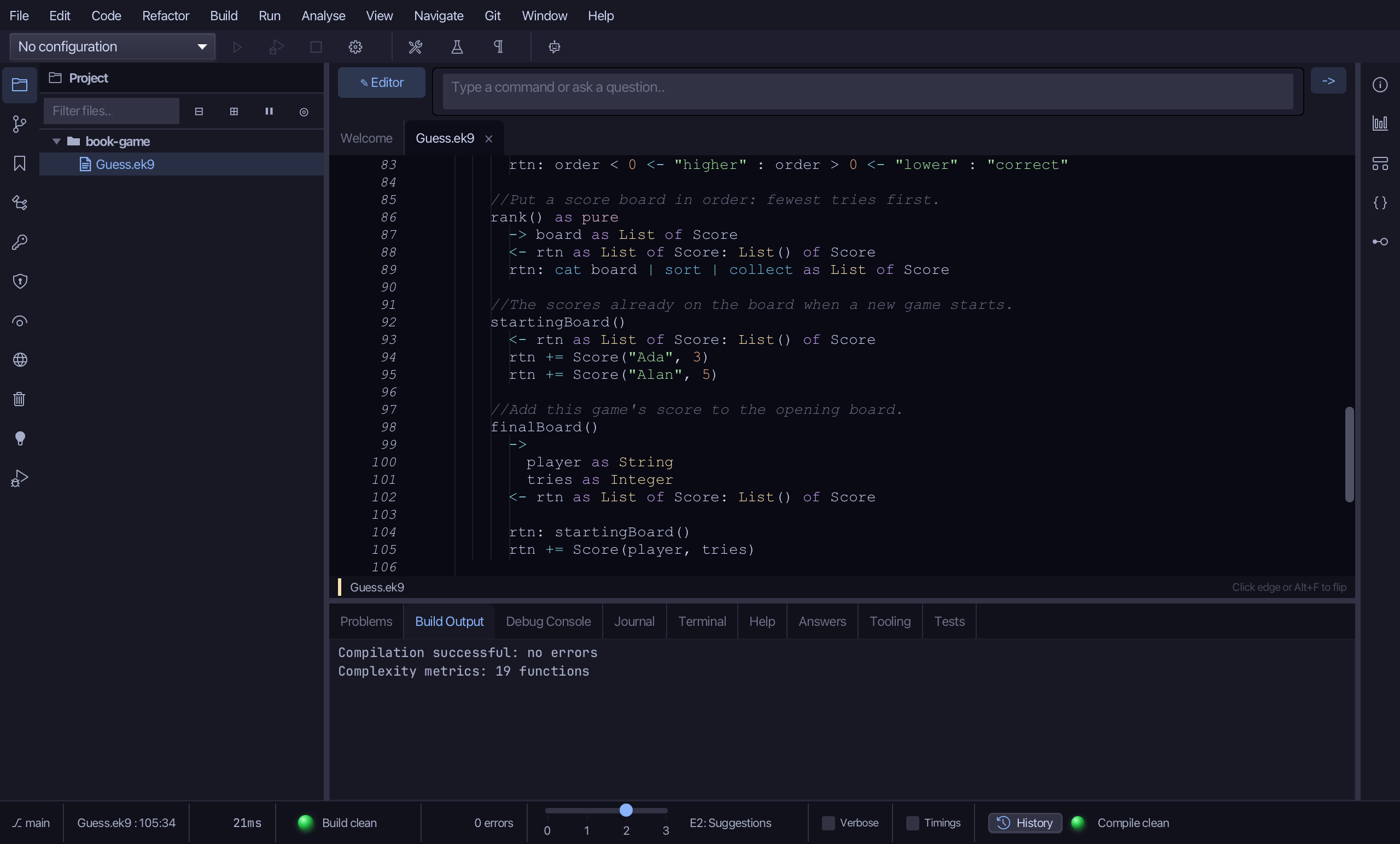
Choose Code > New Construct > Function…
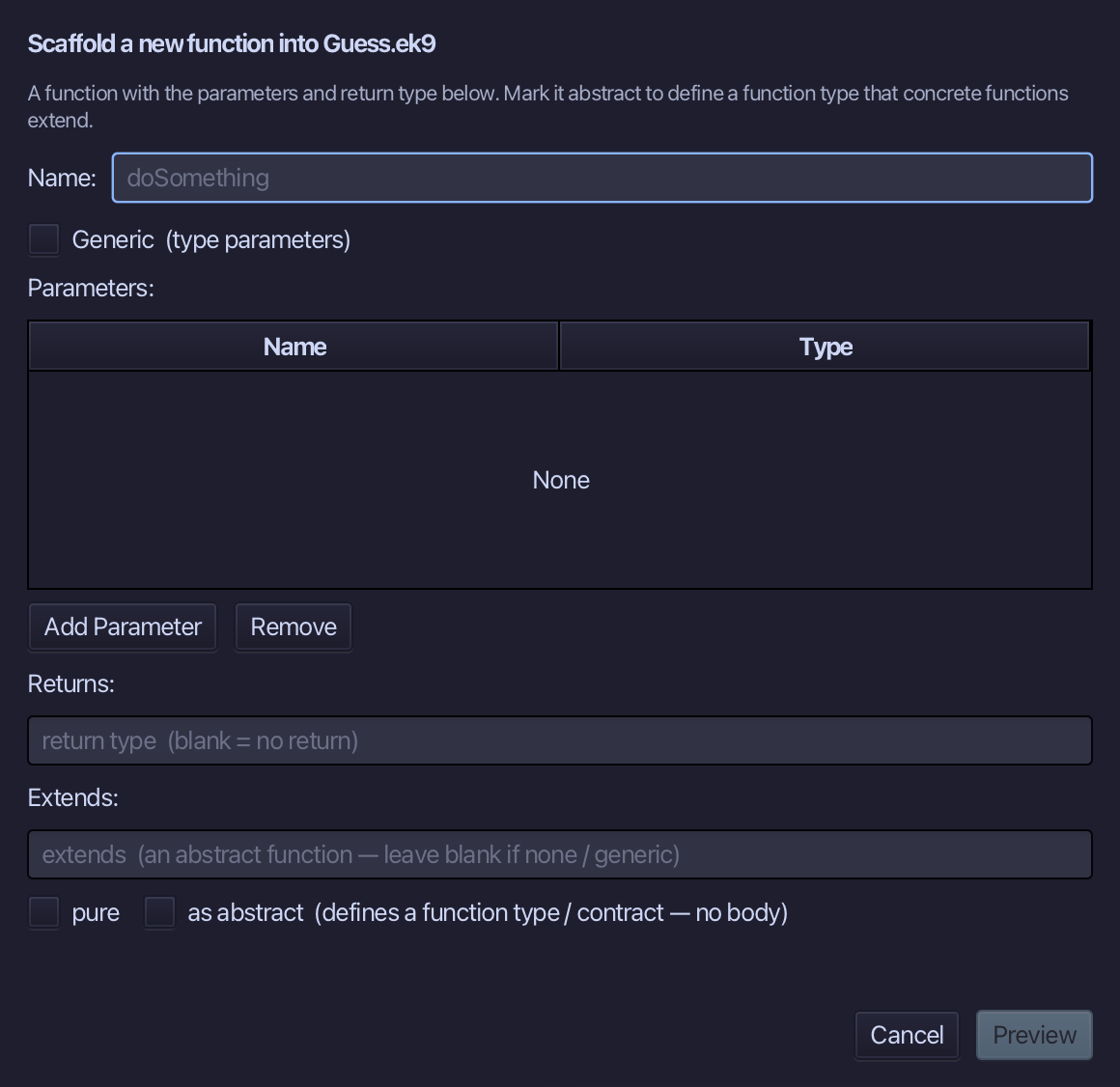
boardLines is the name - one parameter, board as List of Score, not pure. Set Returns to String and choose Preview.
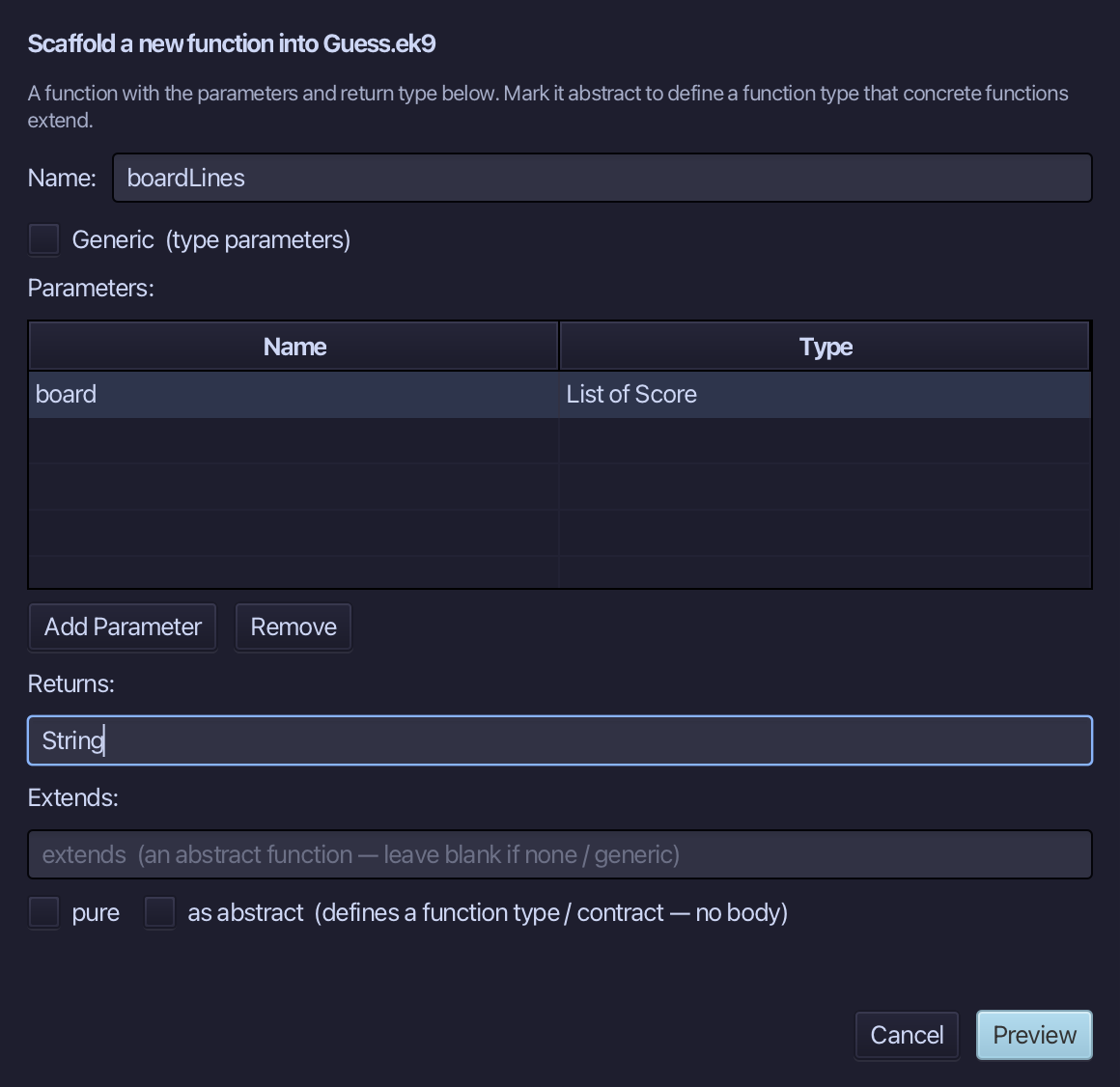
The preview shows boardLines about to be written. Choose Apply.
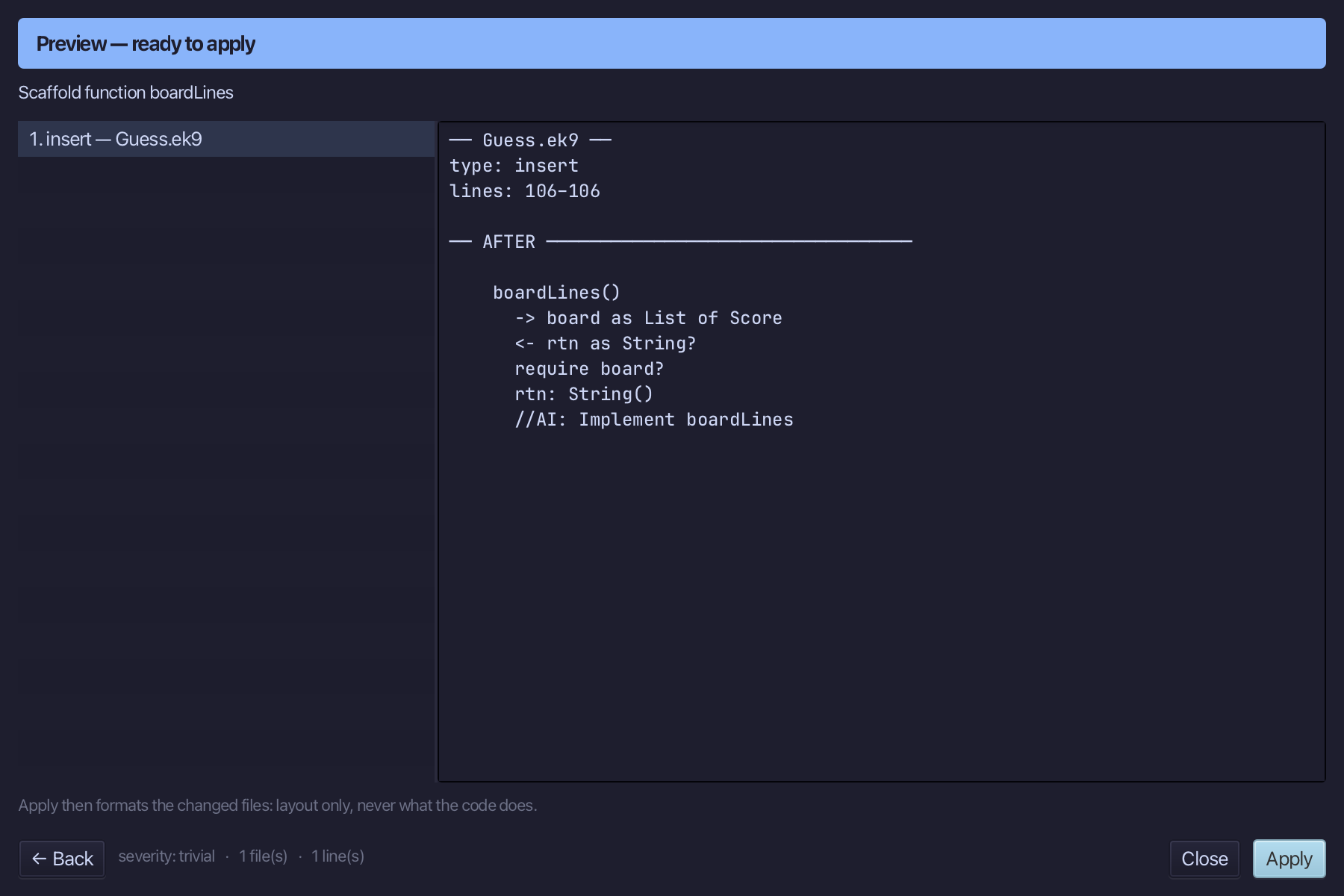
Select boardLines() and above it type the comment - the blank line above it is already there. Saves when typed.
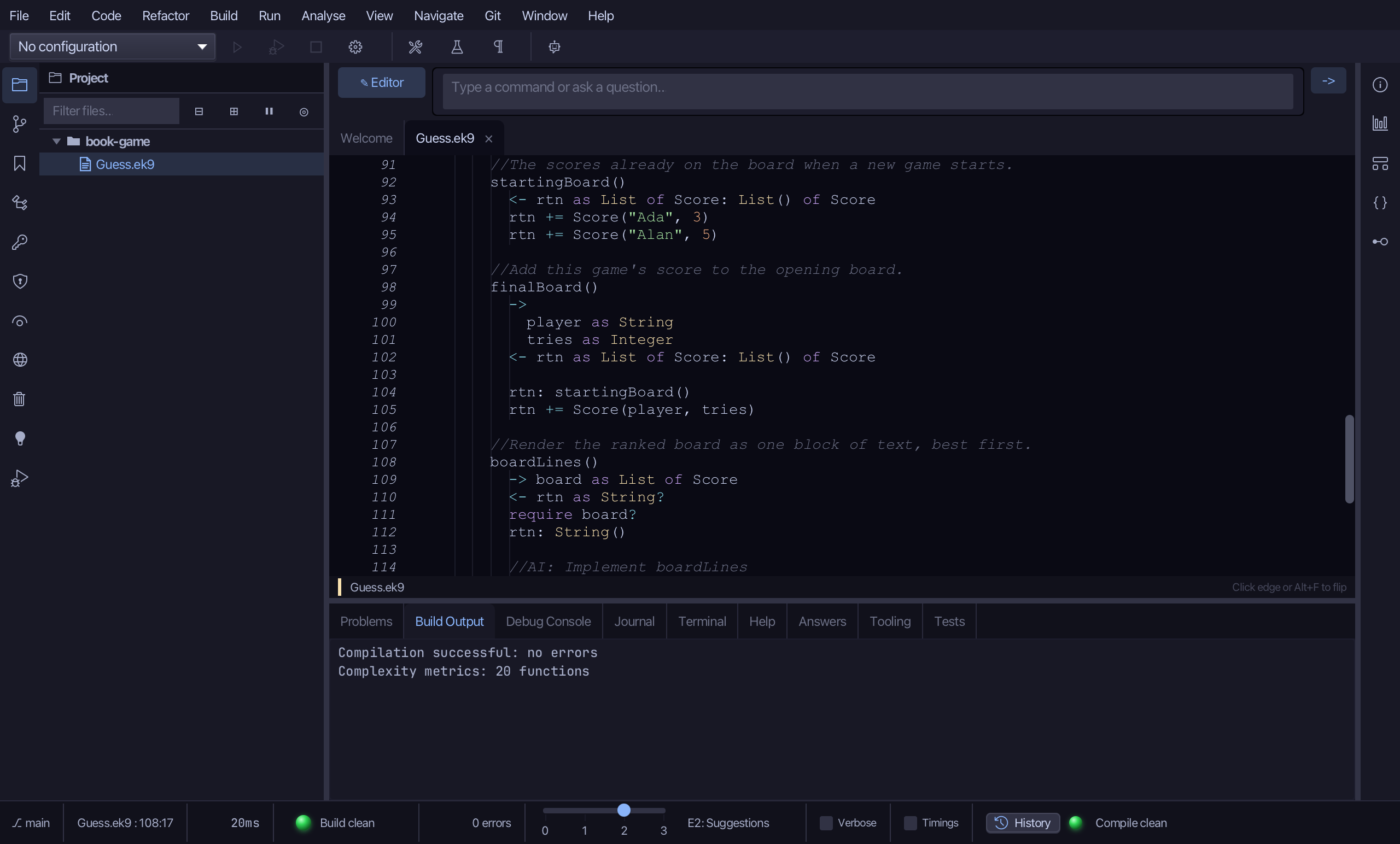
Select the stub, from <- rtn as String? down to its //AI line, and type the loop that builds one line of text per ranked entry. Saves when typed.
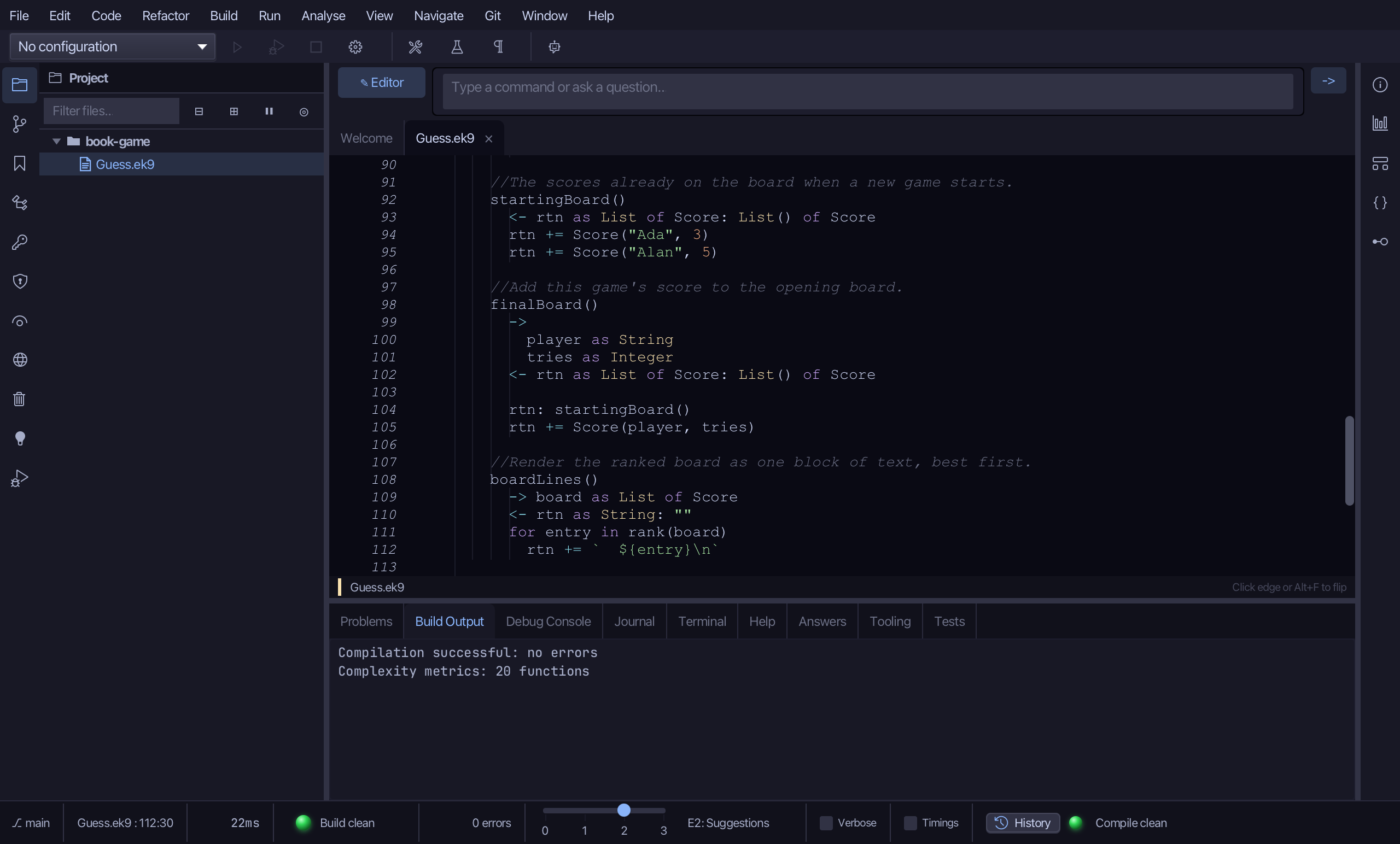
Step 10: playerName — reading the command line
Choose Code > New Construct > Function…
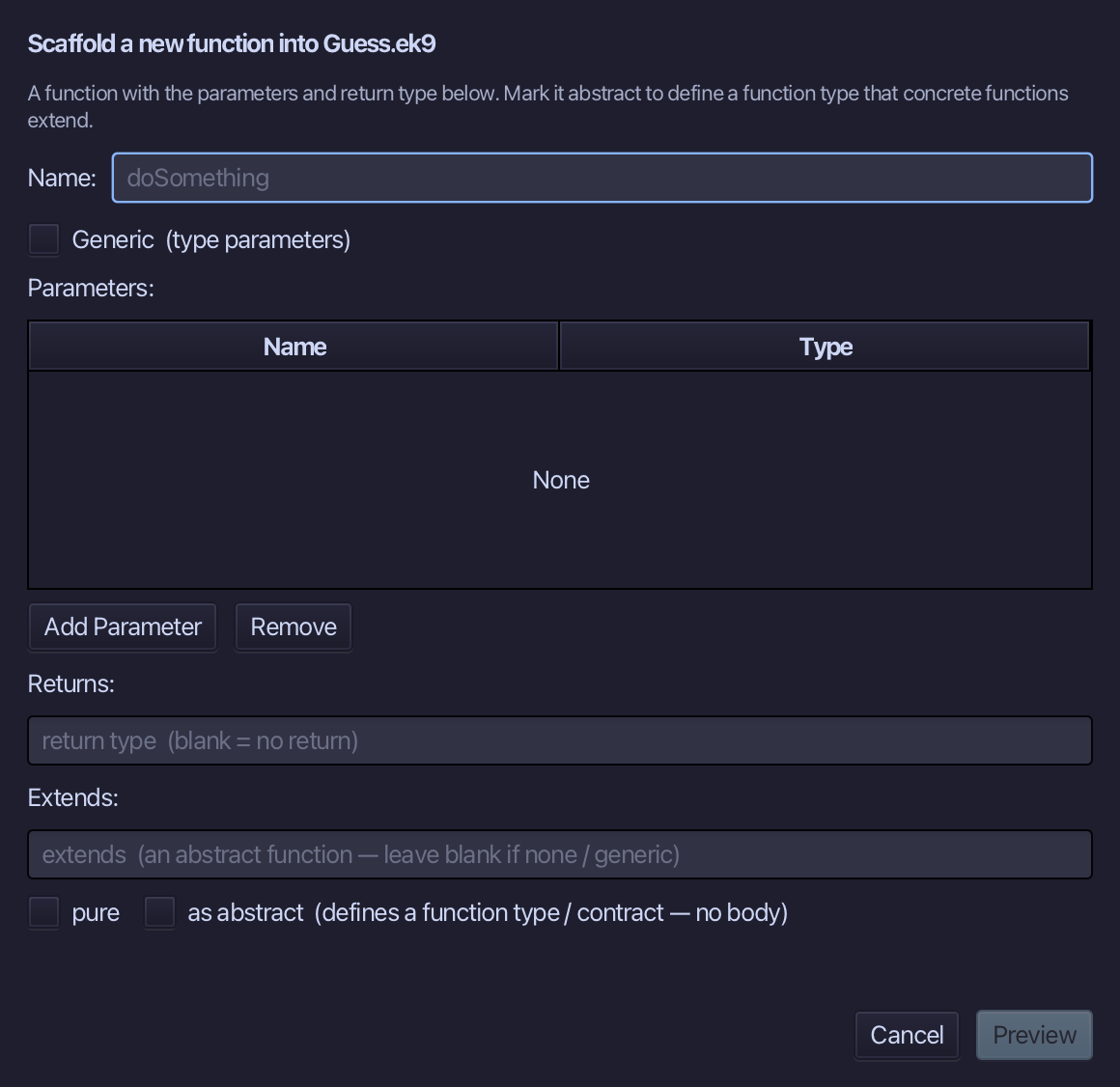
playerName is the name - one parameter, argv as List of String, not pure. Set Returns to String and choose Preview.
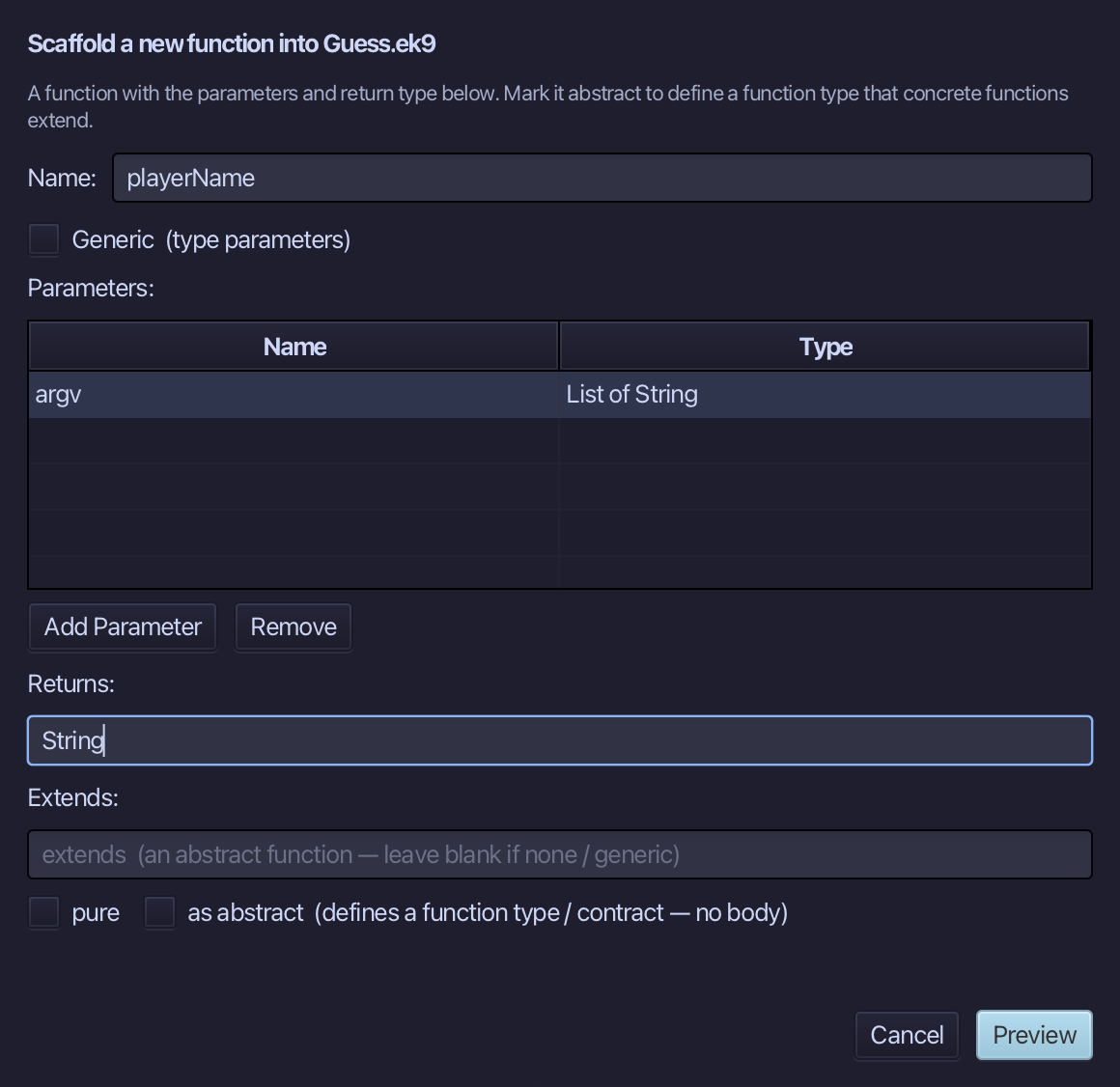
The preview shows playerName about to be written, the last member of defines function. Choose Apply.
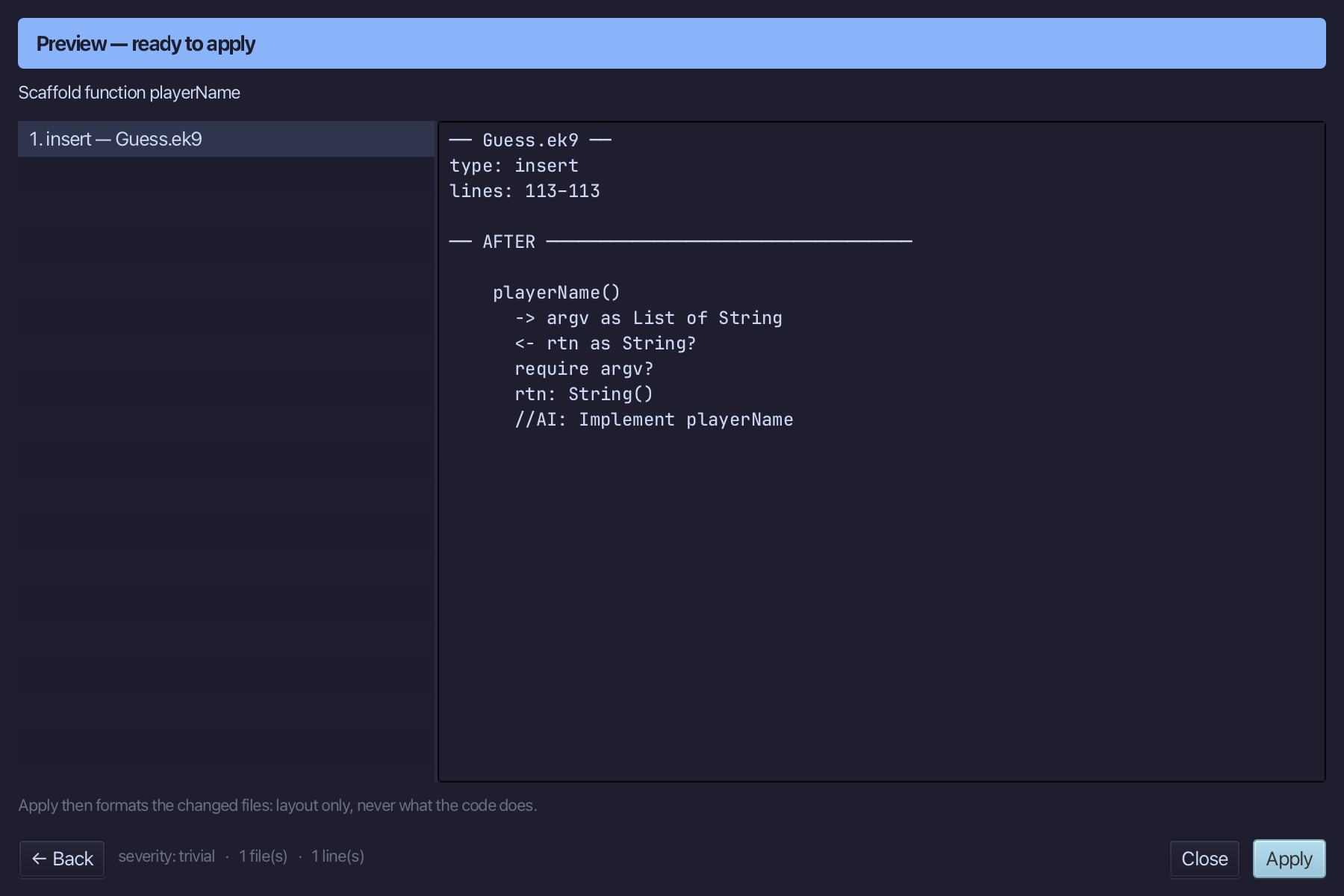
Select playerName() and above it type the comment - the blank line above it is already there. Saves when typed.
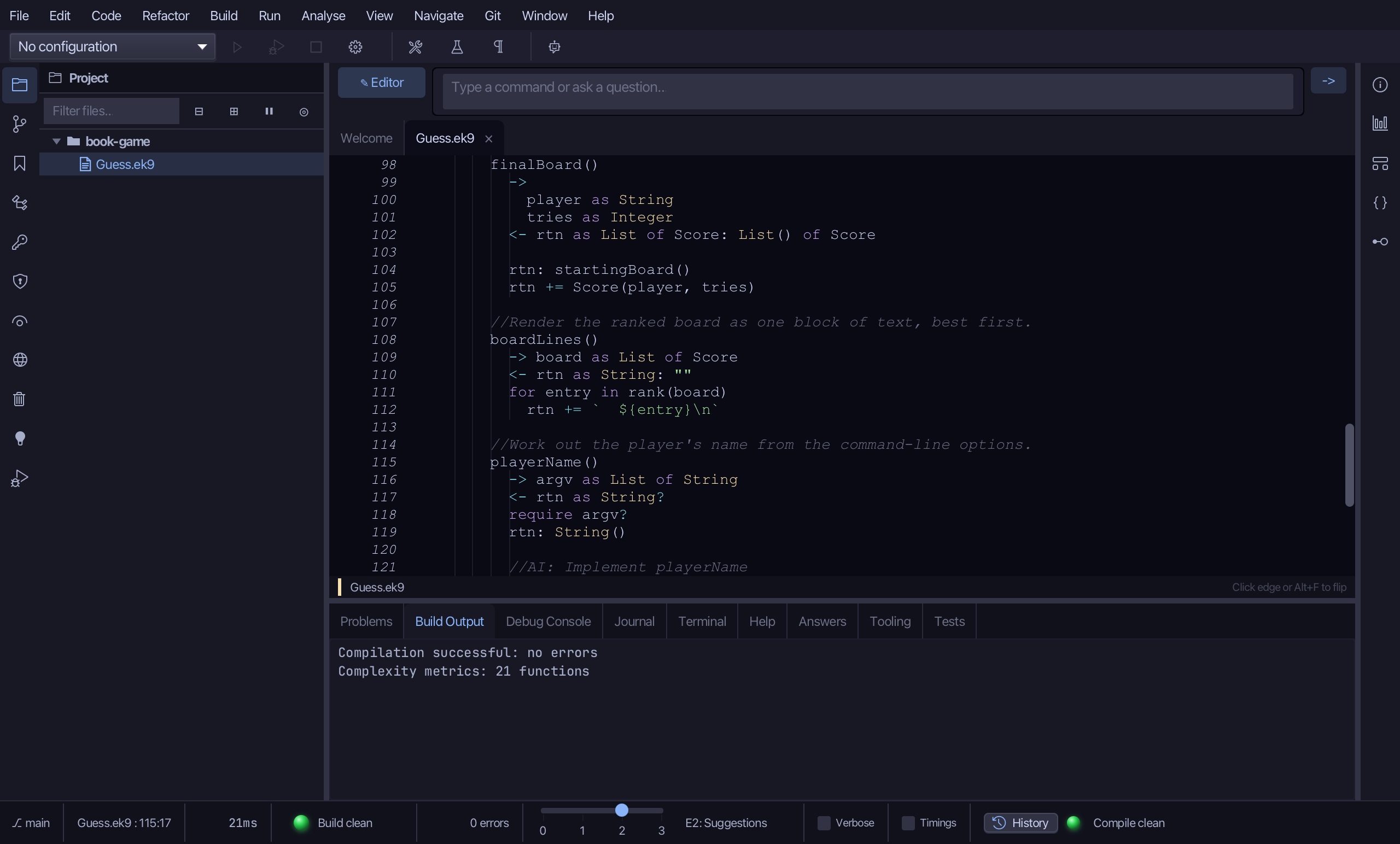
Select the stub, from <- rtn as String? down to its //AI line, and type GetOpt's whole job: the usage line, the -p option it supports, and the lookup with its default. Saves when typed.
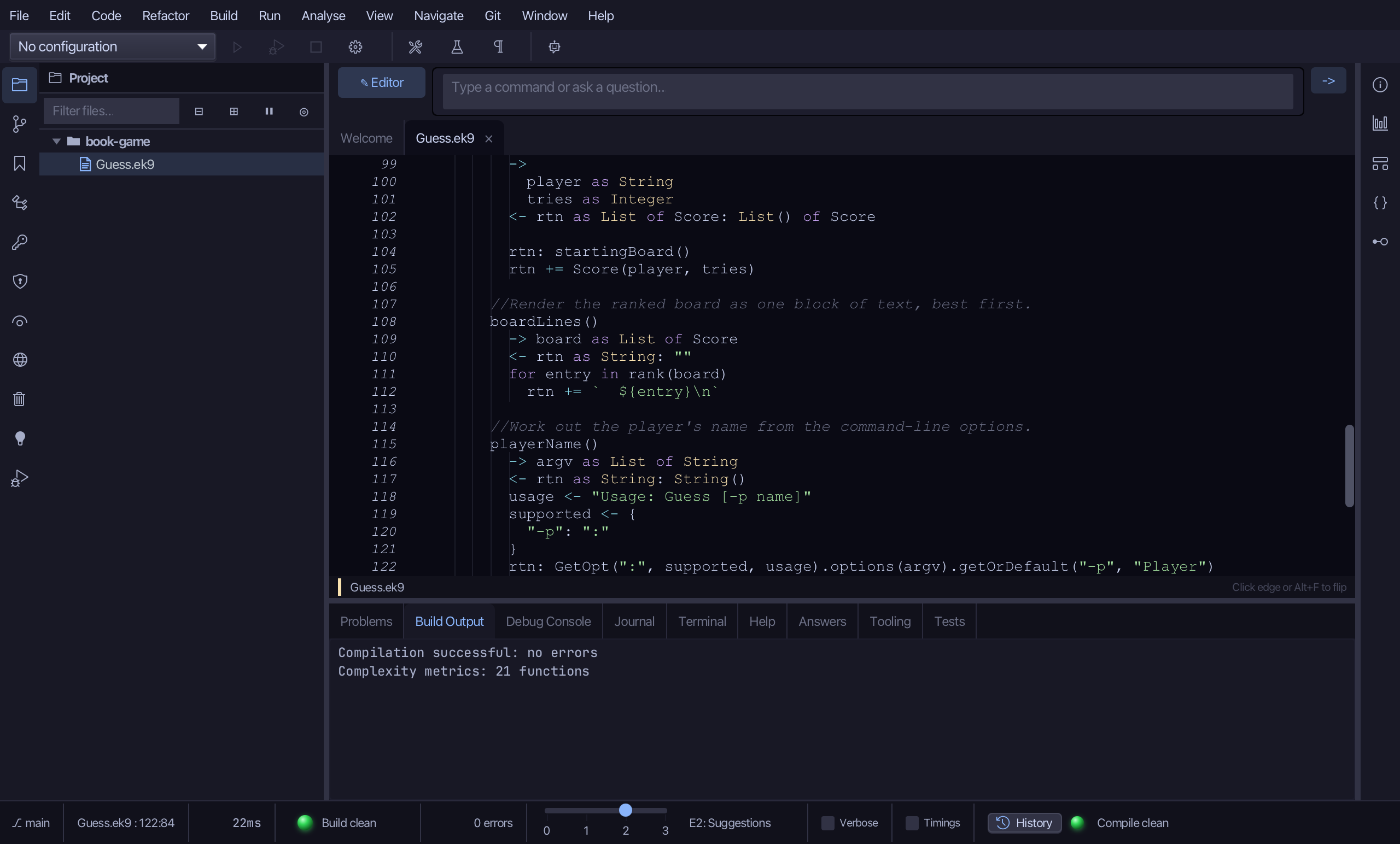
Step 11: The program — a thin shell
Choose Code > New Construct > Program…
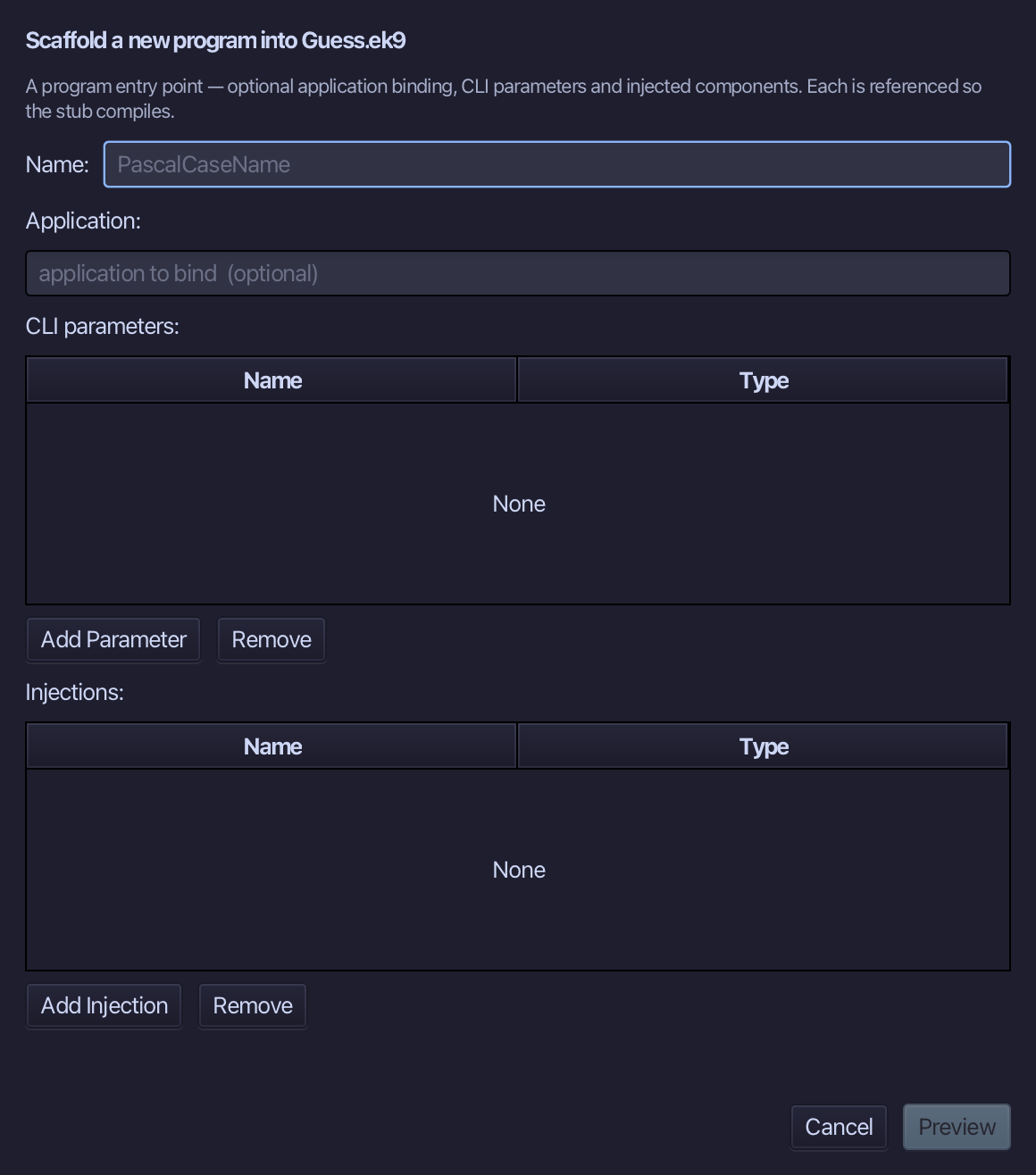
Guess is the program's name - one CLI parameter, argv as List of String, in the SAME dialog's own CLI parameters table. Add it, type Guess, and choose Preview.
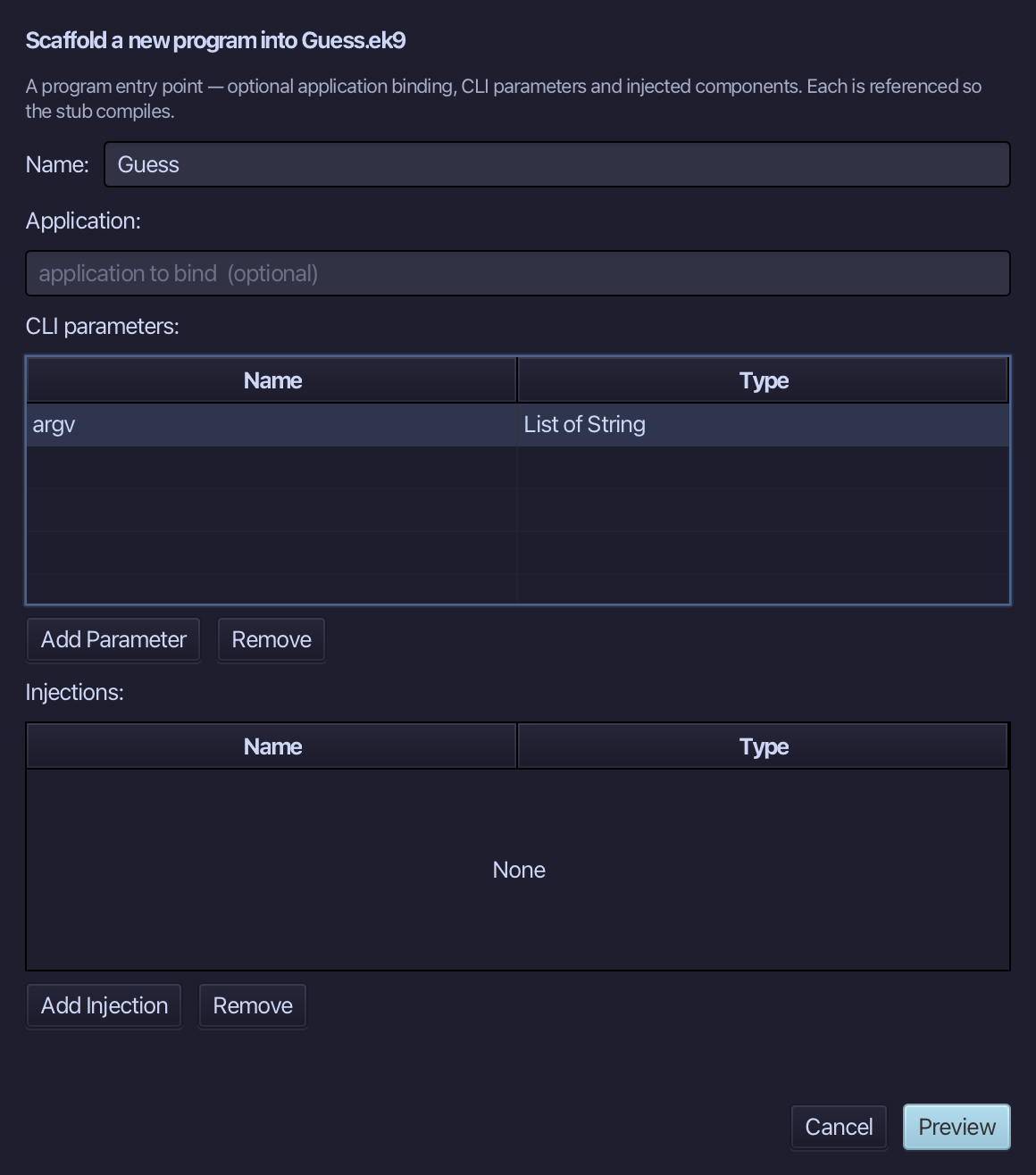
The preview shows Guess about to be written, taking argv. Choose Apply.
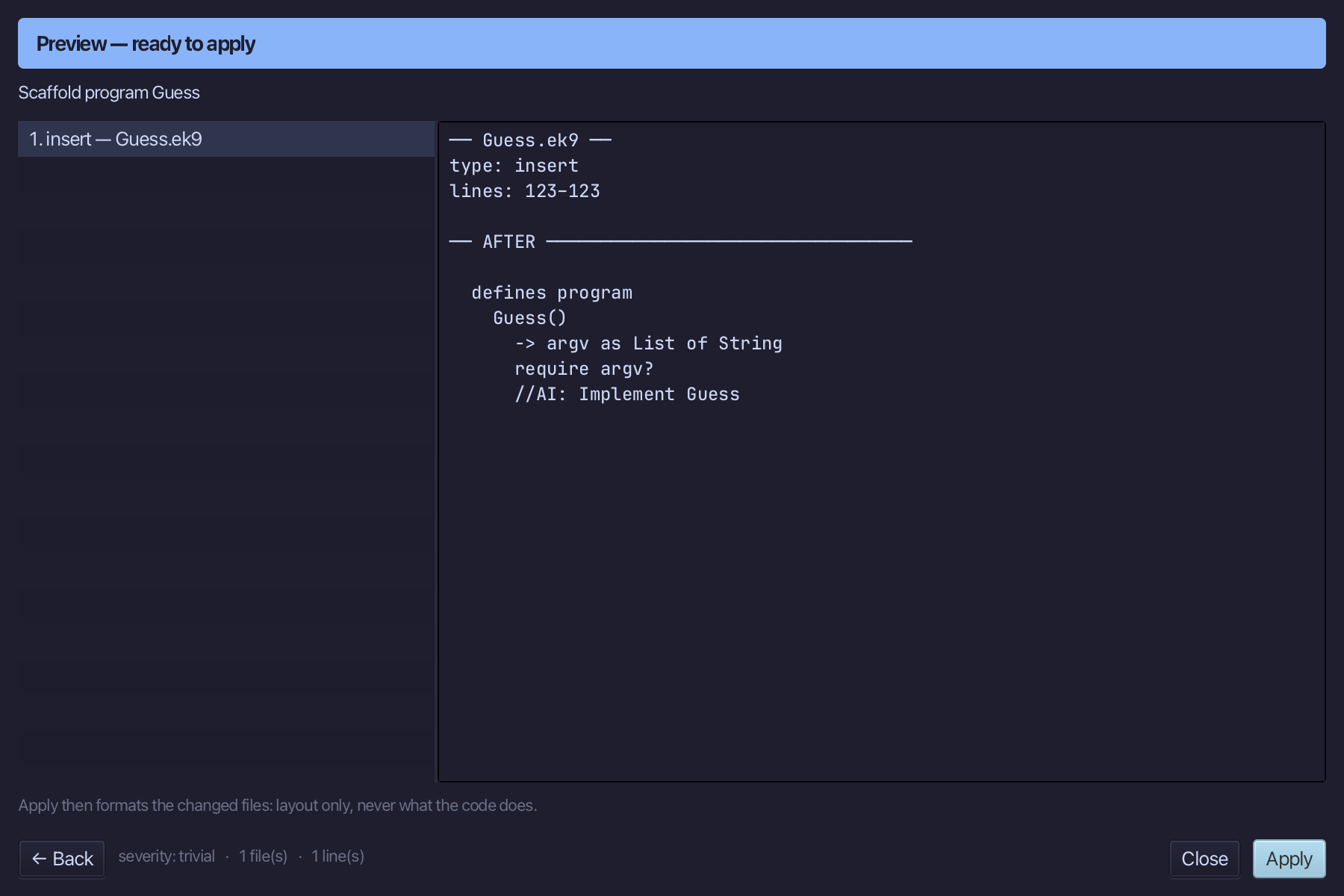
Select the Guess() line, and above it type the blank line every chapter example (but 16) opens its first member with. Saves when typed.
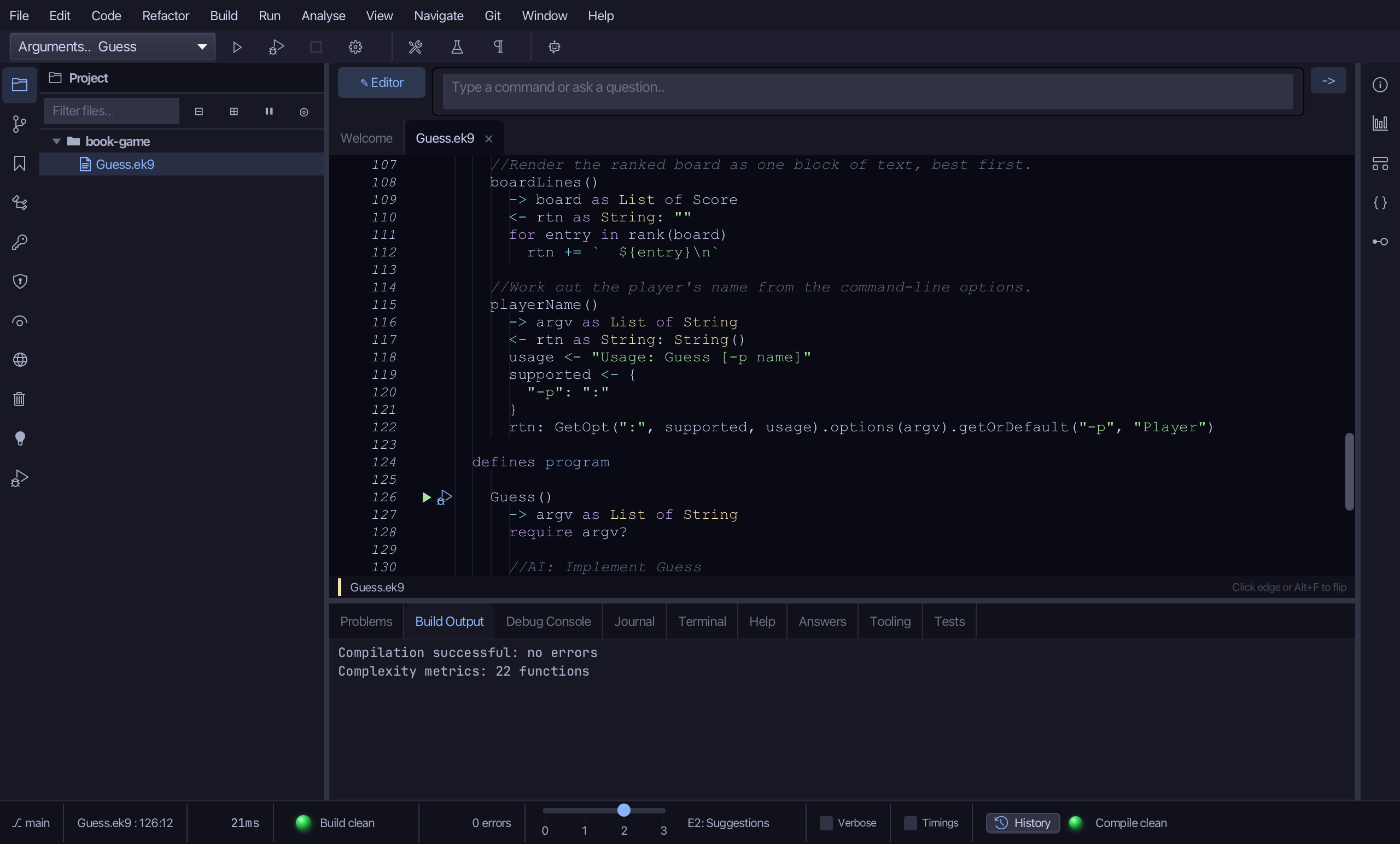
Select the stub, from require argv? down to its //AI line, and type the whole interactive loop: a Stdin and Stdout, the player's name, a random secret, the while loop reading guesses, then the report and the board. Saves when typed.
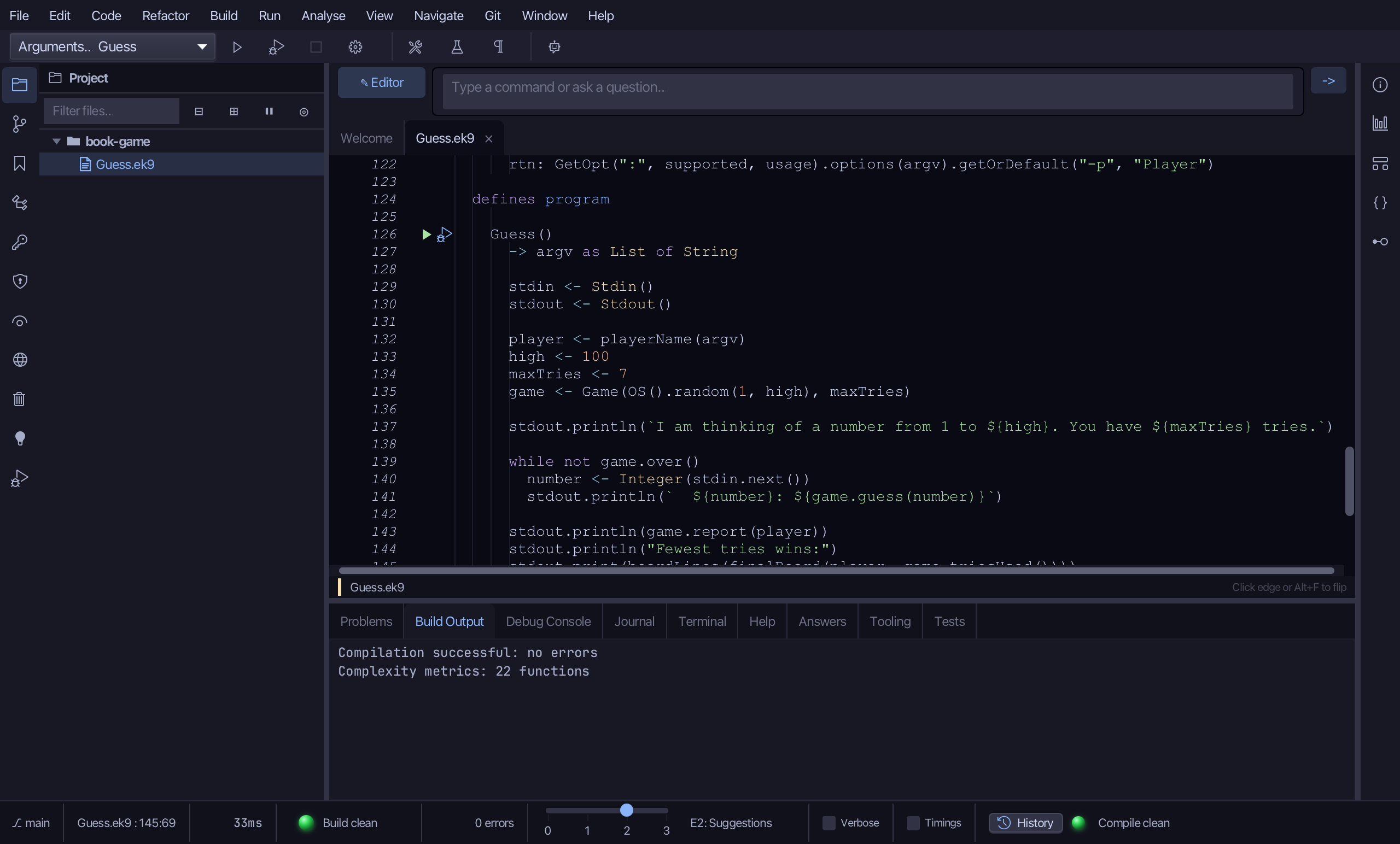
Step 12: Playing it, through the debugger
Click the debug (bug) icon beside the Guess() line - no saved configuration exists for it yet.
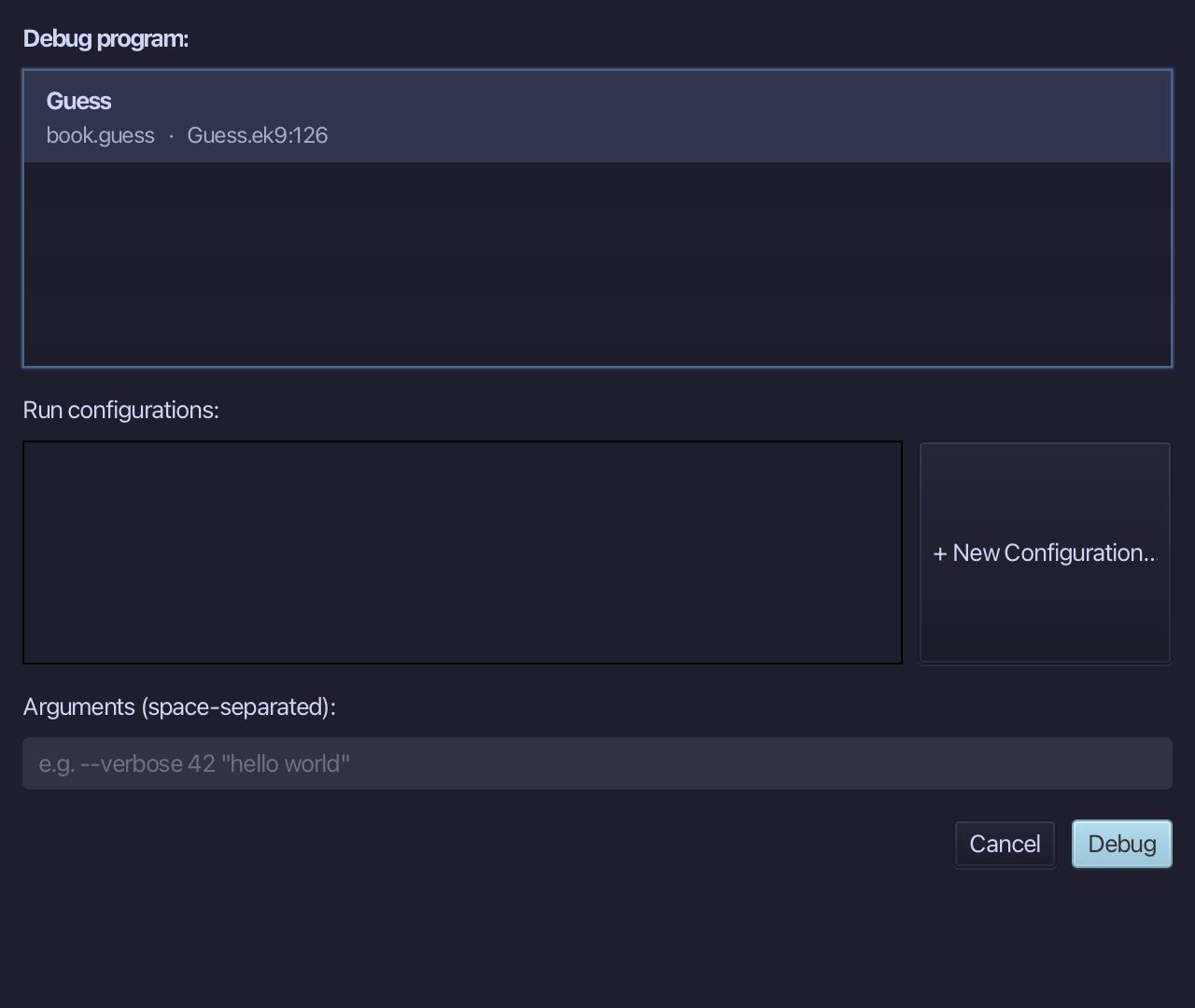
Choose + New Configuration… - this run needs a fixed seed, which only a saved configuration can carry.
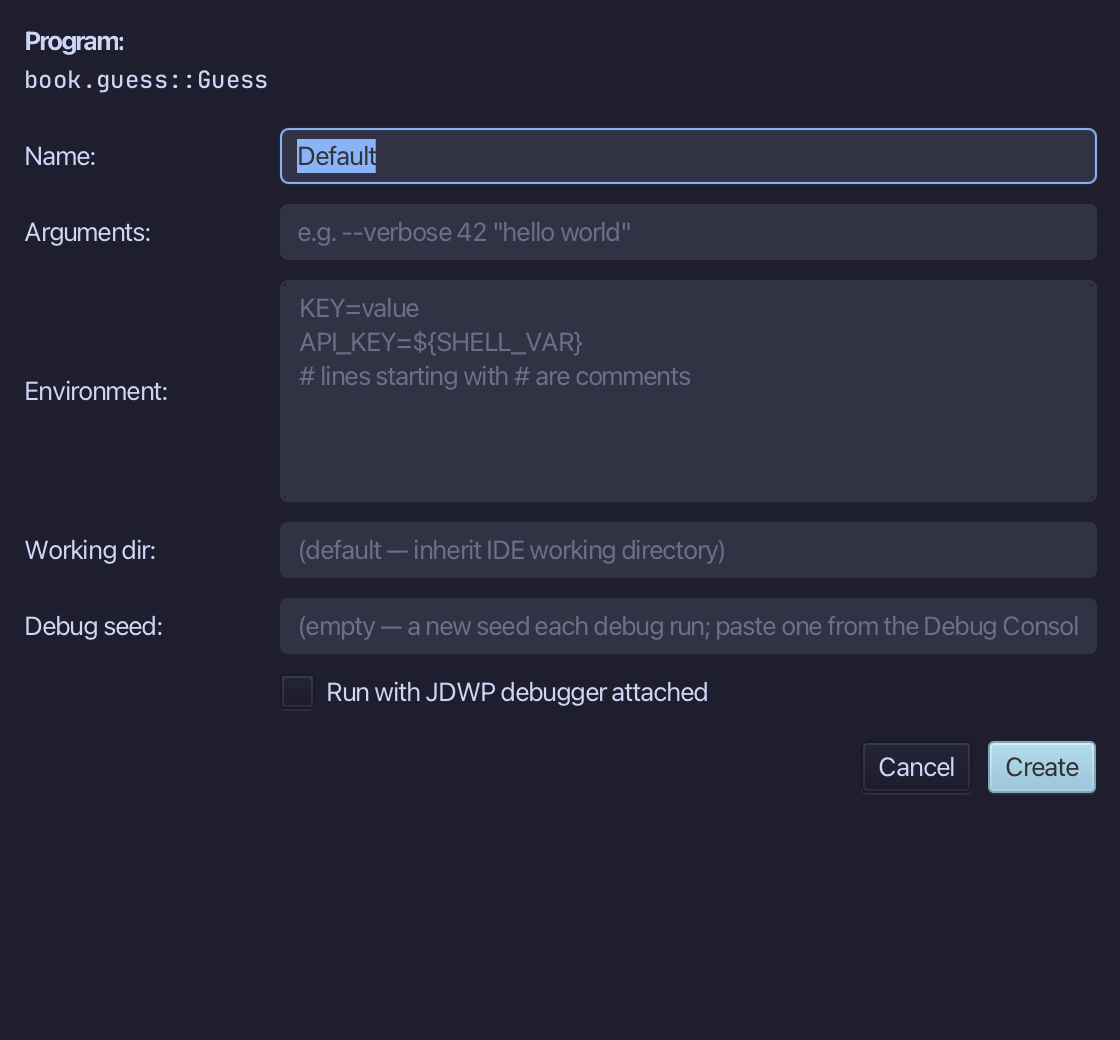
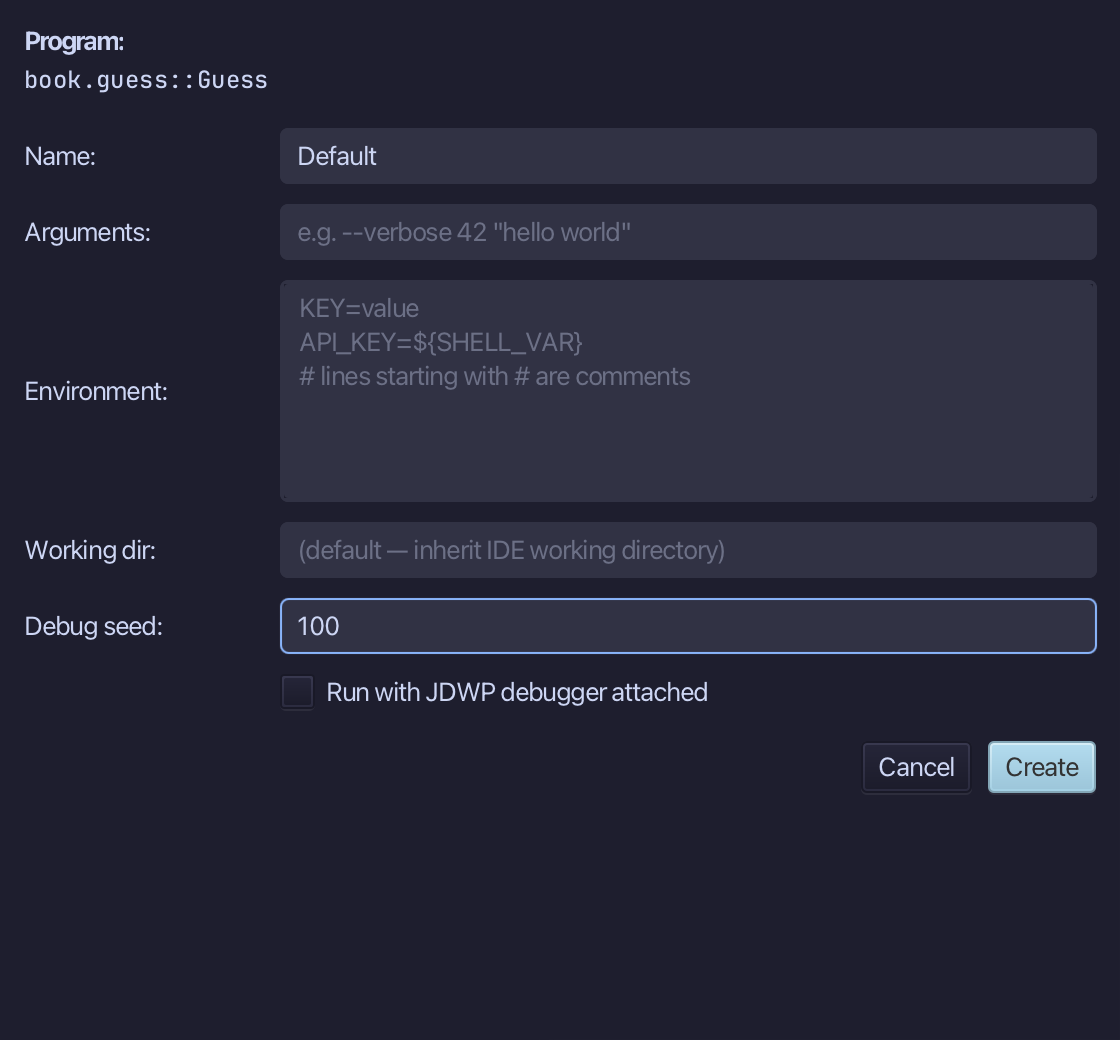
Type 100 into Debug seed - a fixed seed makes OS().random draw the same secret every time, so this run can be scripted to a win. Choose Create.
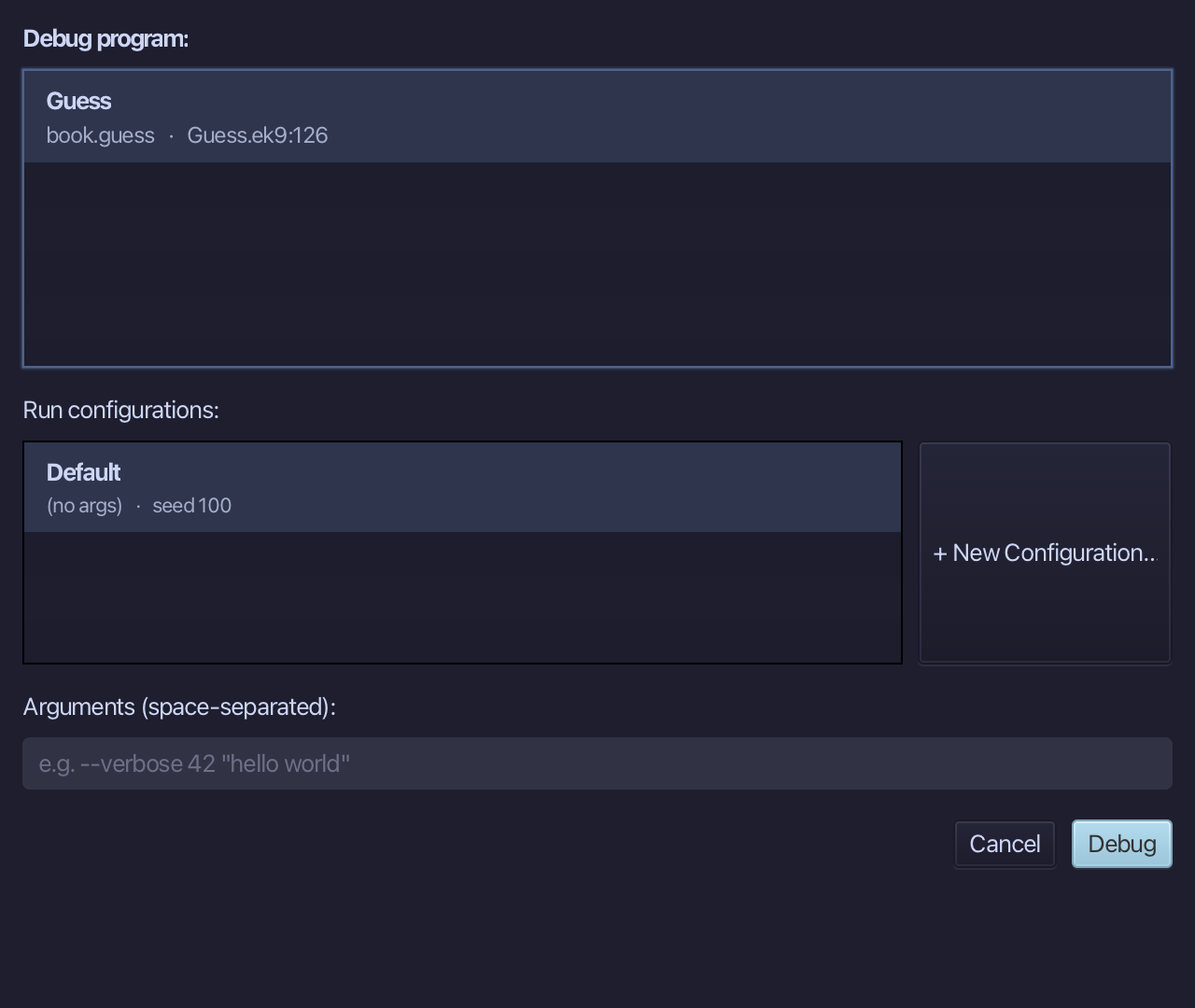
Choose Debug - the new configuration, with its fixed seed, is already selected.
Type 50 into Standard Input and choose Enter.
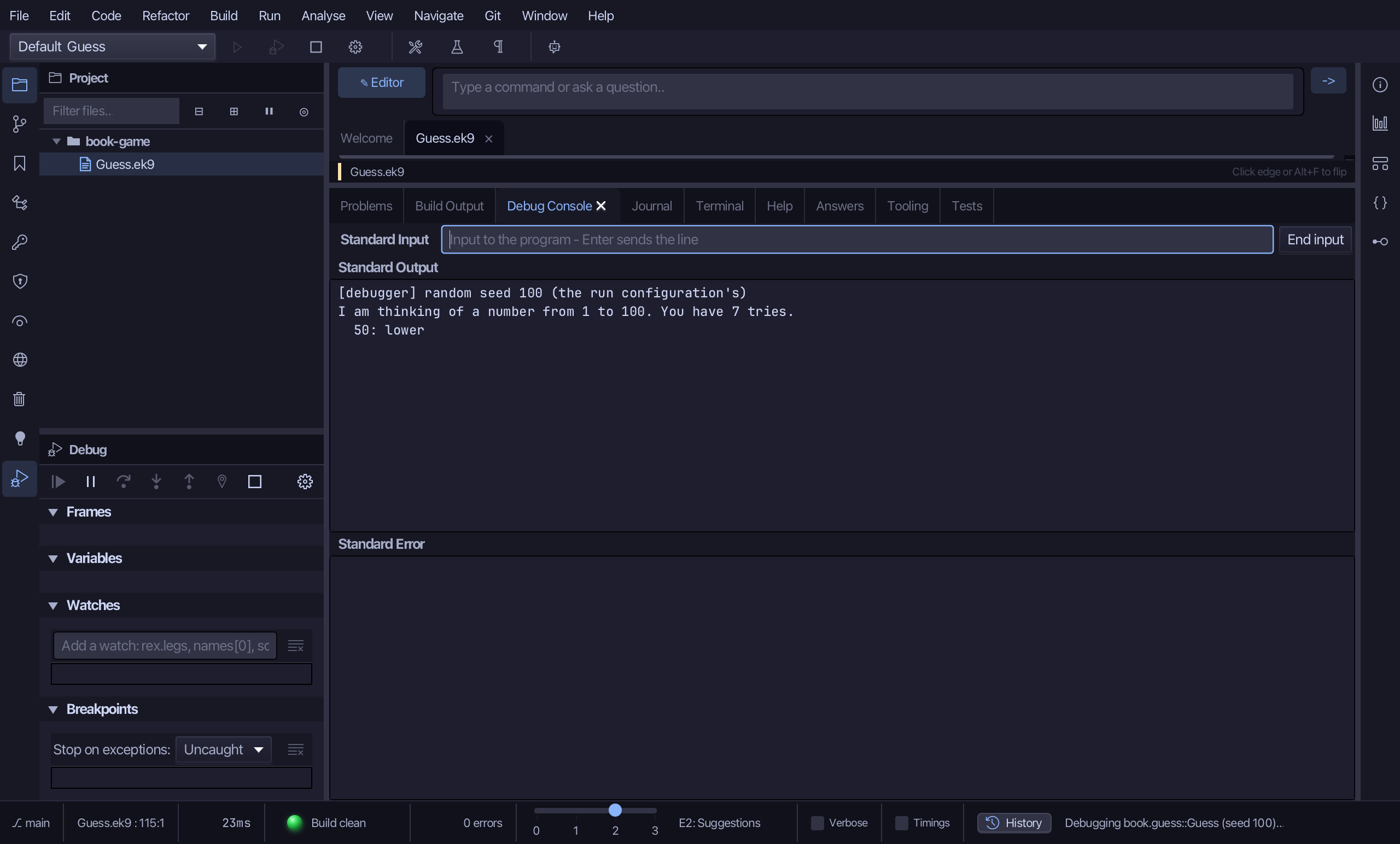
Type 25 into Standard Input and choose Enter.
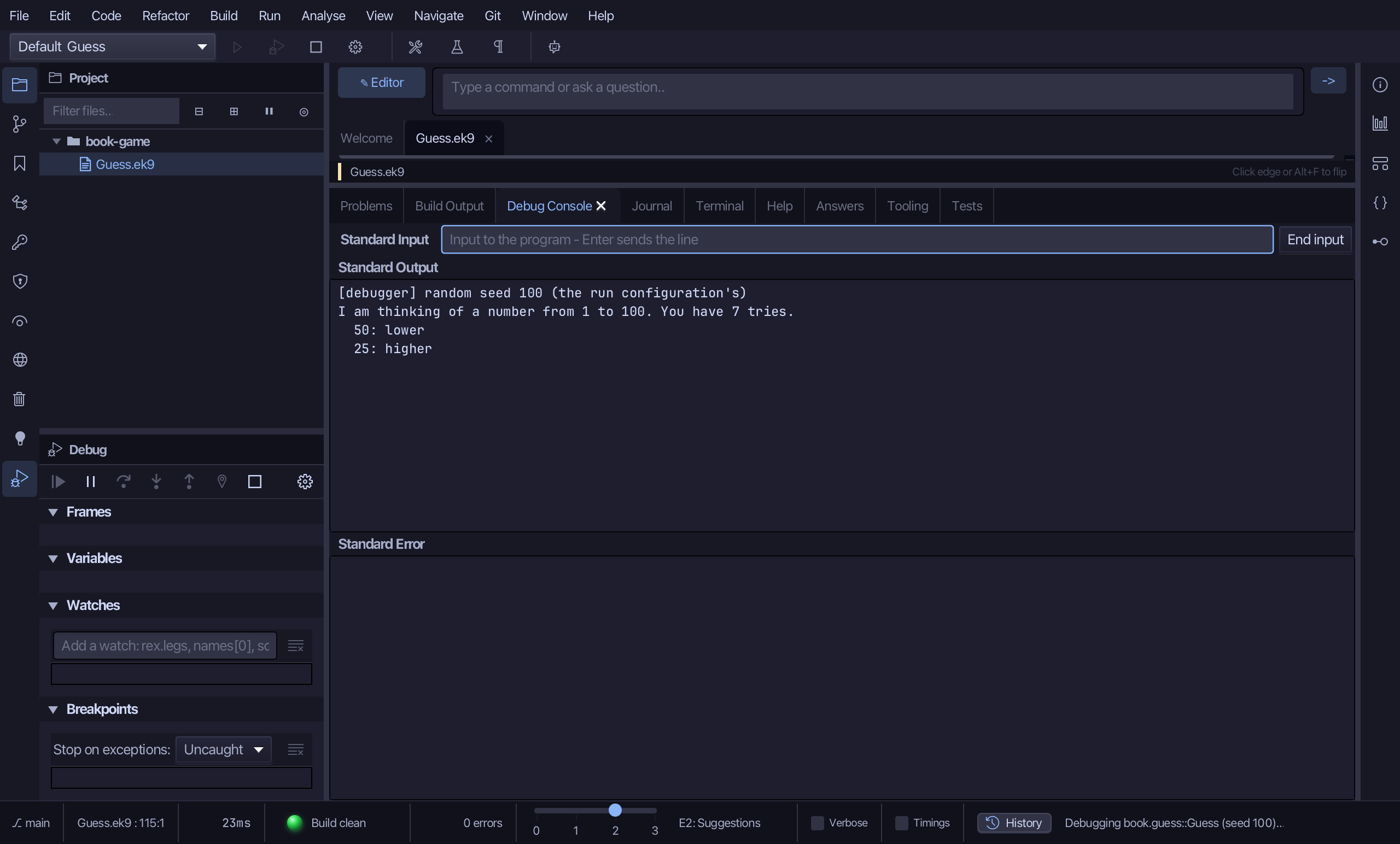
Type 37 into Standard Input and choose Enter.
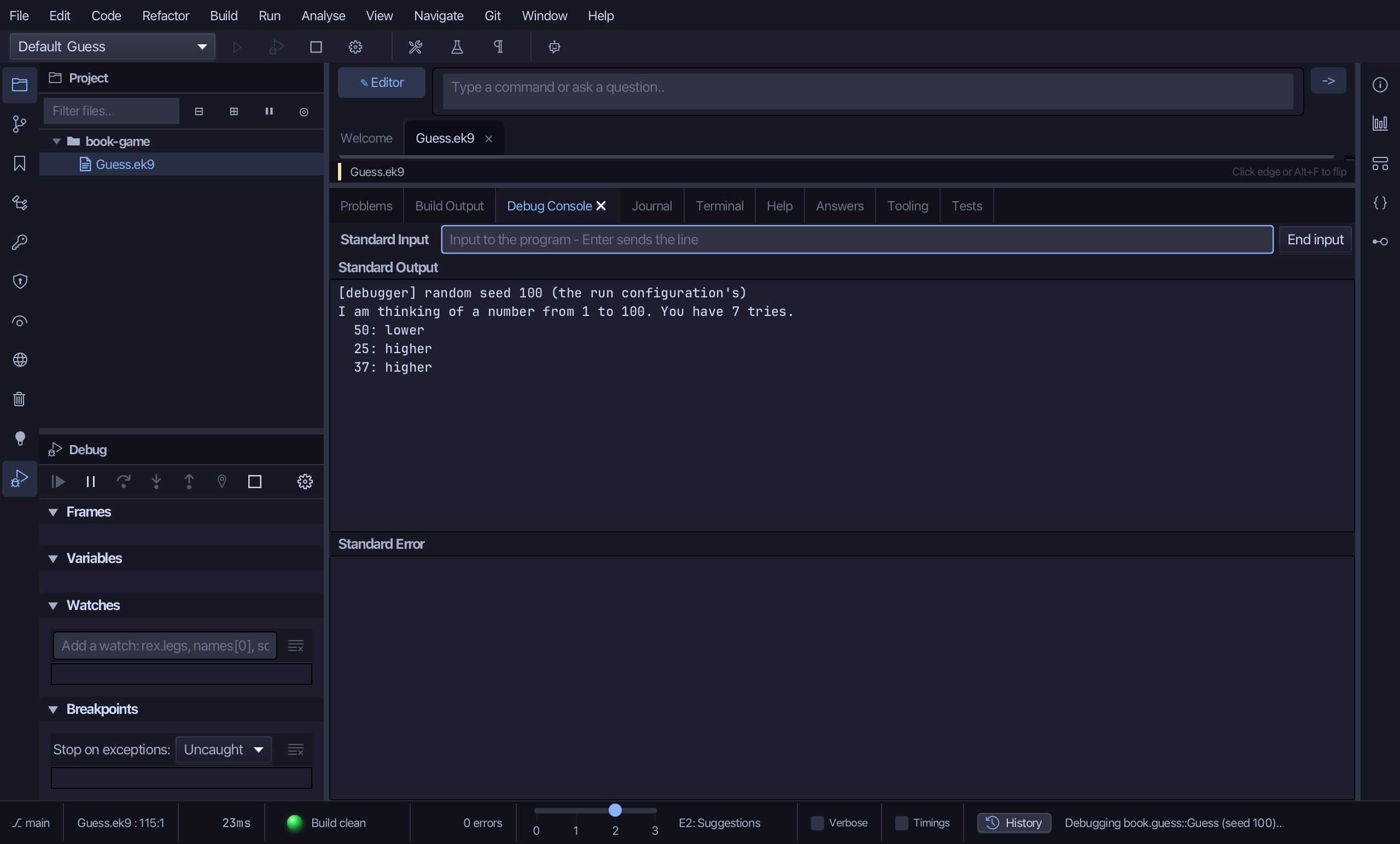
Type 43 into Standard Input and choose Enter.
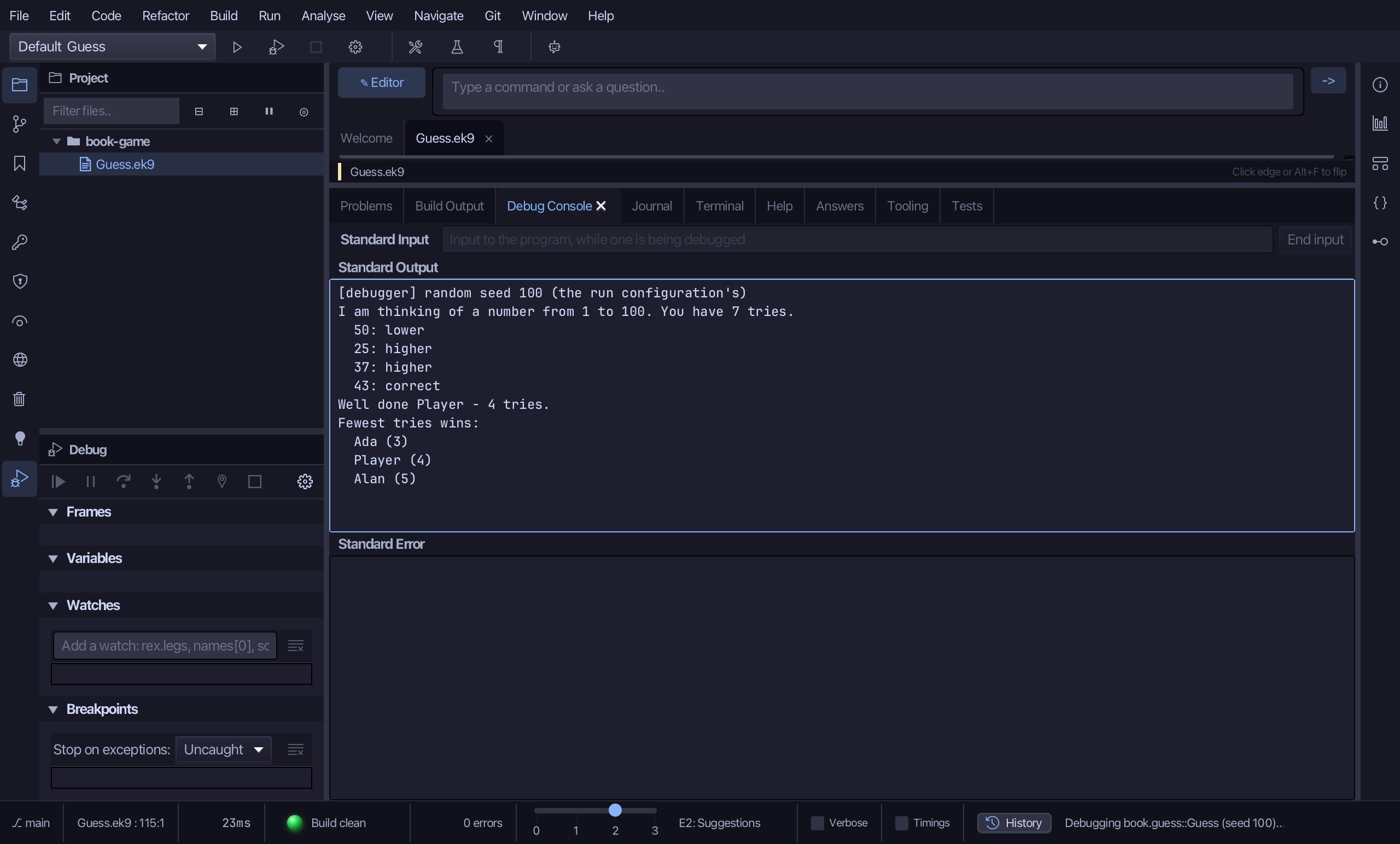
Four tries, and the win: Guess prints the report, then the board - your own score (Player, 4 tries) sorted in with Ada's and Alan's. The secret was fixed by the seed, so this exact game can be replayed any time.
The result
Guess.ek9 now builds, compiles and plays exactly as chapter 23 describes it: a Score record, a Game class, six small functions and the program that connects them to Stdin, OS().random and GetOpt - built by the tools, logic you typed - then played for real, through the debugger: a win in four tries, the board printed with your own score alongside Ada and Alan's. Running the fifteen tests that cover everything but the interactive loop, and a short look at the Journal, are book-game-journal.
Where this lesson comes from
- For AI assistants - the MCP tool
ek9_new_construct,ek9_add_field,ek9_add_constructor,ek9_add_method,ek9_add_operator,ek9_add_program,ek9_debug_session.