Chapter 15: a range and a pattern, built
Chapter 15's DrivingAge limited an Integer to a range. Rules shows the other two kinds of rule - a Float held between 0.0 and 1.0, and a String that must match a pattern - each made by the same dialog. To play it in the IDE: Help > Lessons > Getting Started with EK9…, or ek9 -ide -lesson book-rules.
What you'll build
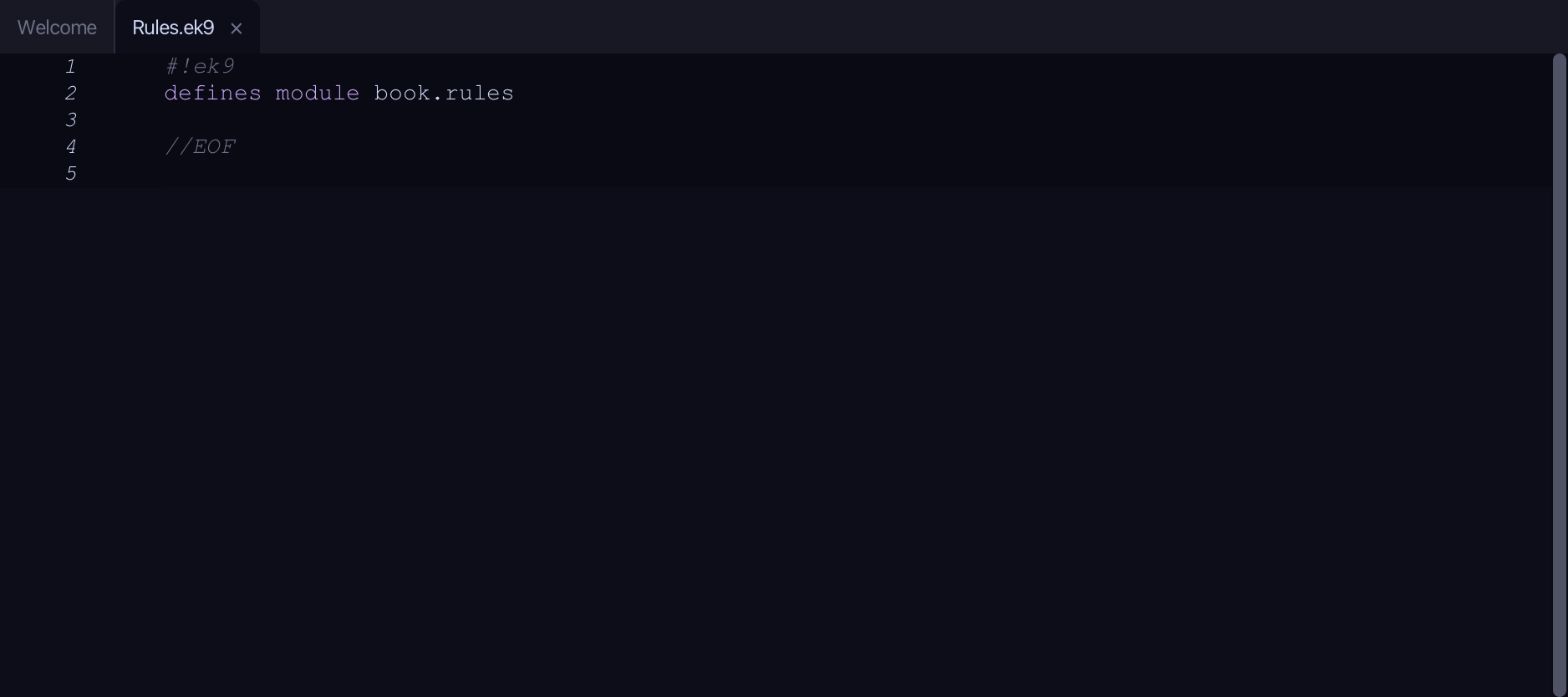
The lesson builds this program from a file holding only its module line - the finished file, as the book prints it.
#!ek9
defines module book.rules

  defines type
    Ratio as Float constrain as
      >= 0.0 and <= 1.0

    Email as String constrain as
      matches /^[a-z]+@[a-z]+$/

  defines program
    Show()
      stdout <- Stdout()
      half <- Ratio(0.5)
      stdout.println(`ratio ${half}, too big accepted? ${Ratio().of(1.5)?}`)
      stdout.println(`email ok? ${Email().of("ada@example")?}, capitals ok? ${Email().of("Ada@example")?}`)

//EOF
Step 1: A Float kept in a range
Choose Code > New Construct > Type > Constrained…
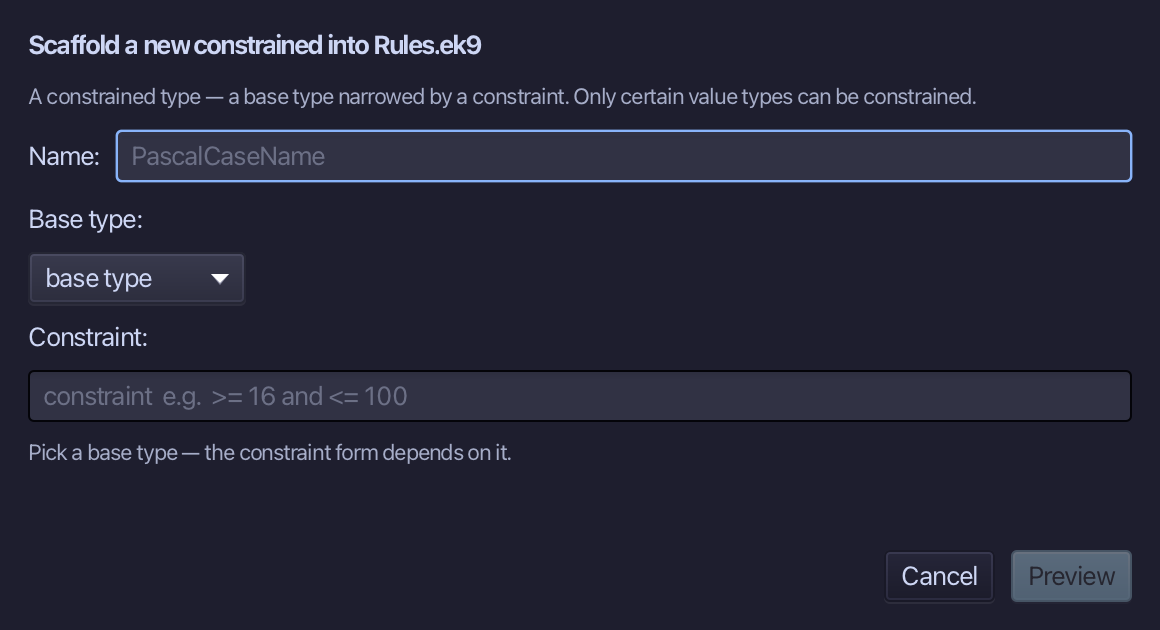
Ratio is the type's name. Choose Float as its base type - the Constraint field's hint changes to a range - and type >= 0.0 and <= 1.0 into it. Choose Preview.
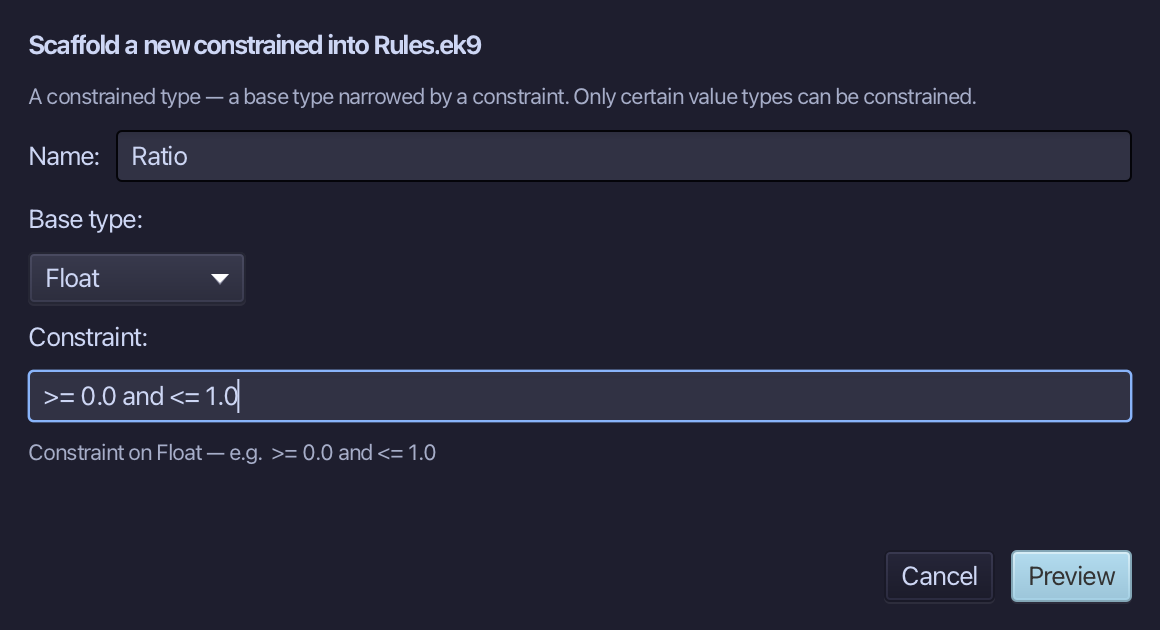
The preview shows Ratio about to be written, a Float narrowed by its range. Choose Apply.
Step 2: A String that must match a pattern
Choose Code > New Construct > Type > Constrained…
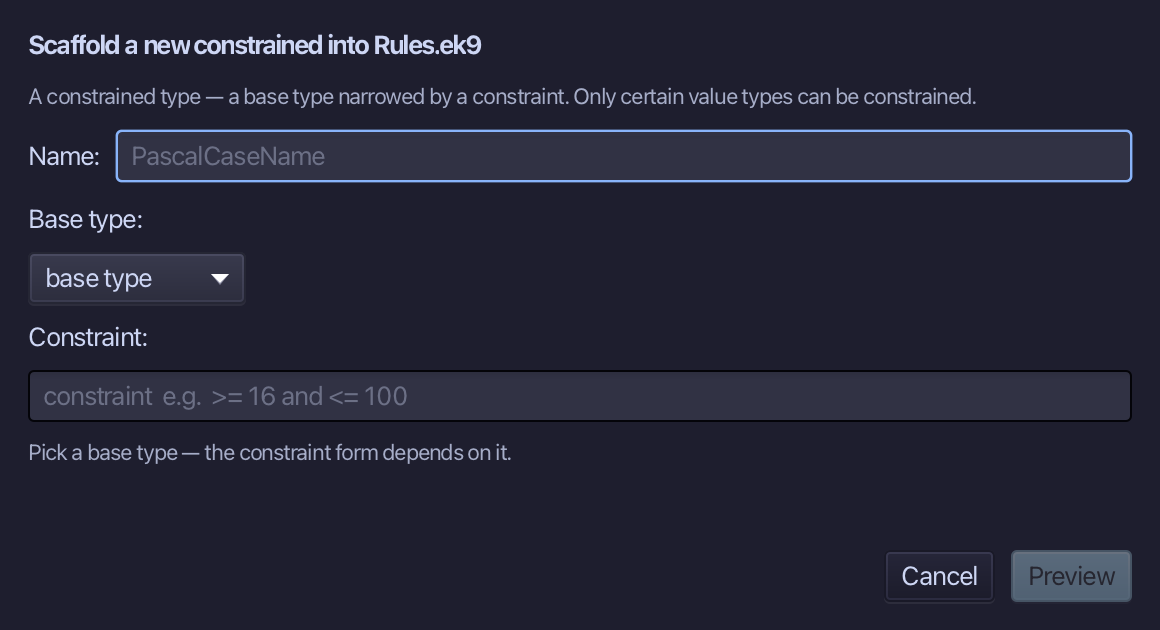
Email is the type's name. Choose String as its base type - now the hint offers a pattern or a length - and type matches /^[a-z]+@[a-z]+$/ into the Constraint field. Choose Preview.
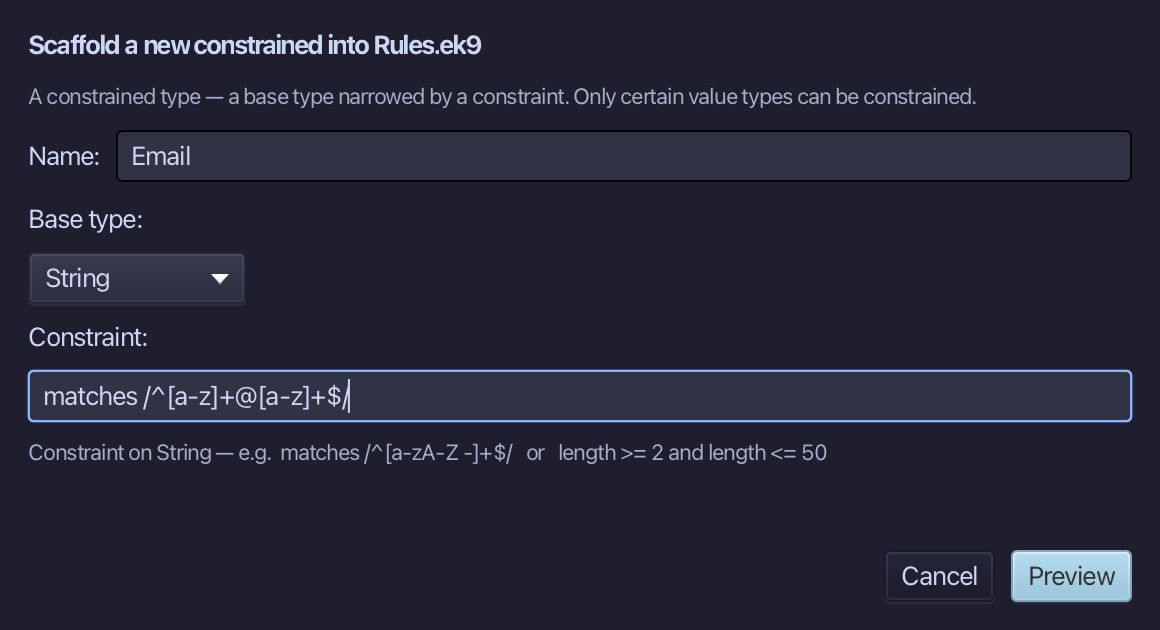
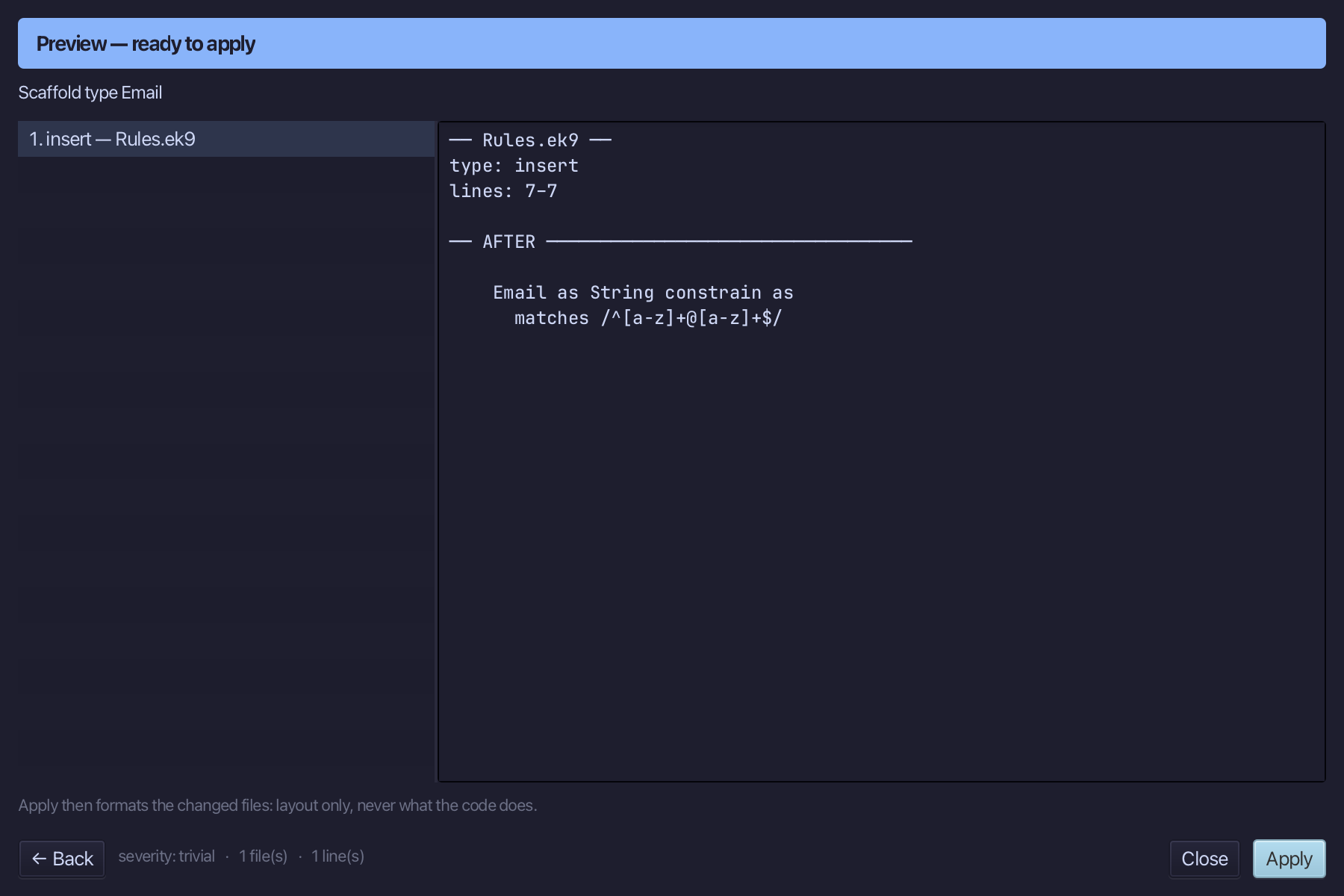
The preview shows Email joining Ratio in the same defines type block. Choose Apply.
Step 3: The program
Choose Code > New Construct > Program…
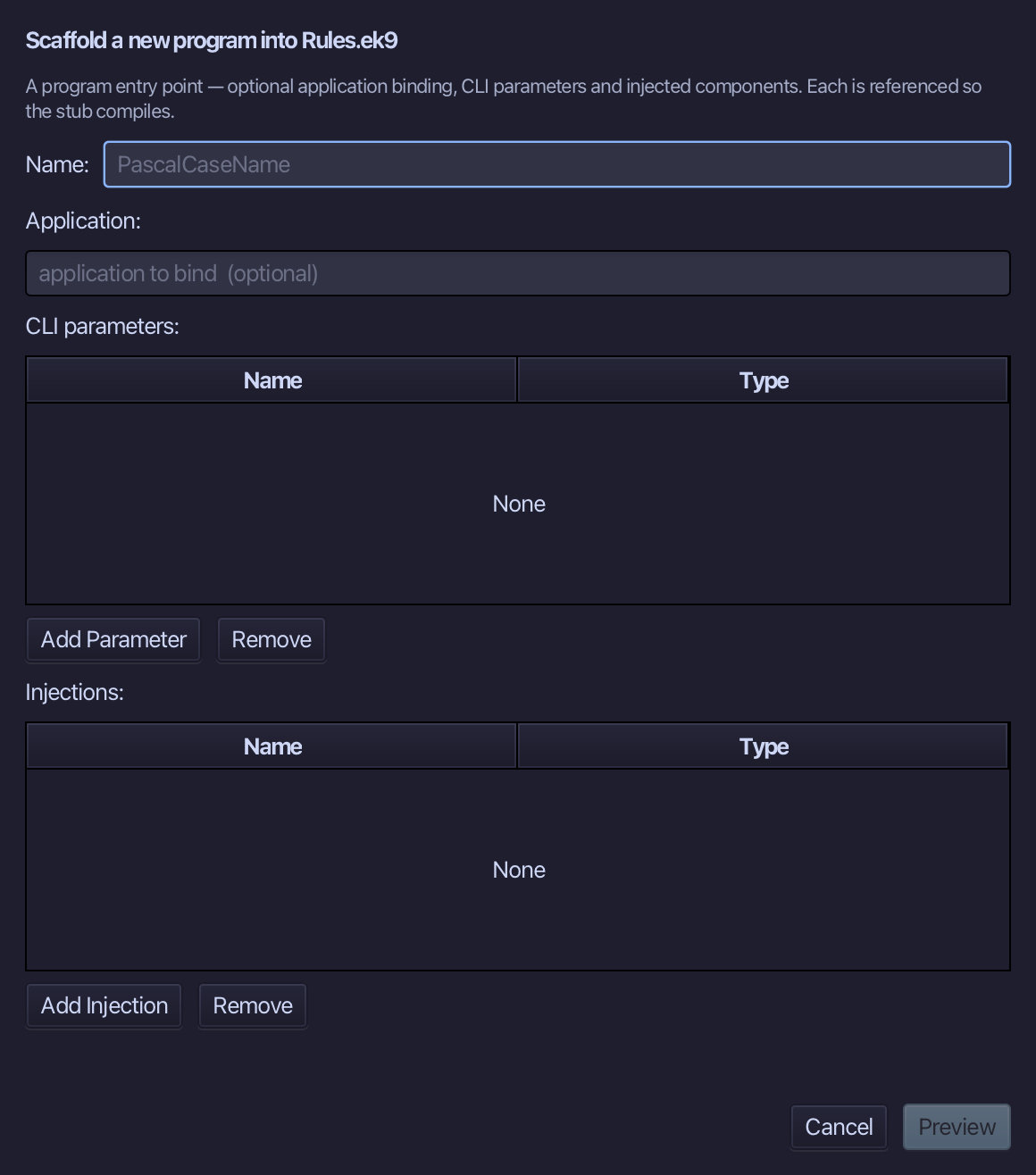
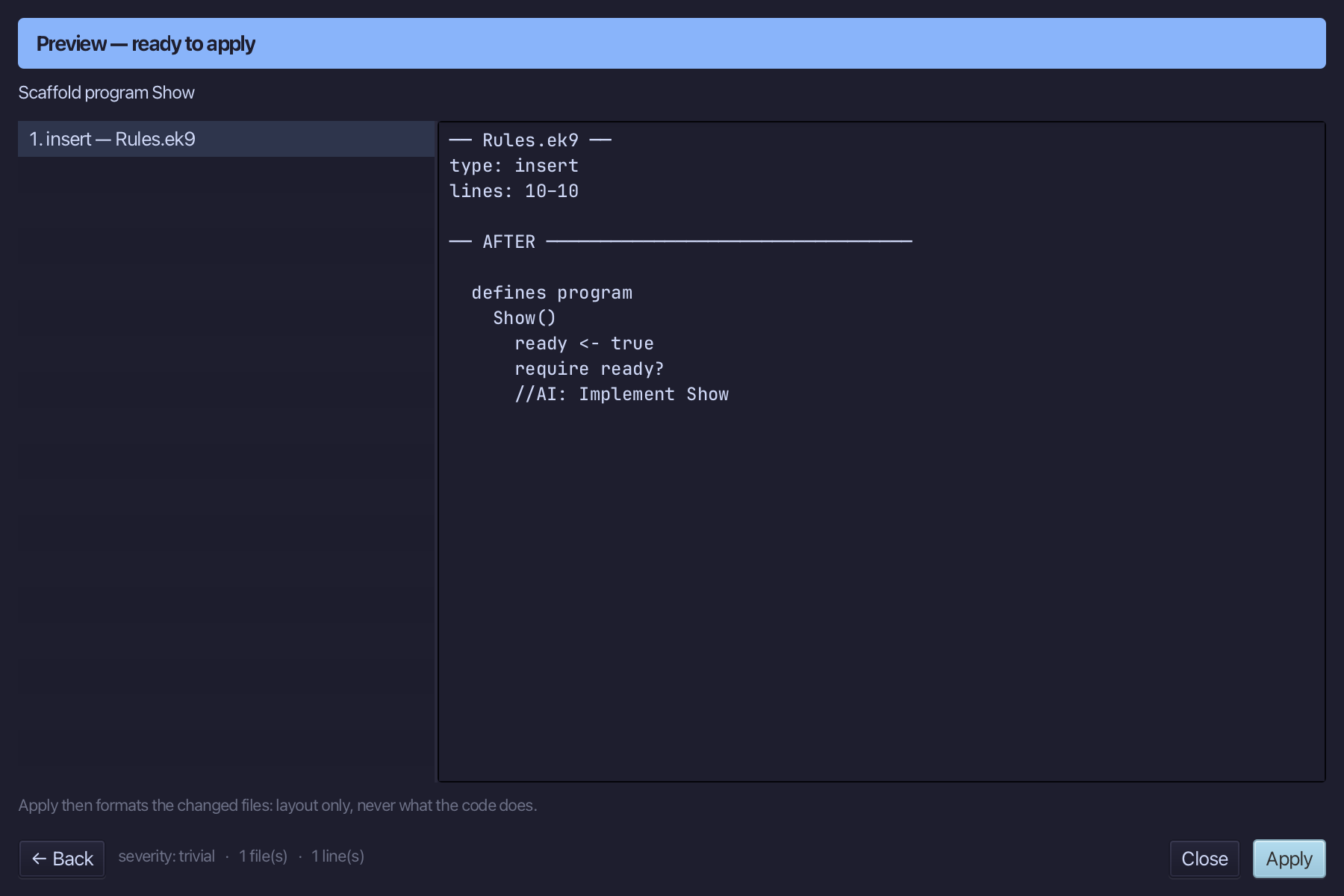
Show is the program's name. Type Show and choose Preview.
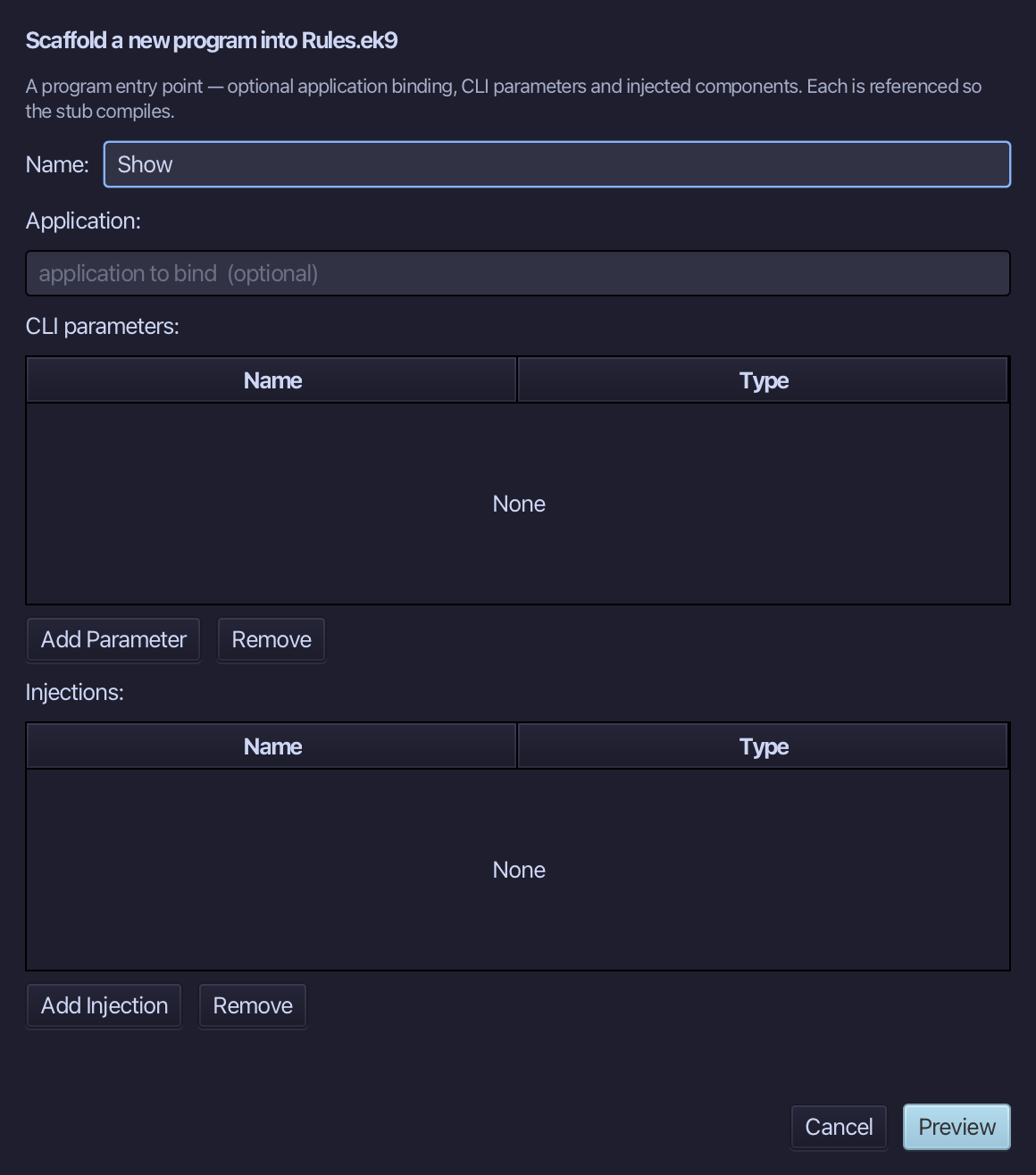
The preview shows Show about to be written. Choose Apply.
Select the stub, from ready <- true down to its //AI line, and type Show's body: a good Ratio, then four checks with .of(...)? that say whether a value was accepted. Saves when typed.
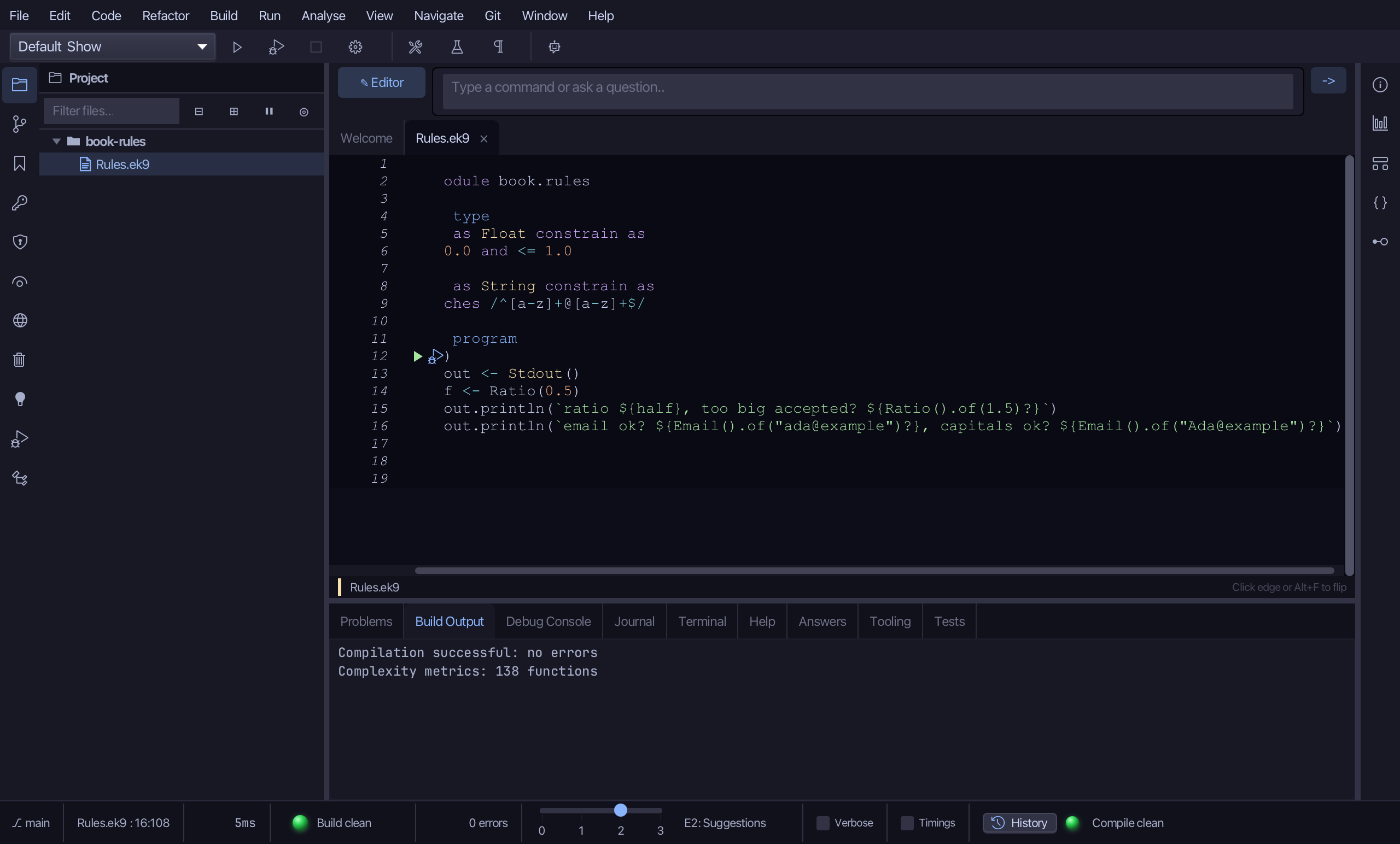
Step 4: Run it
Choose Run > Run Program…
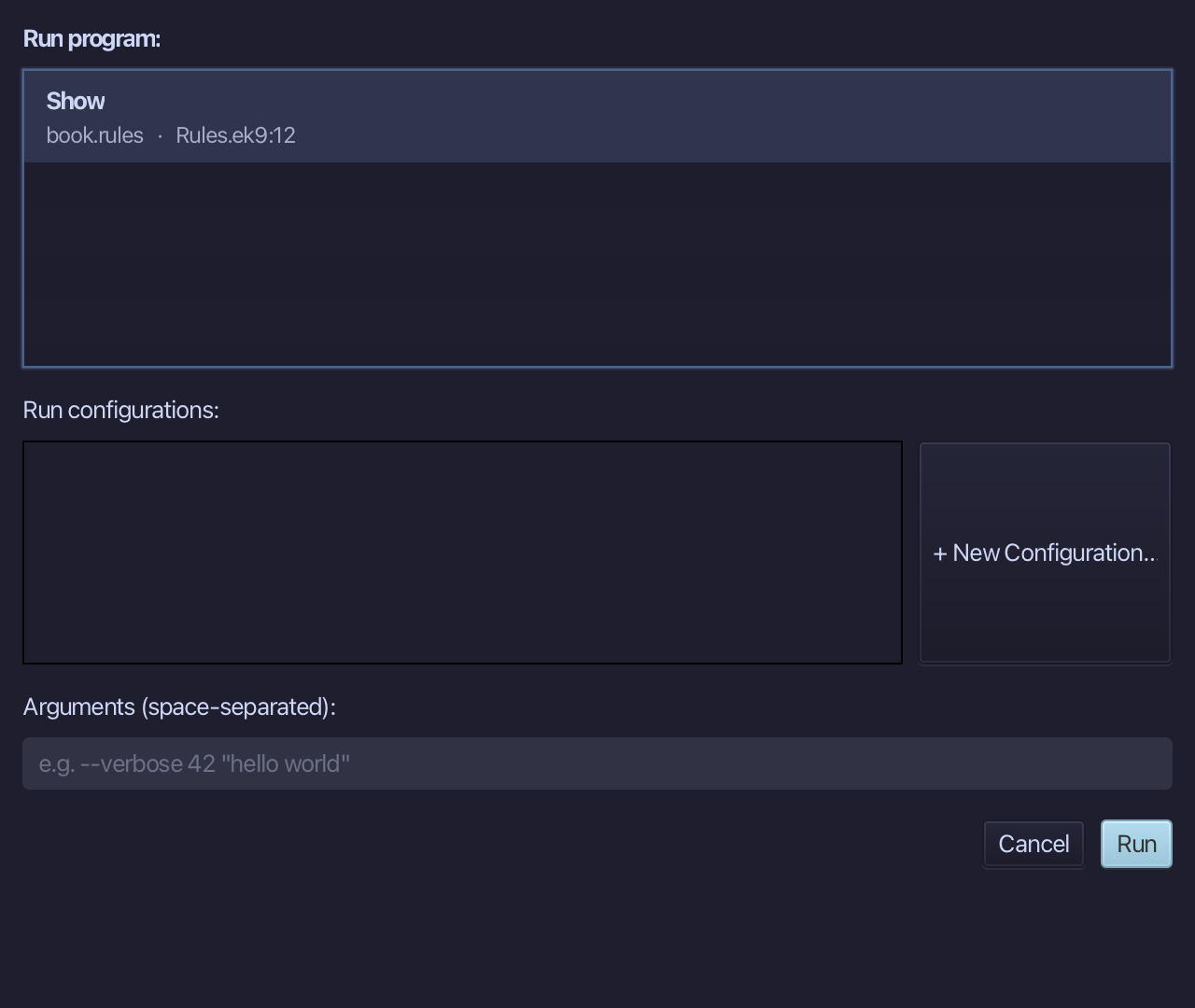
The project's only program is already chosen. Choose Run.
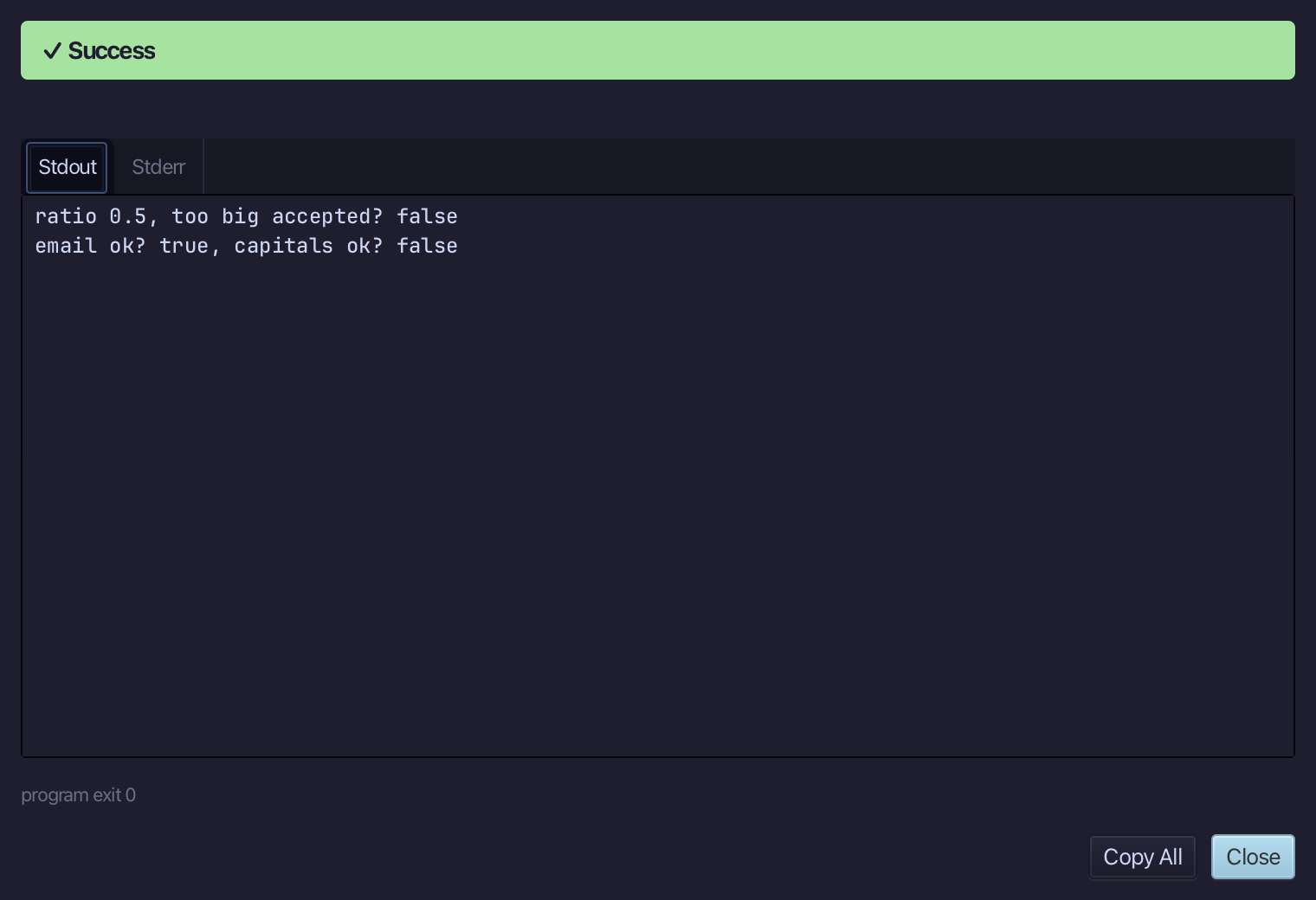
ratio 0.5, too big accepted? false - email ok? true, capitals ok? false: 1.5 is outside 0.0 to 1.0 and a capital letter breaks the pattern, so both are refused. Choose Close.
The result
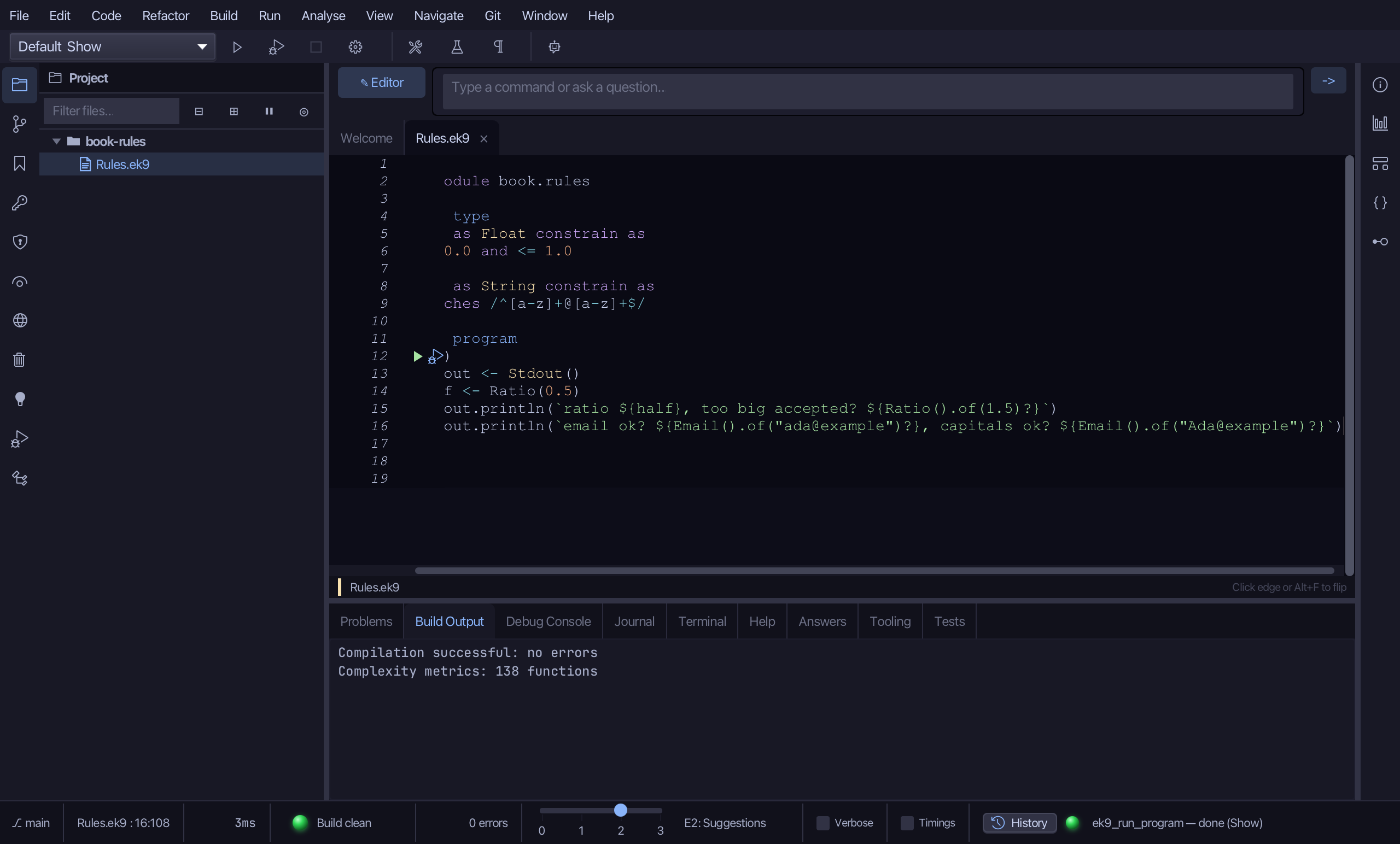
Rules.ek9 now reads exactly as chapter 15 of Getting Started with EK9 shows it: two constrained types - a Float range and a String pattern - made by one dialog, the Constraint field changing its hint to suit the base type, with only the program's body typed. ek9_new_construct (type, constrained) and ek9_add_program are what an AI assistant calls to do the same thing.
Where this lesson comes from
- For AI assistants - the MCP tool
ek9_new_construct,ek9_add_program.
In the EK9 reference: EK9 Basics