Chapter 41: substitution, as the compiler checks it, built
Liskov's rule says a subtype must be usable wherever its parent is. Java leaves that to convention; here the compiler checks it. Shape declares area() as pure and abstract - a promise that asking for an area changes nothing - and two subtypes keep it. The IDE's tools write the classes, the field, the operator and the constructor; you type each formula, the function that knows no subtype, and the program. To play it in the IDE: Help > Lessons > EK9 in Depth…, or ek9 -ide -lesson depth-substitution.
What you'll build
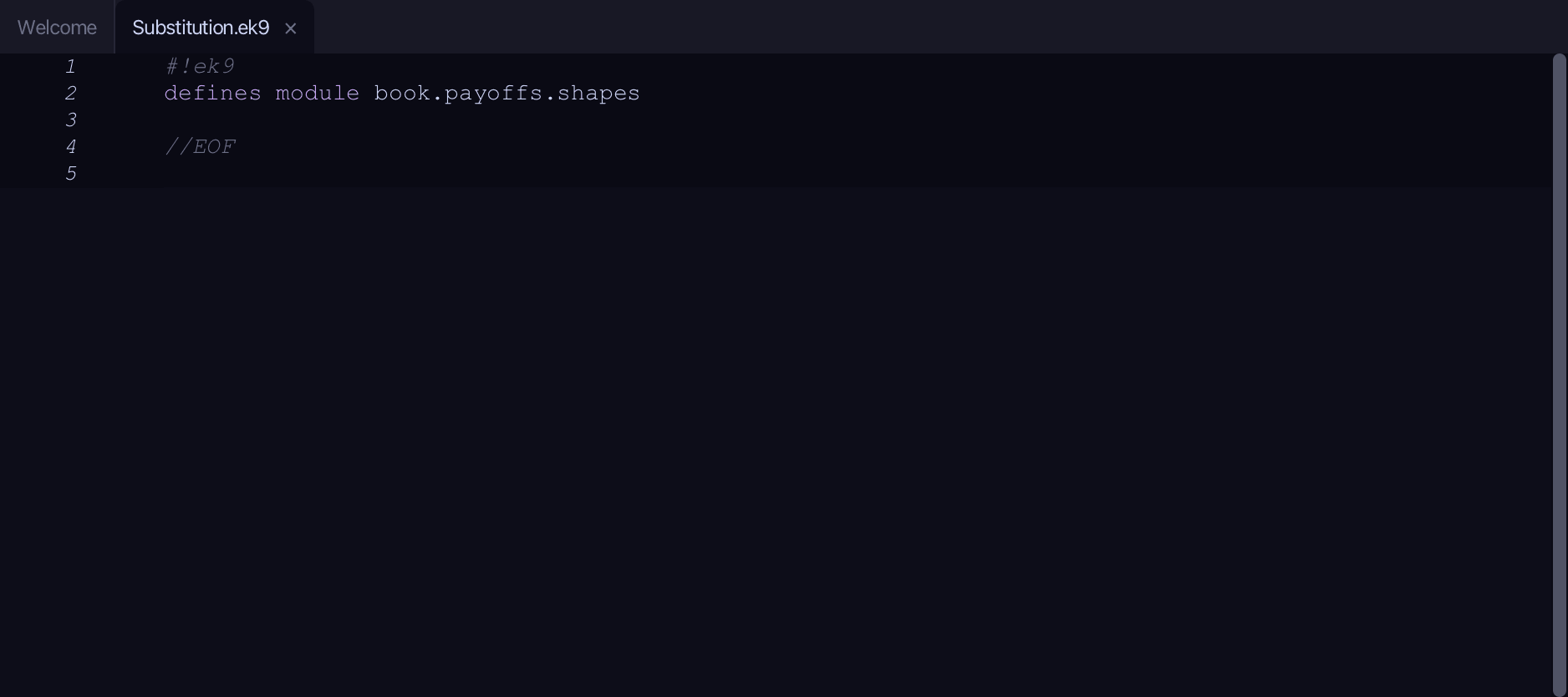
The lesson builds this program from a file holding only its module line - the finished file, as the book prints it.
#!ek9
defines module book.payoffs.shapes

  defines class

    Shape as abstract
      area() as pure abstract
        <- rtn as Float?

    Square extends Shape
      side <- Float()

      Square()
        -> side as Float
        this.side: side

      override area() as pure
        <- rtn as Float: side * side

      override operator ? as pure
        <- rtn as Boolean: side?

    Rectangle extends Shape
      width <- Float()
      height <- Float()

      Rectangle()
        ->
          width as Float
          height as Float

        this.width: width
        this.height: height

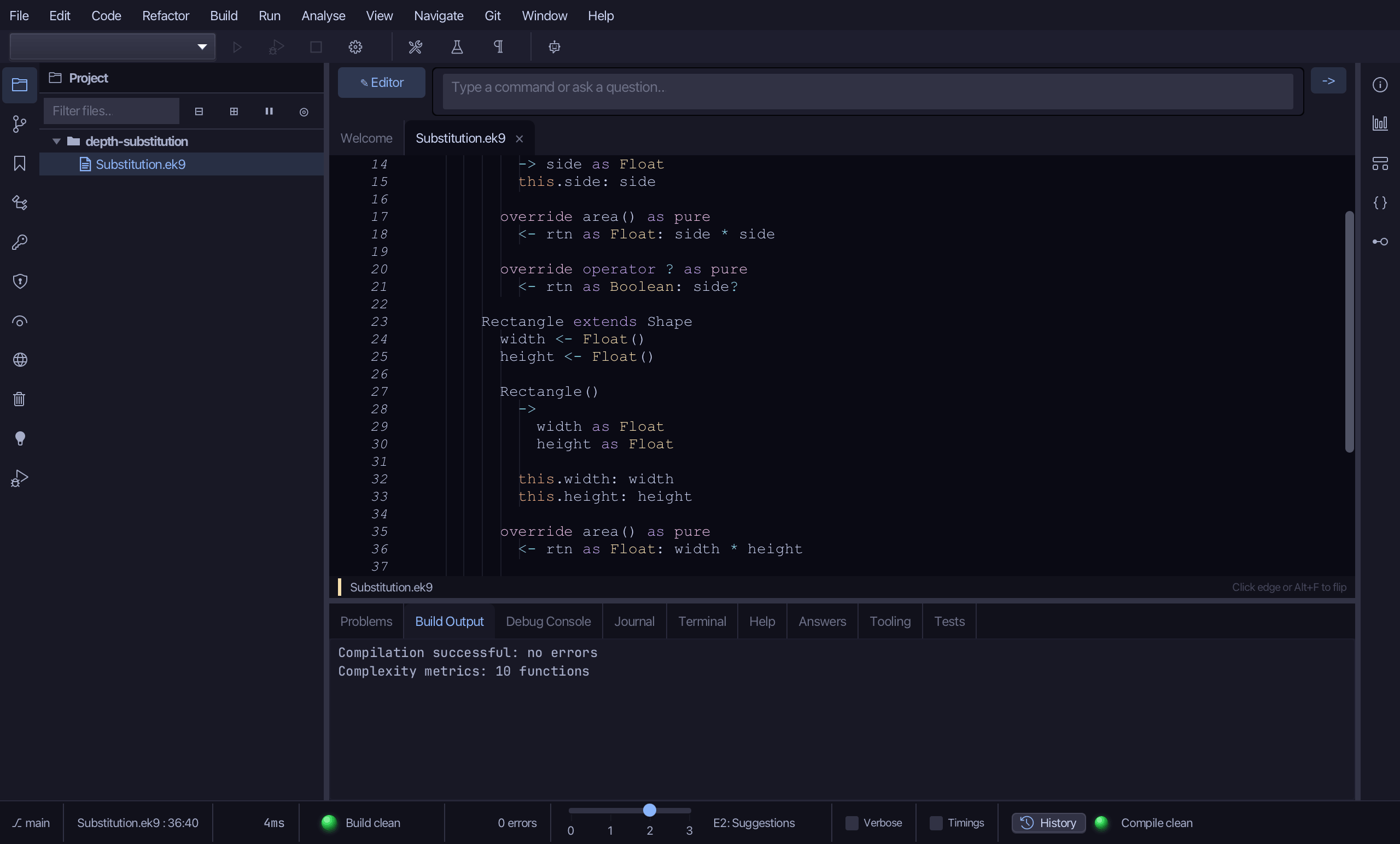
      override area() as pure
        <- rtn as Float: width * height

      override operator ? as pure
        <- rtn as Boolean: width? and height?

  defines function

    describe() as pure
      -> shape as Shape
      <- rtn as String: `area ${shape.area()}`

  defines program

    Substitution()
      stdout <- Stdout()
      shapes <- List() of Shape
      shapes += Square(3.0)
      shapes += Rectangle(2.0, 5.0)
      for shape in shapes
        stdout.println(describe(shape))

//EOF
Step 1: Shape — pure area(), declared once
Choose Code > New Construct > Class…
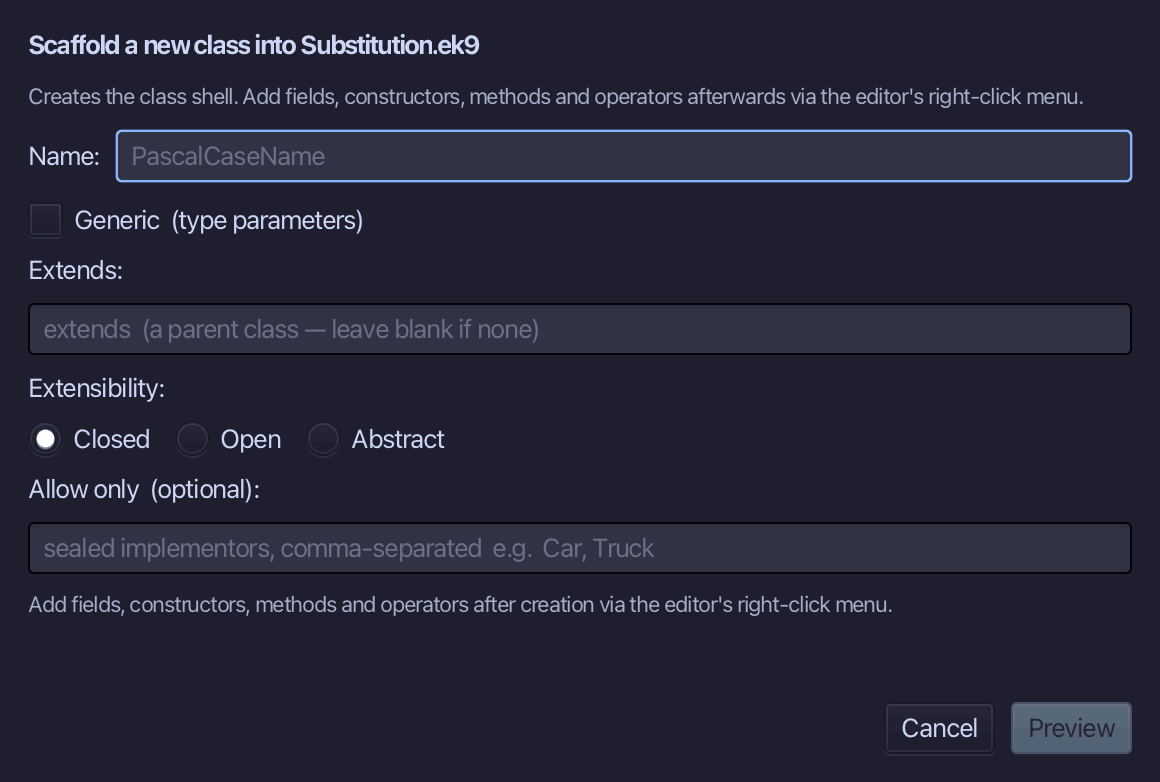
Shape is the class's name. Shape is a contract. Choose Abstract under Extensibility. Choose Preview.
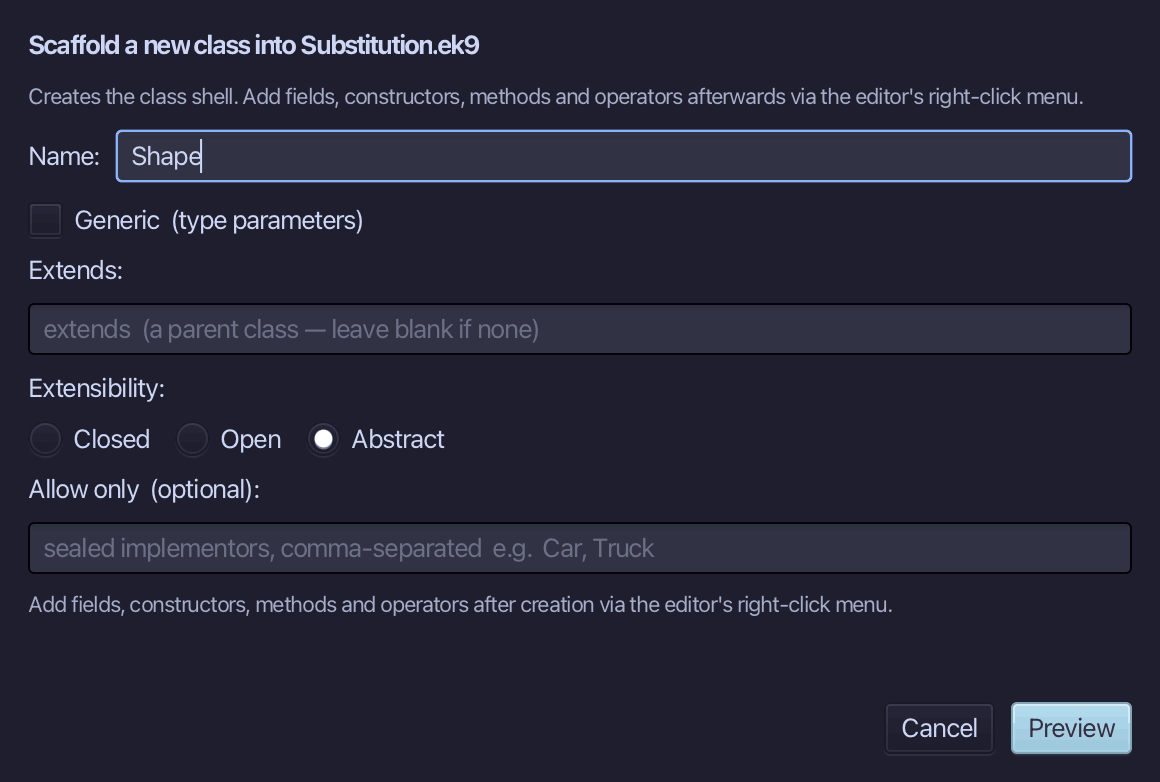
The preview shows Shape as abstract about to be written. Choose Apply.
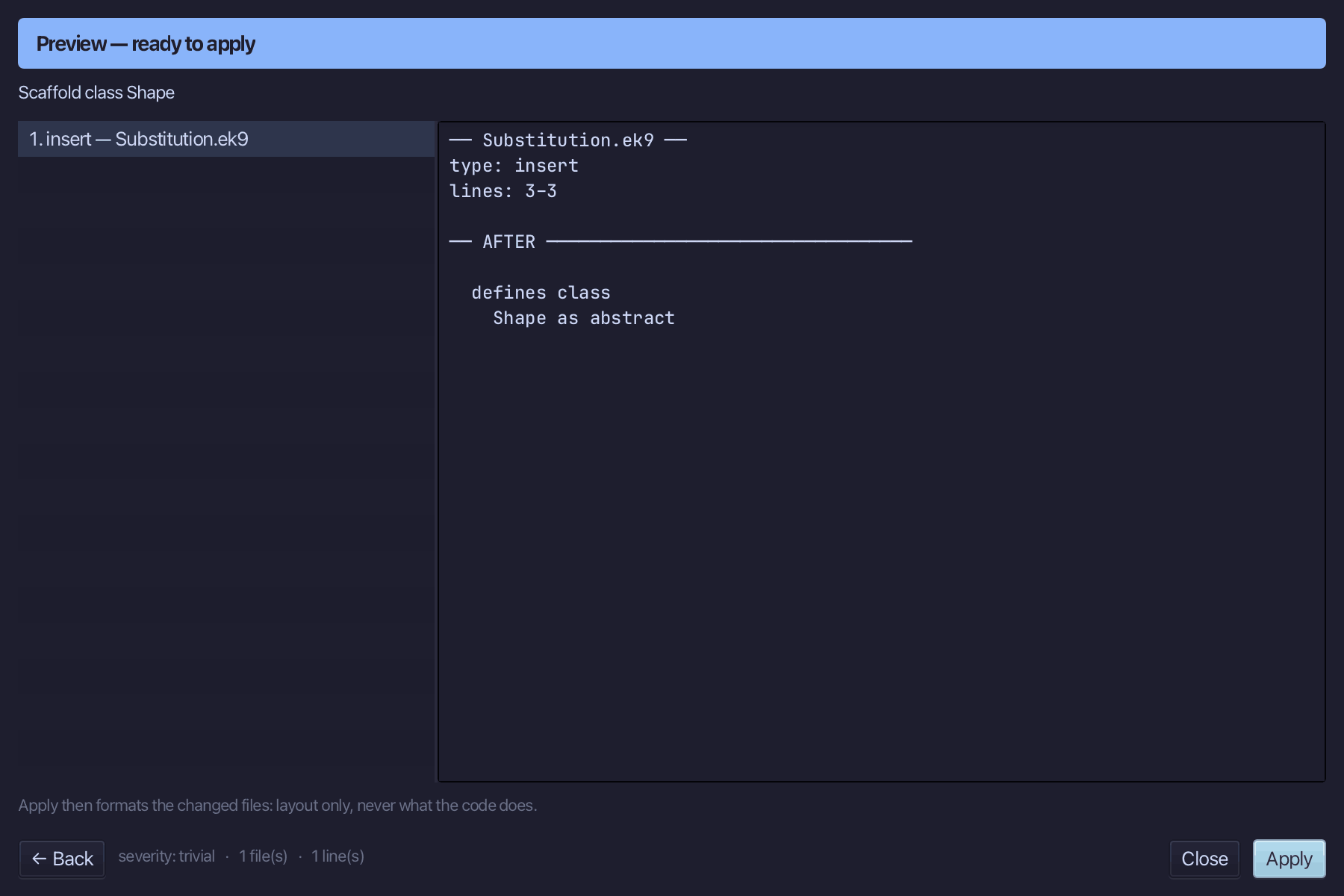
Select the Shape line and, above it, type the blank line the book opens its first class with. Saves when typed.
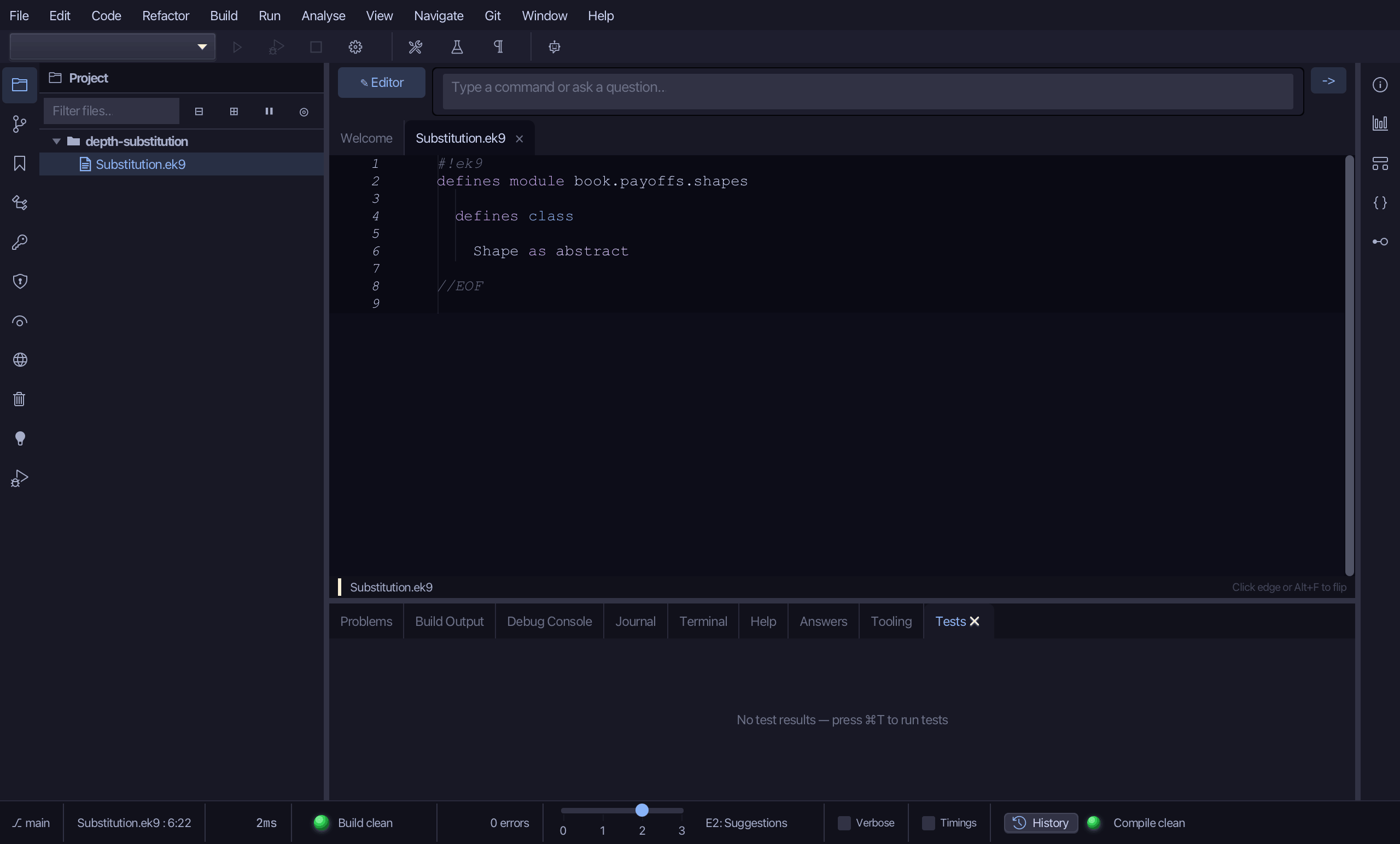
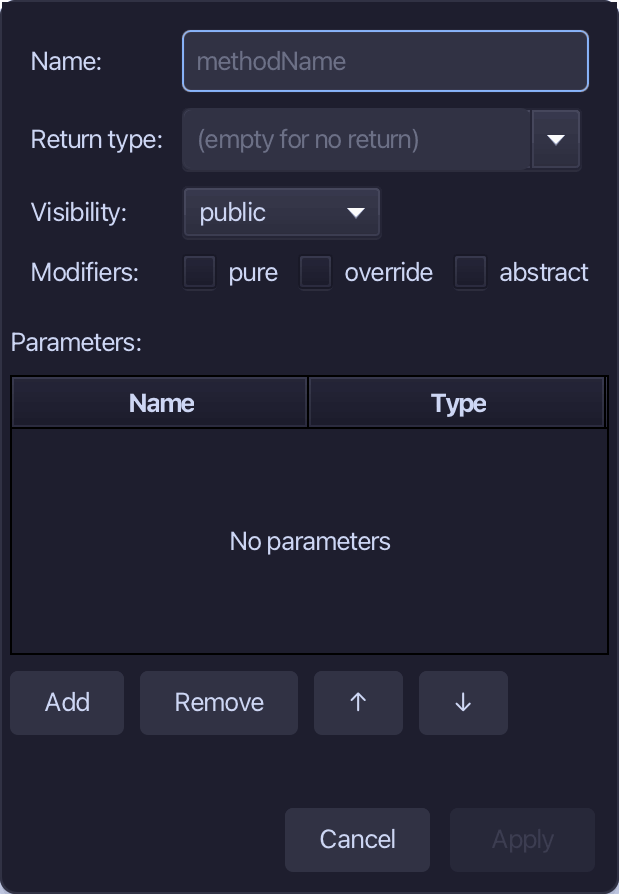
Right-click the Shape line and choose Add Method…
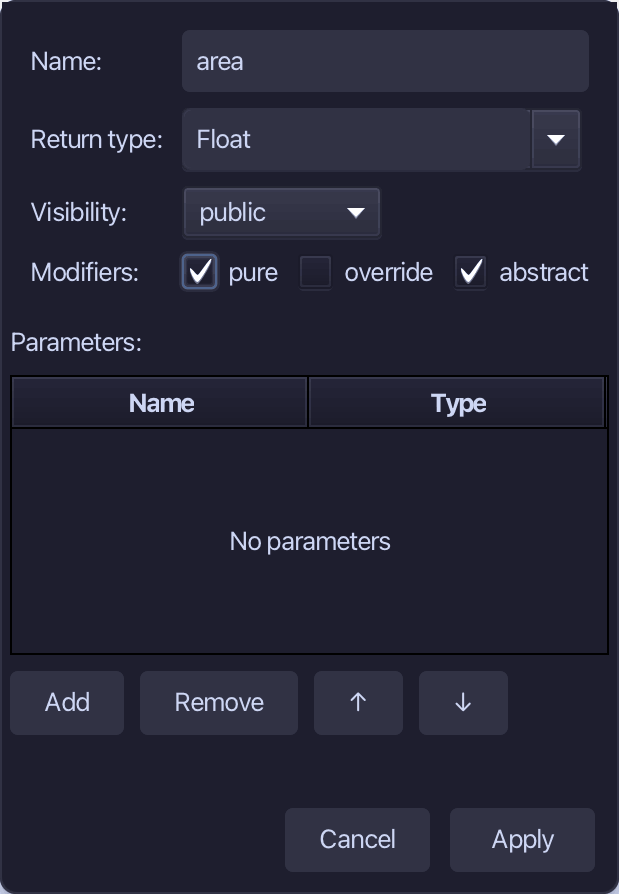
area is the method's name. Pure is the promise every subtype must keep; abstract means there is no body here, only the contract. Set Return type to Float, tick pure and abstract. Choose Apply.
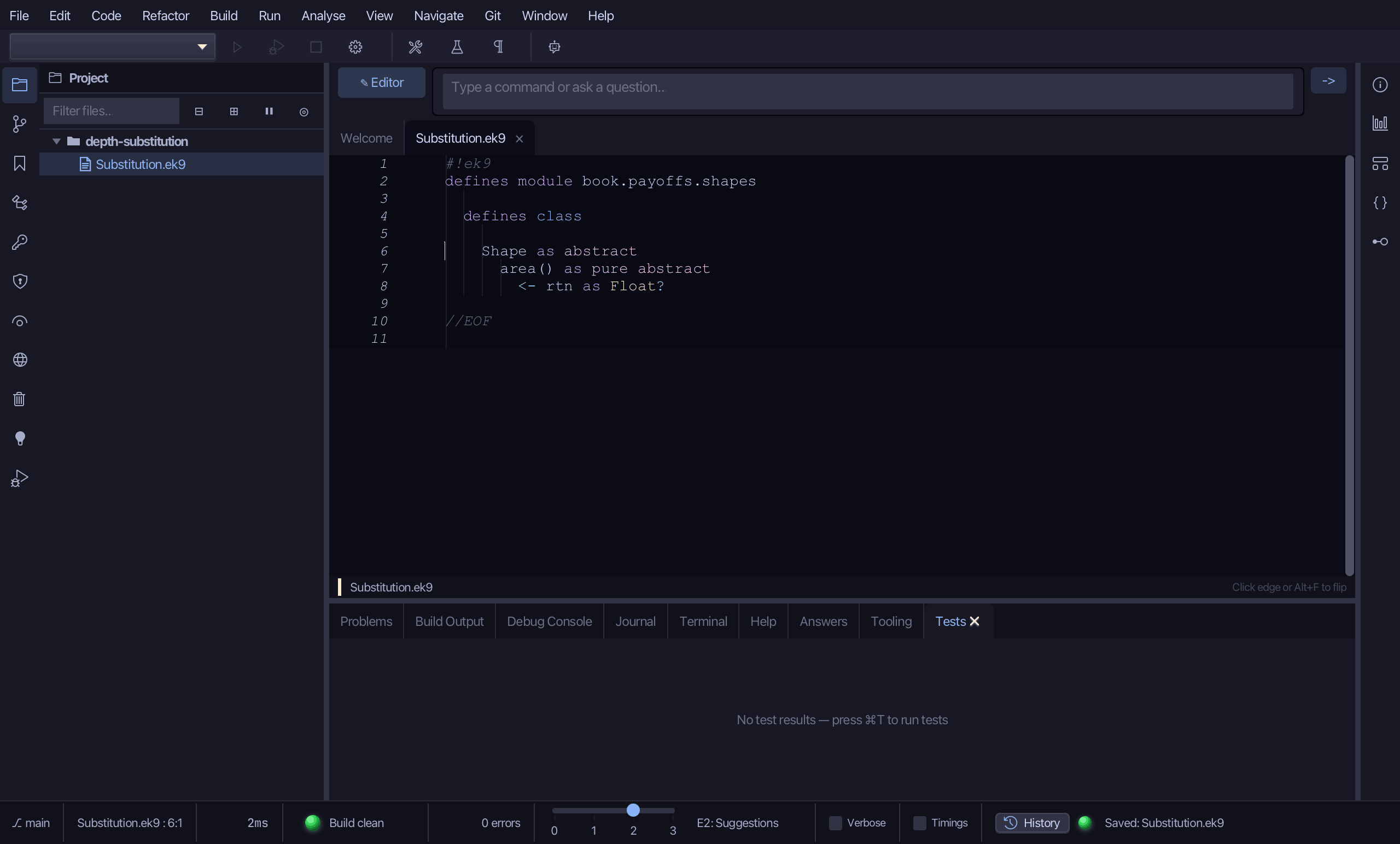
Add Method applies straight away but leaves the editor unsaved; save before starting Square. Choose File > Save.
Step 2: Square — a subtype
Choose Code > New Construct > Class…
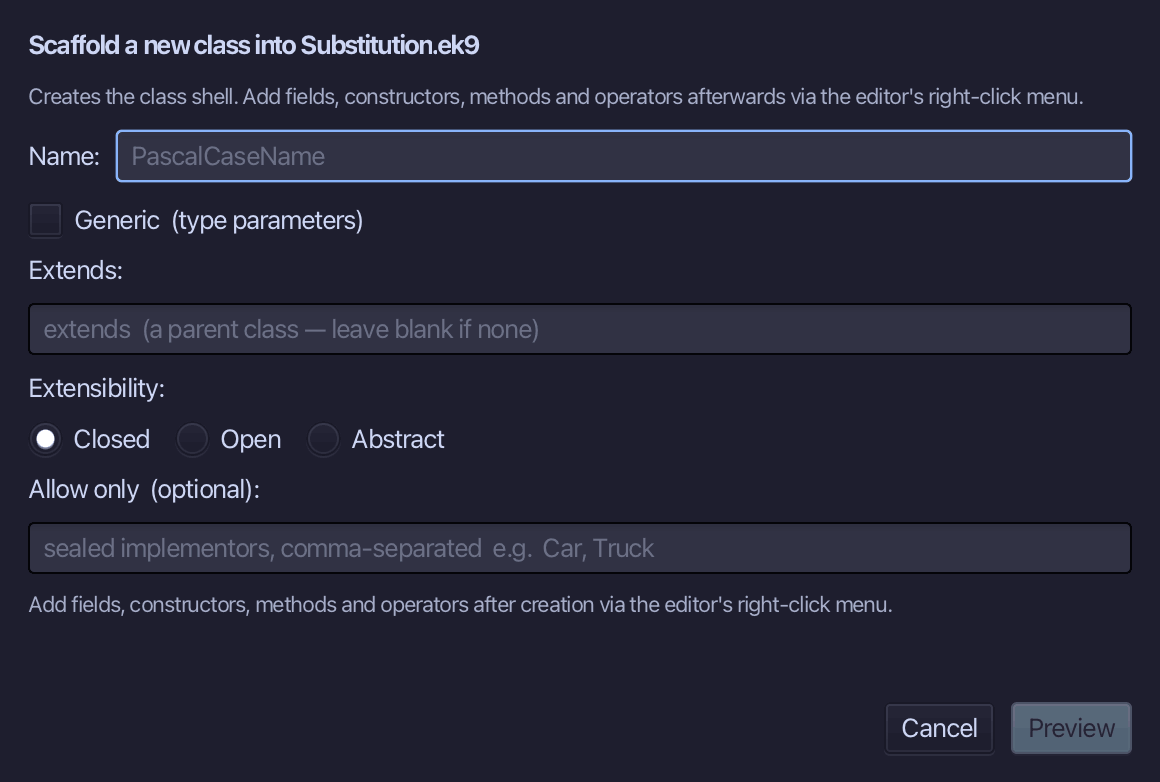
Square is the class's name. Type Shape into Extends. Choose Preview.
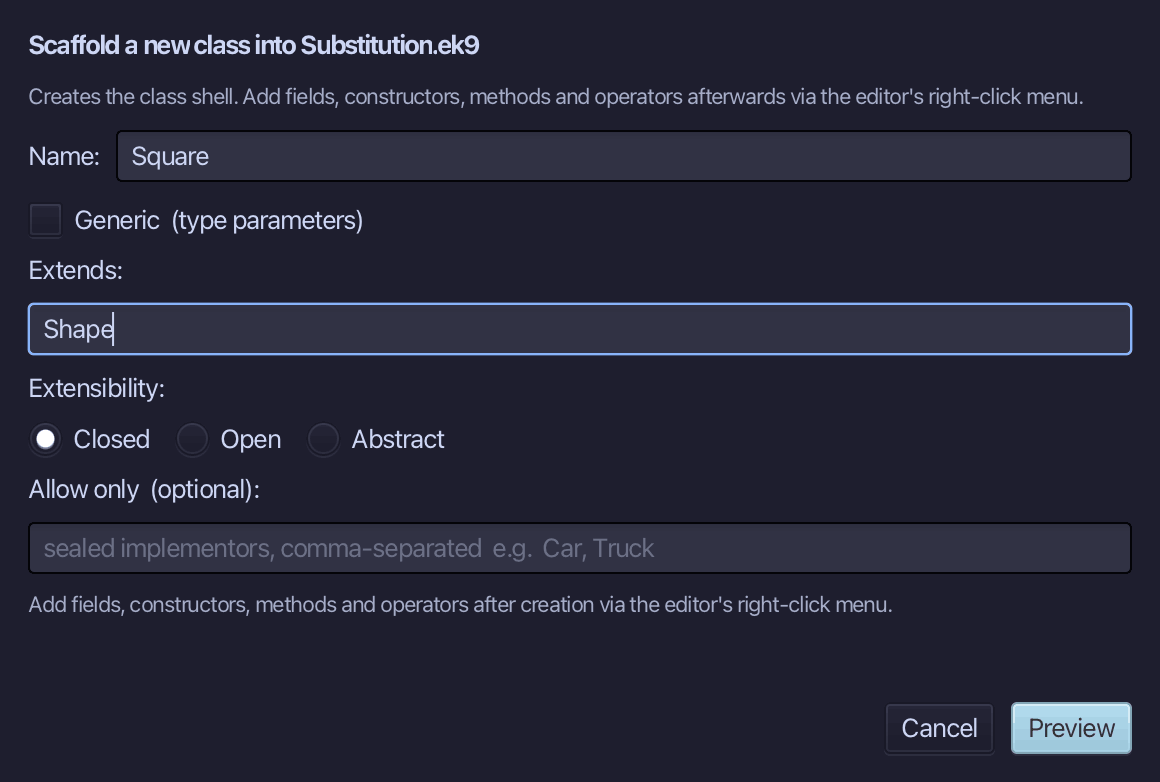
The preview shows Square extends Shape about to be written - and, because Shape owes area(), its override stub comes with it: pure, as the parent promised. Choose Apply.
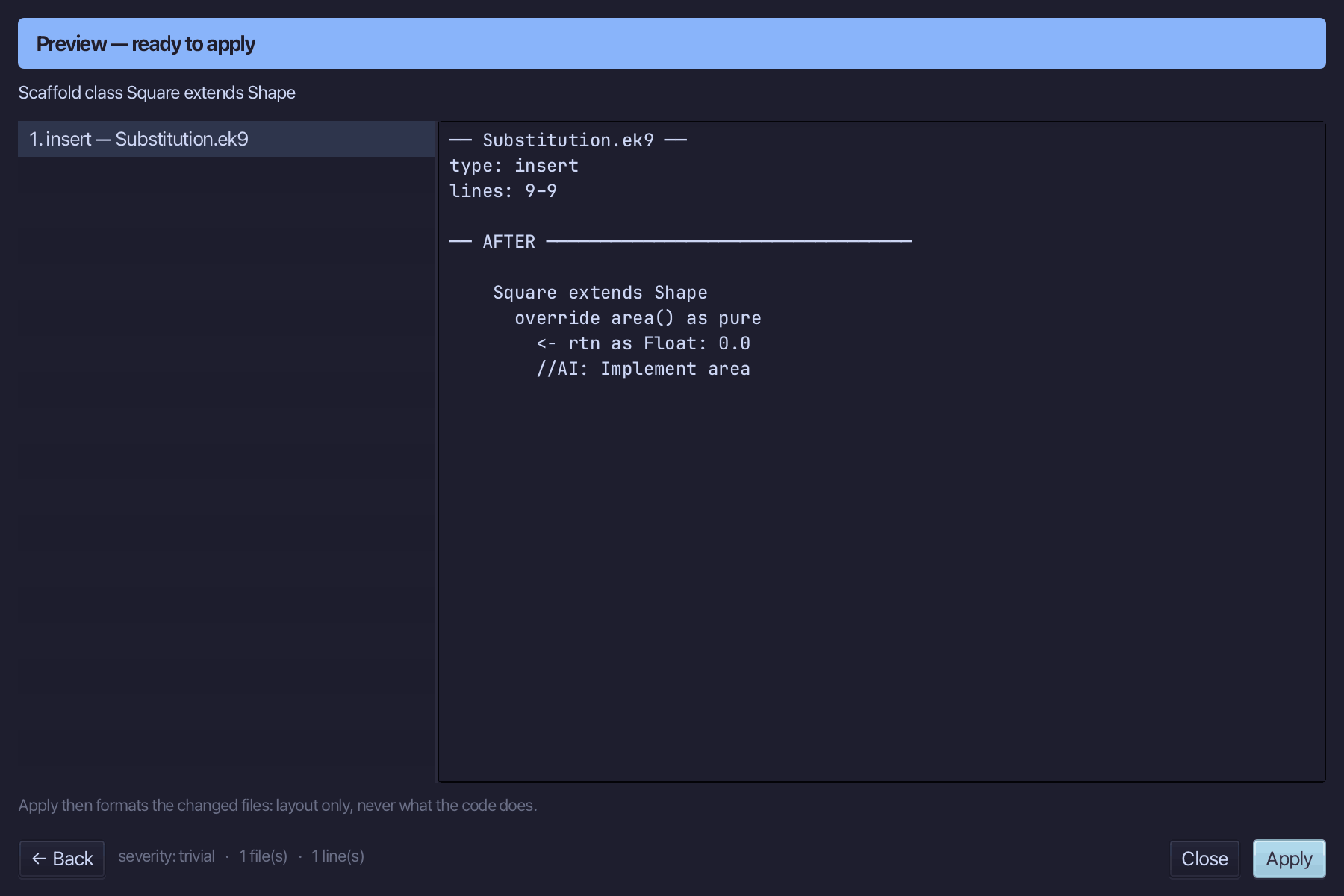
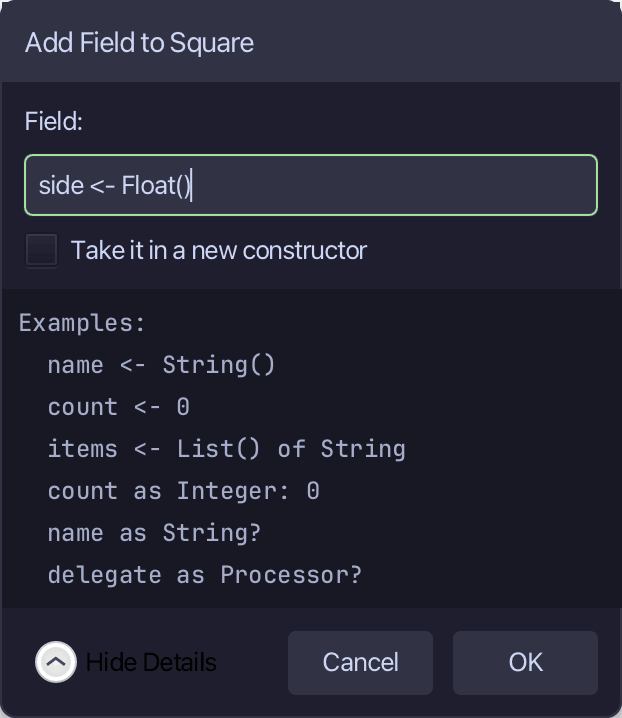
Right-click the Square line and choose Add Field…
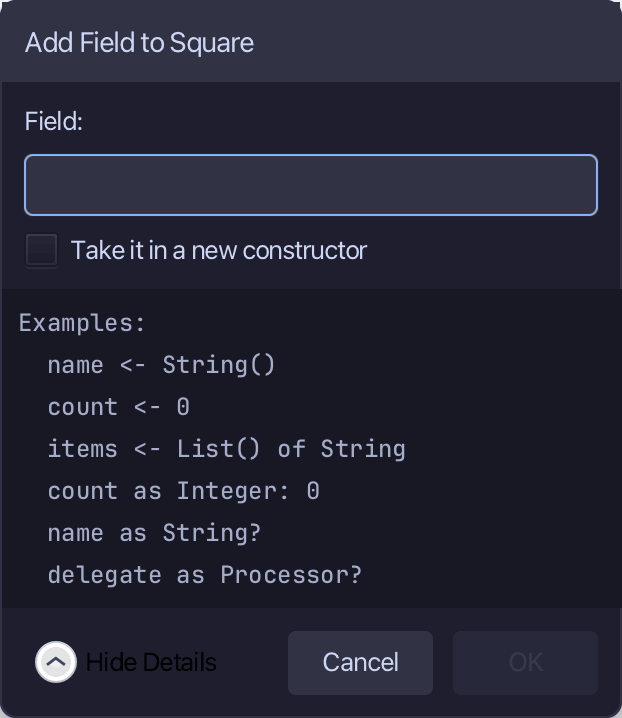
Type side <- Float() - the one measurement - a Float that starts unset. Choose OK.
The preview shows side added - and, with the first field, default operator ?. Choose Apply.
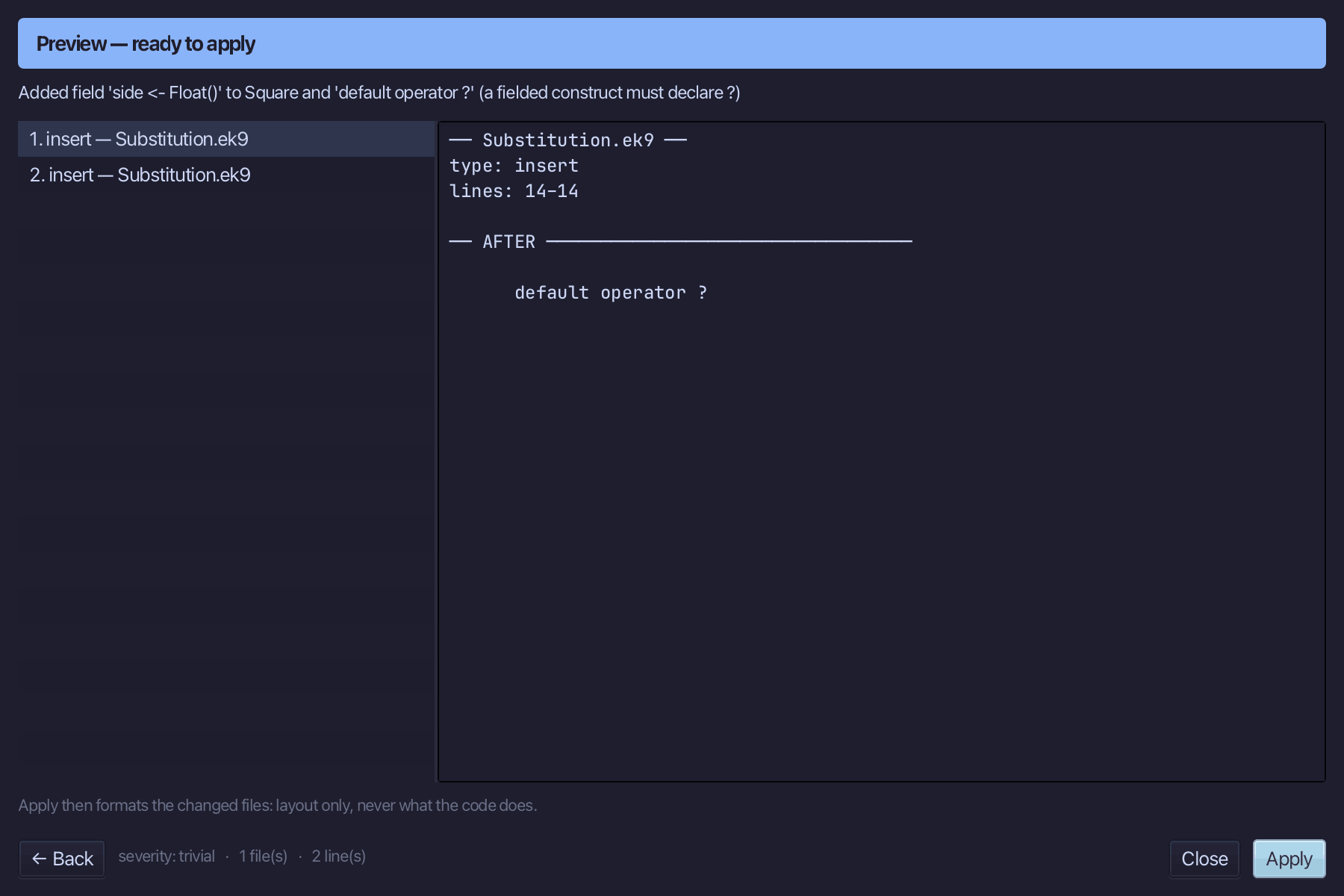
Select the default operator ? line and delete it: the chapter writes ? by hand, so the menu will not offer it while a default one stands. Saves when removed.
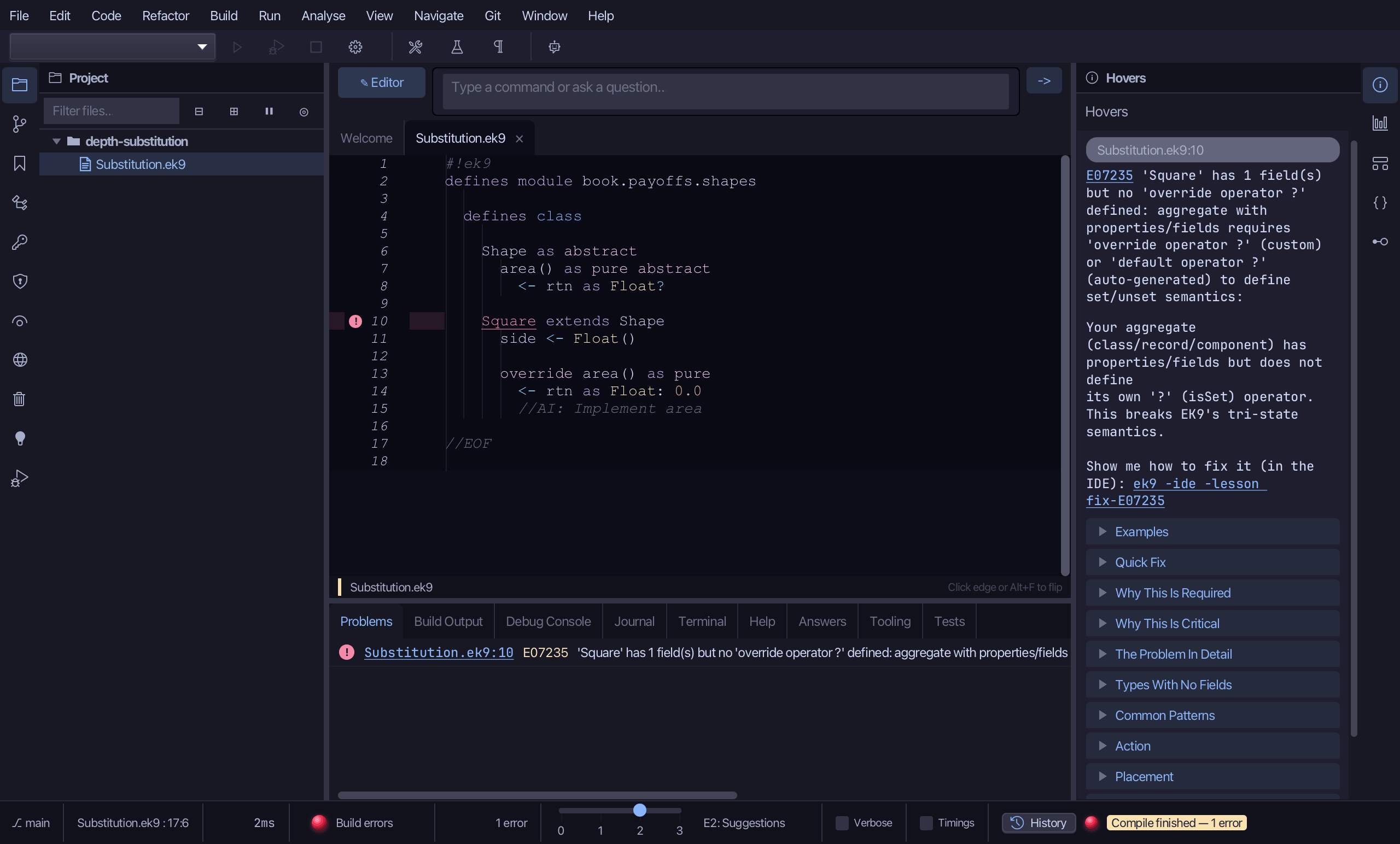
Right-click the Square line and choose Add Operator > ? (isSet) > skeleton: the chapter writes ? by hand as an override, because a subtype that adds fields must say what 'set' means for them.
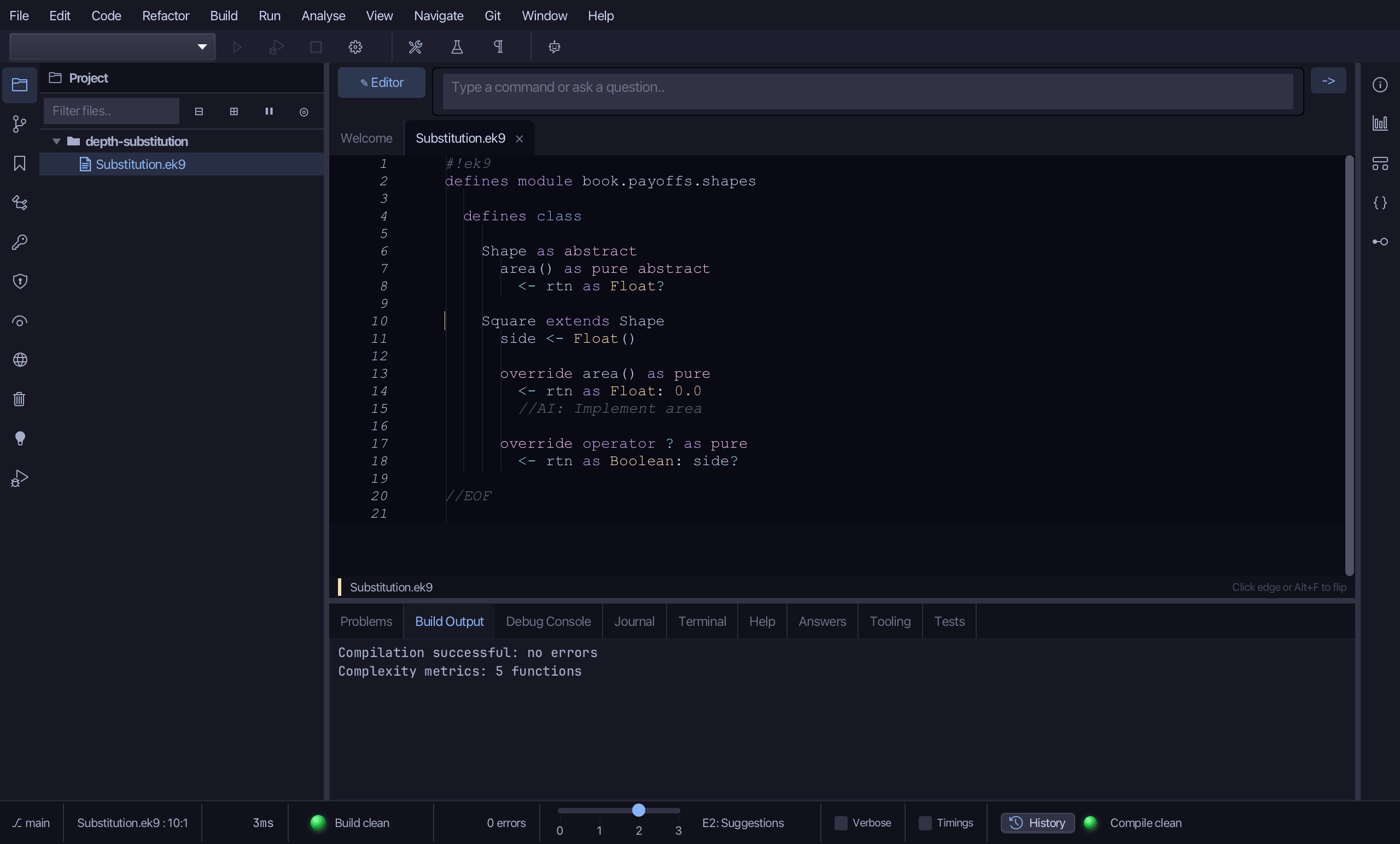
Right-click the Square line and choose Add Constructor > From All Fields: one parameter per field, each assigned with :.
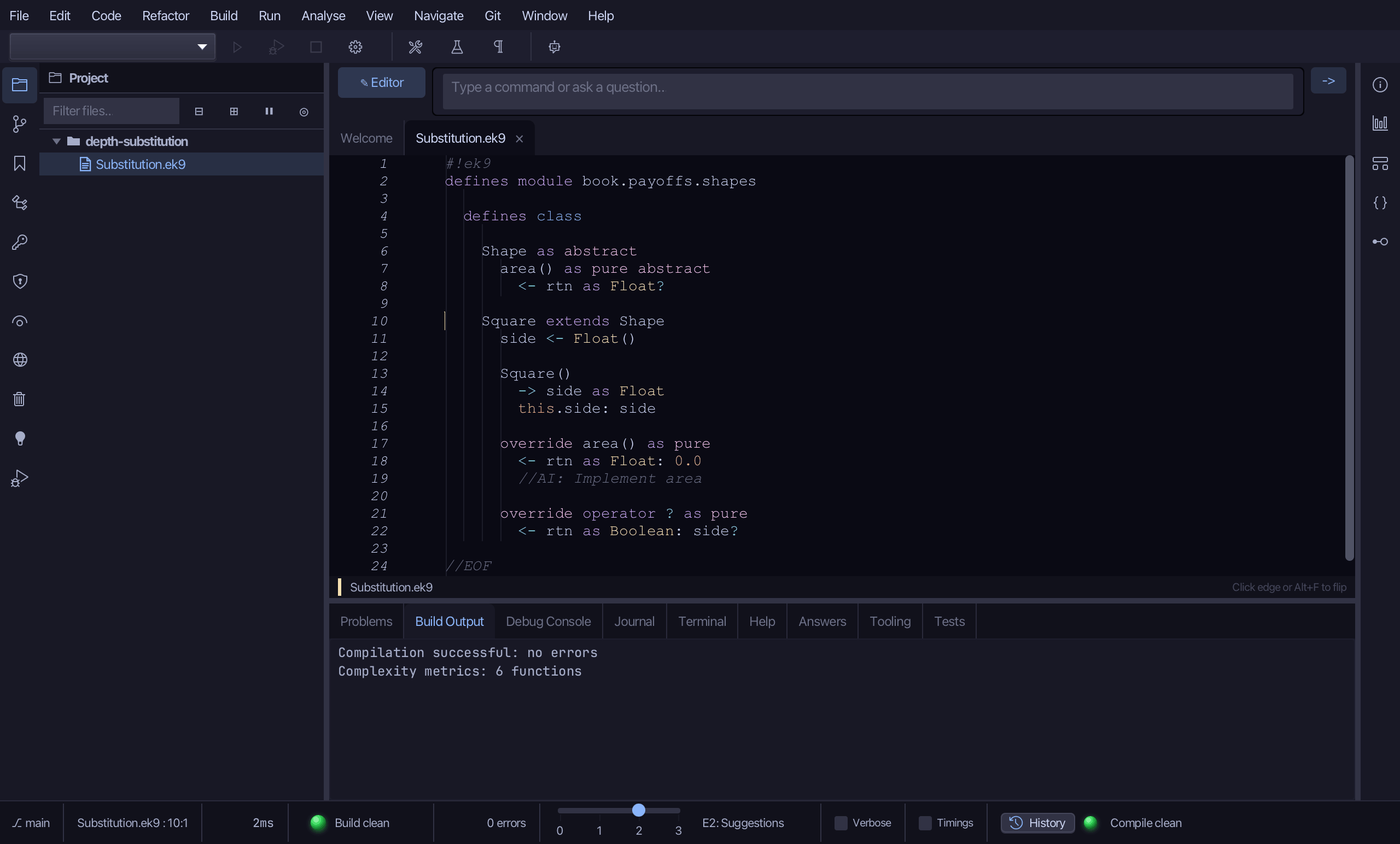
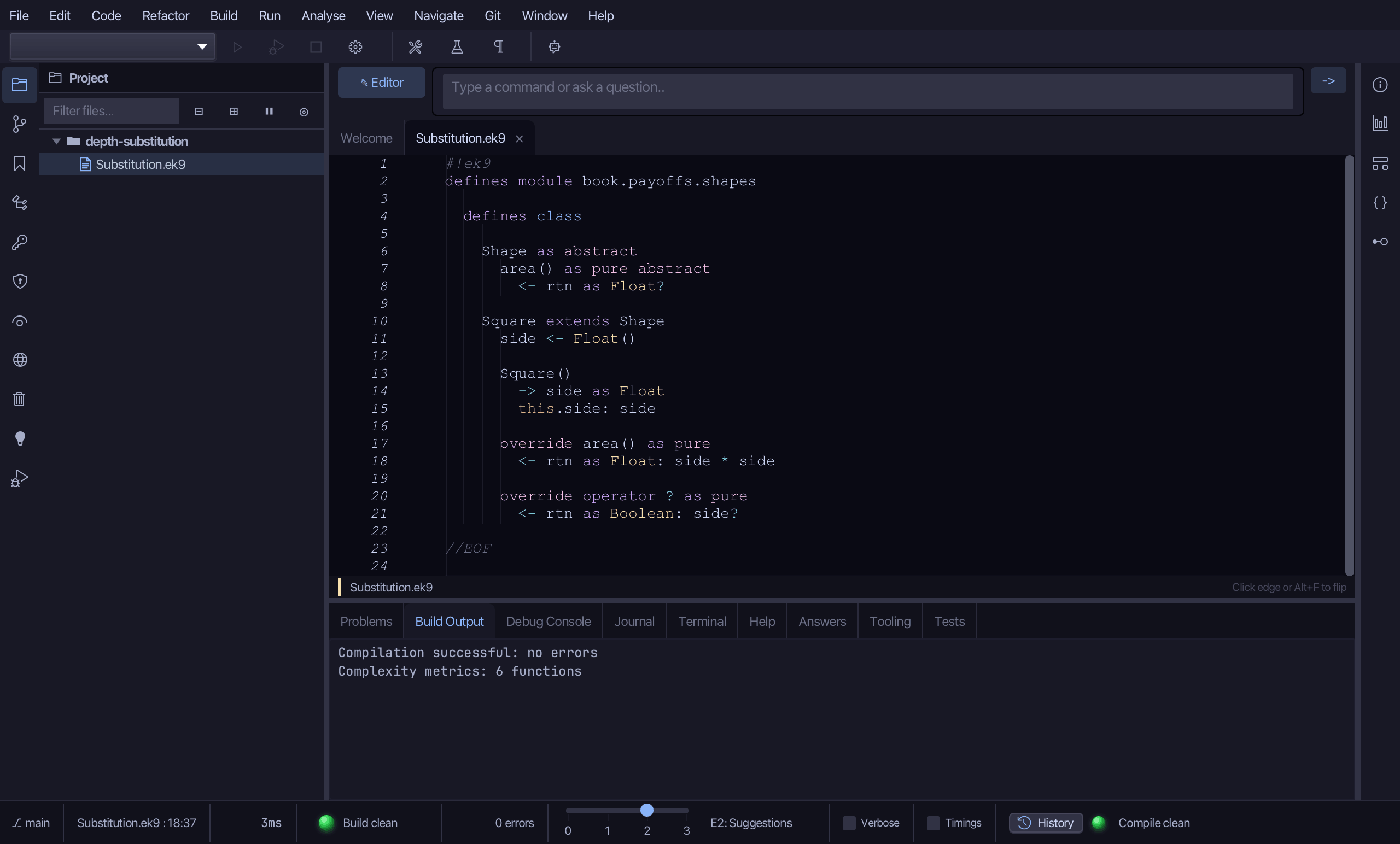
Select area()'s stub, from <- rtn as Float: 0.0 down to its //AI line, and type Square's formula: side * side. It stays pure. Saves when typed.
Step 3: Rectangle — another subtype
Choose Code > New Construct > Class…
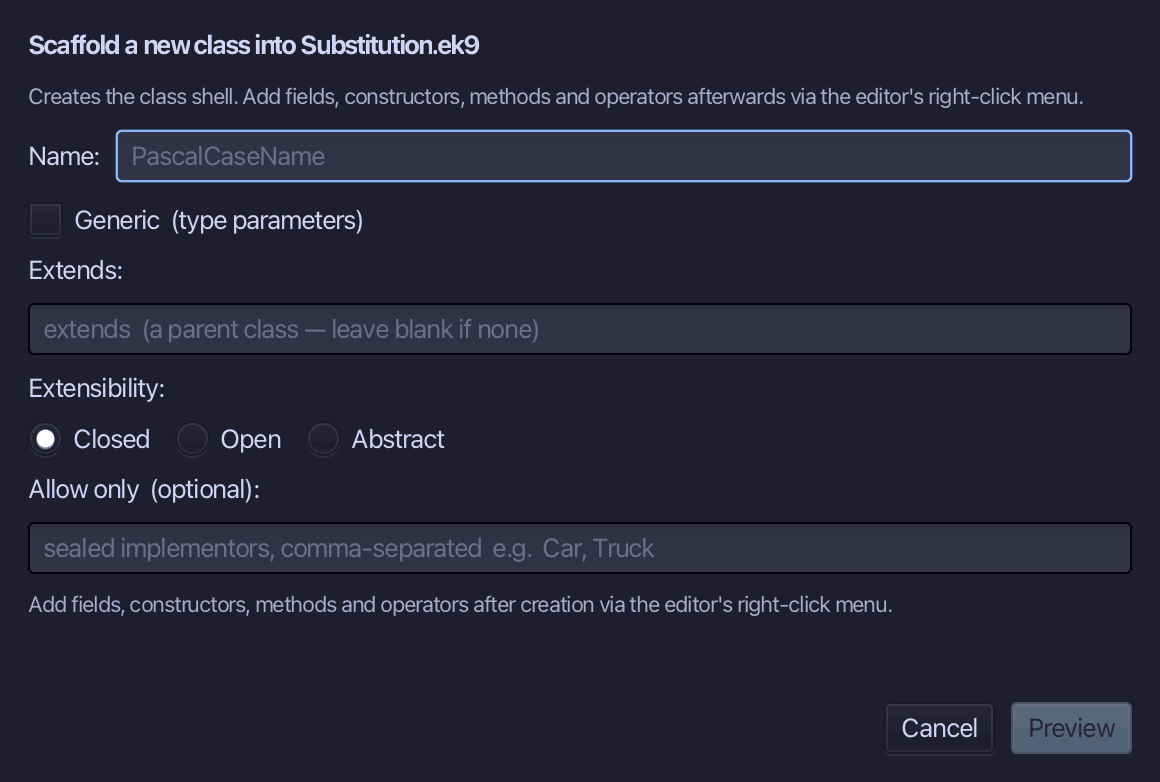
Rectangle is the class's name. Type Shape into Extends. Choose Preview.
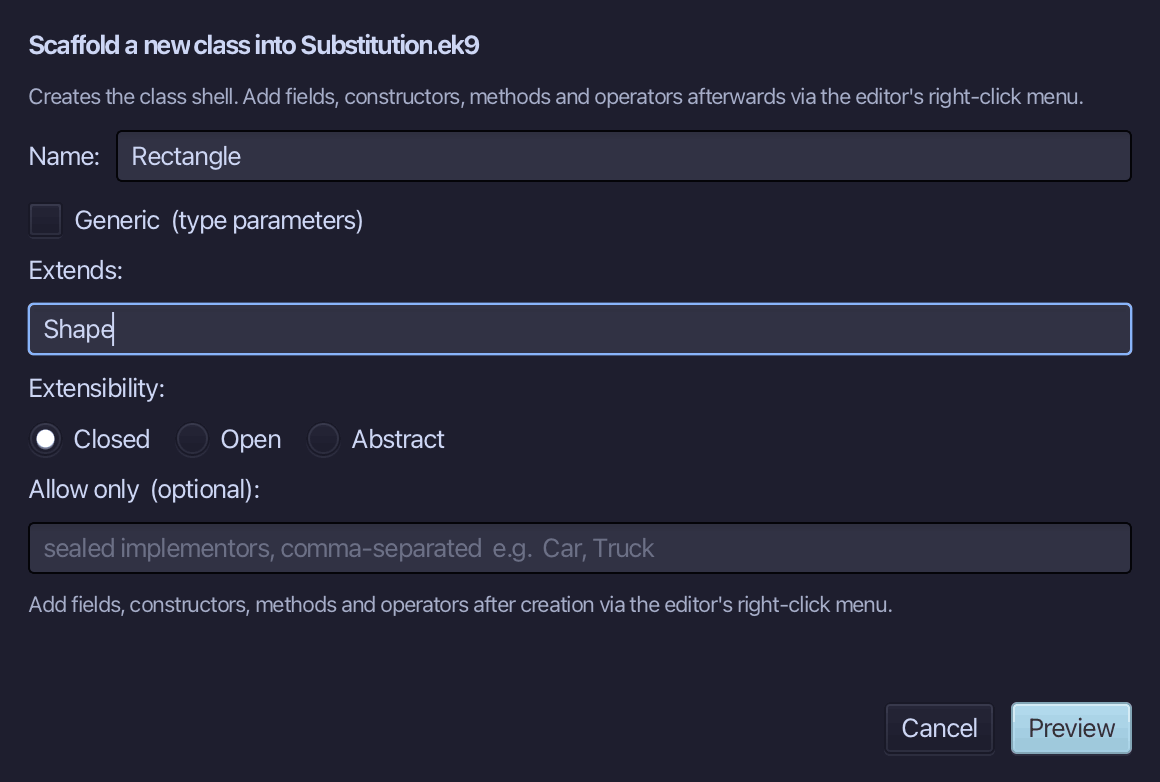
The preview shows Rectangle extends Shape about to be written - and, because Shape owes area(), its override stub comes with it: pure, as the parent promised. Choose Apply.
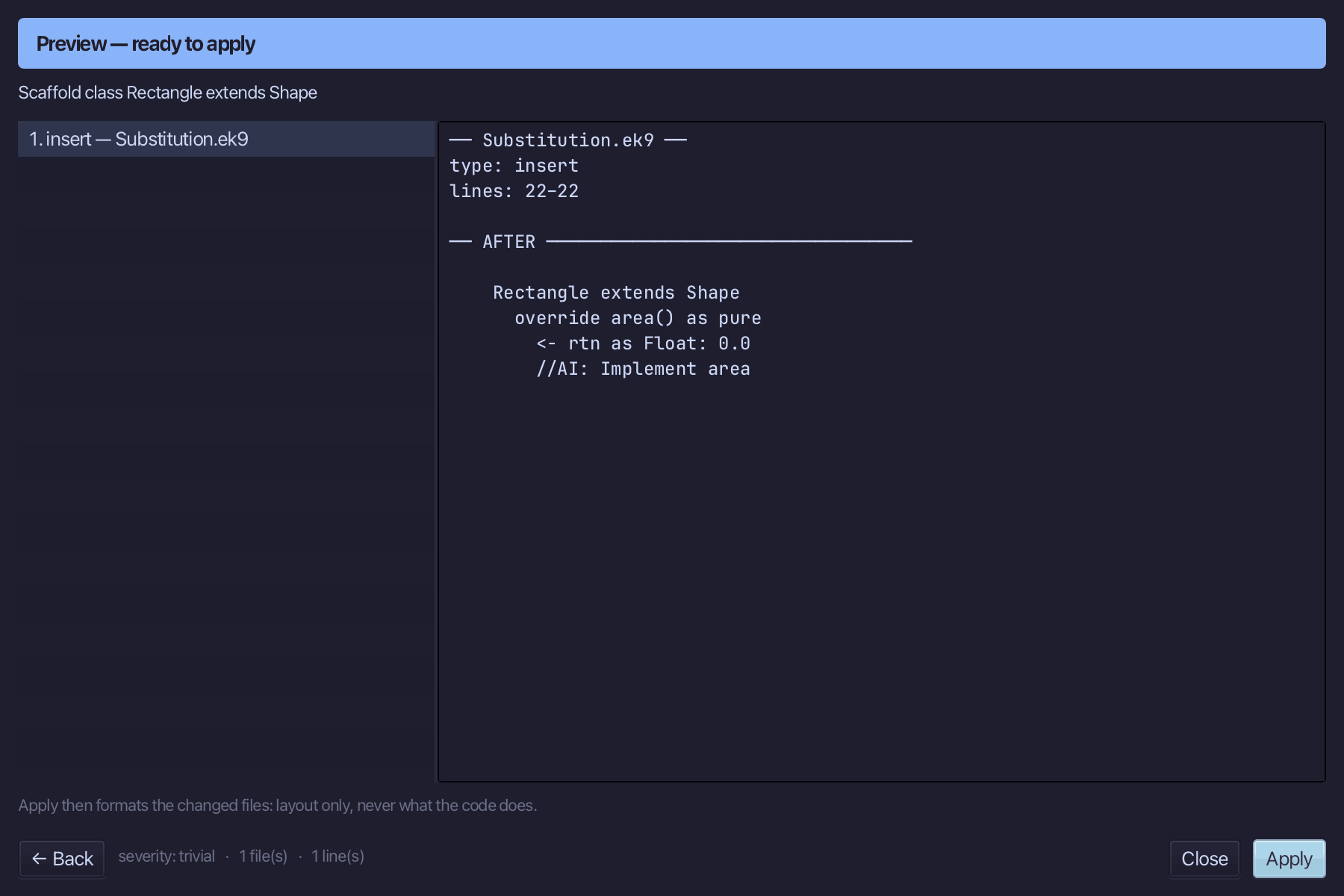
Right-click the Rectangle line and choose Add Field…
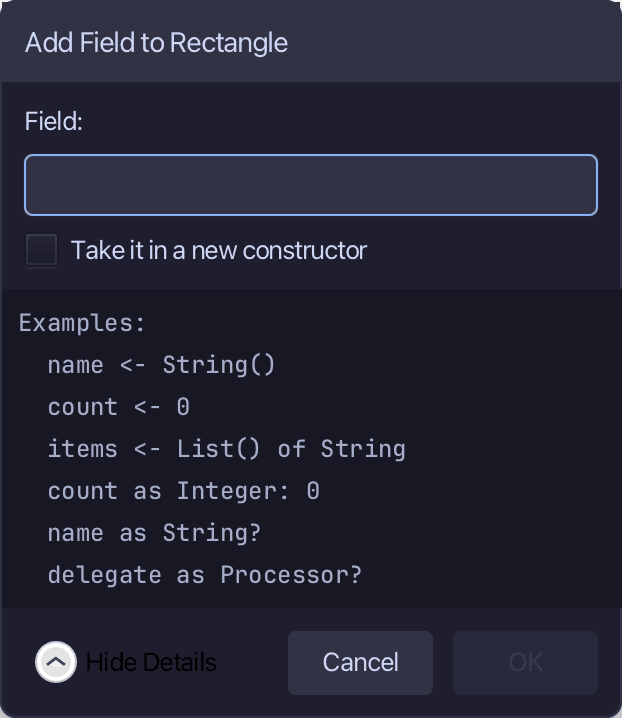
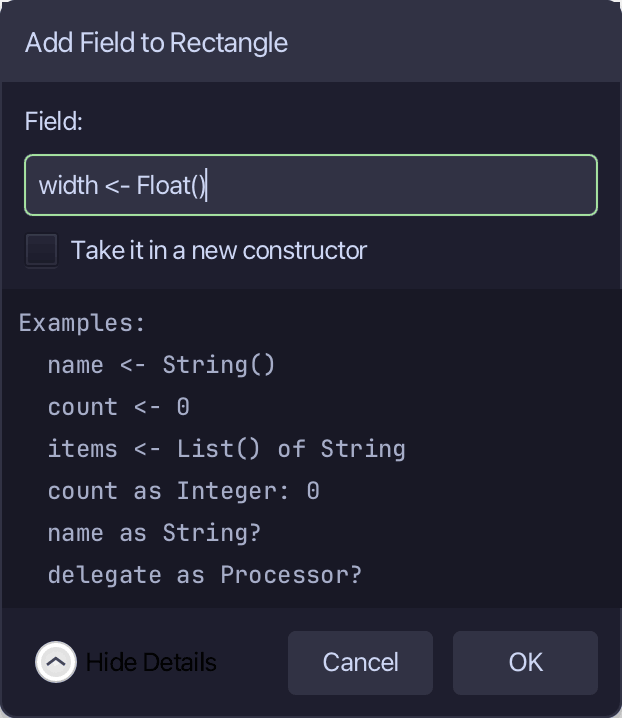
Type width <- Float() - the two measurements - each a Float that starts unset. Choose OK.
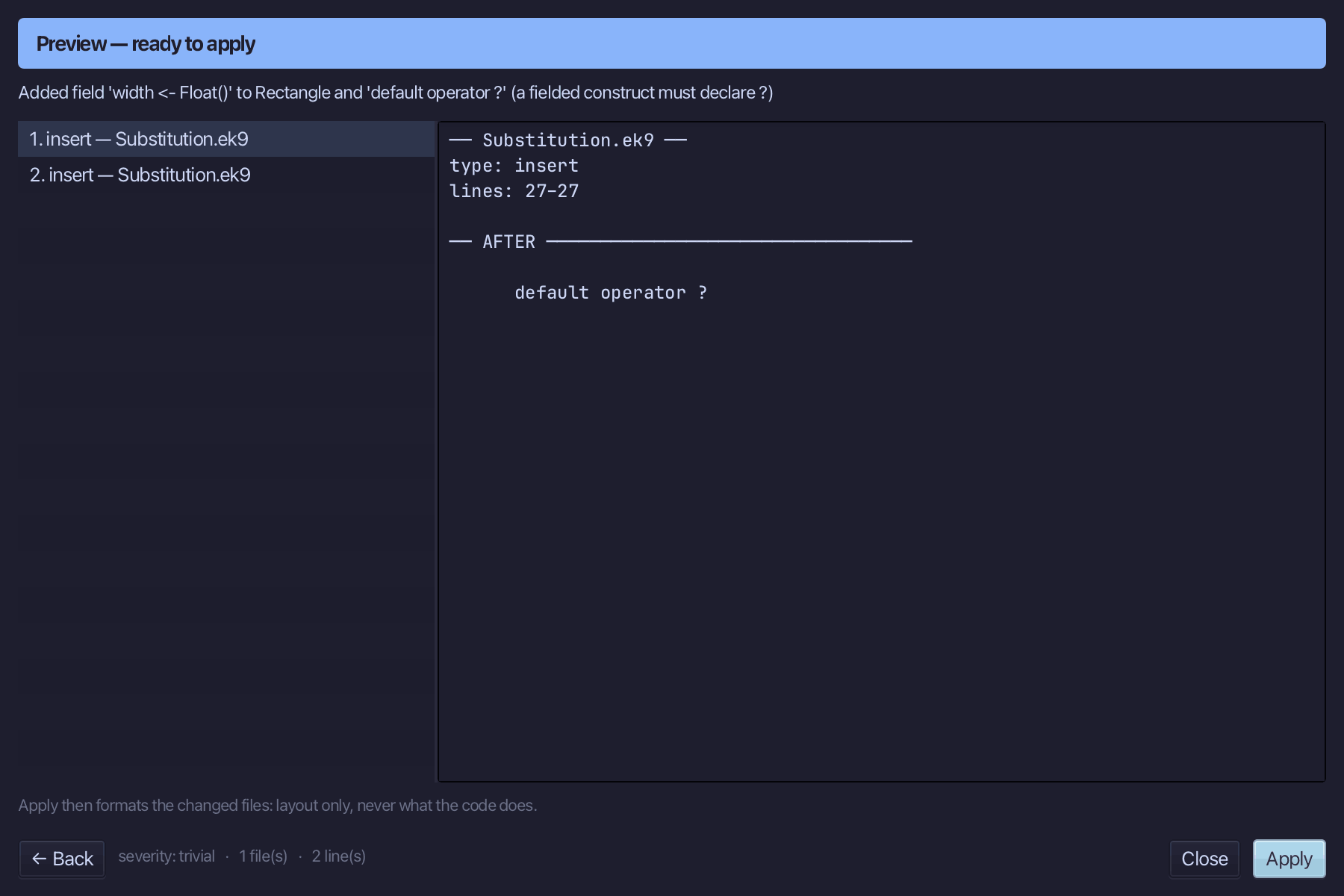
The preview shows width added - and, with the first field, default operator ?. Choose Apply.
Right-click the Rectangle line and choose Add Field…
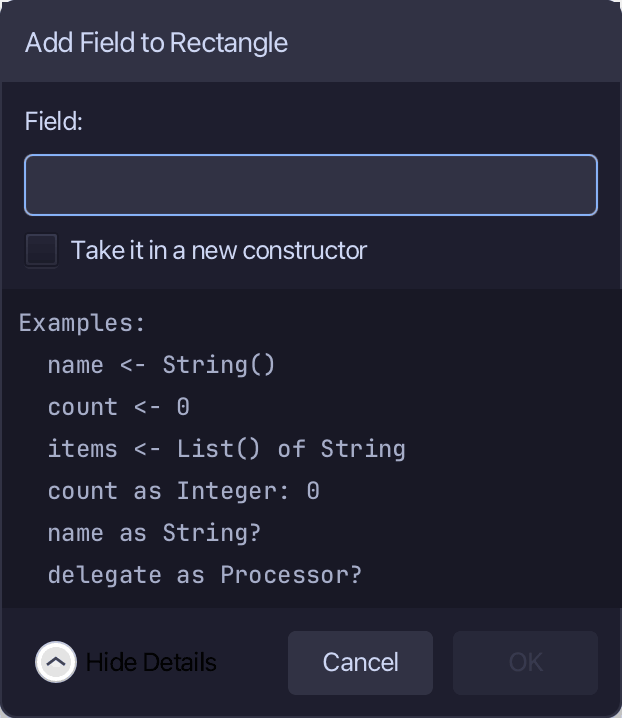
Type height <- Float() - the two measurements - each a Float that starts unset. Choose OK.
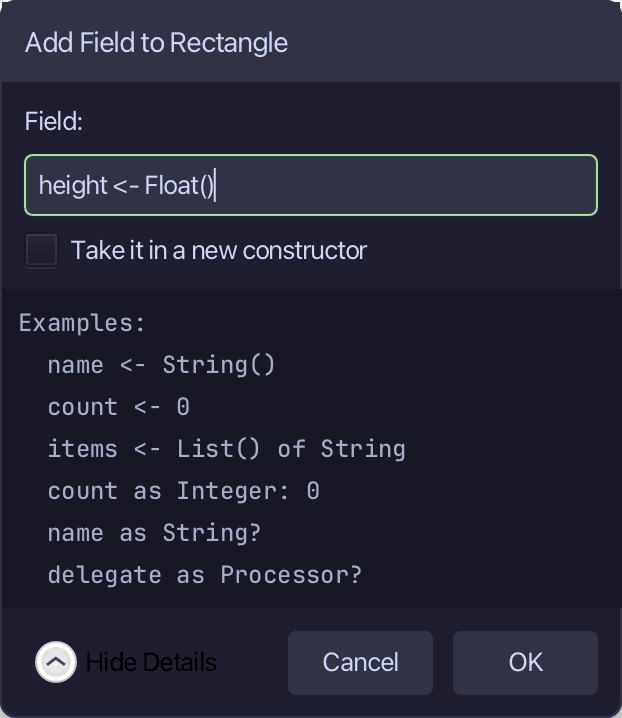
The preview shows height added - and, with the first field, default operator ?. Choose Apply.
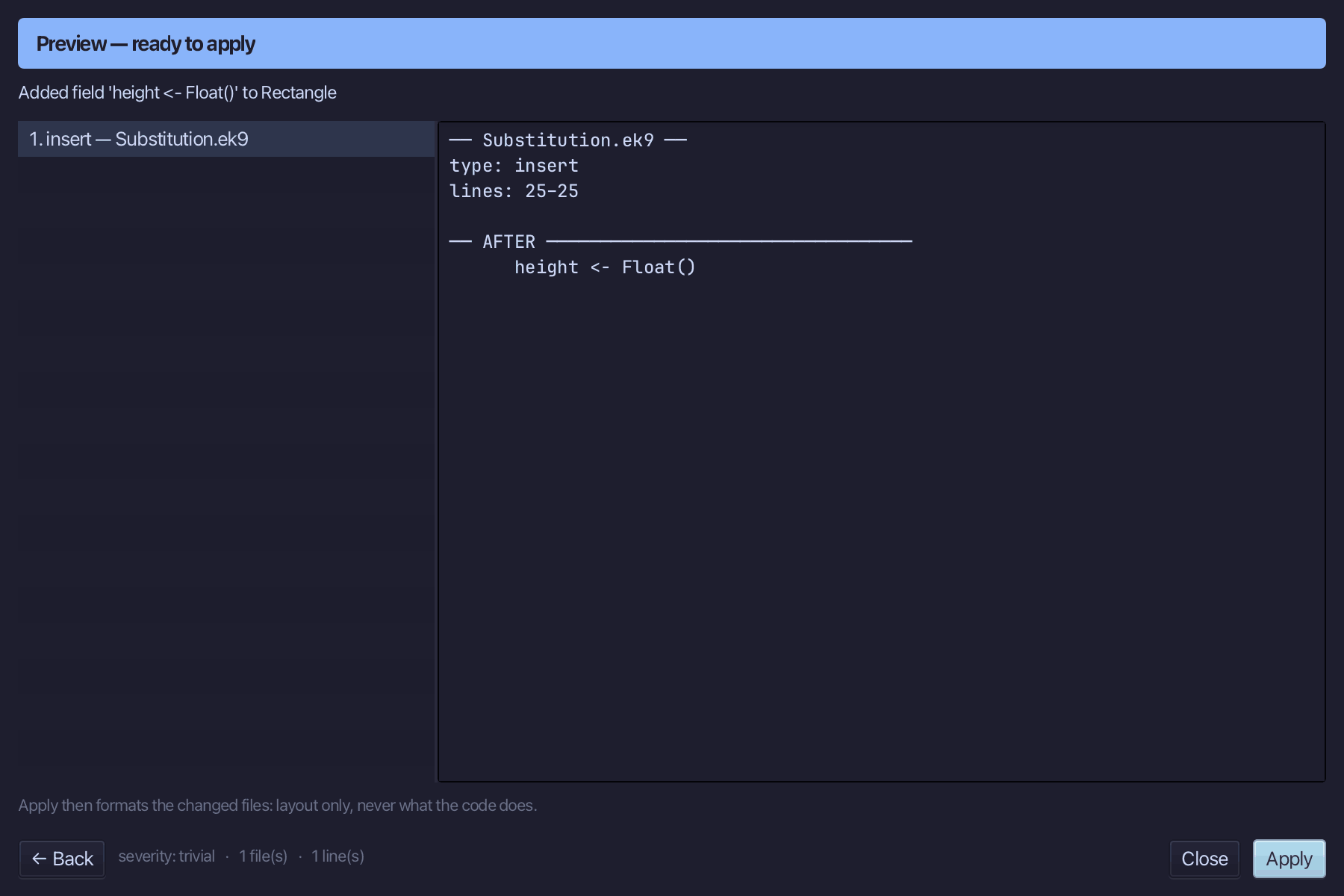
Select the default operator ? line and delete it: the chapter writes ? by hand, so the menu will not offer it while a default one stands. Saves when removed.
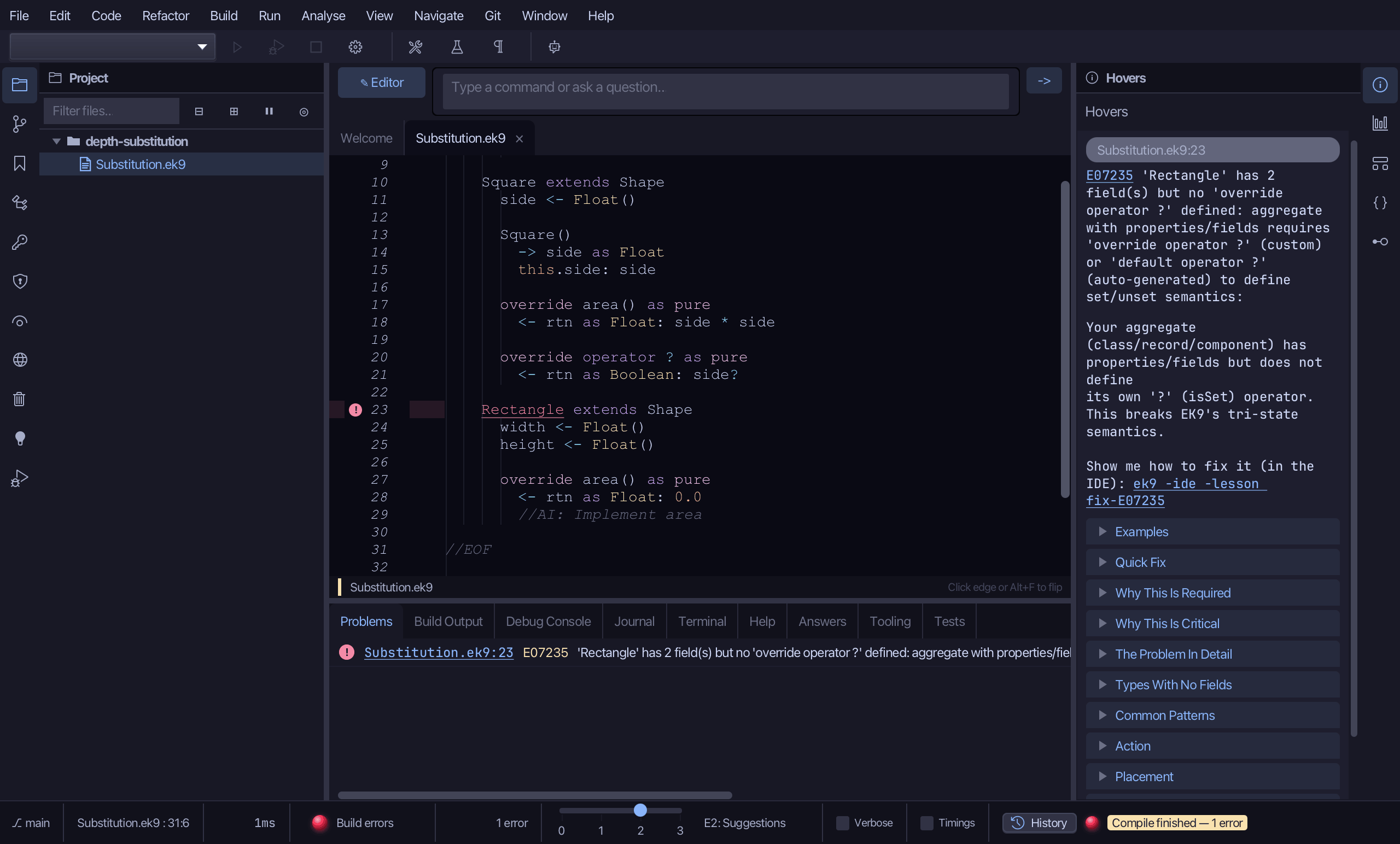
Right-click the Rectangle line and choose Add Operator > ? (isSet) > skeleton: the chapter writes ? by hand as an override, because a subtype that adds fields must say what 'set' means for them.
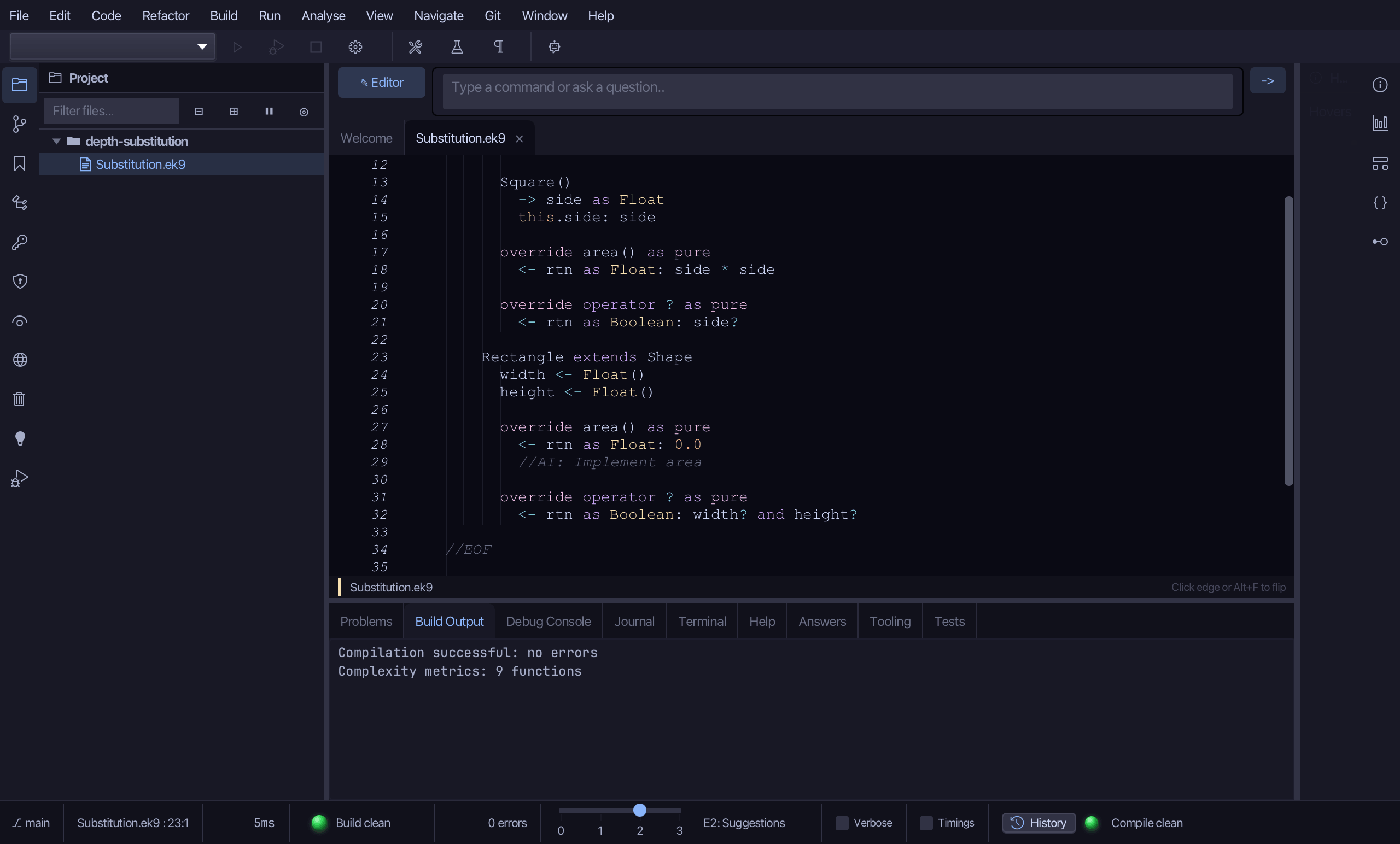
Right-click the Rectangle line and choose Add Constructor > From All Fields: one parameter per field, each assigned with :.
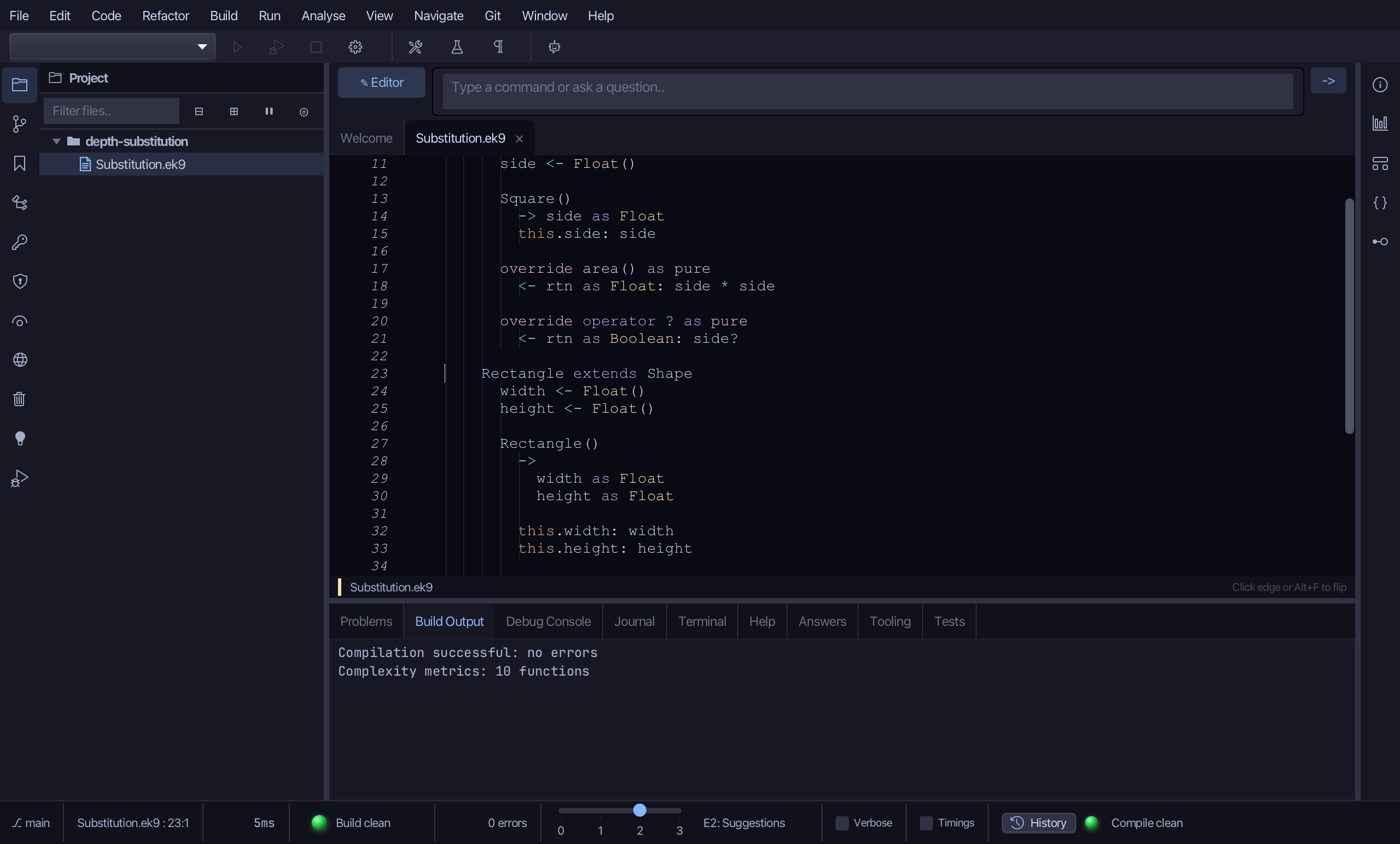
Select area()'s stub, from <- rtn as Float: 0.0 down to its //AI line, and type Rectangle's formula: width * height. It stays pure. Saves when typed.
Step 4: describe — a caller that knows no subtype
Choose Code > New Construct > Function…
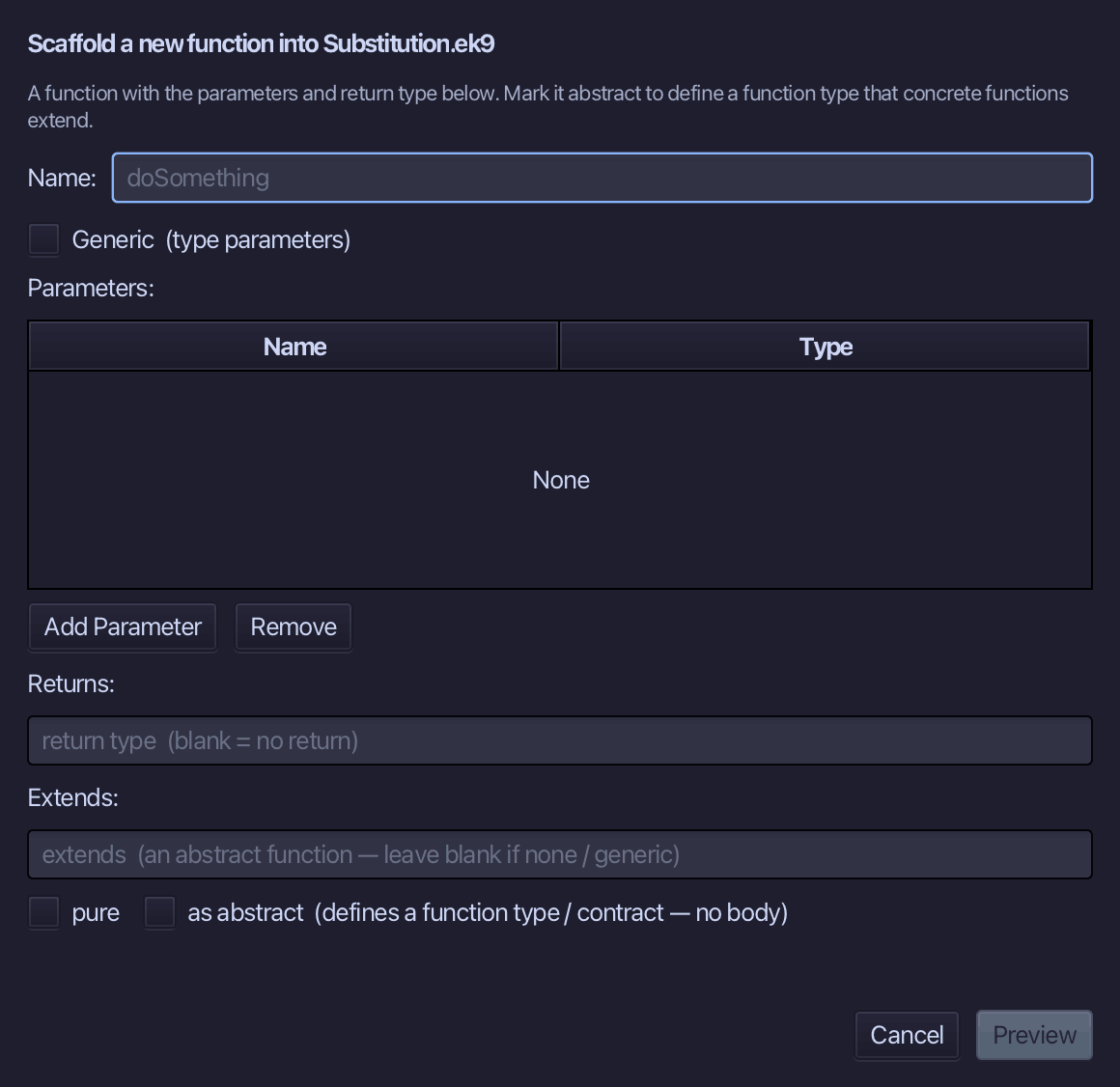
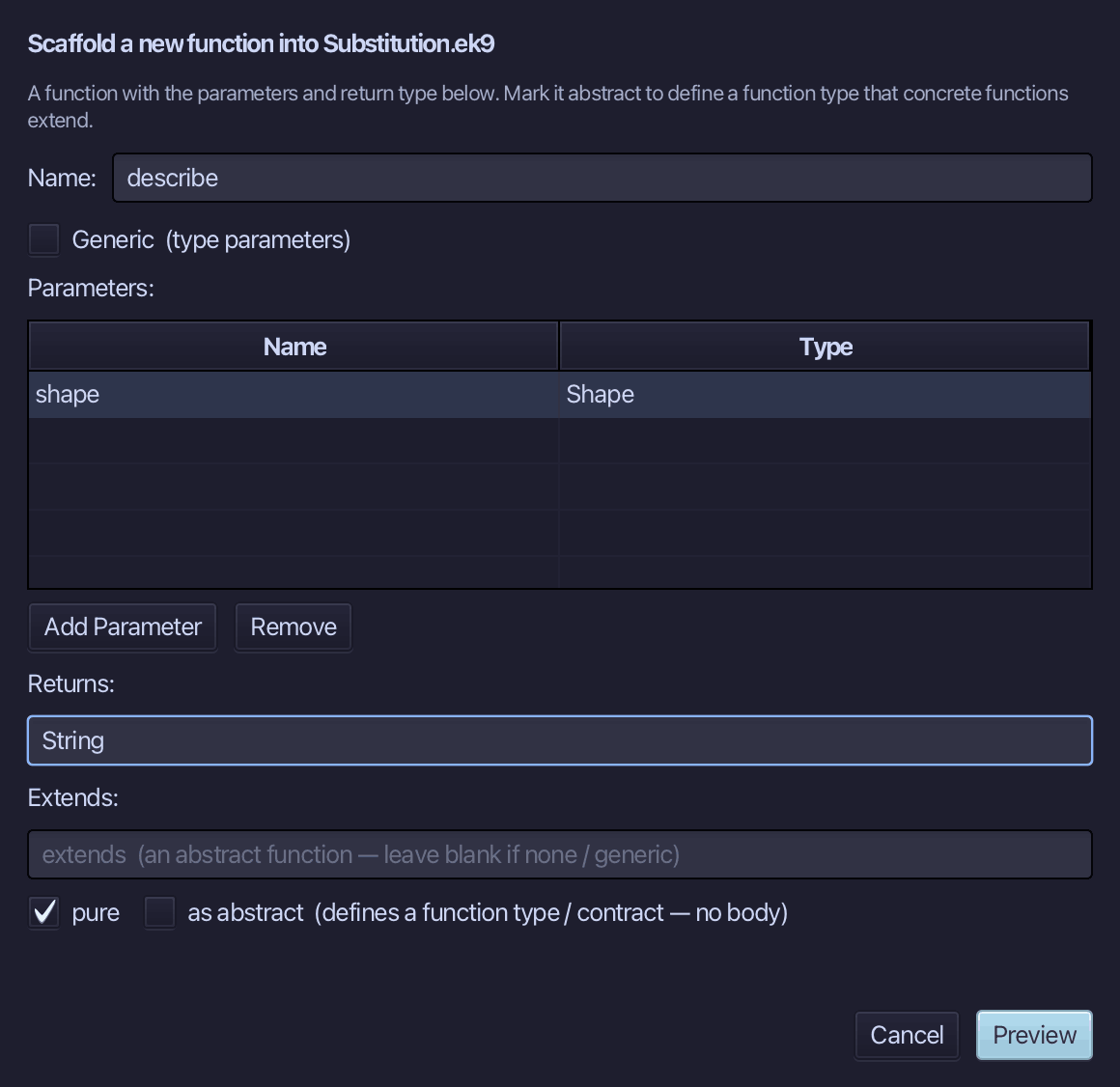
describe is the function's name. Add shape of type Shape, set Returns to String and tick pure. Its parameter is the PARENT type: this is the function that must work for every subtype. Choose Preview.
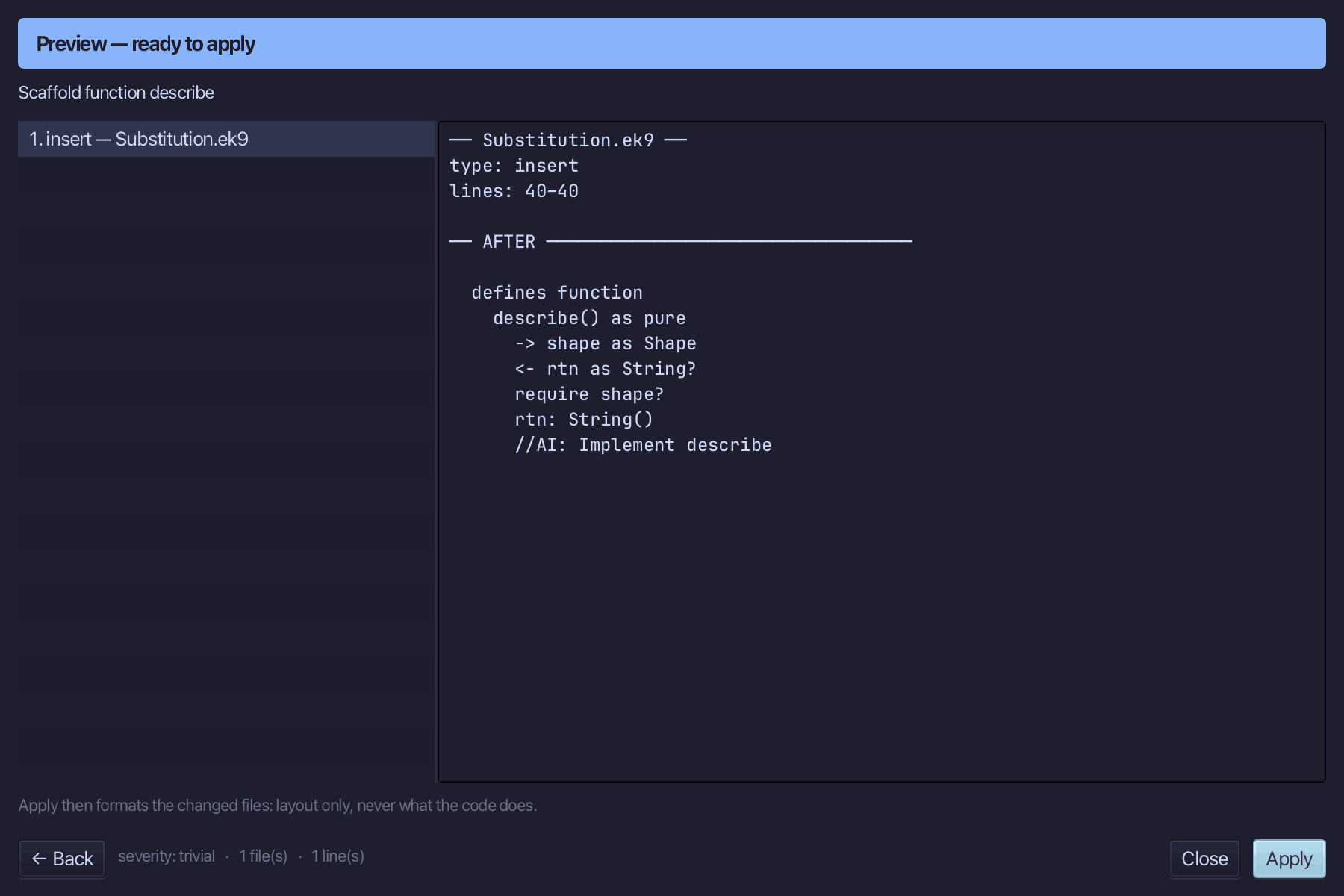
The preview shows describe about to be written, pure, a Shape in and a String out. Choose Apply.
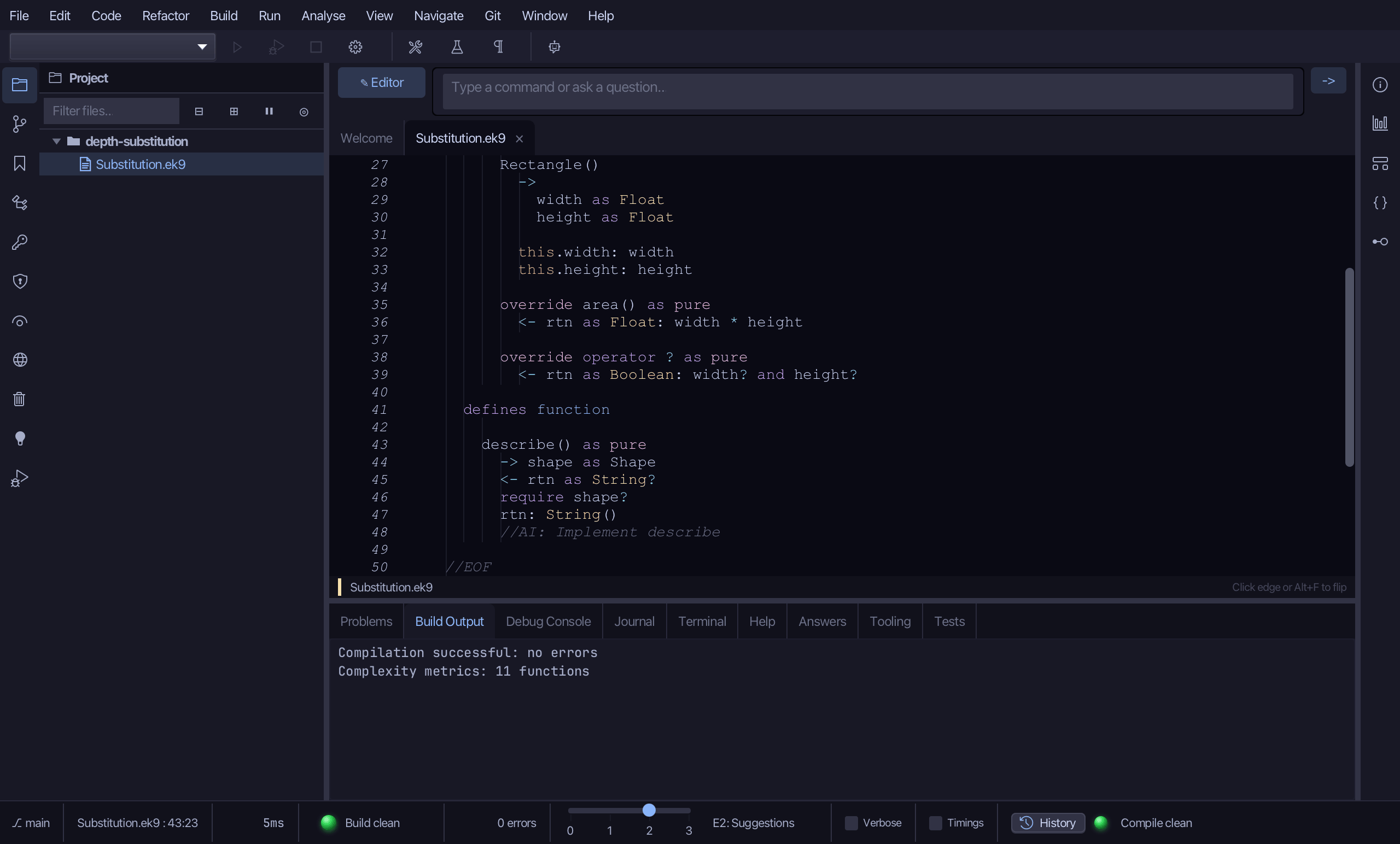
Select the line above describe and type the blank line the book opens its first function with. Saves when typed.
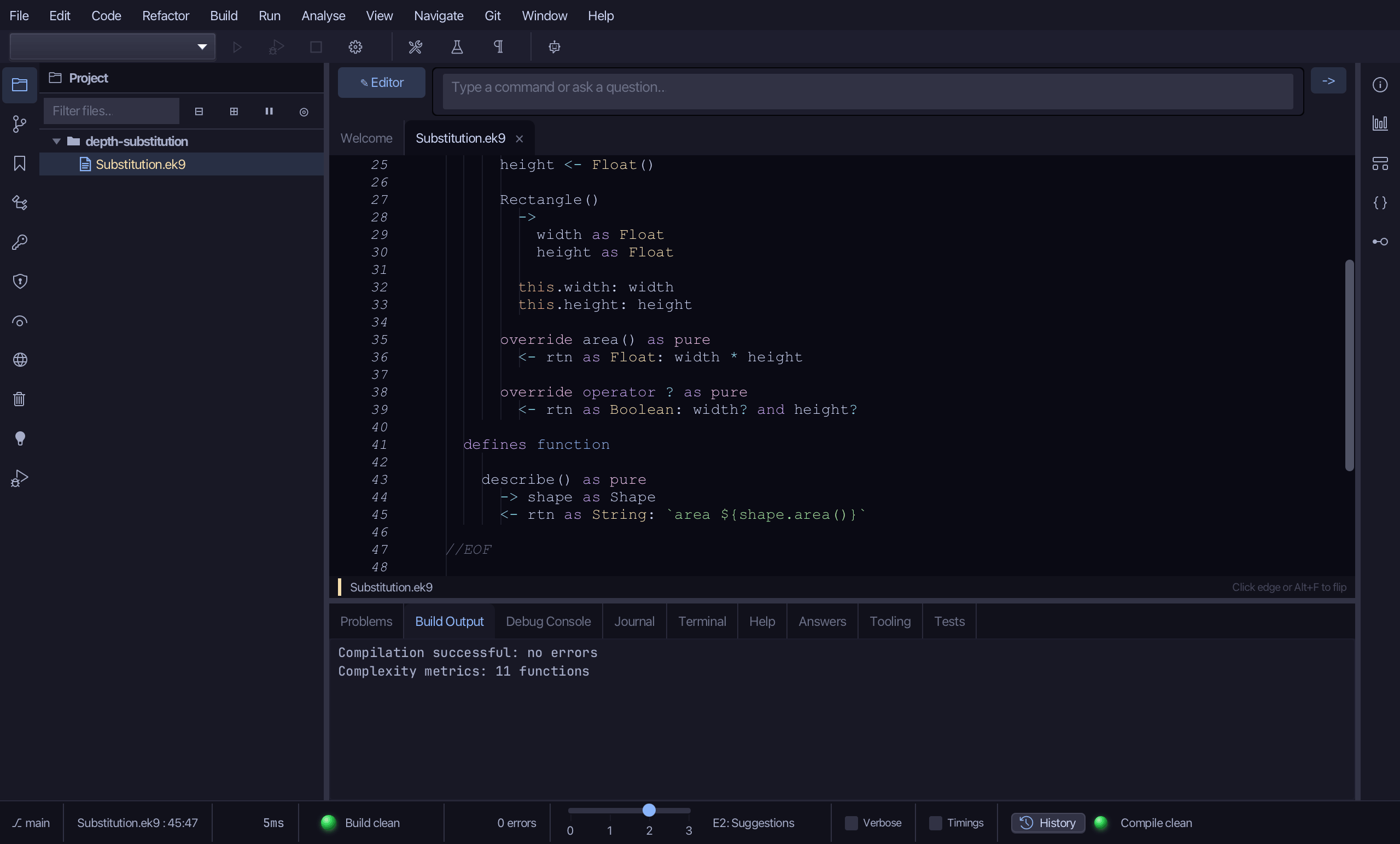
Select the stub, from <- rtn as String? down to its //AI line, and type describe's body: it asks the shape for its area() and never says which shape it is. Saves when typed.
Step 5: The program
Choose Code > New Construct > Program…
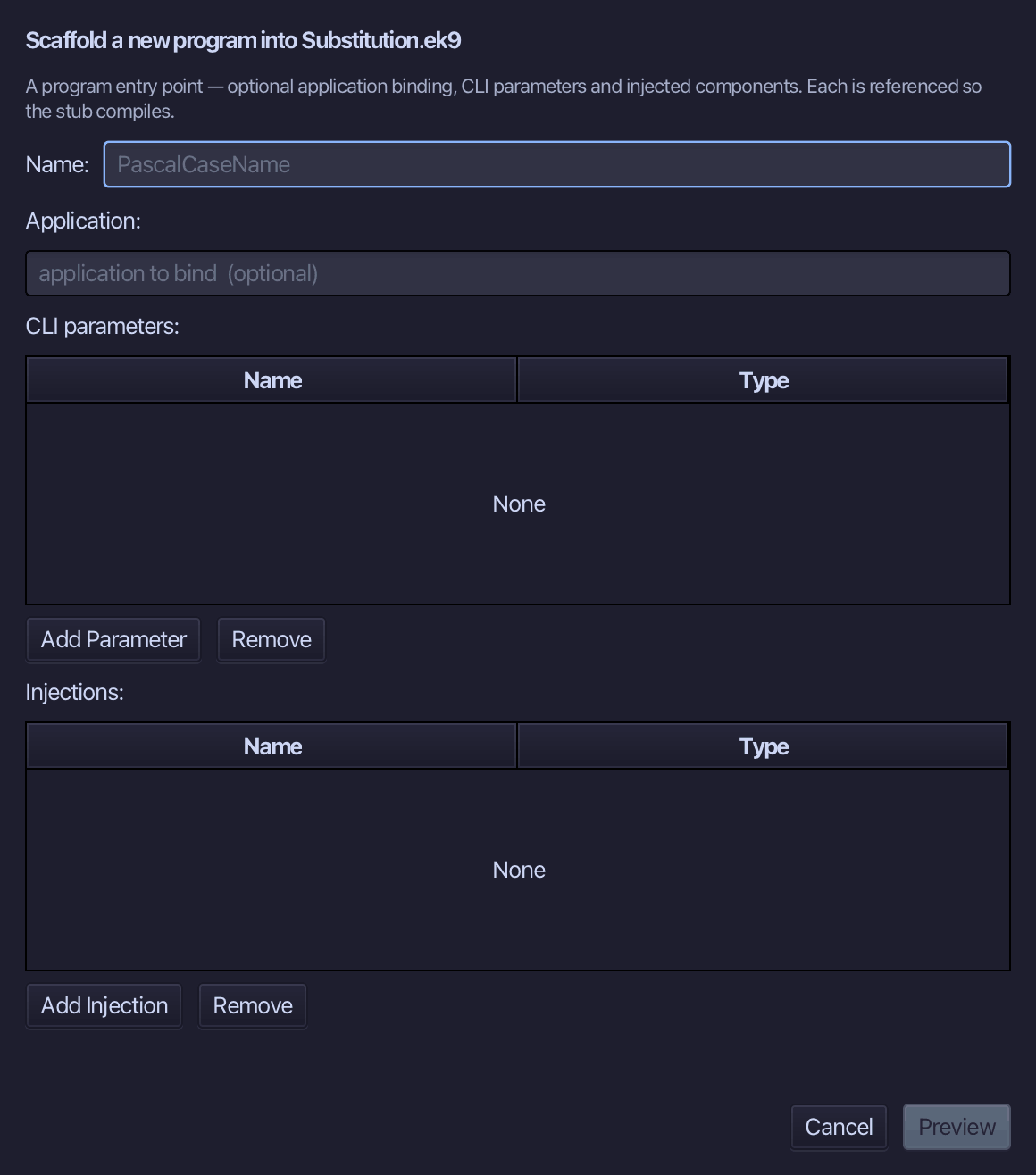
Substitution is the program's name. Choose Preview.
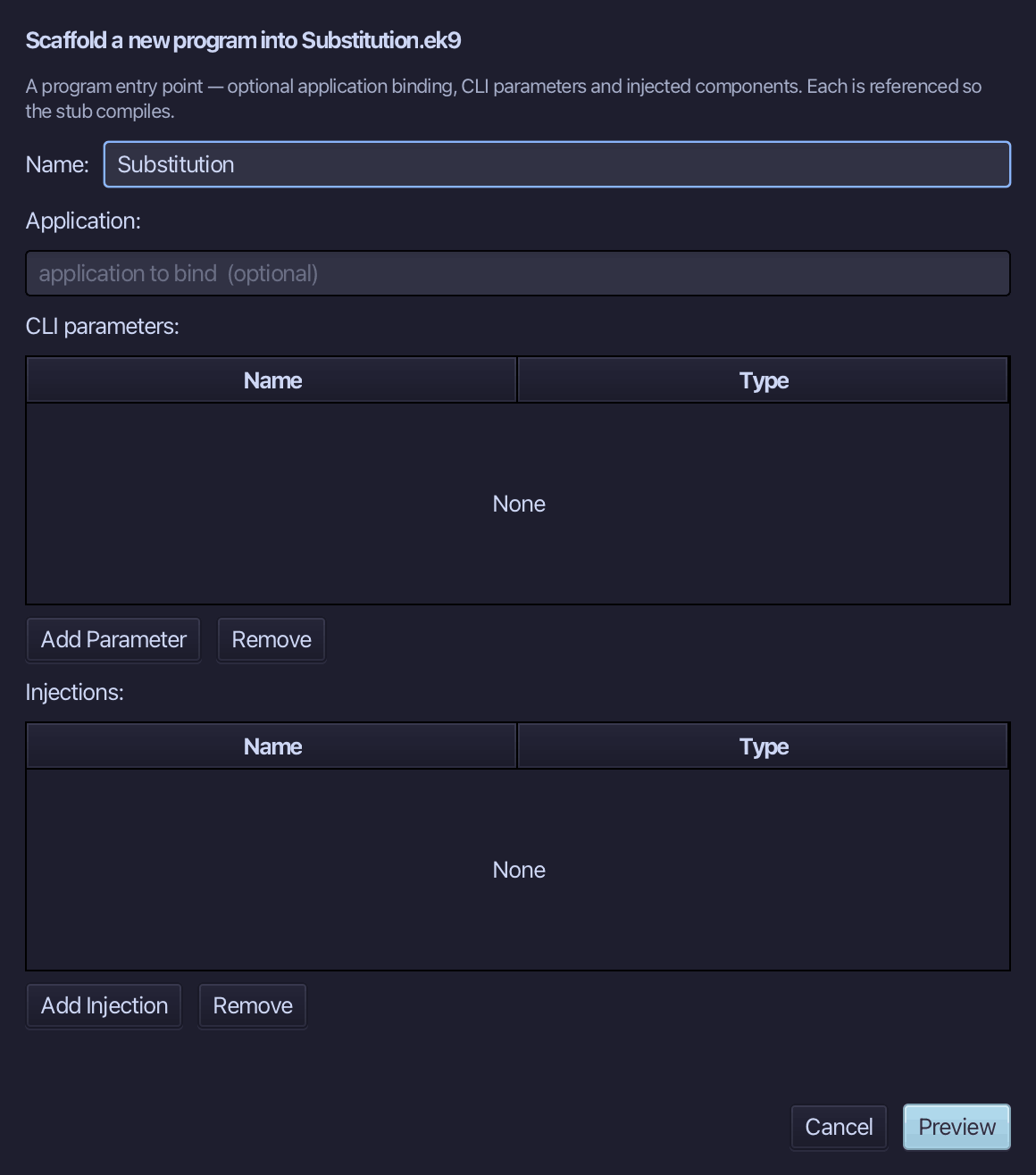
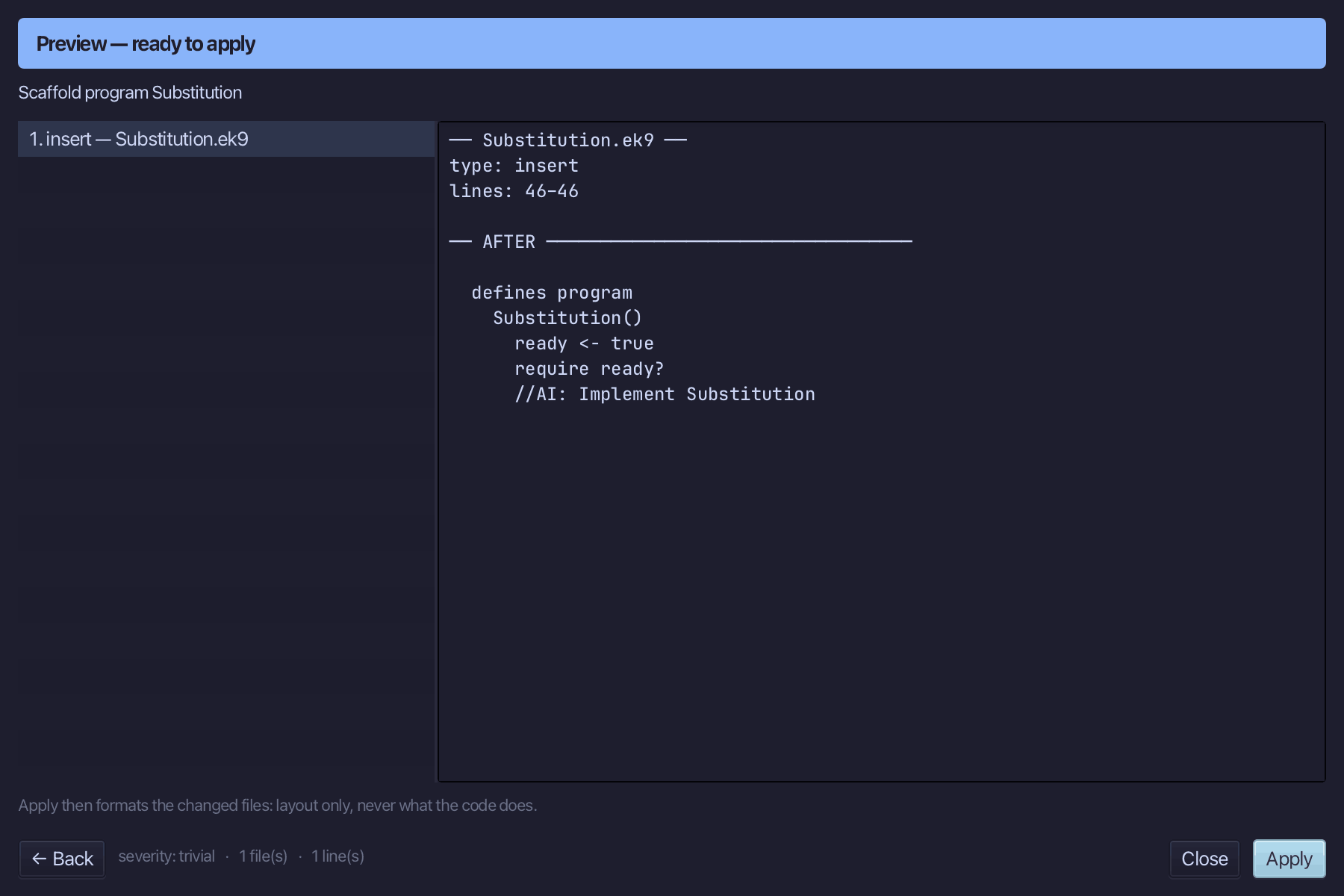
The preview shows Substitution about to be written. Choose Apply.
Select the Substitution line and, above it, type the blank line the book opens the program with. Saves when typed.
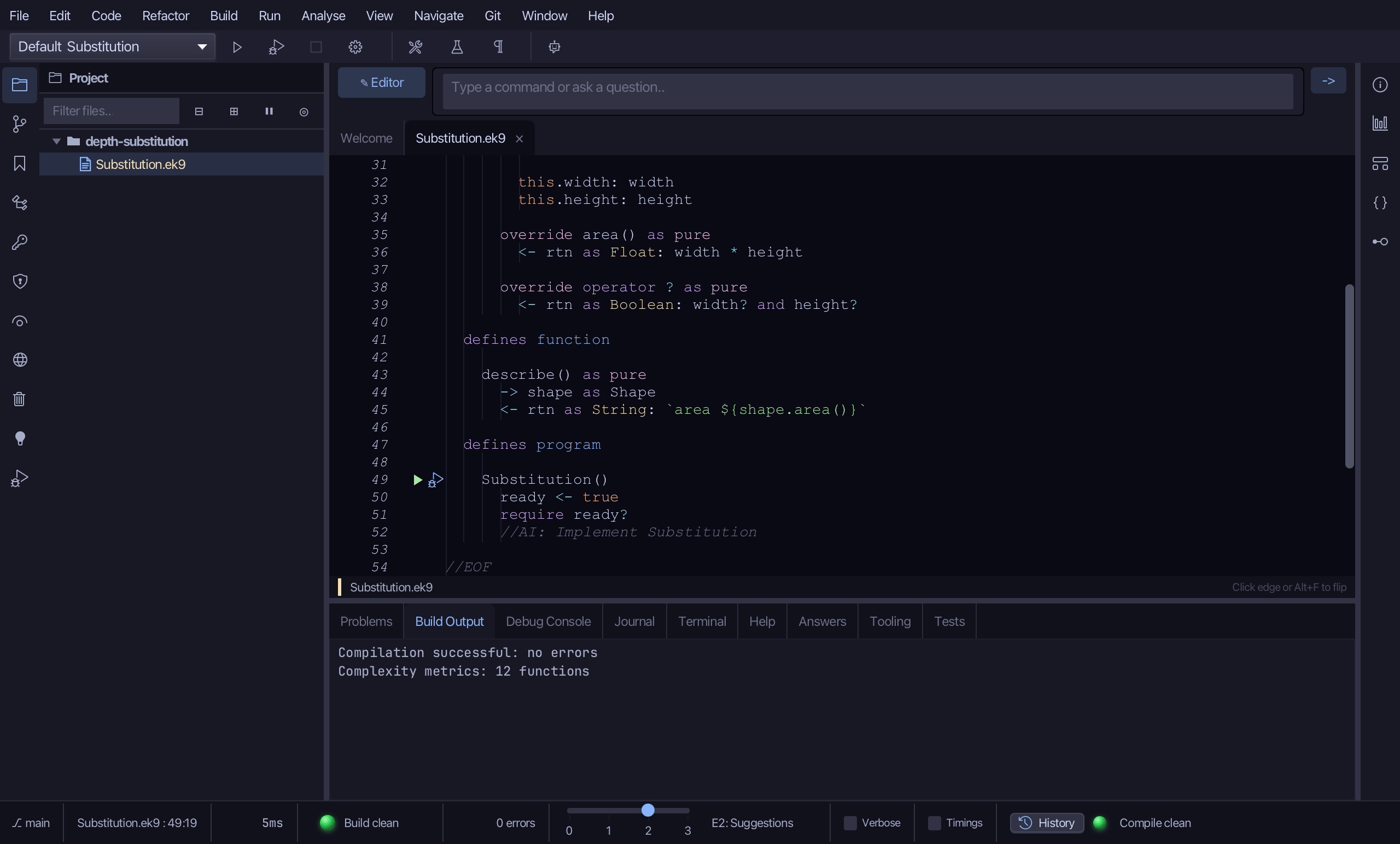
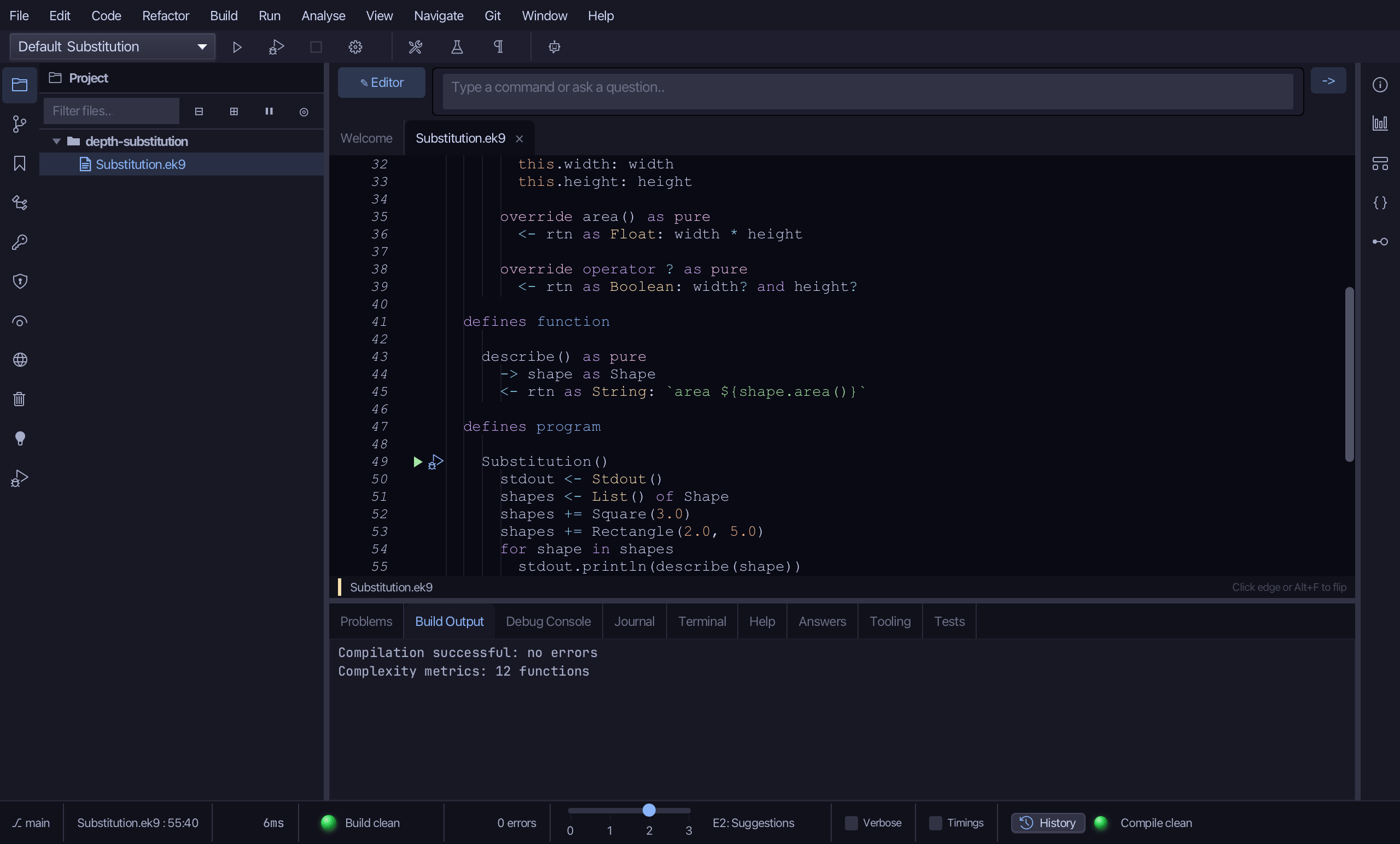
Select the stub, from ready <- true down to its //AI line, and type Substitution's body: a List of Shape holding a Square and a Rectangle, and a loop that describes each - one call, whichever subtype it is. Saves when typed.
Step 6: Run it
Choose Run > Run Program…
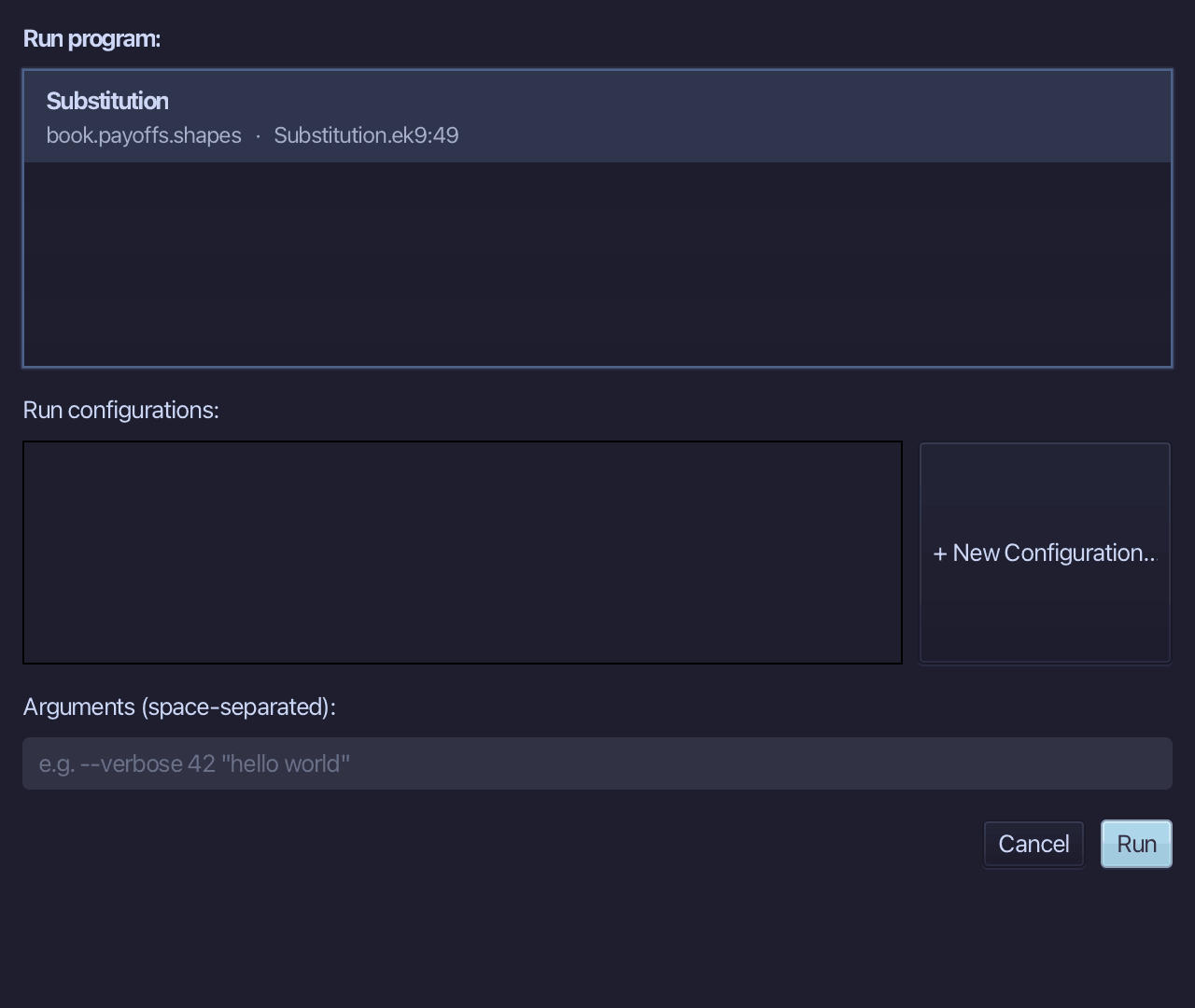
The project's only program is already chosen. Choose Run.
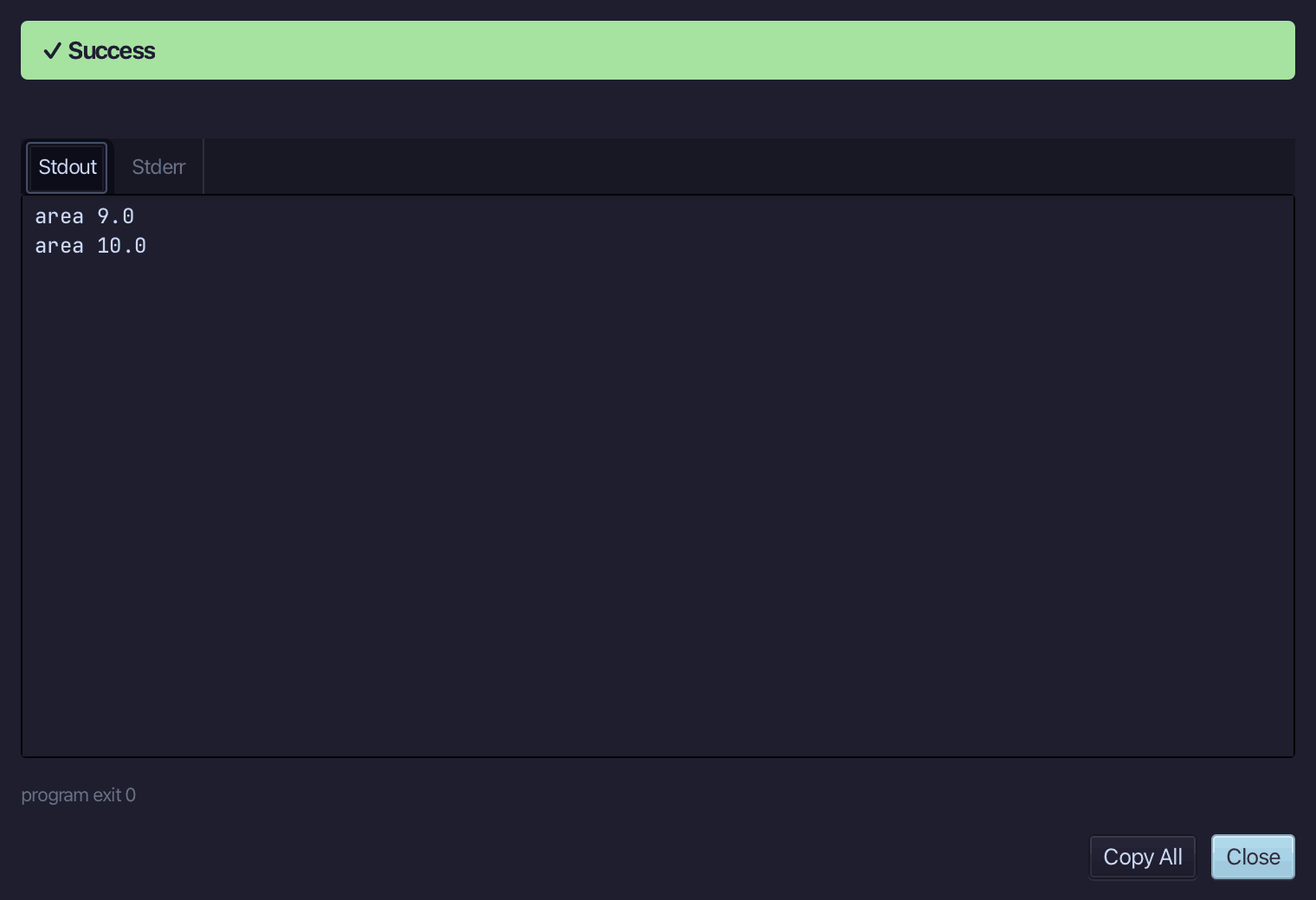
area 9.0 and area 10.0 - one loop, one call to describe each time, and the right formula runs for each shape without describe ever asking which one it is. Choose Close.
The result
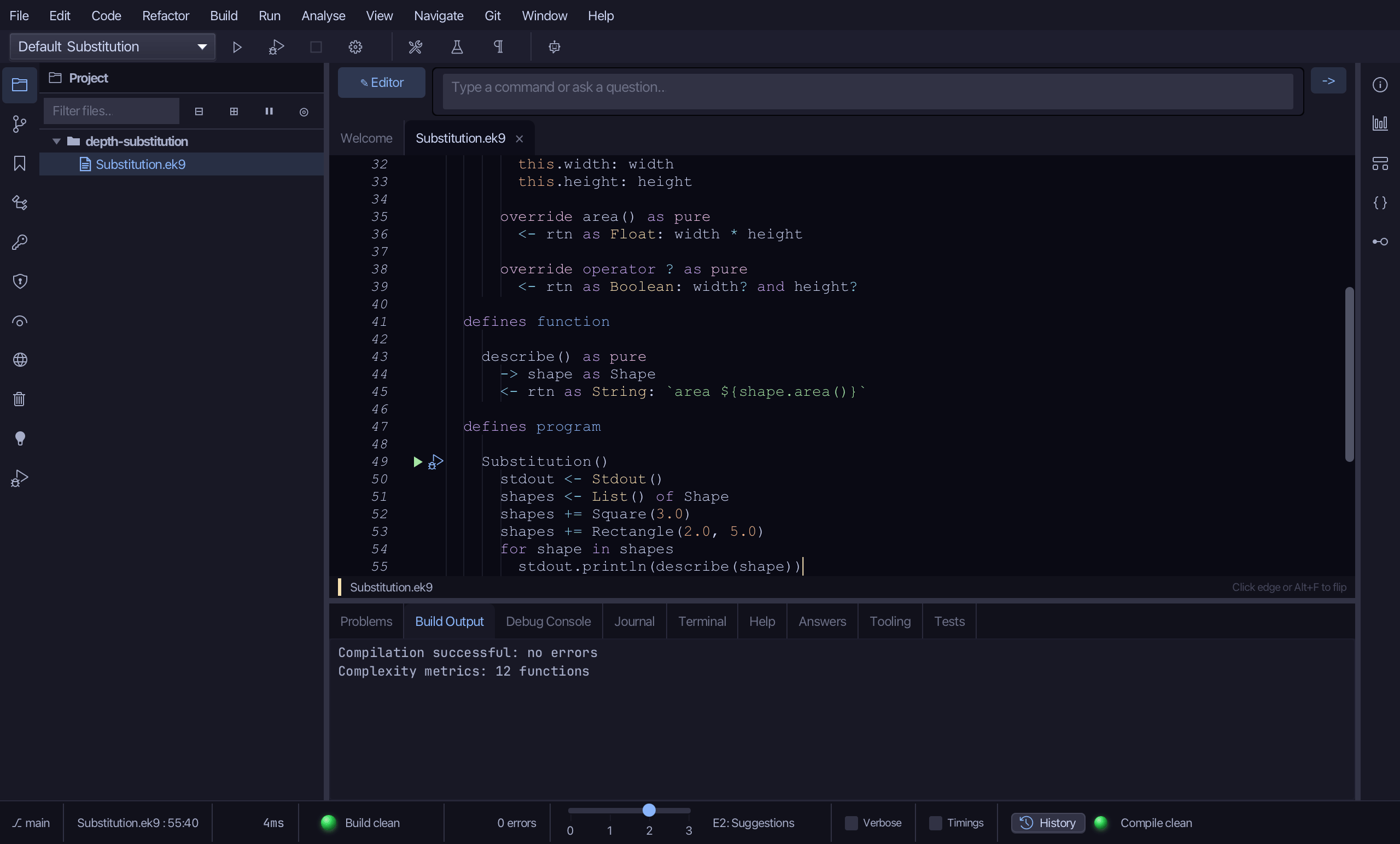
Substitution.ek9 now reads exactly as chapter 41 of EK9 in Depth shows it. describe knows nothing of Square or Rectangle, and area() is declared pure on Shape, so a caller can rely on it being a query - and the compiler holds each subtype to that: an override that drops pure is E05150, one that forgets override is E05120, and a subtype that adds fields must declare its own operators (E07238). The tools - ek9_new_construct, ek9_add_method, ek9_add_field, ek9_add_operator and ek9_add_constructor - are what an AI assistant calls to do the same thing.
Where this lesson comes from
- For AI assistants - the MCP tool
ek9_new_construct,ek9_add_method,ek9_add_field,ek9_add_operator,ek9_add_constructor,ek9_add_program.