Chapter 21: operators, built
Chapter 21 gives a small vector its own + (add two vectors) and $ (how it prints), then defaults the rest: <=> for comparison, ? for whether it is set. The IDE's own tools make the structure - the record, each field's declaration, the constructor's and +'s whole signature - so what is left to type is the logic no tool can write. To play it in the IDE: Help > Lessons > Writing code…, or ek9 -ide -lesson book-operators.
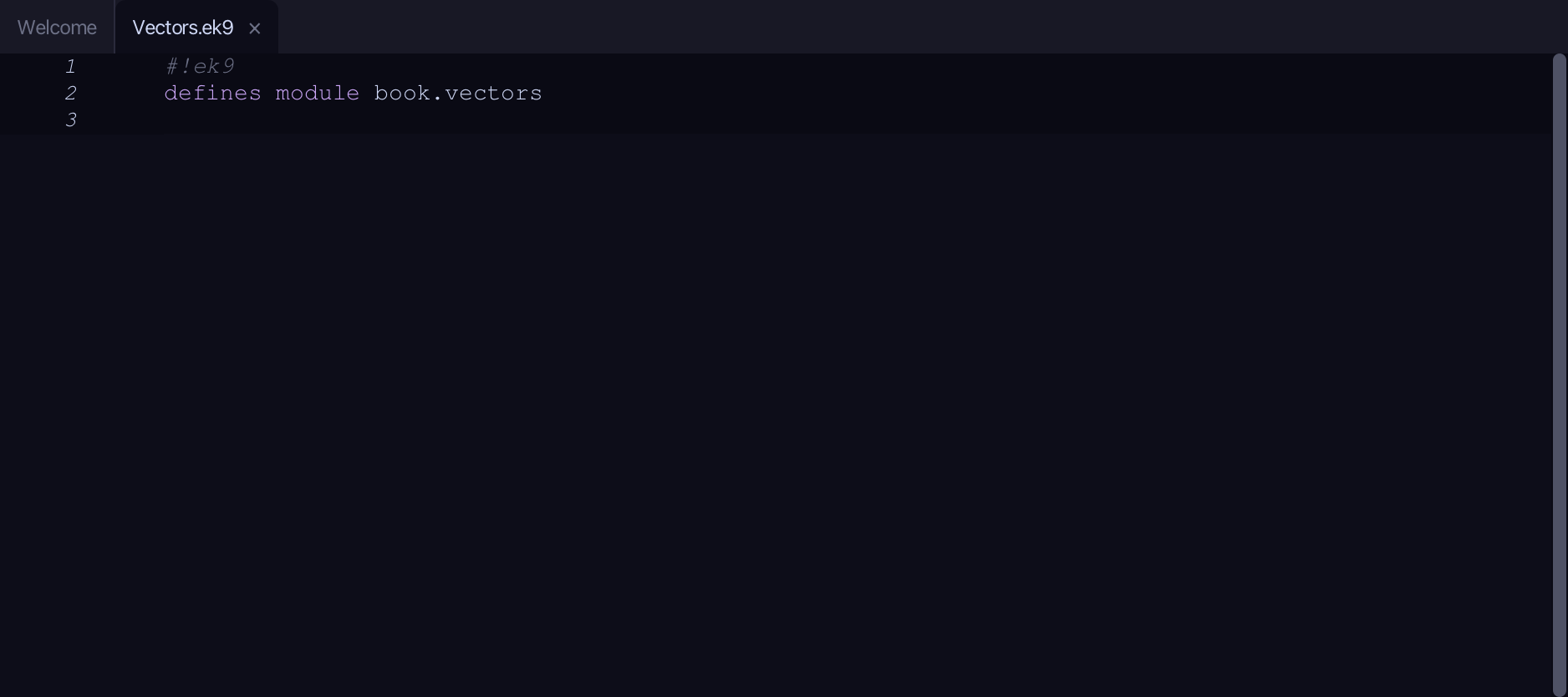
What you'll build
The lesson builds this program from a file holding only its module line - the finished file, as the book prints it.
#!ek9
defines module book.vectors

  defines record
    Vec2
      x as Integer: Integer()
      y as Integer: Integer()

      Vec2() as pure
        ->
          initialX as Integer
          initialY as Integer

        x :=? Integer(initialX)
        y :=? Integer(initialY)

      operator + as pure
        -> other as Vec2
        <- rtn as Vec2?
        require other?
        rtn: Vec2(x + other.x, y + other.y)

      operator $ as pure
        <- rtn as String: `(${x}, ${y})`

      default operator <=>
      default operator ?

  defines program
    Show()
      stdout <- Stdout()
      a <- Vec2(1, 2)
      b <- Vec2(3, 4)
      twin <- Vec2(1, 2)
      stdout.println(`${a} + ${b} = ${a + b}`)
      stdout.println(`a == twin?  ${a == twin}`)
      stdout.println(`a == b?     ${a == b}`)
Step 1: A record, with its fields
Choose Code > New Construct > Record…
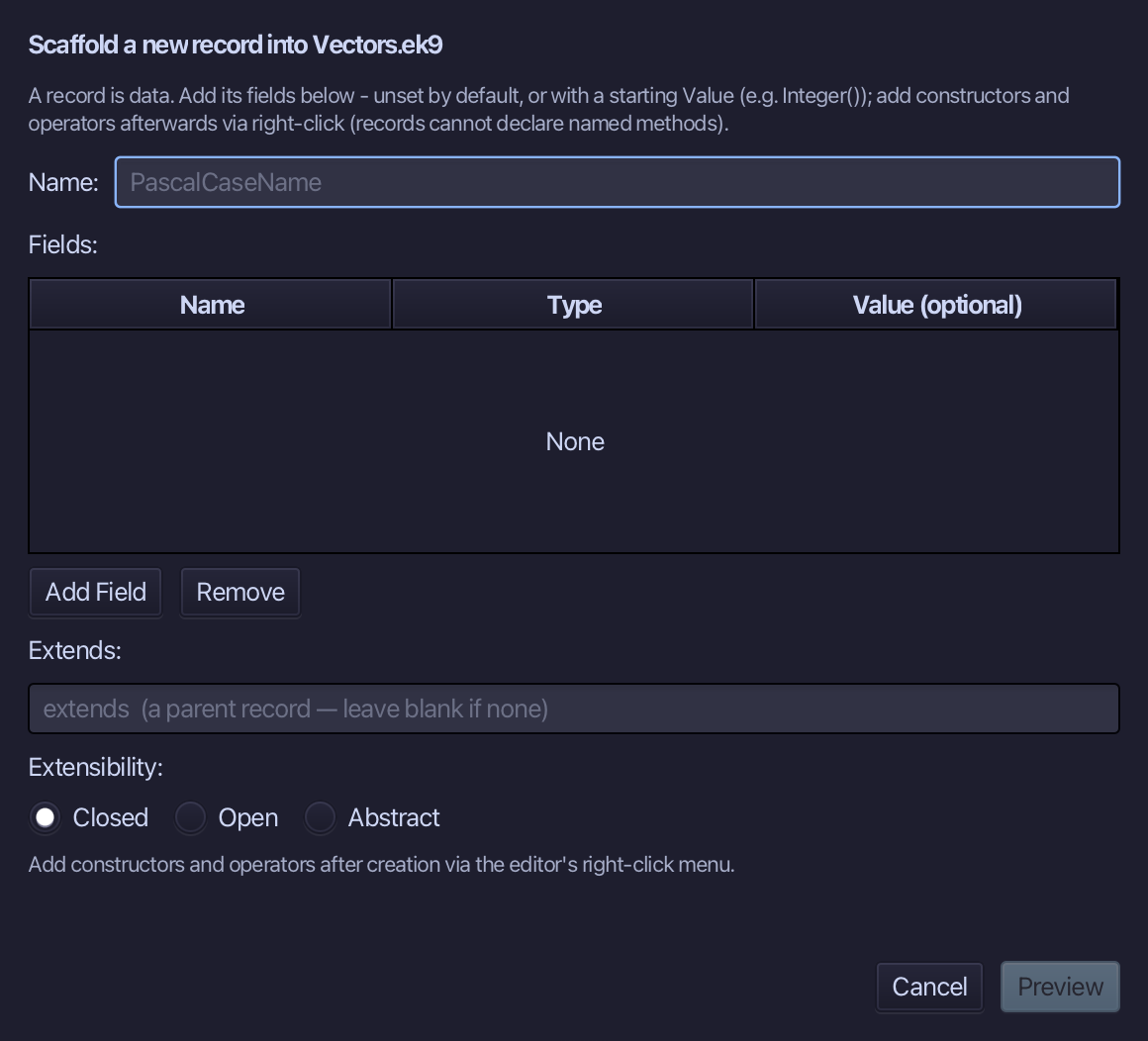
Vec2 is the record's name. Add x and y, both Integer, each given a starting Value of Integer() - a freshly made but unset Integer - so the record needs no constructor of its own yet. Choose Preview.
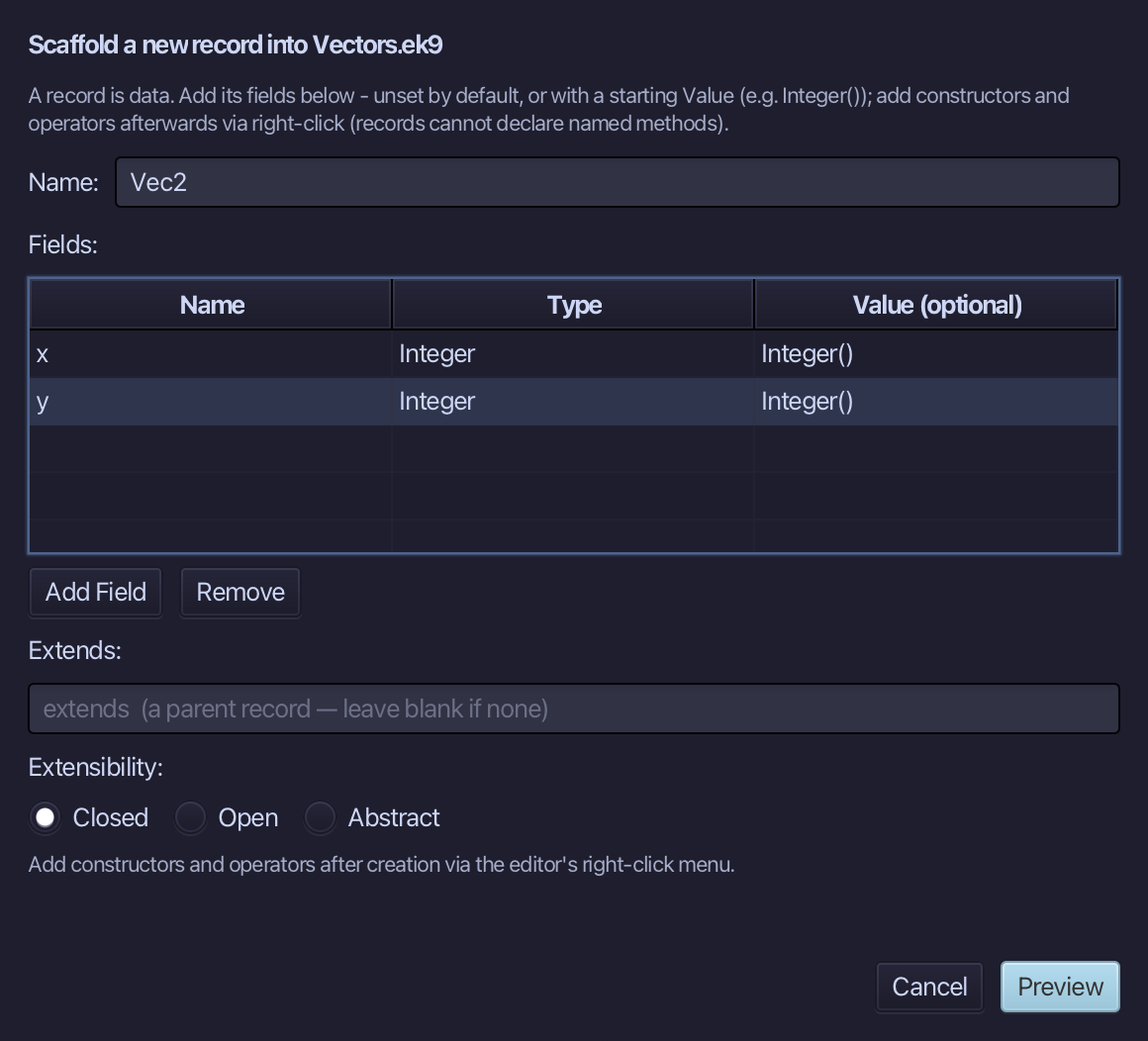
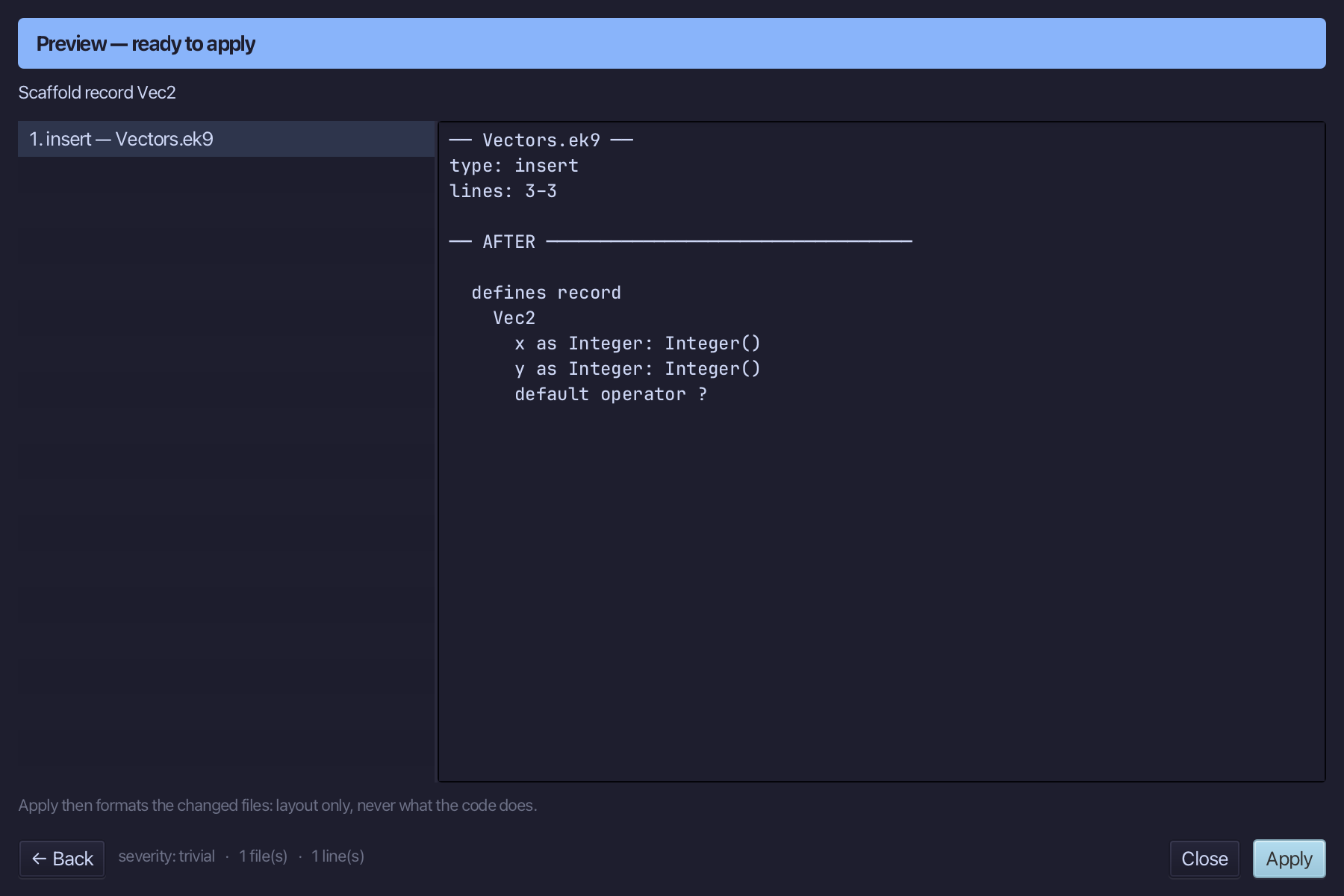
The preview shows Vec2 about to be written, both fields together - and default operator ? with them: a record that holds fields must say when it counts as set. Choose Apply.
Step 2: Its constructor — and its logic
Right-click the Vec2 line and choose Add Constructor > From All Fields (pure).
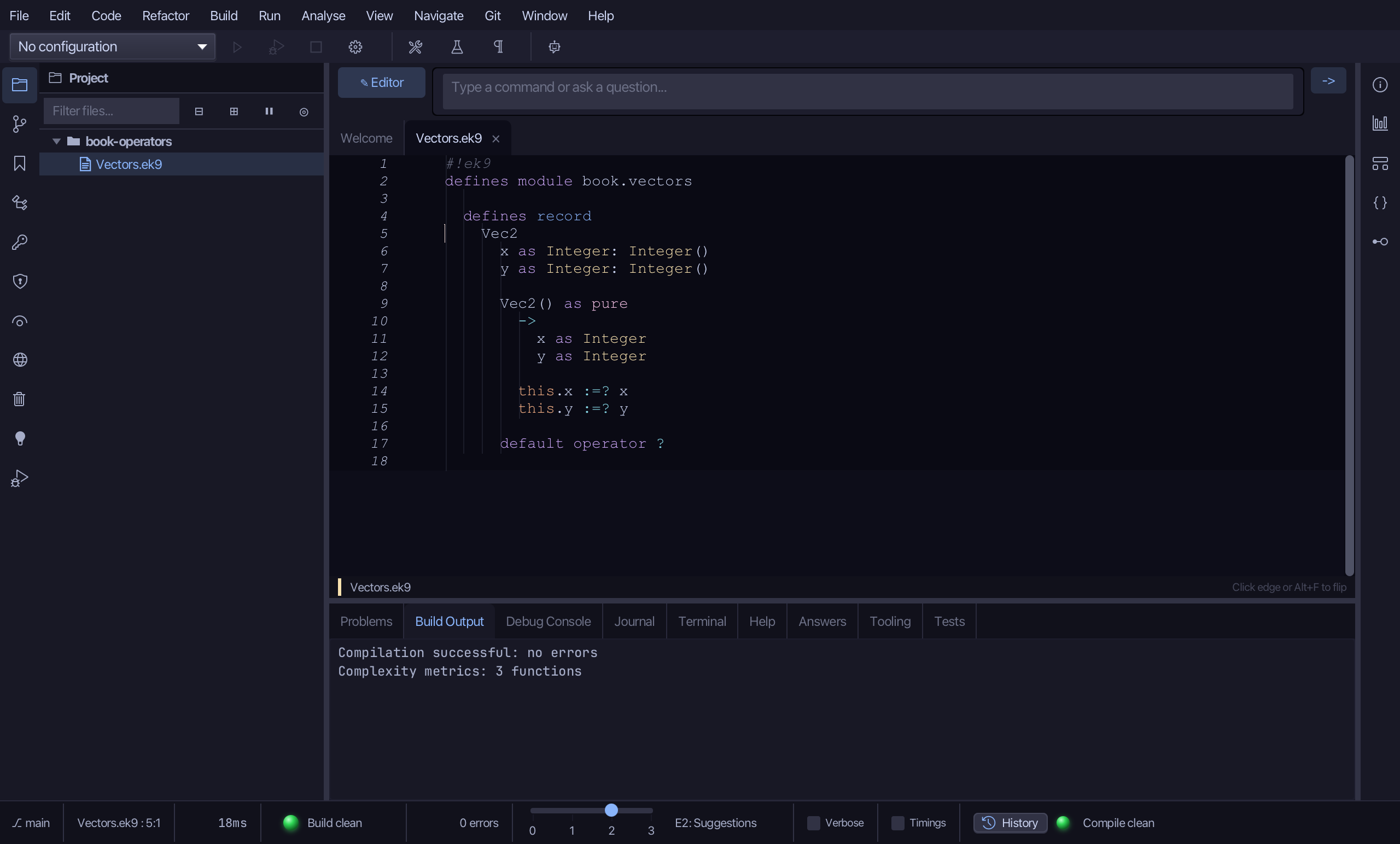
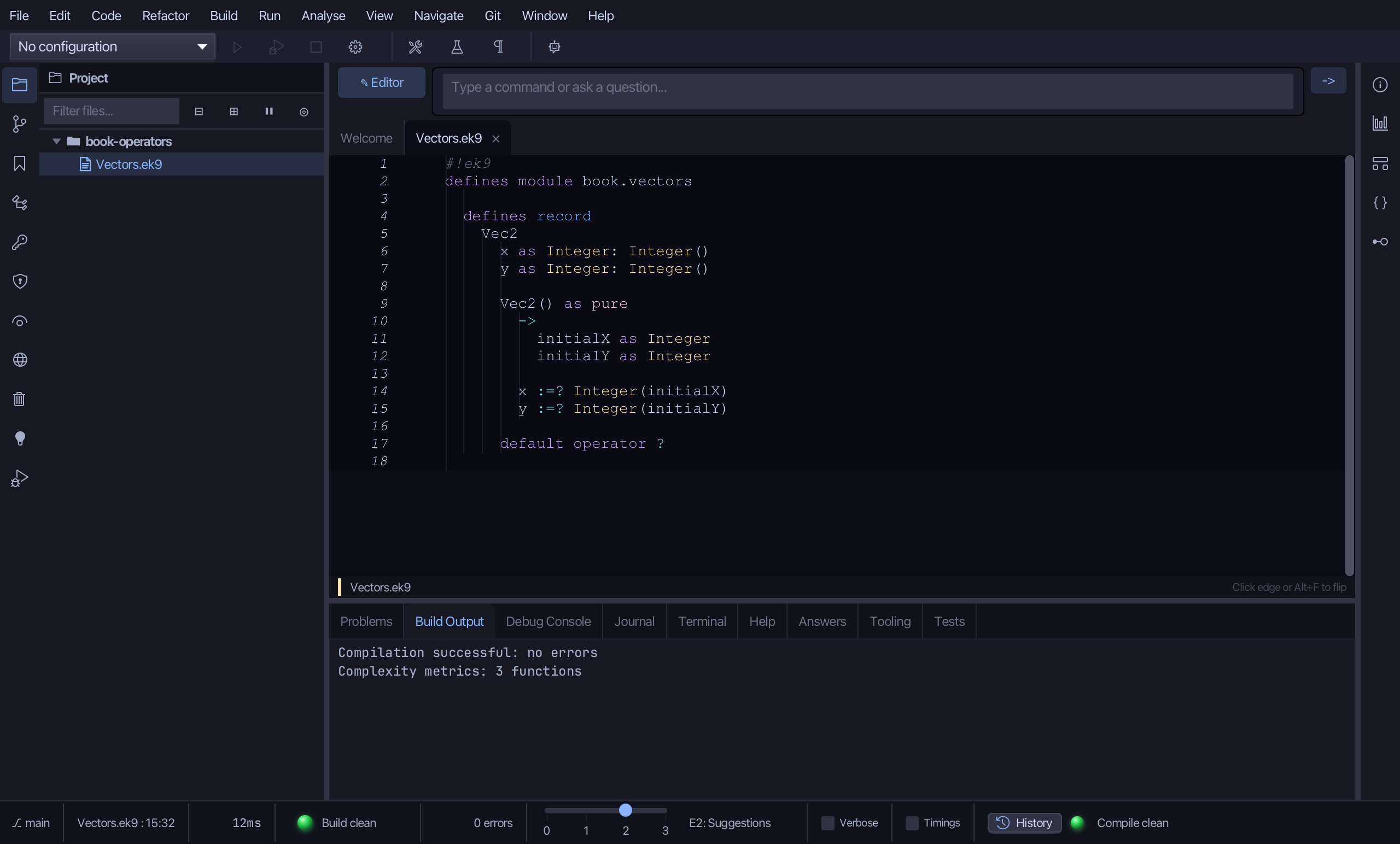
Select the stub, from Vec2() as pure down to its last assignment, and type the constructor's whole job: initialX/initialY in, x and y set with :=? over Integer(...). Saves when typed.
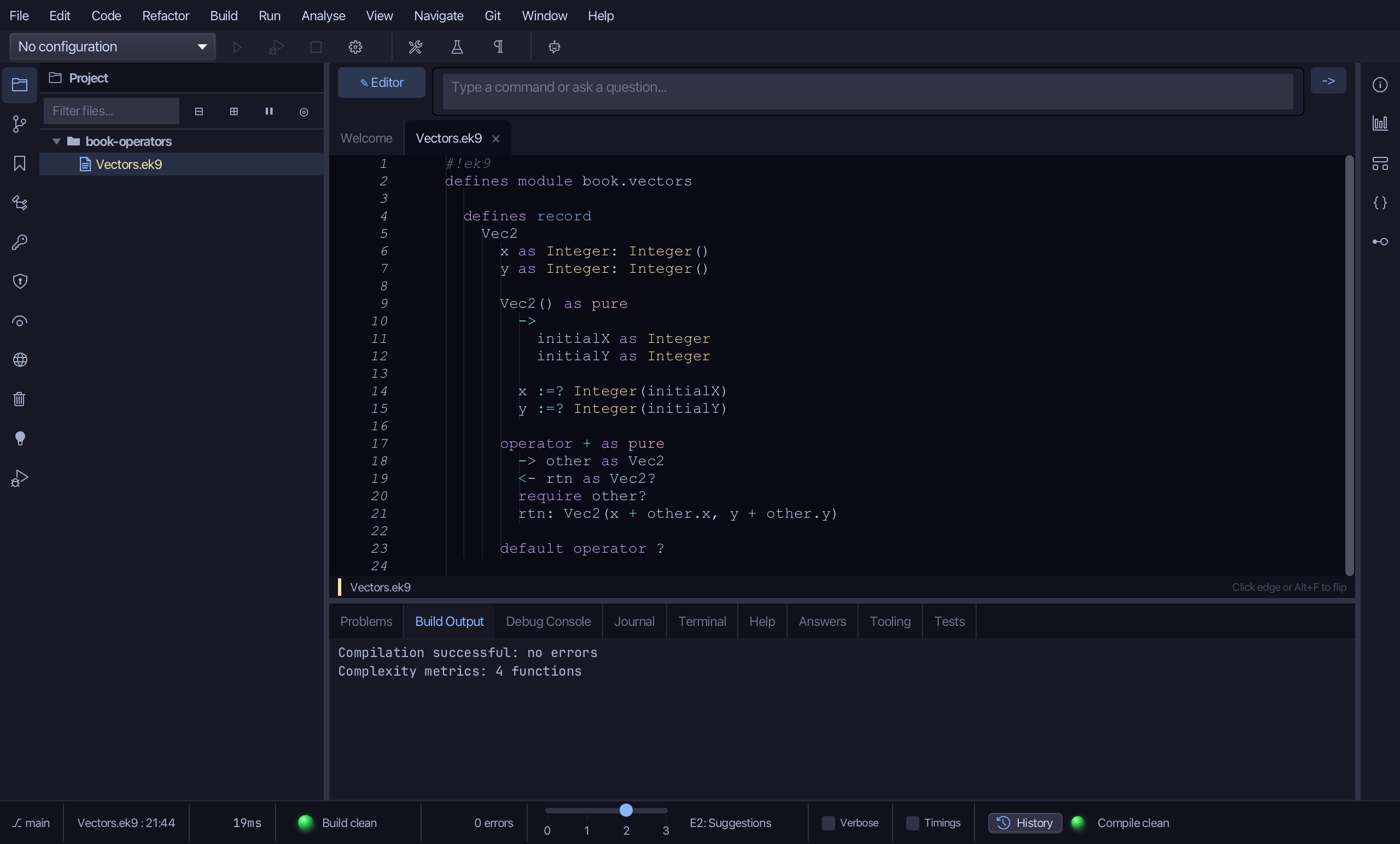
Step 3: operator + — a custom operator, and its logic
Right-click the Vec2 line and choose Add Operator > Custom Operator…
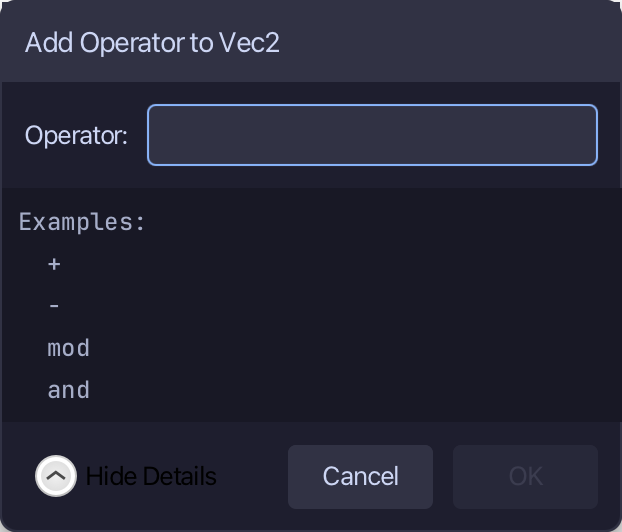
- is not one of the eight operators with their own menu entry - type it here, in Custom Operator…'s one field. Choose OK.
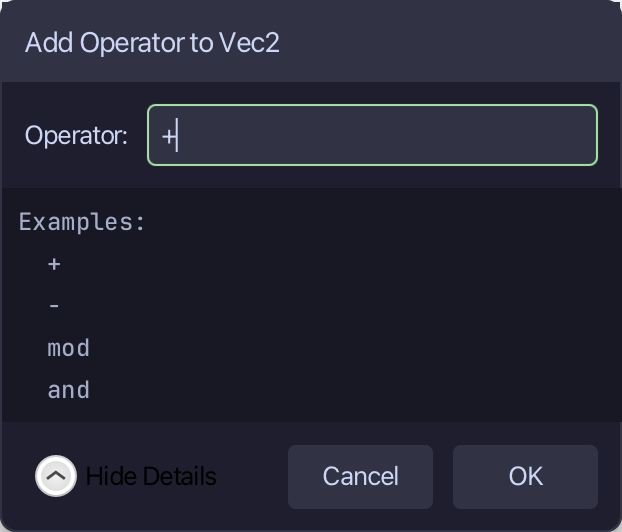
Select the stub, from <- rtn as Vec2: this down to its //AI line, and type +'s whole job: require other?, then the new Vec2 with x and y added. Saves when typed.
Step 4: operator $ — and its logic
Right-click the Vec2 line and choose Add Operator > $ (string) > skeleton.
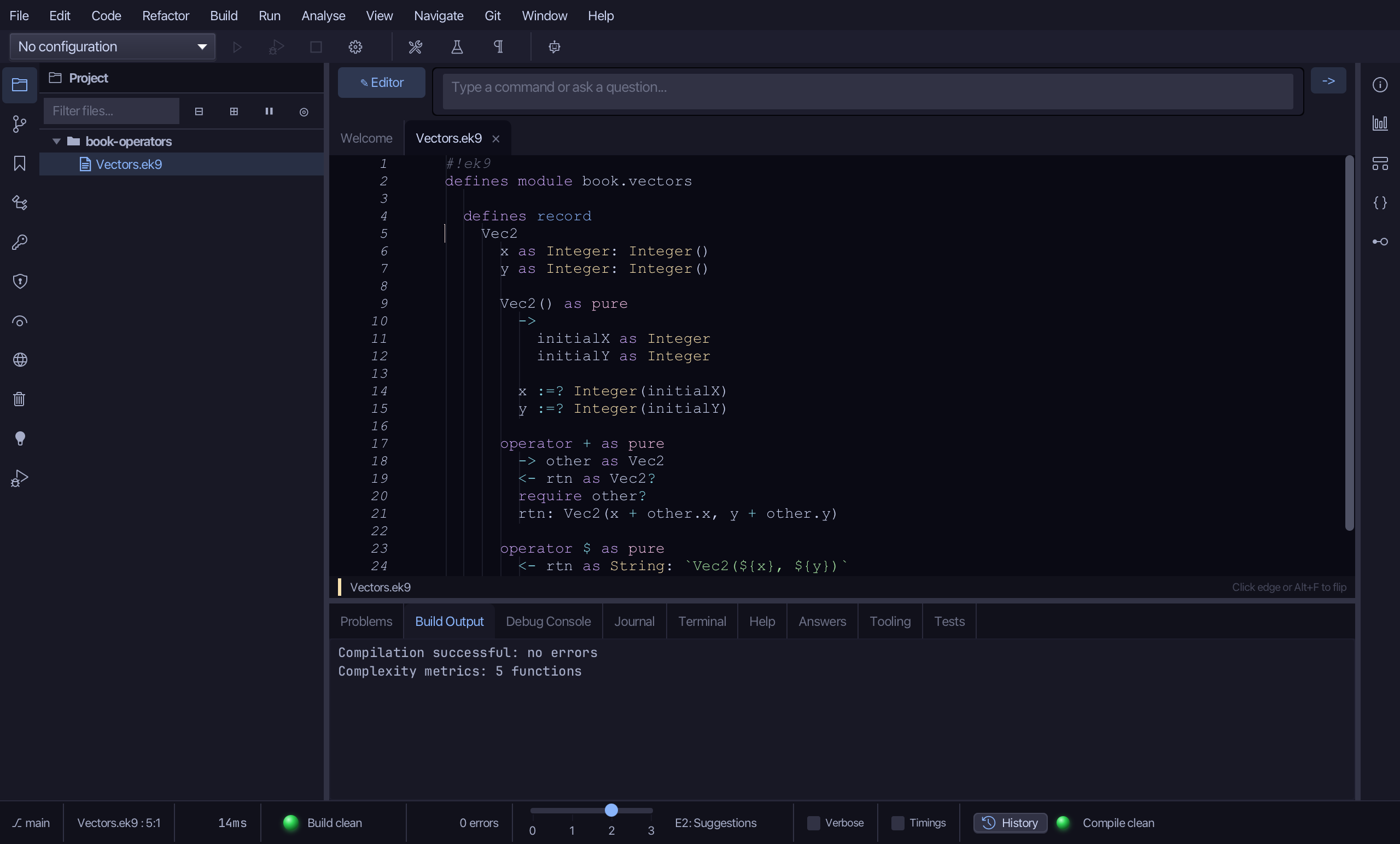
Select the stub line and type $'s own text form - just the two numbers in parentheses, no type name. Saves when typed.
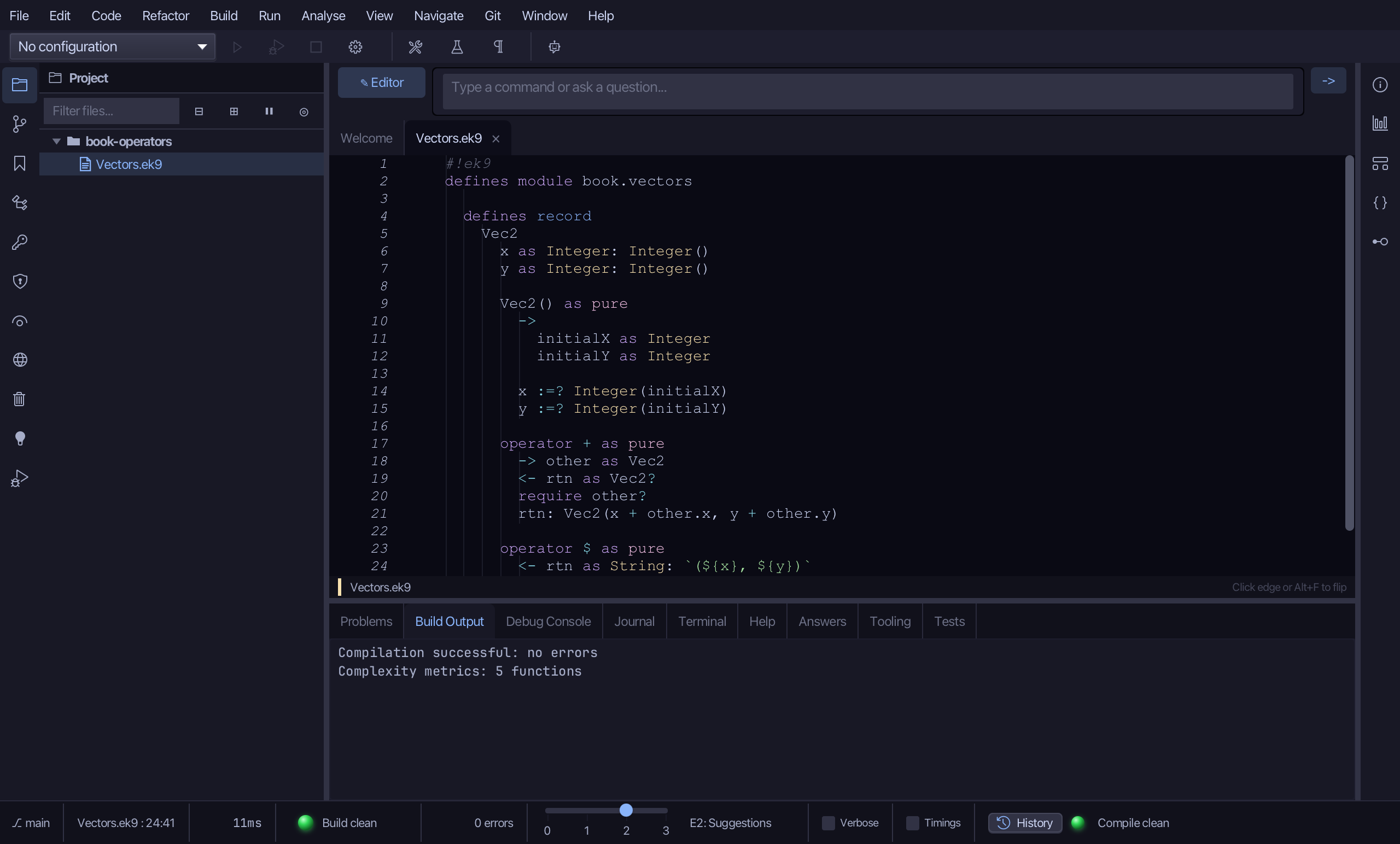
Step 5: default operator <=>
Right-click the Vec2 line and choose Add Operator > <=> (compare) > default.
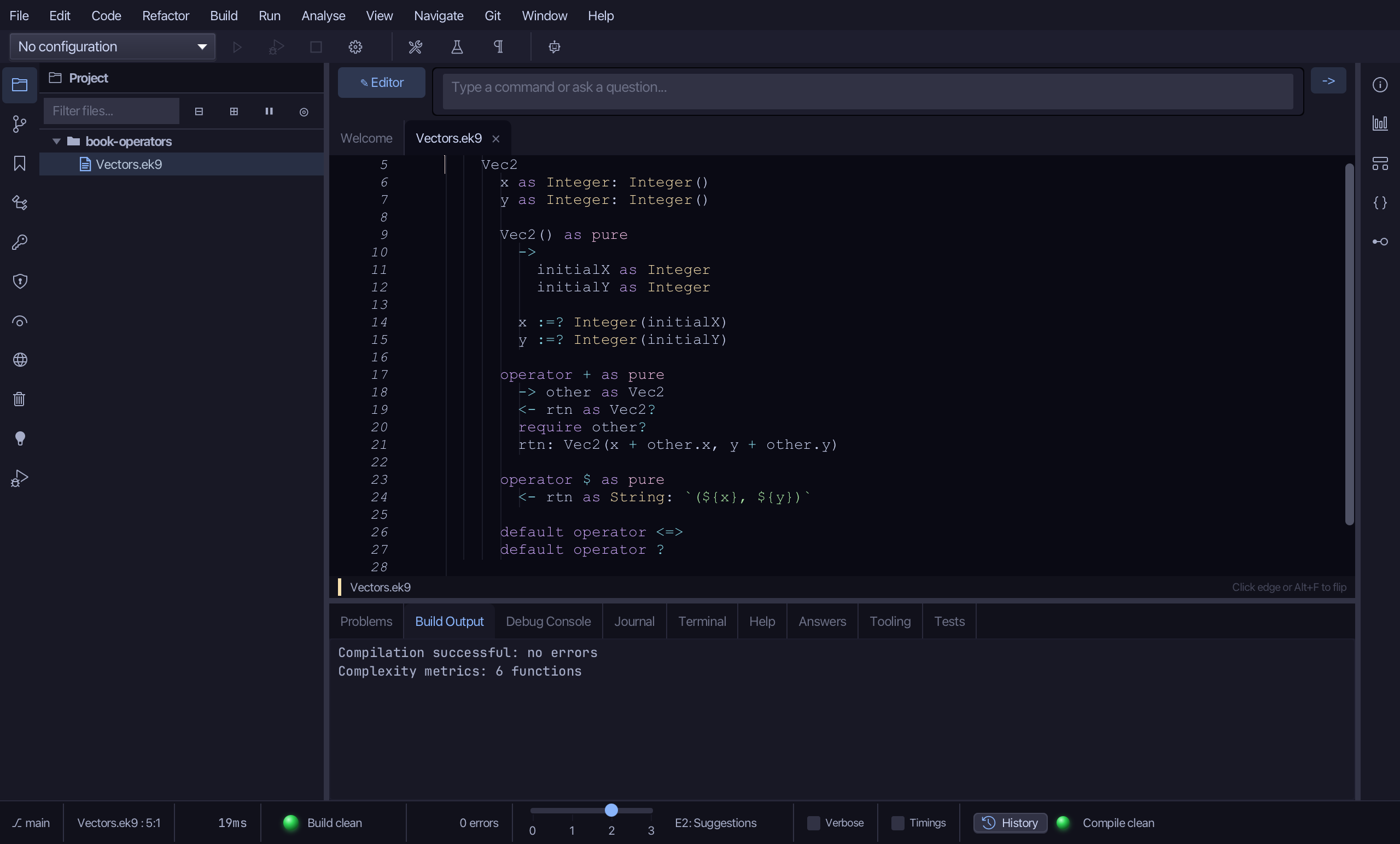
Step 6: The program
Choose Code > New Construct > Program…
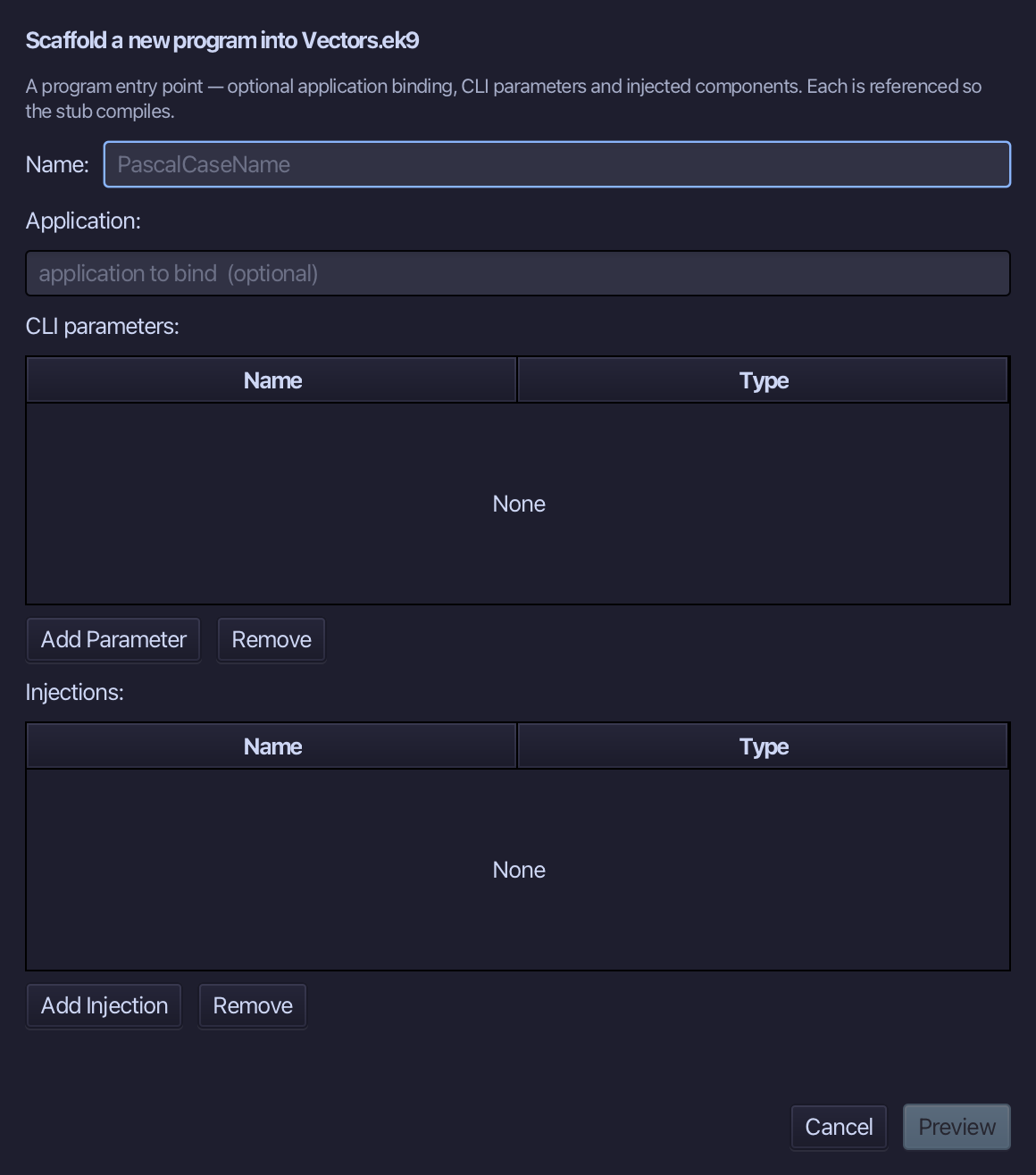
Show is the program's name - no application to bind, no parameters, nothing injected. Type Show and choose Preview.
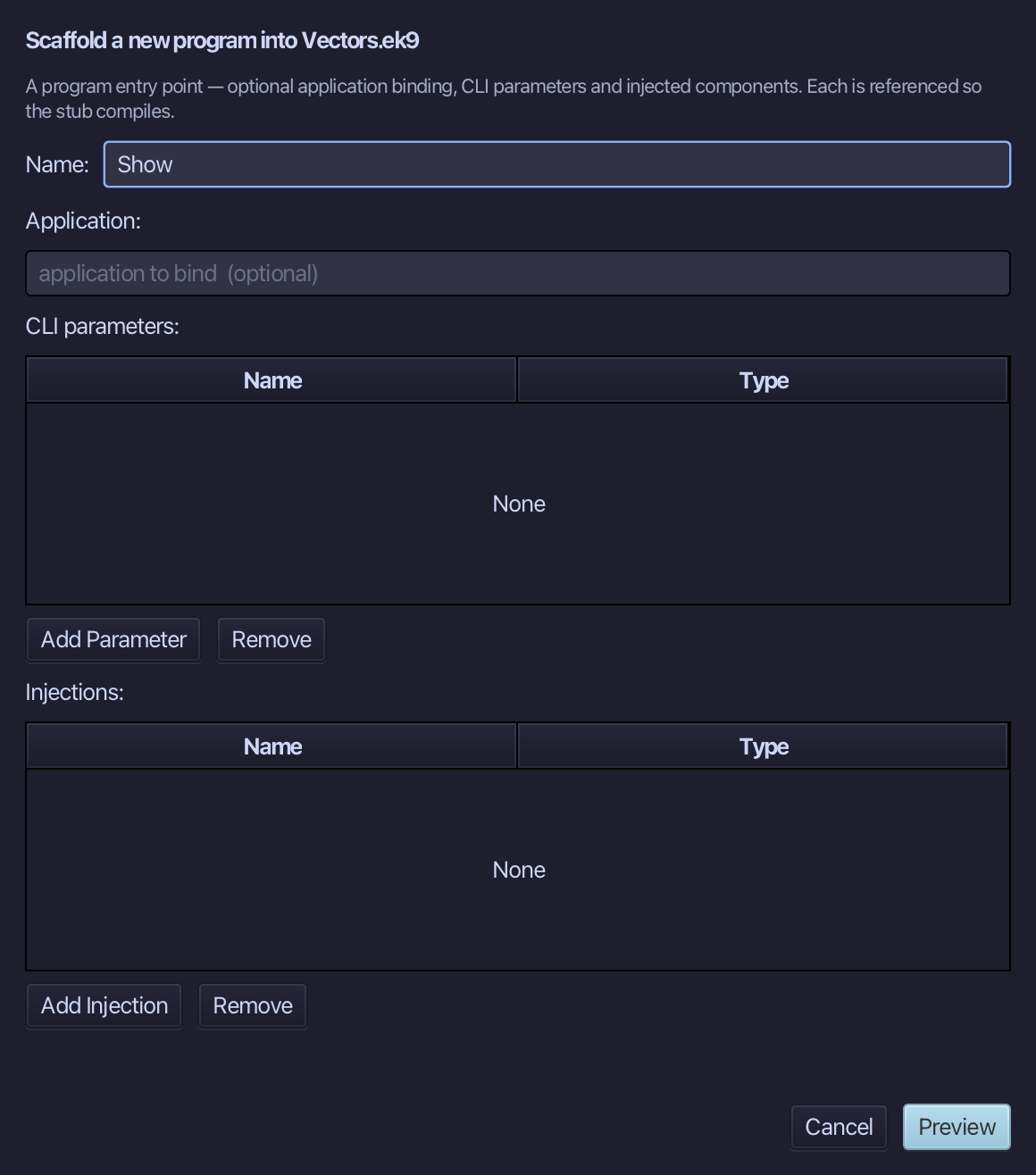
The preview shows Show about to be written. Choose Apply.
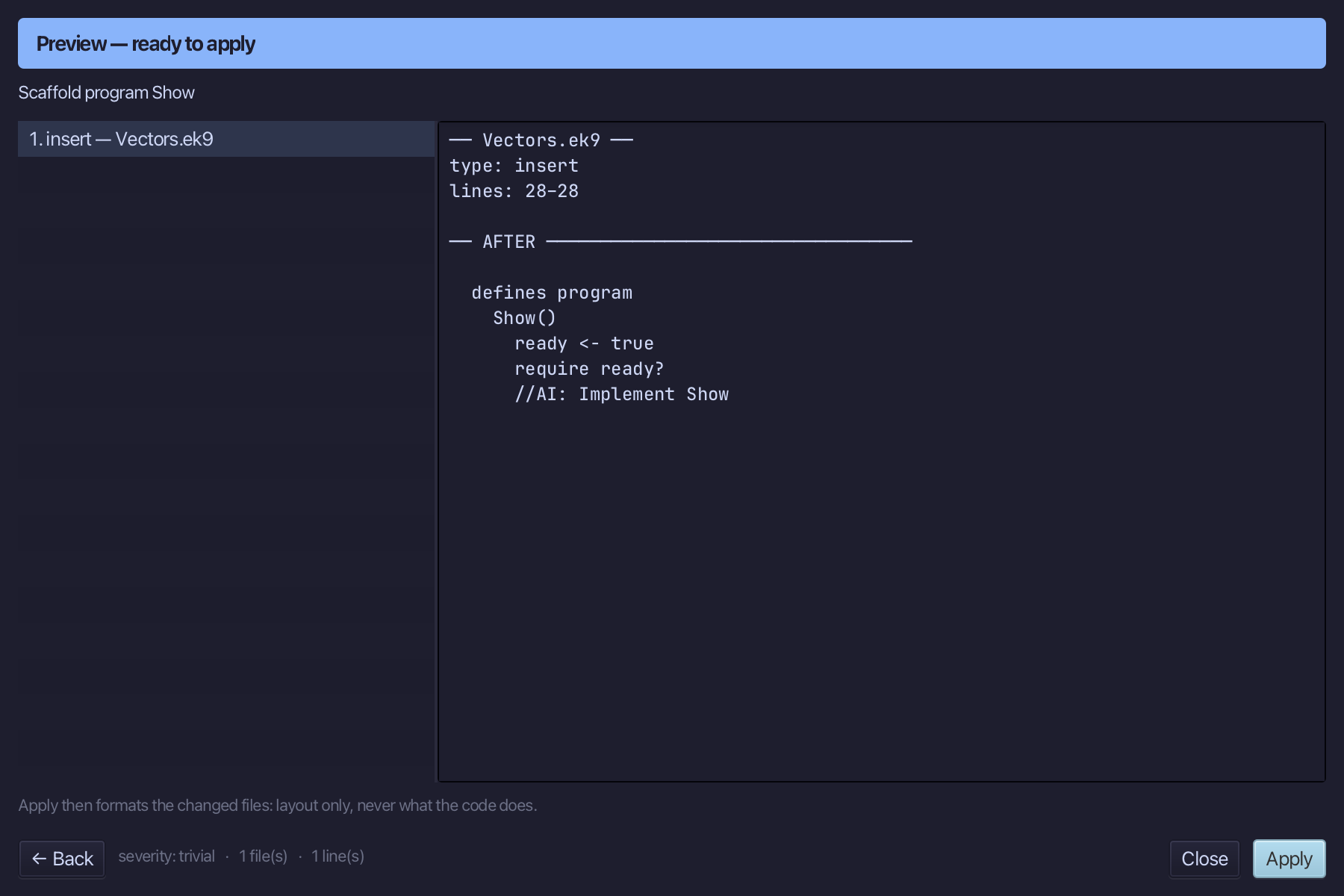
Select the stub, from ready <- true down to its //AI line, and type Show's body: two vectors added, and twin and b compared against a. Saves when typed.
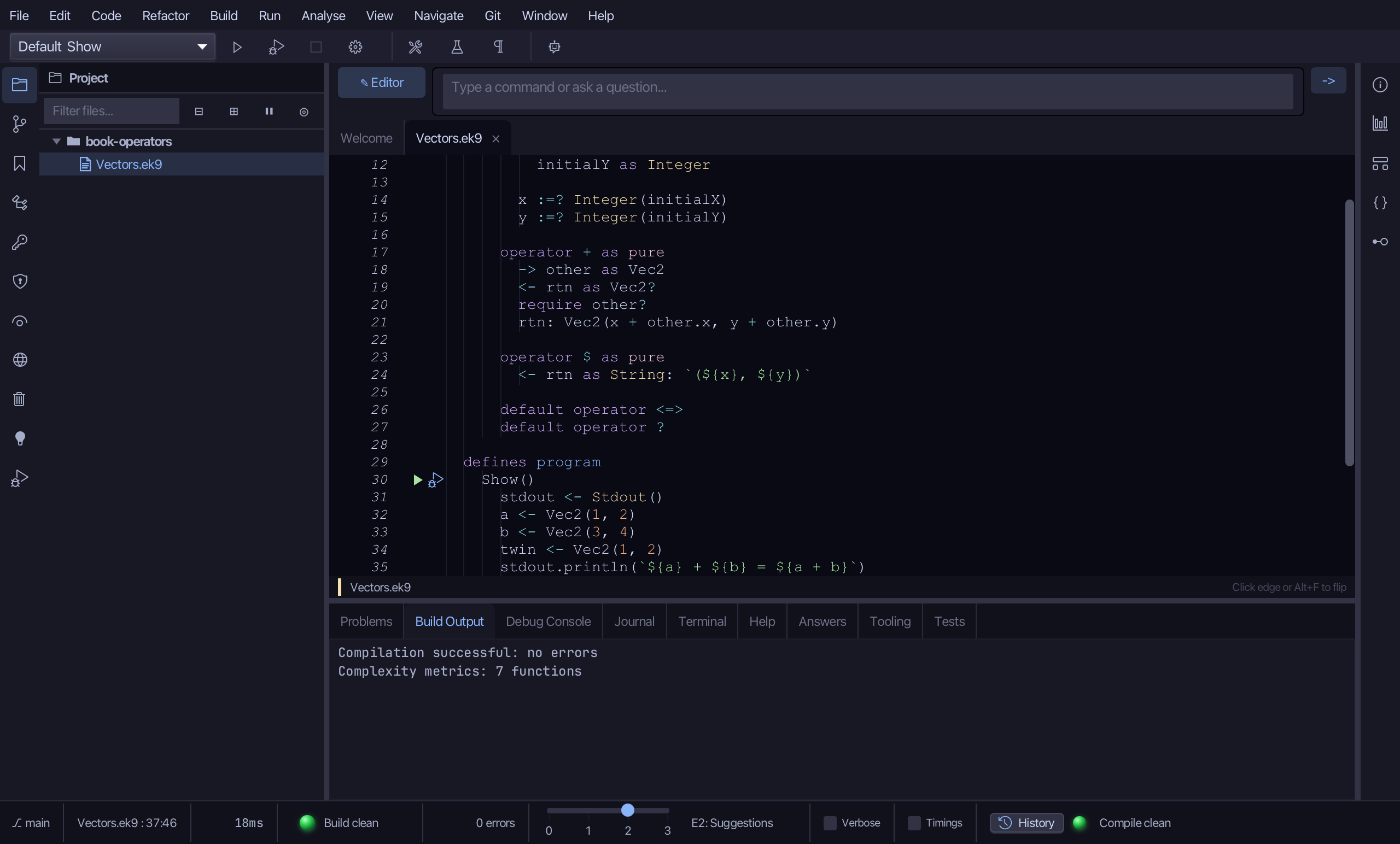
Step 7: Run it
Choose Run > Run Program…
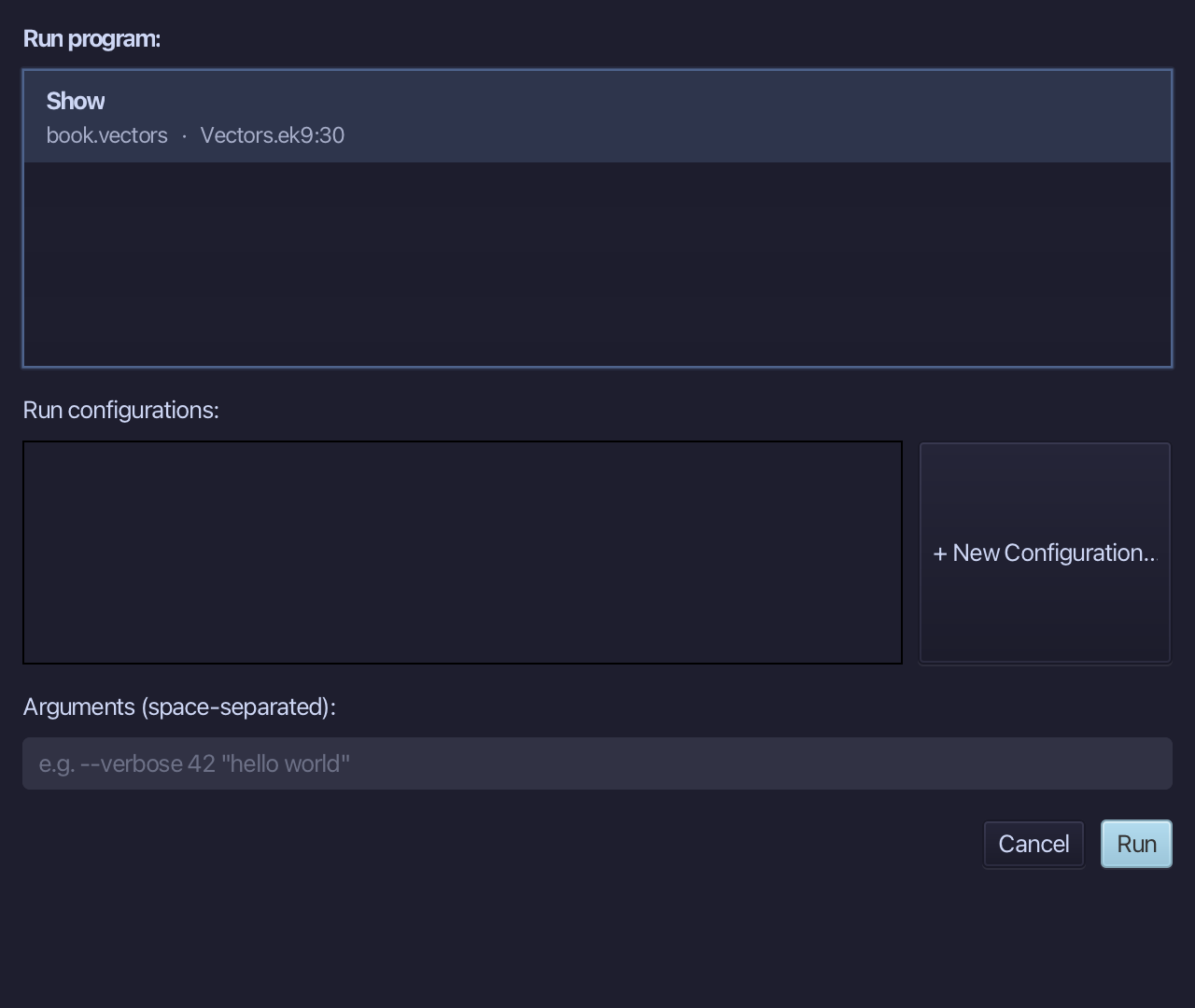
The project's only program is already chosen. Choose Run.
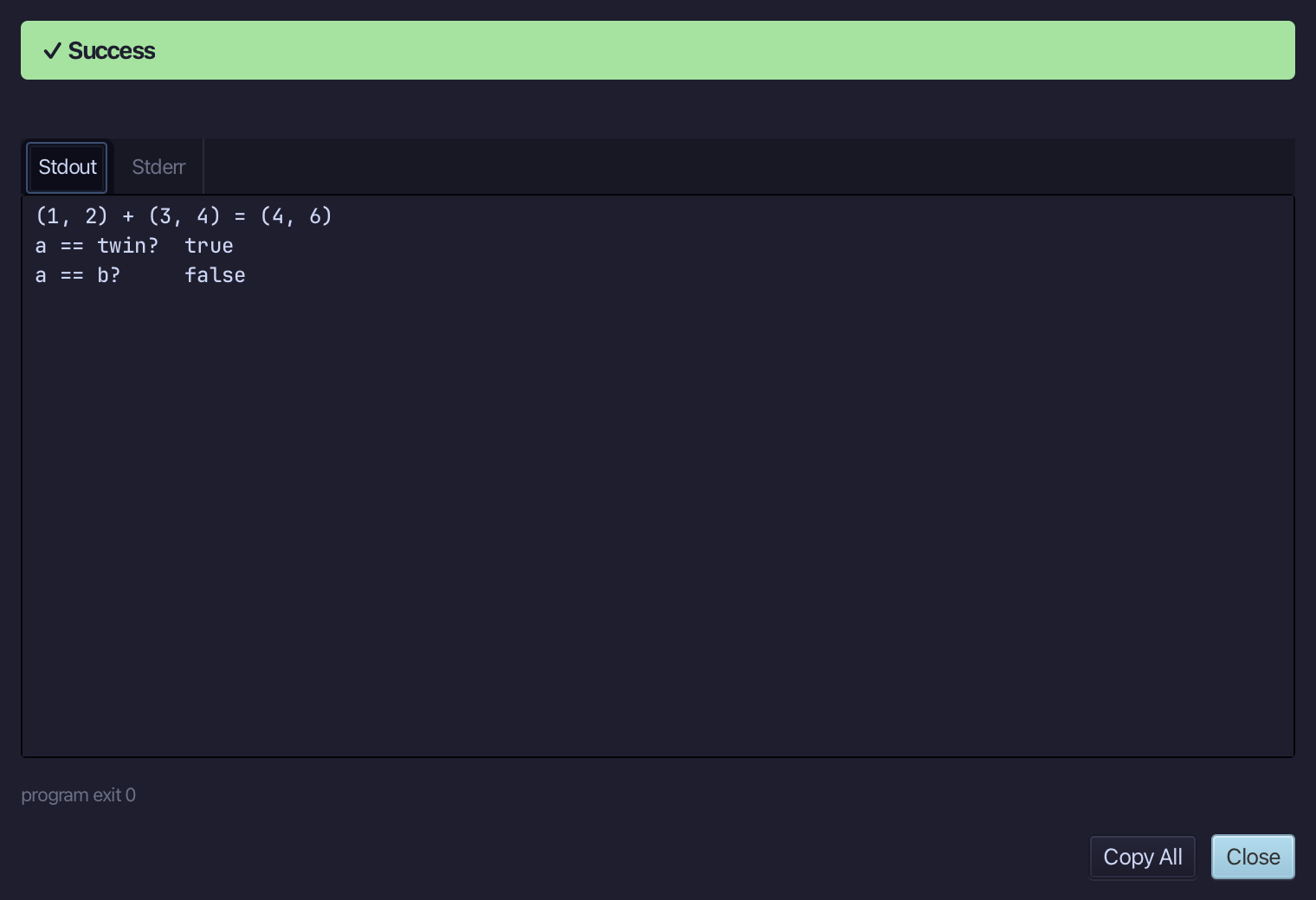
(1, 2) + (3, 4) = (4, 6) - a == twin? true, a == b? false. Choose Close.
The result
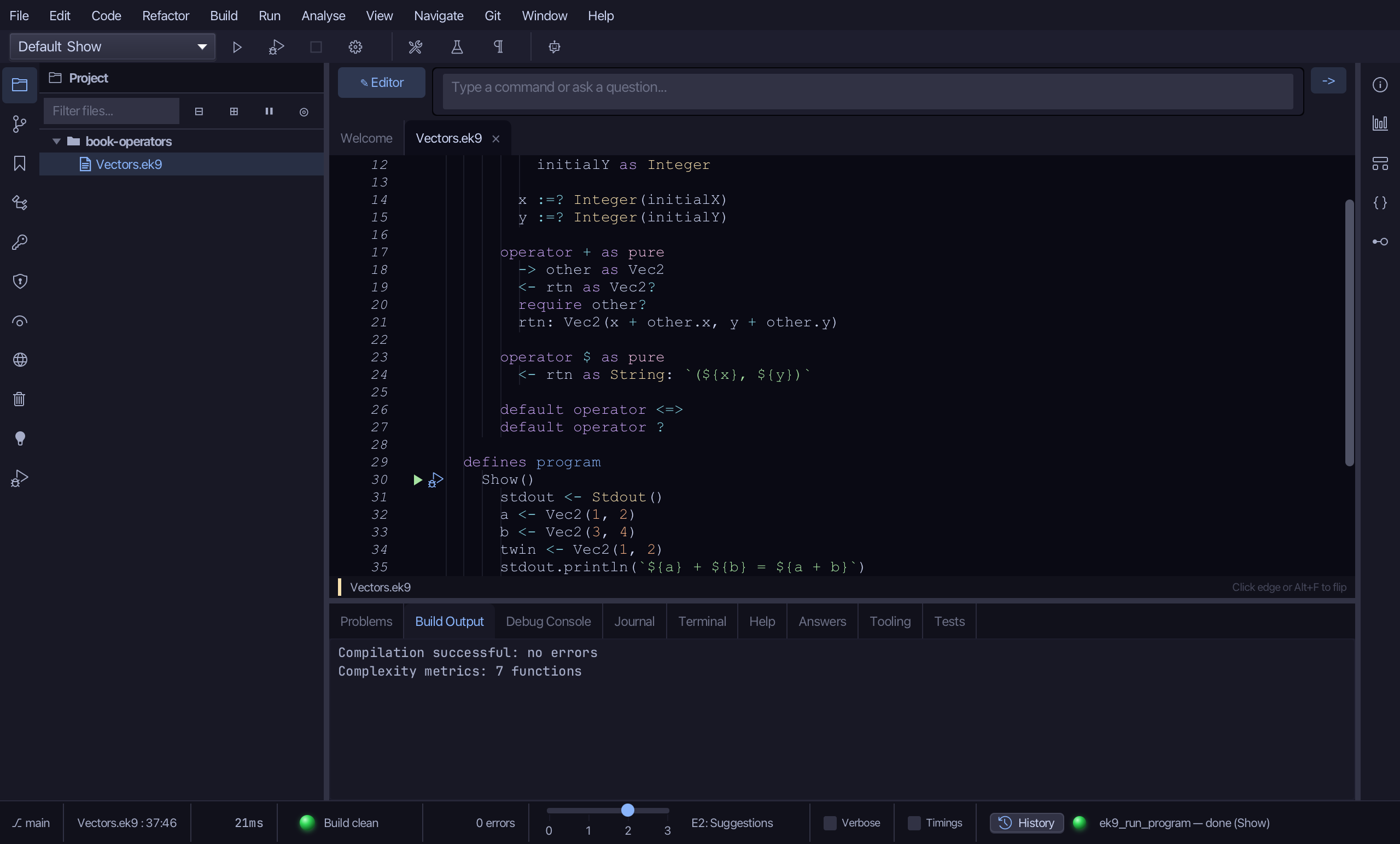
Vectors.ek9 now reads exactly as chapter 21 of Getting Started with EK9 shows it: a record with its own + and $, default operator <=> and ? for the rest - built by the tools, logic you typed. ek9_add_operator - called here through a new Custom Operator… dialog, the same door an AI assistant reaches directly - is what adds an operator the fixed defaultable leaves cannot.
Where this lesson comes from
- For AI assistants - the MCP tool
ek9_new_construct,ek9_add_constructor,ek9_add_operator,ek9_add_program.