Chapter 18: a sealed family, built
Chapter 18 ends by sealing a family: Payment may be implemented by Card and Cash and by nothing else. The IDE builds the trait, the two classes and the sealing; what is typed is the logic no tool can write. Sealing lists types that already exist, so it comes after them. To play it in the IDE: Help > Lessons > Getting Started with EK9…, or ek9 -ide -lesson book-allow-only.
What you'll build
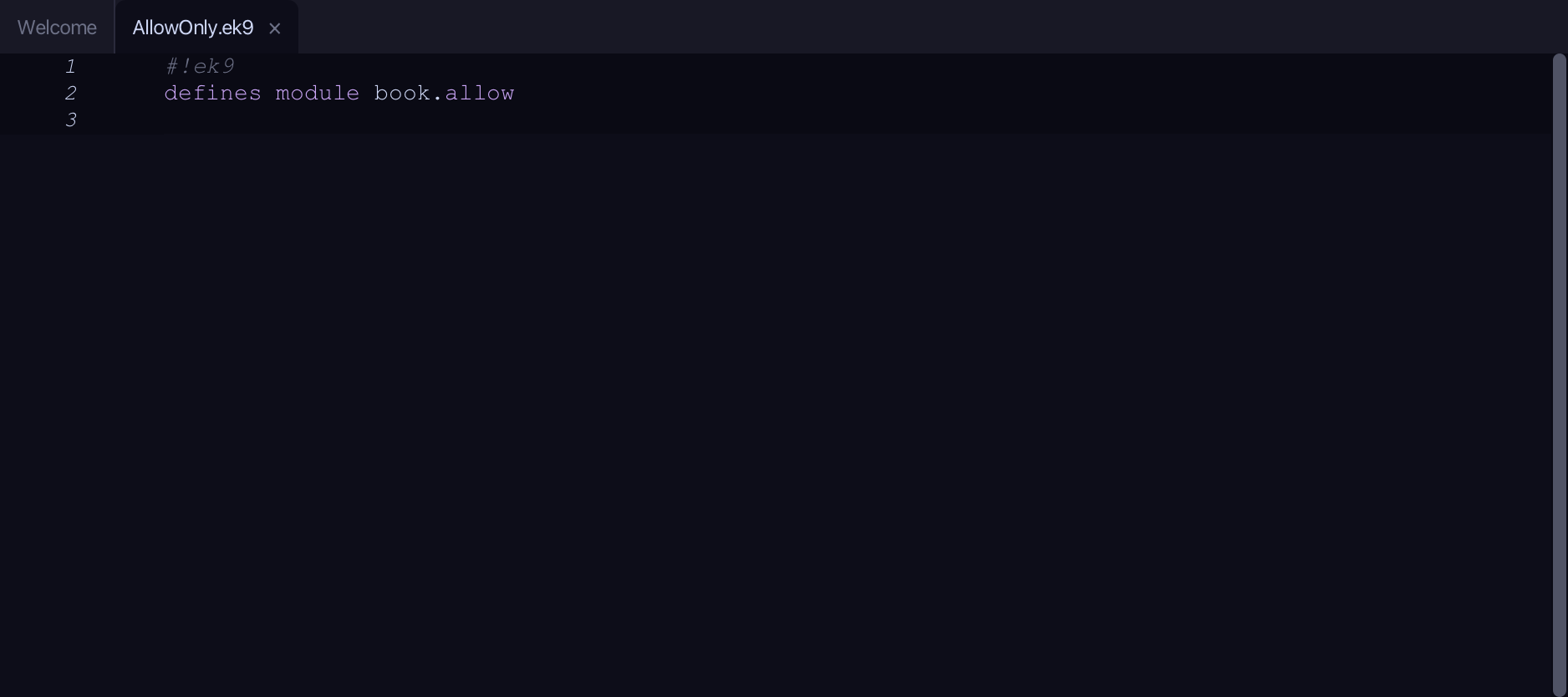
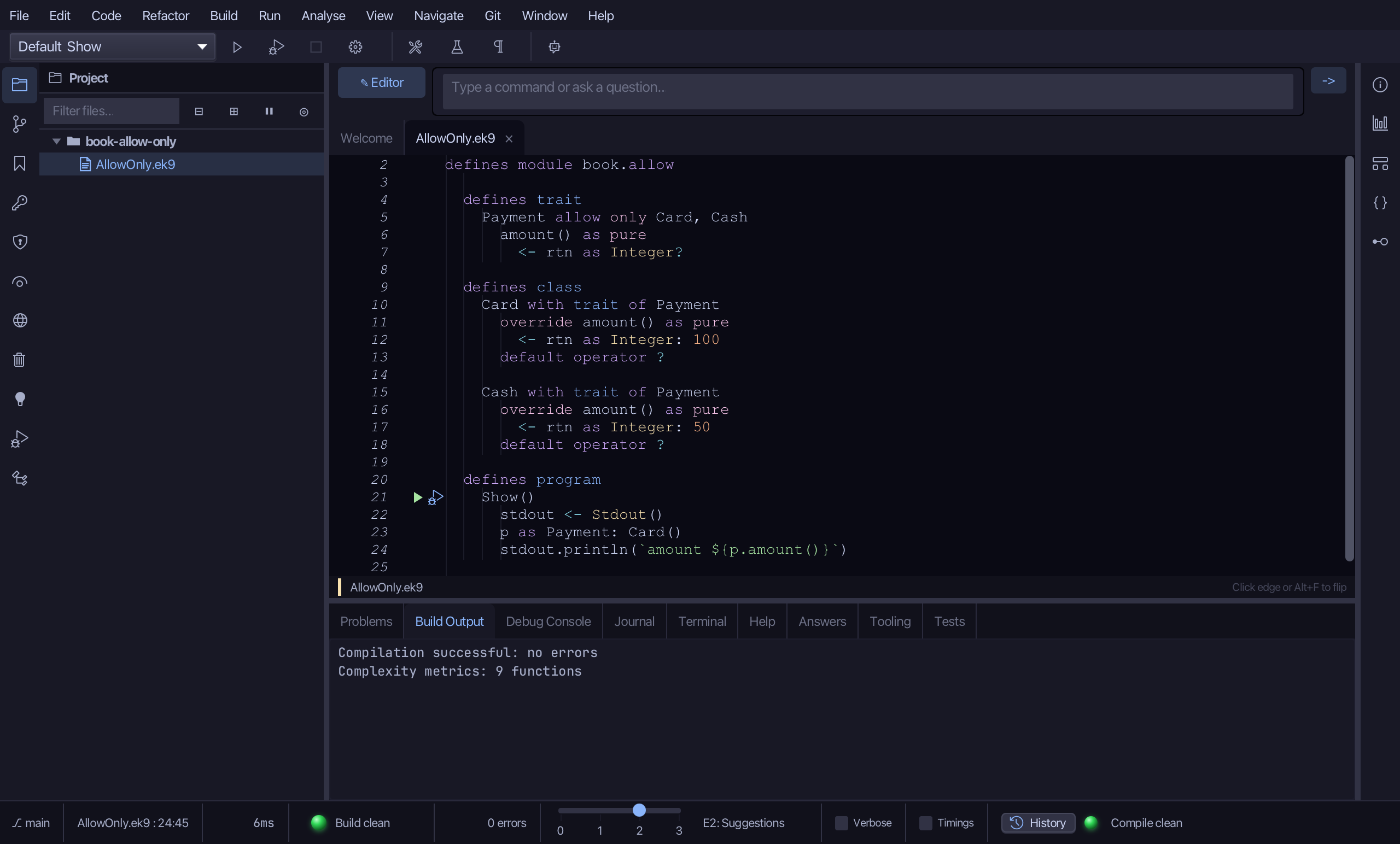
The lesson builds this program from a file holding only its module line - the finished file, as the book prints it.
#!ek9
defines module book.allow

  defines trait
    Payment allow only Card, Cash
      amount() as pure
        <- rtn as Integer?

  defines class
    Card with trait of Payment
      override amount() as pure
        <- rtn as Integer: 100
      default operator ?

    Cash with trait of Payment
      override amount() as pure
        <- rtn as Integer: 50
      default operator ?

  defines program
    Show()
      stdout <- Stdout()
      p as Payment: Card()
      stdout.println(`amount ${p.amount()}`)
Step 1: A trait, and its abstract method
Choose Code > New Construct > Trait…
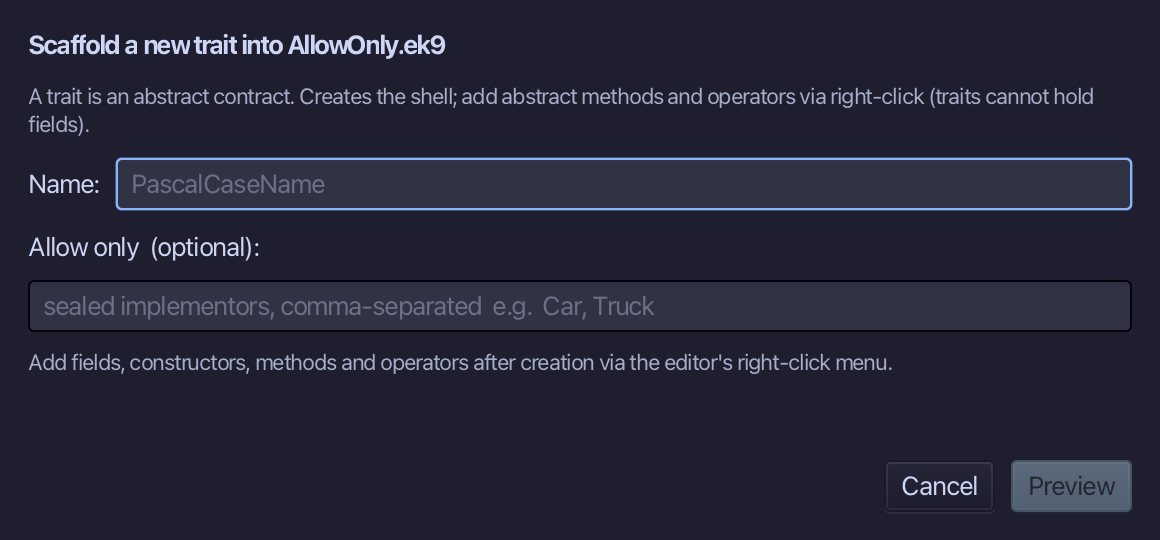
Payment is the trait's name. Type Payment and choose Preview.
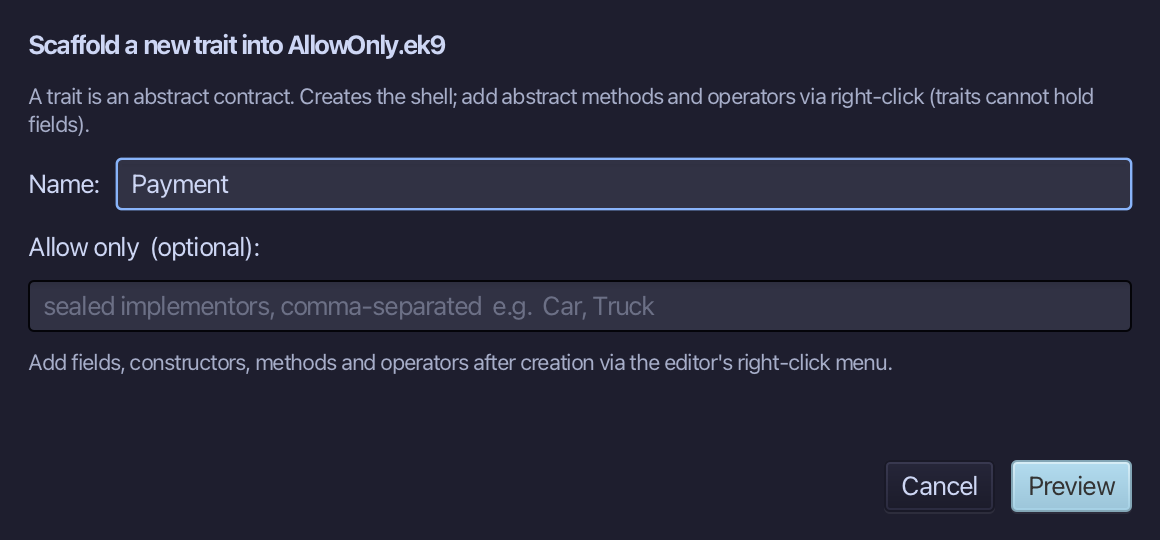
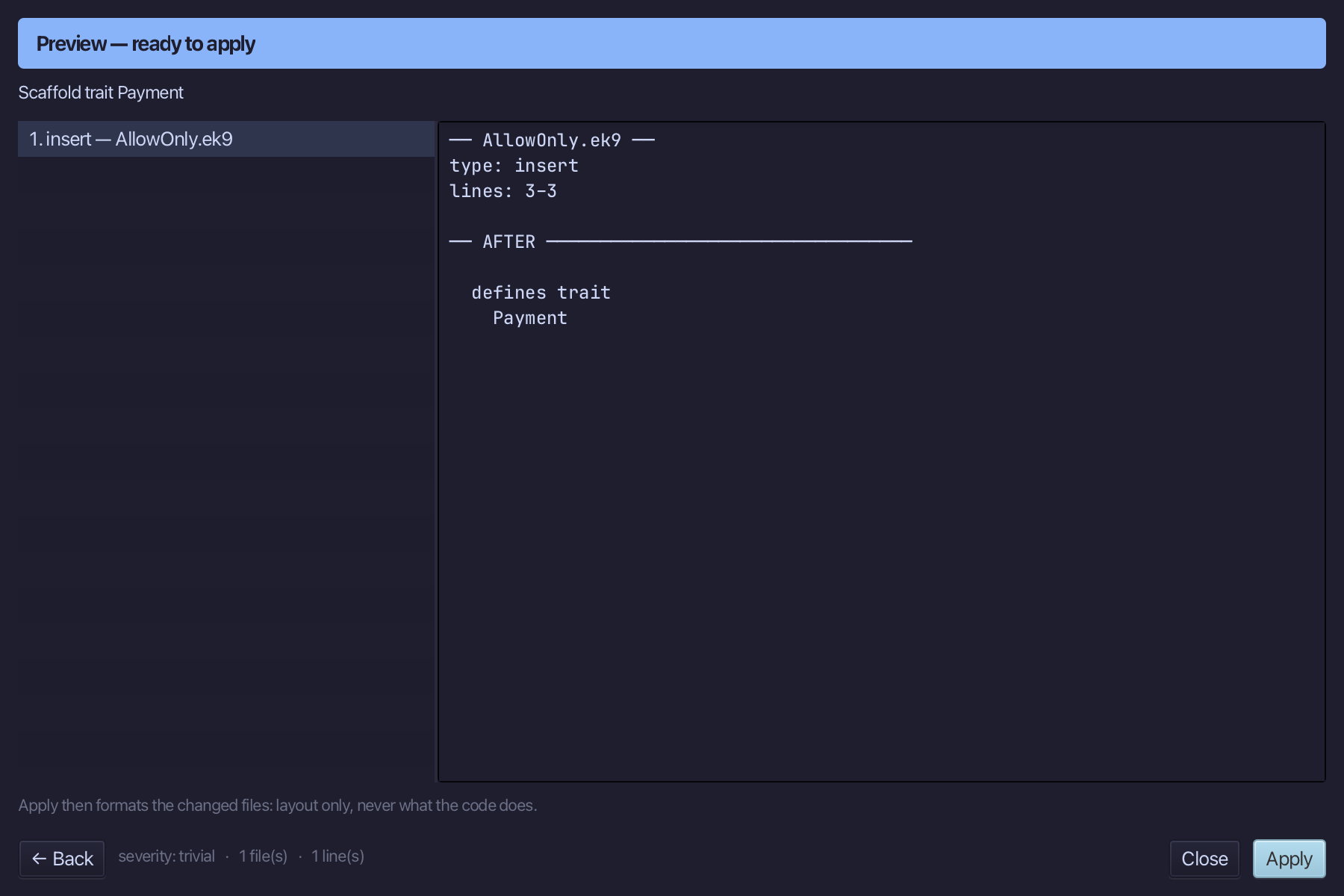
The preview shows Payment about to be written. Choose Apply.
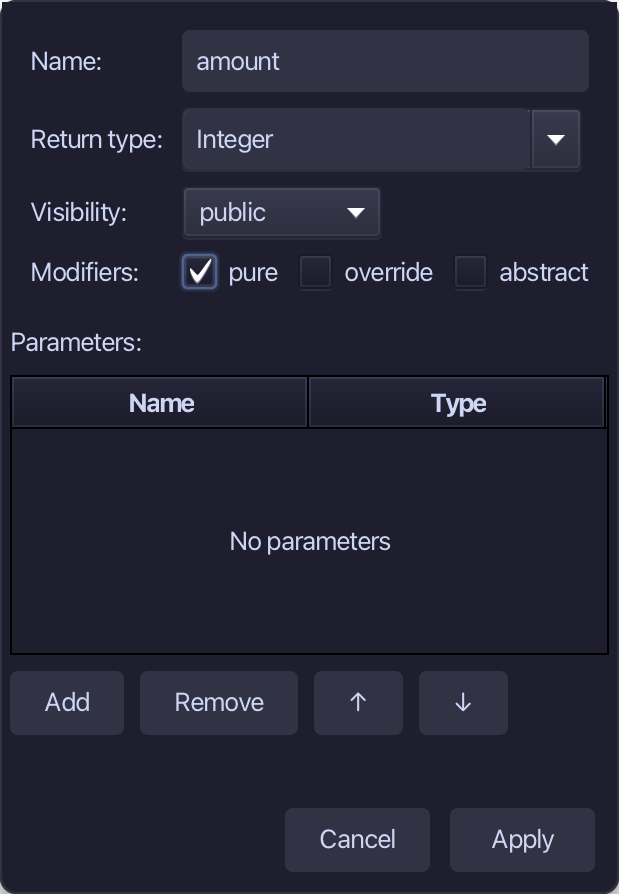
Right-click the Payment line and choose Add Method…
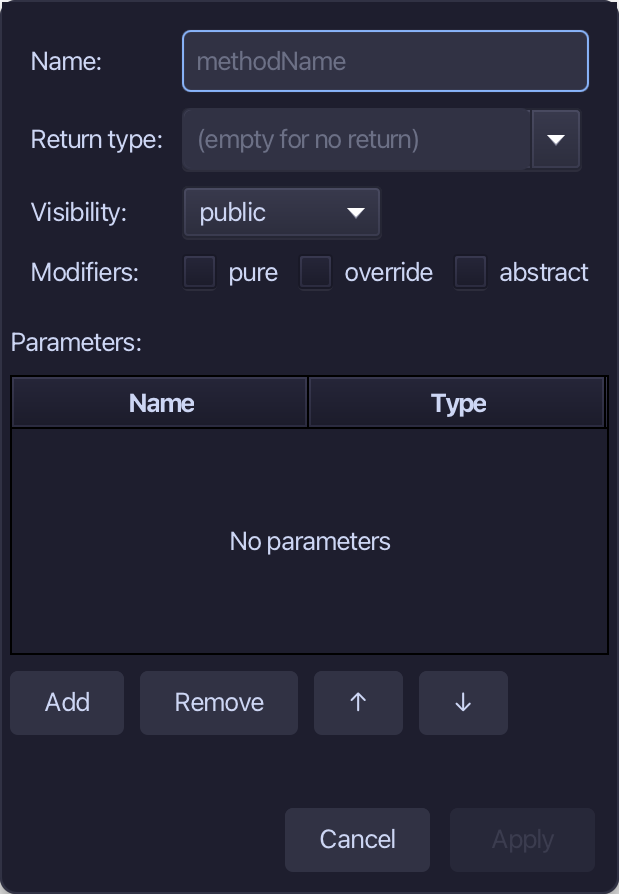
amount is the method's name, Integer the return type, pure ticked. Fill them in and choose Apply.
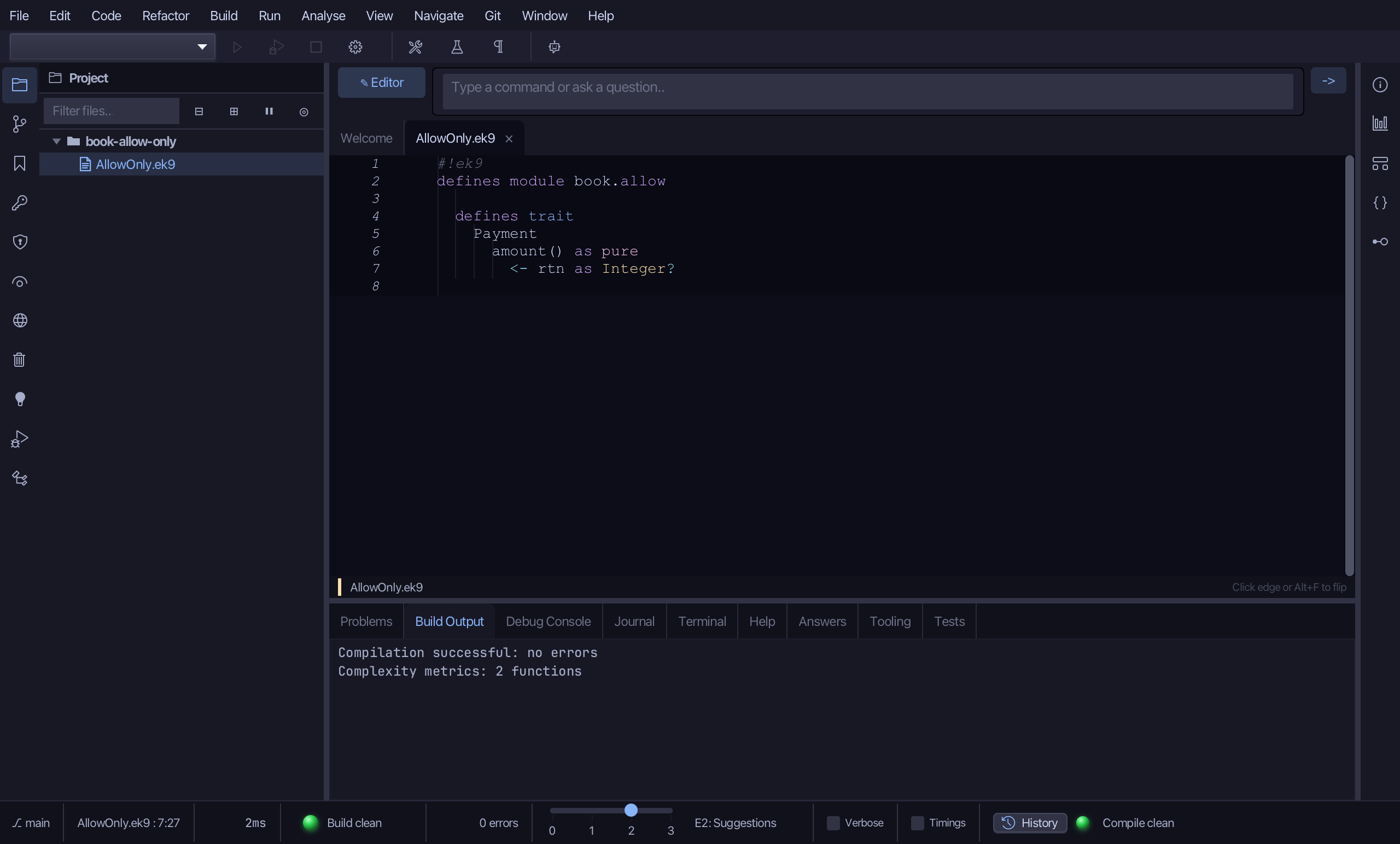
Select the stub, from <- rtn as Integer: 0 down to its //AI line, and type <- rtn as Integer? - no value: that is what makes amount abstract. Saves when typed.
Step 2: Card
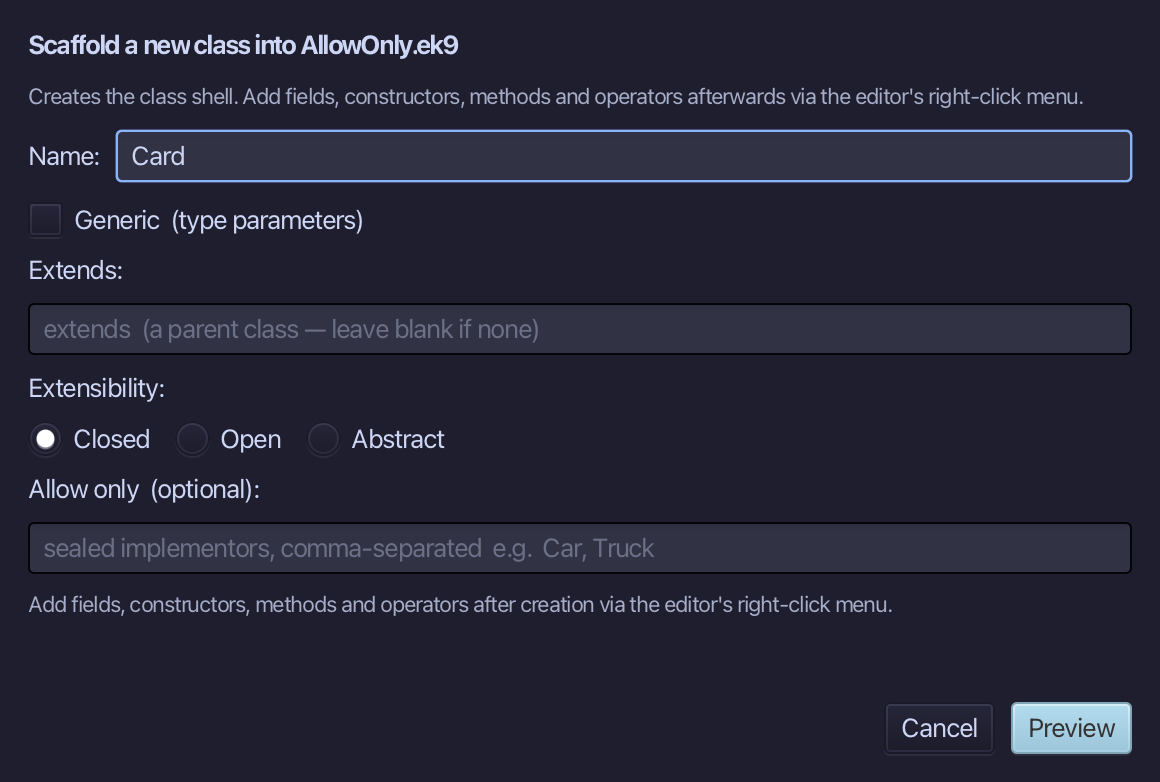
Choose Code > New Construct > Class…
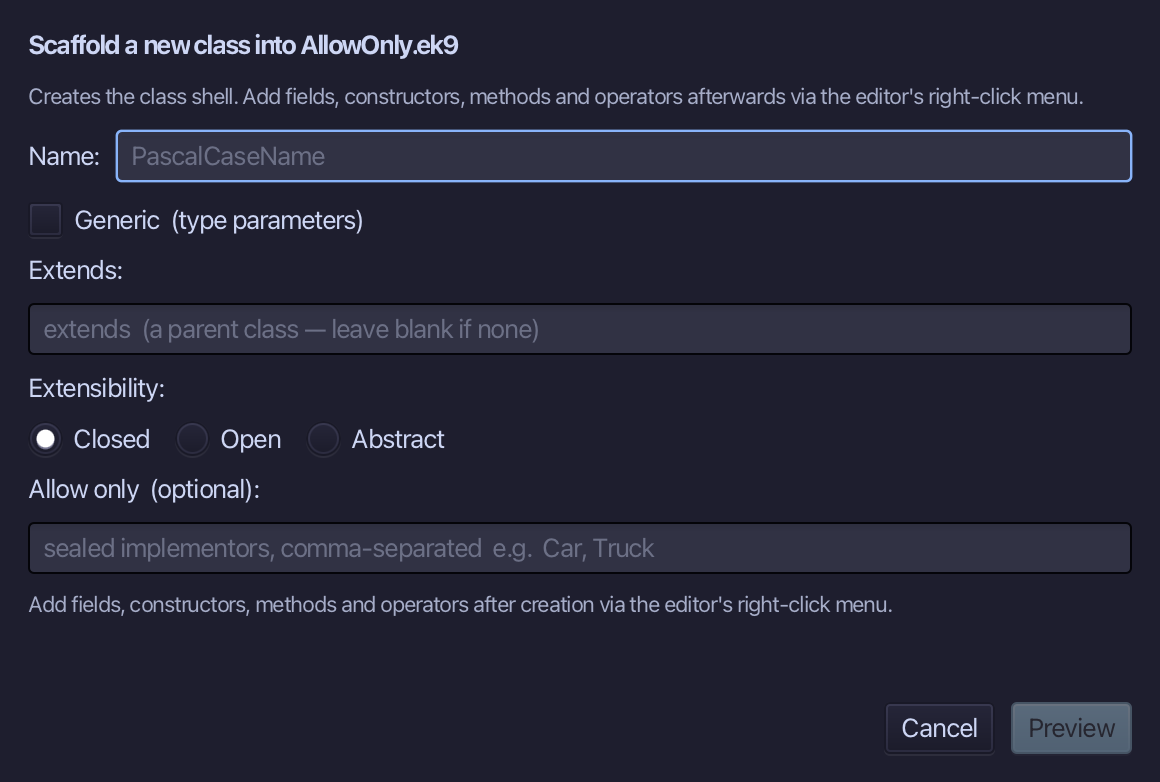
Card is the class's name. Type Card and choose Preview.
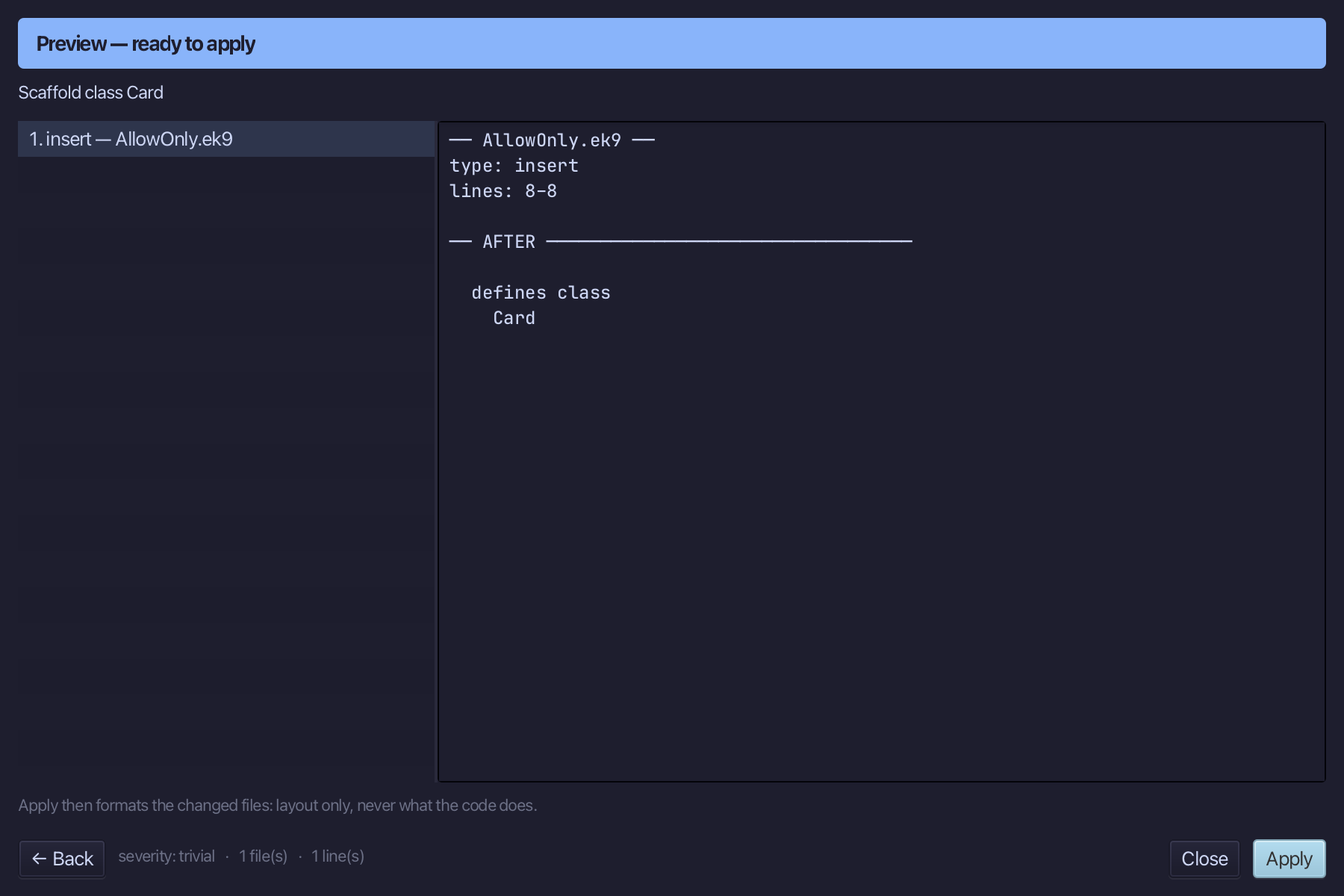
The preview shows Card about to be written. Choose Apply.
Right-click the Card line and choose Adopt Trait…
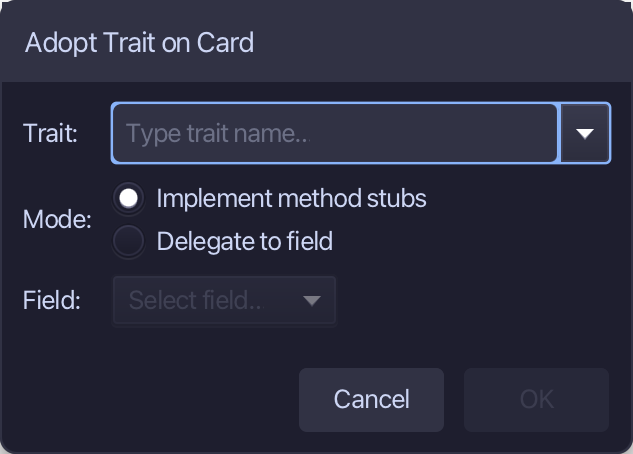
Type Payment as the trait - Implement method stubs is already chosen - and choose OK.
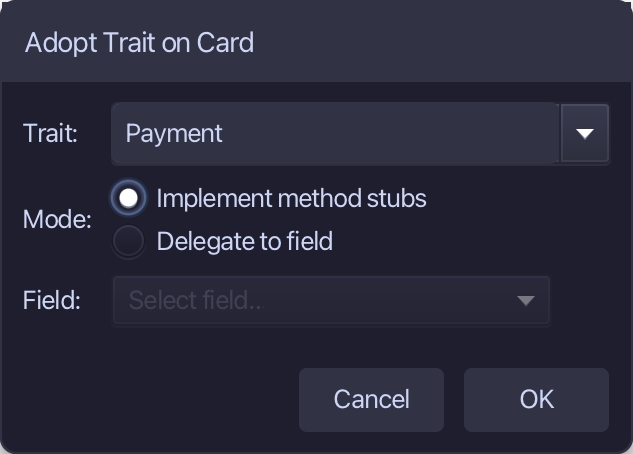
Adopt Trait changes the open file in the editor, not yet saved. Choose File > Save.
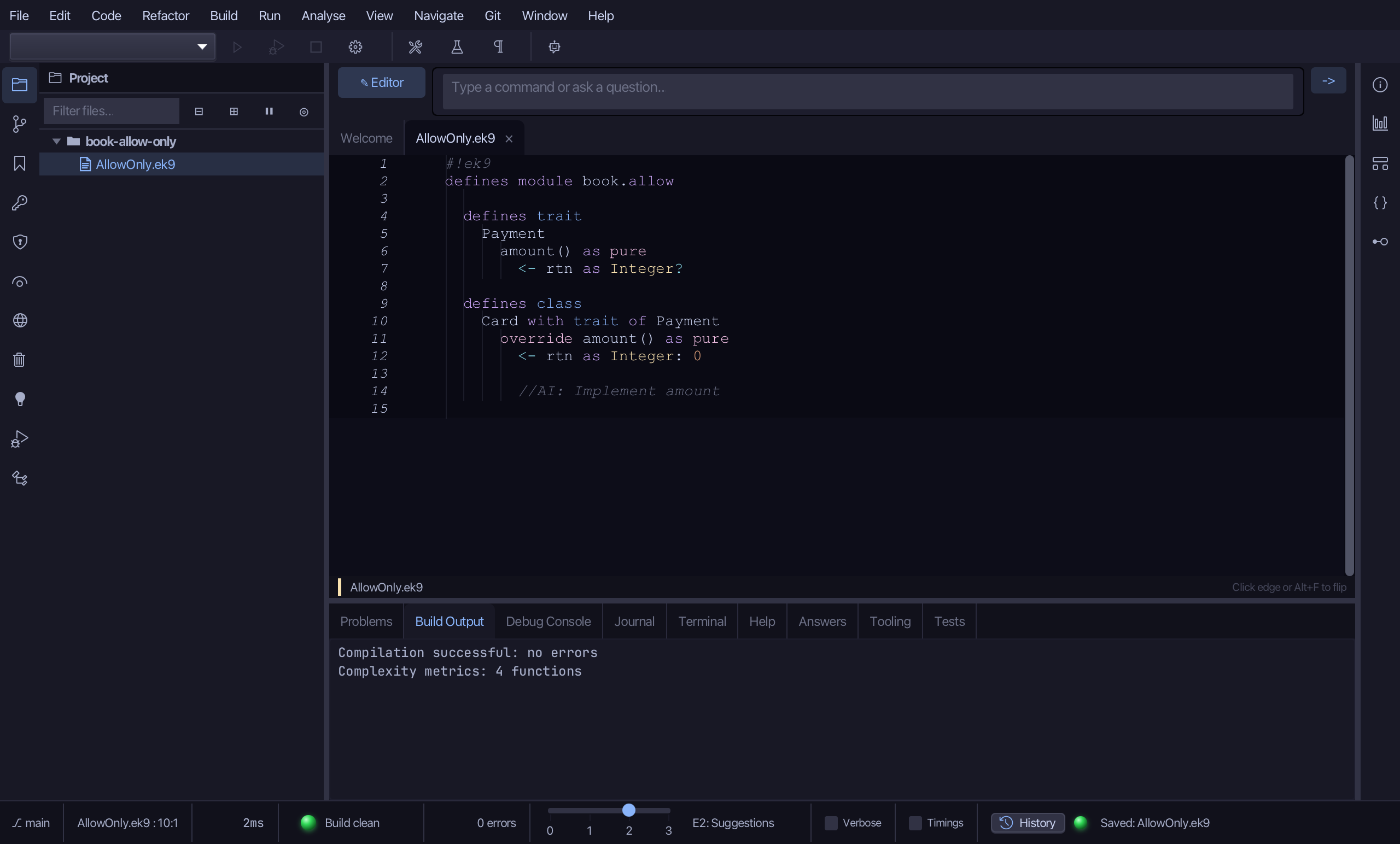
Select amount's stub, from <- rtn as Integer: 0 down to its //AI line, and type <- rtn as Integer: 100. Saves when typed.
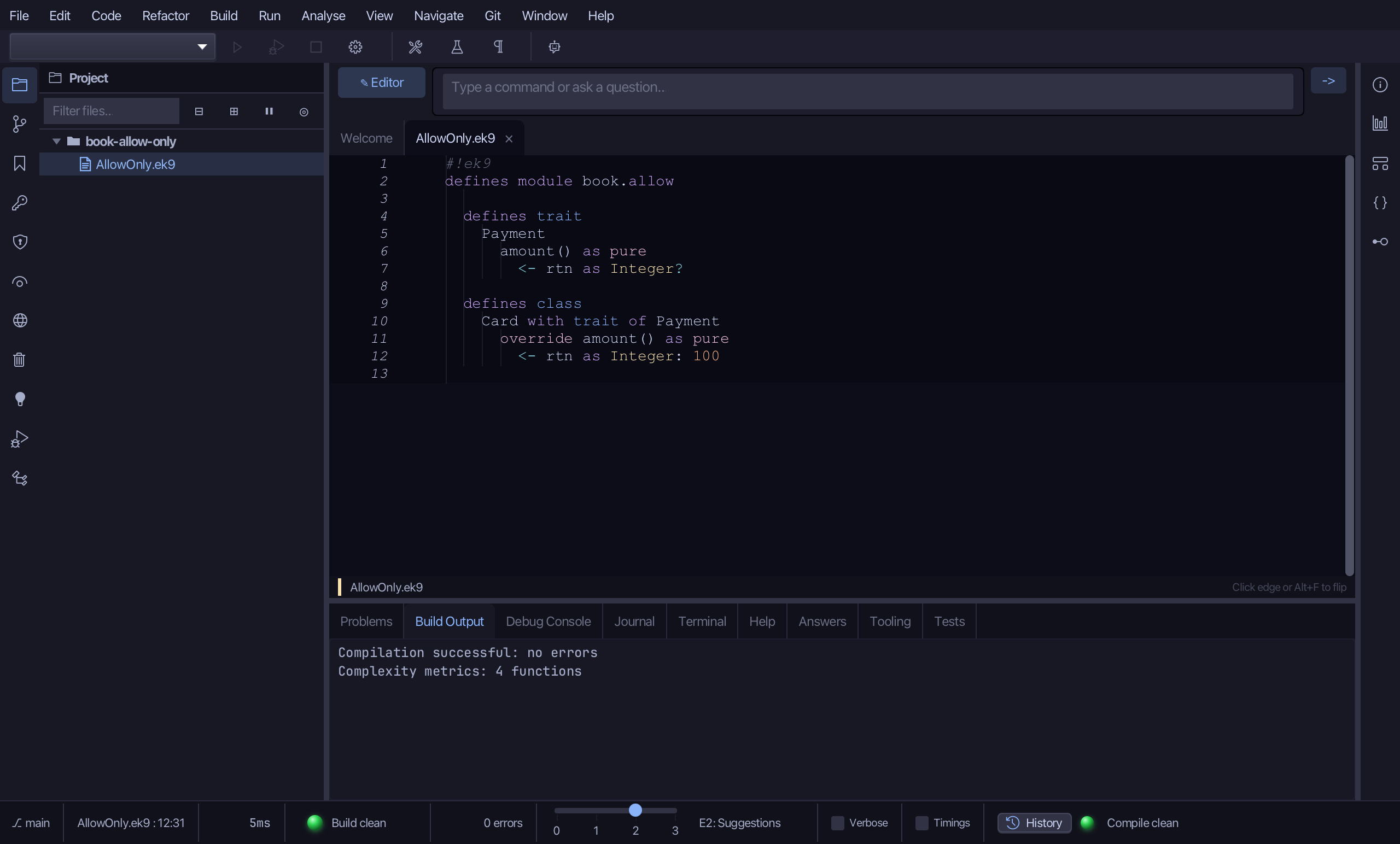
Right-click the Card line and choose Add Operator ▸ ? (isSet) ▸ default - Card has no field to make one for it.
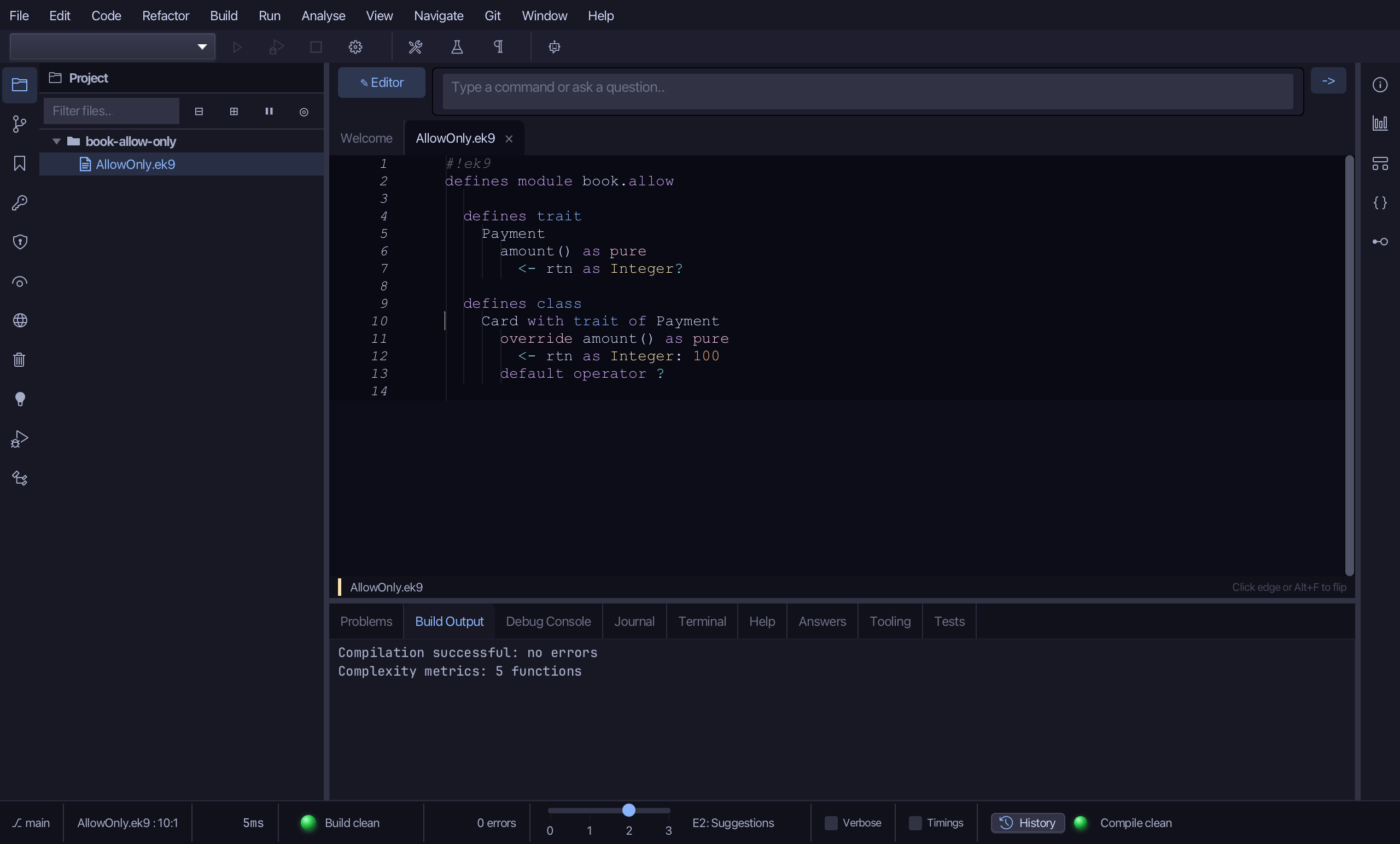
Step 3: Cash
Choose Code > New Construct > Class…
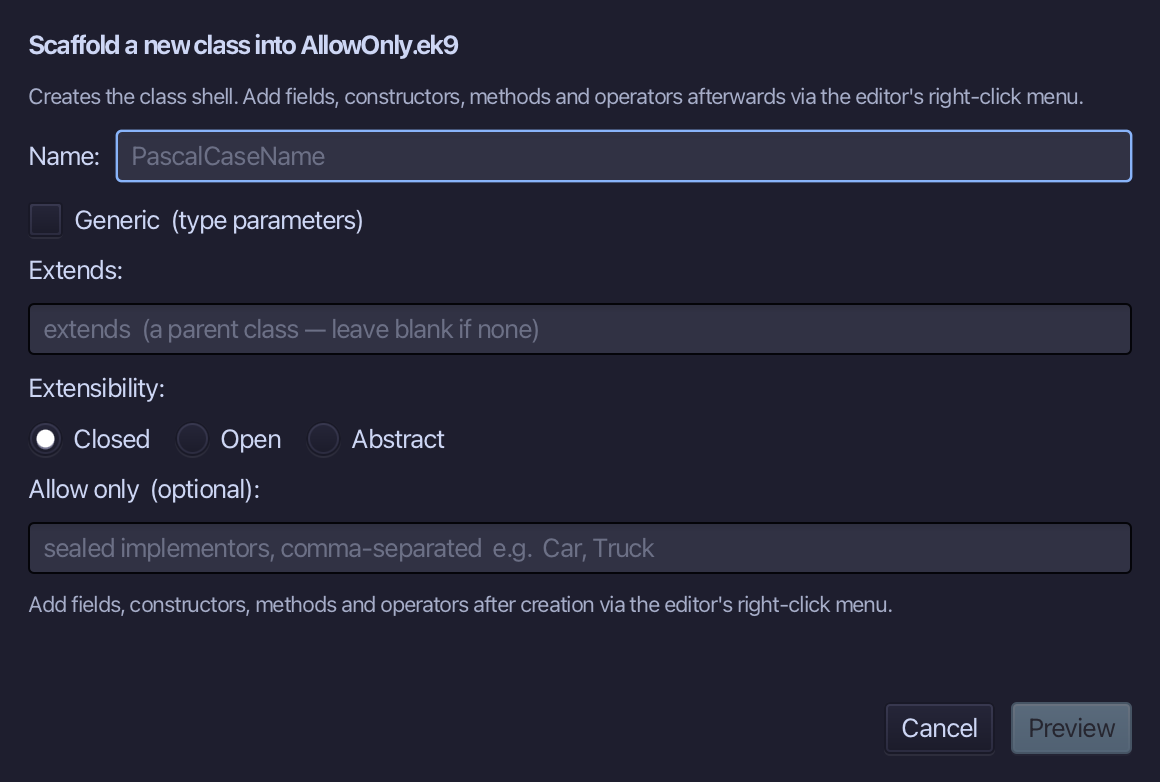
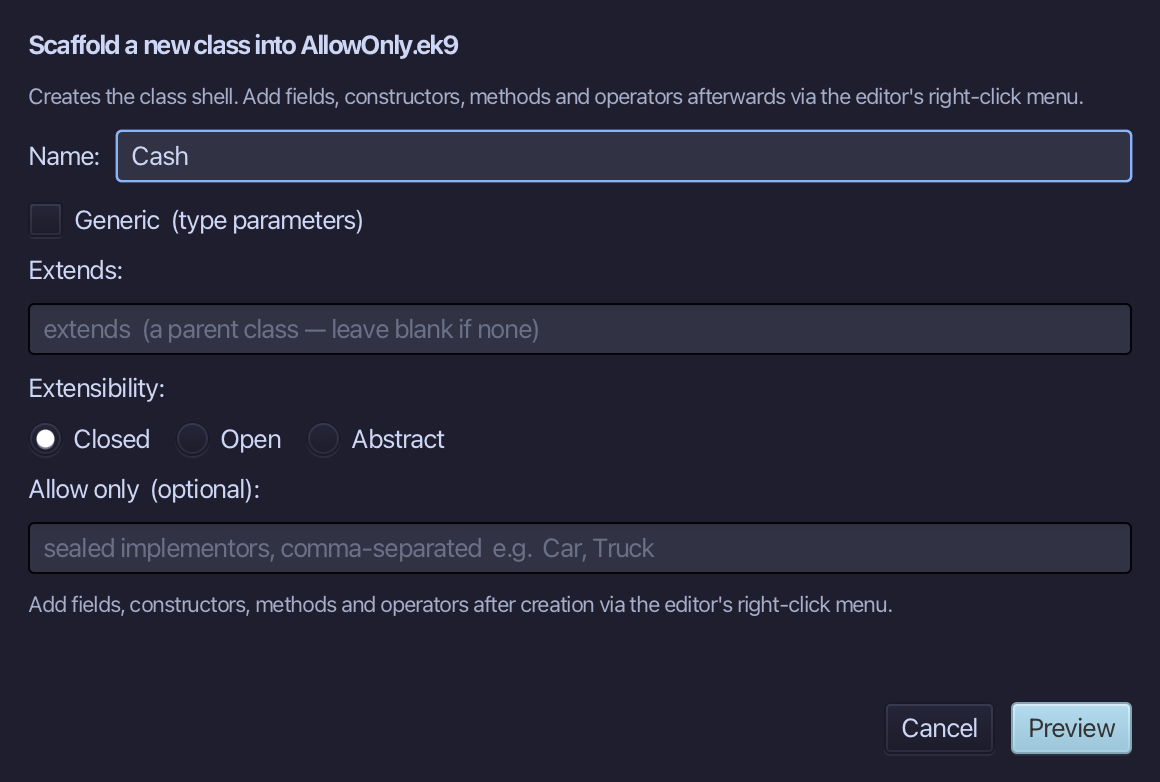
Cash is the class's name. Type Cash and choose Preview.
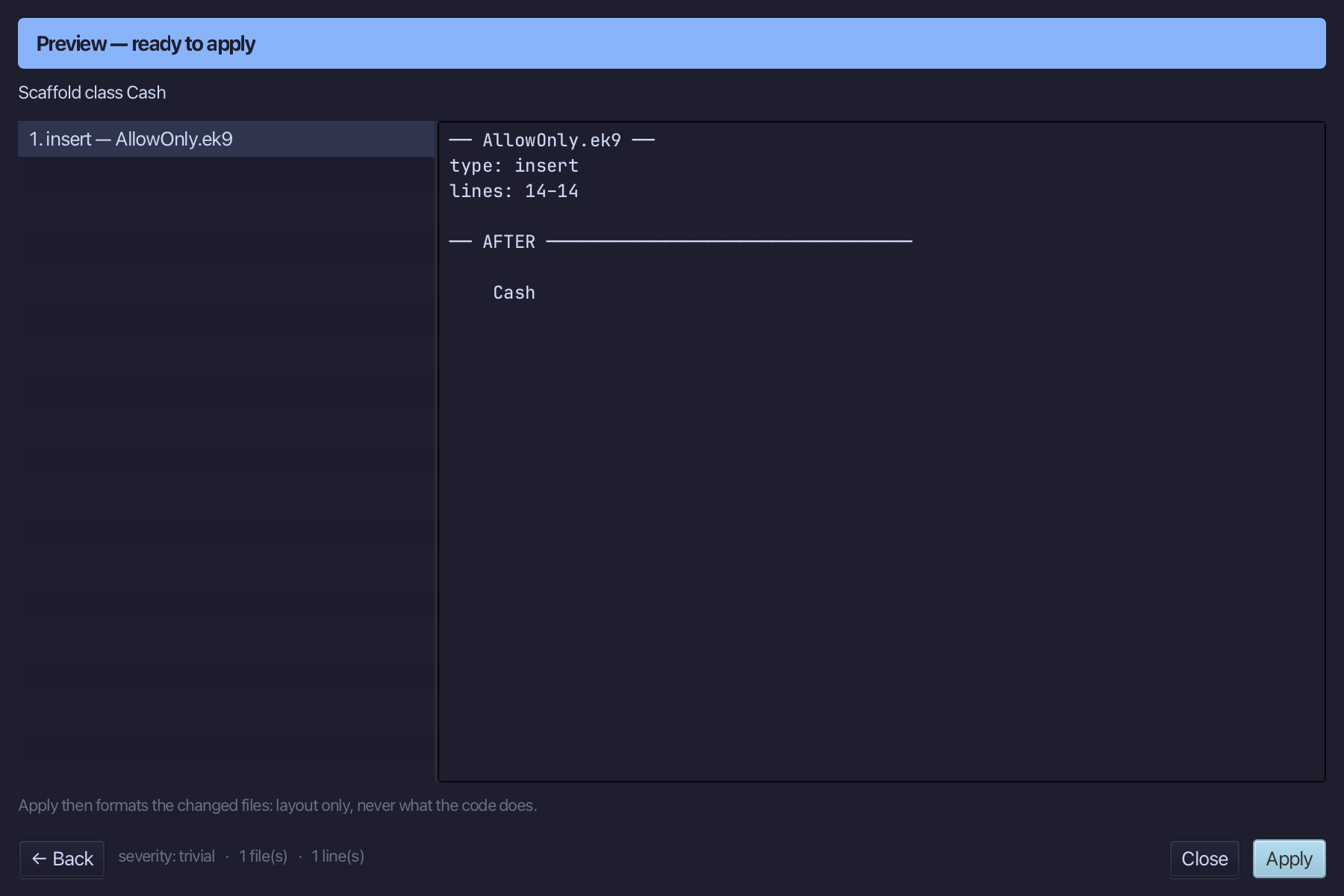
The preview shows Cash about to be written. Choose Apply.
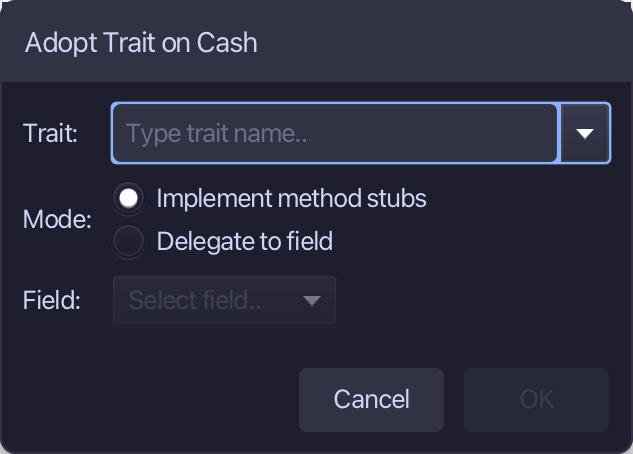
Right-click the Cash line and choose Adopt Trait…
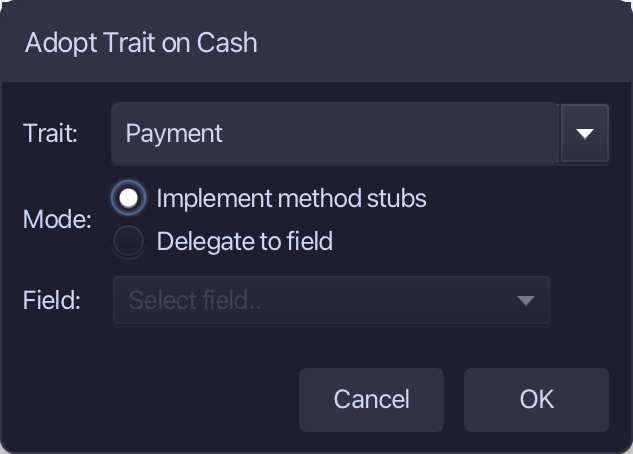
Payment again, stubs implemented. Choose OK.
Choose File > Save.
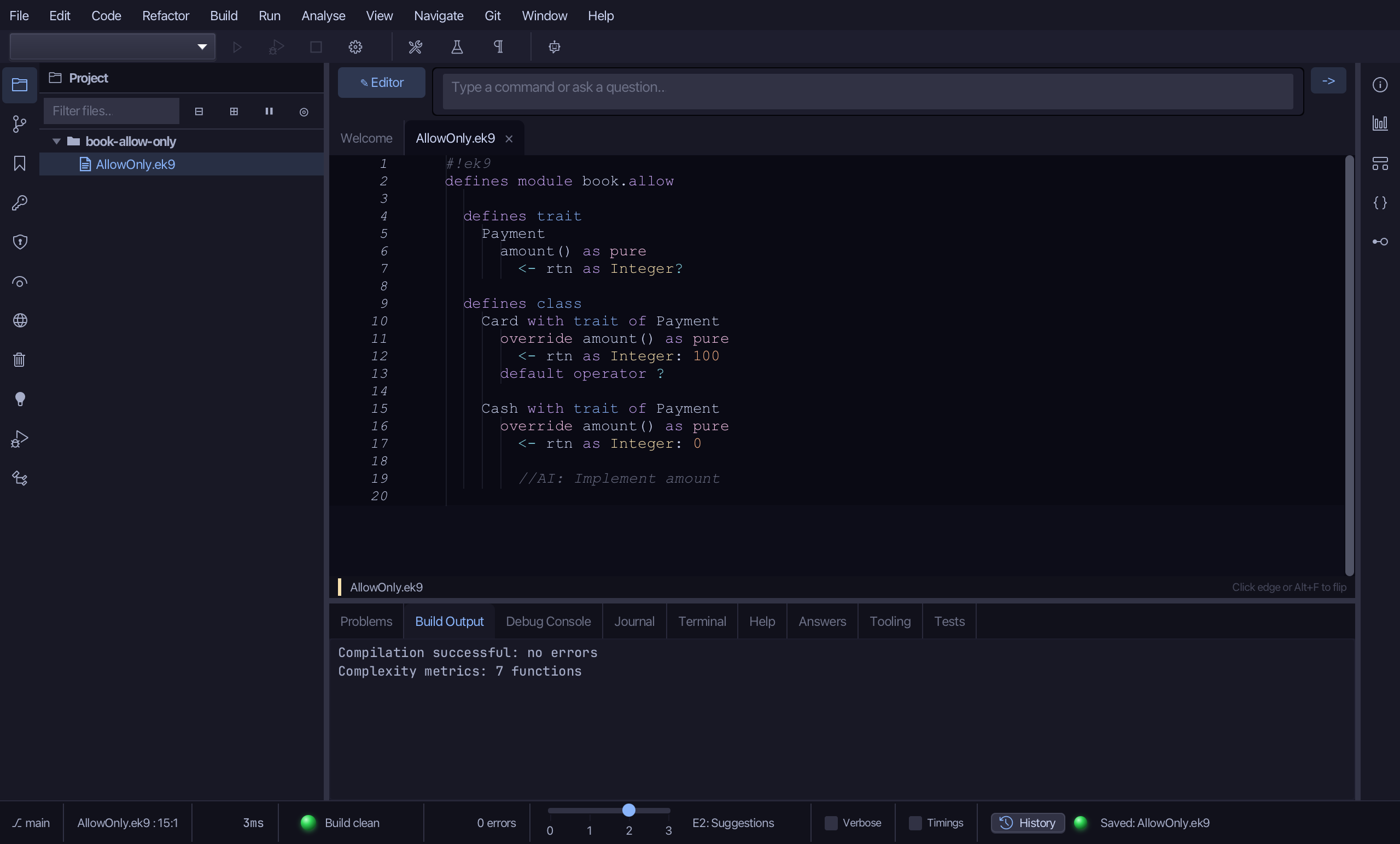
Select amount's stub and type <- rtn as Integer: 50. Saves when typed.
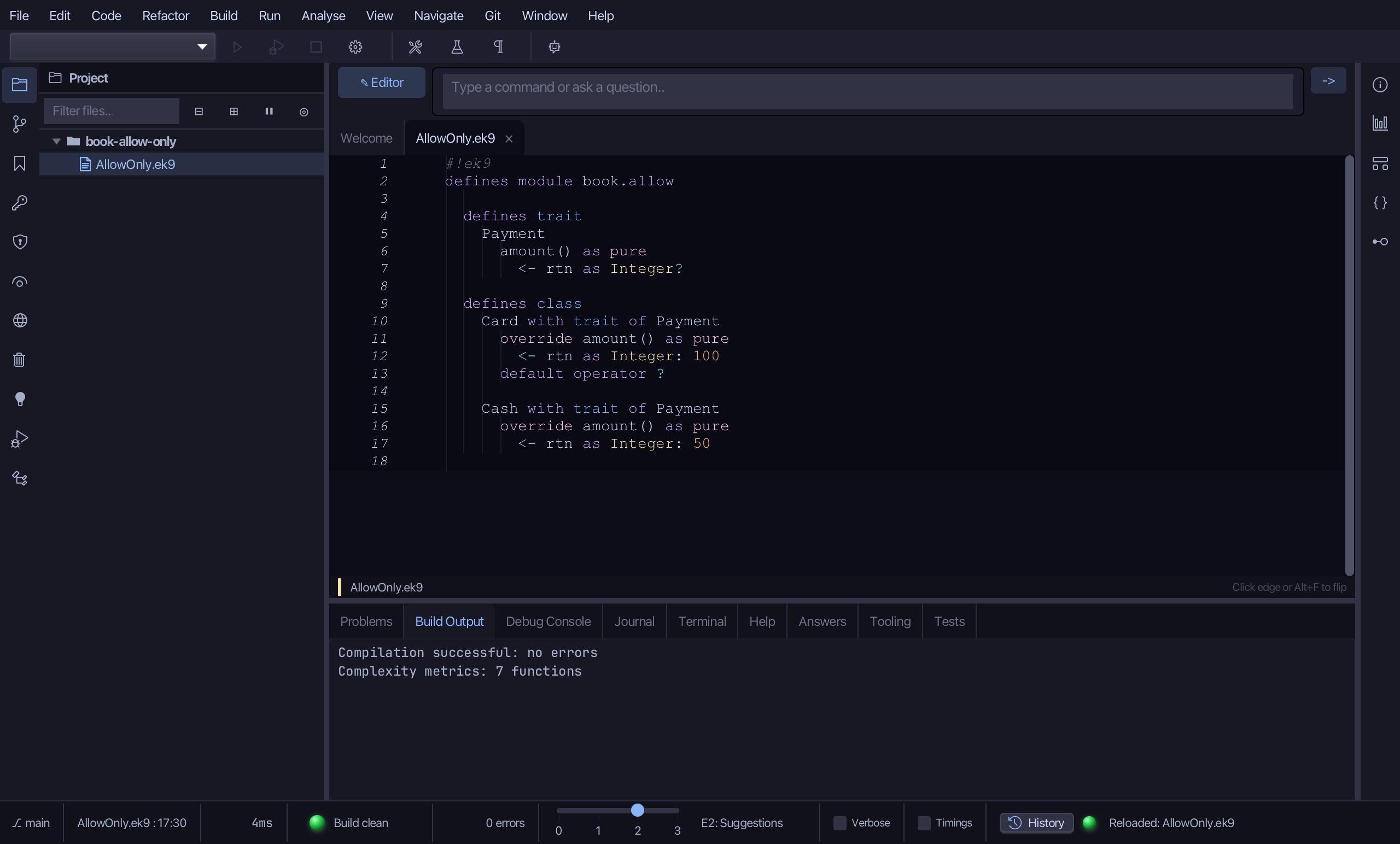
Right-click the Cash line and choose Add Operator ▸ ? (isSet) ▸ default.
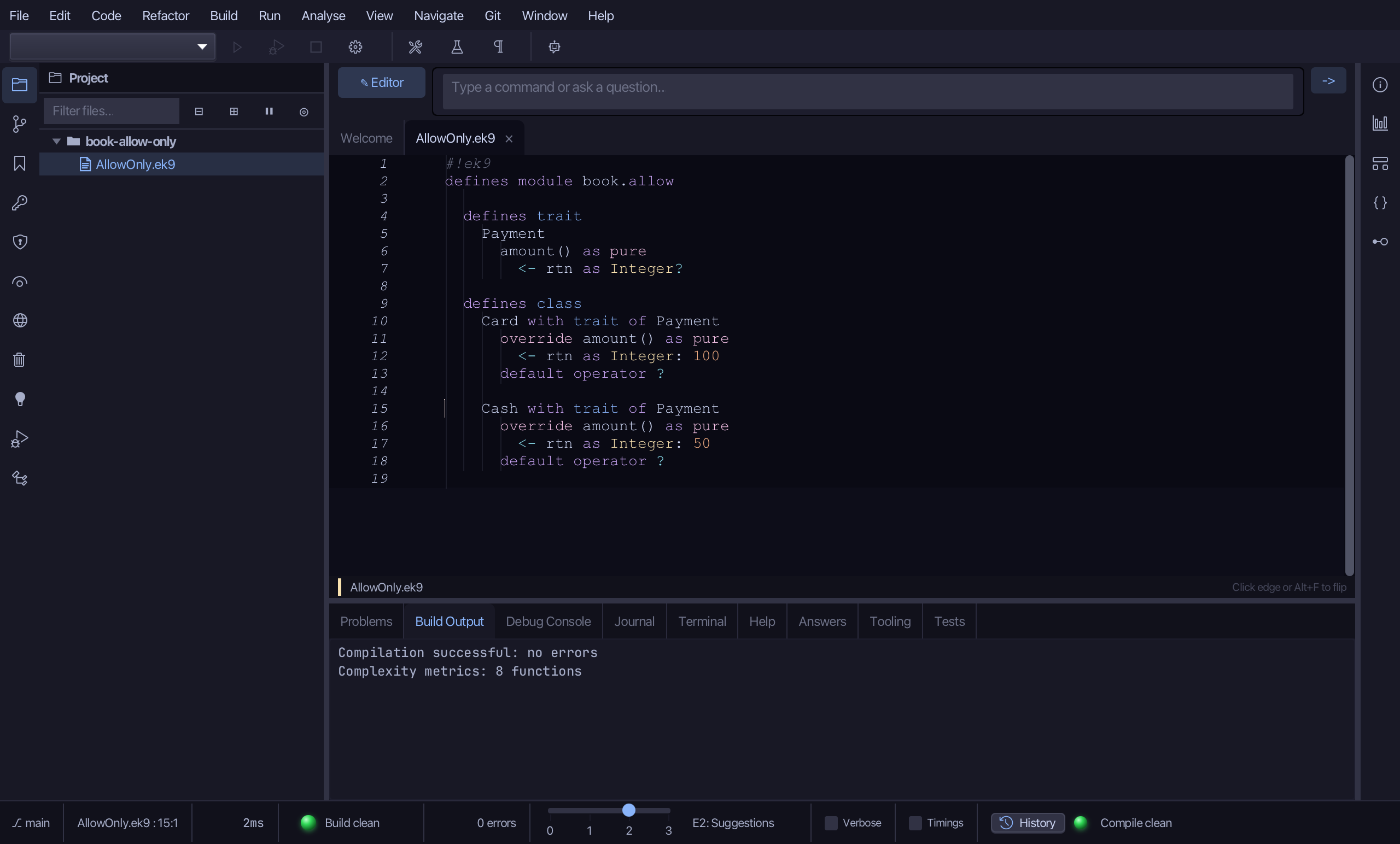
Step 4: Sealing the family
Right-click the Payment line and choose Change Modifier > Seal Type…
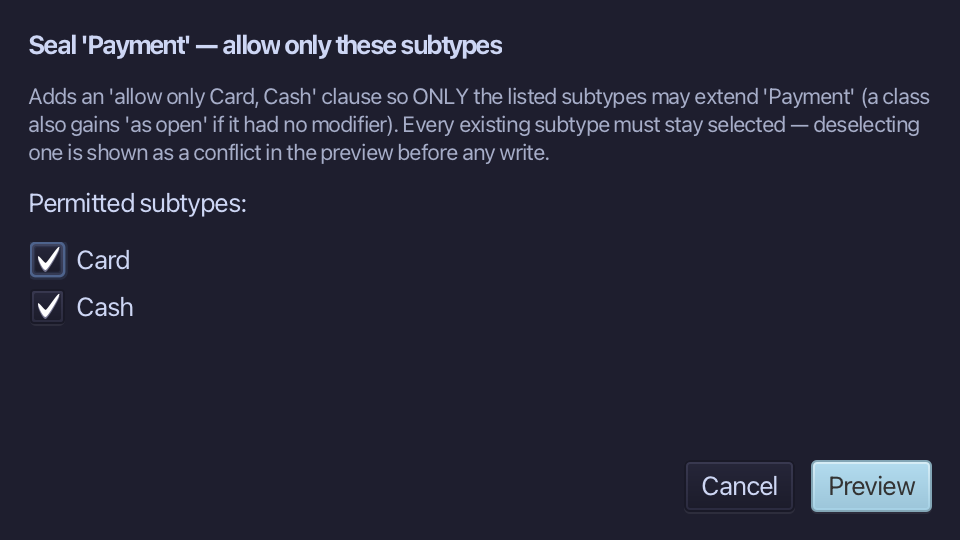
Card and Cash are already ticked - every existing implementor must stay listed. Choose Preview.
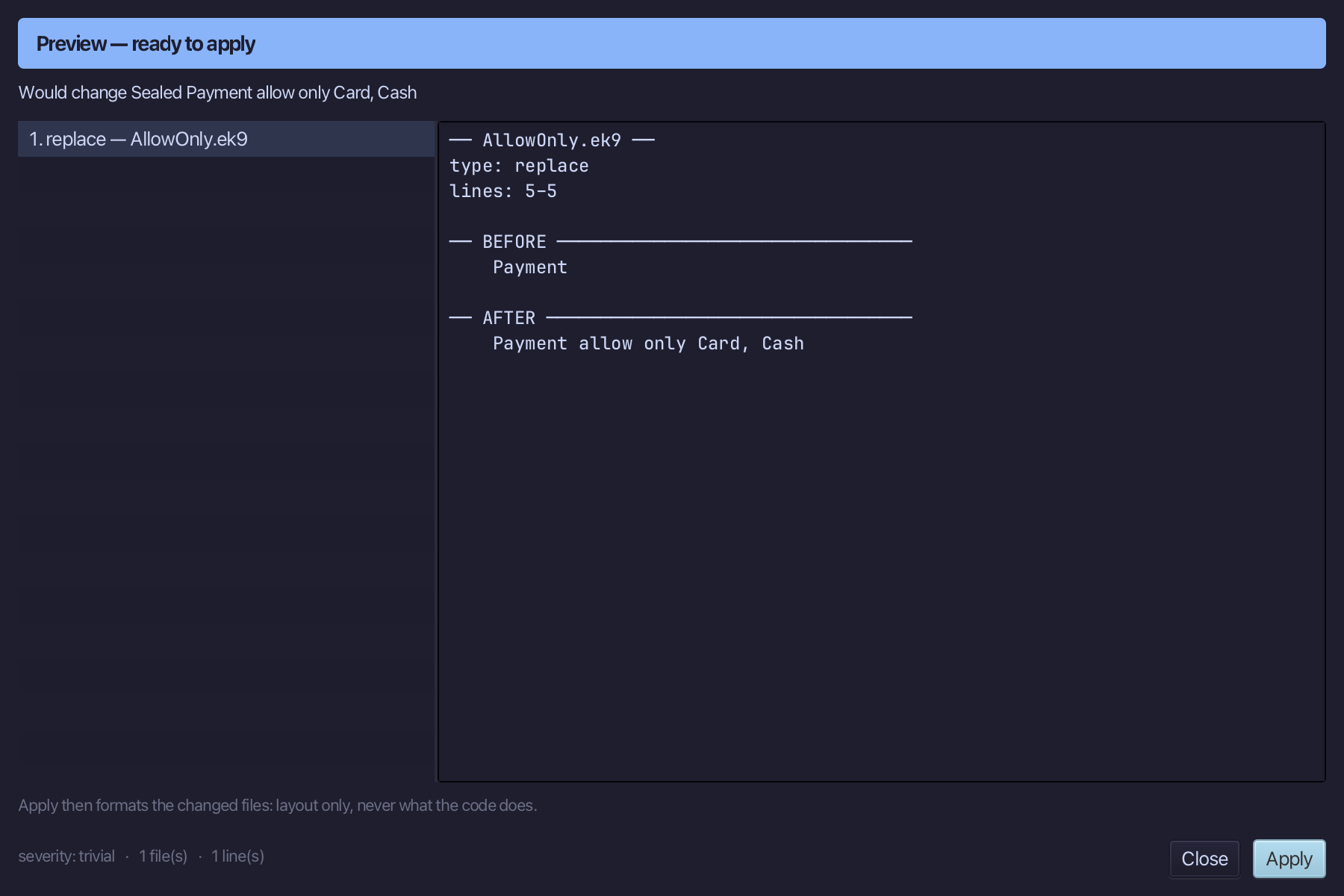
The preview shows Payment gaining allow only Card, Cash. Choose Apply.
Step 5: The program
Choose Code > New Construct > Program…
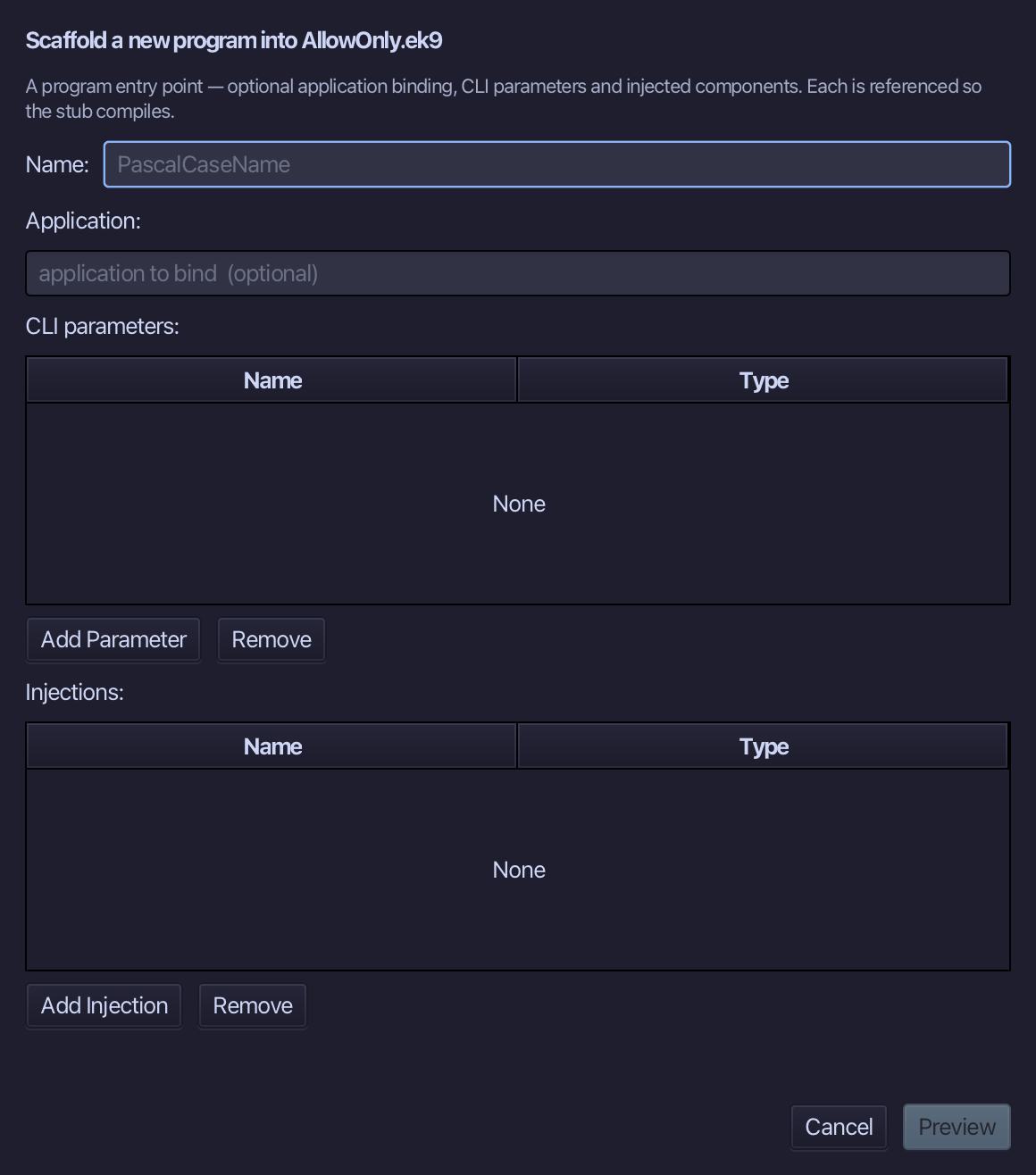
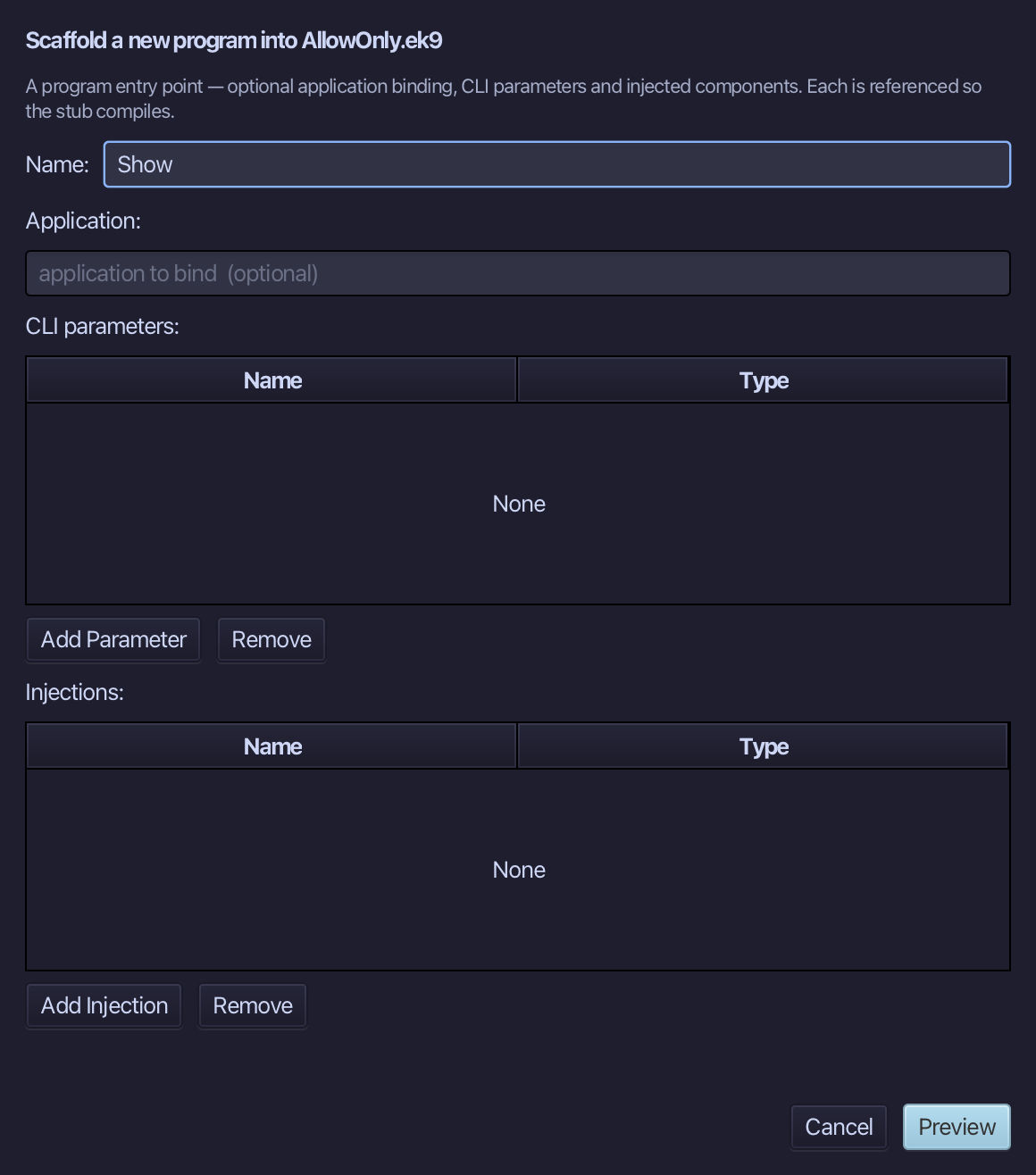
Show is the program's name. Type Show and choose Preview.
The preview shows Show about to be written. Choose Apply.
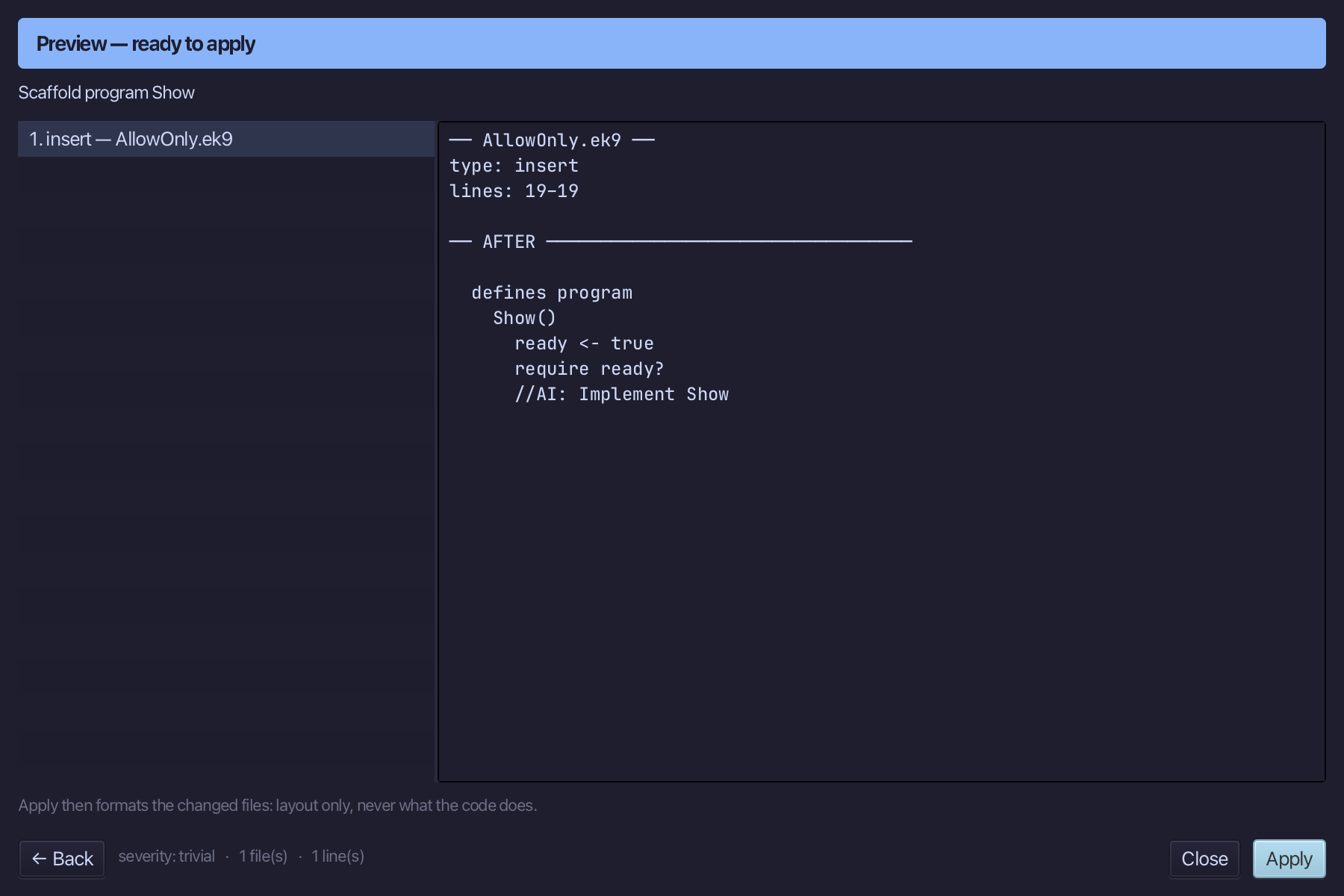
Select the stub, from ready <- true down to its //AI line, and type Show's body: a Payment held as a Card, and its amount printed. Saves when typed.
Step 6: Run it
Choose Run > Run Program…
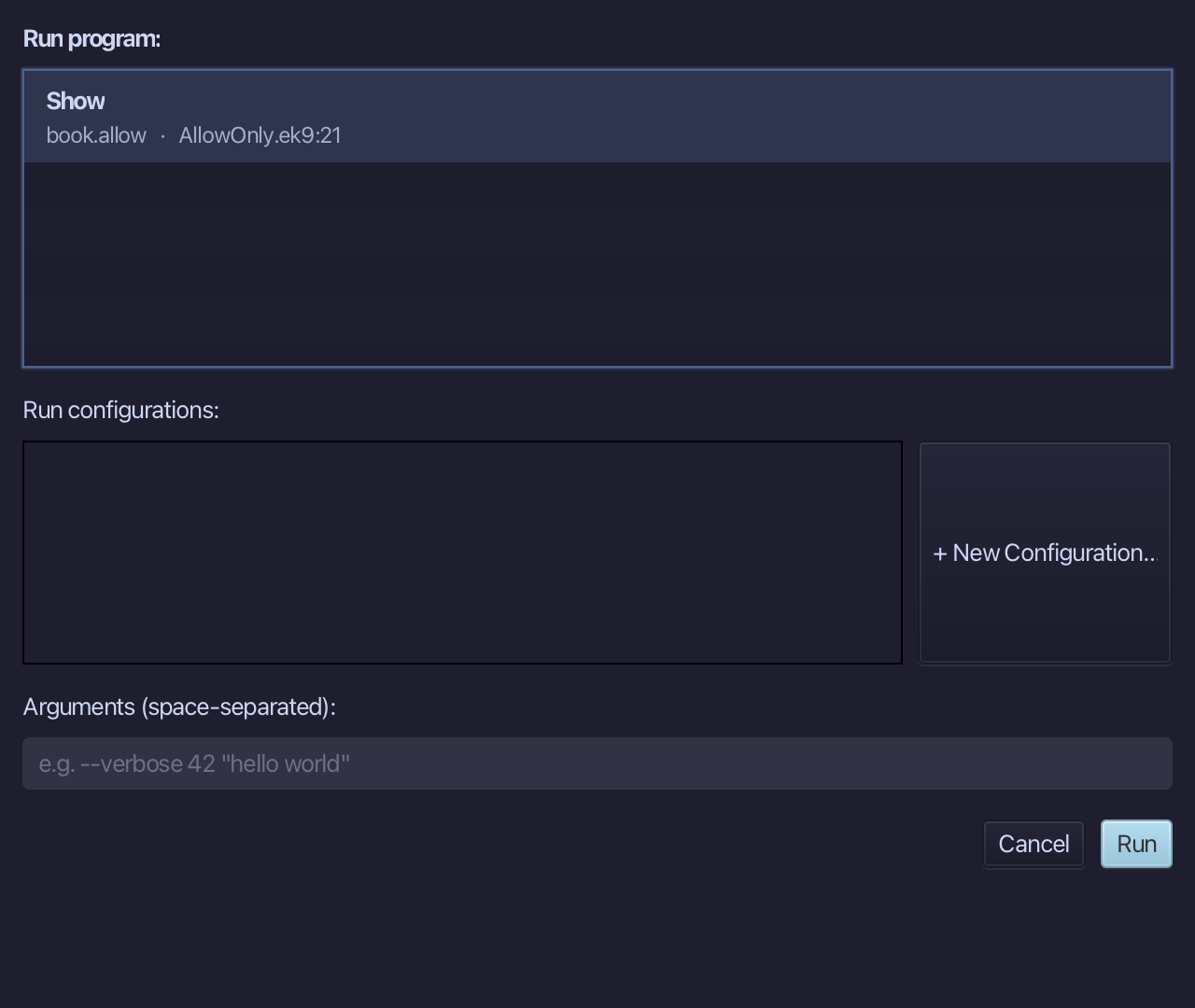
The project's only program is already chosen. Choose Run.
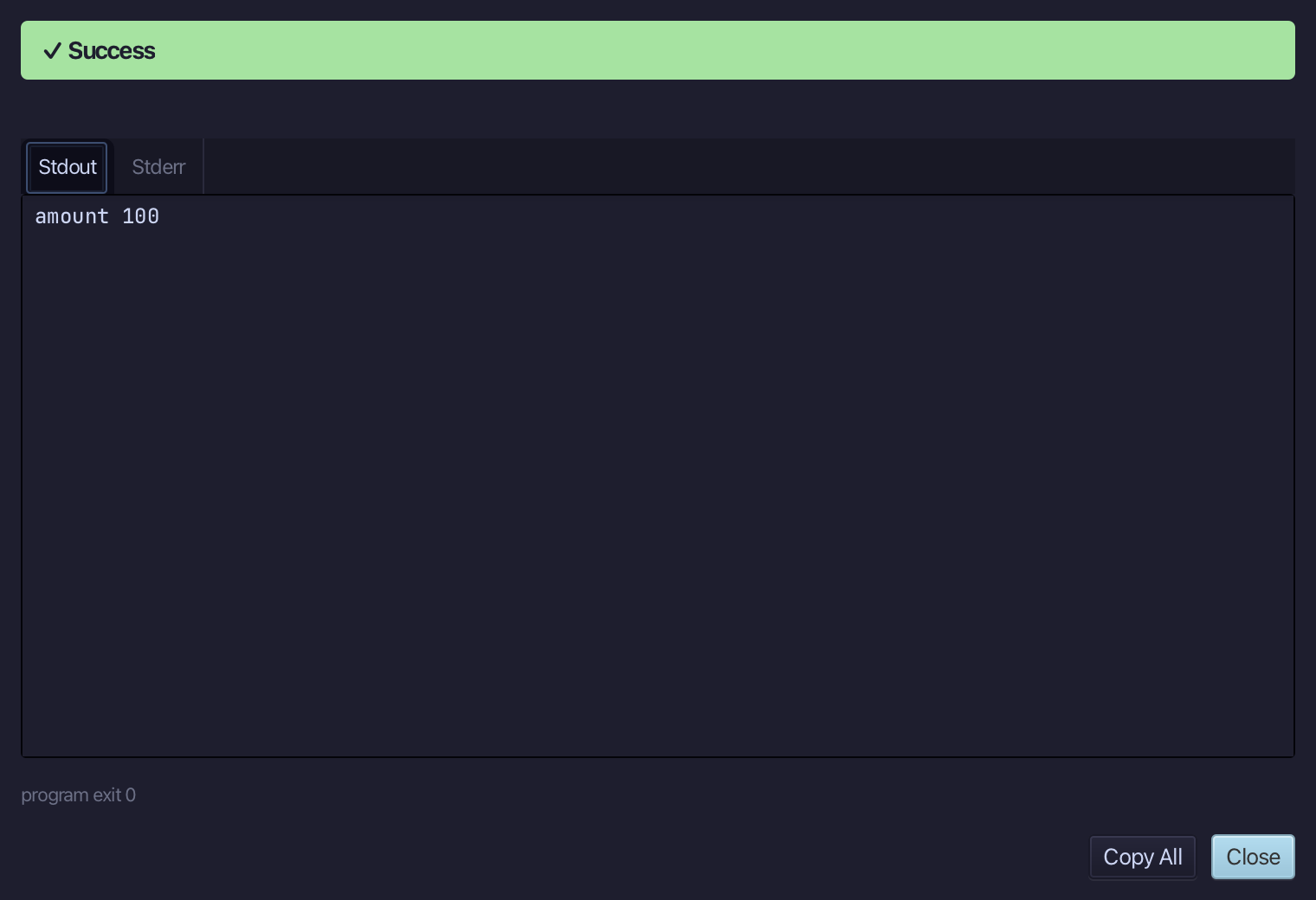
amount 100 - the Payment is a Card, and only a Card or a Cash can ever be one. Choose Close.
The result
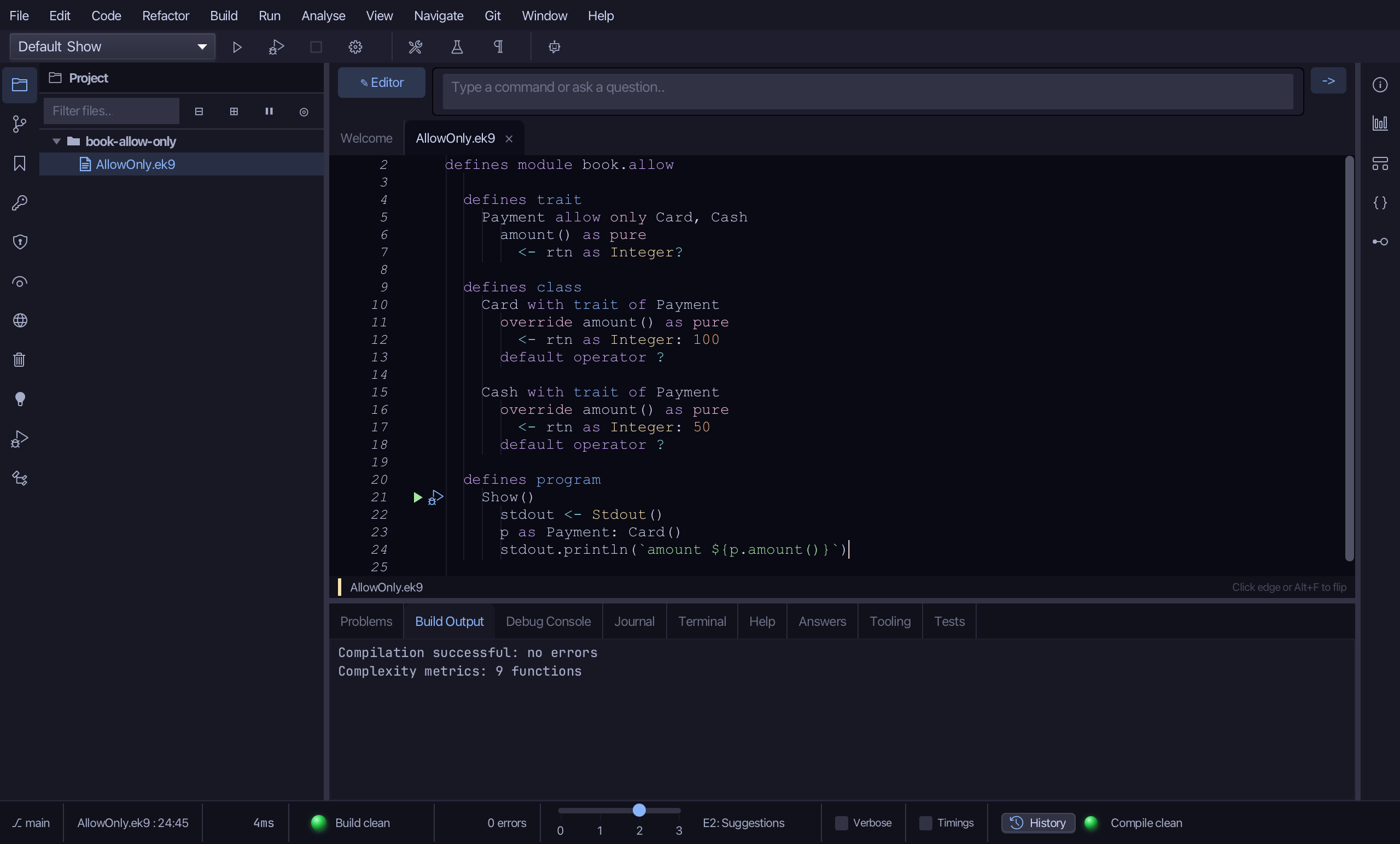
AllowOnly.ek9 now reads exactly as chapter 18 of Getting Started with EK9 shows it: Payment is a closed family - exactly Card and Cash - and the compiler will refuse a third. Seal Type had to come last, because it lists types that must already exist; Unseal Type and Add to Allowlist… sit beside it in the same Change Modifier menu. AI assistants use ek9_new_construct, ek9_add_method, ek9_adopt_trait, ek9_add_operator, ek9_seal_type and ek9_add_program.
Where this lesson comes from
- For AI assistants - the MCP tool
ek9_new_construct,ek9_add_method,ek9_adopt_trait,ek9_add_operator,ek9_seal_type,ek9_add_program.
In the EK9 reference: Traits in EK9