Chapter 22: a program with arguments, built
Chapter 22 closes with a setting that cannot live in the code at all: a web address. NoteLink takes one typed argument, a note's number, and builds a link to it on a server named by the NOTES_SERVER environment variable - never written into the source. The IDE's own tools make the program's whole shell, parameter included, so what is left to type is the logic no tool can write. To play it in the IDE: Help > Lessons > Writing code…, or ek9 -ide -lesson book-programs.
What you'll build
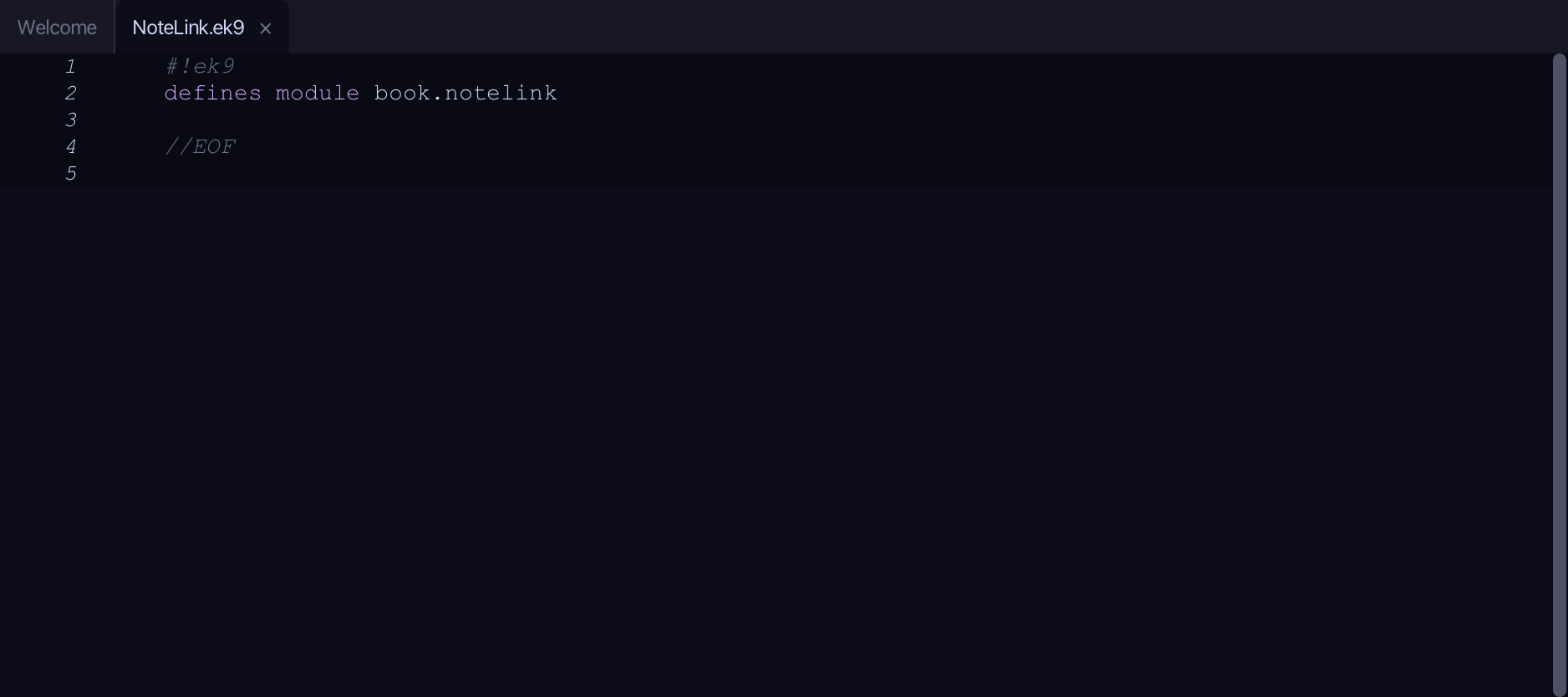
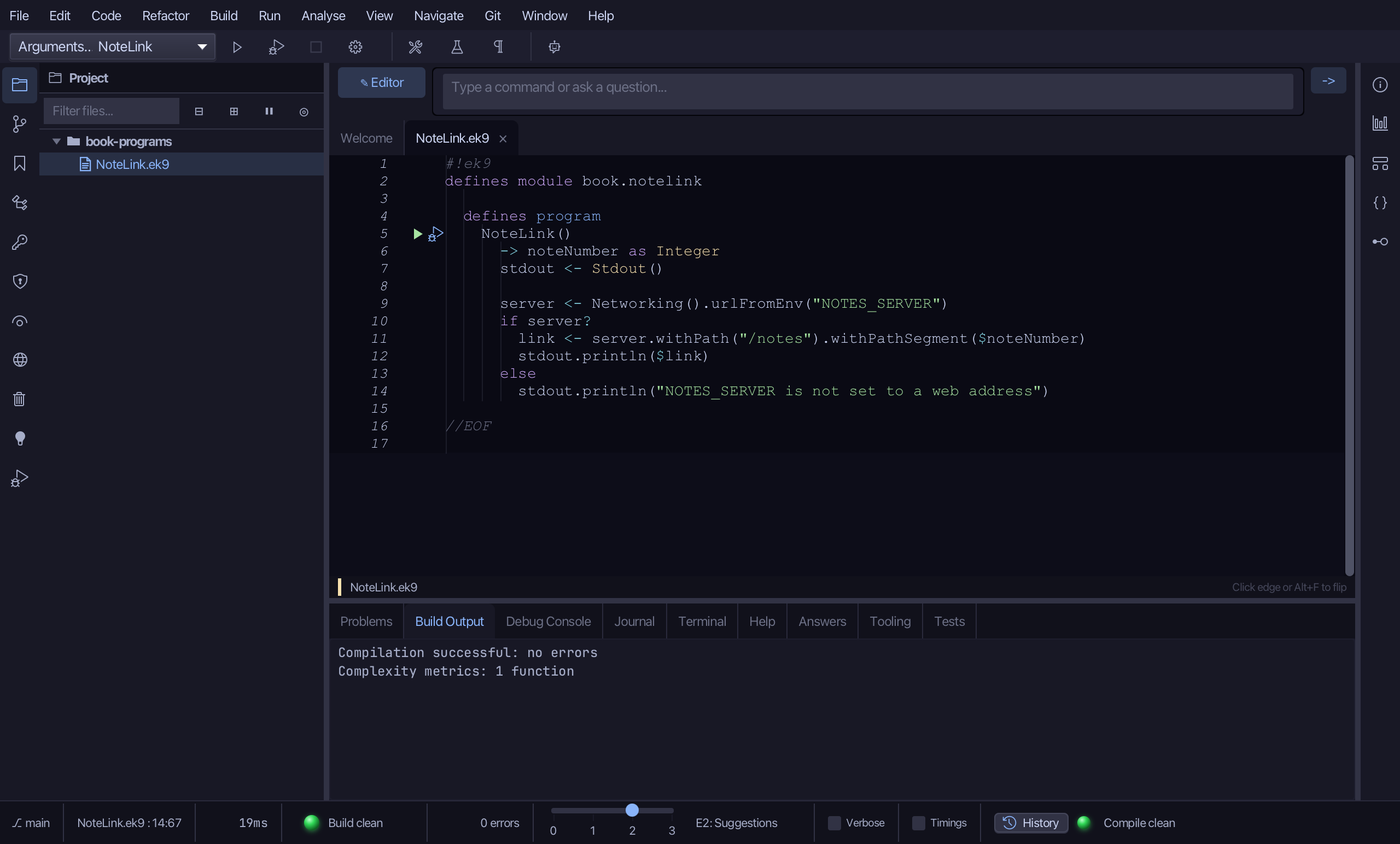
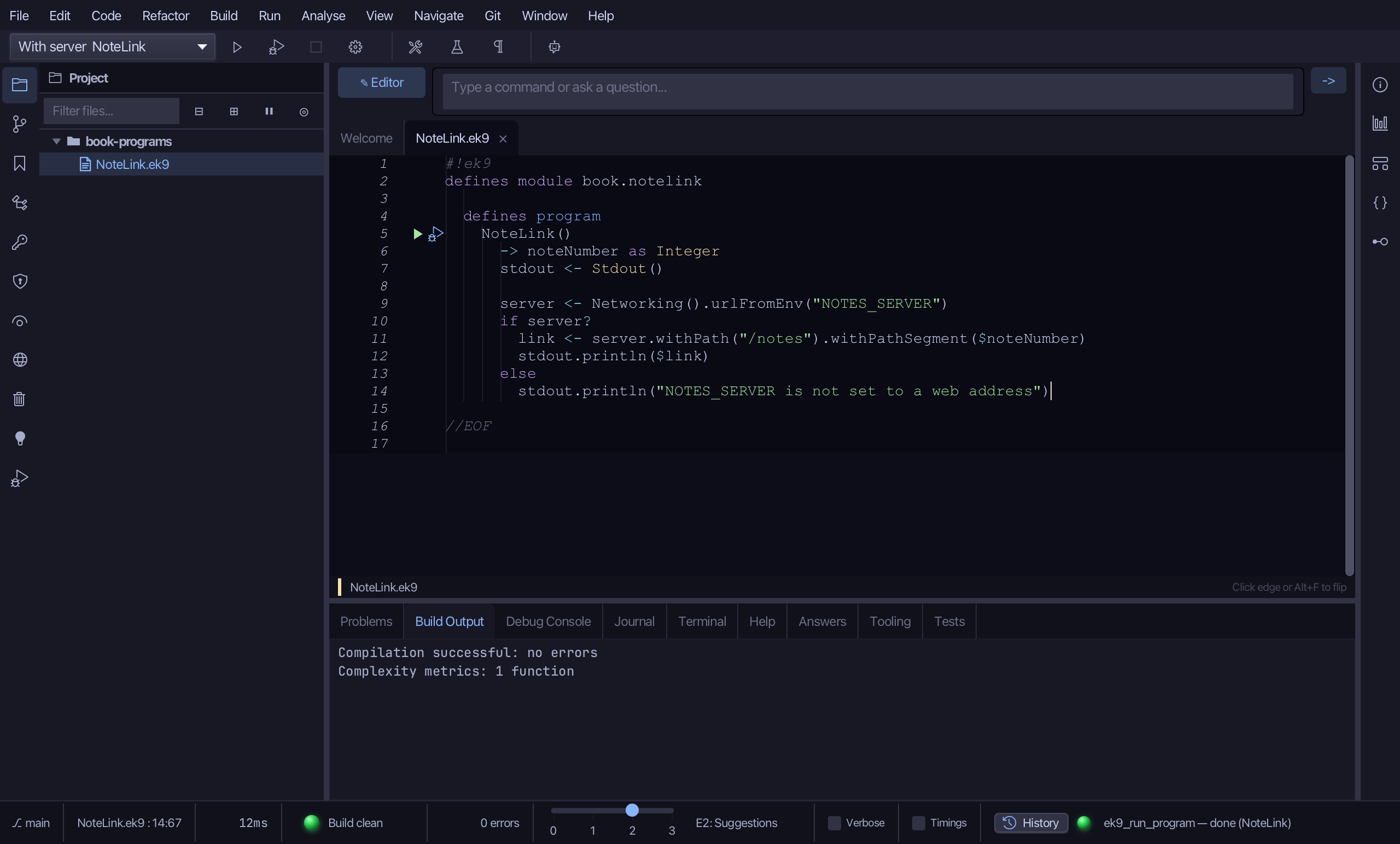
The lesson builds this program from a file holding only its module line - the finished file, as the book prints it.
#!ek9
defines module book.notelink

  defines program
    NoteLink()
      -> noteNumber as Integer
      stdout <- Stdout()

      server <- Networking().urlFromEnv("NOTES_SERVER")
      if server?
        link <- server.withPath("/notes").withPathSegment($noteNumber)
        stdout.println($link)
      else
        stdout.println("NOTES_SERVER is not set to a web address")

//EOF
Step 1: NoteLink — the program
Choose Code > New Construct > Program…
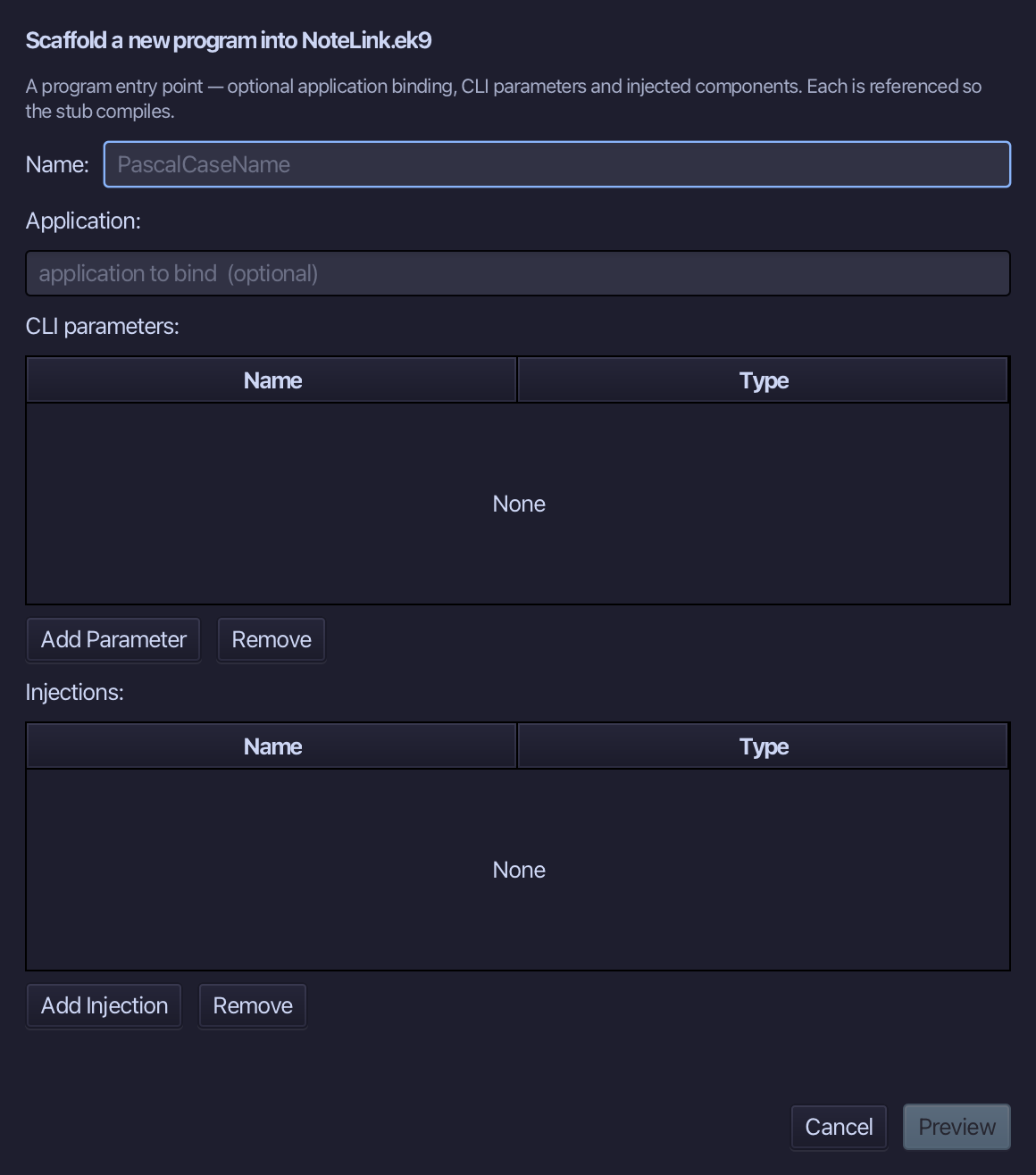
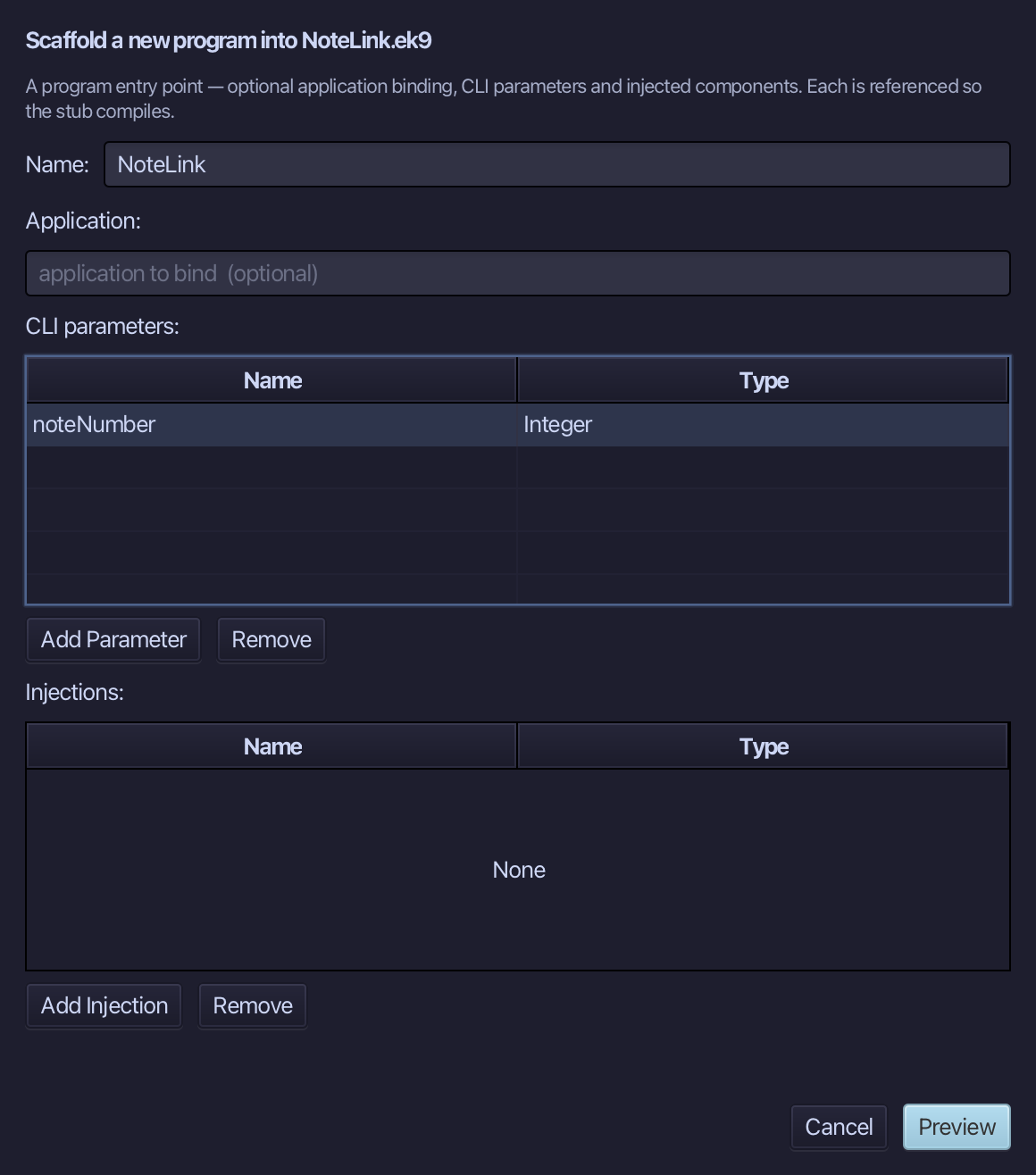
NoteLink is the program's name. Add one CLI parameter, noteNumber of type Integer - EK9 parses the text on the command line into it. Choose Preview.
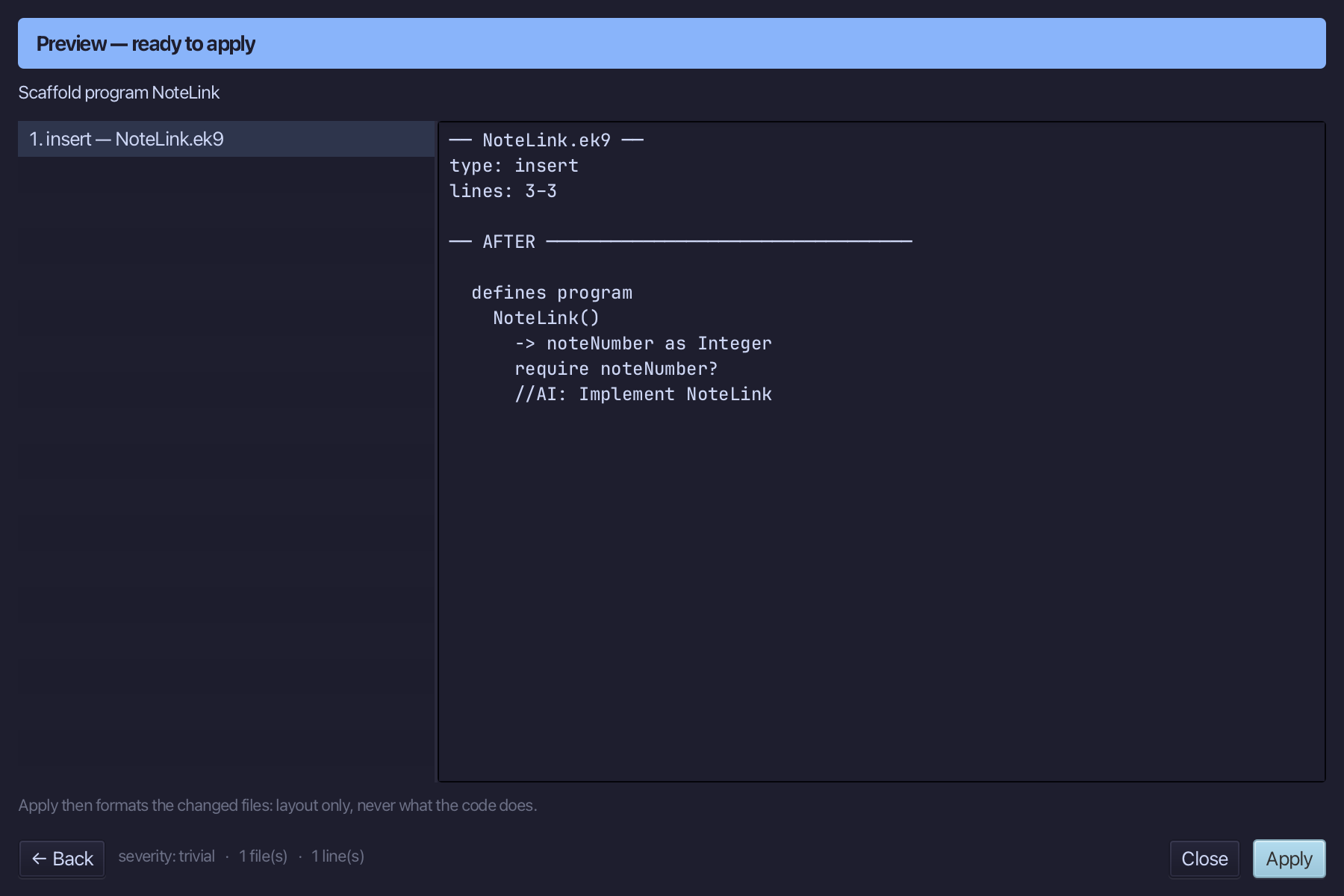
The preview shows NoteLink about to be written, noteNumber its one parameter - the stub already requires it, so the scaffold compiles on its own. Choose Apply.
Select the stub, from require noteNumber? down to its //AI line, and type NoteLink's whole body: a Stdout, the URL read from NOTES_SERVER, and a link built and printed only if the server is really set. Saves when typed.
Step 2: Run it, with an argument
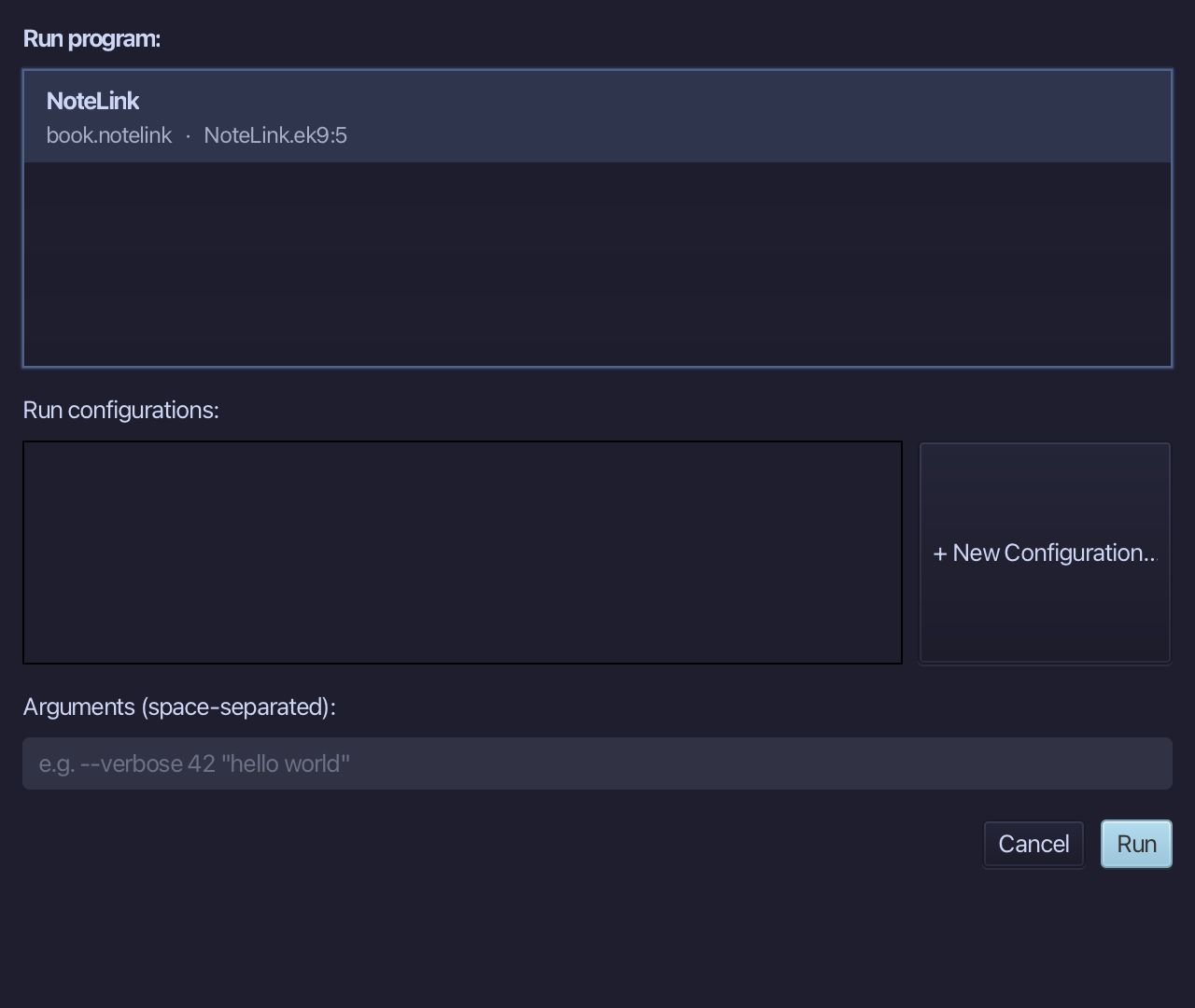
Choose Run > Run Program…
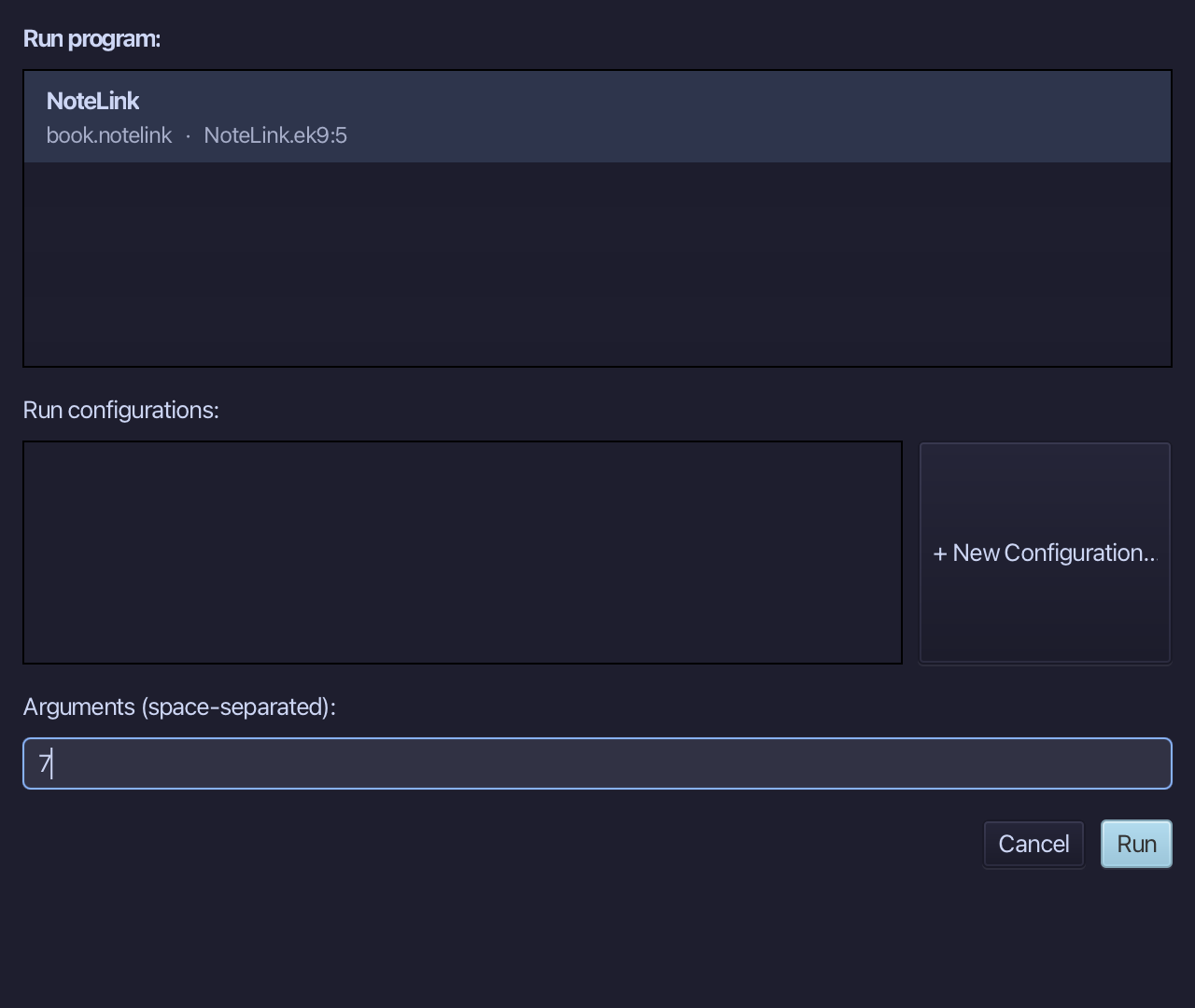
Type 7 into Arguments (space-separated), then choose Run.
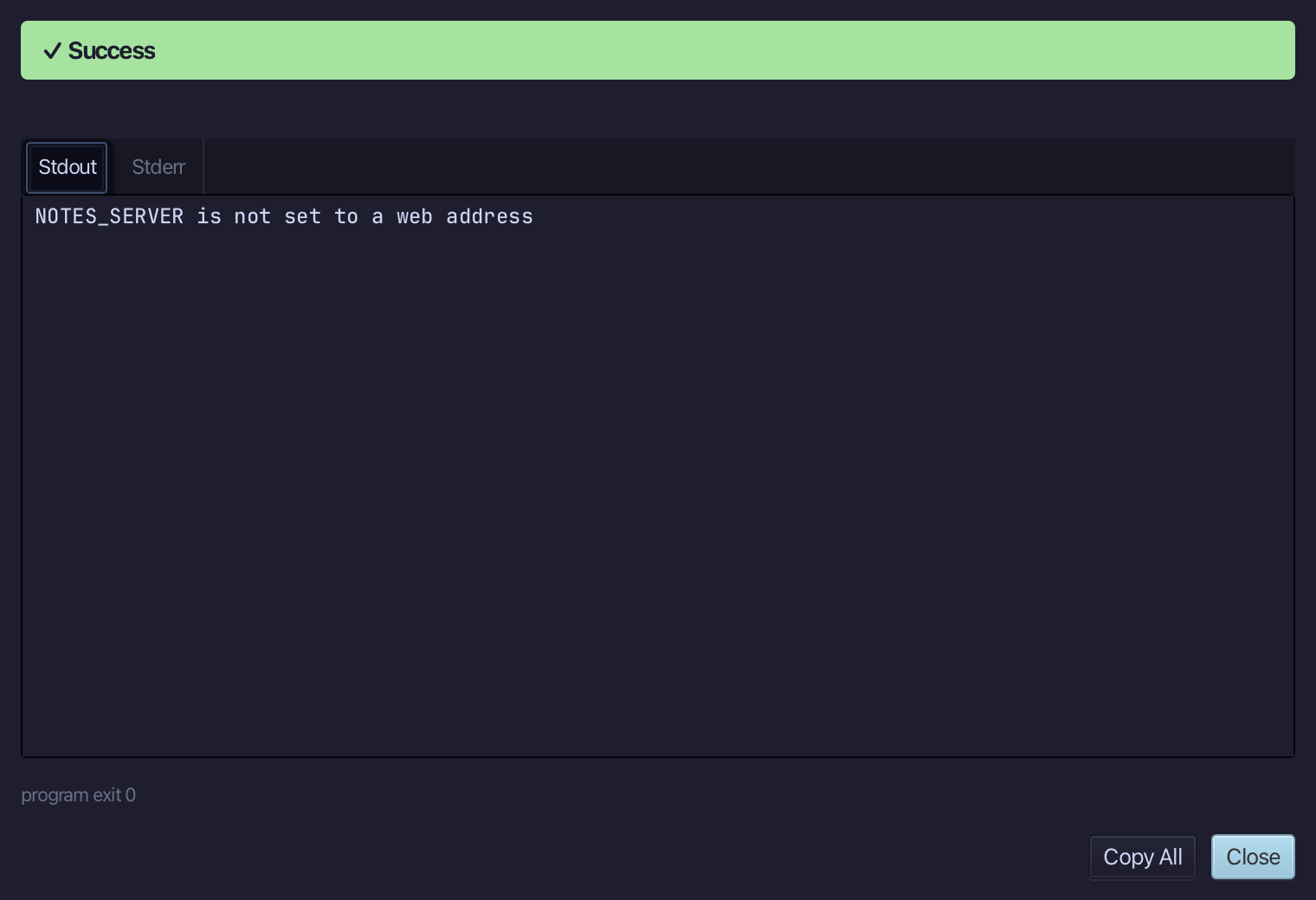
NOTES_SERVER is not set to a web address - nothing has given it a value yet, and Run Program…'s own Arguments field has nowhere to set an environment variable. Choose Close.
Step 3: Run it again, from a saved configuration
Choose Run > Configurations…
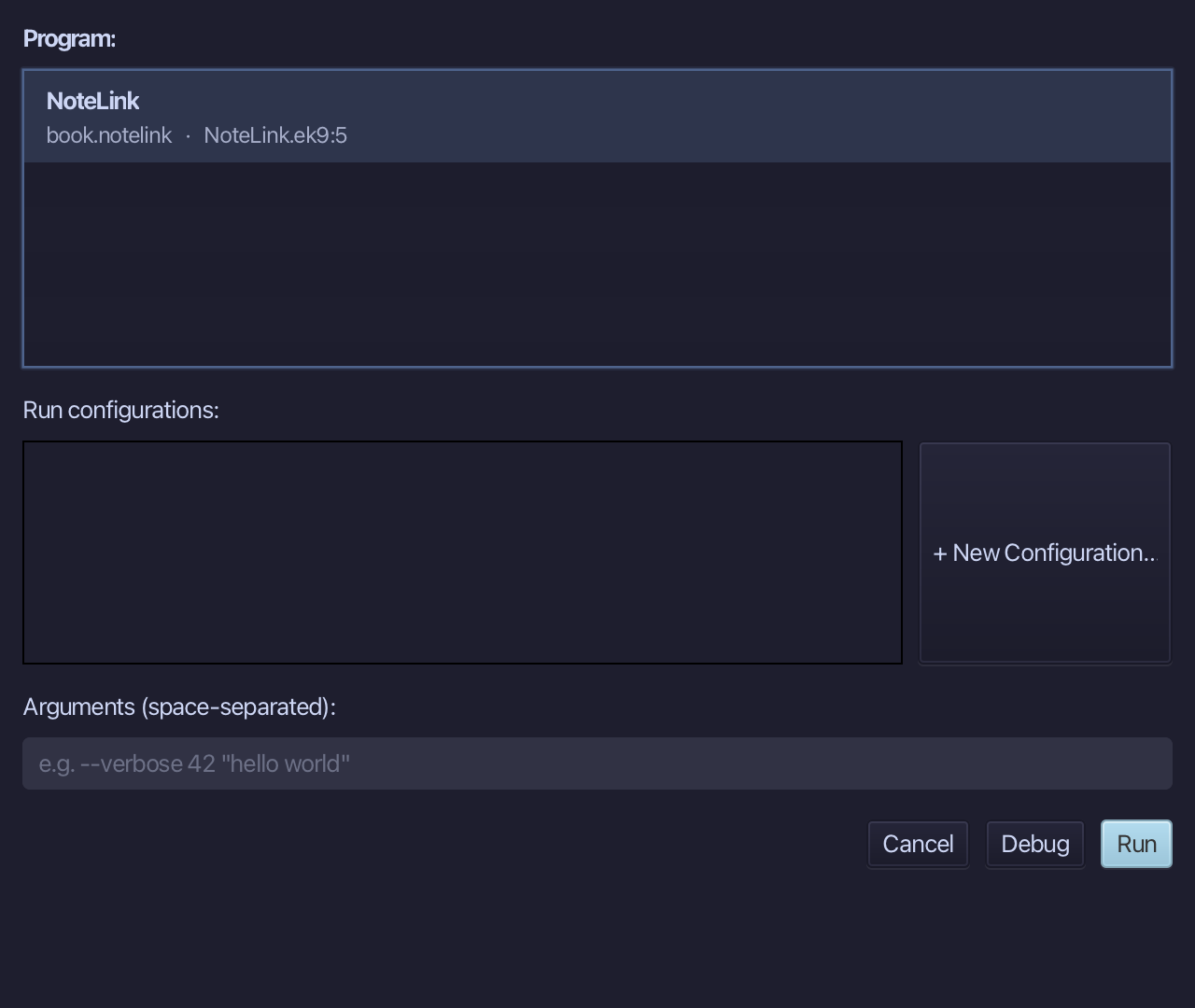
Choose + New Configuration… - NoteLink is already the program it will belong to.
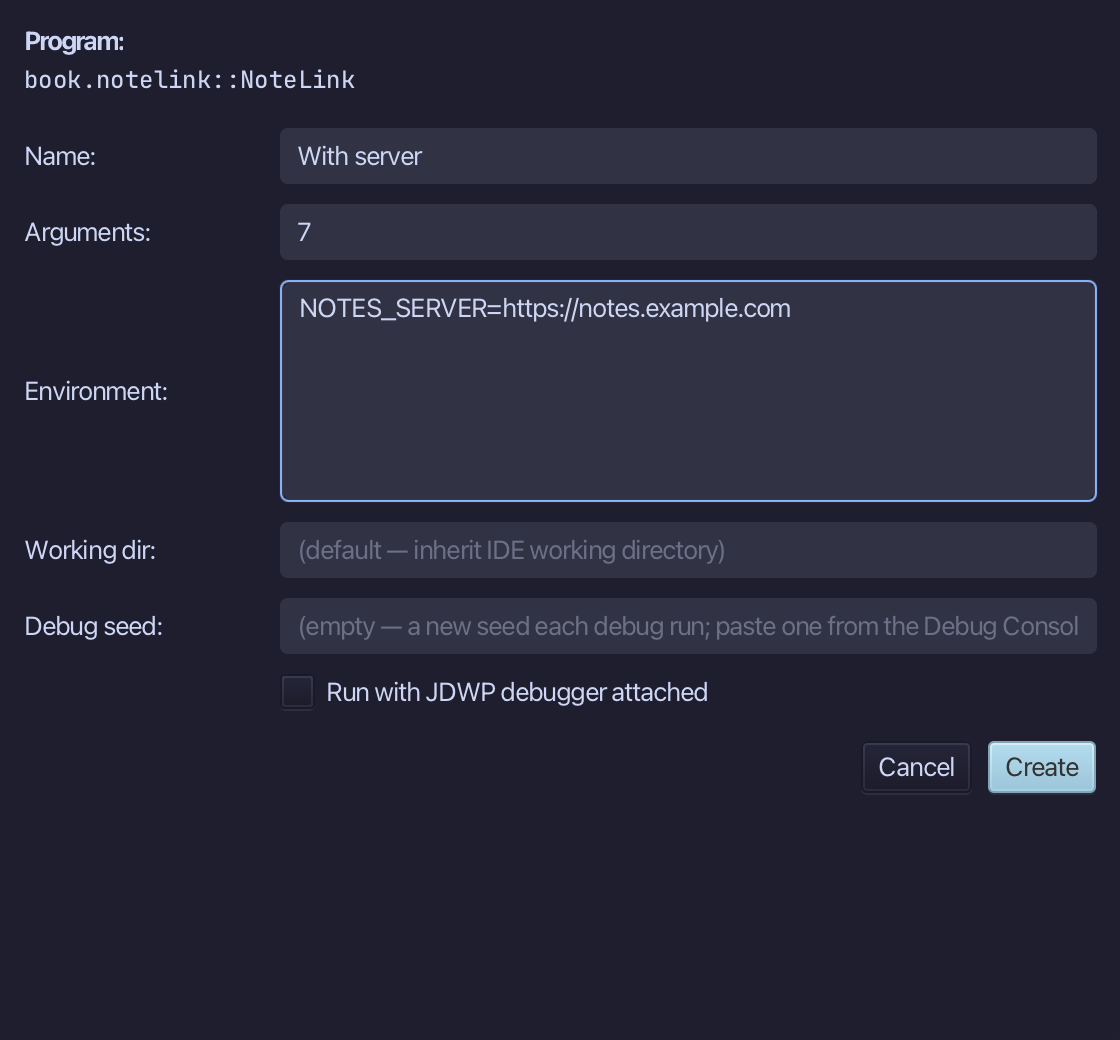
Name it With server, type 7 into Arguments, and into Environment type NOTES_SERVER=https://notes.example.com - the one field with anywhere to put it. Choose Create.
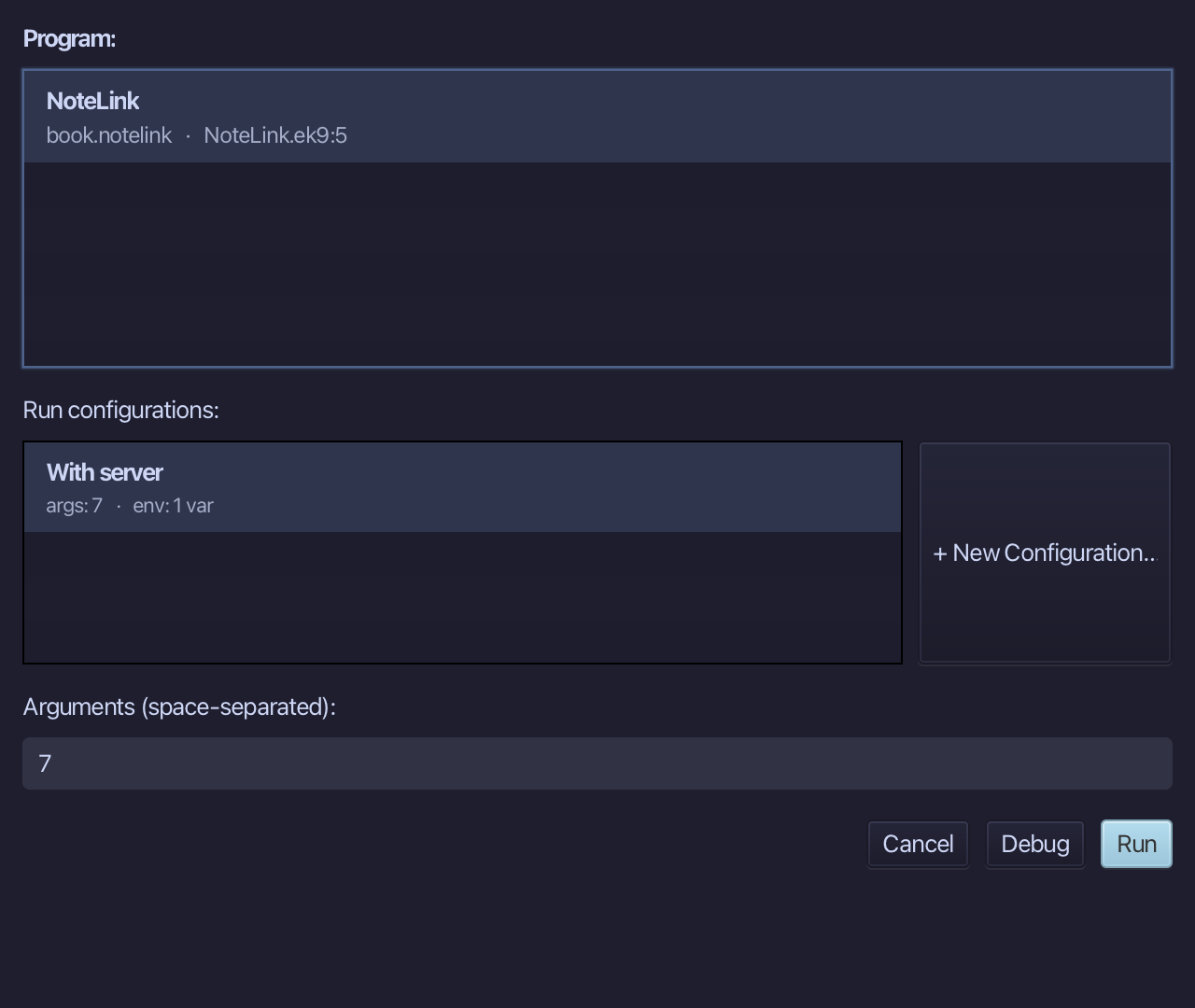
With server is already selected, its 7 carried into Arguments. Choose Run.
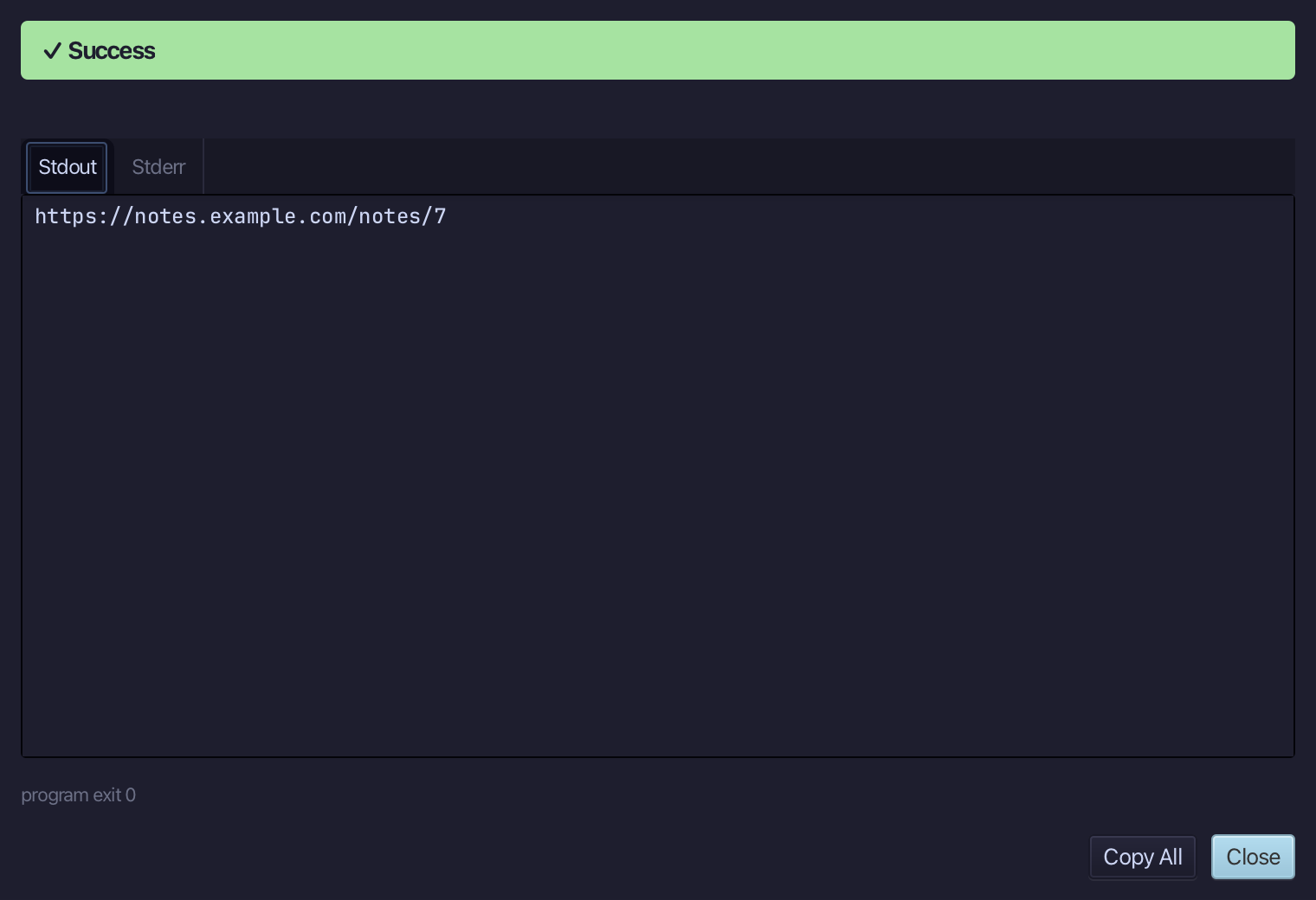
https://notes.example.com/notes/7 - the server named in Environment, carried nowhere else. Choose Close.
The result
NoteLink.ek9 now reads exactly as chapter 22 of Getting Started with EK9 shows it: one program, one typed parameter, and a URL read from an environment variable rather than written into the code. Running it with just the argument shows NOTES_SERVER is not set; saving a run configuration through Run ▸ Configurations…, with NOTES_SERVER set in its own Environment field, and running THAT instead shows the real link - the one place a setting like this can be given at all. The same tools - ek9_add_program and ek9_run_program - are what an AI assistant calls to do the same thing.
Where this lesson comes from
- For AI assistants - the MCP tool
ek9_add_program,ek9_run_program.