Chapter 8: a language from the environment, built
A program can learn its language from the machine it runs on. EnvGreet reads the APP_LANG environment variable, asks for the Greeting in that language, and keeps the answer only if the language exists - an unset variable, or a language nobody wrote, falls back to English. The IDE's tools build the program, the Greeting type and its locales; you type the wording and the lookup, then run it twice with different environments. To play it in the IDE: Help > Lessons > Getting Started with EK9…, or ek9 -ide -lesson book-env-greet.
What you'll build
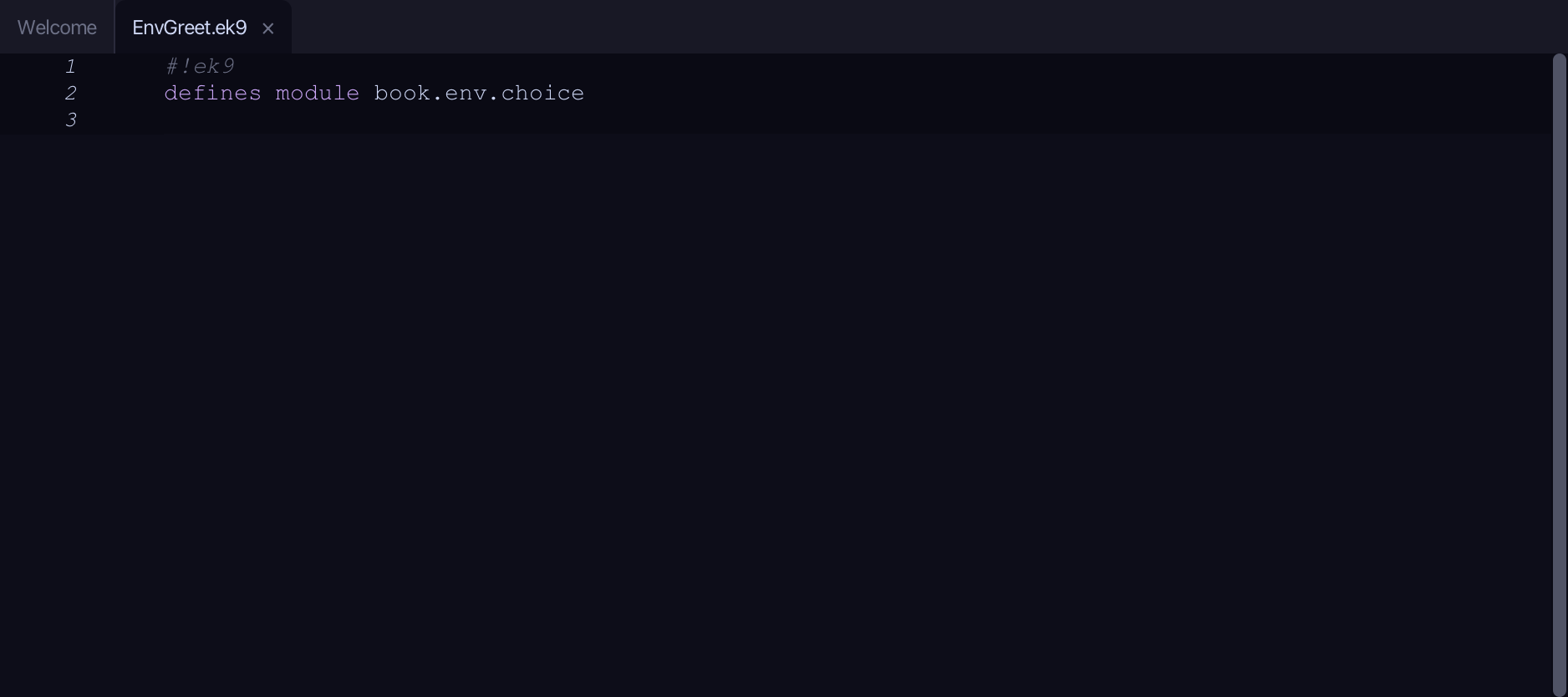
The lesson builds this program from a file holding only its module line - the finished file, as the book prints it.
#!ek9
defines module book.env.choice

  defines text for "en"
    Greeting
      welcome()
        -> name as String
        `Hello, ${name}!`

  defines text for "fr"
    Greeting
      welcome()
        -> name as String
        `Bonjour, ${name} !`

  defines text for "de"
    Greeting
      welcome()
        -> name as String
        `Hallo, ${name}!`

  defines program
    EnvGreet()
      stdout <- Stdout()
      me <- "Ada"

      env <- EnvVars()
      requestedLang <- env.get("APP_LANG")

      chosen <- Greeting(requestedLang)
      greeter <- chosen? <- chosen : Greeting("en")
      stdout.println(greeter.welcome(me))
Step 1: The program, hard-coding English
Choose Code > New Construct > Program…
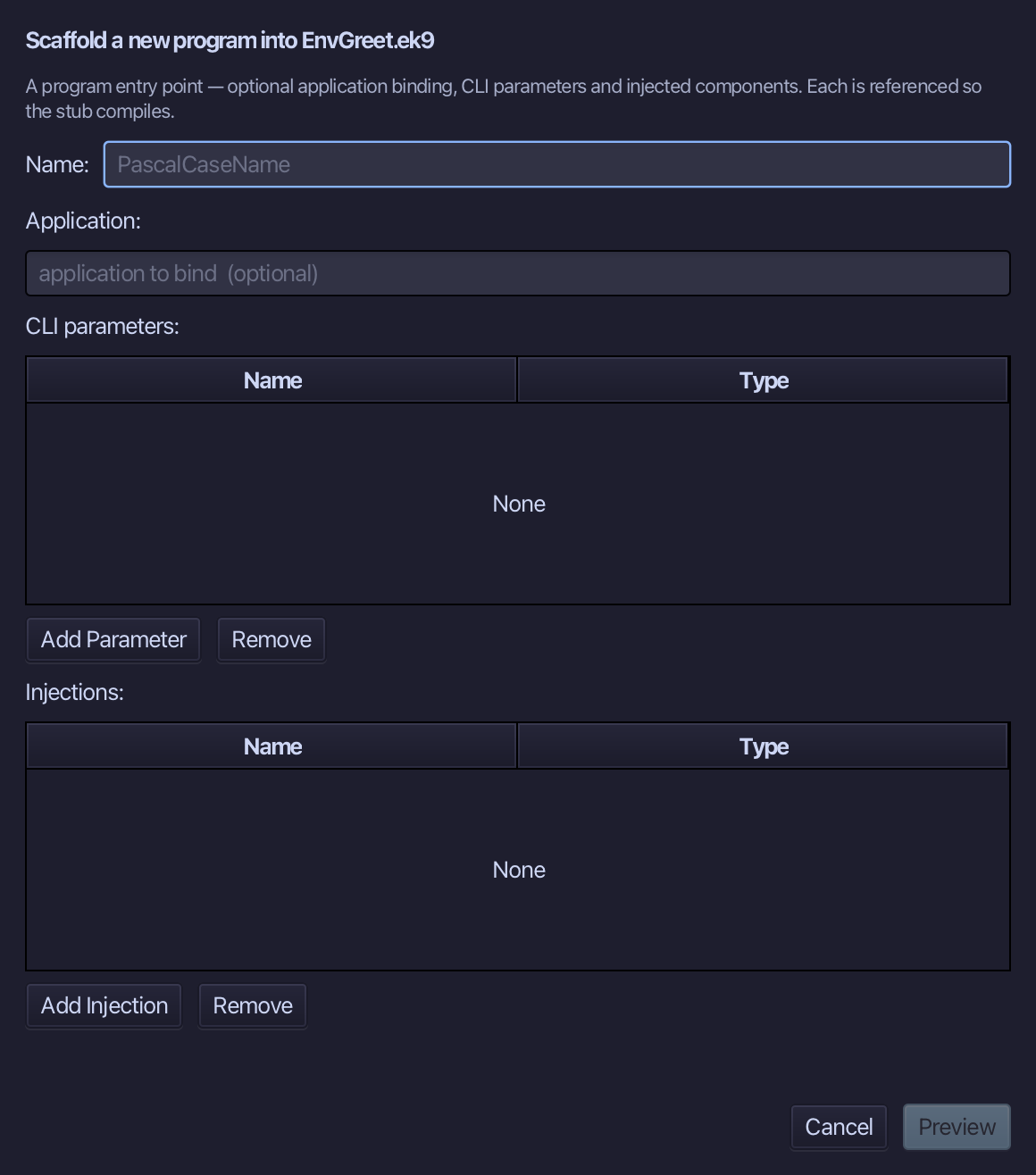
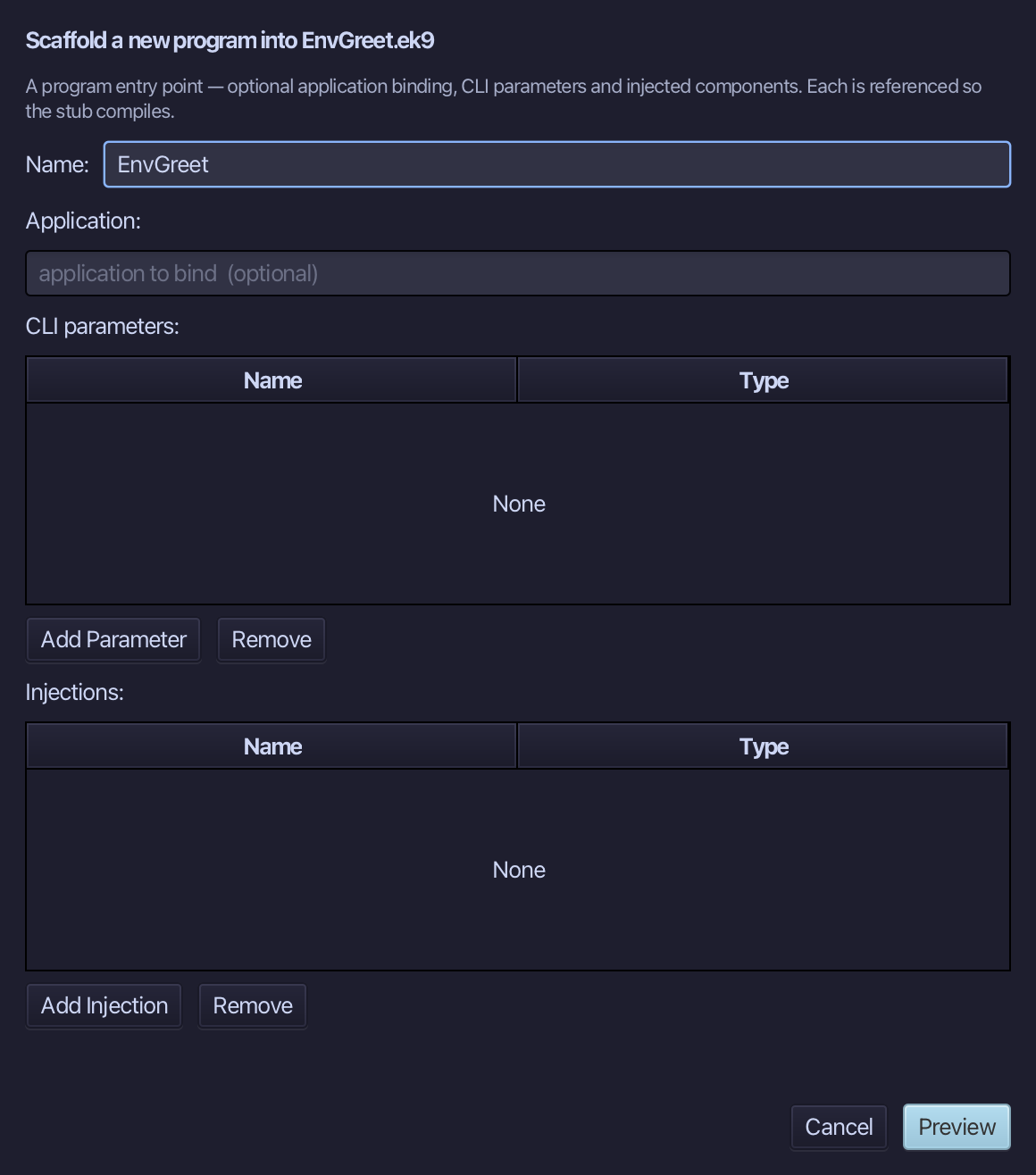
EnvGreet is the program's name - no application to bind, no parameters, nothing injected. Type EnvGreet and choose Preview.
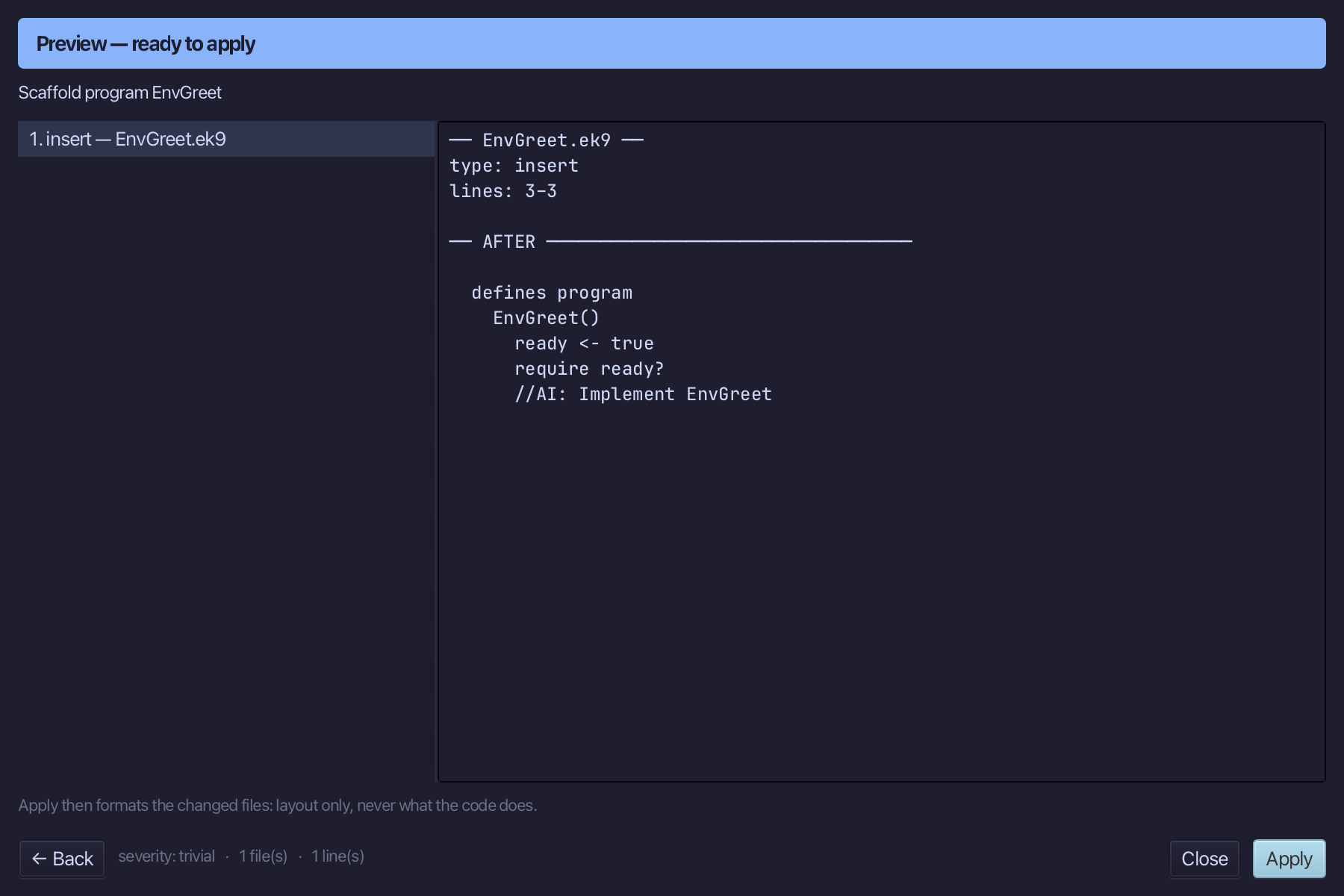
The preview shows EnvGreet about to be written. Choose Apply.
Select the stub, from ready <- true down to its //AI line, and type EnvGreet's body: a Stdout, the name Ada and the English greeting hard-coded. Saves when typed.
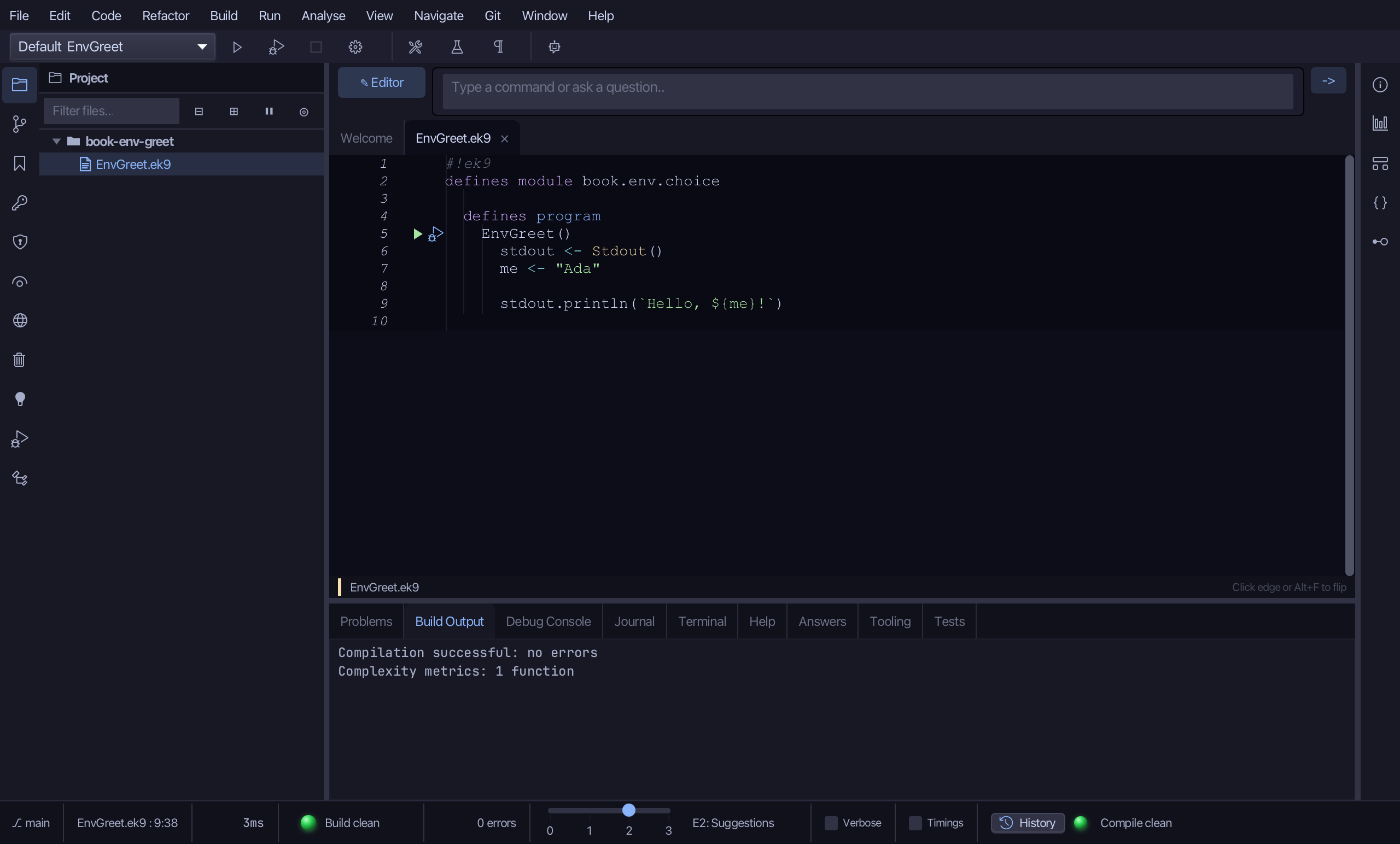
Step 2: welcome - the real message
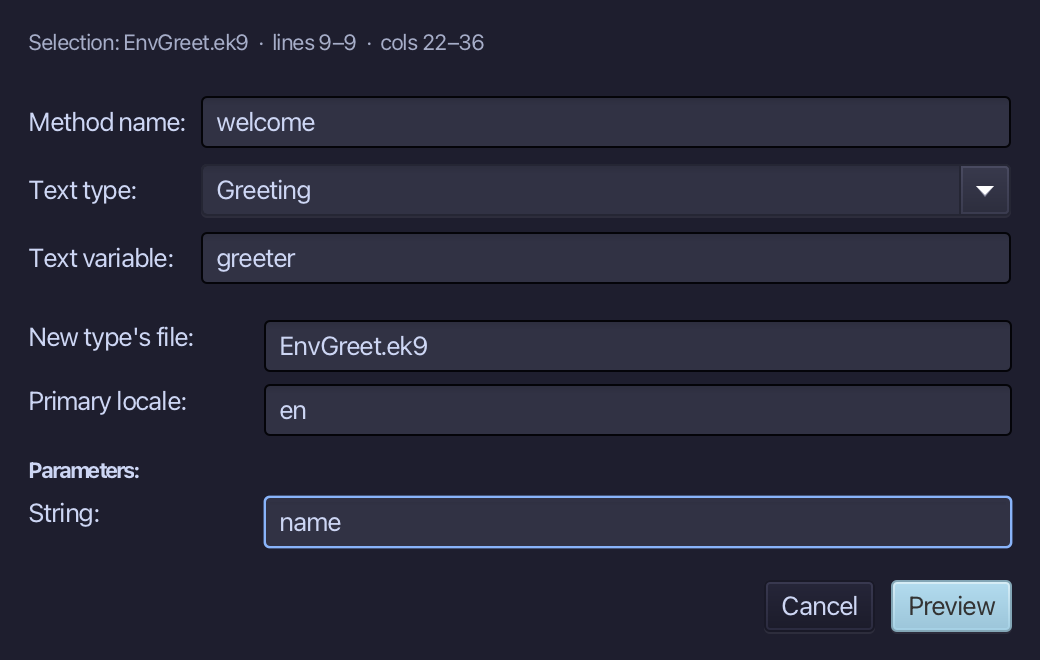
Select the hard-coded greeting, right-click it and choose Localisation ▸ Extract to Localized Text…. Name the method welcome; type Greeting as the text type - new, so the dialog offers its first locale (en); name greeter as the text variable. The Parameters table shows me - retype it to name, then choose Preview.
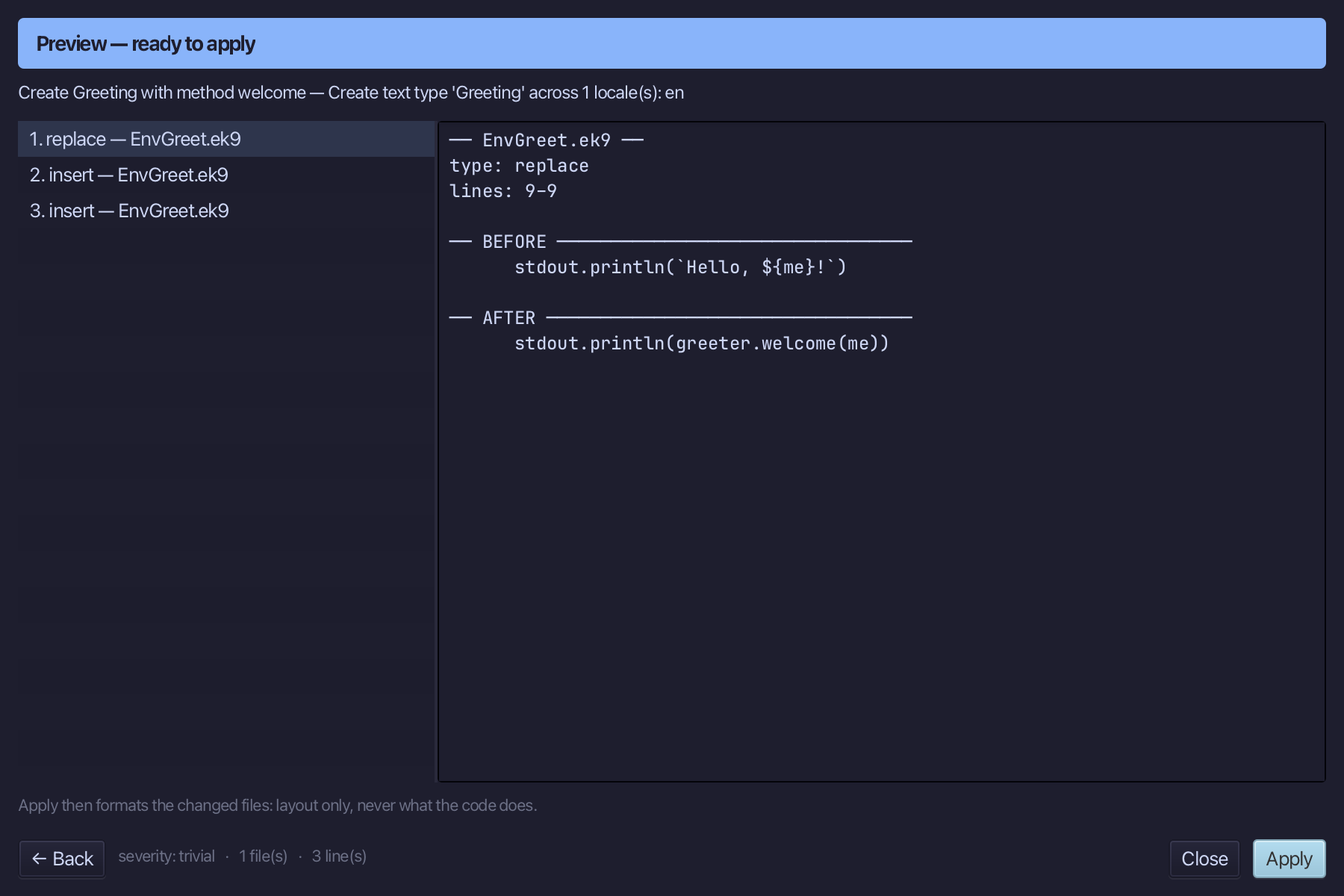
The preview shows Greeting created with its welcome() message and greeter declared above the statement that uses it. Choose Apply.
Step 3: Adding French
Choose Code > Localisation > Add Locale…
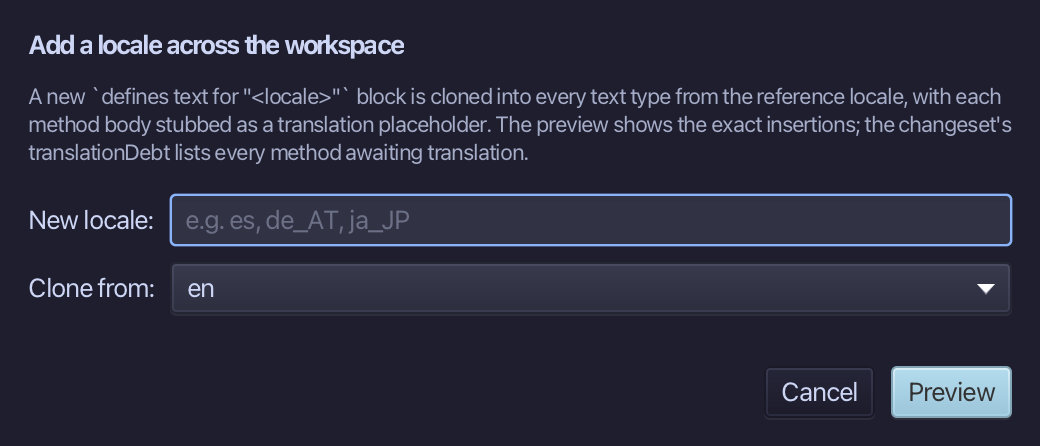
Adding French, cloned from en - a stub waits where the real words go. Type fr as the new locale - en is already chosen to clone from, the only locale so far. Choose Preview.
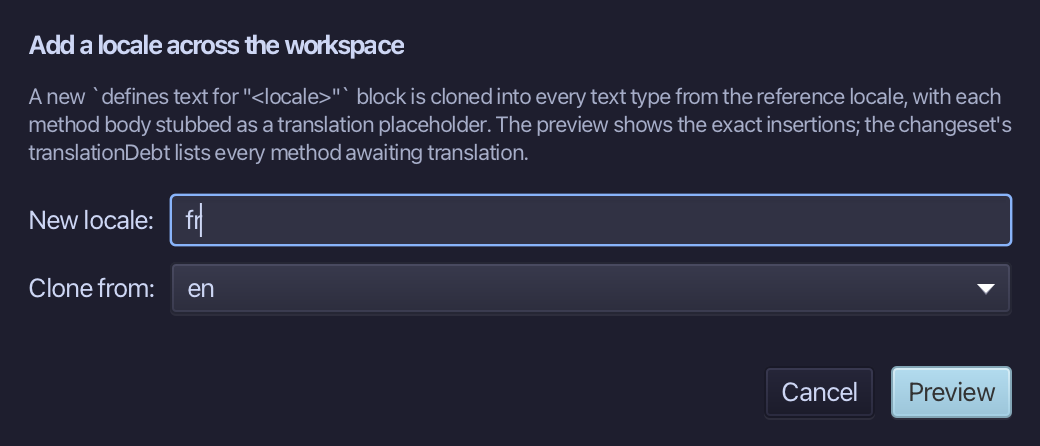
The preview shows fr cloned from en, stubbed for translation. Choose Apply.
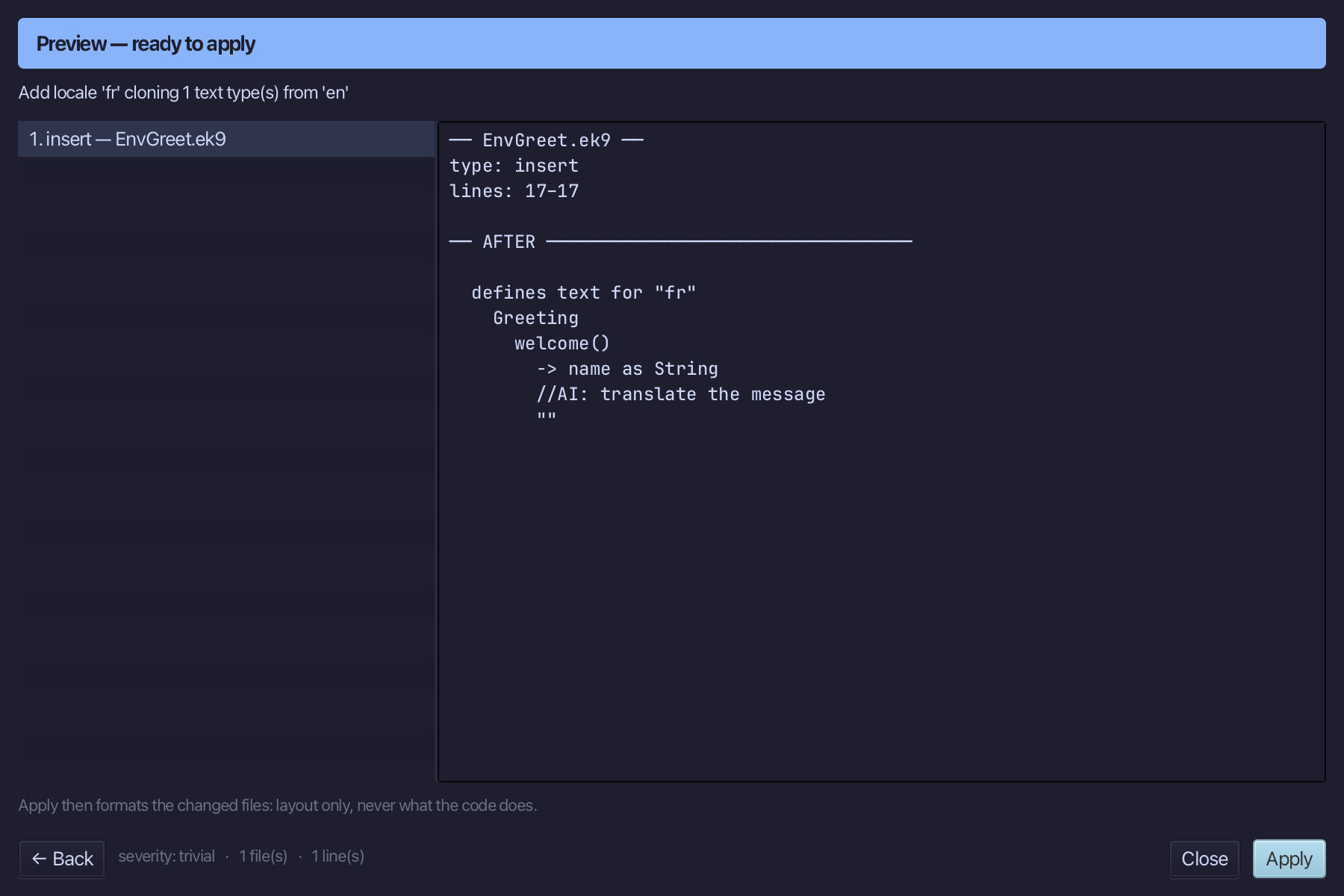
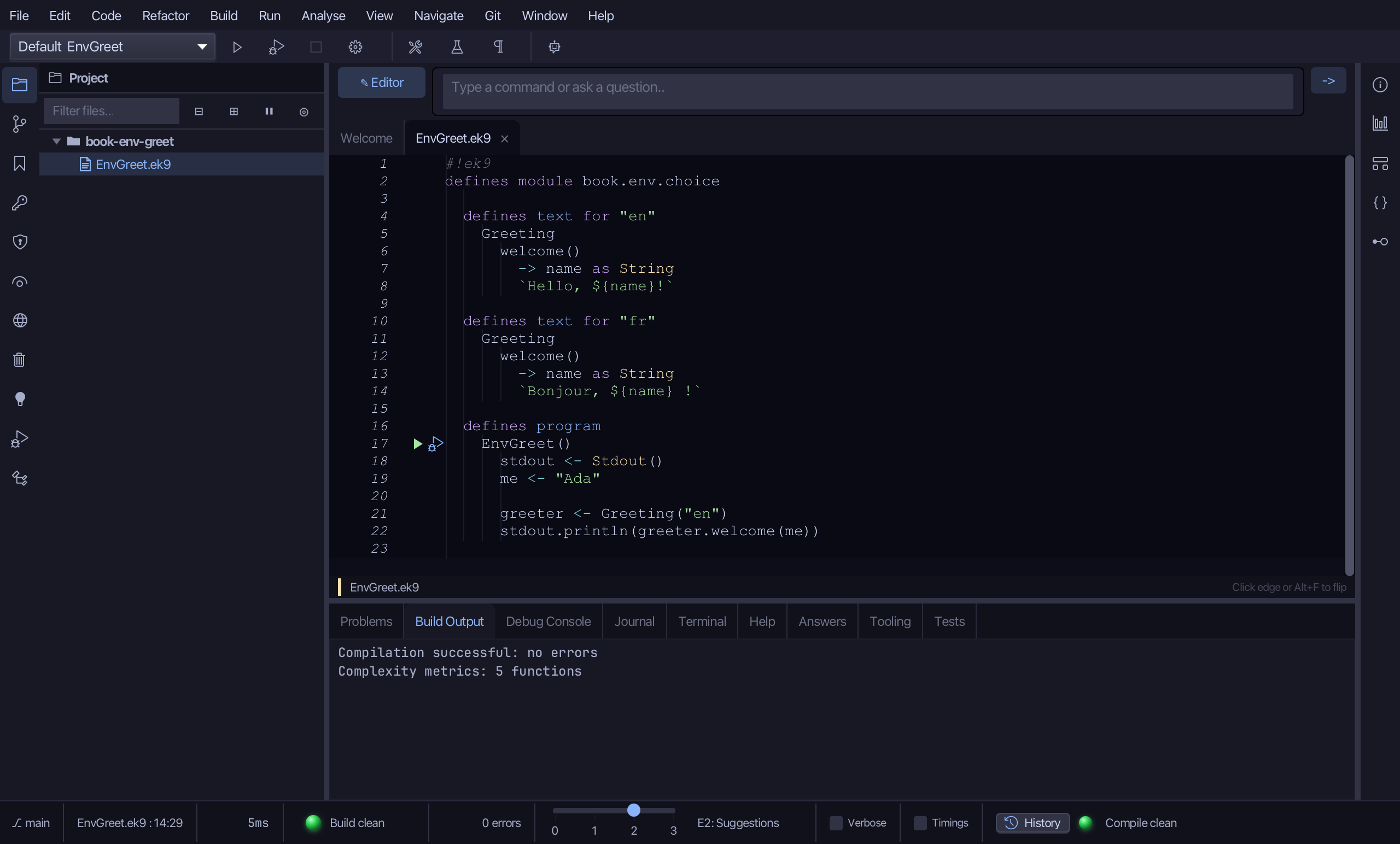
Select the stub, from //AI: translate the message down to its empty "", and type the French line. Saves when typed.
Step 4: Adding German
Choose Code > Localisation > Add Locale…
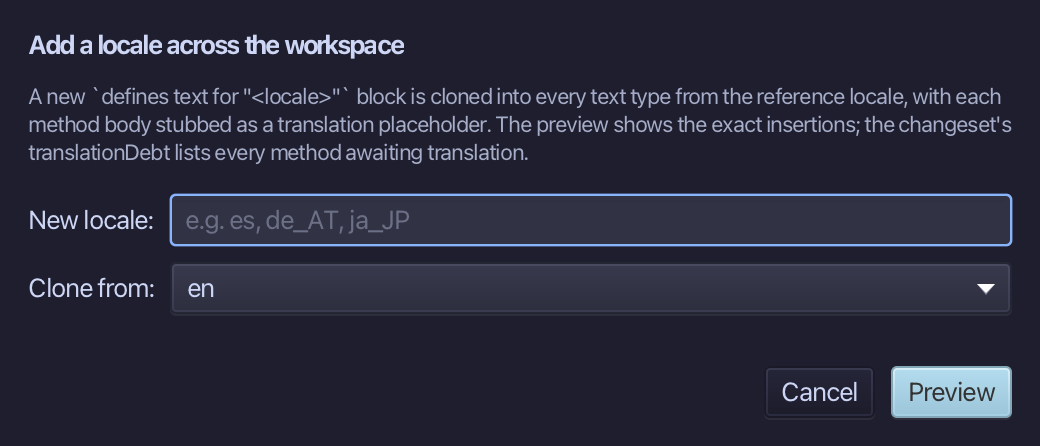
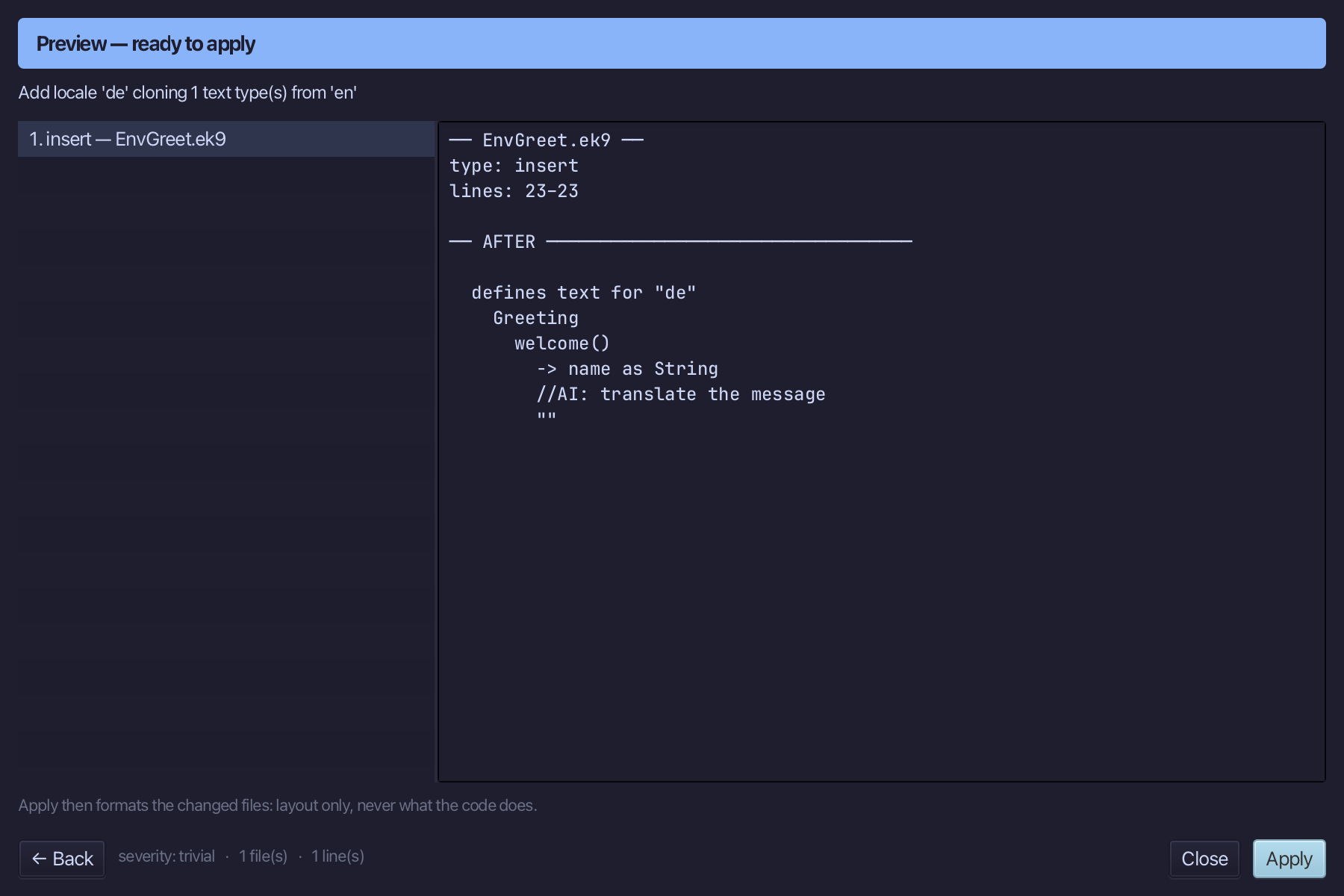
Adding German, cloned from en the same way. Type de as the new locale - en is already chosen to clone from, the only locale so far. Choose Preview.
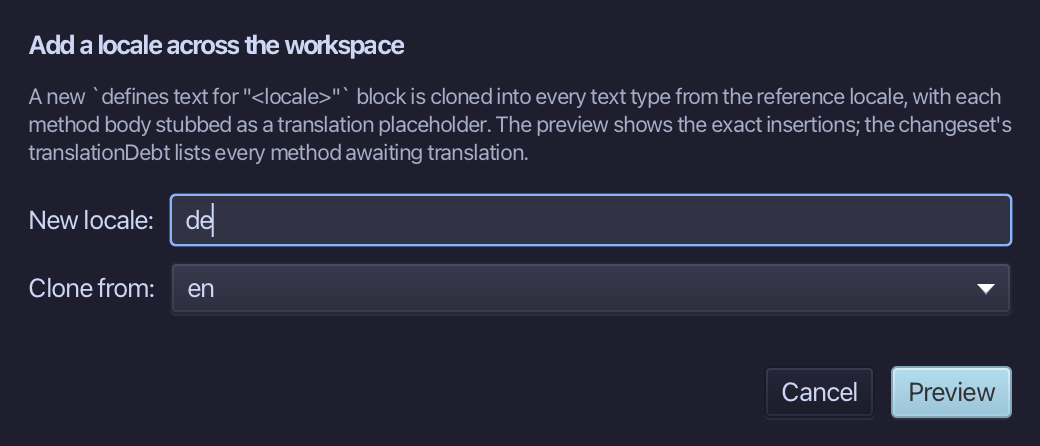
The preview shows de cloned from en, stubbed for translation. Choose Apply.
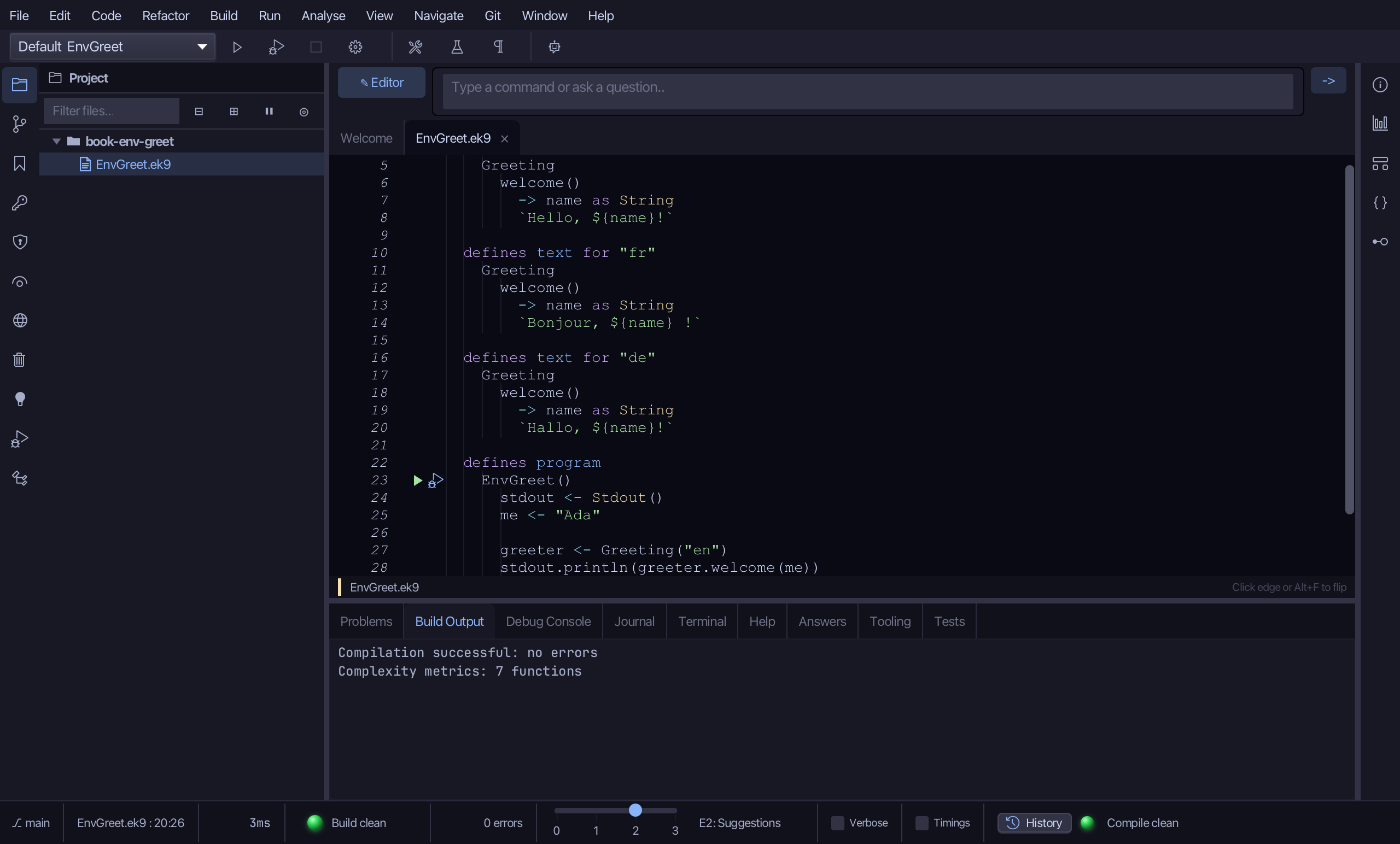
Select the stub, from //AI: translate the message down to its empty "", and type the German line. Saves when typed.
Step 5: Read the language from the environment
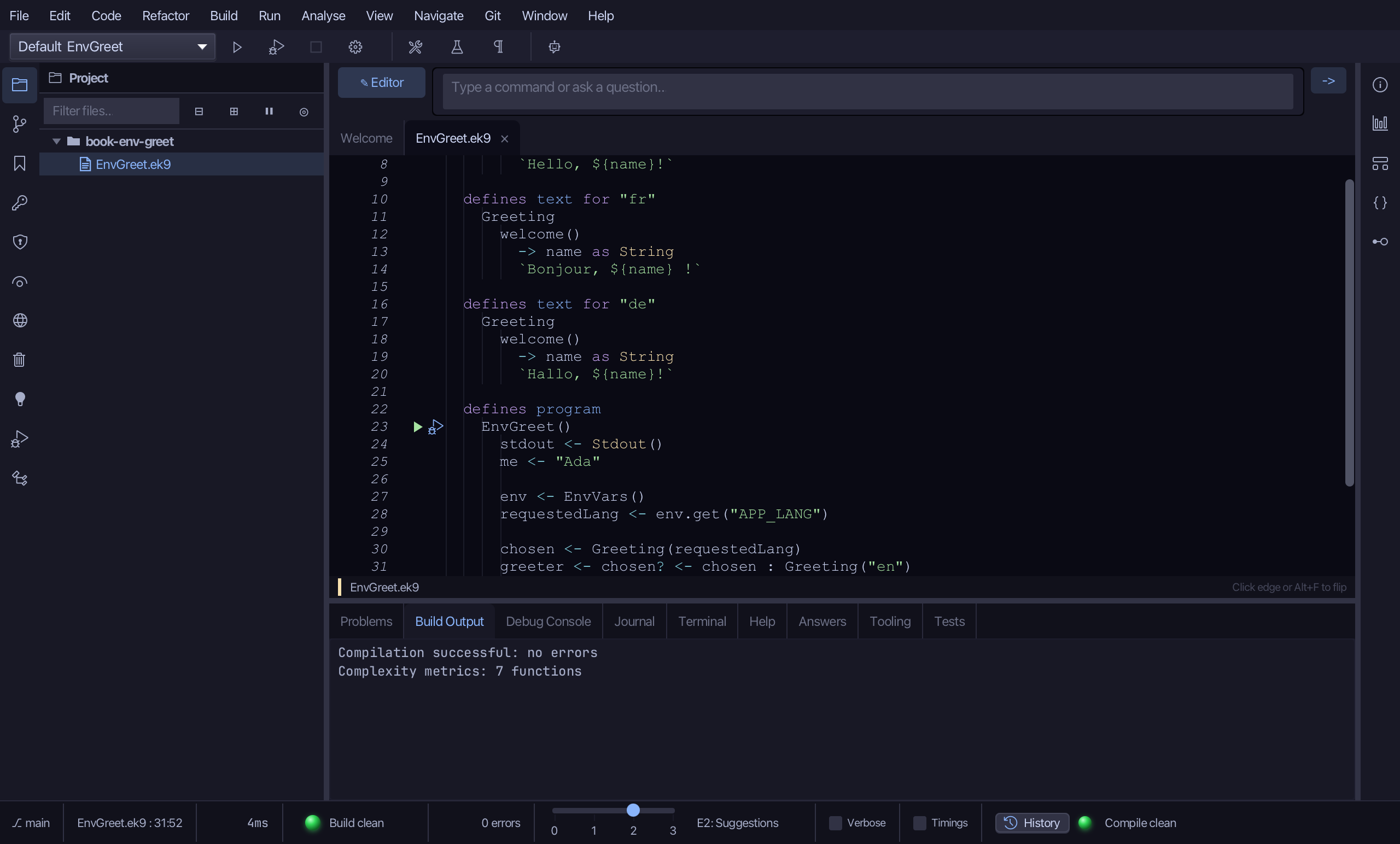
greeter is still always English. Select the greeter line and type the lookup: EnvVars().get("APP_LANG") is the requested language, chosen asks for it, and greeter keeps chosen only if it is set (chosen?), else Greeting("en").
Step 6: Run it, APP_LANG not set
Choose Run > Run Program…
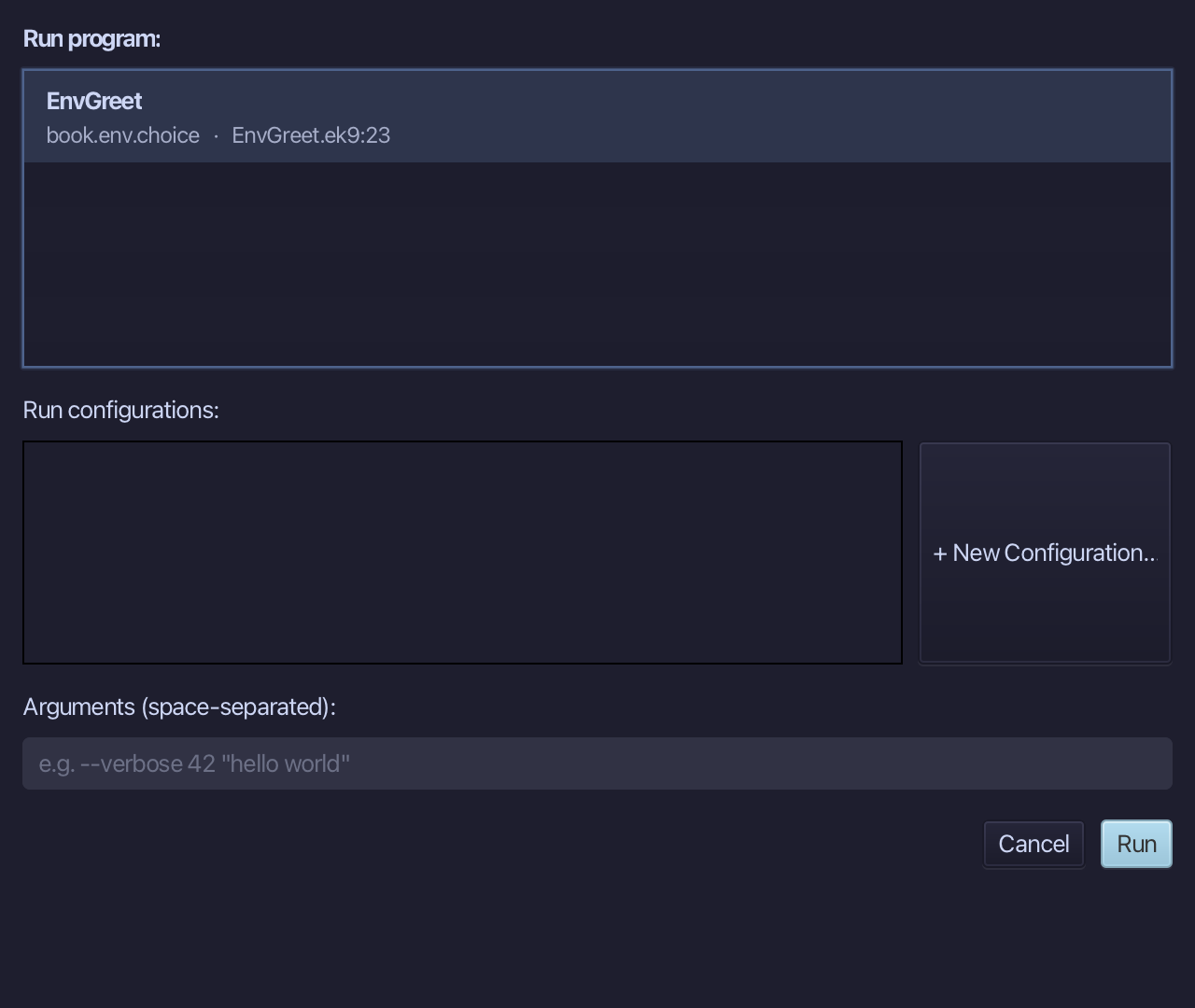
The project's only program is already chosen. Choose Run.
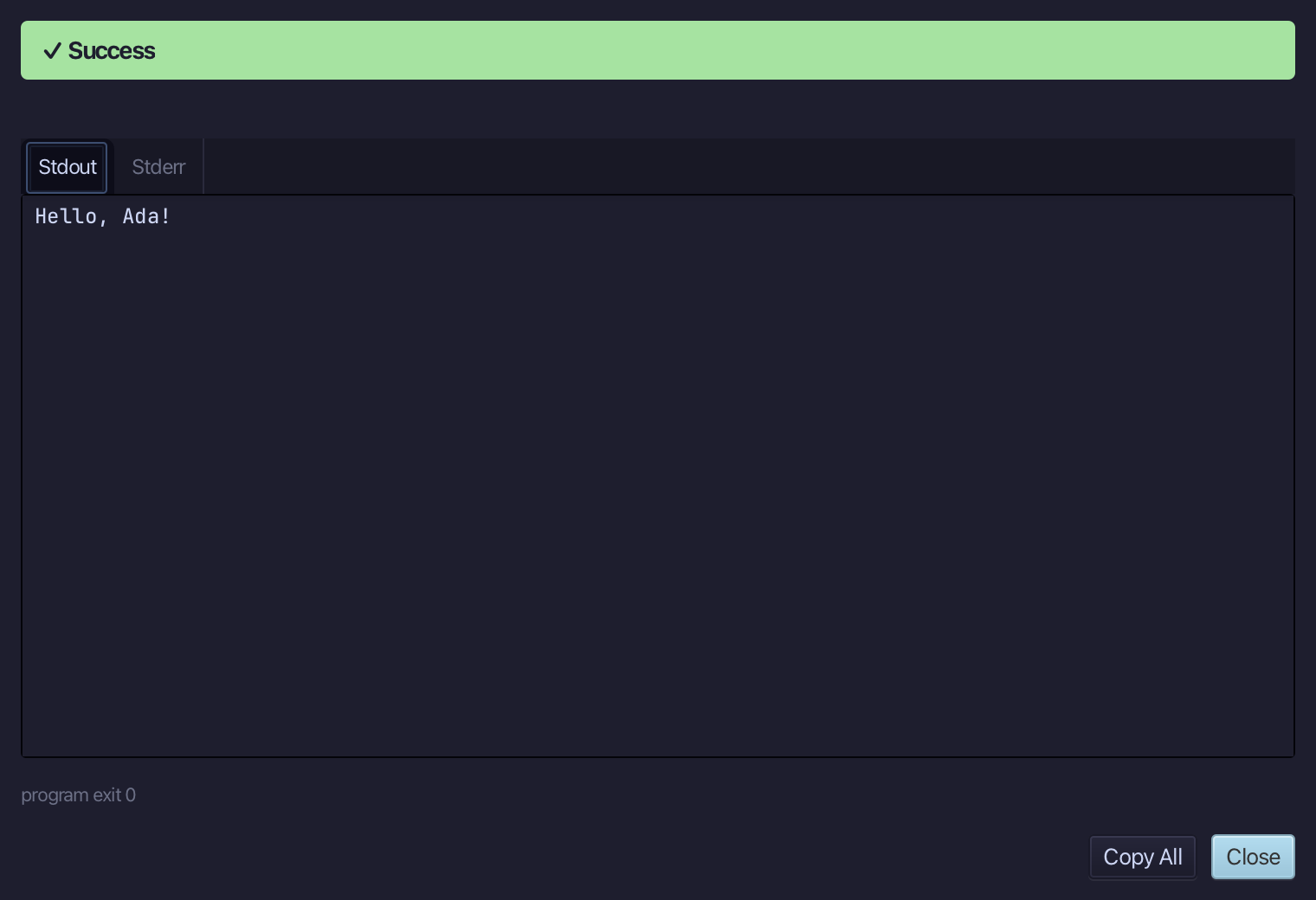
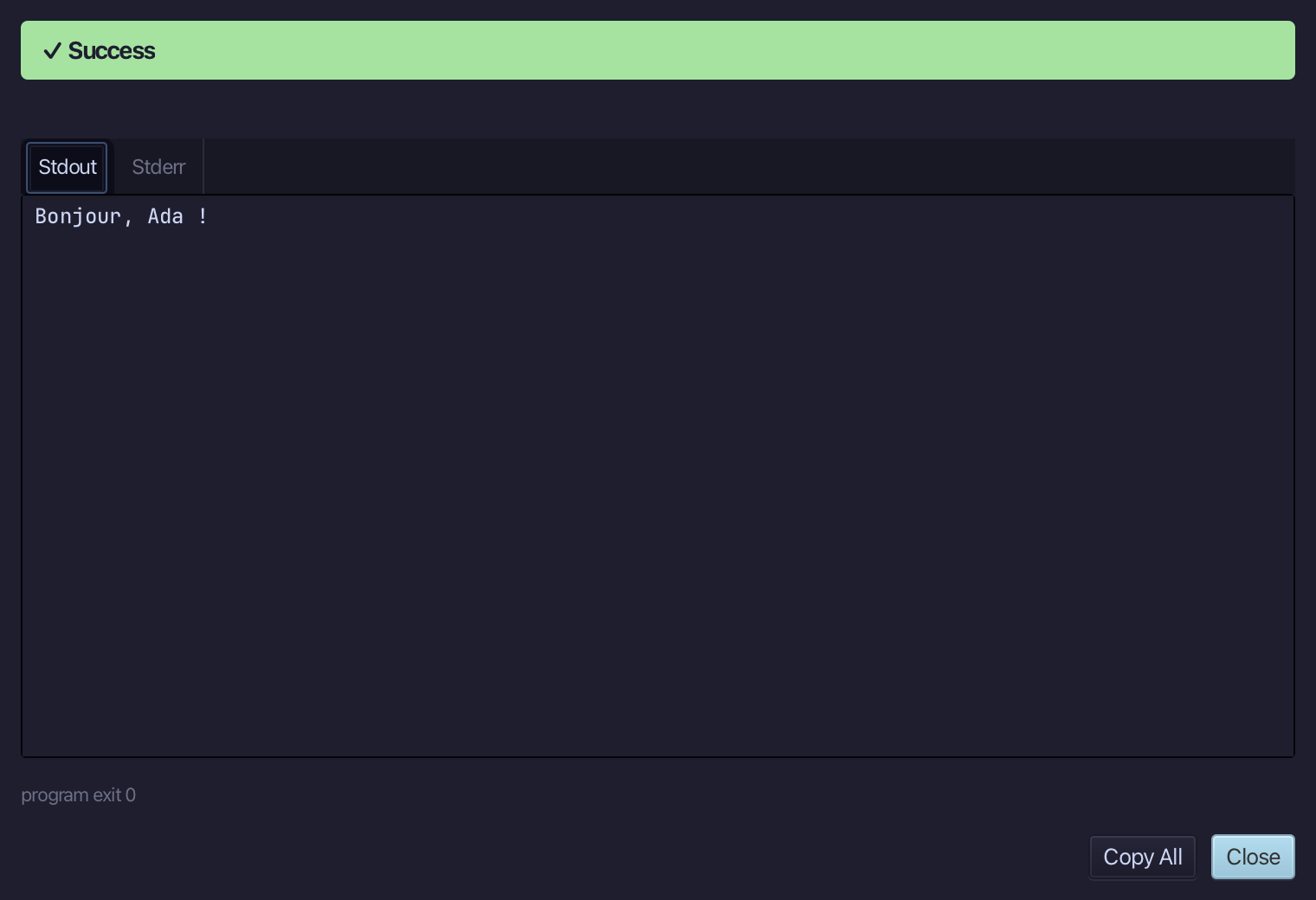
APP_LANG is not set, so chosen is unset and the greeting falls back to English: Hello, Ada! Choose Close.
Step 7: Run it, APP_LANG=fr
Choose Run > Configurations…
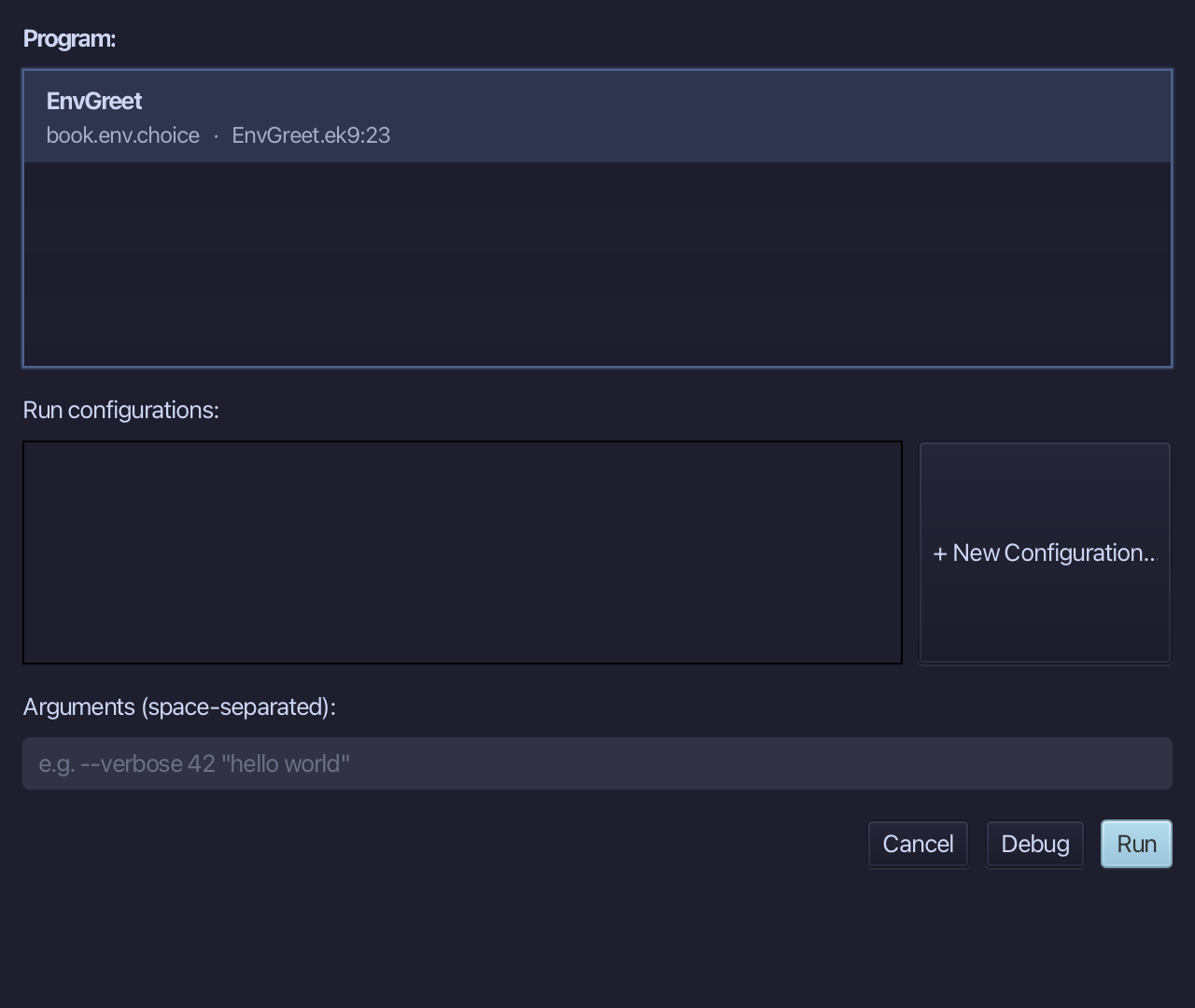
Choose + New Configuration… - the project's program is already the one it will belong to.
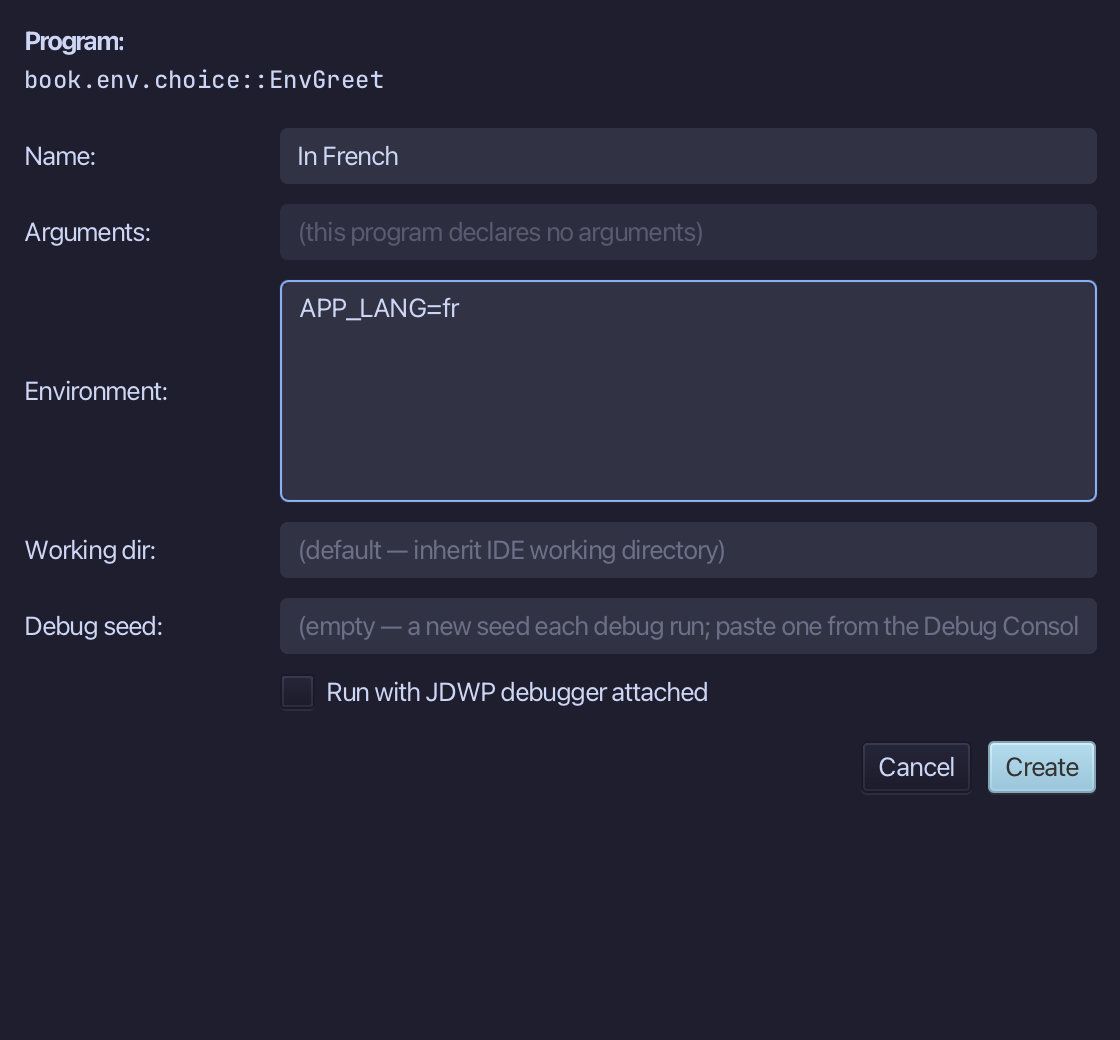
Name it In French, and into Environment type APP_LANG=fr - the one field with anywhere to put it. Choose Create.
In French is already selected. Choose Run.
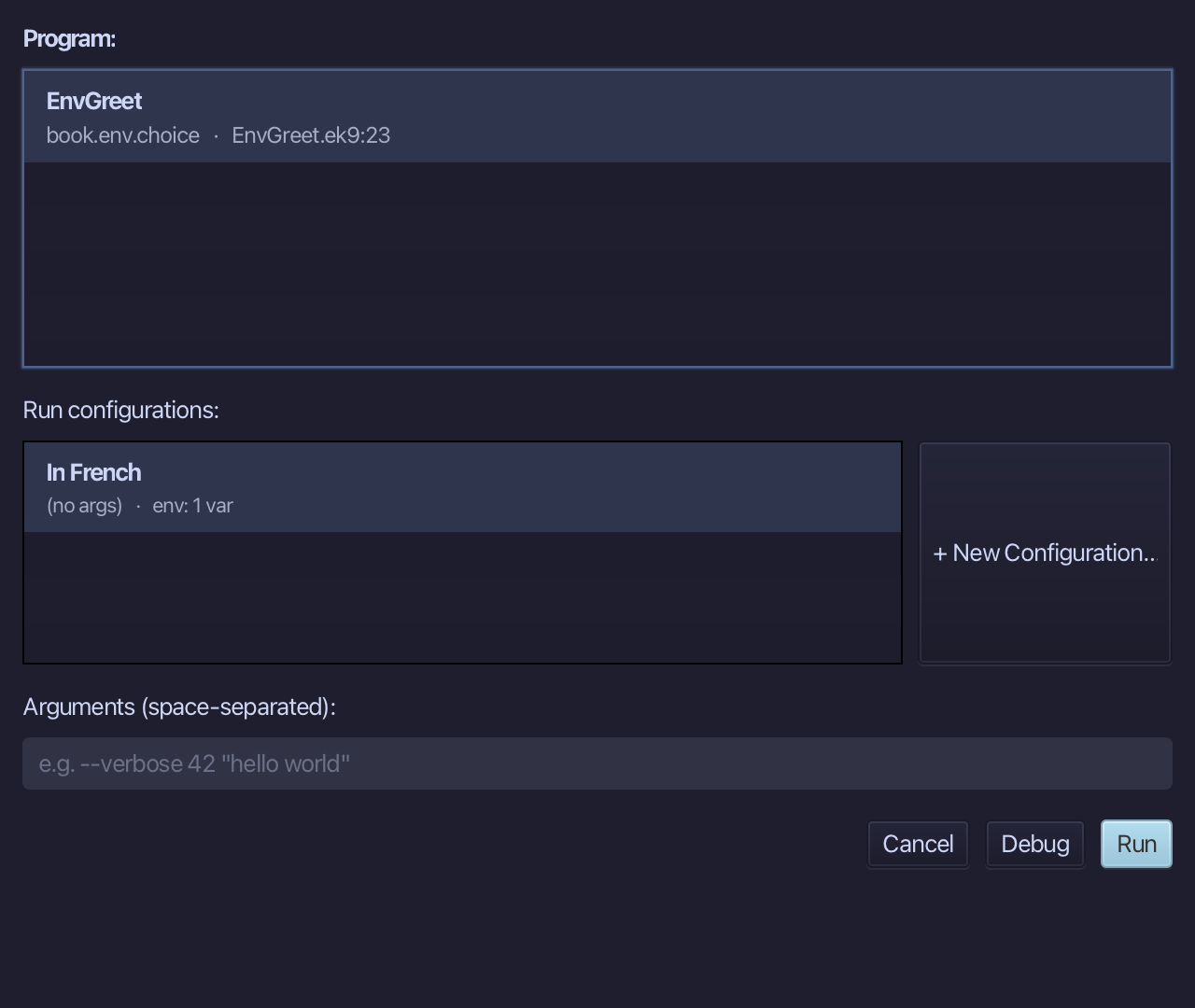
APP_LANG=fr reaches the program through its environment: Bonjour, Ada ! Choose Close.
The result
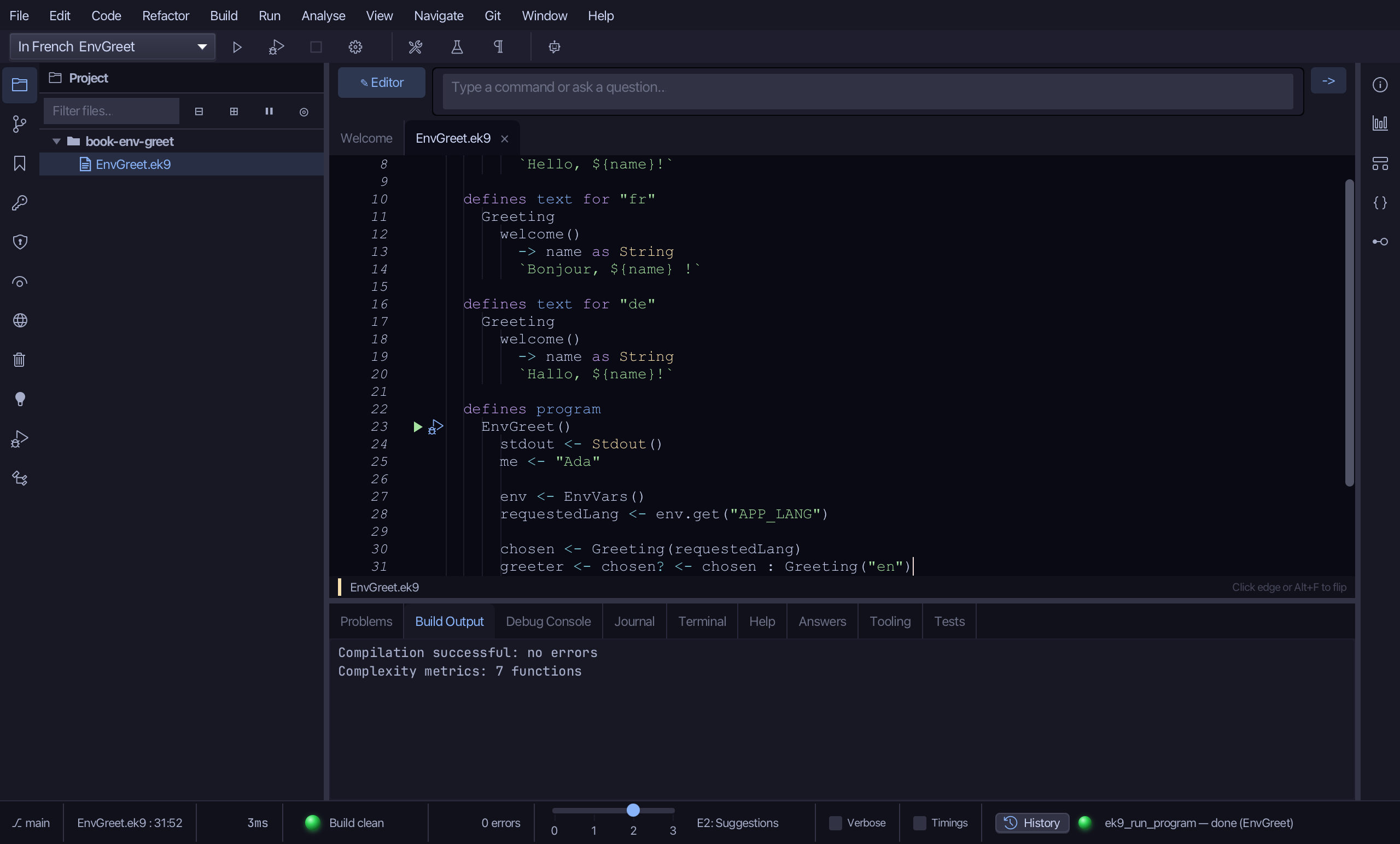
EnvGreet.ek9 now reads exactly as chapter 8 of Getting Started with EK9 shows it: the language is read from the APP_LANG environment variable, so the same program greets in English when it is unset and in French when a run configuration sets it. The tools wrote the program, the Greeting type and two more locales; only the wording and the environment lookup were typed. The same tools - ek9_add_program, ek9_extract_to_localized_text and ek9_edit_localized_text - are what an AI assistant calls to do the same thing.
Where this lesson comes from
- For AI assistants - the MCP tool
ek9_add_program,ek9_extract_to_localized_text,ek9_edit_localized_text.
In the EK9 reference: Text Properties in EK9