Chapter 16: a class that hands out a copy, built
Chapter 16's ScoreBoard keeps a list of scores and the best so far, and answers summary() with a Summary record that holds copies - so a snapshot never changes behind your back. The IDE's tools make the record, the class, its fields and both methods' signatures; you type only the logic. To play it in the IDE: Help > Lessons > Getting Started with EK9…, or ek9 -ide -lesson book-scoreboard.
What you'll build
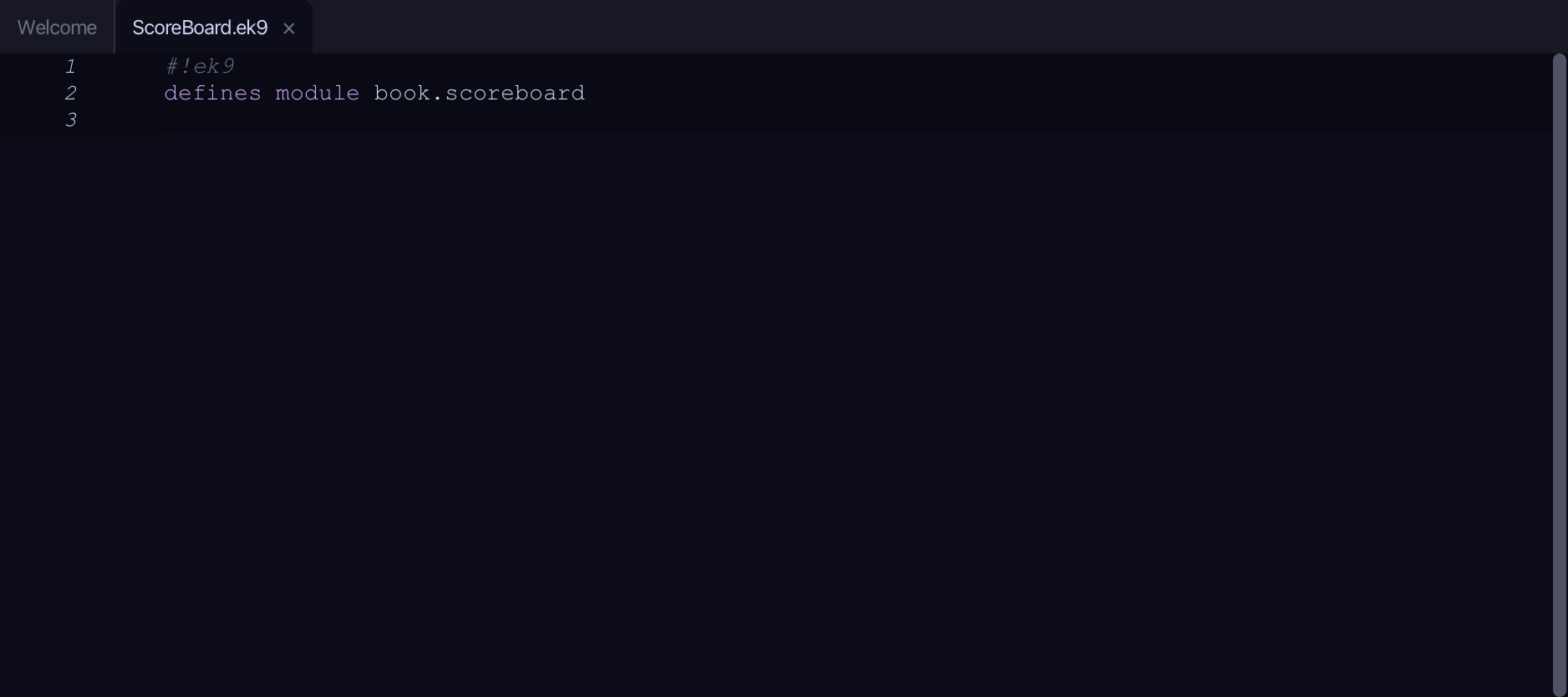
The lesson builds this program from a file holding only its module line - the finished file, as the book prints it.
#!ek9
defines module book.scoreboard

  defines record
    Summary
      count as Integer: Integer()
      best as Integer: Integer()

      Summary() as pure
        ->
          c as Integer
          b as Integer

        count :=? Integer(c)
        best :=? Integer(b)

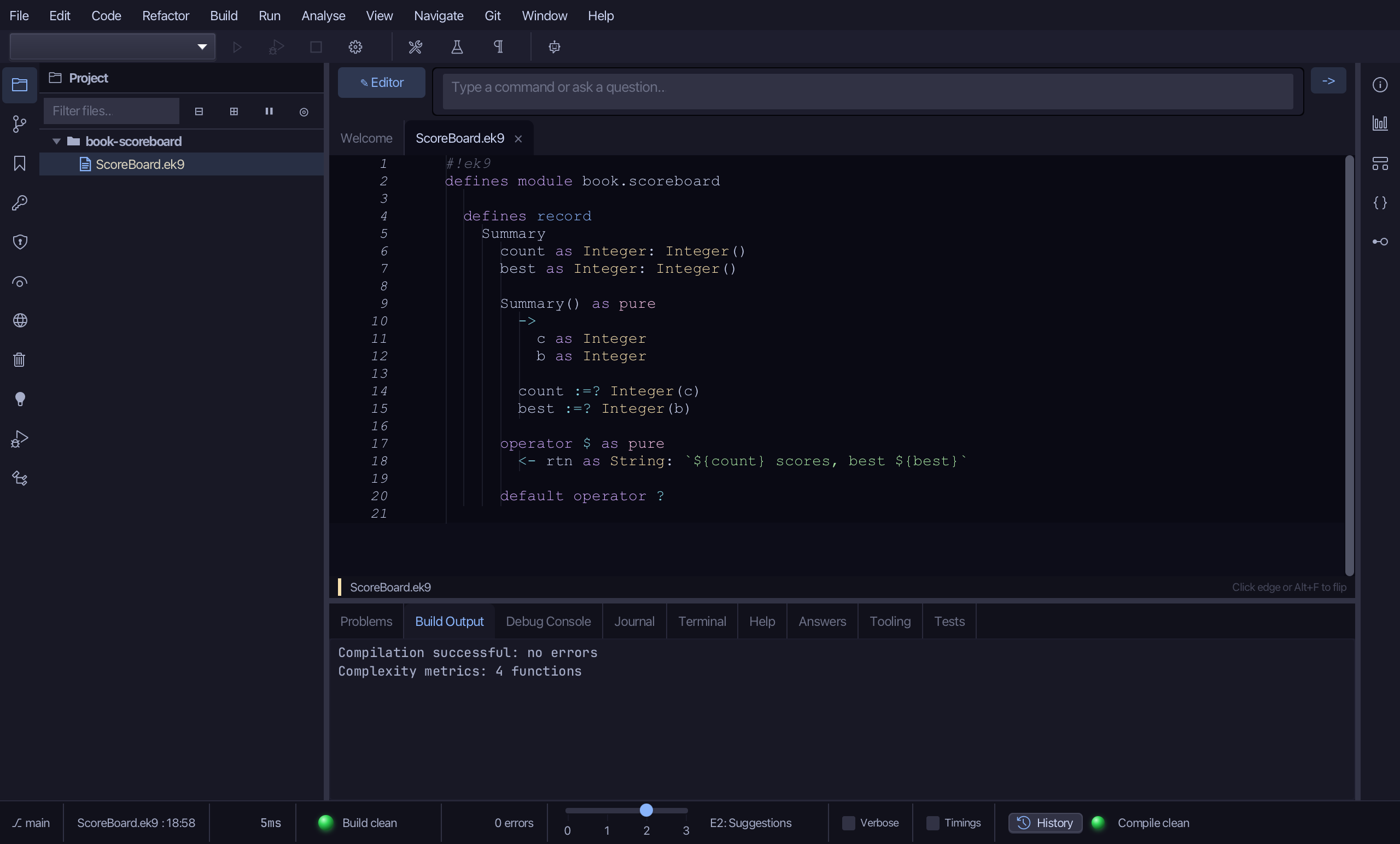
      operator $ as pure
        <- rtn as String: `${count} scores, best ${best}`

      default operator ?

  defines class
    ScoreBoard
      scores as List of Integer: List() of Integer
      topScore as Integer: Integer()

      add()
        -> points as Integer
        scores += Integer(points)
        if not topScore? or points > topScore
          topScore := Integer(points)

      summary() as pure
        <- rtn <- Summary(length scores, topScore)

      default operator ?

  defines program
    Show()
      stdout <- Stdout()
      board <- ScoreBoard()
      board.add(30)
      board.add(70)

      snap <- board.summary()
      stdout.println(`snapshot after two: ${snap}`)

      board.add(90)
      stdout.println(`snapshot is unchanged: ${snap}`)
      stdout.println(`live summary now:     ${board.summary()}`)
Step 1: A record for the figures
Choose Code > New Construct > Record…
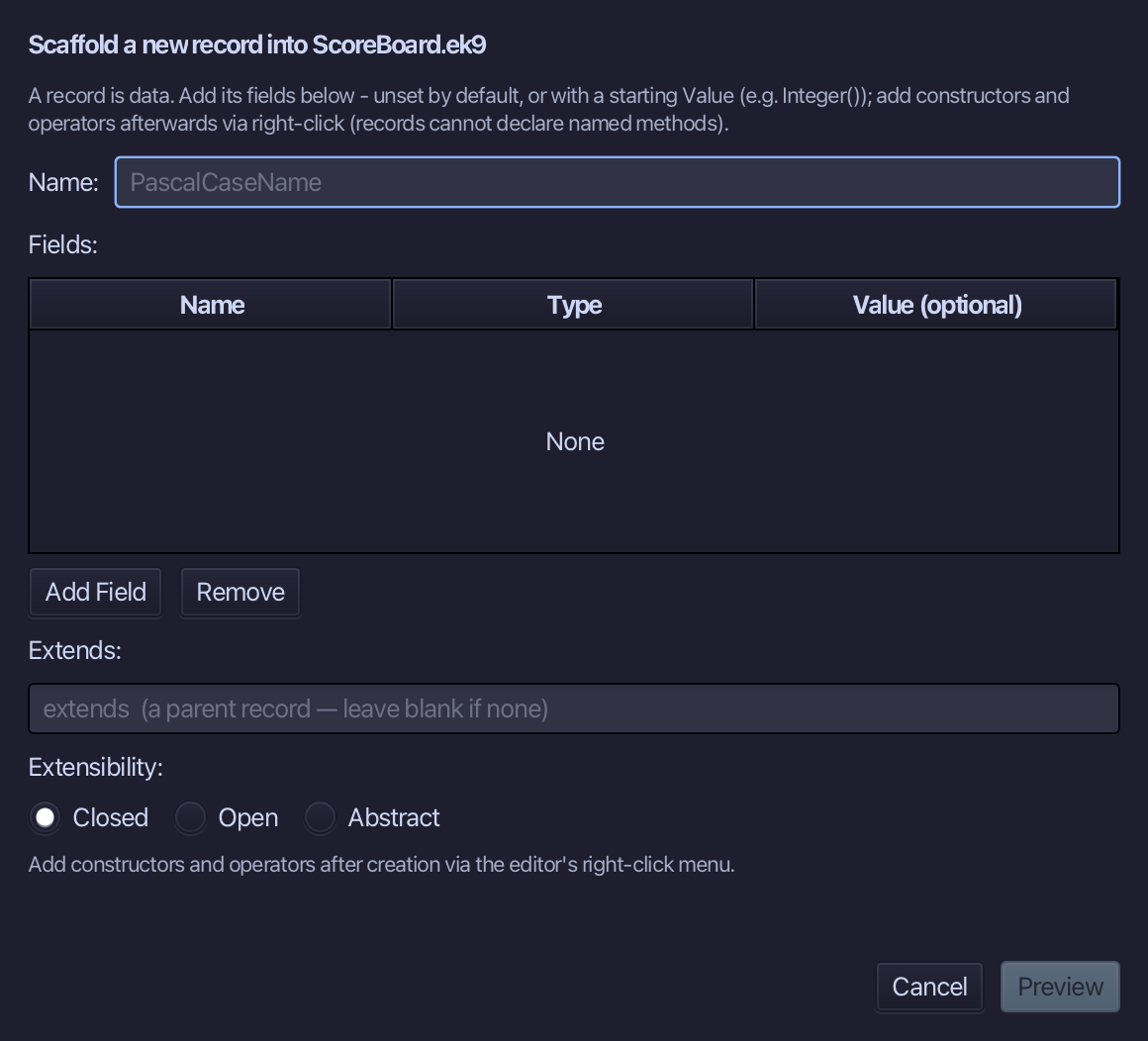
Summary is the record's name. Add count and best, both Integer, each starting at Integer(). Choose Preview.
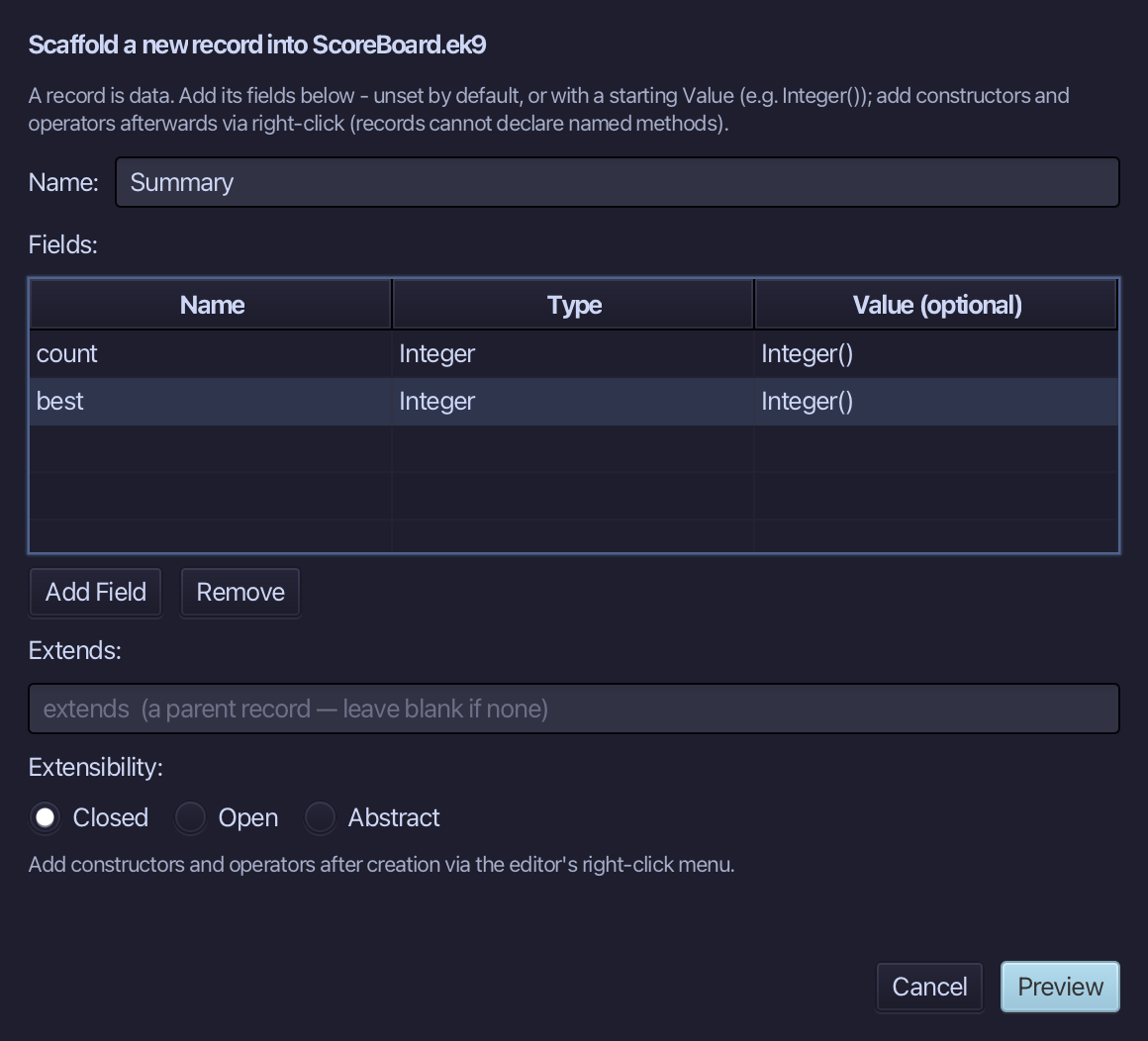
The preview shows Summary with both fields - and default operator ? with them. Choose Apply.
Right-click the Summary line and choose Add Constructor > From All Fields (pure).
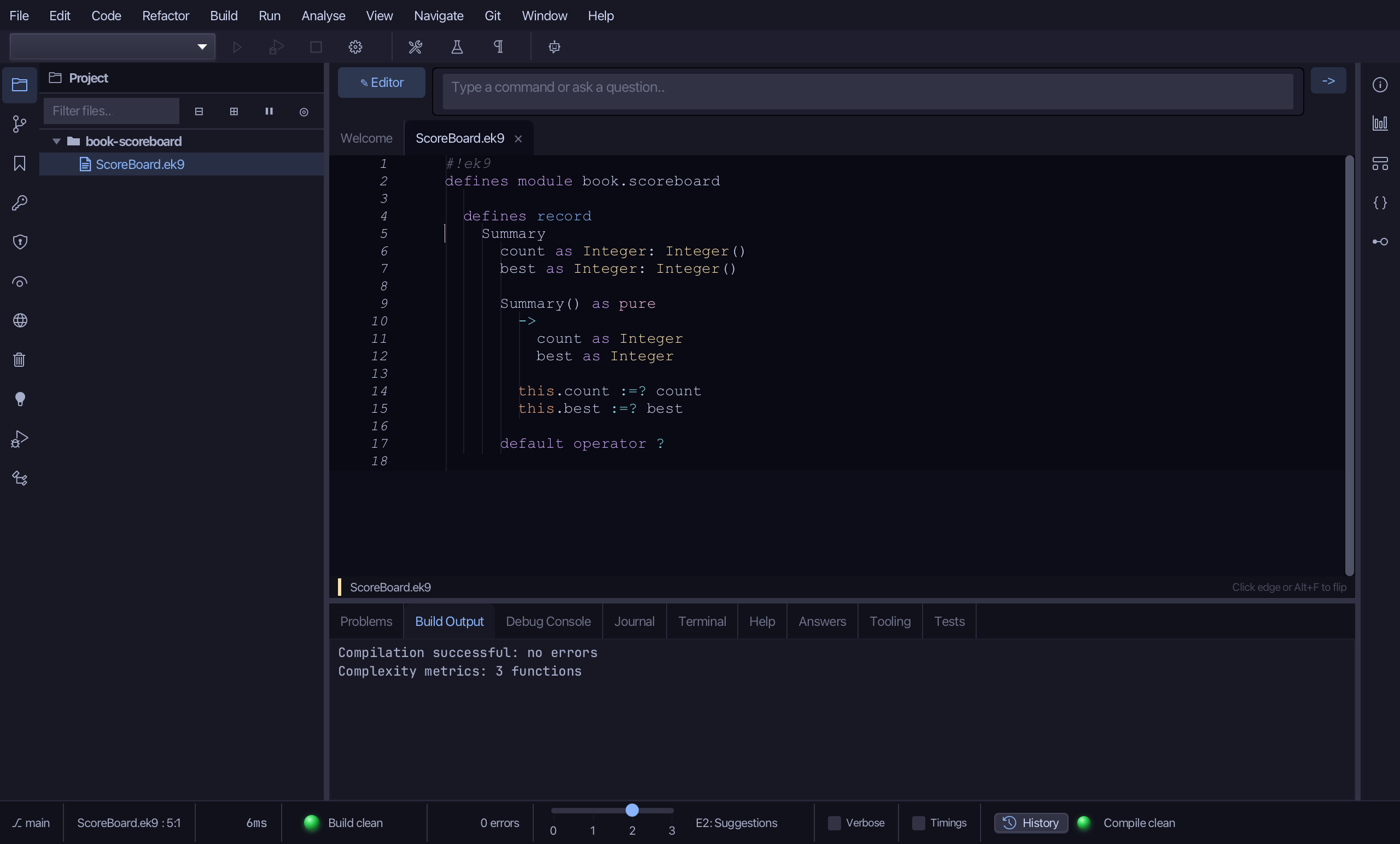
Select the stub, from Summary() as pure down to its last assignment, and type the constructor the book shows: c and b in, count and best set with :=?. Saves when typed.
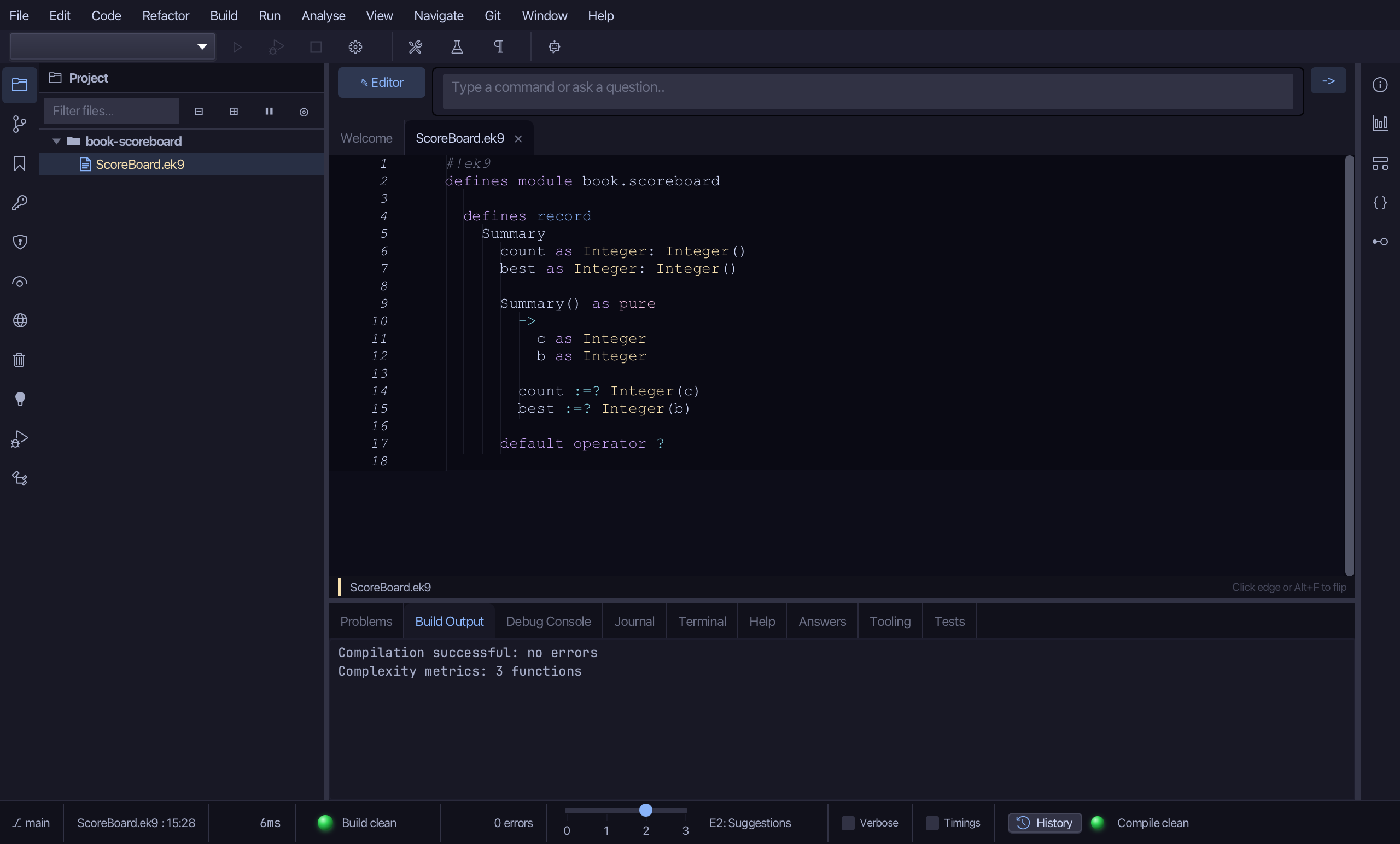
Right-click the Summary line and choose Add Operator > $ (string) > skeleton.
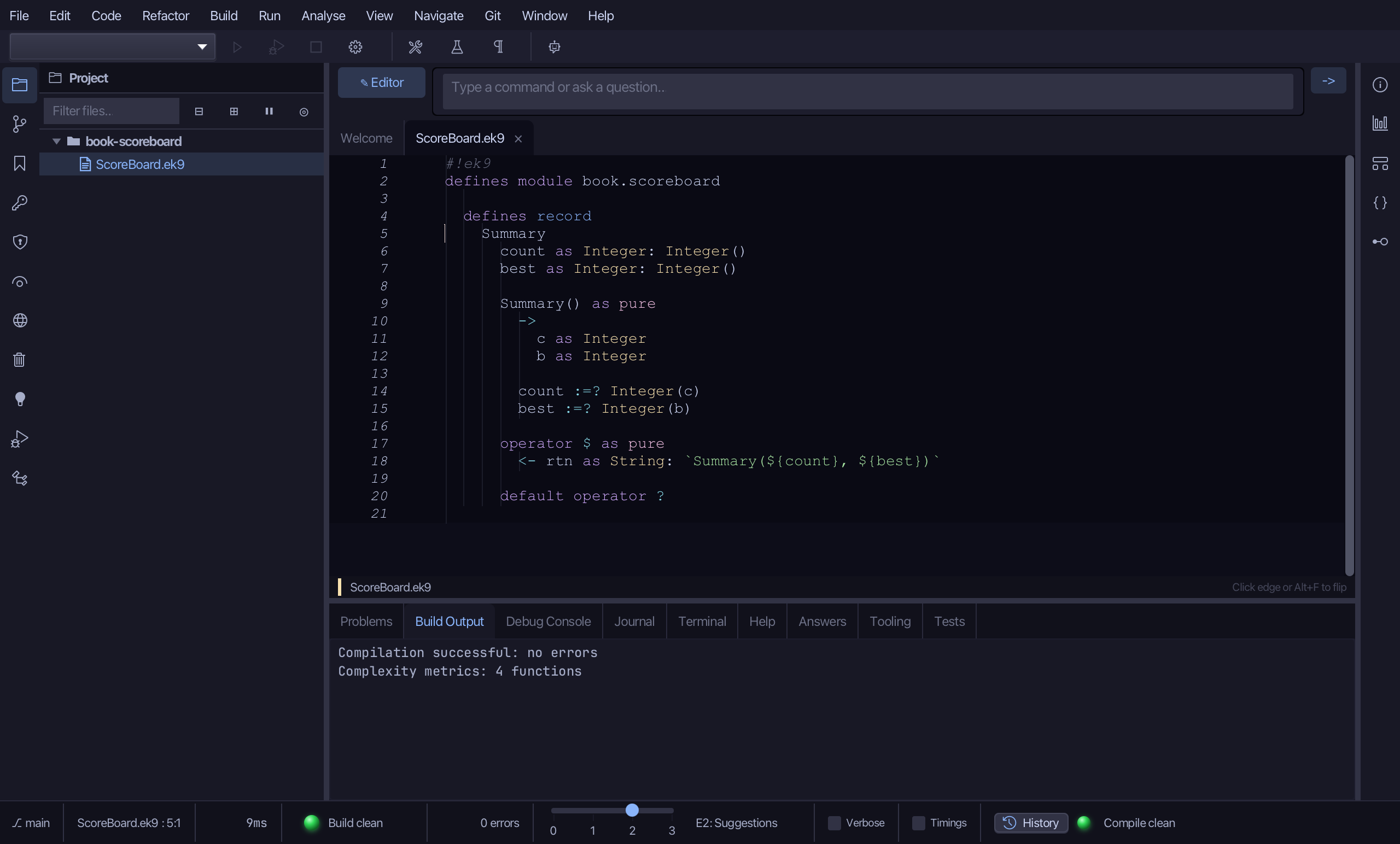
Select the stub line and type $'s own text form - the count and the best, in words. Saves when typed.
Step 2: A class
Choose Code > New Construct > Class…
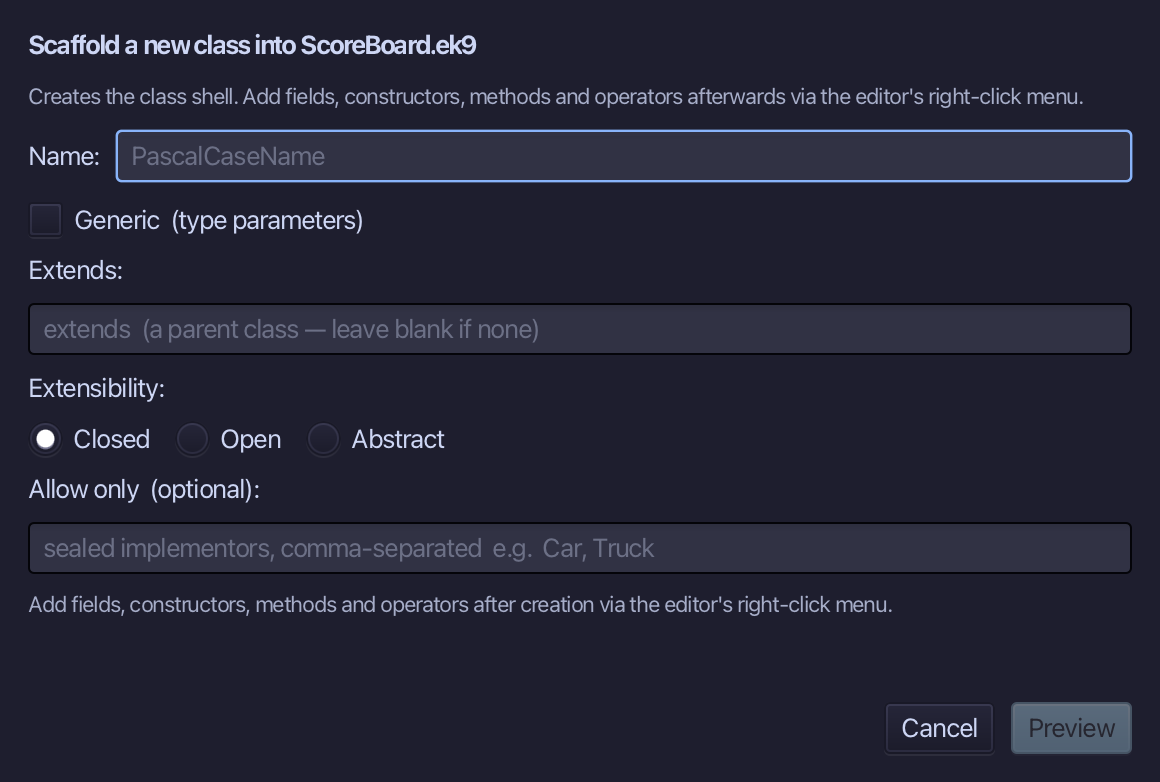
ScoreBoard is the class's name. Type ScoreBoard and choose Preview.
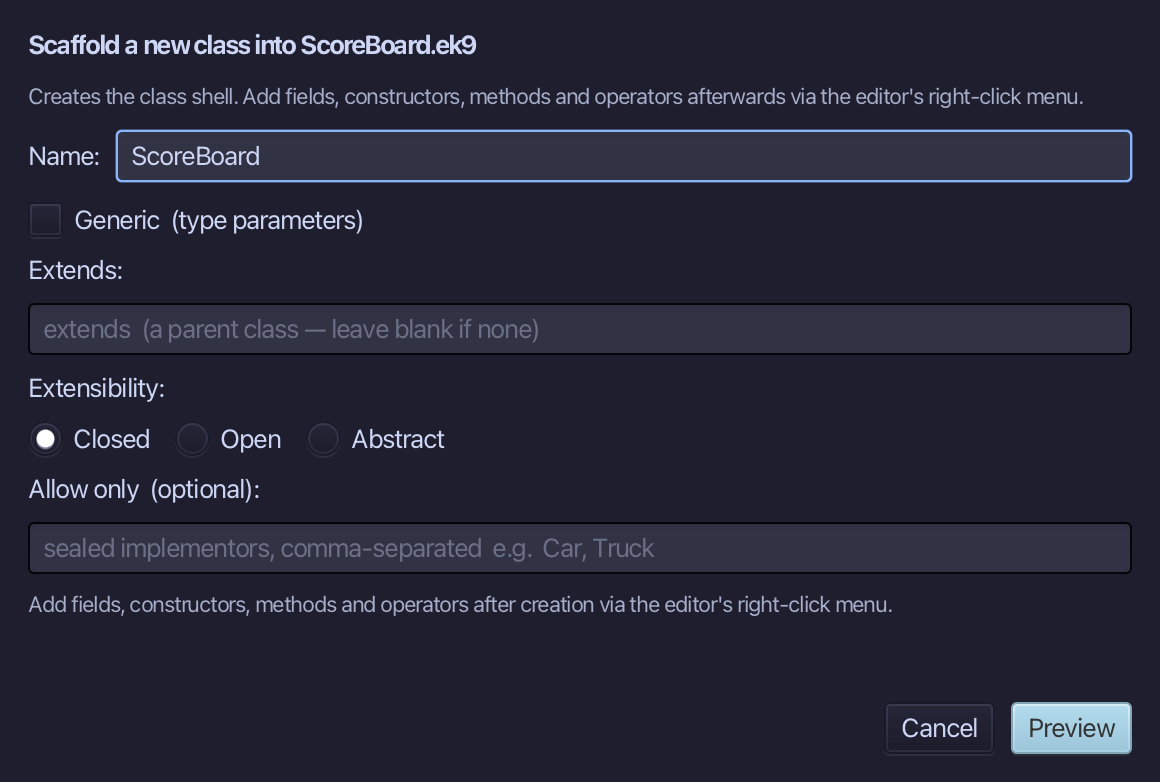
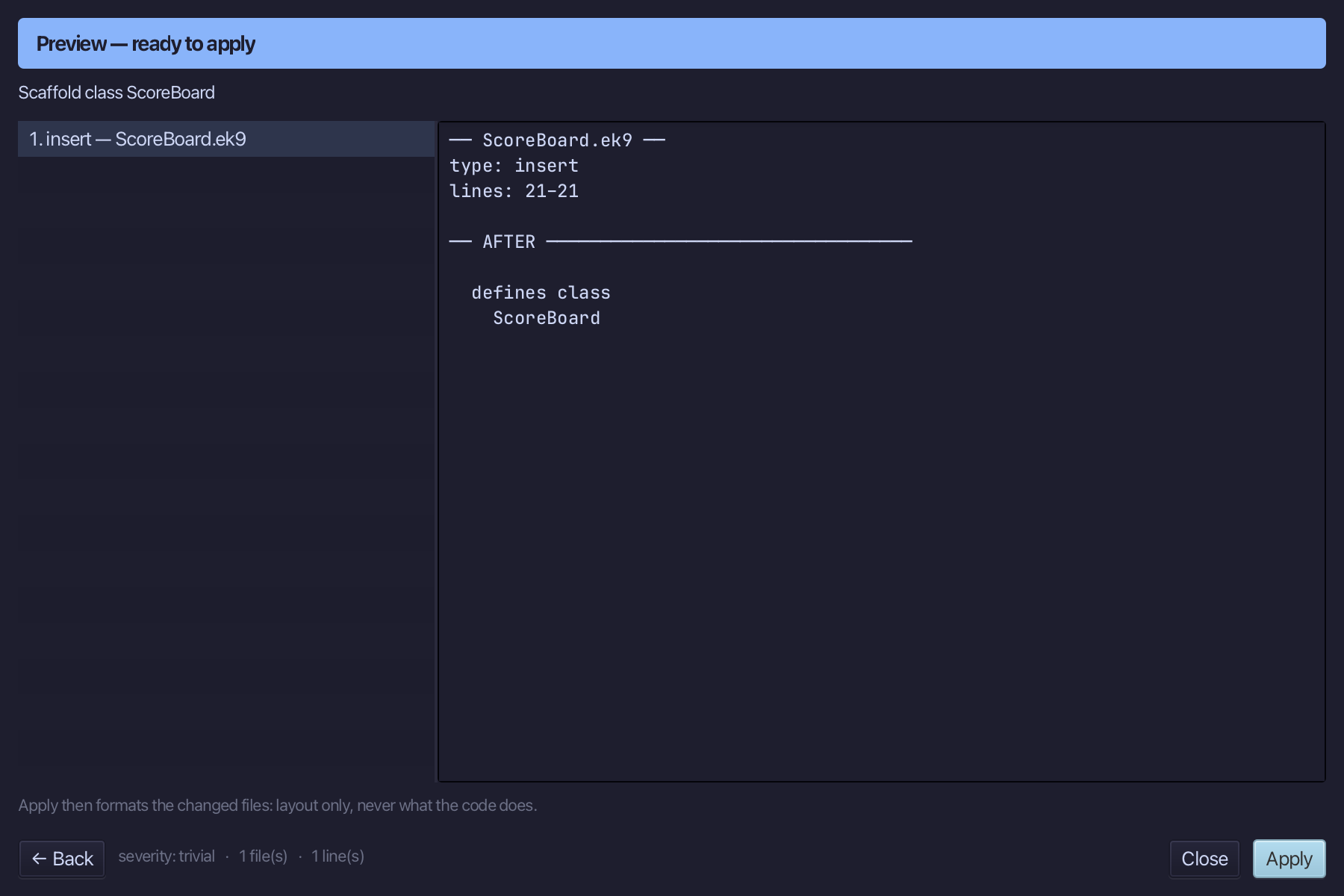
The preview shows ScoreBoard about to be written, in a defines class block after the record. Choose Apply.
Step 3: Two fields
Right-click the ScoreBoard line and choose Add Field…
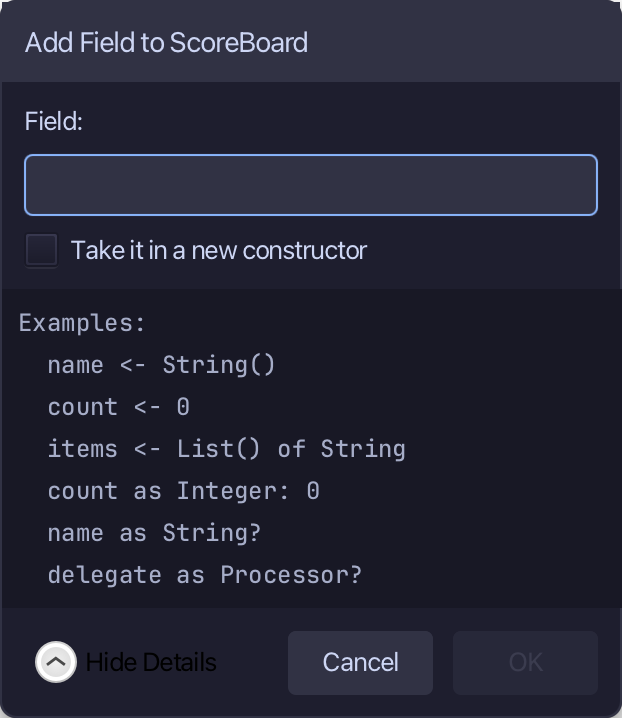
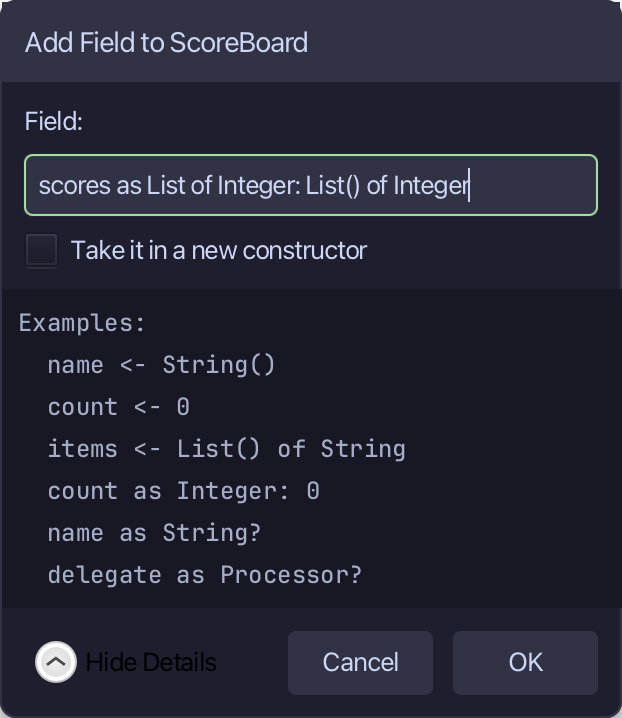
Type scores as List of Integer: List() of Integer - a List of Integer, empty to start with. Choose OK.
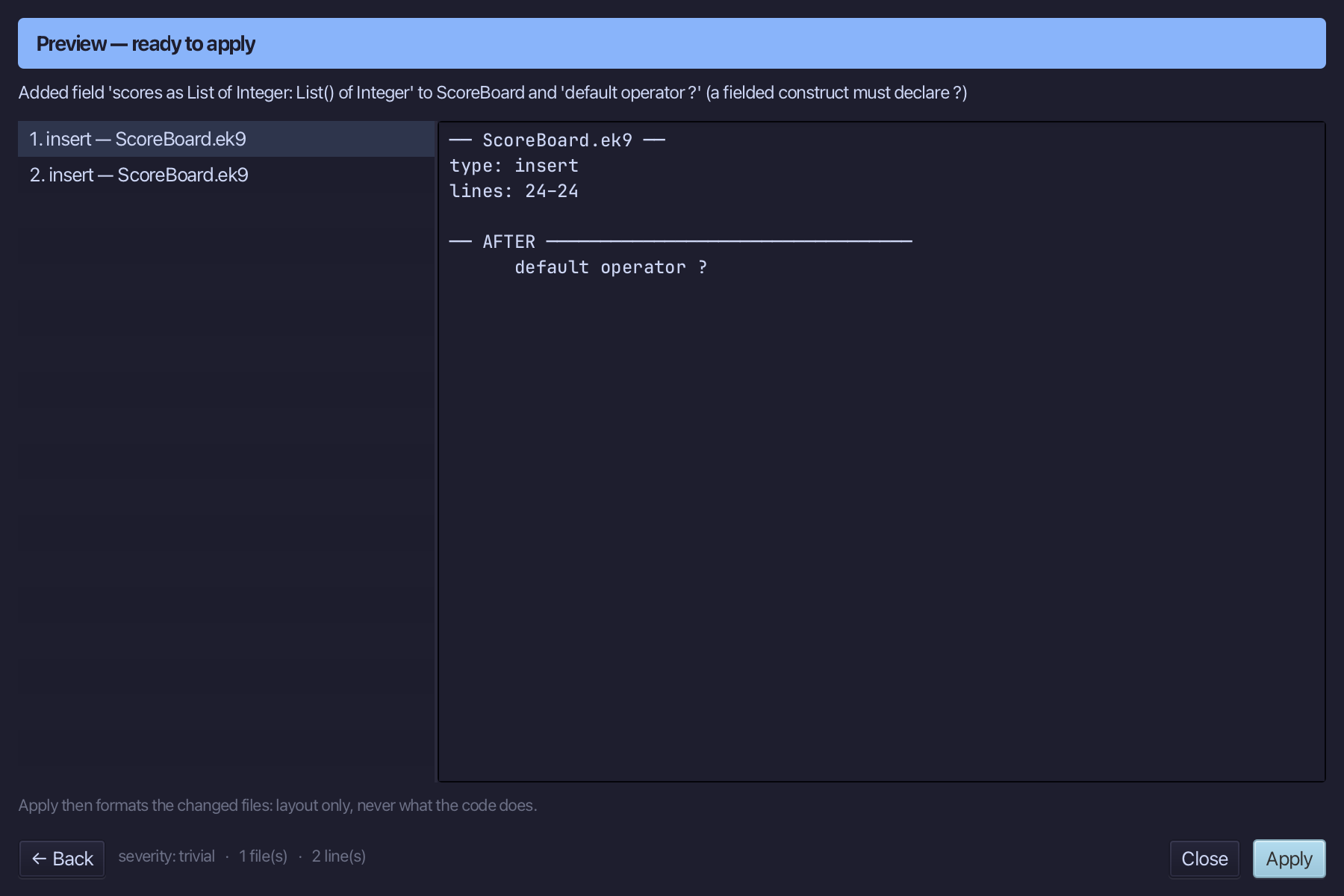
The preview shows scores added - and default operator ? with it. Choose Apply.
Right-click the ScoreBoard line and choose Add Field…
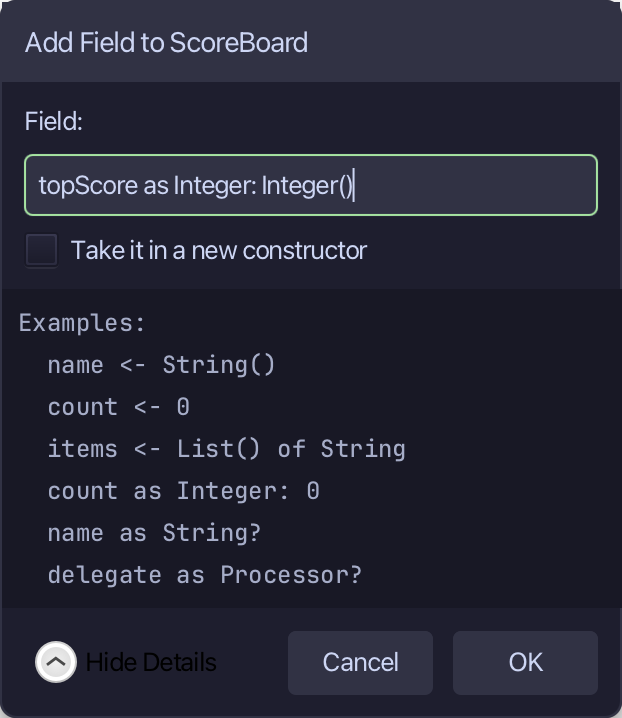
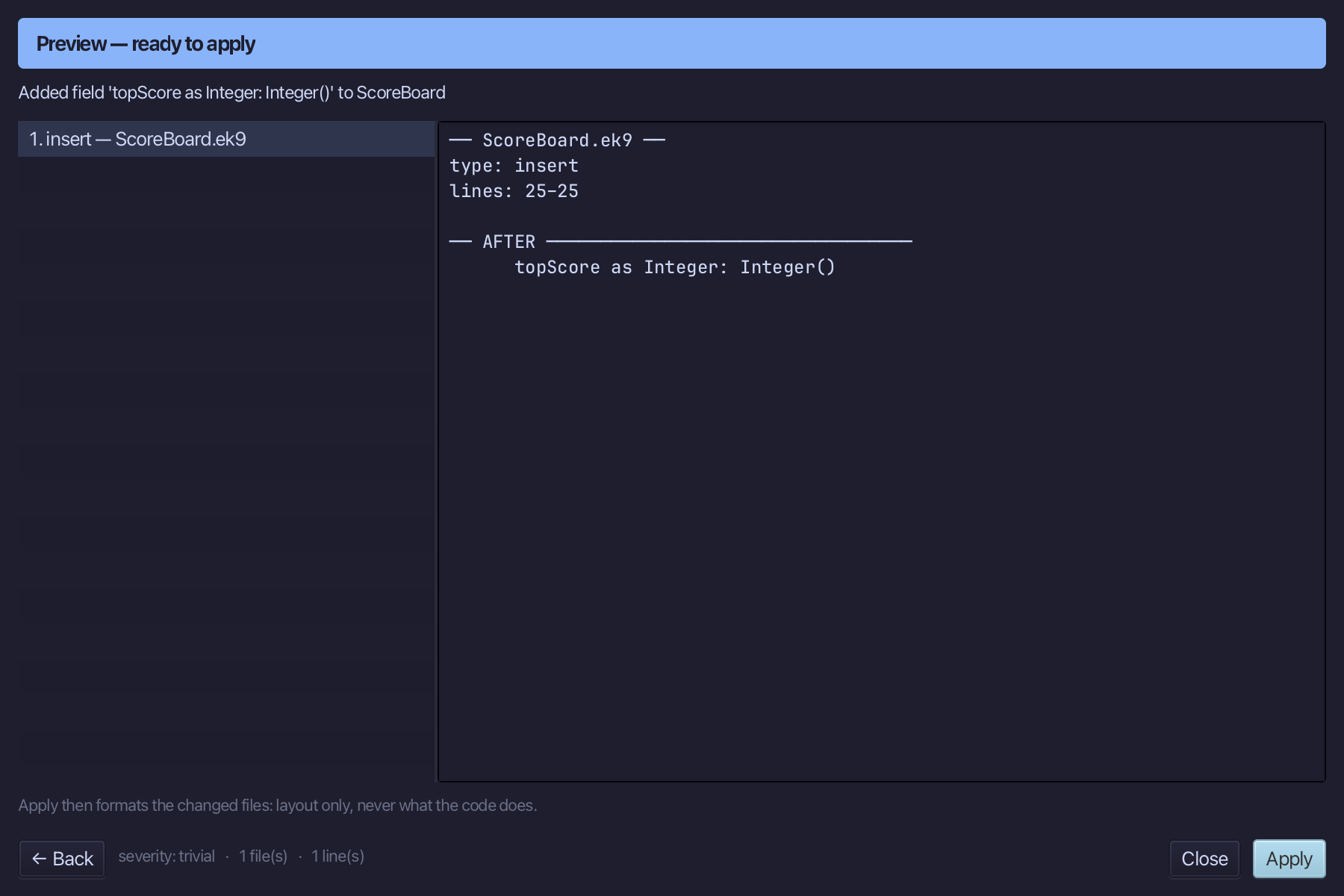
Type topScore as Integer: Integer() - the best score so far, unset until a score arrives. Choose OK.
The preview shows topScore joining scores. Choose Apply.
Step 4: add — a method with a parameter
Right-click the ScoreBoard line and choose Add Method…
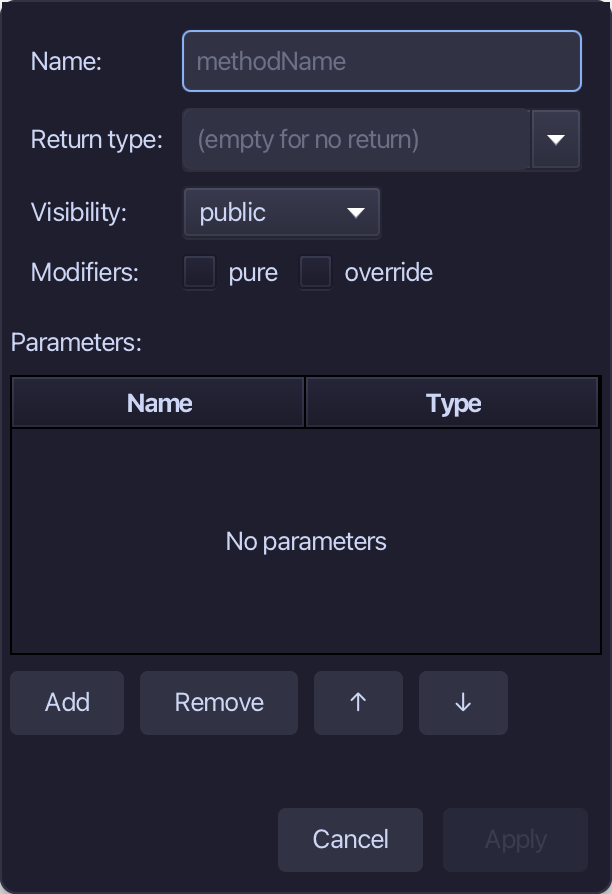
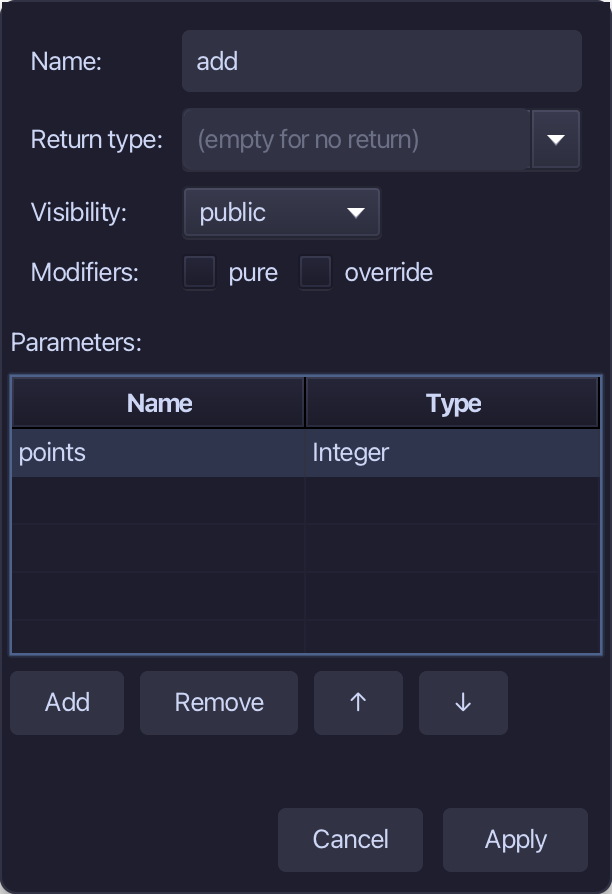
add is the method's name - no return, not pure: it changes the board. Add one parameter, points of type Integer, and choose Apply.
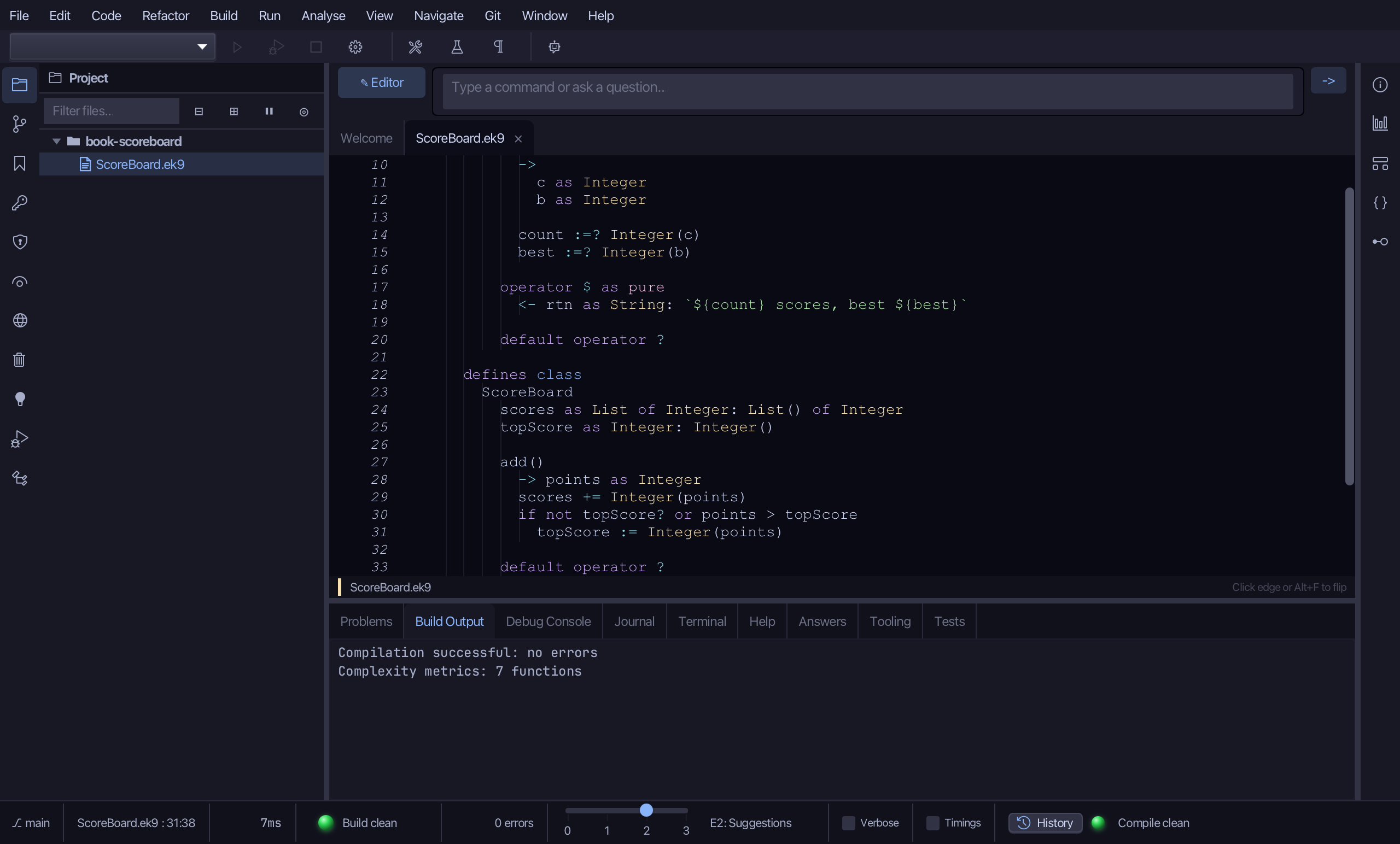
Select the stub, from require points? down to its //AI line, and type what add does: keep the score and, if it beats the best, make it the best. Saves when typed.
Step 5: summary — a copy, not a view
Right-click the ScoreBoard line and choose Add Method…
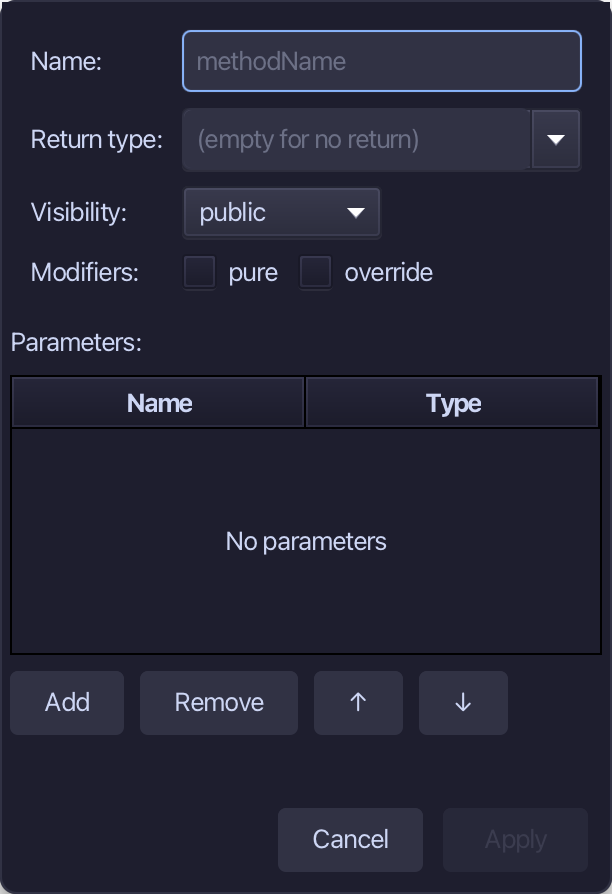
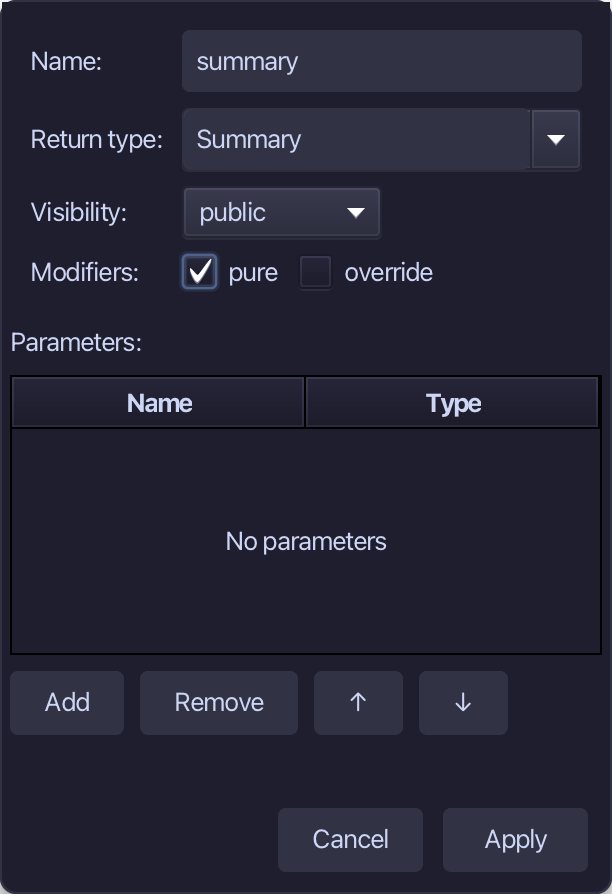
summary is the name, Summary the return type, pure ticked - it only reads. Fill them in and choose Apply.
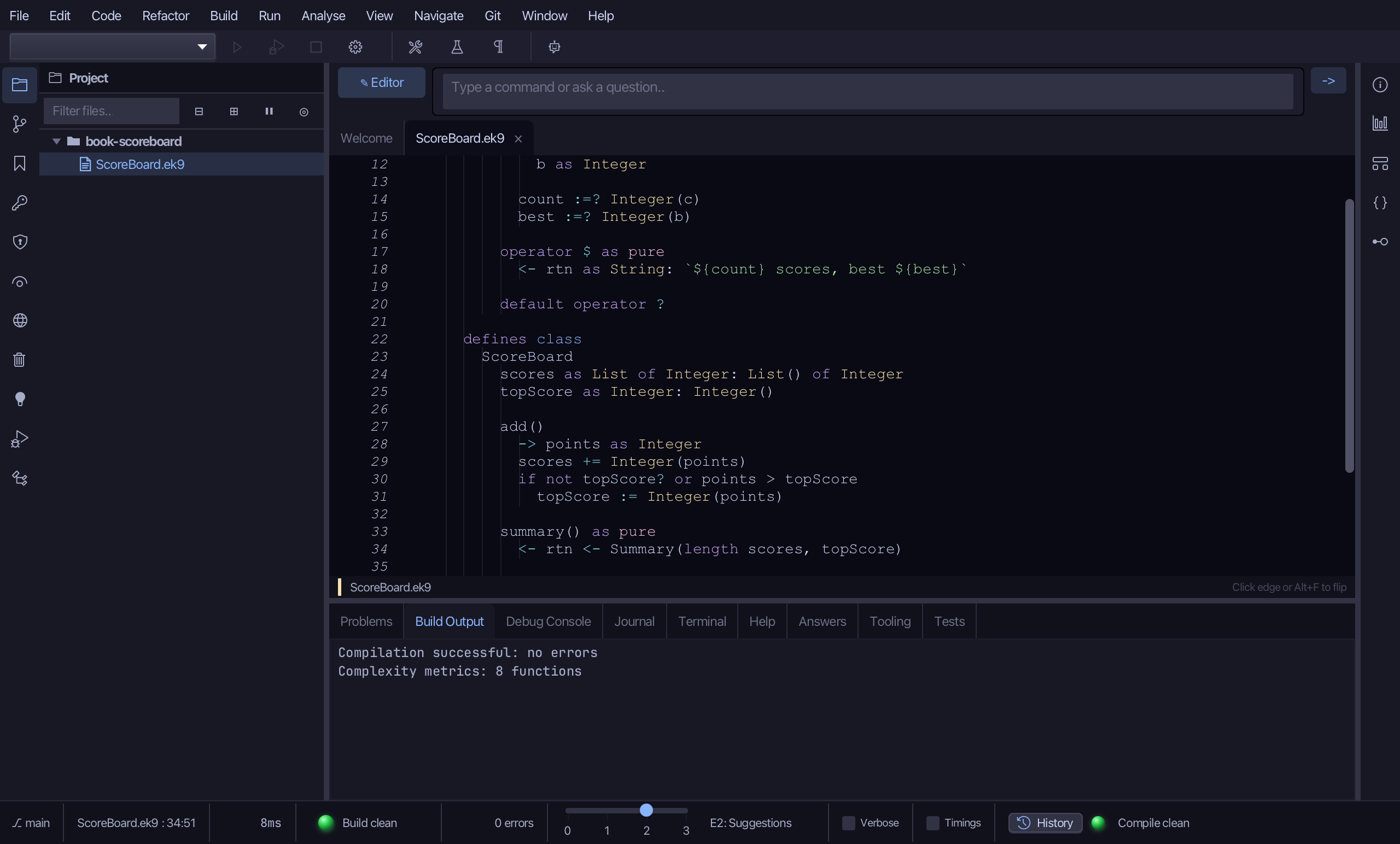
Select the stub, from <- rtn as Summary: Summary() down to its //AI line, and type <- rtn <- Summary(length scores, topScore) - a new record built from the current figures. Saves when typed.
Step 6: The program
Choose Code > New Construct > Program…
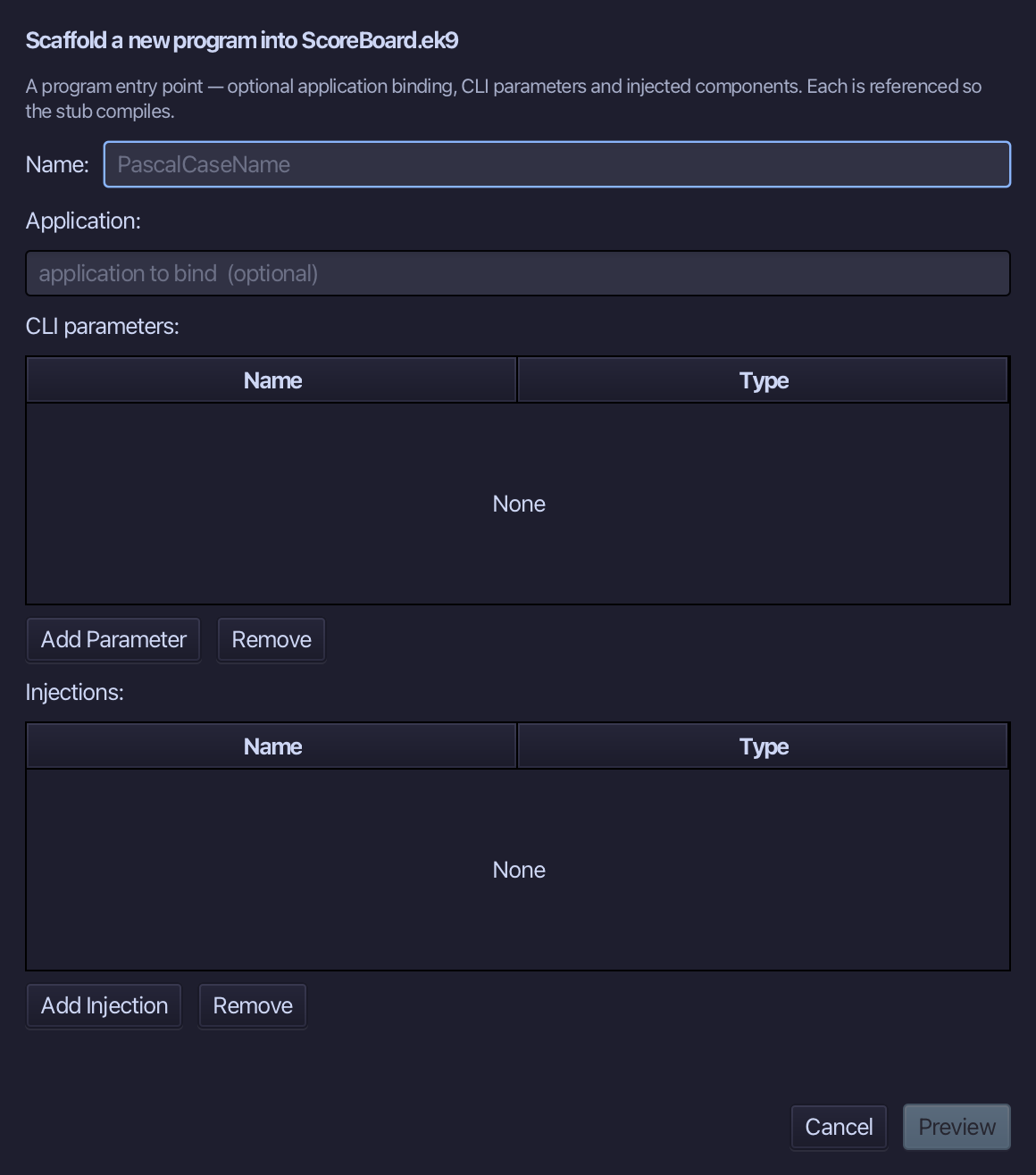
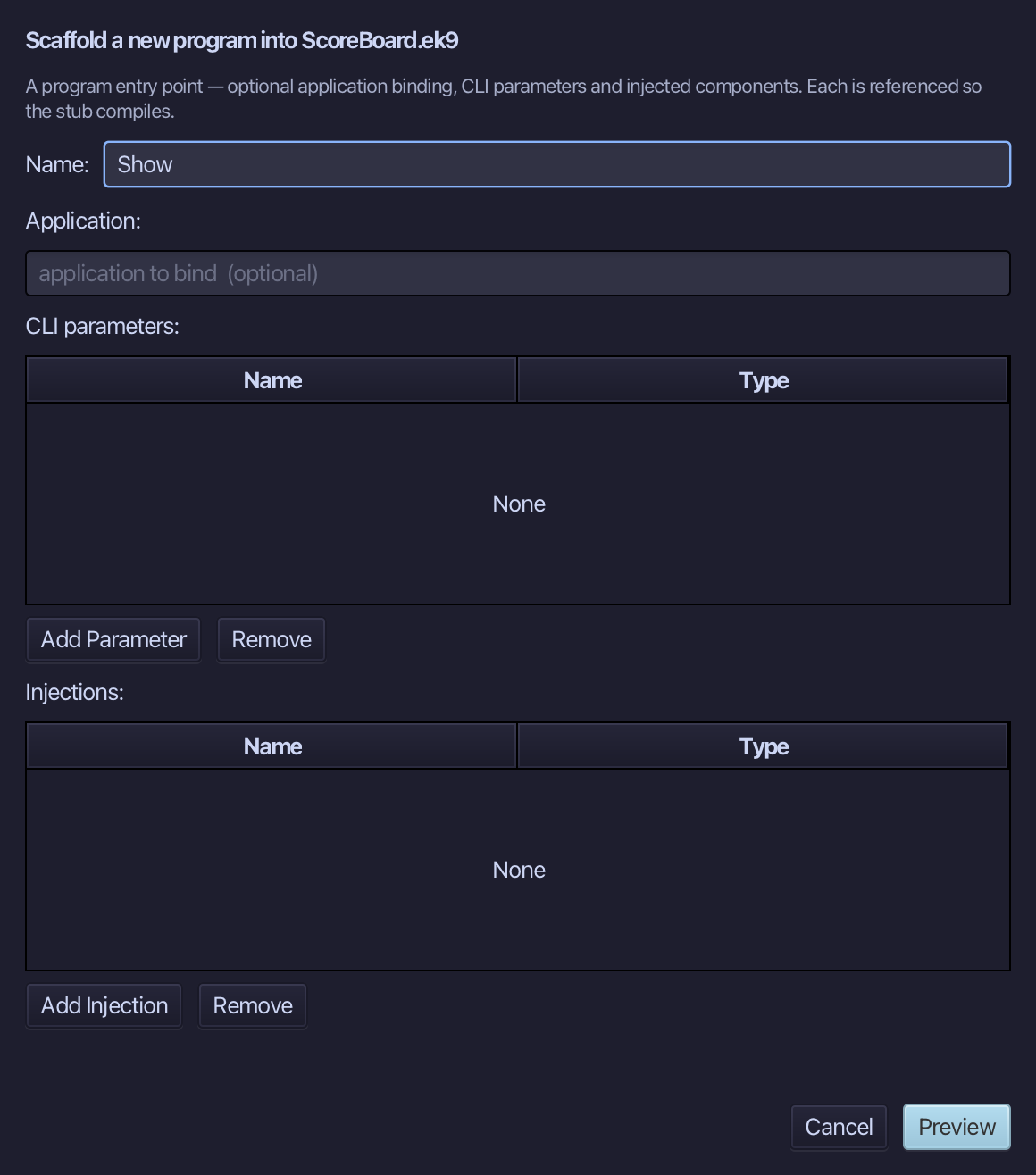
Show is the program's name. Type Show and choose Preview.
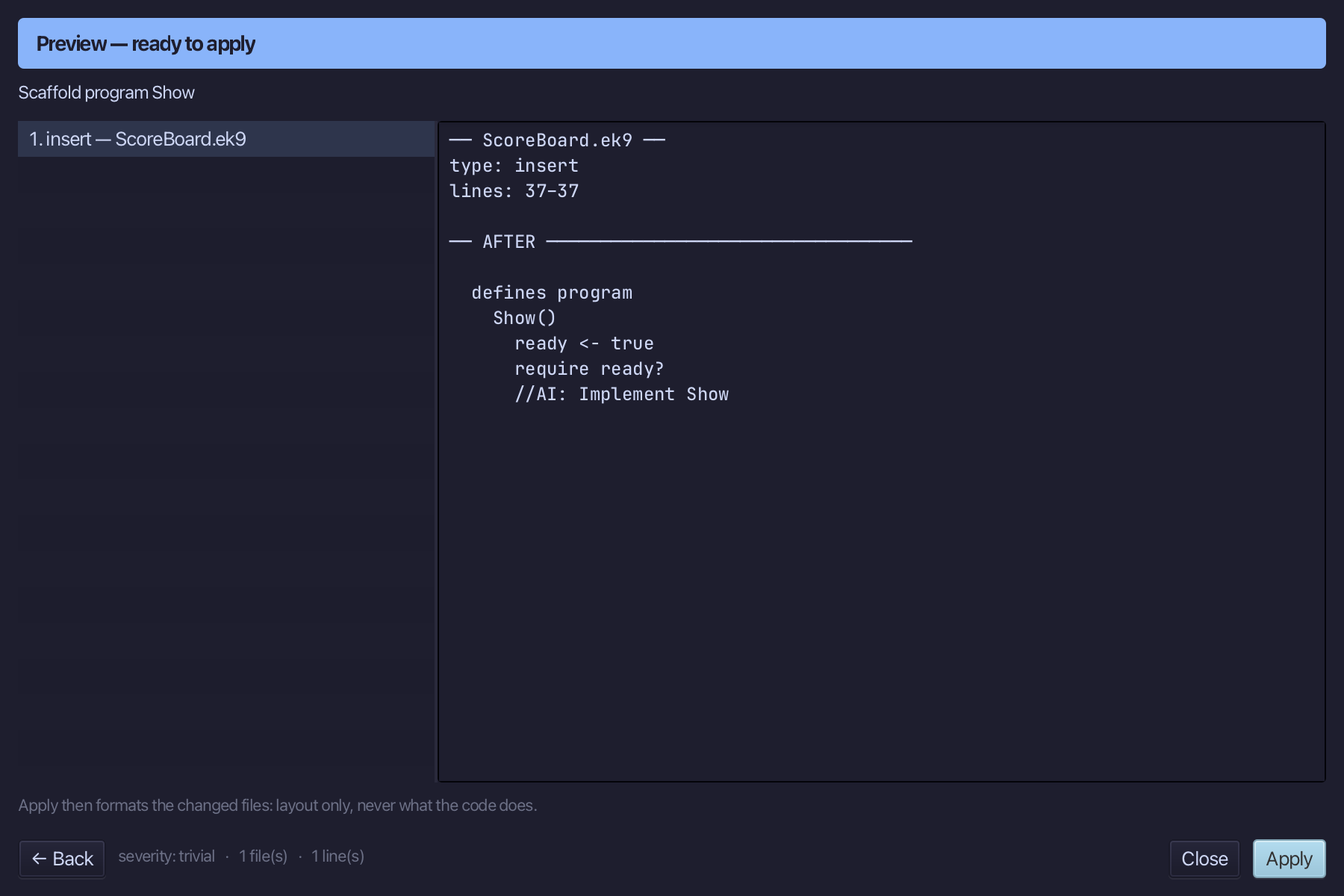
The preview shows Show about to be written. Choose Apply.
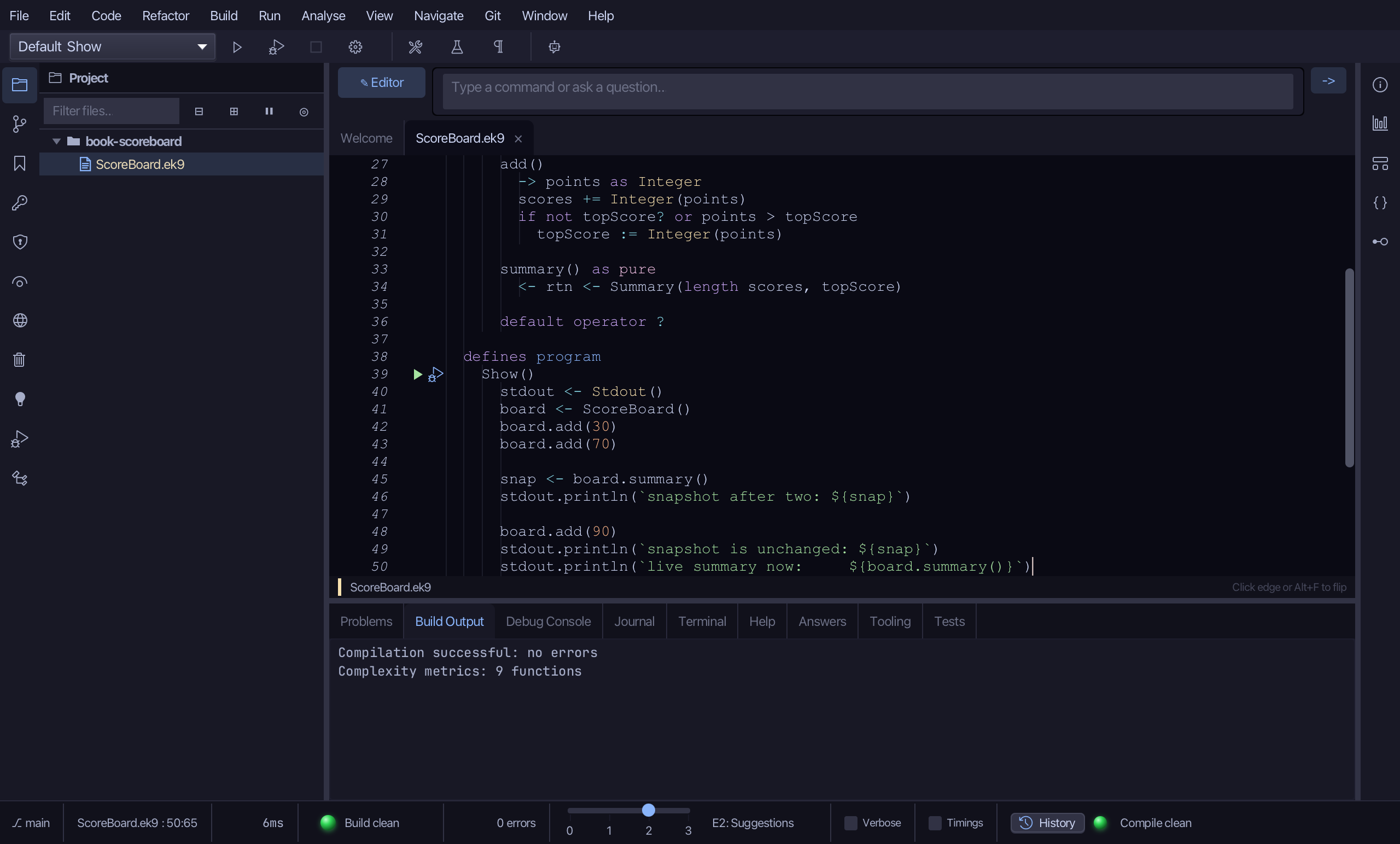
Select the stub, from ready <- true down to its //AI line, and type Show's body: two scores, a snapshot, a third score, and the snapshot printed again beside the live summary. Saves when typed.
Step 7: Run it
Choose Run > Run Program…
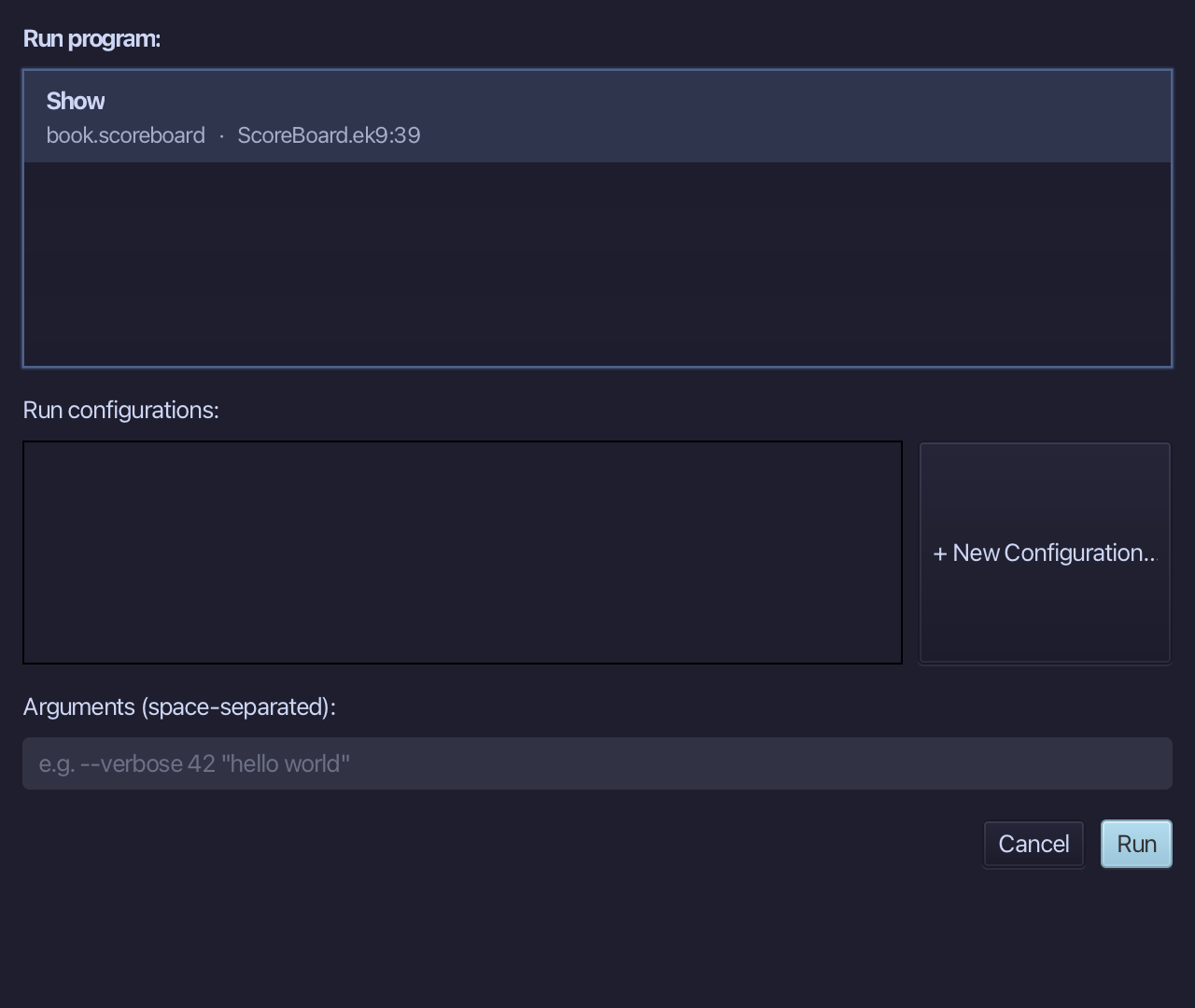
The project's only program is already chosen. Choose Run.
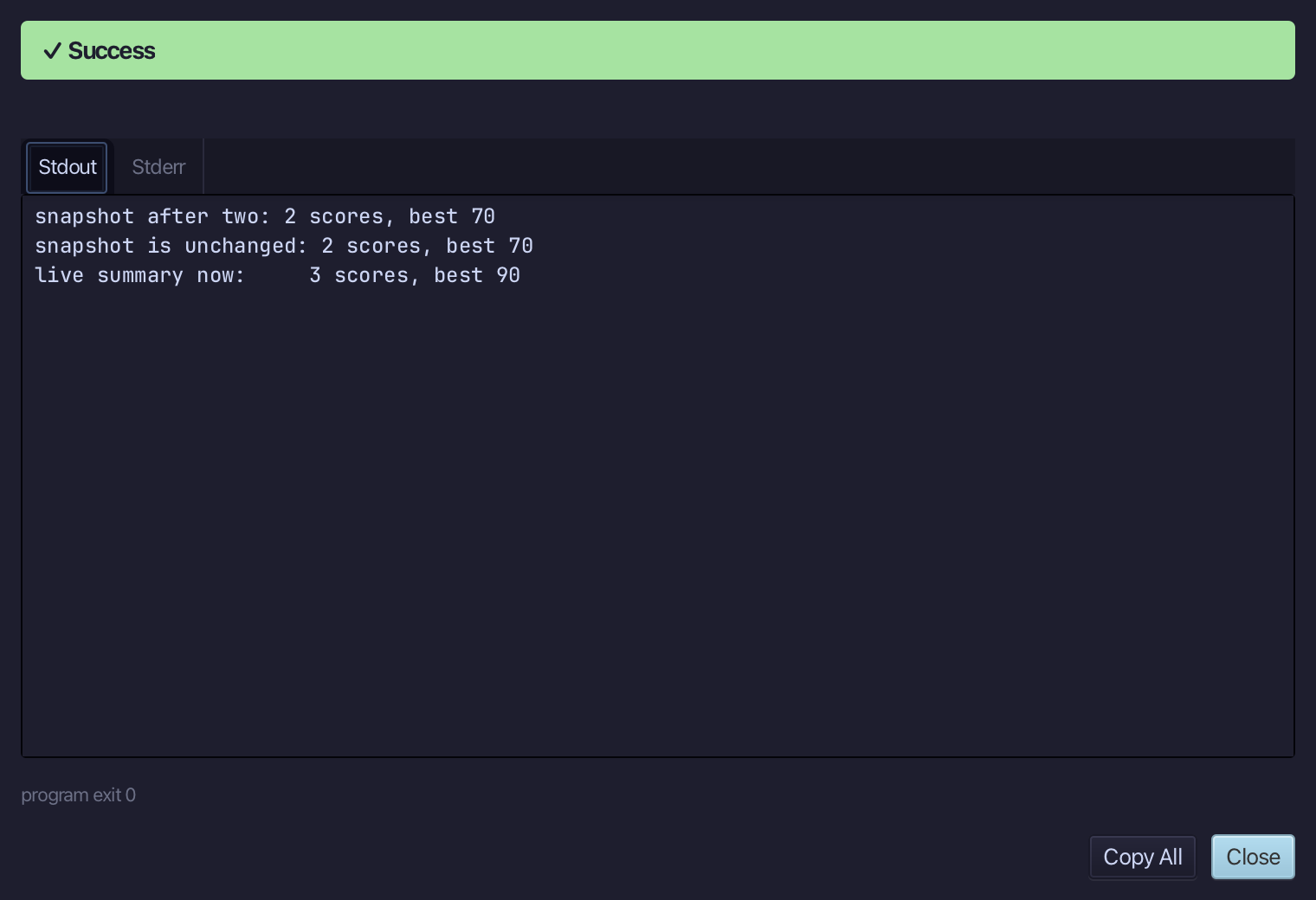
snapshot after two: 2 scores, best 70 - then, after a third score, the snapshot is unchanged while the live summary reads 3 scores, best 90. Choose Close.
The result
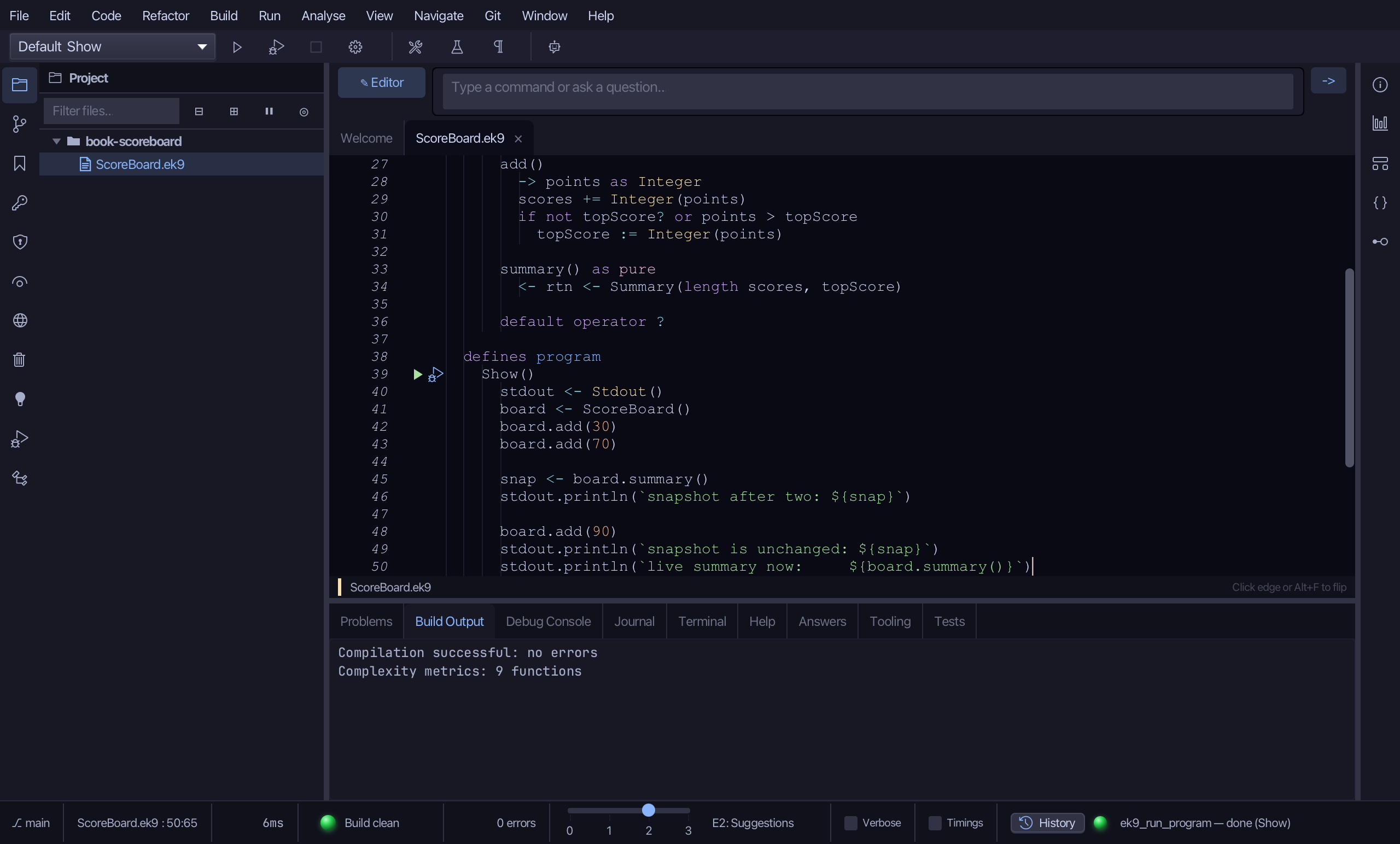
ScoreBoard.ek9 now reads exactly as chapter 16 of Getting Started with EK9 shows it: a class that hands out a Summary - a record built from copies of its figures - so a snapshot taken early is unchanged by later scores. The tools wrote the structure; the logic is what you typed. ek9_new_construct, ek9_add_constructor, ek9_add_operator, ek9_add_field, ek9_add_method and ek9_add_program are what an AI assistant calls to do the same thing.
Where this lesson comes from
- For AI assistants - the MCP tool
ek9_new_construct,ek9_add_constructor,ek9_add_operator,ek9_add_field,ek9_add_method,ek9_add_program.
In the EK9 reference: Classes in EK9