Chapter 33: one lock, nothing to order, built
The fix for a real lock-order cycle is the one ek9 -h E08252 gives: put both lists in one record under one lock. With only one lock there is no order to get wrong. It costs you contention - every operation on either list now takes the same lock - and it buys a program with nothing to order. The IDE writes the record and its operators, the class, its lock and each method's shape; you type the keys. To play it in the IDE: Help > Lessons > EK9 in Depth…, or ek9 -ide -lesson depth-lock-order-fixed.
What you'll build
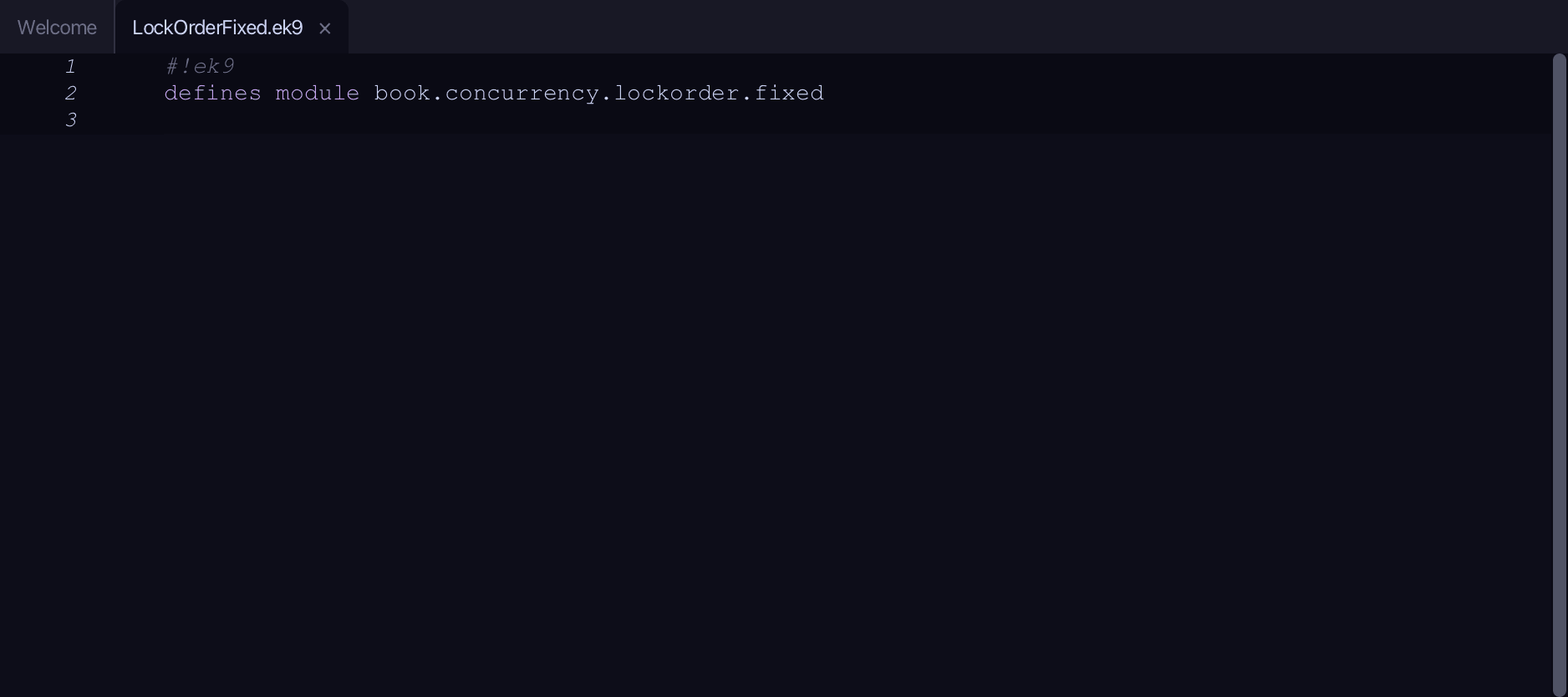
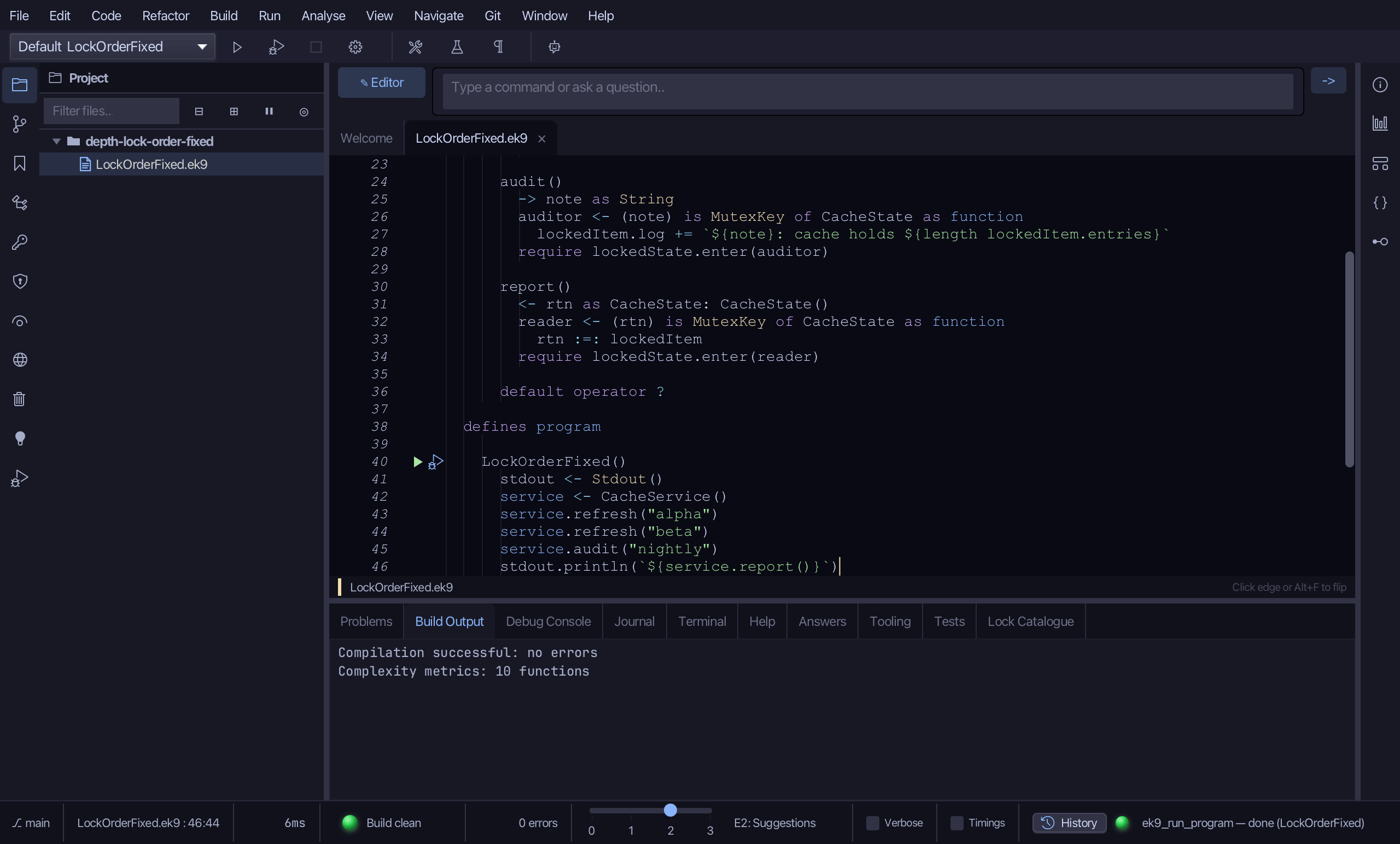
The lesson builds this program from a file holding only its module line - the finished file, as the book prints it.
#!ek9
defines module book.concurrency.lockorder.fixed

  defines record

    CacheState
      entries <- List() of String
      log <- List() of String

      default operator

  defines class

    CacheService
      lockedState <- MutexLock(CacheState())

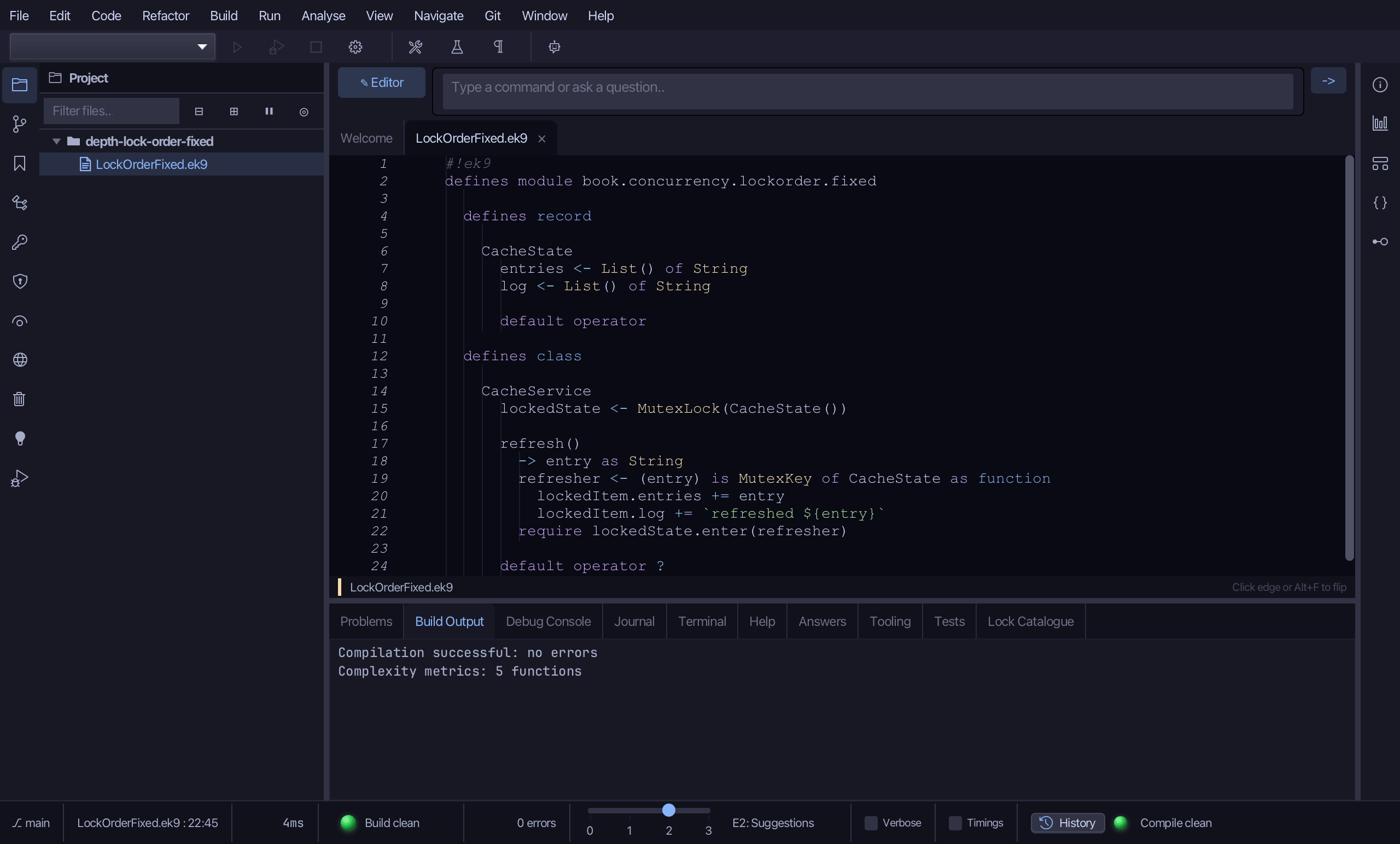
      refresh()
        -> entry as String
        refresher <- (entry) is MutexKey of CacheState as function
          lockedItem.entries += entry
          lockedItem.log += `refreshed ${entry}`
        require lockedState.enter(refresher)

      audit()
        -> note as String
        auditor <- (note) is MutexKey of CacheState as function
          lockedItem.log += `${note}: cache holds ${length lockedItem.entries}`
        require lockedState.enter(auditor)

      report()
        <- rtn as CacheState: CacheState()
        reader <- (rtn) is MutexKey of CacheState as function
          rtn :=: lockedItem
        require lockedState.enter(reader)

      default operator ?

  defines program

    LockOrderFixed()
      stdout <- Stdout()
      service <- CacheService()
      service.refresh("alpha")
      service.refresh("beta")
      service.audit("nightly")
      stdout.println(`${service.report()}`)
Step 1: CacheState — both lists in one record
Choose Code > New Construct > Record…
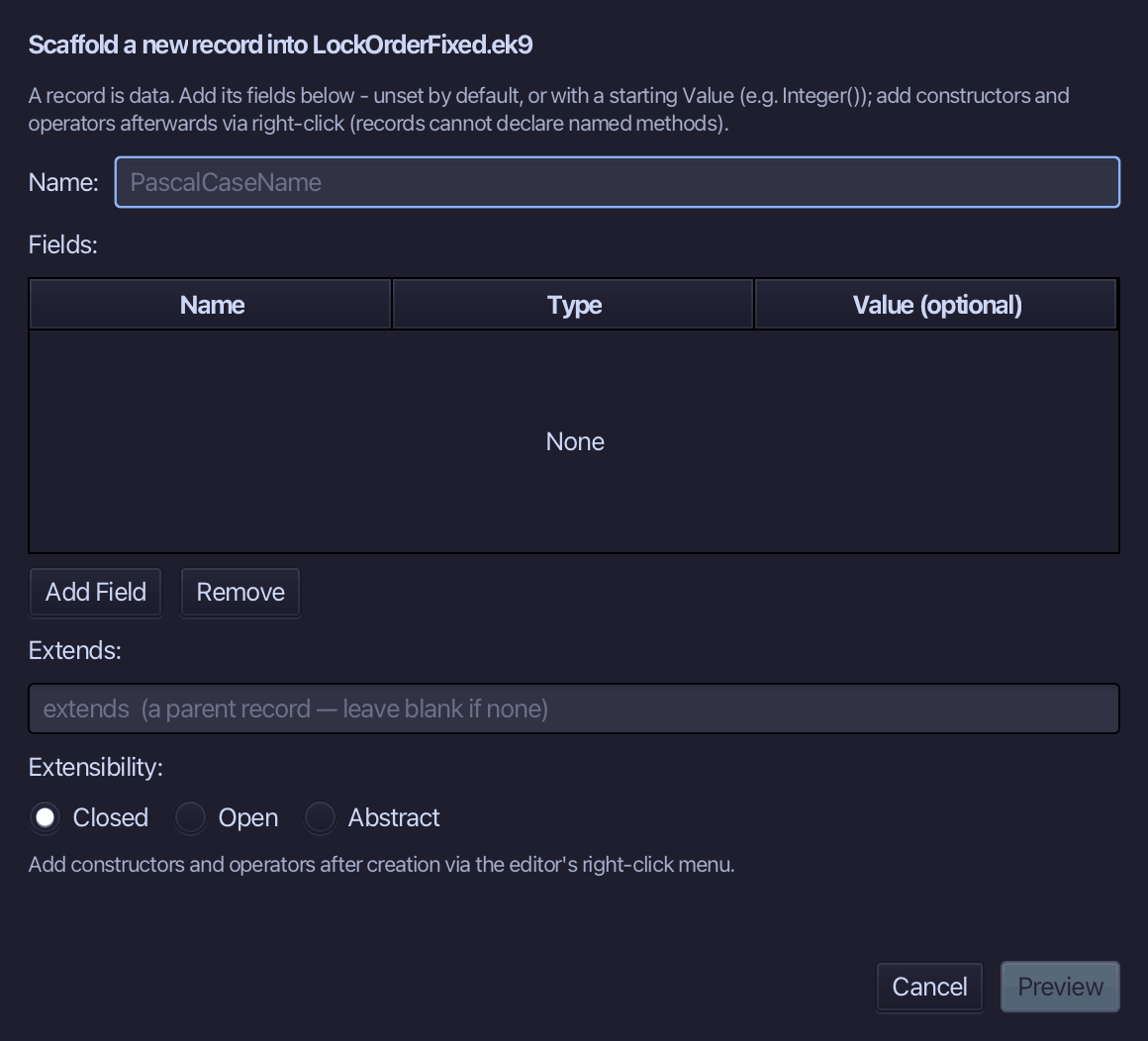
CacheState is the record's name. The Fields table holds entries of type List of String, starting at List(); log of type List of String, starting at List(). Choose Preview.
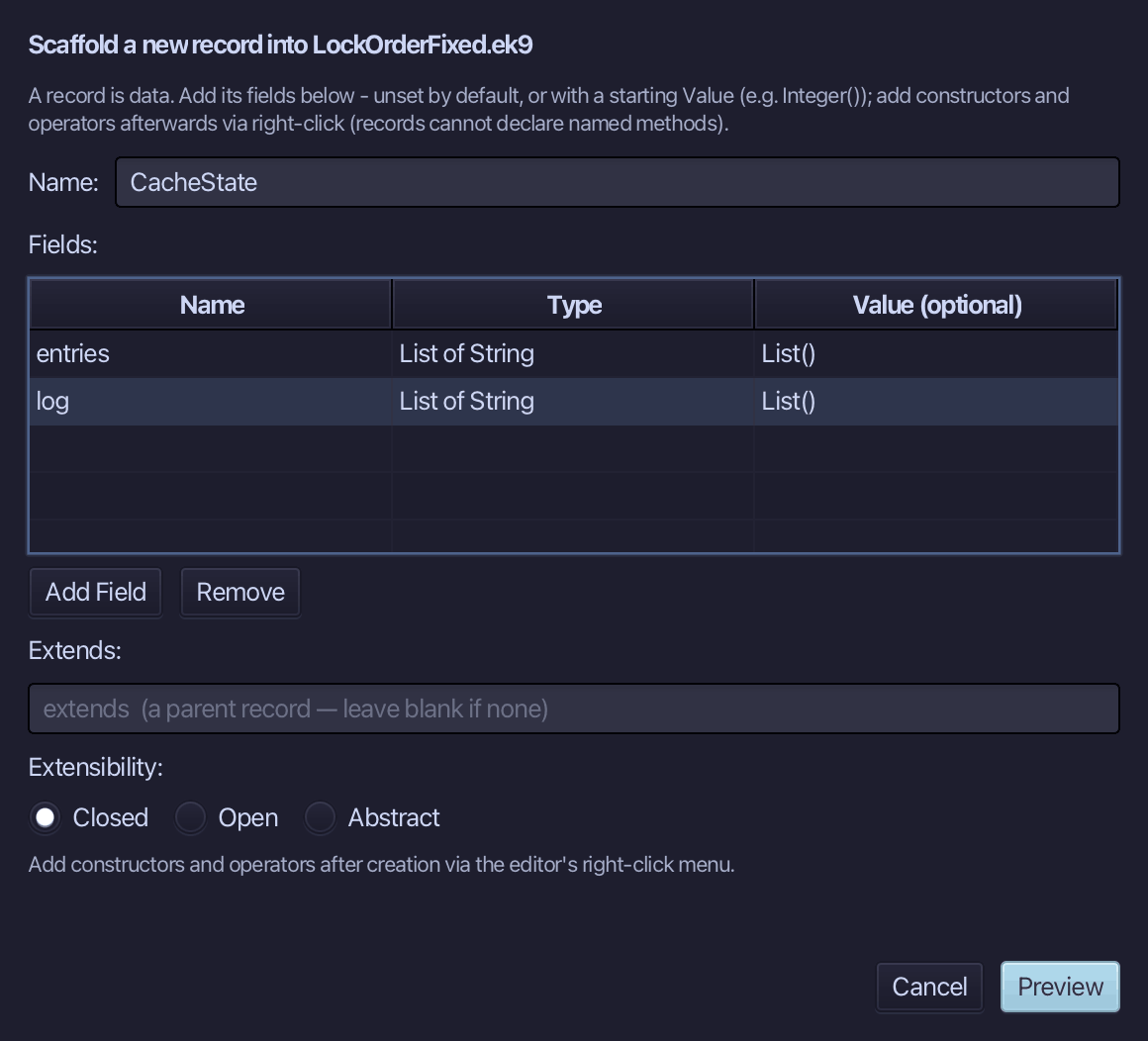
The preview shows CacheState about to be written - and default operator ? with them: a record that holds fields must say when it counts as set. Choose Apply.
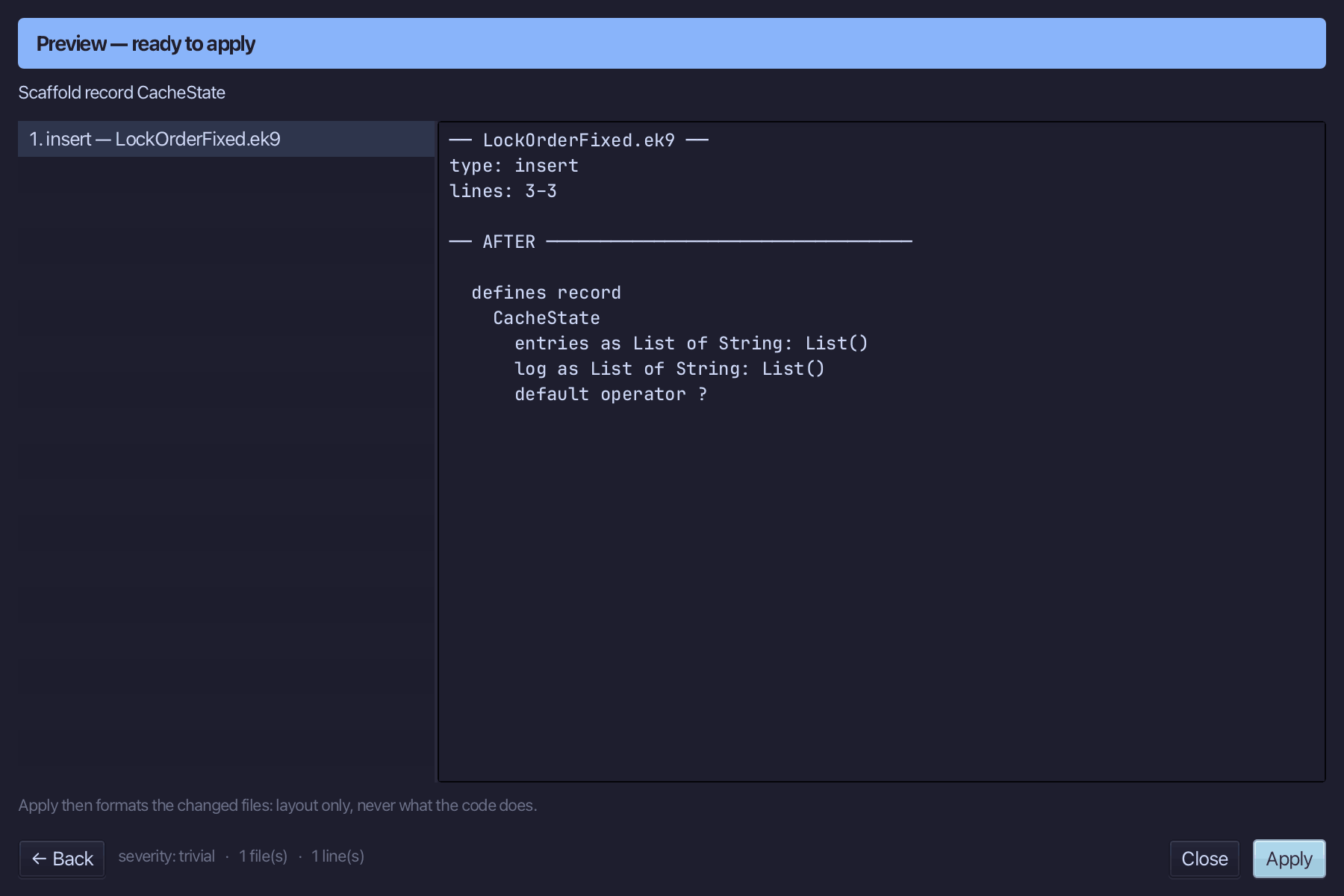
Select the CacheState line and, above it, type the blank line the book opens its first record with. Saves when typed.
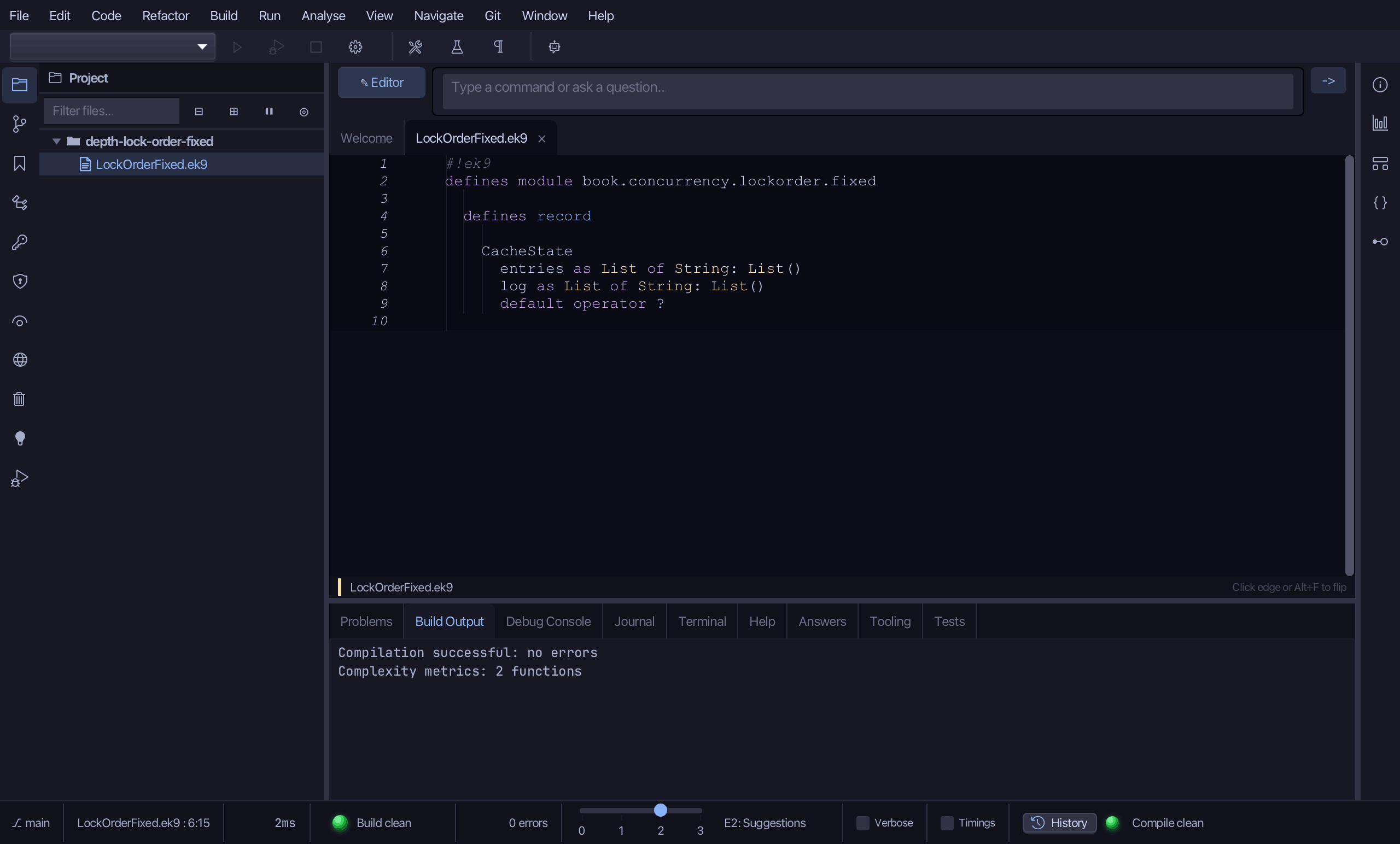
Select the two fields and type them the way the book does: the type is inferred from the value. Saves when typed.
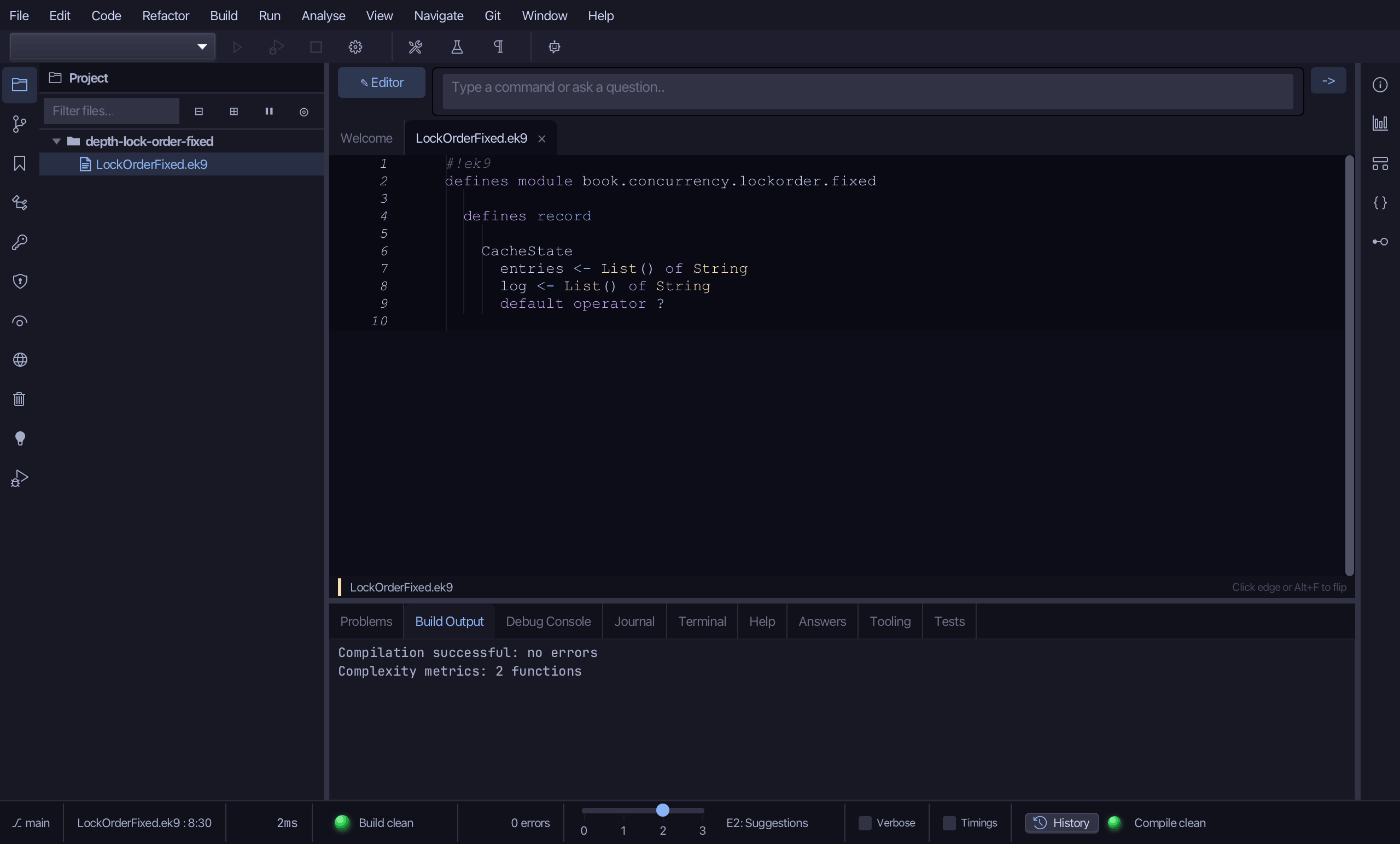
Right-click the CacheState line and choose Add Operator > default operator (all missing).
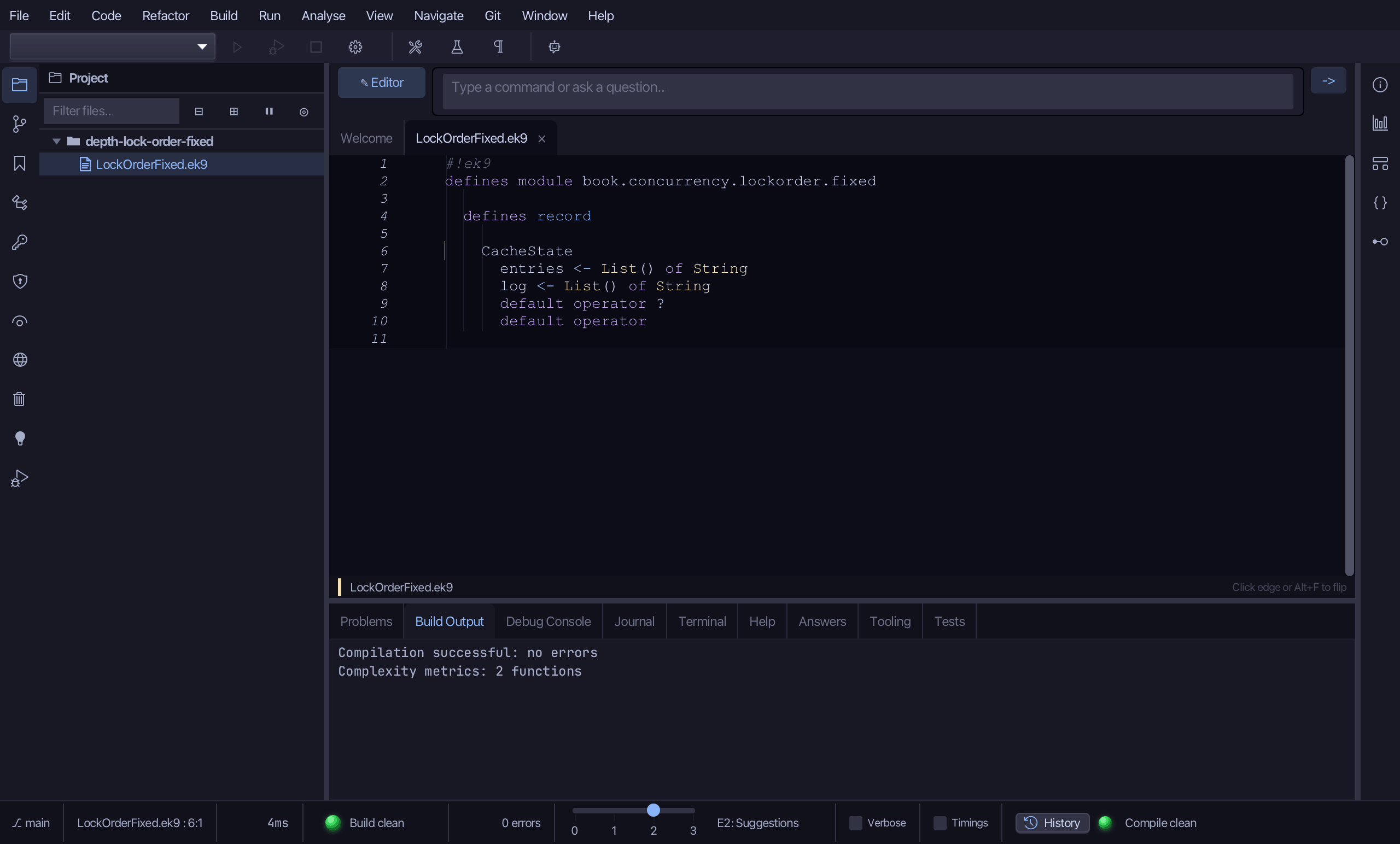
Select the line the first field brought, default operator ?: the bare default operator below it covers every operator, ? included, so it goes. Saves when typed.
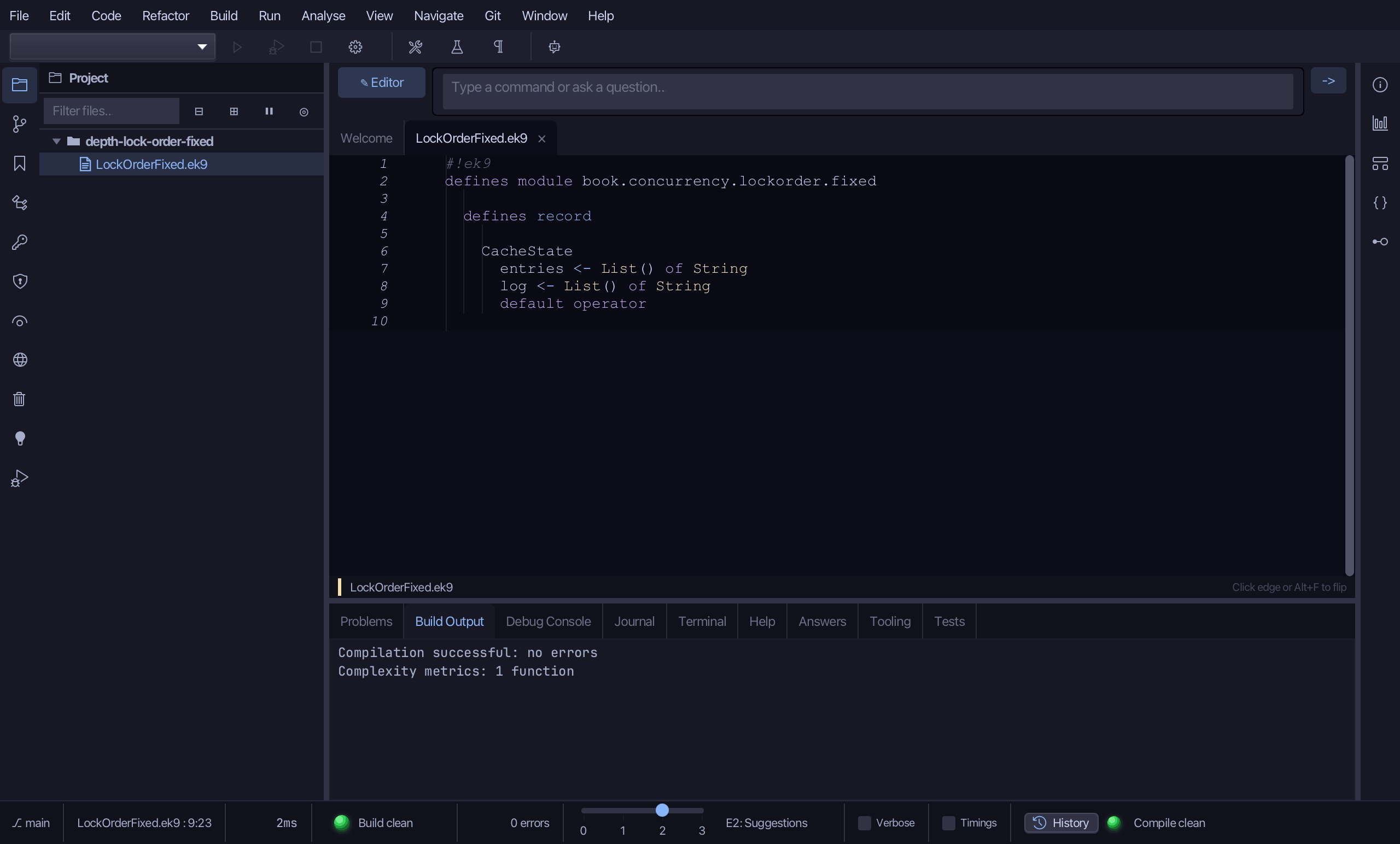
Set the operators apart from the fields: above default operator, type a blank line. Saves when typed.
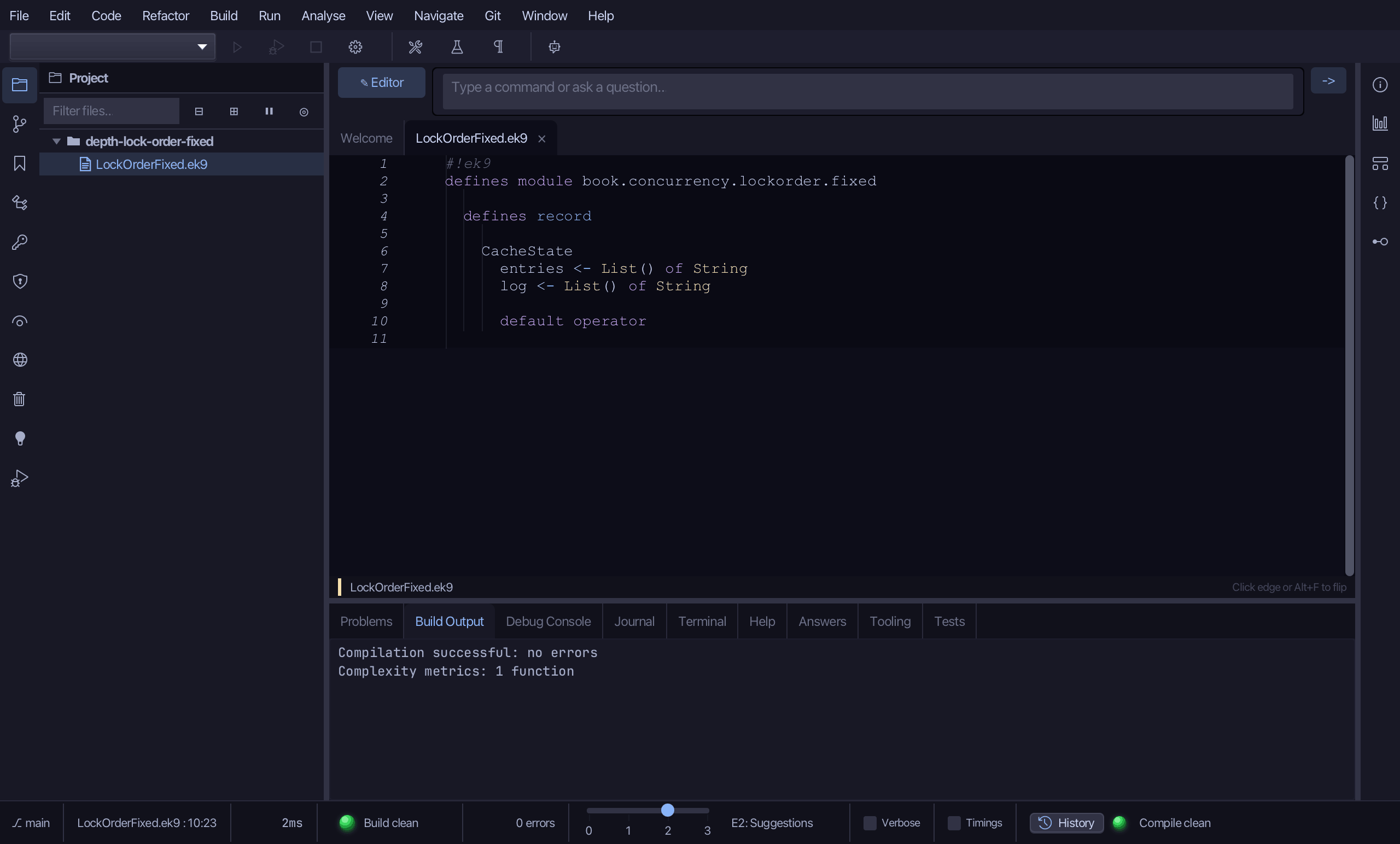
Step 2: CacheService — one lock
Choose Code > New Construct > Class…
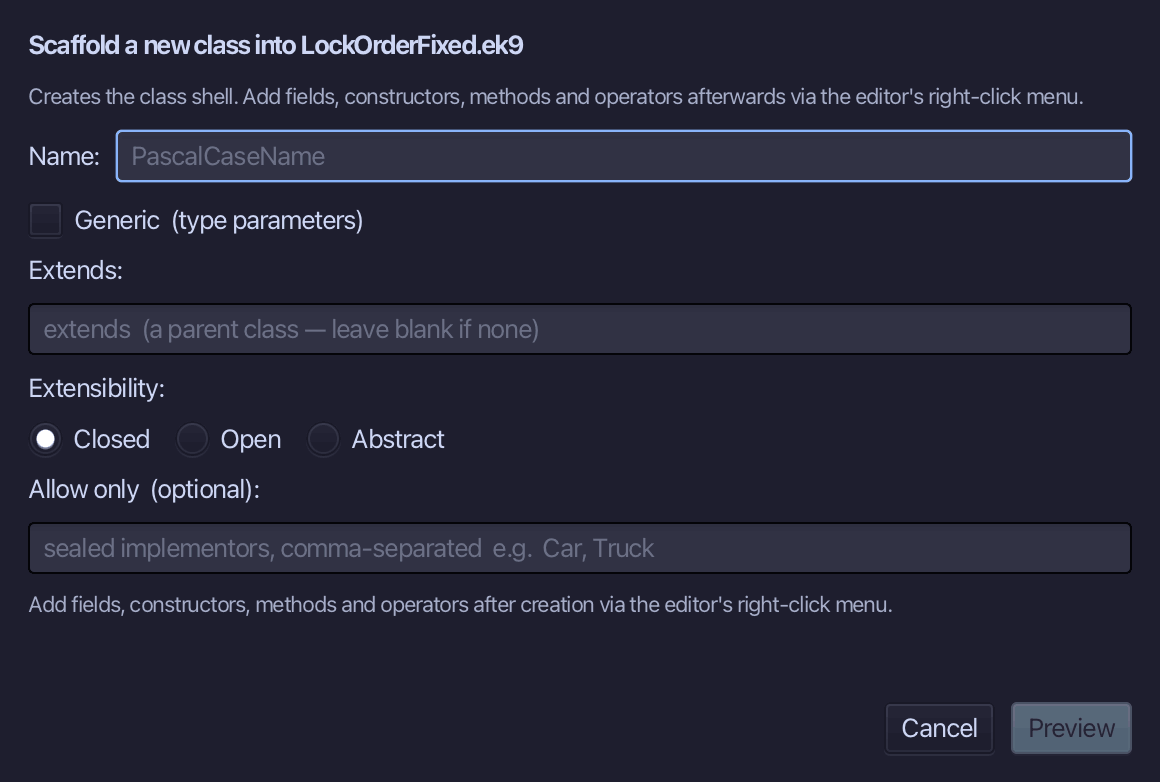
CacheService is the class's name. Choose Preview.
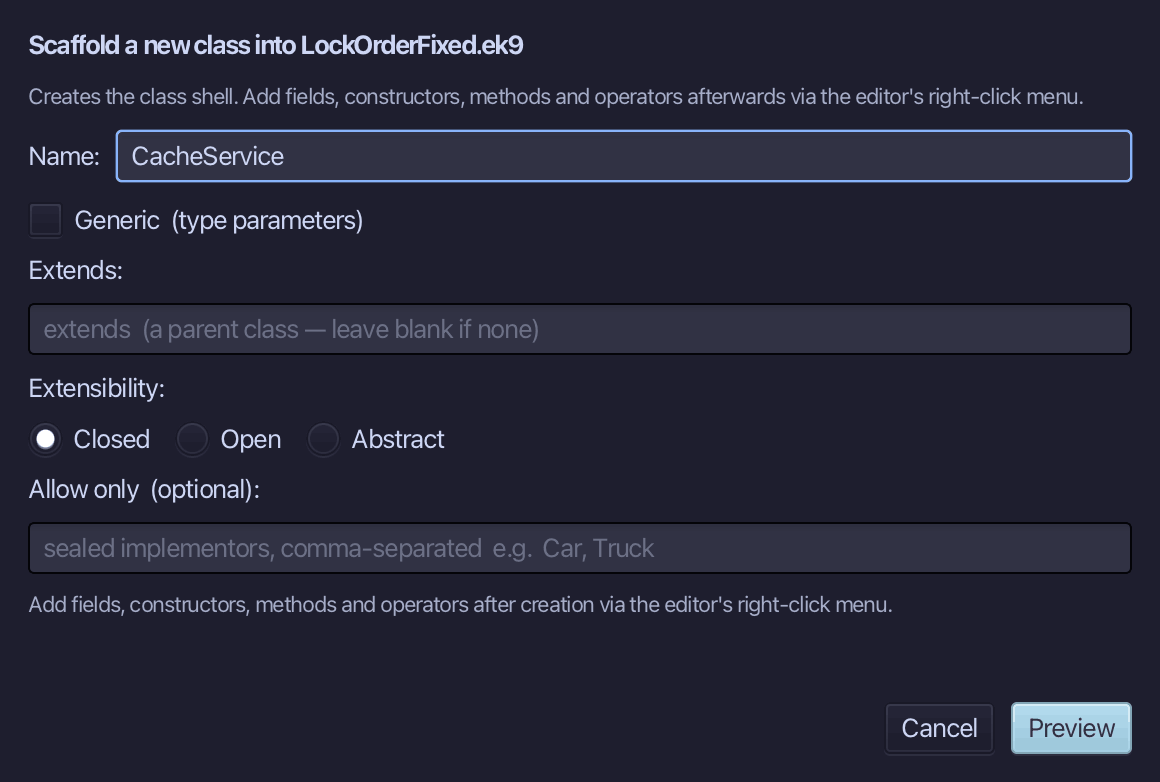
The preview shows CacheService about to be written. Choose Apply.
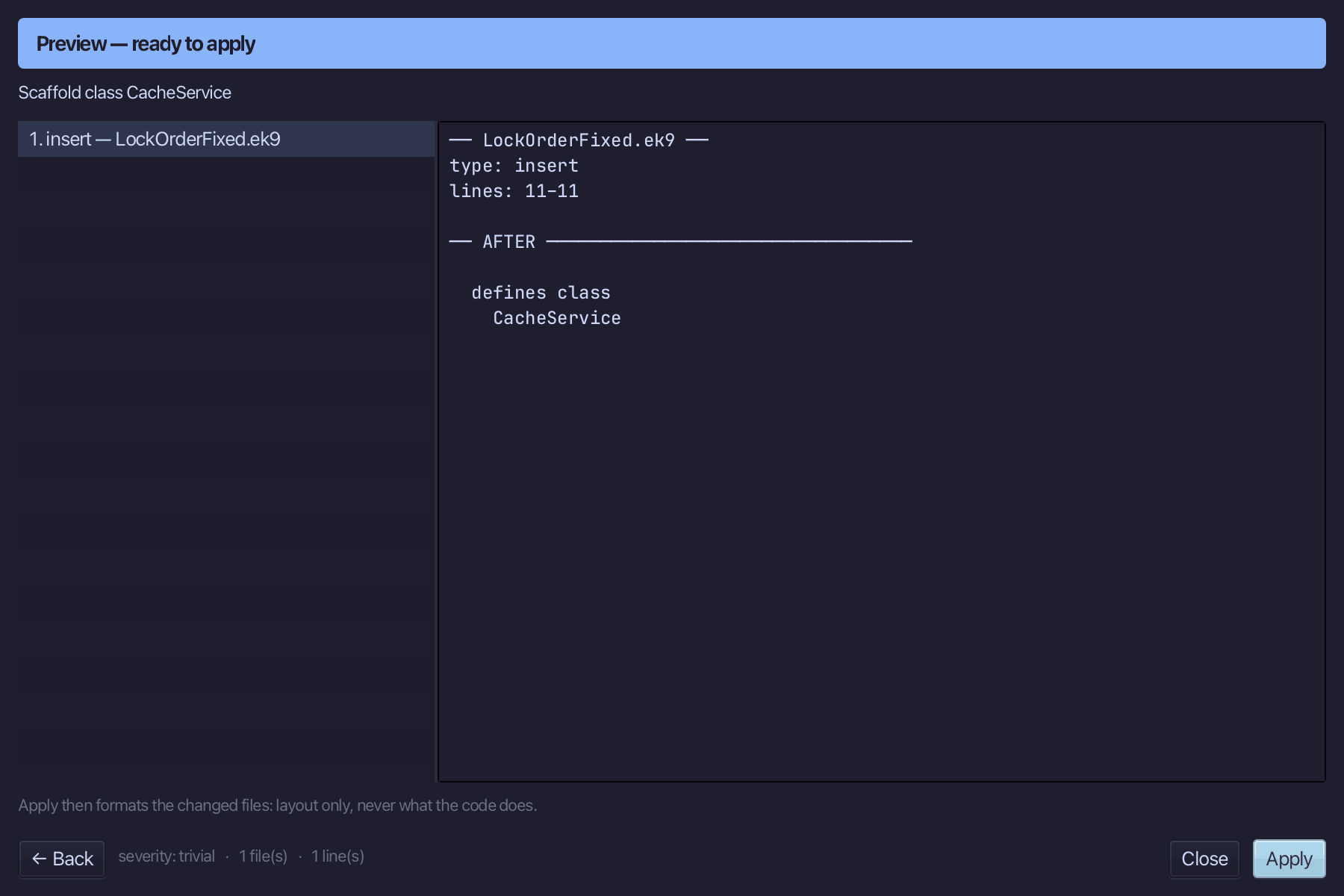
Select the CacheService line and, above it, type the blank line the book opens its first class with. Saves when typed.
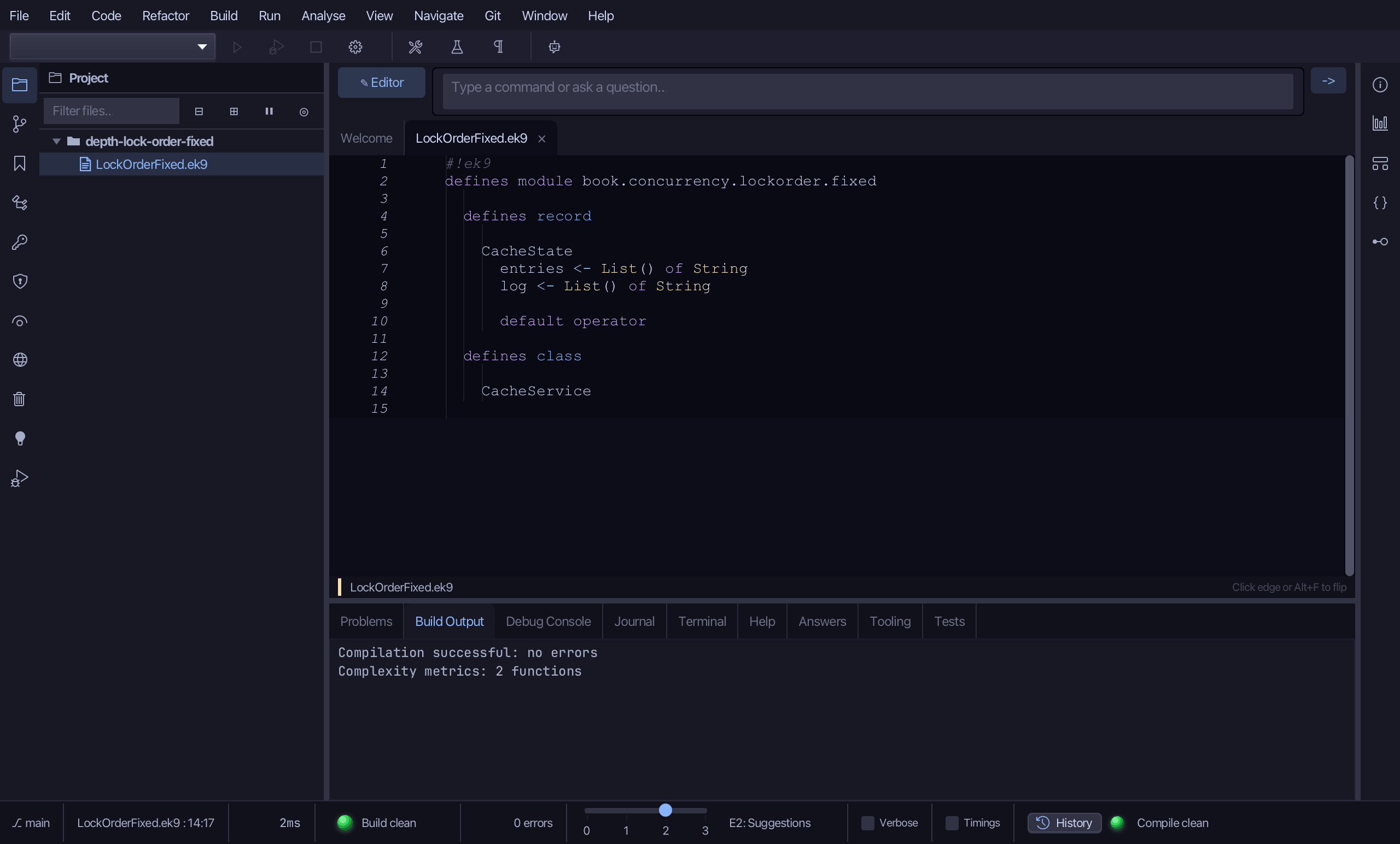
Right-click the CacheService line and choose Add Field…
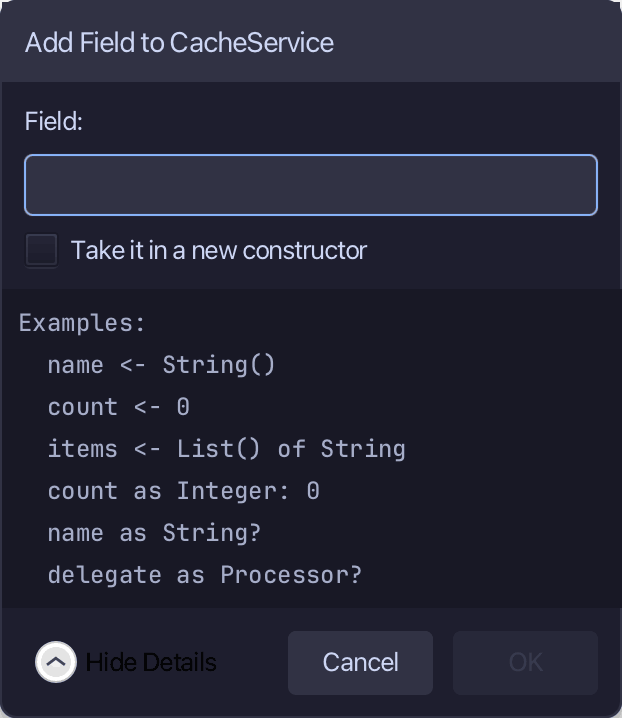
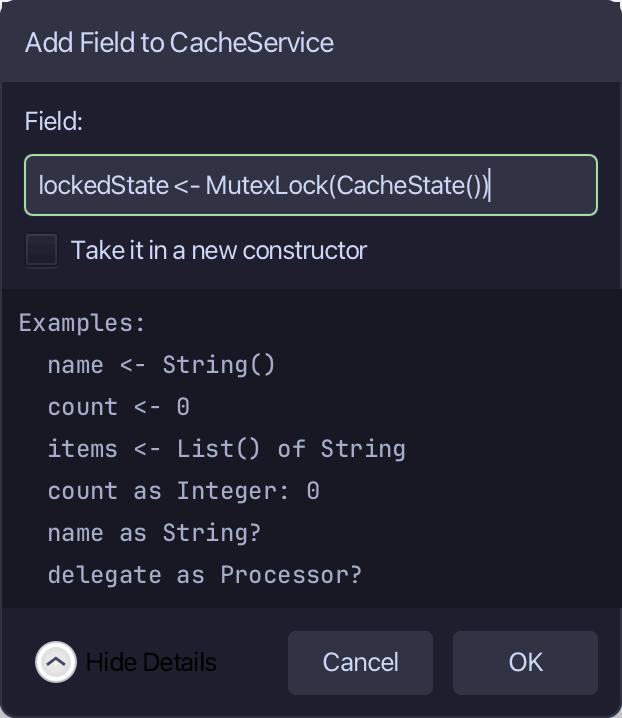
Type lockedState <- MutexLock(CacheState()) - the field and the value it starts with. Choose OK.
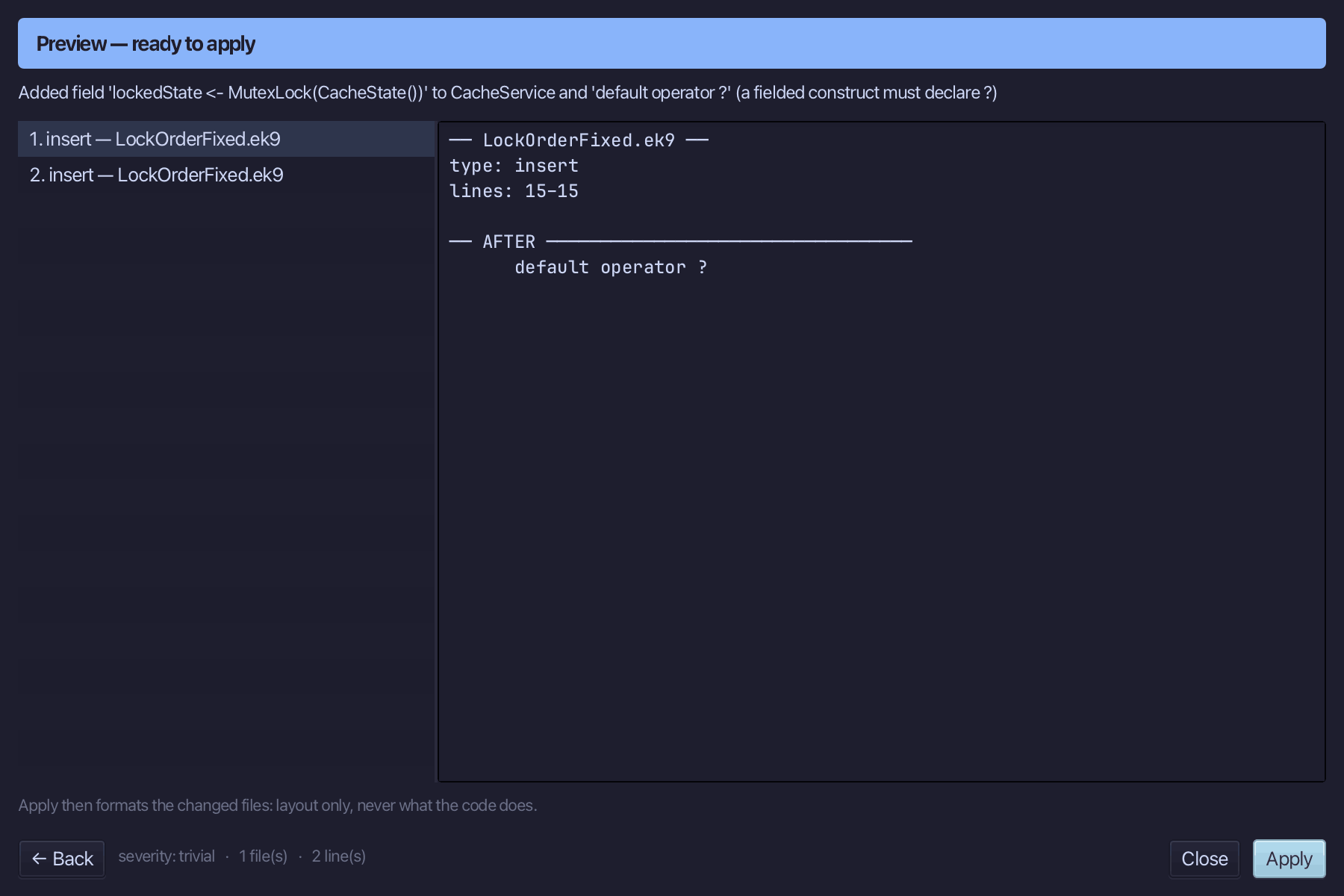
The preview shows lockedState added - and default operator ? with it, CacheService's first field. Choose Apply.
Right-click the CacheService line and choose Add Method…
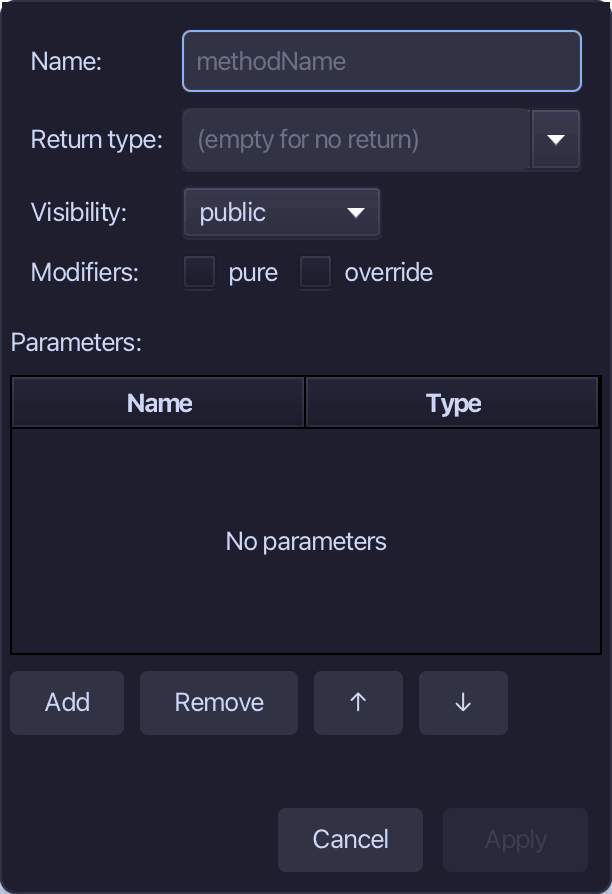
refresh is the method's name. Add one parameter, entry of type String. Choose Apply.
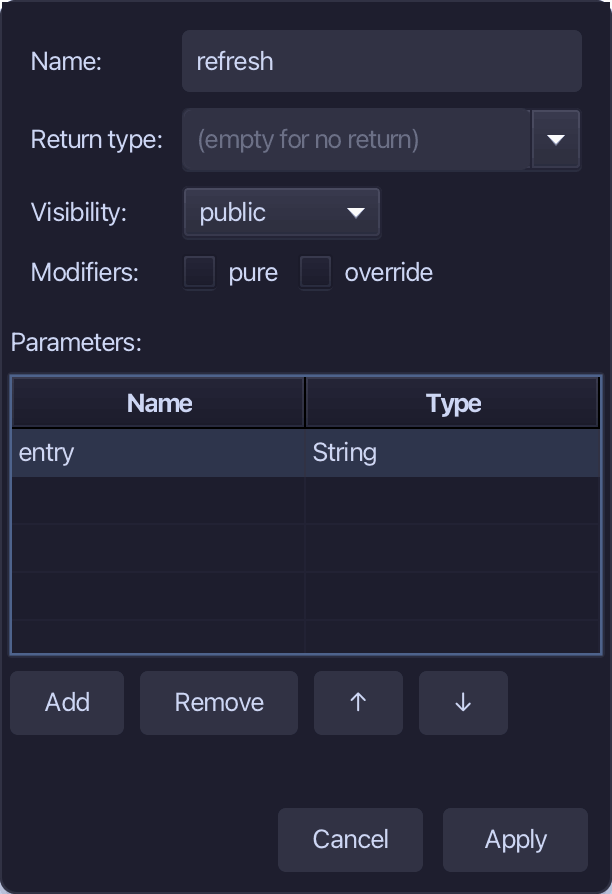
Select the stub and type refresh: one key changes both lists. Saves when typed.
Right-click the CacheService line and choose Add Method…
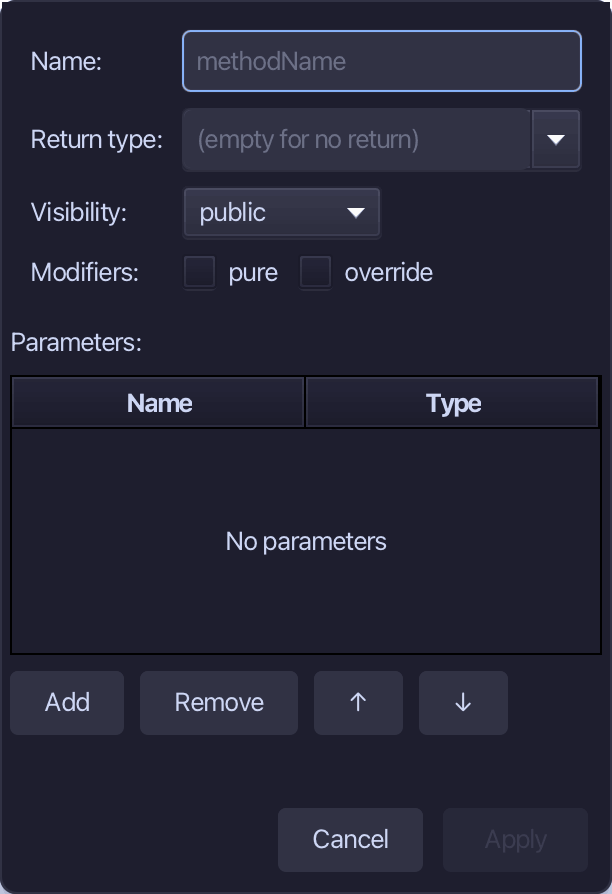
audit is the method's name. Add one parameter, note of type String. Choose Apply.
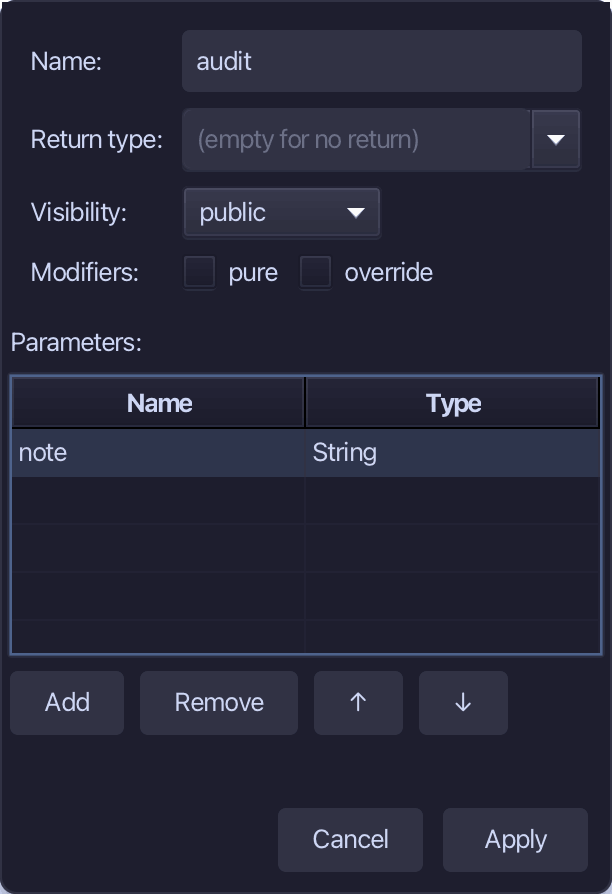
Select the stub and type audit: the same lock, so there is no order to get wrong. Saves when typed.
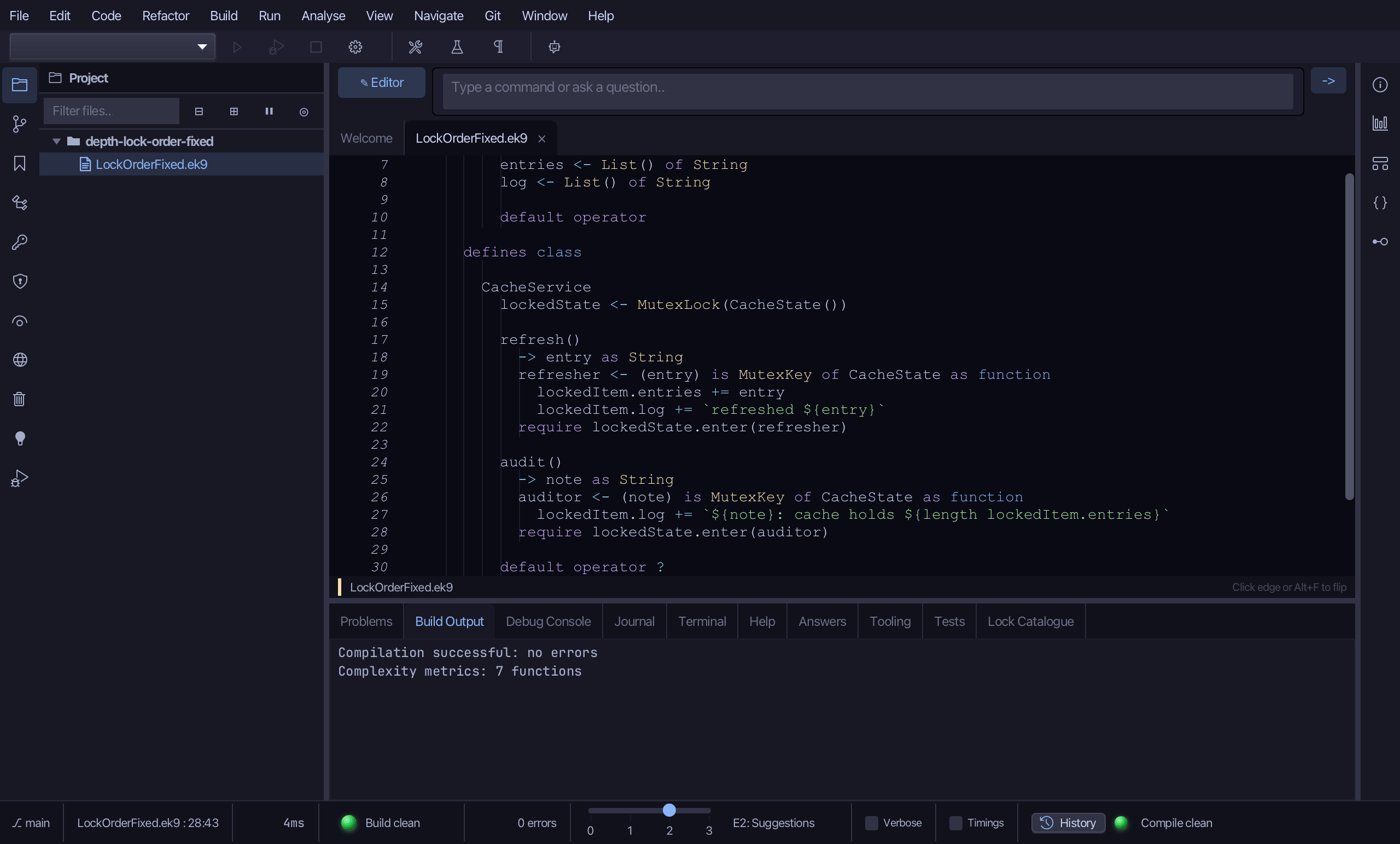
Right-click the CacheService line and choose Add Method…
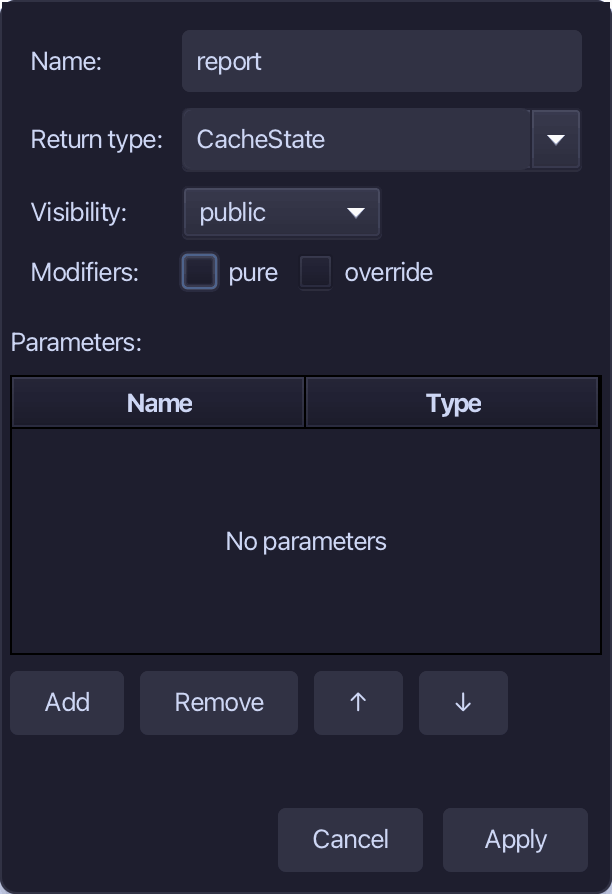
report is the method's name. Set Return type to CacheState. Choose Apply.
Select the stub and type report's key. Saves when typed.
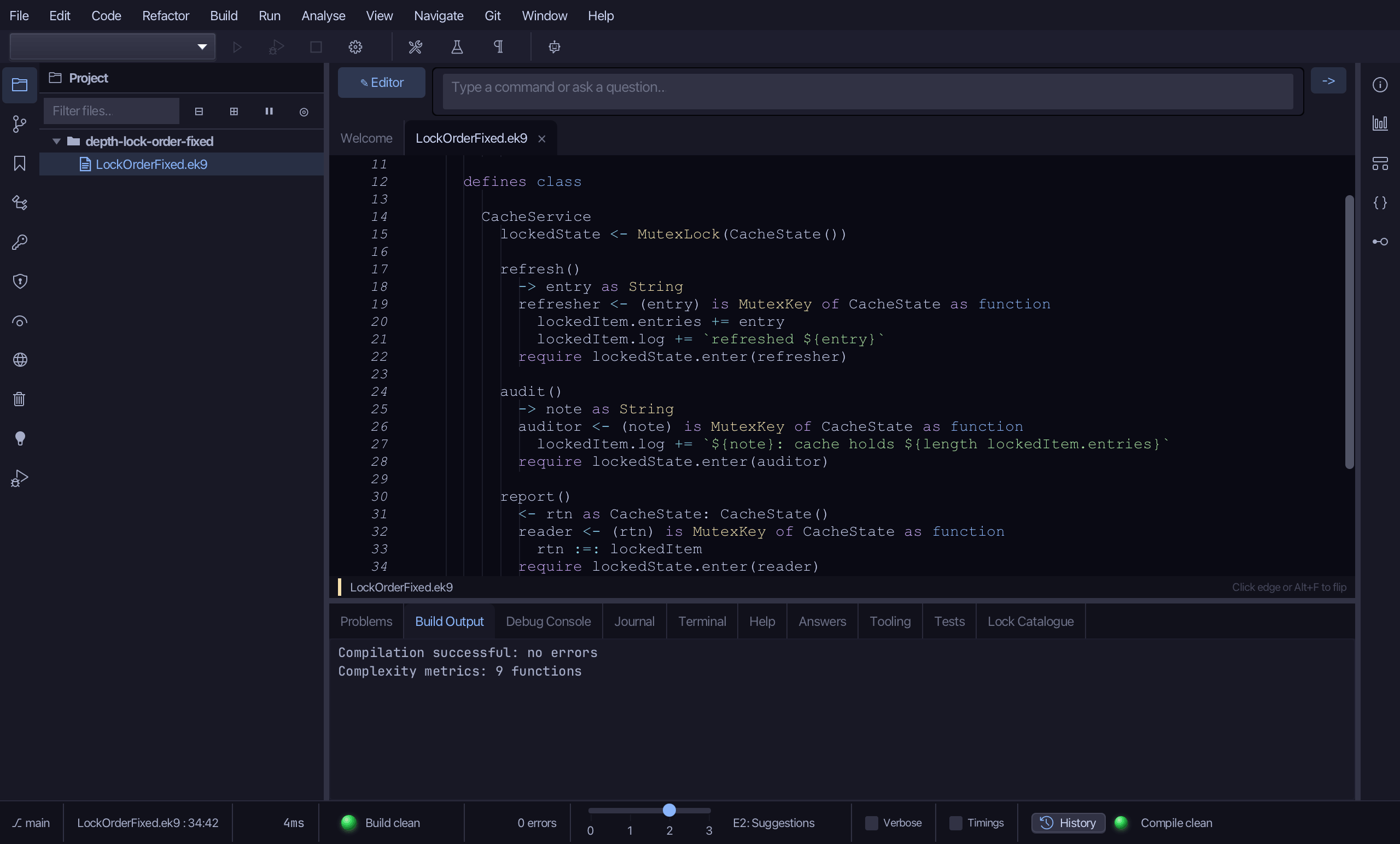
Step 3: The program
Choose Code > New Construct > Program…
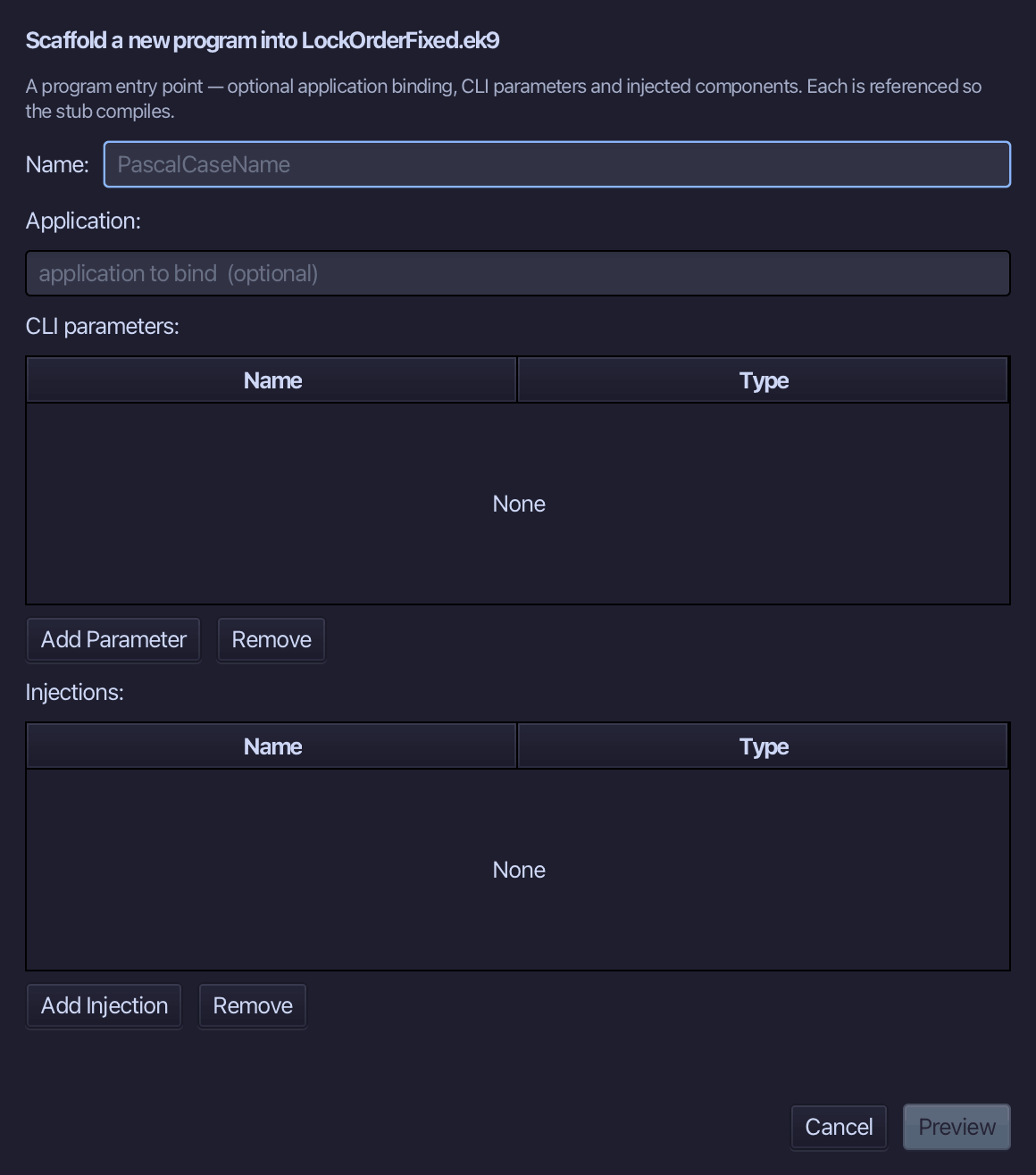
LockOrderFixed is the program's name. Choose Preview.
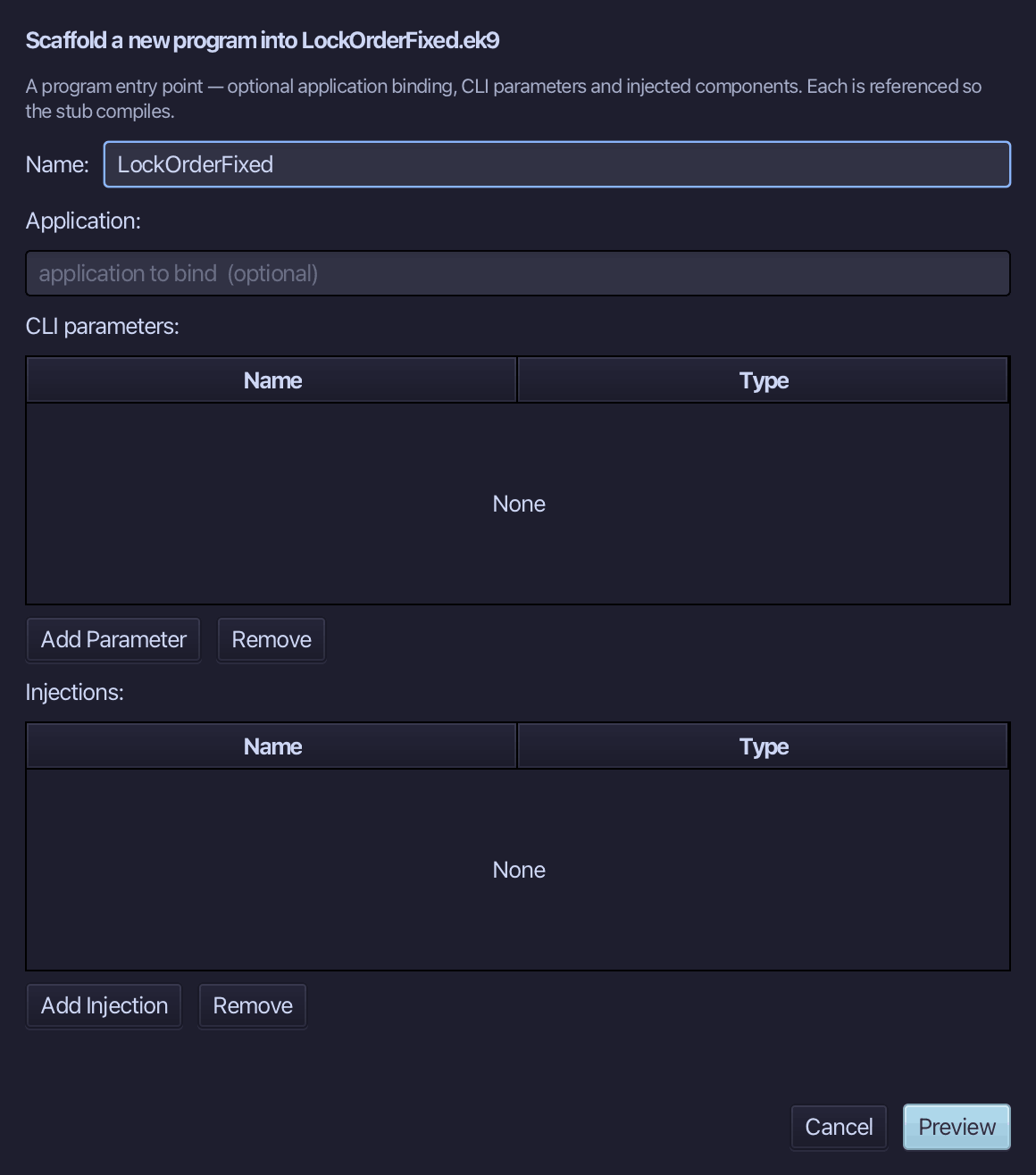
The preview shows LockOrderFixed about to be written. Choose Apply.
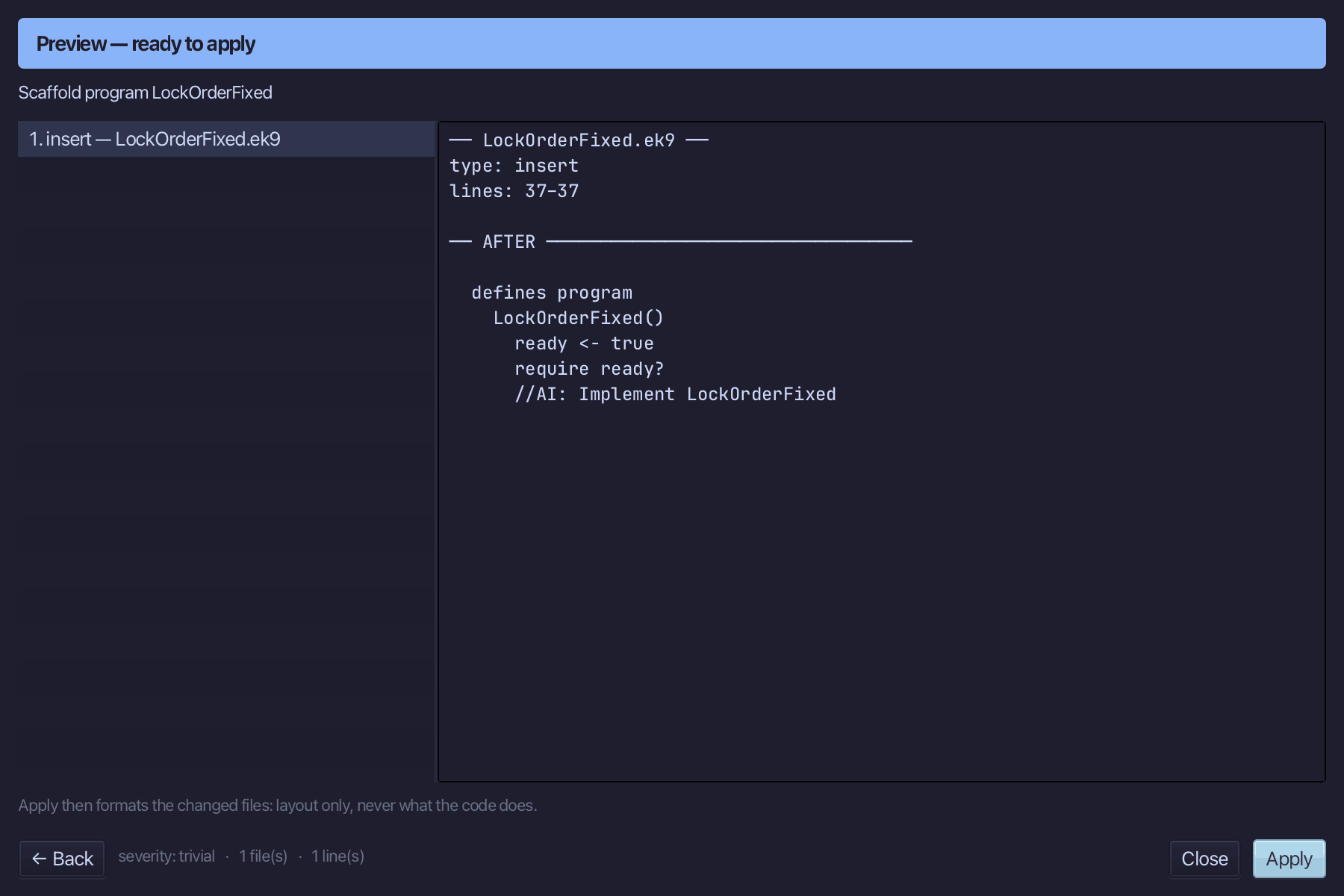
Select the LockOrderFixed() line and, above it, type the blank line the book opens the program with. Saves when typed.
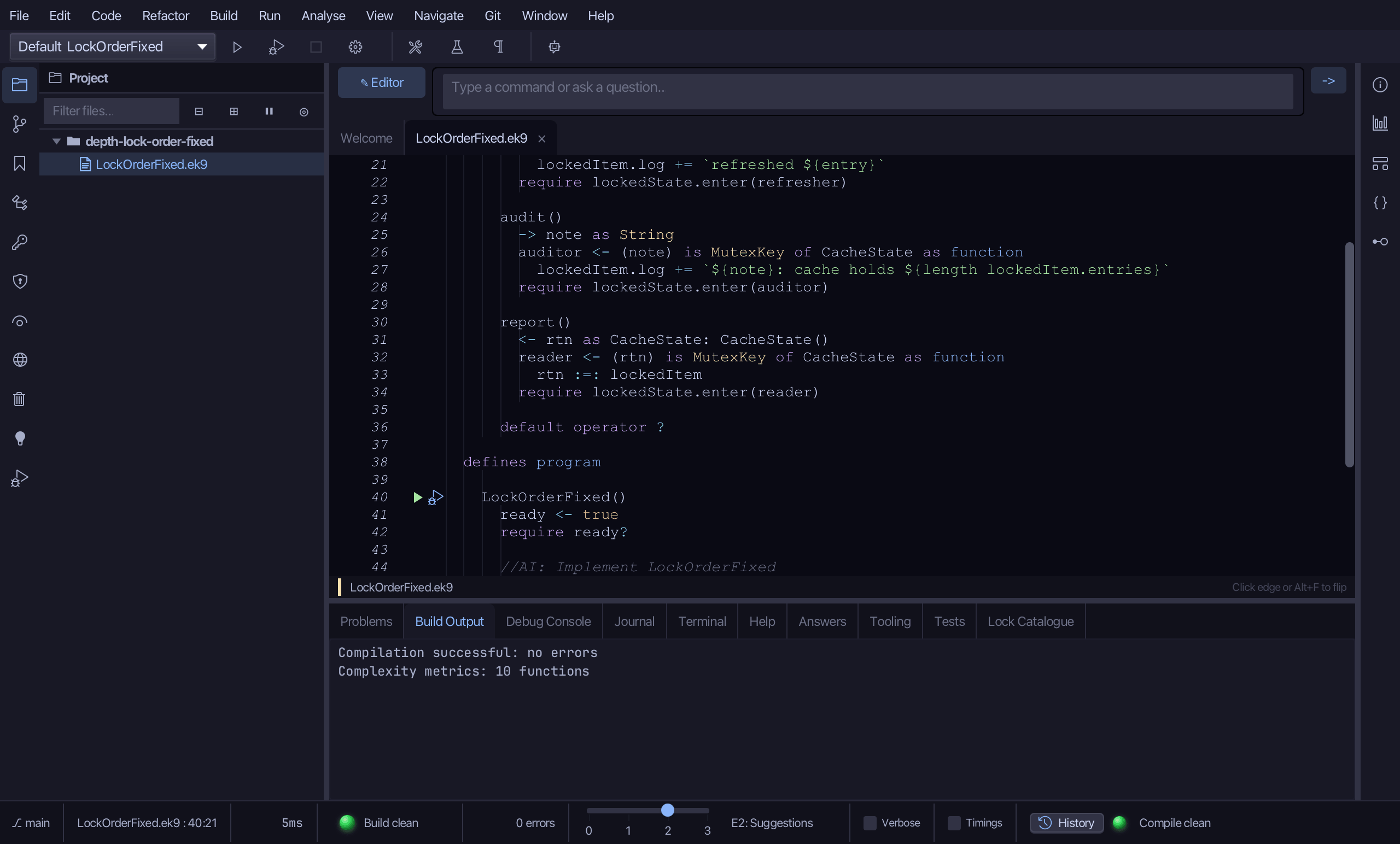
Select the stub, from ready <- true down to its //AI line, and type LockOrderFixed's body exactly as the chapter shows it. Saves when typed.
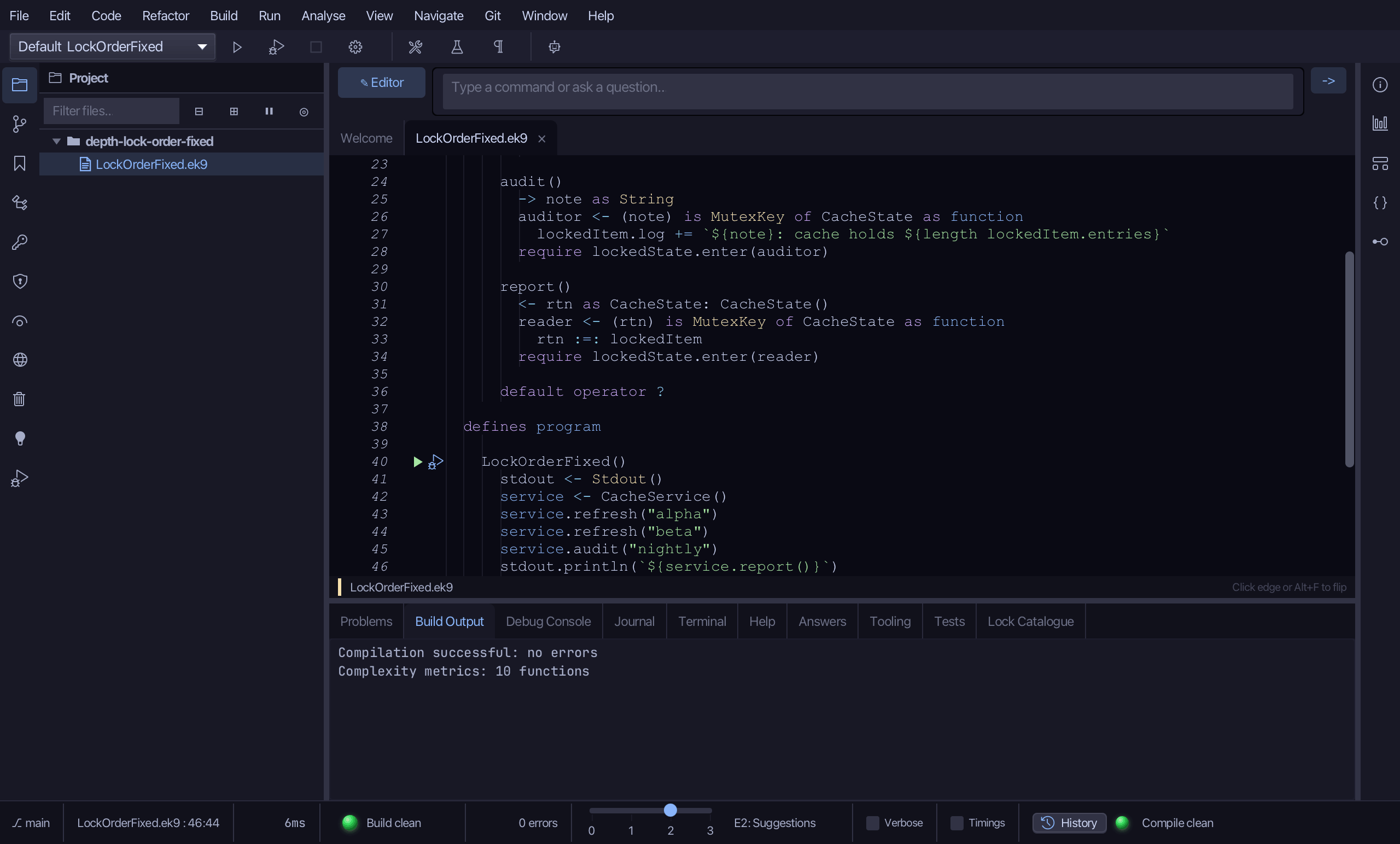
Step 4: Run it
Choose Run > Run Program…
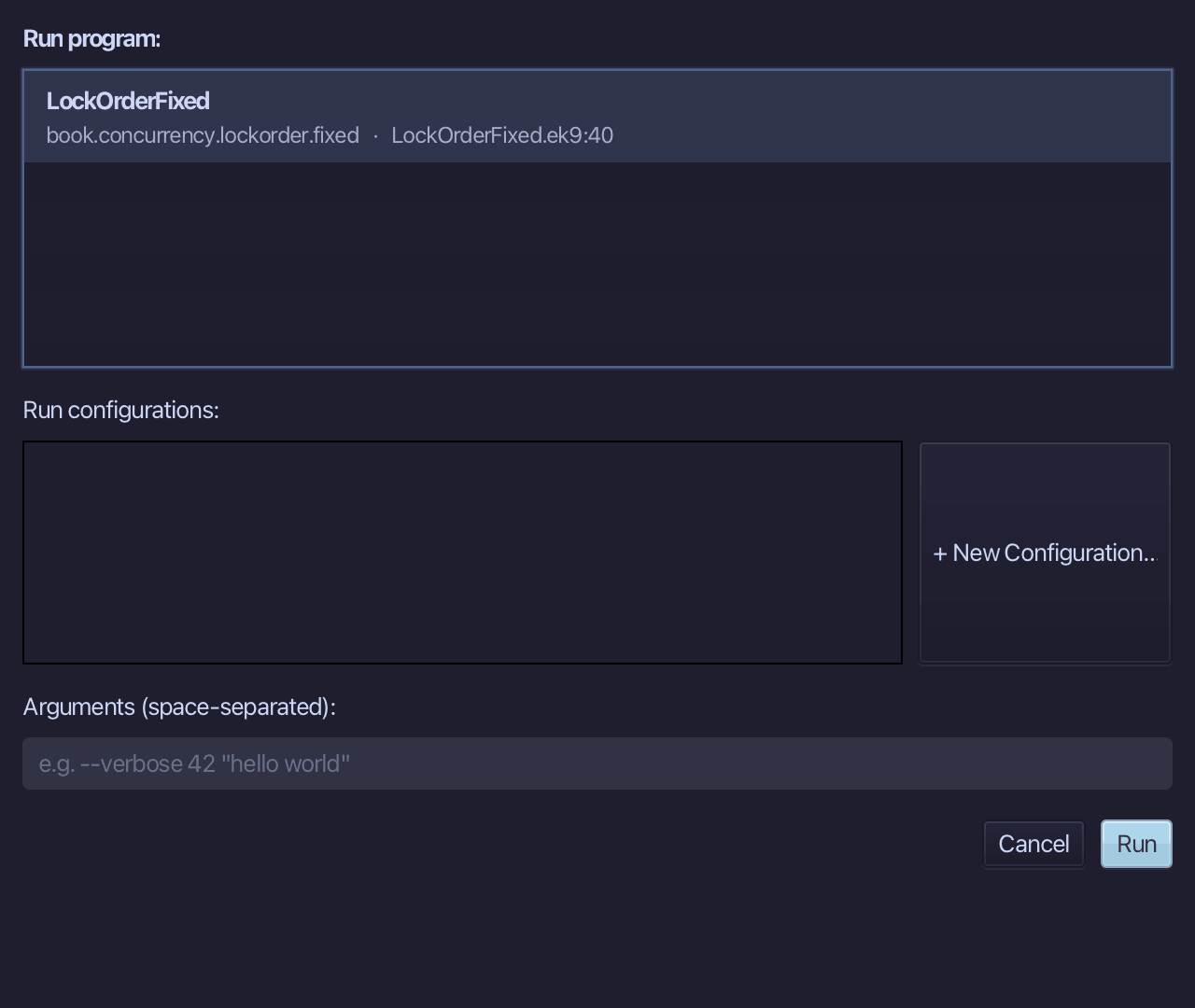
The project's only program is already chosen. Choose Run.
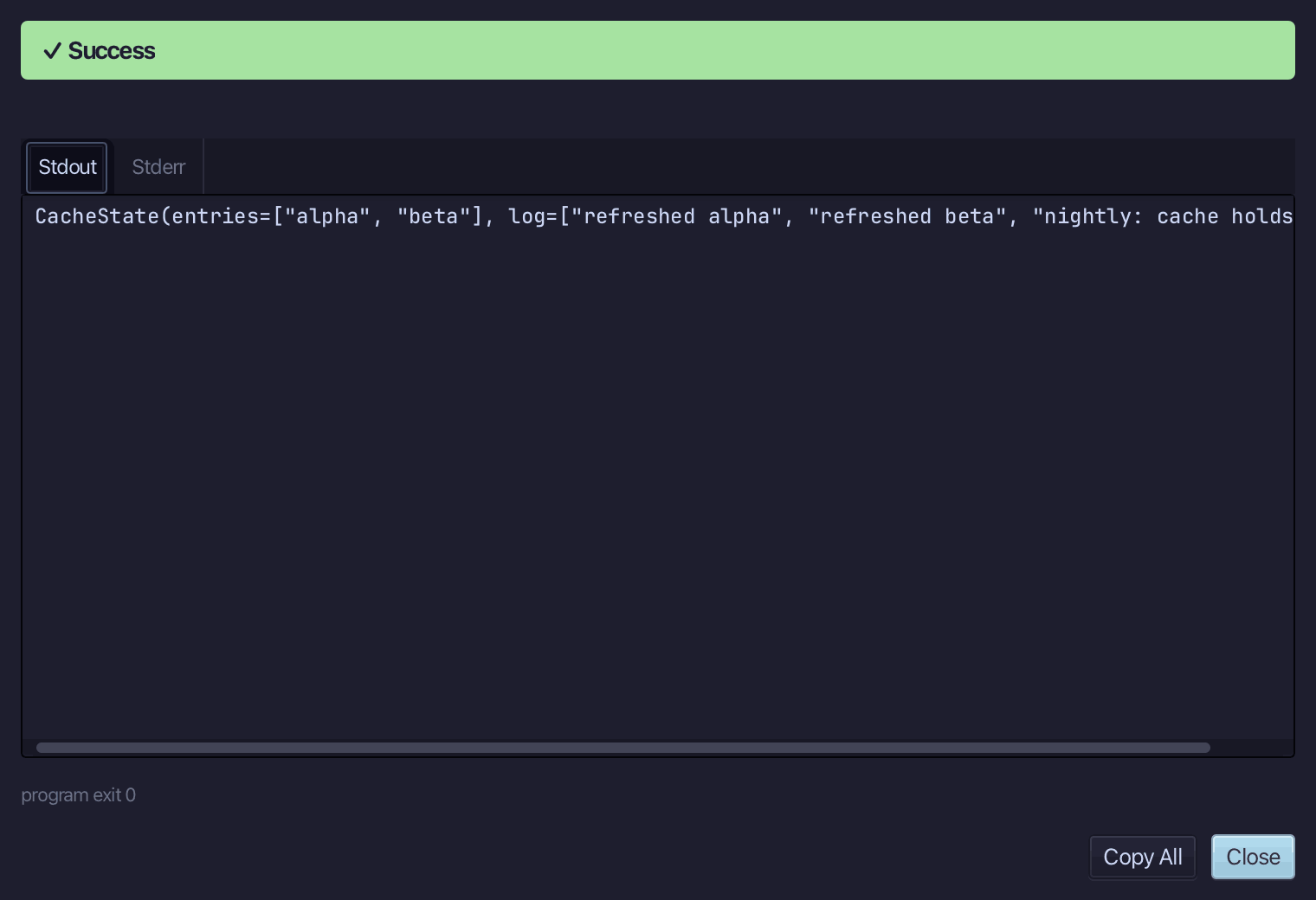
CacheState(entries=["alpha", "beta"], log=["refreshed alpha", "refreshed beta", "nightly: cache holds 2"]). Choose Close.
The result
LockOrderFixed.ek9 now reads exactly as chapter 33 of EK9 in Depth shows it: the same idea as the Tally, a record under one lock, and audit can read the entries and write the log in one key.
Where this lesson comes from
- Answers -
ek9 -qand the IDE's Answers tab: 213. - For AI assistants - the MCP tool
ek9_new_construct,ek9_add_operator,ek9_add_field,ek9_add_method,ek9_add_program.