The Terminal
Hello is a one-program project. The IDE has a Terminal of its own: your login shell, started in this project's folder. Read hello.ek9. To play it in the IDE: Help > Lessons > Running and testing…, or ek9 -ide -lesson the-terminal.
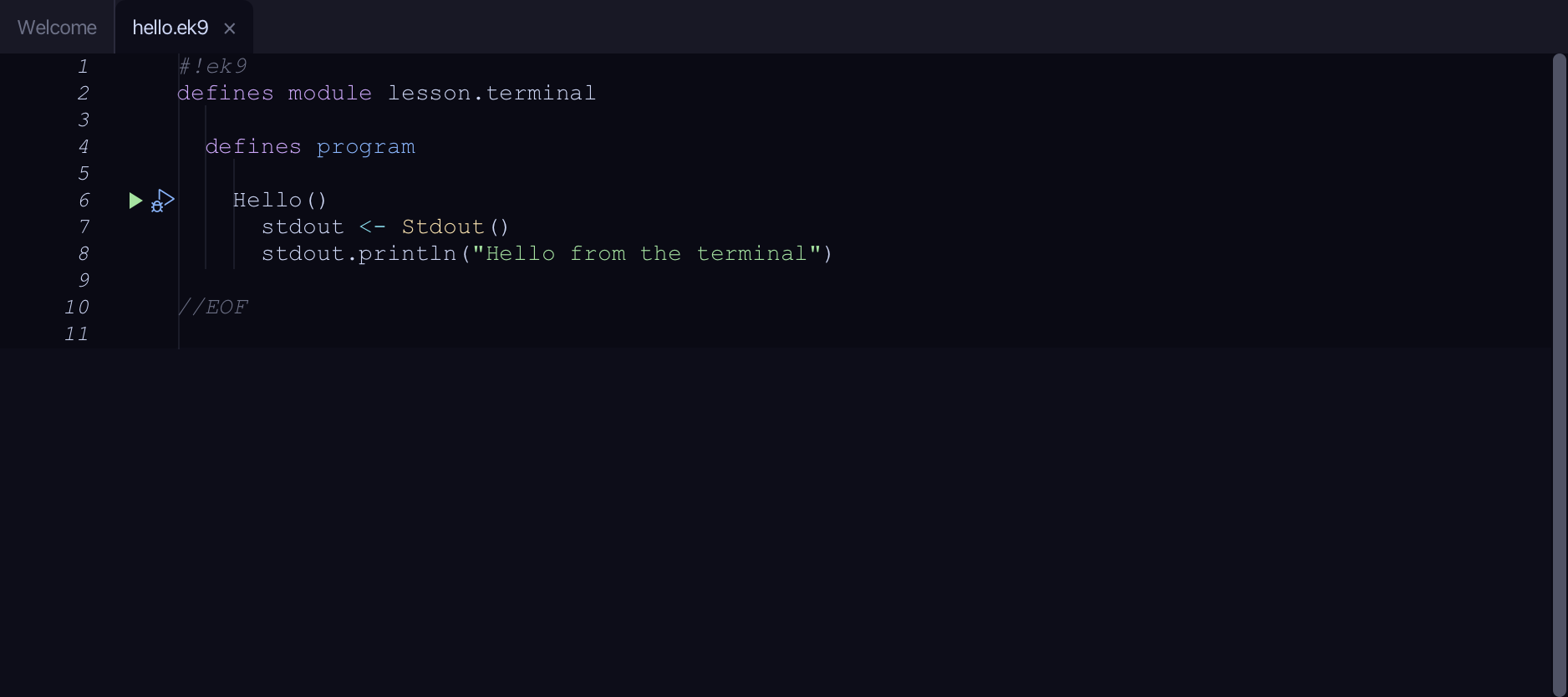
Start from
The code the lesson starts from: copy it into a file of your own and follow the steps.
#!ek9
defines module lesson.terminal

  defines program

    Hello()
      stdout <- Stdout()
      stdout.println("Hello from the terminal")

//EOF
Step 1: Open the Terminal
Choose View > Bottom Panes > Terminal
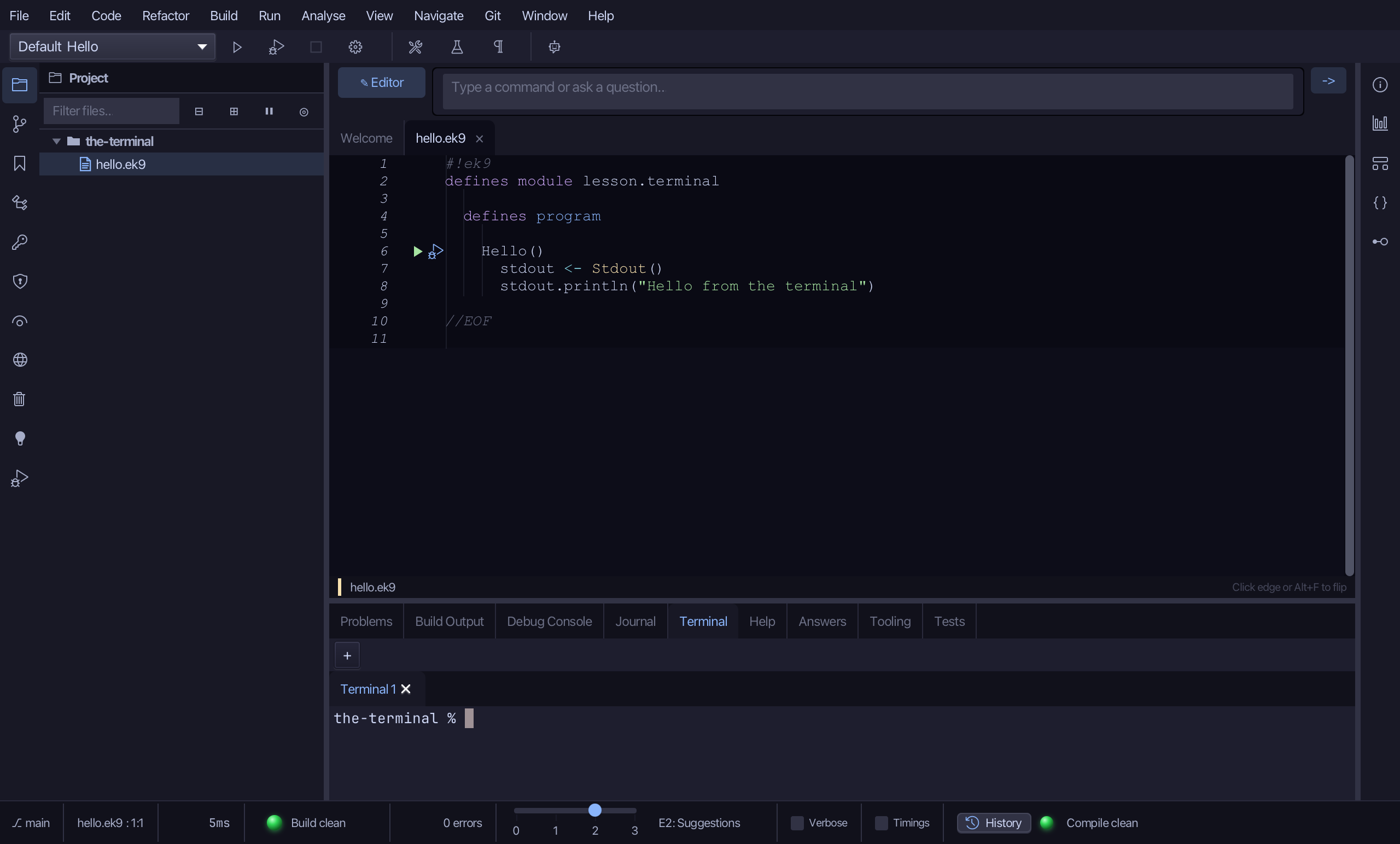
A shell is running in the project's folder. Type ls and press Enter - the folder's files are listed.
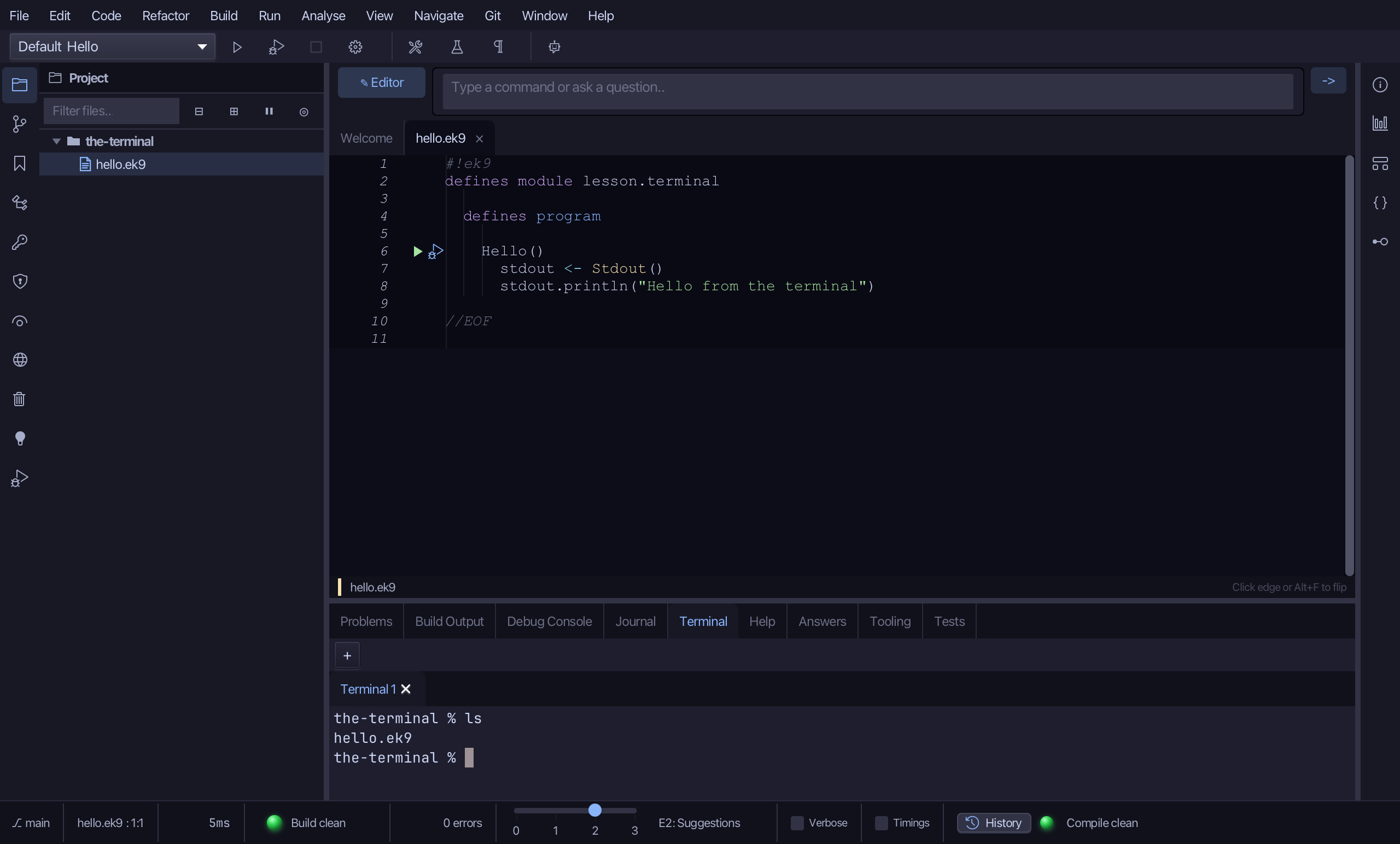
Step 2: ek9 is already on its PATH
Type ek9 -V and press Enter. The EK9 this IDE runs from is first on the shell's PATH, so ek9 needs no setup here.
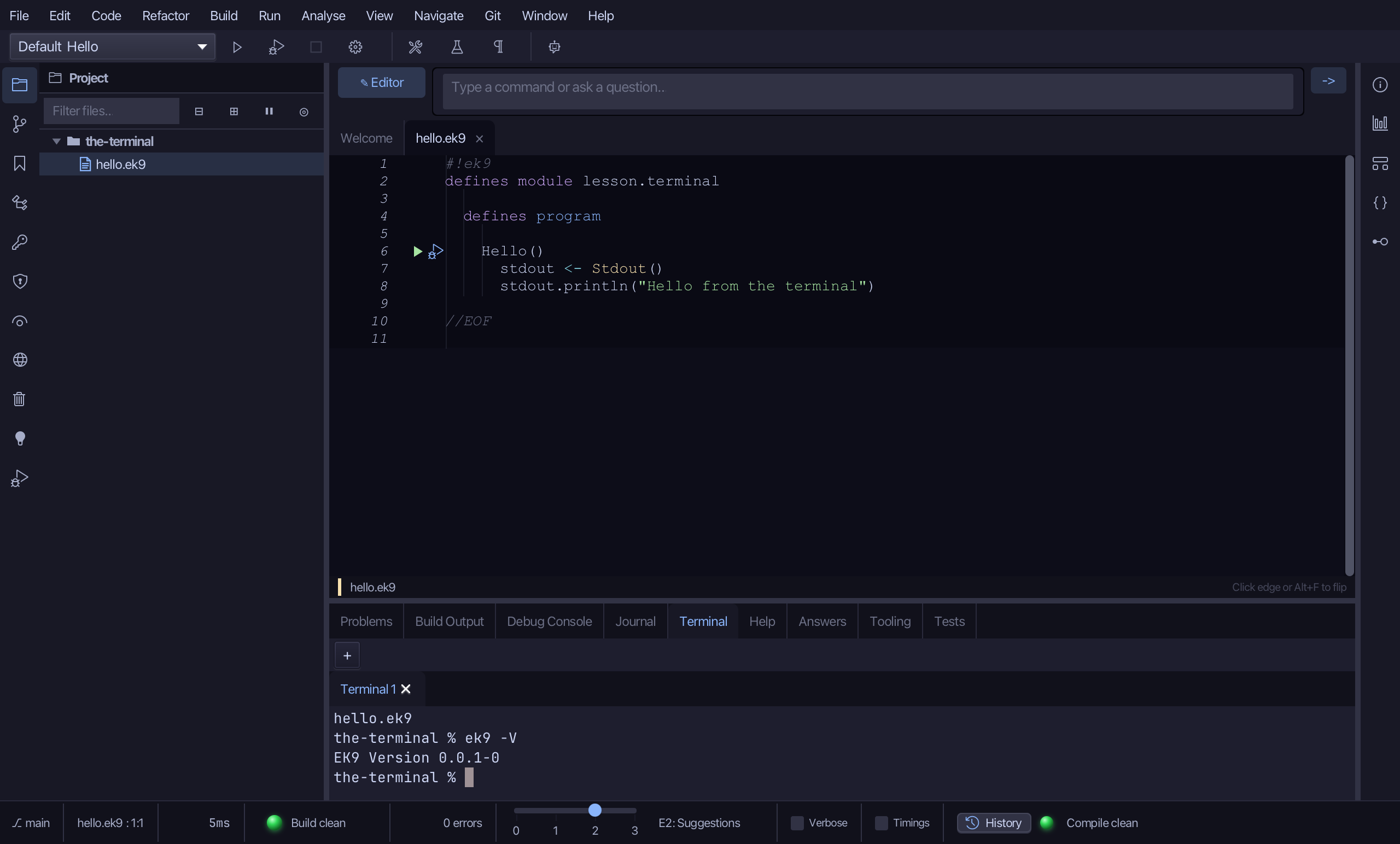
Step 3: Compile and run from the shell
Type ek9 hello.ek9 -r Hello and press Enter - it compiles hello.ek9 and runs its Hello program, with nothing but the command line.
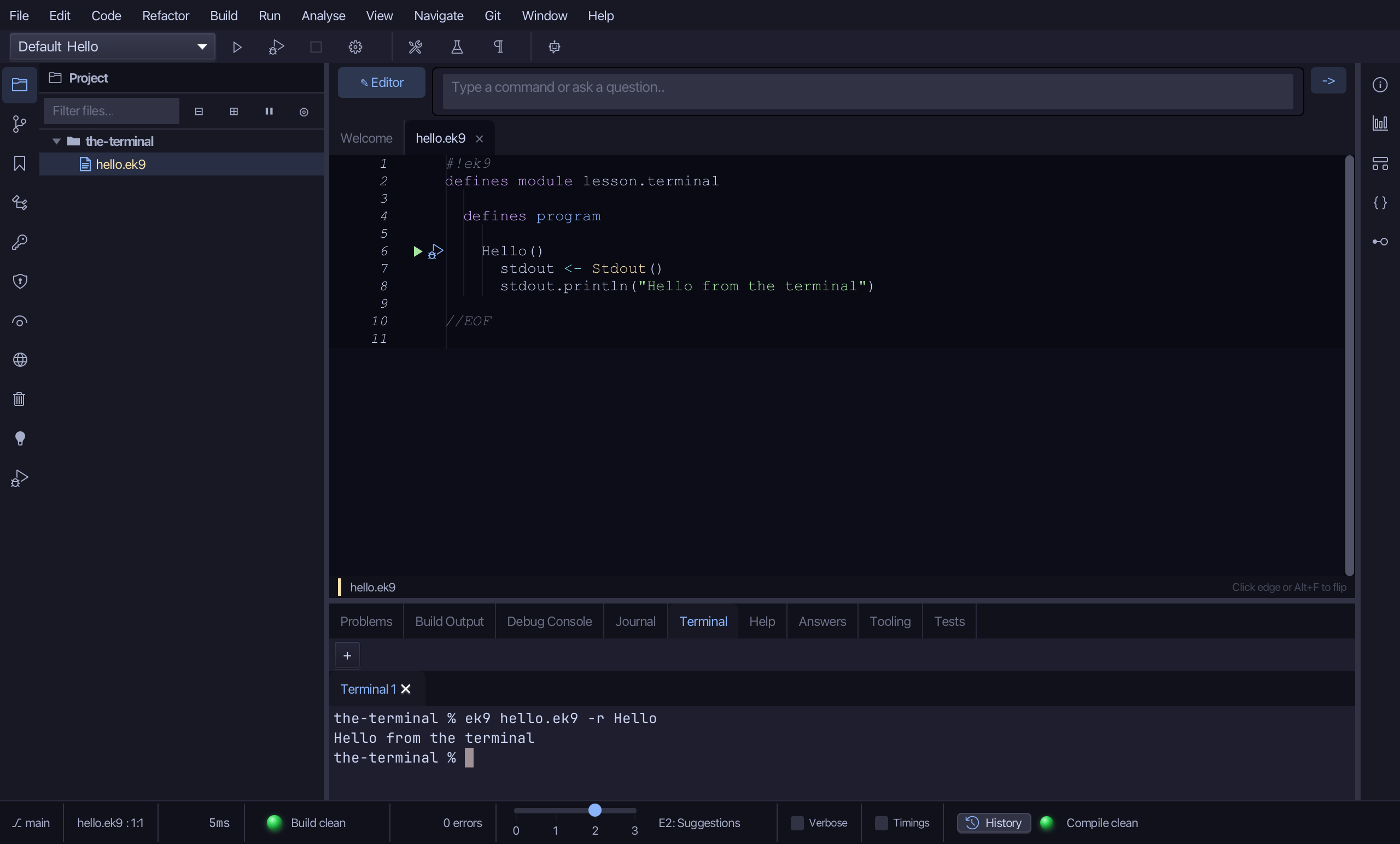
The program's line, Hello from the terminal, is printed straight into the shell. Scroll back with the wheel, or select text with the mouse and copy it with Cmd+C.
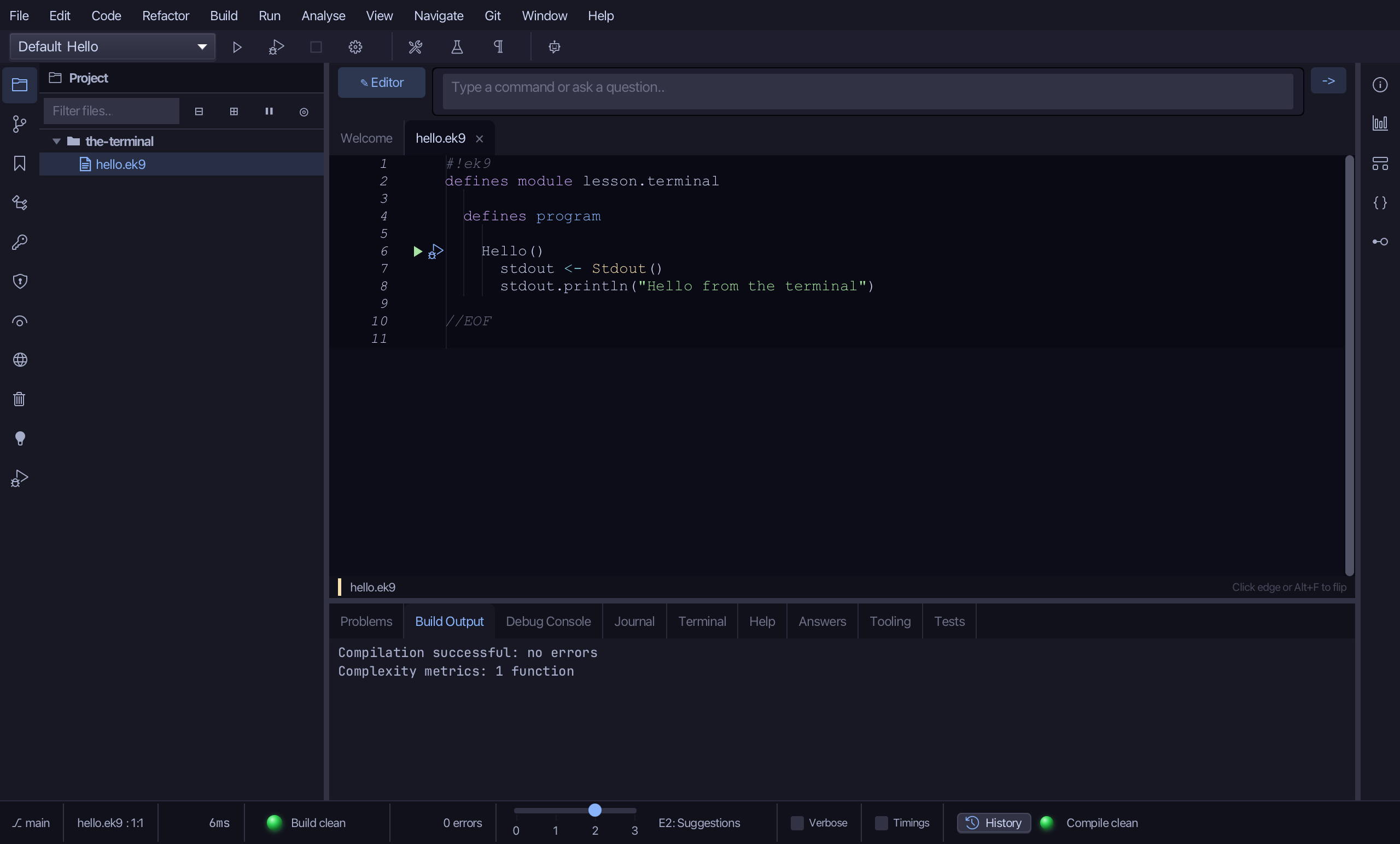
The result
That is the Terminal: a shell of your own, in the project's folder, with the ek9 command this IDE runs from first on its PATH - so a script, a build step or a command from the documentation runs here exactly as it will on a server. + opens another shell in a new tab; closing a tab hangs its shell up. The IDE never types into it for you, and what you run here is not the IDE's run: for the program's window and saved arguments use Run, for a command line use this. AI assistants reach the same compiler through ek9_compile and ek9_run_program, with no shell at all.
Where this lesson comes from
- For AI assistants - the MCP tool
ek9_compile,ek9_run_program.
In the EK9 reference: Command Line in EK9