Asking the IDE
The bar at the top of the window answers questions: /h for a type, a keyword or an error code, /q for a question, /t for a tool. Each answers in a tab of the bottom panel, instantly, and none of them changes your code. Resting the pointer on a name explains it too. To play it in the IDE: Help > Lessons > Getting started…, or ek9 -ide -lesson asking-the-ide.

Start from
The code the lesson starts from: copy it into a file of your own and follow the steps.
#!ek9
defines module lesson.showcase

  defines constant
    WARM <- 25

  defines class

    Readings
      values as List of Integer: List() of Integer
      peak as Integer: Integer()

      record()
        -> reading as Integer
        values += Integer(reading)
        if not peak? or reading > peak
          peak := Integer(reading)

      summary() as pure
        <- rtn as String?

        if peak > WARM
          rtn: `${length values} readings, peak ${peak} - warm`
        else
          rtn: `${length values} readings, peak ${peak} - mild`

      warmReadings()
        <- rtn as List of Integer: cat values | filter by isWarm | collect as List of Integer

      operator $ as pure
        <- rtn as String: `Readings: ${length values}, peak ${peak}`

      default operator ?

  defines function

    isWarm() as pure
      -> reading as Integer
      <- rtn as Boolean: reading > WARM

  defines program

    ShowReadings()
      stdout <- Stdout()
      station <- Readings()
      station.record(18)
      station.record(27)
      station.record(30)

      stdout.println(station.summary())
      stdout.println(`Warm readings: ${station.warmReadings()}`)

//EOF
Step 1: A type or a keyword: /h
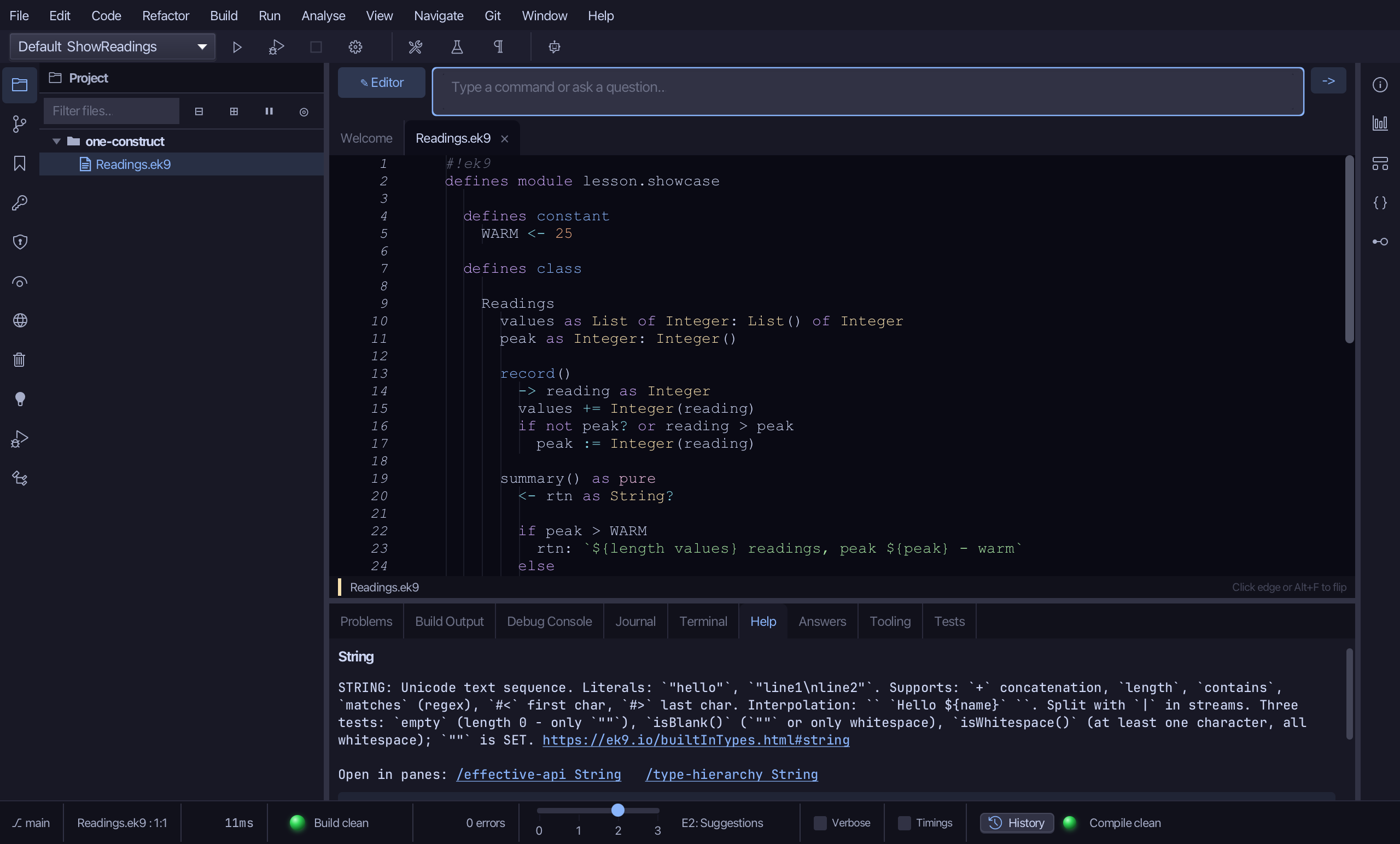
Type /h String in the input bar and press Enter. The Help tab shows what a String offers - its constructors, methods and operators. Try /h record, or /h E05030 for an error.
Step 2: A question: /q
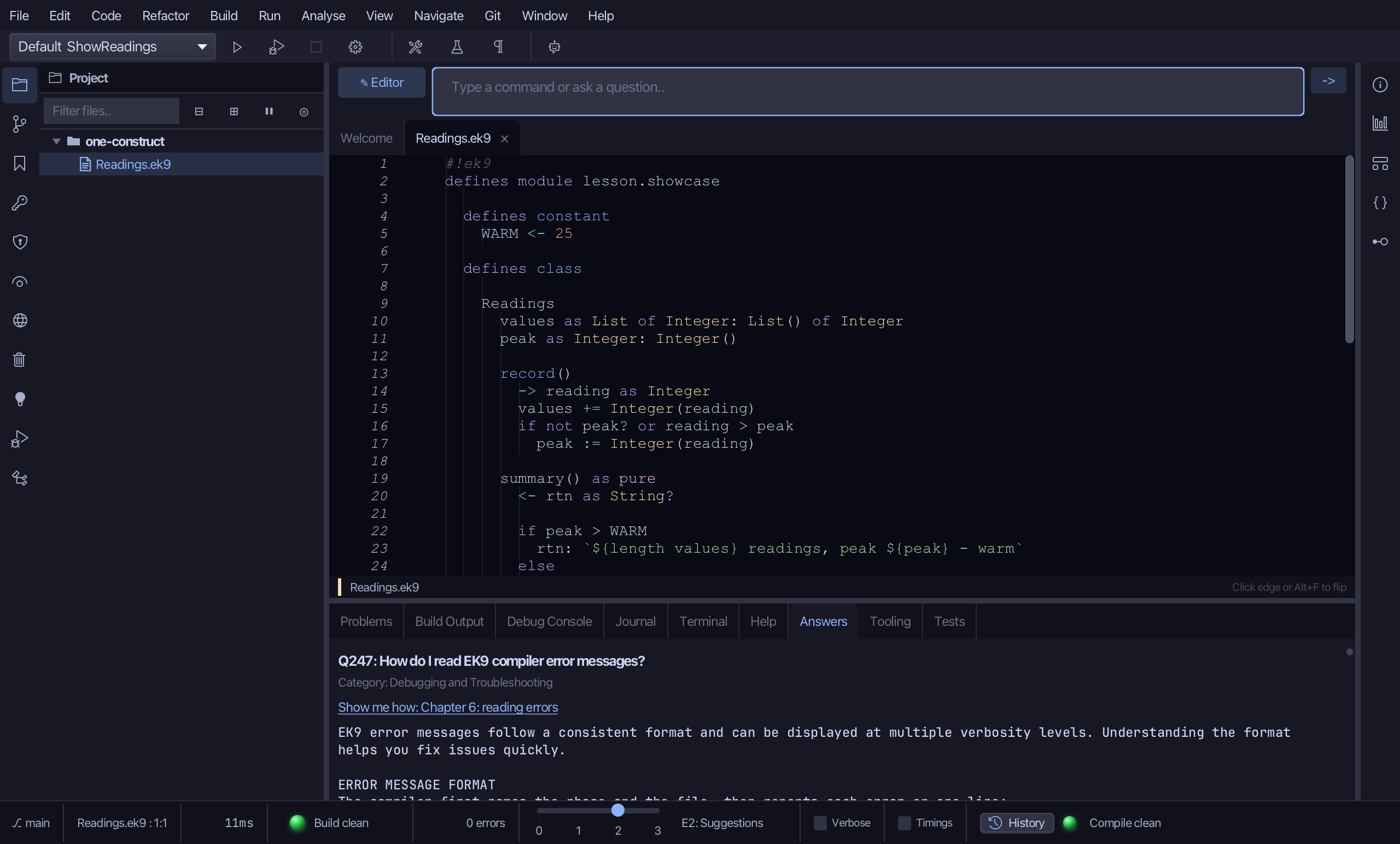
Type /q followed by some words - /q read compiler error messages - and press Enter. The Answers tab lists the questions that match, each with a worked example. A question's number, /q 247, opens just that one.
Step 3: A tool: /t
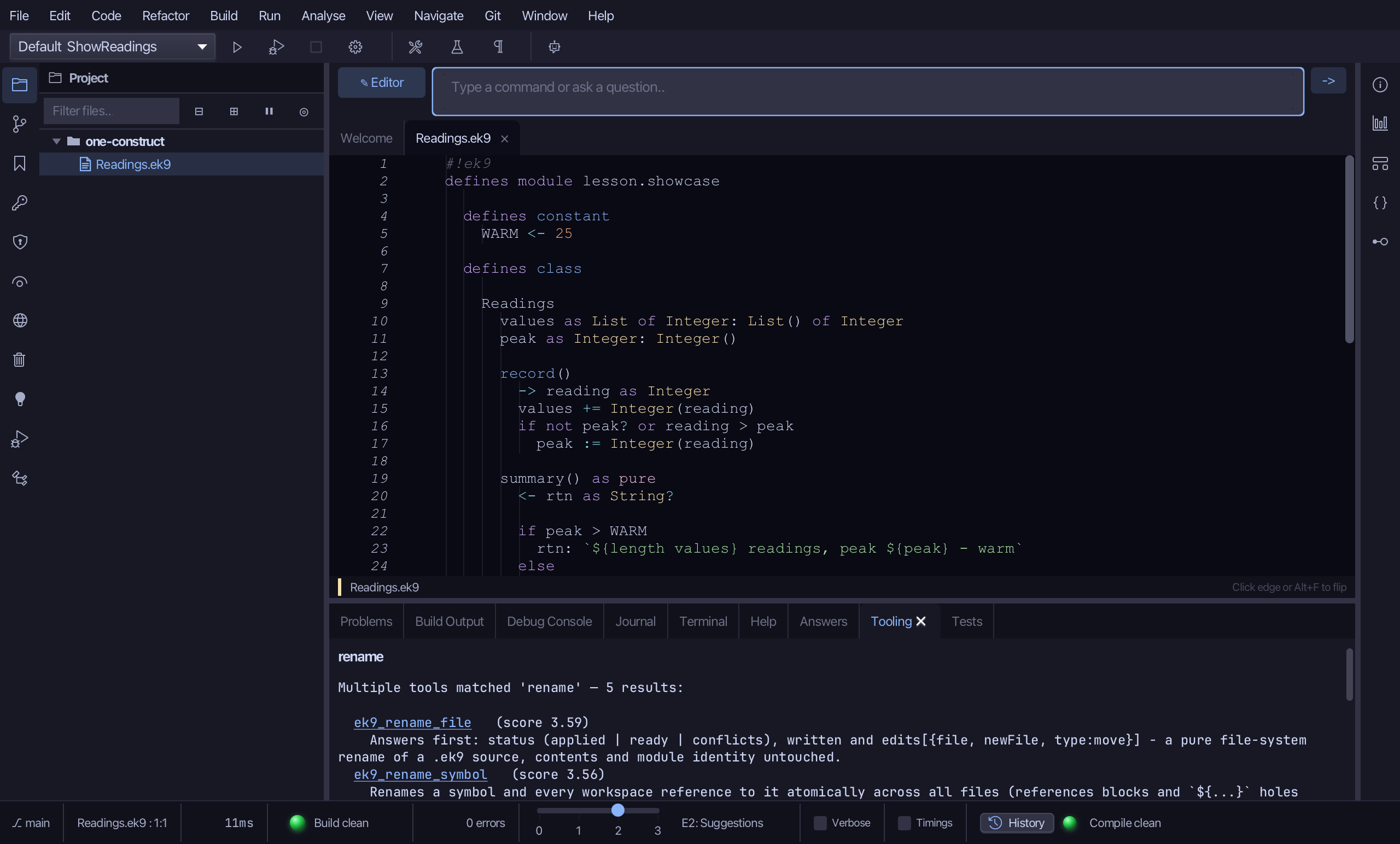
Type /t rename and press Enter. The Tooling tab lists the tools that match - the same ones an AI assistant is given. A tool's name, /t ek9_rename_symbol, shows its arguments.
Step 4: A name in the editor: Hovers
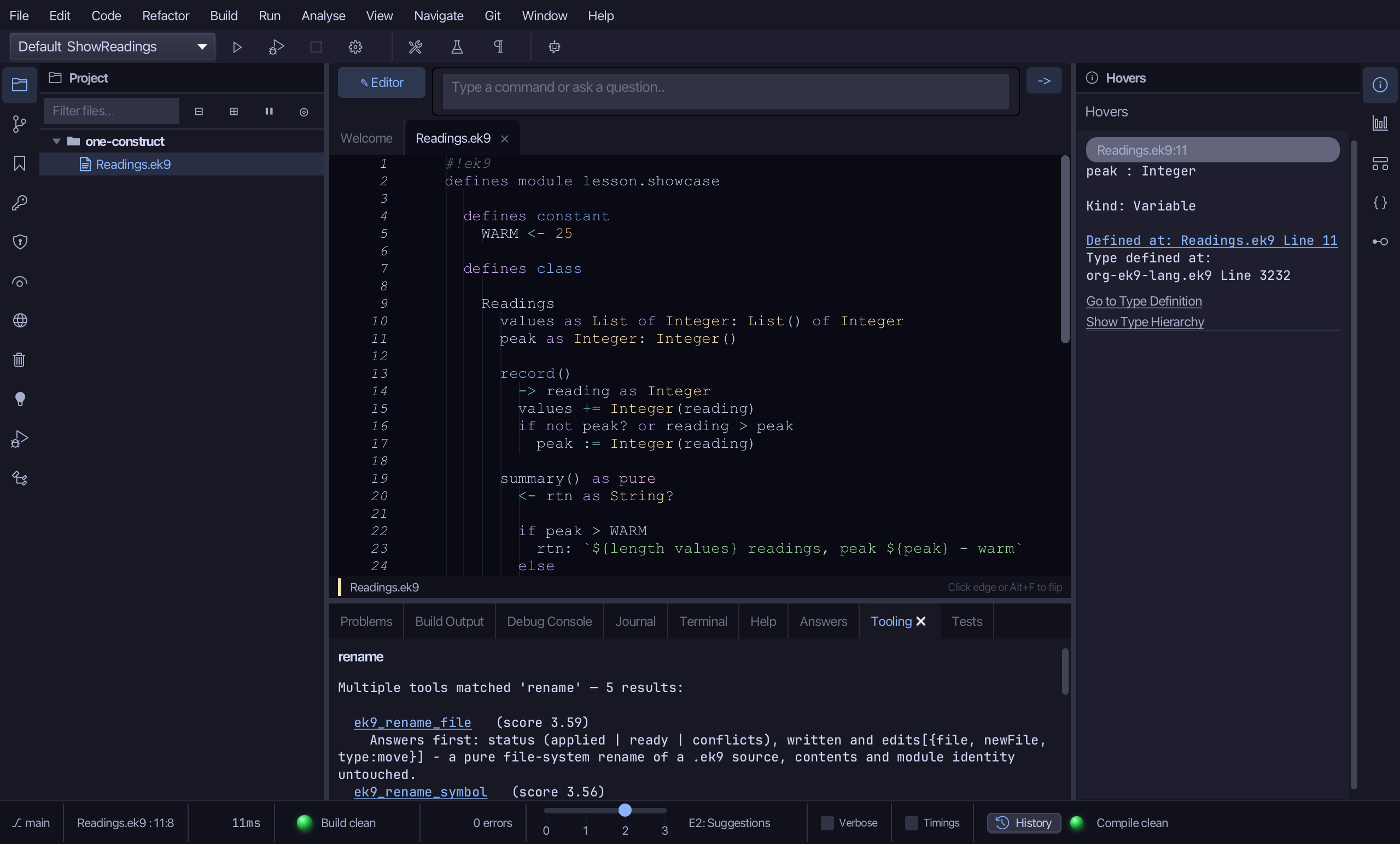
Rest the pointer on peak, in the editor. The Hovers panel, at the right, explains it. An error rested on is explained there too, in full.
The result
/h answers in the Help tab (a type, a keyword or an error code), /q in the Answers tab (a question, by its words or its number) and /t in the Tooling tab (a tool) - the same text as ek9 -h, ek9 -q and ek9 -tool in a terminal. The Hovers panel explains whatever the pointer rests on, and typing show me how in the bar lists the lessons.
Where this lesson comes from
- Answers -
ek9 -qand the IDE's Answers tab: 21. - For AI assistants - the MCP tool
ek9_help,ek9_ask,ek9_query_tool_catalogue.
In the EK9 reference: Introduction to EK9