Chapter 38: a library to depend on, built and installed
The chapter's consumer needs a library to depend on, and a dependency can only come from a library on your own disk today, so it must be installed first. This one is tiny - a constant and two area functions - and its package block lists nothing it needs to declare: no program, no gated type, so no capabilities. The IDE writes the constant and the functions; you type the manifest and the two claims; Build packages and installs it into a library made for this lesson. To play it in the IDE: Help > Lessons > EK9 in Depth…, or ek9 -ide -lesson depth-package-shapes.
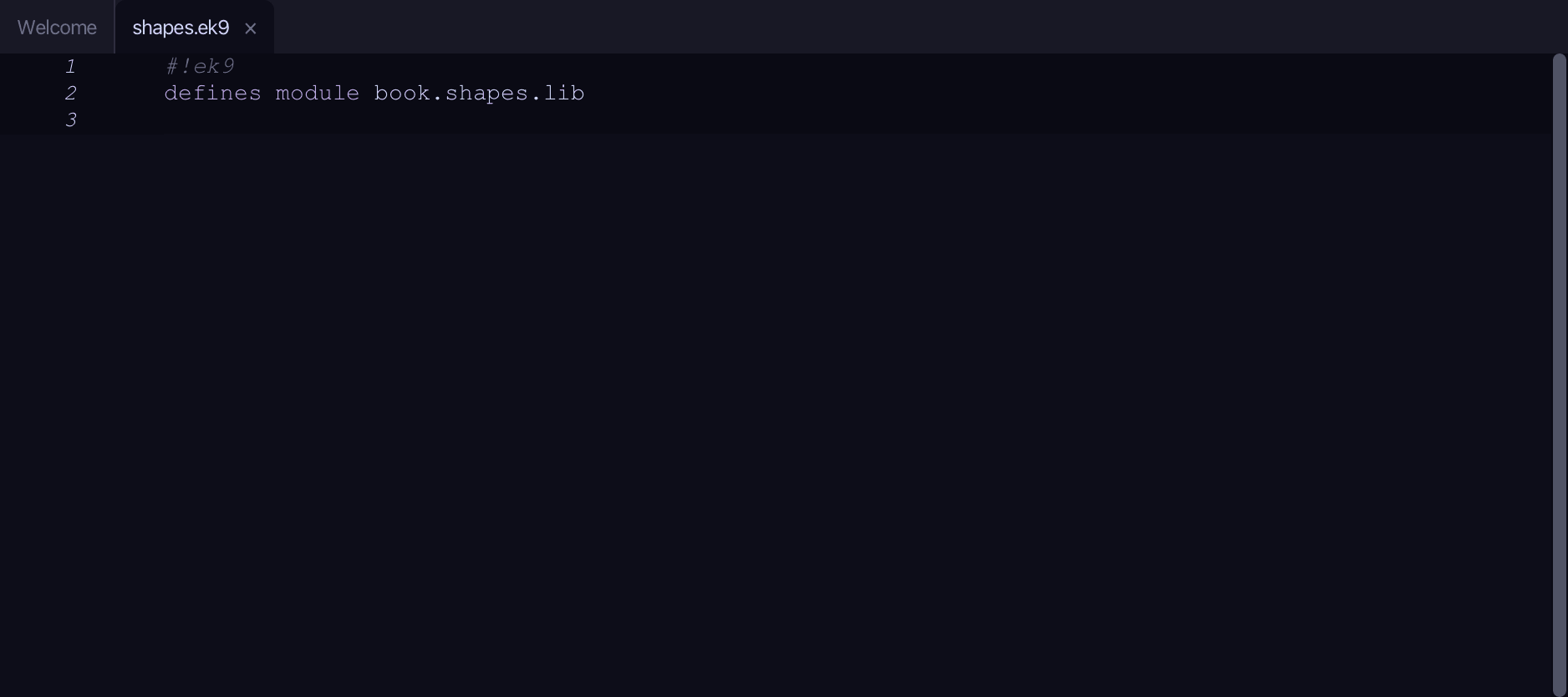
What you'll build
The lesson builds this program from a file holding only its module line - the finished file, as the book prints it.
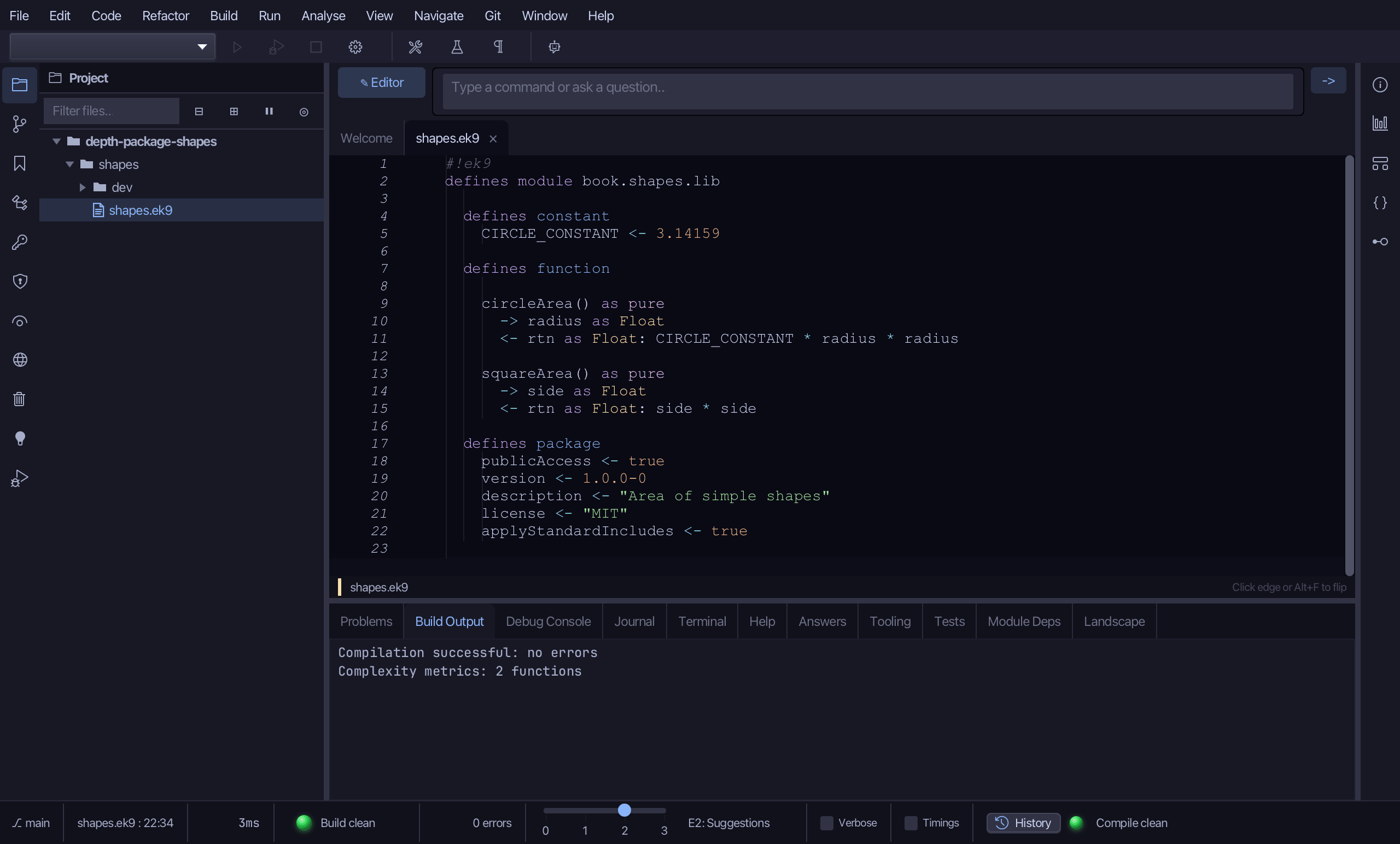
shapes/shapes.ek9
#!ek9
defines module book.shapes.lib

  defines constant
    CIRCLE_CONSTANT <- 3.14159

  defines function

    circleArea() as pure
      -> radius as Float
      <- rtn as Float: CIRCLE_CONSTANT * radius * radius

    squareArea() as pure
      -> side as Float
      <- rtn as Float: side * side

  defines package
    publicAccess <- true
    version <- 1.0.0-0
    description <- "Area of simple shapes"
    license <- "MIT"
    applyStandardIncludes <- true
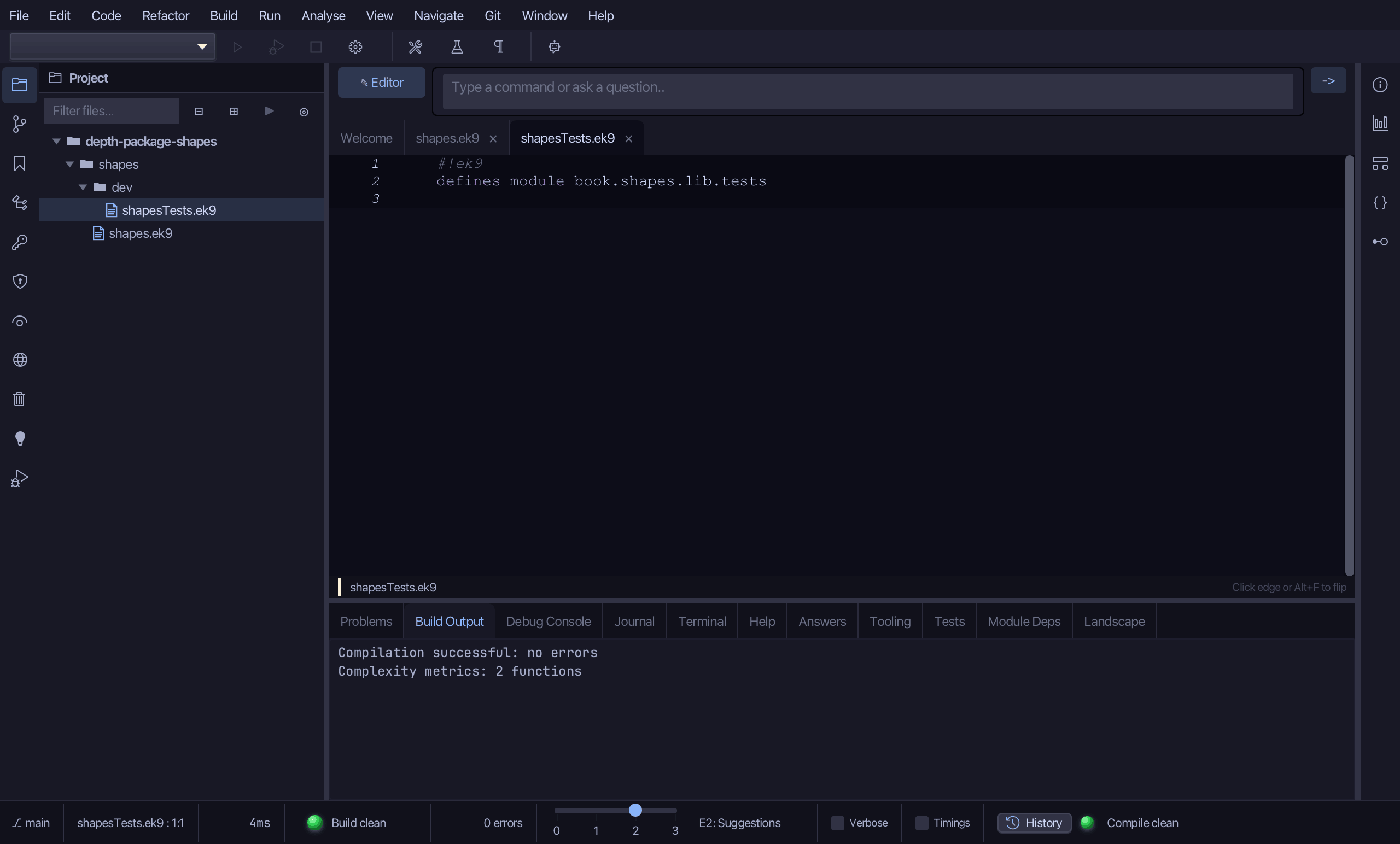
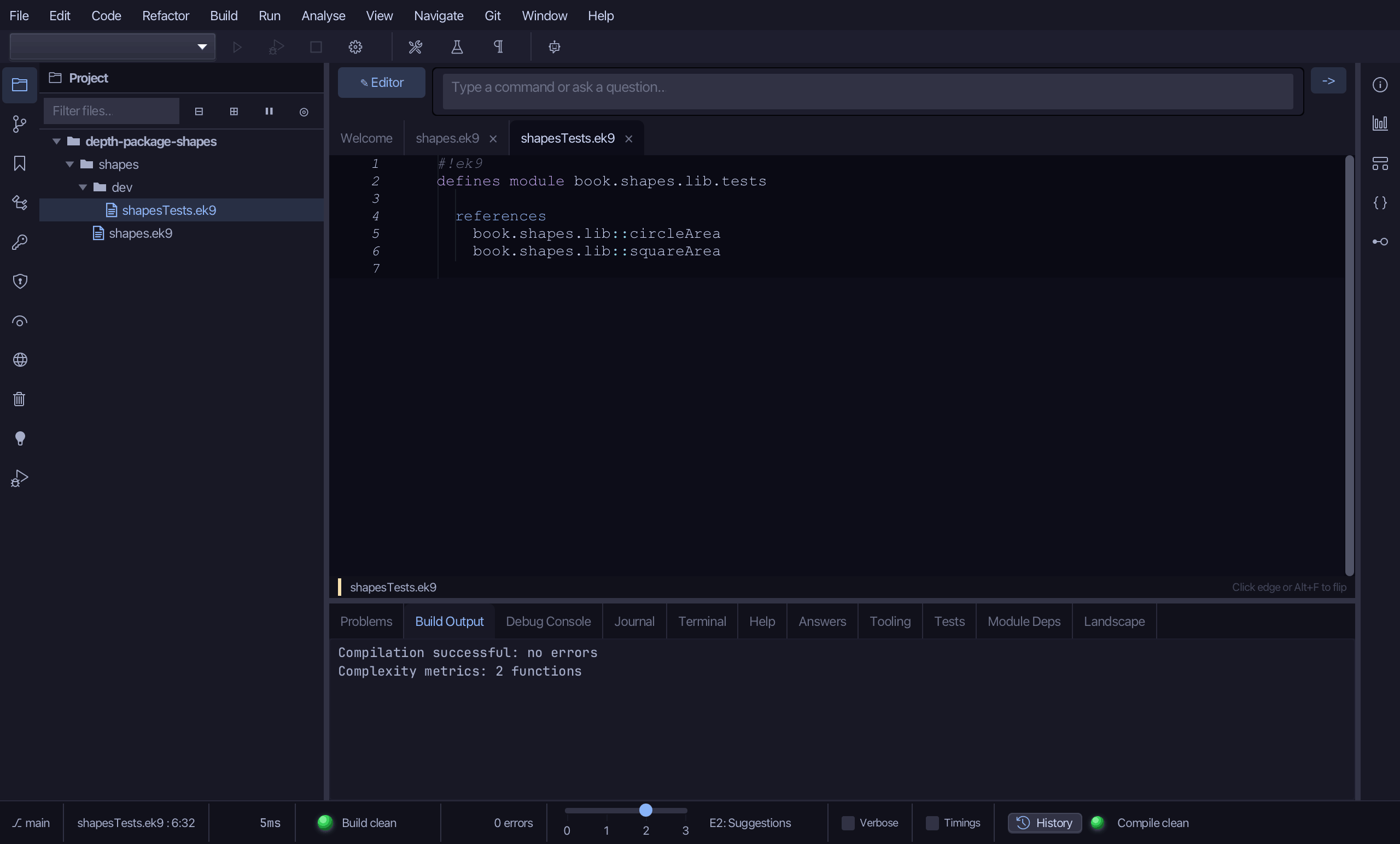
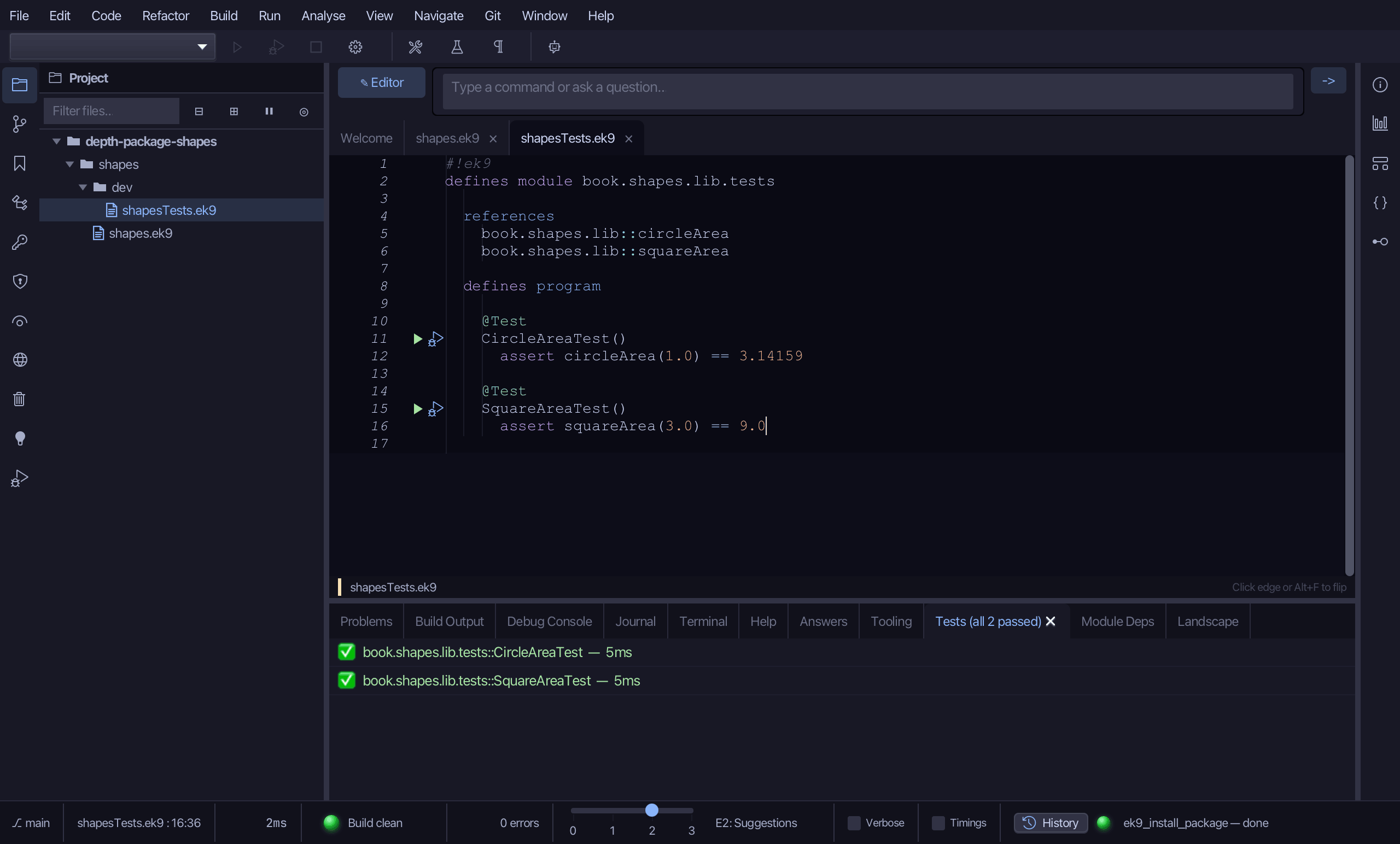
shapes/dev/shapesTests.ek9
#!ek9
defines module book.shapes.lib.tests

  references
    book.shapes.lib::circleArea
    book.shapes.lib::squareArea

  defines program

    @Test
    CircleAreaTest()
      assert circleArea(1.0) == 3.14159

    @Test
    SquareAreaTest()
      assert squareArea(3.0) == 9.0
Step 1: A constant
Choose Code > New Construct > Constant…
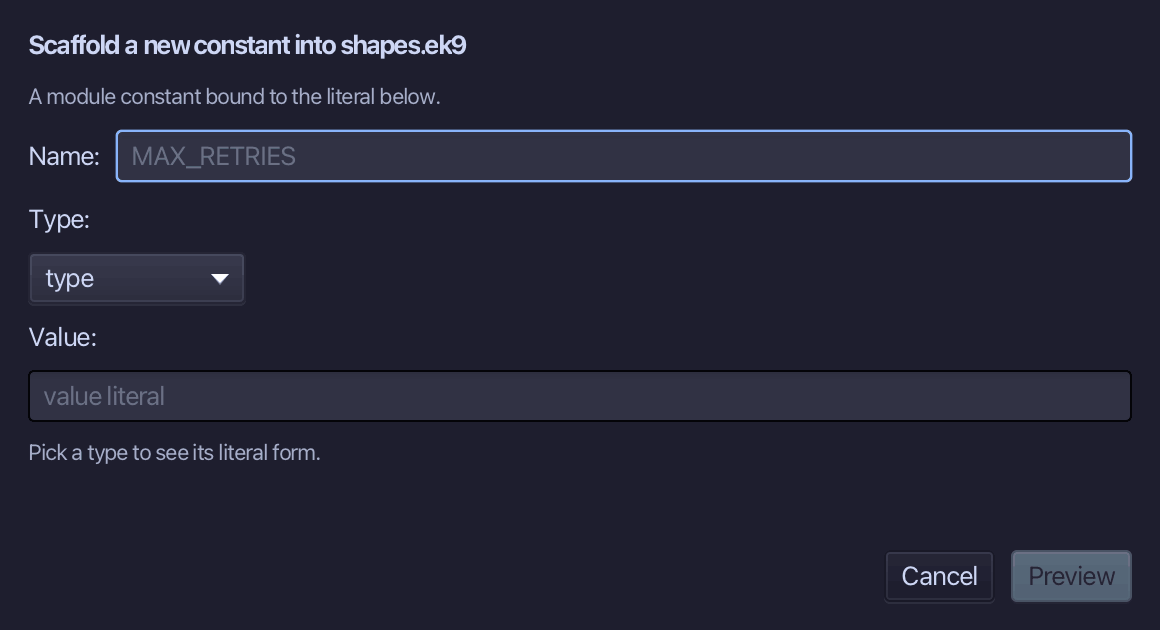
CIRCLE_CONSTANT is the constant's name and 3.14159 its value - a literal in the Value field, from which the type is inferred. Type both and choose Preview.
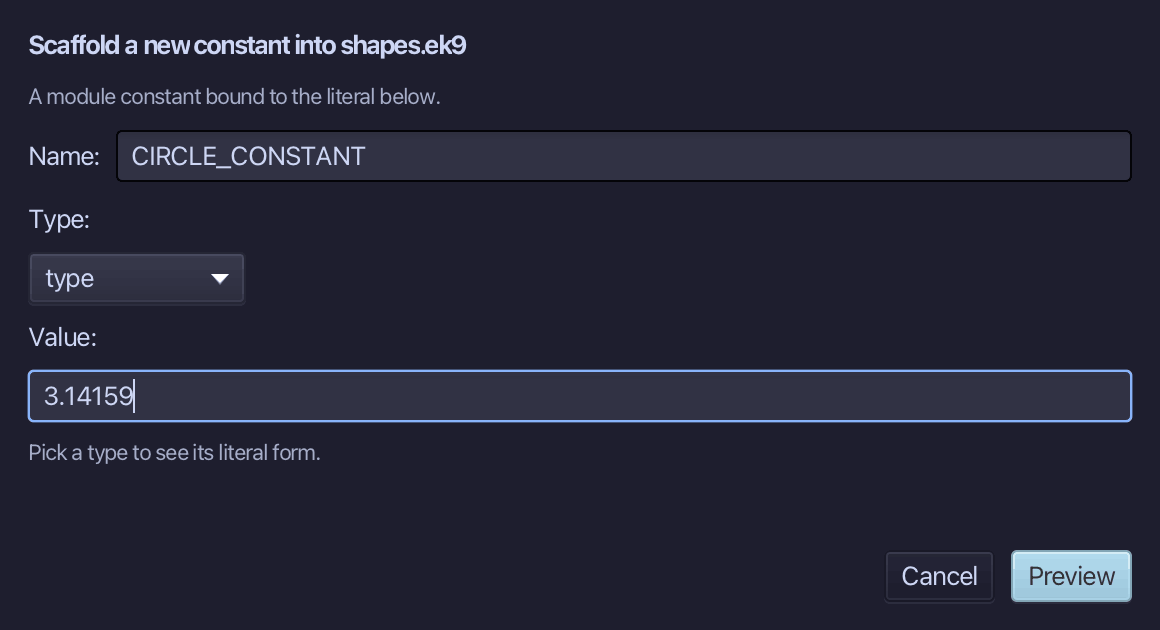
The preview shows CIRCLE_CONSTANT about to be written. Choose Apply.
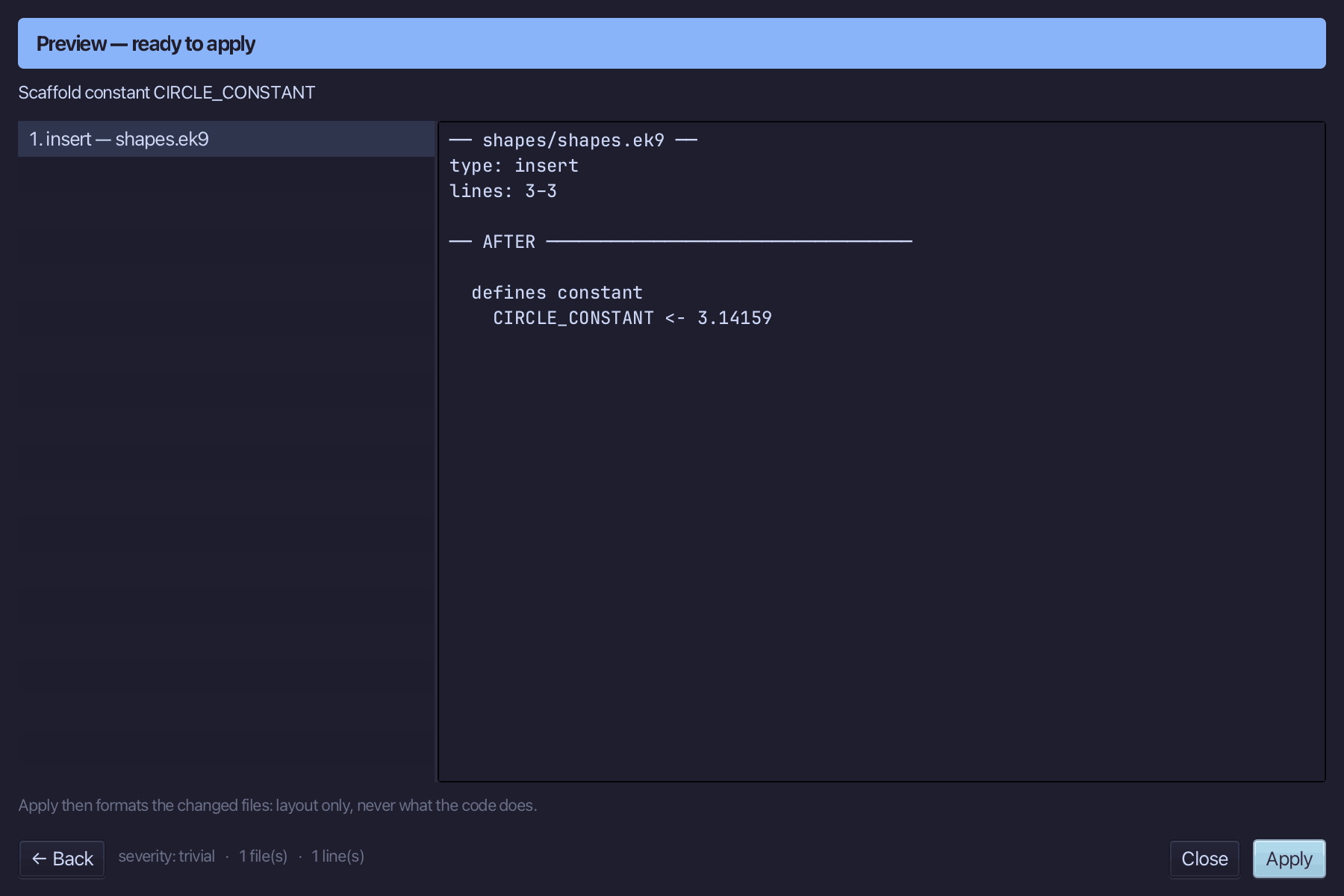
Step 2: circleArea — a pure function
Choose Code > New Construct > Function…
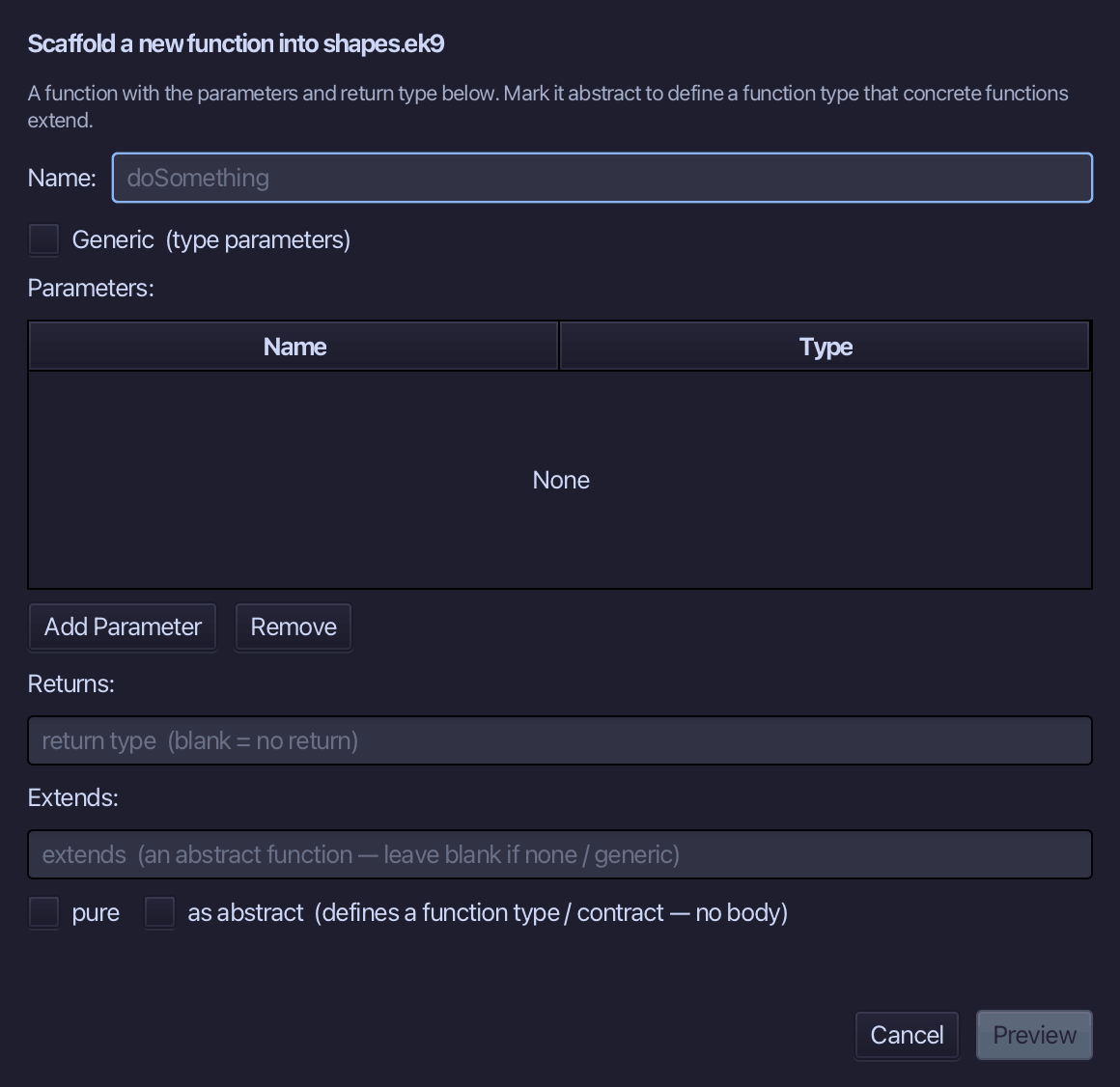
circleArea is the function's name. Add one parameter, radius of type Float, set Returns to Float and tick pure. Choose Preview.
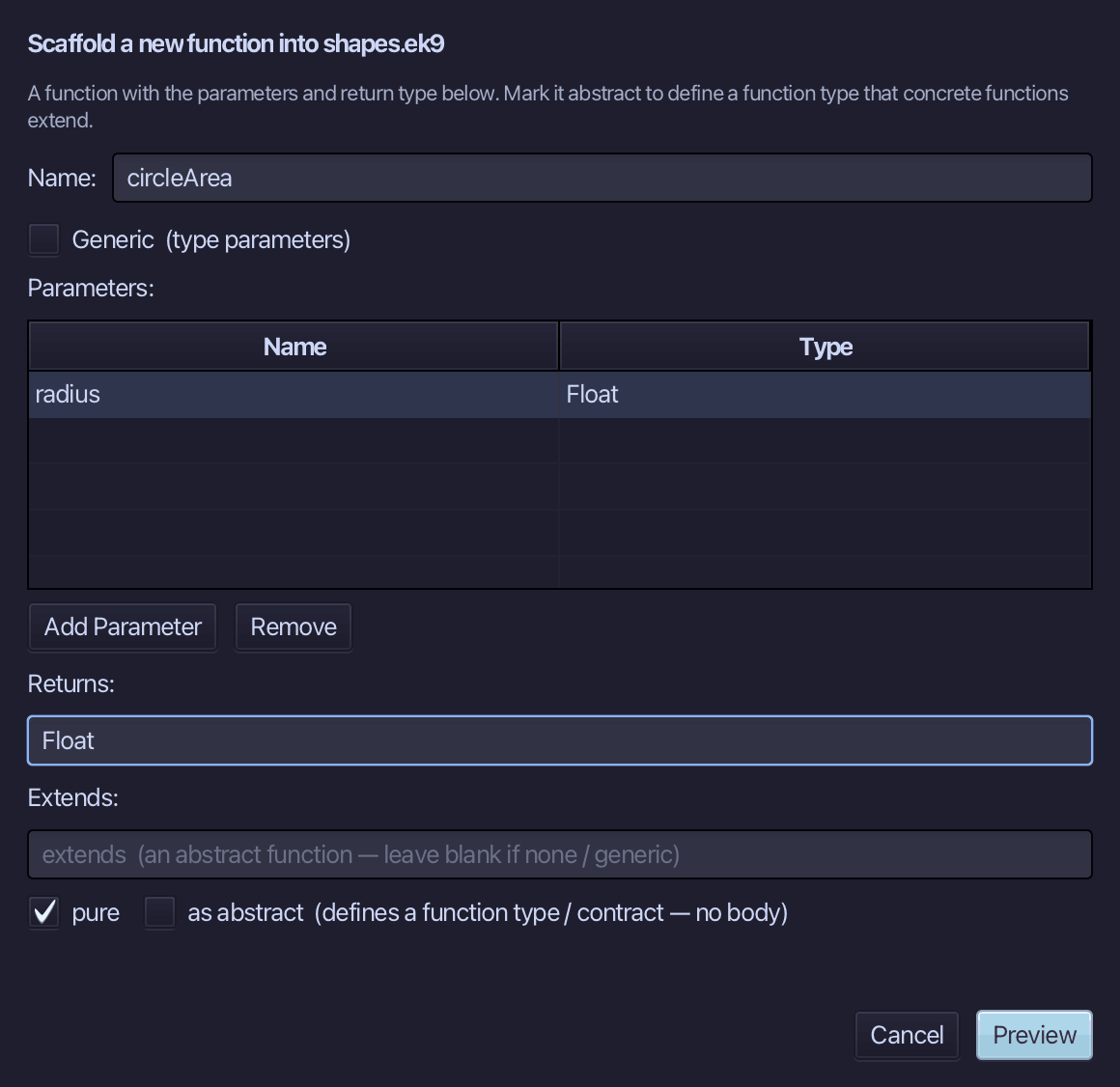
The preview shows circleArea about to be written. Choose Apply.
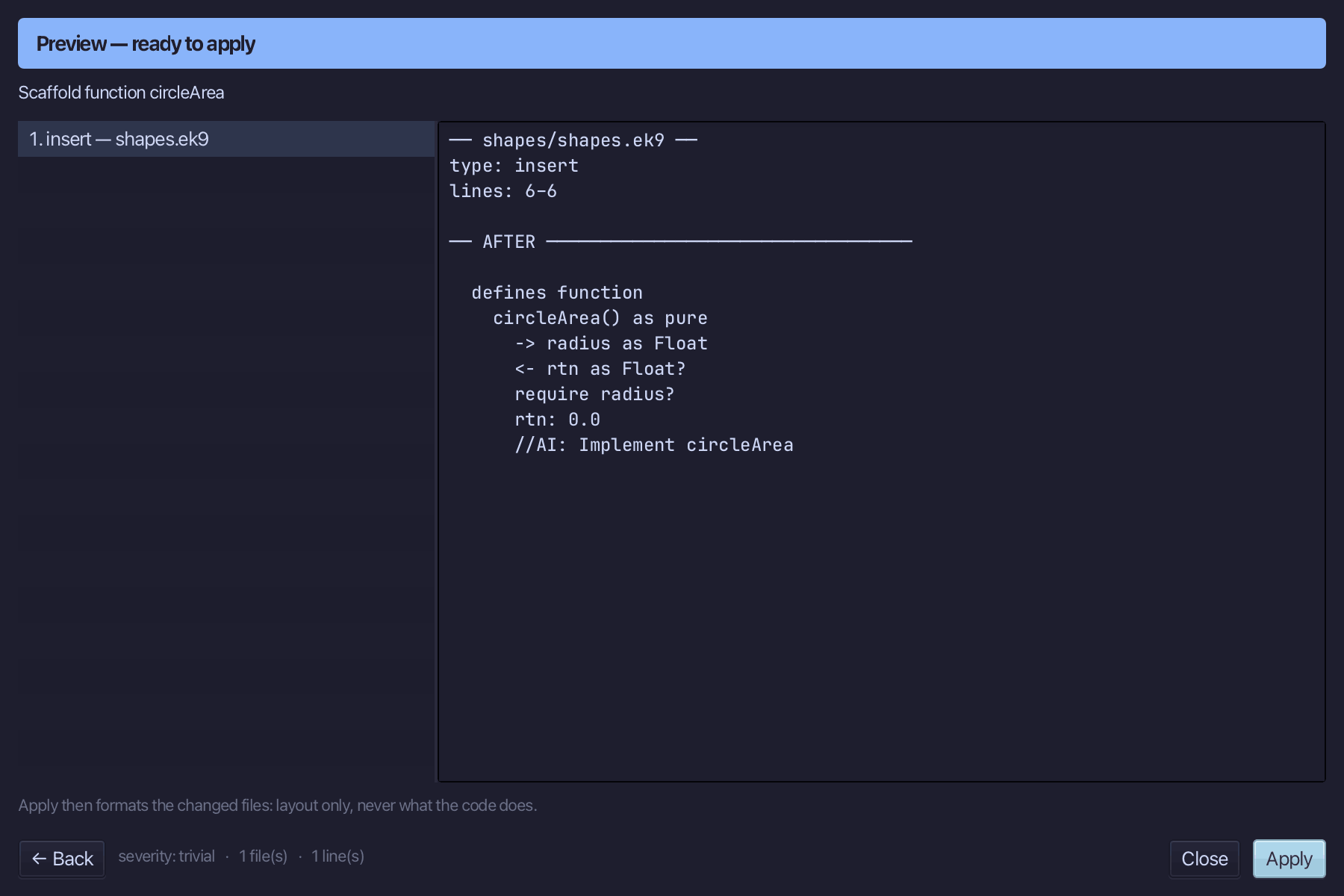
Select the circleArea() as pure line and, above it, type the blank line the book opens its first function with. Saves when typed.
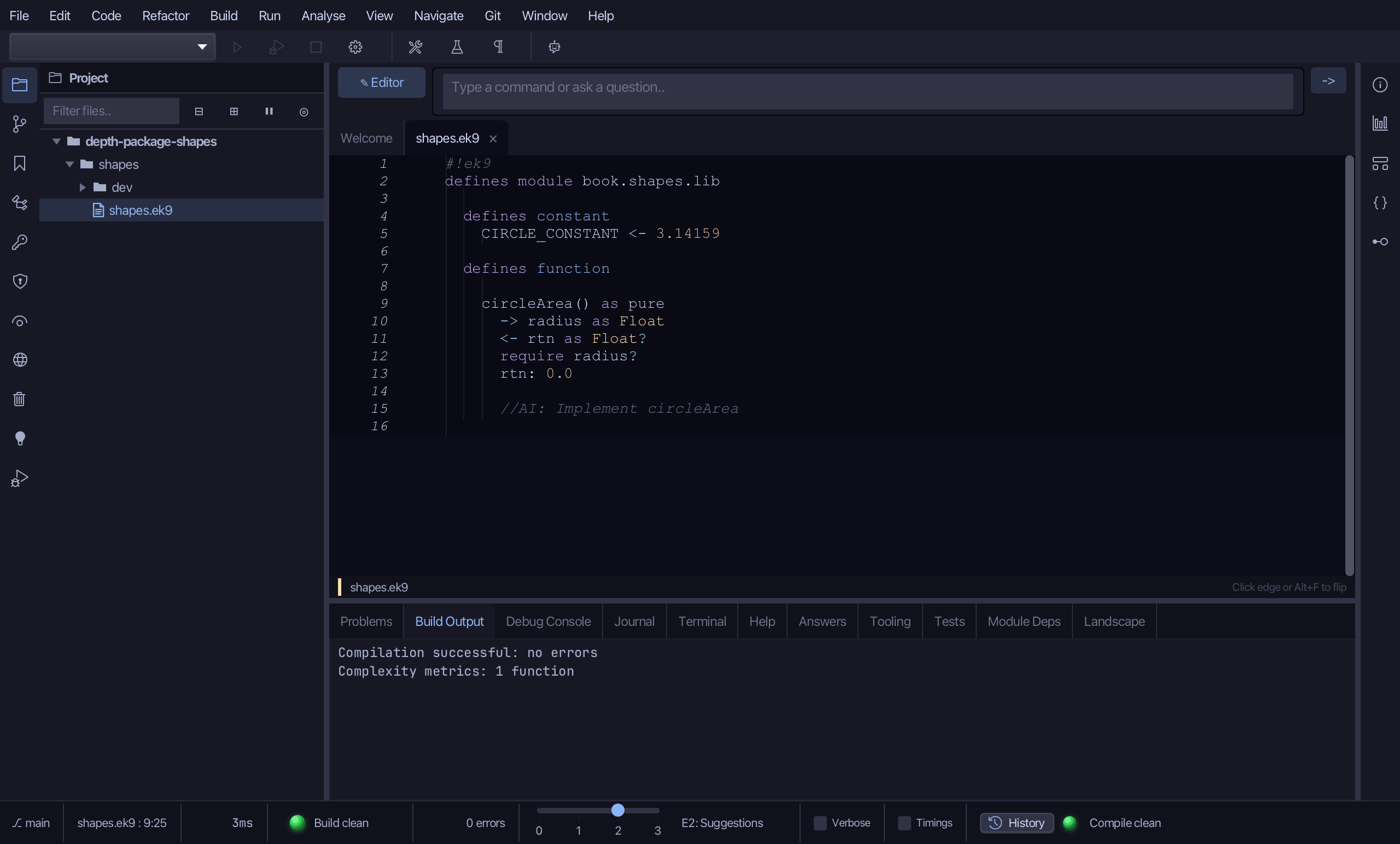
Select the stub, from <- rtn as Float? down to its //AI line, and type circleArea's own return and work, as the book writes them. Saves when typed.
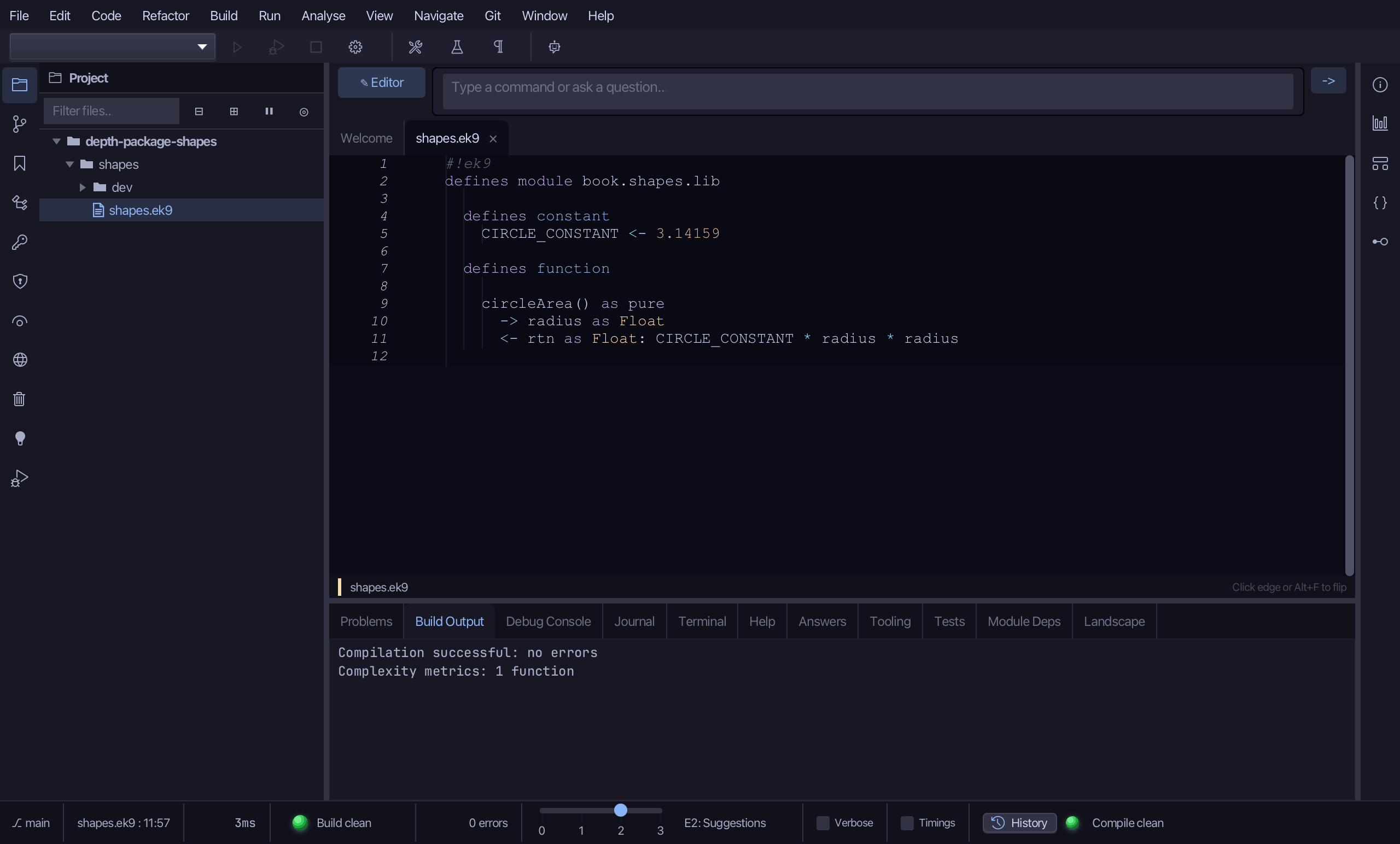
Step 3: squareArea — a pure function
Choose Code > New Construct > Function…
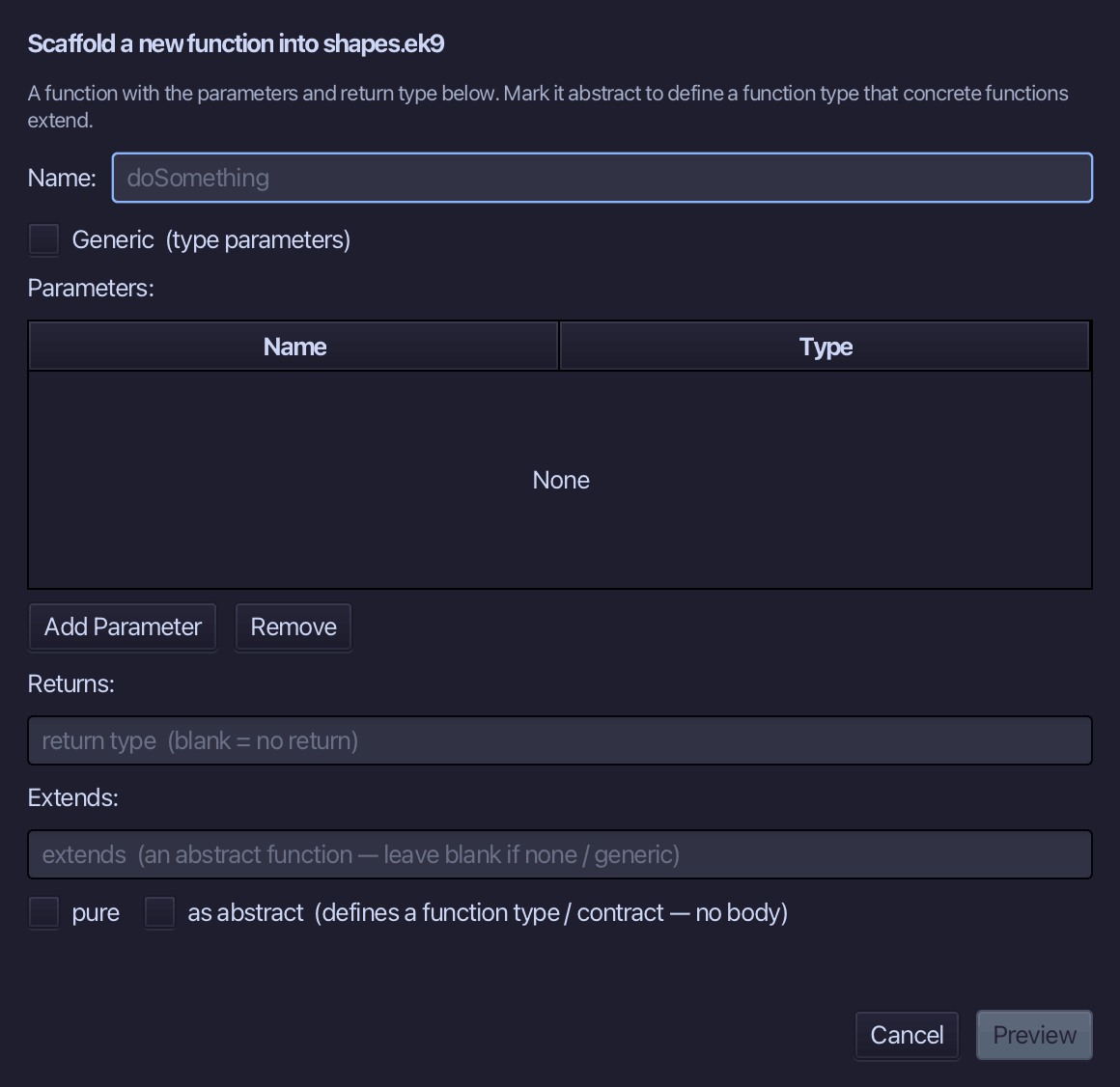
squareArea is the function's name. Add one parameter, side of type Float, set Returns to Float and tick pure. Choose Preview.
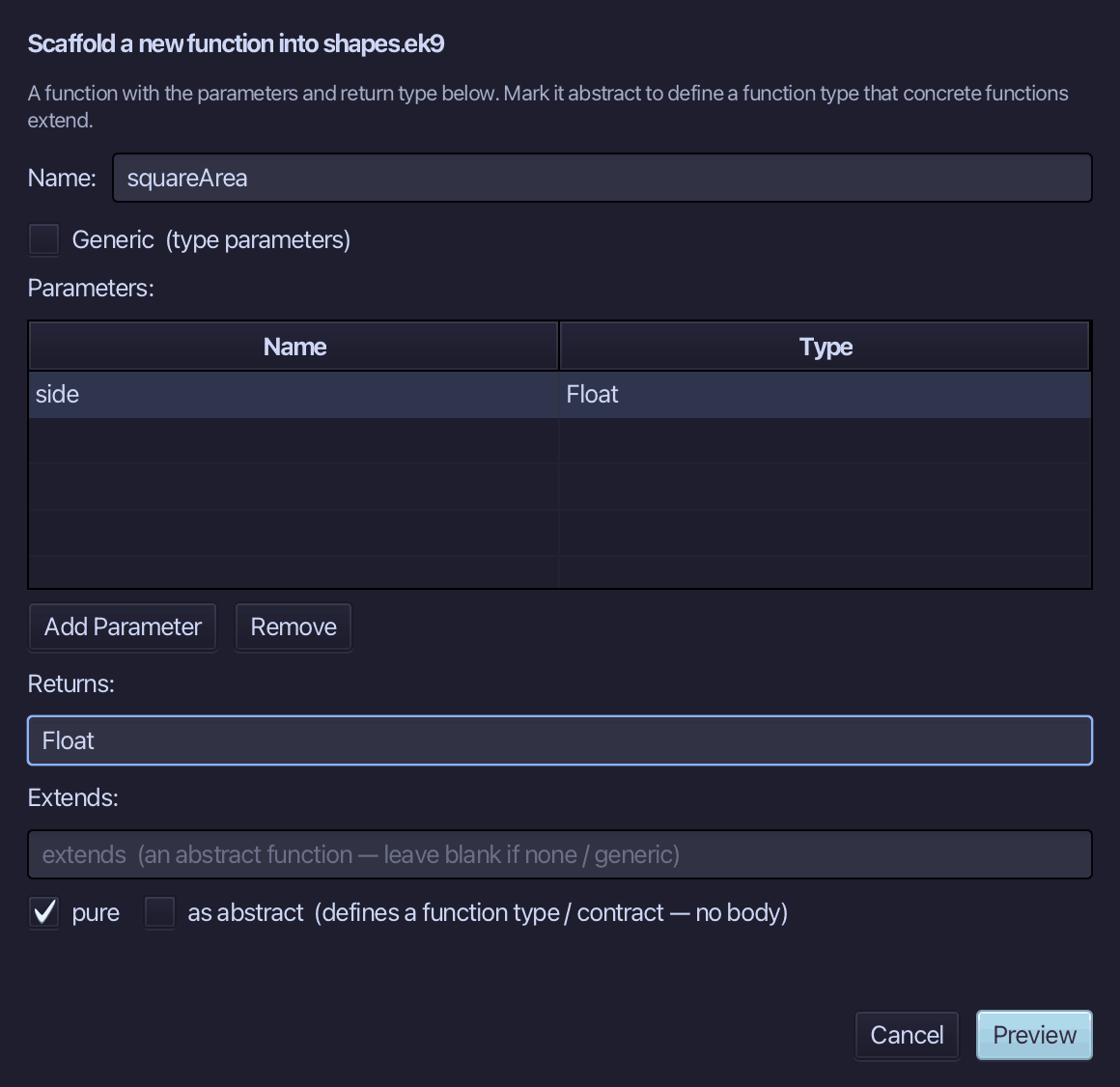
The preview shows squareArea about to be written. Choose Apply.
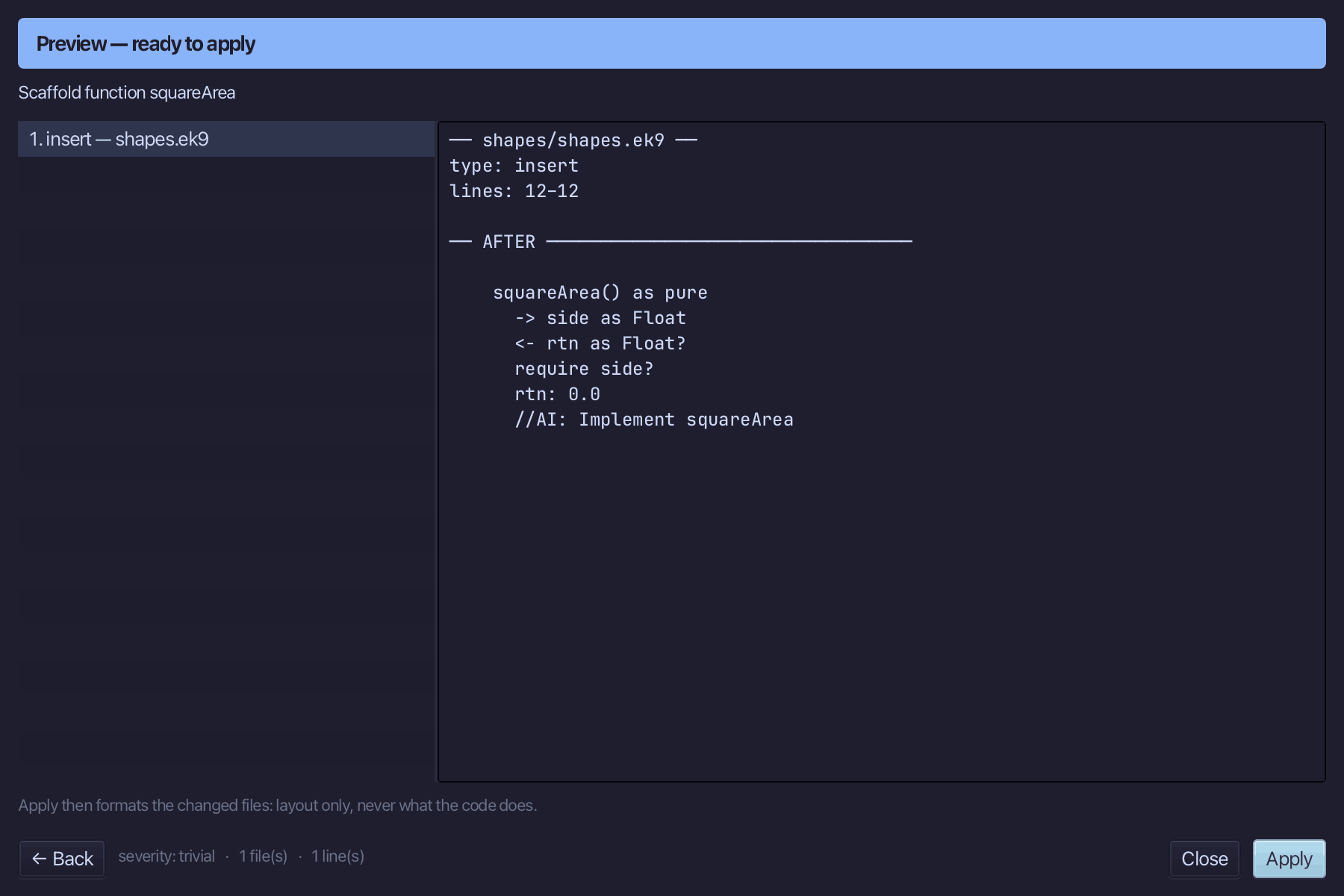
Select the stub, from <- rtn as Float? down to its //AI line, and type squareArea's own return and work, as the book writes them. Saves when typed.
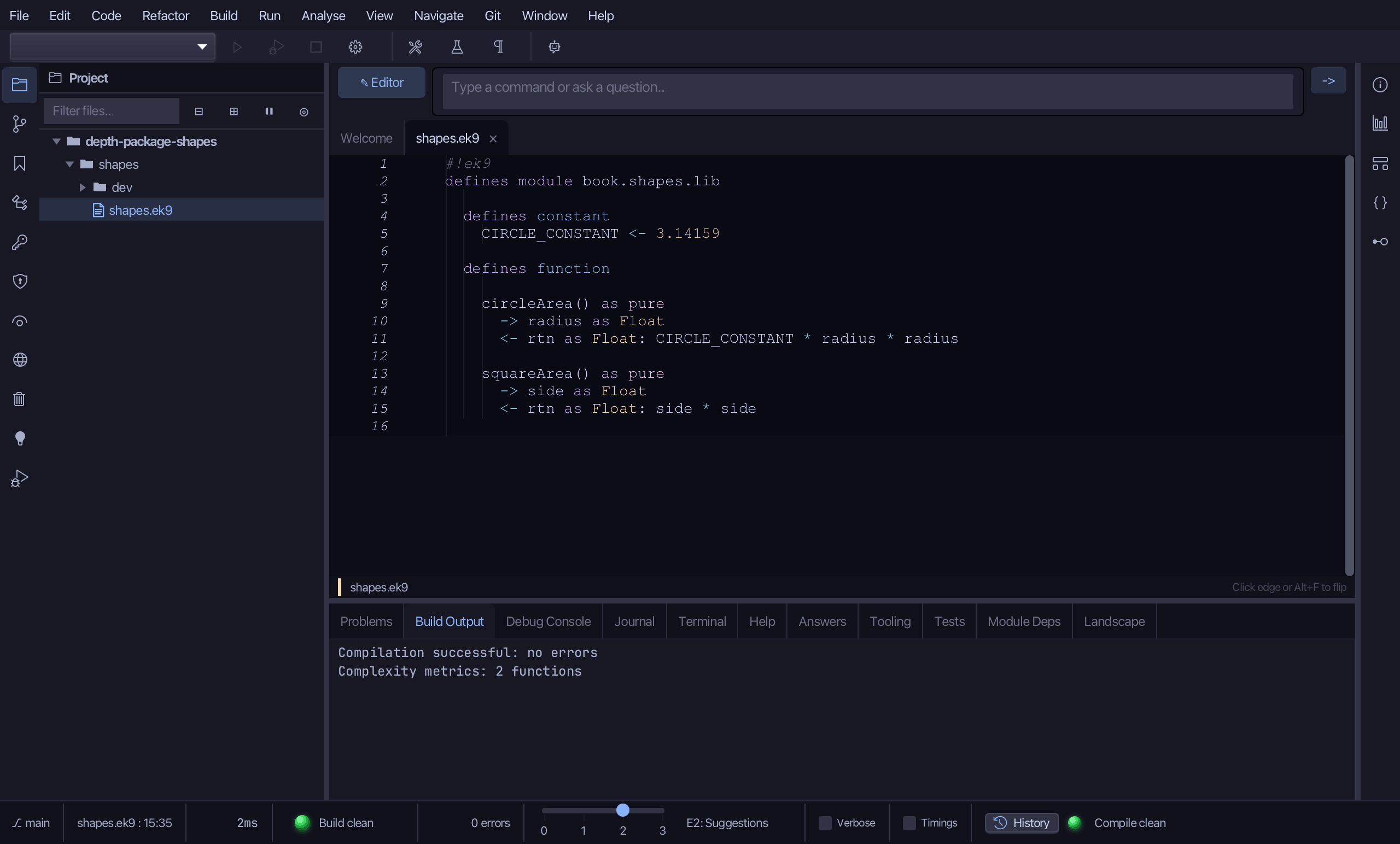
Step 4: The manifest — defines package
Where Maven keeps a pom.xml and npm a package.json, EK9 keeps the manifest in the source: a defines package block at the end of the module, the version in it a native Version literal, no second file to disagree with it. Select the last line of the code and, after it, type the block. Saves when typed.
Step 5: The tests' file
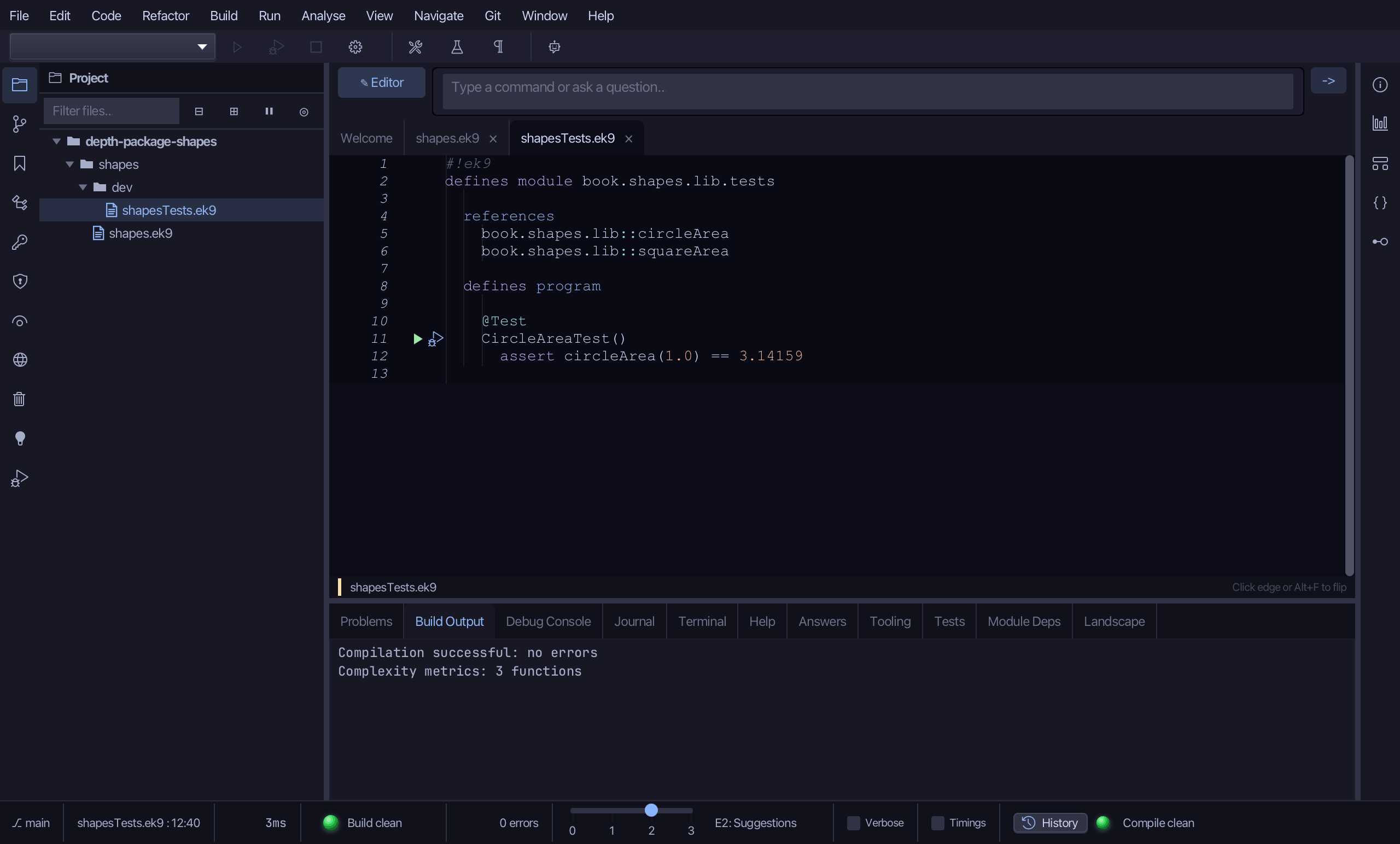
Open shapes/dev/shapesTests.ek9 - already there, with just its own module line. Packaging refuses a project whose tests fail or cover less than 80%, so they come before the package.
Select the module line, and below it type a references block bringing in what the tests call. Saves when typed.
Step 6: CircleAreaTest
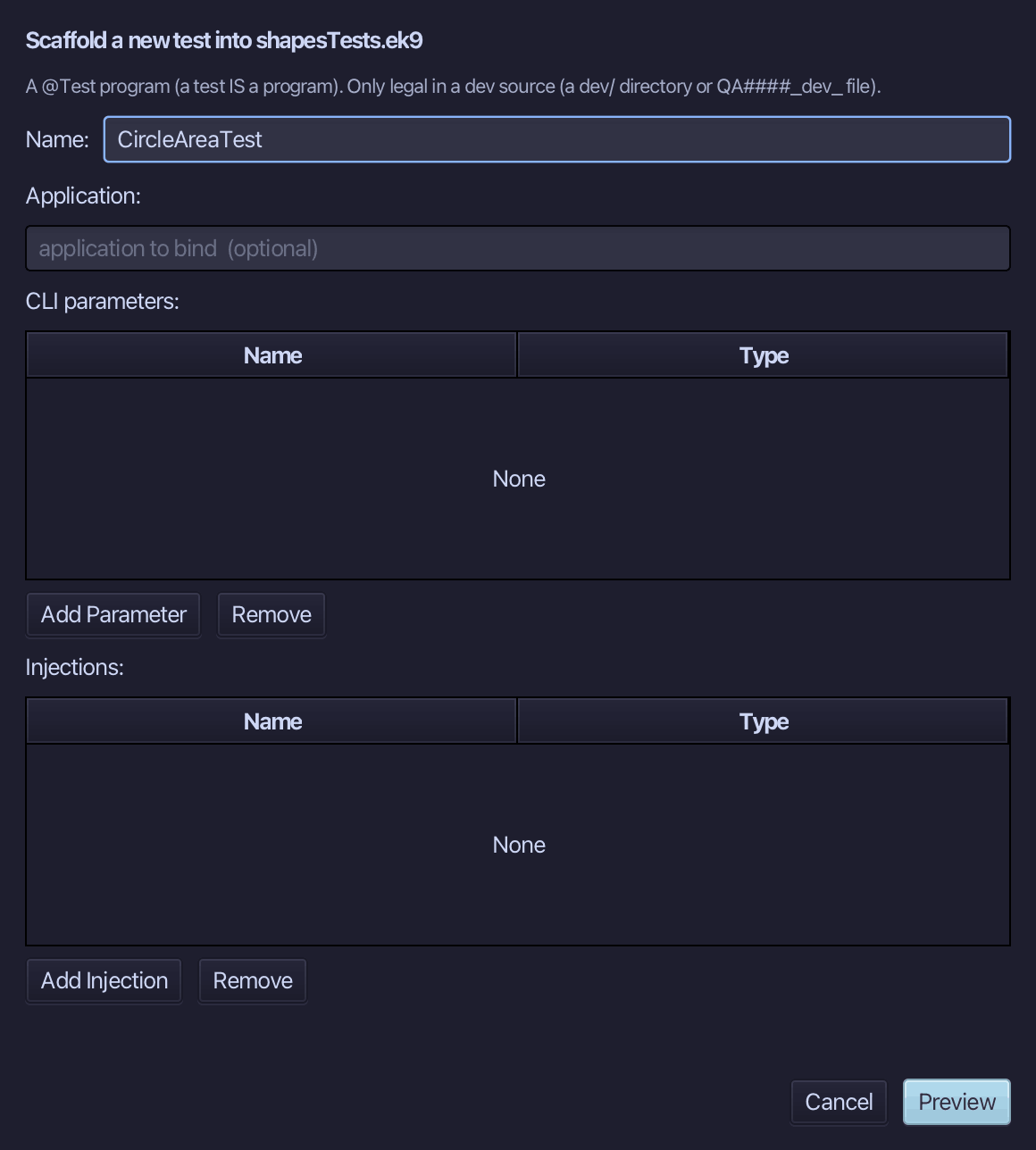
Choose Code > New Construct > Test…
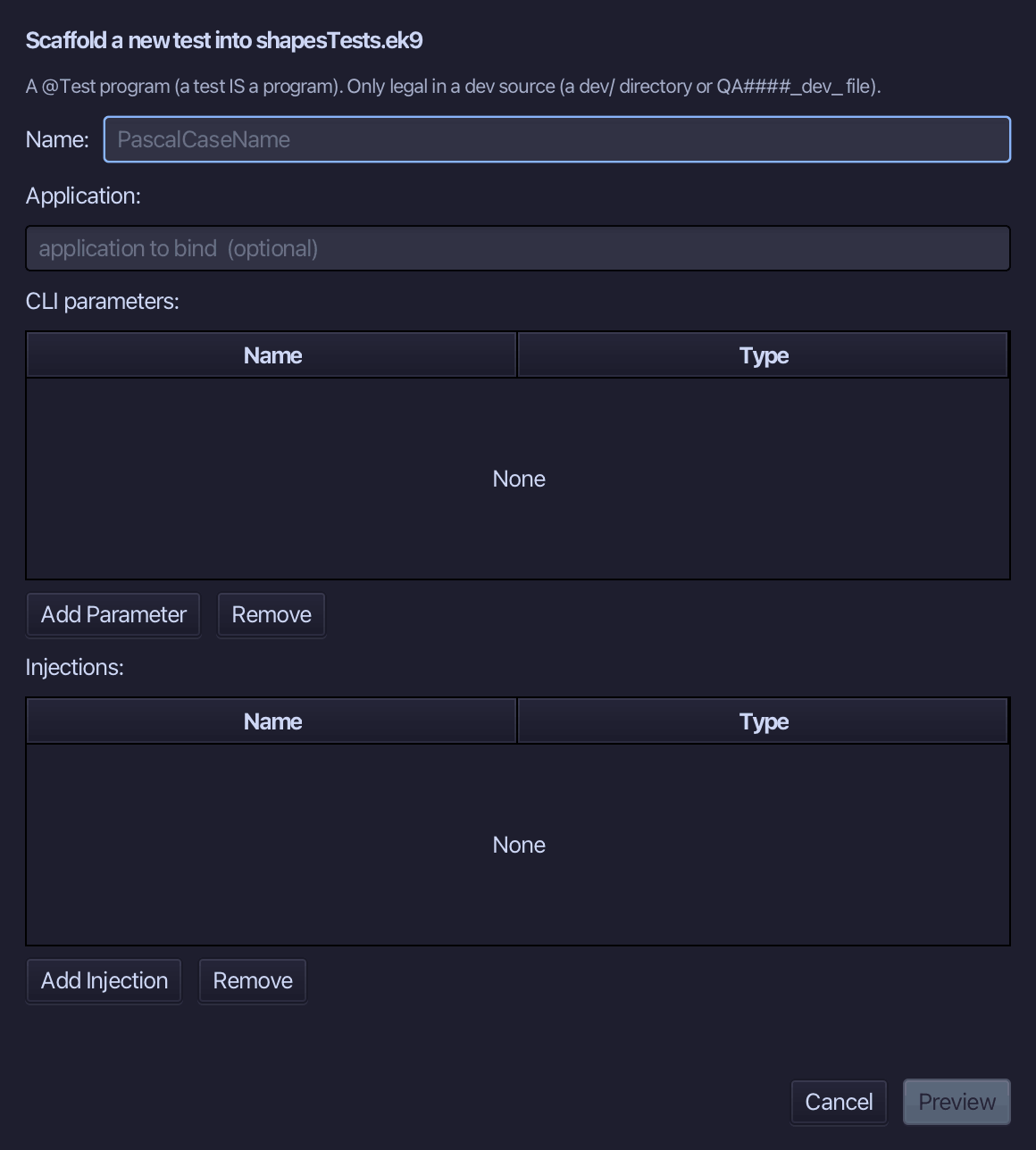
CircleAreaTest is the test's name. Choose Preview.
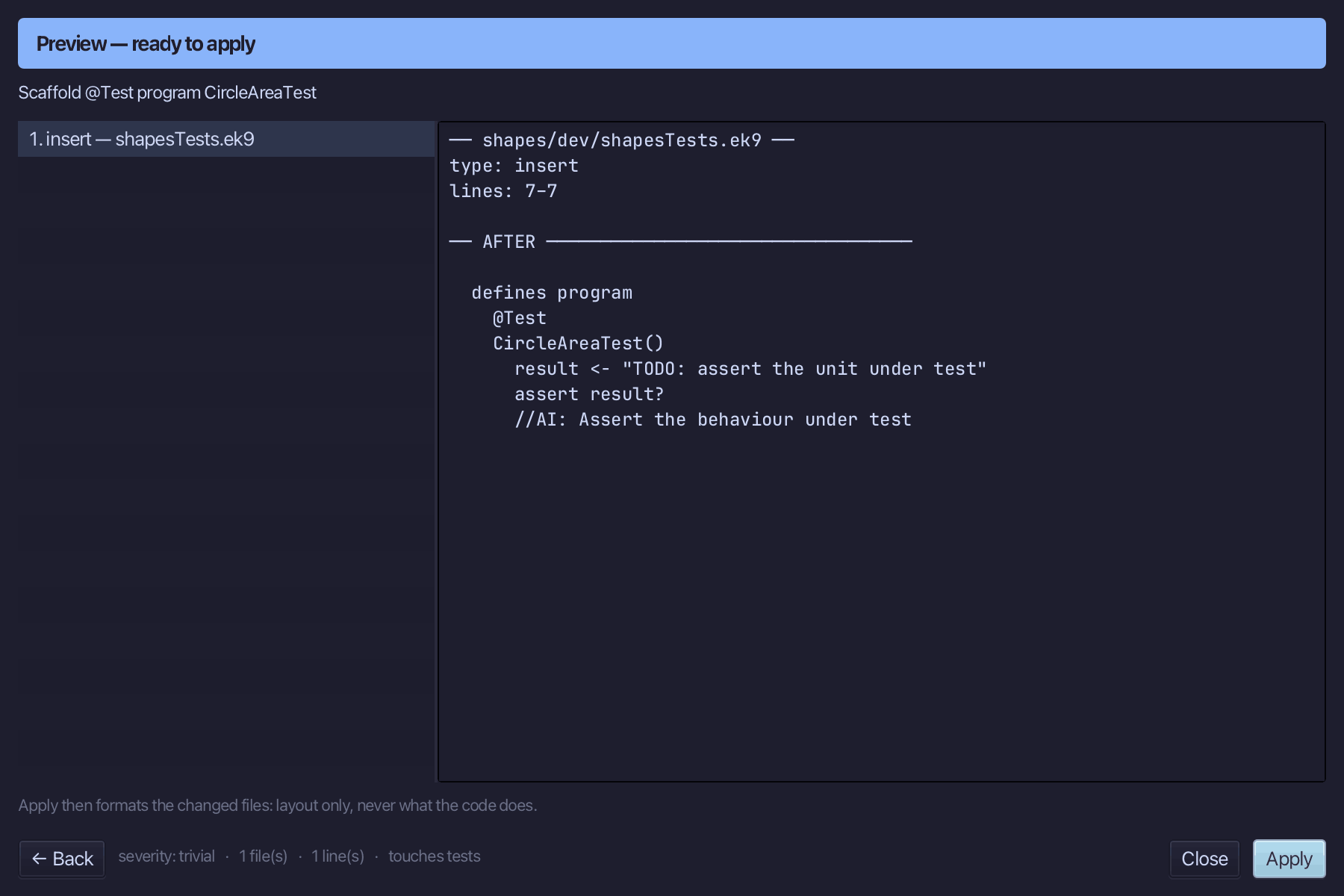
The preview shows CircleAreaTest about to be written, marked @Test, with a placeholder assertion. Choose Apply.
Select the @Test line, and above it type the blank line every chapter example opens its first member with. Saves when typed.
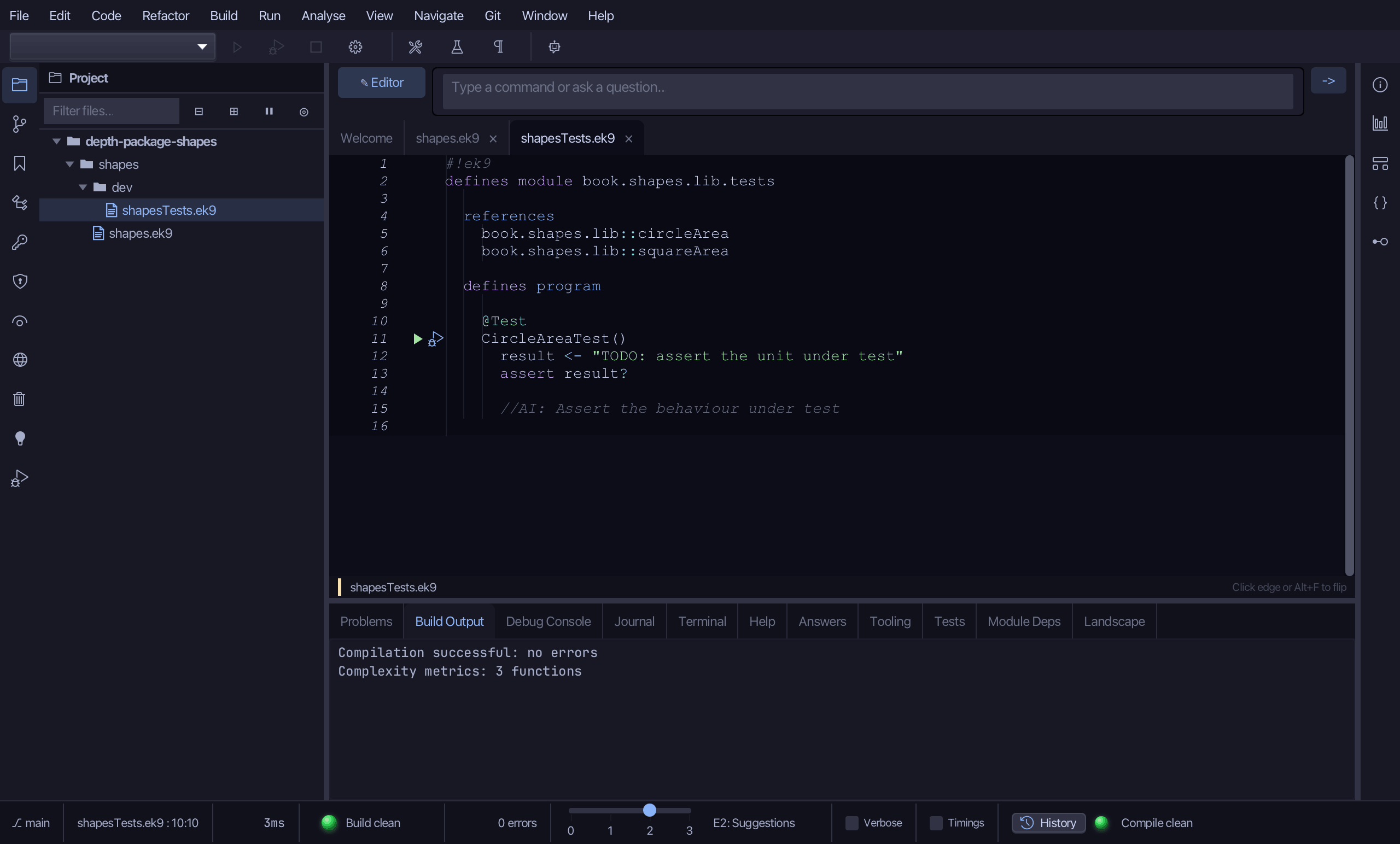
Select the stub, from result <- "TODO: assert the unit under test" down to its //AI line, and type the real claim: a circle of radius one has the constant for its area. Saves when typed.
Step 7: SquareAreaTest
Choose Code > New Construct > Test…
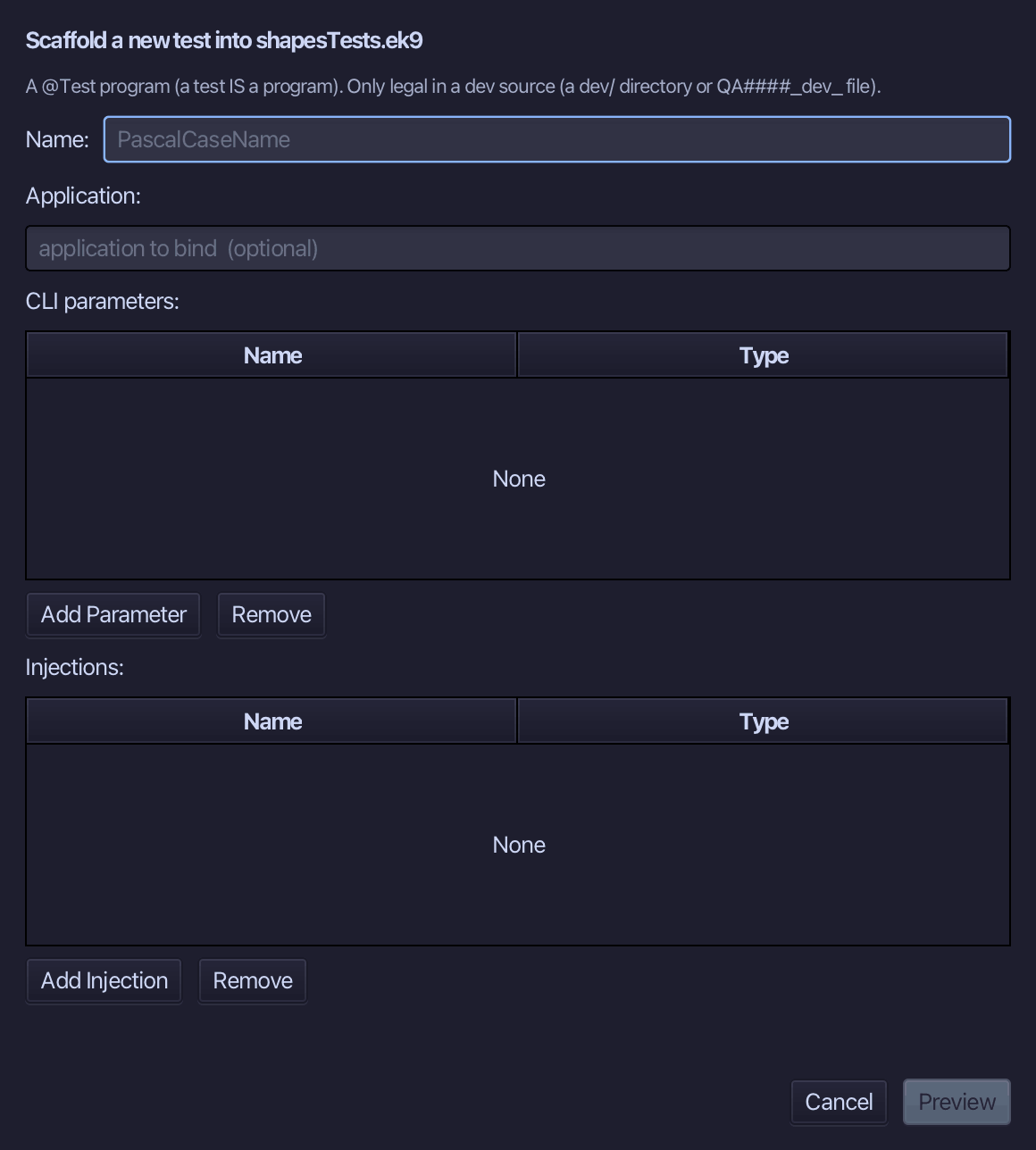
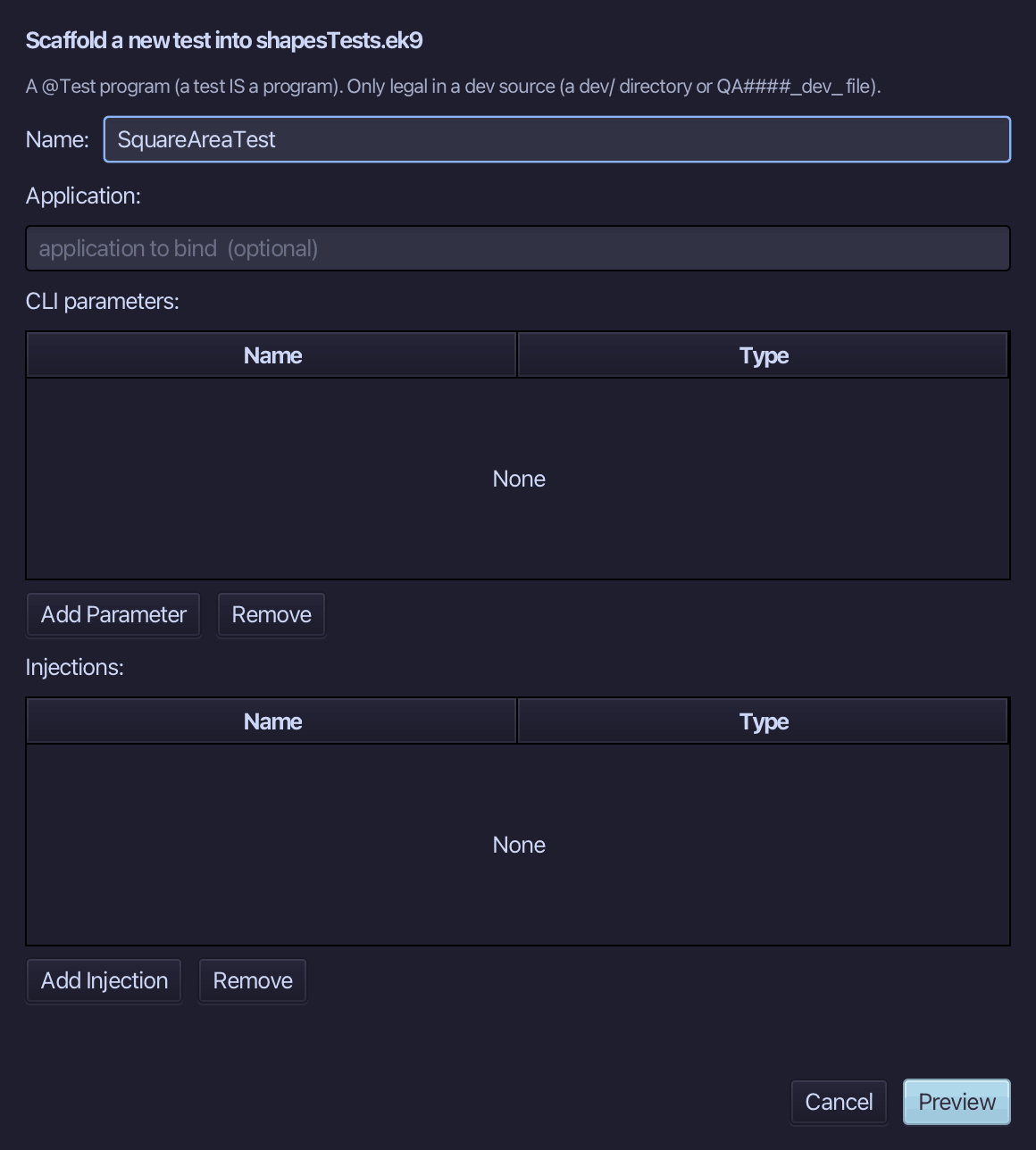
SquareAreaTest is the test's name. Choose Preview.
The preview shows SquareAreaTest about to be written, marked @Test, with a placeholder assertion. Choose Apply.
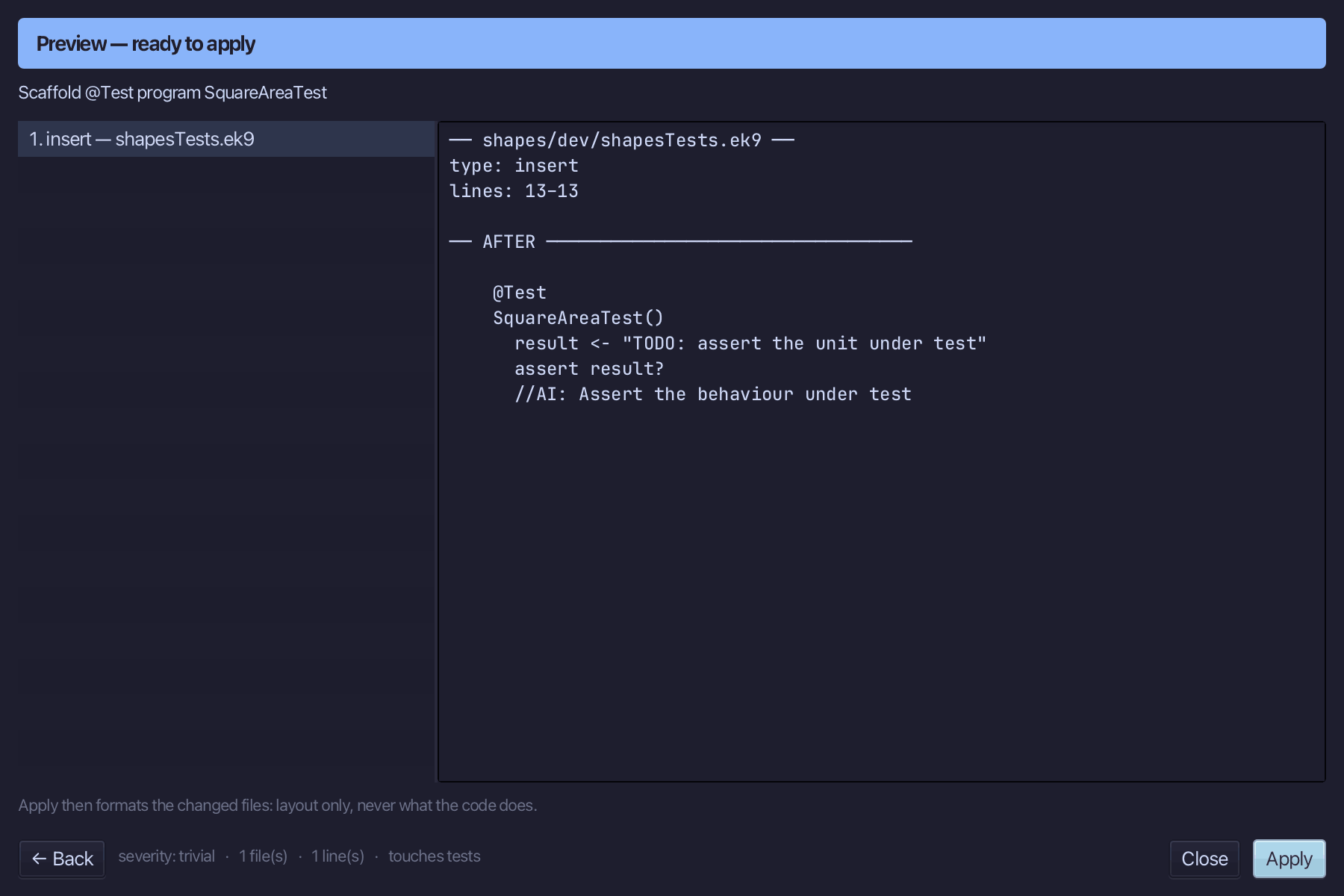
Select the stub, from result <- "TODO: assert the unit under test" down to its //AI line, and type the real claim: a square of side three has area nine. Saves when typed.
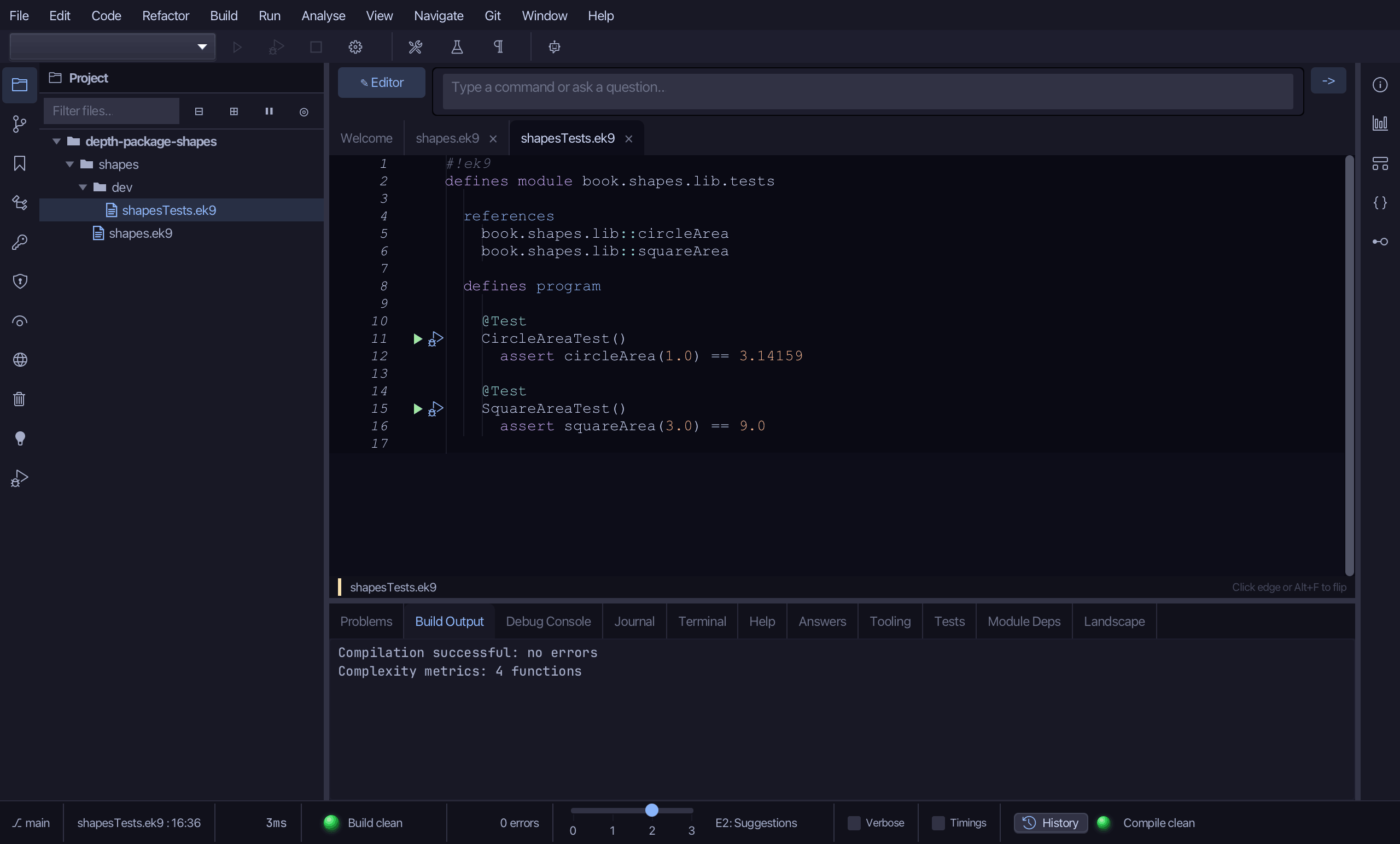
Step 8: Run the tests
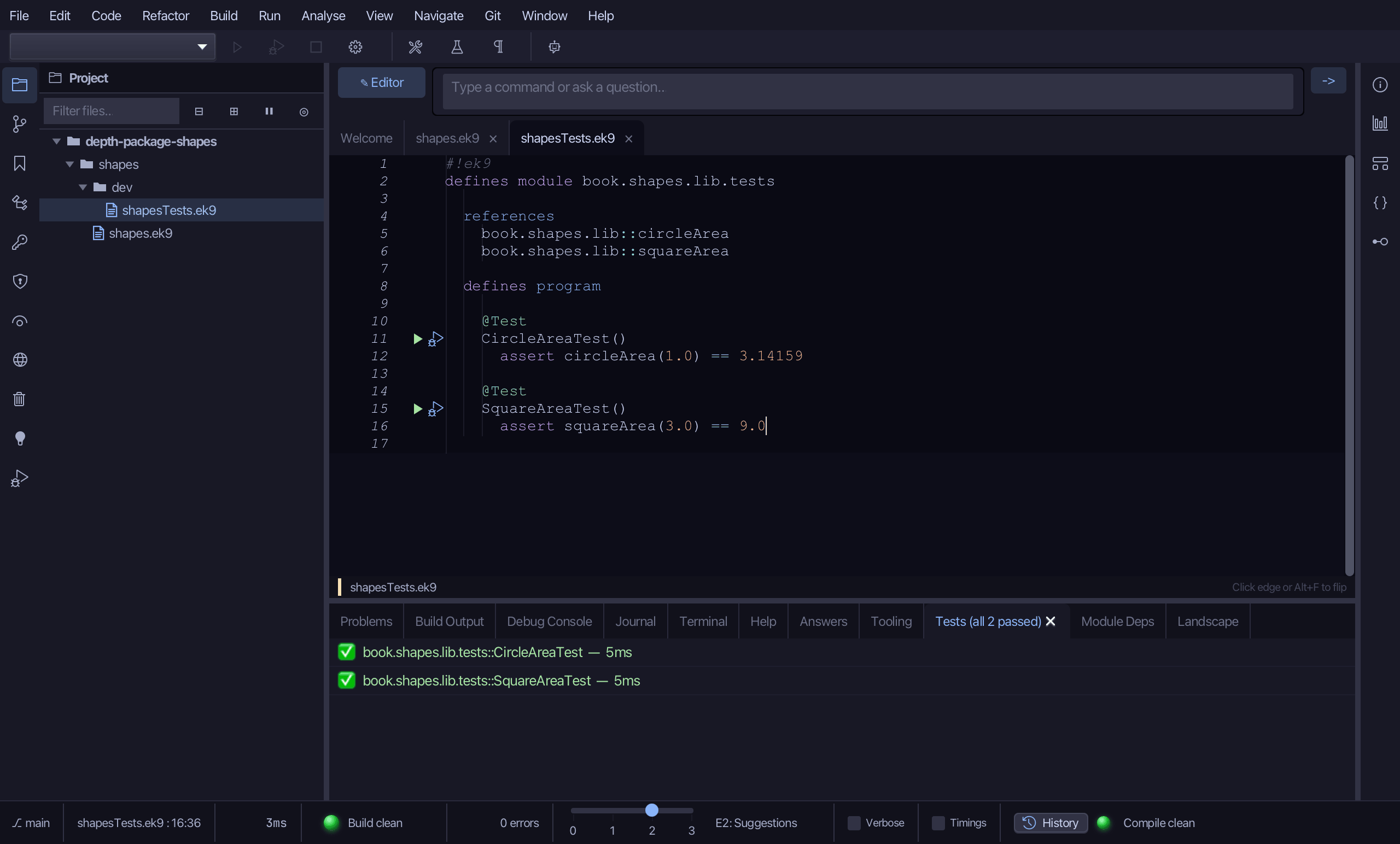
Run ▸ Run Tests (⌘T) runs every @Test in the project - the same tests -P will run before it packages anything. Both tests pass. Choose Run Tests.
Step 9: Package
Choose Build ▸ Package….
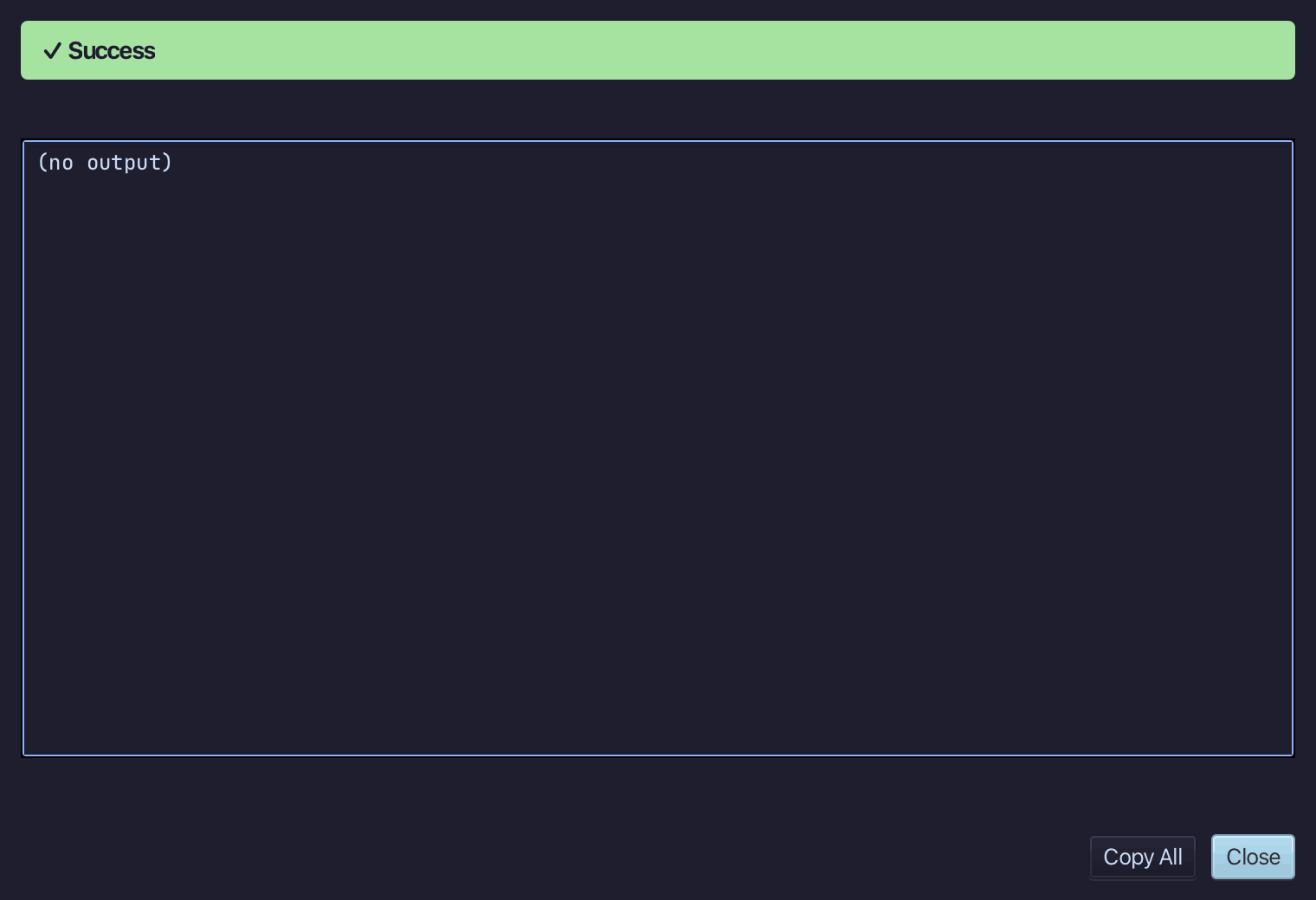
The report says Success, with nothing more to say: the module compiled, its two tests passed and the archive and checksum were written. Choose Close.
Step 10: Install
Choose Build ▸ Install Package.
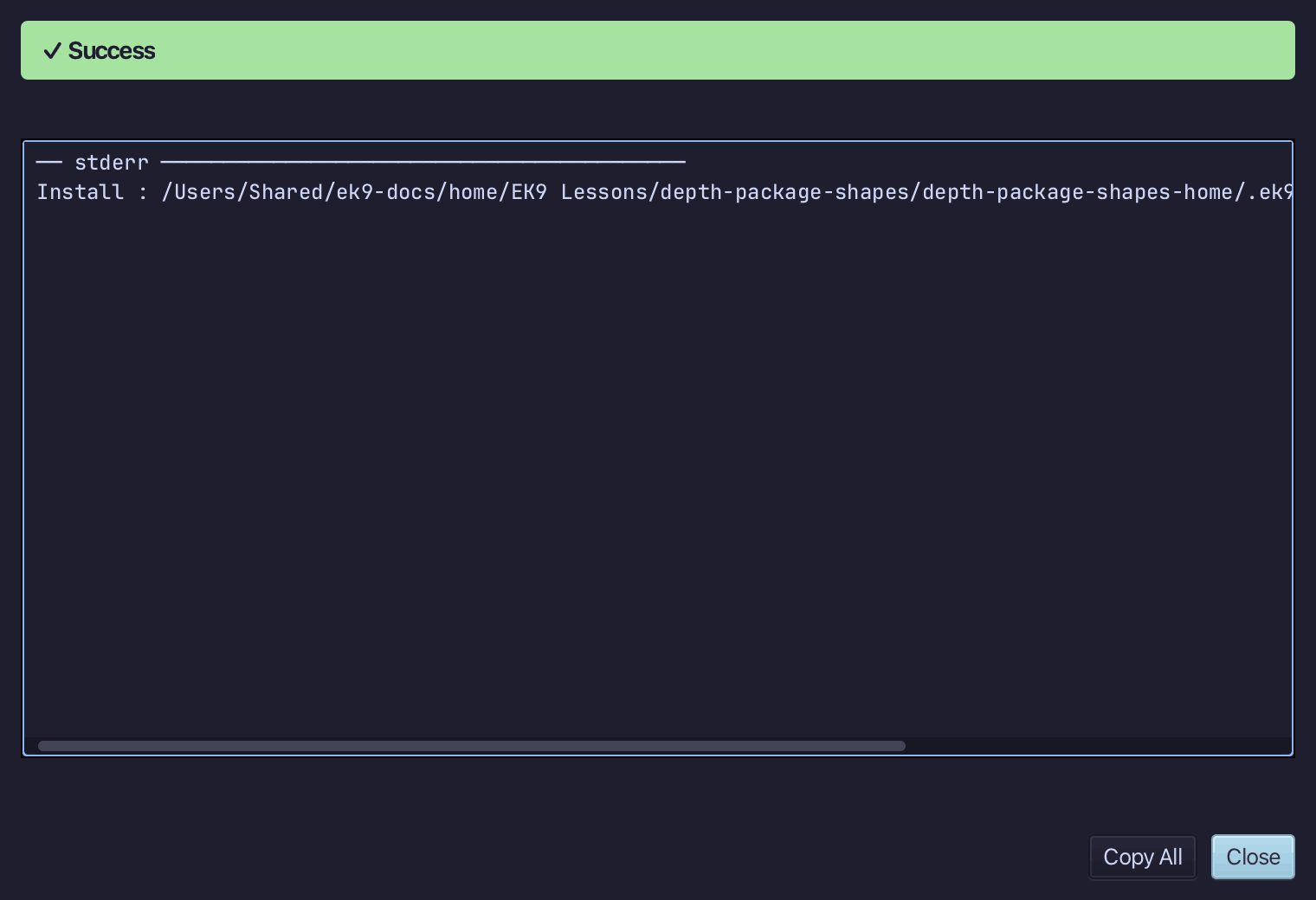
Install copied the archive into the library, depth-package-shapes-home/.ek9/lib here - ~/.ek9/lib for you outside this lesson - where another project's deps entry would find it. Choose Close.
The result
shapes.ek9 and dev/shapesTests.ek9 now read exactly as chapter 38 of EK9 in Depth shows them, and book.shapes.lib-1.0.0-0 sits in the lesson's own library. A consumer would name it in a deps entry and the resolver would find the archive there, compiling its source with the consumer's. Your own ~/.ek9 was never touched.
Where this lesson comes from
- For AI assistants - the MCP tool
ek9_new_construct,ek9_add_program,ek9_package,ek9_install_package.