Organize Localized Text
Organize Localized Text gathers a module's localized text into one of three layouts: one file per locale, one file per text type, or everything collapsed into one file you name. Here greetings.ek9 declares Greeting for both en_GB and de inline, in the same file that runs it. To play it in the IDE: Help > Lessons > Refactoring…, or ek9 -ide -lesson organize-localized-text.
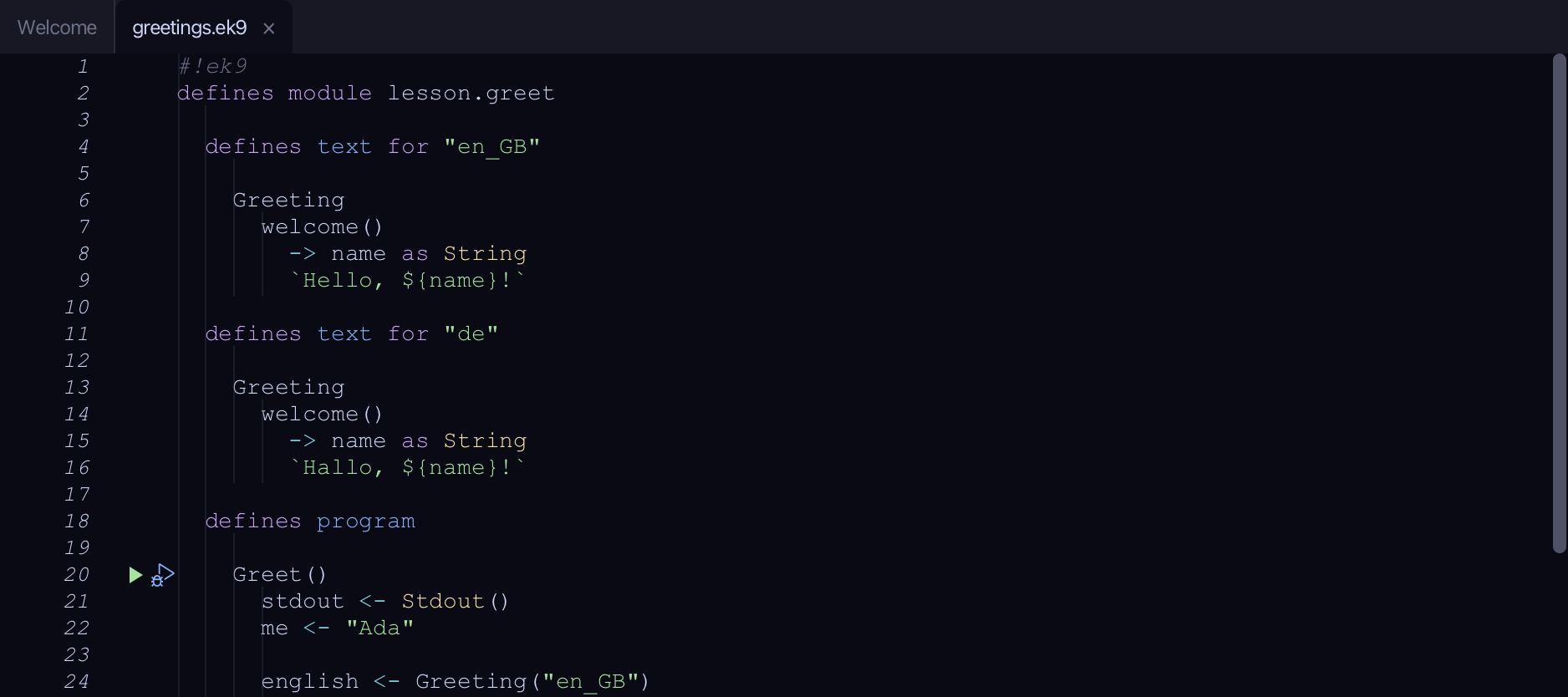
Start from
The code the lesson starts from: copy it into a file of your own and follow the steps.
#!ek9
defines module lesson.greet

  defines text for "en_GB"

    Greeting
      welcome()
        -> name as String
        `Hello, ${name}!`

  defines text for "de"

    Greeting
      welcome()
        -> name as String
        `Hallo, ${name}!`

  defines program

    Greet()
      stdout <- Stdout()
      me <- "Ada"

      english <- Greeting("en_GB")
      stdout.println(english.welcome(me))

      german <- Greeting("de")
      stdout.println(german.welcome(me))

//EOF
Step 1: Choose the layout
Choose Code > Localisation > Organize Localized Text…
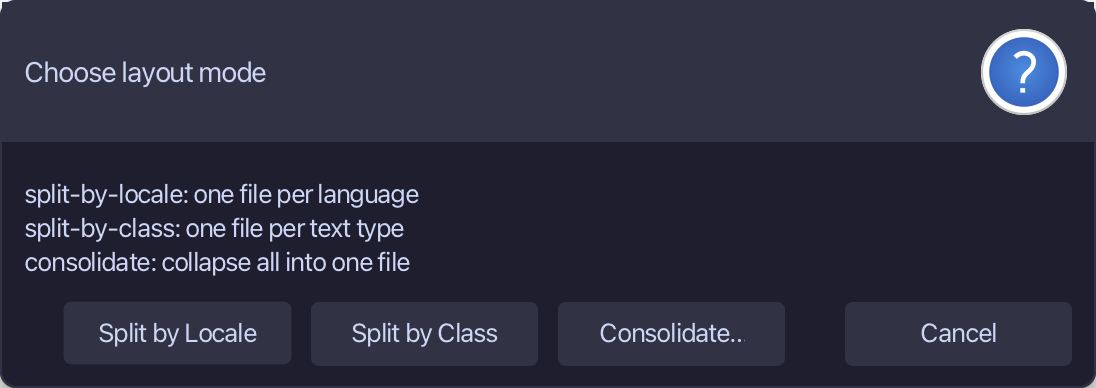
Step 2: Split by Locale
Choose Split by Locale. That is one file per language, the layout Getting Started's localisation chapter uses.
Step 3: Preview and apply
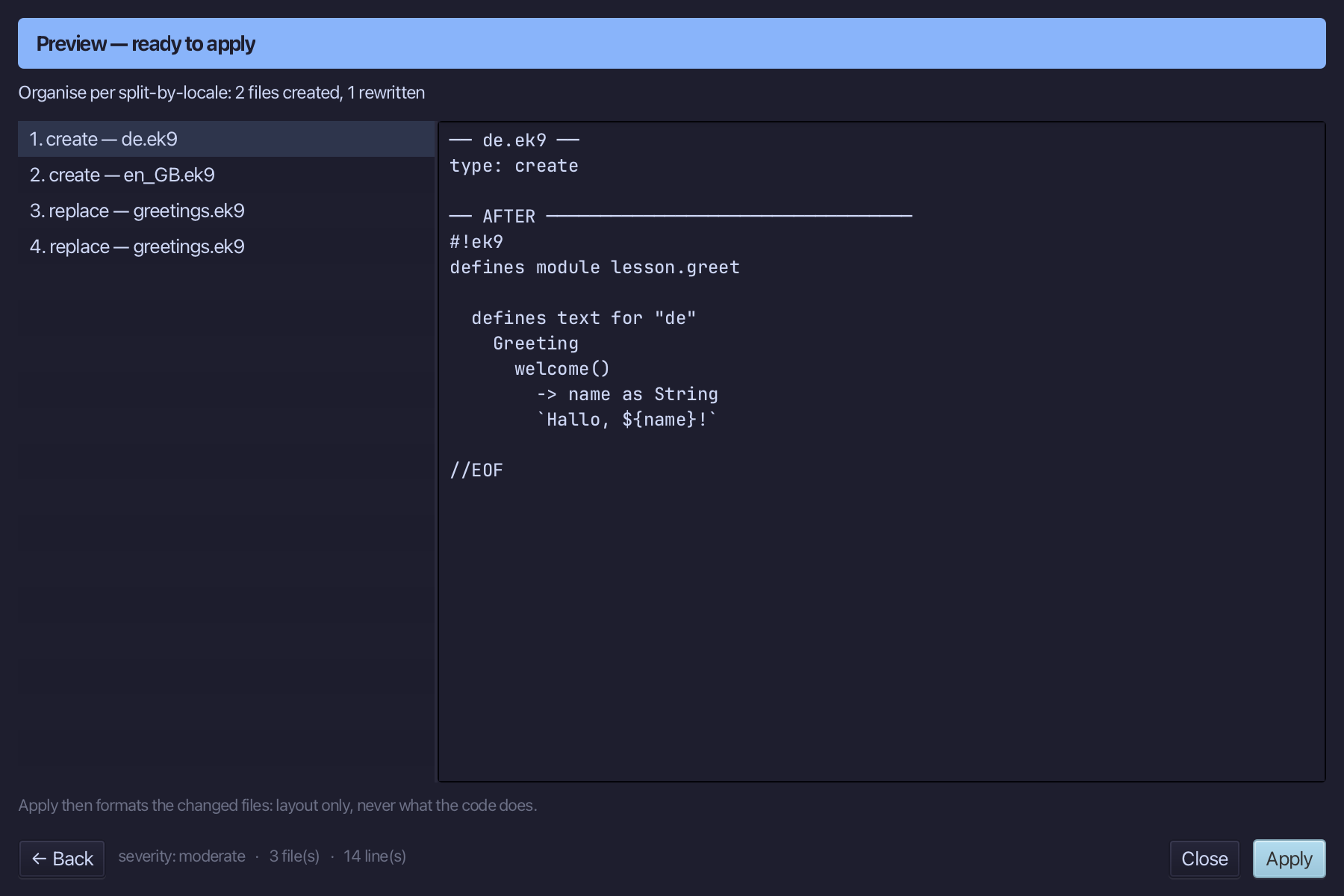
The preview shows a new file for each locale and the lines removed from greetings.ek9. Choose Apply.
The result
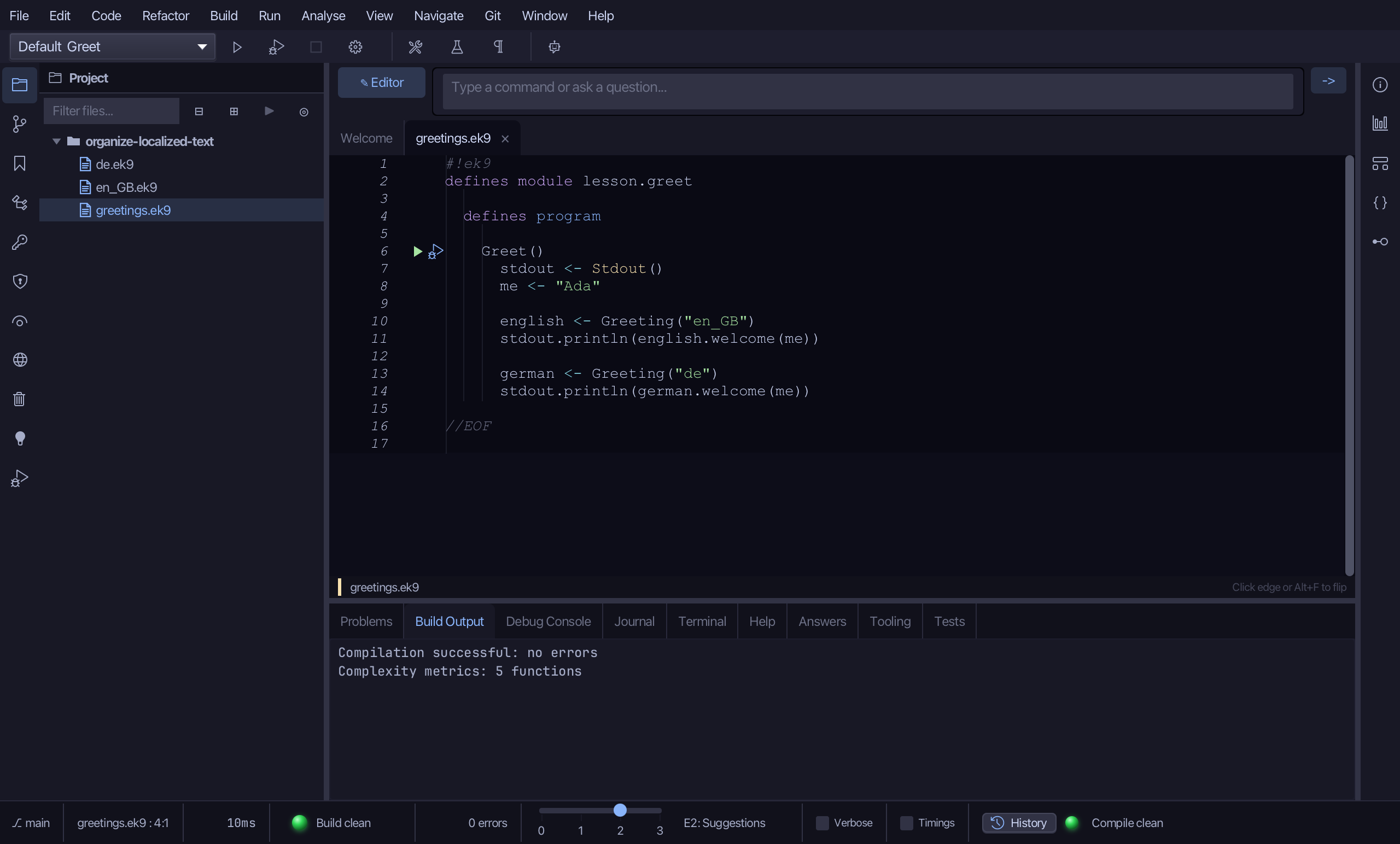
That is Organize Localized Text: greetings.ek9 keeps only the program, and en_GB.ek9 and de.ek9 each hold their own locale's Greeting - one file per language, so adding a third locale is adding a third file. Split by Class gathers the same text the OTHER way, one file per text type, every locale together - the better layout once a module has several text types; Consolidate… collapses everything back into one file you name. Which file a text method lives in makes no difference to the code that calls it. Code > Localisation > Organize Localized Text… opens it; AI assistants use the ek9_organize_localized_text tool.
Where this lesson comes from
- Answers -
ek9 -qand the IDE's Answers tab: 113, 1380. - For AI assistants - the MCP tool
ek9_organize_localized_text.