Adding members to a class
Parcel is a small class with one field, weight. Right-click its name line and the editor offers to add the members a class can have: a field, a constructor, a method, an operator. Each item writes the code in the right place, in the right order, and is refused if it would leave an error. To play it in the IDE: Help > Lessons > Writing code…, or ek9 -ide -lesson adding-members.
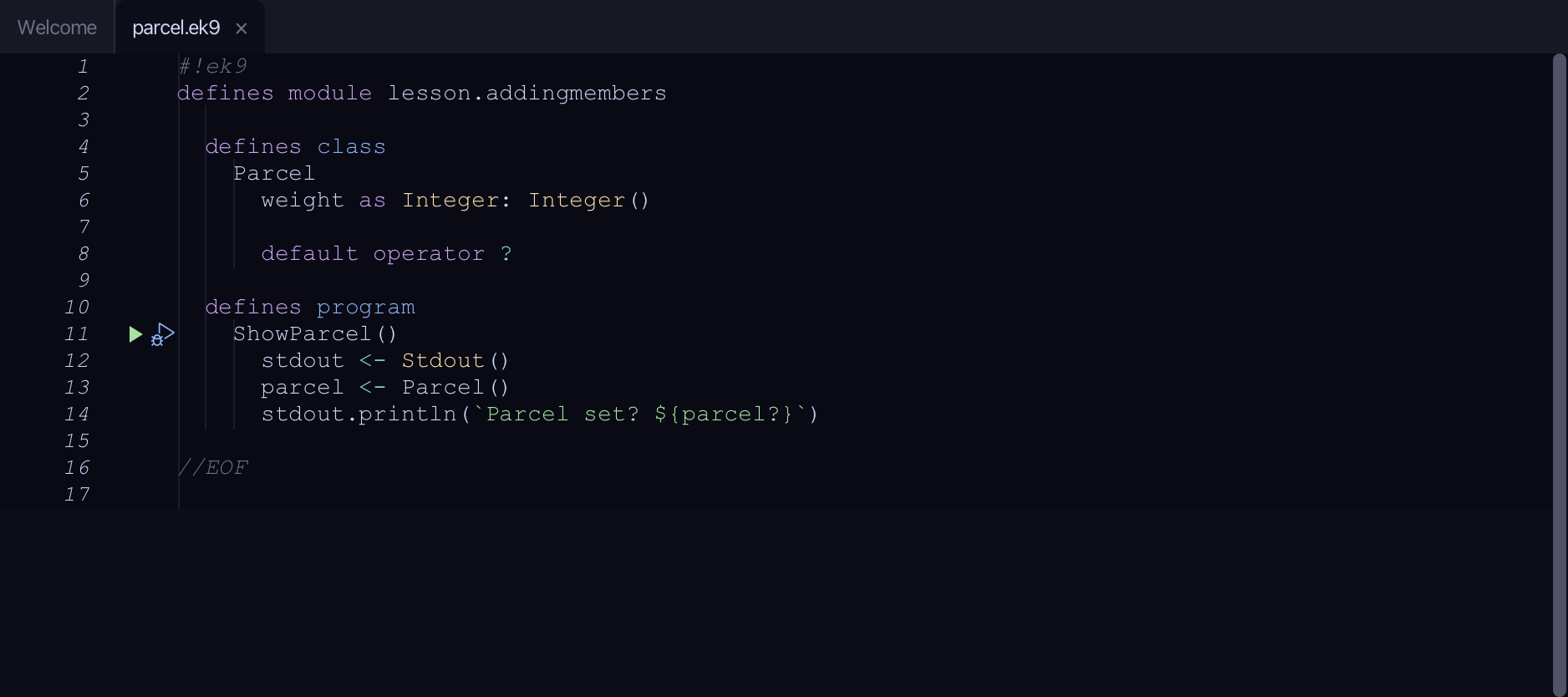
Start from
The code the lesson starts from: copy it into a file of your own and follow the steps.
#!ek9
defines module lesson.addingmembers

  defines class
    Parcel
      weight as Integer: Integer()

      default operator ?

  defines program
    ShowParcel()
      stdout <- Stdout()
      parcel <- Parcel()
      stdout.println(`Parcel set? ${parcel?}`)

//EOF
Step 1: A field
Right-click the Parcel line and choose Add Field…
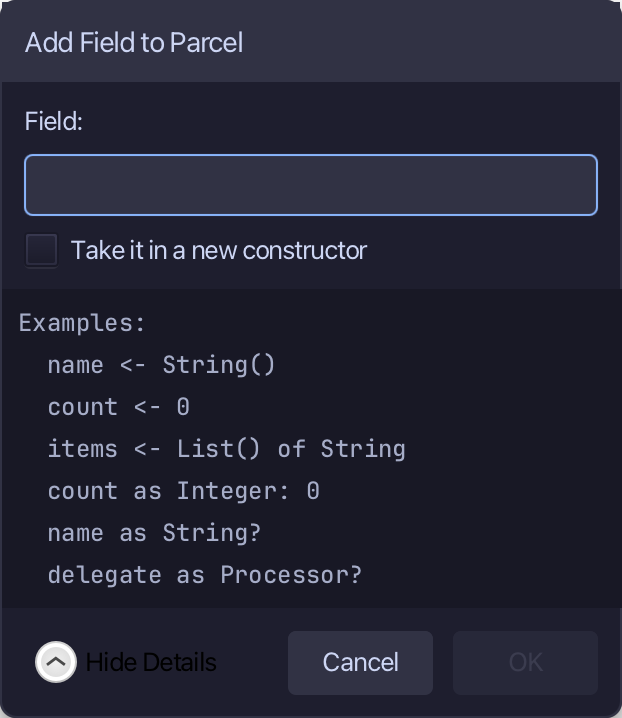
Type label as String: String() - a name, a type, and the unset value it starts with. Choose OK.
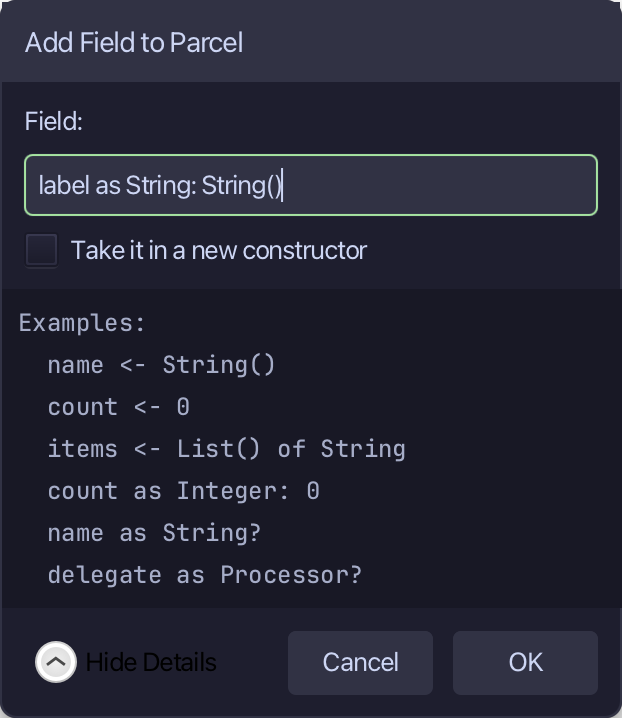
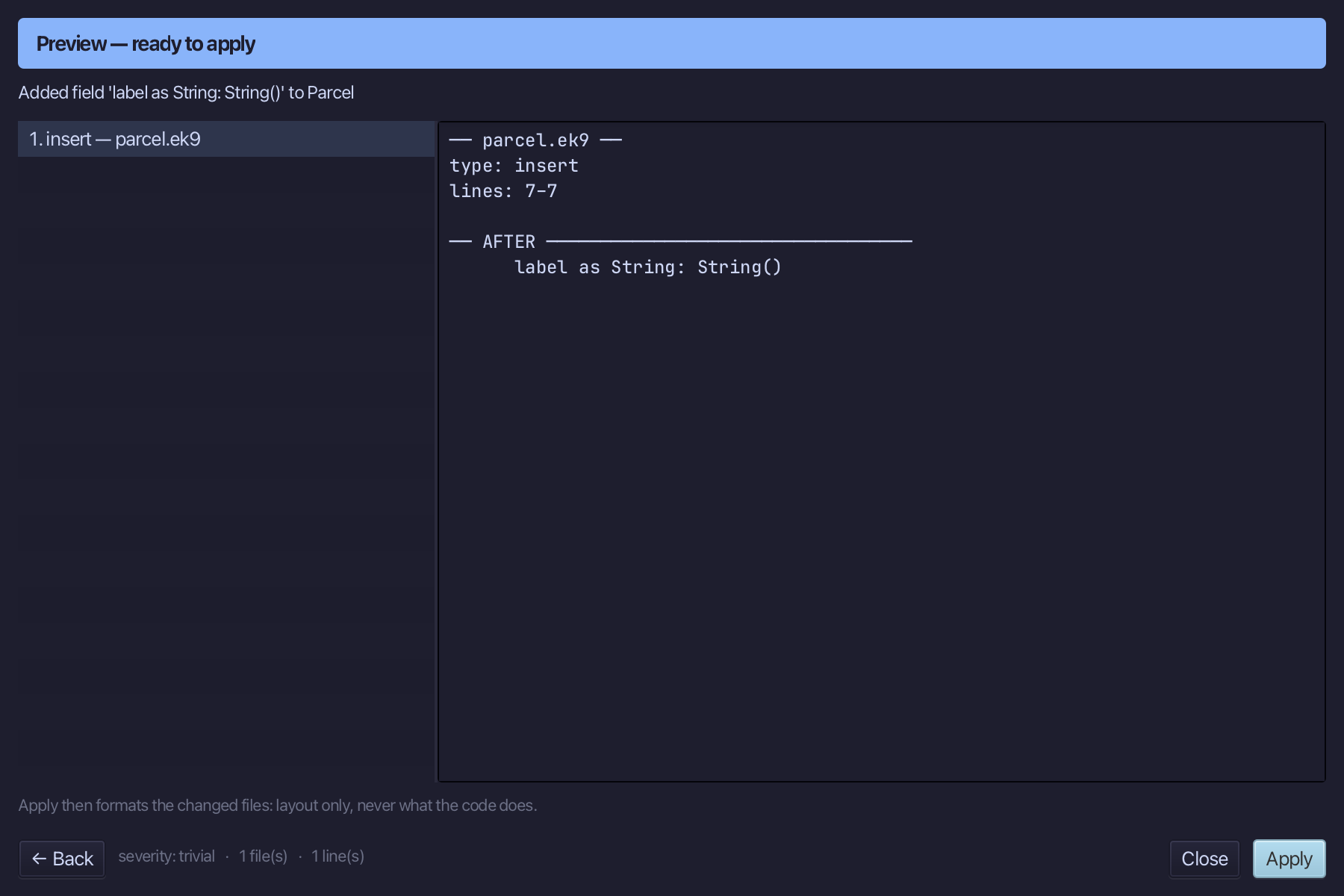
The preview shows label joining weight, with the other members left where they were. Choose Apply.
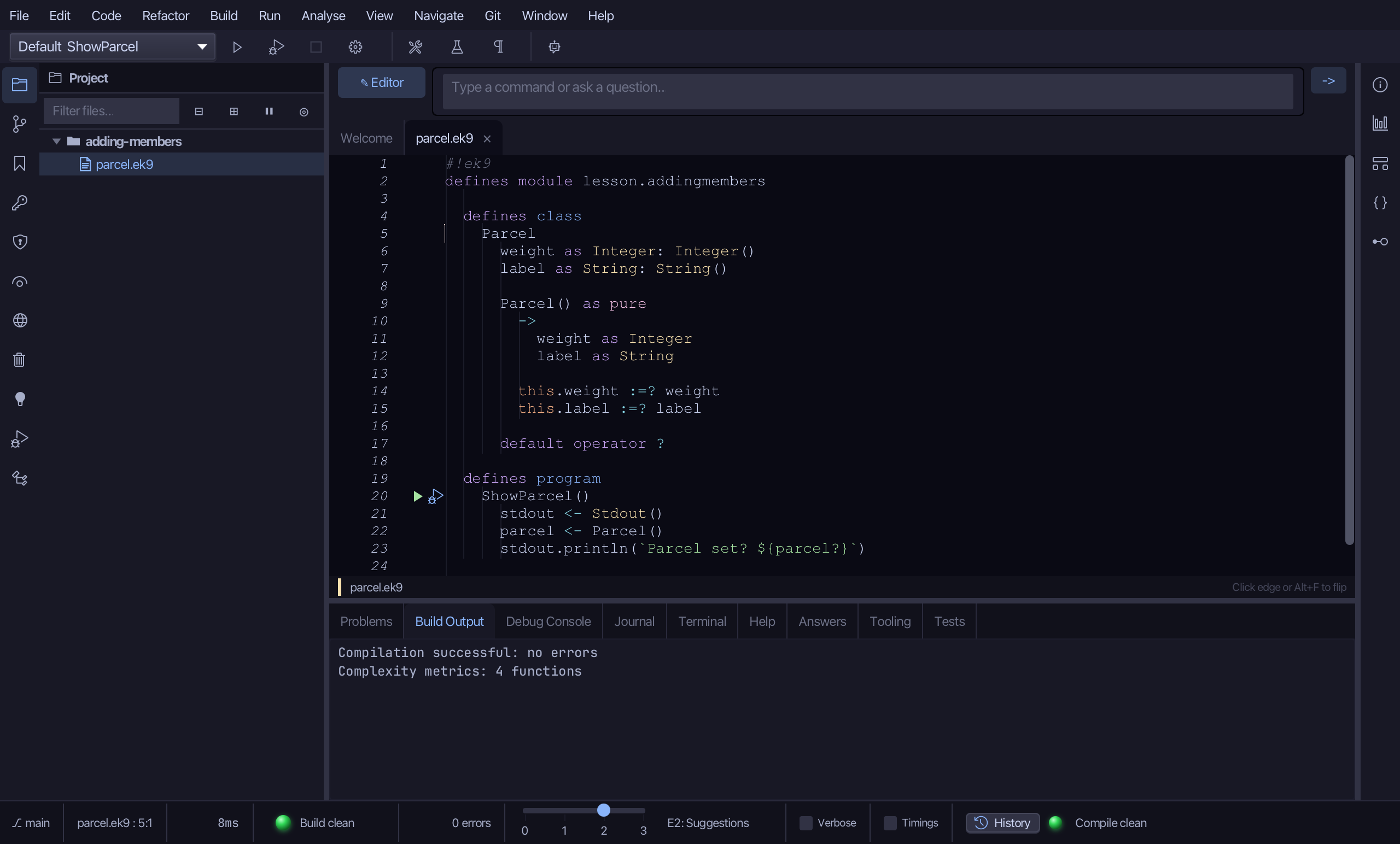
Step 2: A constructor
Right-click the Parcel line and choose Add Constructor > From All Fields (pure). The submenu also offers a no-arg constructor, private or pure - and only the ones that are still missing.
Step 3: A method
Right-click the Parcel line and choose Add Method…
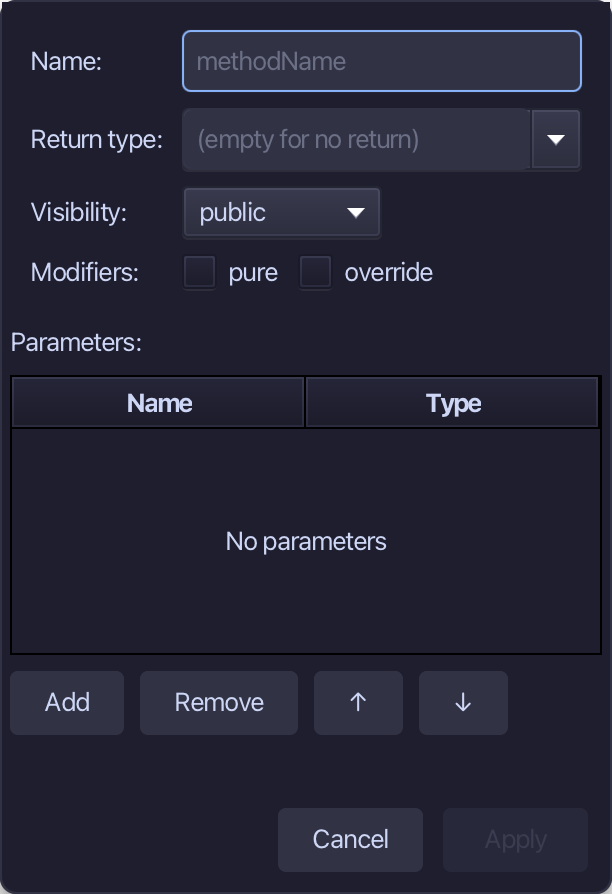
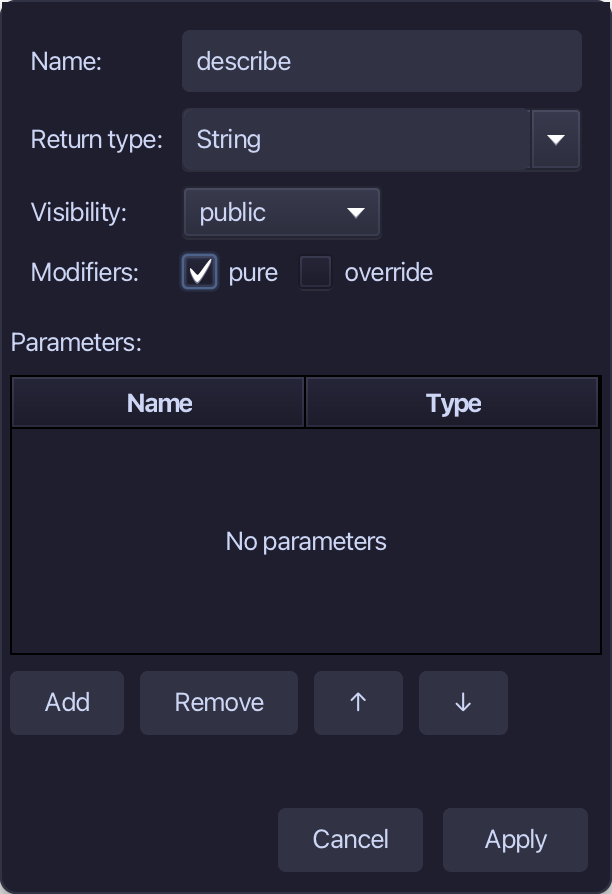
describe is the method's name, String the return type, and pure ticked - it only reads the fields. Fill them in and choose Apply.
Step 4: An operator
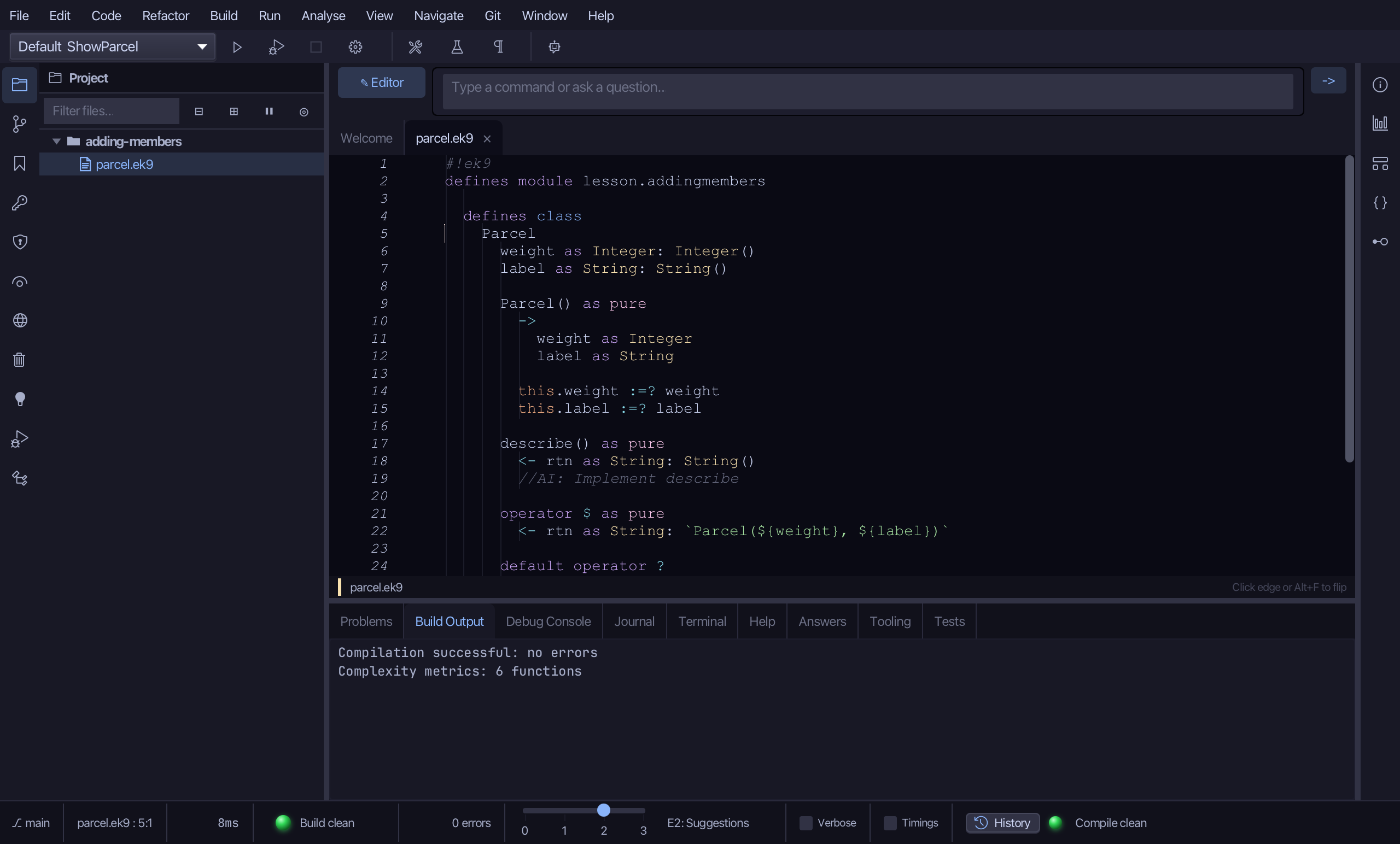
Right-click the Parcel line and choose Add Operator > $ (string) > skeleton. The other choice, default, would write 'default operator $' - the compiler's own version, with no body to read.
Step 5: Back to a default operator
Put the caret on the operator $ line - the skeleton just written spells out exactly what the compiler would generate.
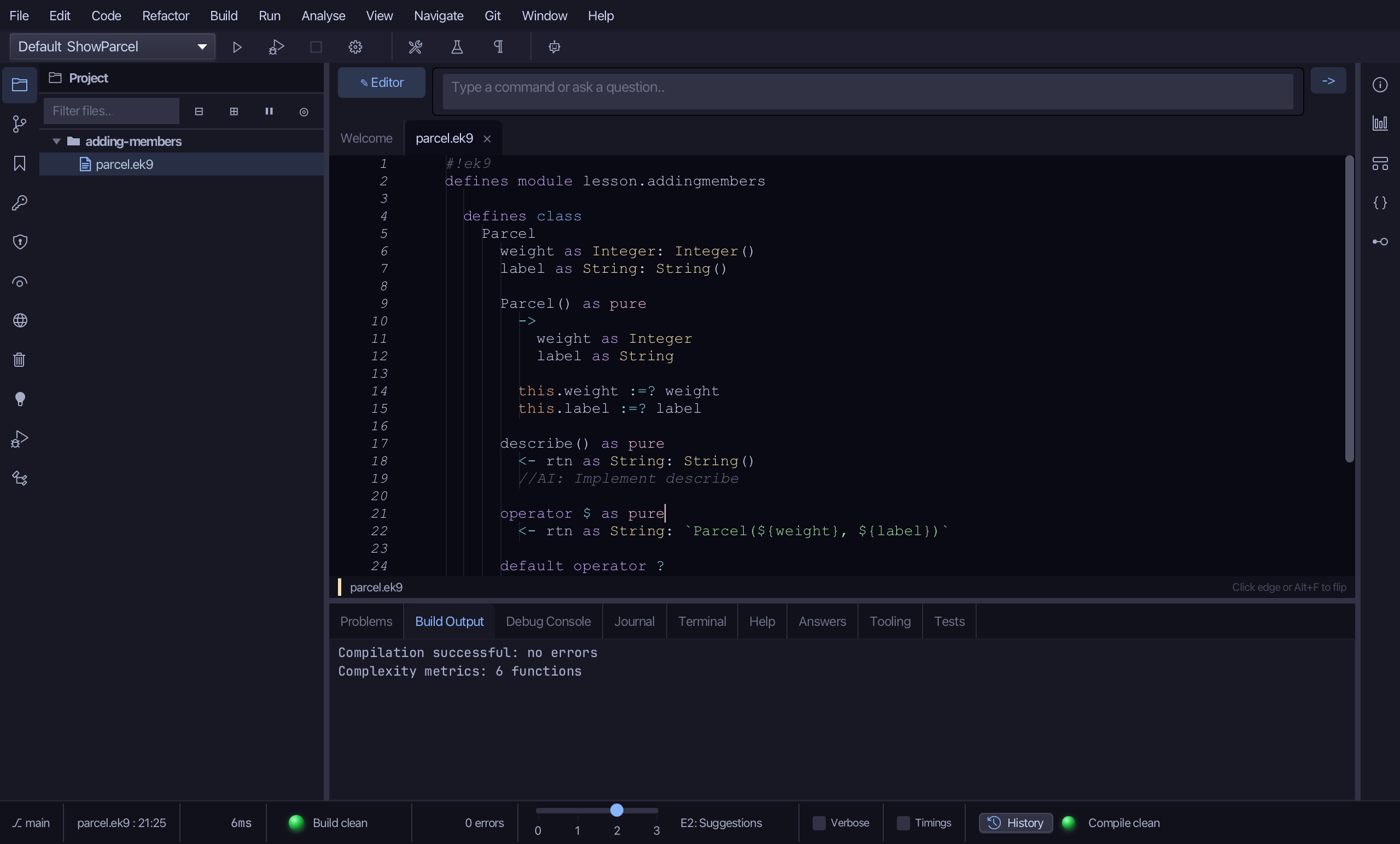
Right-click it and choose Collapse to 'default operator $'.
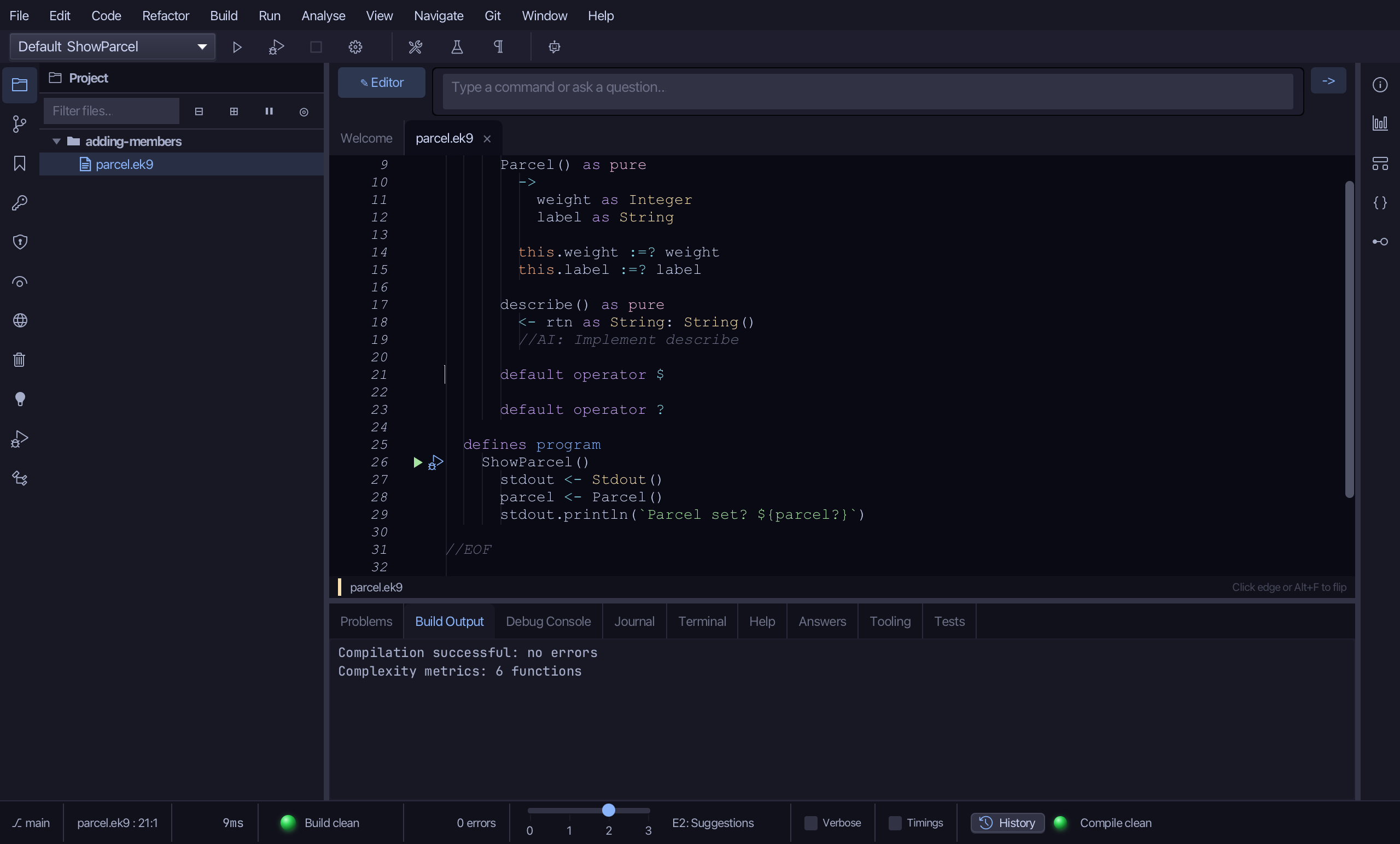
Choose File > Save.
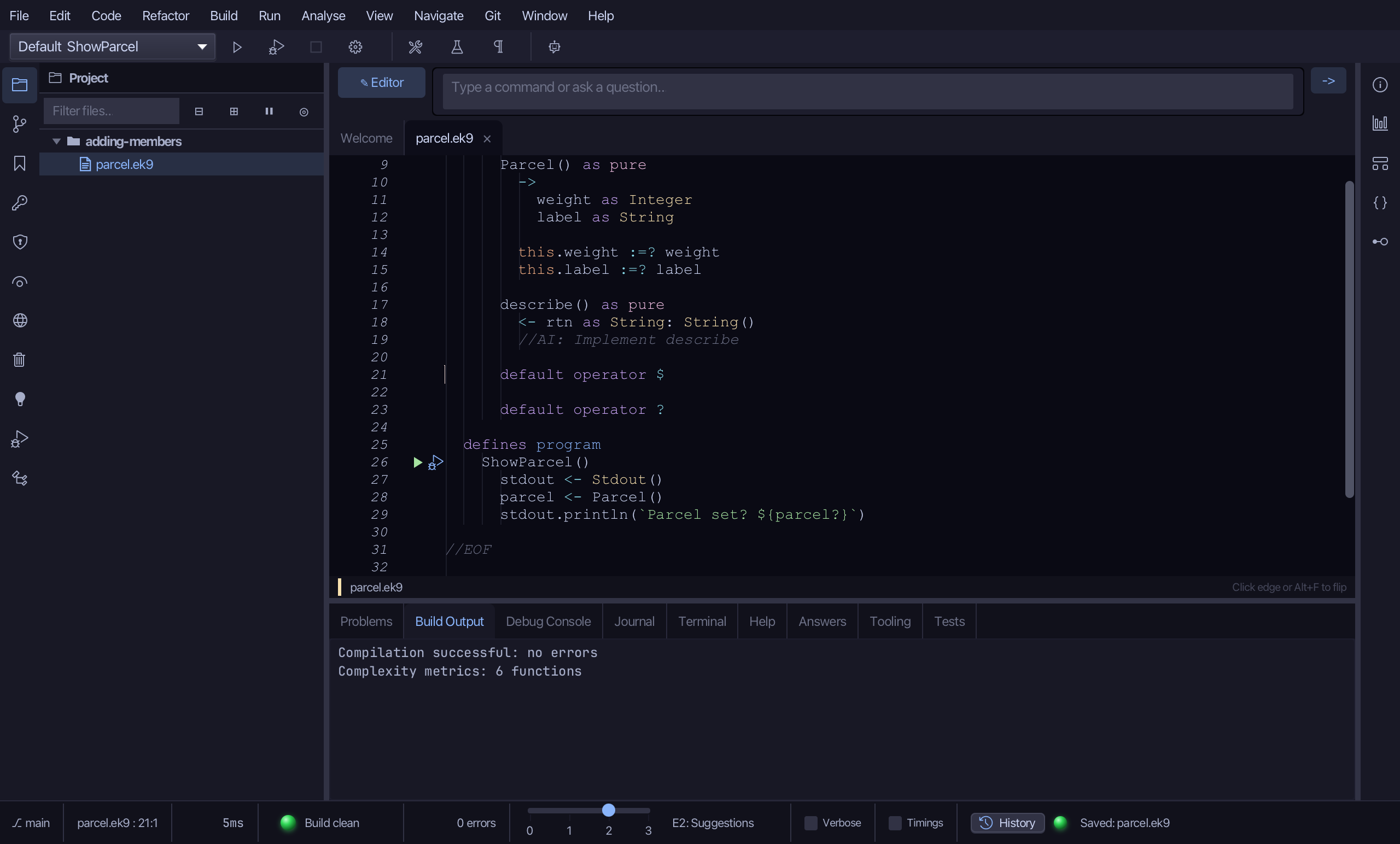
The result
That is the right-click menu on a class: Parcel gained a field, a constructor, a method and an operator without a line typed, and each item refused anything that would have left an error. The describe method is only a stub (//AI: Implement describe) - its logic is yours, or an AI assistant's, to write. Collapse to 'default operator' undid the explicit $ because its body matched what the compiler would generate; the opposite direction, Expand 'default operator $' to Skeleton, is the expand-default-operator lesson. AI assistants use ek9_add_field, ek9_add_constructor, ek9_add_method, ek9_add_operator, ek9_collapse_to_default_operator and ek9_expand_default_operator.
Where this lesson comes from
- Answers -
ek9 -qand the IDE's Answers tab: 116. - For AI assistants - the MCP tool
ek9_add_field,ek9_add_constructor,ek9_add_method,ek9_add_operator,ek9_collapse_to_default_operator,ek9_expand_default_operator.
In the EK9 reference: Classes in EK9, Methods in EK9