Chapter 8: choosing a language, built
Greetings said a language by name. Real programs let the person choose: Greet takes the language as an argument, asks for the Greeting in that language, and keeps the answer only if the language really exists - a language nobody wrote text for falls back to English, instead of failing. The IDE's tools build the program (parameter included), the Greeting type and its locales; you type the wording and the choice. To play it in the IDE: Help > Lessons > Getting Started with EK9…, or ek9 -ide -lesson book-greet.
What you'll build
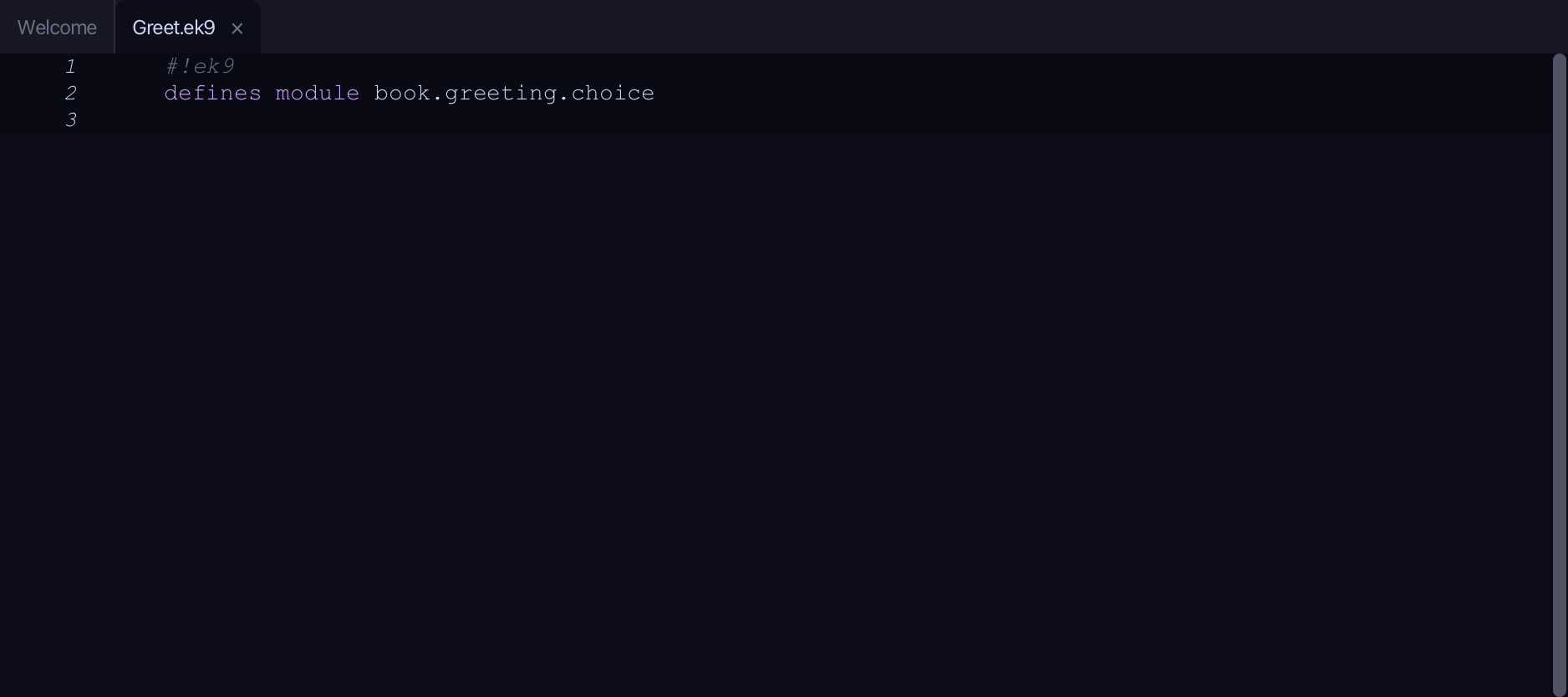
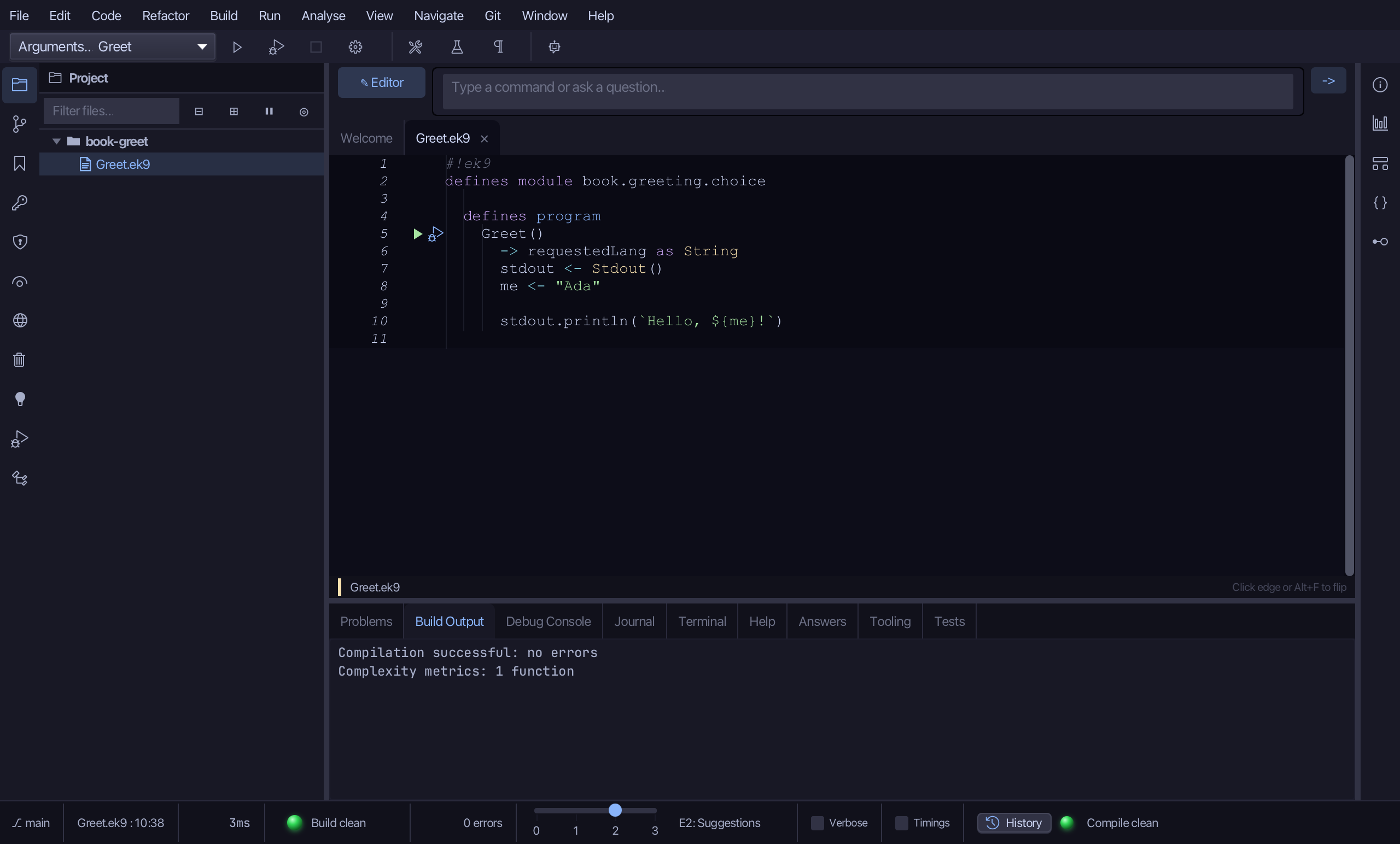
The lesson builds this program from a file holding only its module line - the finished file, as the book prints it.
#!ek9
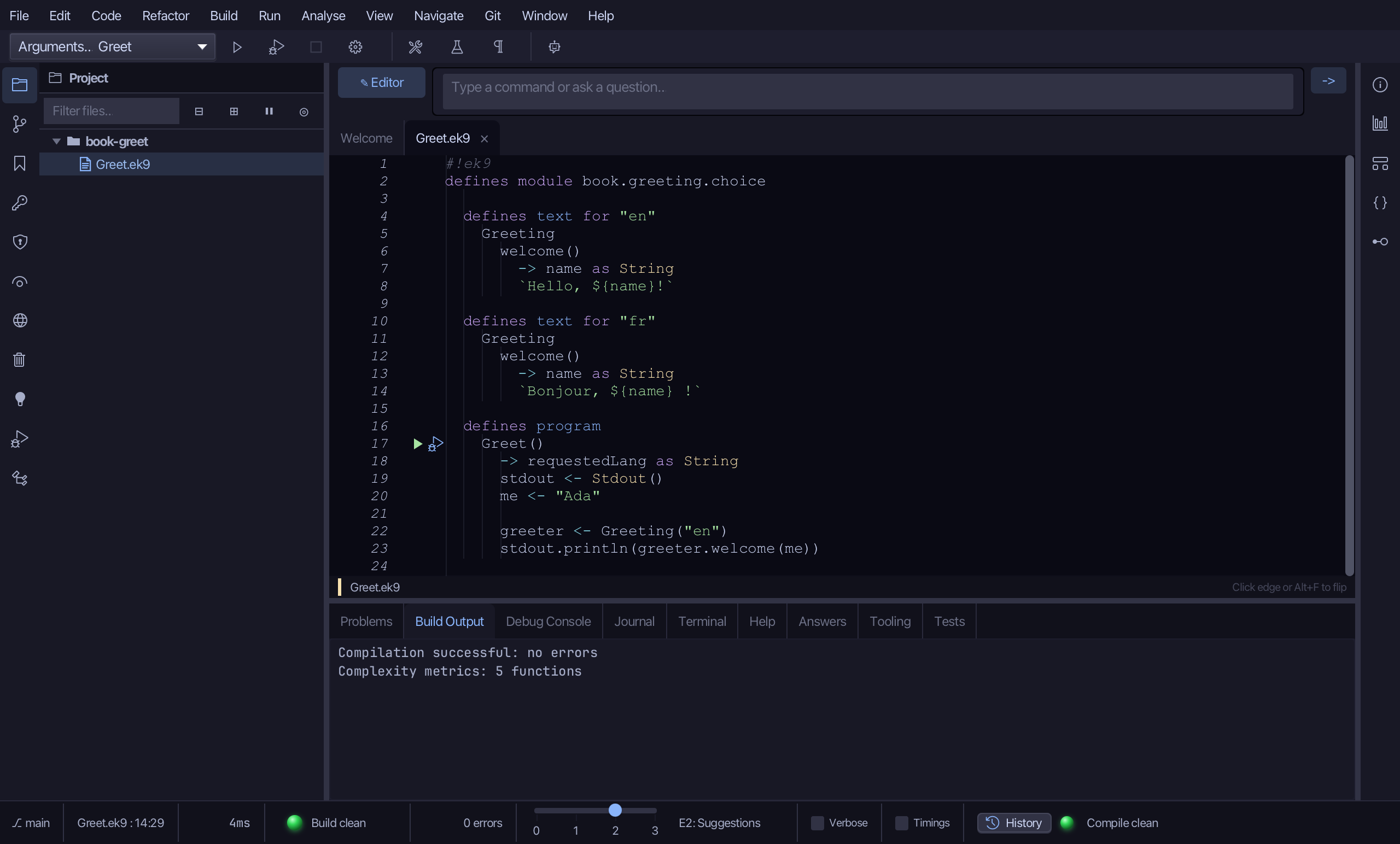
defines module book.greeting.choice

  defines text for "en"
    Greeting
      welcome()
        -> name as String
        `Hello, ${name}!`

  defines text for "fr"
    Greeting
      welcome()
        -> name as String
        `Bonjour, ${name} !`

  defines text for "de"
    Greeting
      welcome()
        -> name as String
        `Hallo, ${name}!`

  defines program
    Greet()
      -> requestedLang as String
      stdout <- Stdout()
      me <- "Ada"

      chosen <- Greeting(requestedLang)
      greeter <- chosen? <- chosen : Greeting("en")
      stdout.println(greeter.welcome(me))
Step 1: The program, hard-coding English
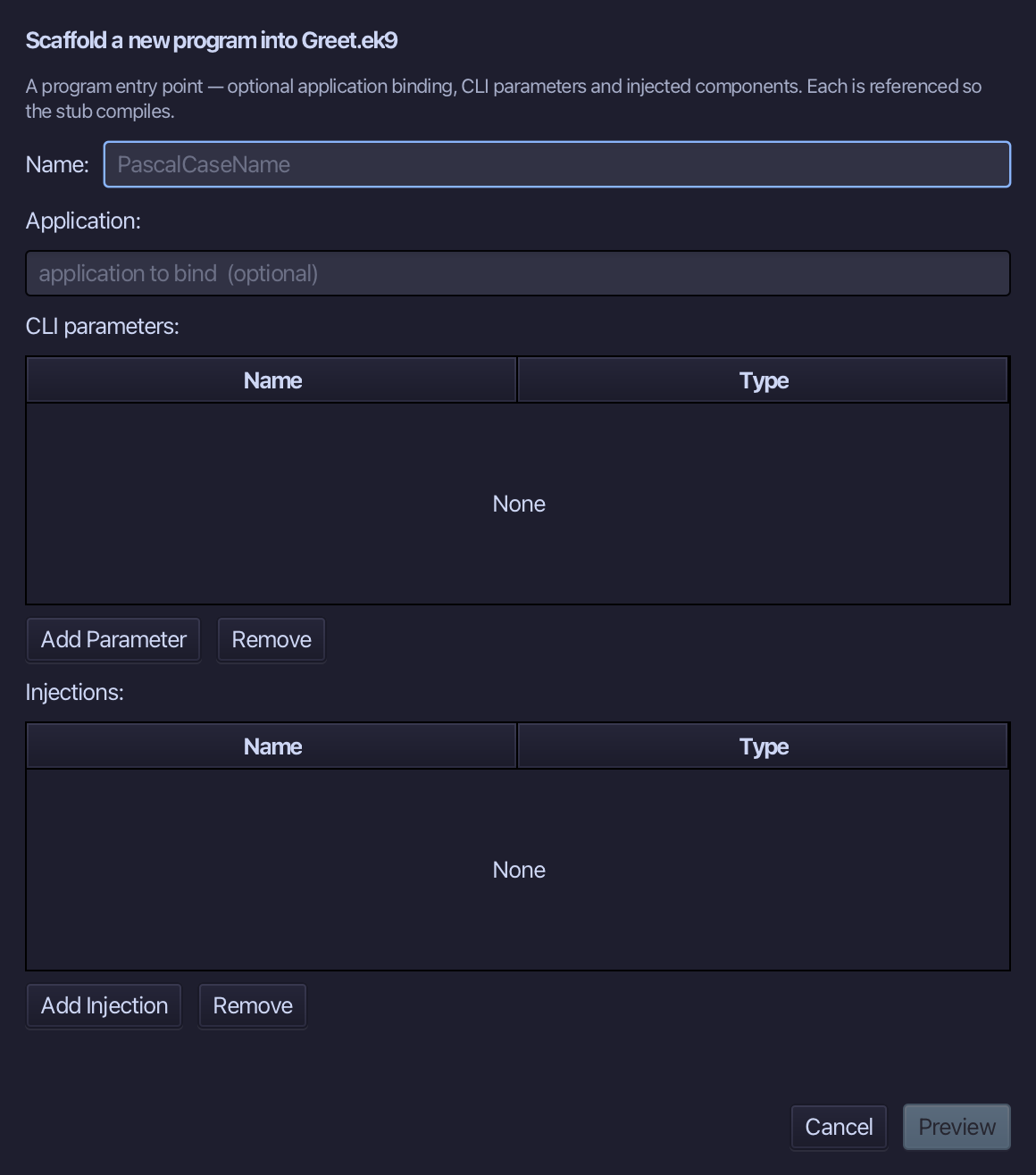
Choose Code > New Construct > Program…
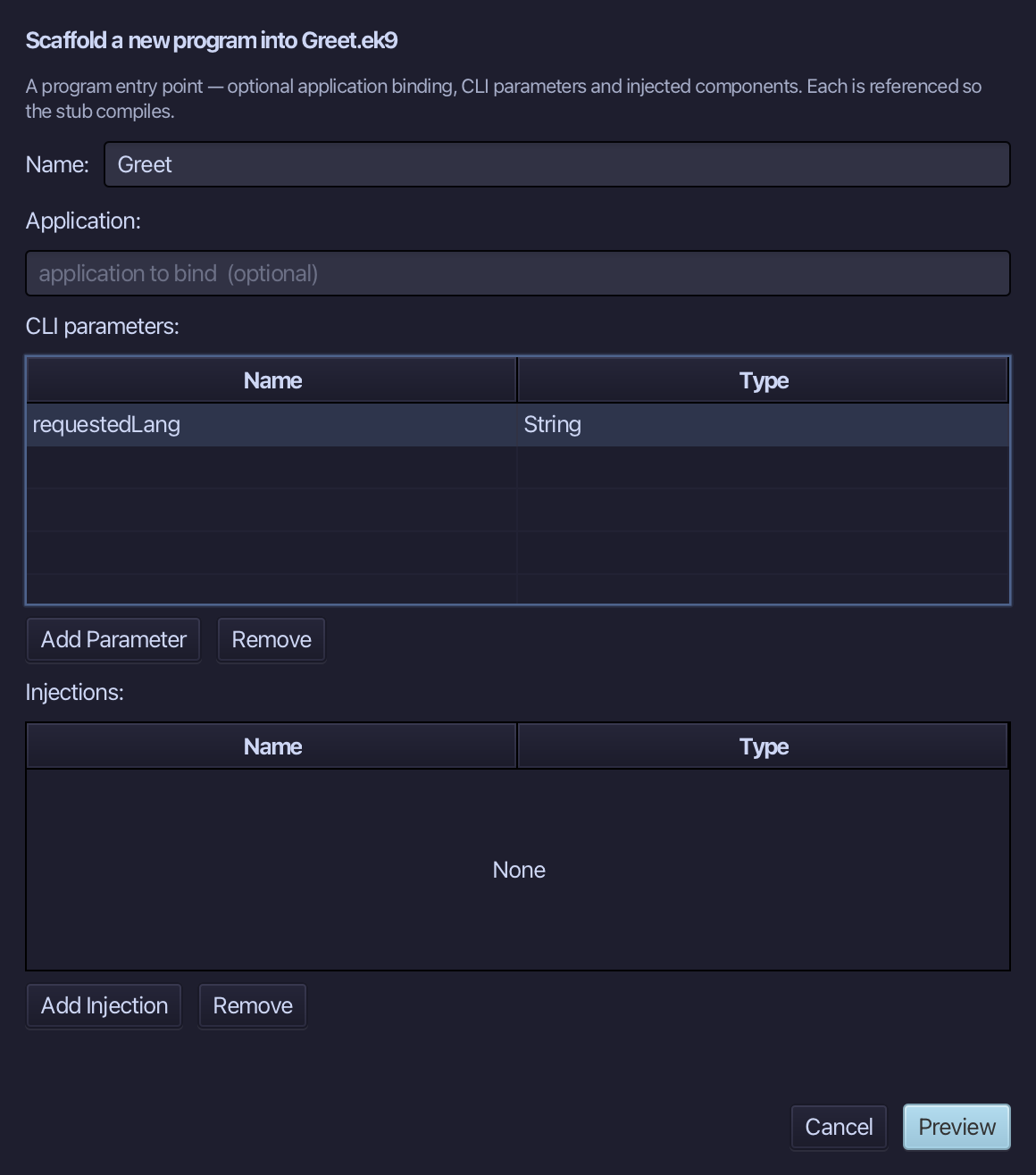
Greet is the program's name. Add one CLI parameter, requestedLang of type String - EK9 parses the text on the command line into it. Choose Preview.
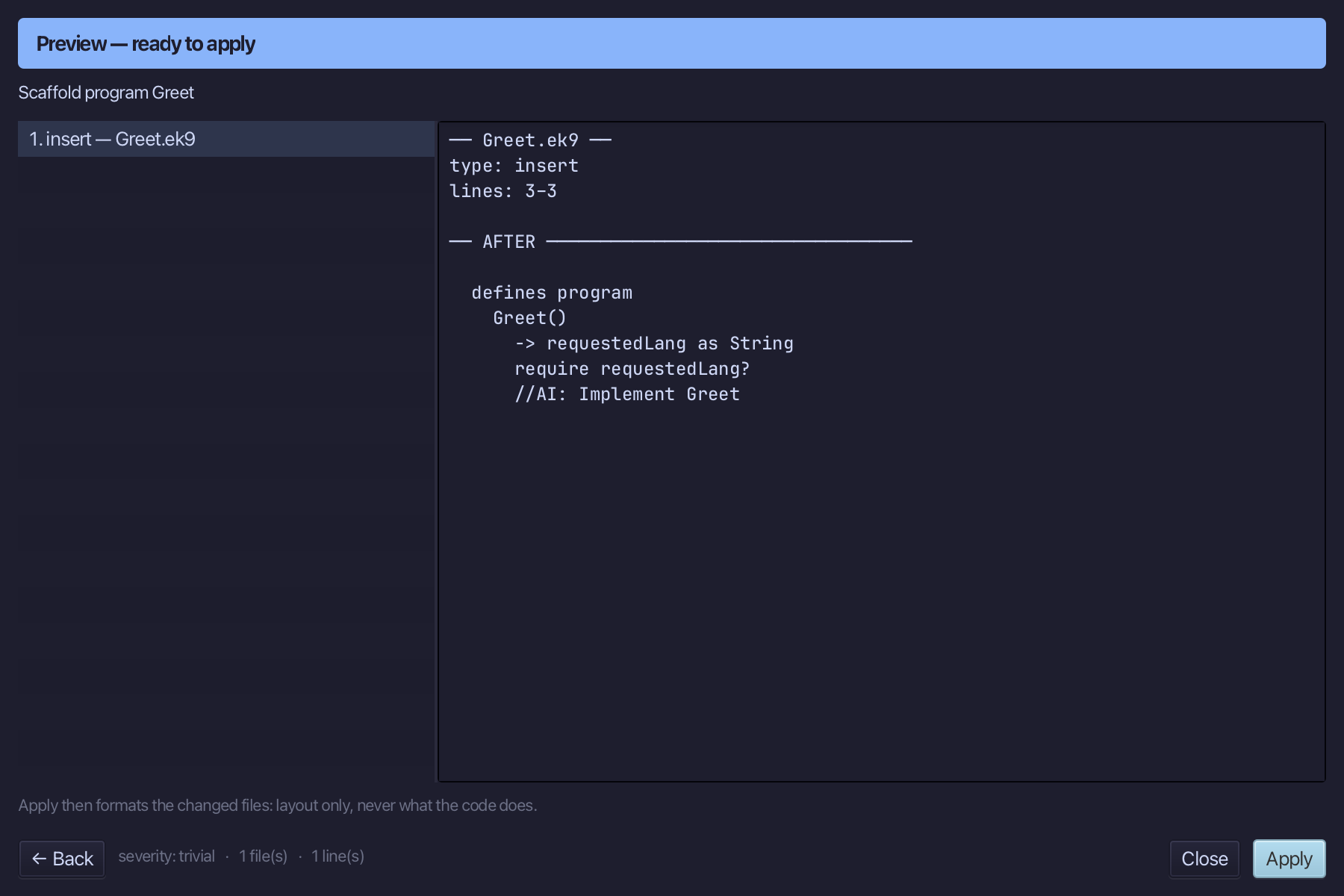
The preview shows Greet about to be written, requestedLang its one parameter. Choose Apply.
Select the stub, from require requestedLang? down to its //AI line, and type Greet's body: a Stdout, the name Ada and the English greeting hard-coded. requestedLang waits to be used. Saves when typed.
Step 2: welcome - the real message
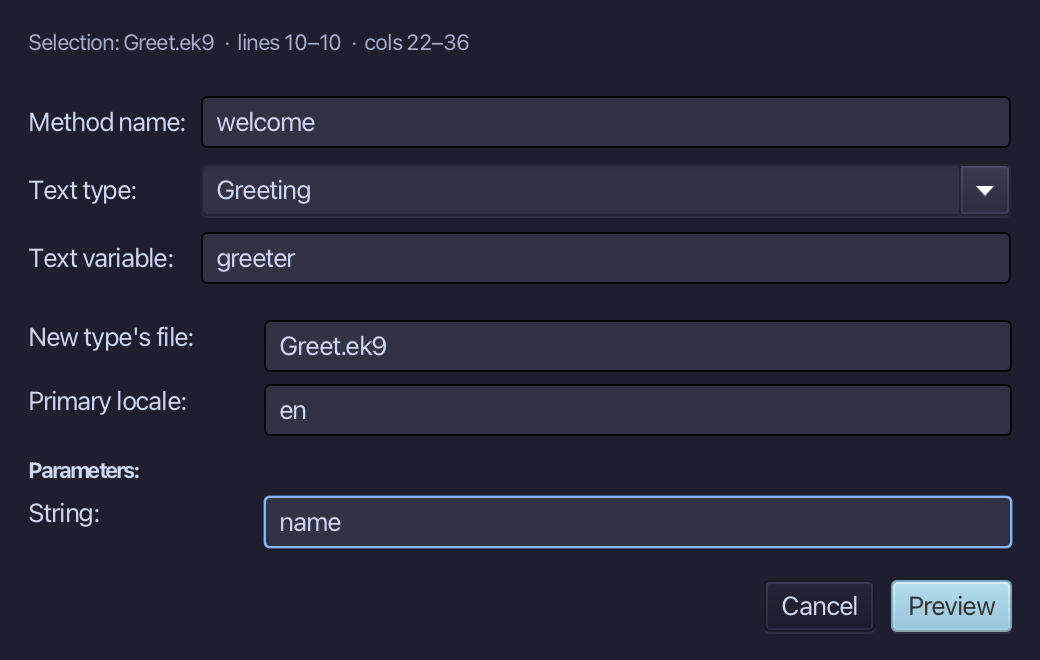
Select the hard-coded greeting, right-click it and choose Localisation ▸ Extract to Localized Text…. Name the method welcome; type Greeting as the text type - new, so the dialog offers its first locale (en); name greeter as the text variable. The Parameters table shows me - retype it to name, then choose Preview.
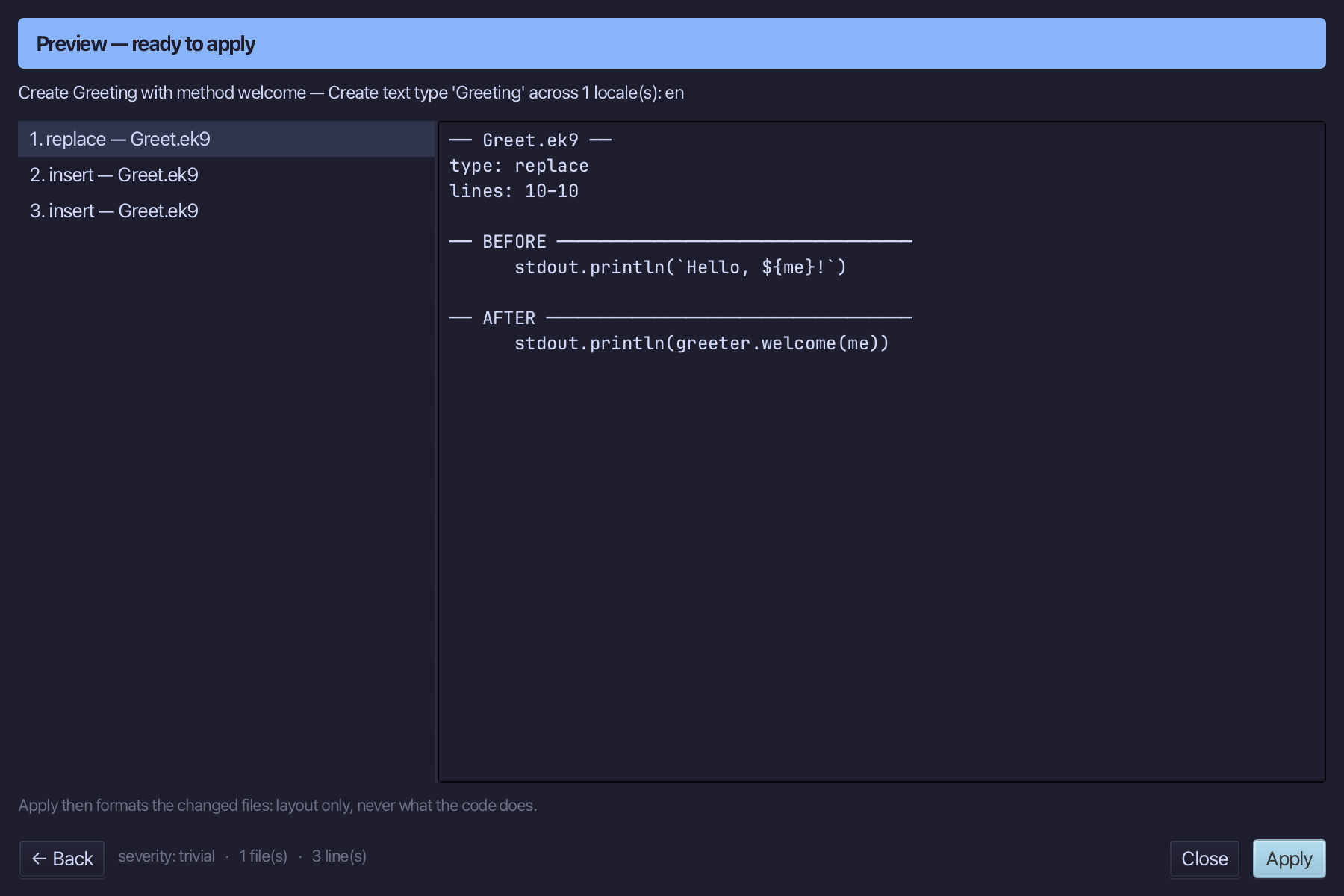
The preview shows Greeting created with its welcome() message and greeter declared above the statement that uses it. Choose Apply.
Step 3: Adding French
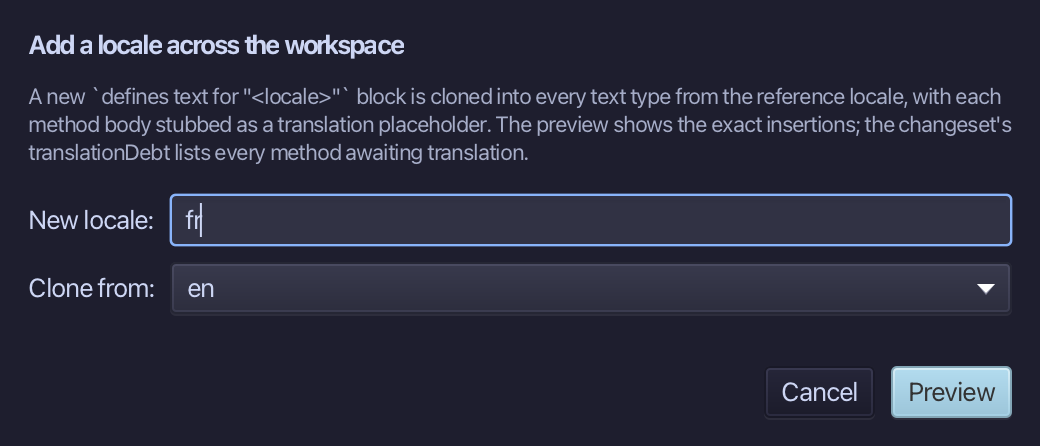
Choose Code > Localisation > Add Locale…
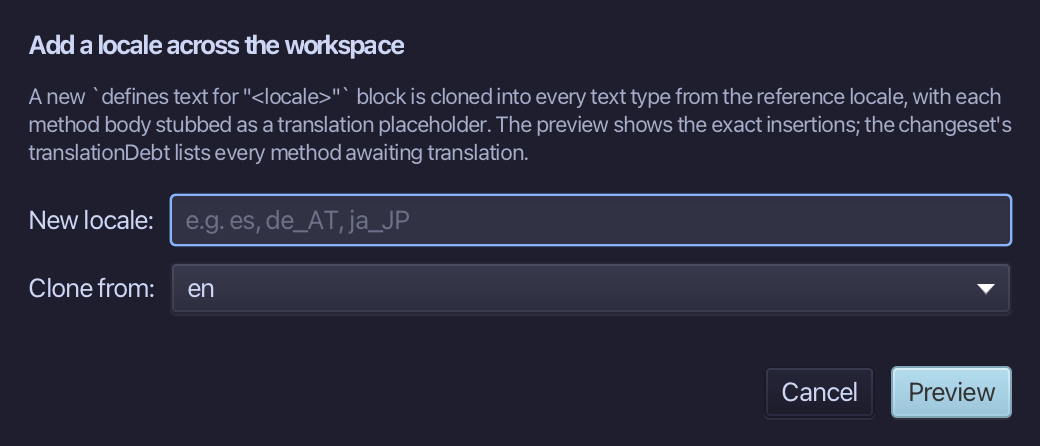
Adding French, cloned from en - a stub waits where the real words go. Type fr as the new locale - en is already chosen to clone from, the only locale so far. Choose Preview.
The preview shows fr cloned from en, stubbed for translation. Choose Apply.
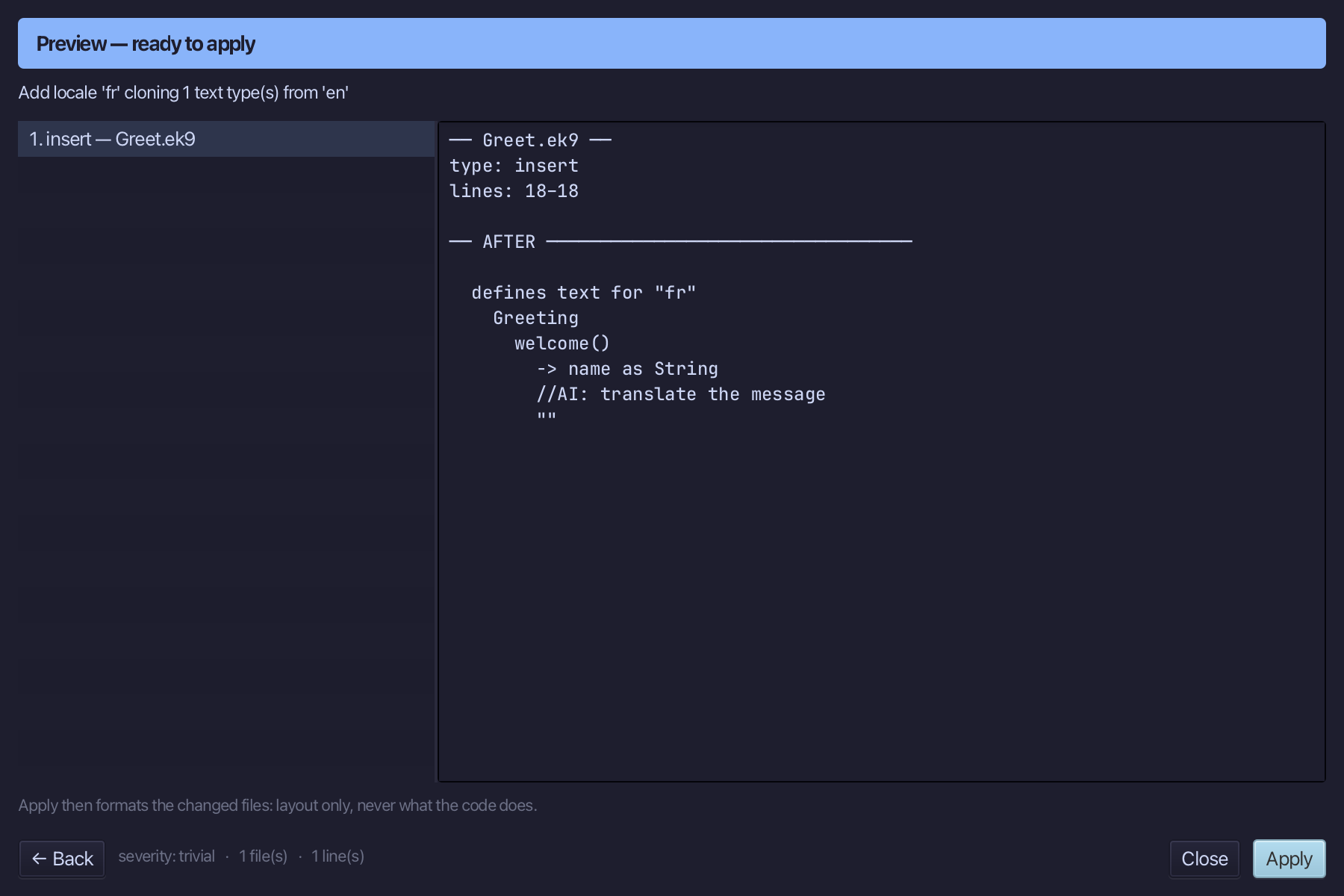
Select the stub, from //AI: translate the message down to its empty "", and type the French line. Saves when typed.
Step 4: Adding German
Choose Code > Localisation > Add Locale…
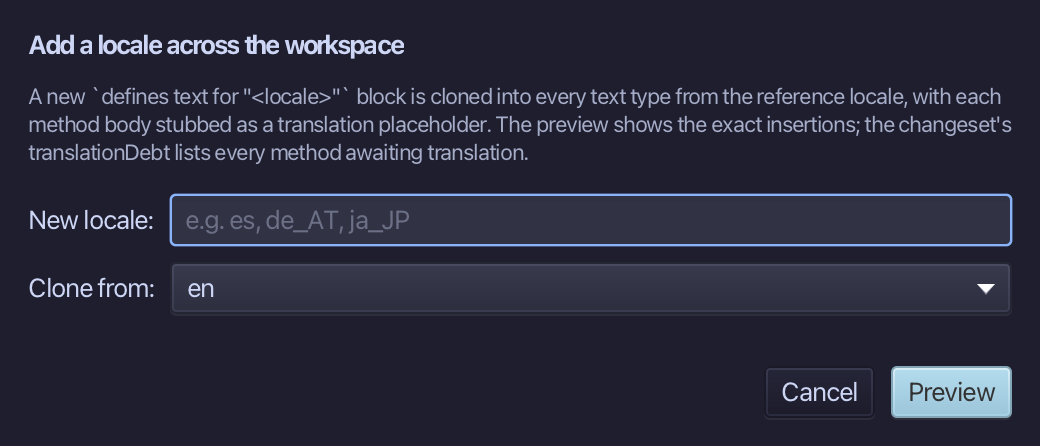
Adding German, cloned from en the same way. Type de as the new locale - en is already chosen to clone from, the only locale so far. Choose Preview.
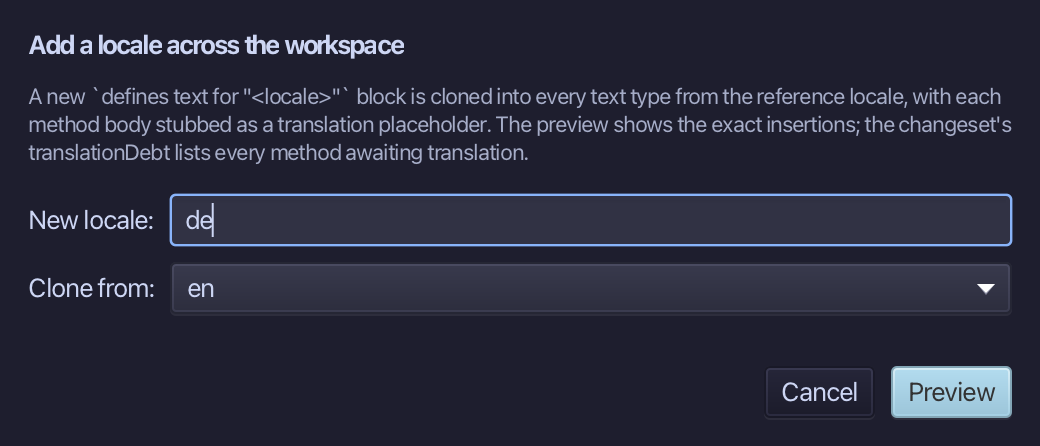
The preview shows de cloned from en, stubbed for translation. Choose Apply.
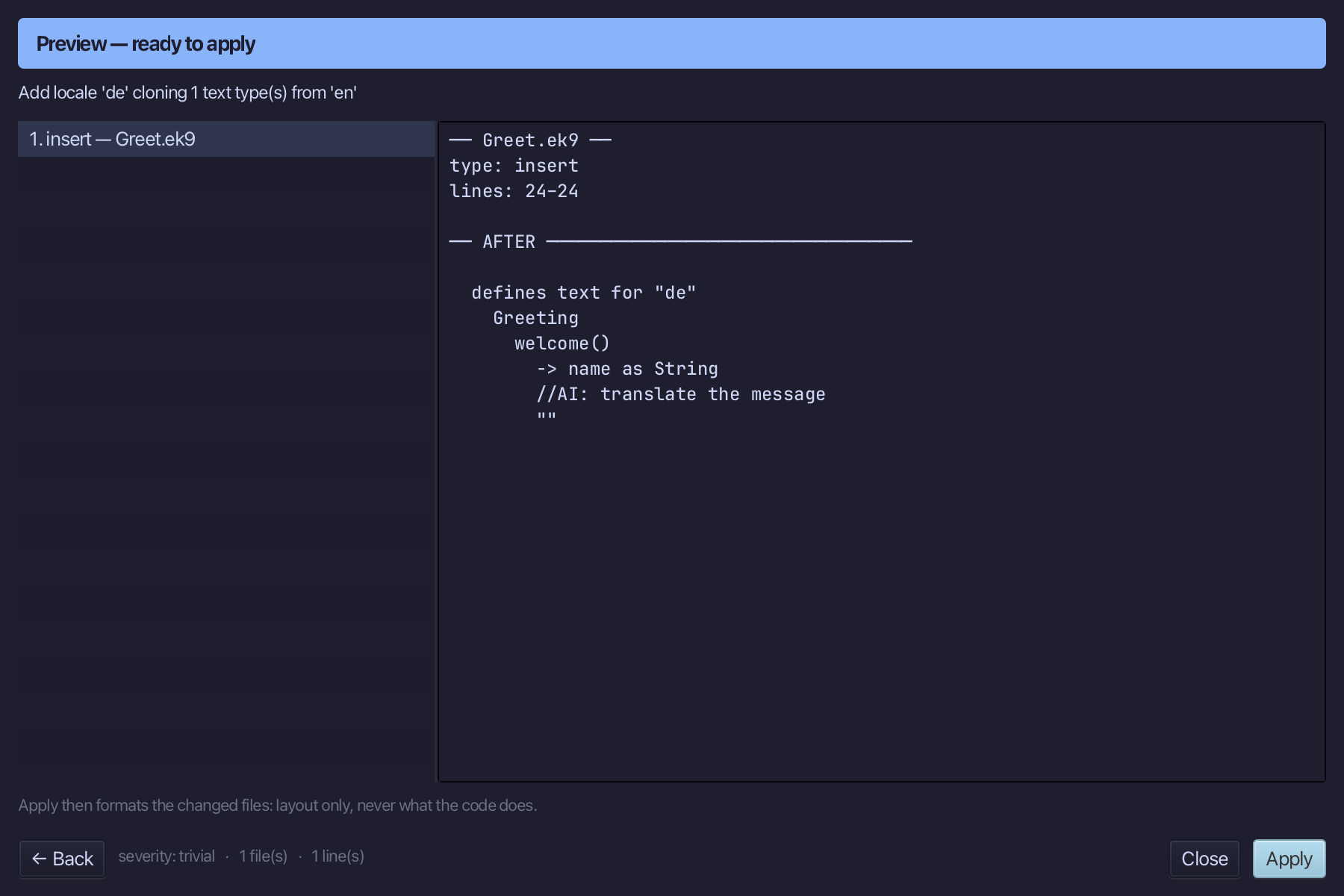
Select the stub, from //AI: translate the message down to its empty "", and type the German line. Saves when typed.
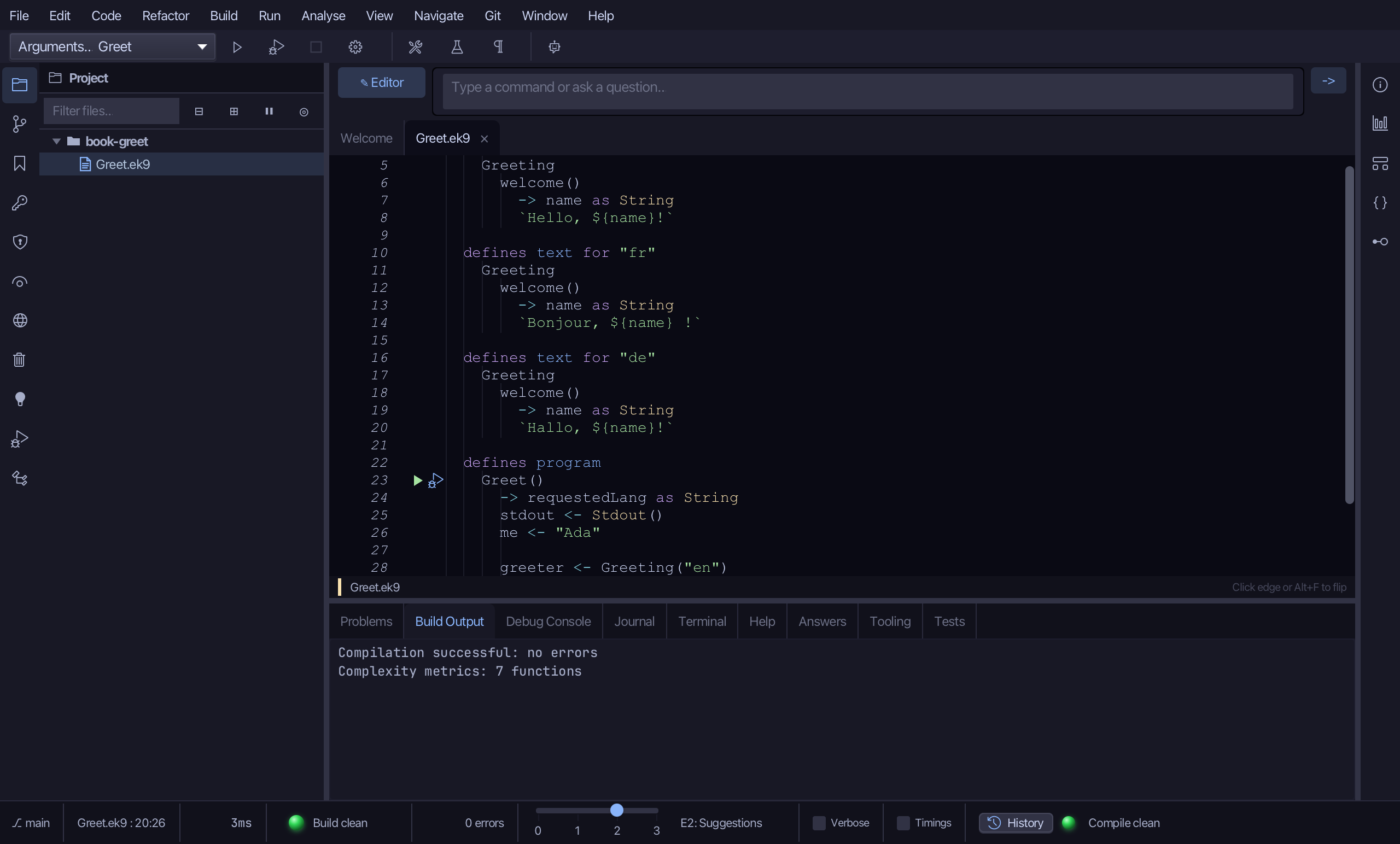
Step 5: Let the person choose
greeter is still always English. Select the greeter line and type the choice: chosen asks for the requested language, and greeter keeps chosen only if it is set (chosen?), else Greeting("en").
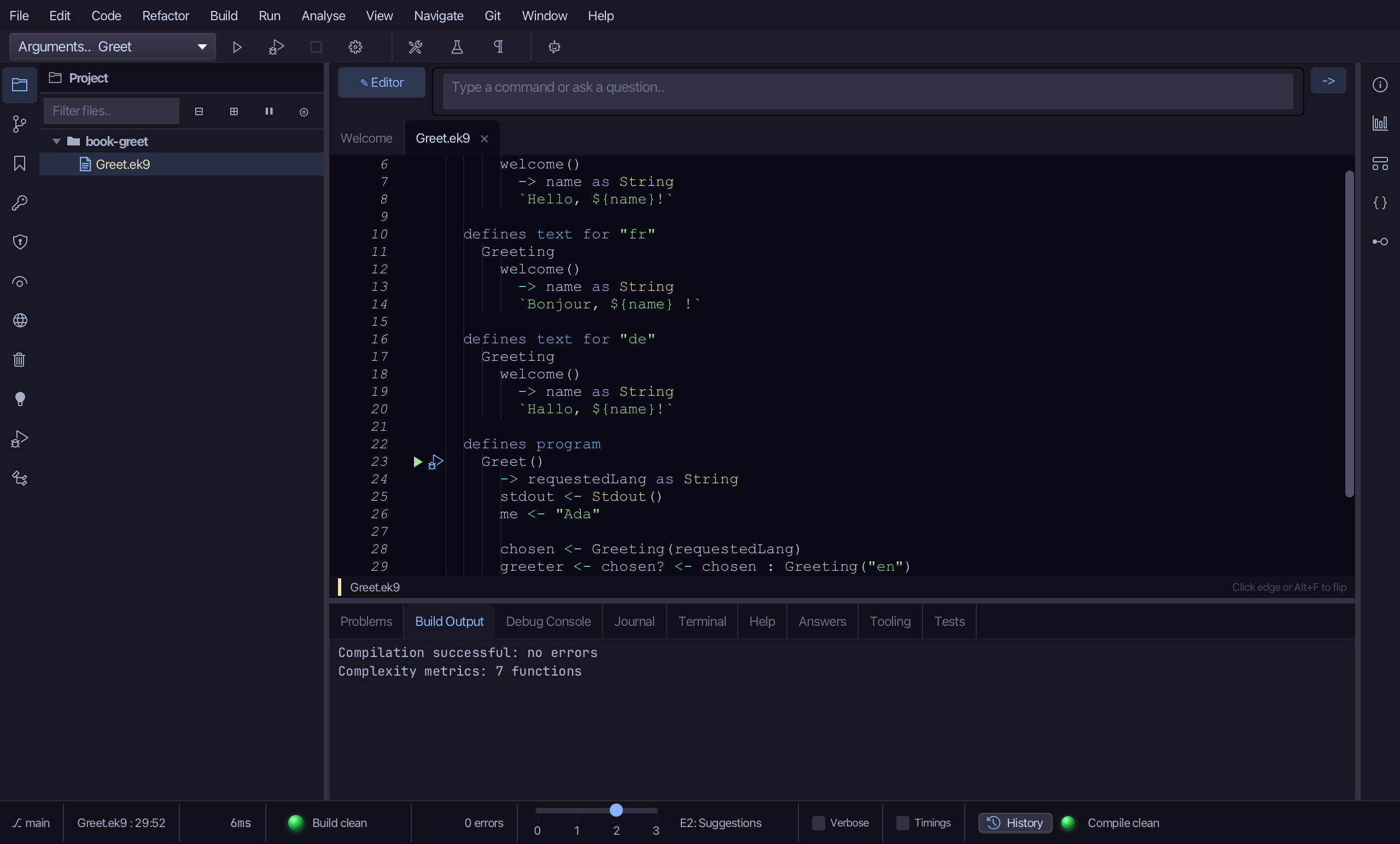
Step 6: Run it, with a language
Choose Run > Run Program…
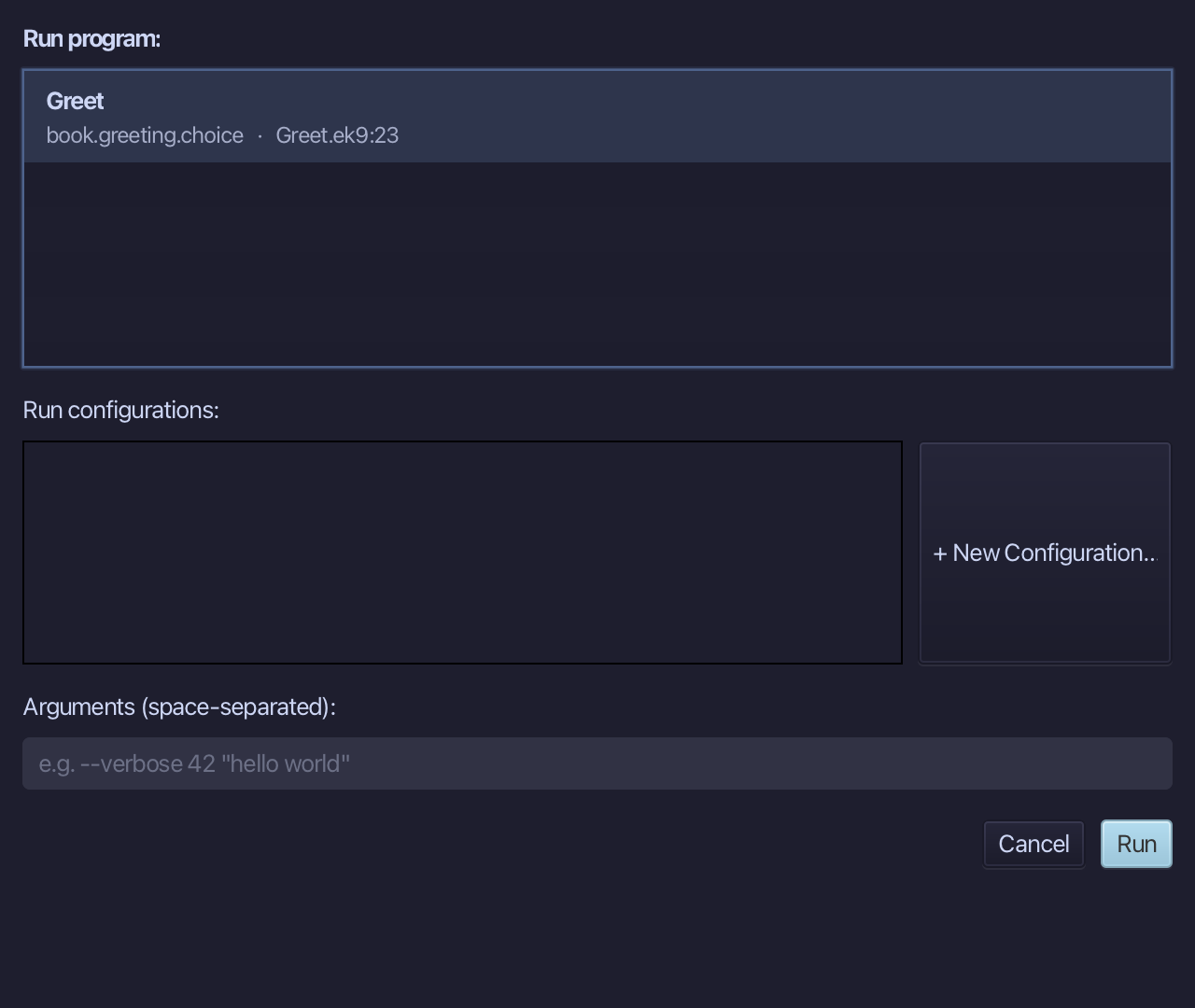
Type fr into Arguments (space-separated), then choose Run.
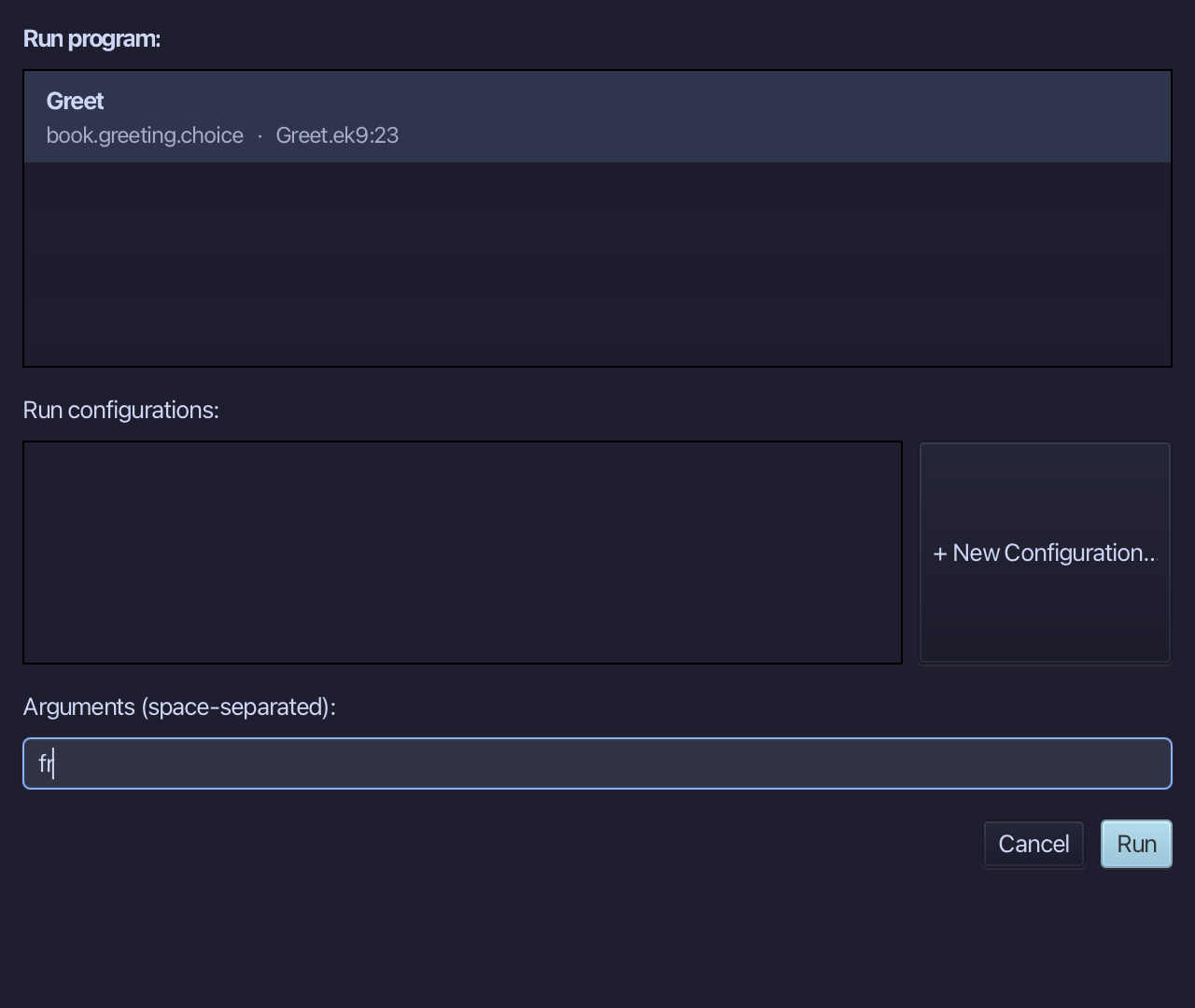
Ada is greeted in French - Bonjour, Ada ! Choose Close.
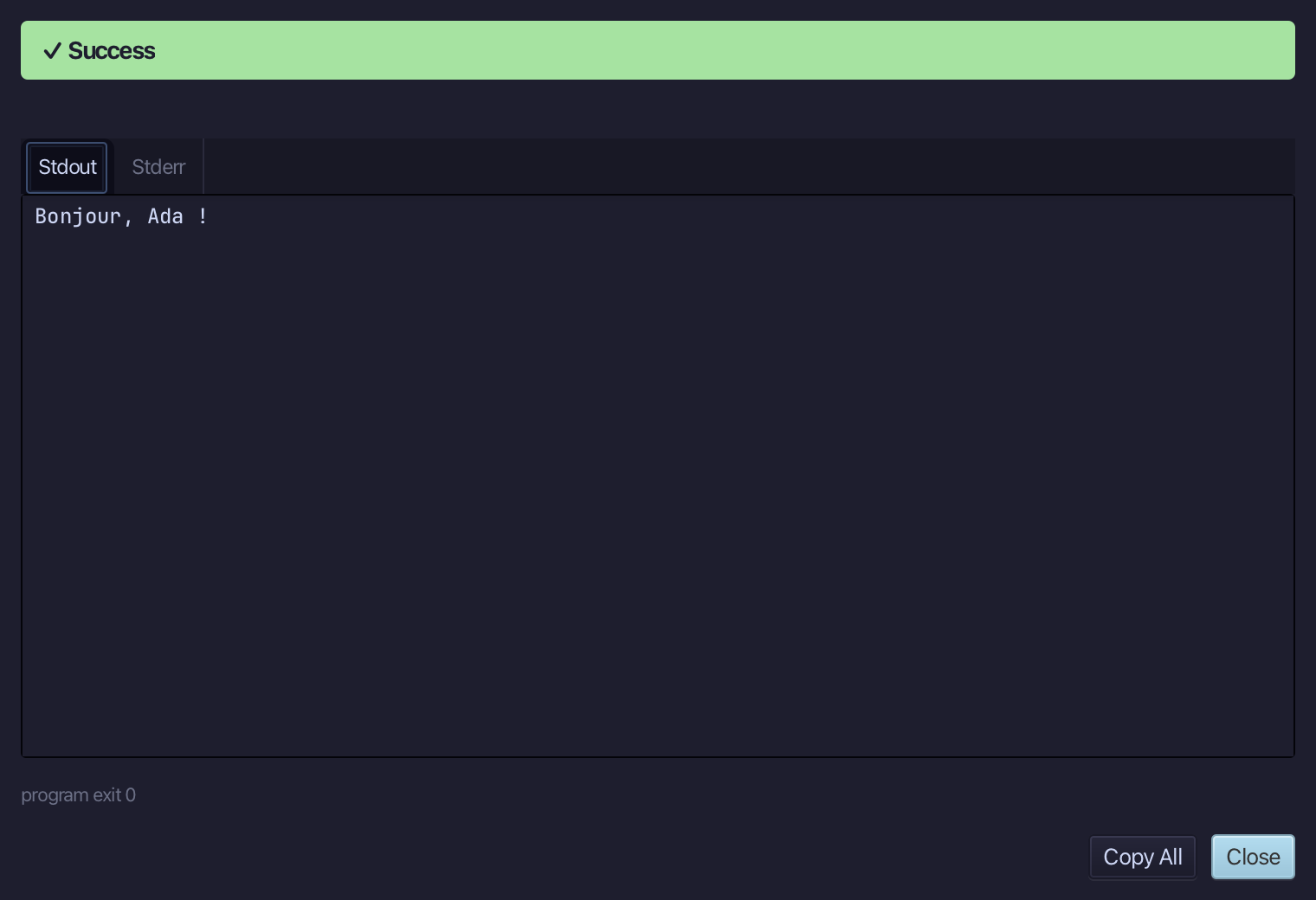
The result
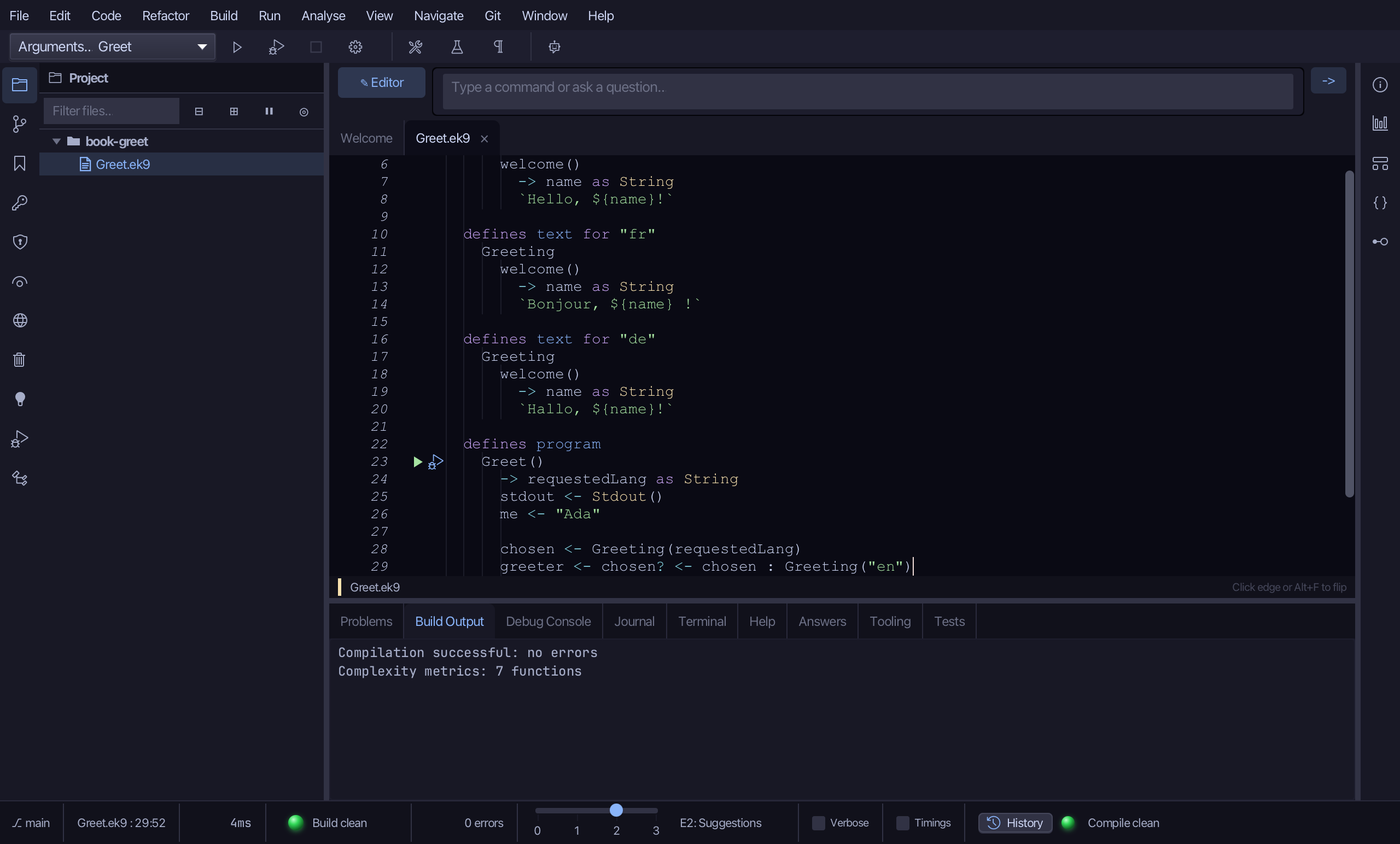
Greet.ek9 now reads exactly as chapter 8 of Getting Started with EK9 shows it: the language comes from the command line, Greeting(requestedLang) asks for it, and chosen? keeps it only when a text type really speaks it - otherwise the greeting falls back to English. The tools wrote the program, its parameter, the Greeting type and two more locales; only the wording and the choice were typed. The same tools - ek9_add_program, ek9_extract_to_localized_text and ek9_edit_localized_text - are what an AI assistant calls to do the same thing.
Where this lesson comes from
- For AI assistants - the MCP tool
ek9_add_program,ek9_extract_to_localized_text,ek9_edit_localized_text.
In the EK9 reference: Text Properties in EK9