Chapter 28: JSON as a sink, built
JSON follows the same two rules as the collections: > replaces an array target's items, >> adds to them, and collect as JSON makes a fresh array. Chapter 28's OrdersAsJson turns Order records into JSON with $$, the serialising operator, which the record asks for with default operator $$. The IDE writes the constant, the record with its constructor and $$, the two functions and the program's shell; you type the logic. To play it in the IDE: Help > Lessons > EK9 in Depth…, or ek9 -ide -lesson depth-json-sink.
What you'll build
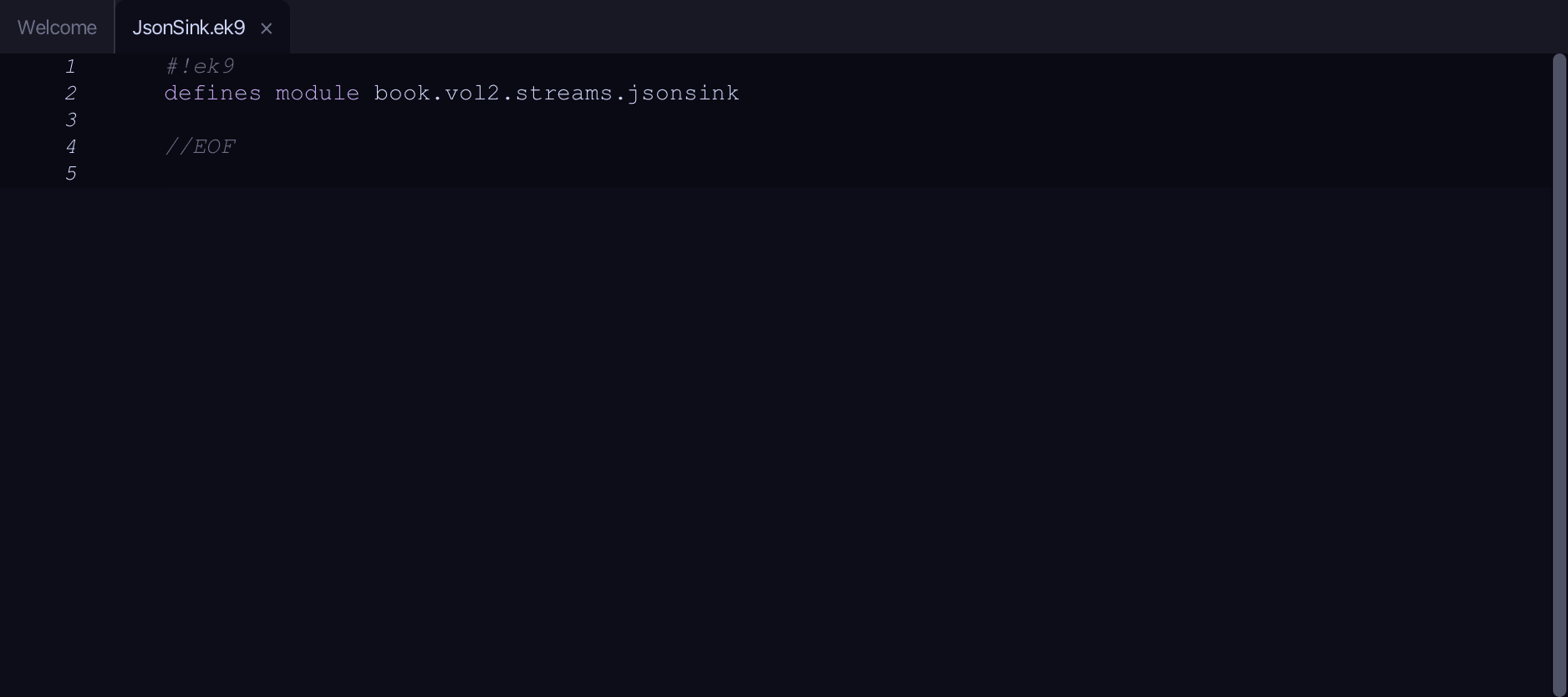
The lesson builds this program from a file holding only its module line - the finished file, as the book prints it.
#!ek9
defines module book.vol2.streams.jsonsink

  defines constant
    LARGE_ORDER <- 100.0

  defines record
    Order
      customer <- String()
      product <- String()
      amount <- Float()

      Order() as pure
        ->
          customer as String
          product as String
          amount as Float

        this.customer :=? String(customer)
        this.product :=? String(product)
        this.amount :=? Float(amount)

      default operator $$
      default operator ?

  defines function

    isLarge() as pure
      -> order as Order
      <- rtn as Boolean: order.amount >= LARGE_ORDER

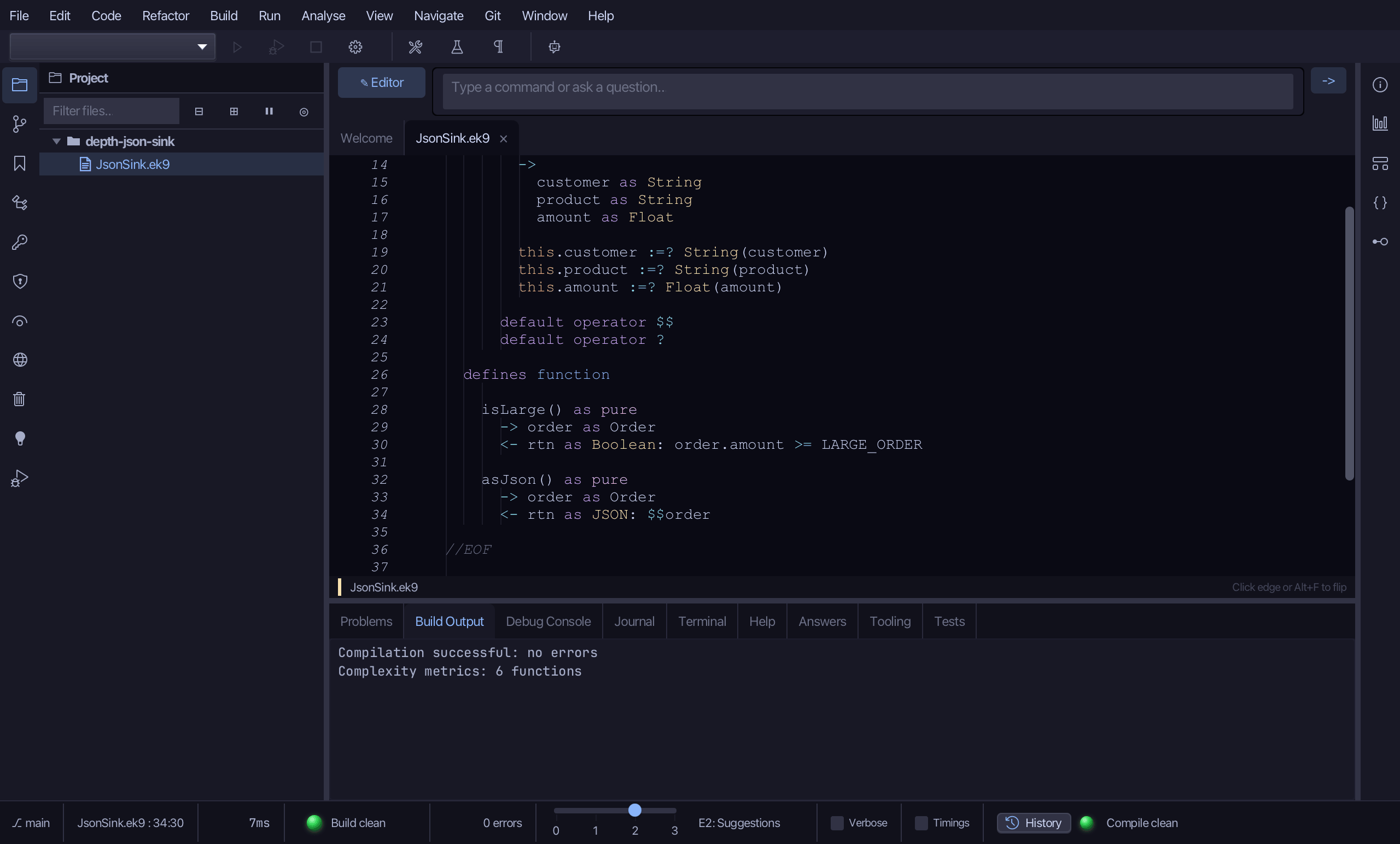
    asJson() as pure
      -> order as Order
      <- rtn as JSON: $$order

  defines program

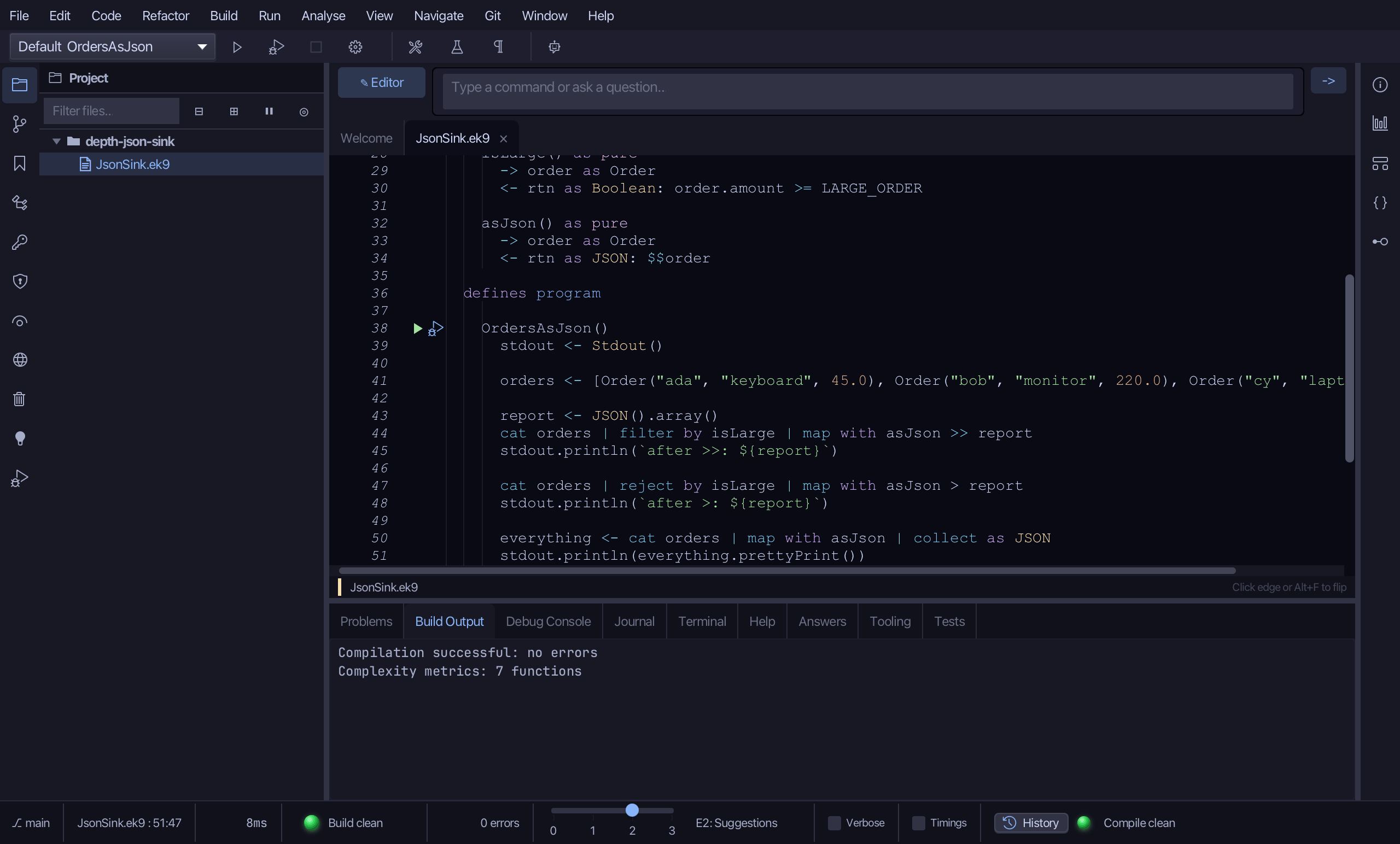
    OrdersAsJson()
      stdout <- Stdout()

      orders <- [Order("ada", "keyboard", 45.0), Order("bob", "monitor", 220.0), Order("cy", "laptop", 999.0)]

      report <- JSON().array()
      cat orders | filter by isLarge | map with asJson >> report
      stdout.println(`after >>: ${report}`)

      cat orders | reject by isLarge | map with asJson > report
      stdout.println(`after >: ${report}`)

      everything <- cat orders | map with asJson | collect as JSON
      stdout.println(everything.prettyPrint())

//EOF
Step 1: A constant
Choose Code > New Construct > Constant…
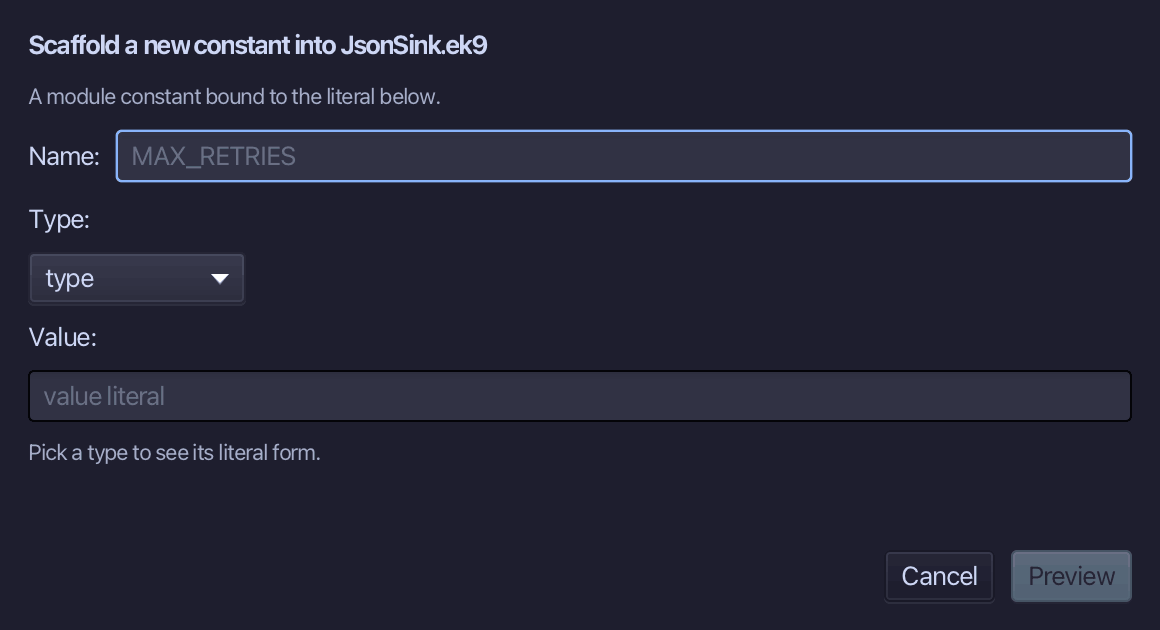
LARGE_ORDER is the constant's name and 100.0 its value - a literal in the Value field, from which the type is inferred. Type both and choose Preview.
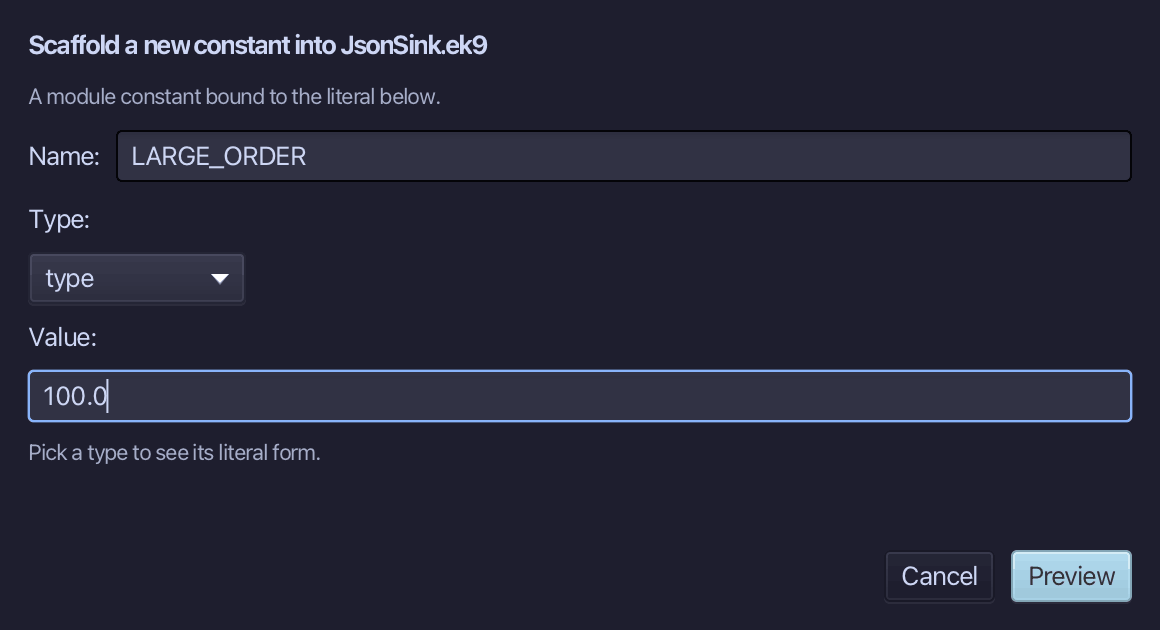
The preview shows LARGE_ORDER about to be written. Choose Apply.
Step 2: Order — a record
Choose Code > New Construct > Record…
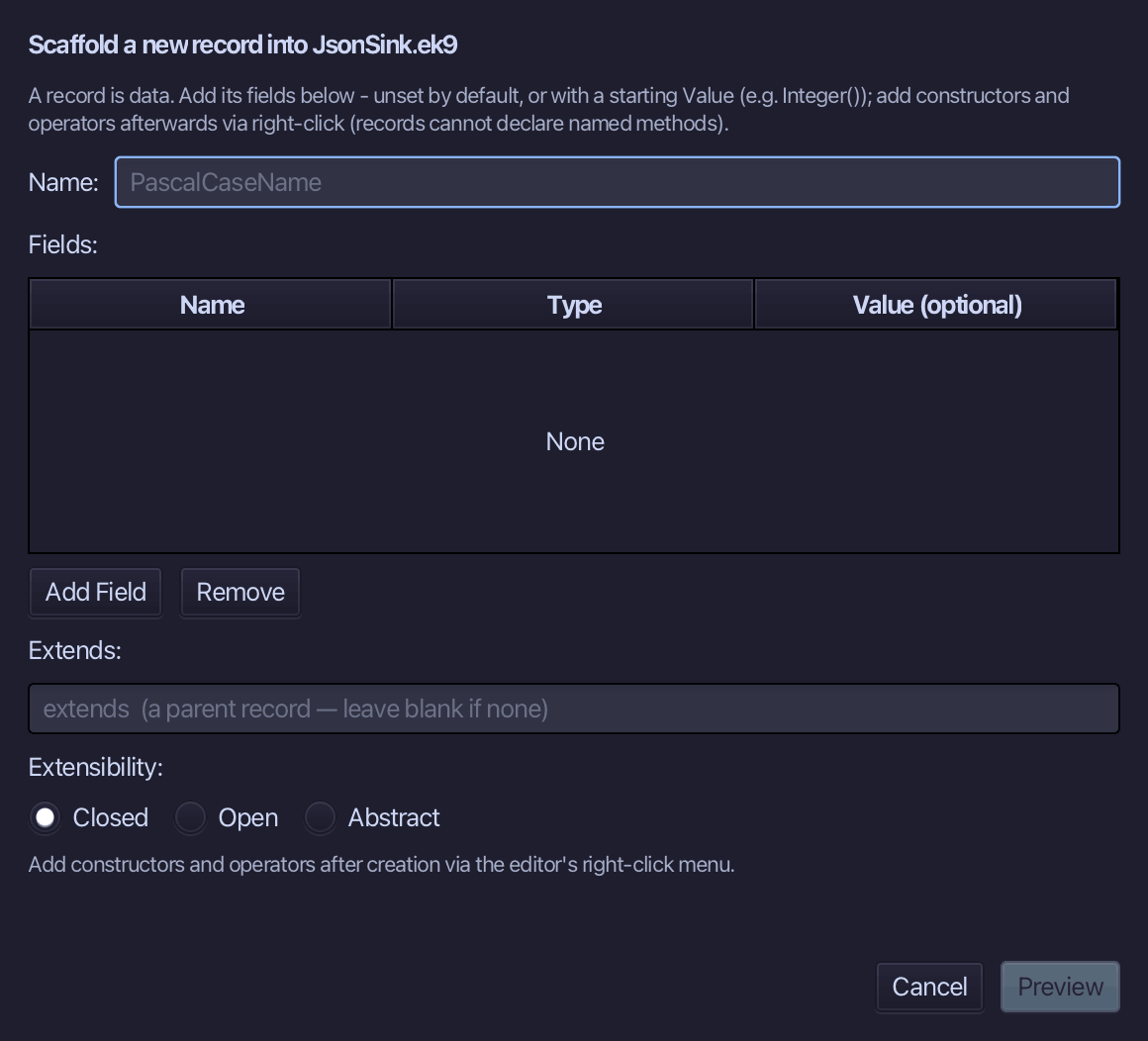
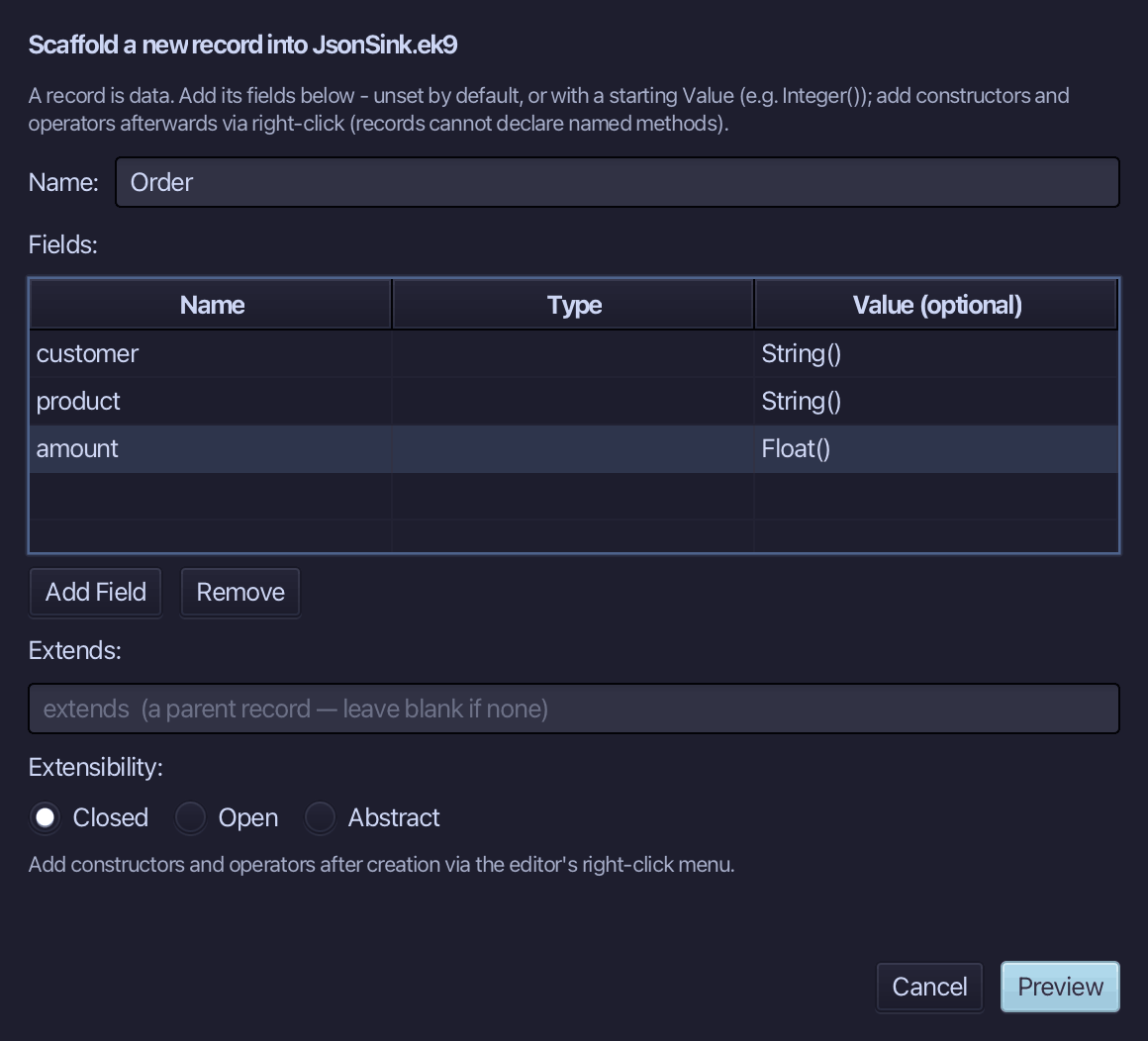
Order is the record's name. The Fields table holds customer, starting at String(); product, starting at String(); amount, starting at Float(). A Type left blank is taken from the value. Choose Preview.
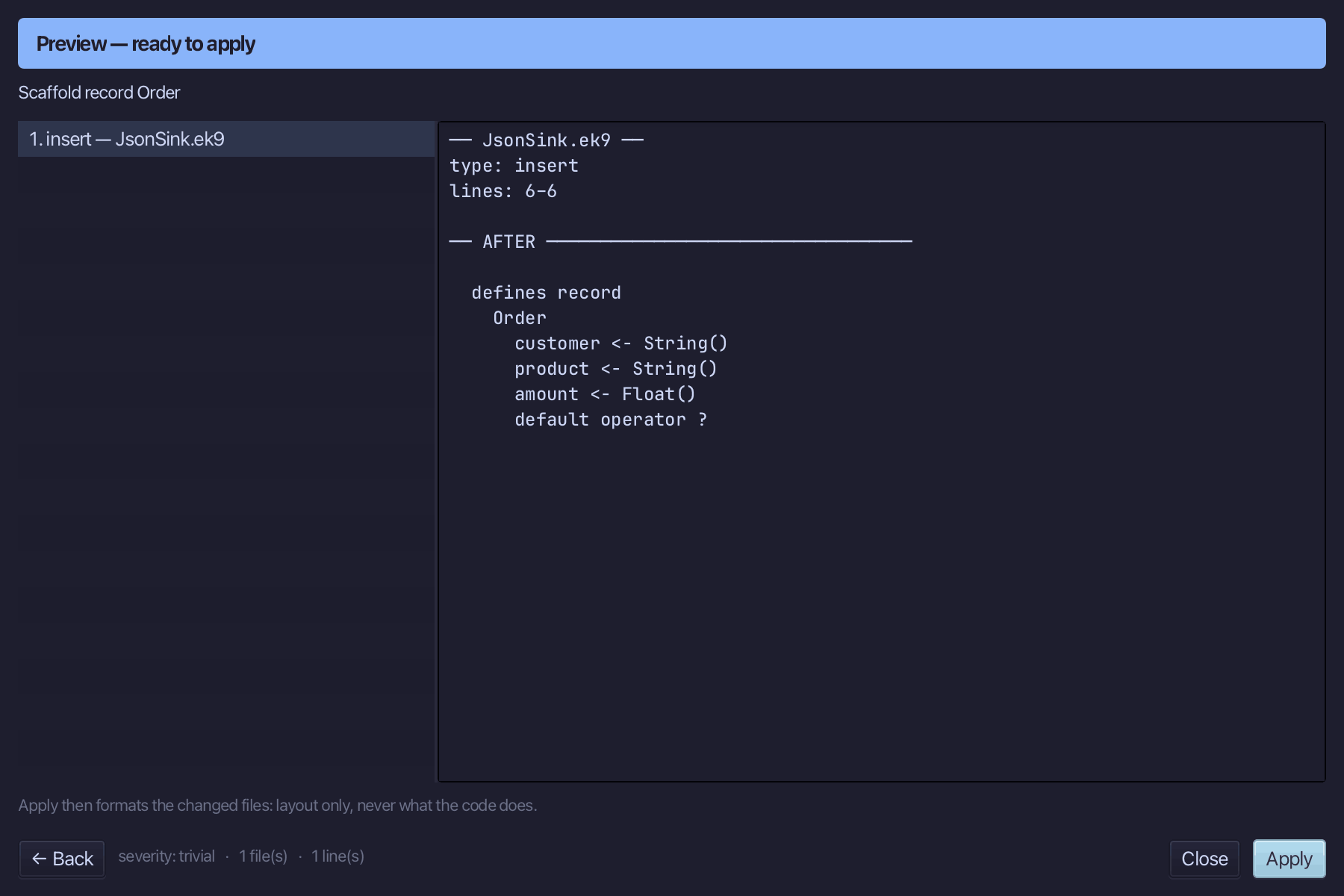
The preview shows Order about to be written - and default operator ? with them: a record that holds fields must say when it counts as set. Choose Apply.
Right-click the Order line and choose Add Constructor > From All Fields (pure) - a constructor that takes every field.
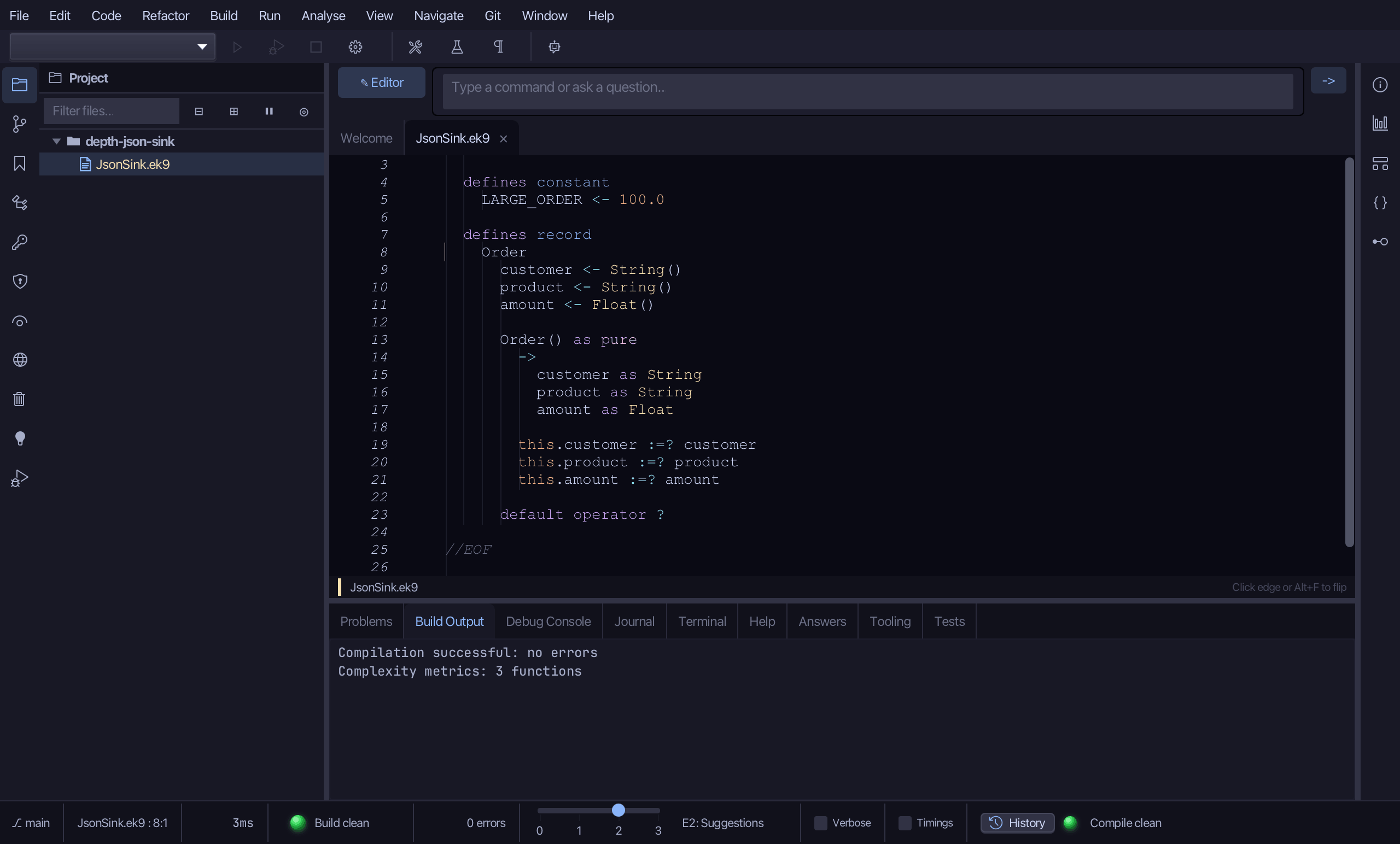
Select the stub, from Order() as pure down to its last assignment, and type the constructor's whole job as the book writes it. Saves when typed.
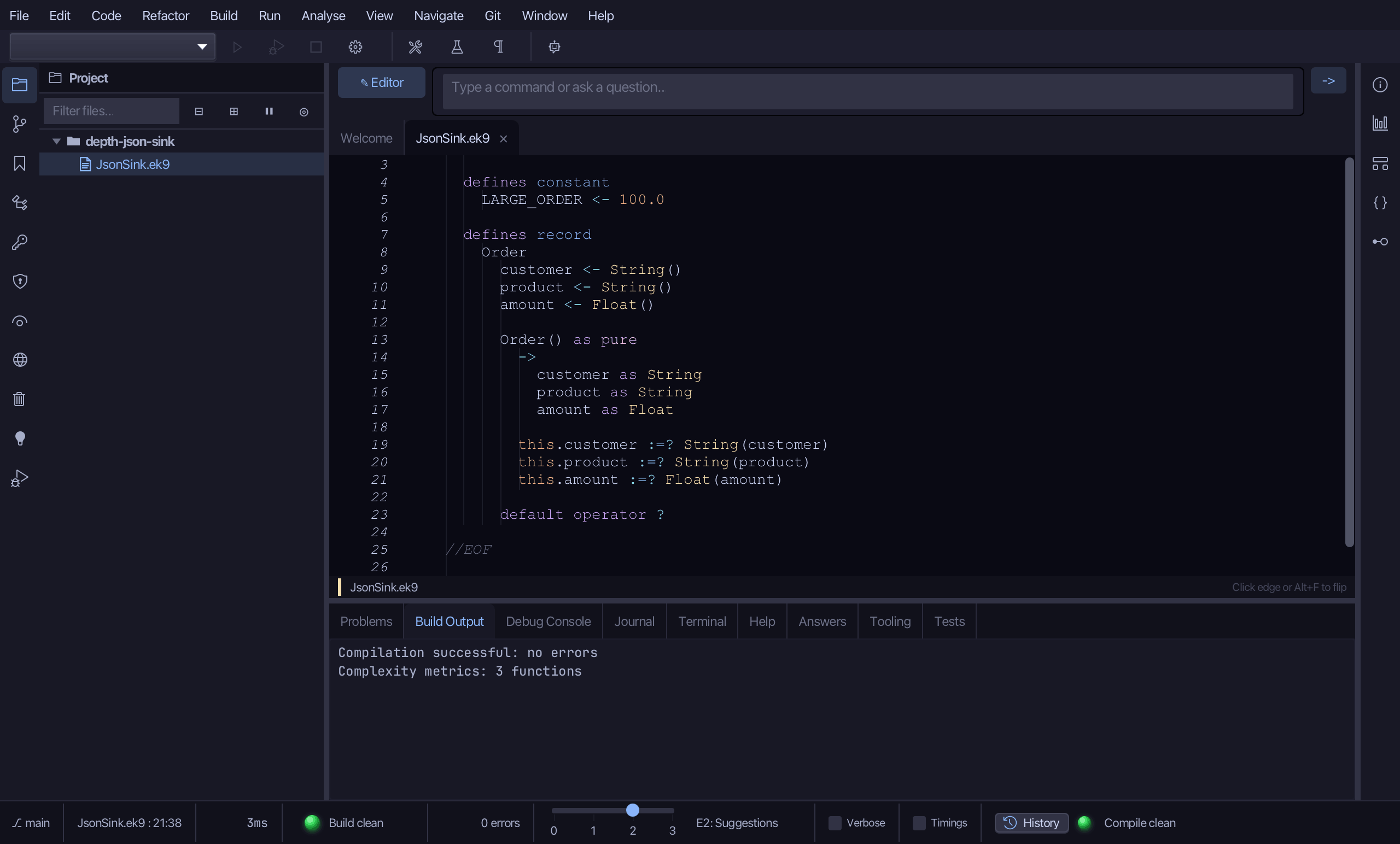
Right-click the Order line and choose Add Operator > $$ (json) > default - the compiler writes the operator from the fields.
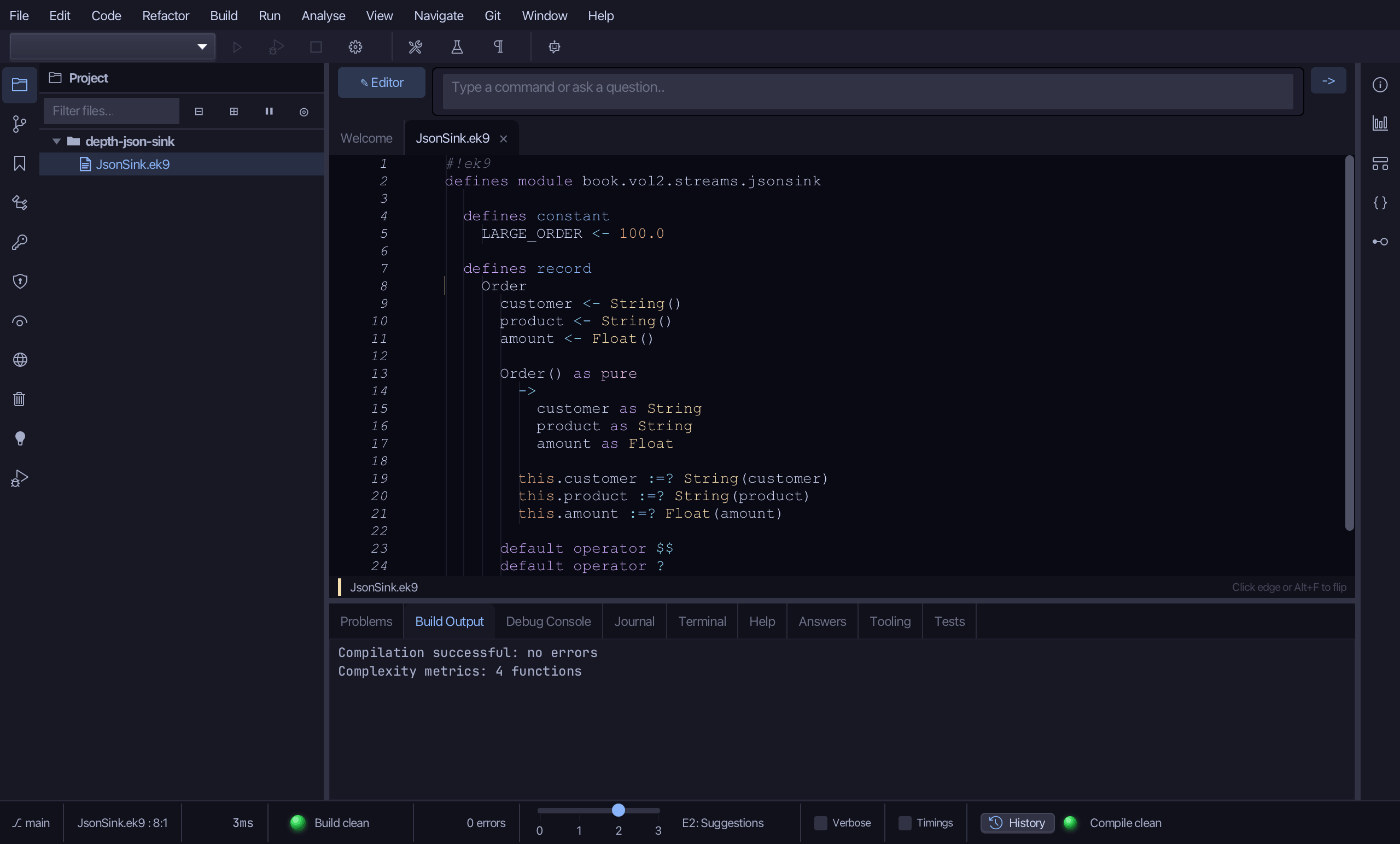
Step 3: isLarge — a pure function
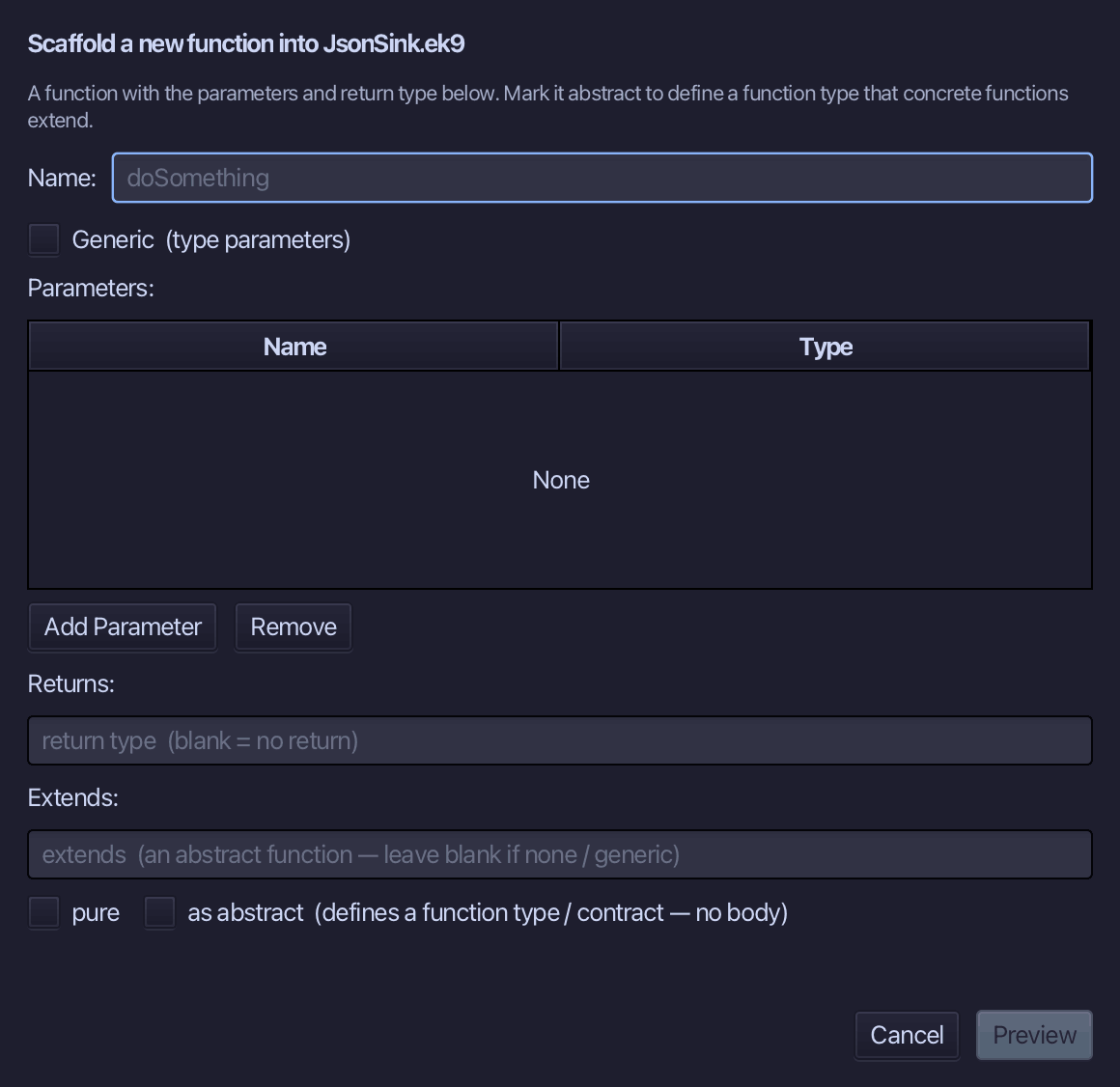
Choose Code > New Construct > Function…
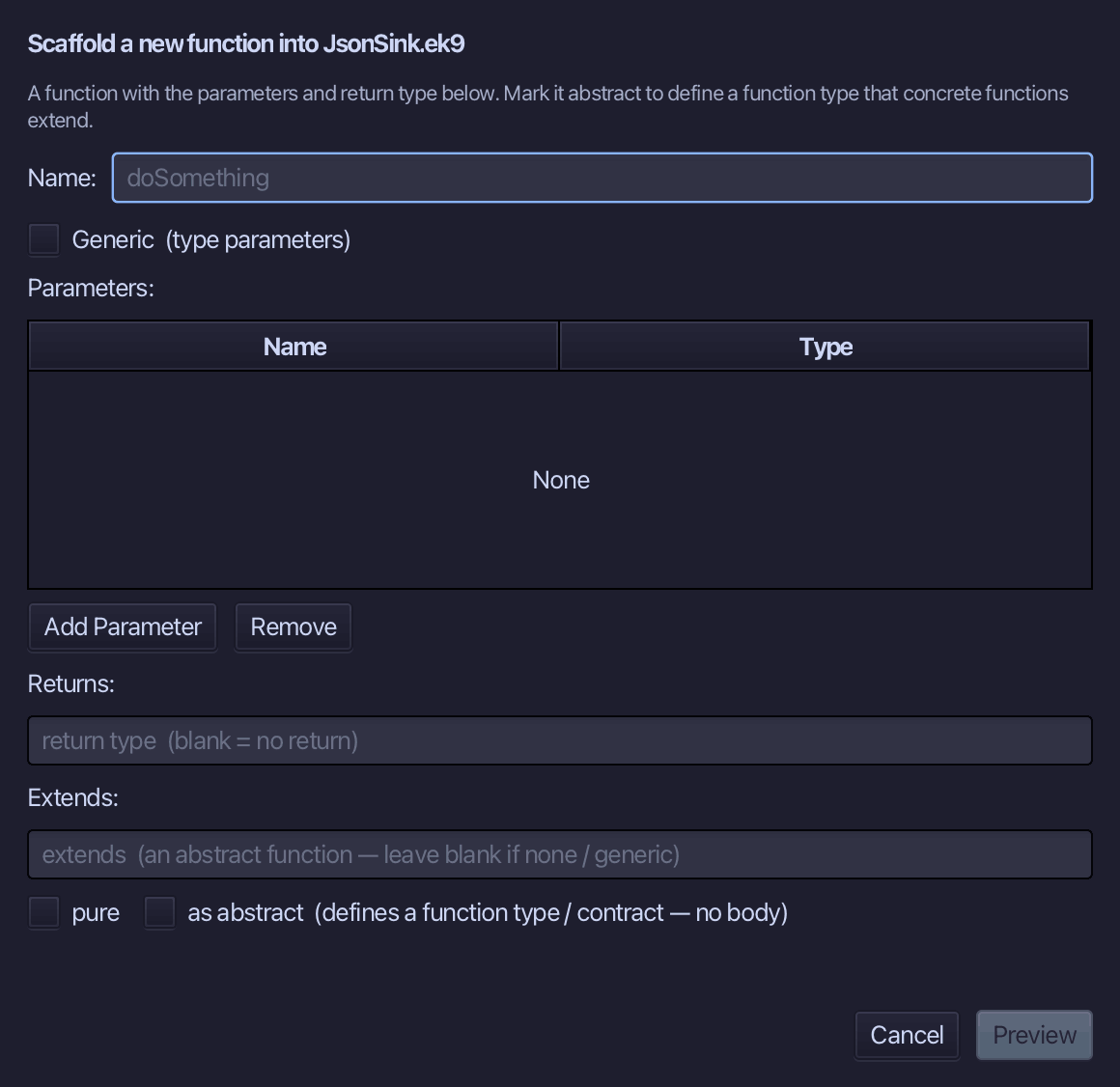
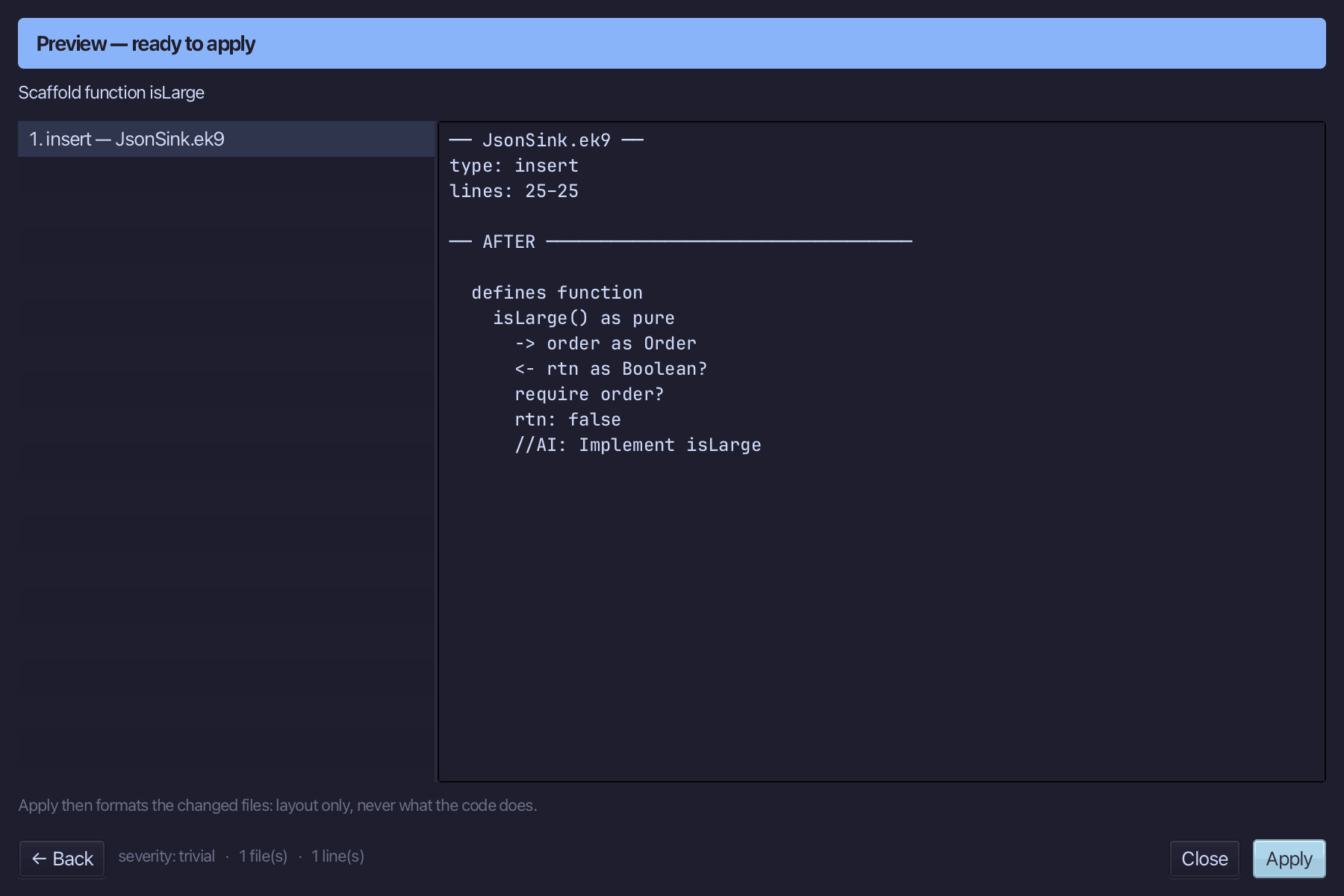
isLarge is the function's name. Add one parameter, order of type Order, set Returns to Boolean and tick pure. Choose Preview.
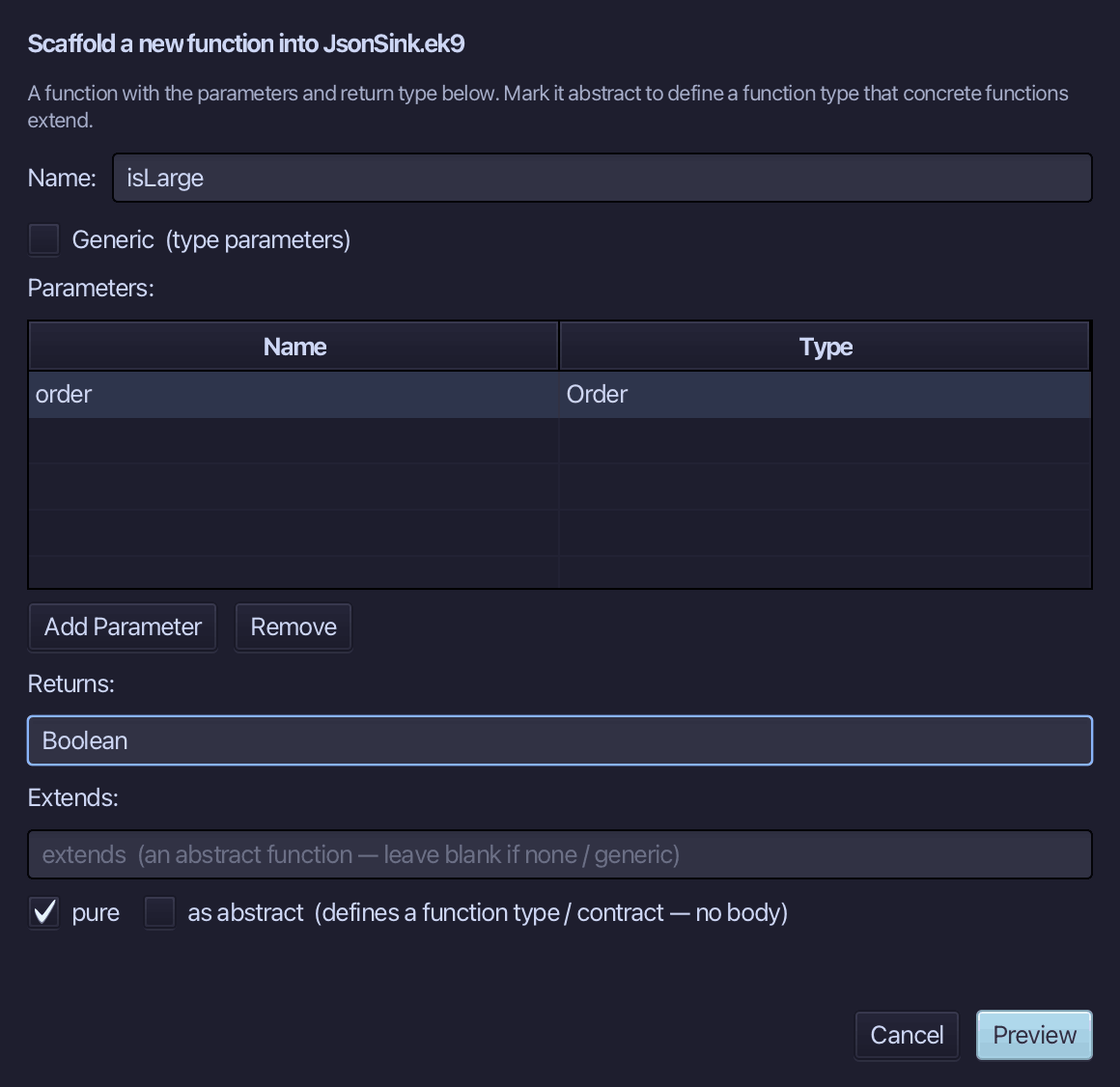
The preview shows isLarge about to be written. Choose Apply.
Select the isLarge() as pure line and, above it, type the blank line the book opens its first function with. Saves when typed.
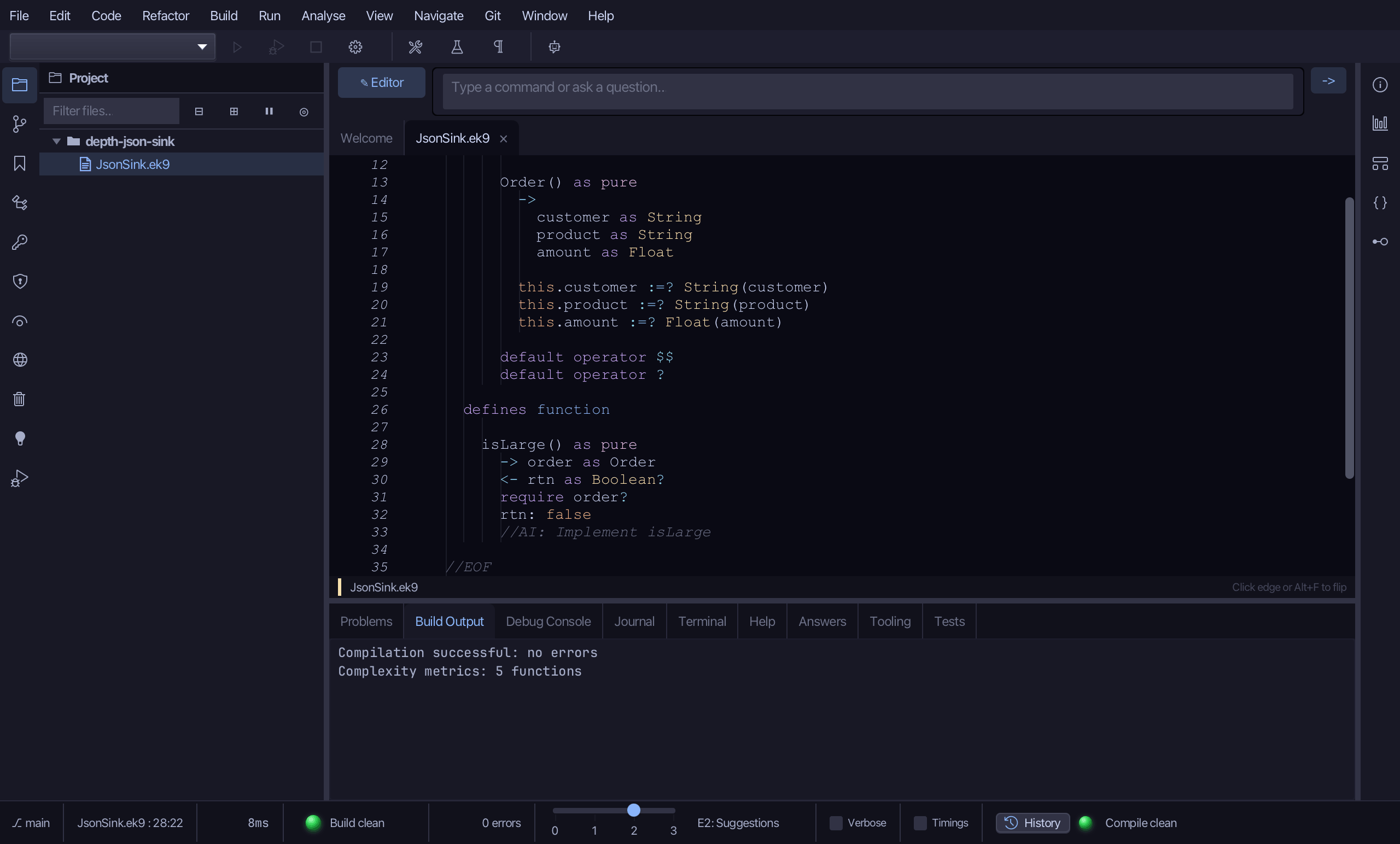
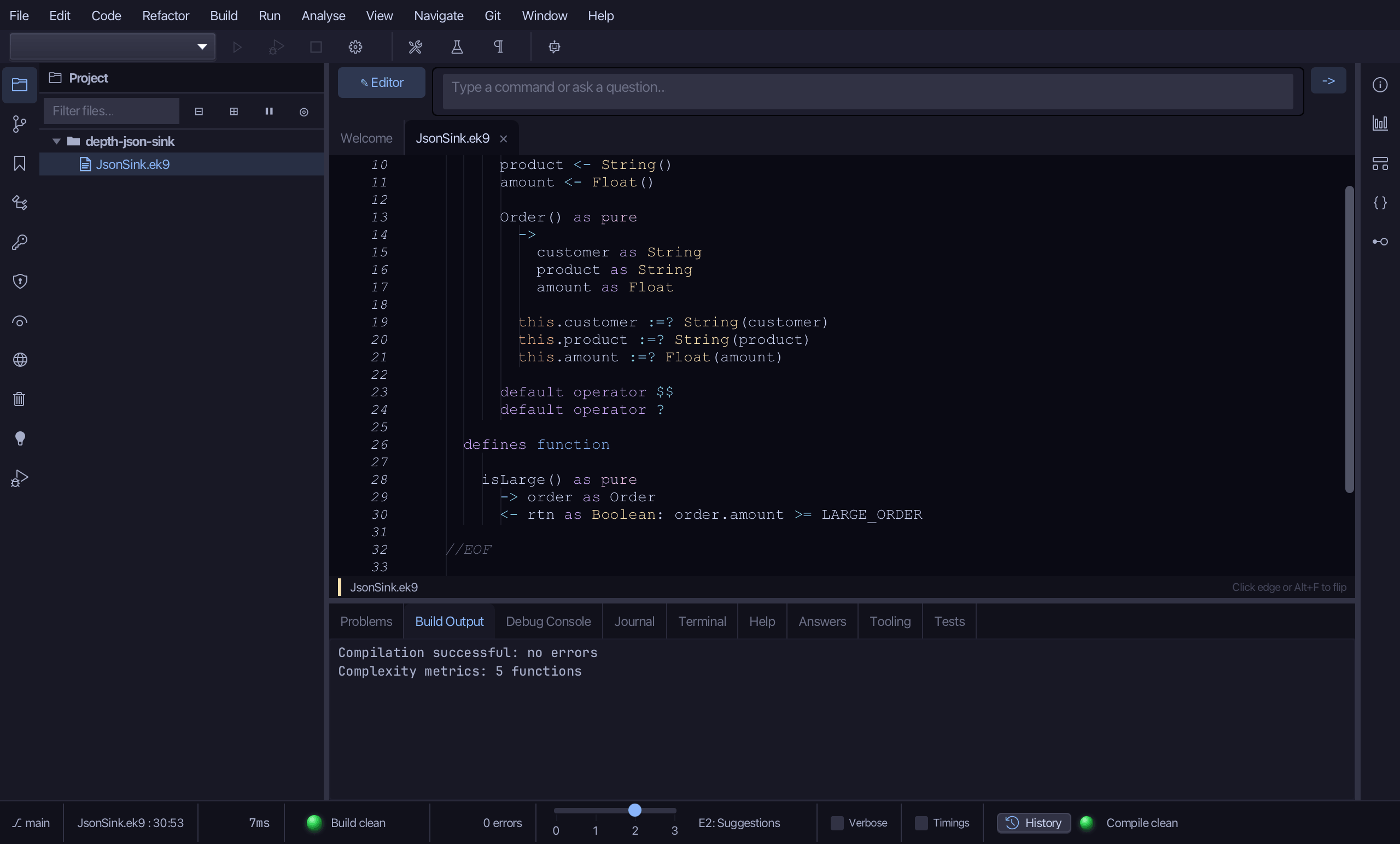
Select the stub, from <- rtn as Boolean? down to its //AI line, and type isLarge's own return and work, as the book writes them. Saves when typed.
Step 4: asJson — a pure function
Choose Code > New Construct > Function…
asJson is the function's name. Add one parameter, order of type Order, set Returns to JSON and tick pure. Choose Preview.
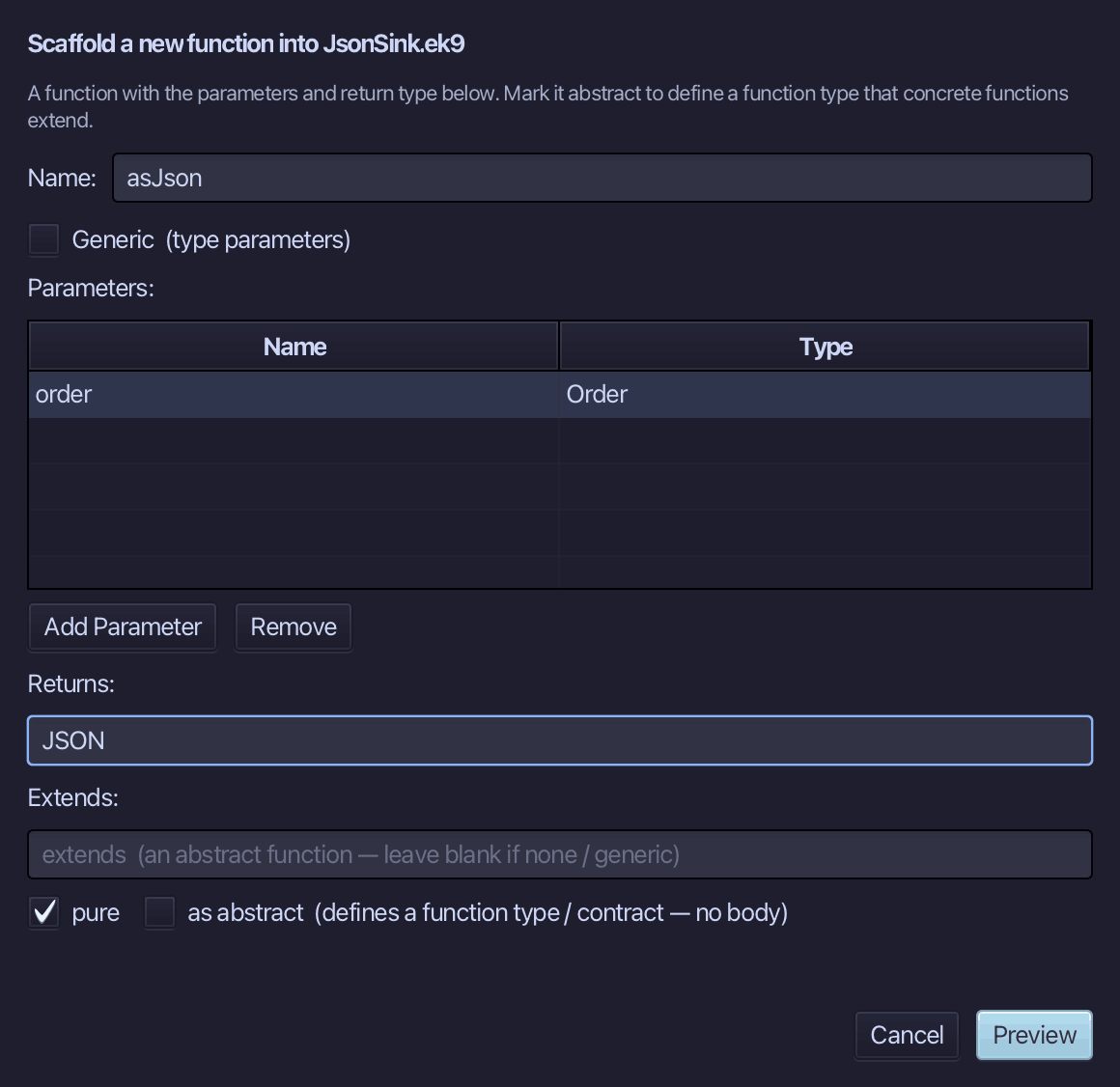
The preview shows asJson about to be written. Choose Apply.
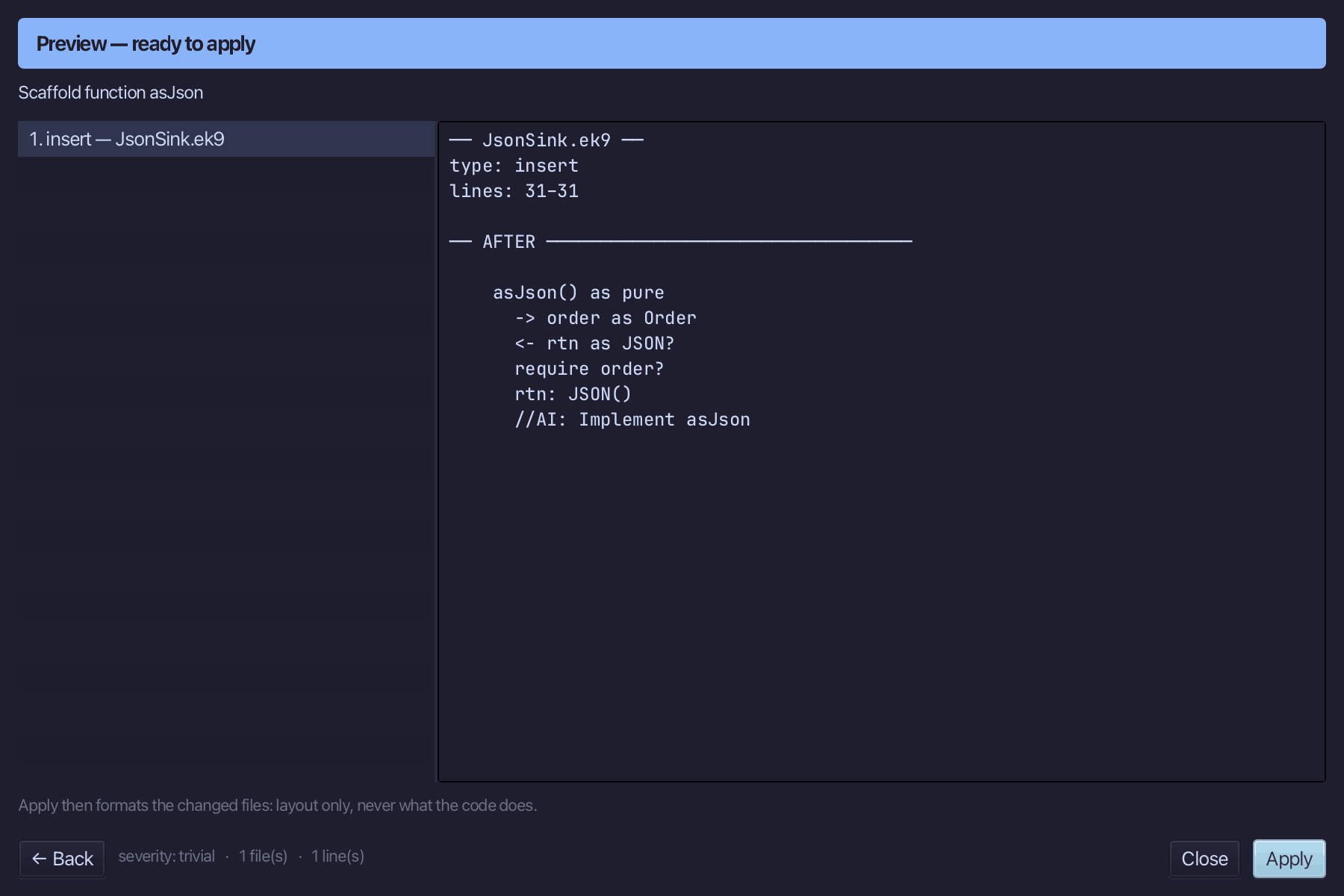
Select the stub, from <- rtn as JSON? down to its //AI line, and type asJson's own return and work, as the book writes them. Saves when typed.
Step 5: The program
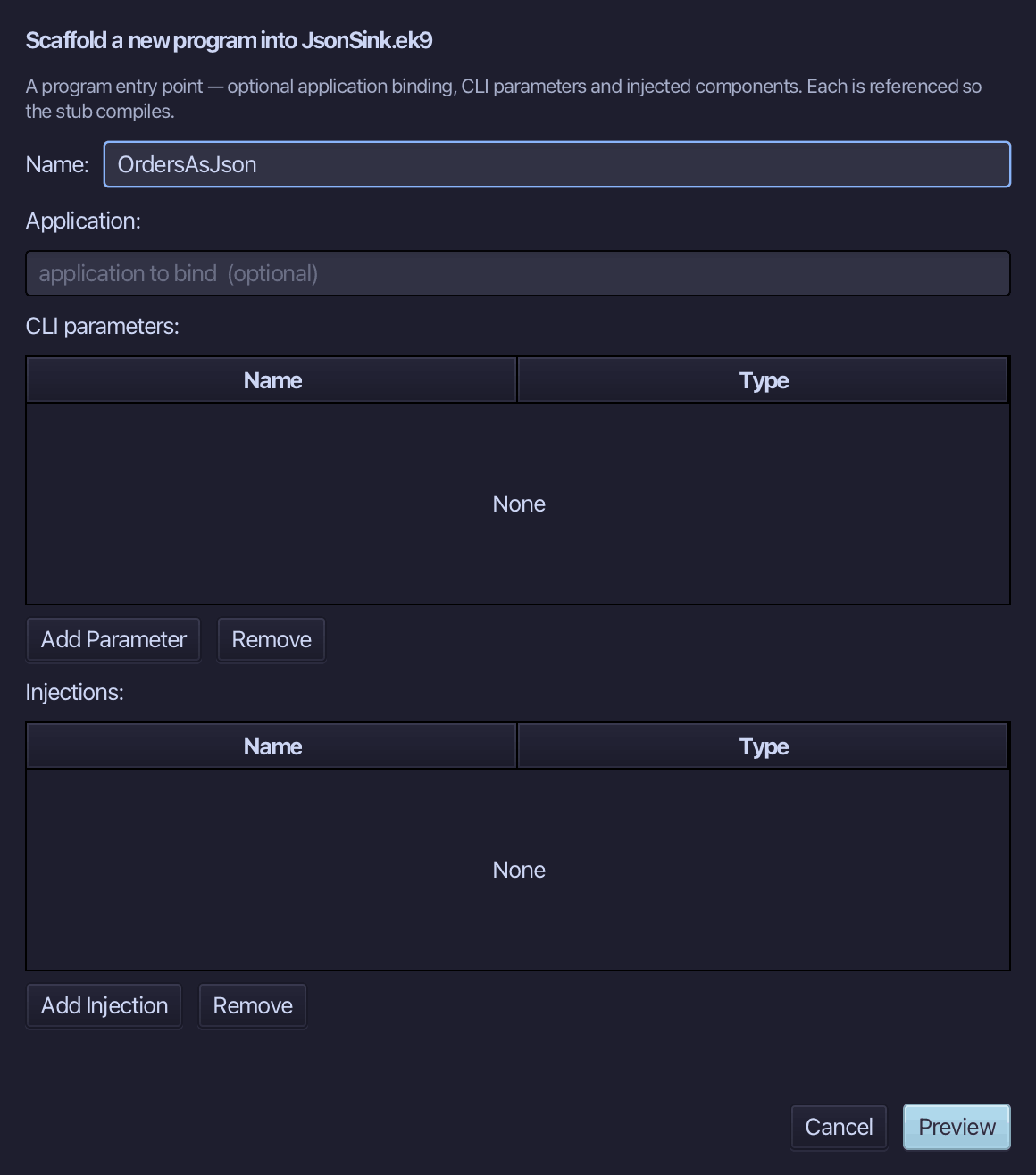
Choose Code > New Construct > Program…
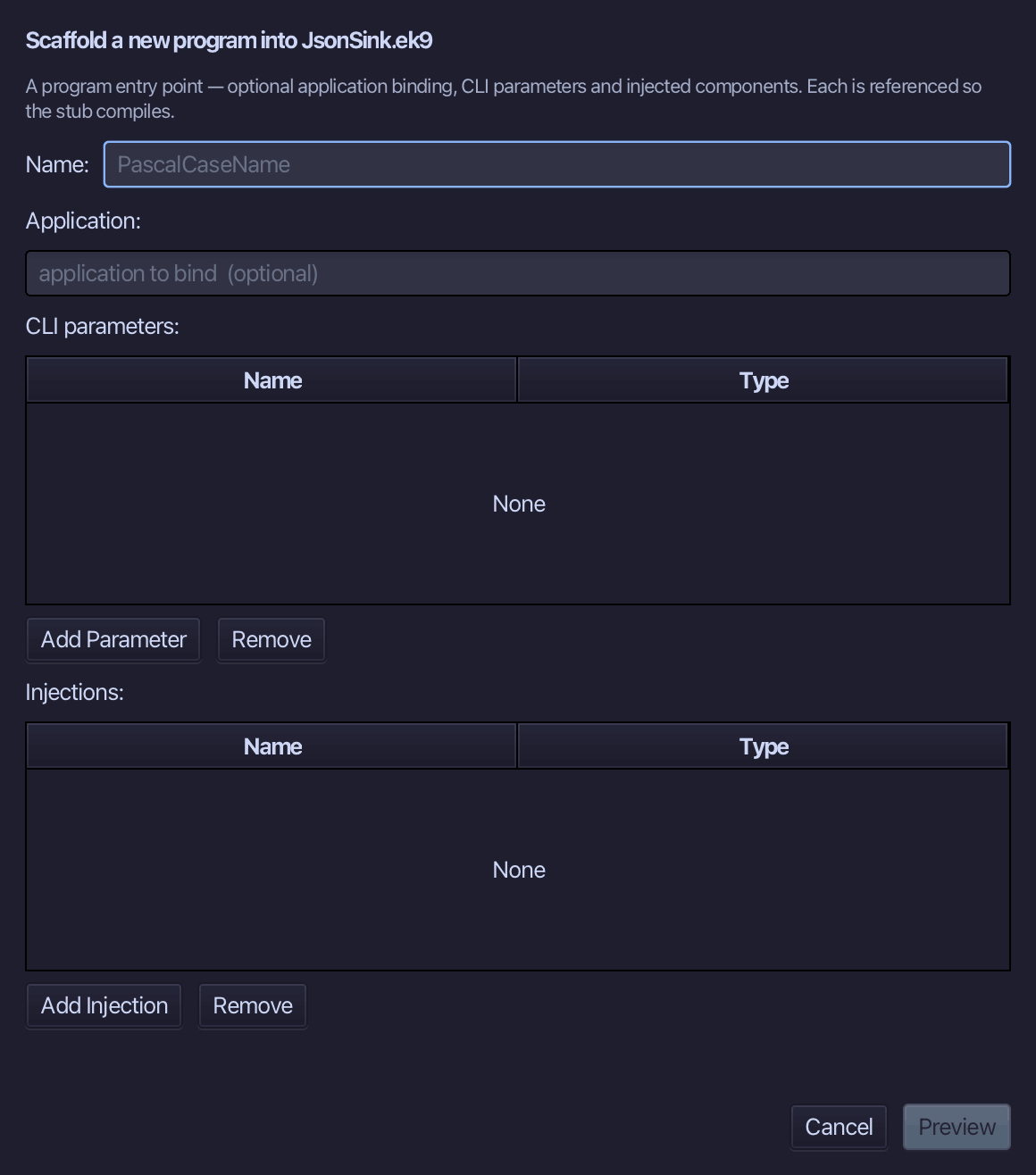
OrdersAsJson is the program's name. Choose Preview.
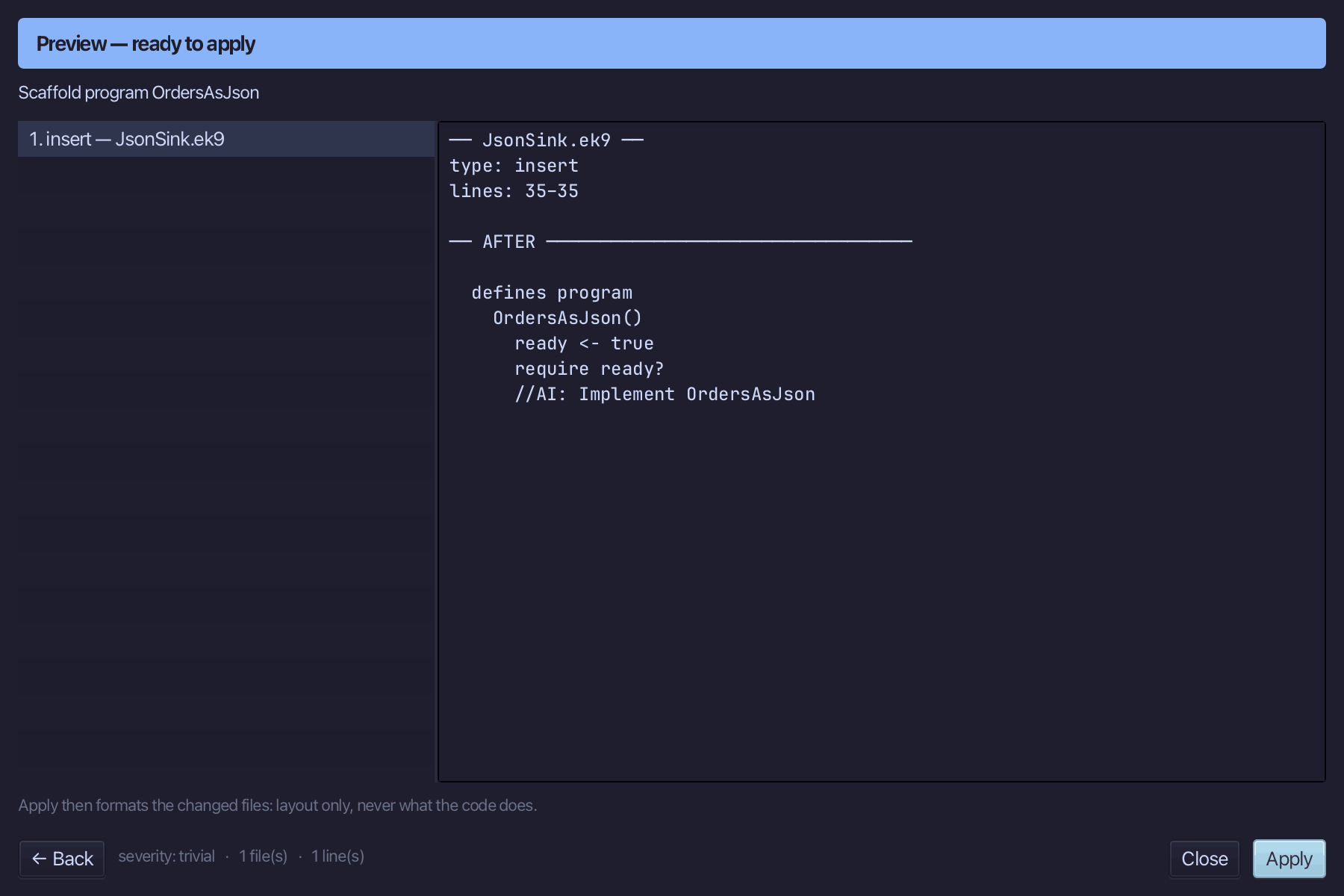
The preview shows OrdersAsJson about to be written. Choose Apply.
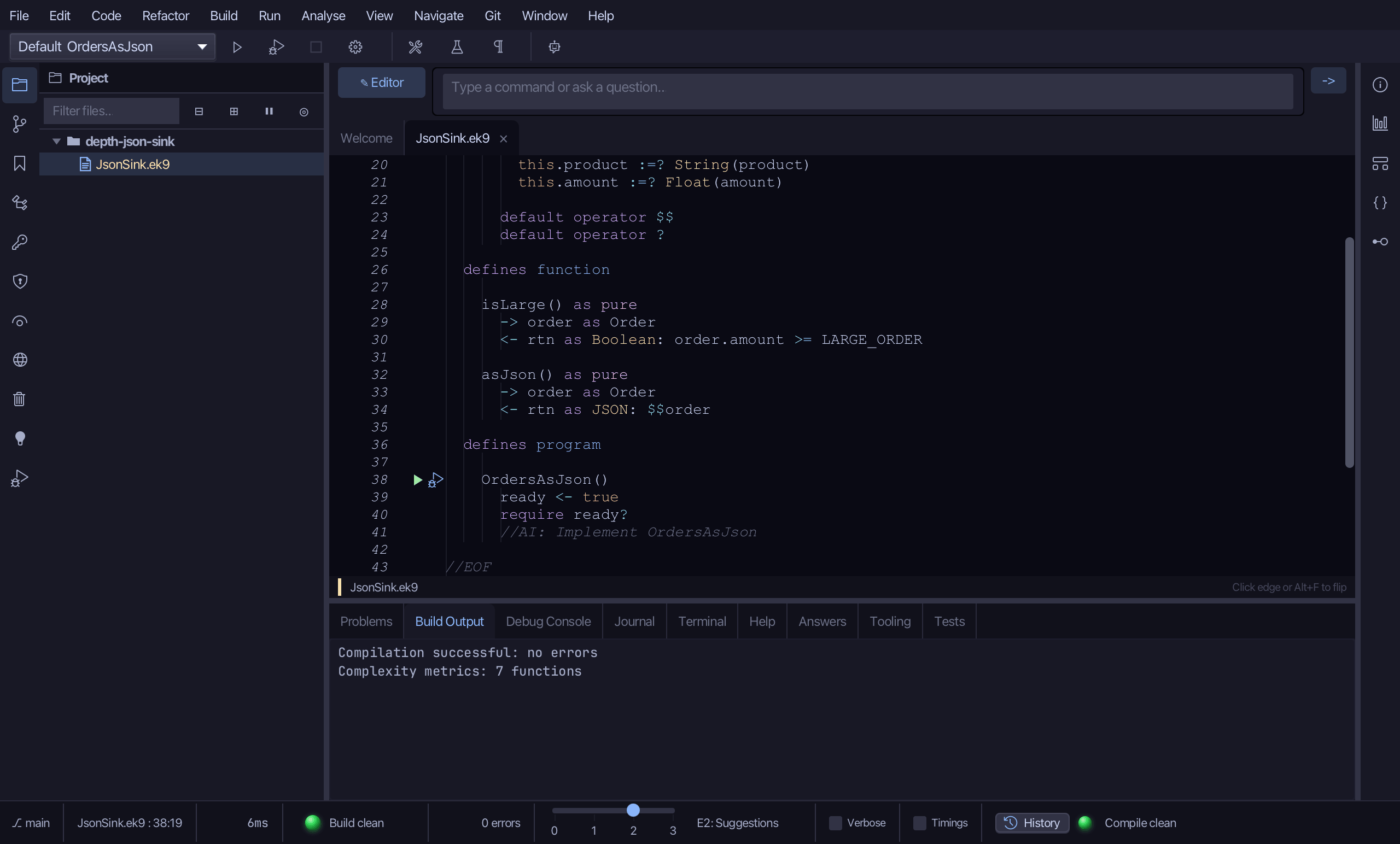
Select the OrdersAsJson() line and, above it, type the blank line the book opens the program with. Saves when typed.
Select the stub, from ready <- true down to its //AI line, and type OrdersAsJson's body exactly as the chapter shows it. Saves when typed.
Step 6: Run it
Choose Run > Run Program…
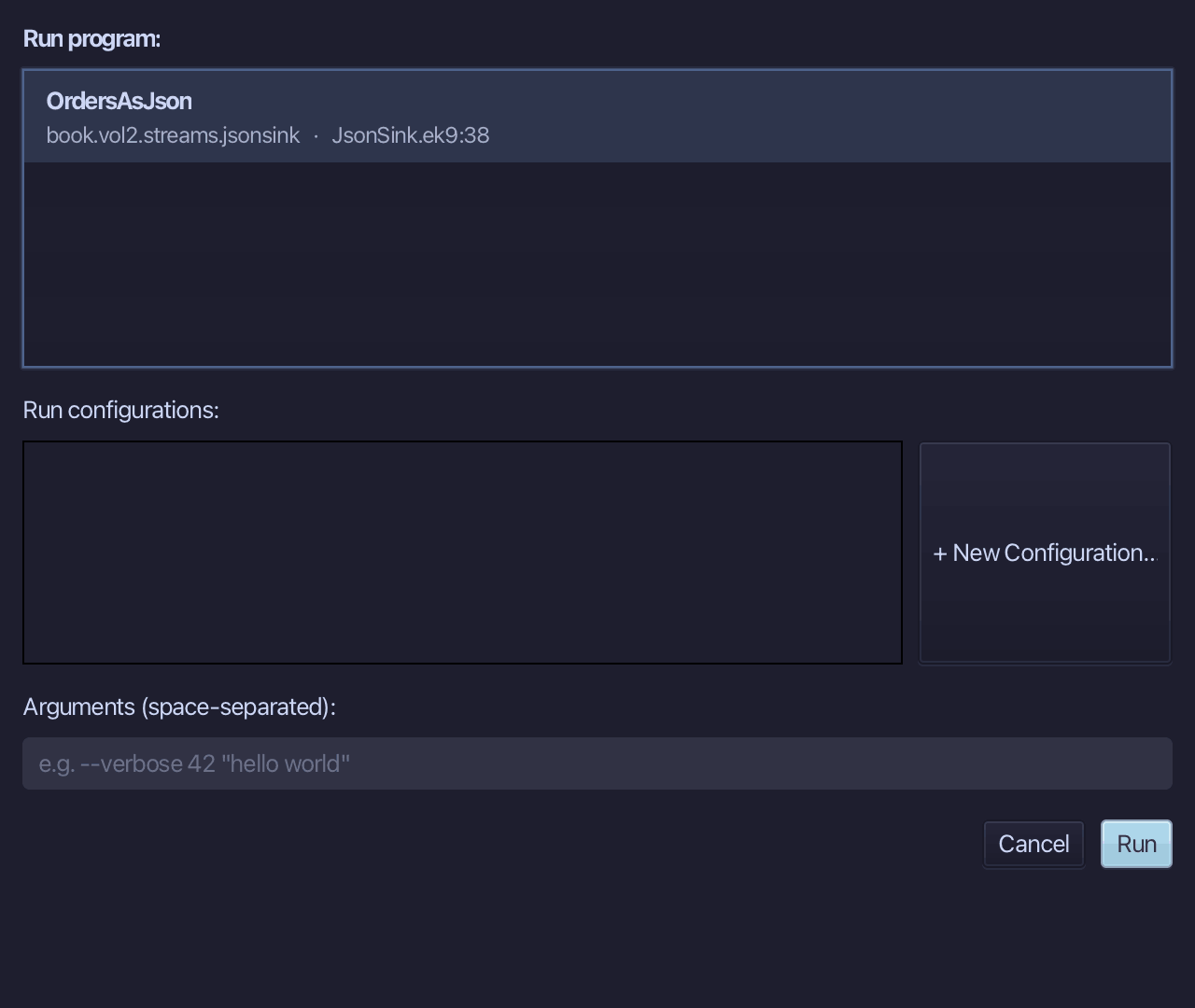
The project's only program is already chosen. Choose Run.
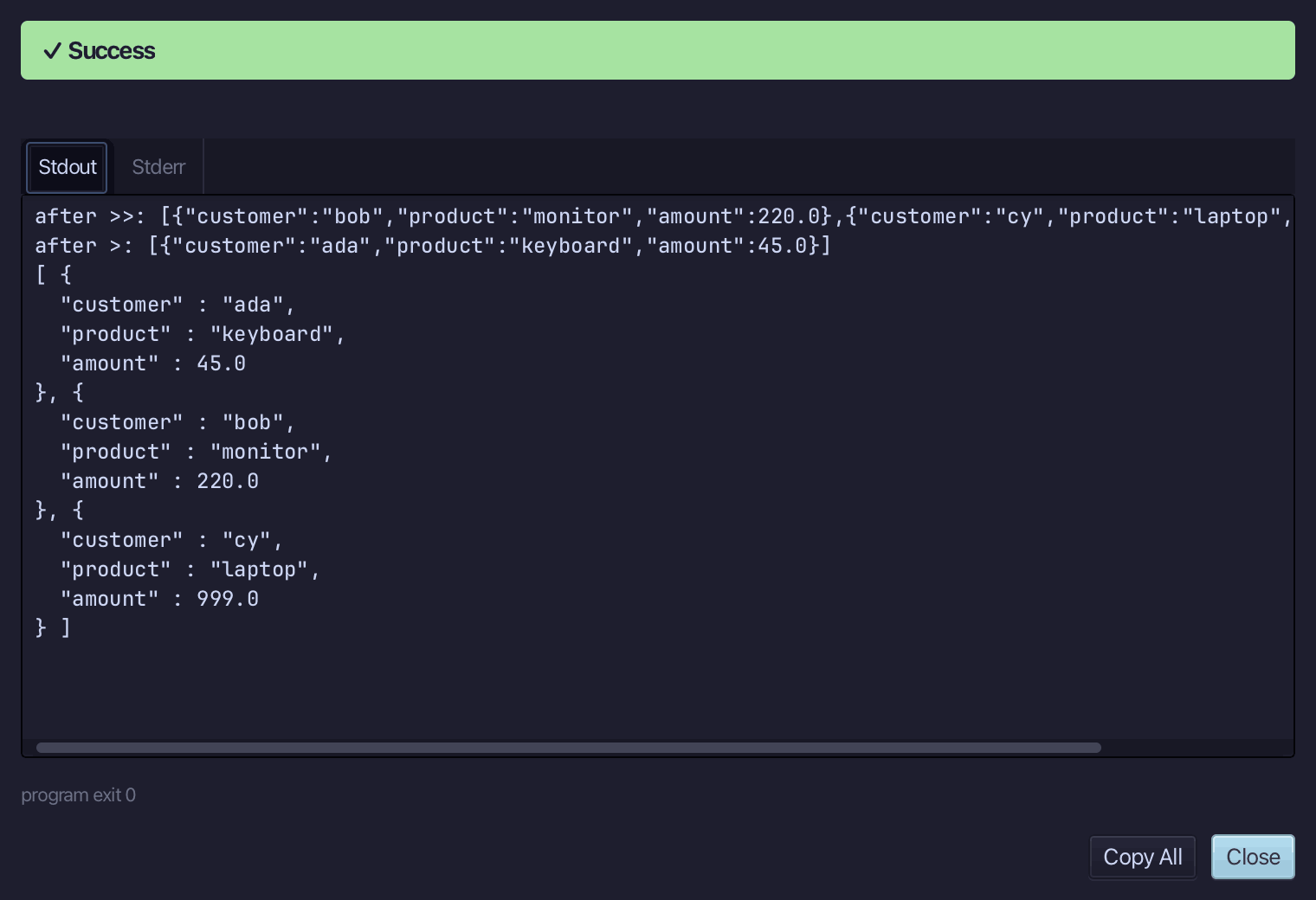
The array after >> holds bob's and cy's large orders; after > it holds only ada's; then all three orders pretty-printed as JSON. Choose Close.
The result
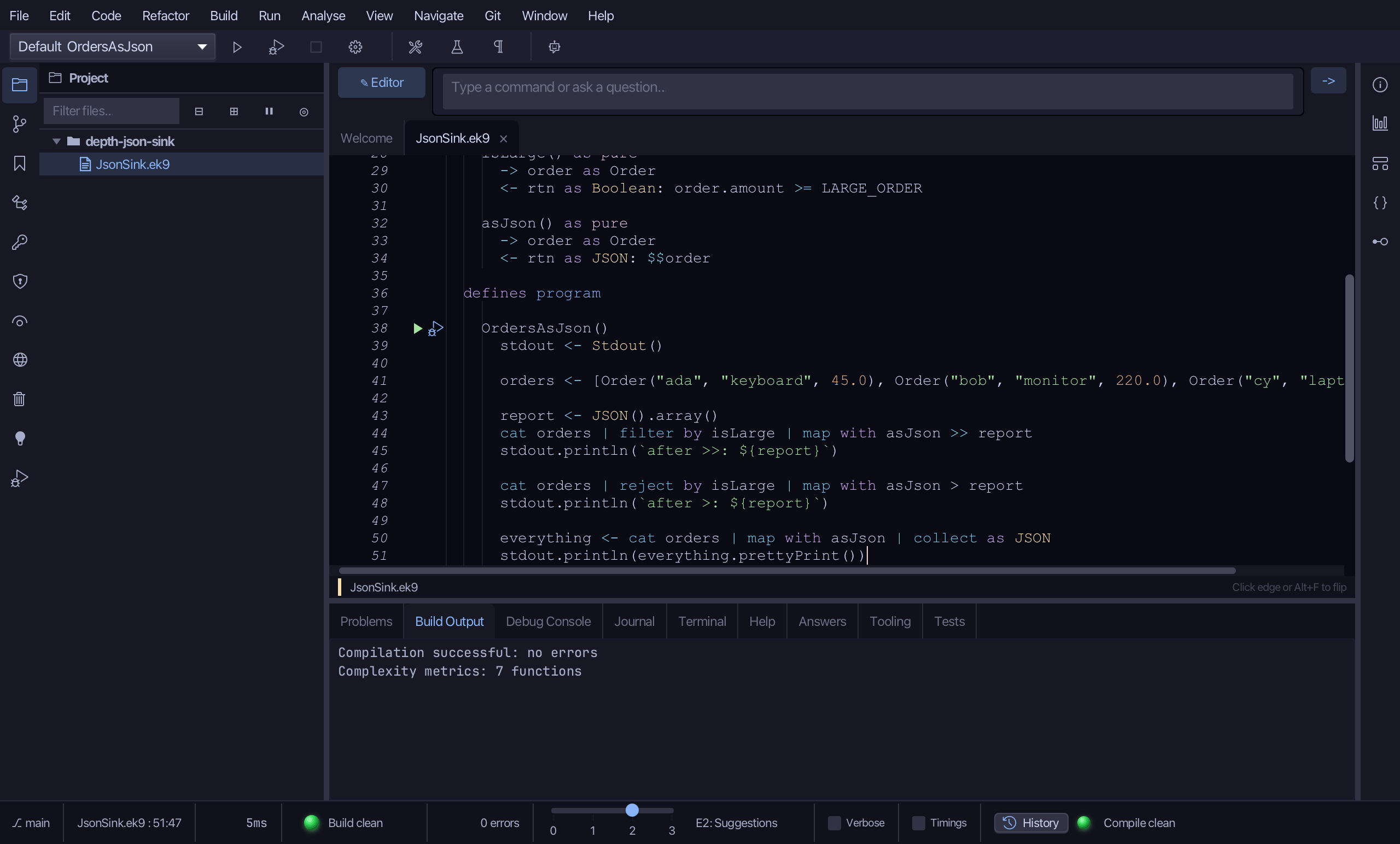
JsonSink.ek9 now reads exactly as chapter 28 of EK9 in Depth shows it. The target's shape decided what pouring meant: the empty array gathered the large orders with >>, then > replaced them with the small ones, and collect as JSON made a third, fresh array.
Where this lesson comes from
- For AI assistants - the MCP tool
ek9_new_construct,ek9_add_constructor,ek9_add_operator,ek9_add_program.