Chapter 3: a switch, folded
Chapter 3's DayKind picks a word for a day number with switch: days 1 to 5 are Weekday, 6 and 7 Weekend, anything else is not a day. This lesson writes the Weekday print first, plain, then lets Surround With ▸ switch fold it into a switch - the case, the default and the indentation arrive with it. To play it in the IDE: Help > Lessons > Getting Started with EK9…, or ek9 -ide -lesson book-switch.
What you'll build
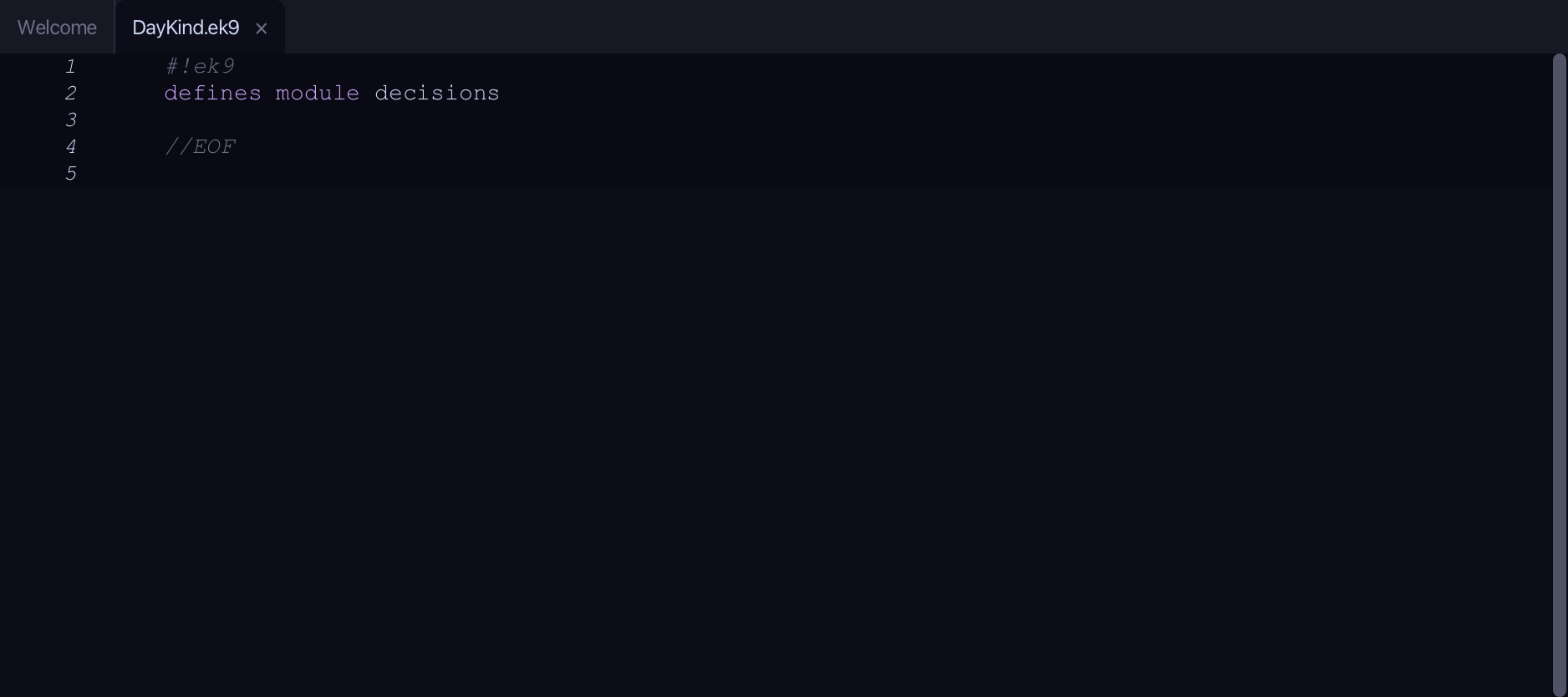
The lesson builds this program from a file holding only its module line - the finished file, as the book prints it.
#!ek9
defines module decisions

  defines program

    //Choosing among several values with 'switch'.
    //One 'case' can list several values, and there is no fall-through.
    DayKind()
      -> day as Integer

      stdout <- Stdout()

      switch day
        case 1, 2, 3, 4, 5
          stdout.println("Weekday")
        case 6, 7
          stdout.println("Weekend")
        default
          stdout.println("Not a day of the week")

//EOF
Step 1: A program with a parameter
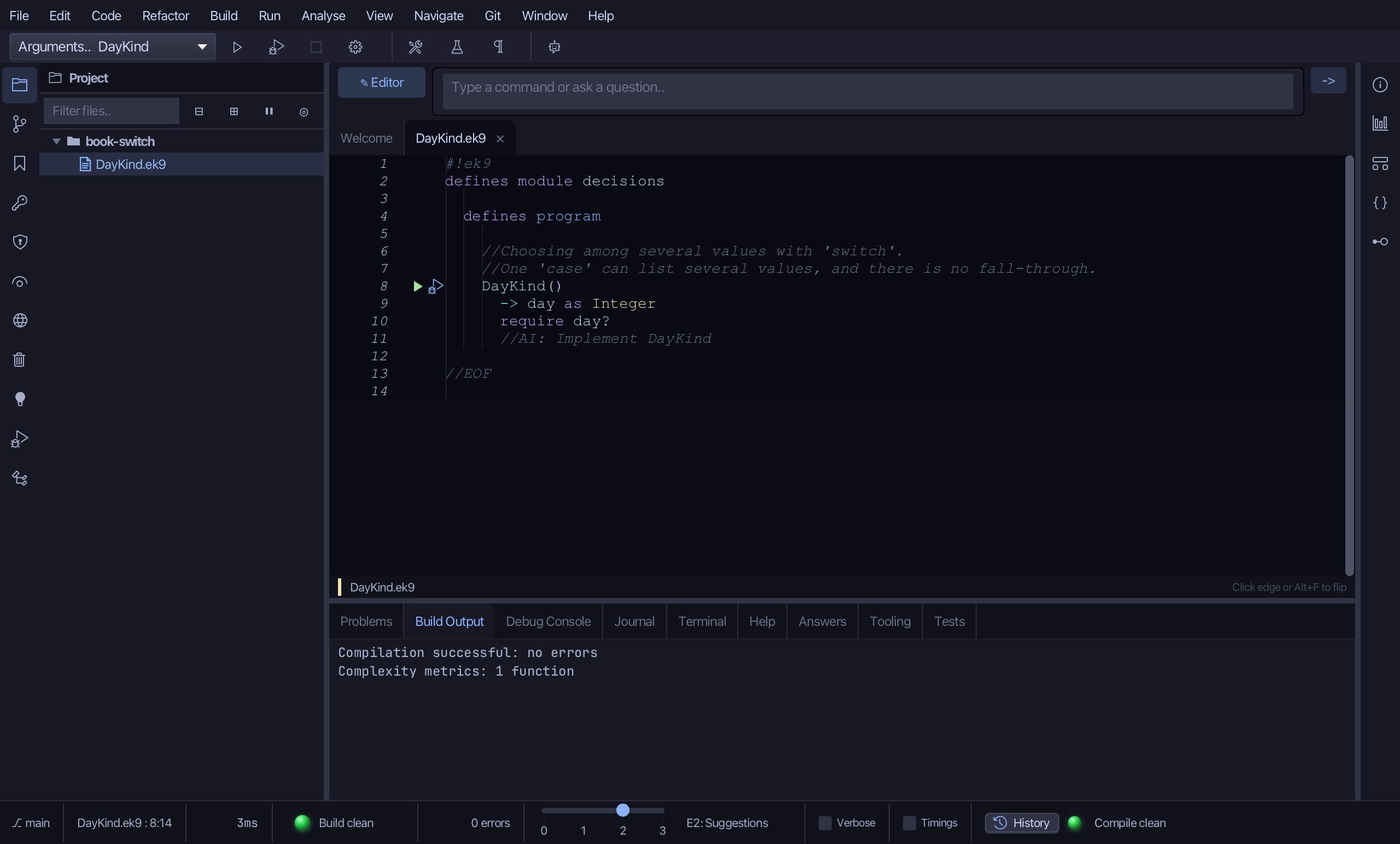
Choose Code > New Construct > Program…
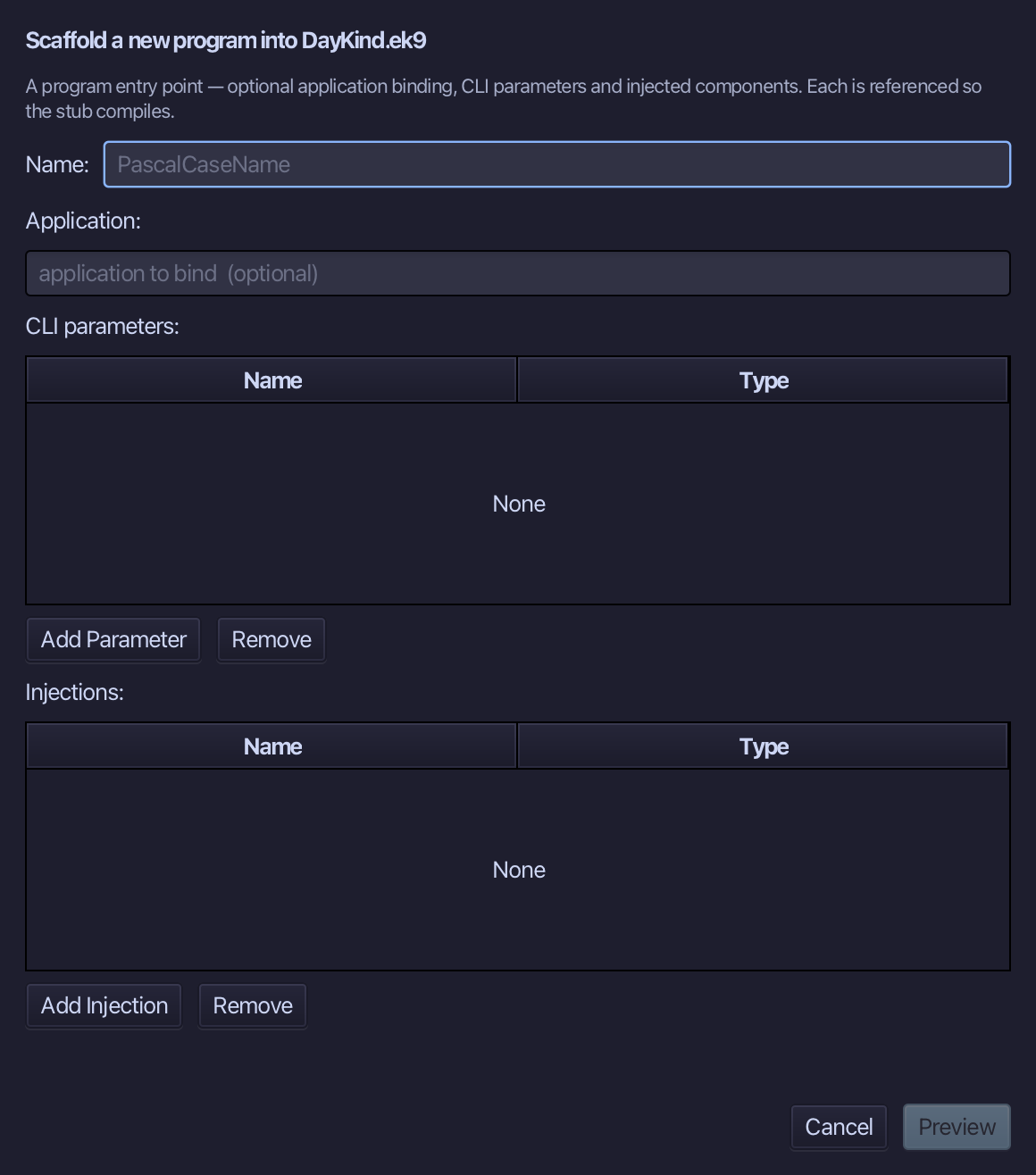
DayKind is the program's name. Add one parameter, day of type Integer. Choose Preview.
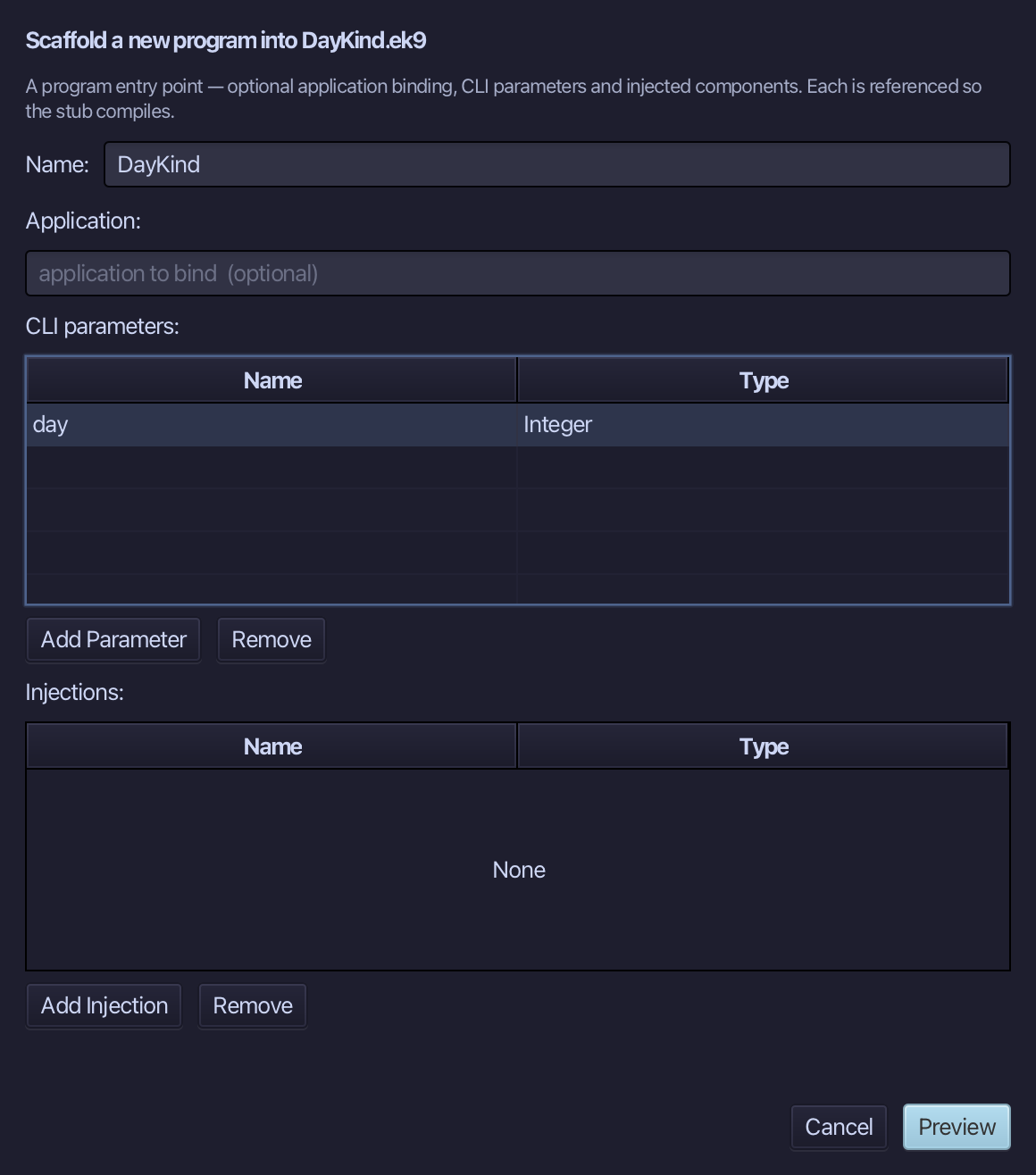
The preview shows DayKind with its parameter. Choose Apply.
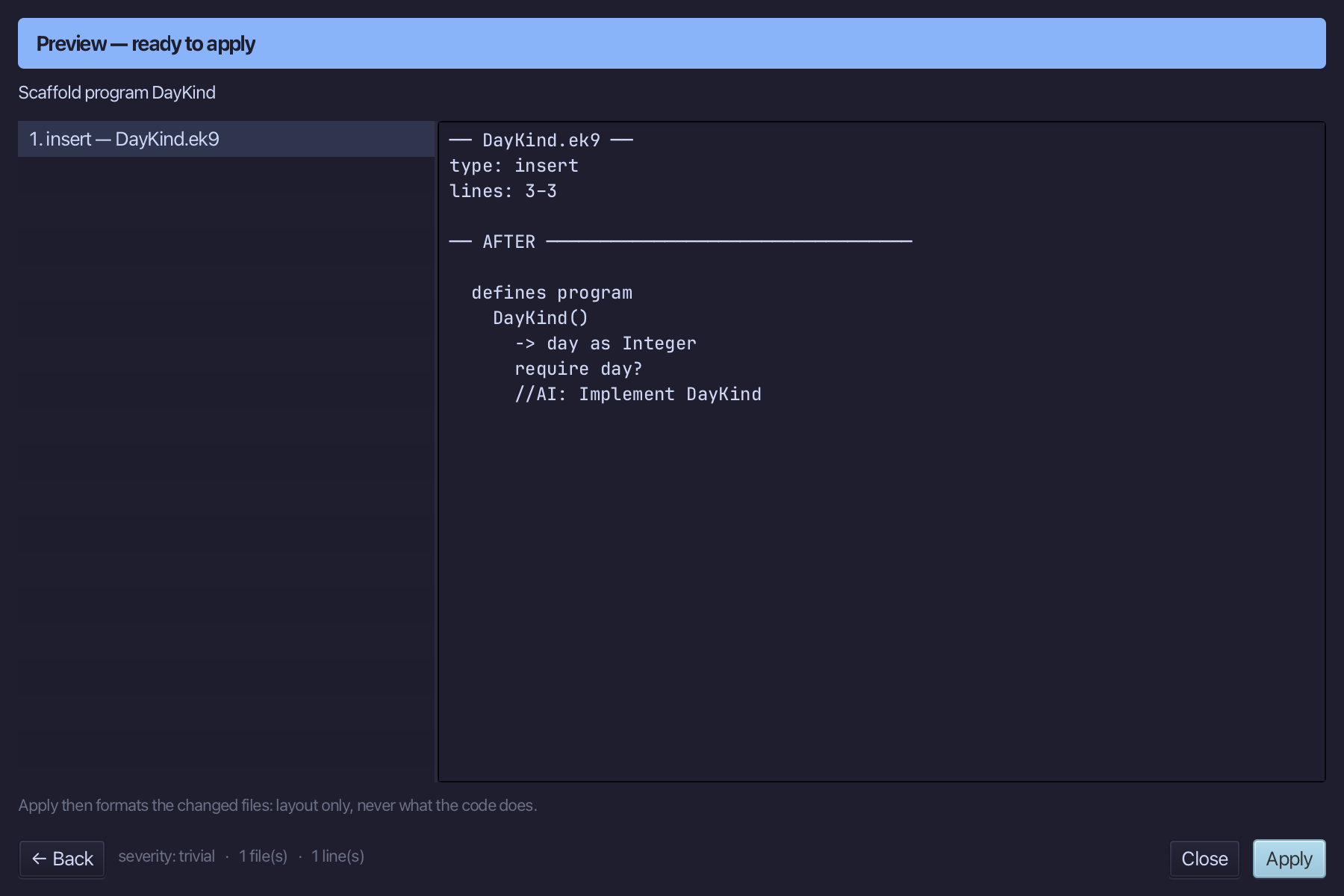
Select the DayKind() line and, above it, type the two-line comment the book opens with. Saves when typed.
Step 2: A plain start
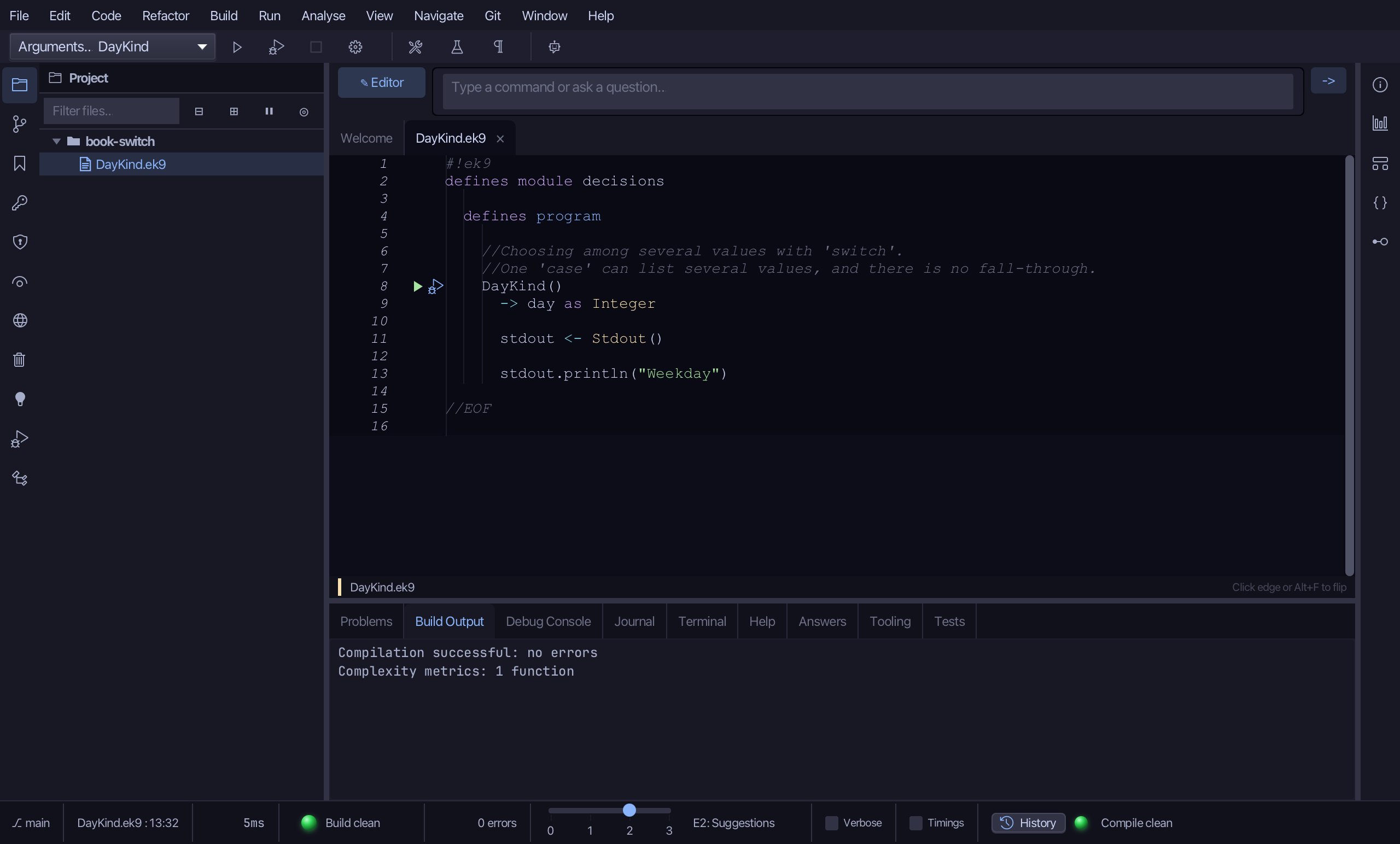
Select the stub, from require day? down to its //AI line, and type the plain start: a Stdout and the one Weekday print. Saves when typed.
Step 3: Fold it under a switch
Put the caret on the Weekday print, right-click - or choose Refactor > Refactor This… - and choose Surround With ▸ switch.
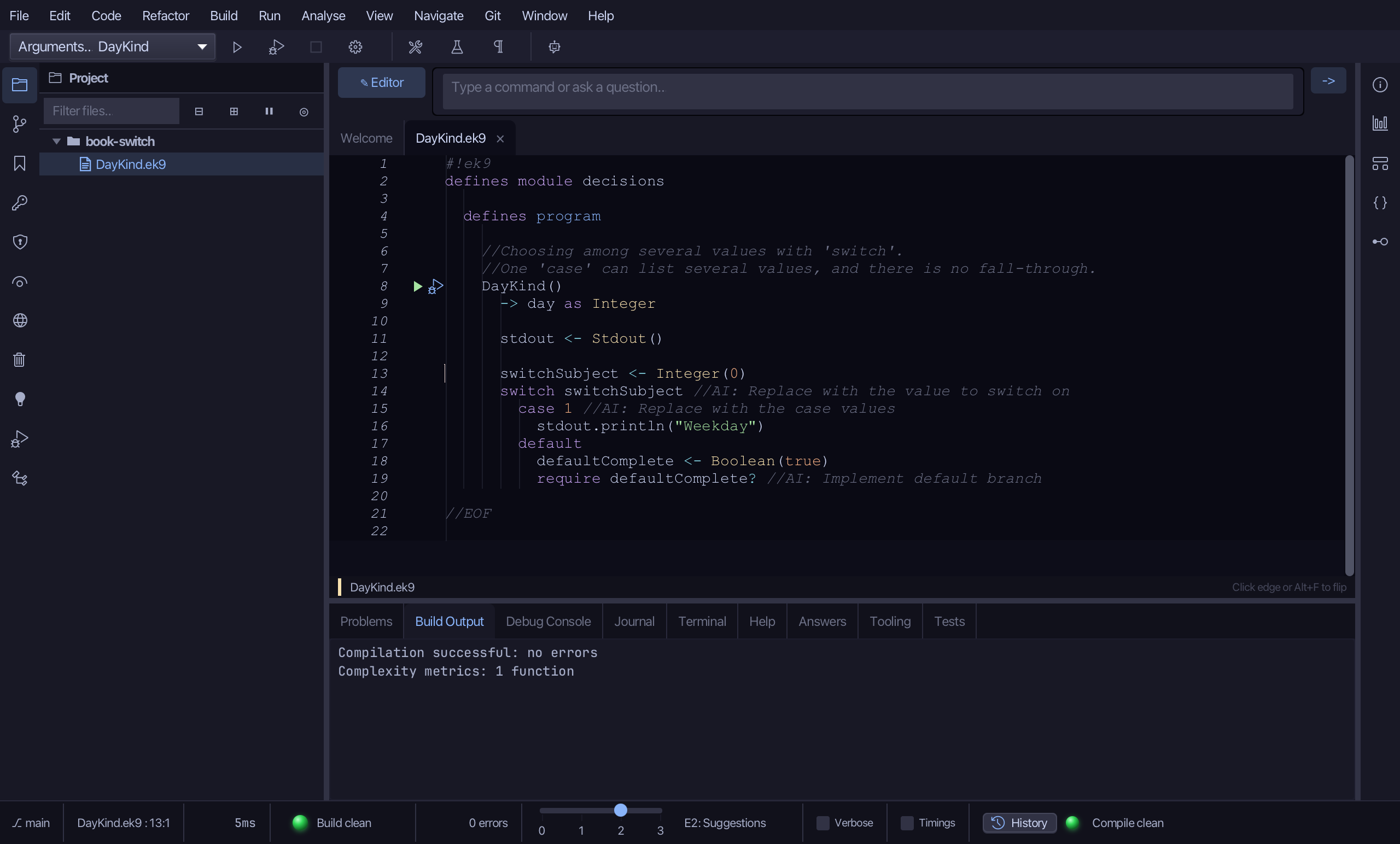
Select the stub, from switchSubject <- Integer(0) down to its //AI line, and type switch day - what to switch on. Saves when typed.
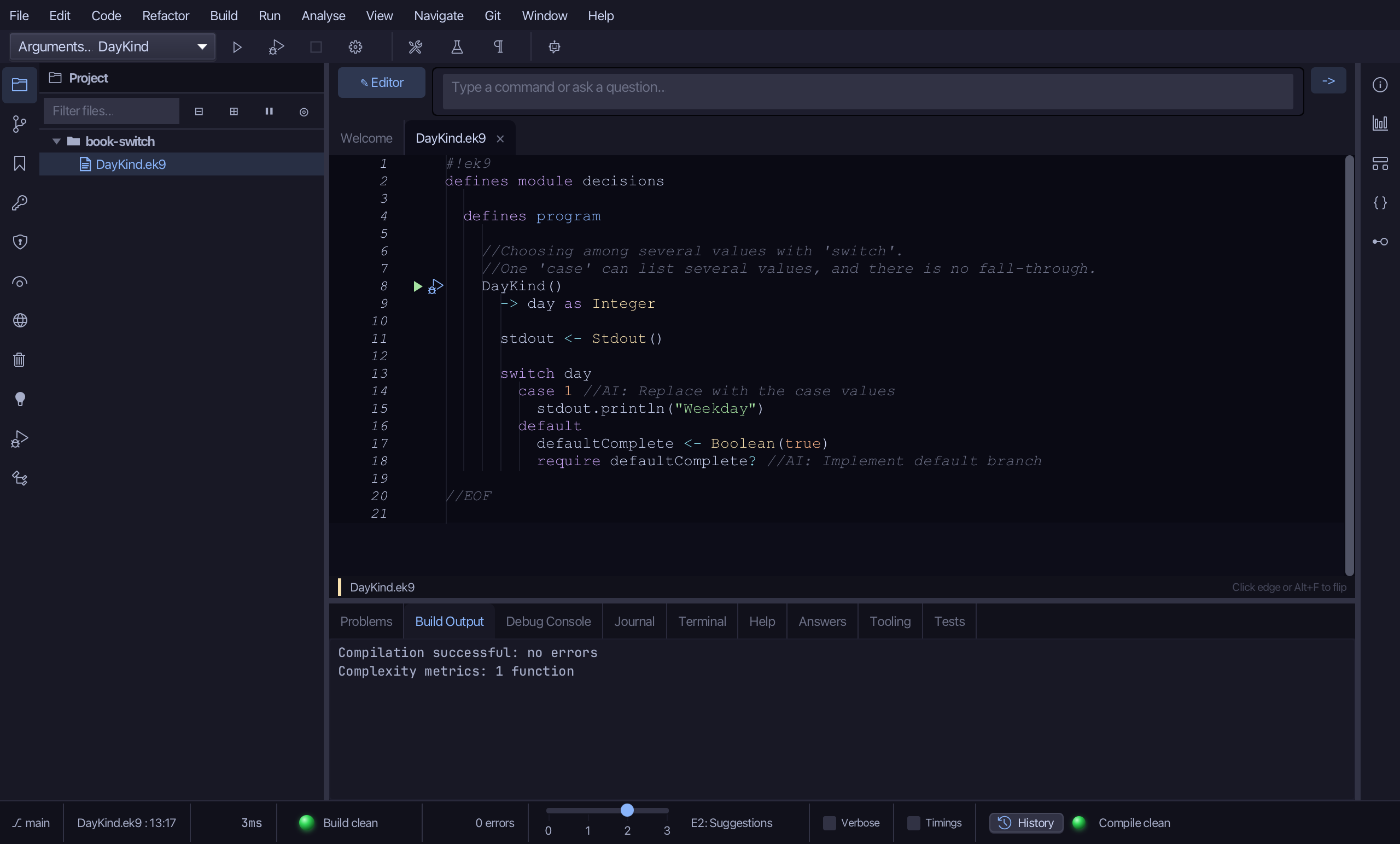
Select the case line and type the days it covers: case 1, 2, 3, 4, 5. Saves when typed.
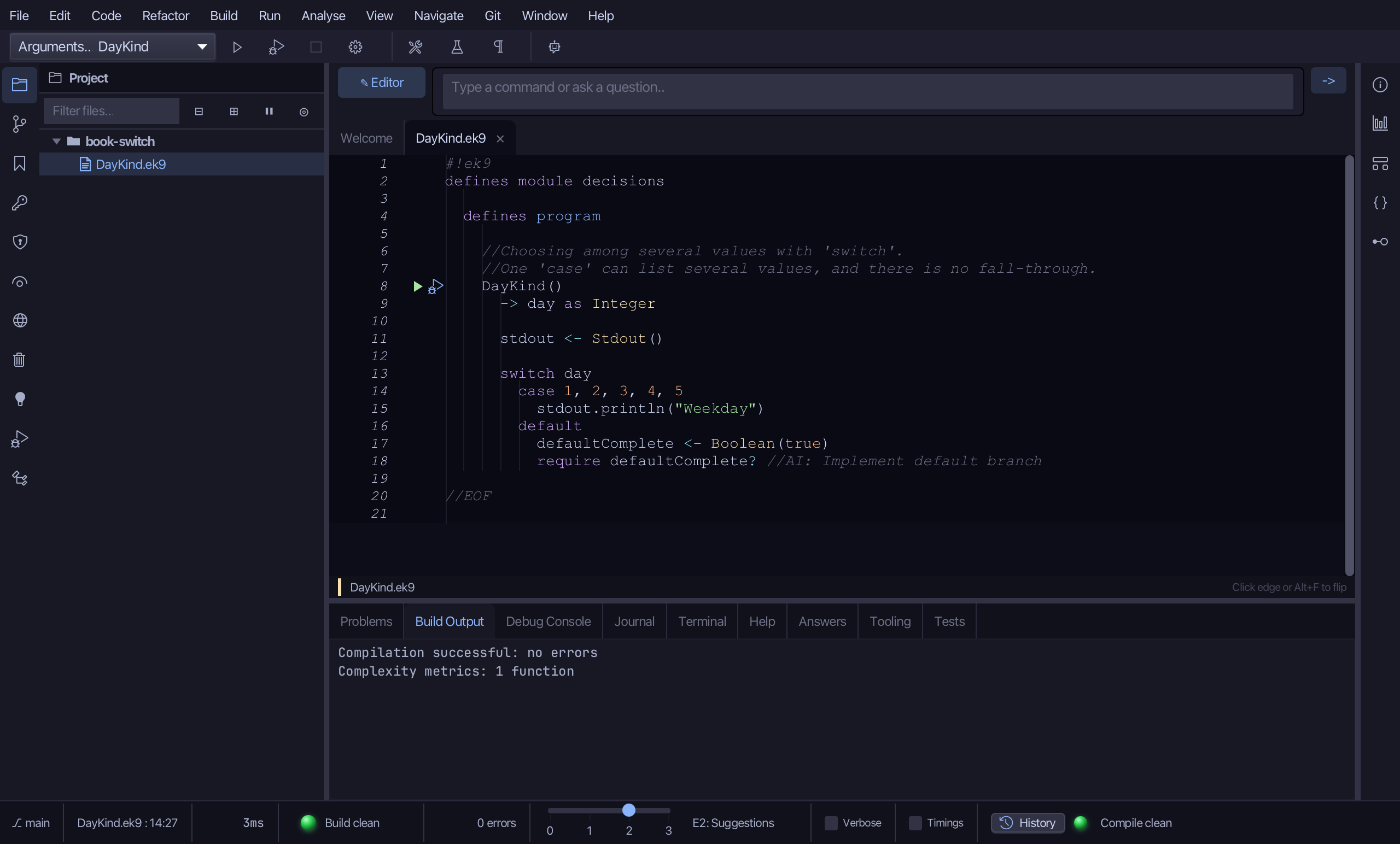
Step 4: The other cases
Select the Weekday print and below it type the second case: 6 and 7, each its own Weekend. Saves when typed.
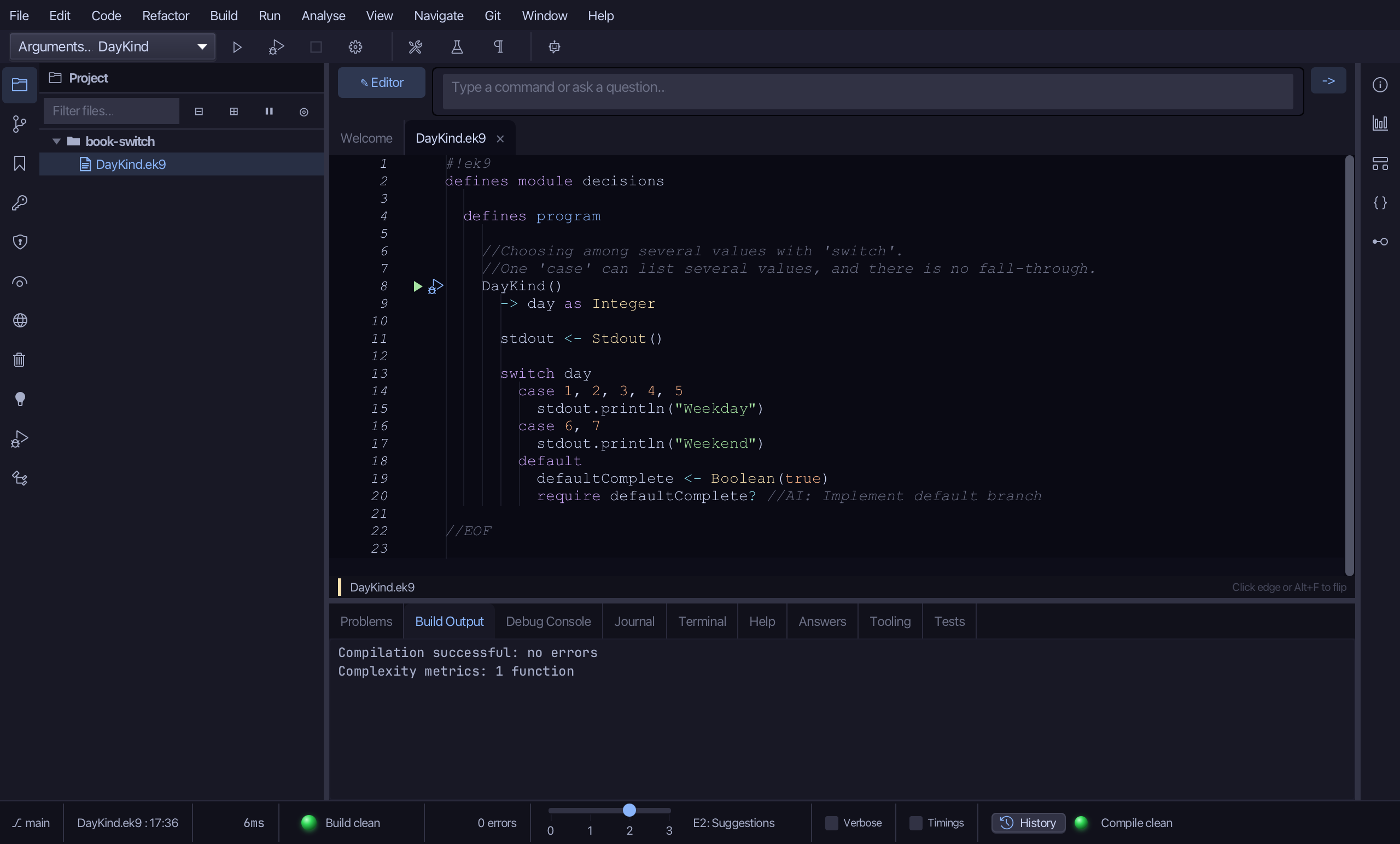
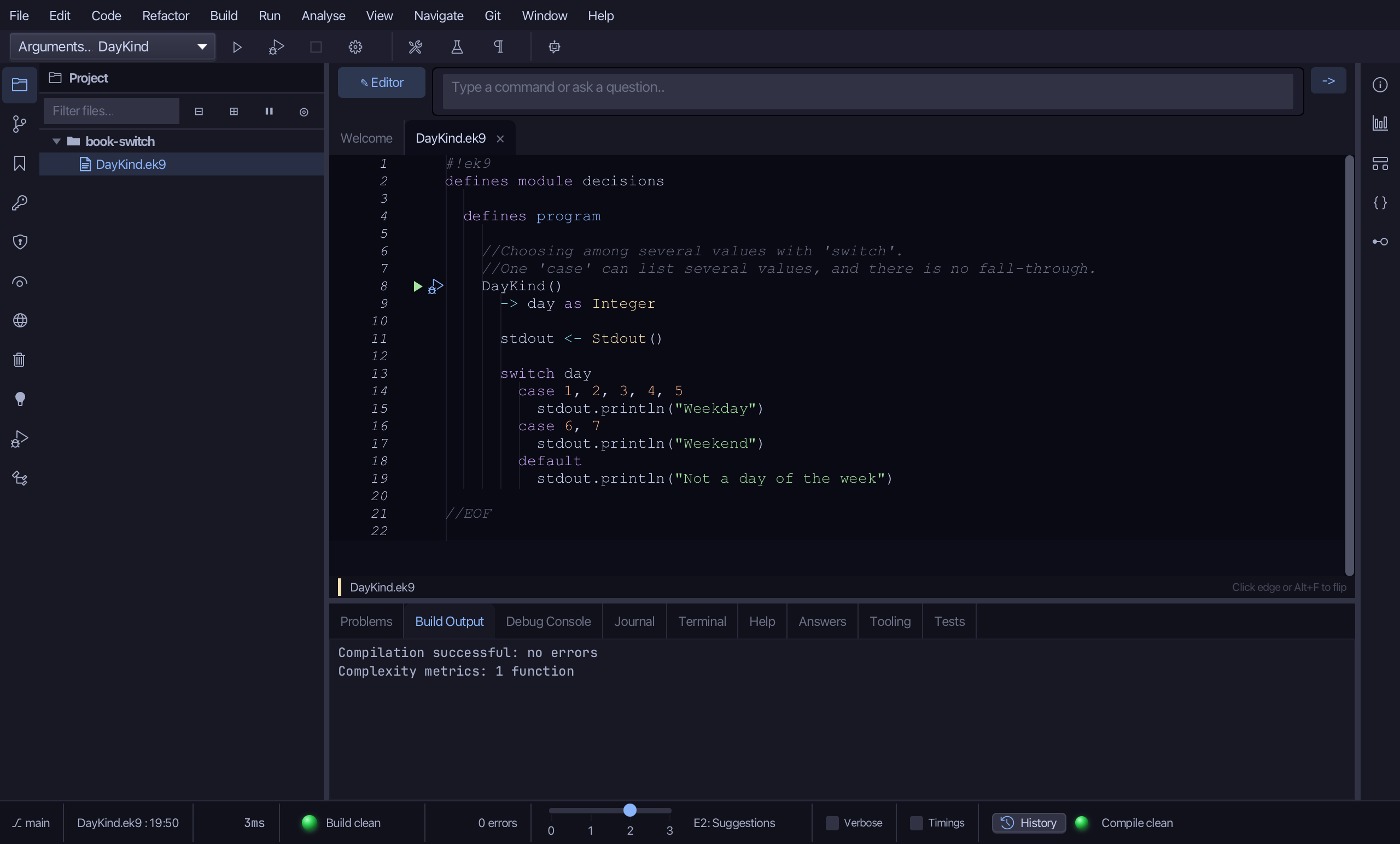
Select the default's stub, from defaultComplete <- Boolean(true) down to its //AI line, and type what default prints. Saves when typed.
Step 5: Run it
Choose Run > Run Program…
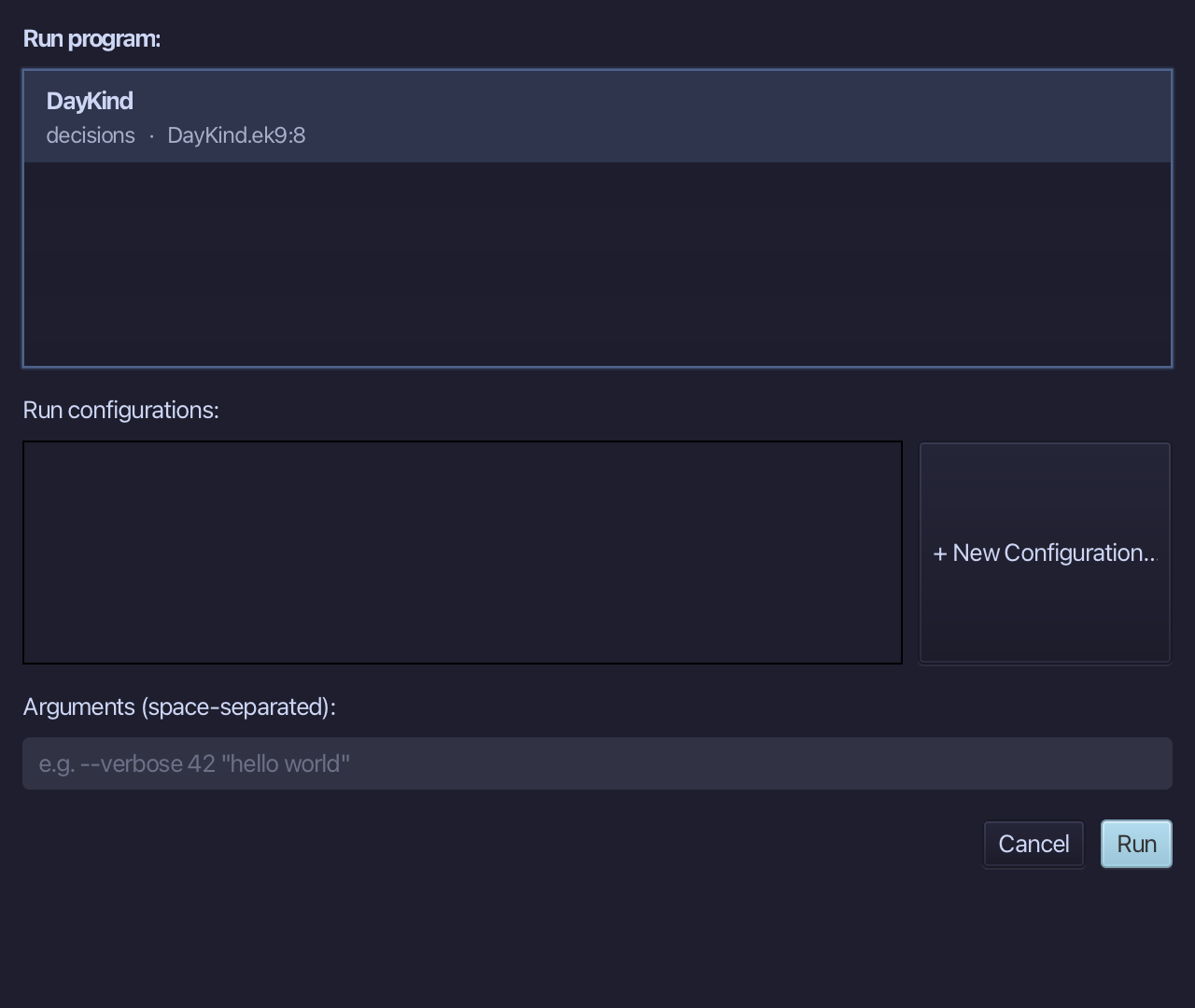
Type 3 into Arguments (space-separated), then choose Run.
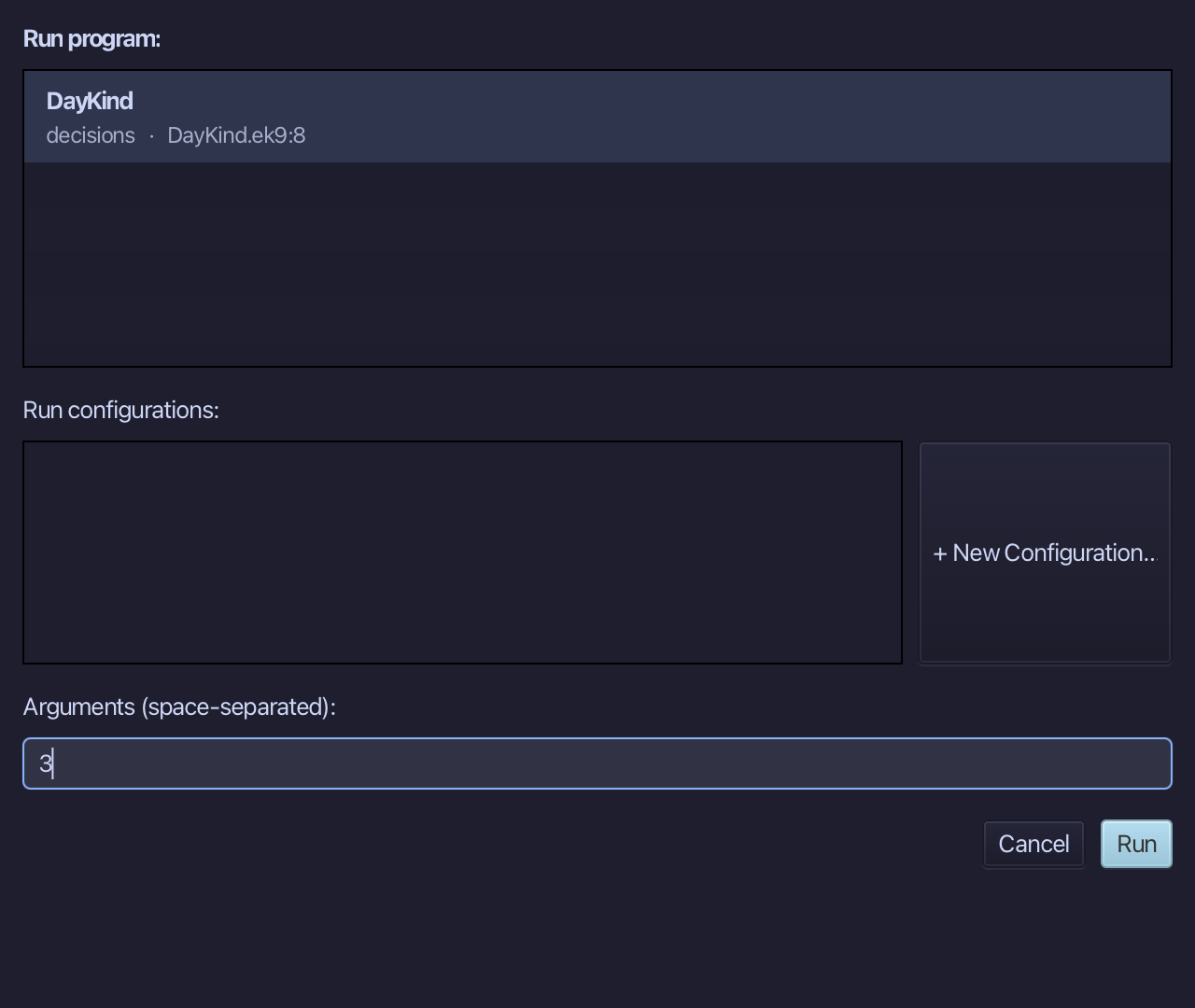
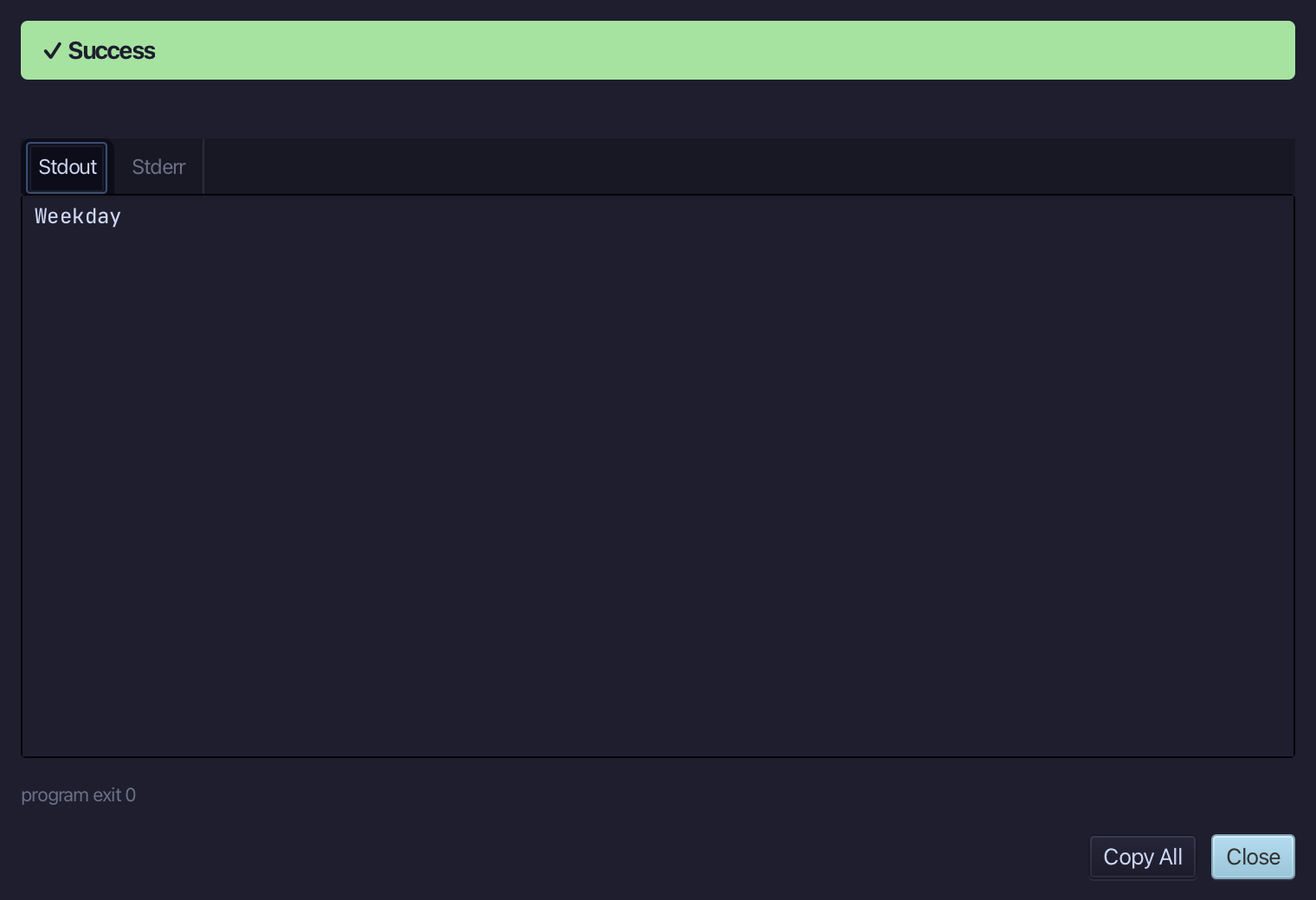
Weekday - day 3 is in the first case's list; 6 or 7 would print Weekend and anything else the default. Choose Close.
The result
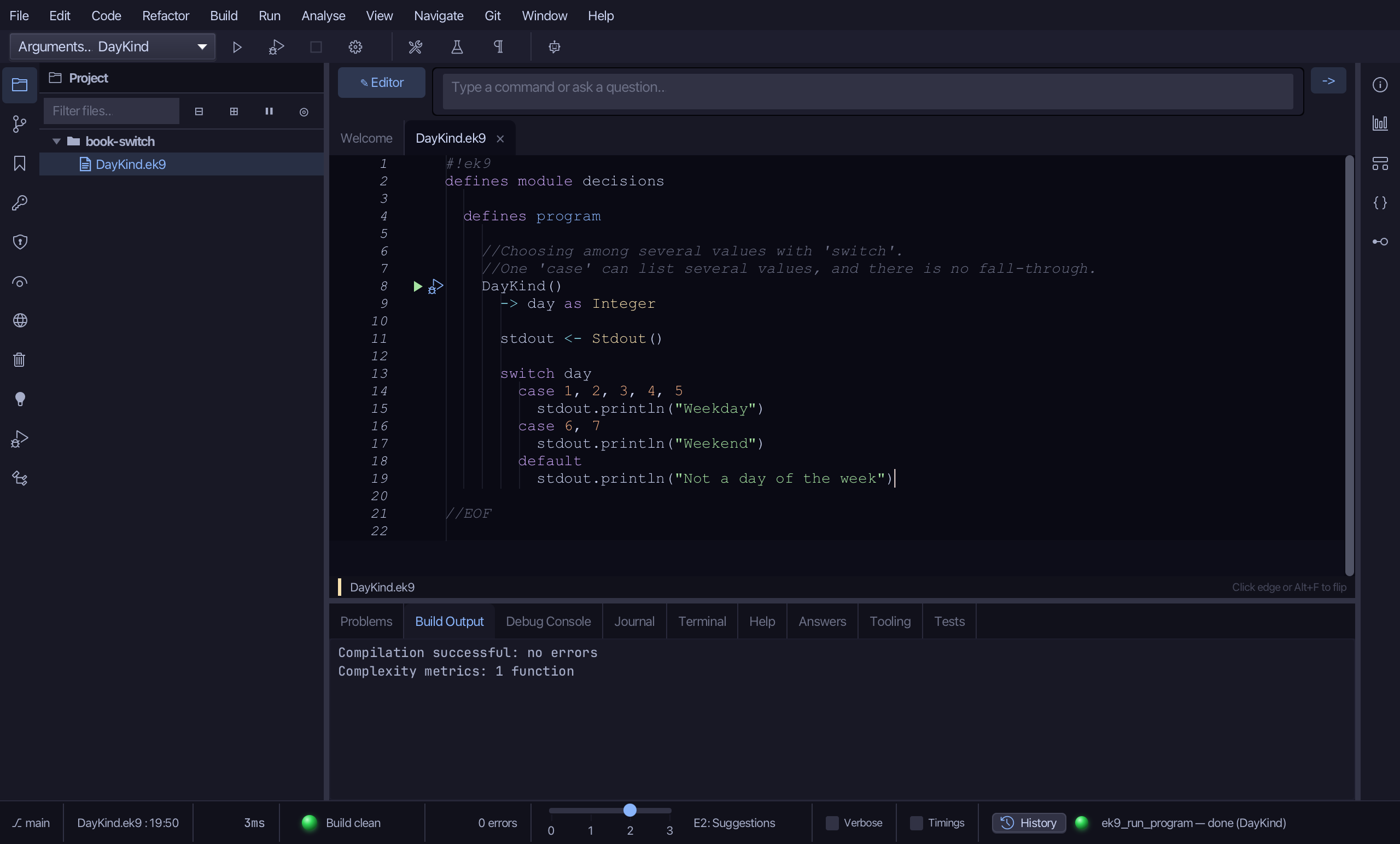
DayKind.ek9 now reads exactly as chapter 3 of Getting Started with EK9 shows it: a switch with one case listing five days, one listing two, and a default - no fall-through, since each case is its own block. Surround With ▸ switch folded the plain print under the switch head and gave it a default that compiles; you typed the subject, the case values and the other branches. AI assistants use ek9_surround_with with surroundType switch, condition for the subject and caseValues for the case.
Where this lesson comes from
- For AI assistants - the MCP tool
ek9_add_program,ek9_surround_with.
In the EK9 reference: Flow Control in EK9