Chapter 15: stepping a constrained type, built
A constrained type keeps the operators of the type under it. DrivingAge is an Integer narrowed to 16 to 100, so ++ and -- still work on it - and the result is still a DrivingAge. The IDE's tool makes the type, base and rule, in one call; you type the program that steps one up and down. To play it in the IDE: Help > Lessons > Getting Started with EK9…, or ek9 -ide -lesson book-increment.
What you'll build
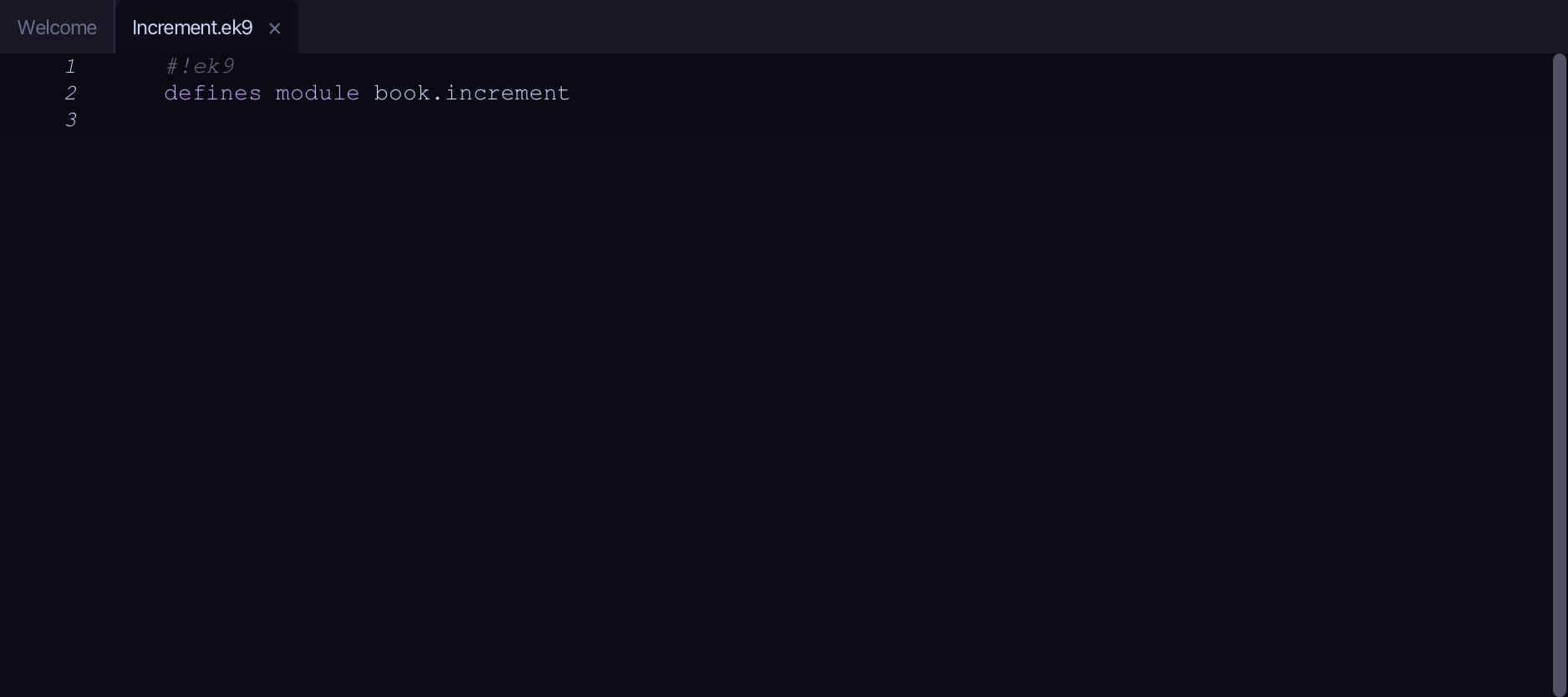
The lesson builds this program from a file holding only its module line - the finished file, as the book prints it.
#!ek9
defines module book.increment

  defines type
    DrivingAge as Integer constrain as
      >= 16 and <= 100

  defines program
    Show()
      stdout <- Stdout()
      age <- DrivingAge(17)

      // ++ and -- mutate in place and stay a DrivingAge
      age++
      stdout.println(`after ++ : ${age}   (still constrained, set? ${age?})`)
      age--
      age--
      stdout.println(`after two -- : ${age}`)
Step 1: A constrained type
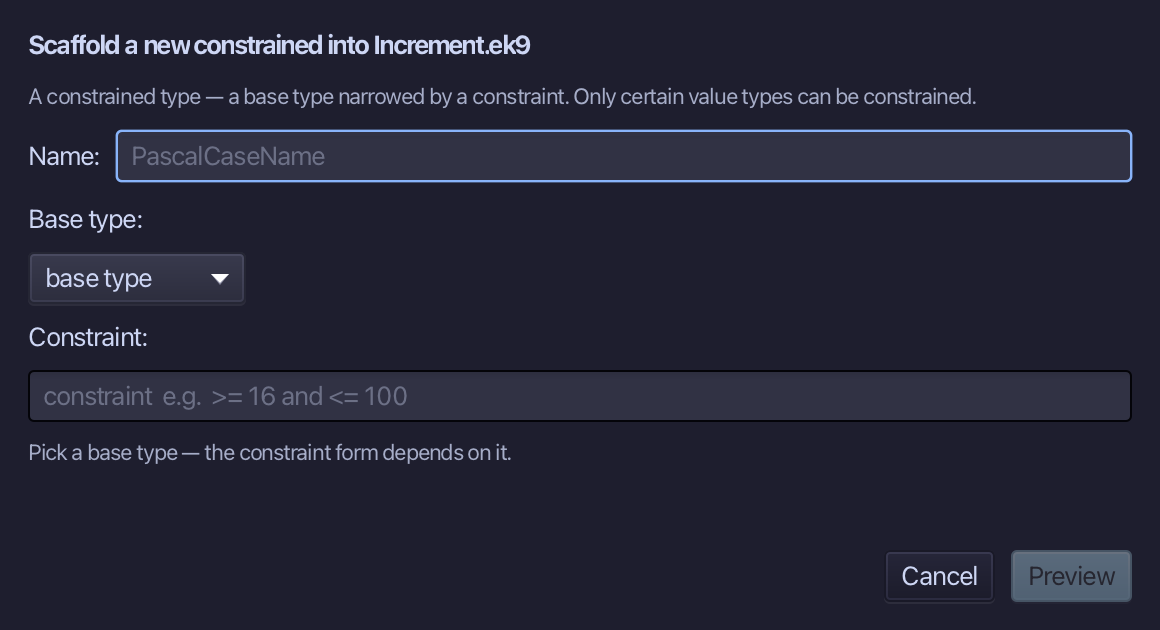
Choose Code > New Construct > Type > Constrained…
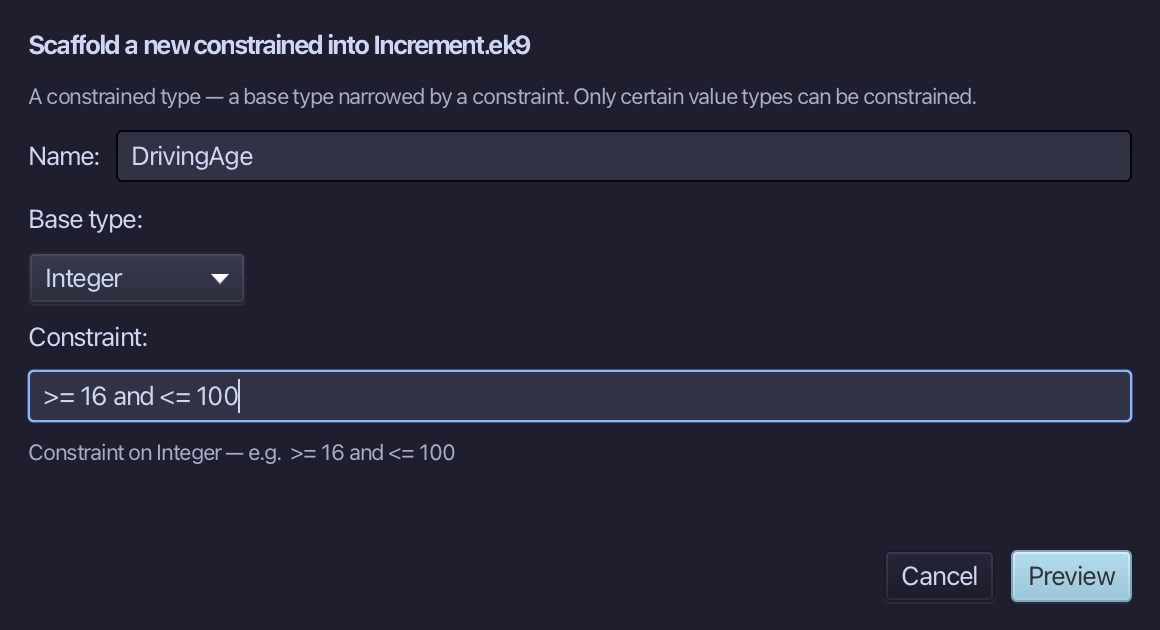
DrivingAge is the constrained type's name. Choose Integer as its base type, then type its rule, >= 16 and <= 100, into the Constraint field. Choose Preview.
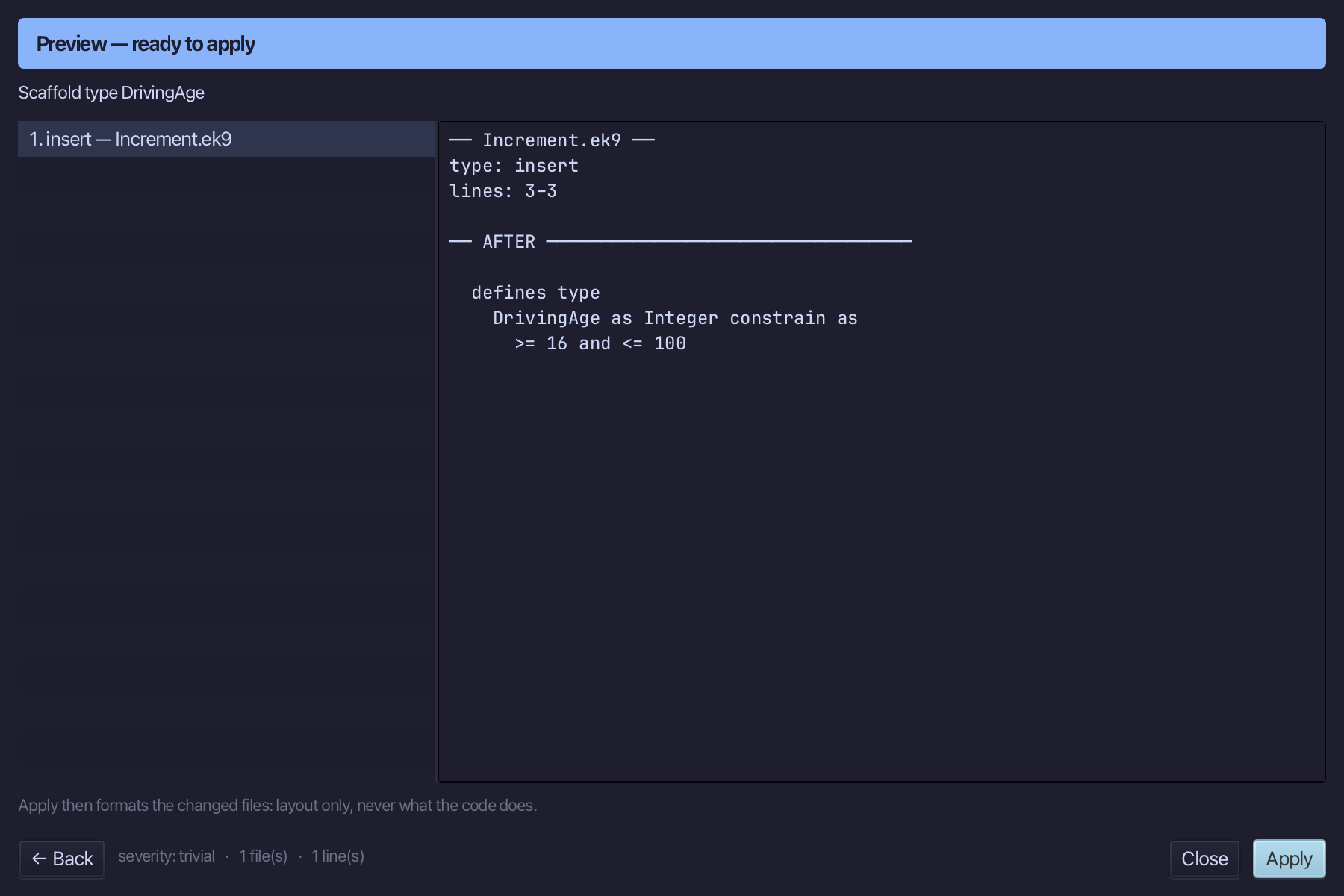
The preview shows DrivingAge about to be written, Integer narrowed by its rule. Choose Apply.
Step 2: The program — stepping with ++ and --
Choose Code > New Construct > Program…
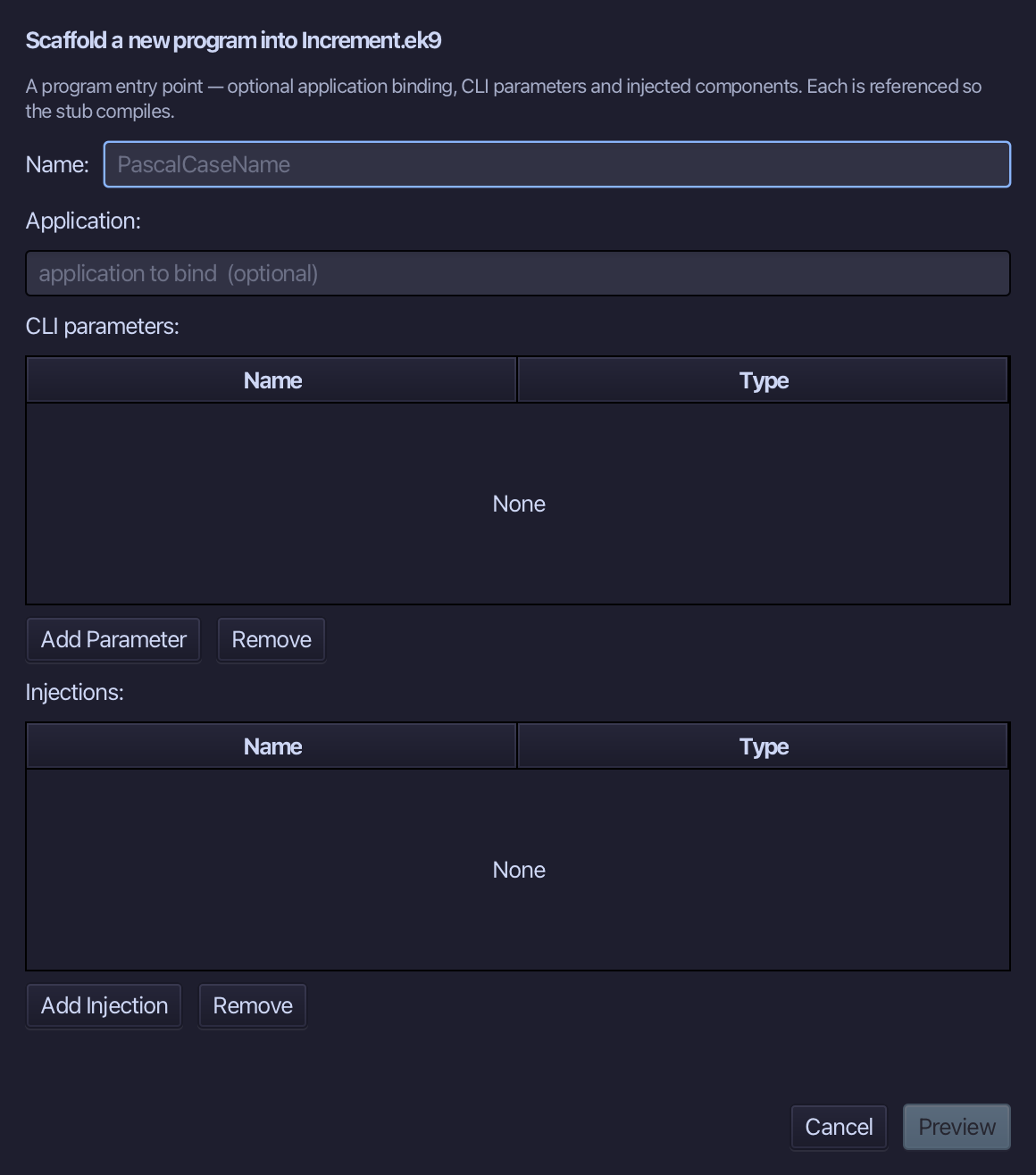
Show is the program's name - nothing to bind, no parameters. Type Show and choose Preview.
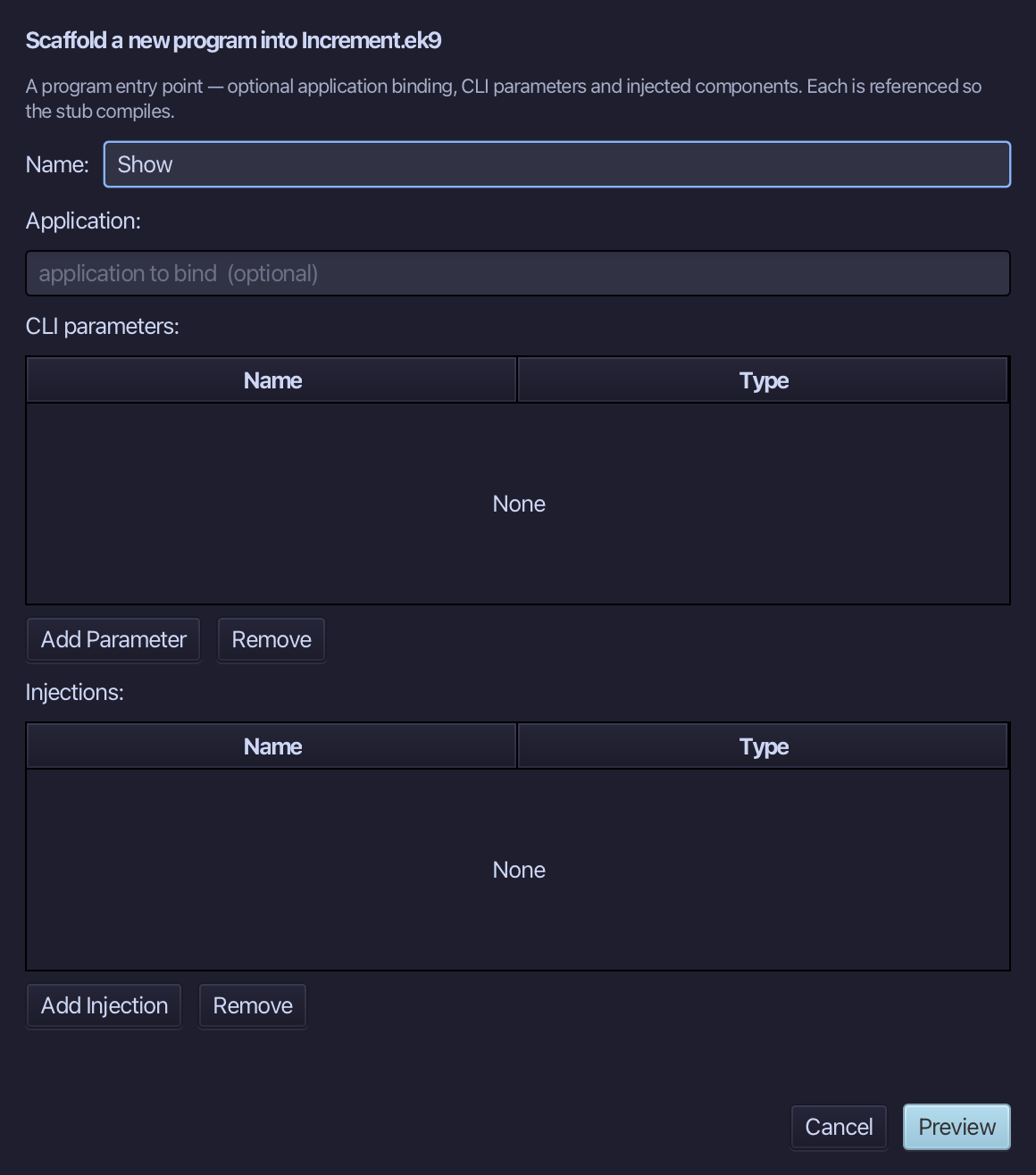
The preview shows Show about to be written. Choose Apply.
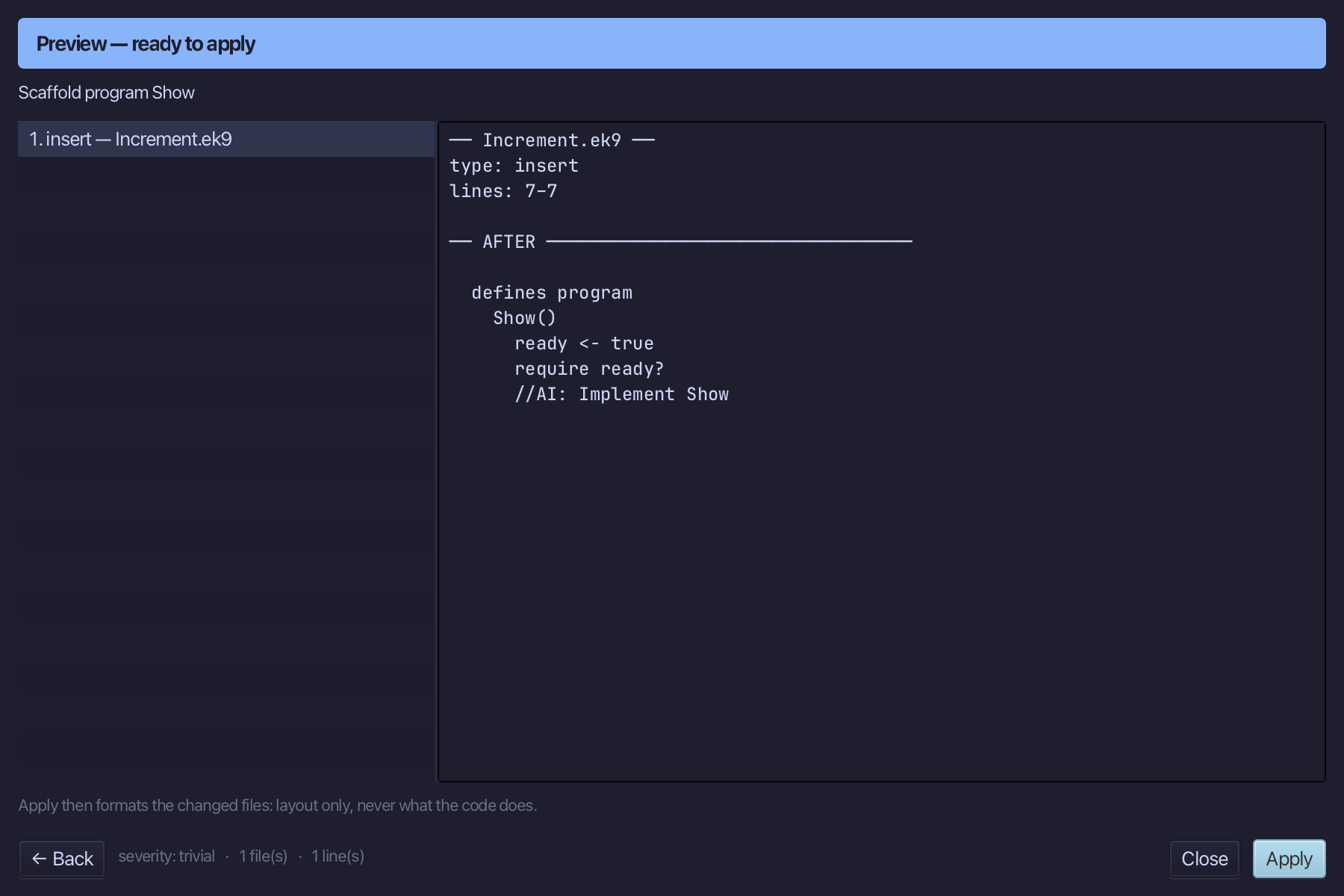
Select the stub, from ready <- true down to its //AI line, and type the program: a DrivingAge of 17, one ++, then two --, printing after each. Saves when typed.
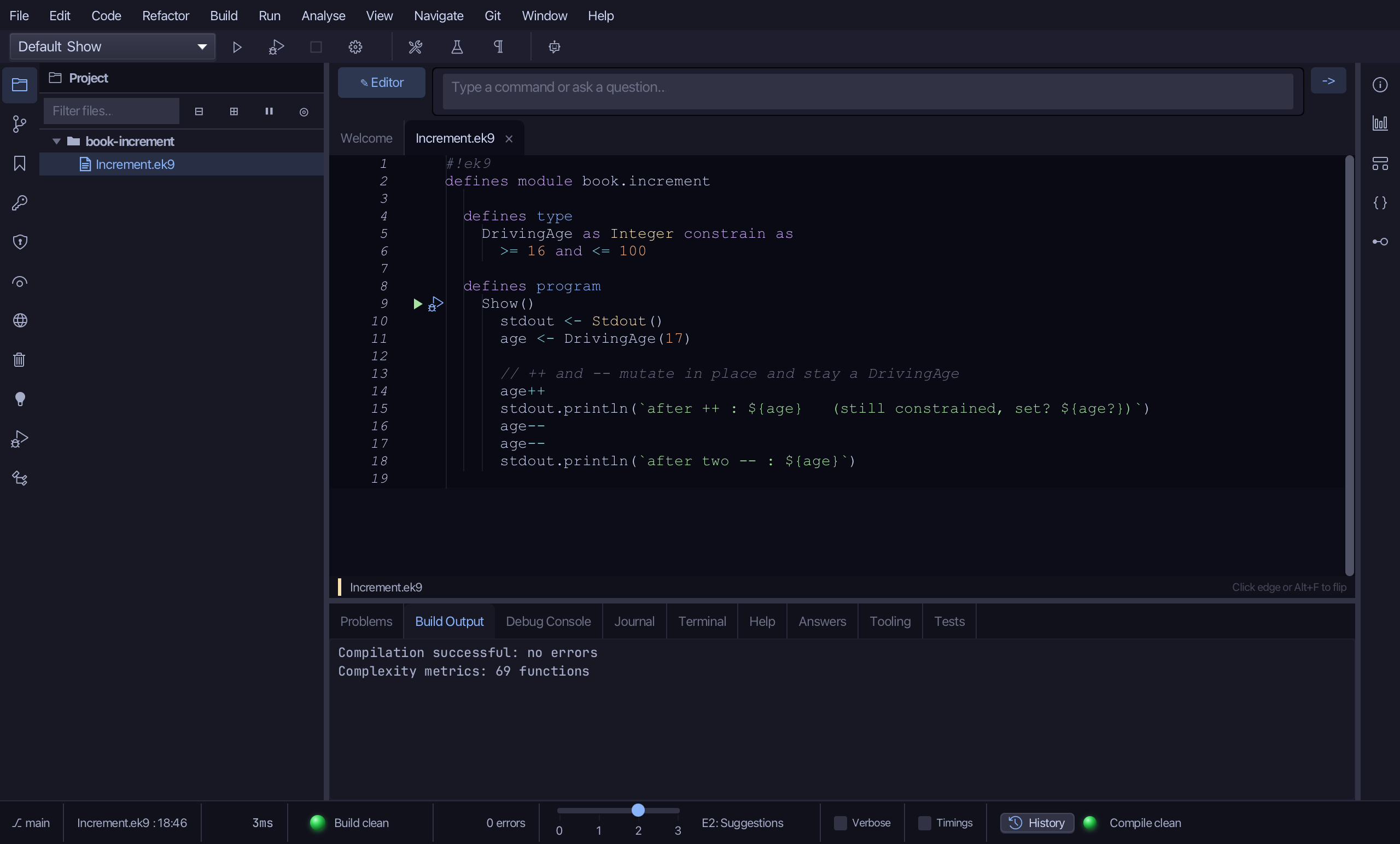
Step 3: Run it
Choose Run > Run Program…
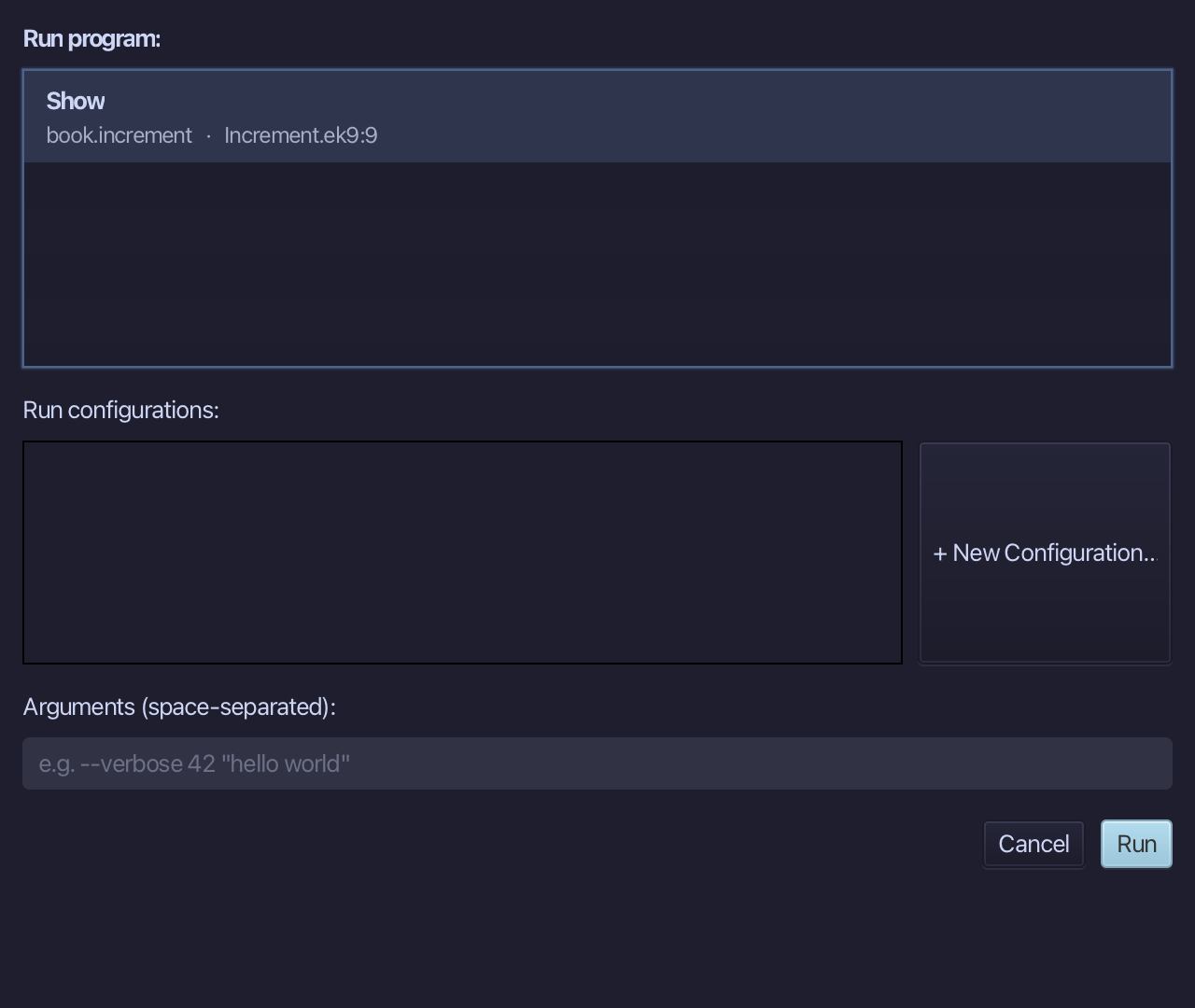
The project's only program is already chosen. Choose Run.
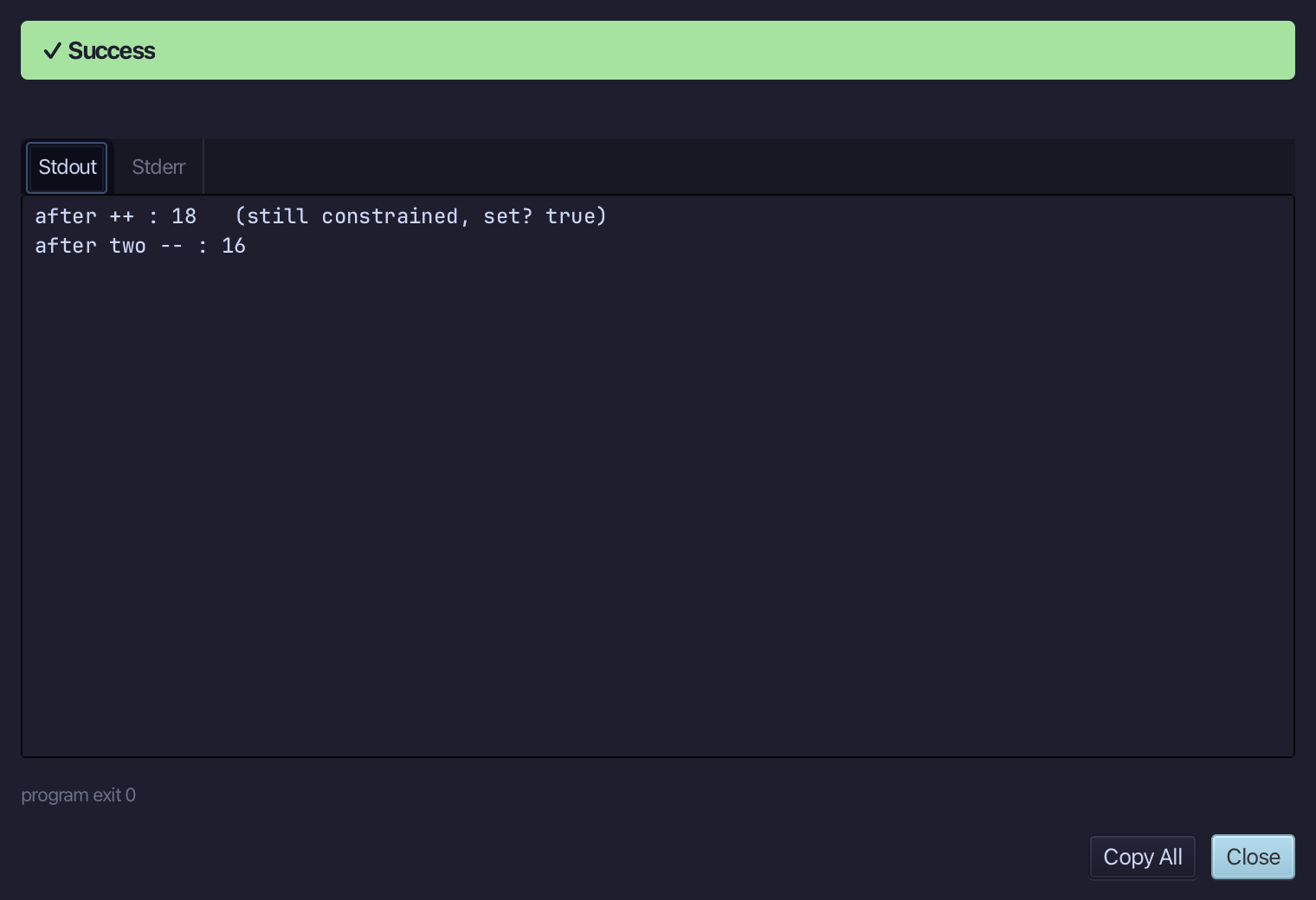
after ++ : 18 and still set, then after two -- : 16 - the value moved in place and stayed a DrivingAge throughout. Choose Close.
The result
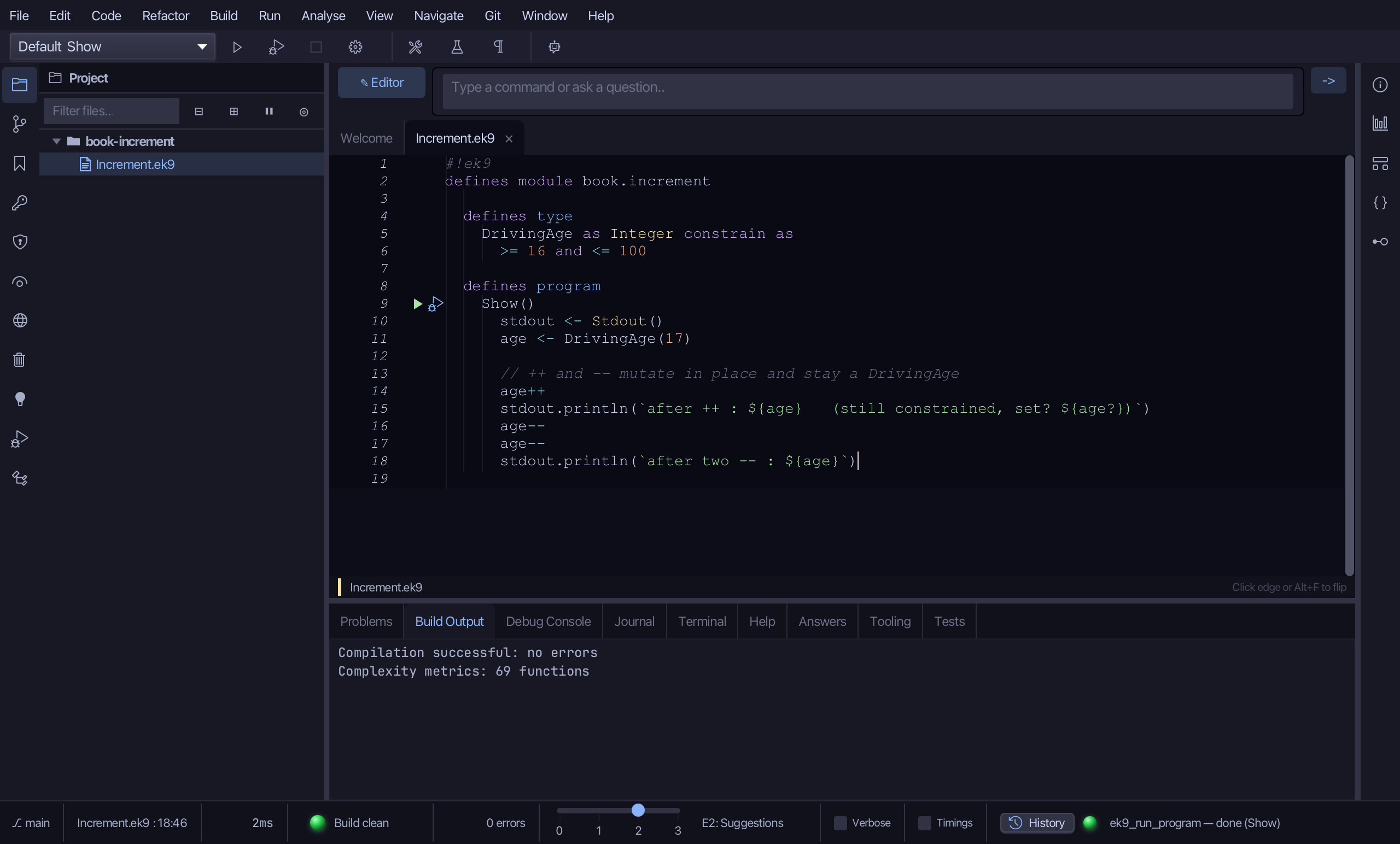
Increment.ek9 now reads exactly as chapter 15 of Getting Started with EK9 shows it: a constrained type the tool built in one call, and a program that steps a DrivingAge up and down with ++ and -- - each change in place, and the value still a DrivingAge, still inside its rule.
Where this lesson comes from
- For AI assistants - the MCP tool
ek9_new_construct,ek9_add_program.
In the EK9 reference: EK9 Basics