Chapter 26: nine pure shapes, built
In Java you pick Predicate or declare a @FunctionalInterface; here you do neither. Chapter 26's PureShapes writes nine plain pure functions and then names, for each, the type the compiler synthesised from its shape - Supplier, Consumer, Predicate, UnaryOperator, Comparator and the rest. The IDE writes each signature with pure ticked; you type the work, and then the program that holds each function as a value of its type. To play it in the IDE: Help > Lessons > EK9 in Depth…, or ek9 -ide -lesson depth-pure-shapes.
What you'll build
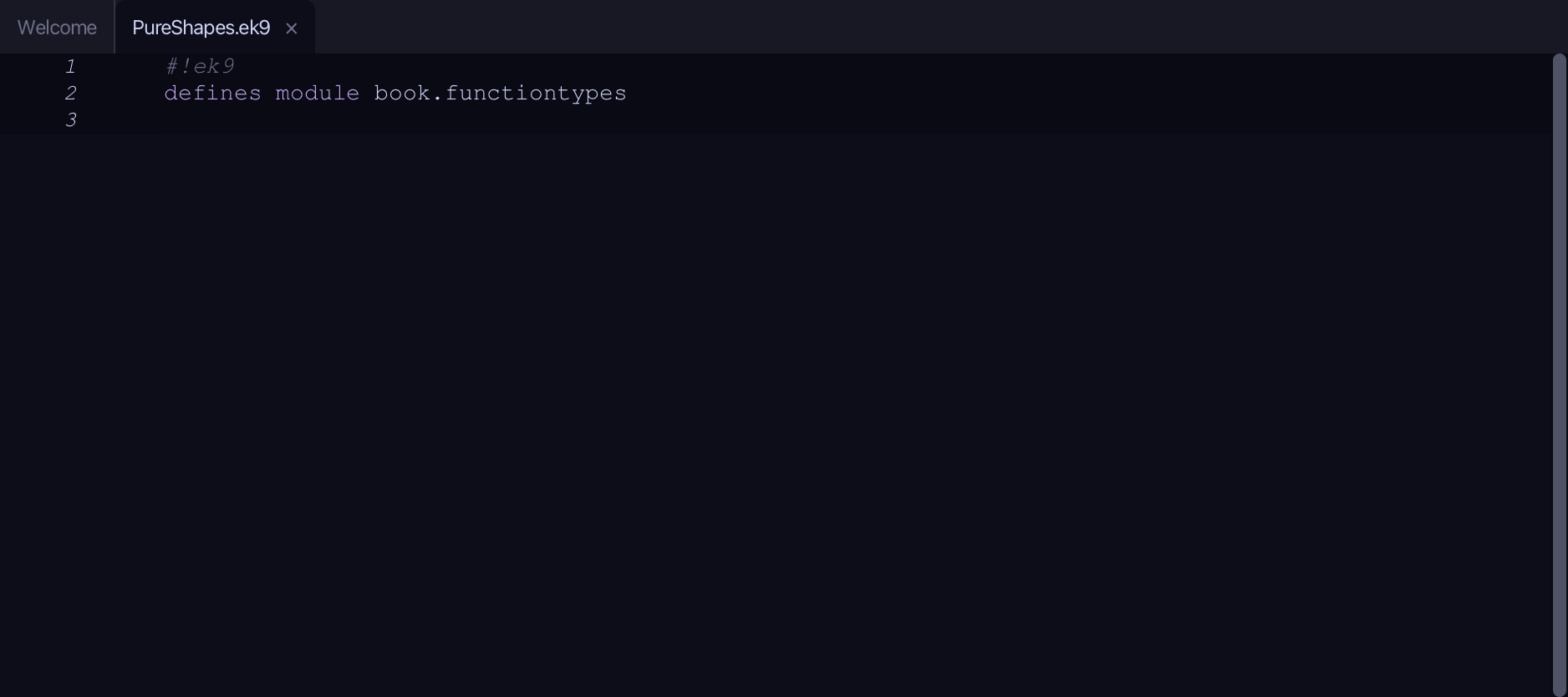
The lesson builds this program from a file holding only its module line - the finished file, as the book prints it.
#!ek9
defines module book.functiontypes

  defines function

    defaultGreeting() as pure
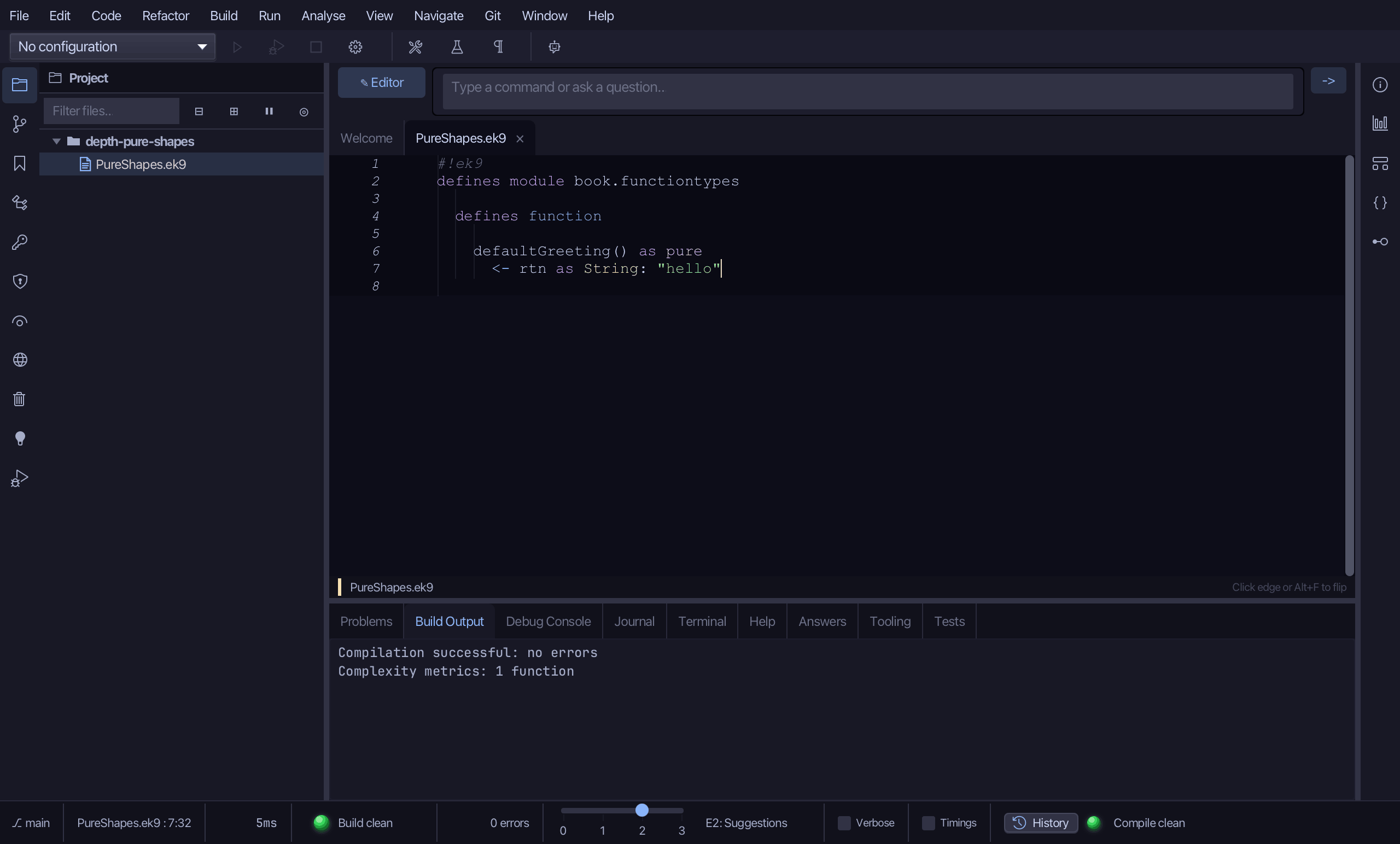
      <- rtn as String: "hello"

    show() as pure
      -> text as String
      Stdout().println(`show: ${text}`)

    showPair() as pure
      ->
        text as String
        n as Integer

      Stdout().println(`${text}=${n}`)

    isEven() as pure
      -> n as Integer
      <- rtn as Boolean: n mod 2 == 0

    doubled() as pure
      -> n as Integer
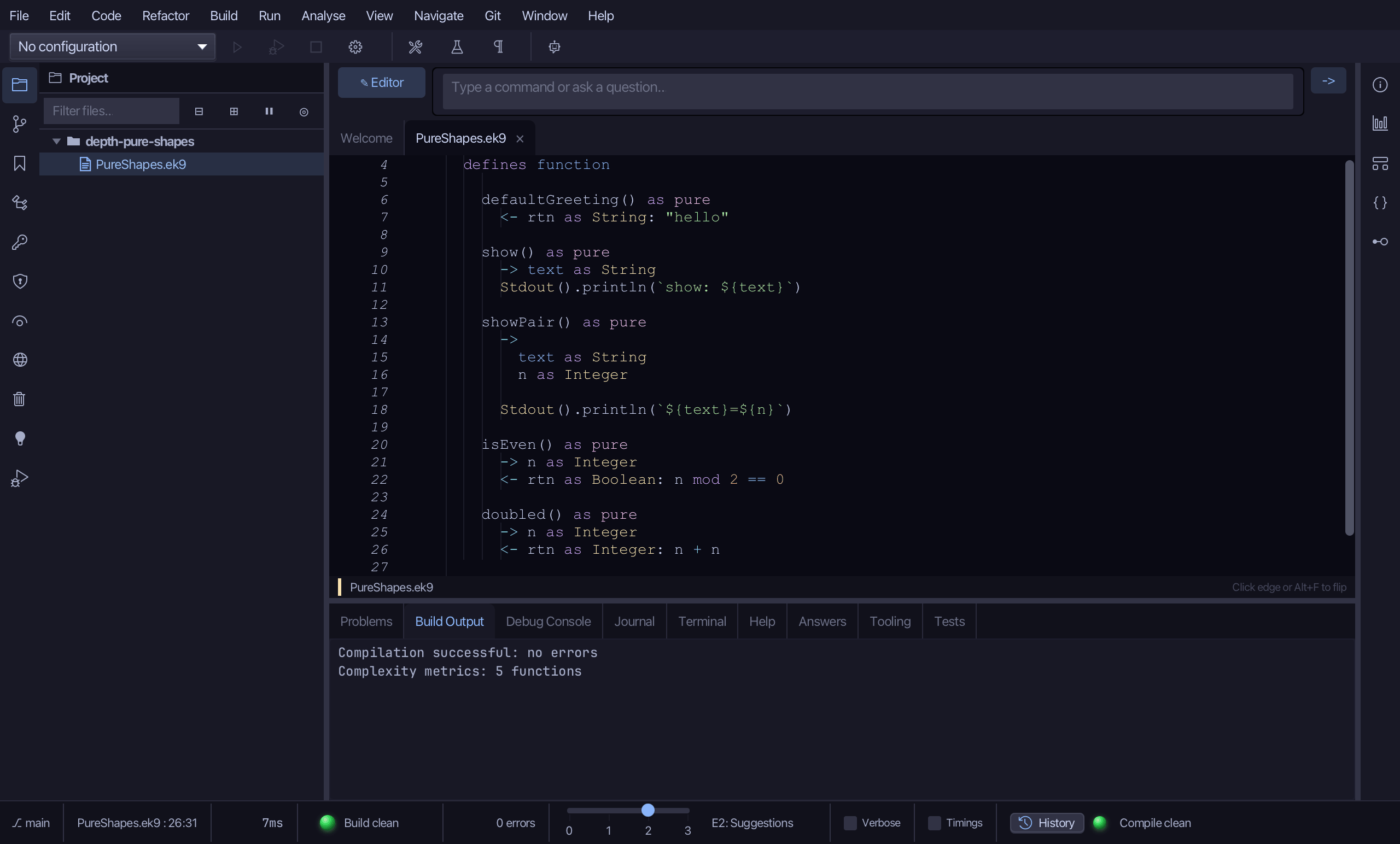
      <- rtn as Integer: n + n

    describe() as pure
      -> n as Integer
      <- rtn as String: `number ${n}`

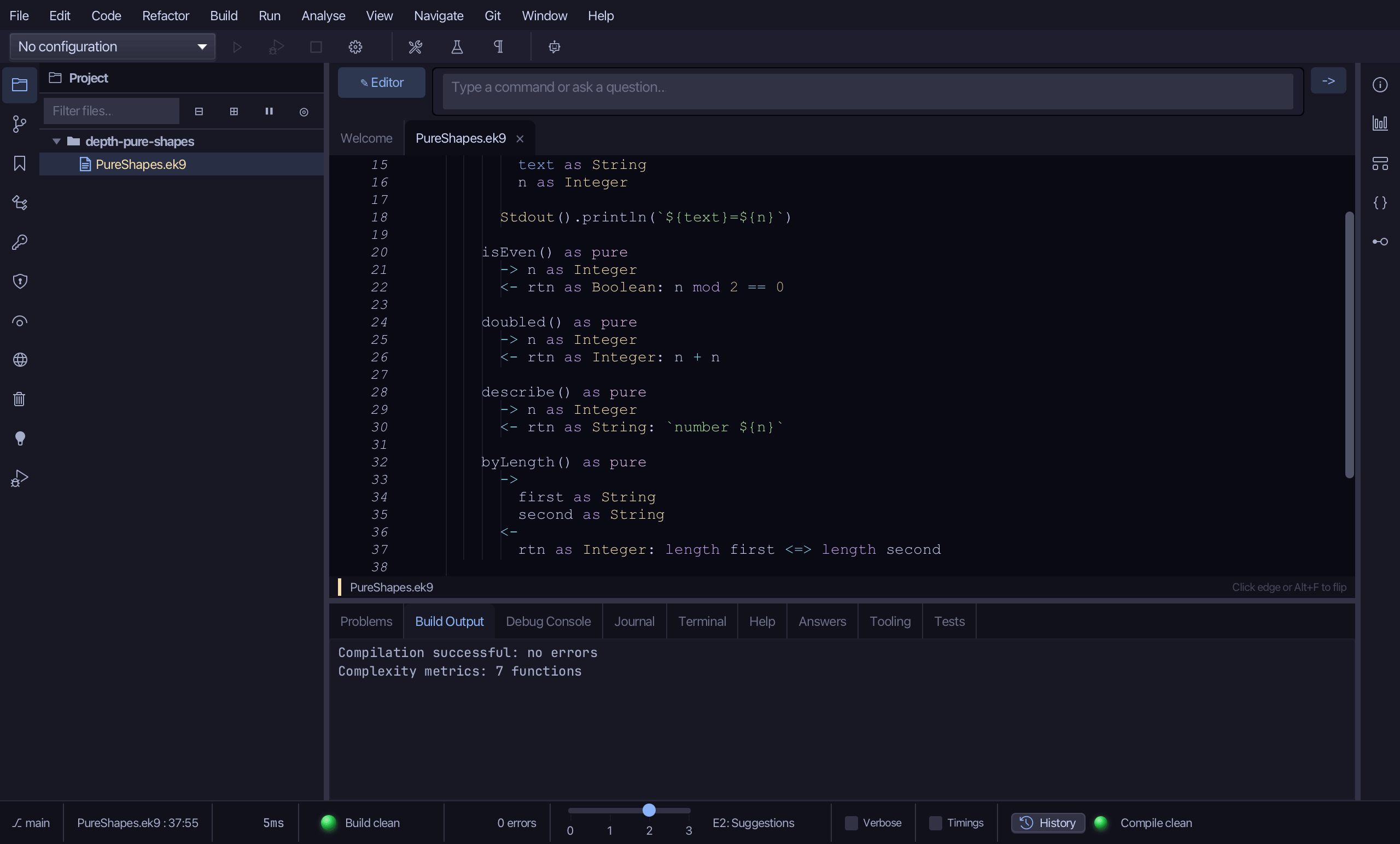
    byLength() as pure
      ->
        first as String
        second as String
      <-
        rtn as Integer: length first <=> length second

    longerThan() as pure
      ->
        text as String
        limit as Integer
      <-
        rtn as Boolean: length text > limit

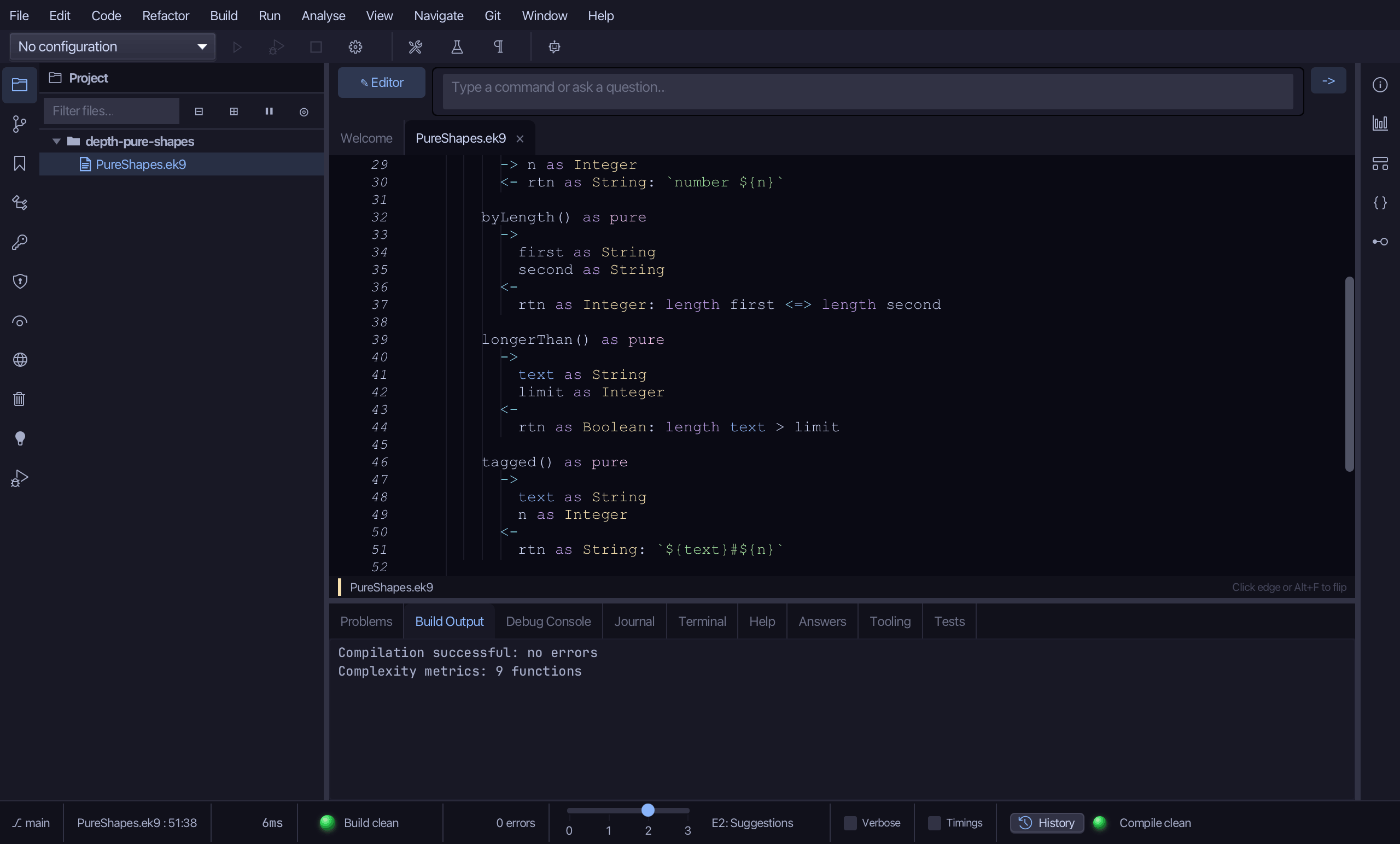
    tagged() as pure
      ->
        text as String
        n as Integer
      <-
        rtn as String: `${text}#${n}`

  defines program

    PureShapes()
      stdout <- Stdout()

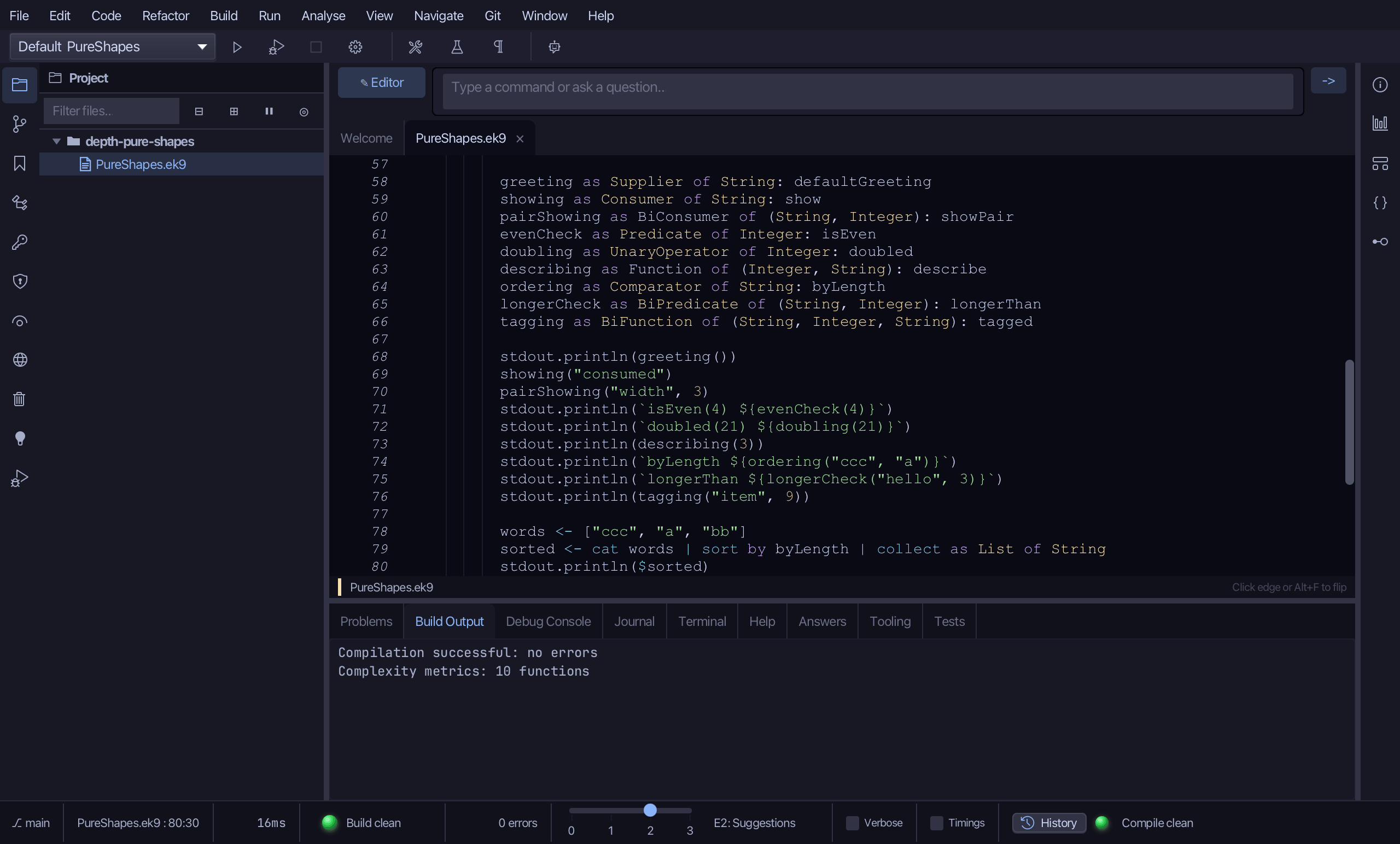
      greeting as Supplier of String: defaultGreeting
      showing as Consumer of String: show
      pairShowing as BiConsumer of (String, Integer): showPair
      evenCheck as Predicate of Integer: isEven
      doubling as UnaryOperator of Integer: doubled
      describing as Function of (Integer, String): describe
      ordering as Comparator of String: byLength
      longerCheck as BiPredicate of (String, Integer): longerThan
      tagging as BiFunction of (String, Integer, String): tagged

      stdout.println(greeting())
      showing("consumed")
      pairShowing("width", 3)
      stdout.println(`isEven(4) ${evenCheck(4)}`)
      stdout.println(`doubled(21) ${doubling(21)}`)
      stdout.println(describing(3))
      stdout.println(`byLength ${ordering("ccc", "a")}`)
      stdout.println(`longerThan ${longerCheck("hello", 3)}`)
      stdout.println(tagging("item", 9))

      words <- ["ccc", "a", "bb"]
      sorted <- cat words | sort by byLength | collect as List of String
      stdout.println($sorted)
Step 1: defaultGreeting — a pure function
Choose Code > New Construct > Function…
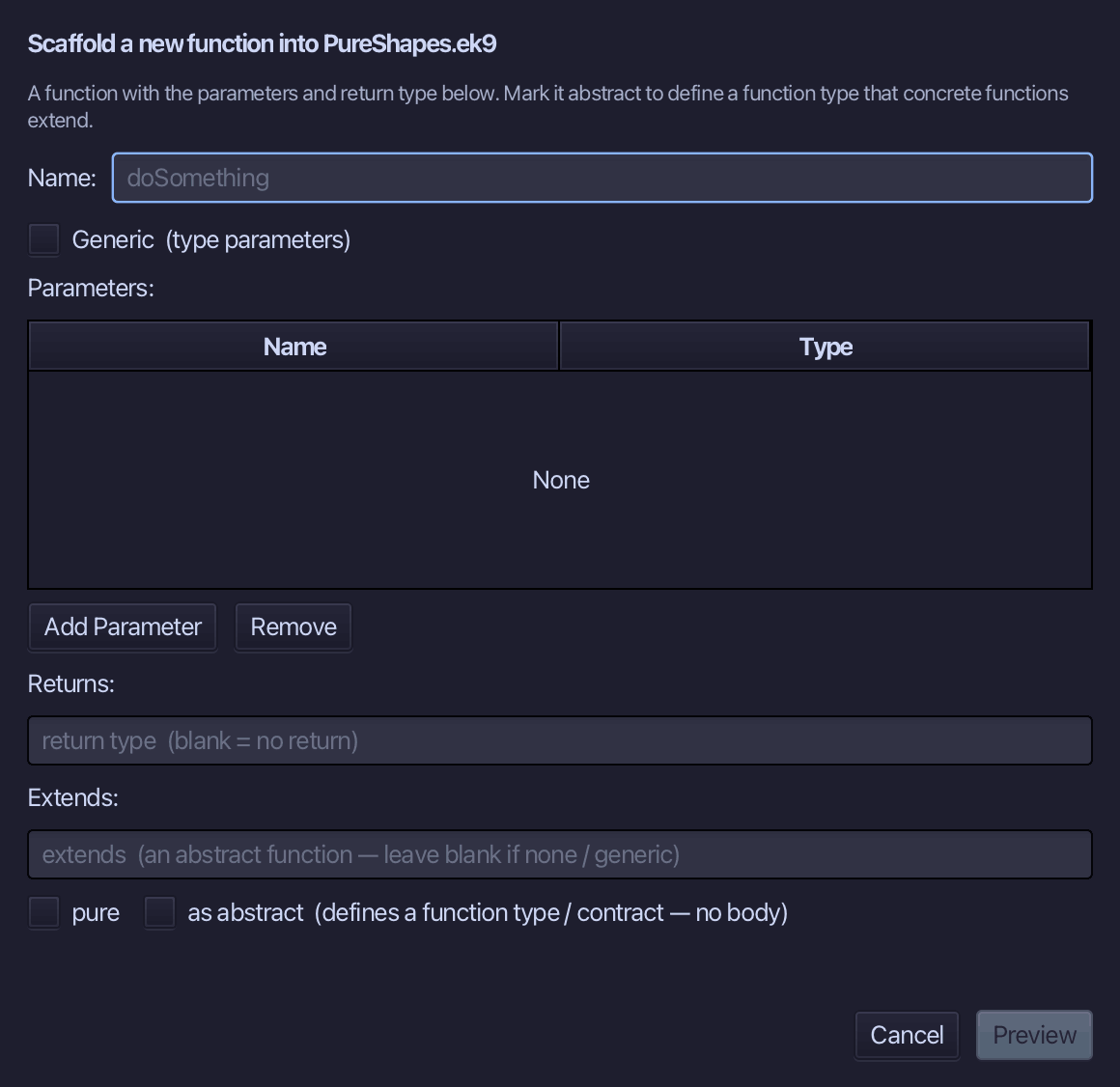
defaultGreeting is the function's name. Set Returns to String and tick pure. Choose Preview.
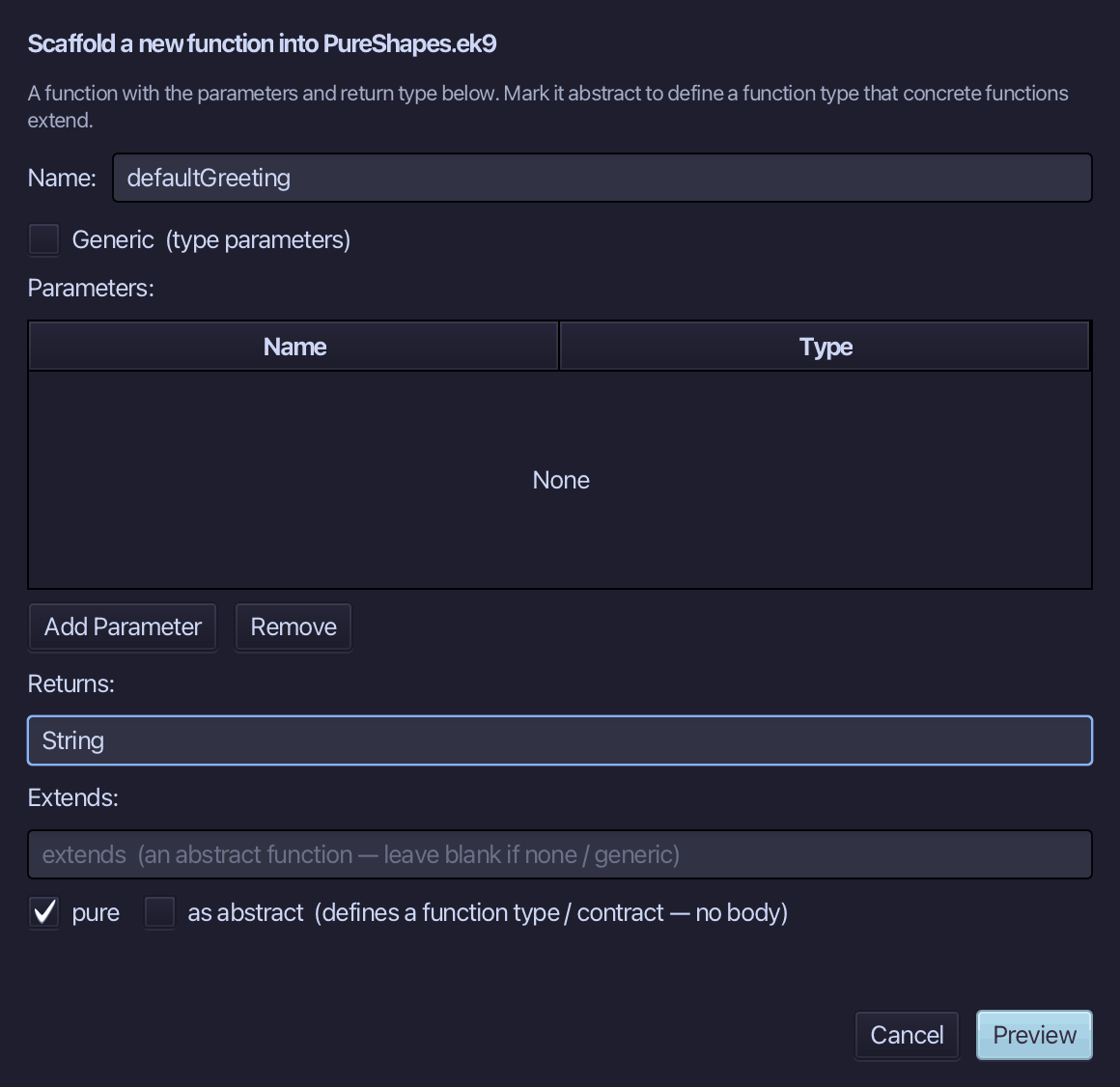
The preview shows defaultGreeting about to be written. Choose Apply.
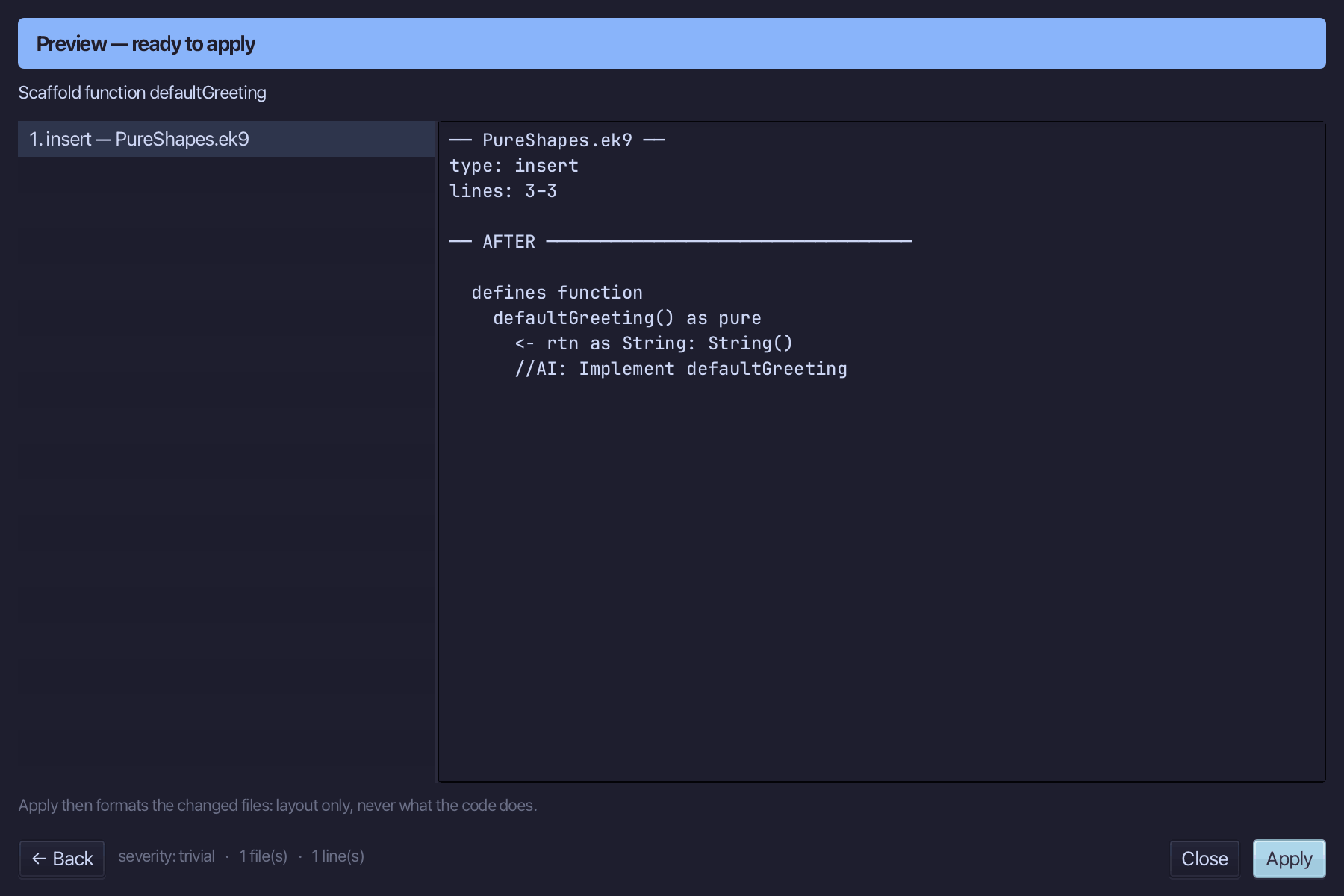
Select the defaultGreeting() as pure line and, above it, type the blank line the book opens its first function with. Saves when typed.
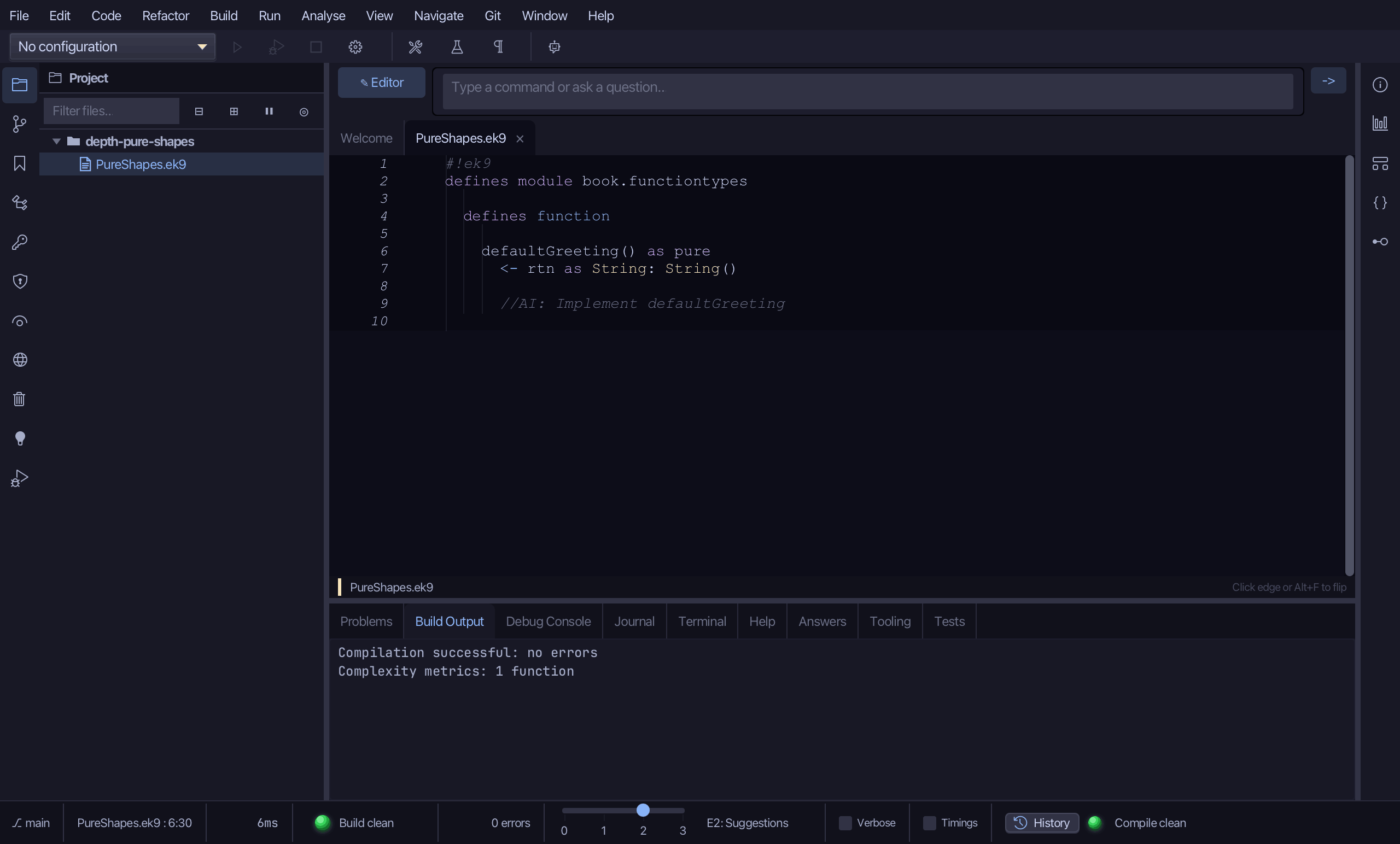
Select the stub, from <- rtn as String: String() down to its //AI line, and type defaultGreeting's own return and work, as the book writes them. Saves when typed.
Step 2: show — a pure function
Choose Code > New Construct > Function…
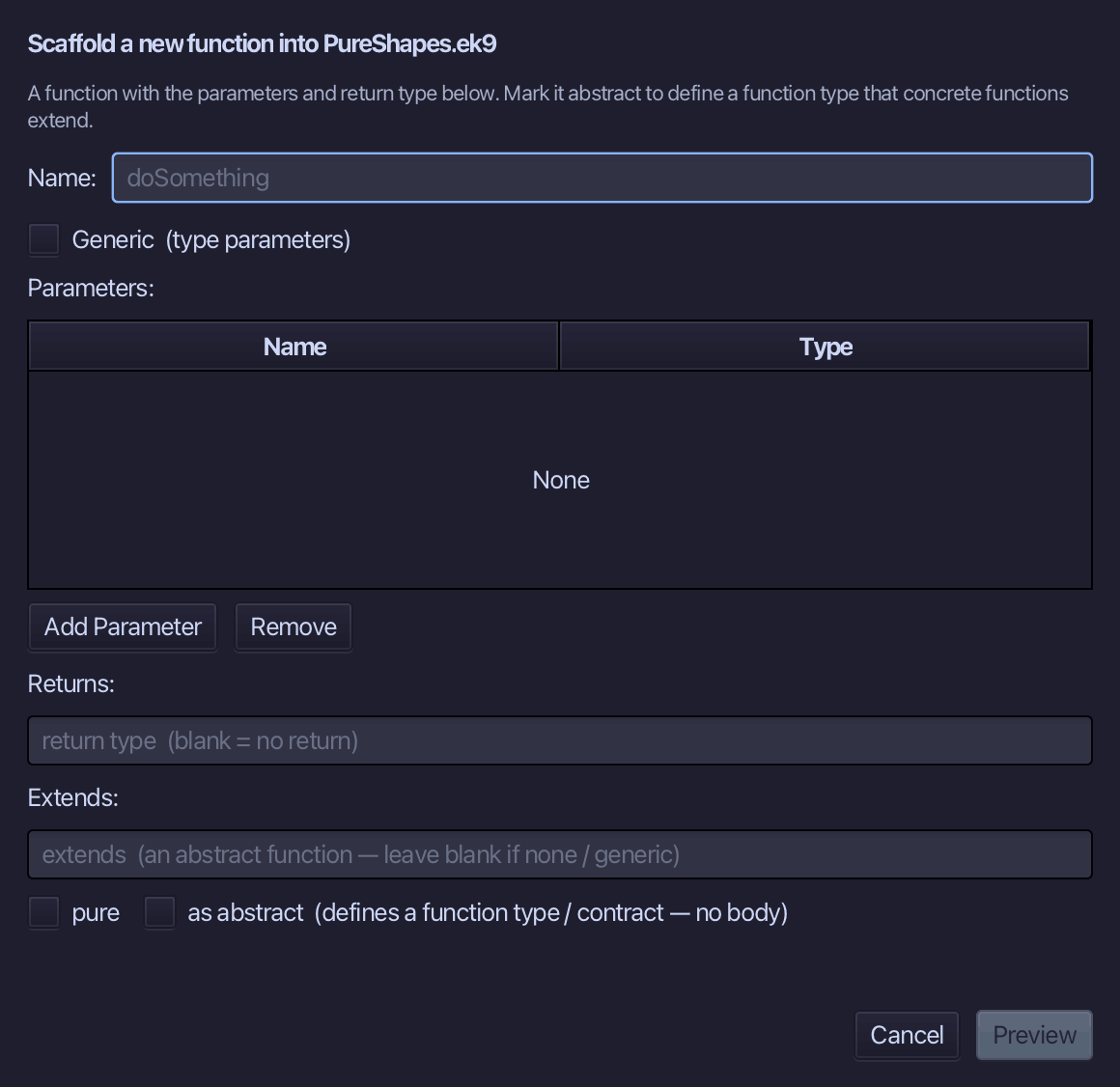
show is the function's name. Add one parameter, text of type String and tick pure. Choose Preview.
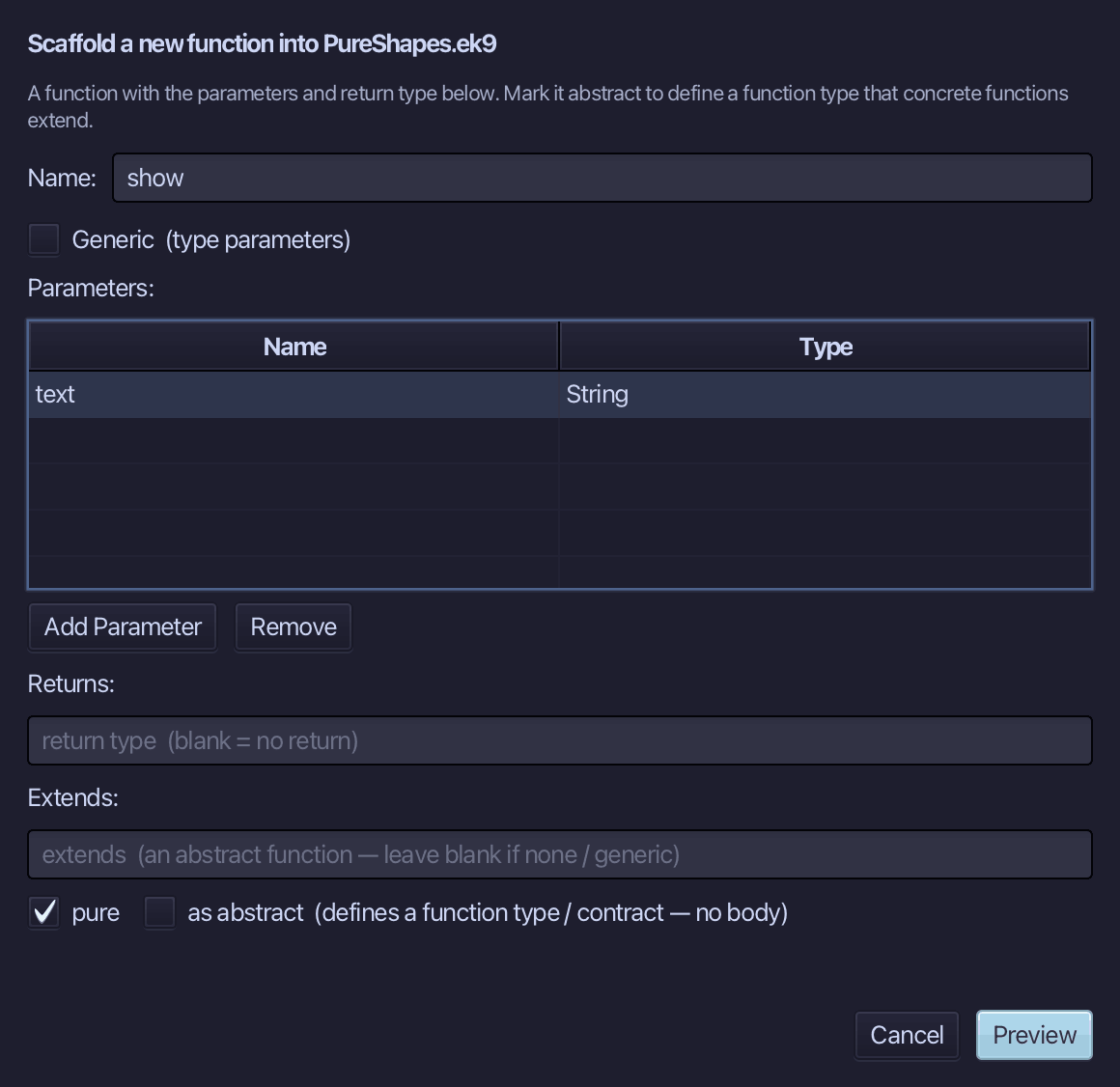
The preview shows show about to be written. Choose Apply.
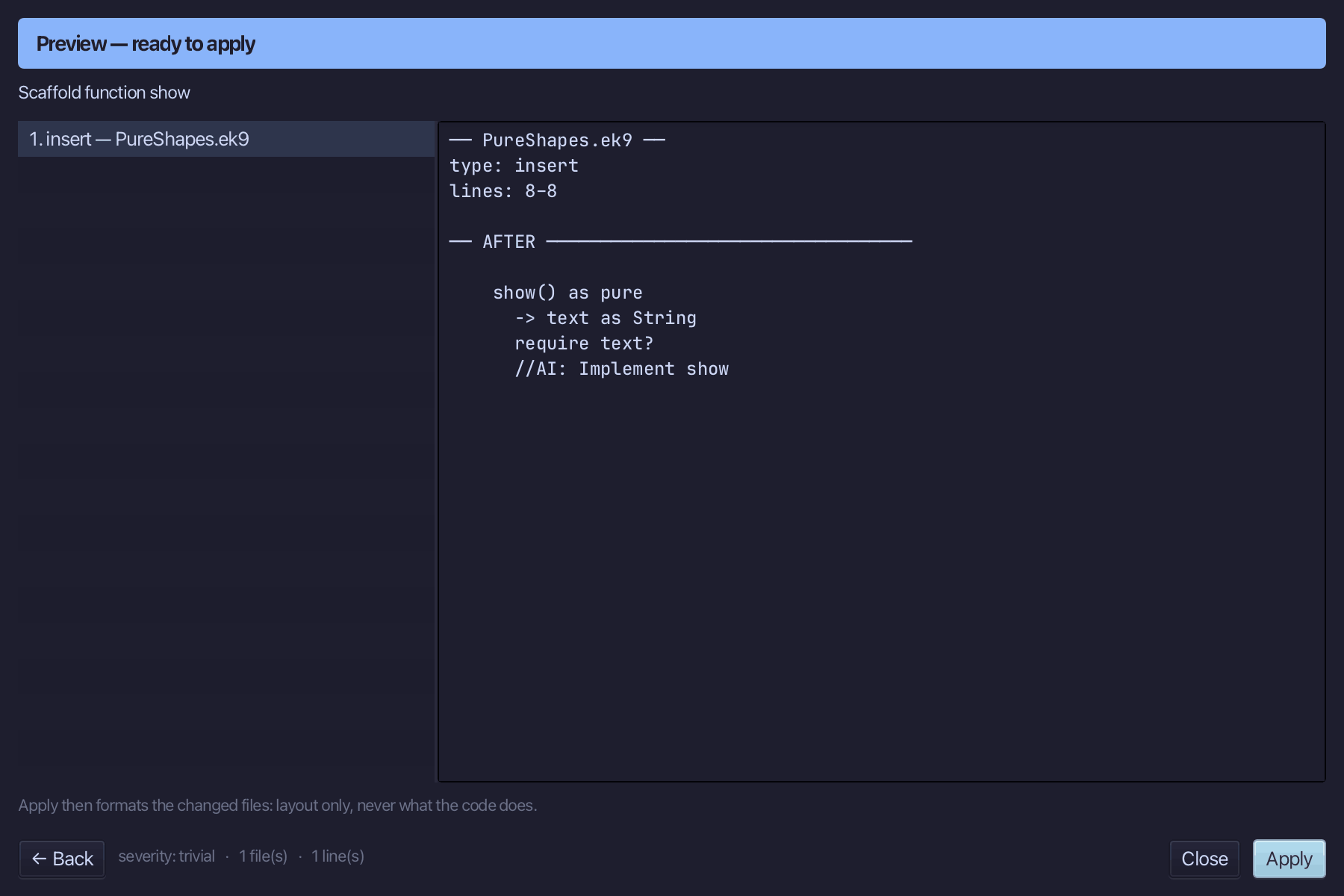
Select the stub, from require text? down to its //AI line, and type show's own return and work, as the book writes them. Saves when typed.
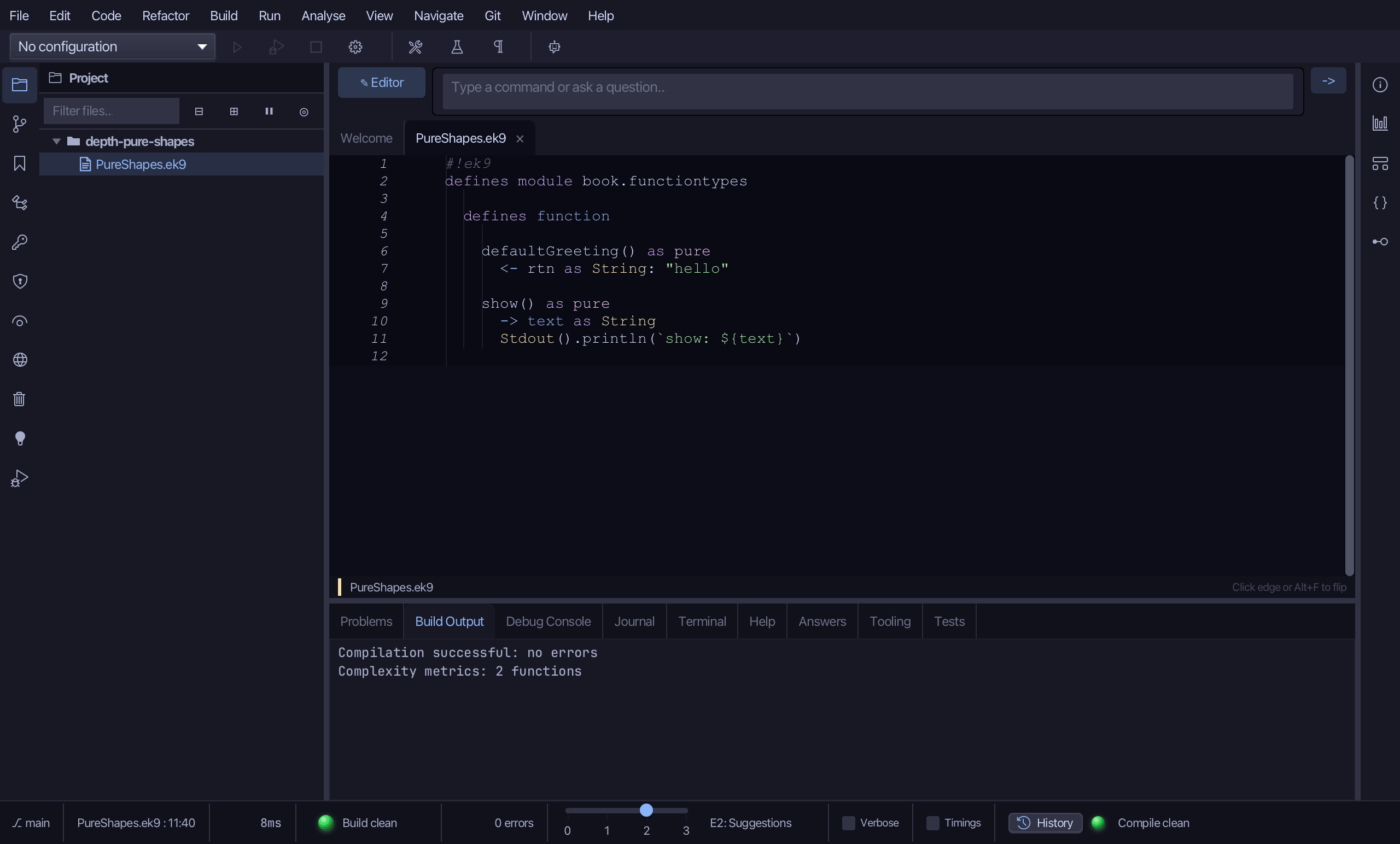
Step 3: showPair — a pure function
Choose Code > New Construct > Function…
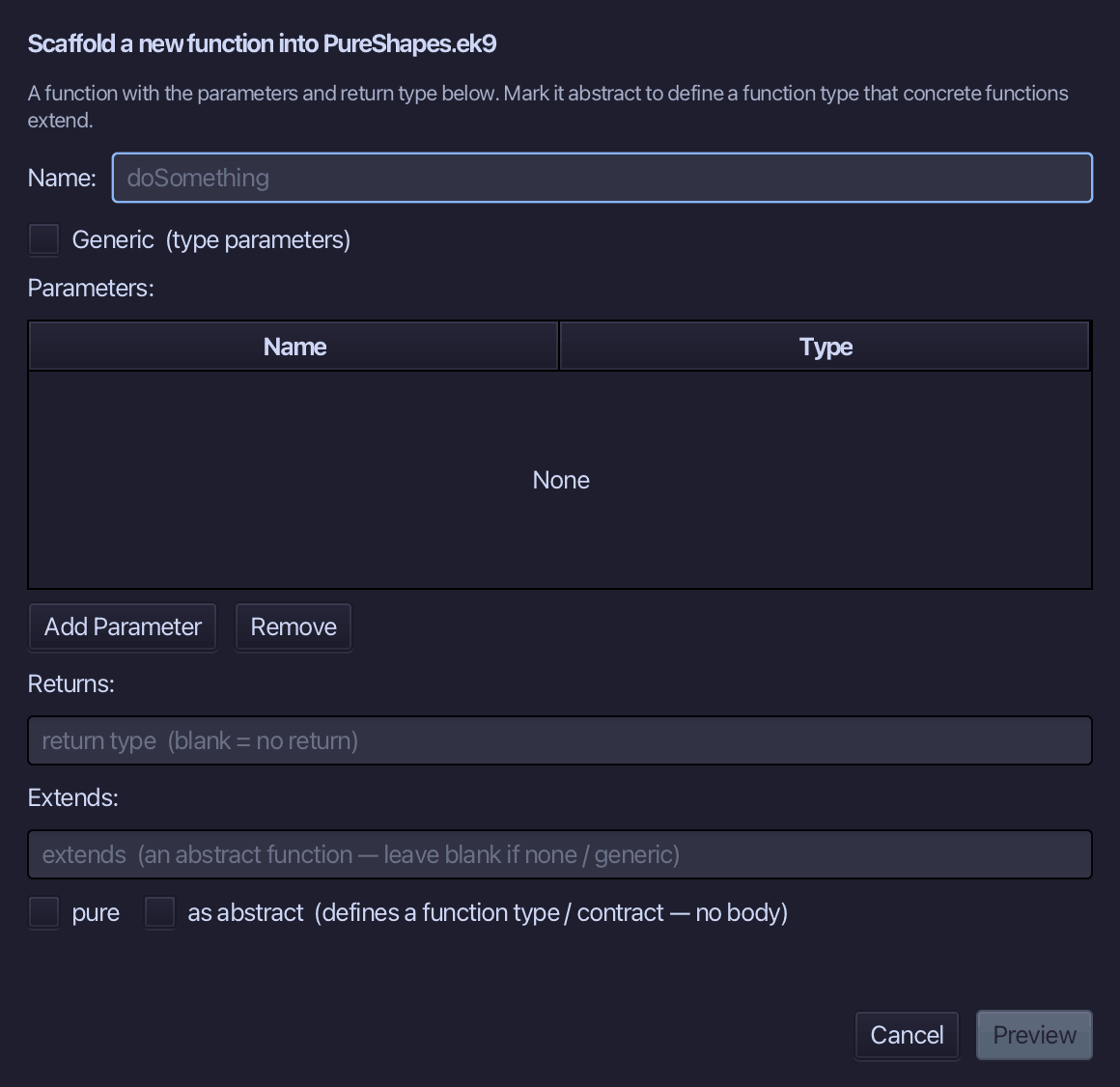
showPair is the function's name. Add the parameters text of type String and n of type Integer and tick pure. Choose Preview.
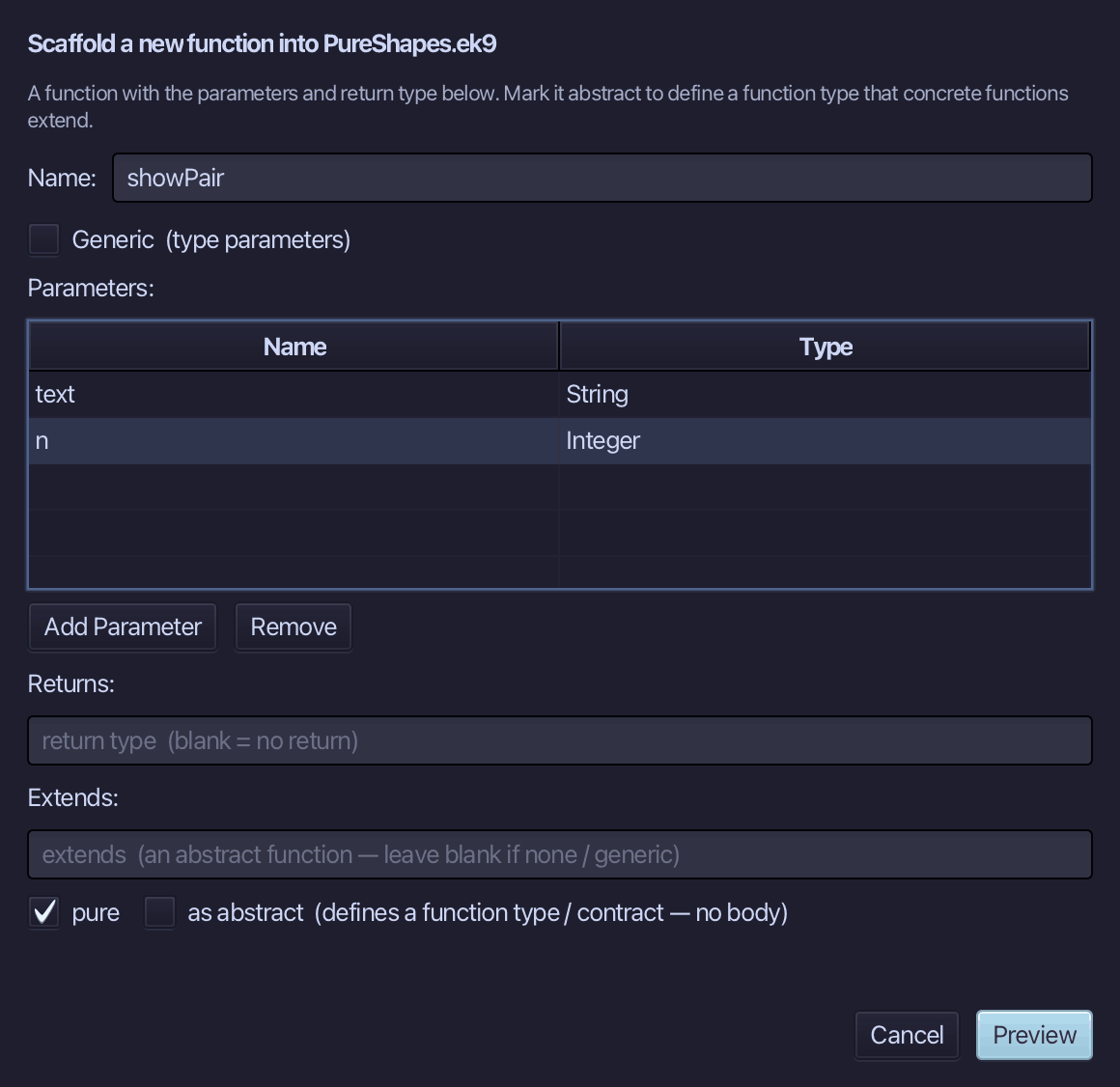
The preview shows showPair about to be written. Choose Apply.
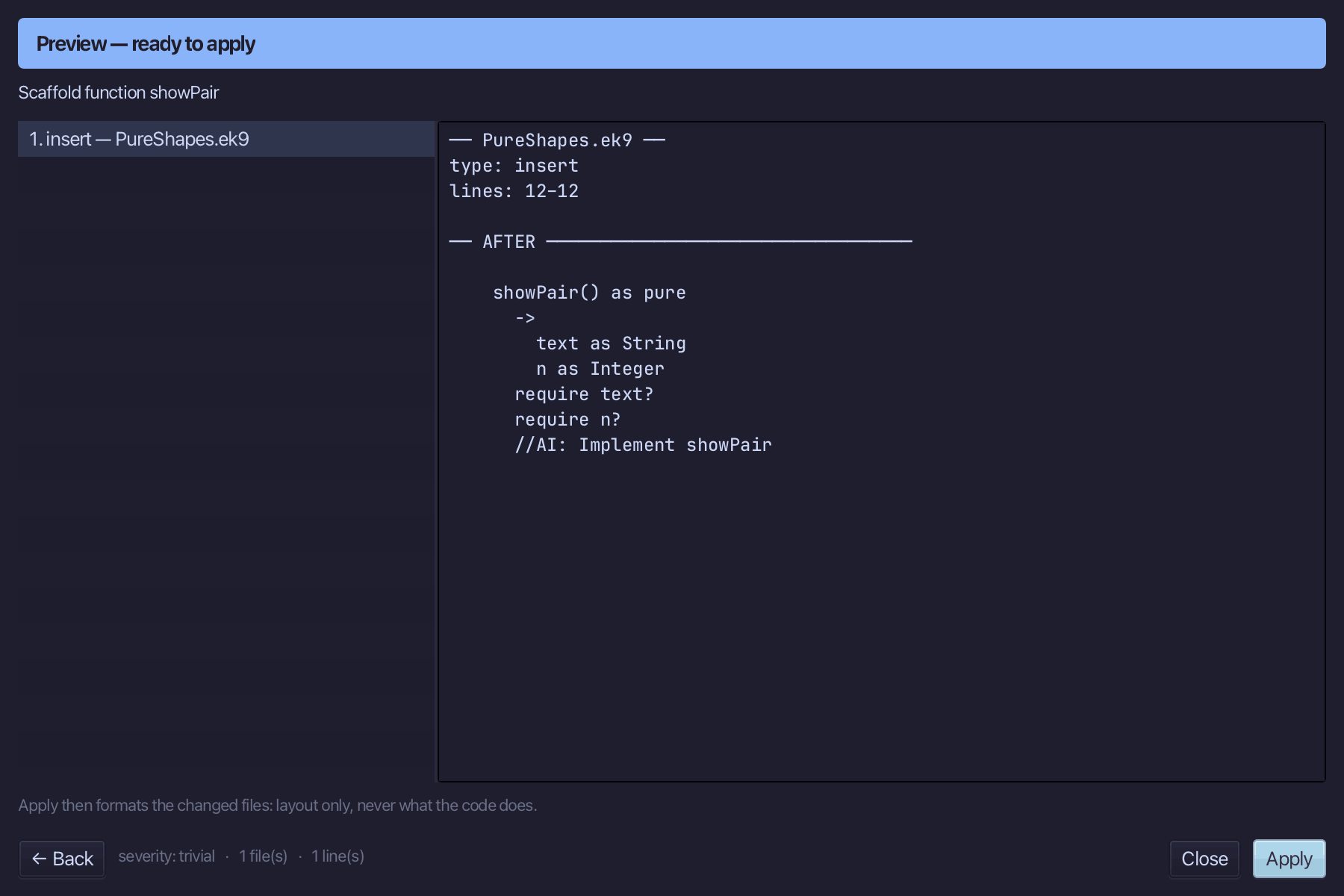
Select the stub, from require text? down to its //AI line, and type showPair's own return and work, as the book writes them. Saves when typed.
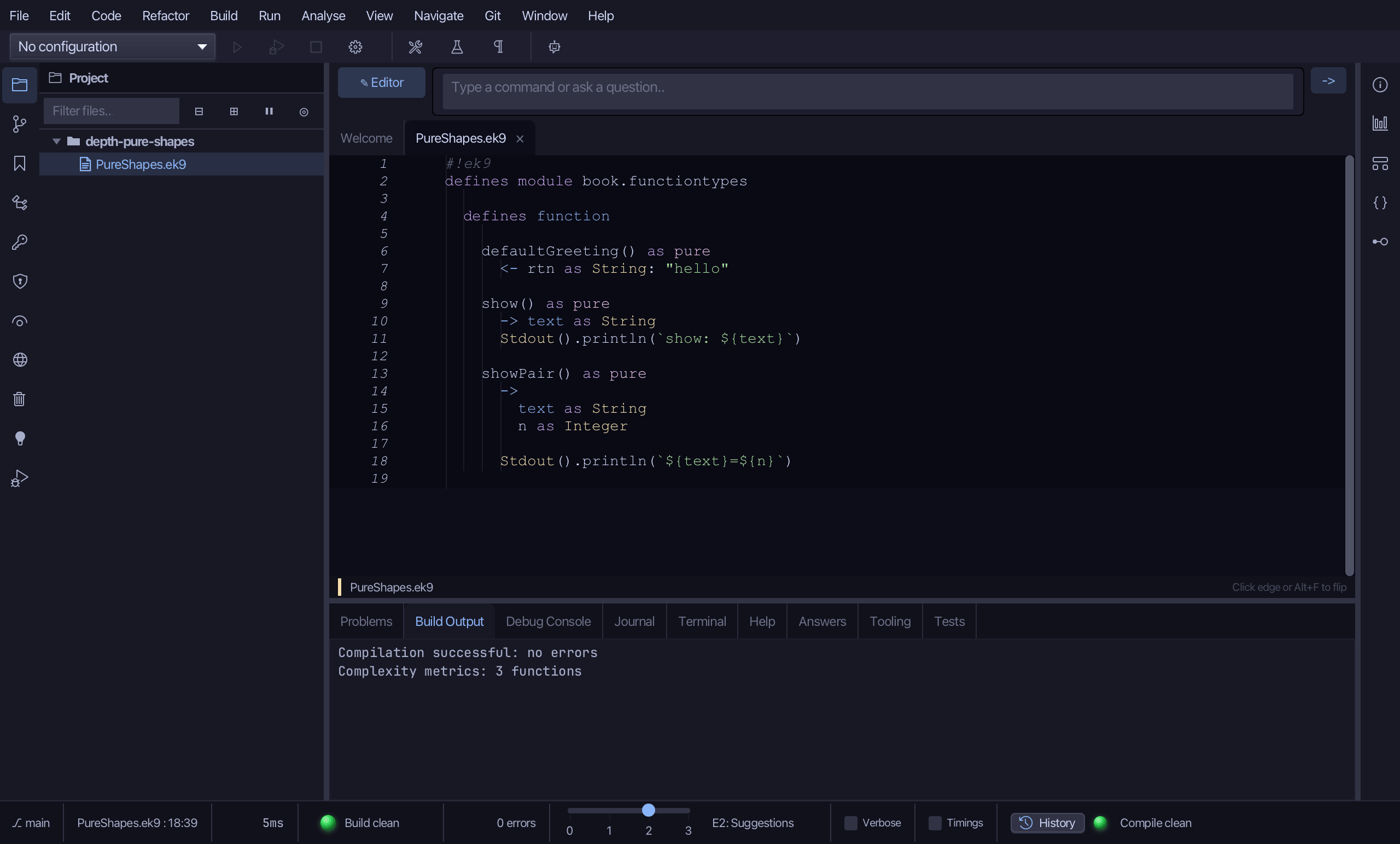
Step 4: isEven — a pure function
Choose Code > New Construct > Function…
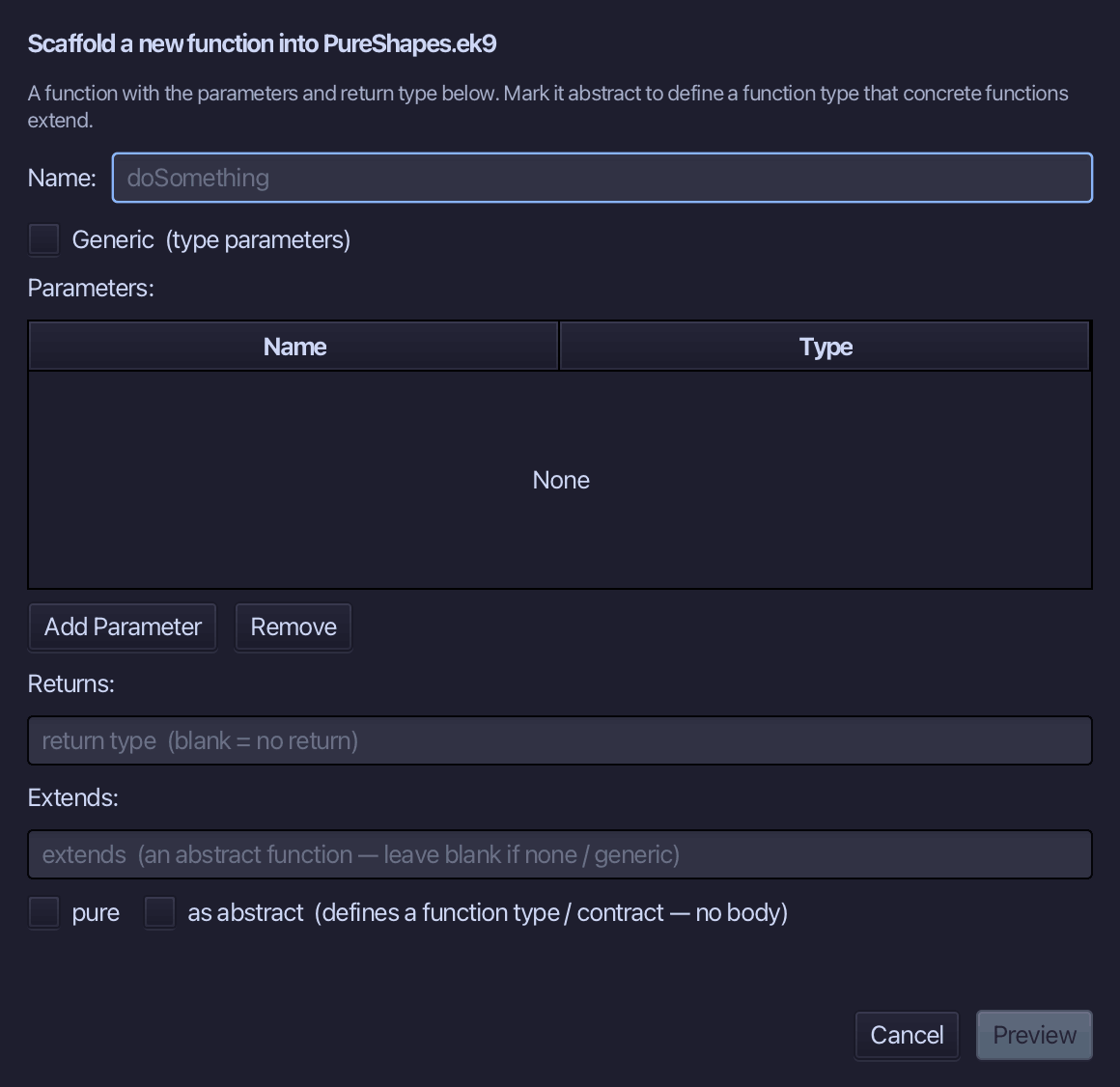
isEven is the function's name. Add one parameter, n of type Integer, set Returns to Boolean and tick pure. Choose Preview.
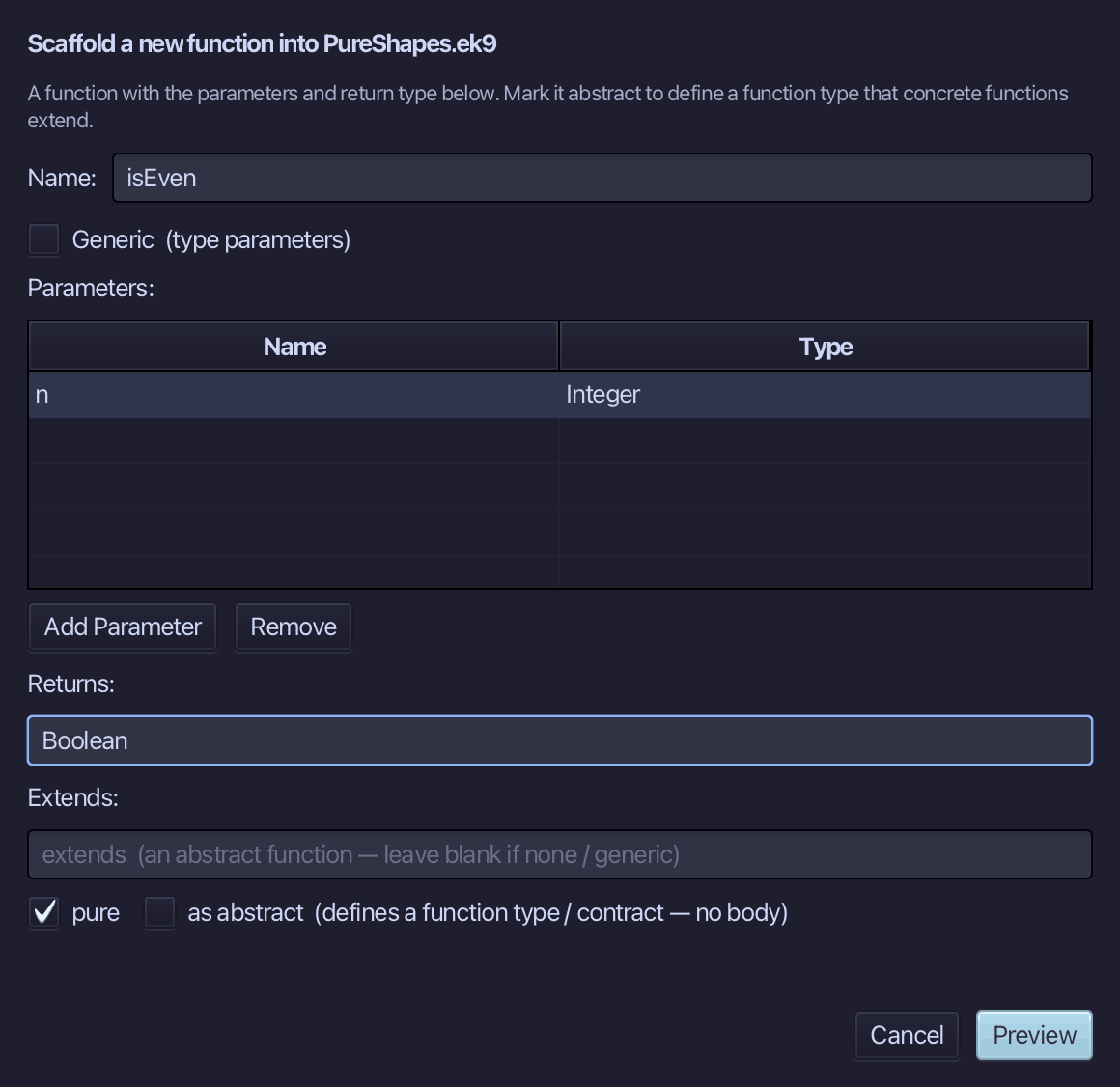
The preview shows isEven about to be written. Choose Apply.
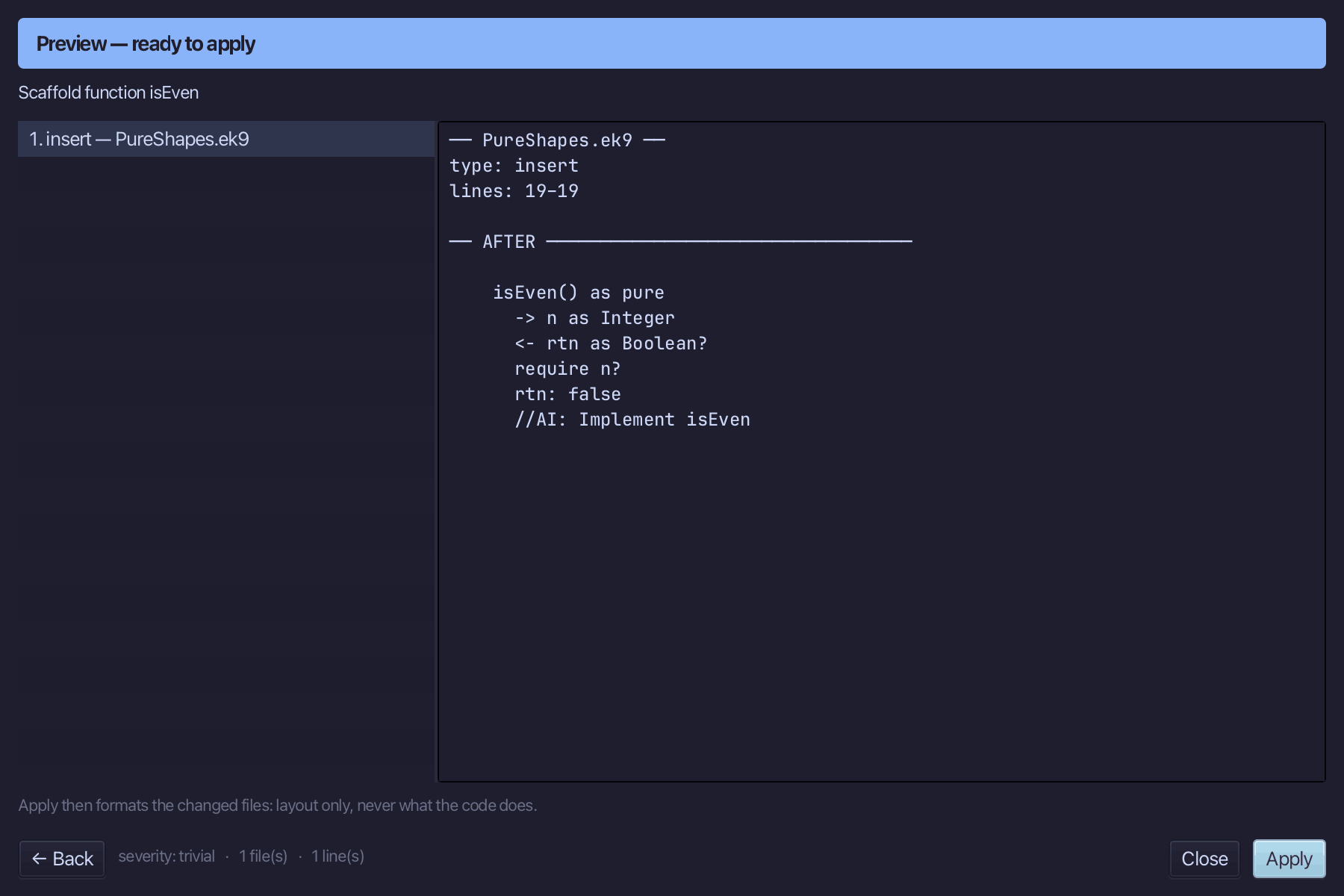
Select the stub, from <- rtn as Boolean? down to its //AI line, and type isEven's own return and work, as the book writes them. Saves when typed.
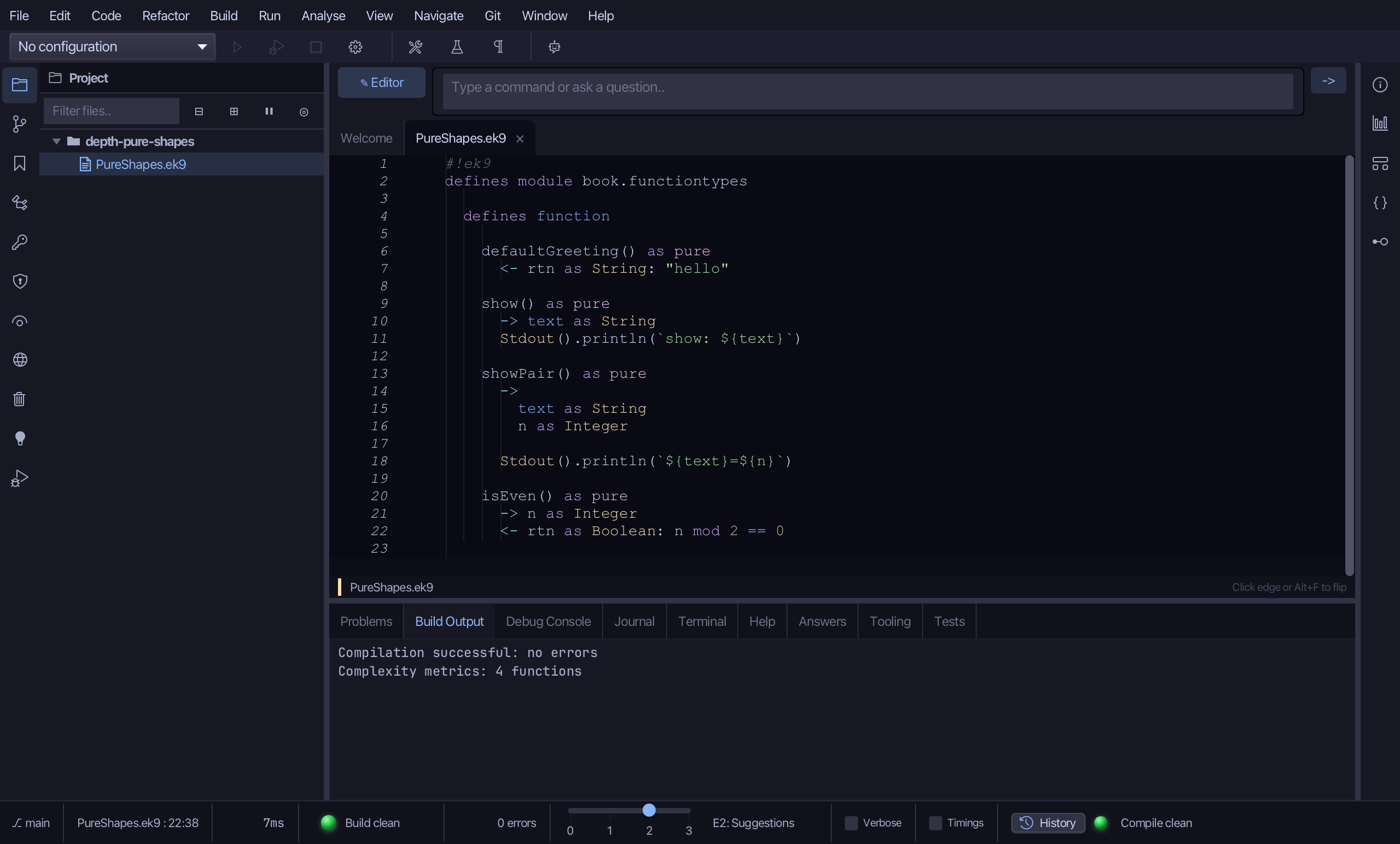
Step 5: doubled — a pure function
Choose Code > New Construct > Function…
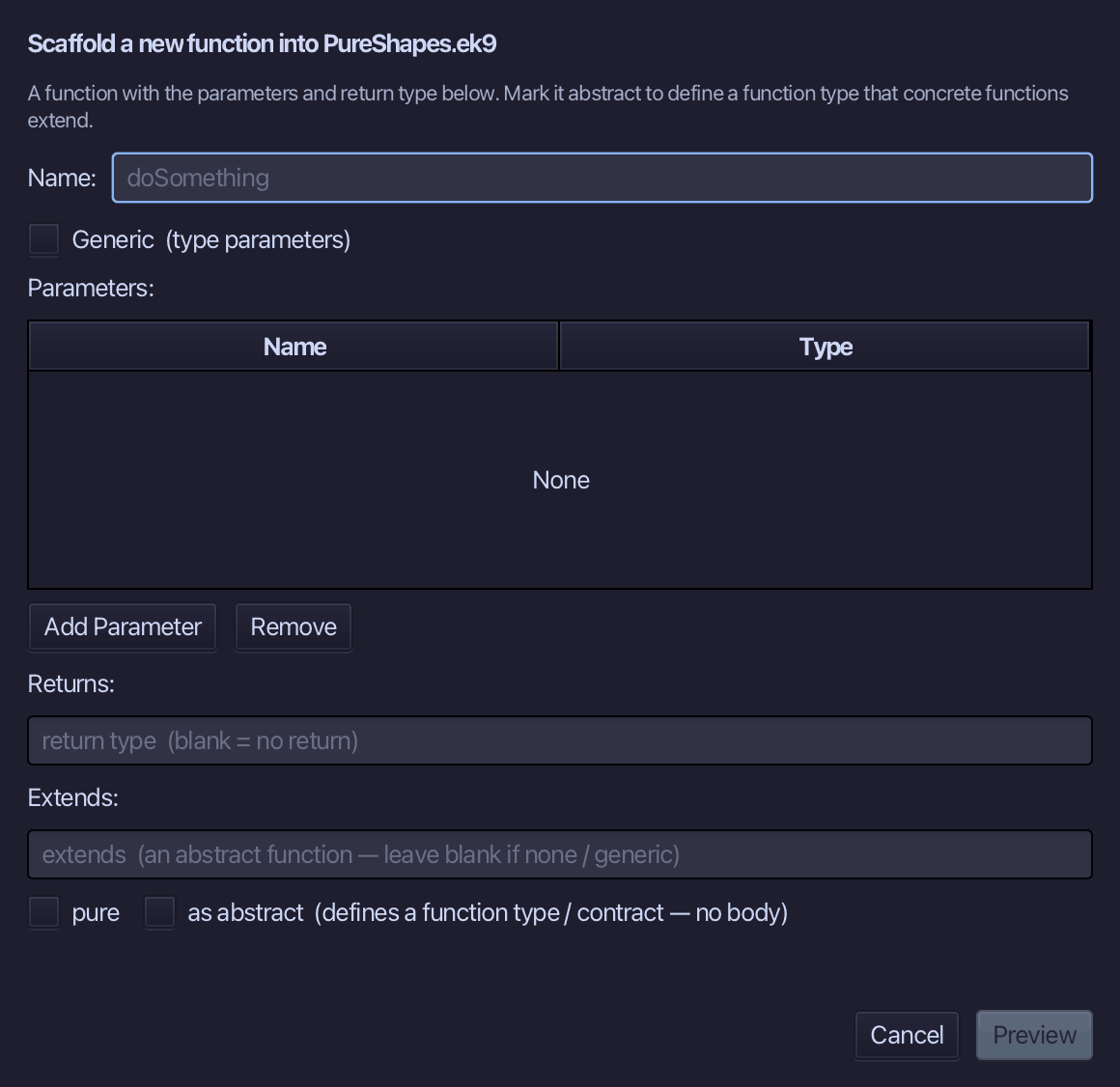
doubled is the function's name. Add one parameter, n of type Integer, set Returns to Integer and tick pure. Choose Preview.
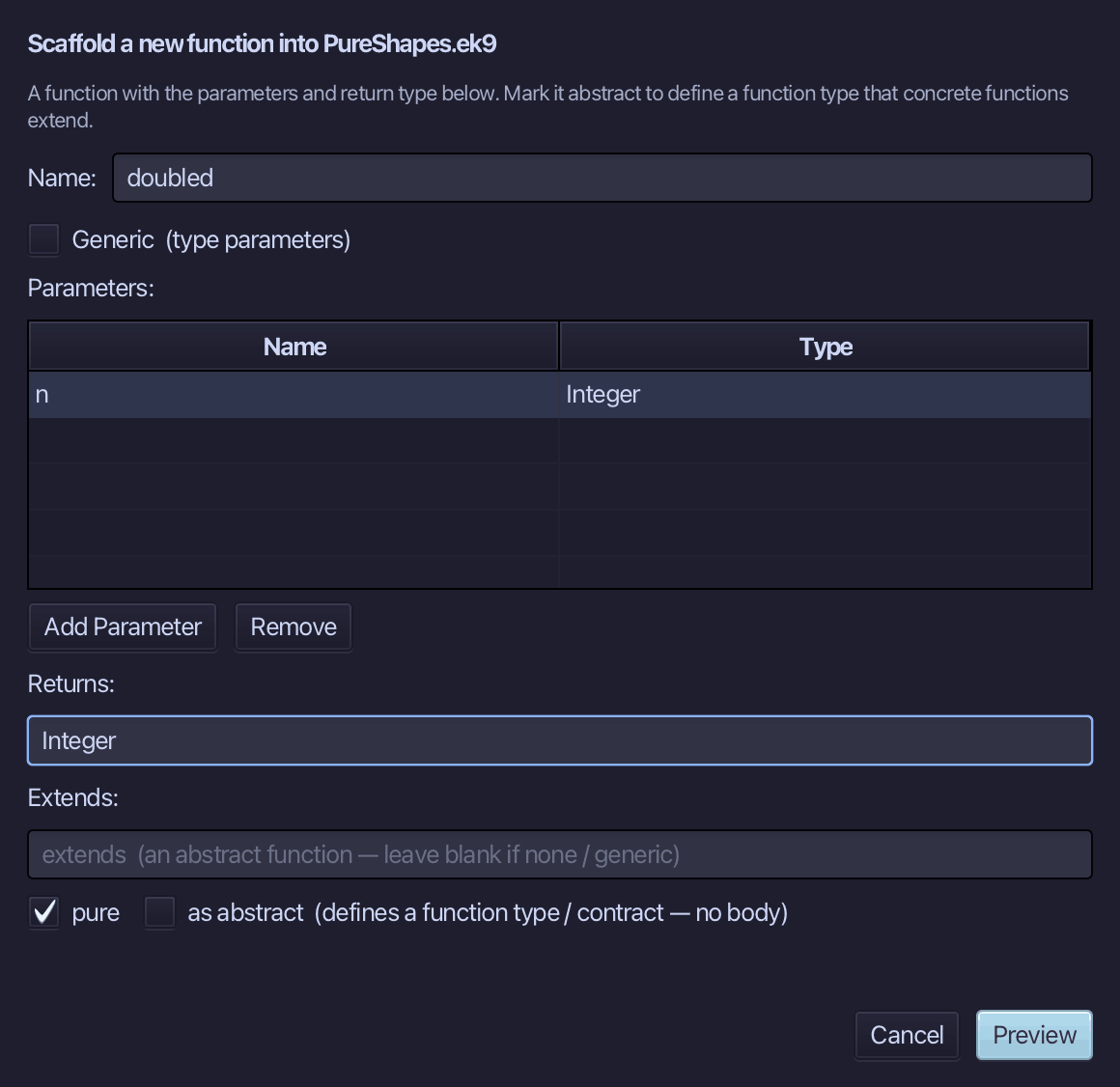
The preview shows doubled about to be written. Choose Apply.
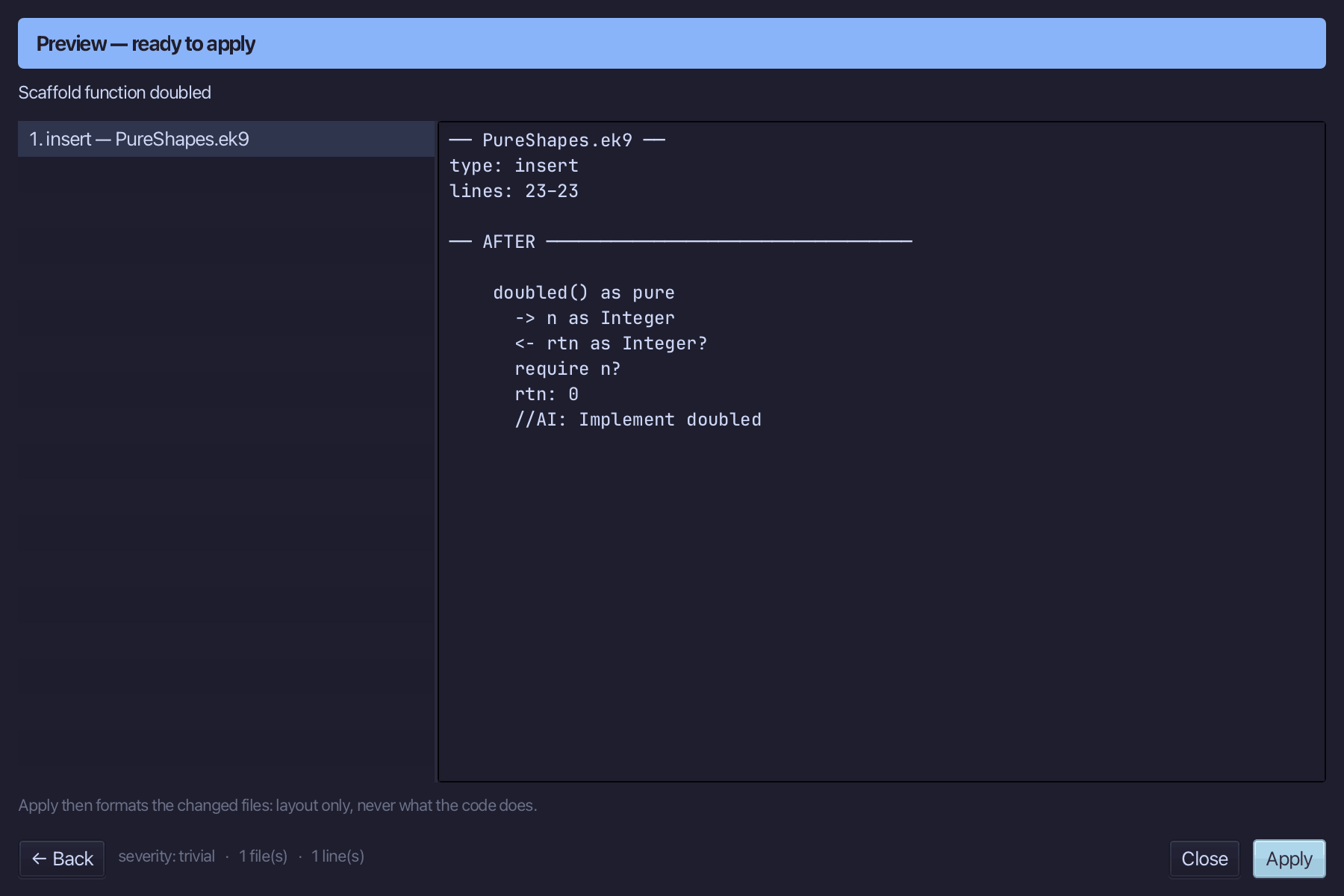
Select the stub, from <- rtn as Integer? down to its //AI line, and type doubled's own return and work, as the book writes them. Saves when typed.
Step 6: describe — a pure function
Choose Code > New Construct > Function…
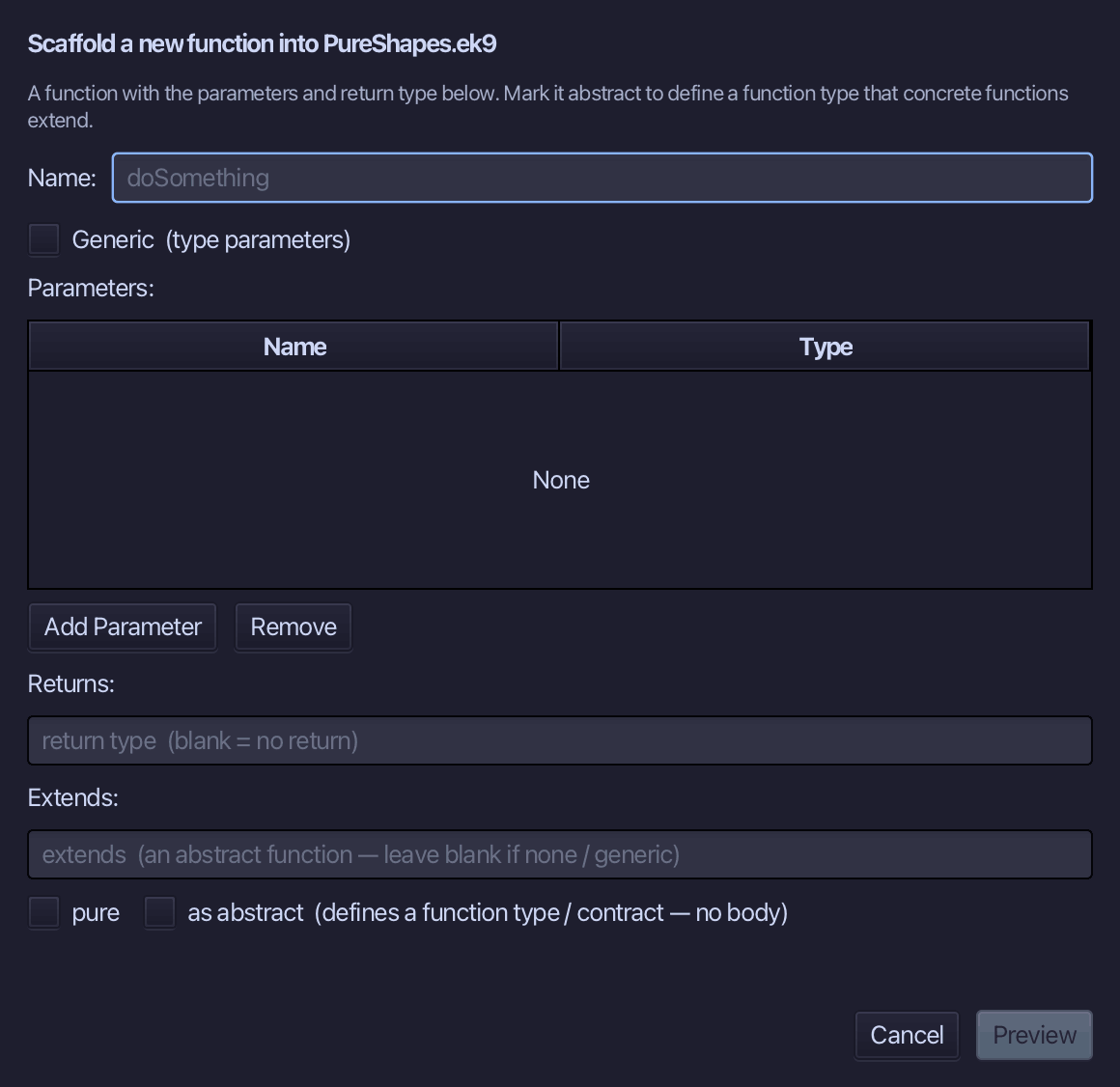
describe is the function's name. Add one parameter, n of type Integer, set Returns to String and tick pure. Choose Preview.
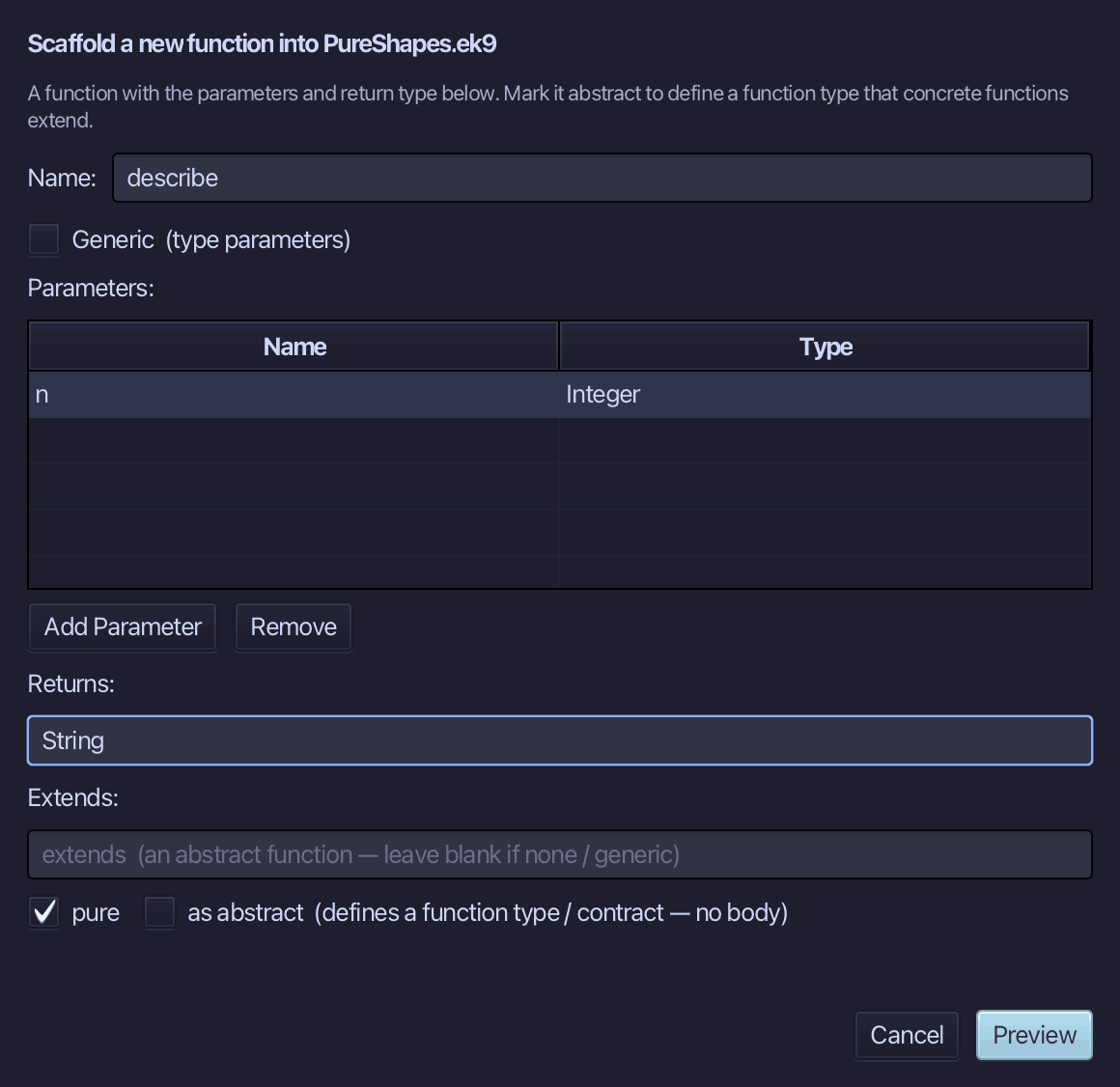
The preview shows describe about to be written. Choose Apply.
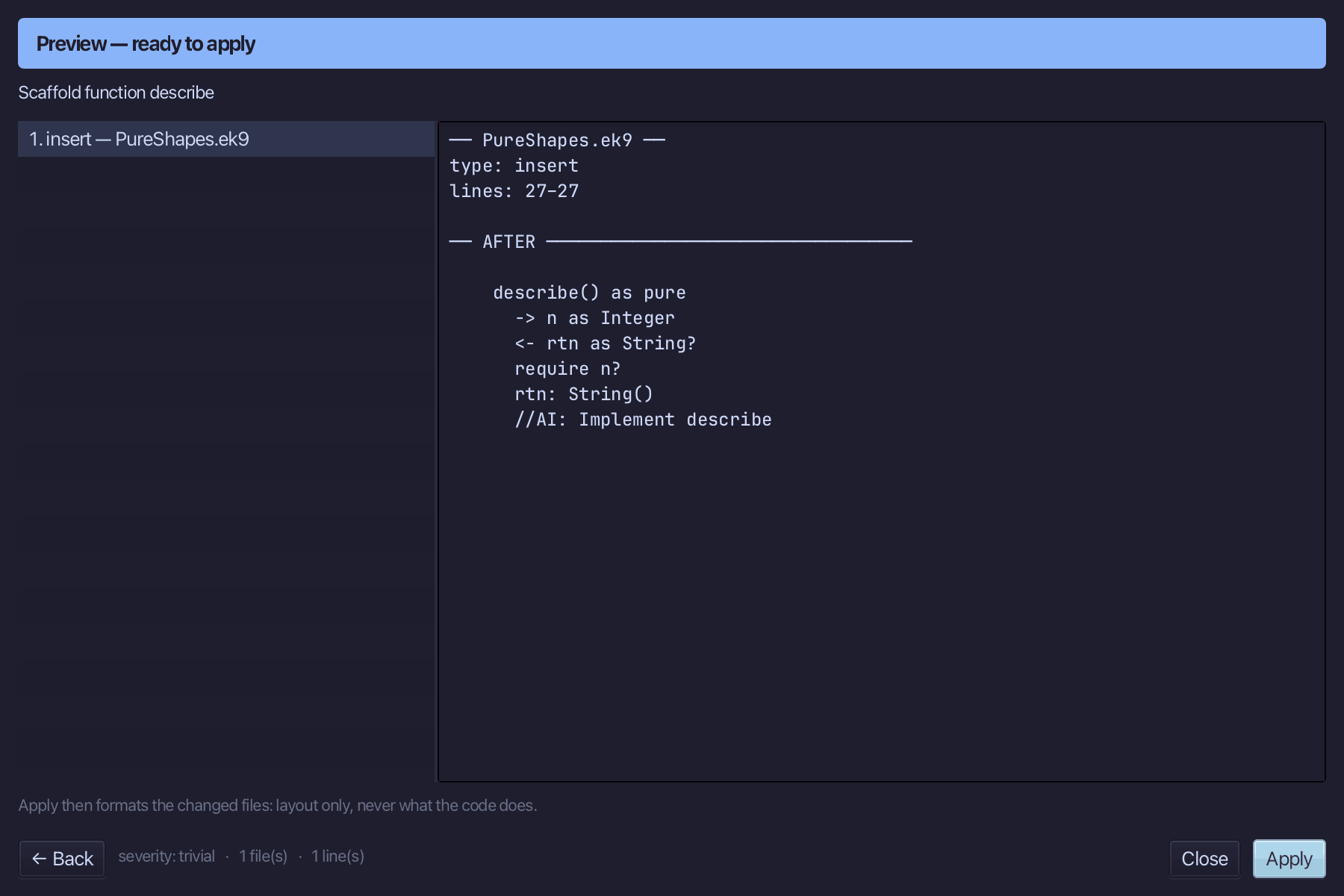
Select the stub, from <- rtn as String? down to its //AI line, and type describe's own return and work, as the book writes them. Saves when typed.
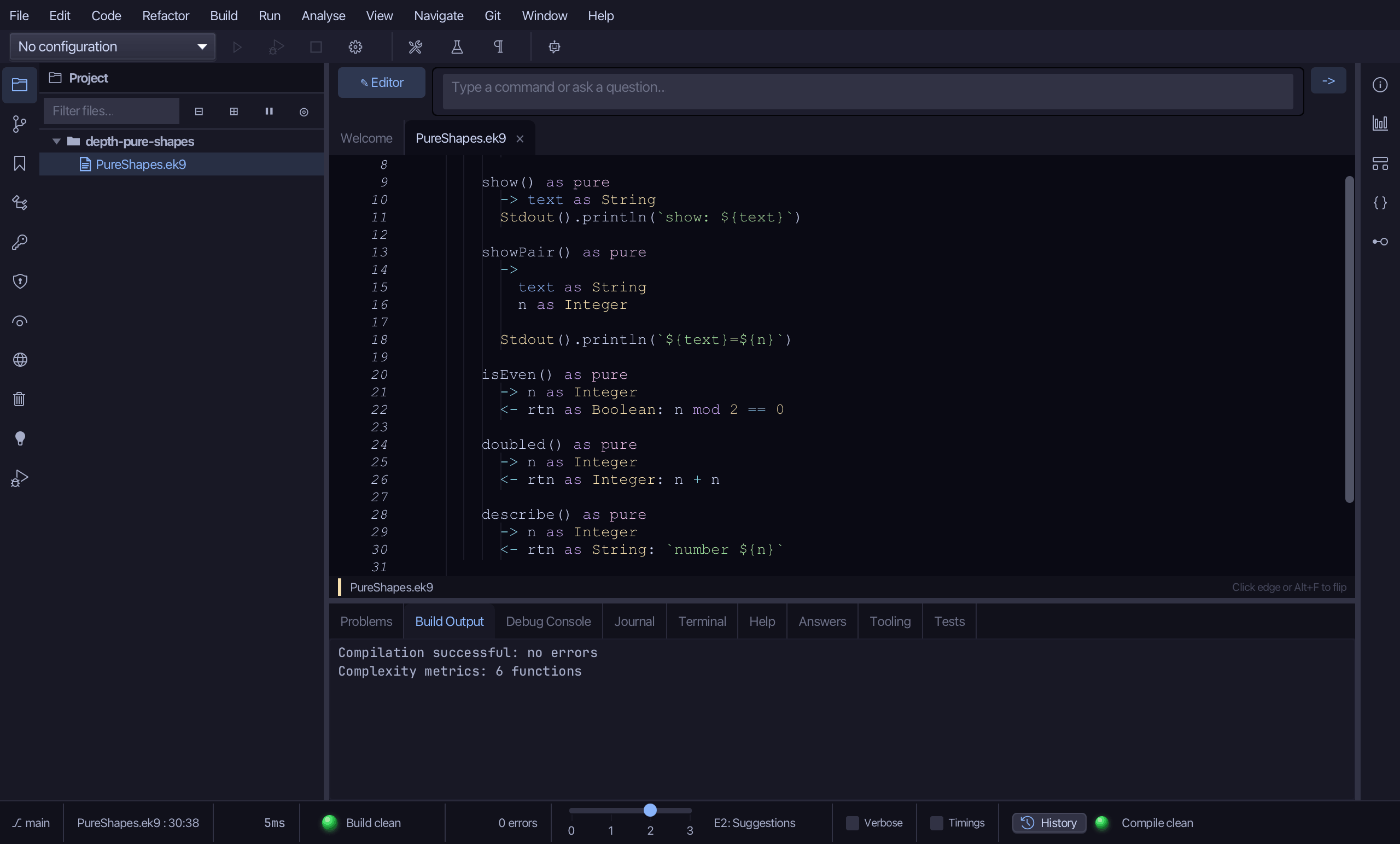
Step 7: byLength — a pure function
Choose Code > New Construct > Function…
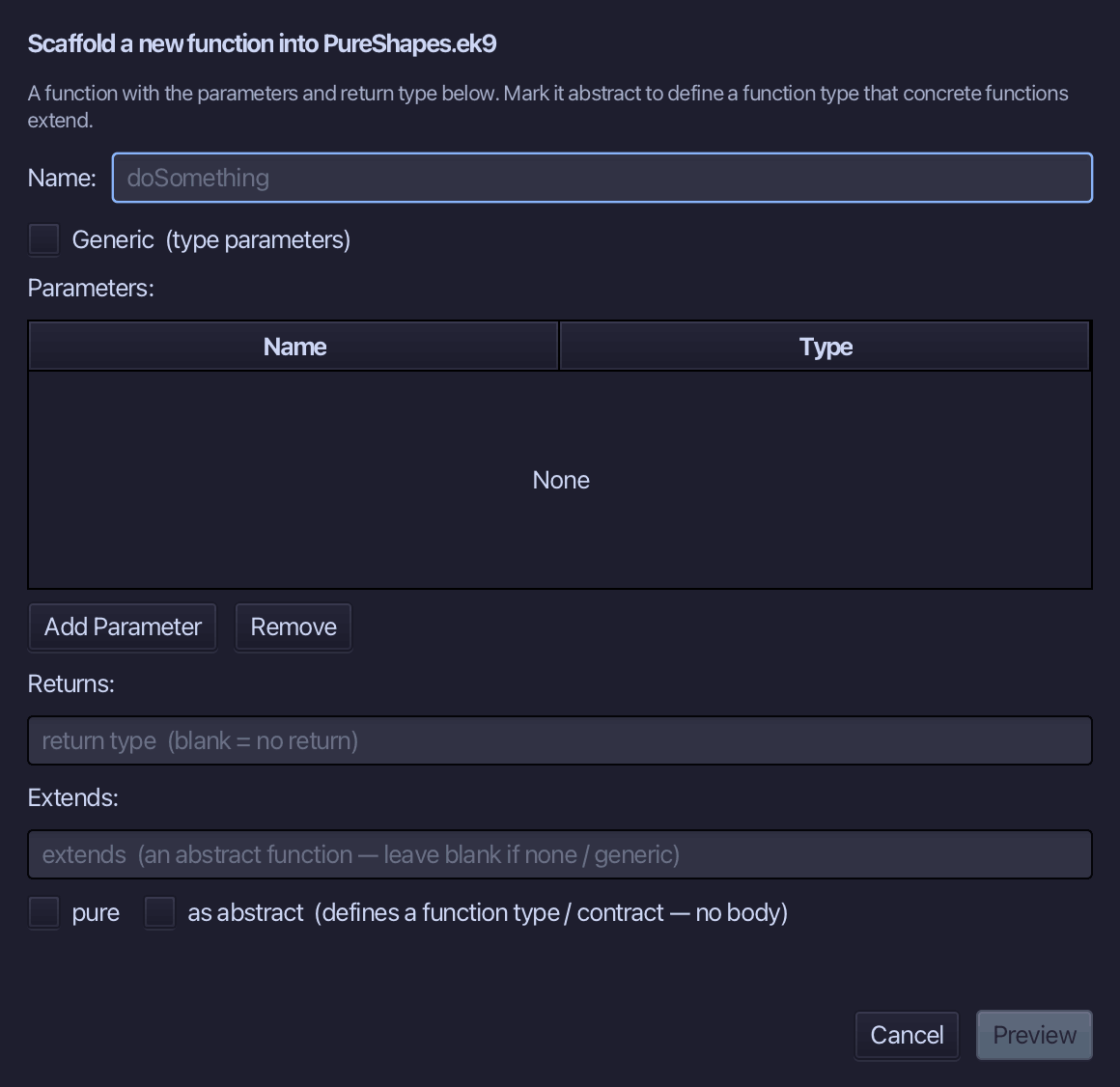
byLength is the function's name. Add the parameters first of type String and second of type String, set Returns to Integer and tick pure. Choose Preview.
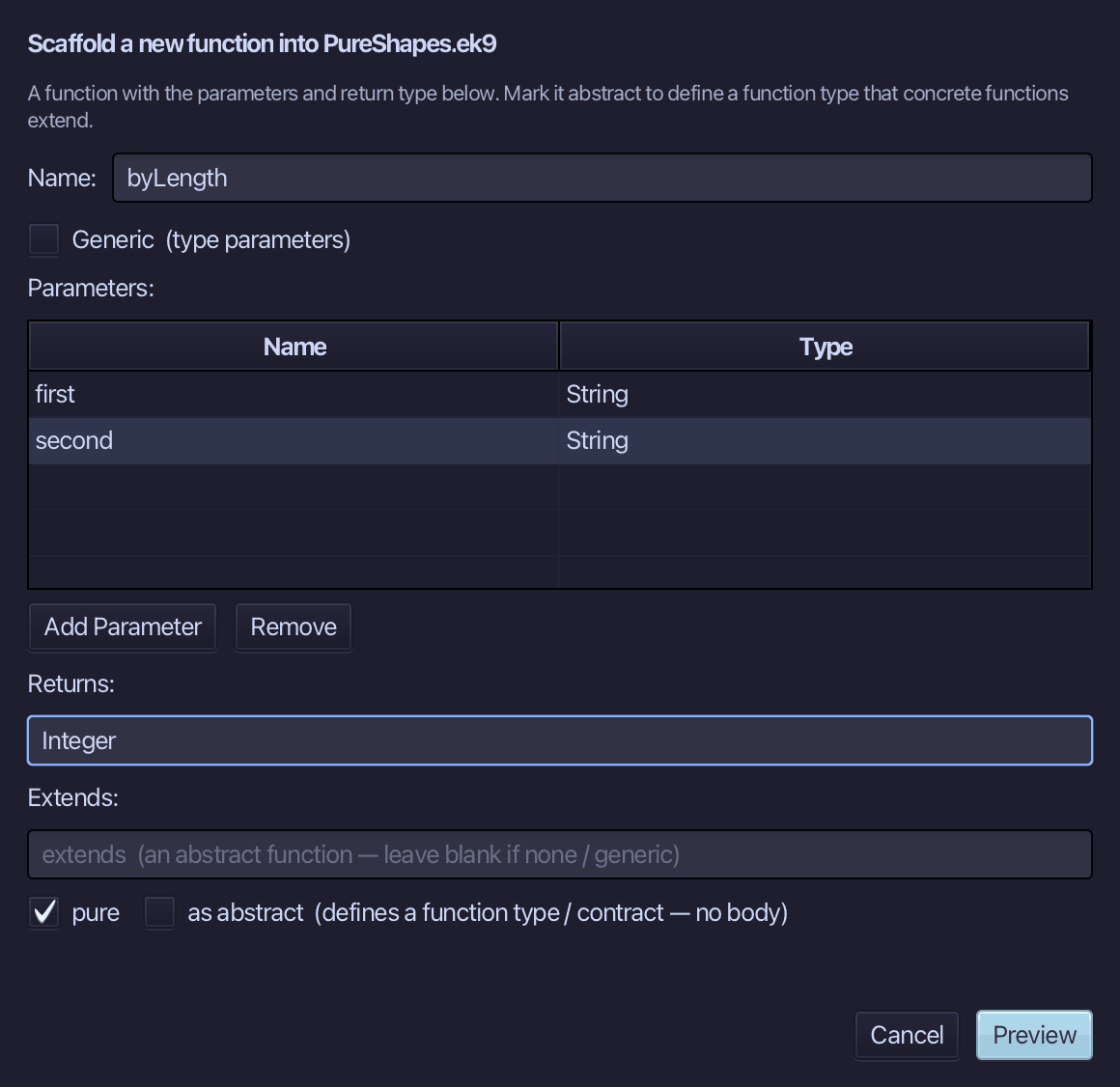
The preview shows byLength about to be written. Choose Apply.
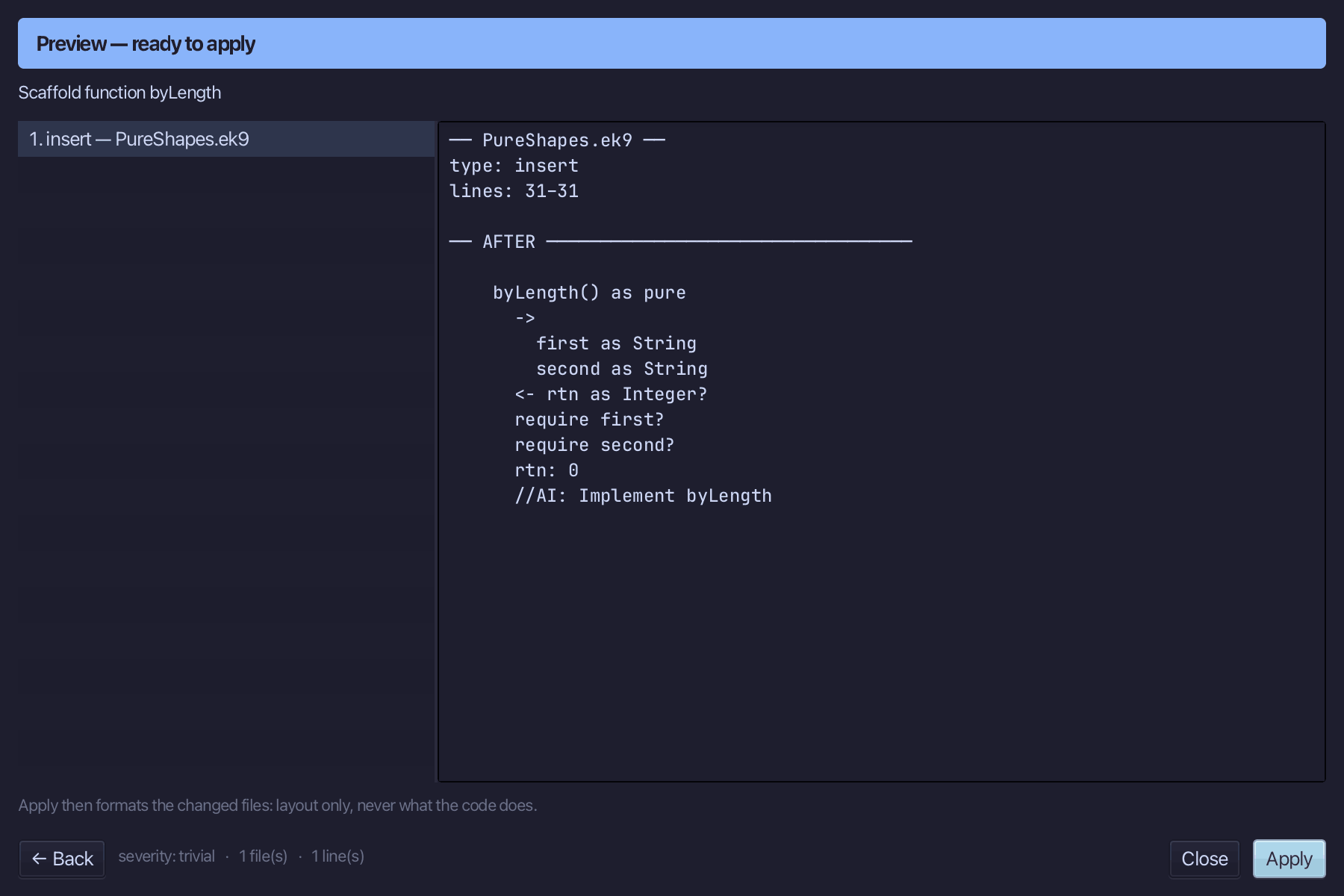
Select the stub, from <- rtn as Integer? down to its //AI line, and type byLength's own return and work, as the book writes them. Saves when typed.
Step 8: longerThan — a pure function
Choose Code > New Construct > Function…
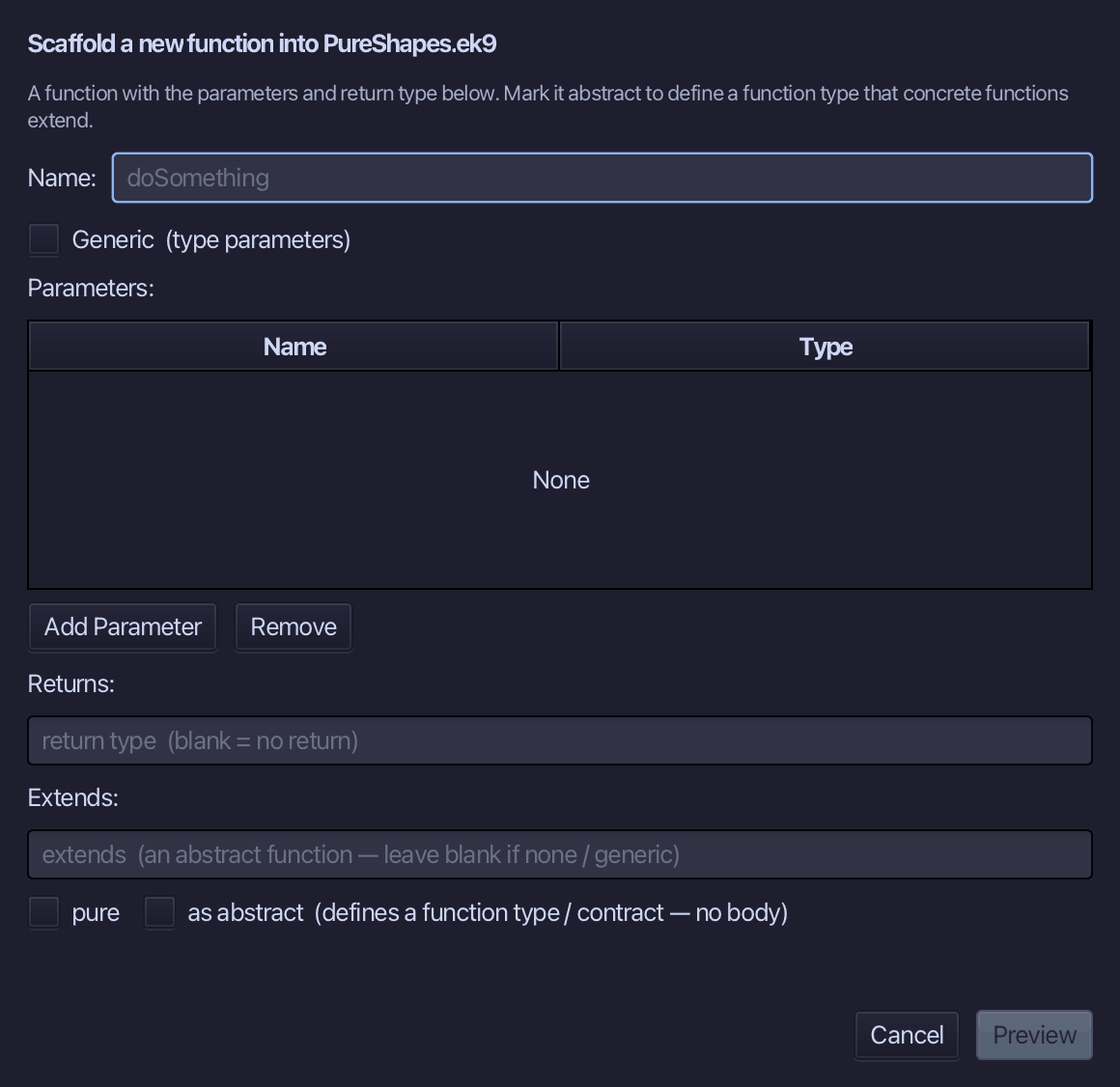
longerThan is the function's name. Add the parameters text of type String and limit of type Integer, set Returns to Boolean and tick pure. Choose Preview.
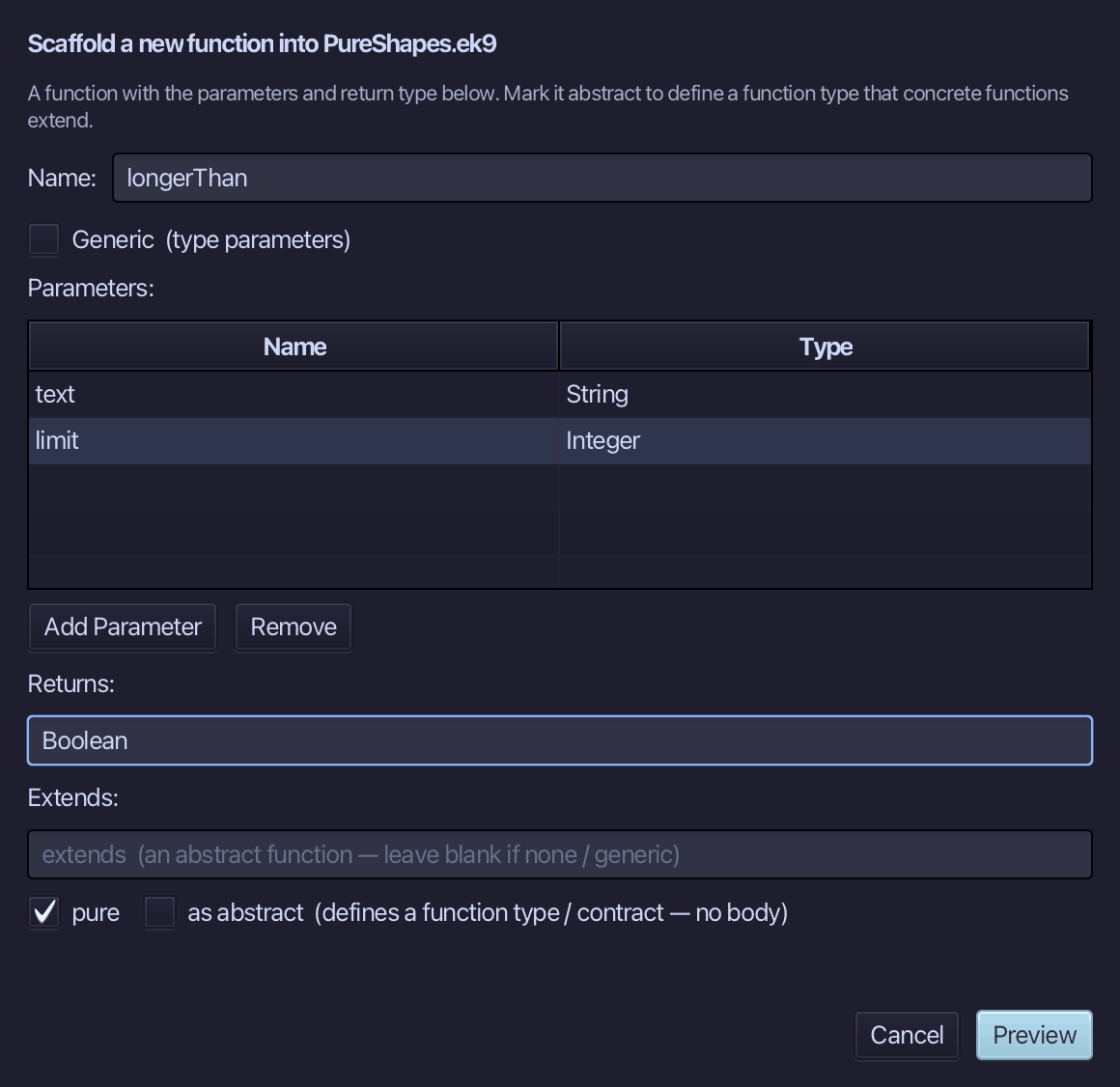
The preview shows longerThan about to be written. Choose Apply.
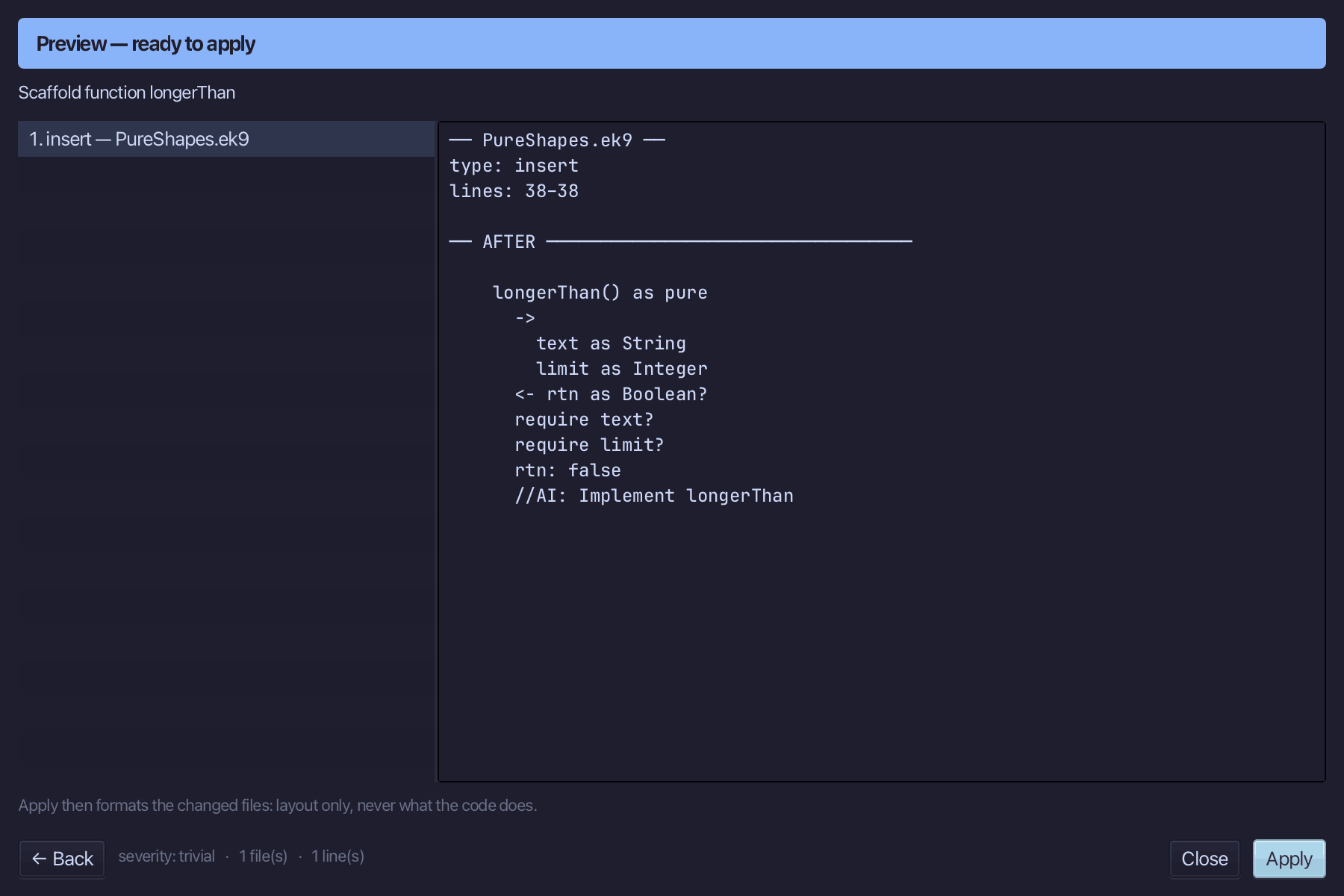
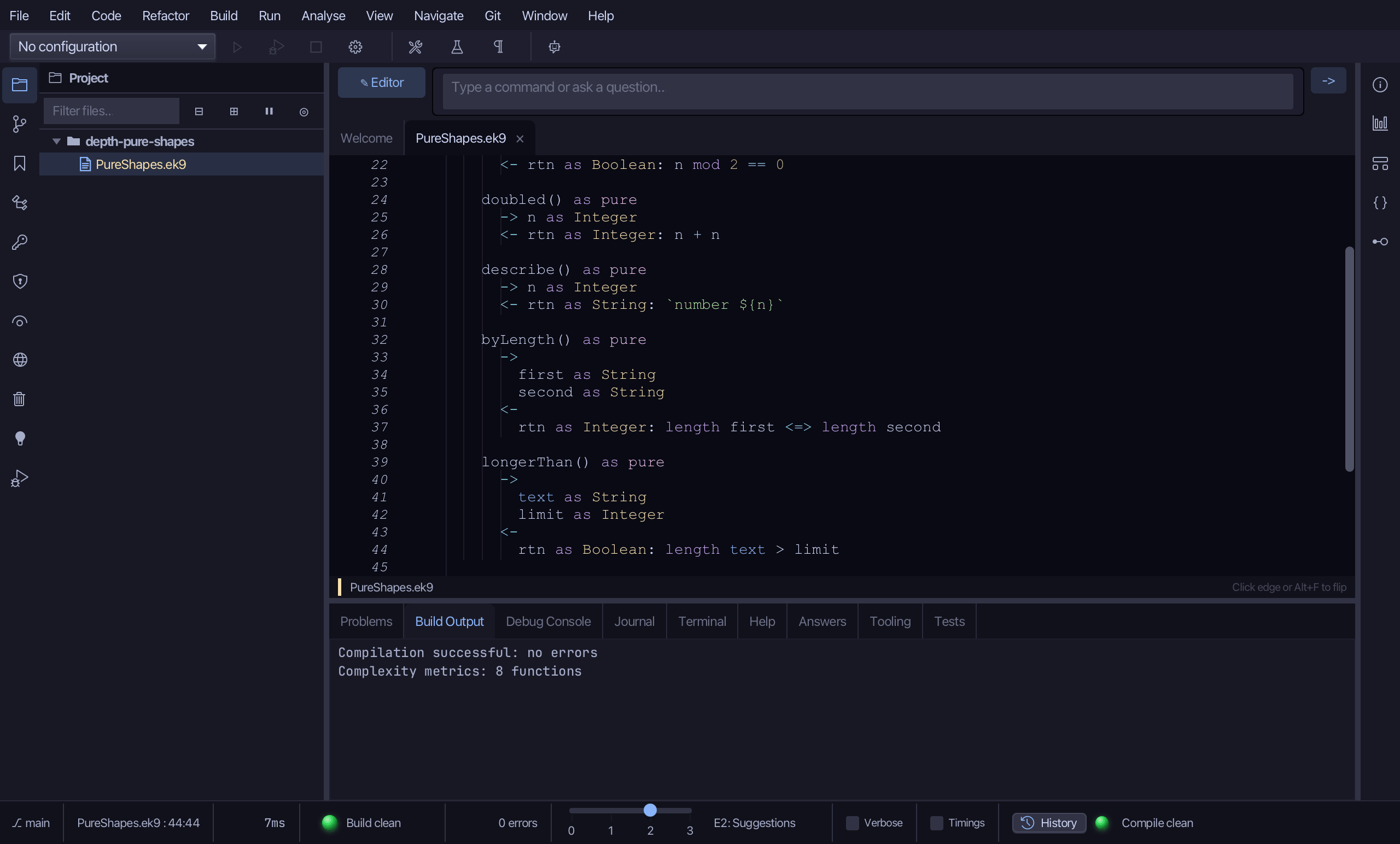
Select the stub, from <- rtn as Boolean? down to its //AI line, and type longerThan's own return and work, as the book writes them. Saves when typed.
Step 9: tagged — a pure function
Choose Code > New Construct > Function…
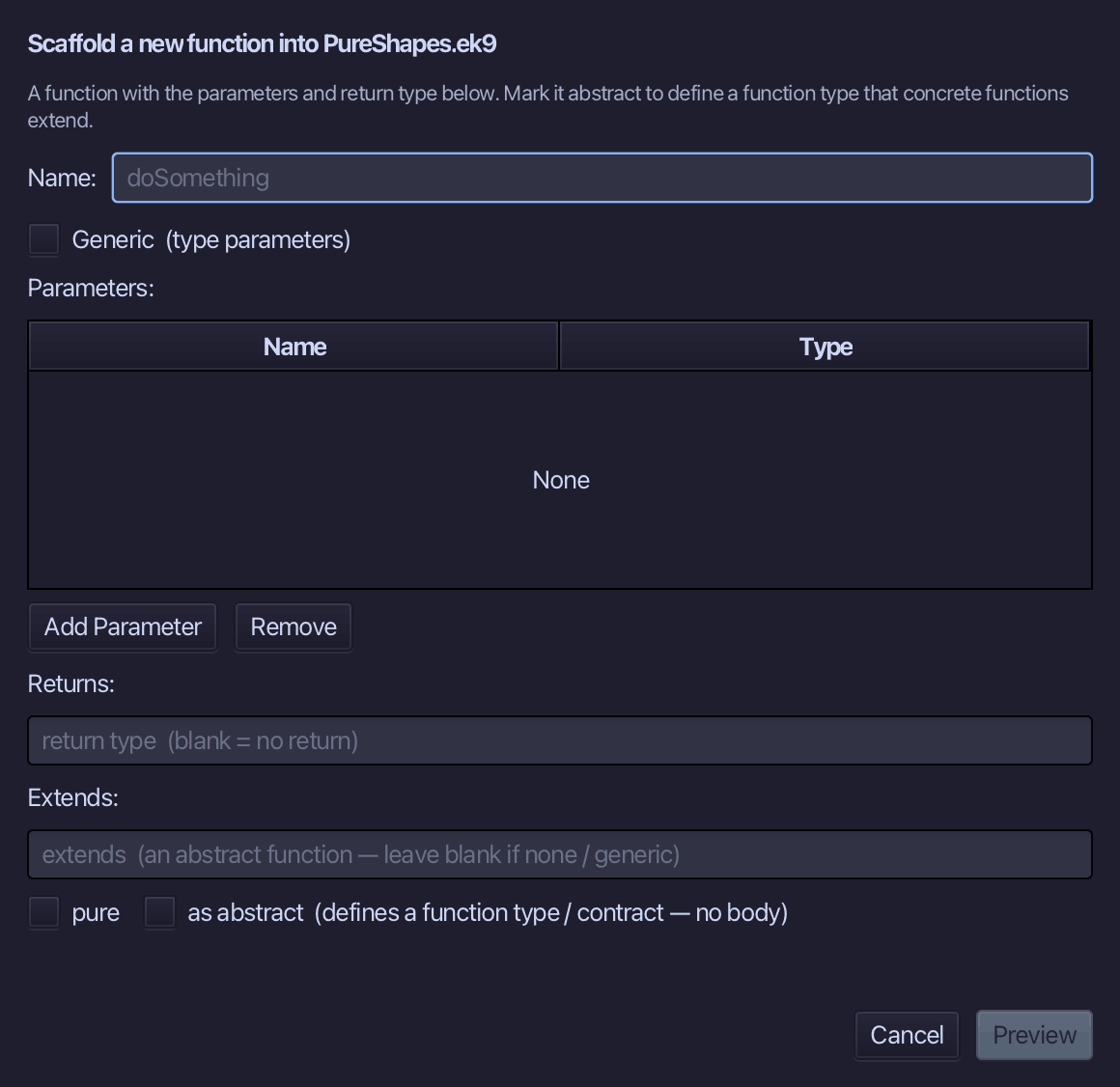
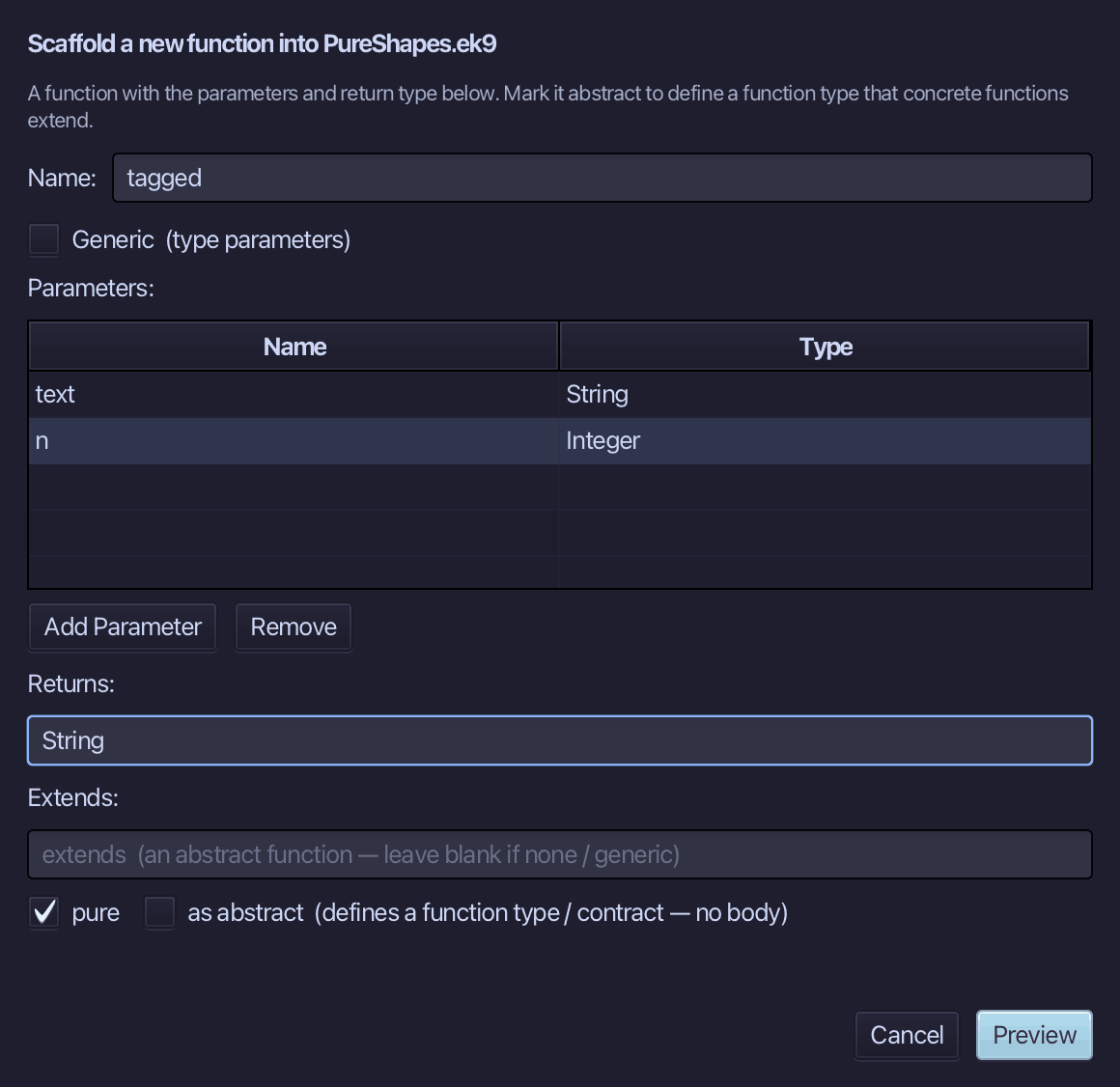
tagged is the function's name. Add the parameters text of type String and n of type Integer, set Returns to String and tick pure. Choose Preview.
The preview shows tagged about to be written. Choose Apply.
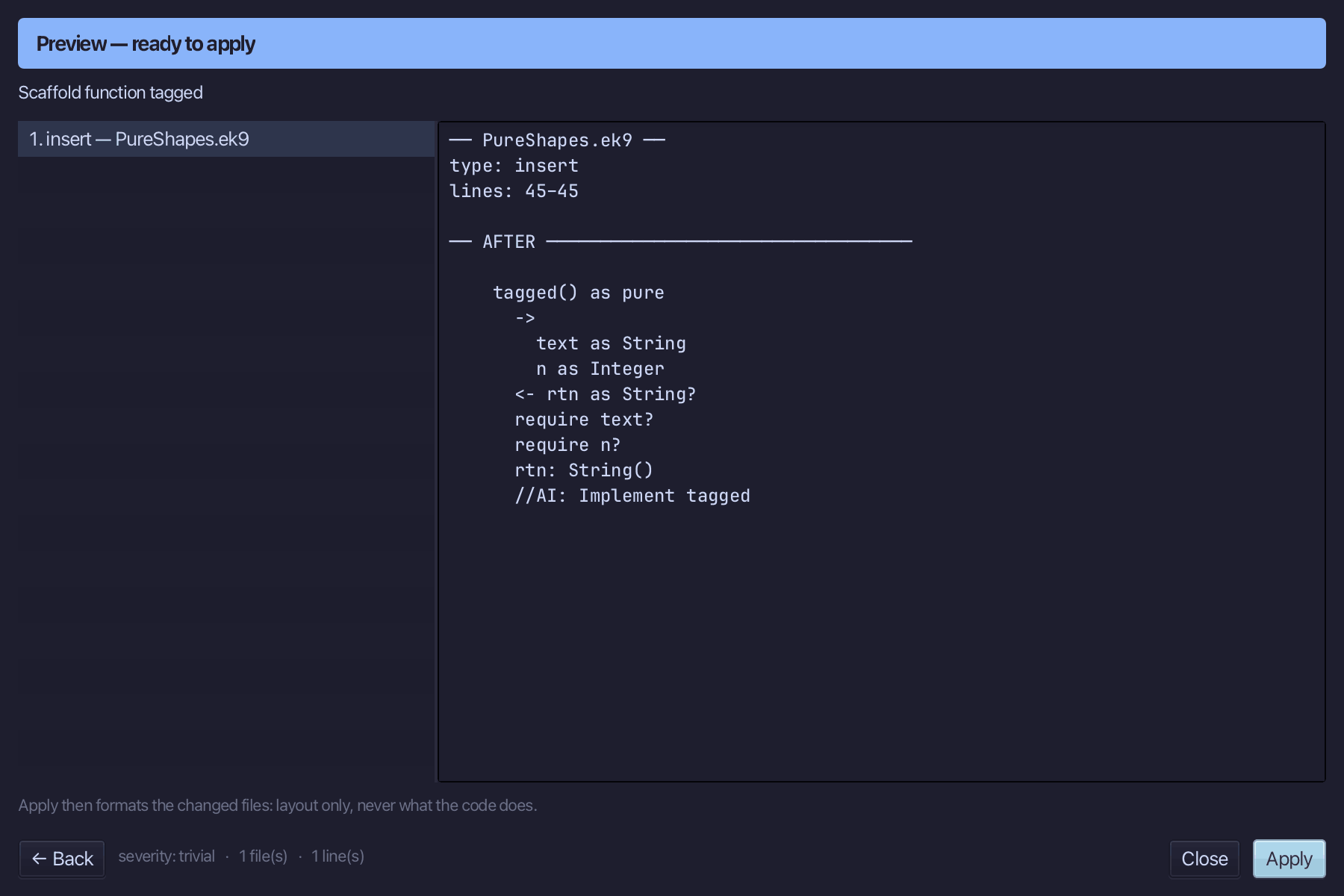
Select the stub, from <- rtn as String? down to its //AI line, and type tagged's own return and work, as the book writes them. Saves when typed.
Step 10: The program
Choose Code > New Construct > Program…
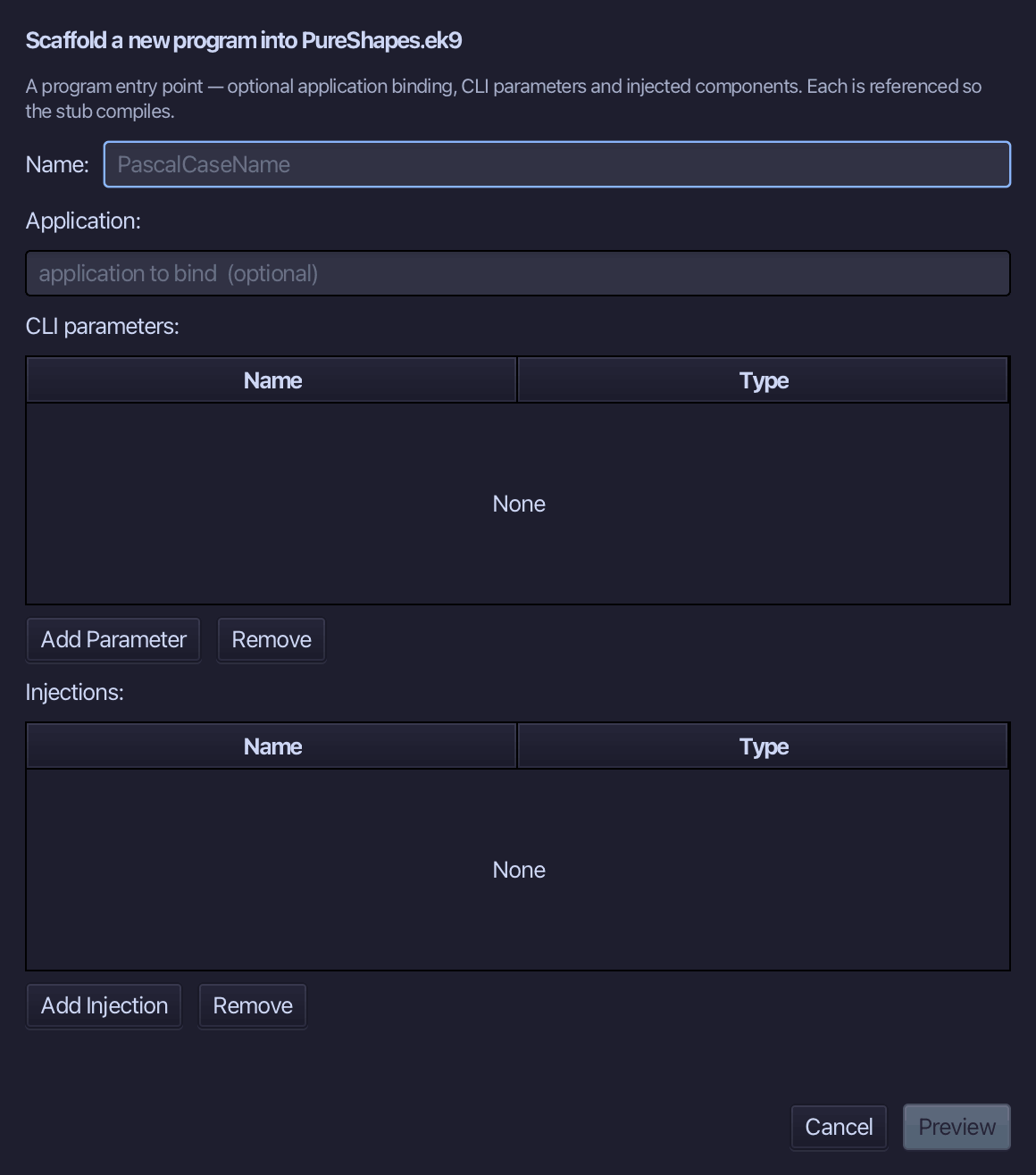
PureShapes is the program's name. Choose Preview.
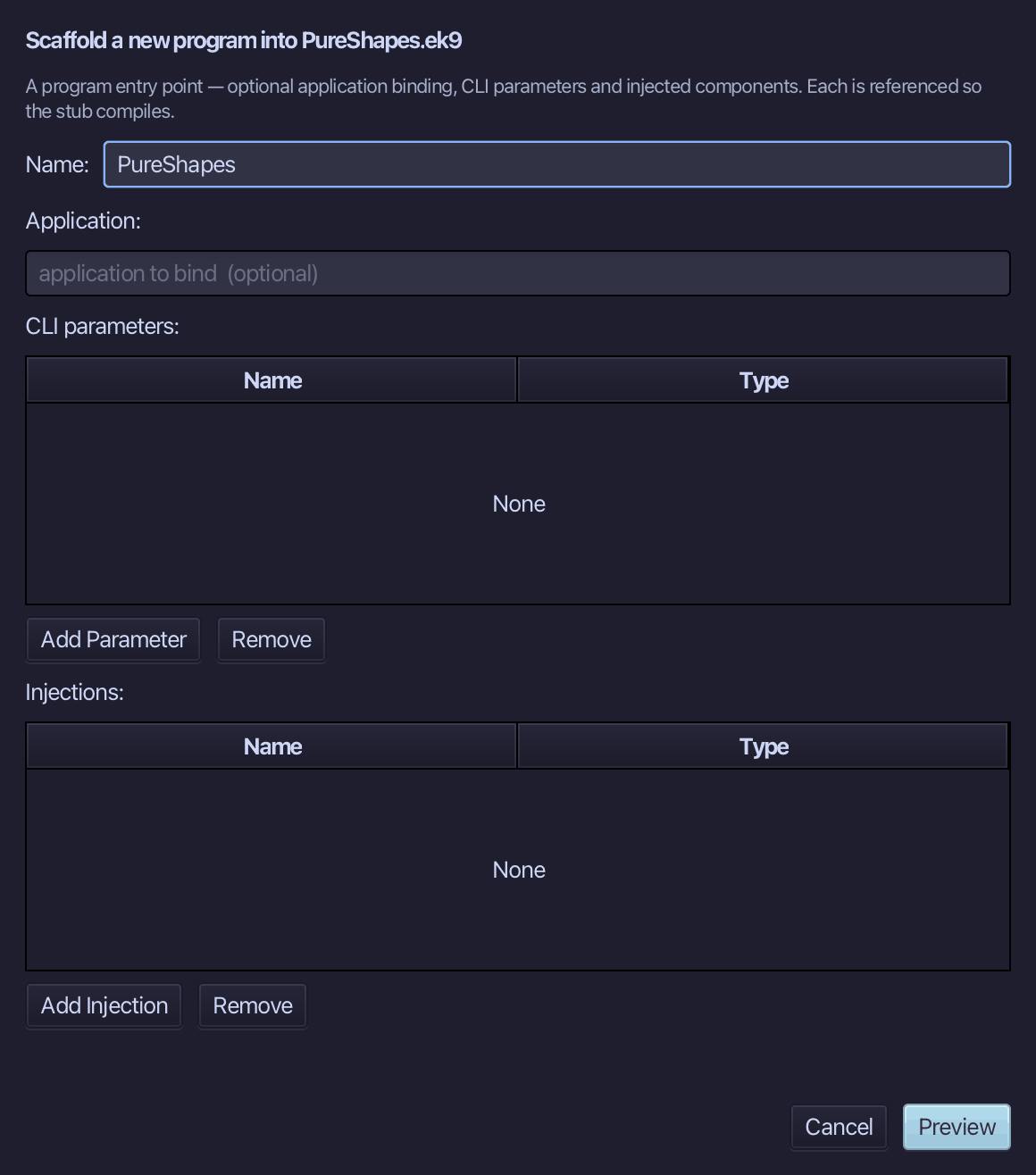
The preview shows PureShapes about to be written. Choose Apply.
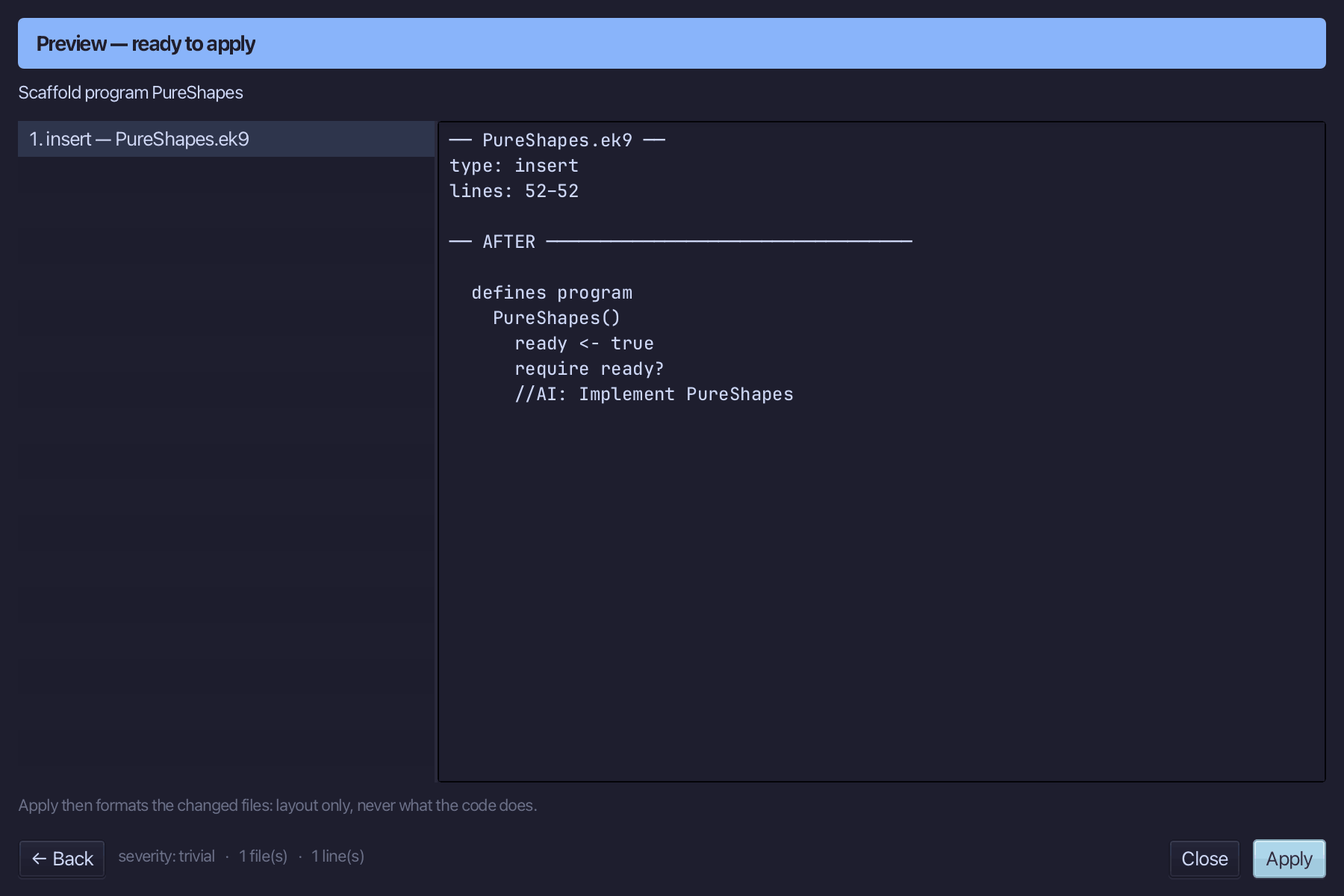
Select the PureShapes() line and, above it, type the blank line the book opens the program with. Saves when typed.
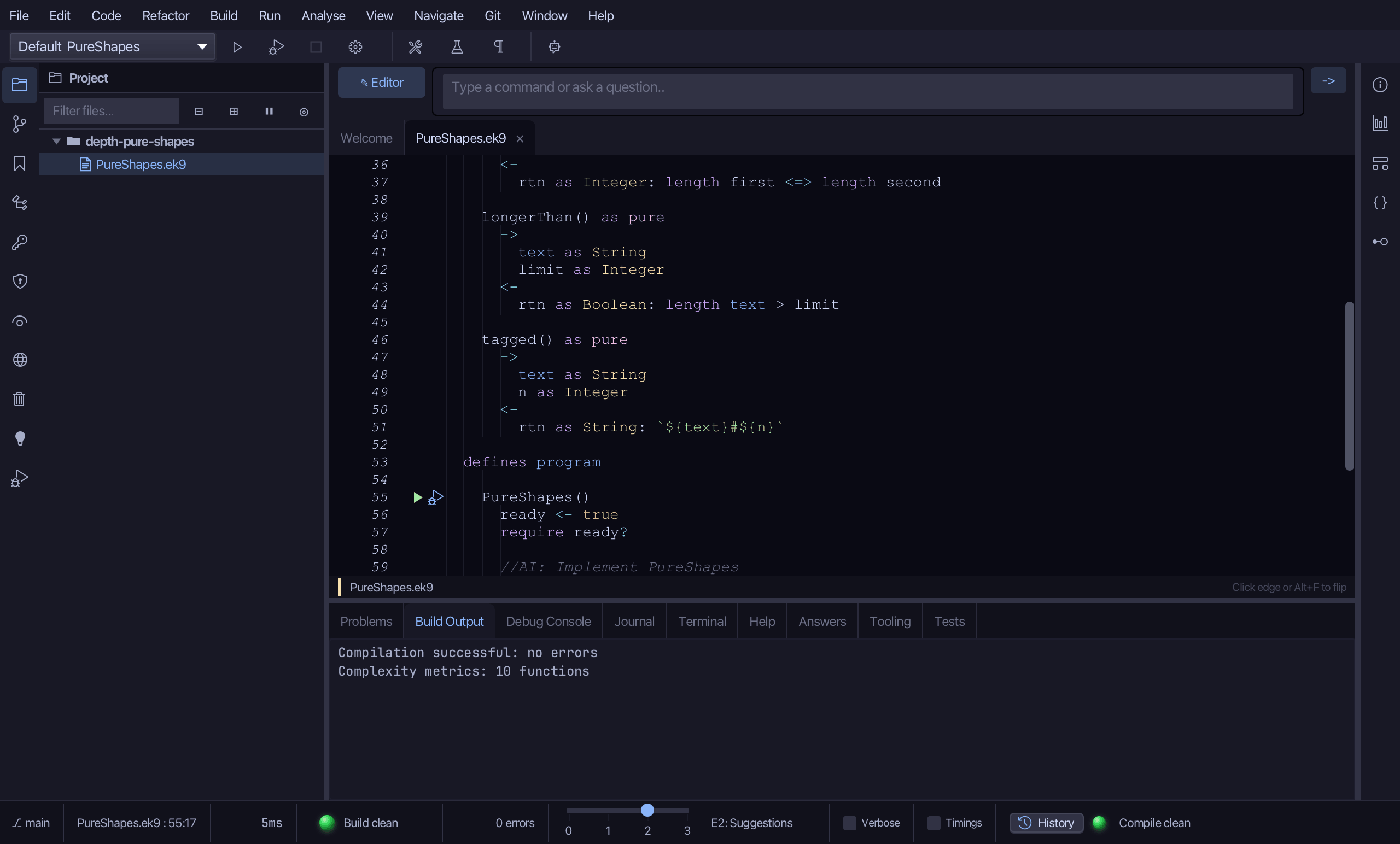
Select the stub, from ready <- true down to its //AI line, and type PureShapes's body exactly as the chapter shows it. Saves when typed.
Step 11: Run it
Choose Run > Run Program…
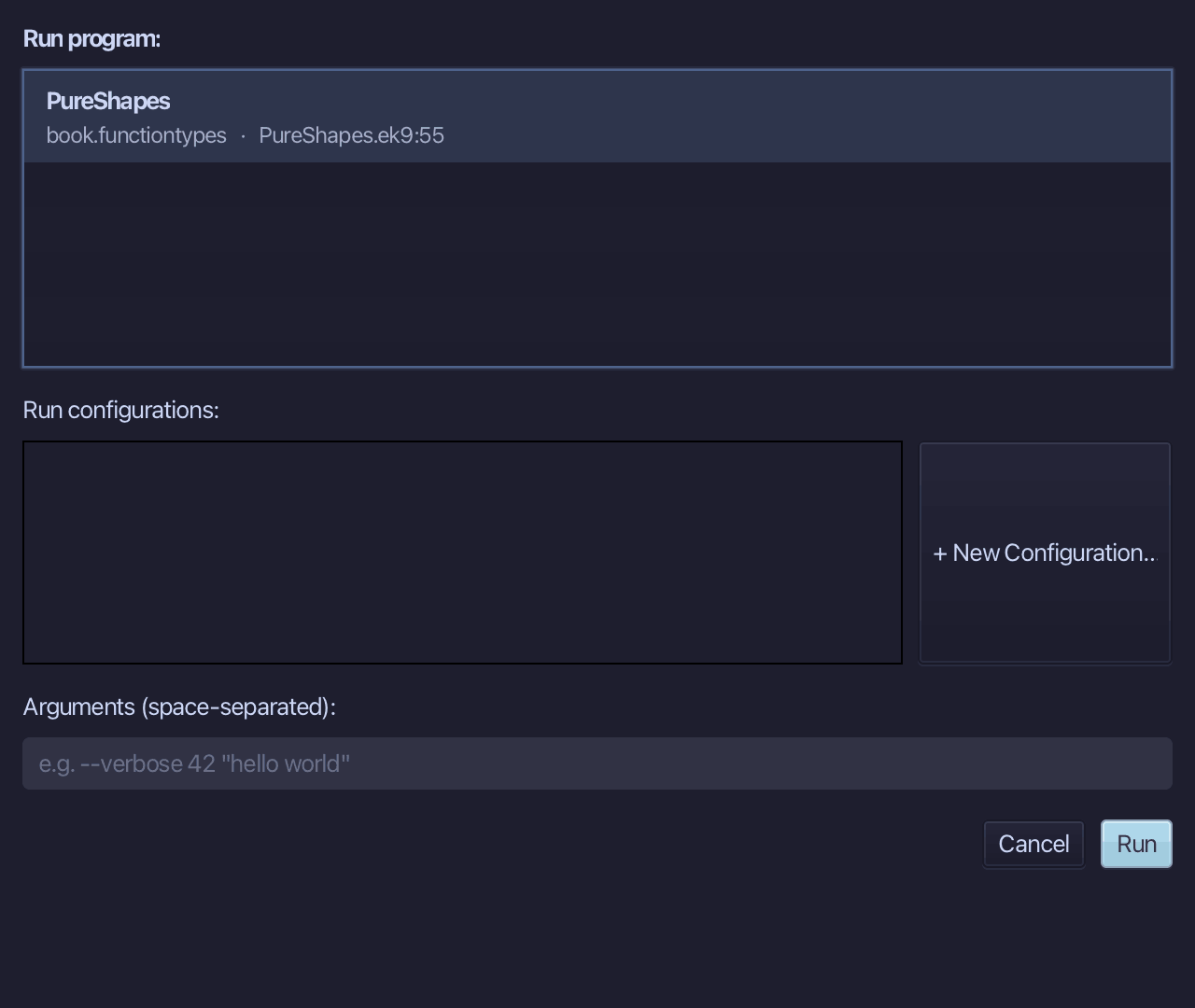
The project's only program is already chosen. Choose Run.
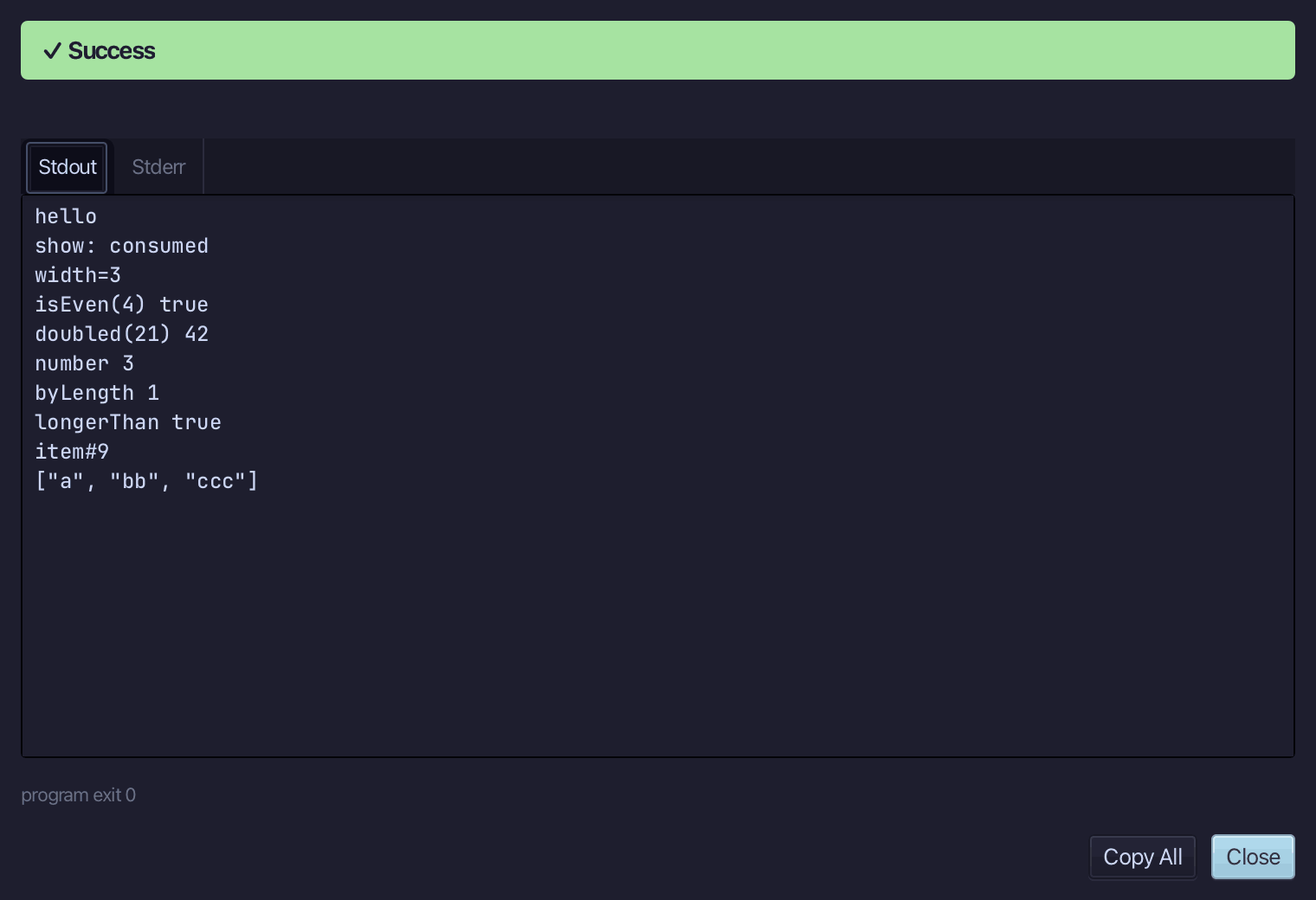
hello, show: consumed, width=3, isEven(4) true, doubled(21) 42, number 3, byLength 1, longerThan true, item#9, and the words sorted by length: a, bb, ccc. Choose Close.
The result
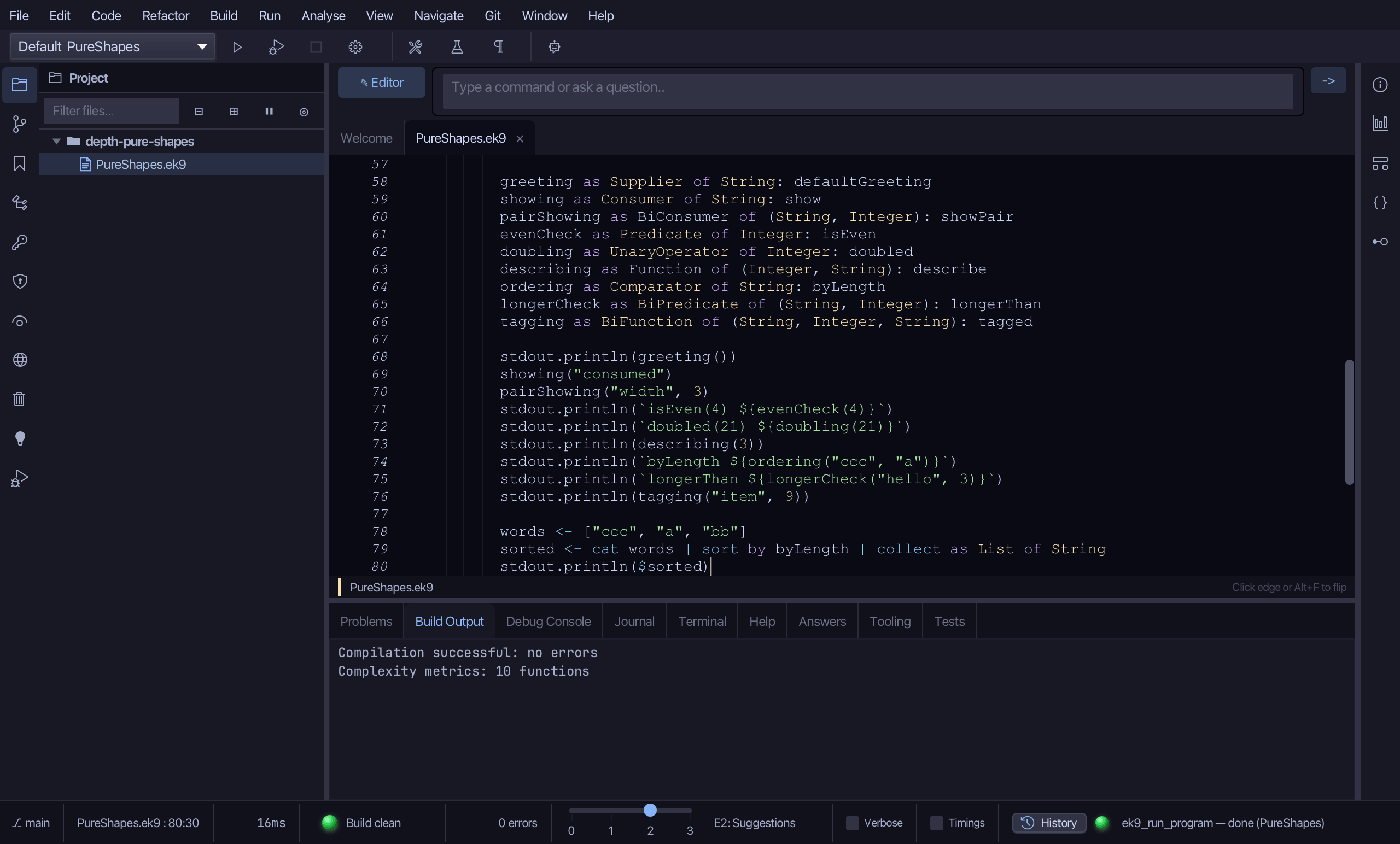
PureShapes.ek9 now reads exactly as chapter 26 of EK9 in Depth shows it. Nothing in the nine functions mentions Predicate or Comparator - the variable's type names what the compiler worked out, and the function goes in by name. byLength even sorts the List as it is, a Comparator the stream accepts.
Where this lesson comes from
- For AI assistants - the MCP tool
ek9_new_construct,ek9_add_program.