Chapter 34: the seams that make a game testable, built
The notifier example showed the seam; this one shows what it buys. A guessing game gets its secret and its player from components, so the live program asks the operating system and the keyboard while a test supplies a fixed number and a script. The lesson builds the game and its live wiring in one file, then a second file of test doubles, three test wirings and eight tests. To play it in the IDE: Help > Lessons > EK9 in Depth…, or ek9 -ide -lesson depth-guess-seam.
What you'll build
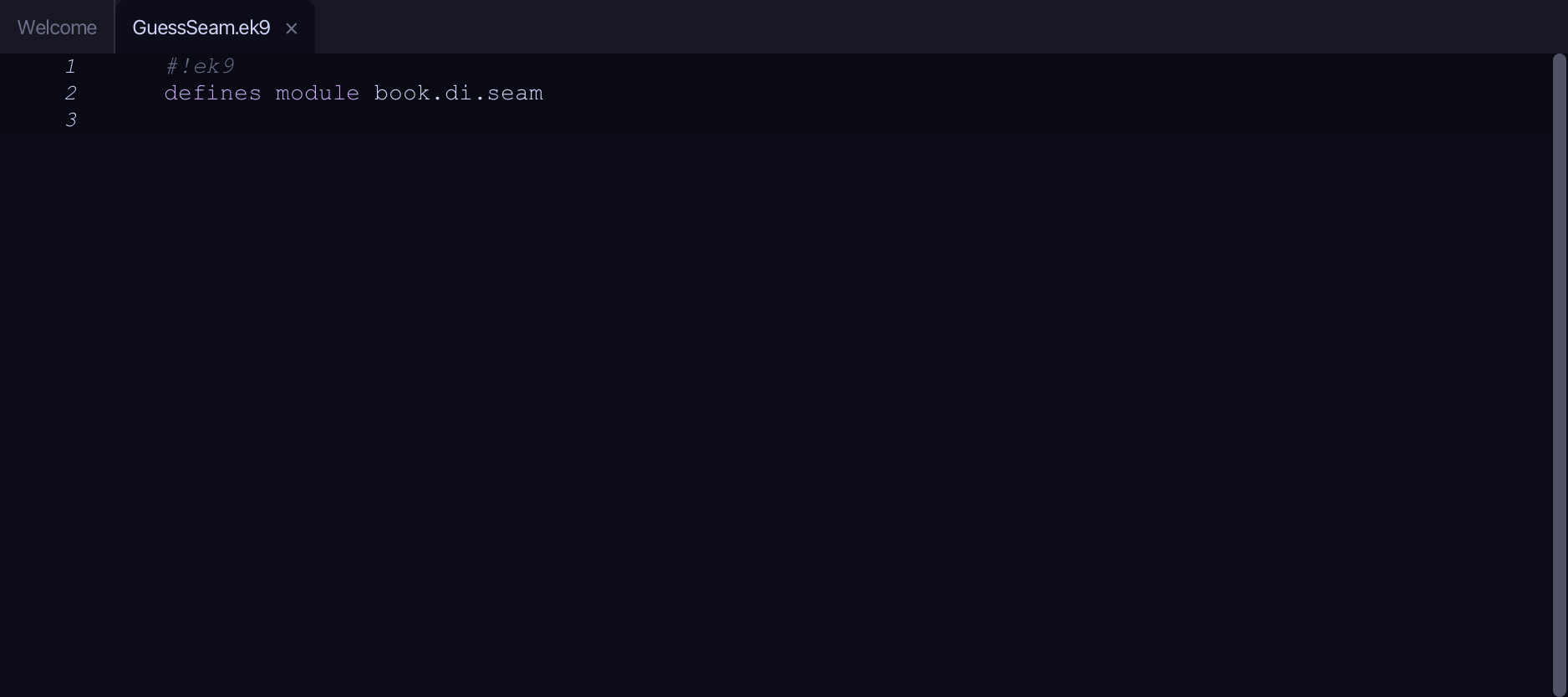
The lesson builds this program from a file holding only its module line - the finished file, as the book prints it.
guess-seam/GuessSeam.ek9
#!ek9
defines module book.di.seam

  defines constant
    HIGHEST <- 100

    MAX_TRIES <- 7

  defines class

    GuessGame
      secrets as SecretSource!
      player as Player!

      play()
        <- rtn as String?
        secret <- secrets.secret()
        if not onTheBoard(secret)
          throw Exception(`the secret ${secret} is not from 1 to ${HIGHEST}`)
        tries <- 0
        solved <- false
        while triesLeft(tries) and not solved
          tries++
          if guess <- player.nextGuess()
            solved := guess == secret
            Stdout().println(hint(secret, guess))
        rtn: verdict(solved, tries)

      default operator ?

  defines function

    hint() as pure
      ->
        secret as Integer
        guess as Integer
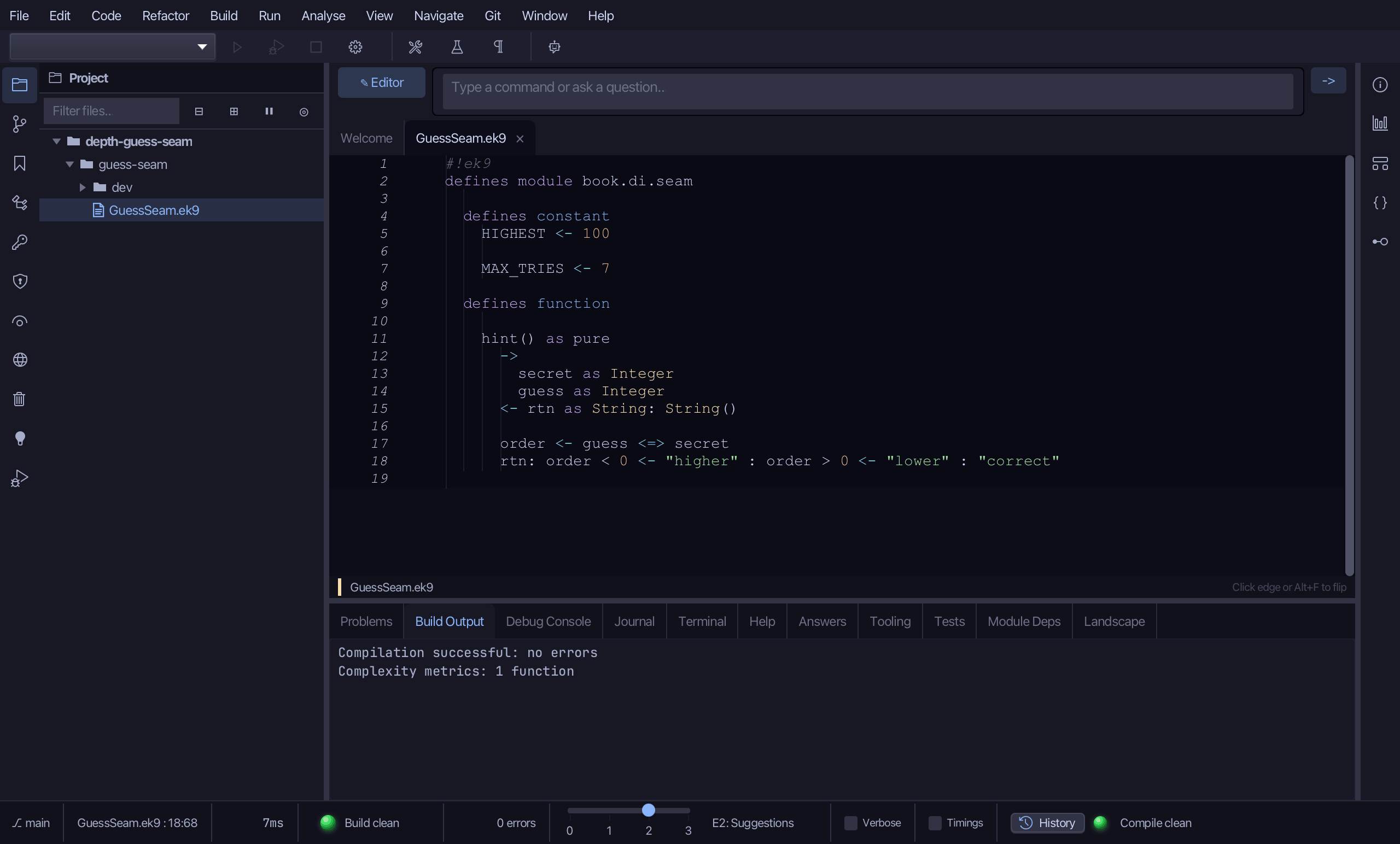
      <- rtn as String: String()

      order <- guess <=> secret
      rtn: order < 0 <- "higher" : order > 0 <- "lower" : "correct"

    onTheBoard() as pure
      -> secret as Integer
      <- rtn as Boolean: secret >= 1 and secret <= HIGHEST

    triesLeft() as pure
      -> tries as Integer
      <- rtn as Boolean: tries < MAX_TRIES

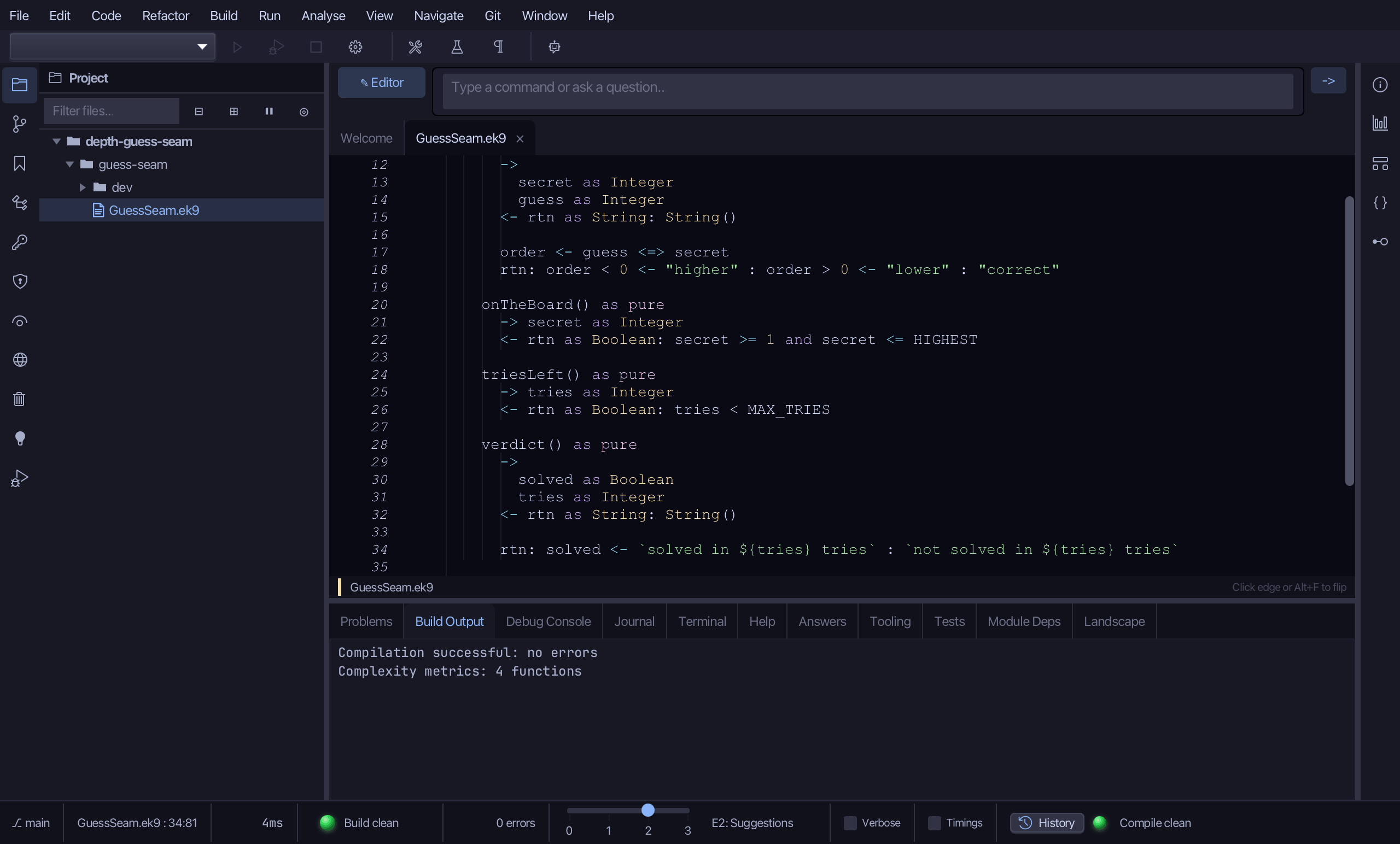
    verdict() as pure
      ->
        solved as Boolean
        tries as Integer
      <- rtn as String: String()

      rtn: solved <- `solved in ${tries} tries` : `not solved in ${tries} tries`

  defines component

    SecretSource as abstract
      secret() as abstract
        <- rtn as Integer?

    Player as abstract
      nextGuess() as abstract
        <- rtn as Integer?

    RandomSecret is SecretSource
      override secret()
        <- rtn as Integer: OS().random(1, HIGHEST)

    KeyboardPlayer is Player
      override nextGuess()
        <- rtn as Integer: Integer(Stdin().next())

  defines application

    liveGame
      register RandomSecret() as SecretSource
      register KeyboardPlayer() as Player

  defines program

    Play() with application of liveGame
      game <- GuessGame()
      Stdout().println(game.play())
guess-seam/dev/GuessSeamTests.ek9
#!ek9
defines module book.di.seam.tests

  references
    book.di.seam::GuessGame
    book.di.seam::HIGHEST
    book.di.seam::hint
    book.di.seam::Player
    book.di.seam::RandomSecret
    book.di.seam::SecretSource
    book.di.seam::triesLeft
    book.di.seam::verdict

  defines component

    FixedSecret is SecretSource
      override secret()
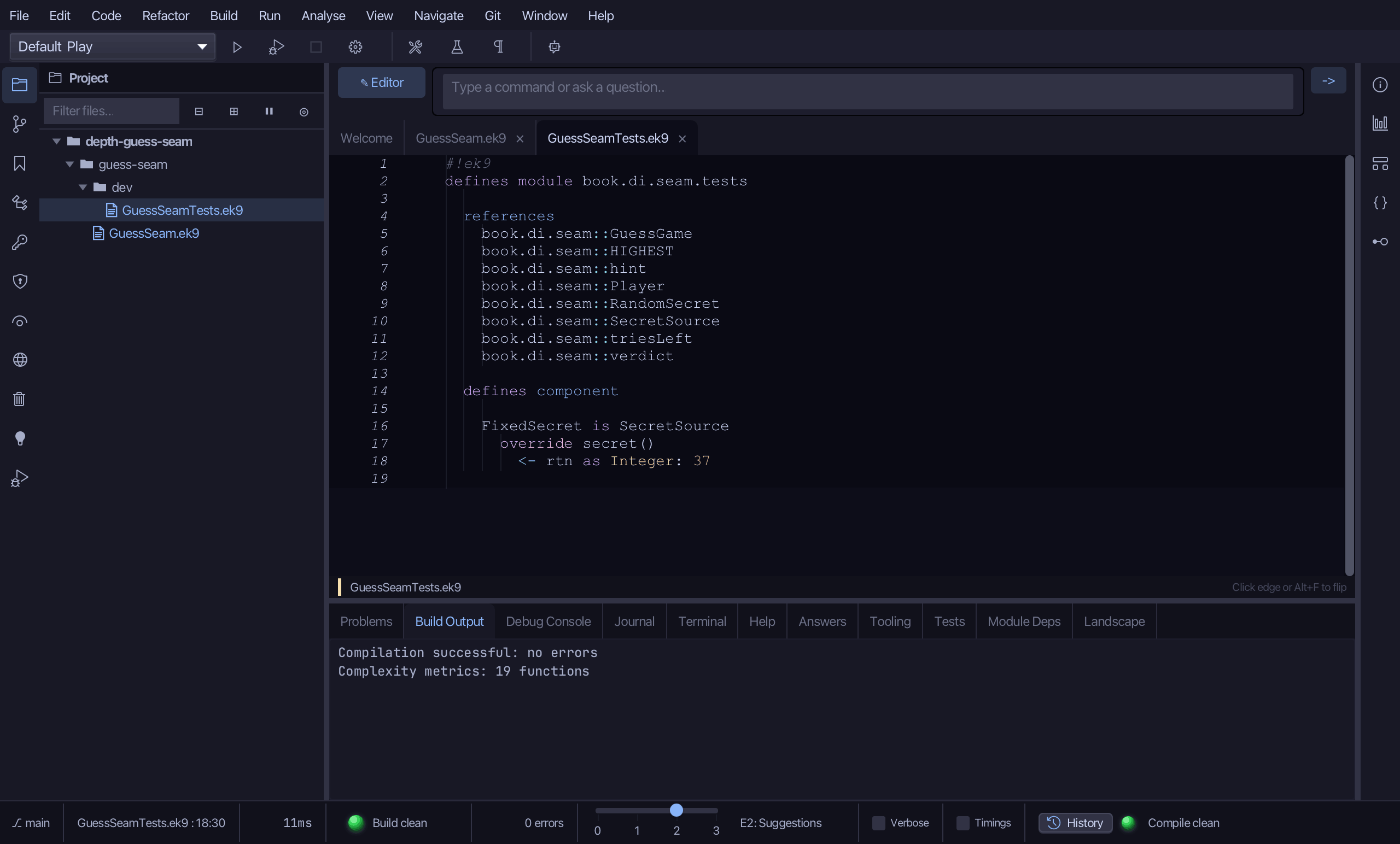
        <- rtn as Integer: 37

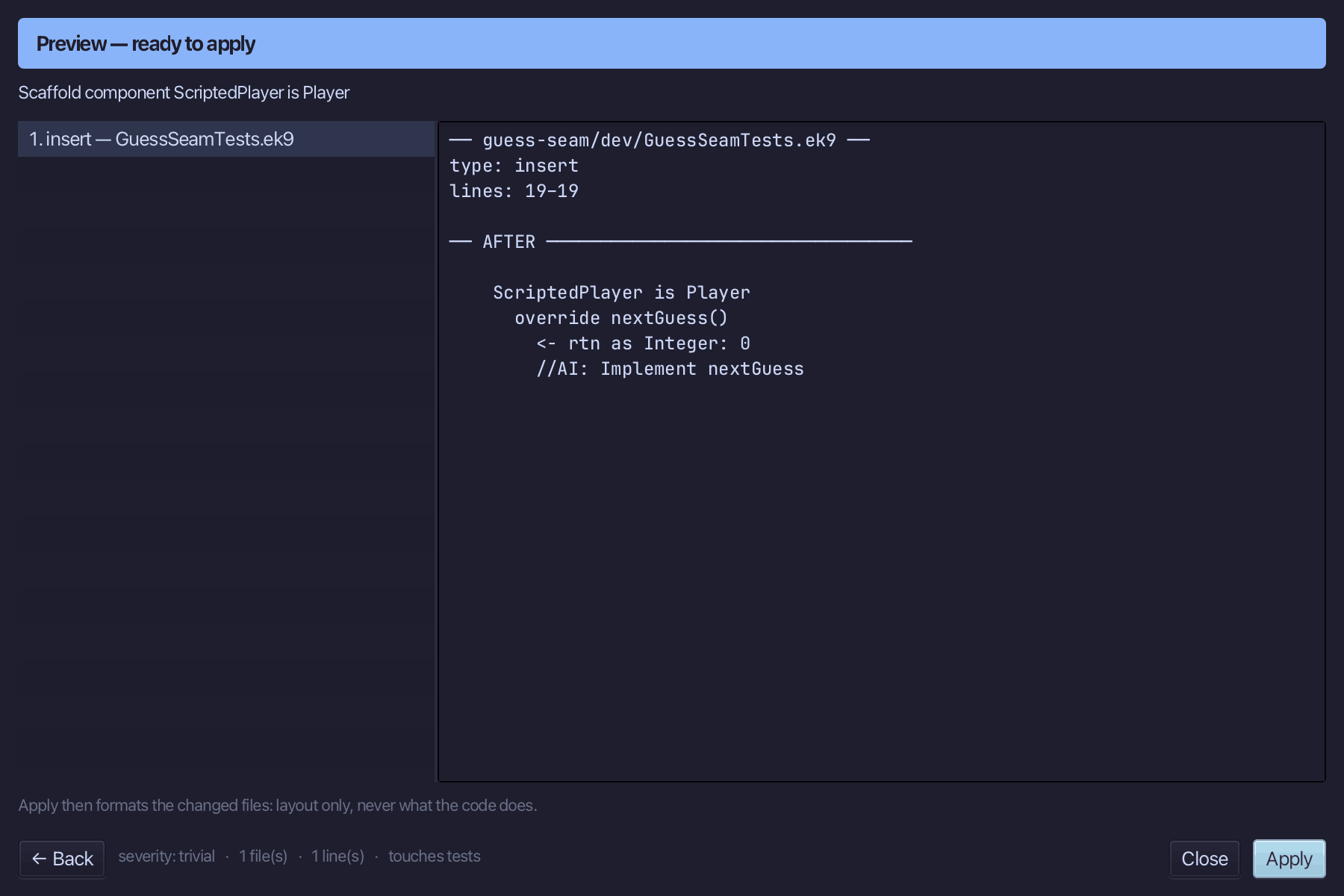
    ScriptedPlayer is Player
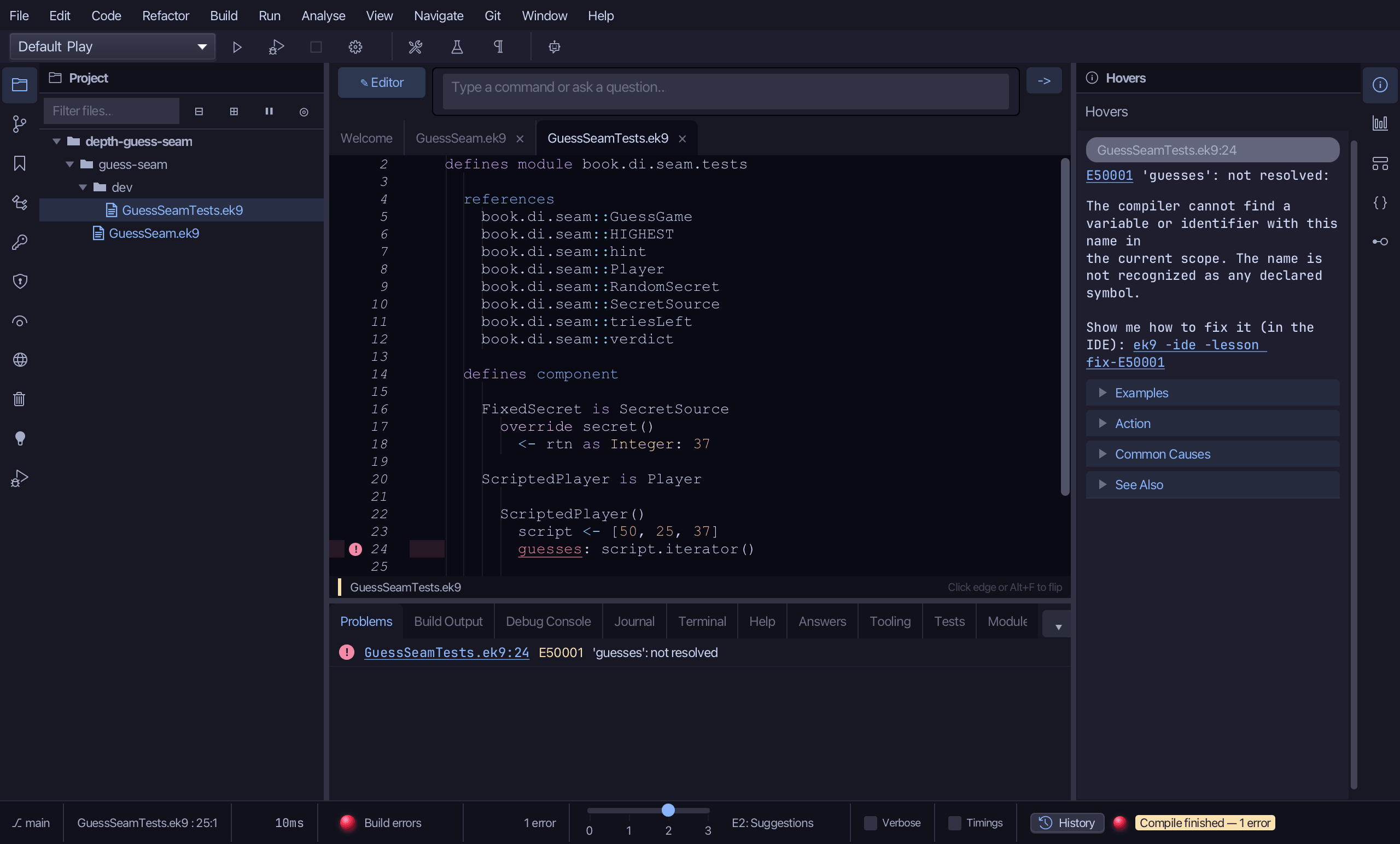
      guesses as Iterator of Integer?

      ScriptedPlayer()
        script <- [50, 25, 37]
        guesses: script.iterator()

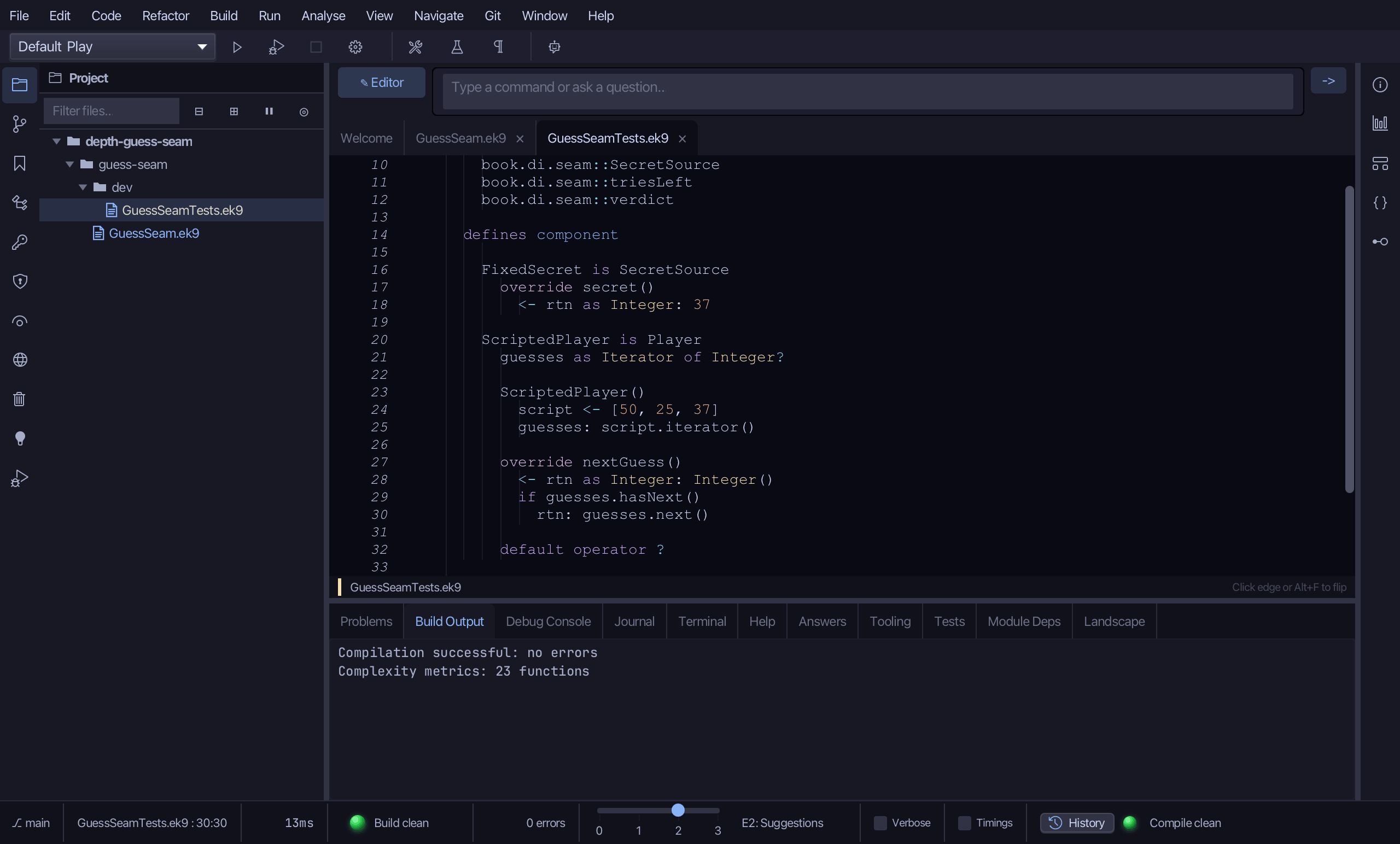
      override nextGuess()
        <- rtn as Integer: Integer()
        if guesses.hasNext()
          rtn: guesses.next()

      default operator ?

    HopelessPlayer is Player
      override nextGuess()
        <- rtn as Integer: 1

    OffTheBoardSecret is SecretSource
      override secret()
        <- rtn as Integer: 0

  defines application

    scriptedGame
      register FixedSecret() as SecretSource
      register ScriptedPlayer() as Player

    hopelessGame
      register FixedSecret() as SecretSource
      register HopelessPlayer() as Player

    brokenGame
      register OffTheBoardSecret() as SecretSource
      register HopelessPlayer() as Player

  defines program

    @Test
    ThirdGuessWins() with application of scriptedGame
      game <- GuessGame()
      assert game.play() == "solved in 3 tries"

    @Test
    RunsOutOfTries() with application of hopelessGame
      game <- GuessGame()
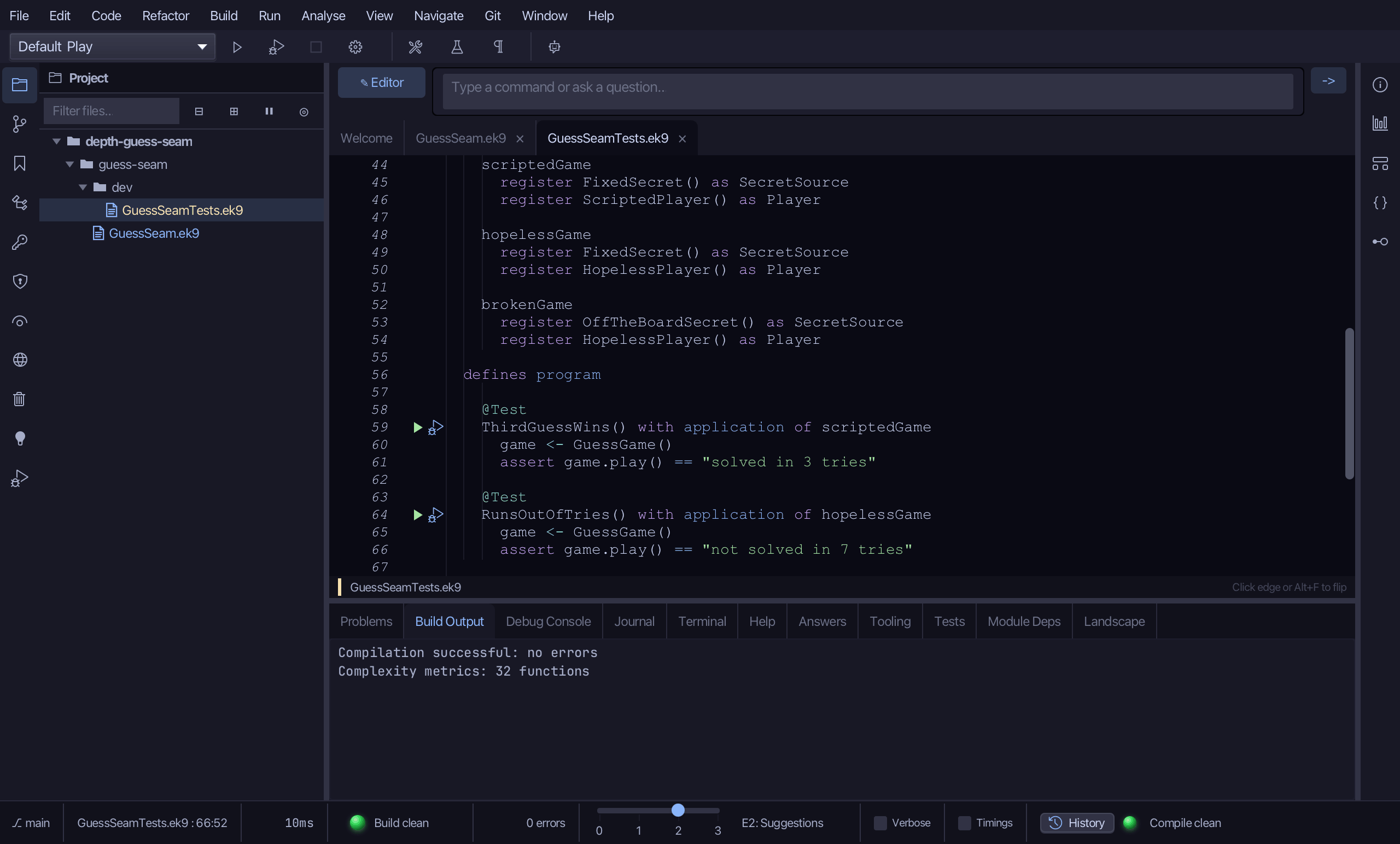
      assert game.play() == "not solved in 7 tries"

    @Test
    ASecretOffTheBoardIsRefused() with application of brokenGame
      game <- GuessGame()
      assertThrows (Exception, game.play())

    @Test
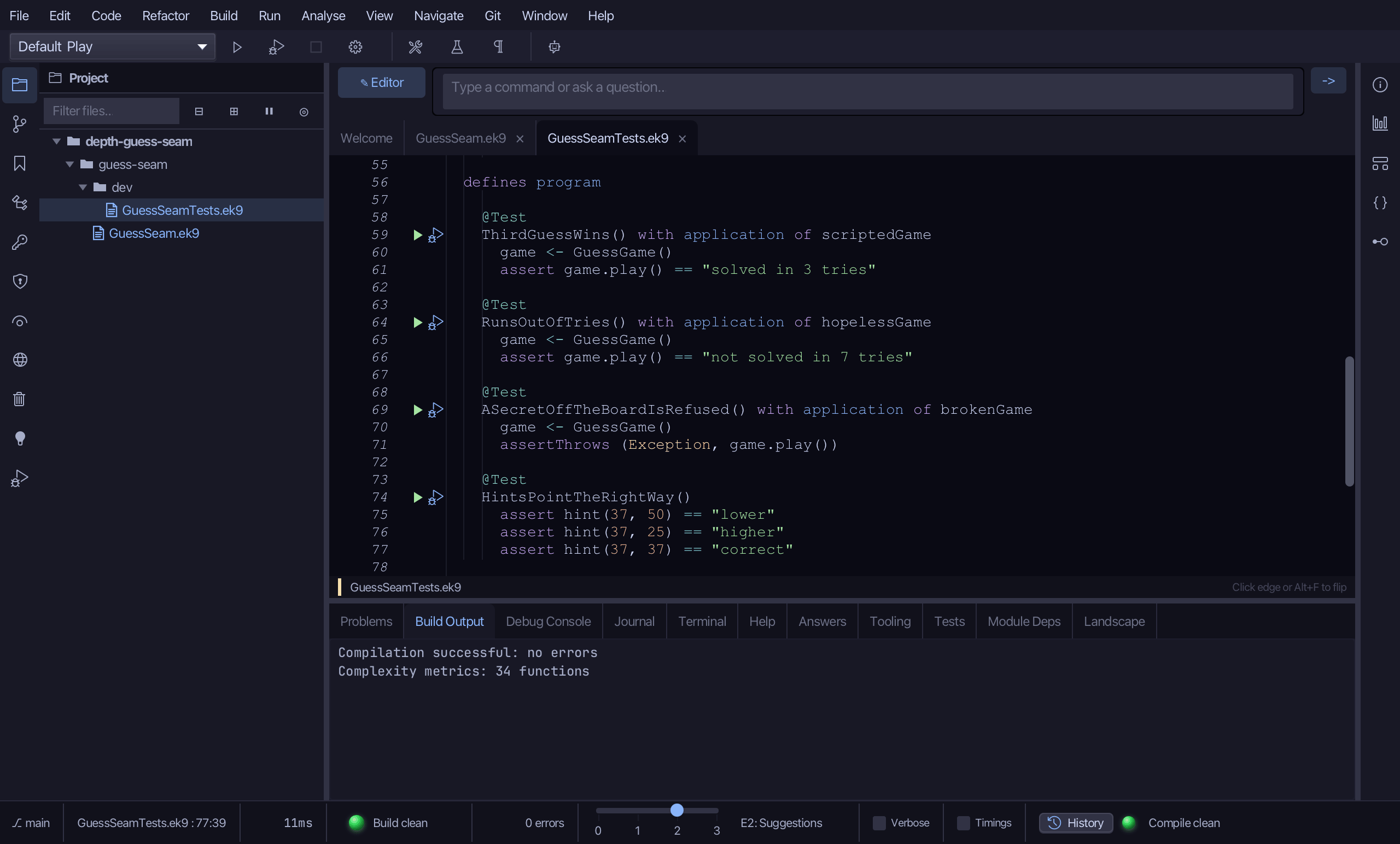
    HintsPointTheRightWay()
      assert hint(37, 50) == "lower"
      assert hint(37, 25) == "higher"
      assert hint(37, 37) == "correct"

    @Test
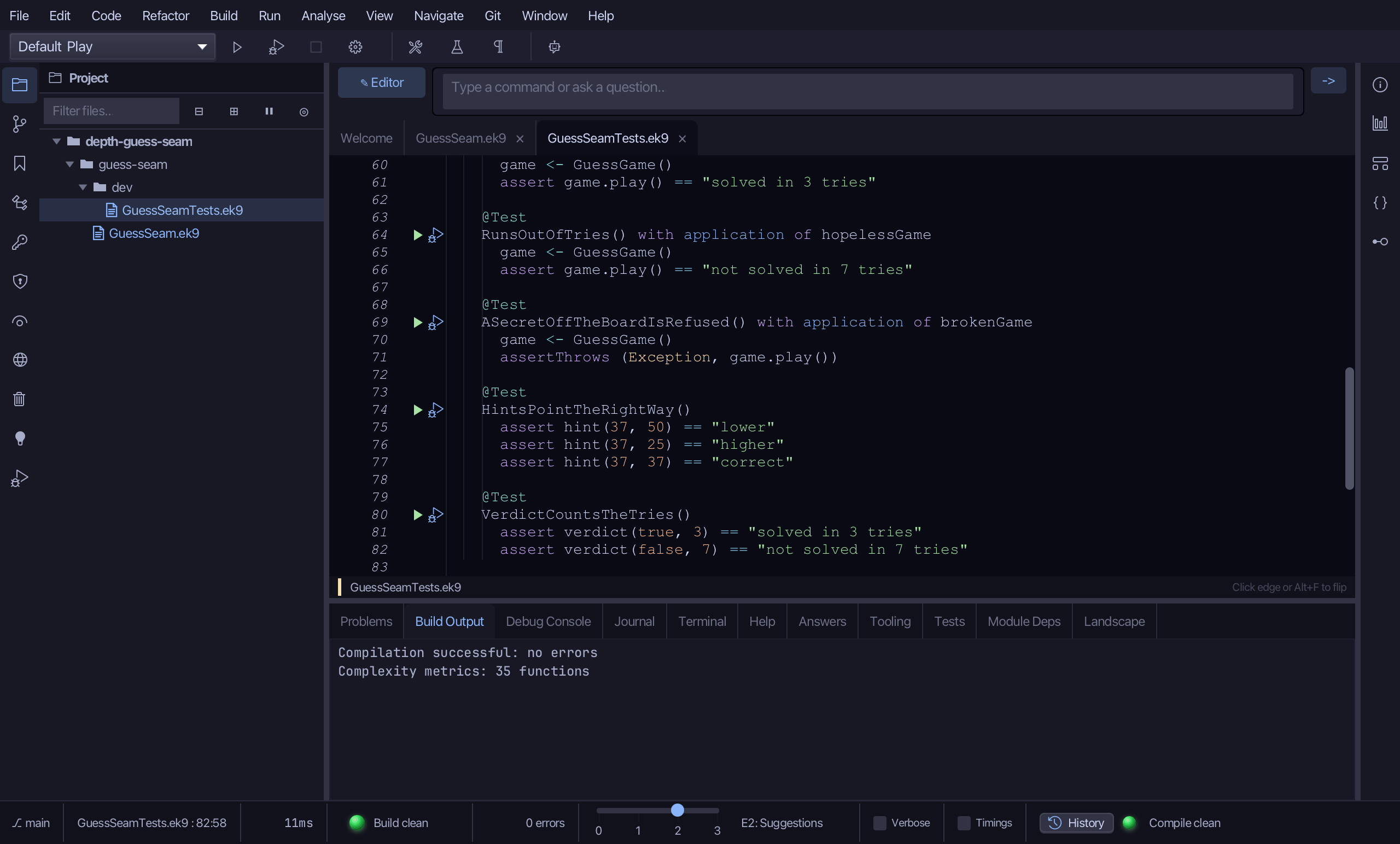
    VerdictCountsTheTries()
      assert verdict(true, 3) == "solved in 3 tries"
      assert verdict(false, 7) == "not solved in 7 tries"

    @Test
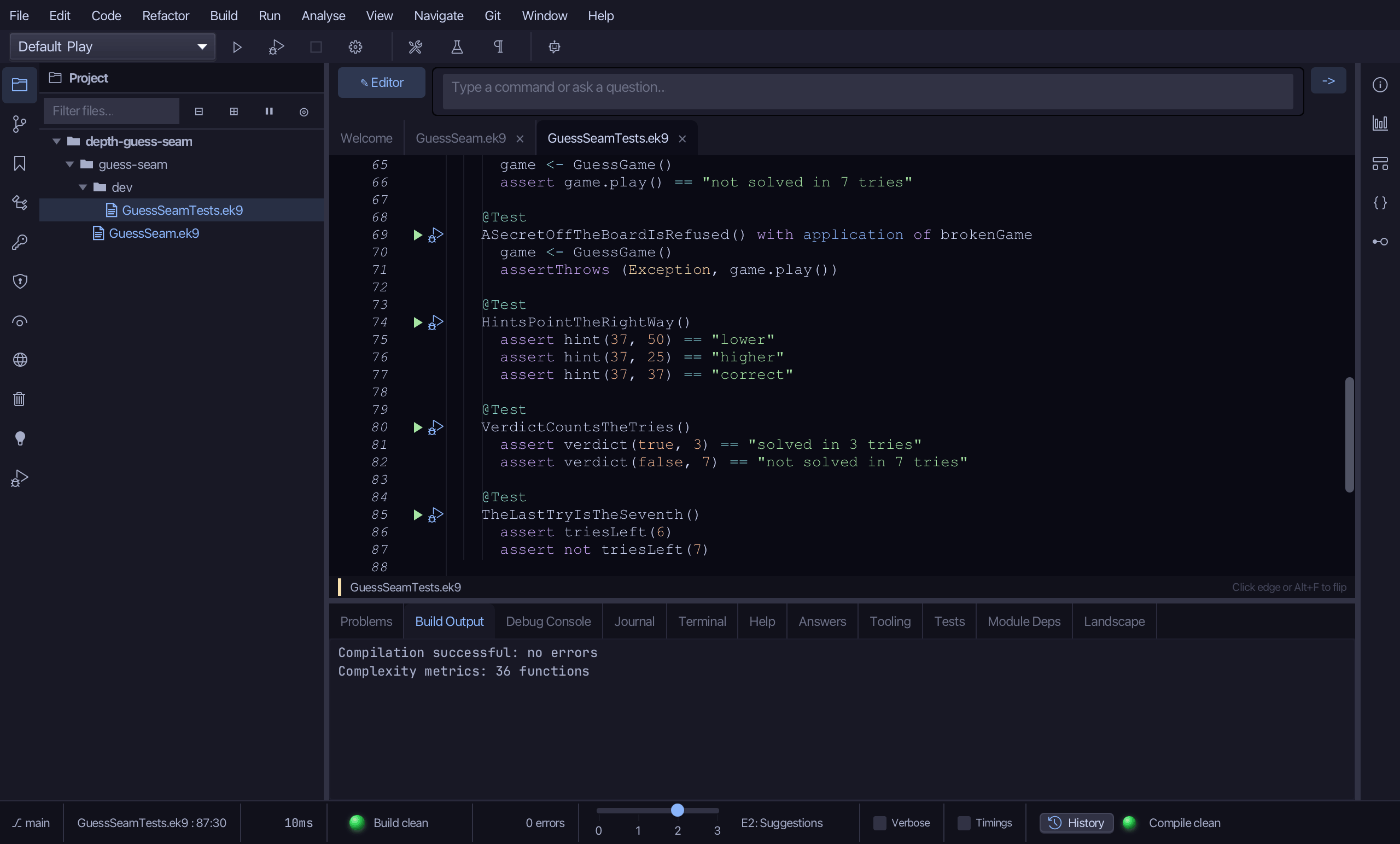
    TheLastTryIsTheSeventh()
      assert triesLeft(6)
      assert not triesLeft(7)

    @Test
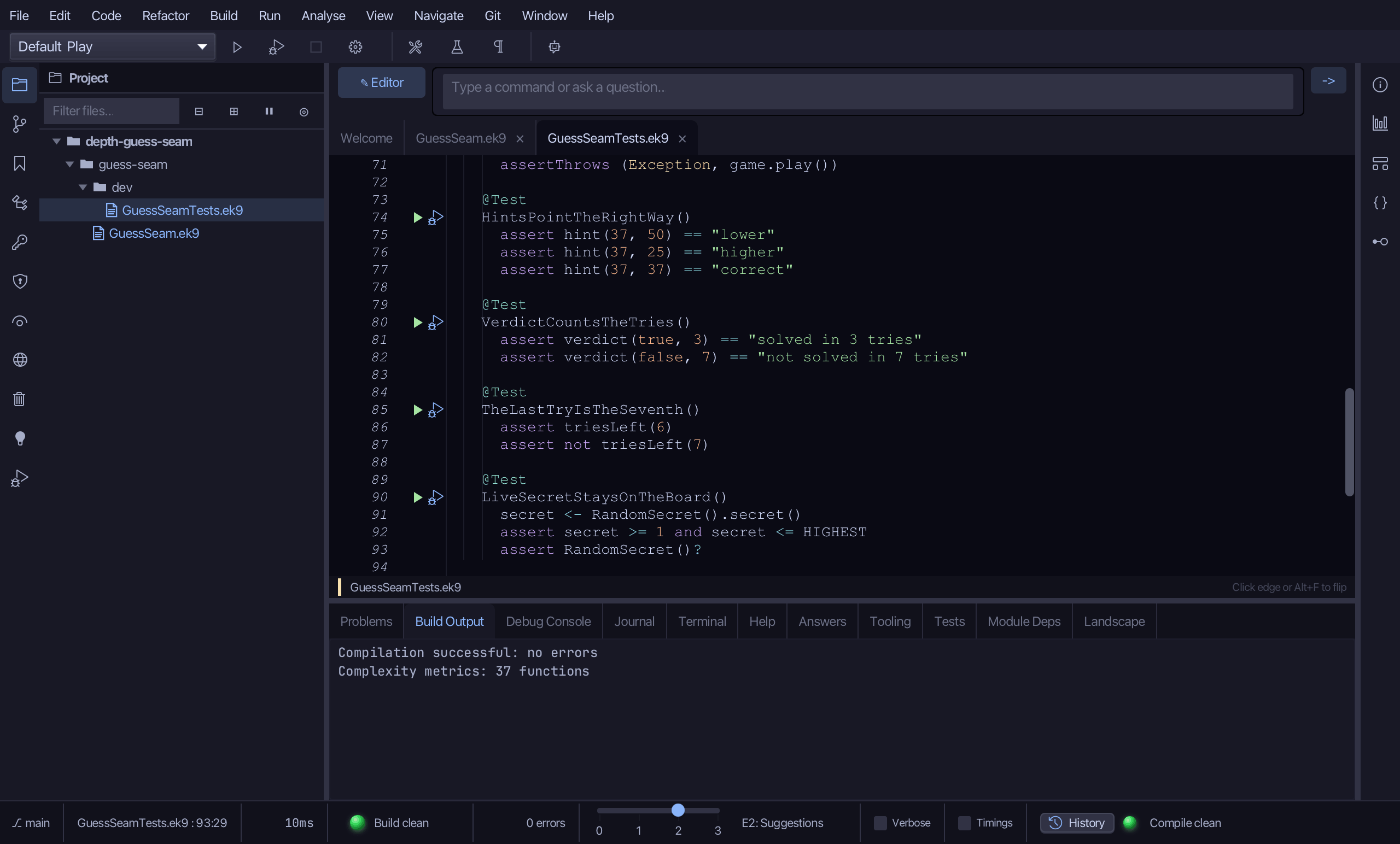
    LiveSecretStaysOnTheBoard()
      secret <- RandomSecret().secret()
      assert secret >= 1 and secret <= HIGHEST
      assert RandomSecret()?

    @Test
    GameIsSet() with application of scriptedGame
      assert GuessGame()?
Step 1: Constants
Choose Code > New Construct > Constant…
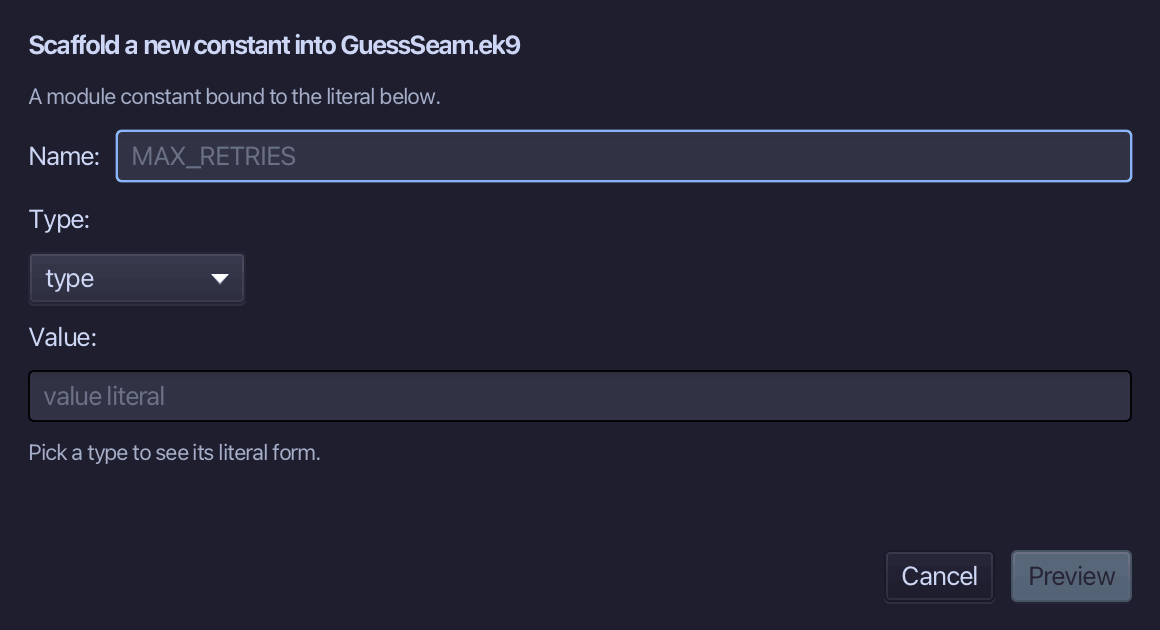
HIGHEST is the constant's name and 100 its value - a literal in the Value field, from which the type is inferred. Type both and choose Preview.
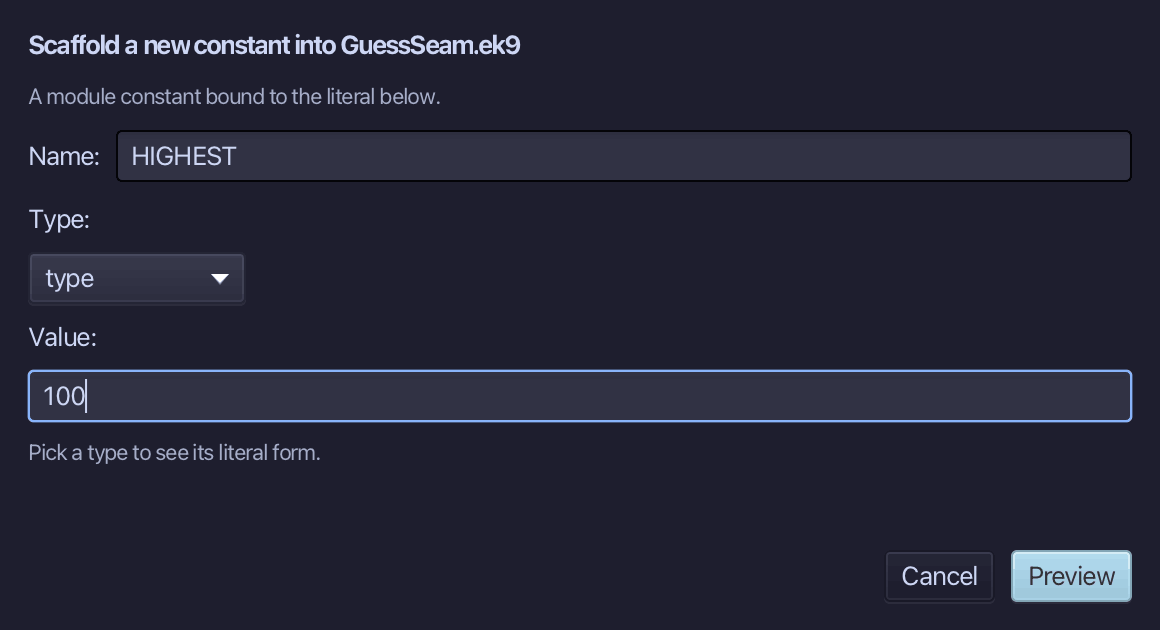
The preview shows HIGHEST about to be written. Choose Apply.
Choose Code > New Construct > Constant…
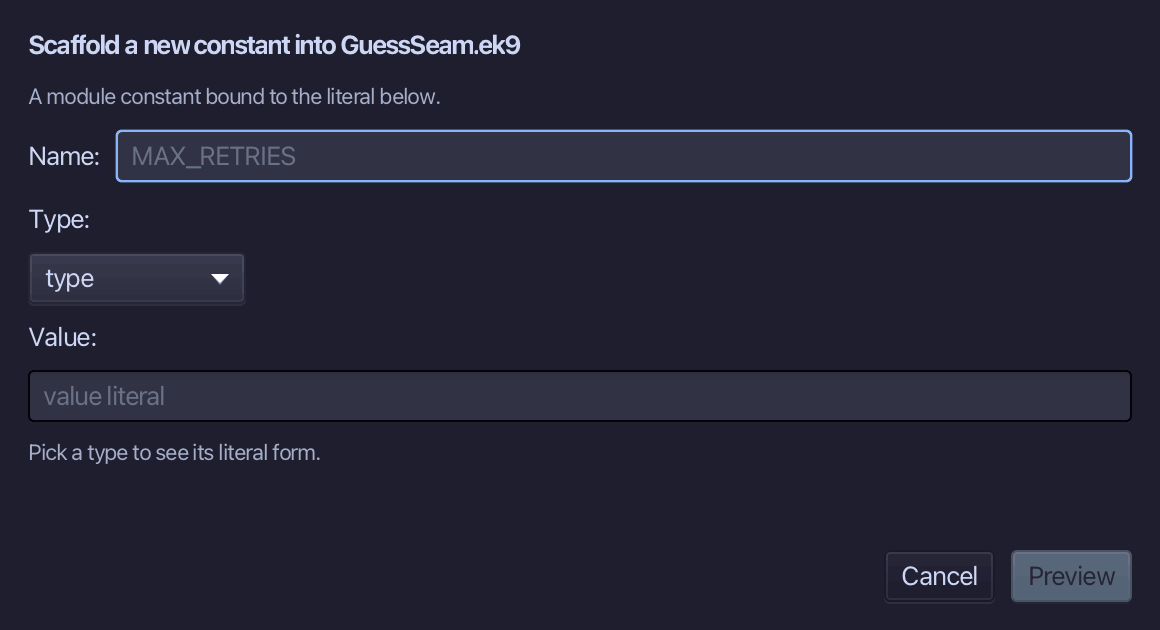
MAX_TRIES is the constant's name and 7 its value - a literal in the Value field, from which the type is inferred. Type both and choose Preview.
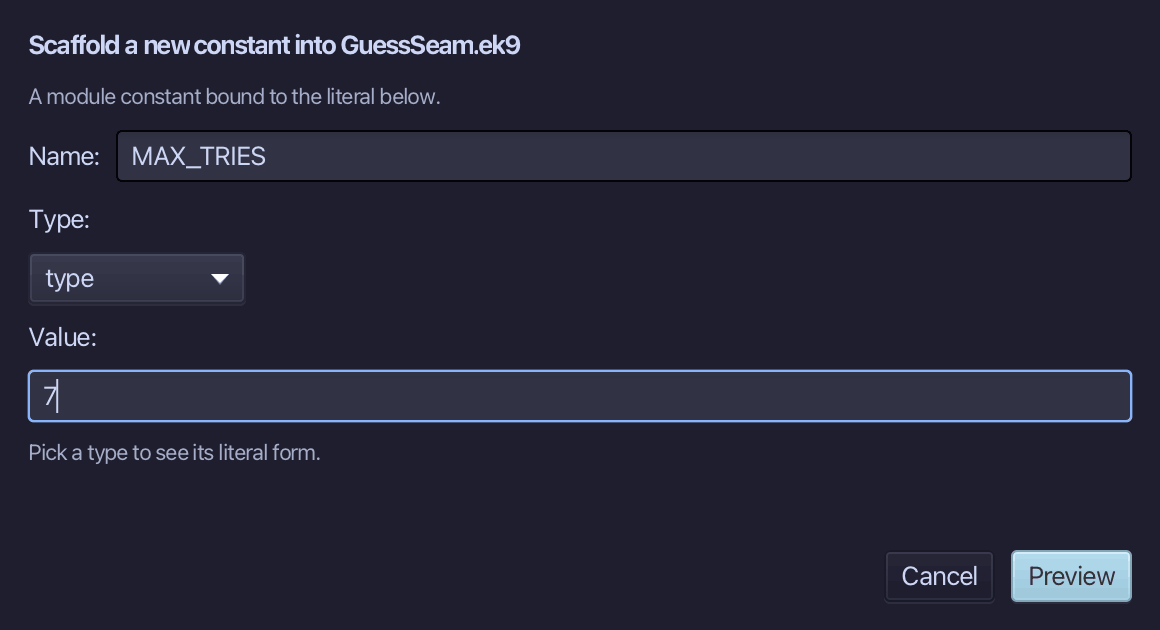
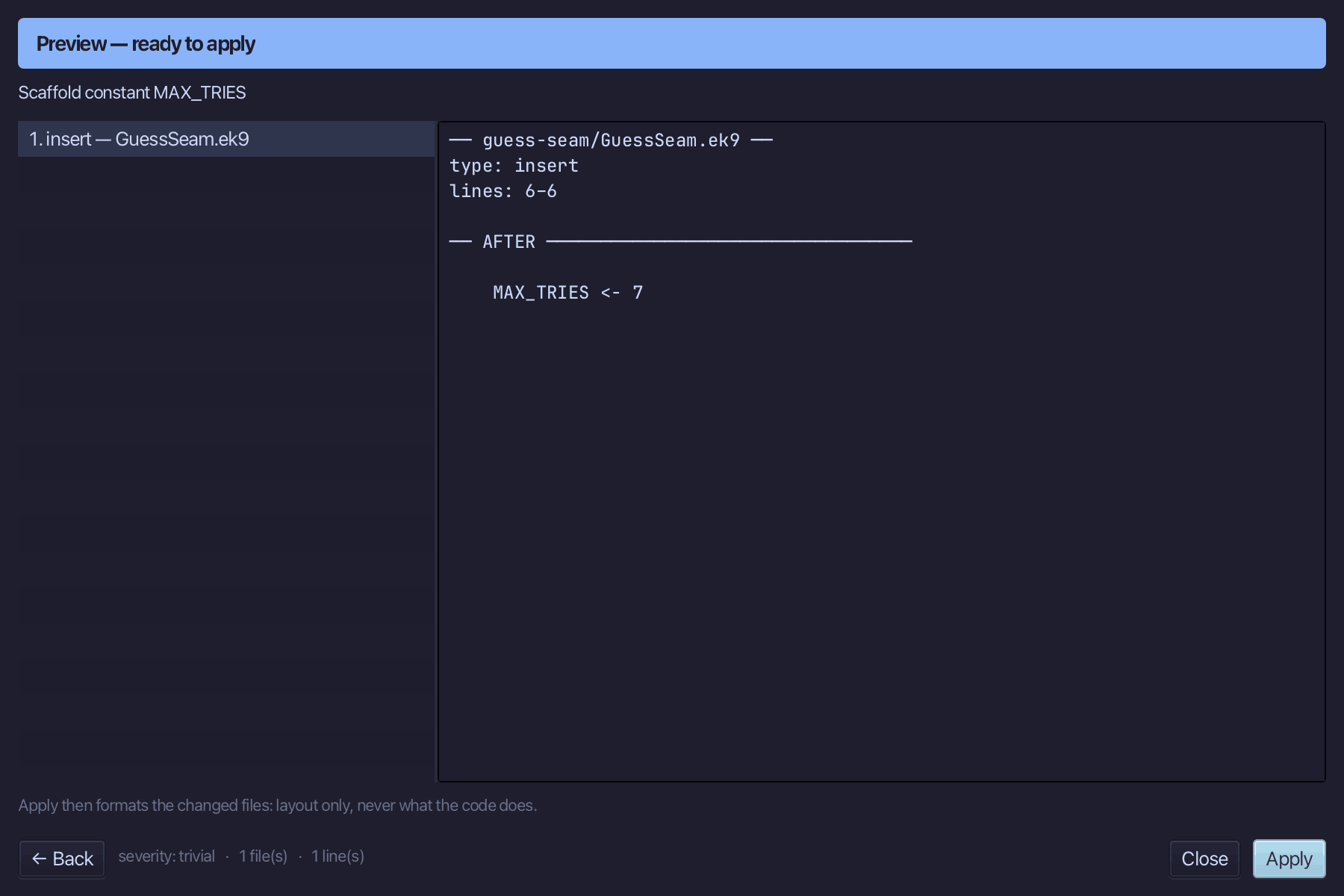
The preview shows MAX_TRIES about to be written. Choose Apply.
Step 2: hint — a pure function
Choose Code > New Construct > Function…
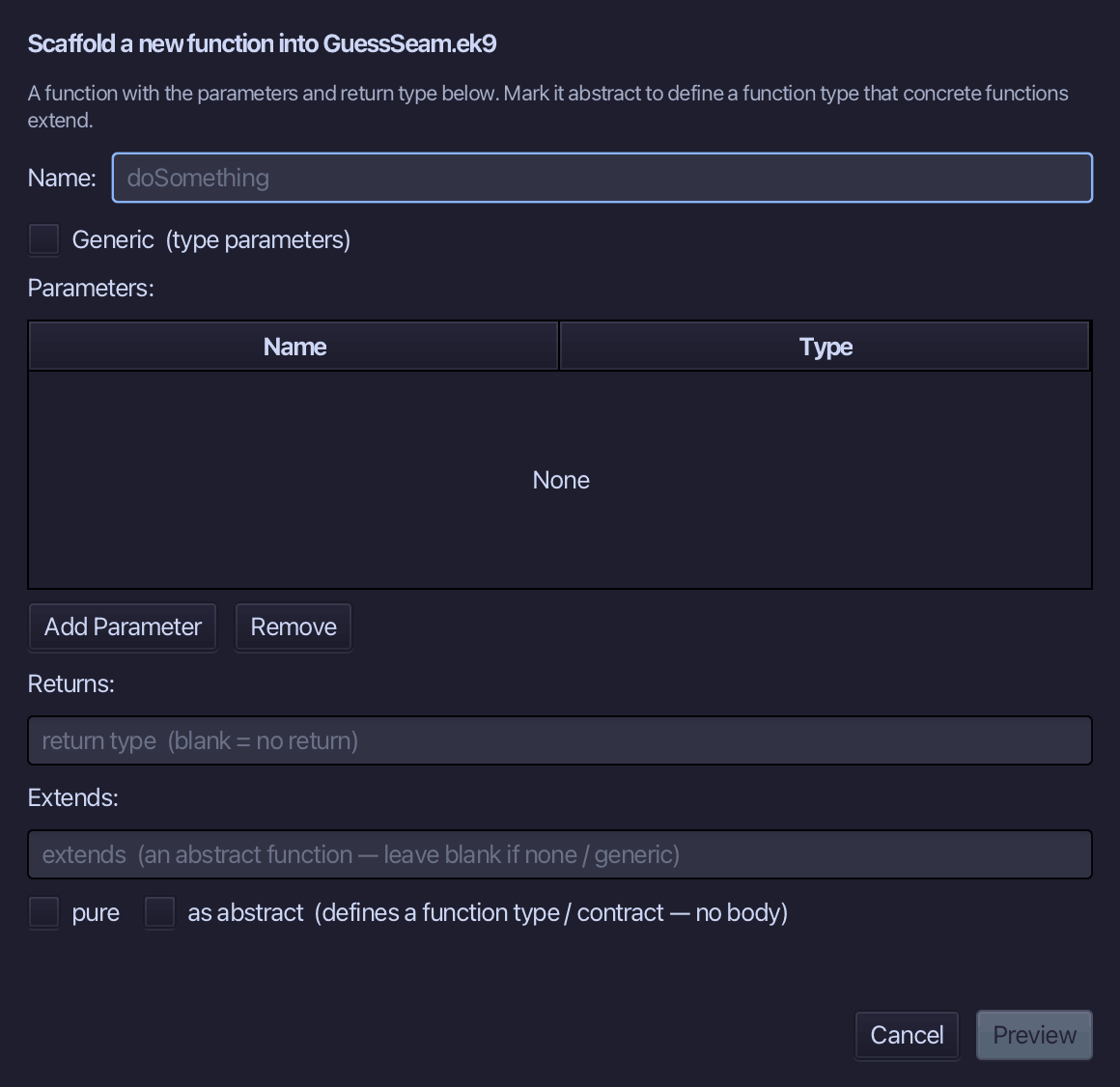
hint is the function's name. Add the parameters secret of type Integer and guess of type Integer, set Returns to String and tick pure. Choose Preview.
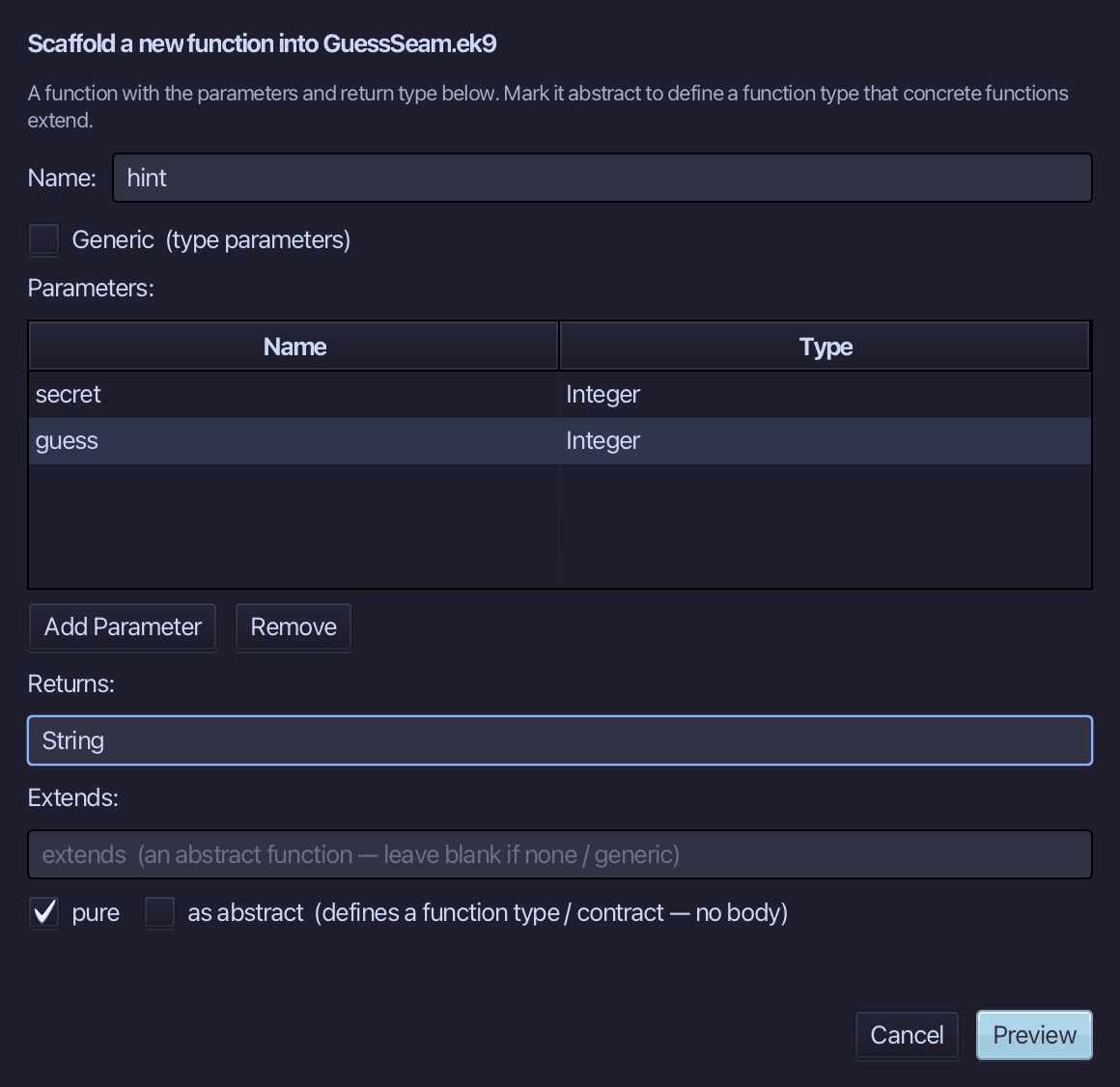
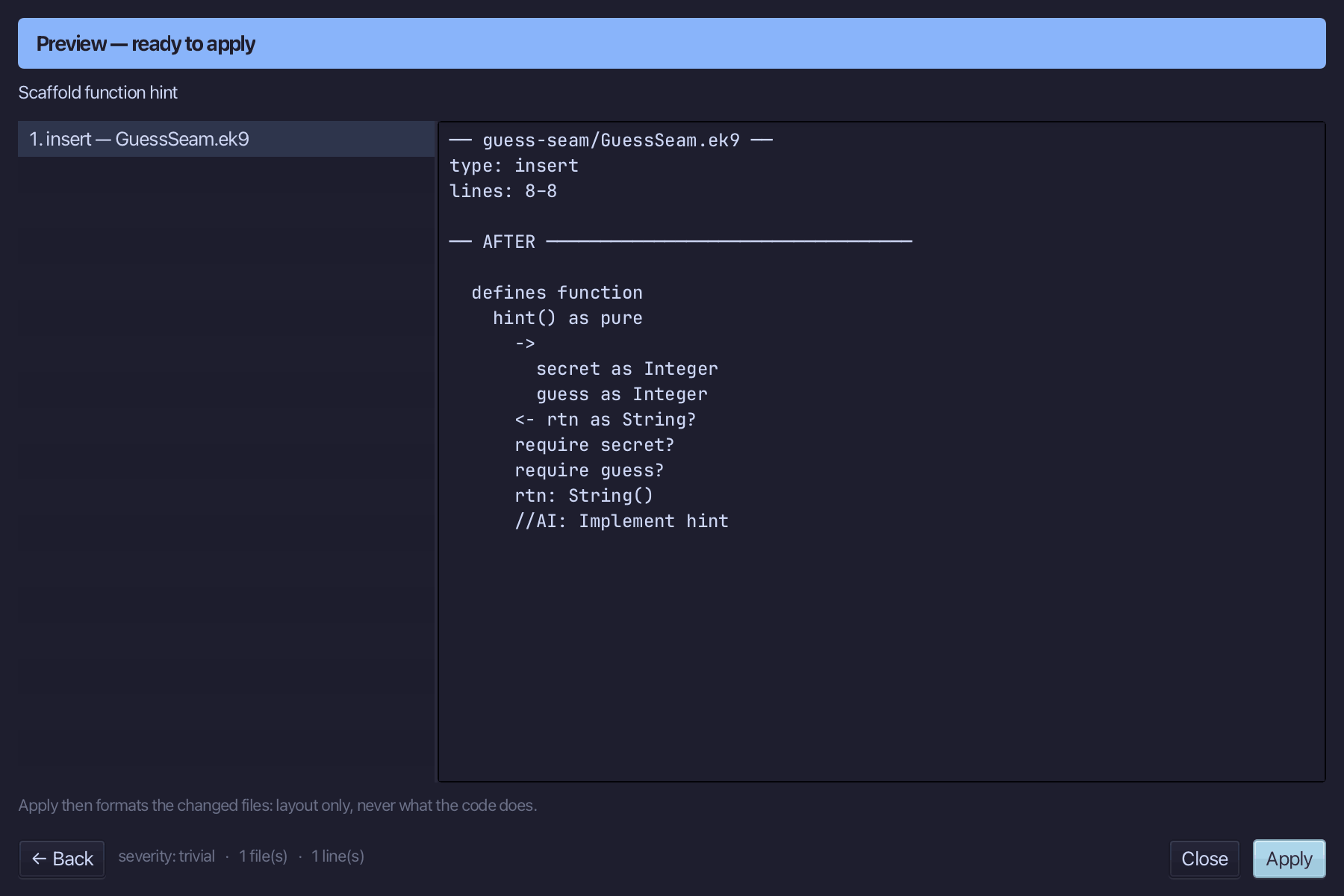
The preview shows hint about to be written. Choose Apply.
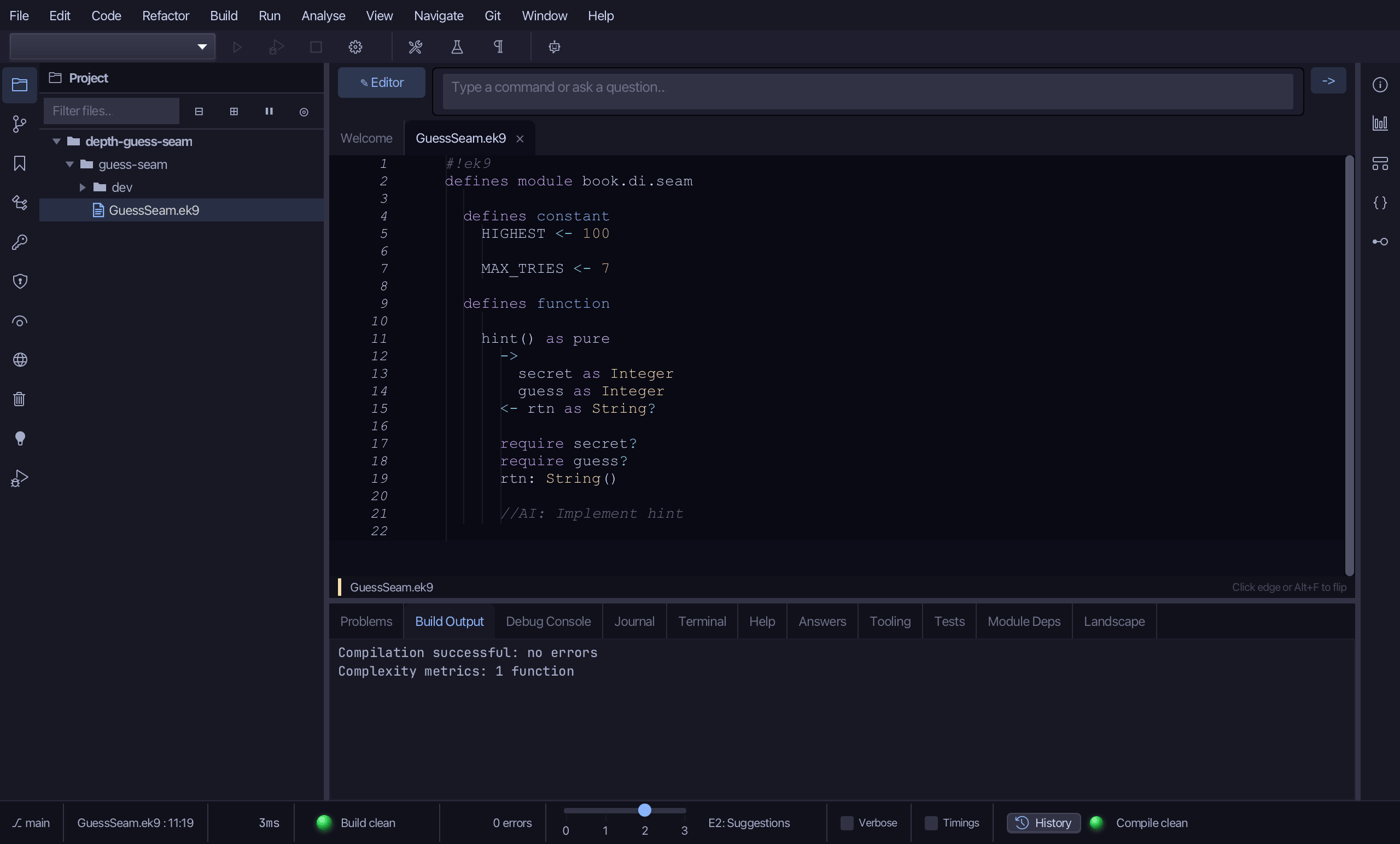
Select the hint() as pure line and, above it, type the blank line the book opens its first function with. Saves when typed.
Select the stub, from <- rtn as String? down to its //AI line, and type hint's own return and work, as the book writes them. Saves when typed.
Step 3: onTheBoard — a pure function
Choose Code > New Construct > Function…
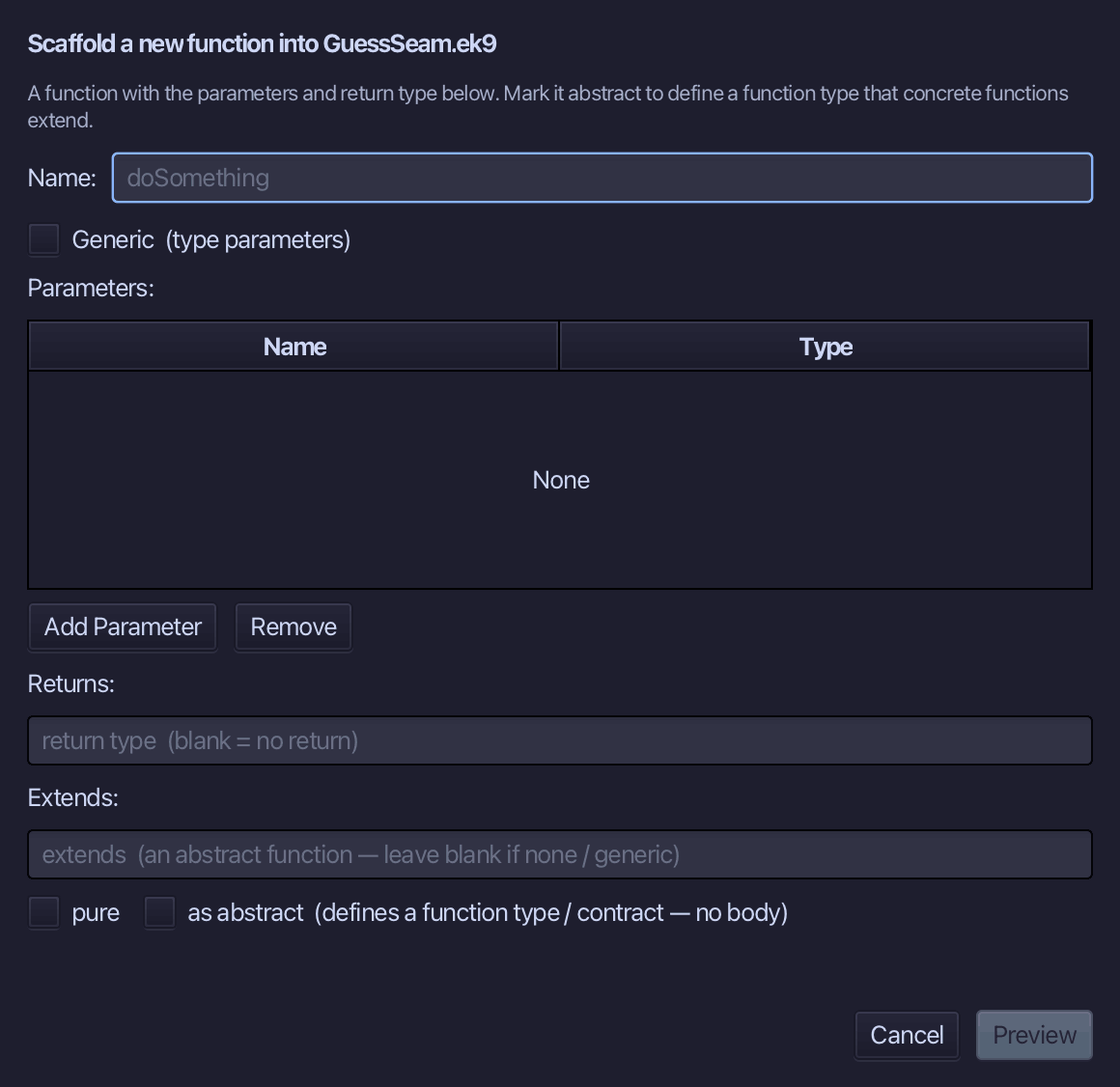
onTheBoard is the function's name. Add one parameter, secret of type Integer, set Returns to Boolean and tick pure. Choose Preview.
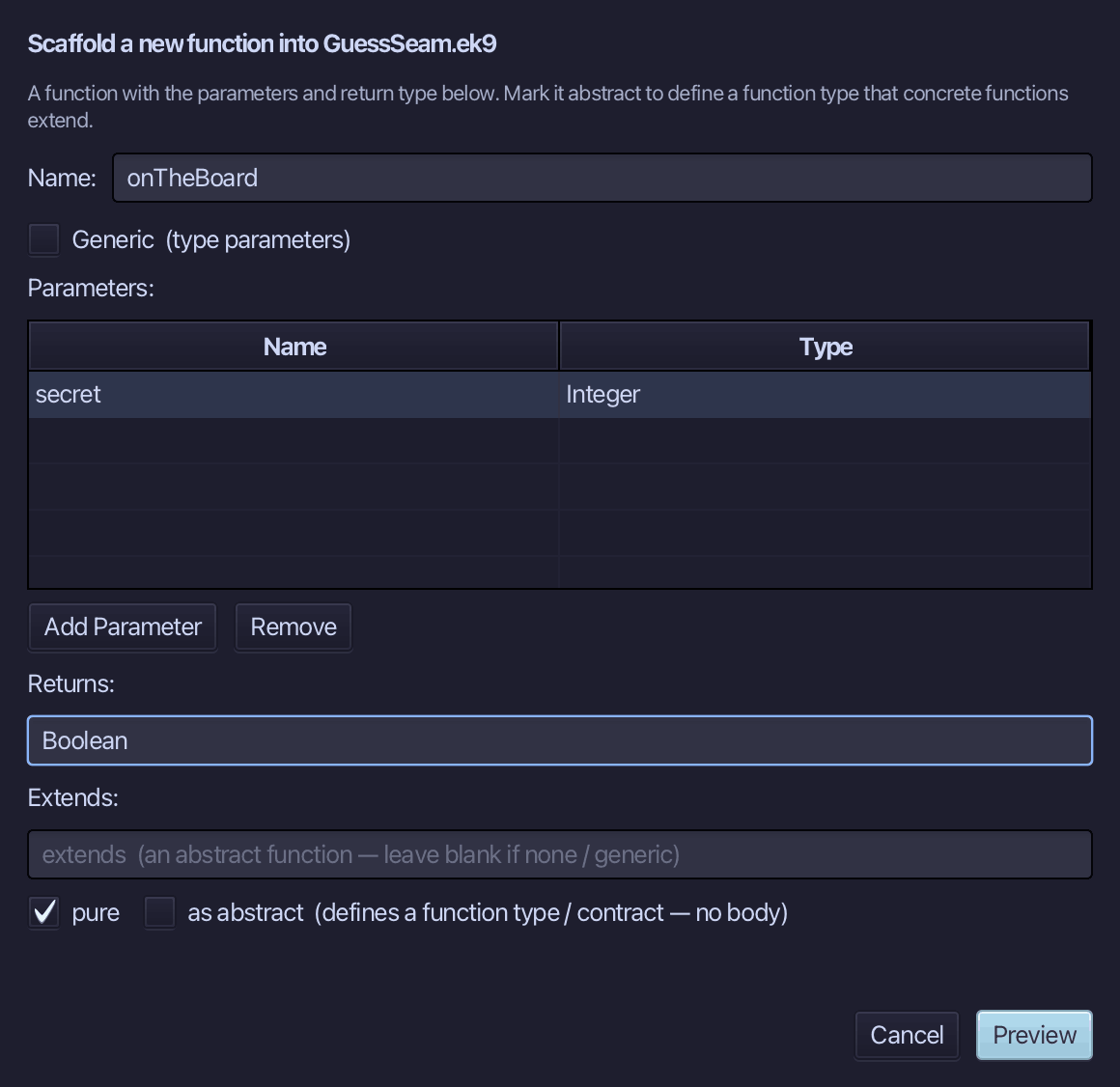
The preview shows onTheBoard about to be written. Choose Apply.
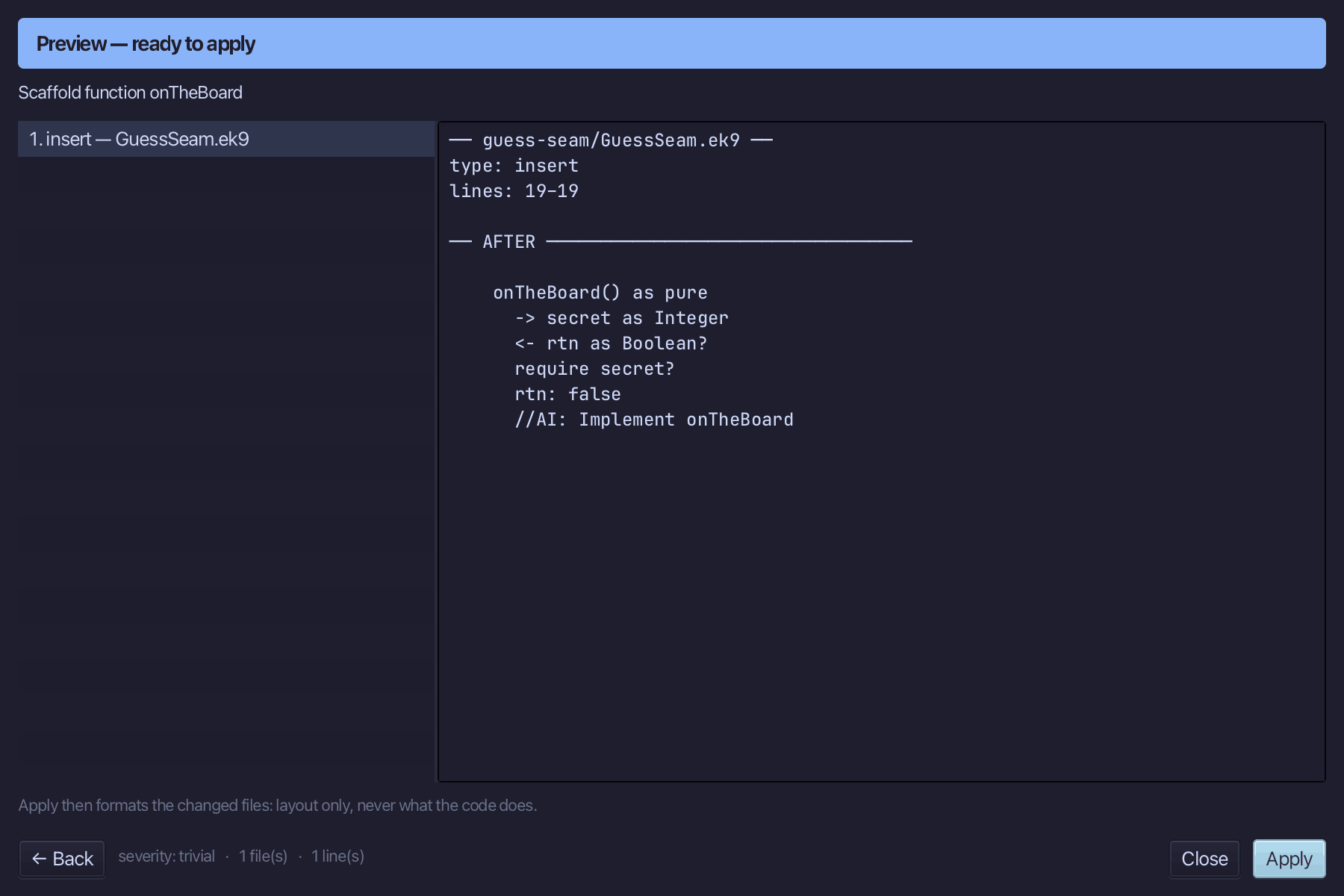
Select the stub, from <- rtn as Boolean? down to its //AI line, and type onTheBoard's own return and work, as the book writes them. Saves when typed.
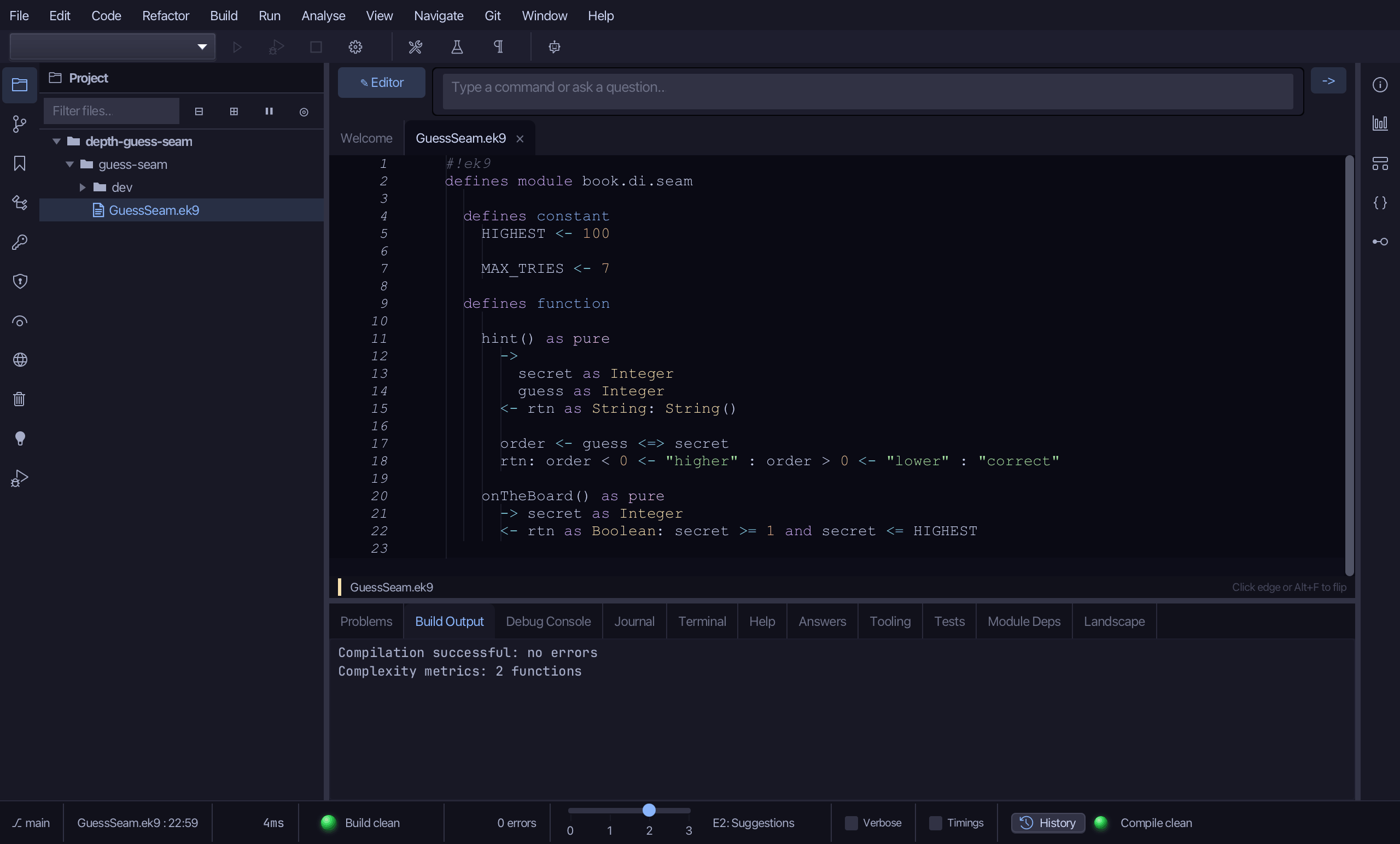
Step 4: triesLeft — a pure function
Choose Code > New Construct > Function…
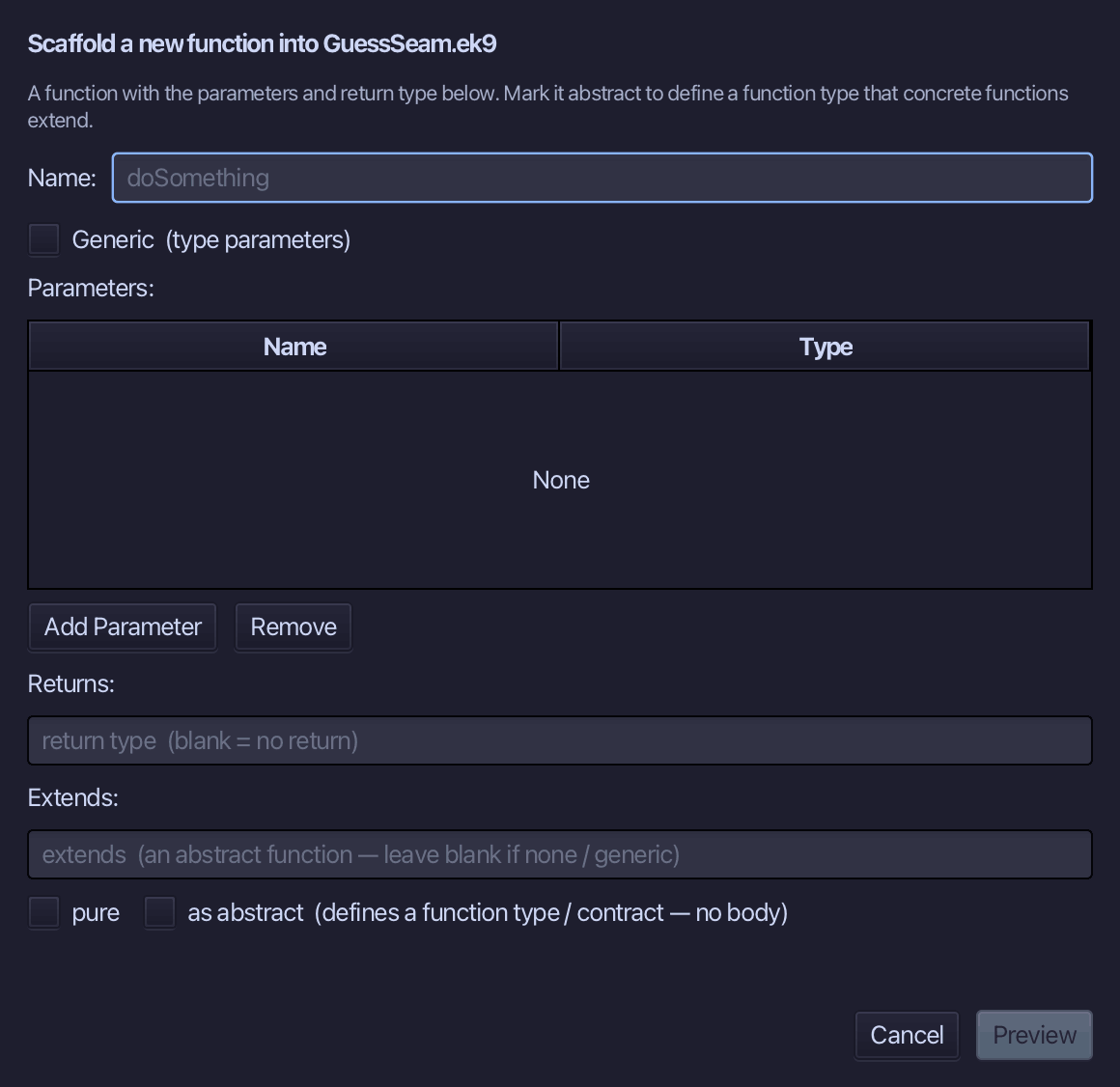
triesLeft is the function's name. Add one parameter, tries of type Integer, set Returns to Boolean and tick pure. Choose Preview.
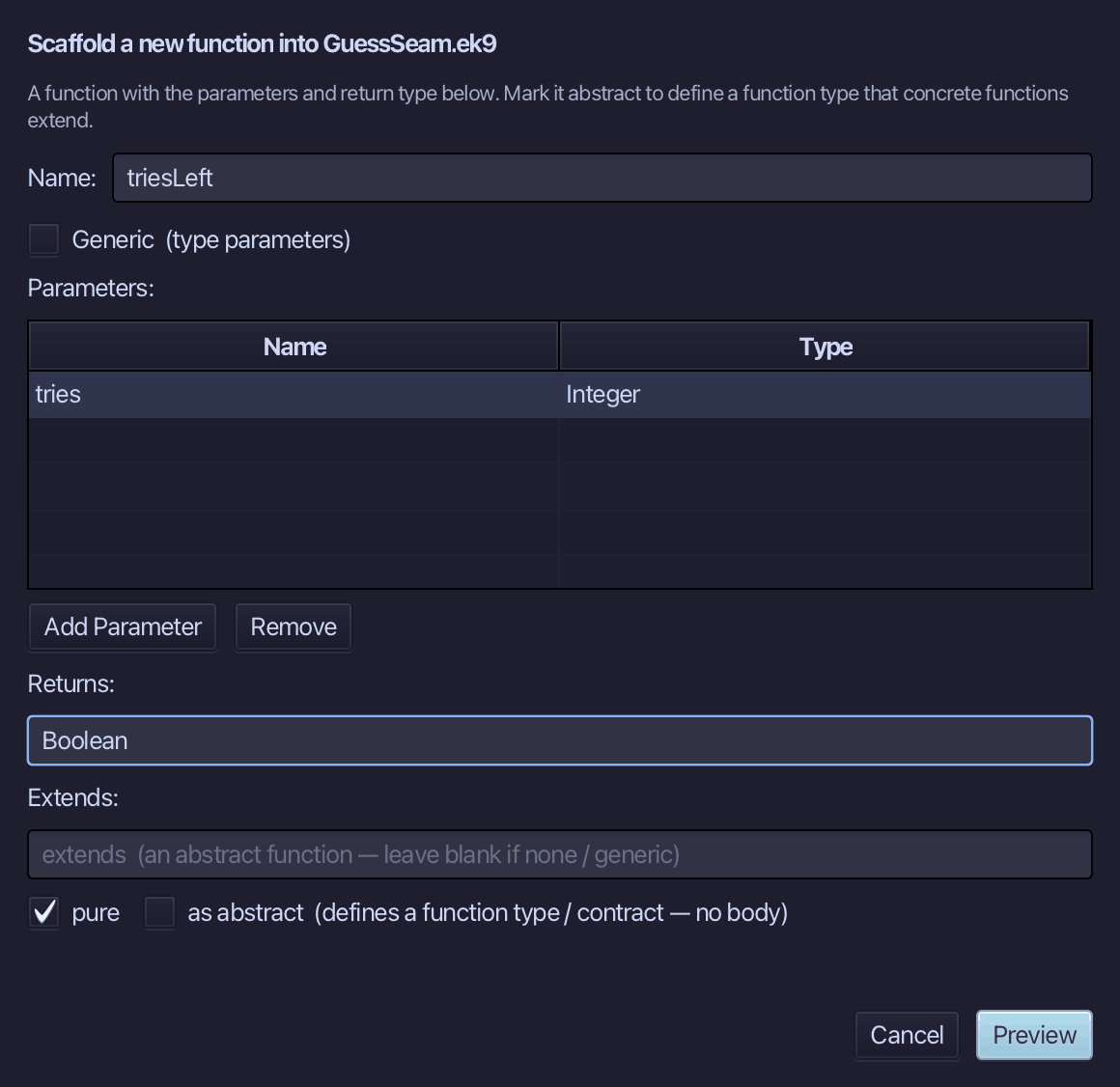
The preview shows triesLeft about to be written. Choose Apply.
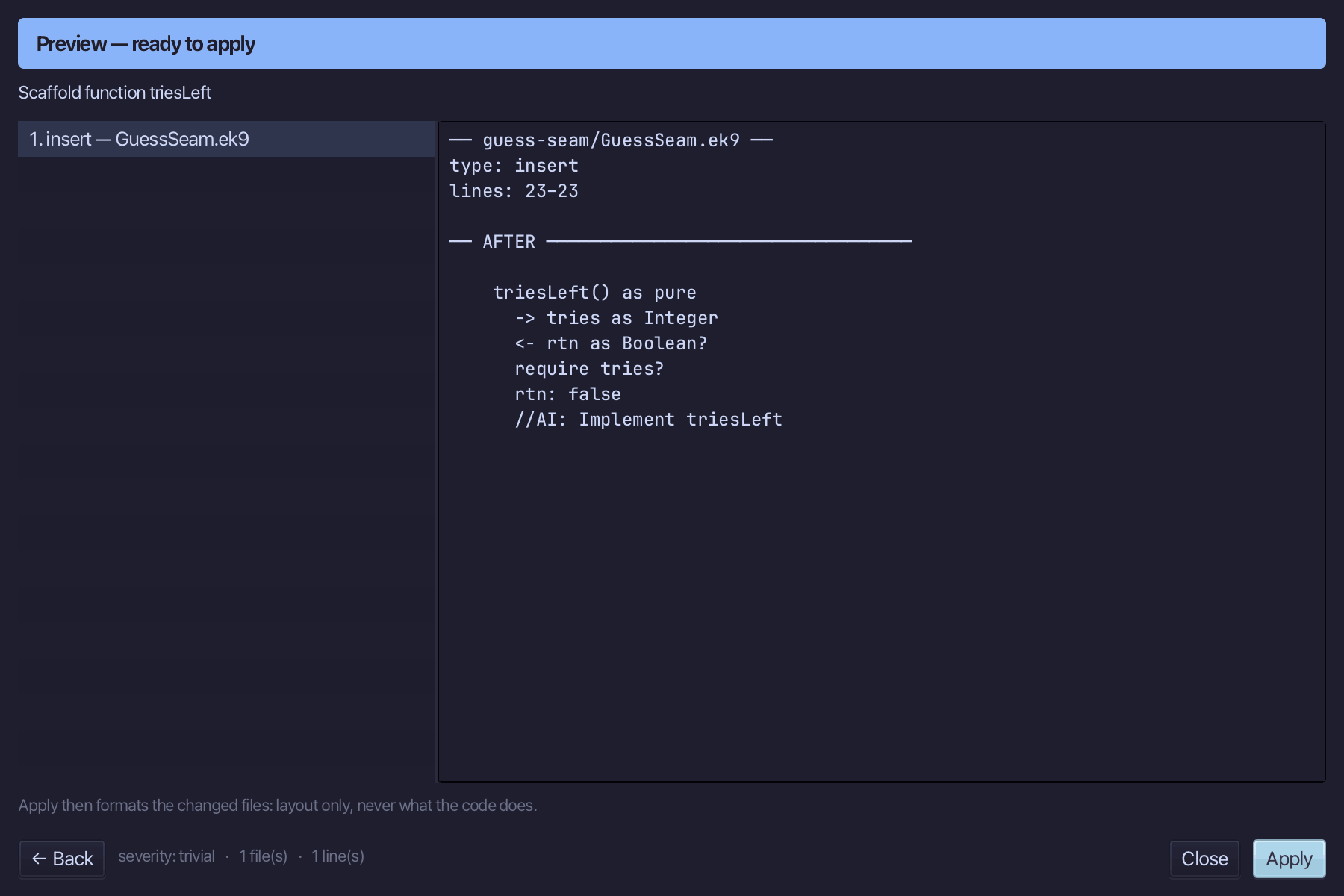
Select the stub, from <- rtn as Boolean? down to its //AI line, and type triesLeft's own return and work, as the book writes them. Saves when typed.
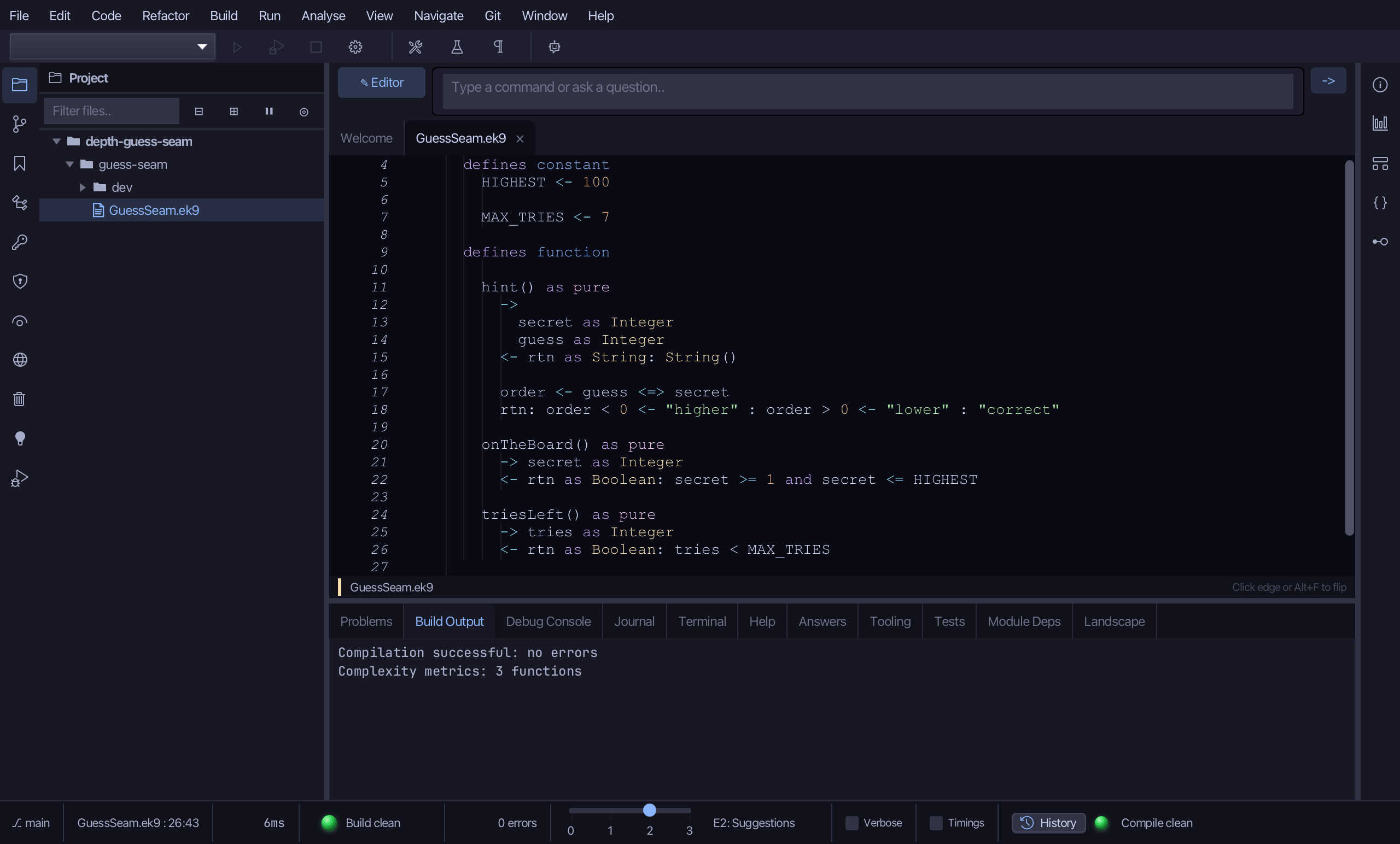
Step 5: verdict — a pure function
Choose Code > New Construct > Function…
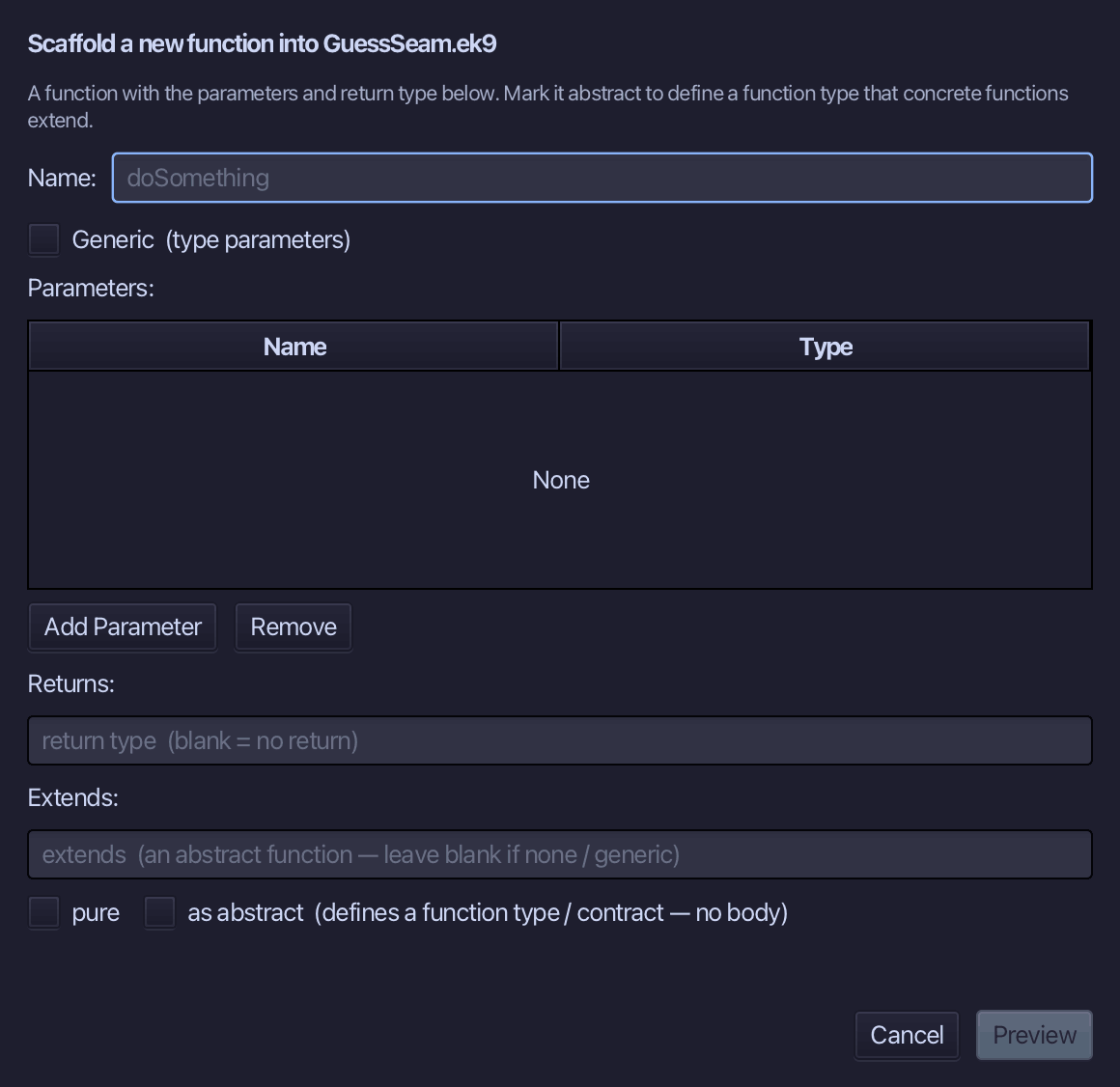
verdict is the function's name. Add the parameters solved of type Boolean and tries of type Integer, set Returns to String and tick pure. Choose Preview.
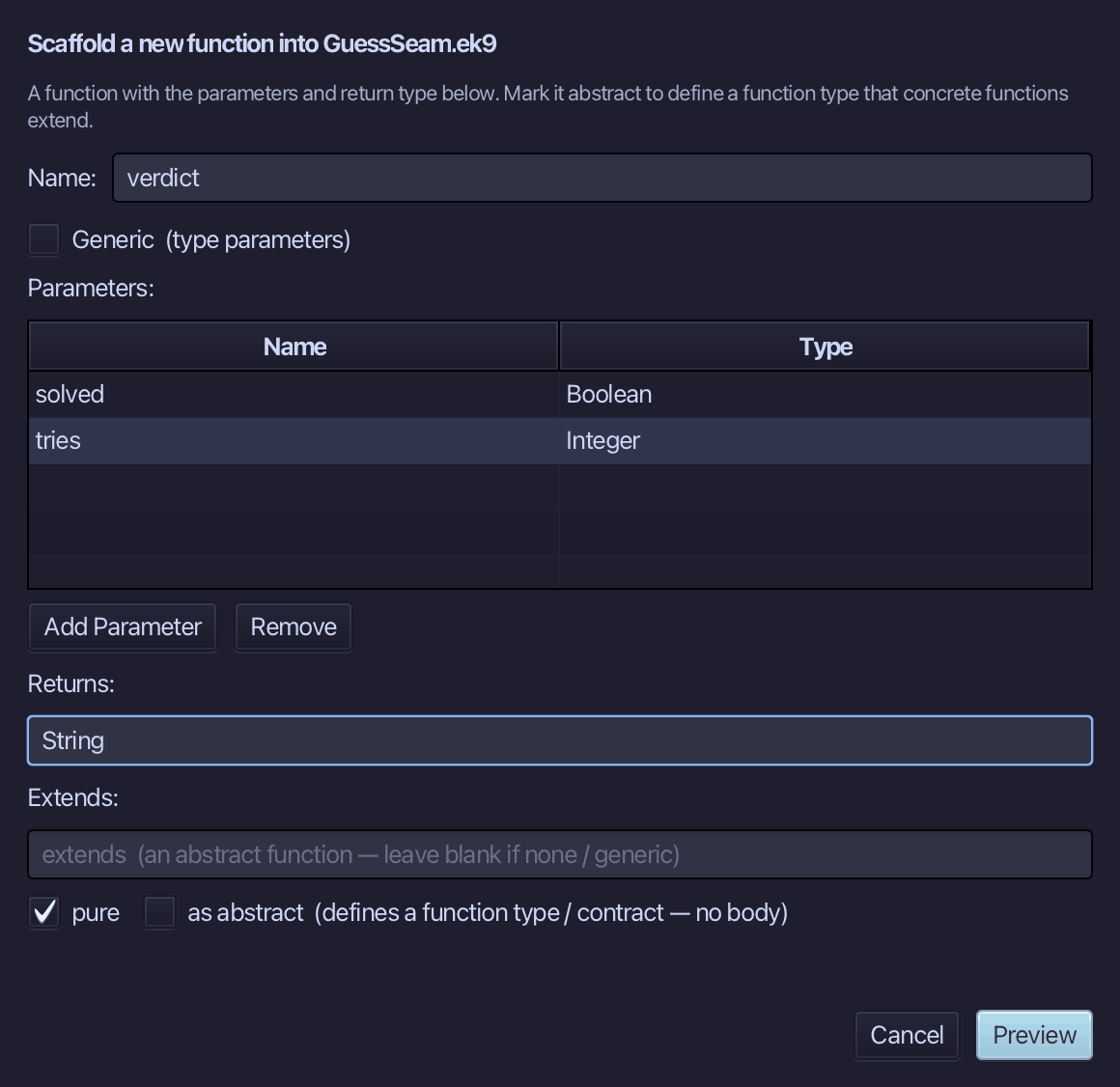
The preview shows verdict about to be written. Choose Apply.
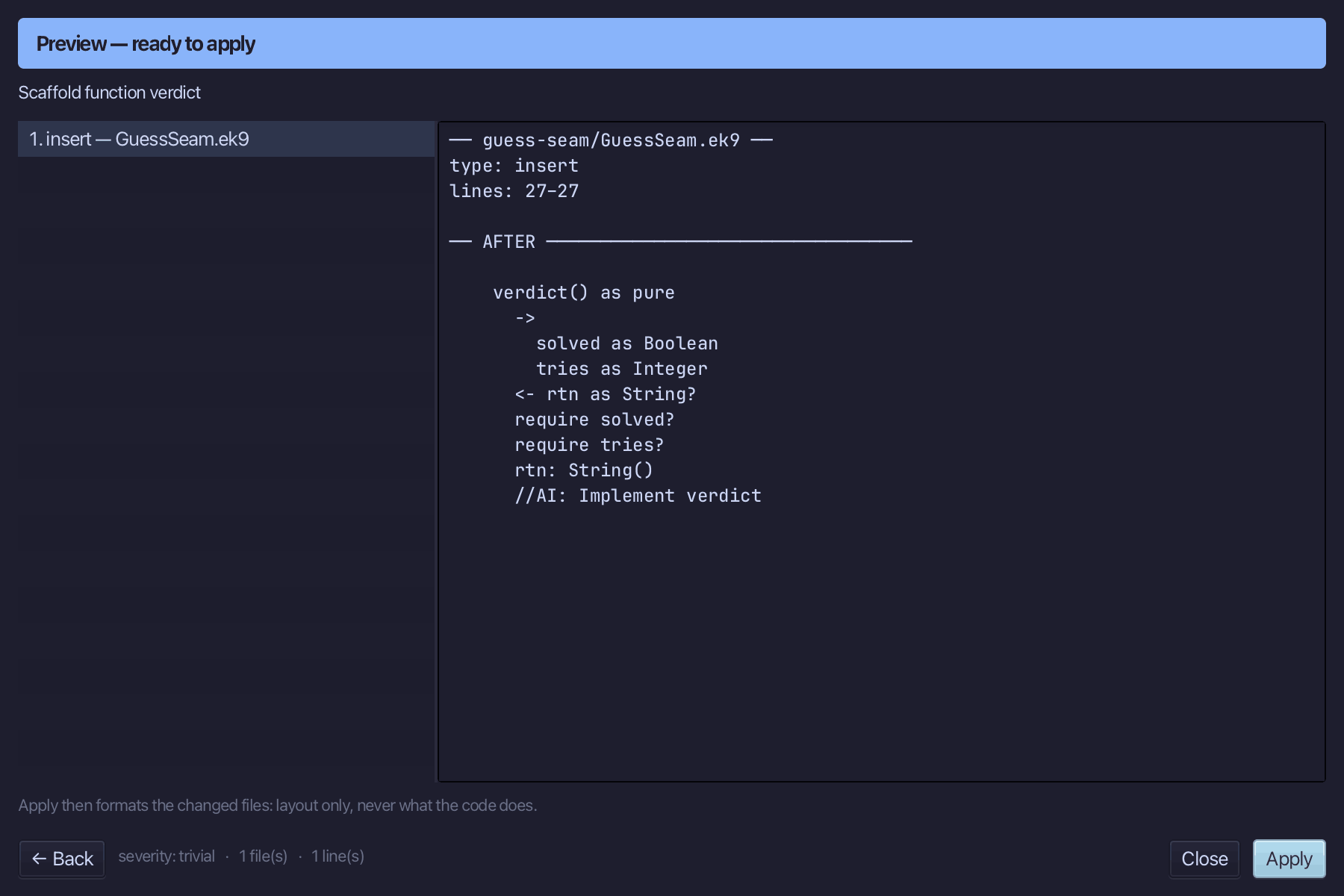
Select the stub, from <- rtn as String? down to its //AI line, and type verdict's own return and work, as the book writes them. Saves when typed.
Step 6: SecretSource — a component
Choose Code > New Construct > Component…
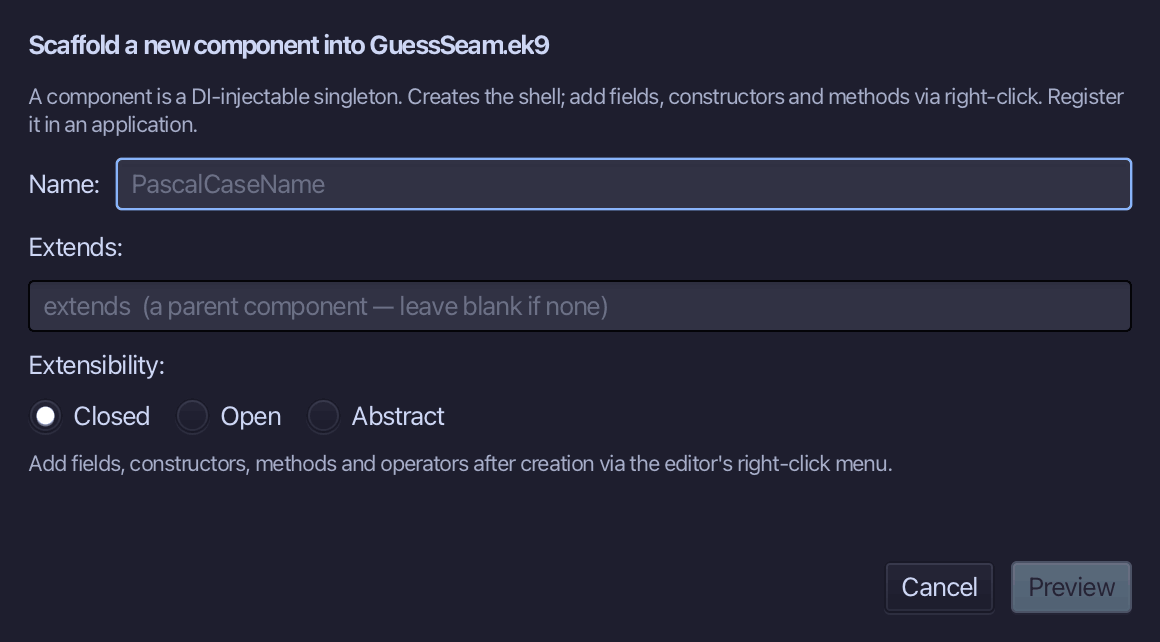
SecretSource is the component's name. The secret is a seam: where the number comes from is a component, so a test can fix it. Choose Abstract under Extensibility. Choose Preview.
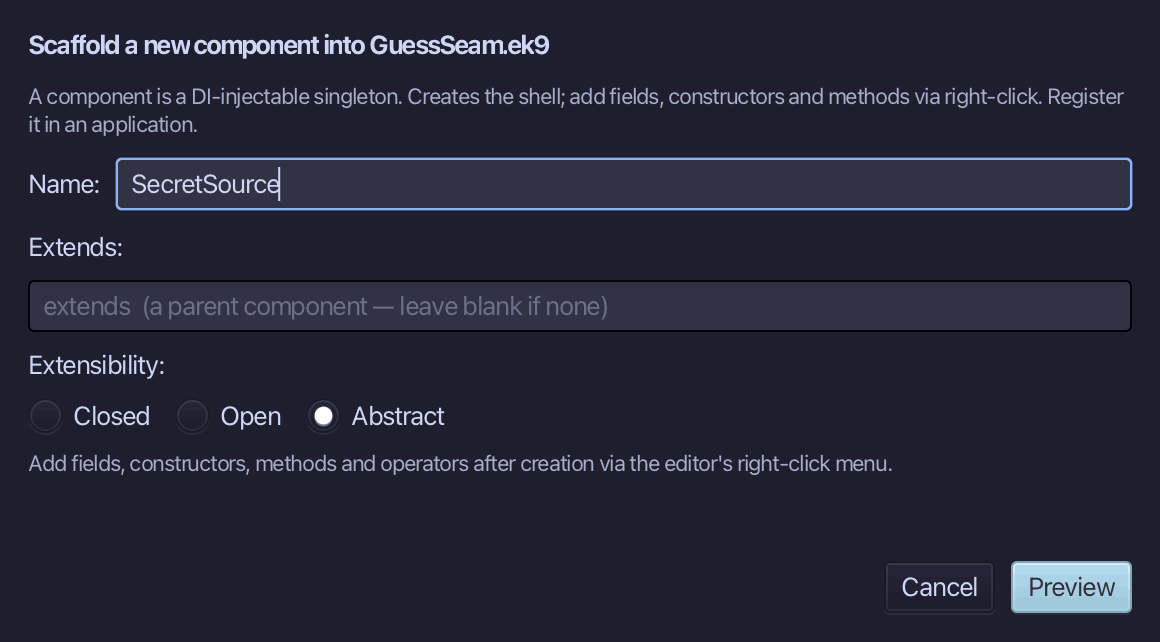
The preview shows SecretSource about to be written. Choose Apply.
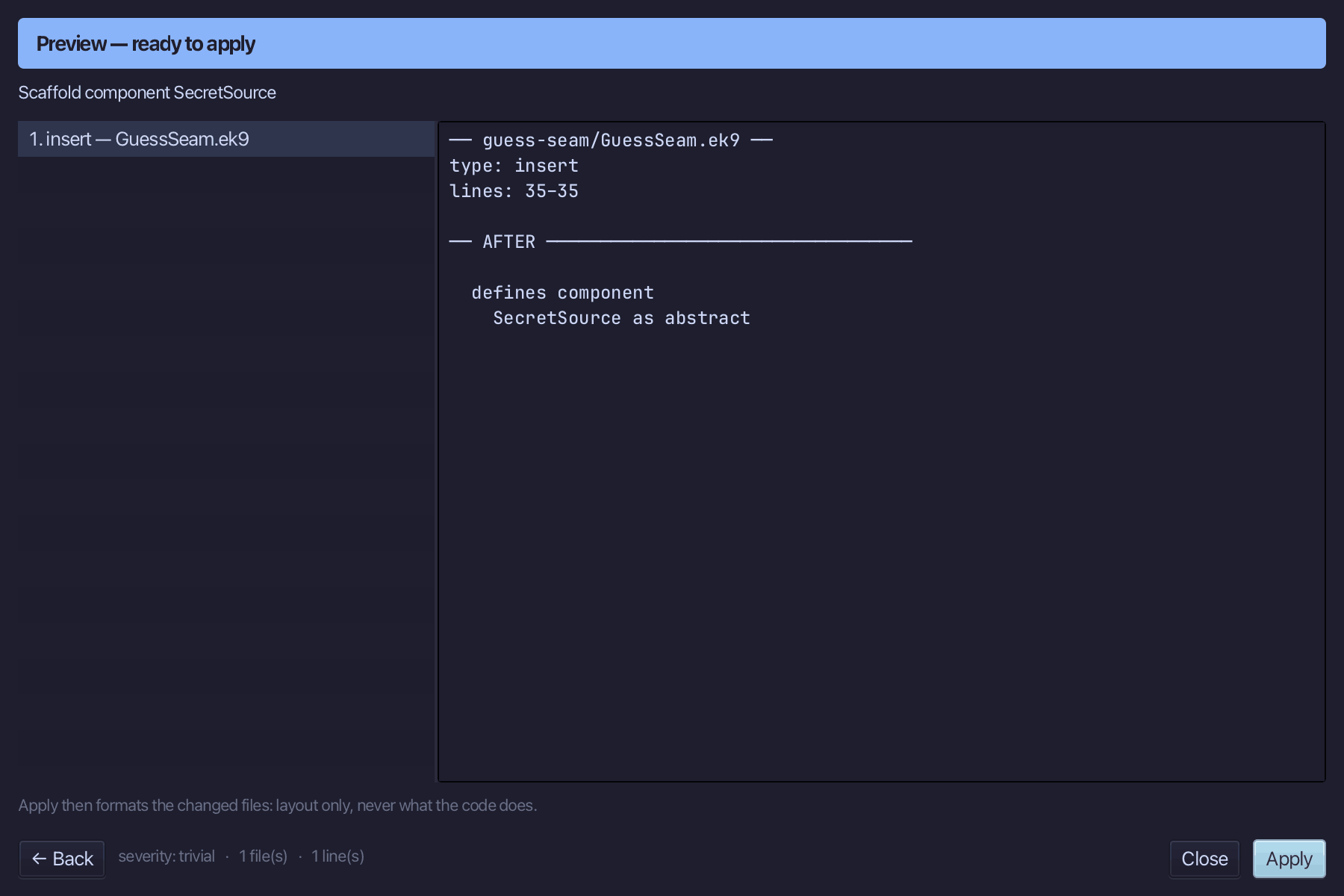
Select the SecretSource line and, above it, type the blank line the book opens the block with. Saves when typed.
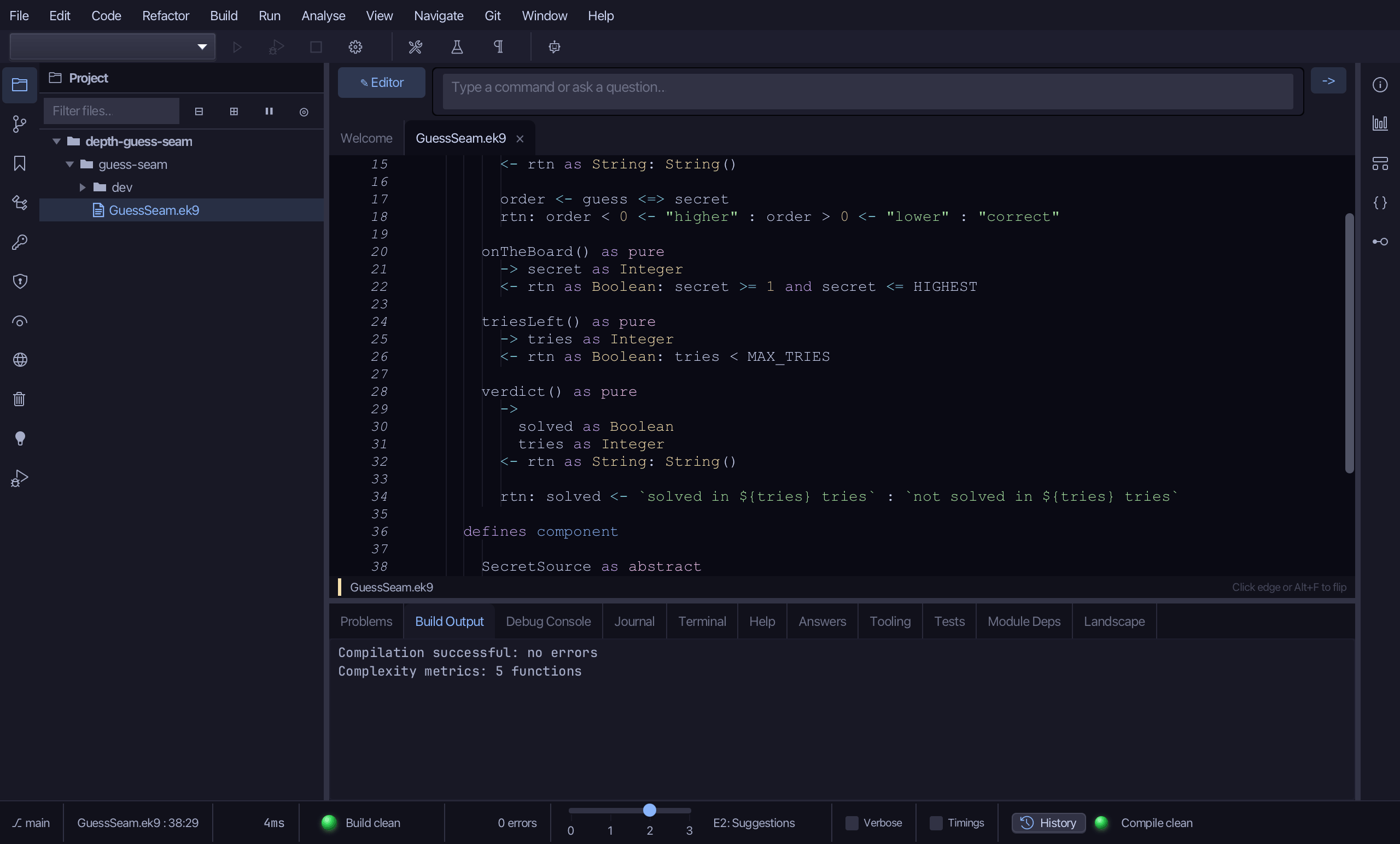
Right-click the SecretSource line and choose Add Method…
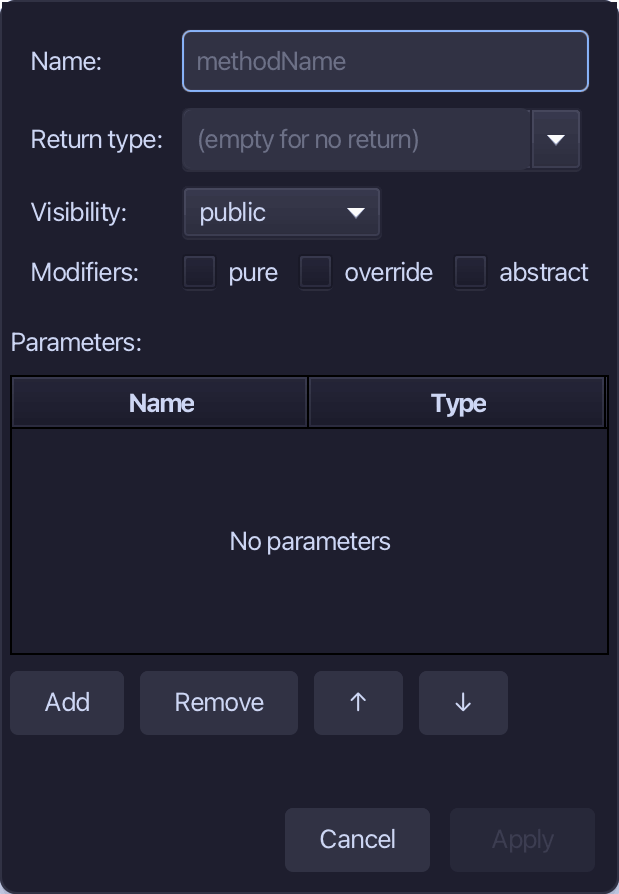
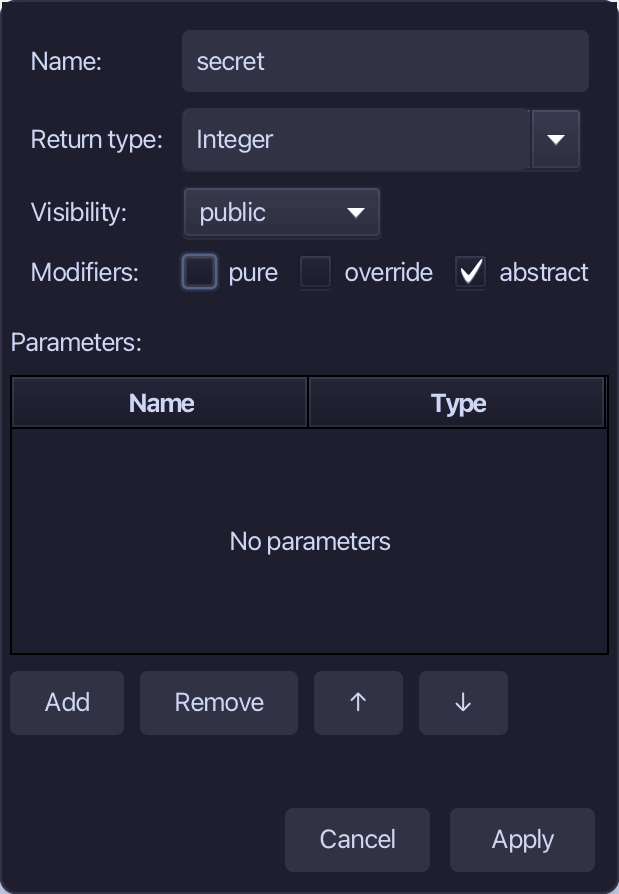
secret is the method's name. Set Return type to Integer and tick abstract - a contract with no body. Choose Apply.
Step 7: Player — a component
Choose Code > New Construct > Component…
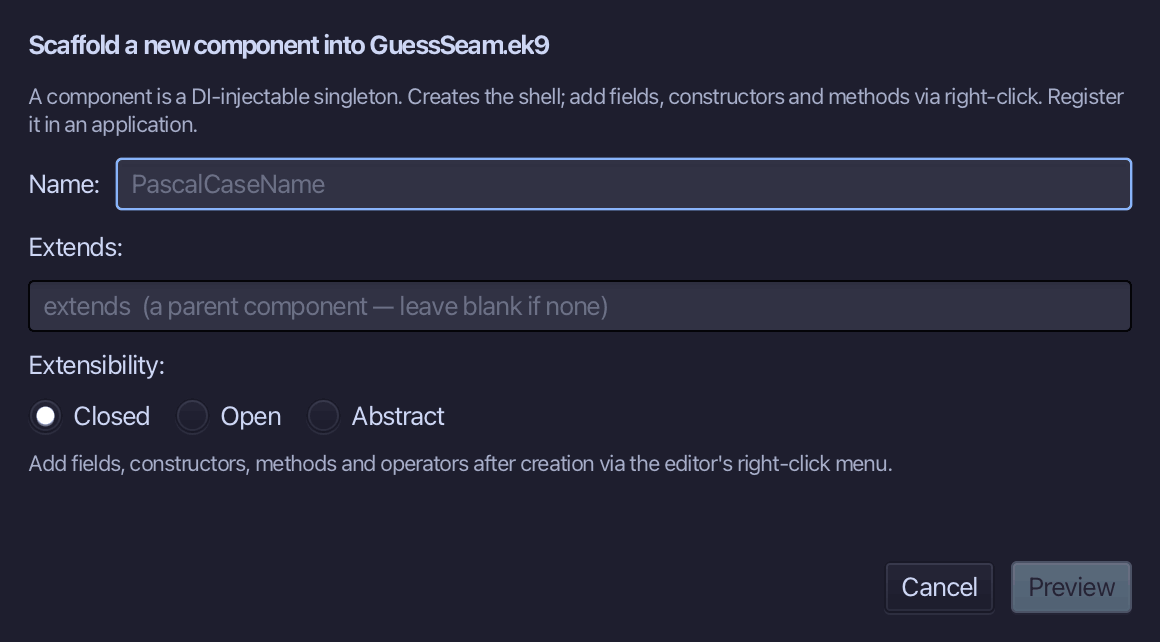
Player is the component's name. The player is the second seam: a keyboard in production, a script in a test. Choose Abstract under Extensibility. Choose Preview.
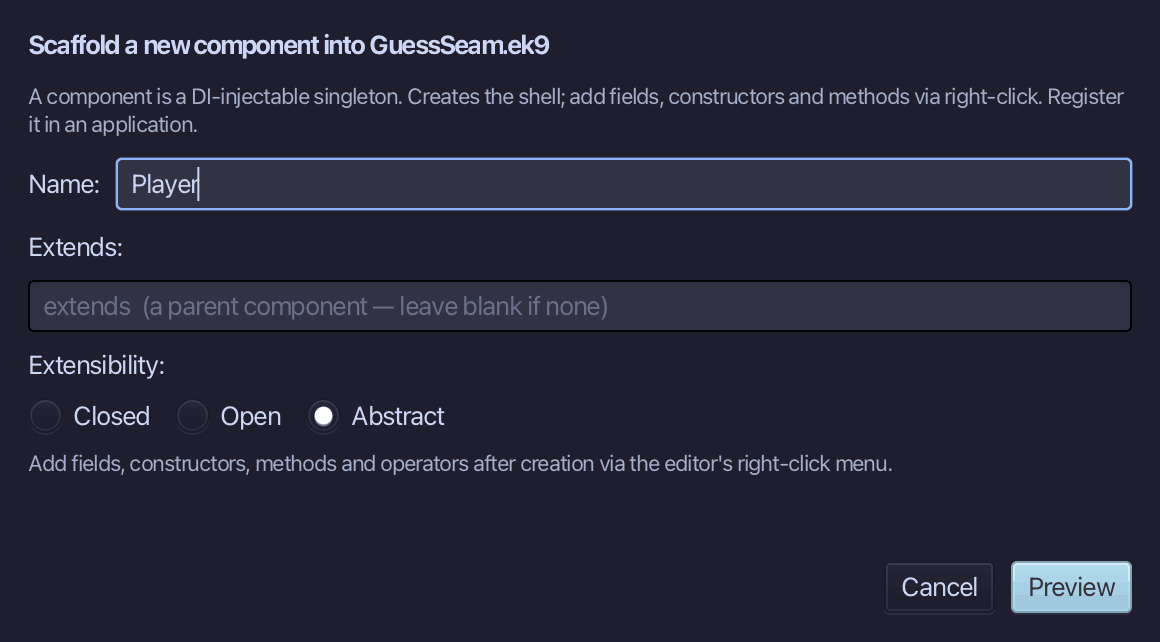
The preview shows Player about to be written. Choose Apply.
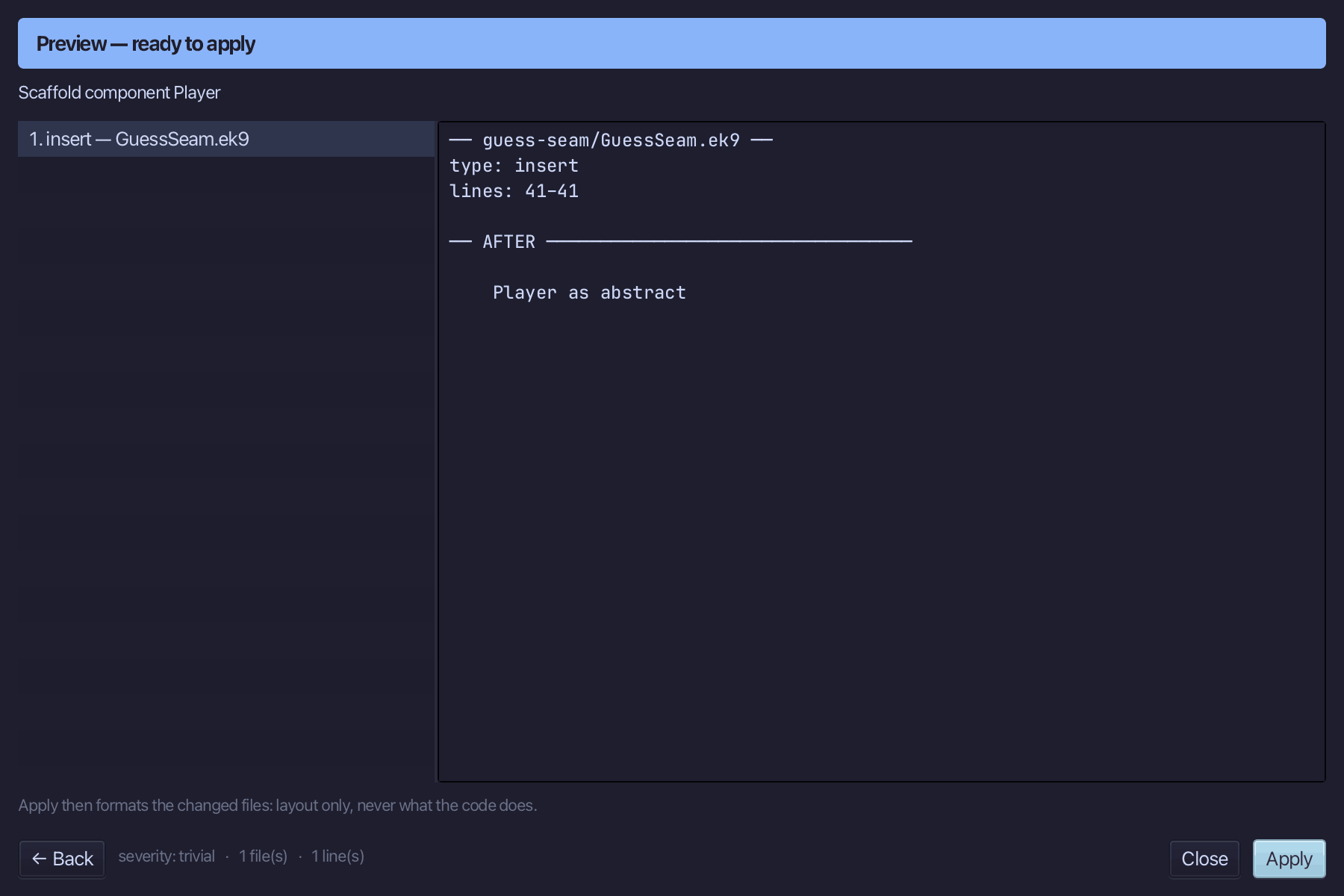
Right-click the Player line and choose Add Method…
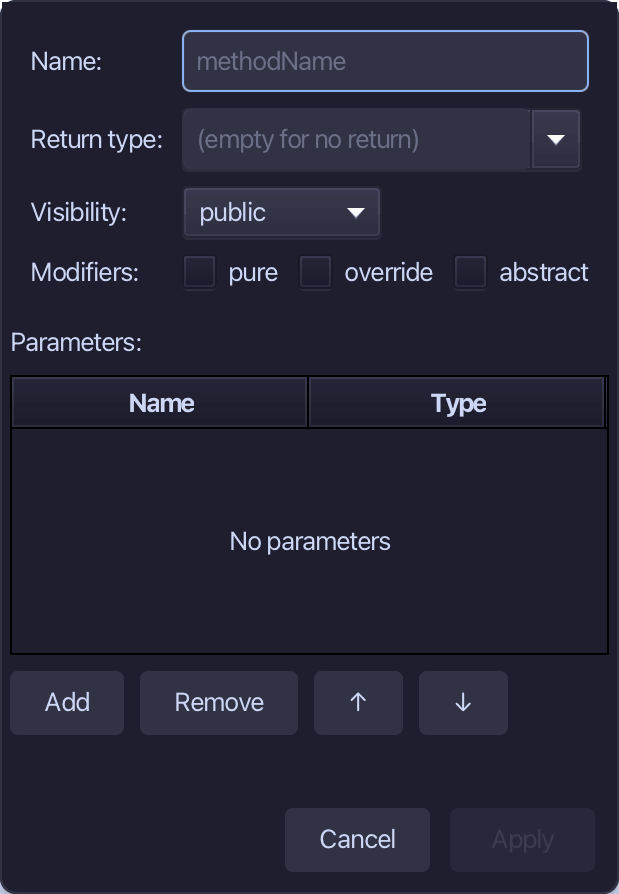
nextGuess is the method's name. Set Return type to Integer and tick abstract - a contract with no body. Choose Apply.
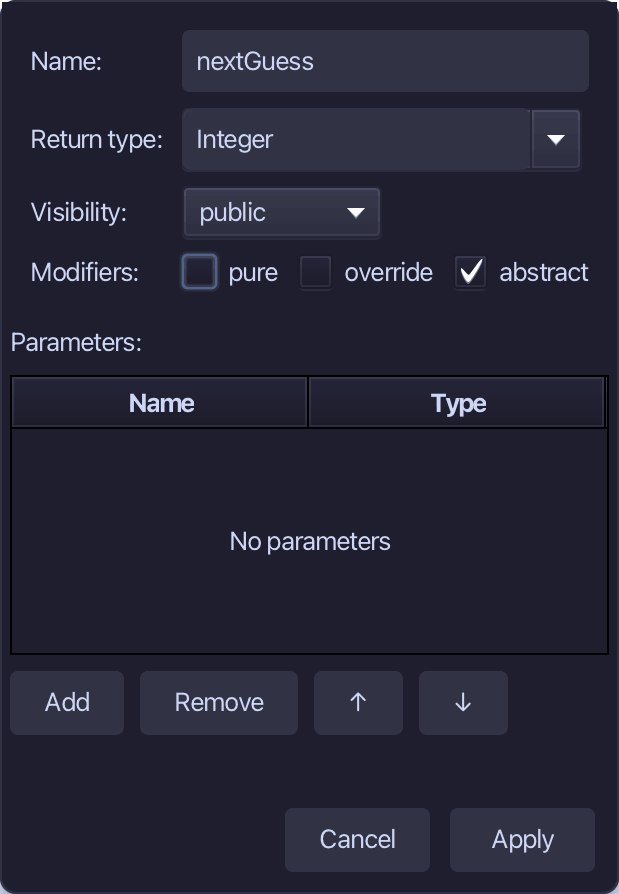
Step 8: RandomSecret — a component
Choose Code > New Construct > Component…
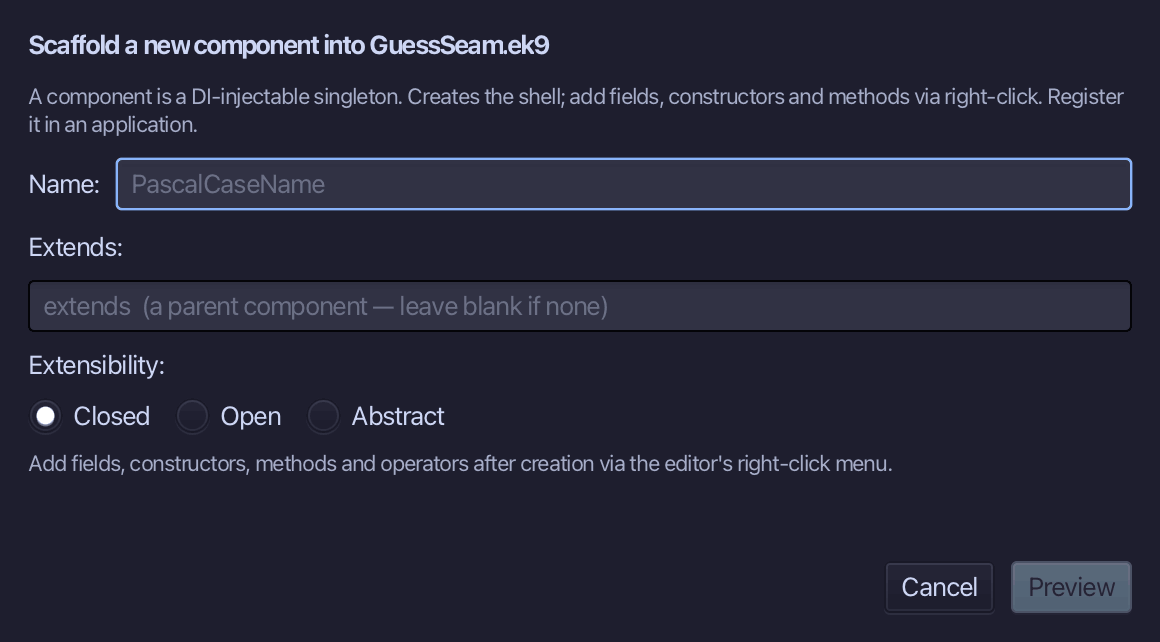
RandomSecret is the component's name. It is the live secret. Type SecretSource into Extends. Choose Preview.
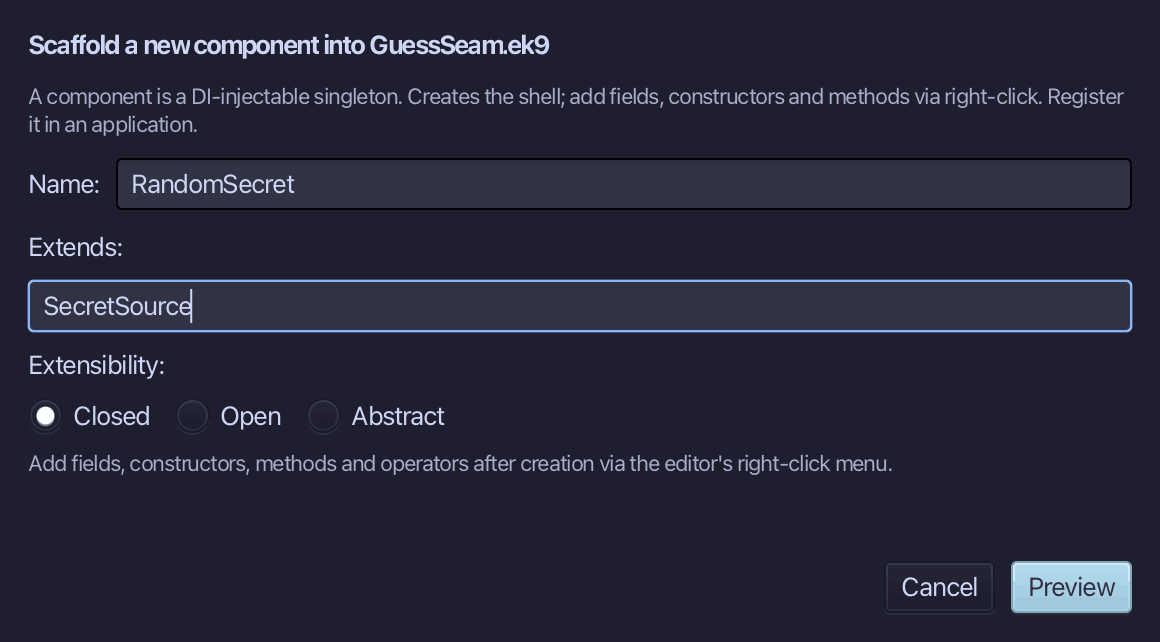
The preview shows RandomSecret about to be written - and, if SecretSource owes any methods, an override stub for each. Choose Apply.
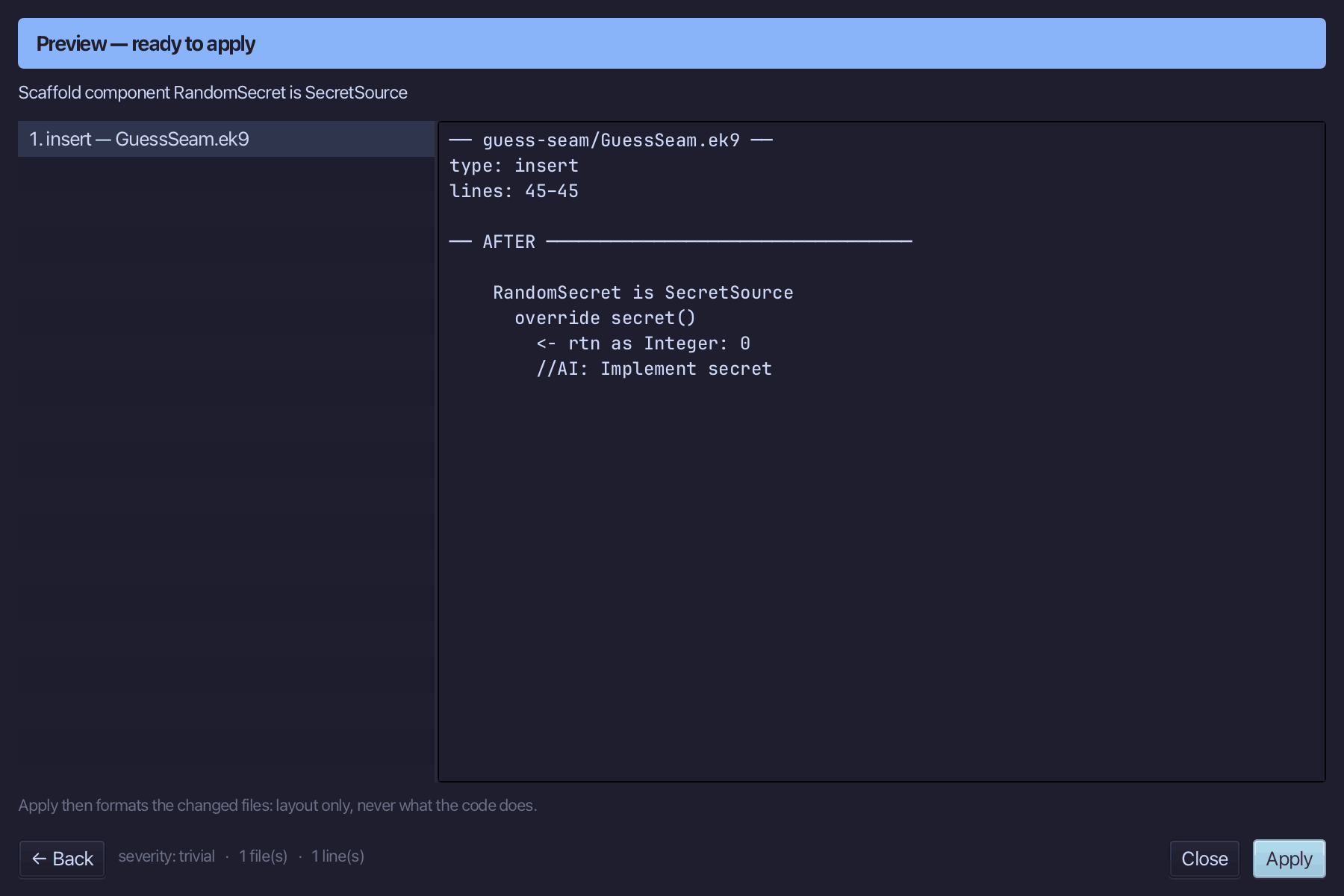
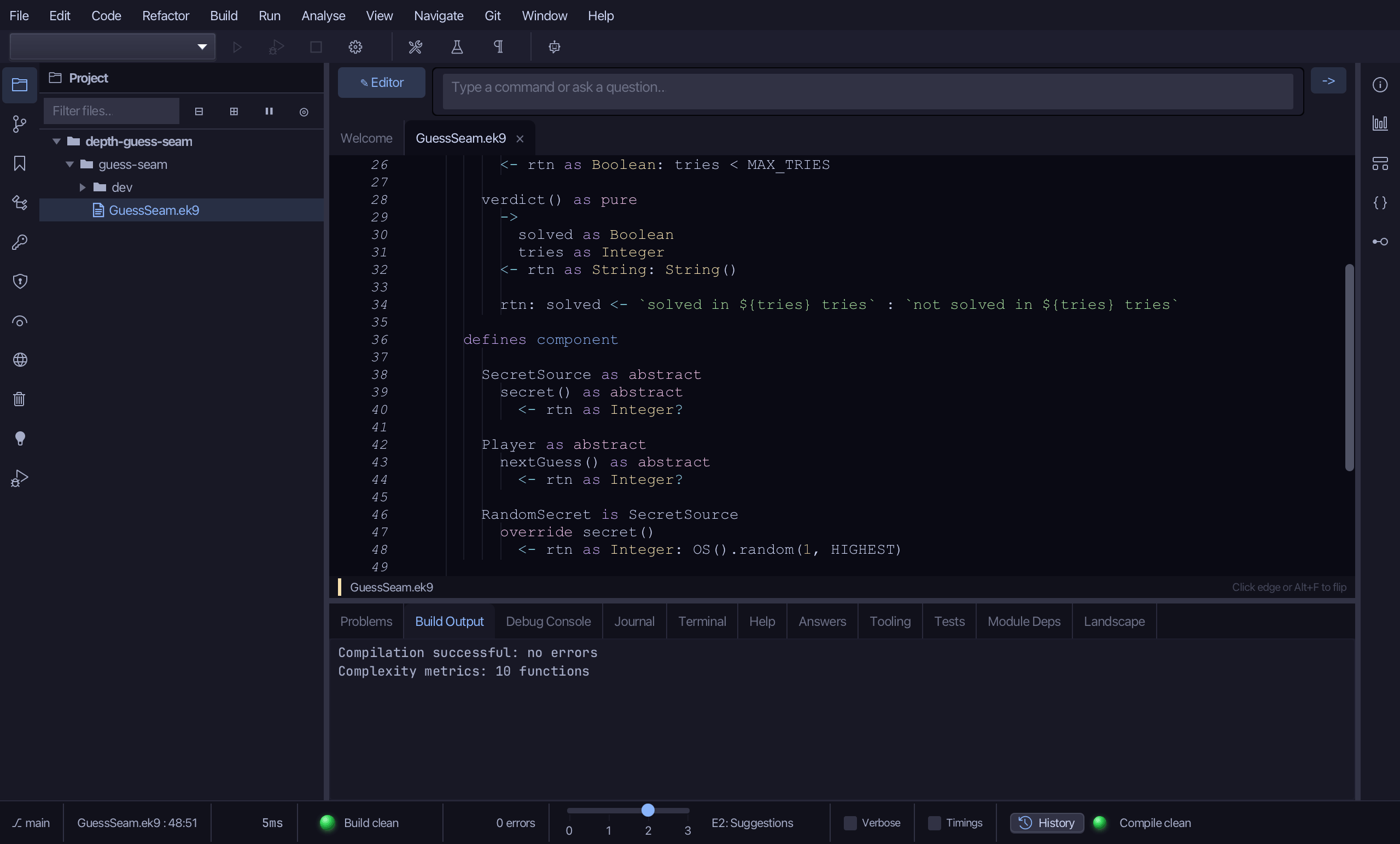
Select the stub, from <- rtn as Integer: 0 down to its //AI line, and type the live answer: a random number from the operating system. Saves when typed.
Step 9: KeyboardPlayer — a component
Choose Code > New Construct > Component…
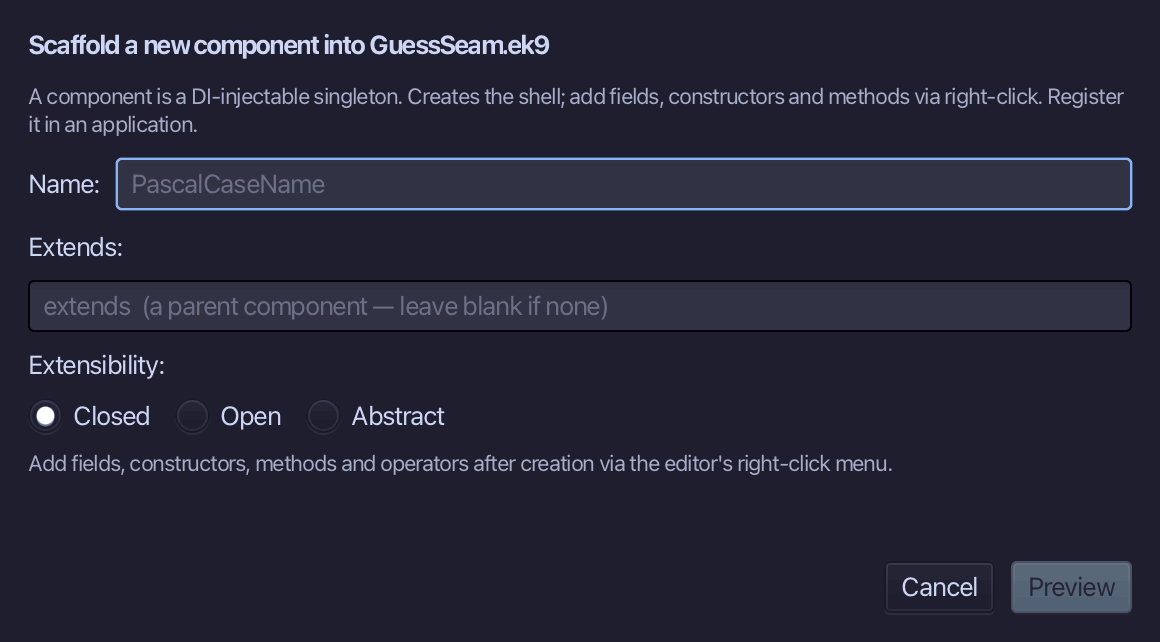
KeyboardPlayer is the component's name. It is the live player. Type Player into Extends. Choose Preview.
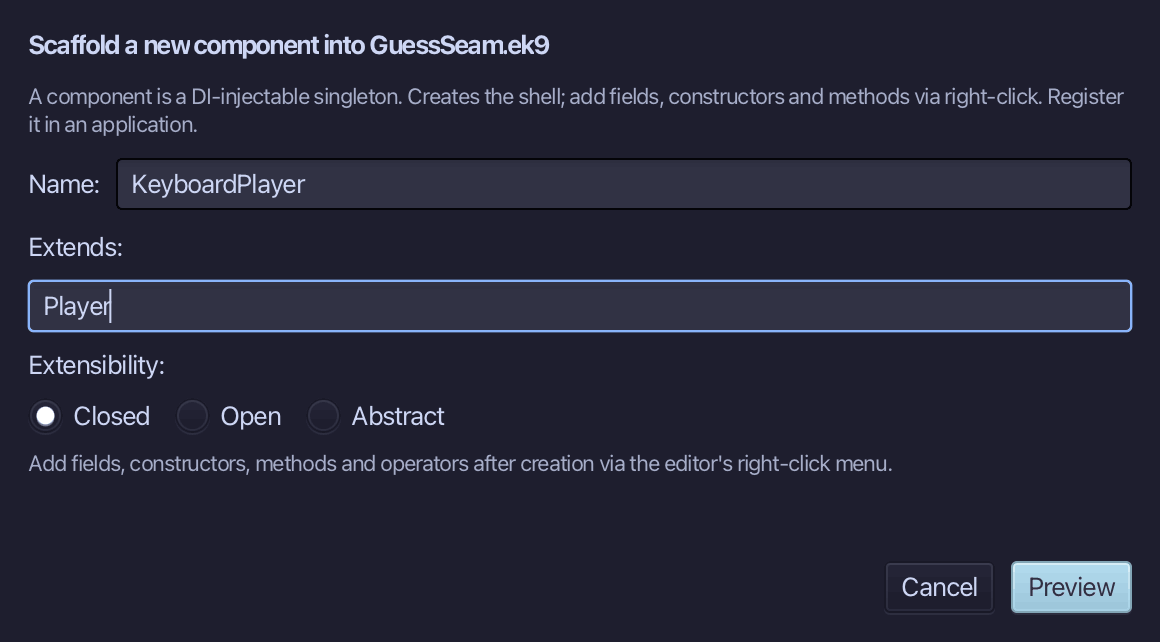
The preview shows KeyboardPlayer about to be written - and, if Player owes any methods, an override stub for each. Choose Apply.
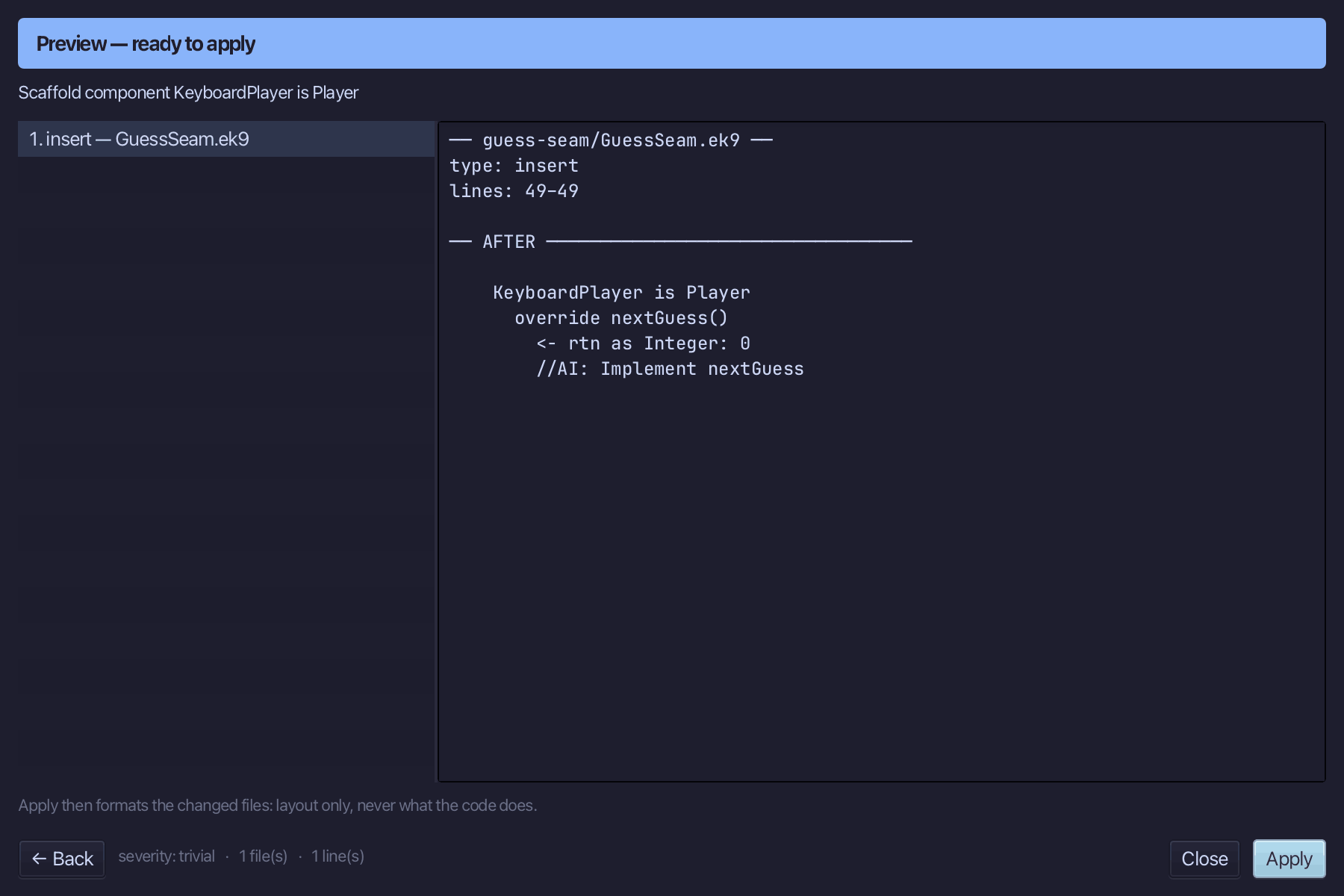
Select the stub and type the live answer: the next word typed, read as an Integer. Saves when typed.
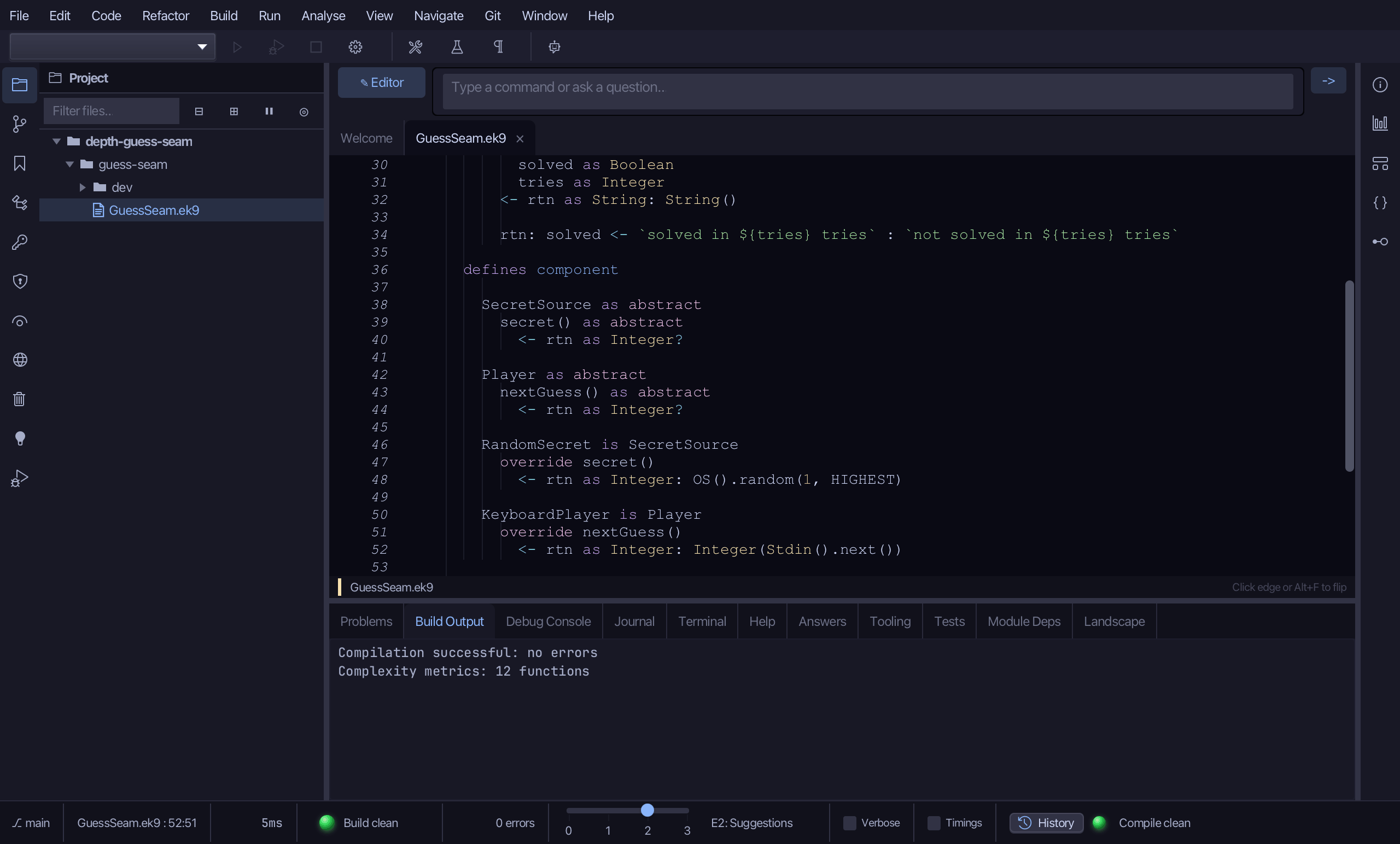
Step 10: GuessGame — a class
Choose Code > New Construct > Class…
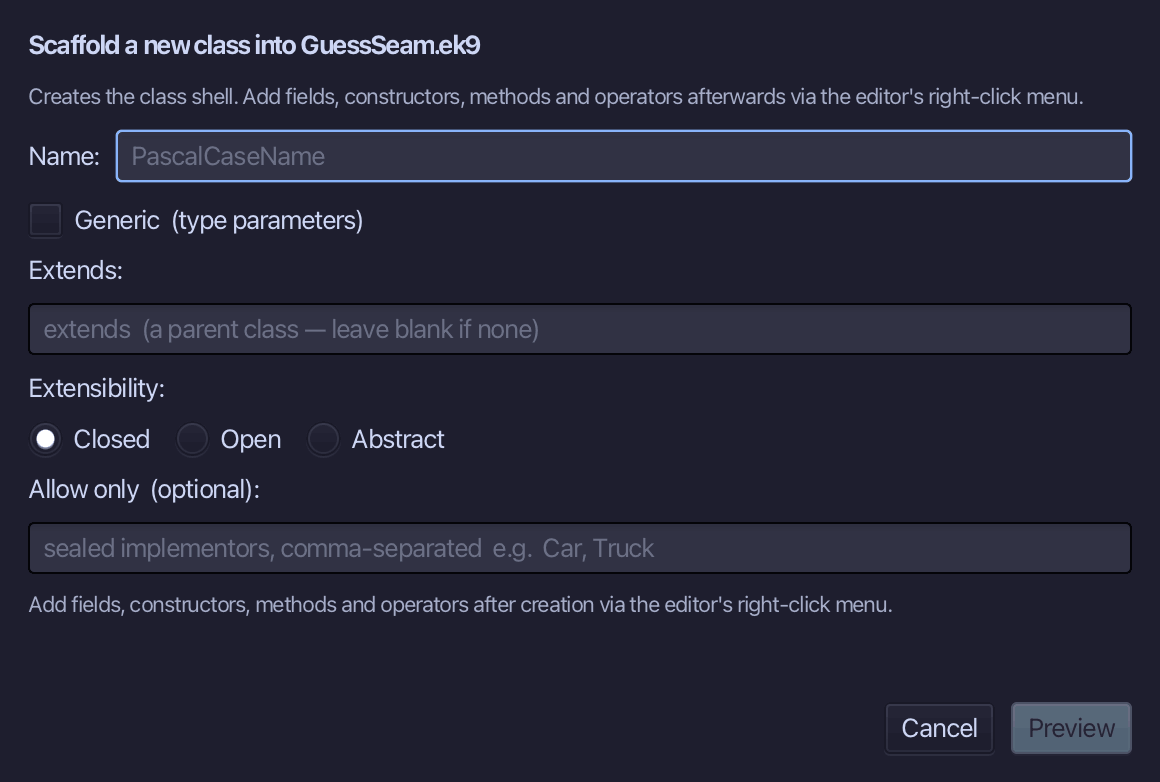
GuessGame is the class's name. It is the game itself. It asks for its secret and its player as components. Choose Preview.
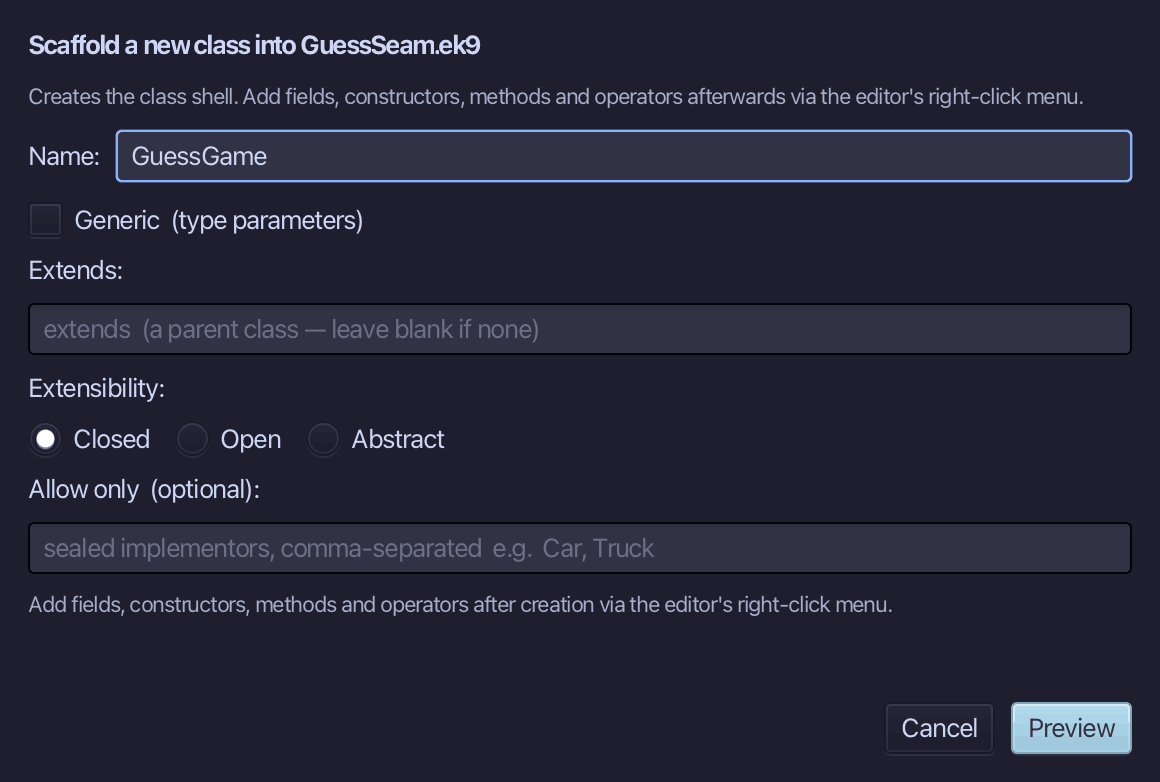
The preview shows GuessGame about to be written. Choose Apply.
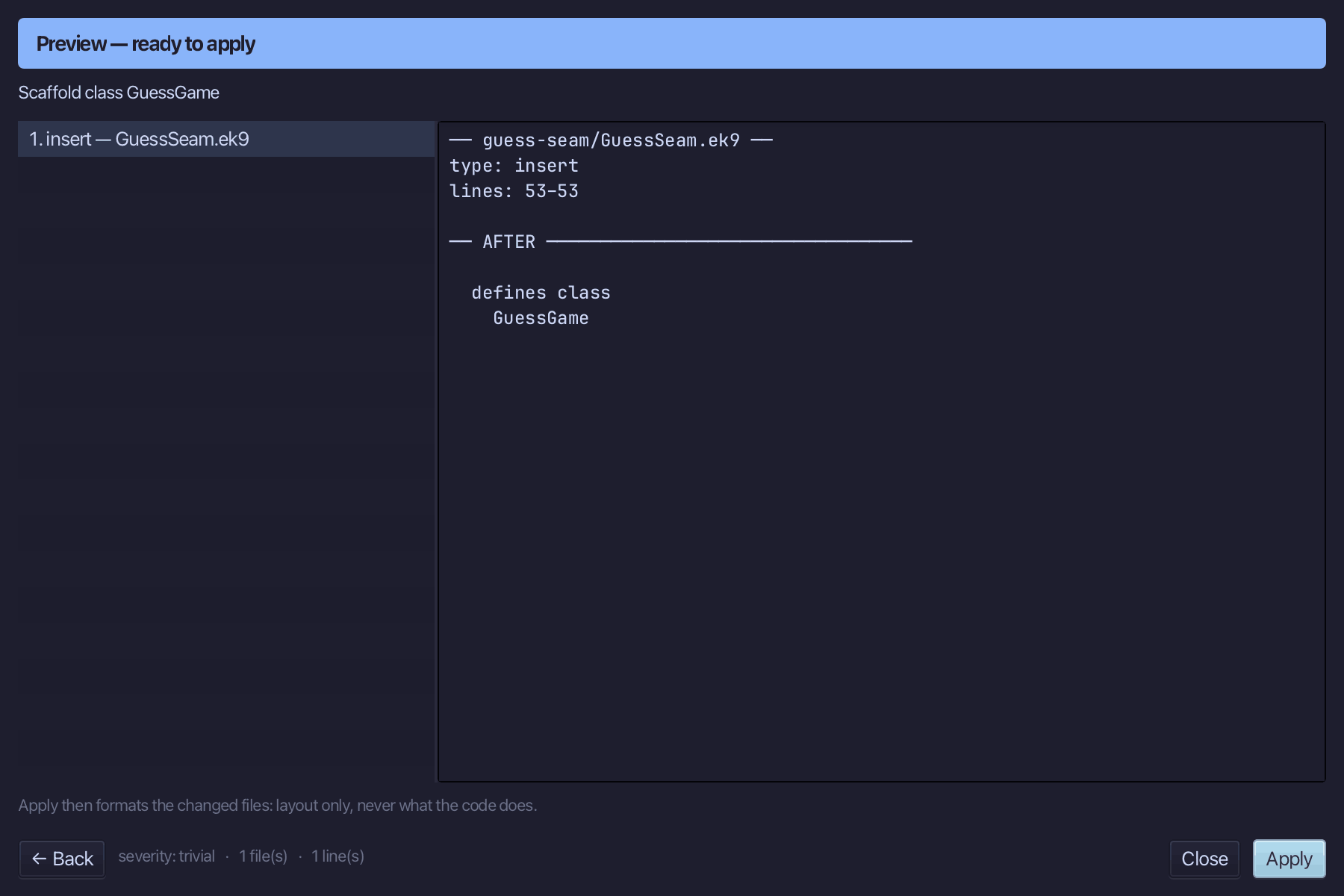
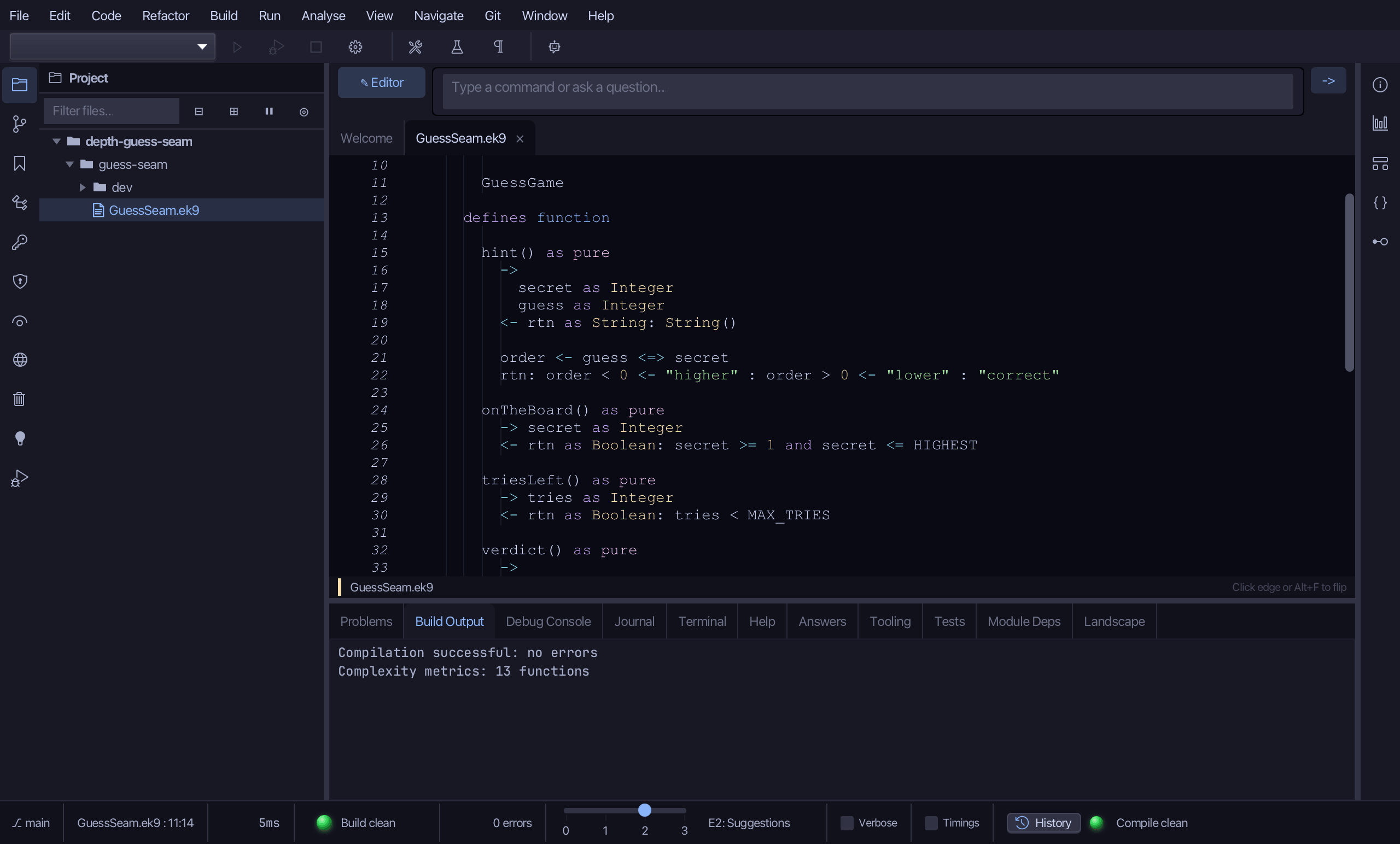
Select the GuessGame line and, above it, type the blank line the book opens the block with. Saves when typed.
Right-click the GuessGame line and choose Add Field…
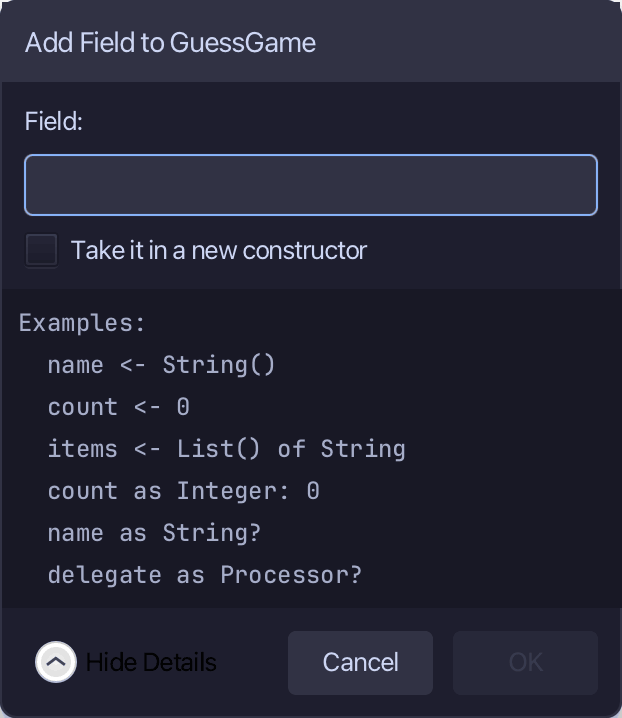
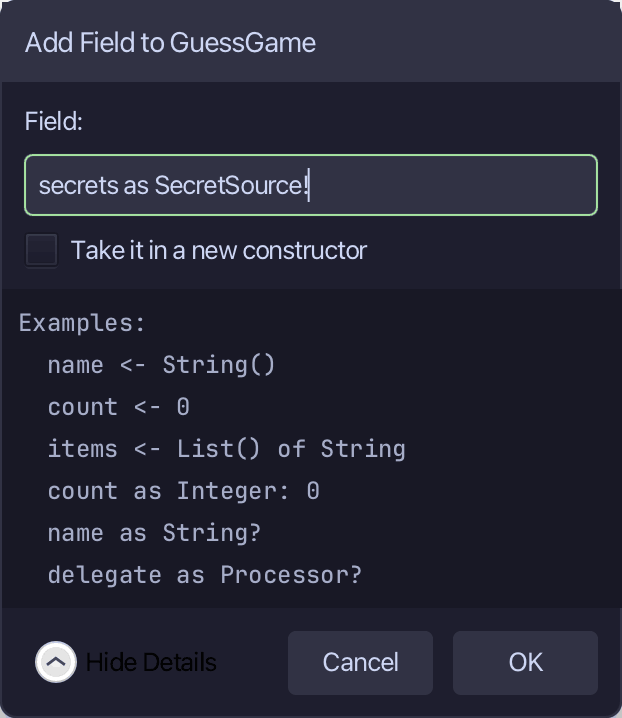
Type secrets as SecretSource!. The ! makes it an injection point: the application a program runs under supplies it. Choose OK.
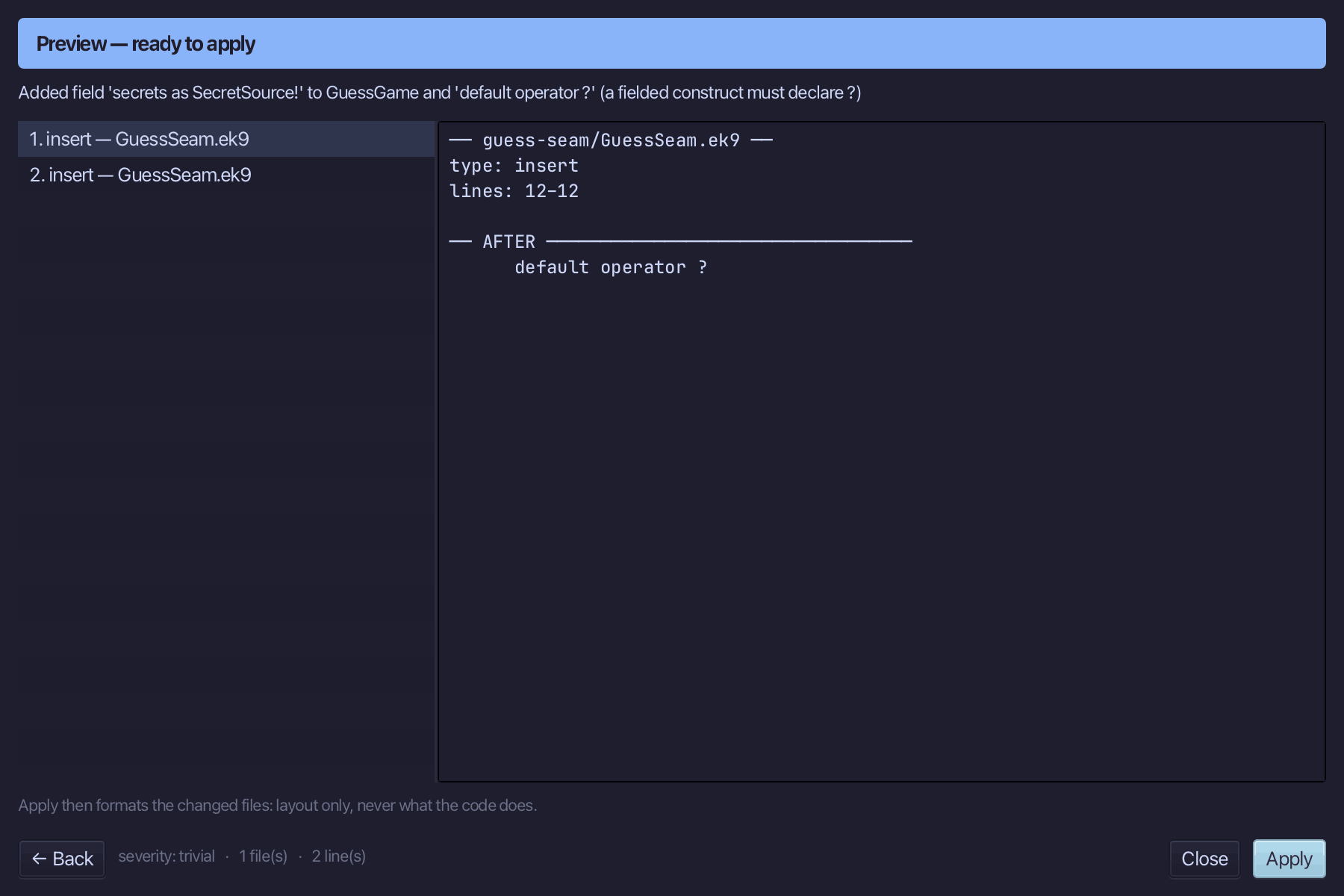
The preview shows secrets added - and default operator ? with it, GuessGame's first field. Choose Apply.
Right-click the GuessGame line and choose Add Field…
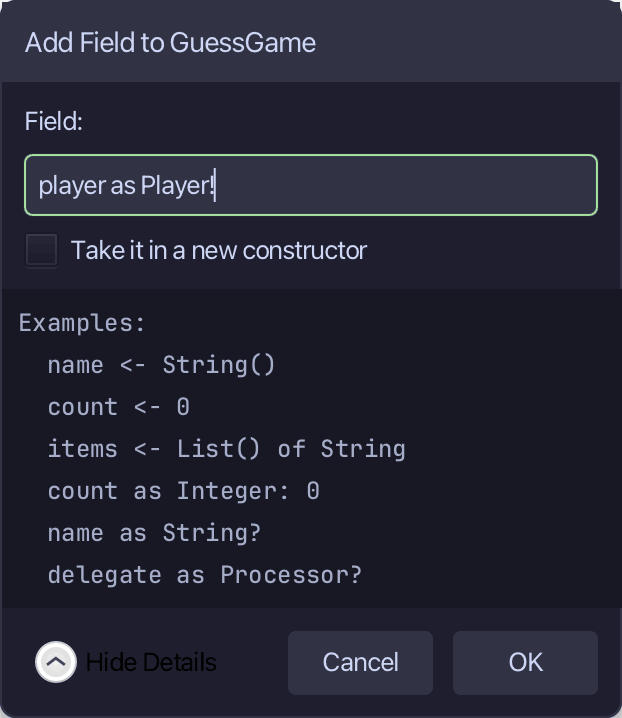
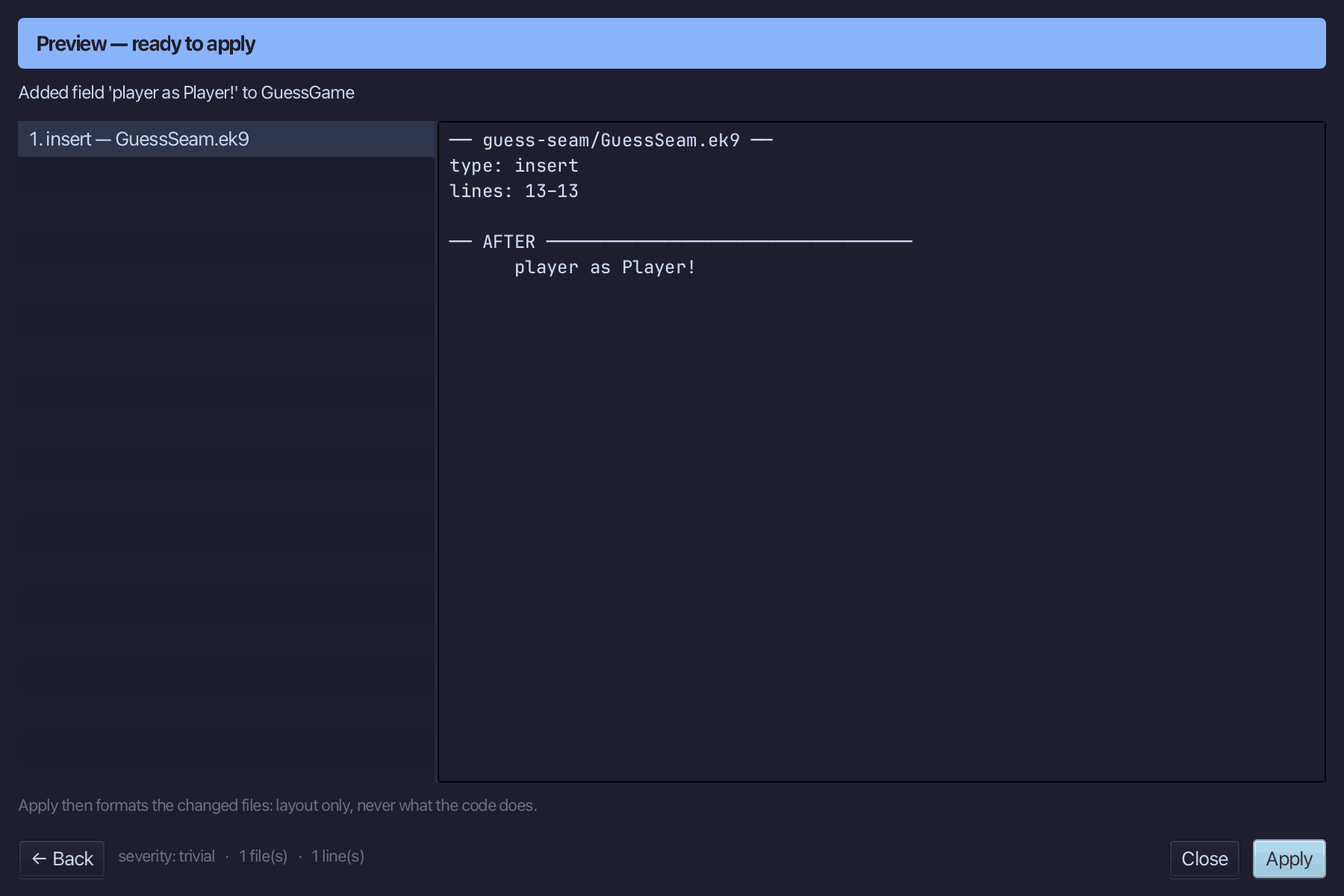
Type player as Player!. The second injection point. Choose OK.
The preview shows player added. Choose Apply.
Right-click the GuessGame line and choose Add Method…
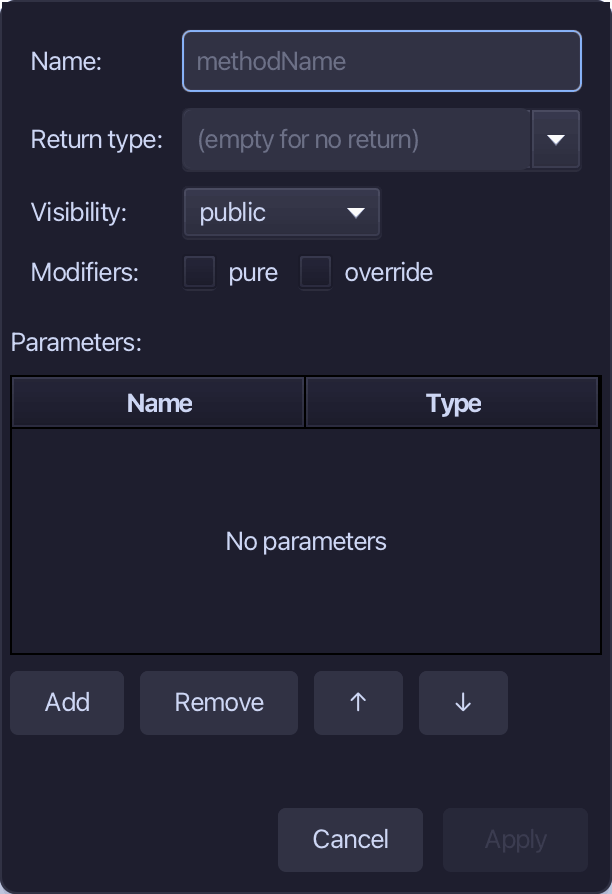
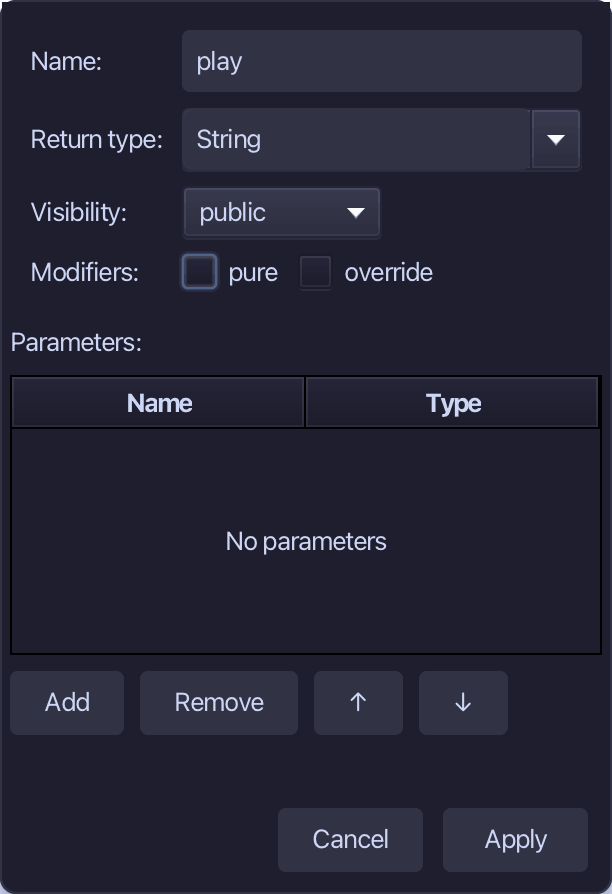
play is the method's name. It answers with the verdict. Set Return type to String. Choose Apply.
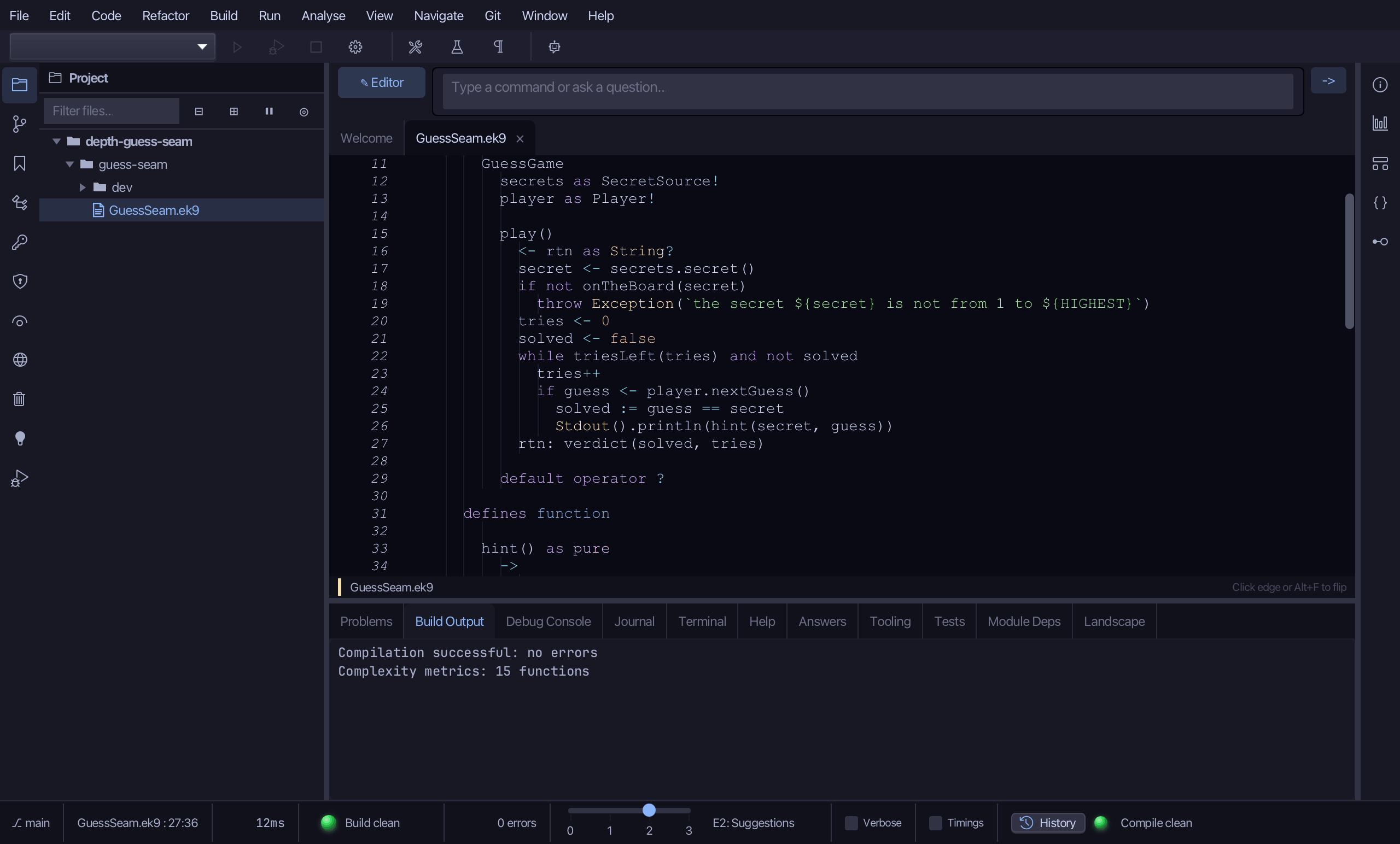
Select the stub and type the game: ask for the secret, refuse one off the board, then loop while tries remain and it is not solved. Everything it needs comes from the two components and the small pure functions. Saves when typed.
Step 11: liveGame — an application
Choose Code > New Construct > Application…
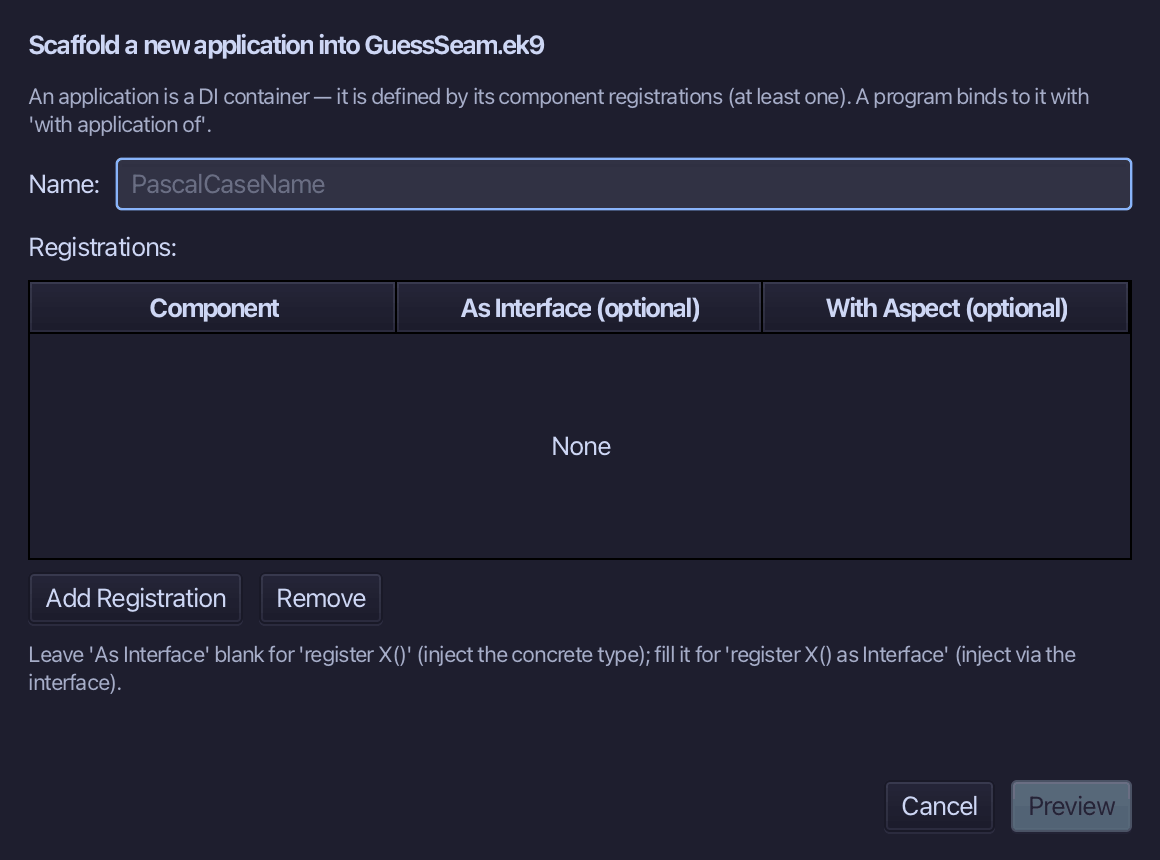
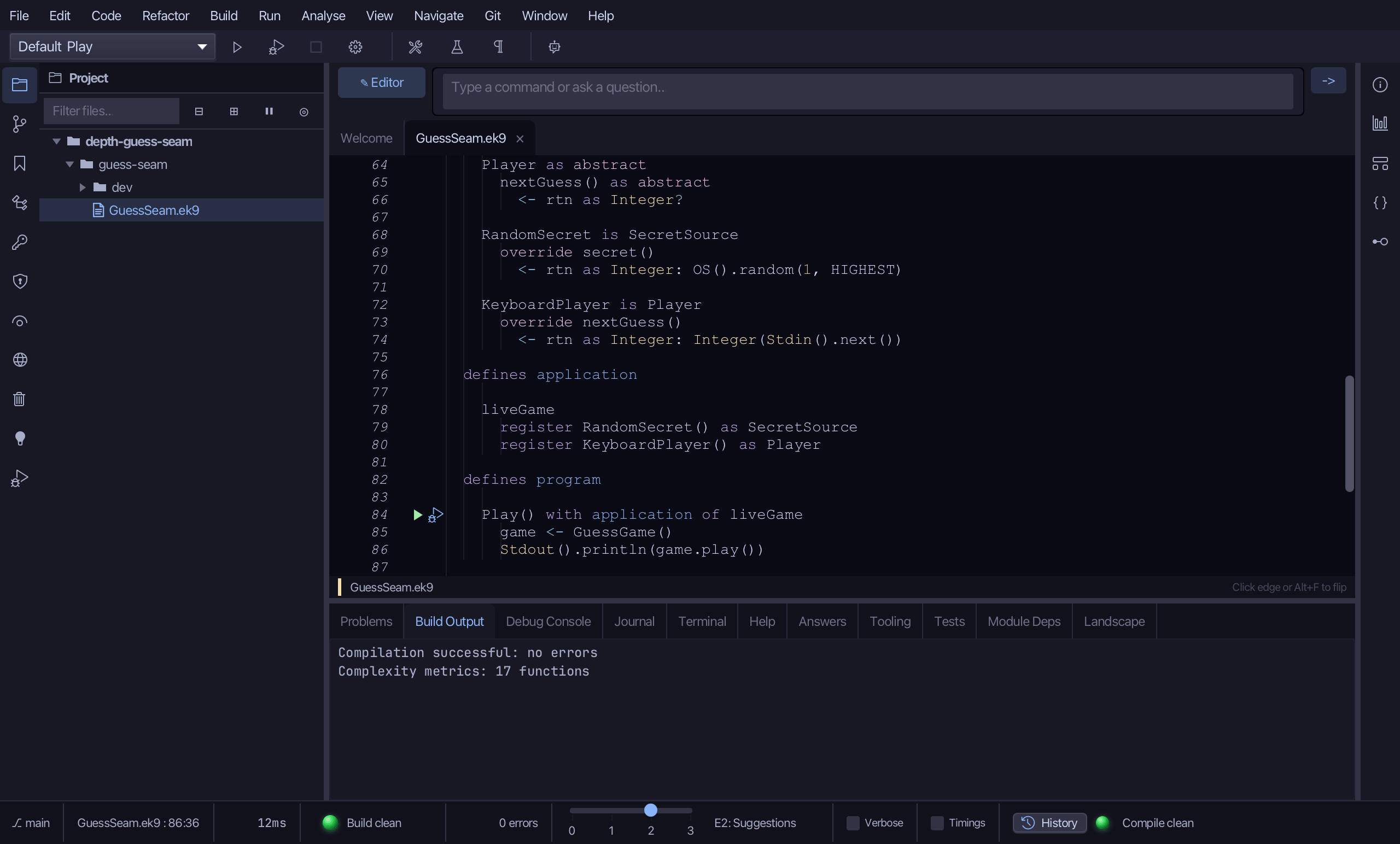
liveGame is the application's name. It is the live wiring: a random secret and a player at the keyboard. The Registrations table holds RandomSecret as SecretSource and KeyboardPlayer as Player. Choose Preview.
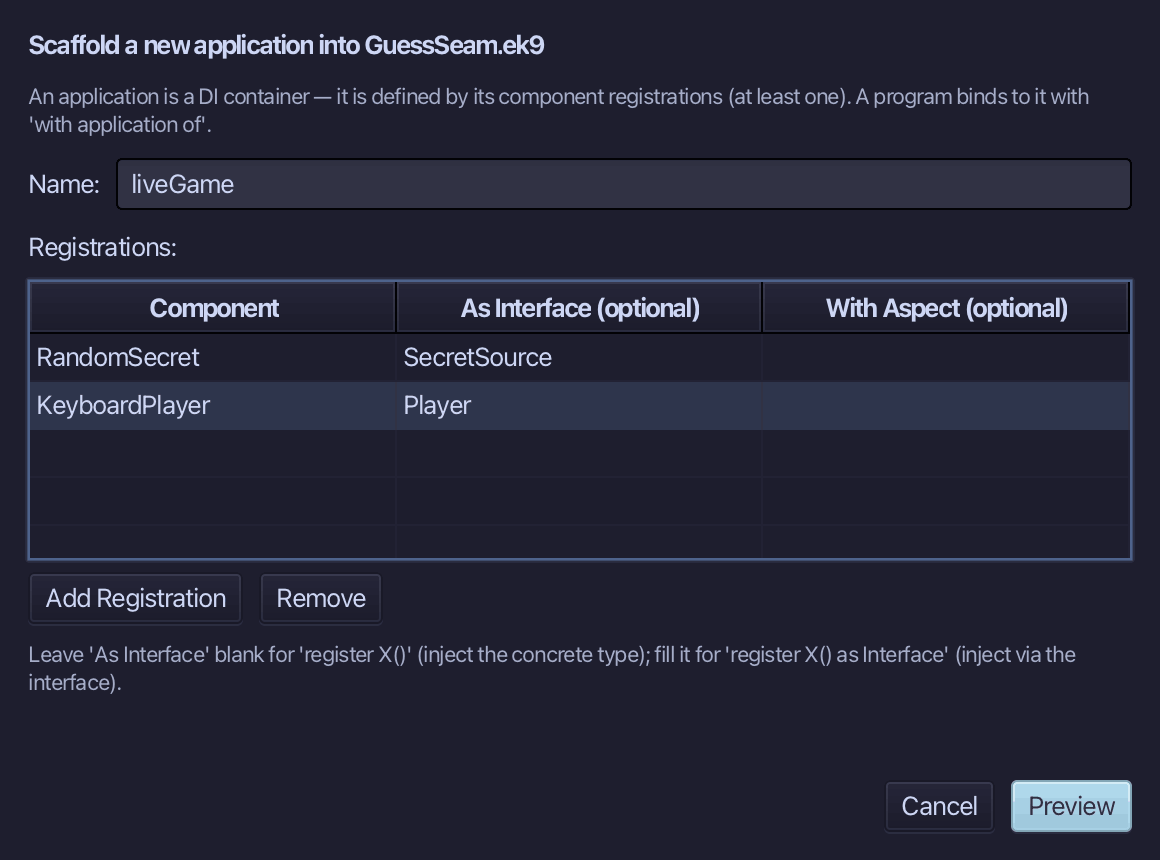
The preview shows liveGame about to be written, with a register line for each. Choose Apply.
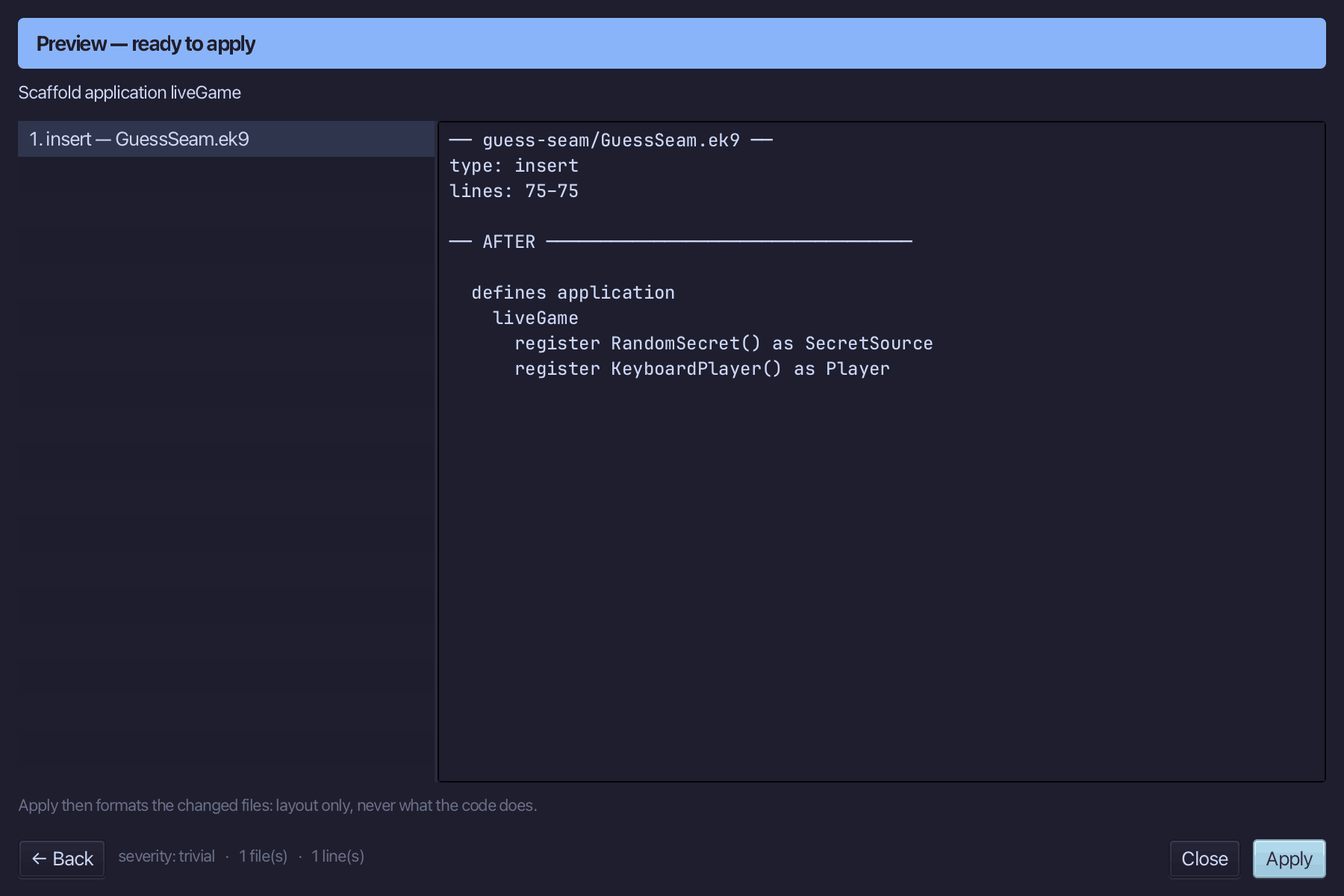
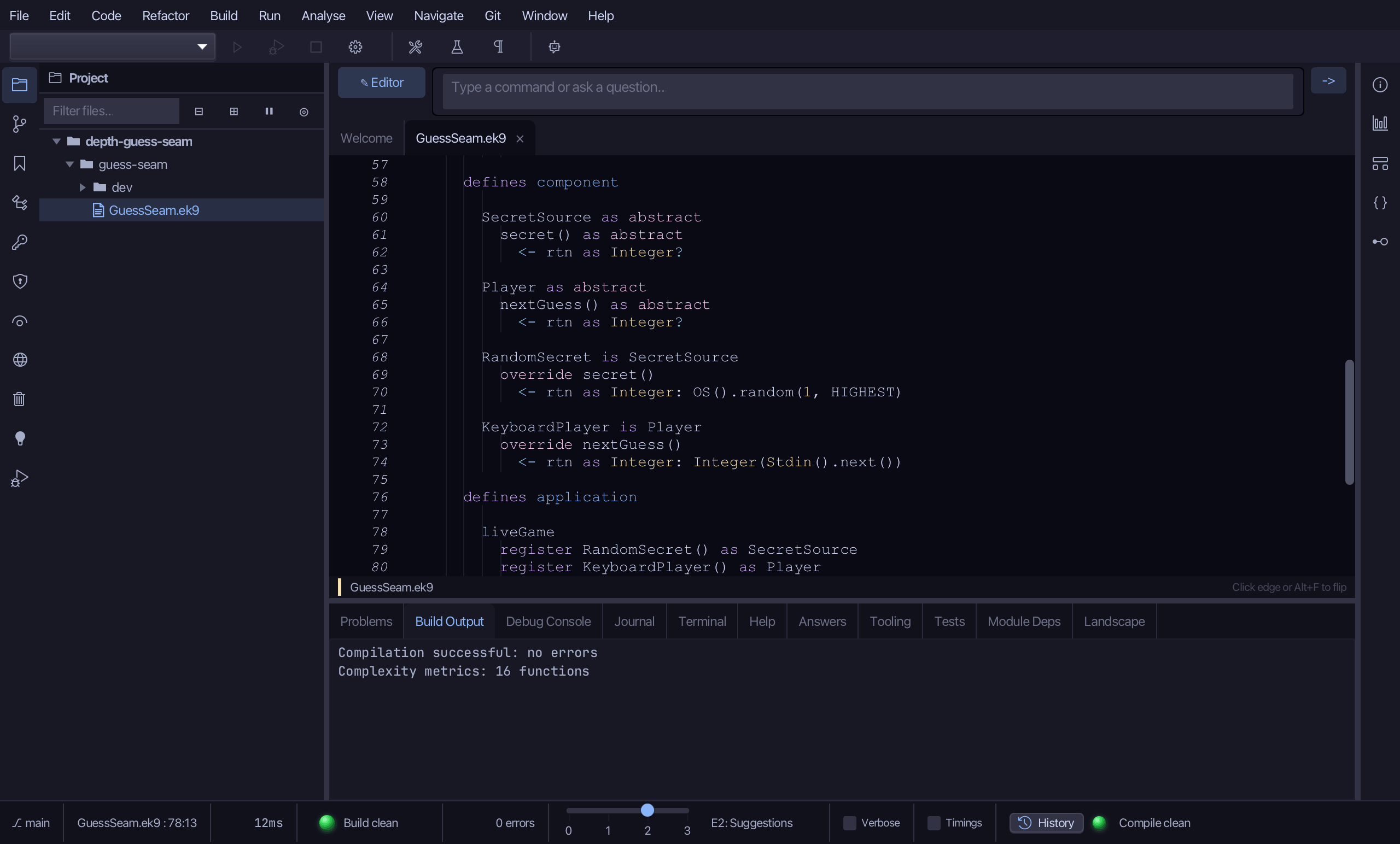
Select the liveGame line and, above it, type the blank line the book opens the block with. Saves when typed.
Step 12: Play — a program
Choose Code > New Construct > Program…
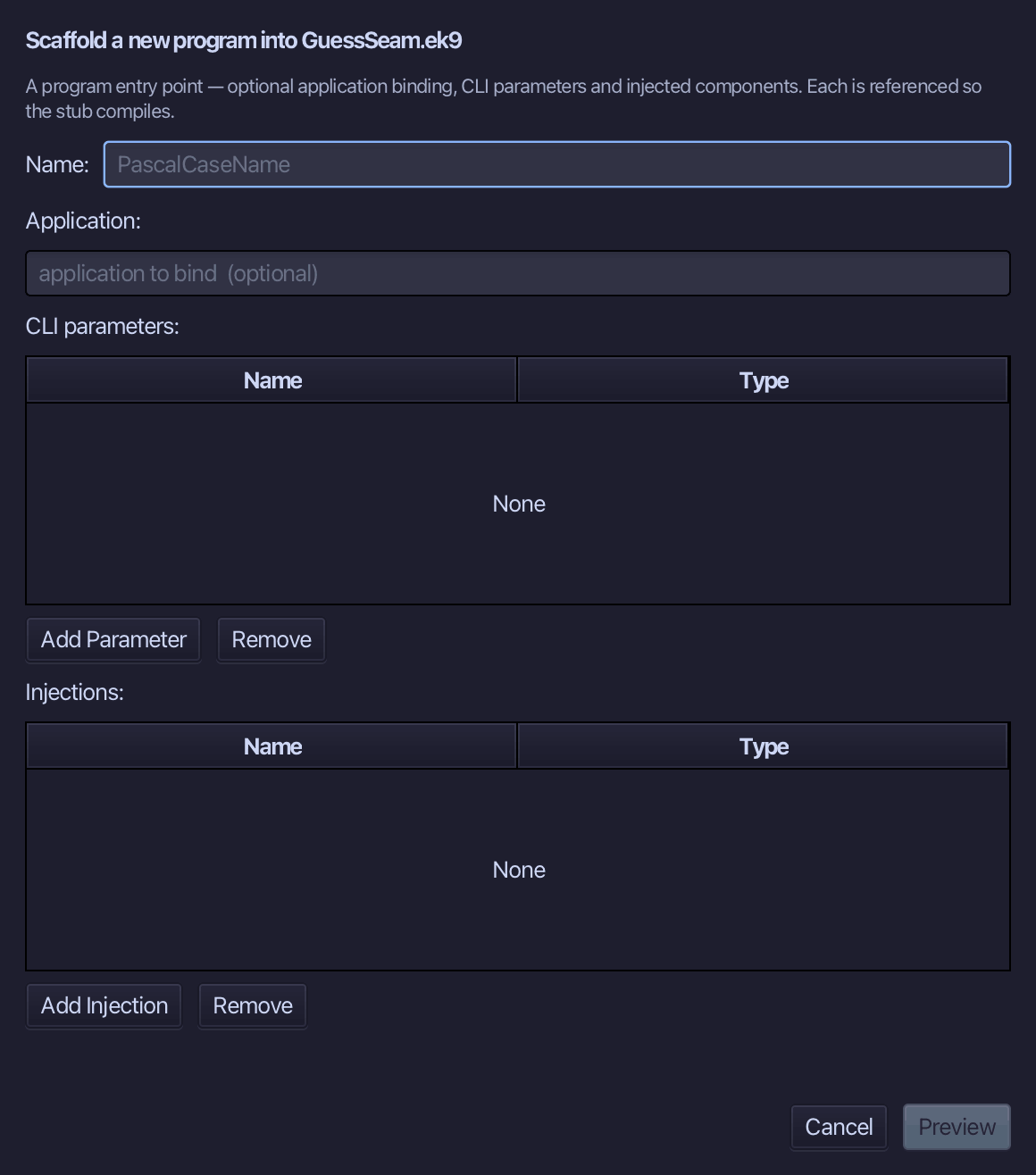
Play is the program's name. It runs the game under the live wiring. Type liveGame into Application. Choose Preview.
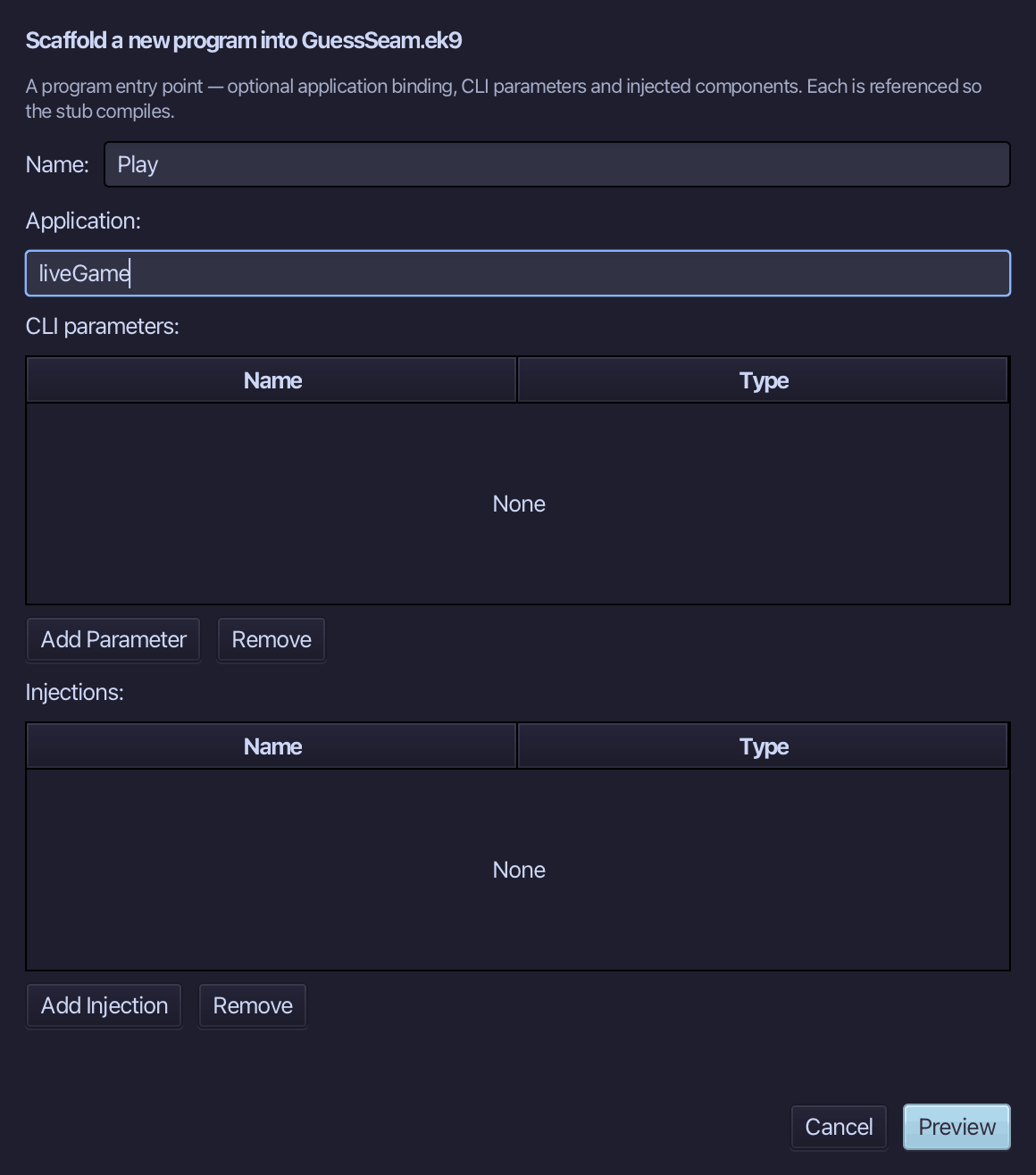
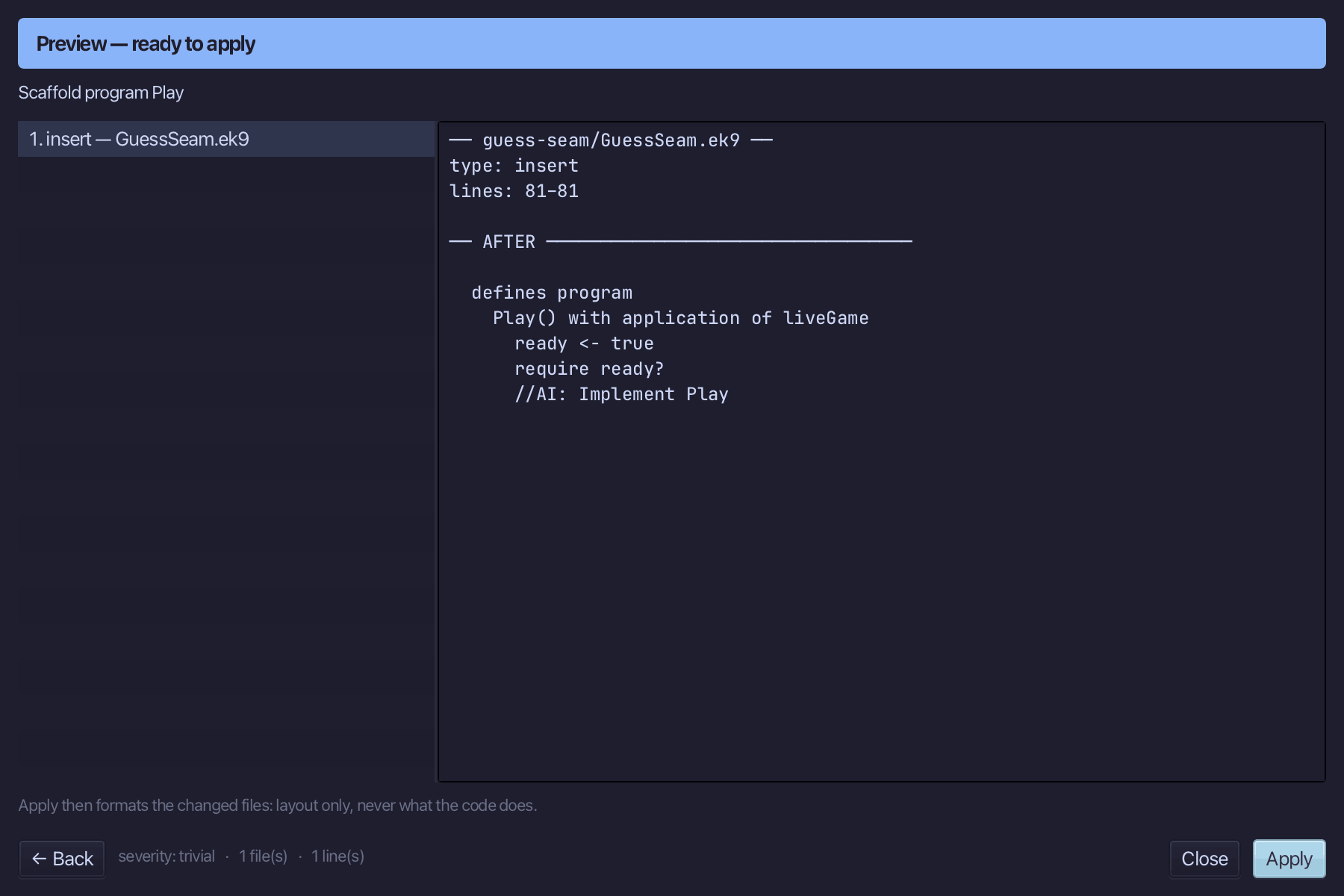
The preview shows Play about to be written, with application of liveGame. Choose Apply.
Select the Play line and, above it, type the blank line the book opens the block with. Saves when typed.
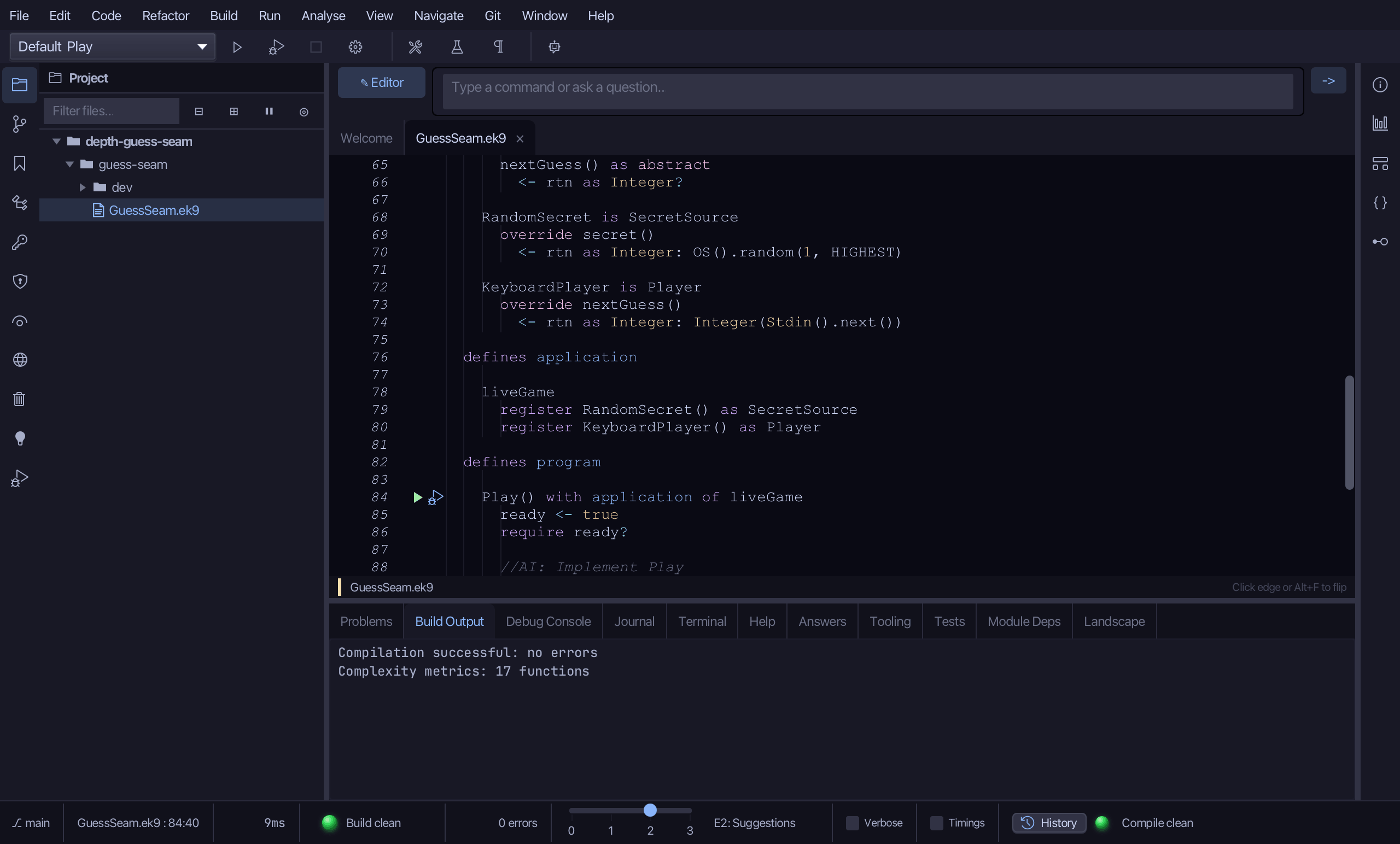
Select the stub and type the body: a GuessGame and its verdict. Saves when typed.
Step 13: guess-seam/dev/GuessSeamTests.ek9
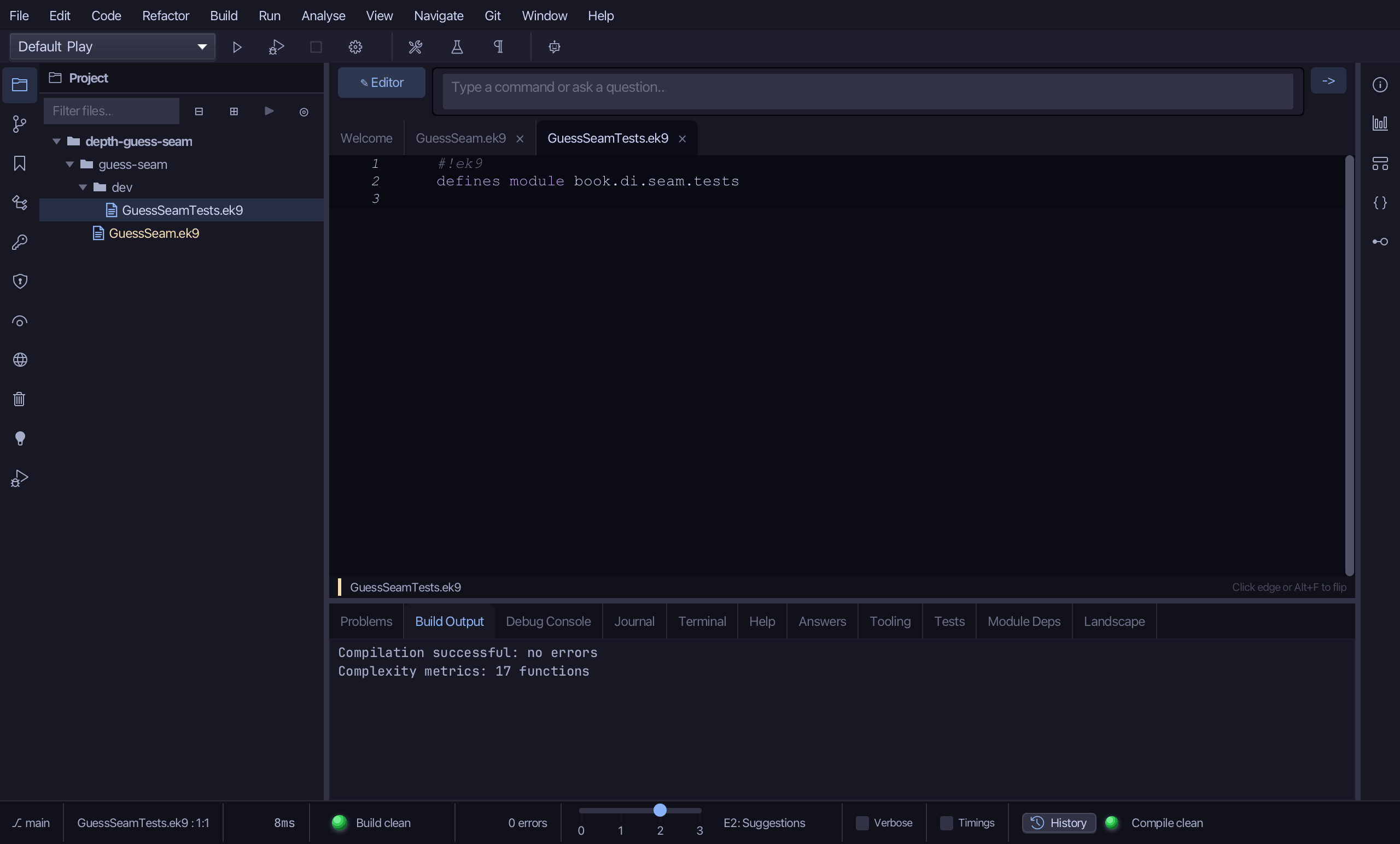
Open guess-seam/dev/GuessSeamTests.ek9 in the Project panel - it is already there, with just its module line.
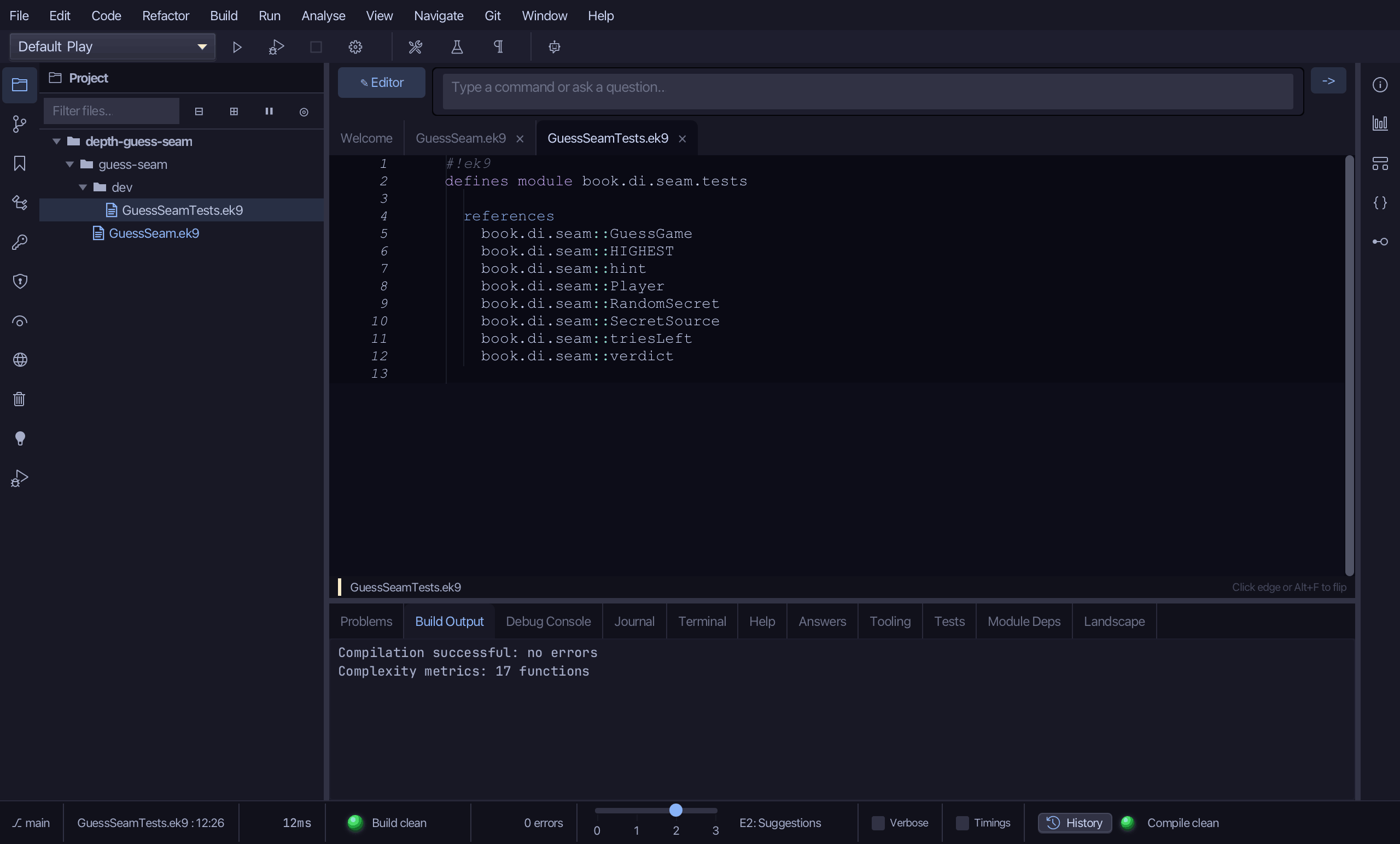
A test in another module names what it uses. Below the module line, type the references block - the game, the constant, the three functions and the two contracts - in alphabetical order. Saves when typed.
Step 14: FixedSecret — a component
Choose Code > New Construct > Component…
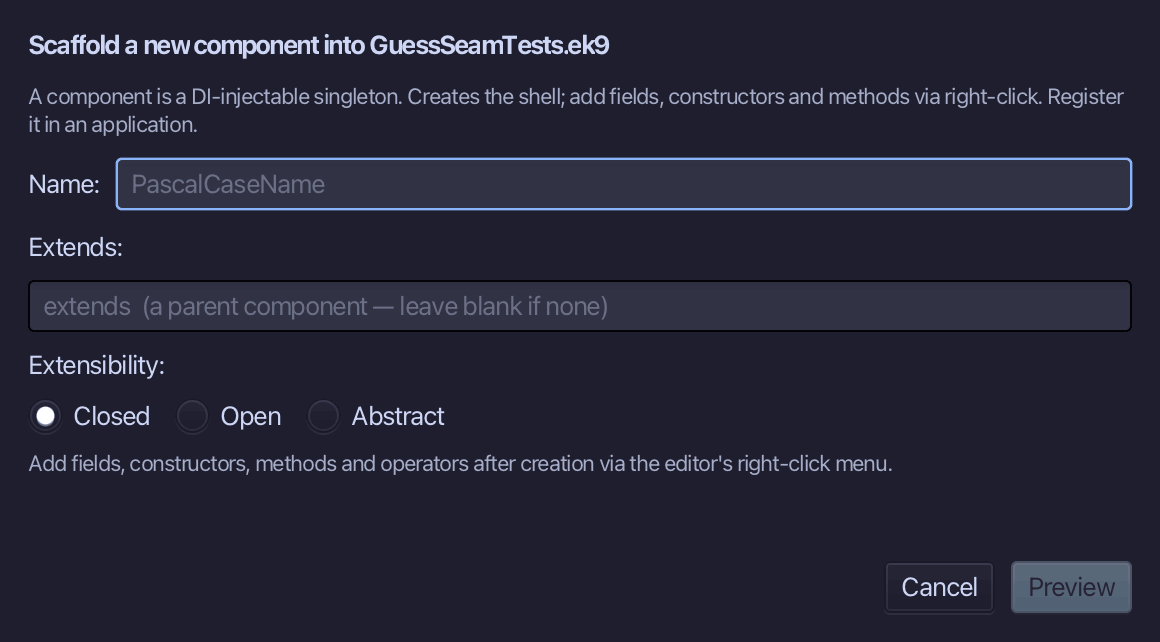
FixedSecret is the component's name. It is a test double: the same contract, a number that never changes. Type SecretSource into Extends. Choose Preview.
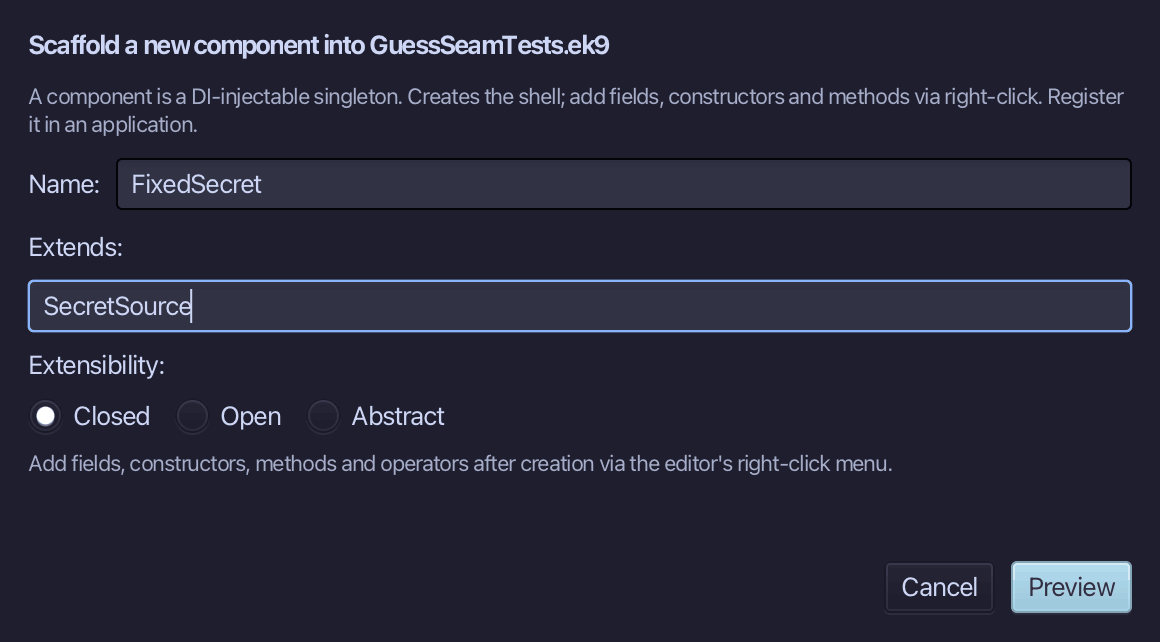
The preview shows FixedSecret about to be written - and, if SecretSource owes any methods, an override stub for each. Choose Apply.
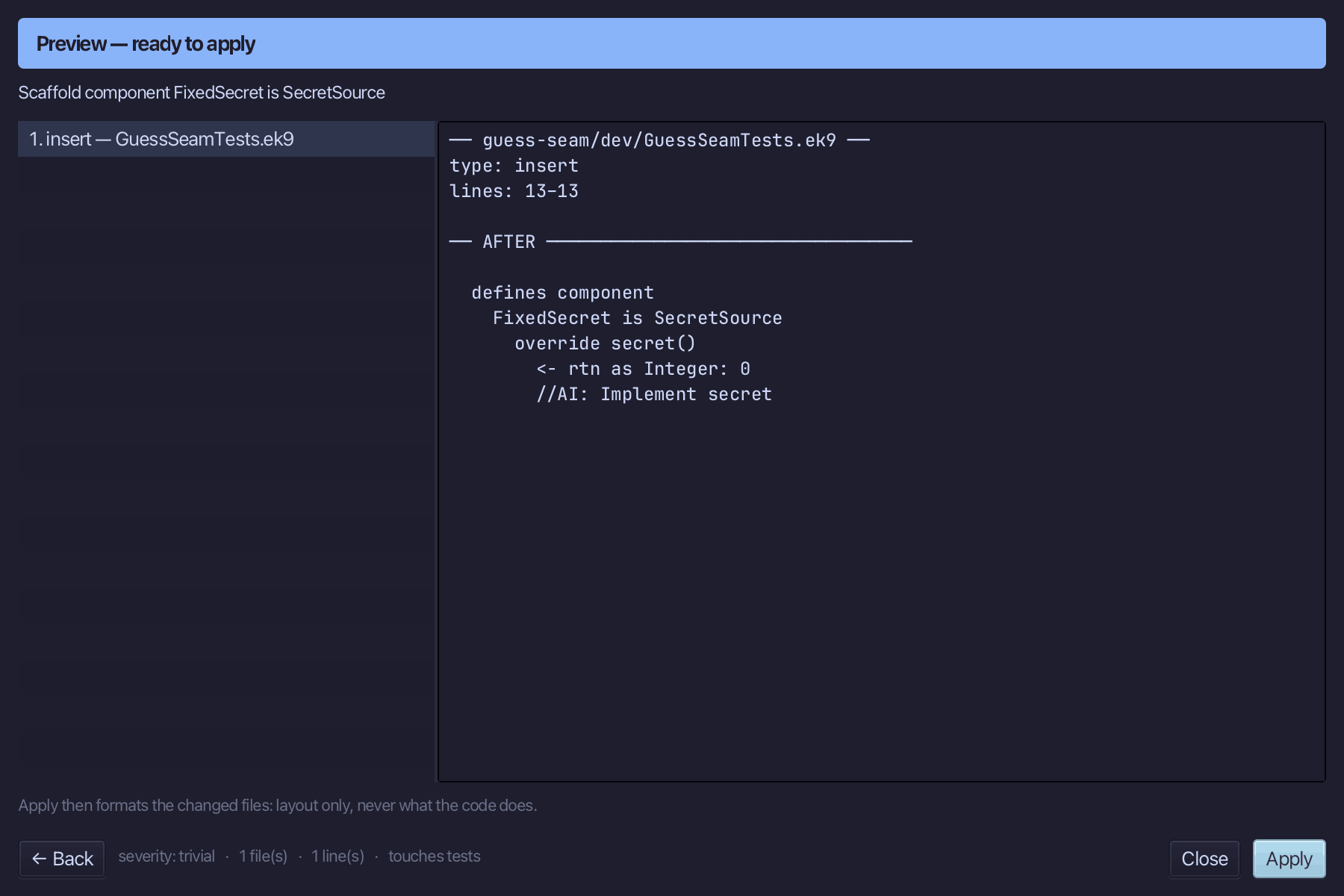
Select the FixedSecret line and, above it, type the blank line the book opens the block with. Saves when typed.
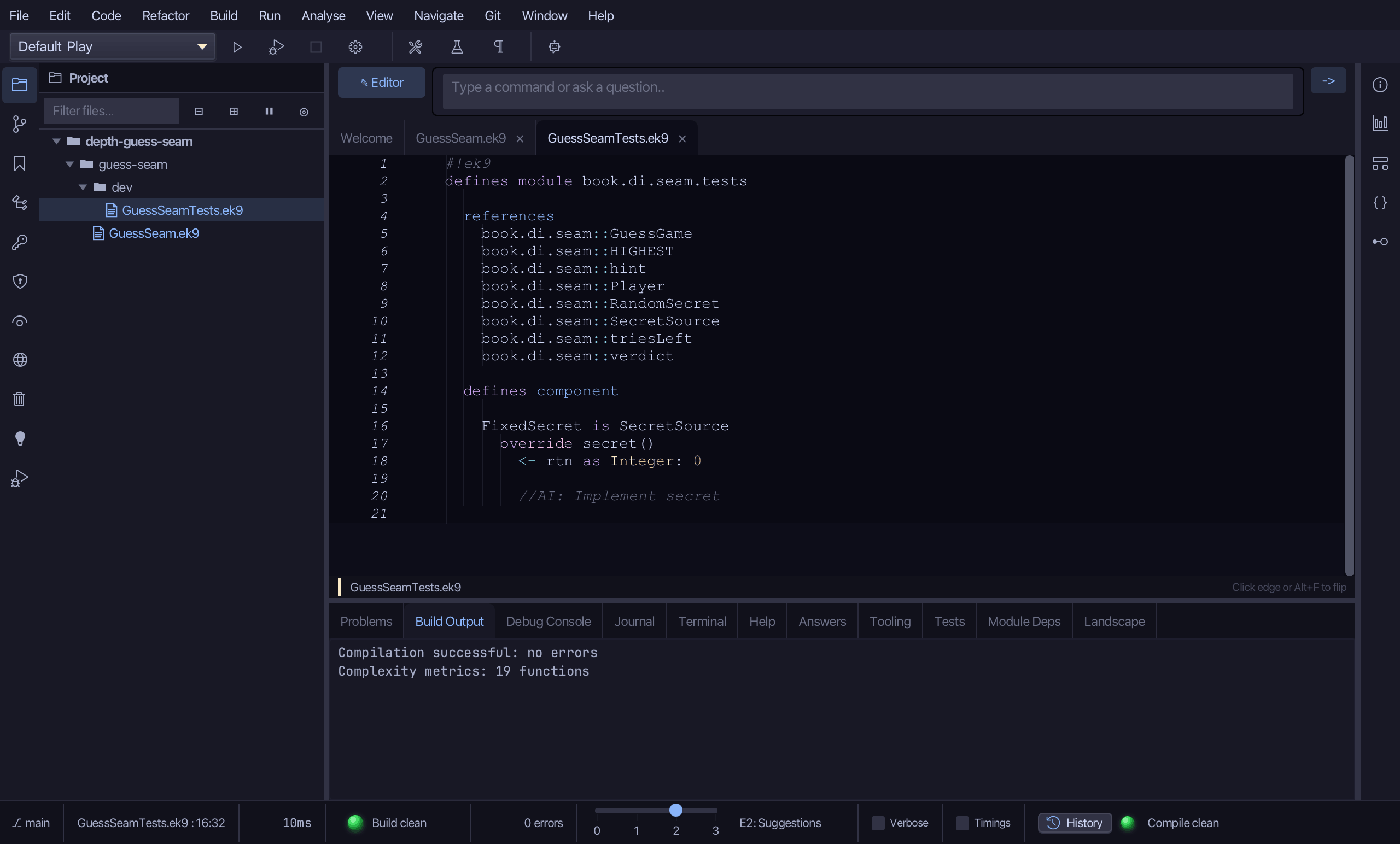
Select the stub and type the fixed answer, 37. Saves when typed.
Step 15: ScriptedPlayer — a component
Choose Code > New Construct > Component…
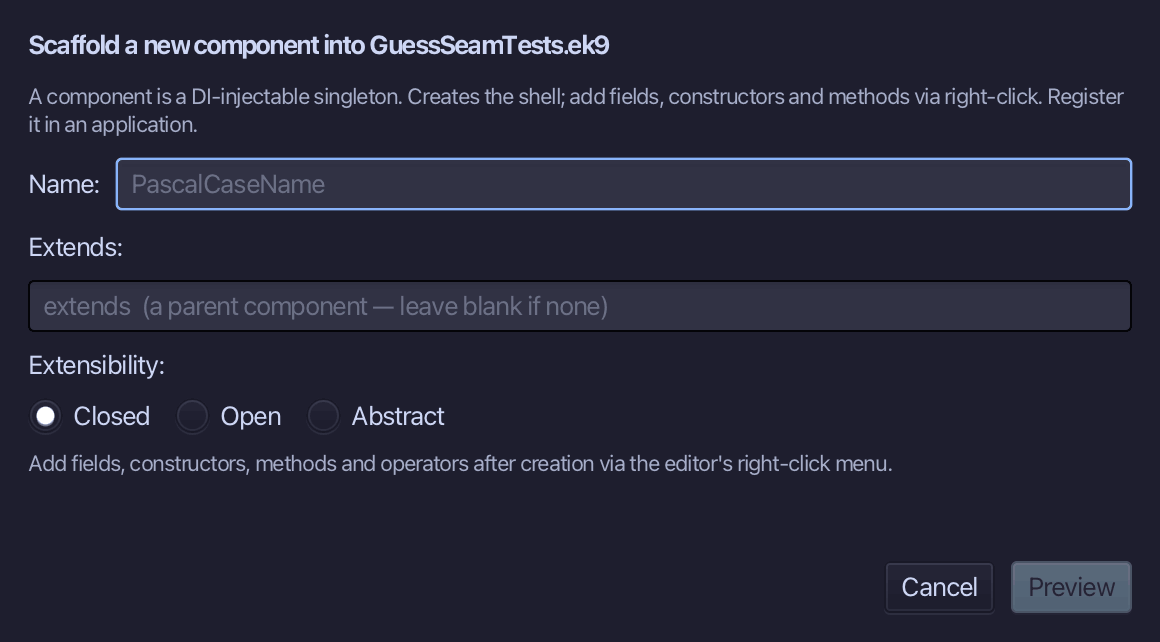
ScriptedPlayer is the component's name. It plays a fixed script of guesses. Type Player into Extends. Choose Preview.
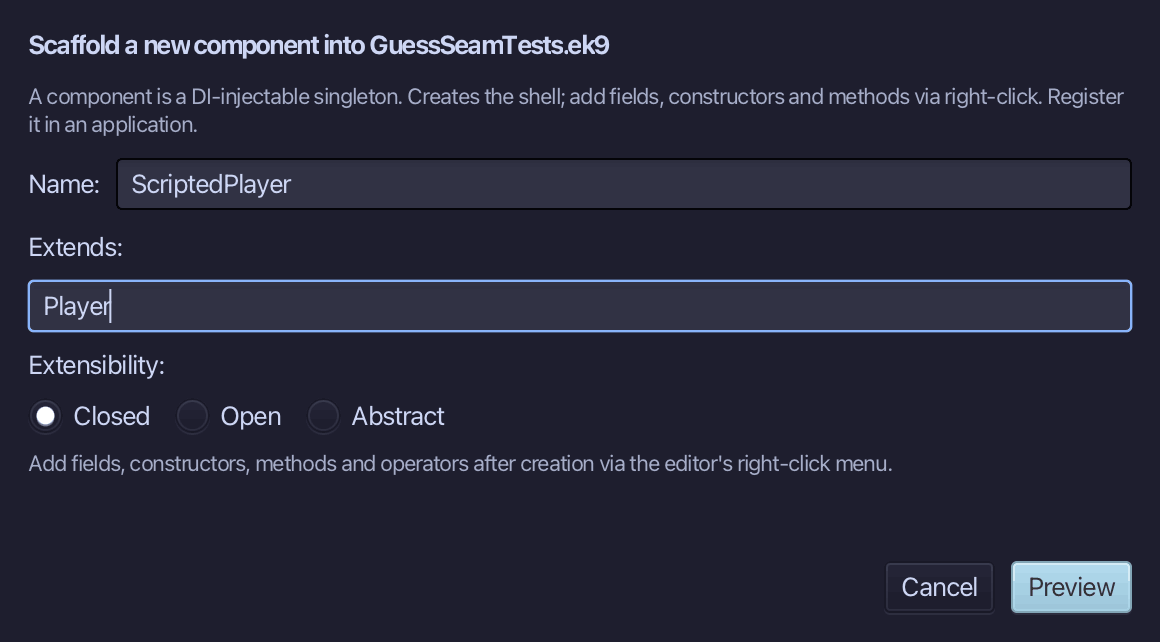
The preview shows ScriptedPlayer about to be written - and, if Player owes any methods, an override stub for each. Choose Apply.
No tool writes a constructor with a body, so type one under the header: the script, and the iterator over it that the next step declares. Saves when typed.
Right-click the ScriptedPlayer line and choose Add Field…
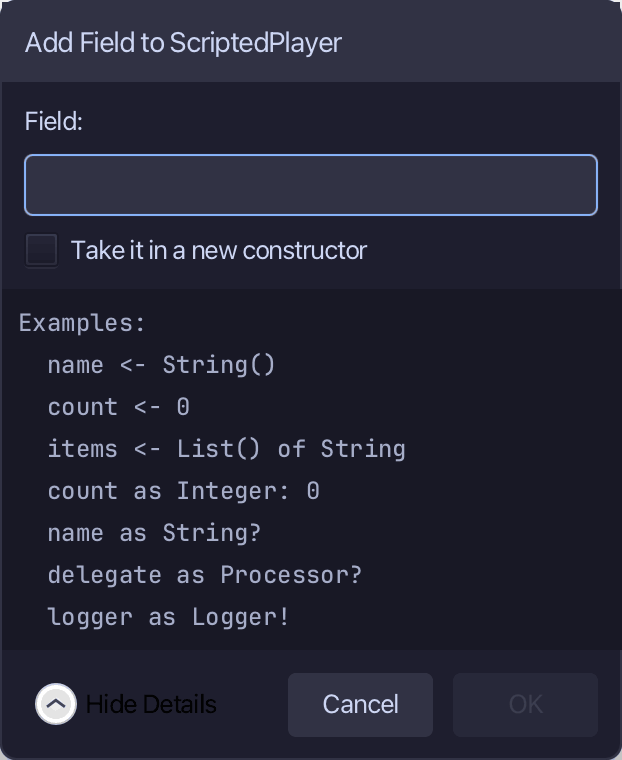
Type guesses as Iterator of Integer?. Iterator is abstract, so the field cannot start with a value; the constructor above assigns it, which is what lets the compiler accept it unset. Untick 'Take it in a new constructor' - the constructor is the book's own. Choose OK.
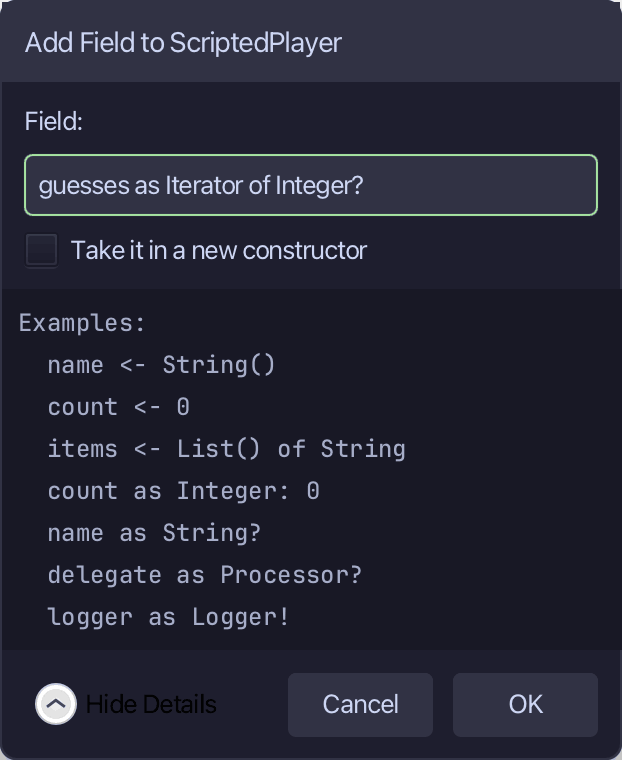
The preview shows guesses added - and default operator ? with it, ScriptedPlayer's first field. Choose Apply.
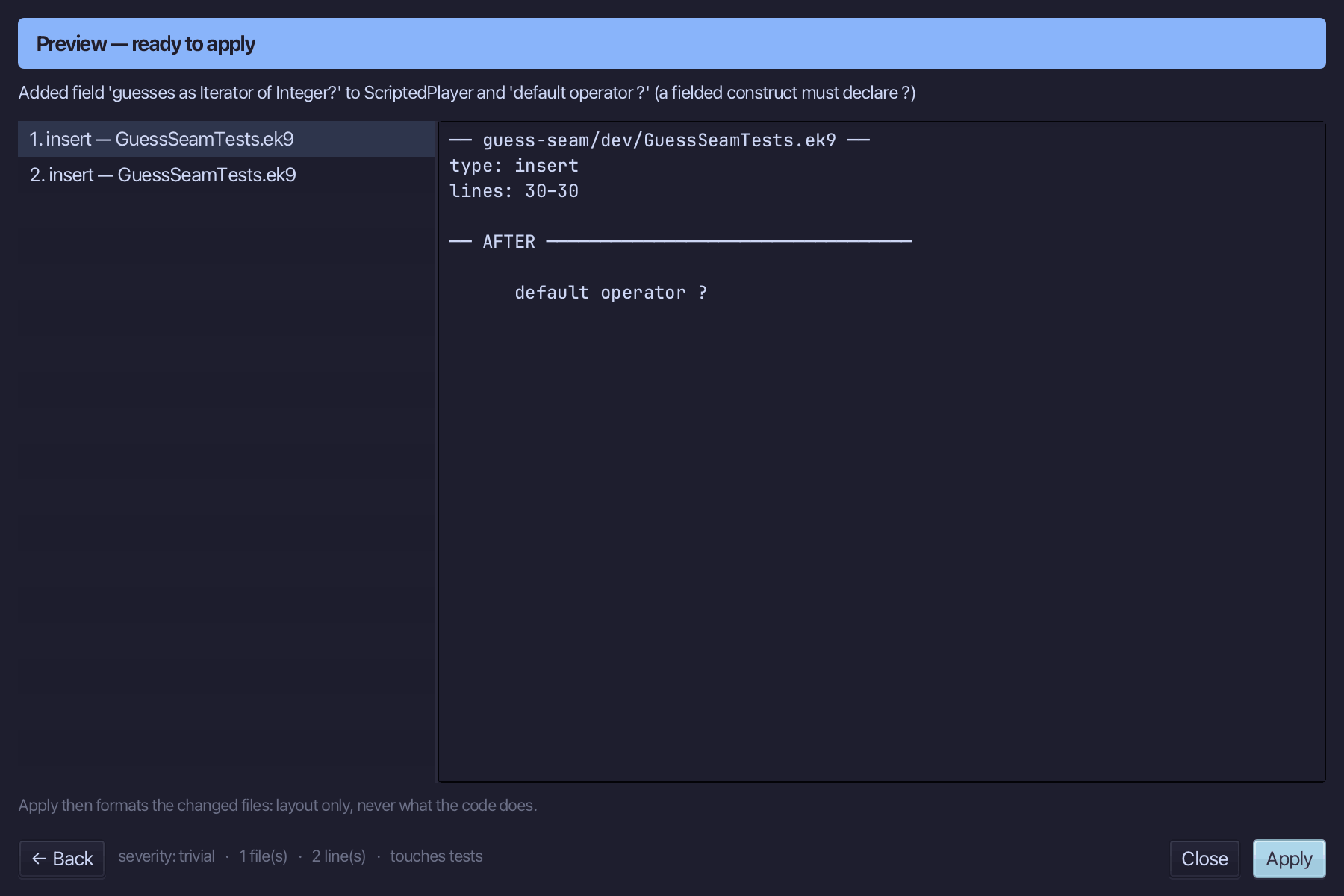
Select the override's stub and type it: the next scripted guess while there is one. Saves when typed.
Step 16: HopelessPlayer — a component
Choose Code > New Construct > Component…
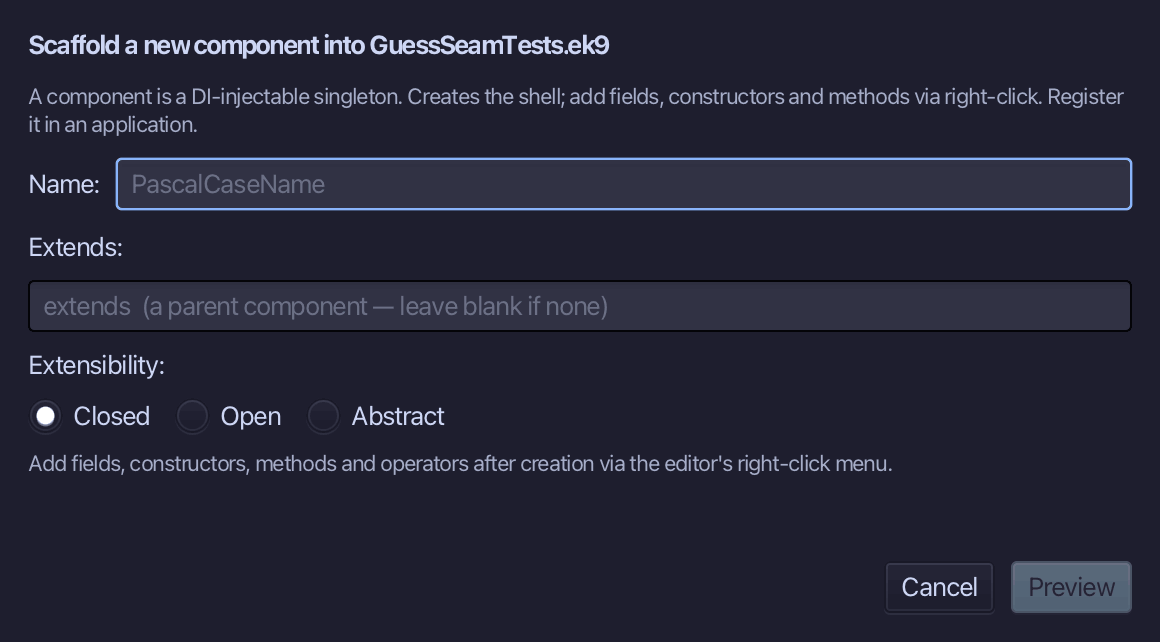
HopelessPlayer is the component's name. It always guesses 1. Type Player into Extends. Choose Preview.
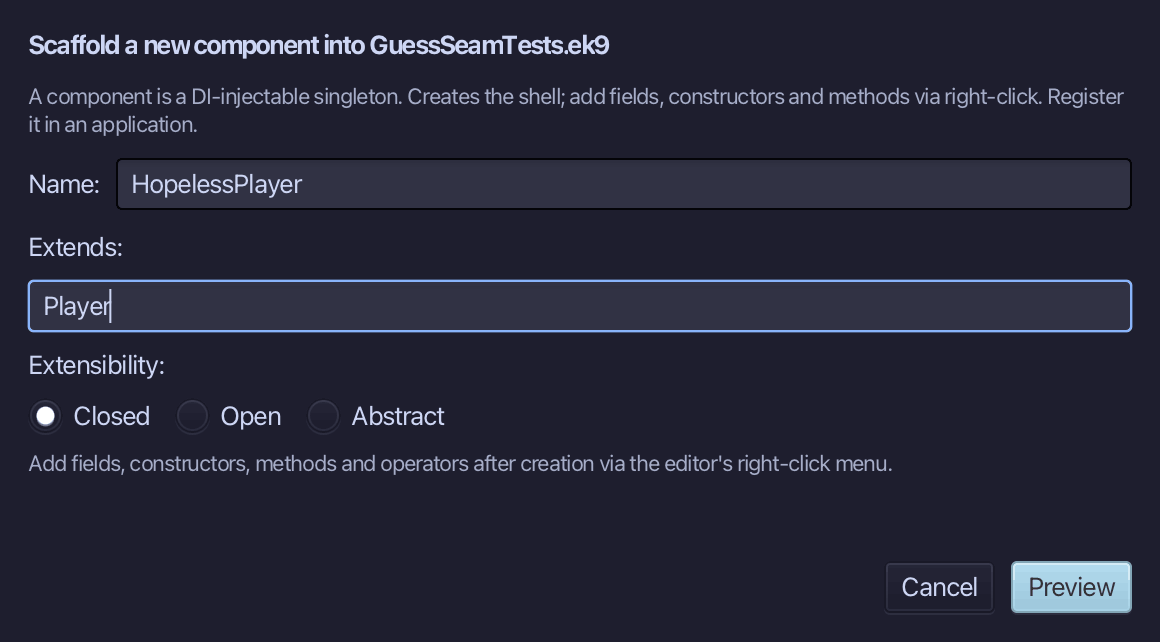
The preview shows HopelessPlayer about to be written - and, if Player owes any methods, an override stub for each. Choose Apply.
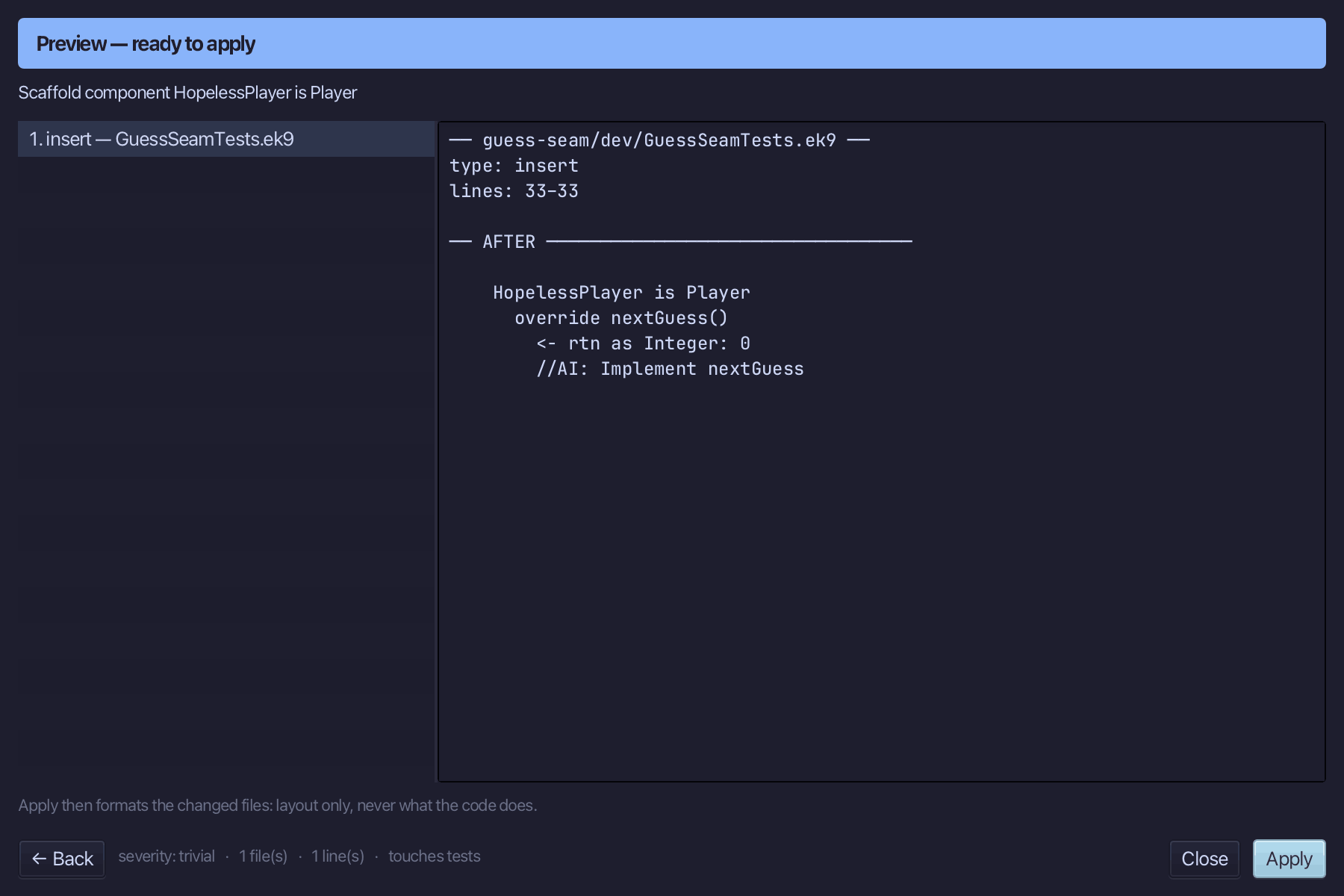
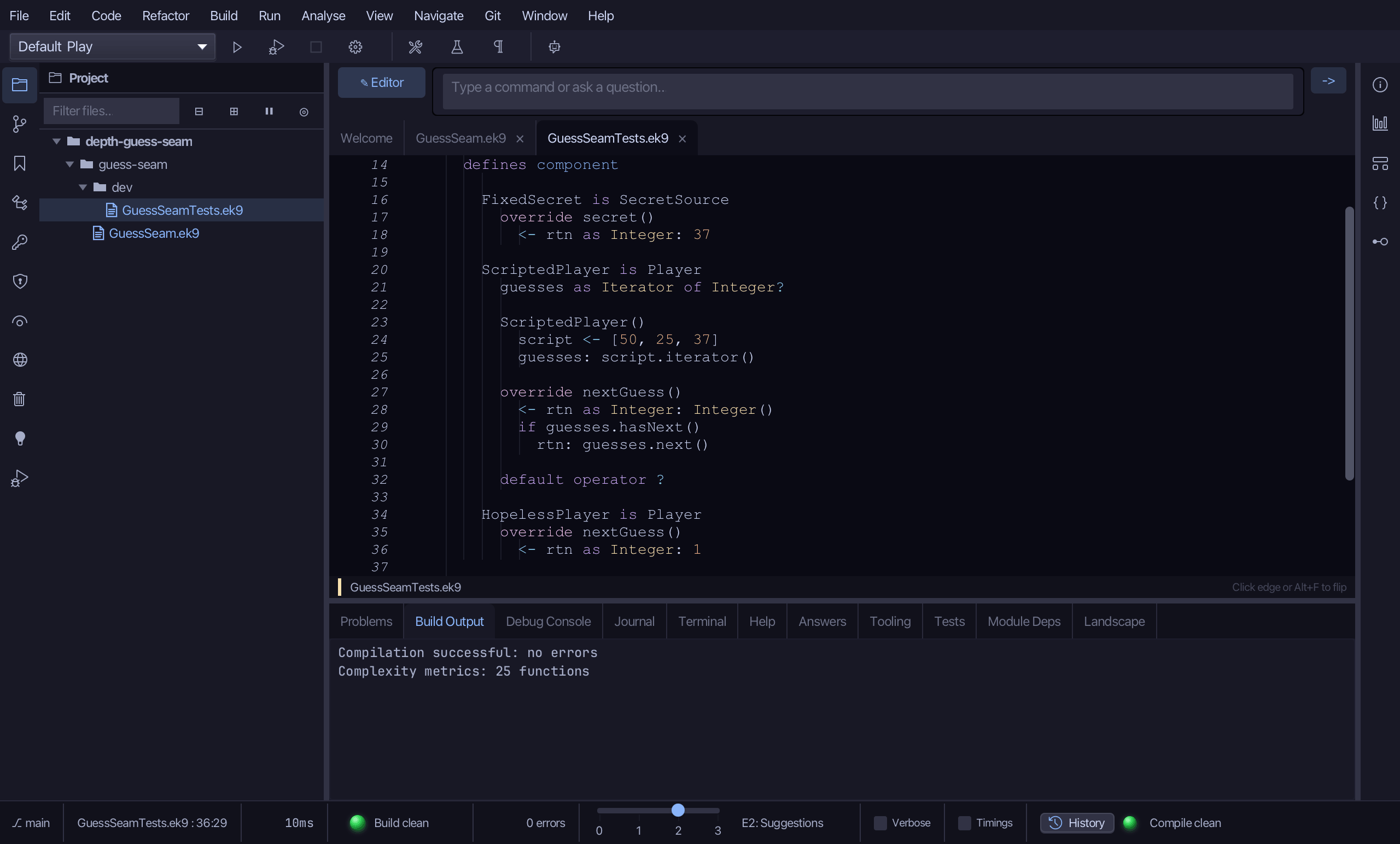
Select the stub and type the answer, 1. Saves when typed.
Step 17: OffTheBoardSecret — a component
Choose Code > New Construct > Component…
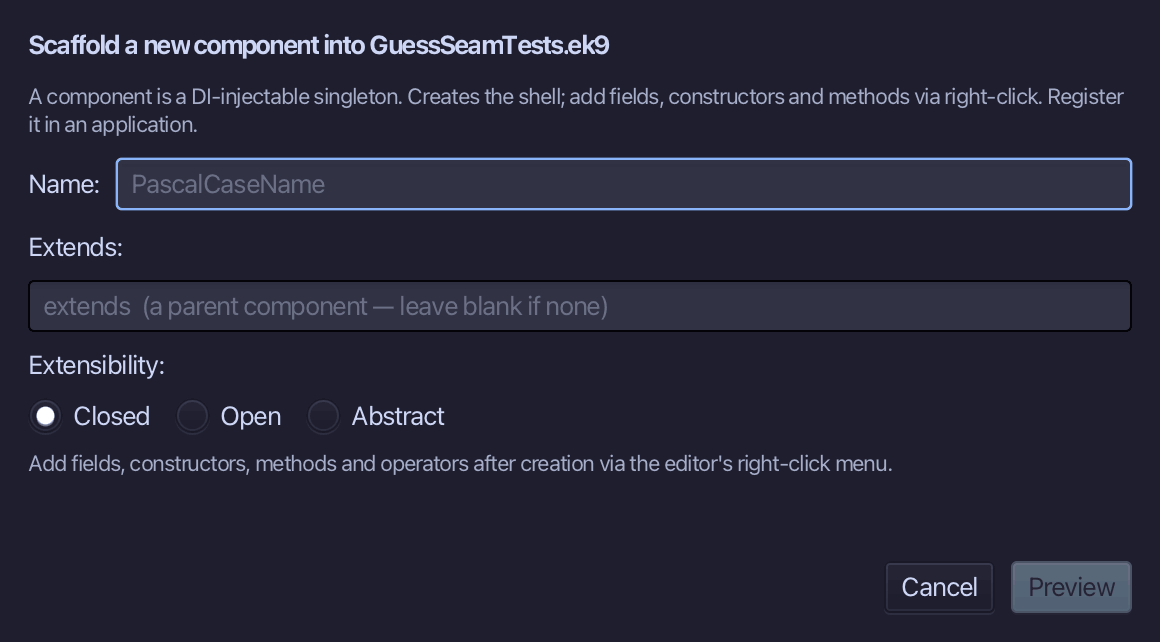
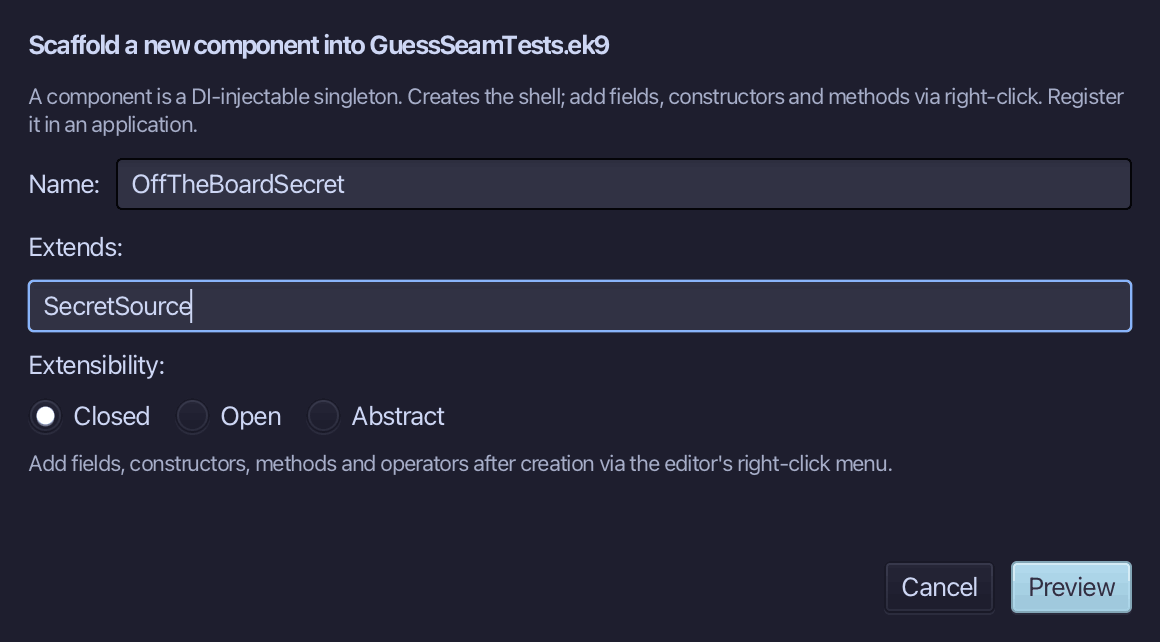
OffTheBoardSecret is the component's name. It is a secret the game must refuse. Type SecretSource into Extends. Choose Preview.
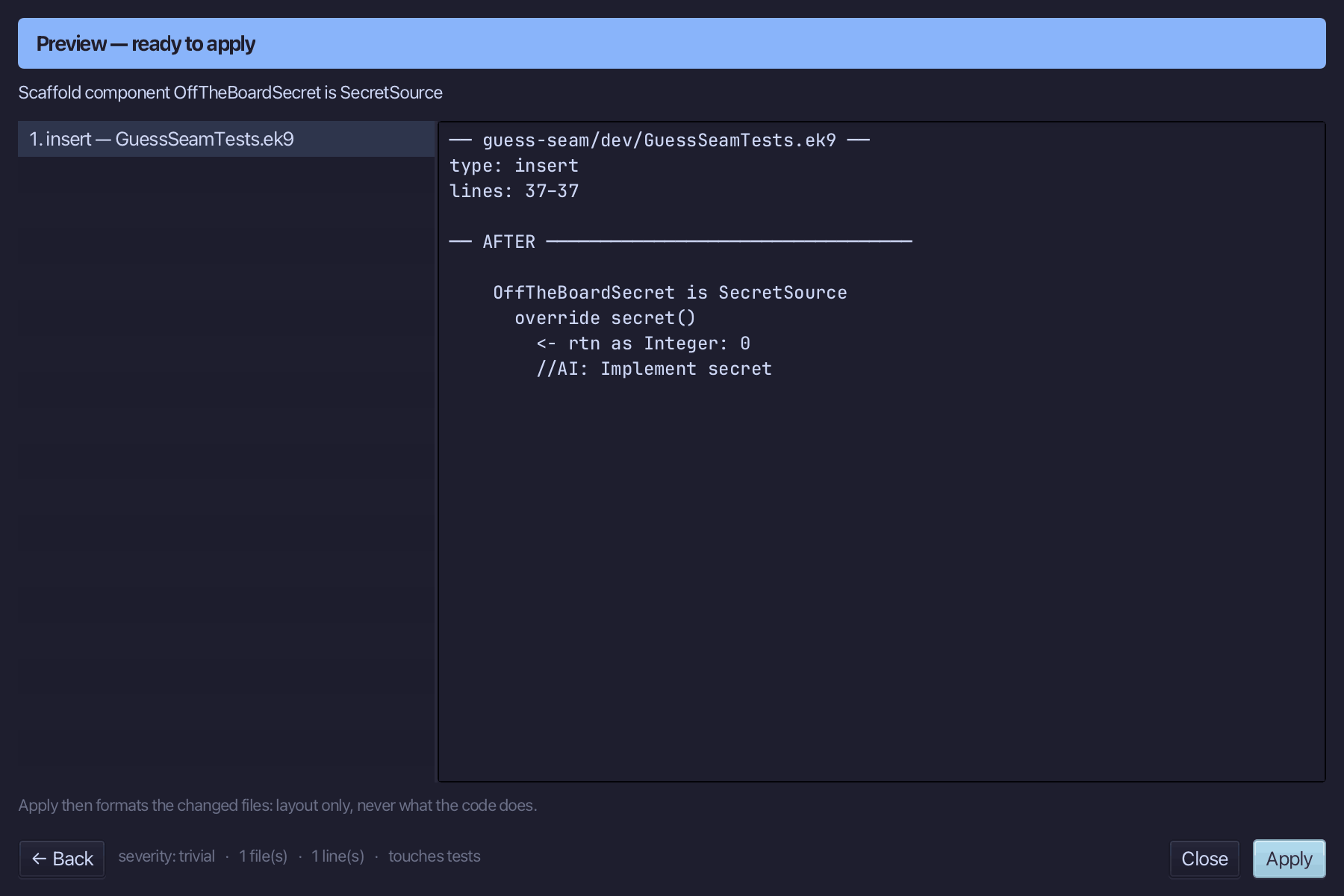
The preview shows OffTheBoardSecret about to be written - and, if SecretSource owes any methods, an override stub for each. Choose Apply.
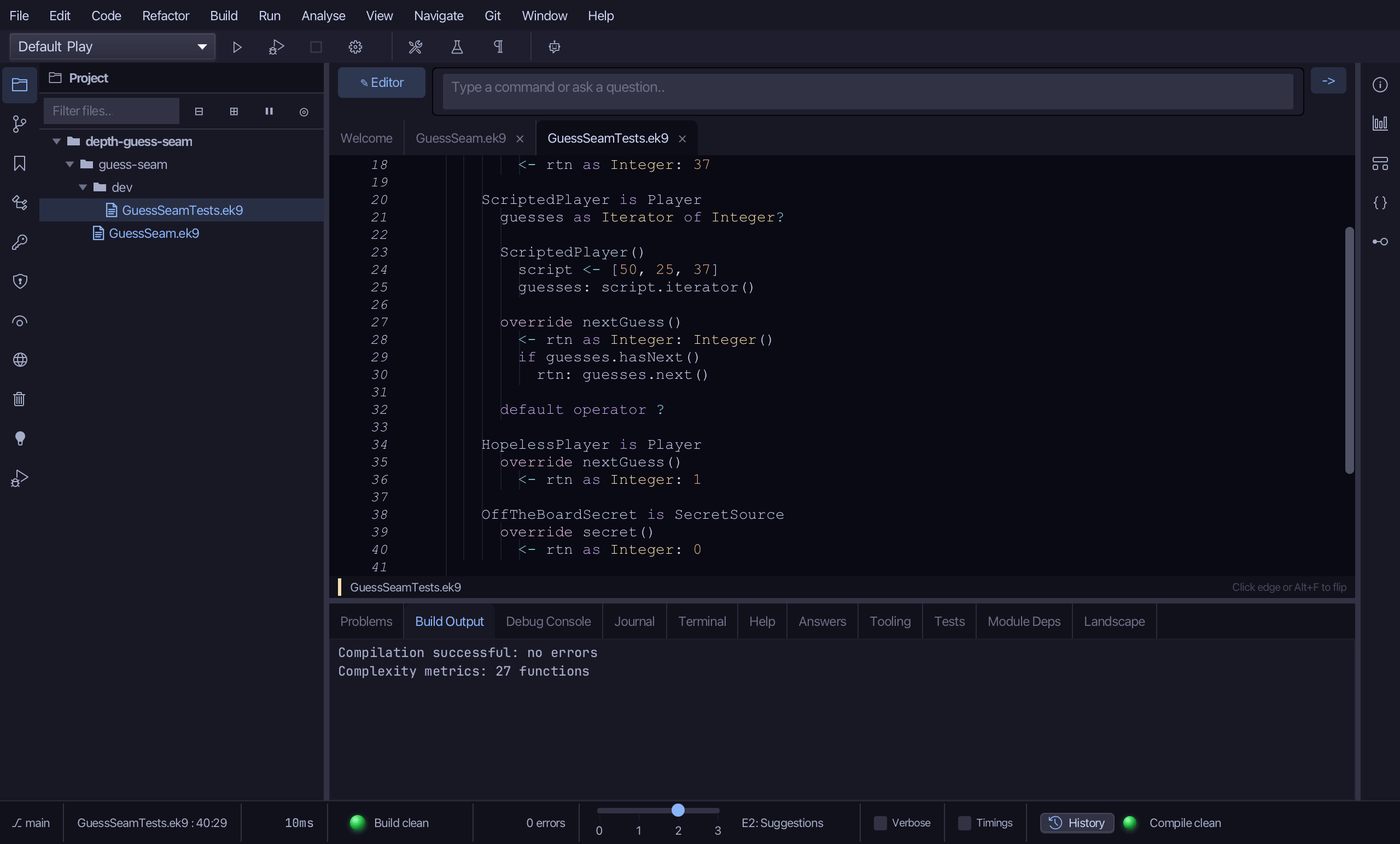
Select the stub and type the answer, 0 - not on the board. Saves when typed.
Step 18: scriptedGame — an application
Choose Code > New Construct > Application…
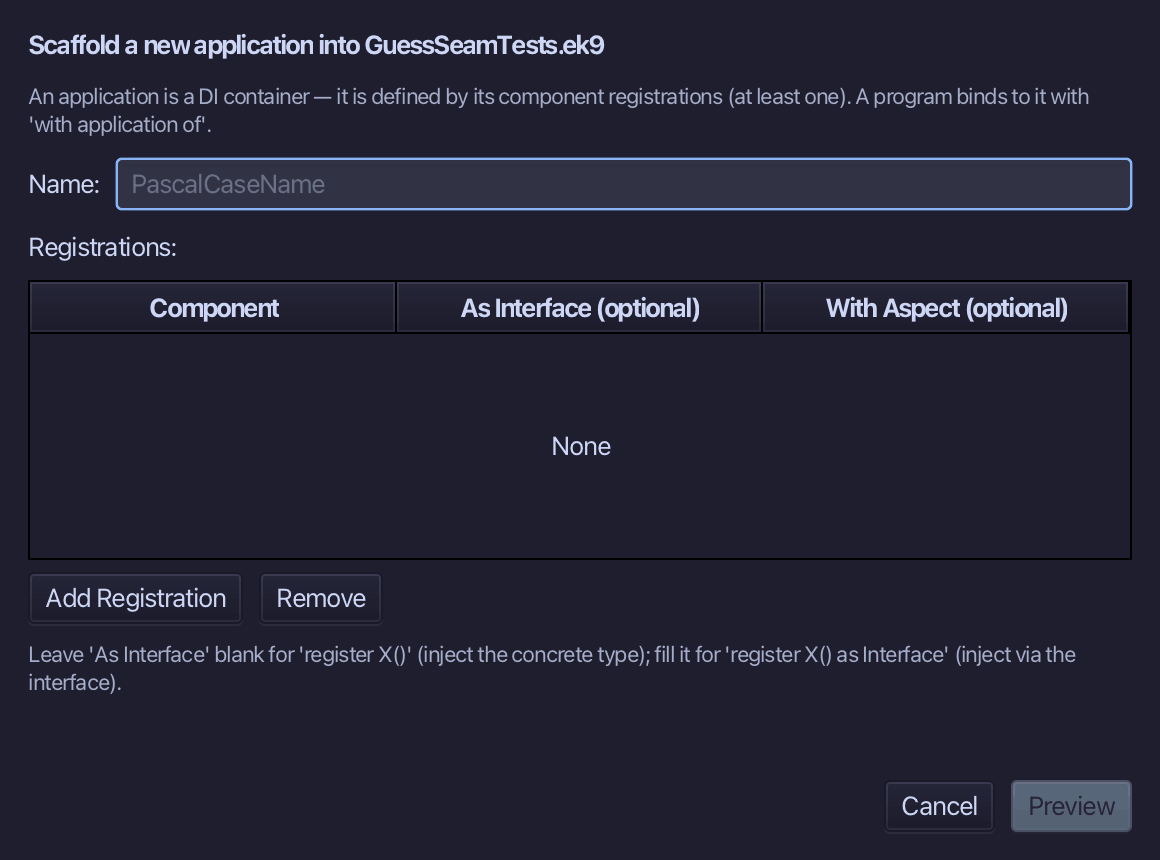
scriptedGame is the application's name. It wires the fixed secret to the scripted player. The Registrations table holds FixedSecret as SecretSource and ScriptedPlayer as Player. Choose Preview.
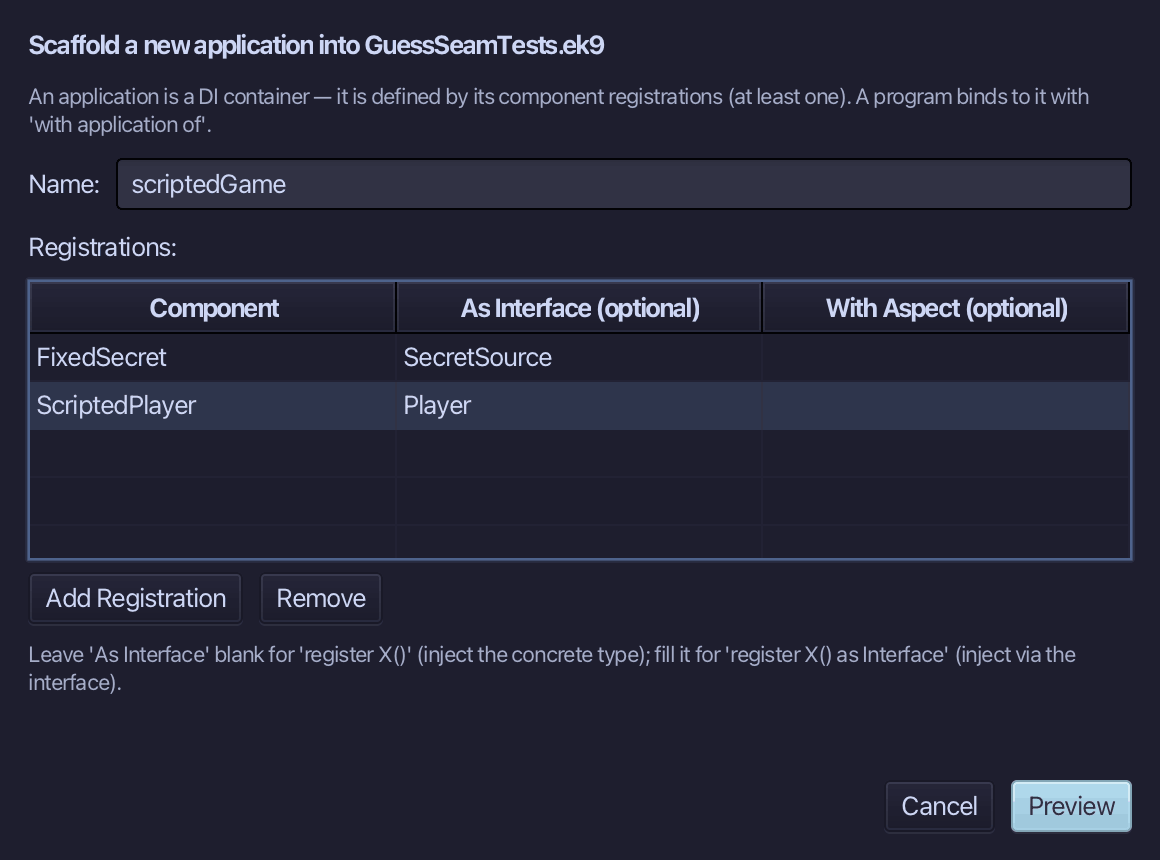
The preview shows scriptedGame about to be written, with a register line for each. Choose Apply.
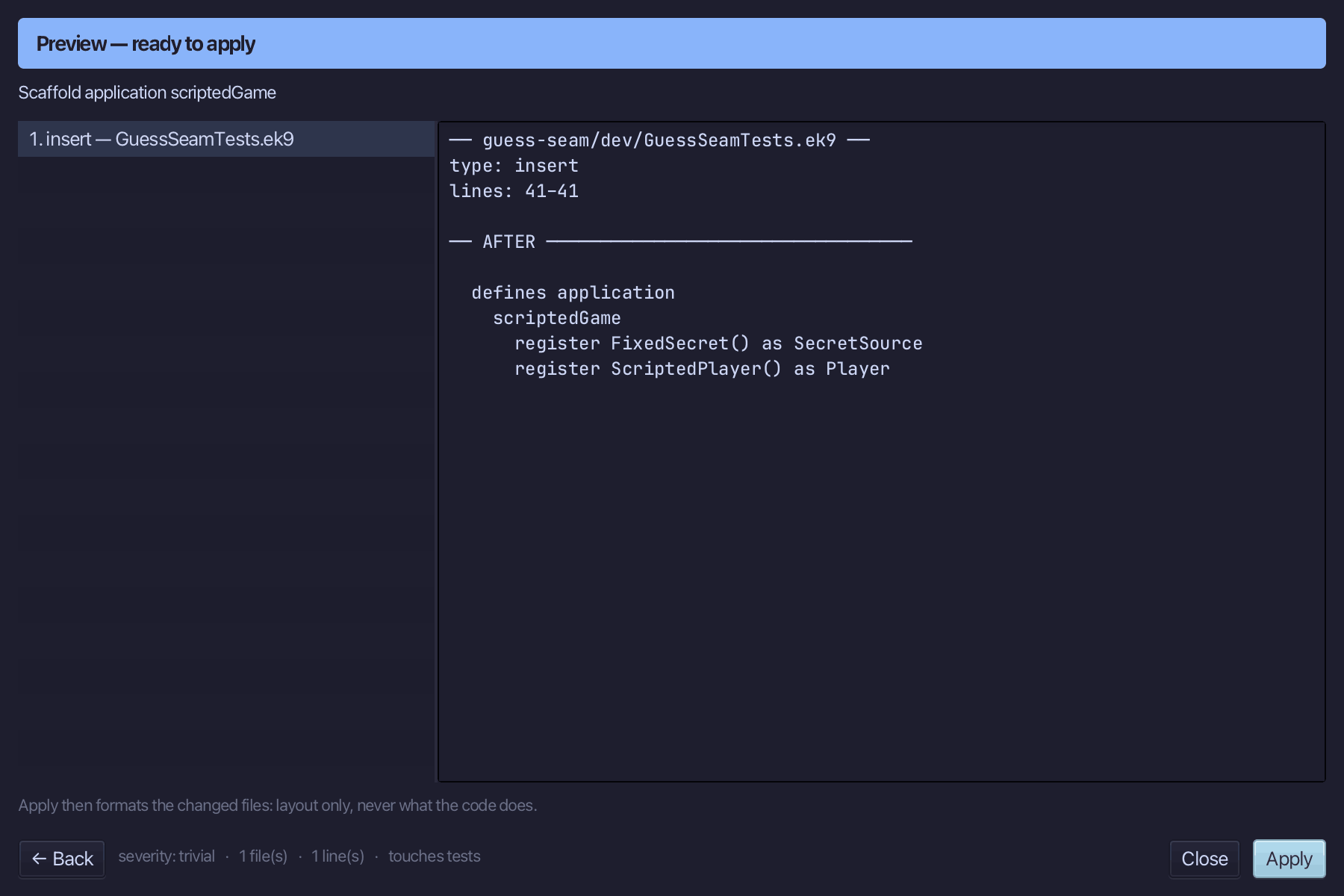
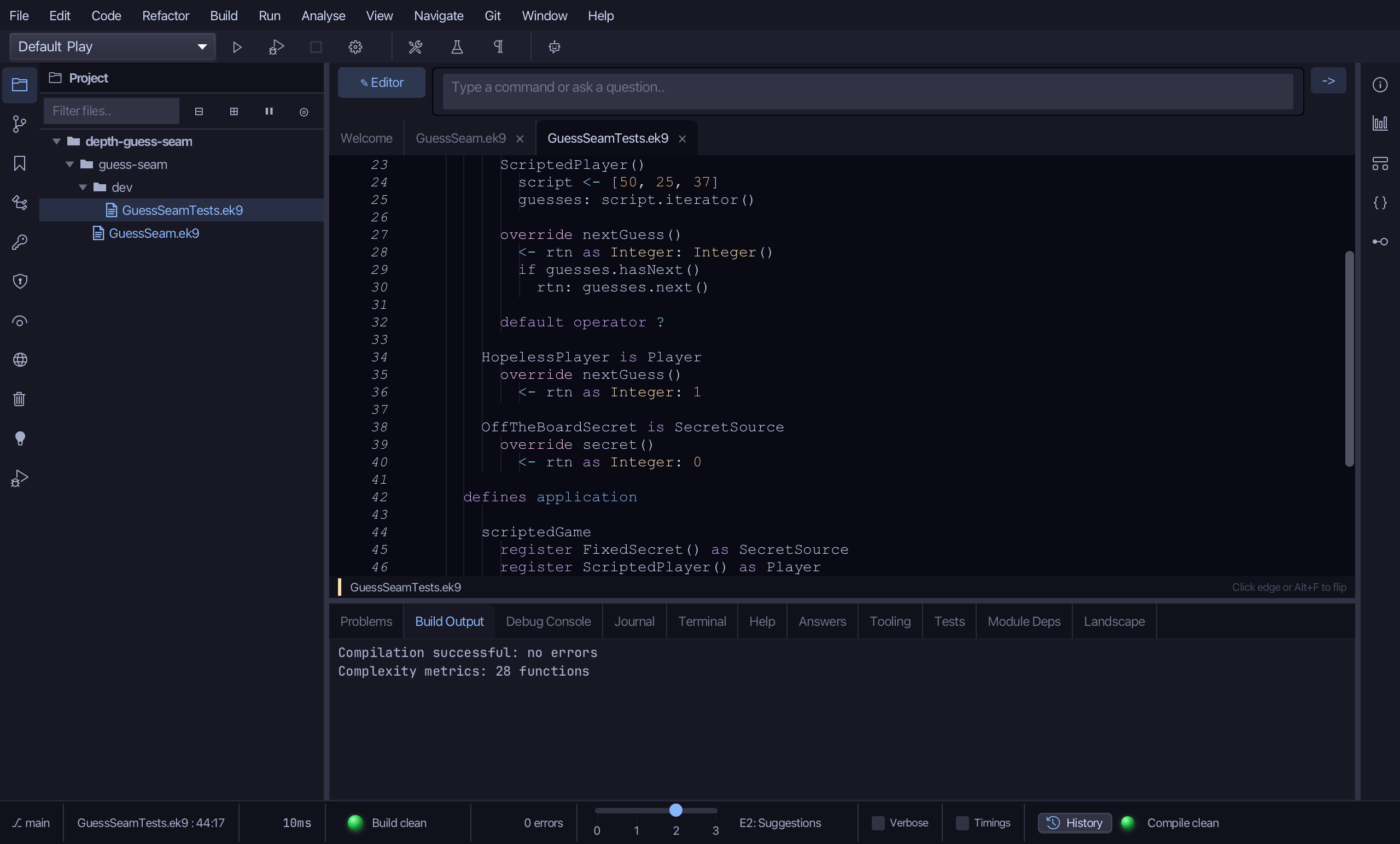
Select the scriptedGame line and, above it, type the blank line the book opens the block with. Saves when typed.
Step 19: hopelessGame — an application
Choose Code > New Construct > Application…
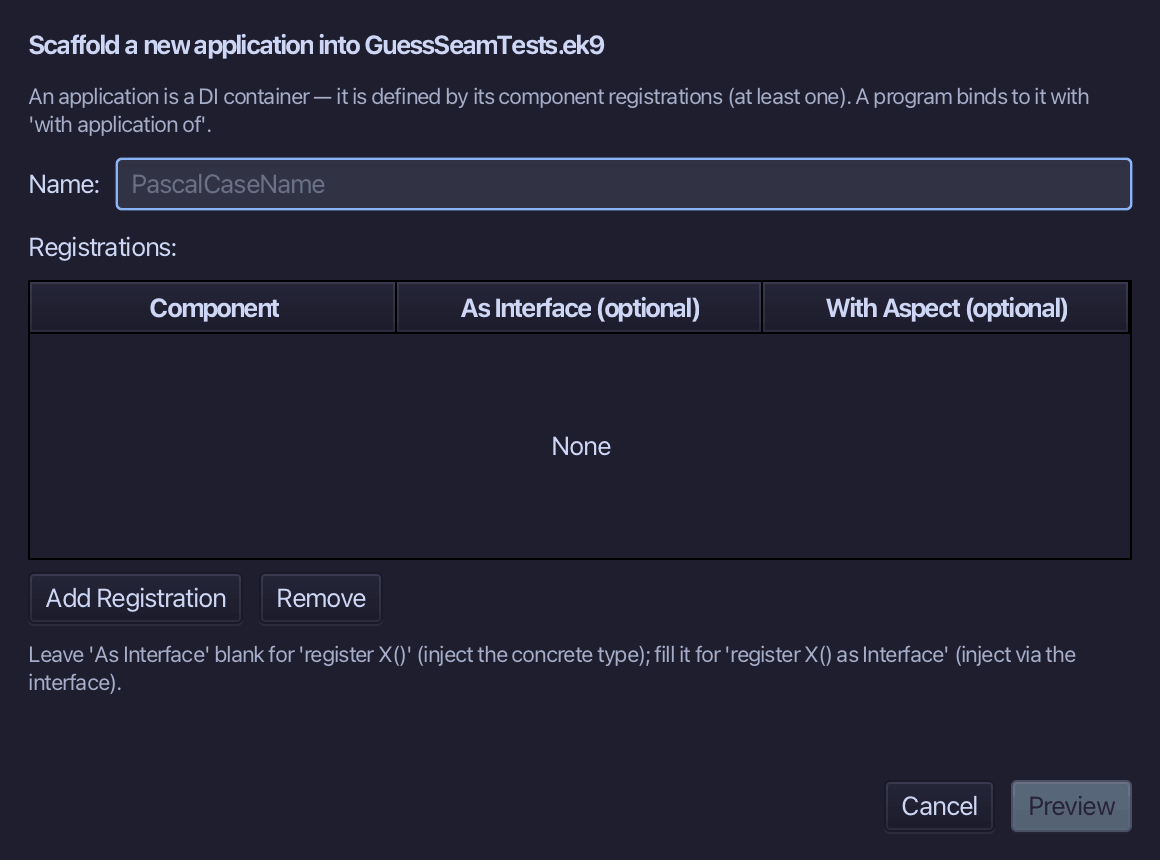
hopelessGame is the application's name. It wires the fixed secret to the player who never improves. The Registrations table holds FixedSecret as SecretSource and HopelessPlayer as Player. Choose Preview.
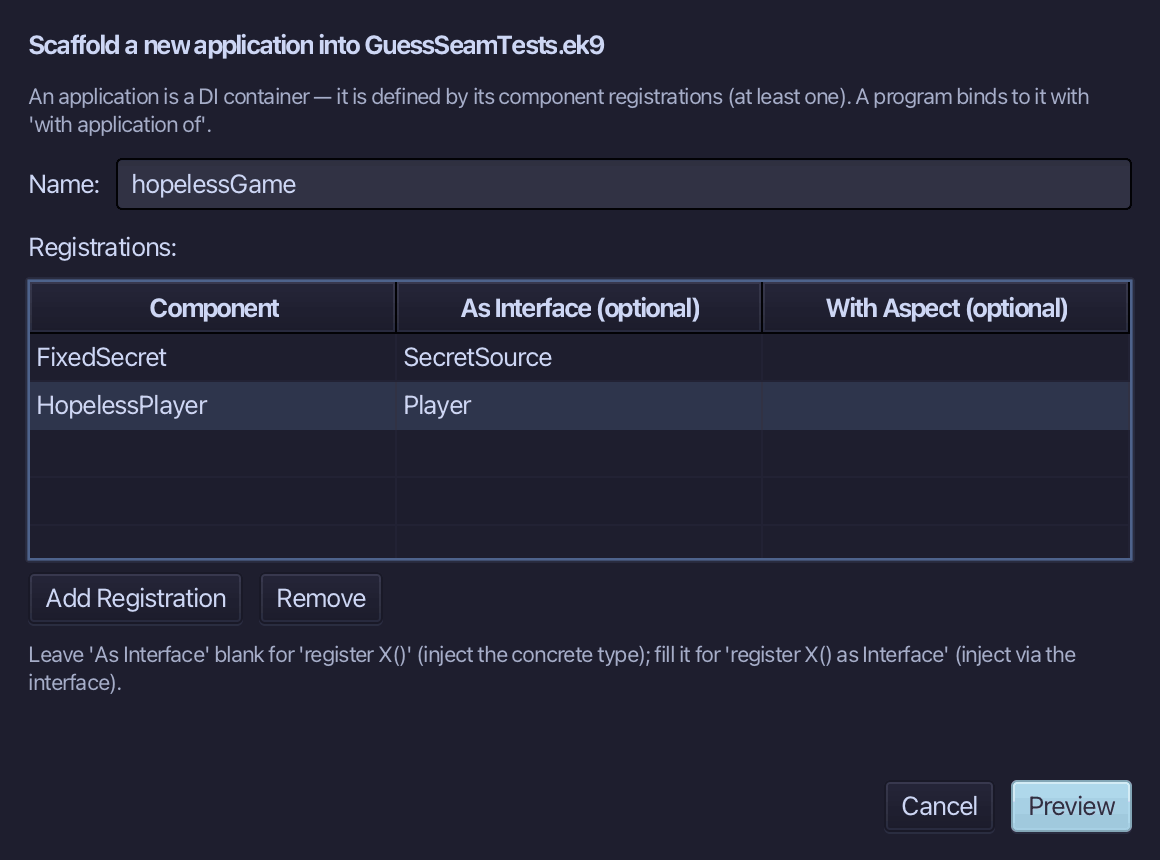
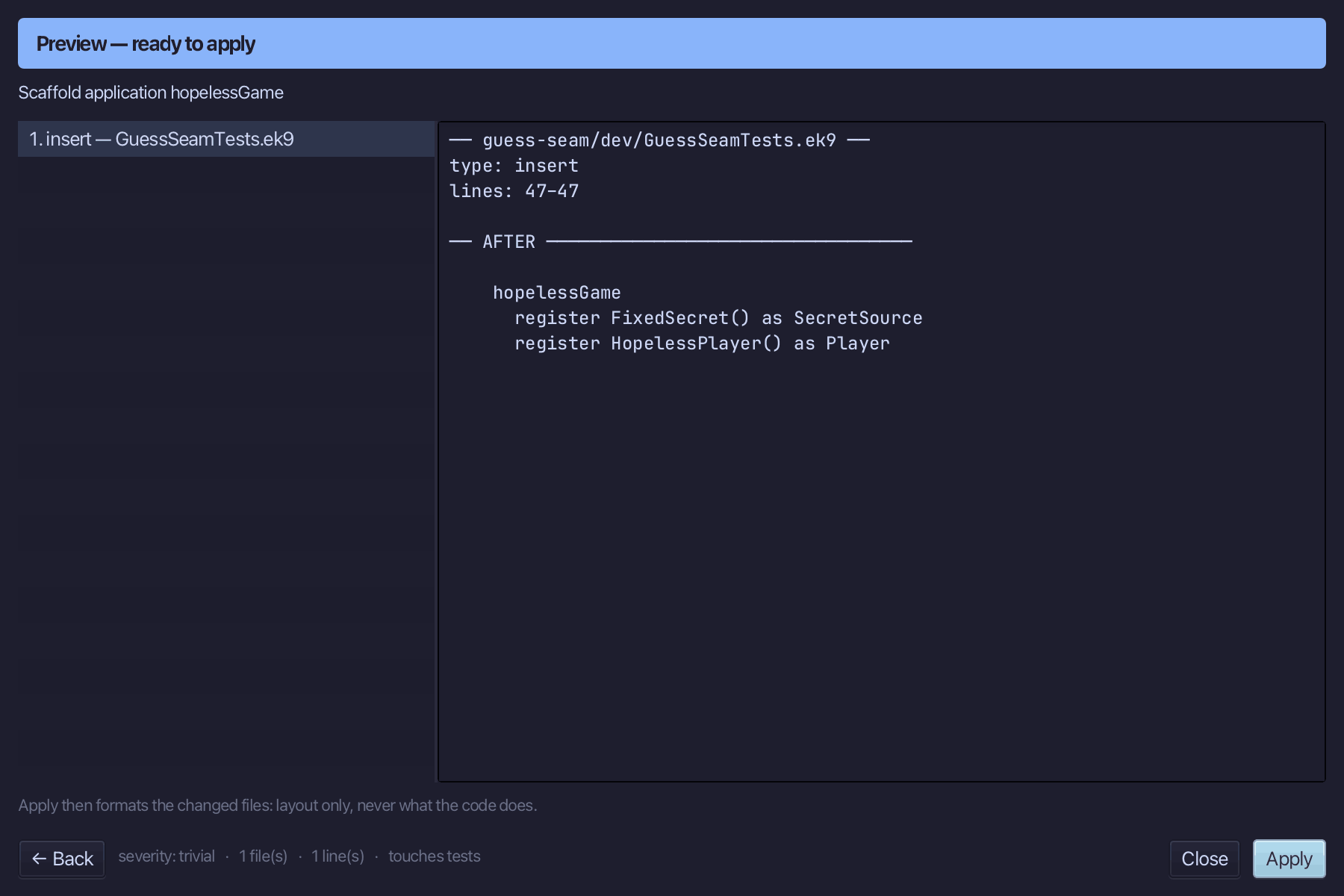
The preview shows hopelessGame about to be written, with a register line for each. Choose Apply.
Step 20: brokenGame — an application
Choose Code > New Construct > Application…
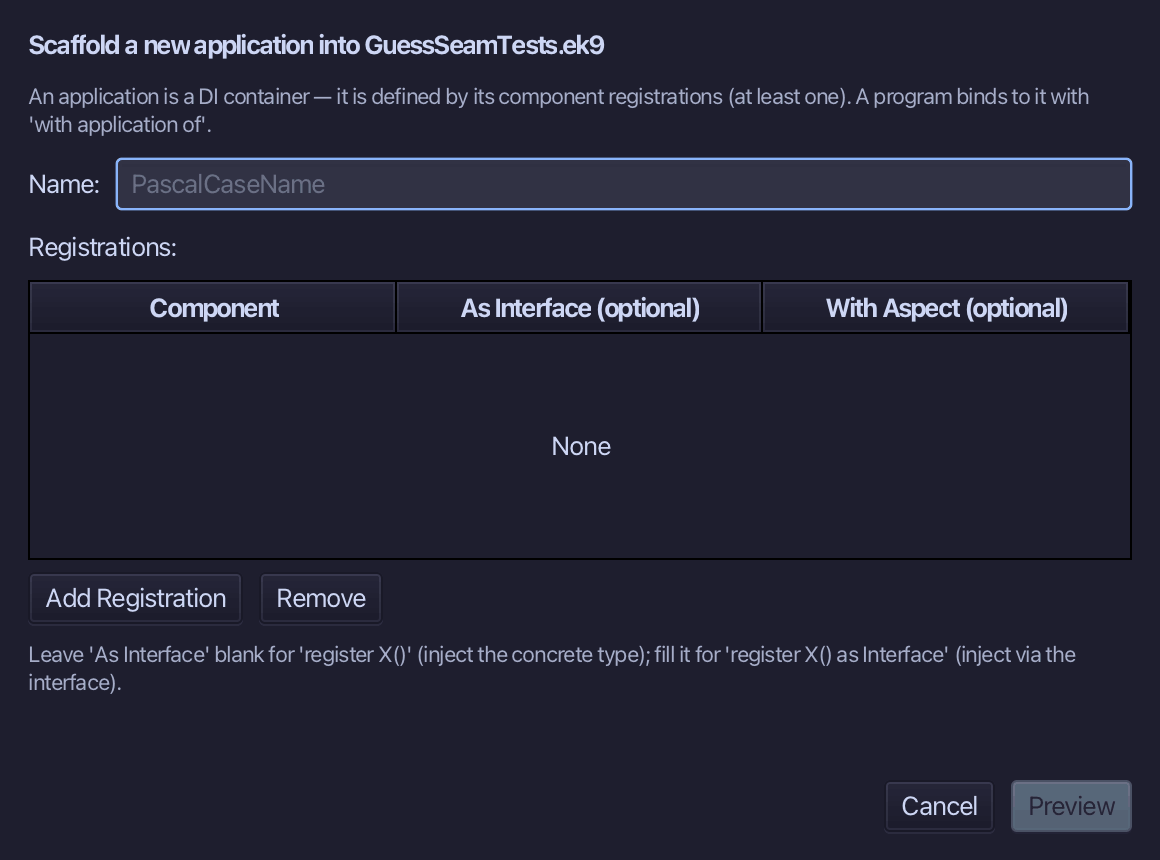
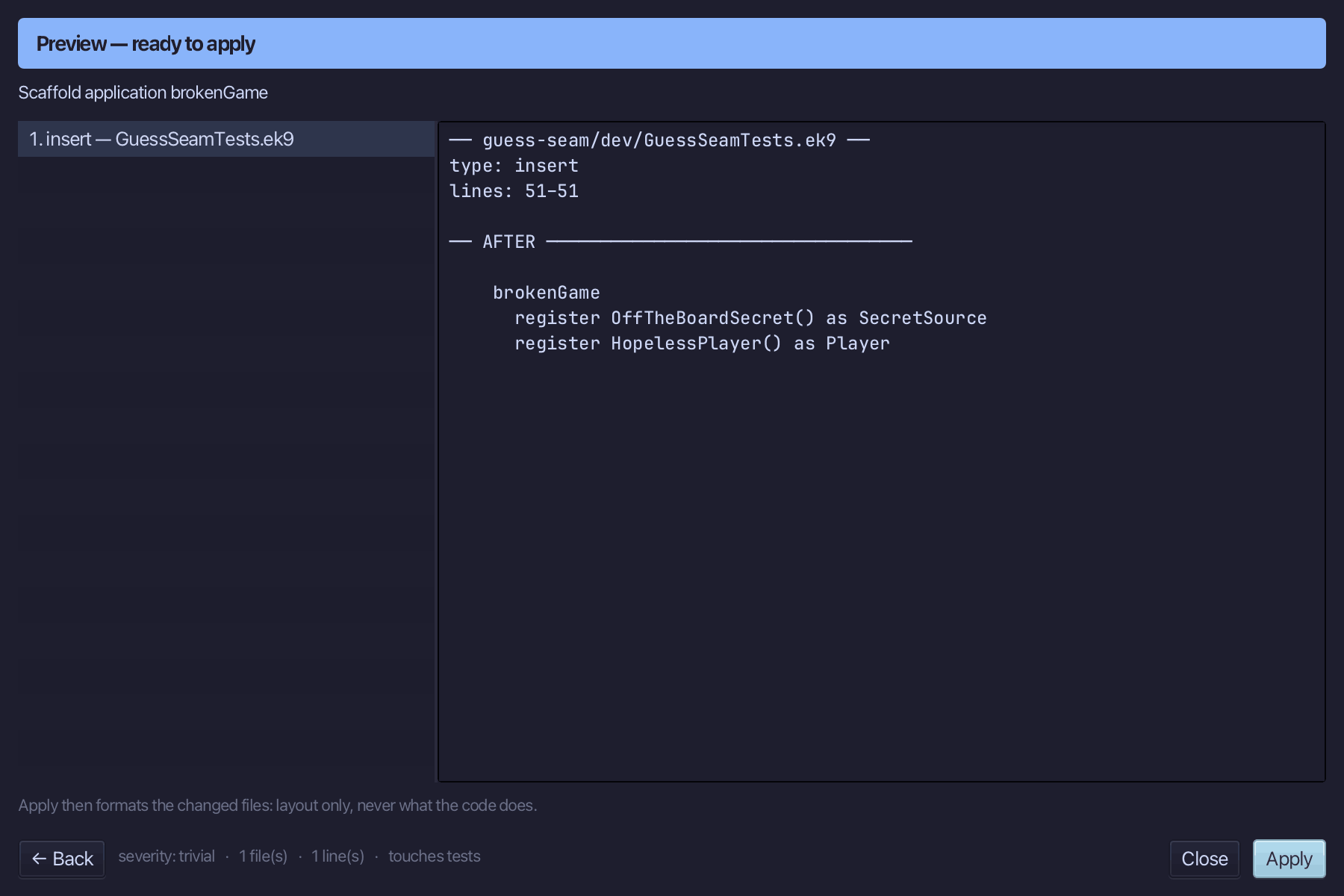
brokenGame is the application's name. It wires the impossible secret. The Registrations table holds OffTheBoardSecret as SecretSource and HopelessPlayer as Player. Choose Preview.
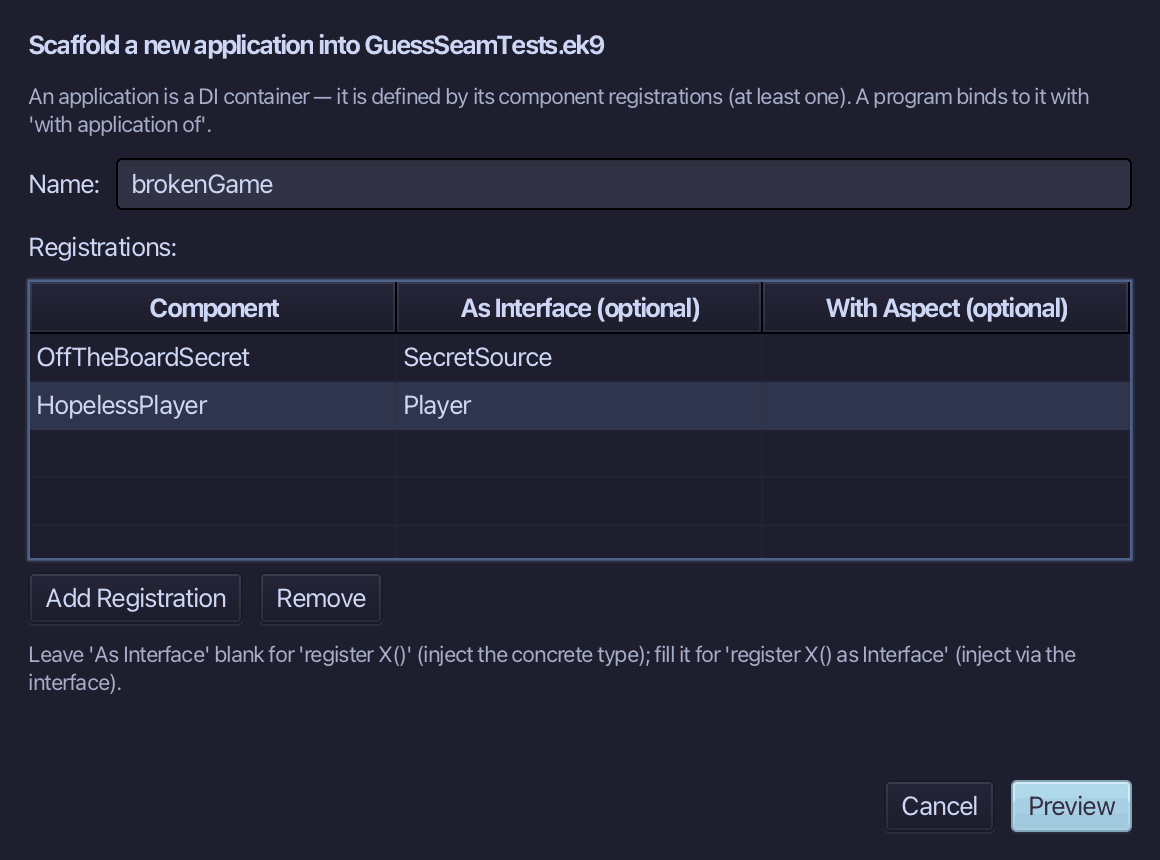
The preview shows brokenGame about to be written, with a register line for each. Choose Apply.
Step 21: ThirdGuessWins — a test
Choose Code > New Construct > Test…
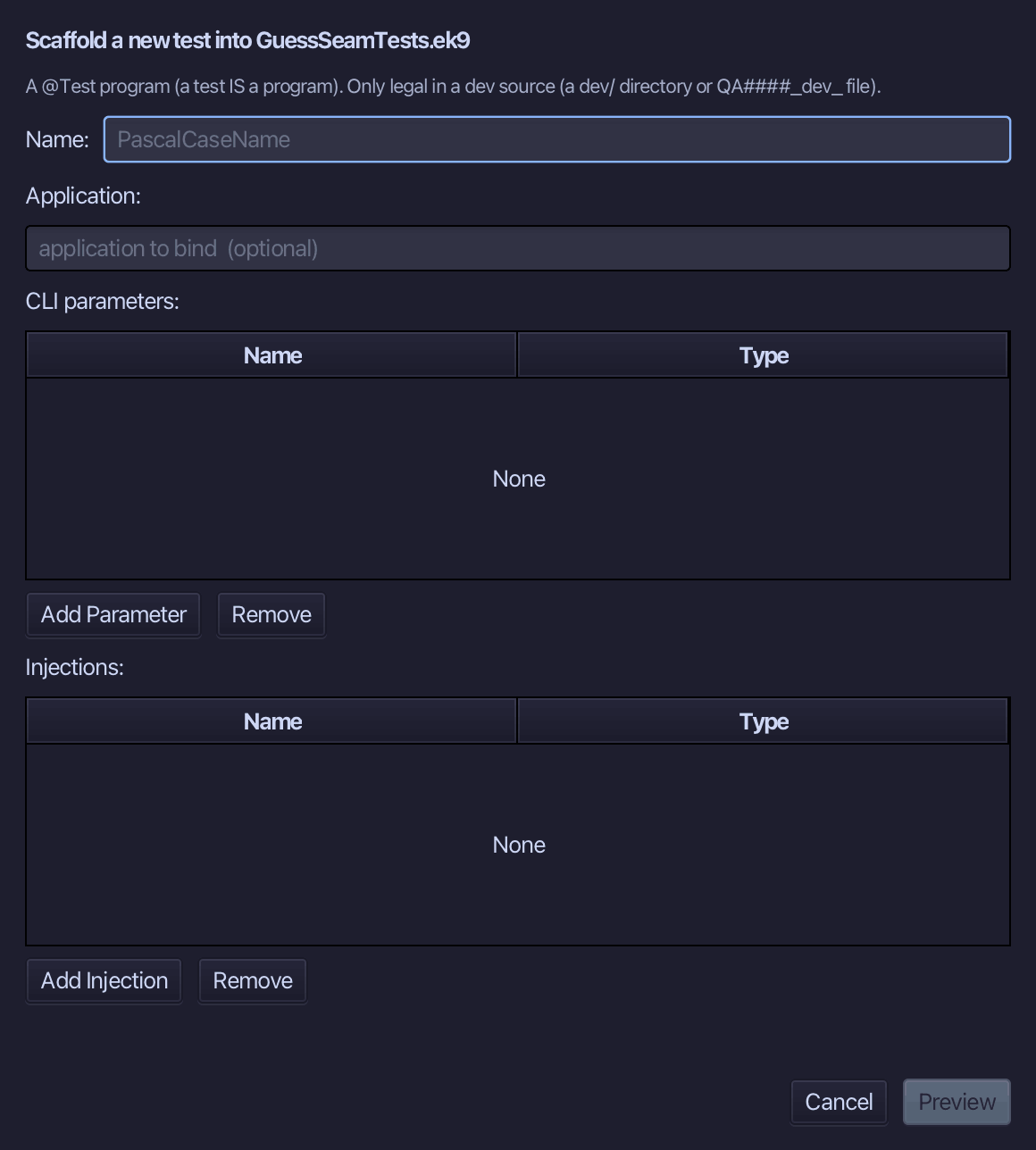
ThirdGuessWins is the test's name. Type scriptedGame into Application. Choose Preview.
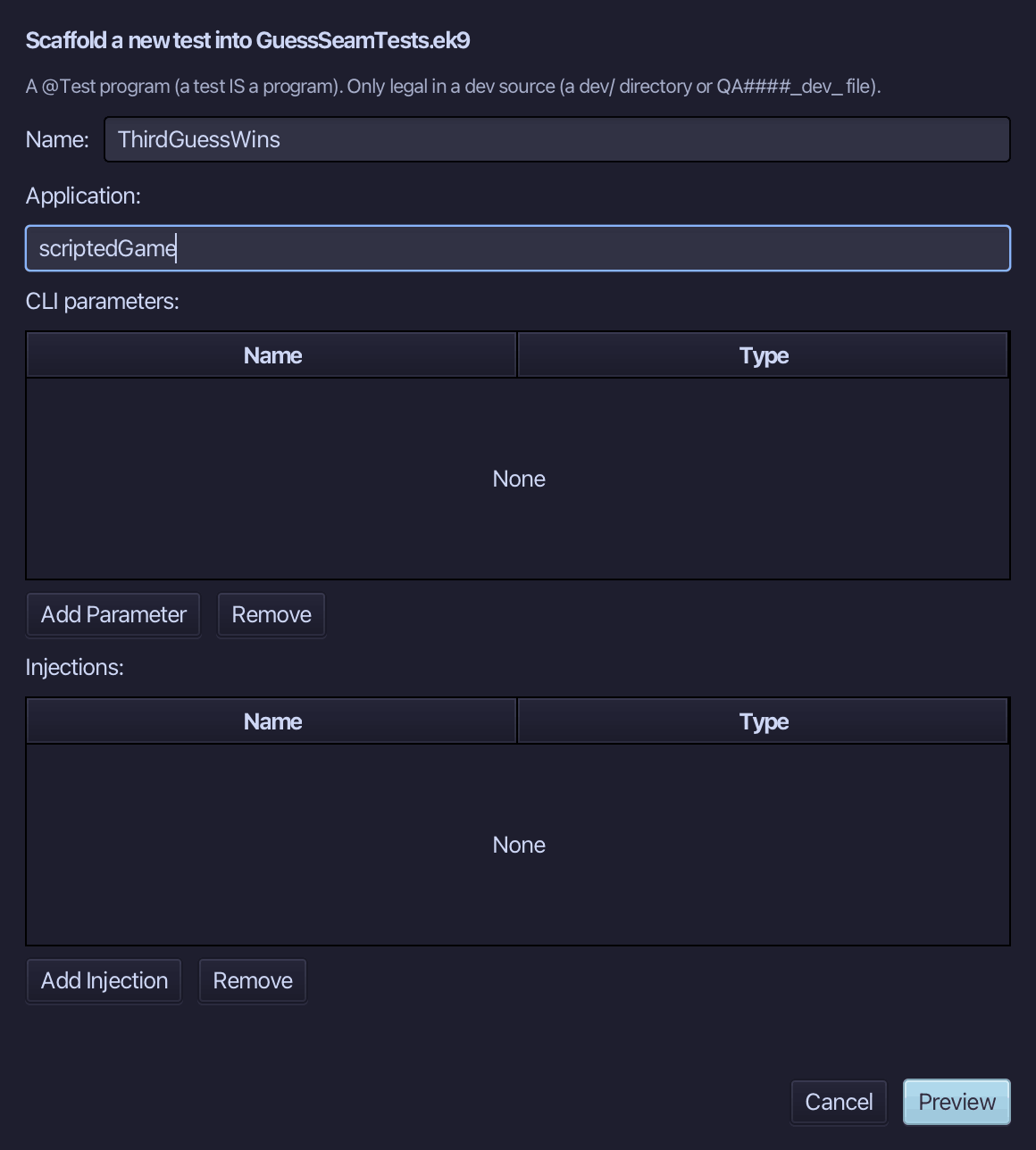
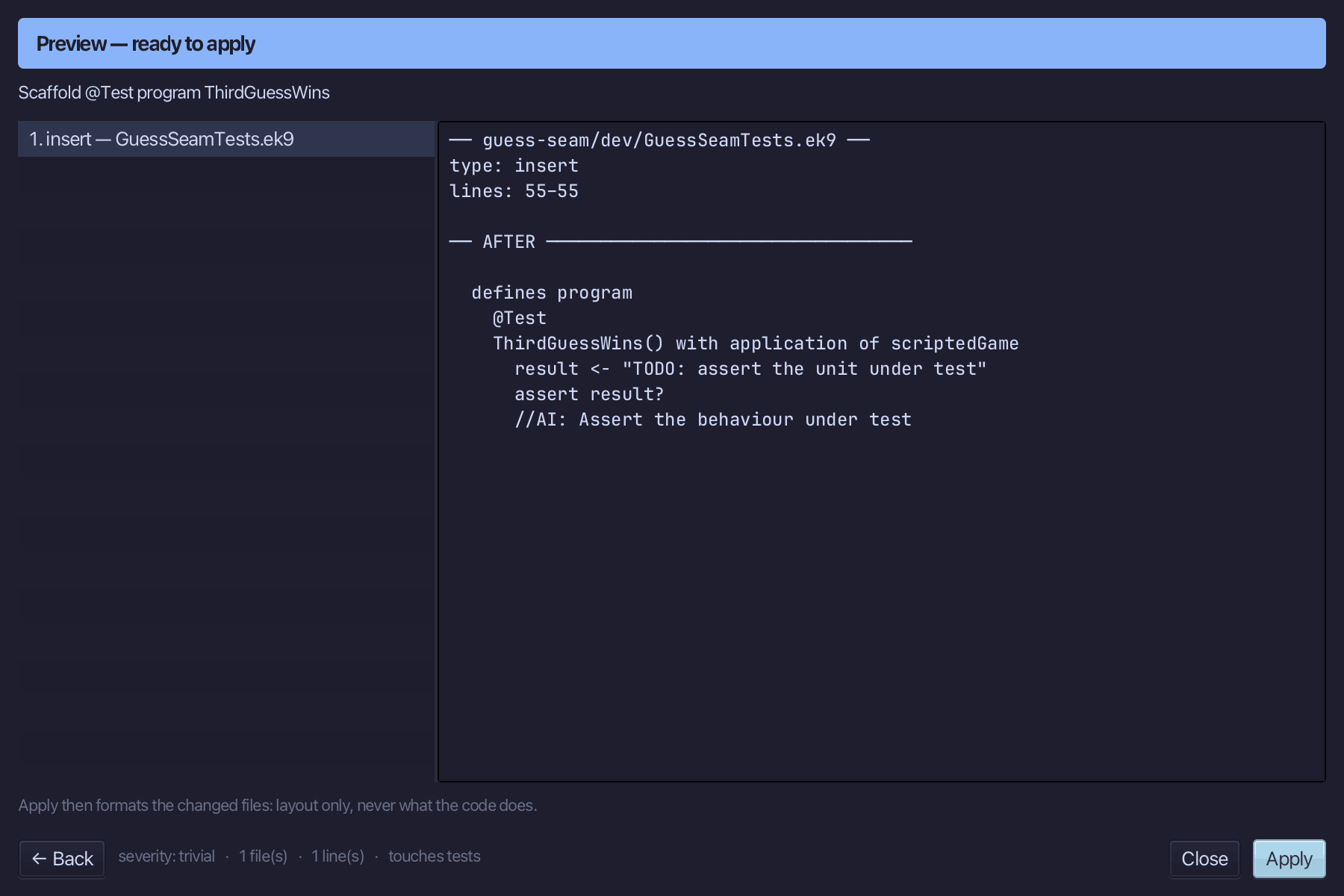
The preview shows ThirdGuessWins about to be written, marked @Test, with application of scriptedGame and a placeholder assertion. Choose Apply.
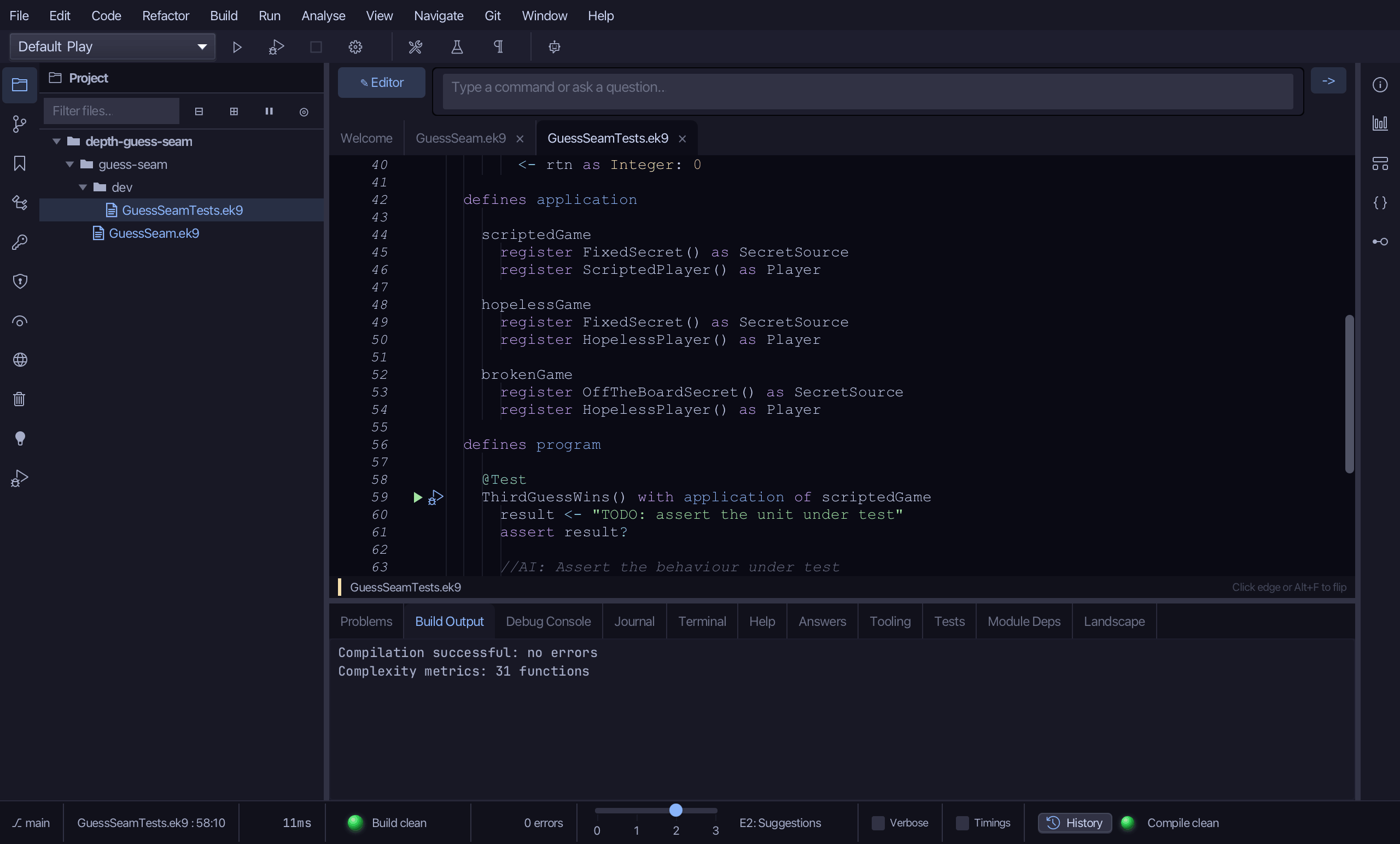
Select the first @Test line and, above it, type the blank line the book opens the block with. Saves when typed.
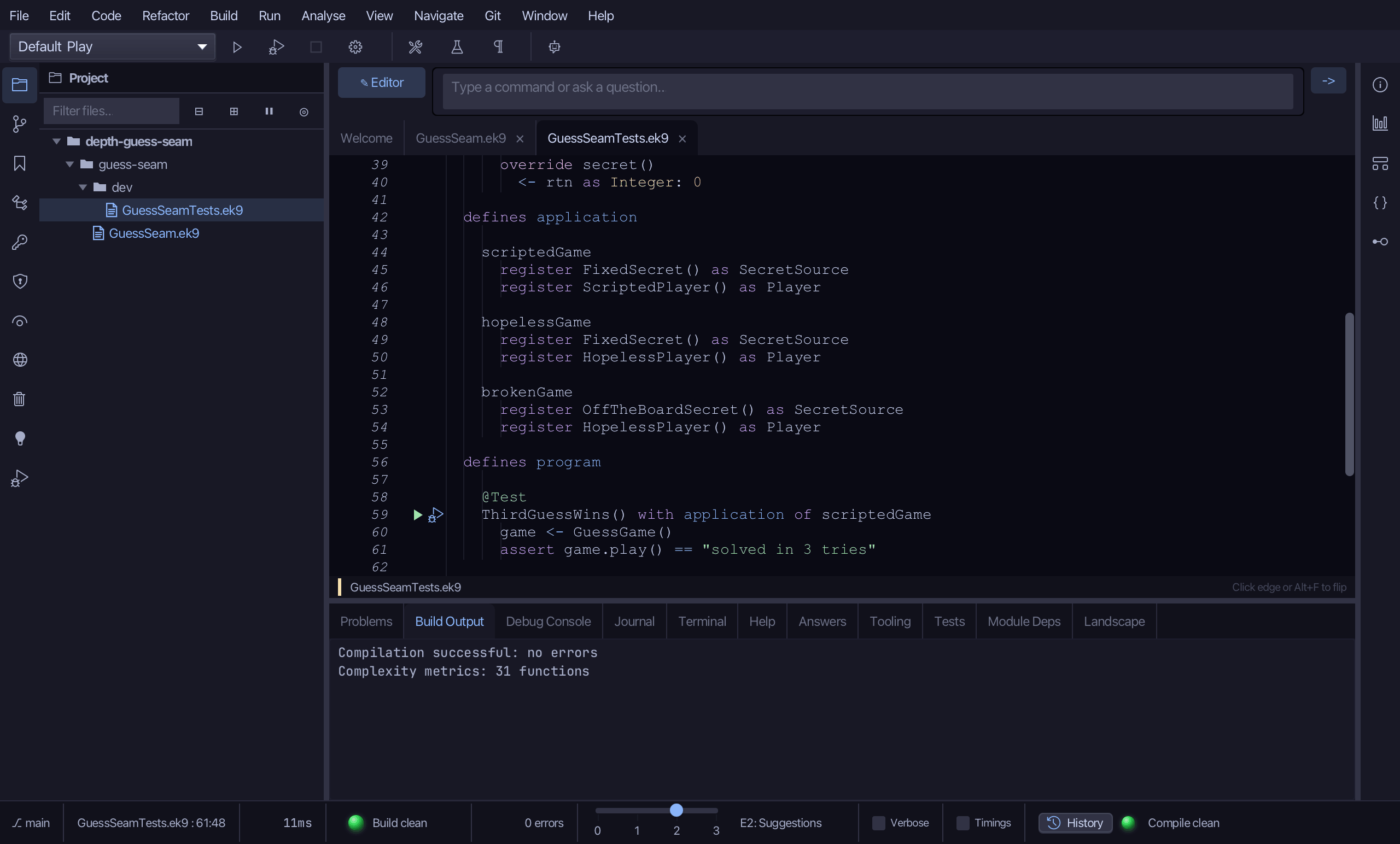
Select the stub and type the claim: the scripted player wins on the third guess. Saves when typed.
Step 22: RunsOutOfTries — a test
Choose Code > New Construct > Test…
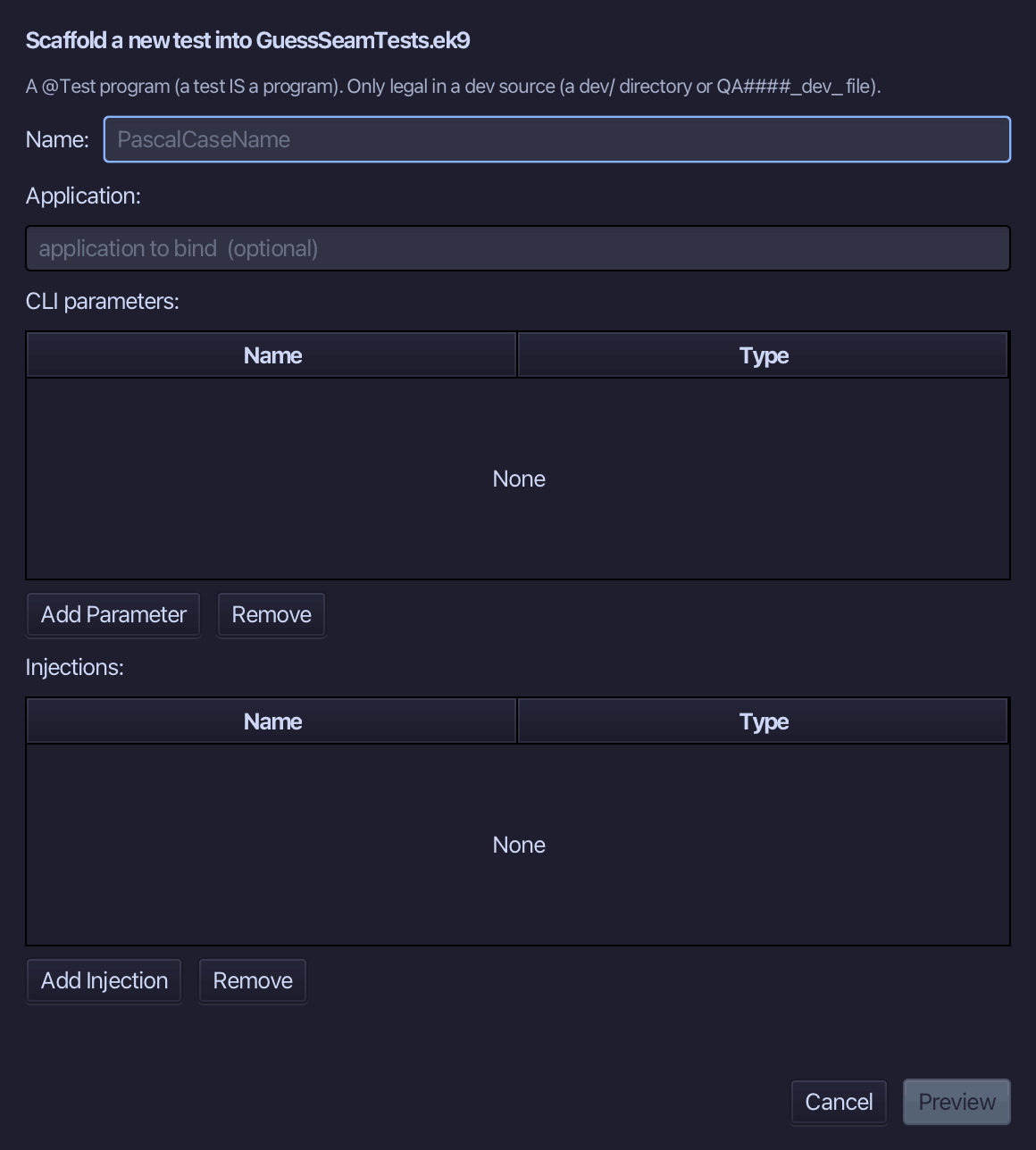
RunsOutOfTries is the test's name. Type hopelessGame into Application. Choose Preview.
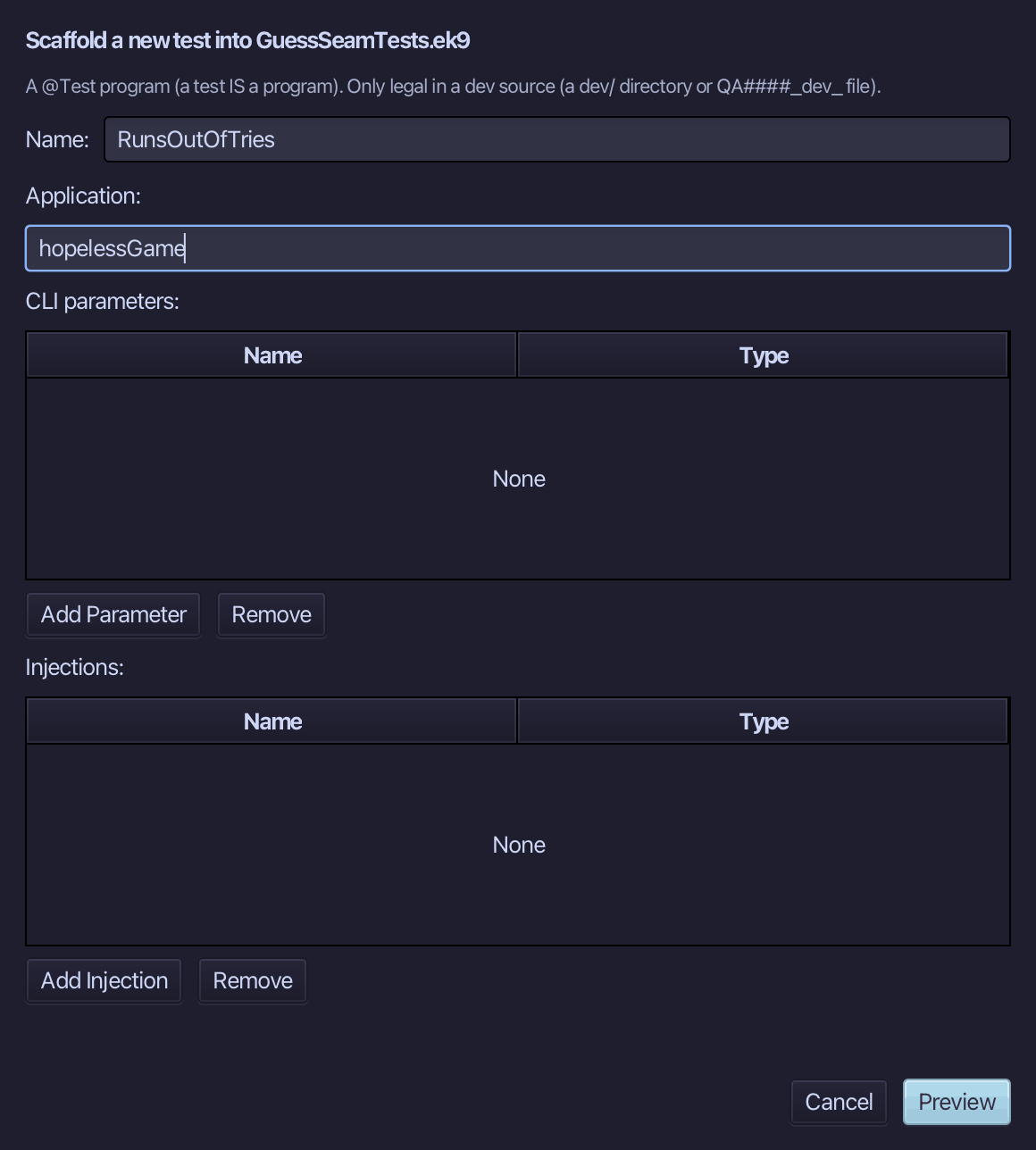
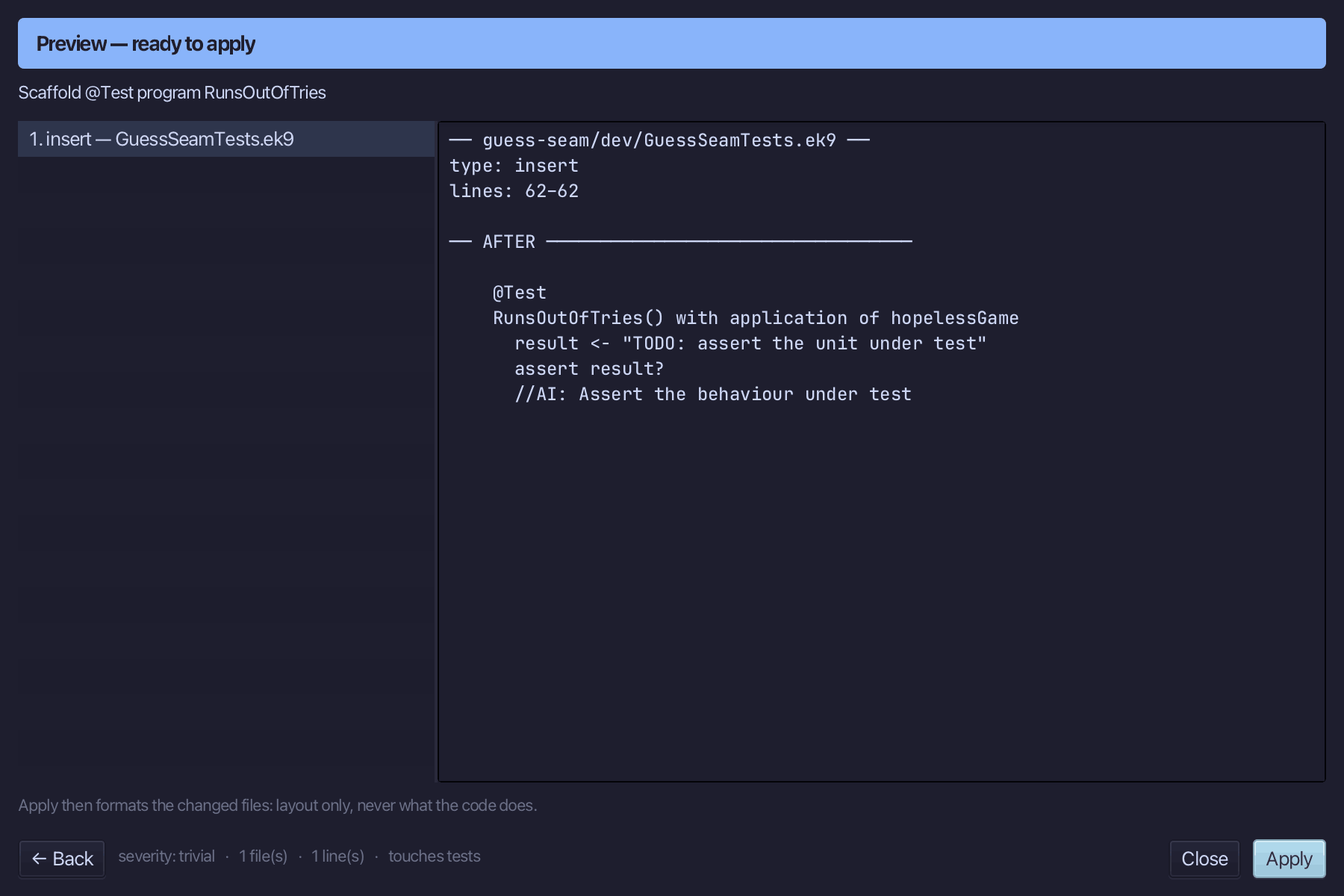
The preview shows RunsOutOfTries about to be written, marked @Test, with application of hopelessGame and a placeholder assertion. Choose Apply.
Select the stub and type the claim. Saves when typed.
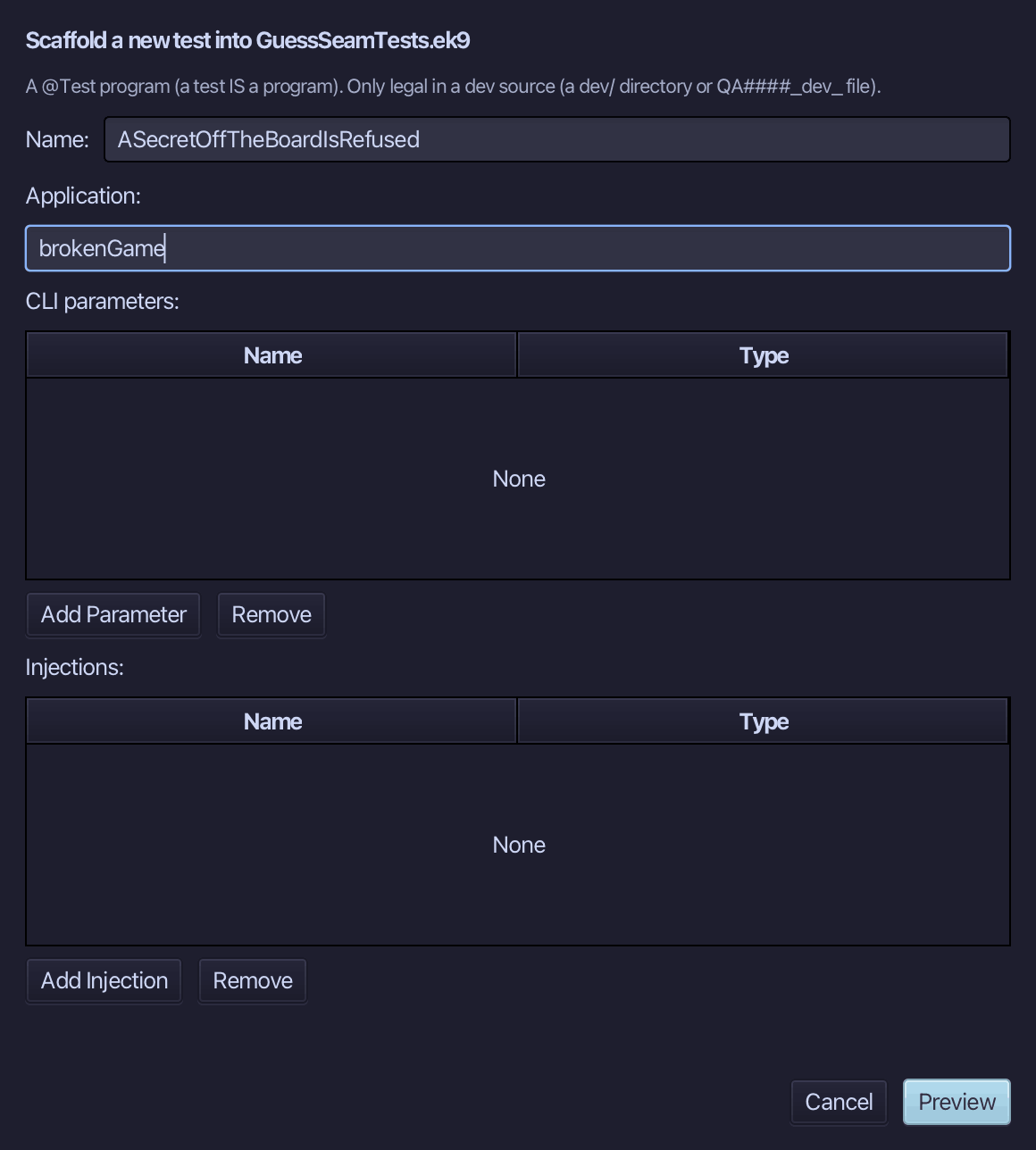
Step 23: ASecretOffTheBoardIsRefused — a test
Choose Code > New Construct > Test…
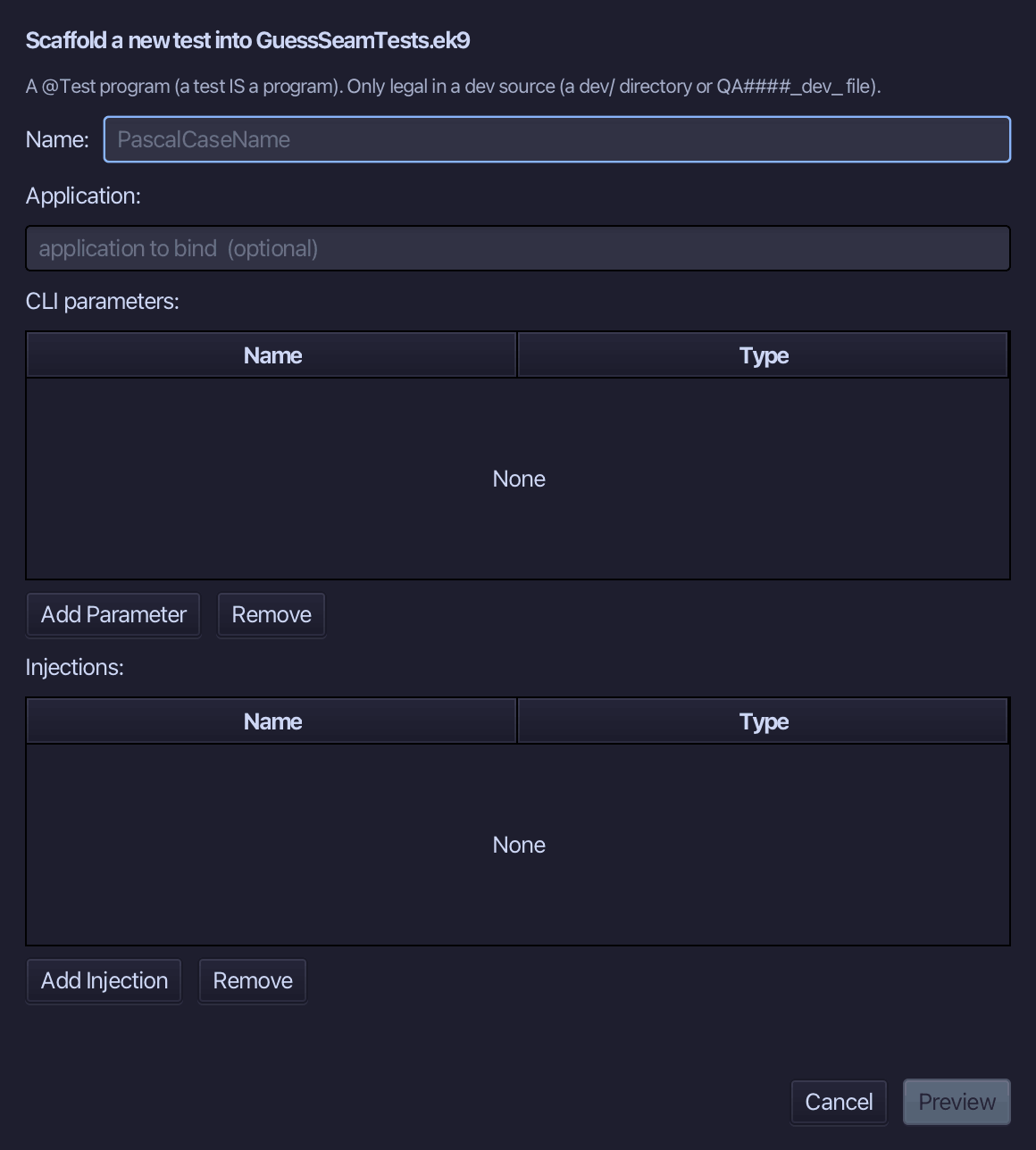
ASecretOffTheBoardIsRefused is the test's name. Type brokenGame into Application. Choose Preview.
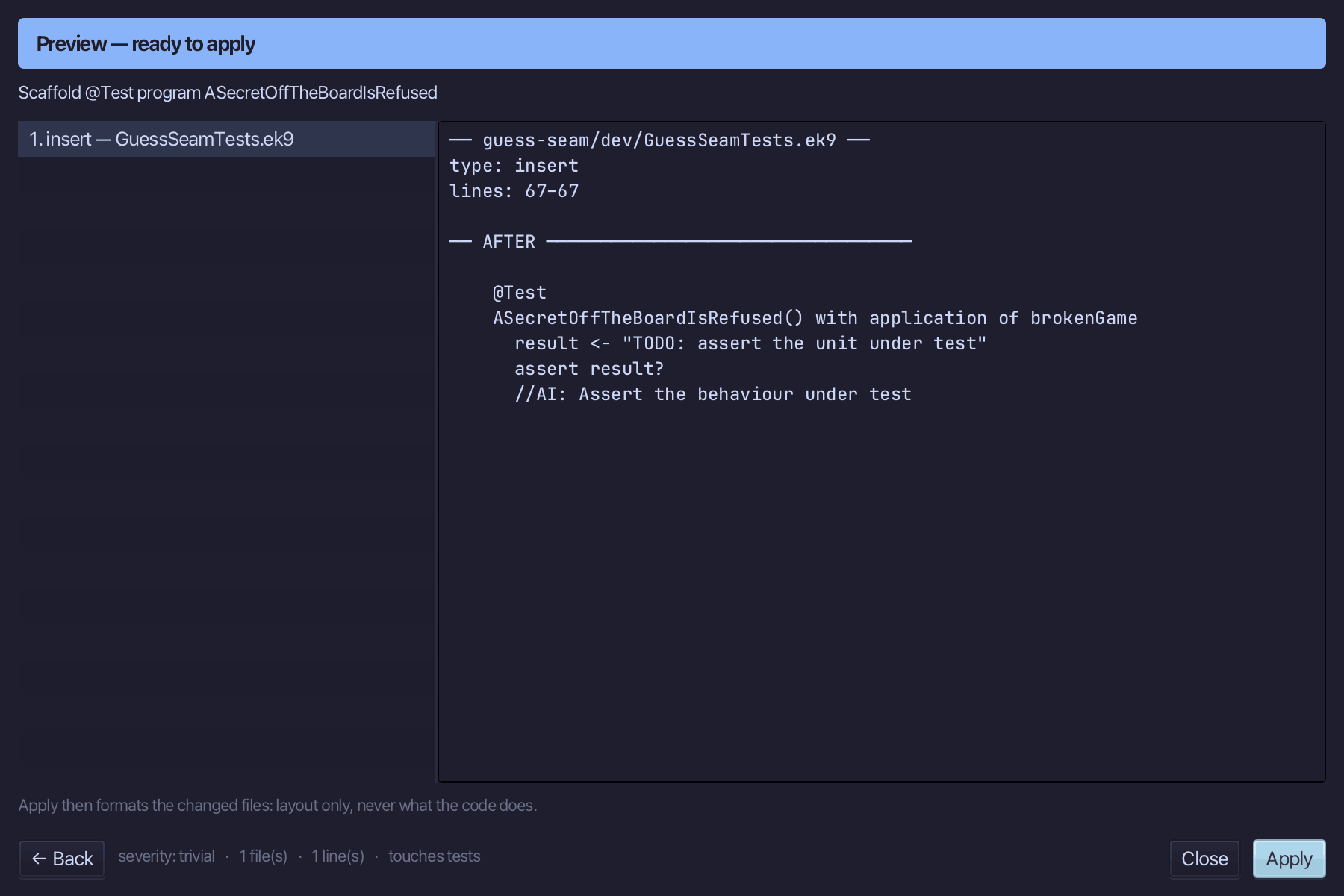
The preview shows ASecretOffTheBoardIsRefused about to be written, marked @Test, with application of brokenGame and a placeholder assertion. Choose Apply.
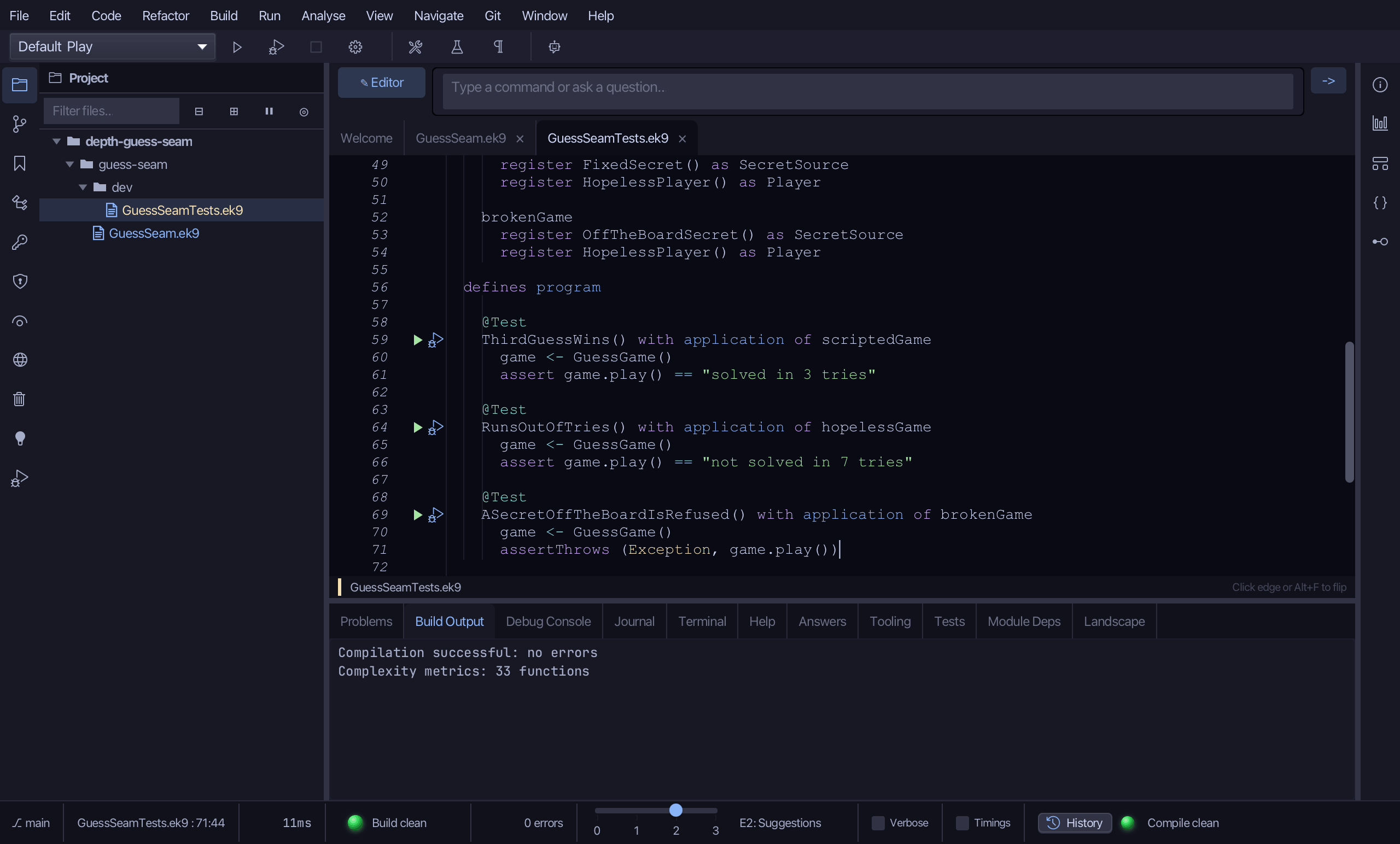
Select the stub and type the claim: playing with that secret throws. Saves when typed.
Step 24: HintsPointTheRightWay — a test
Choose Code > New Construct > Test…
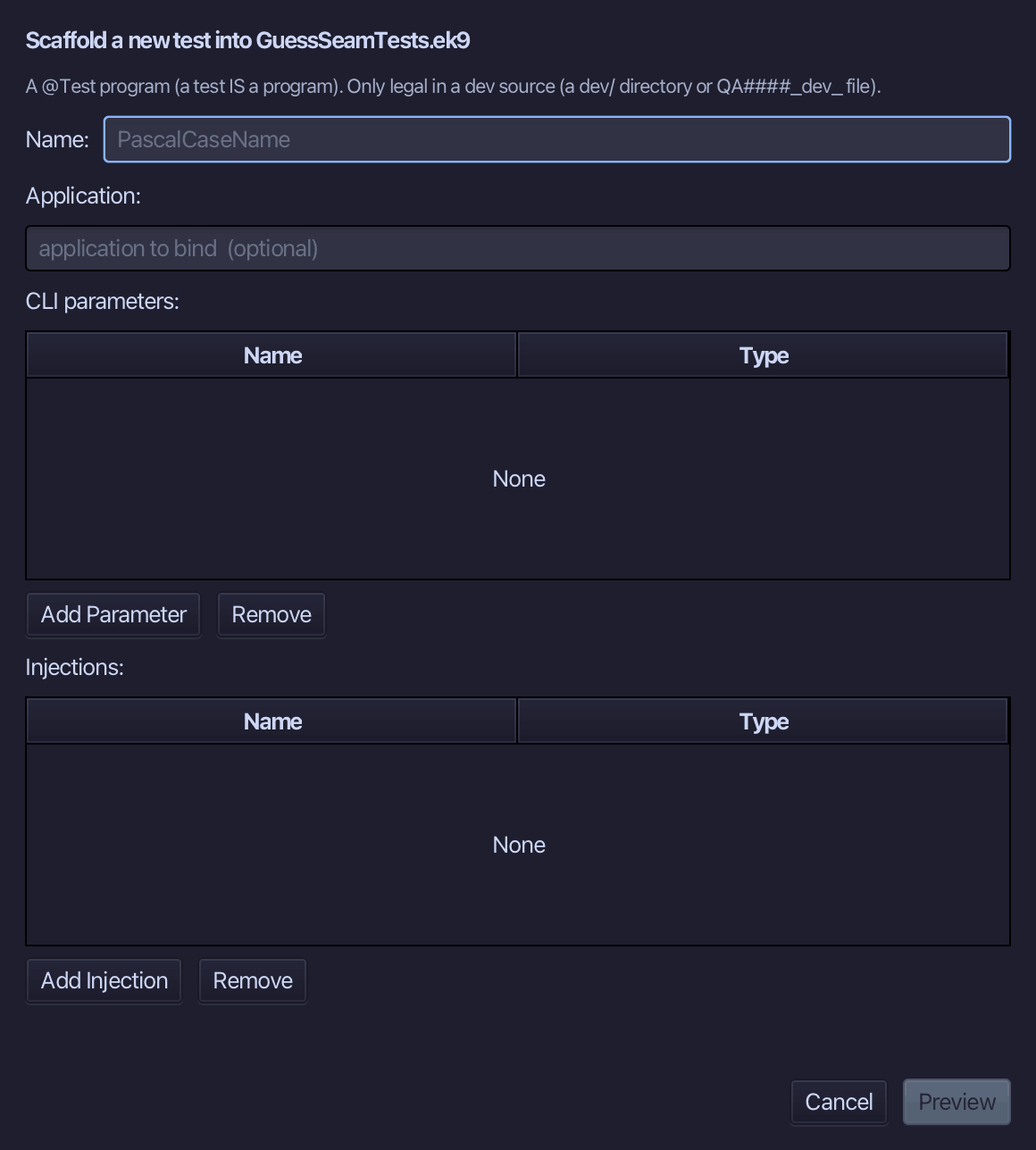
HintsPointTheRightWay is the test's name. It needs no application: hint is a pure function. Leave Application empty. Choose Preview.
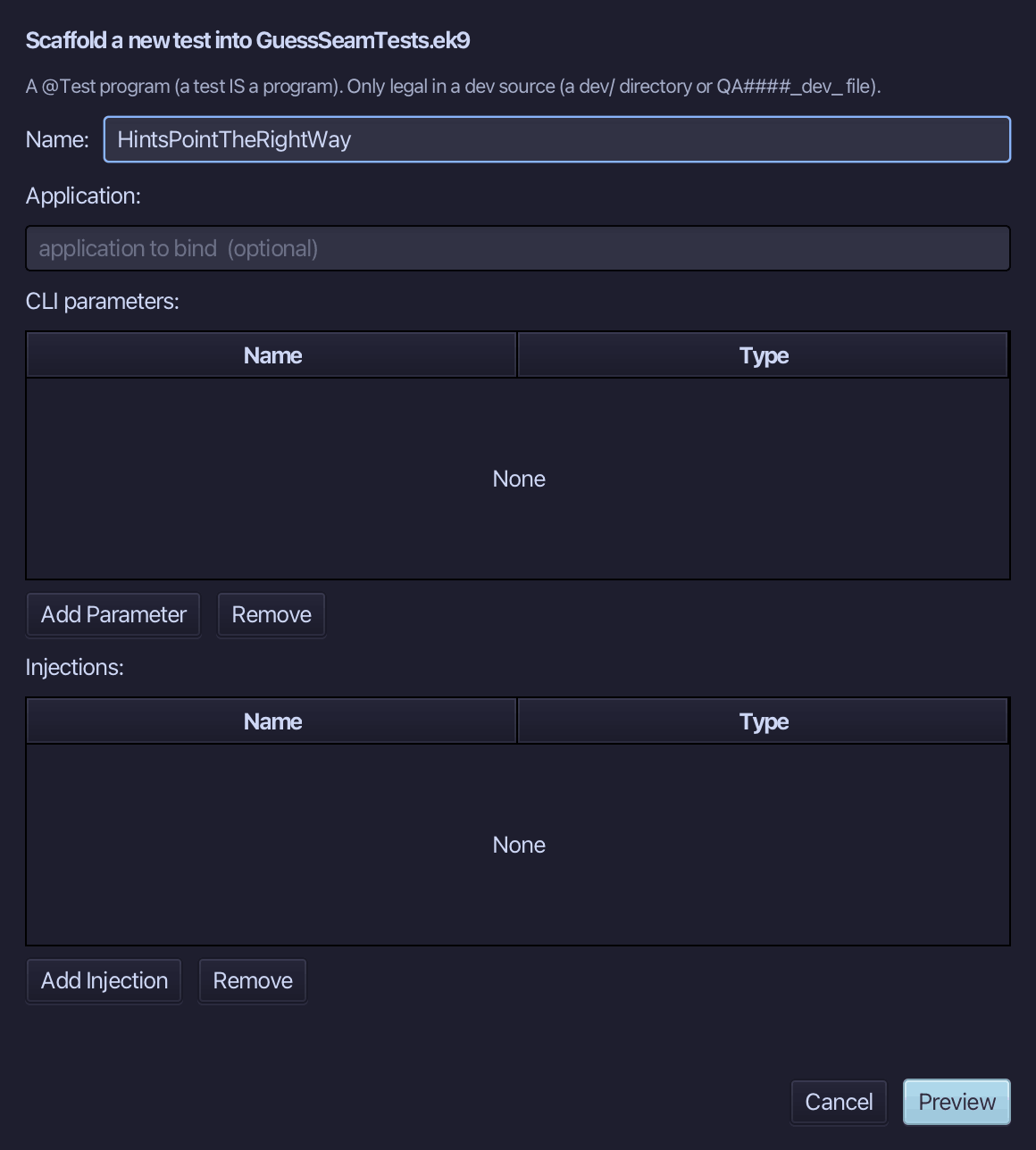
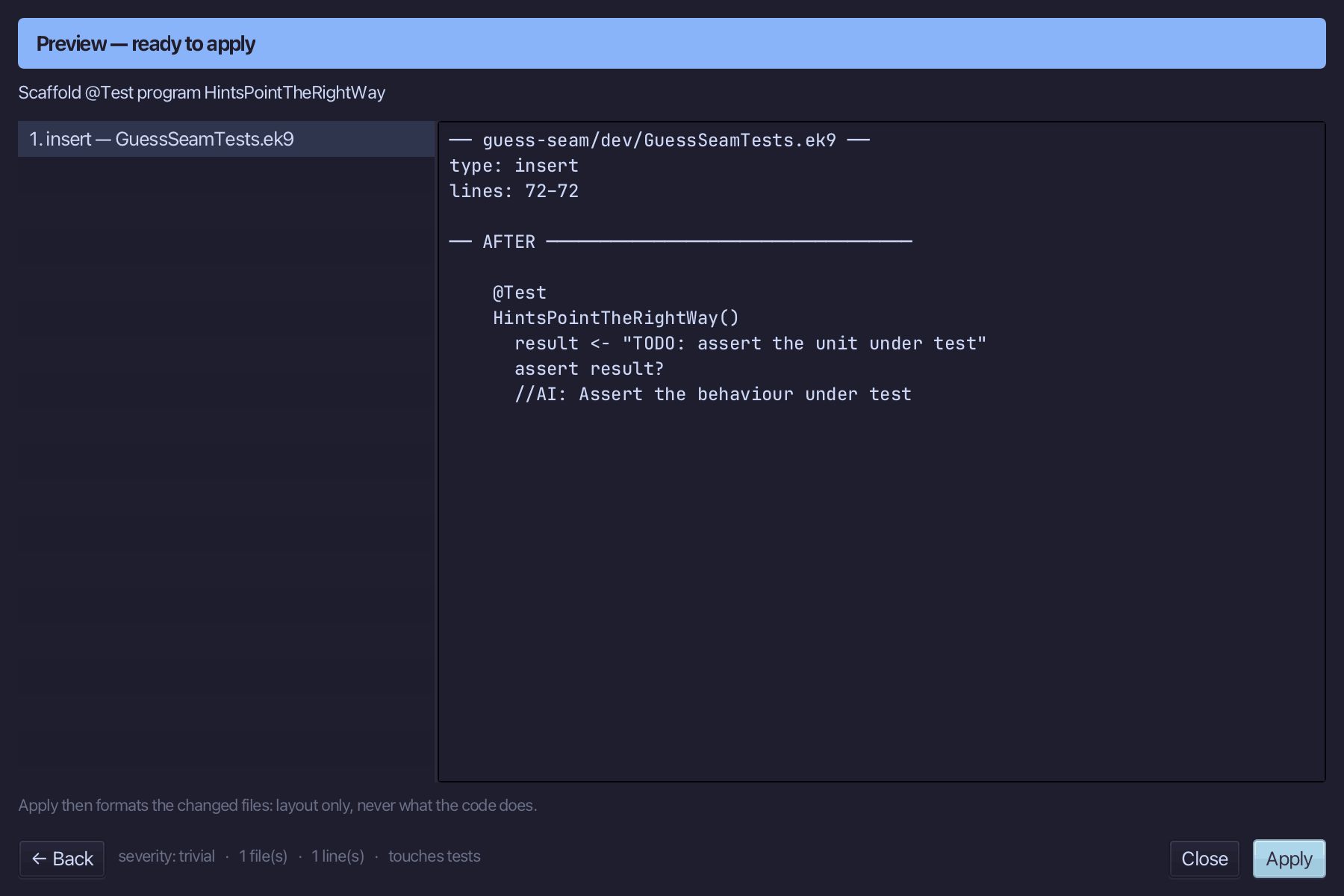
The preview shows HintsPointTheRightWay about to be written, marked @Test, with a placeholder assertion. Choose Apply.
Select the stub and type the three claims. Saves when typed.
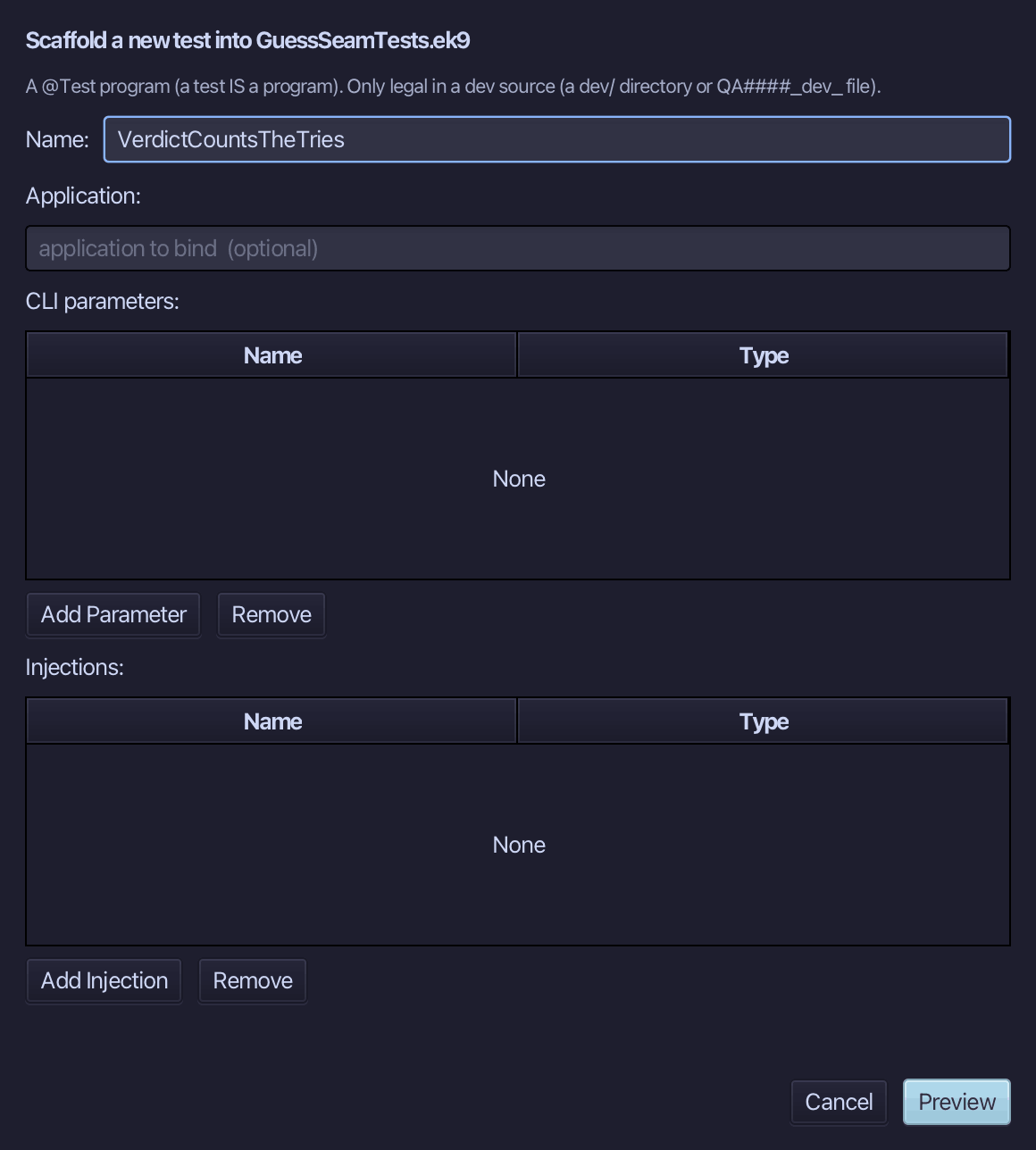
Step 25: VerdictCountsTheTries — a test
Choose Code > New Construct > Test…
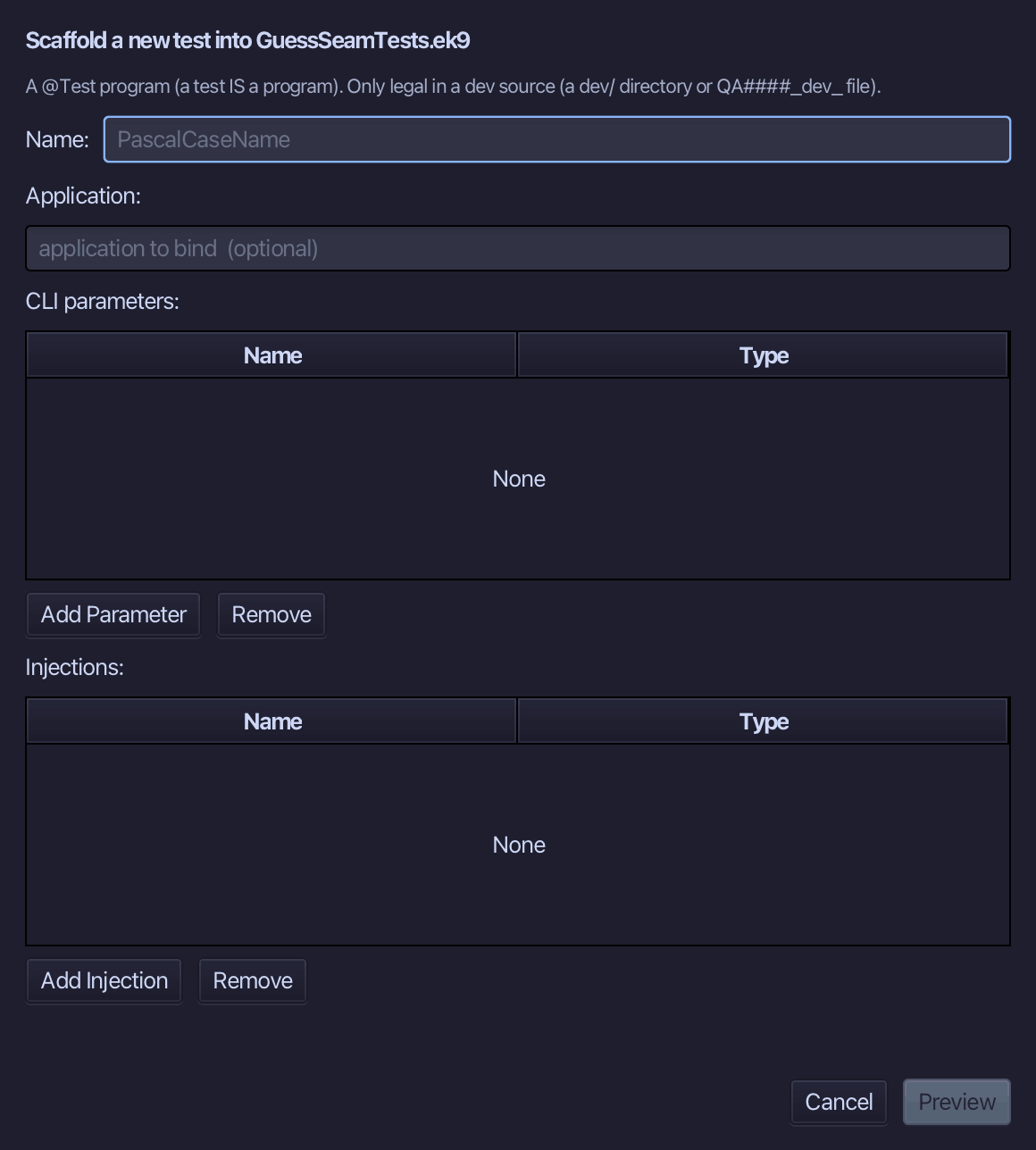
VerdictCountsTheTries is the test's name. It tests the other pure function. Choose Preview.
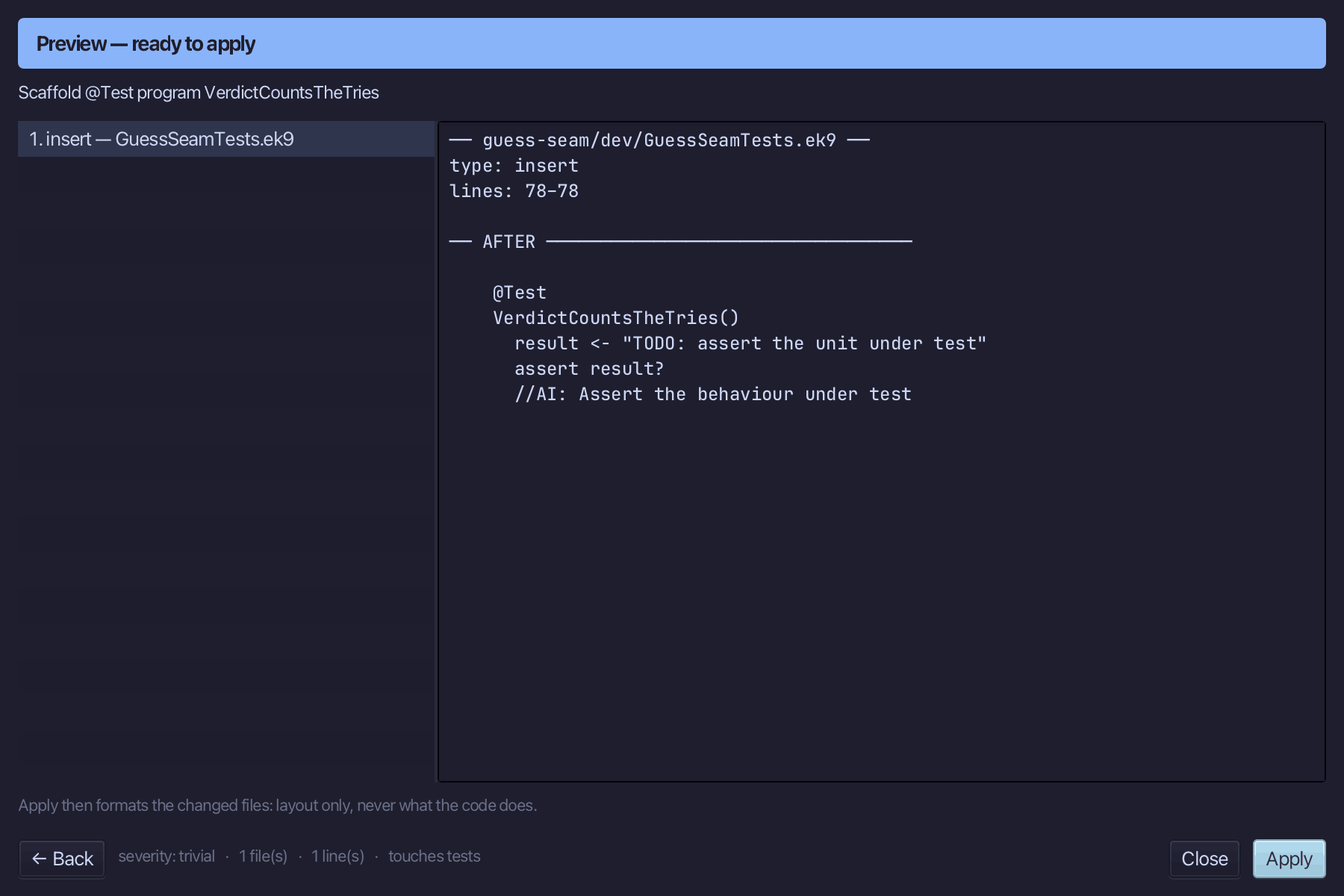
The preview shows VerdictCountsTheTries about to be written, marked @Test, with a placeholder assertion. Choose Apply.
Select the stub and type the two claims. Saves when typed.
Step 26: TheLastTryIsTheSeventh — a test
Choose Code > New Construct > Test…
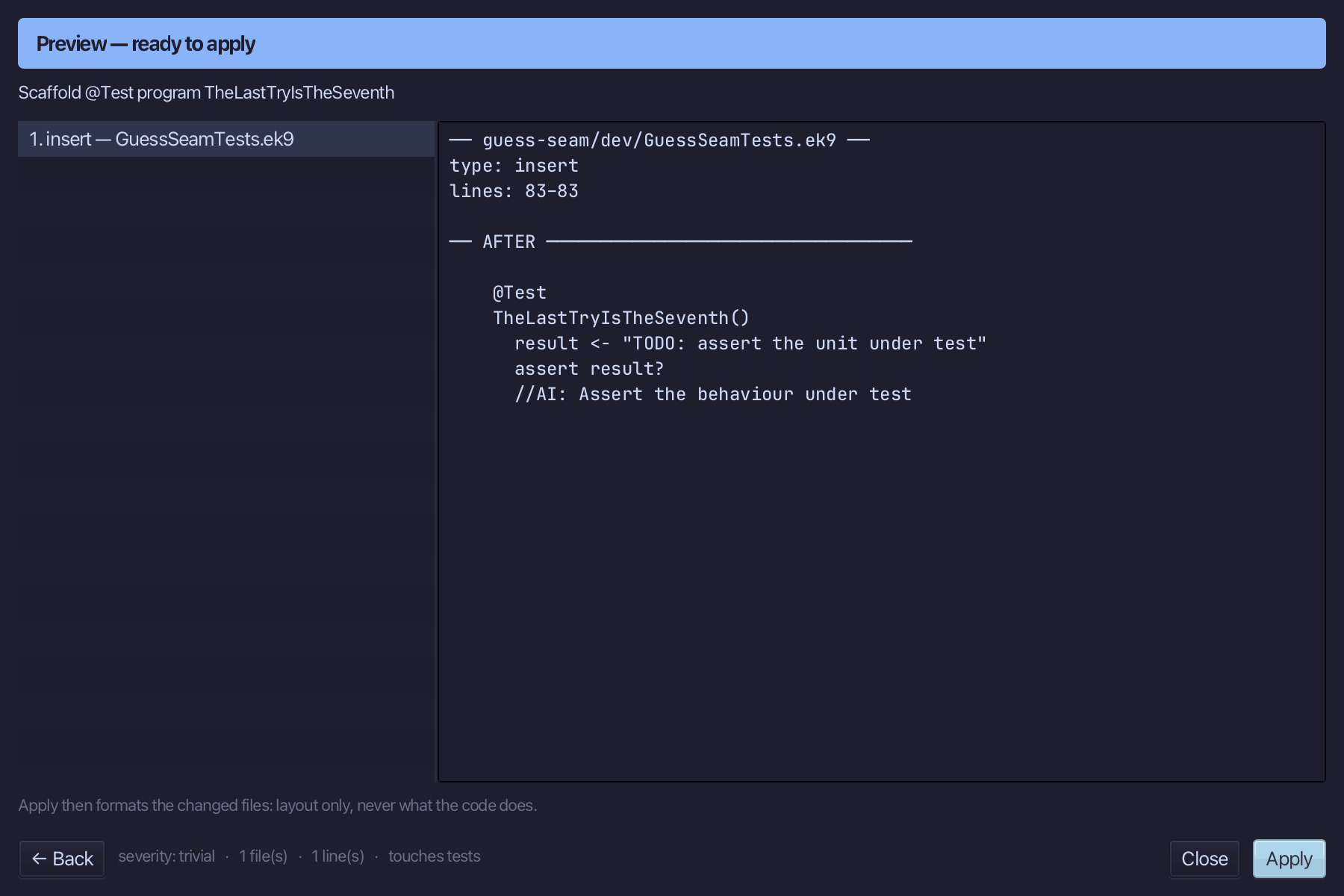
TheLastTryIsTheSeventh is the test's name. It pins the limit. Choose Preview.
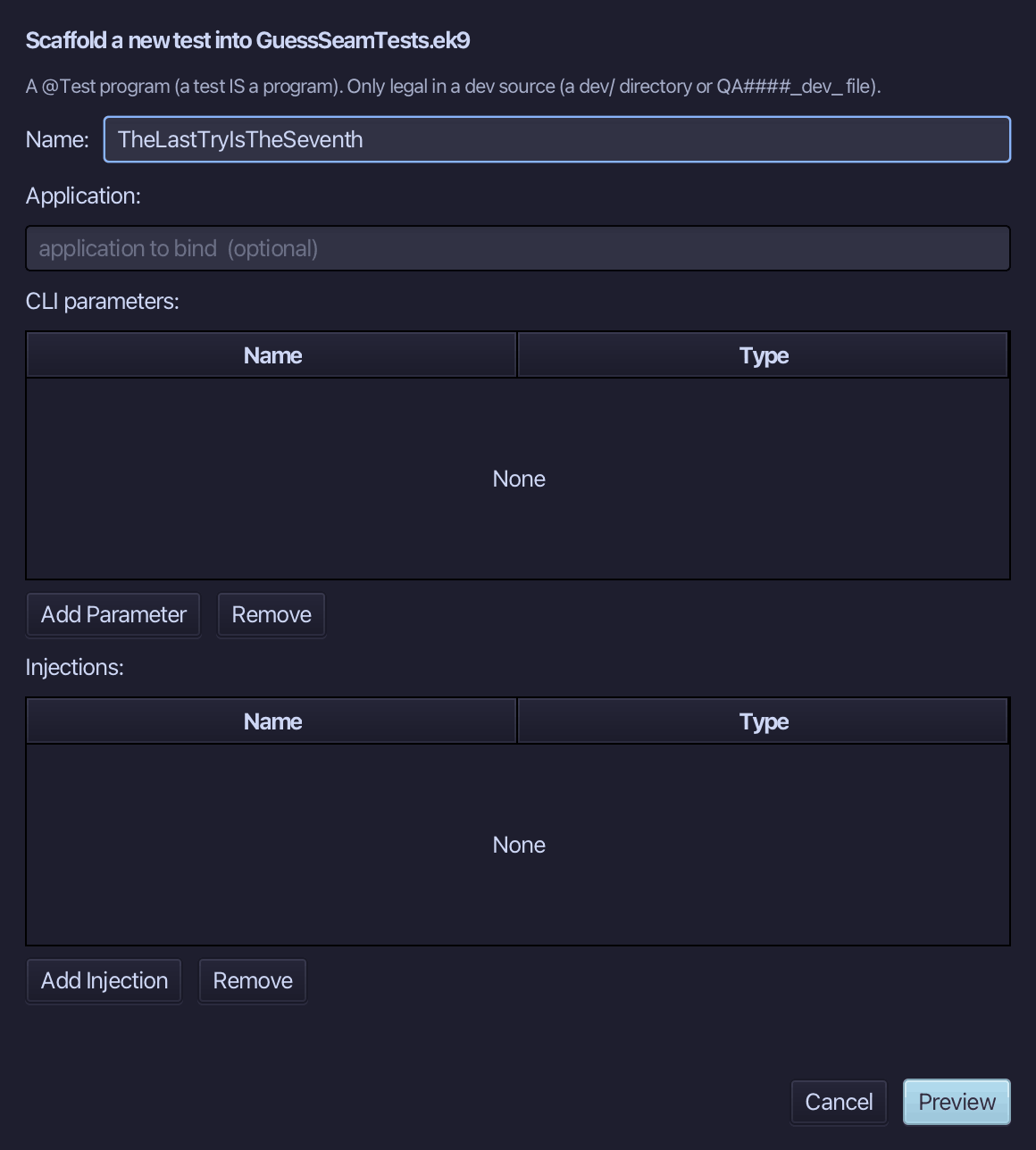
The preview shows TheLastTryIsTheSeventh about to be written, marked @Test, with a placeholder assertion. Choose Apply.
Select the stub and type the two claims. Saves when typed.
Step 27: LiveSecretStaysOnTheBoard — a test
Choose Code > New Construct > Test…
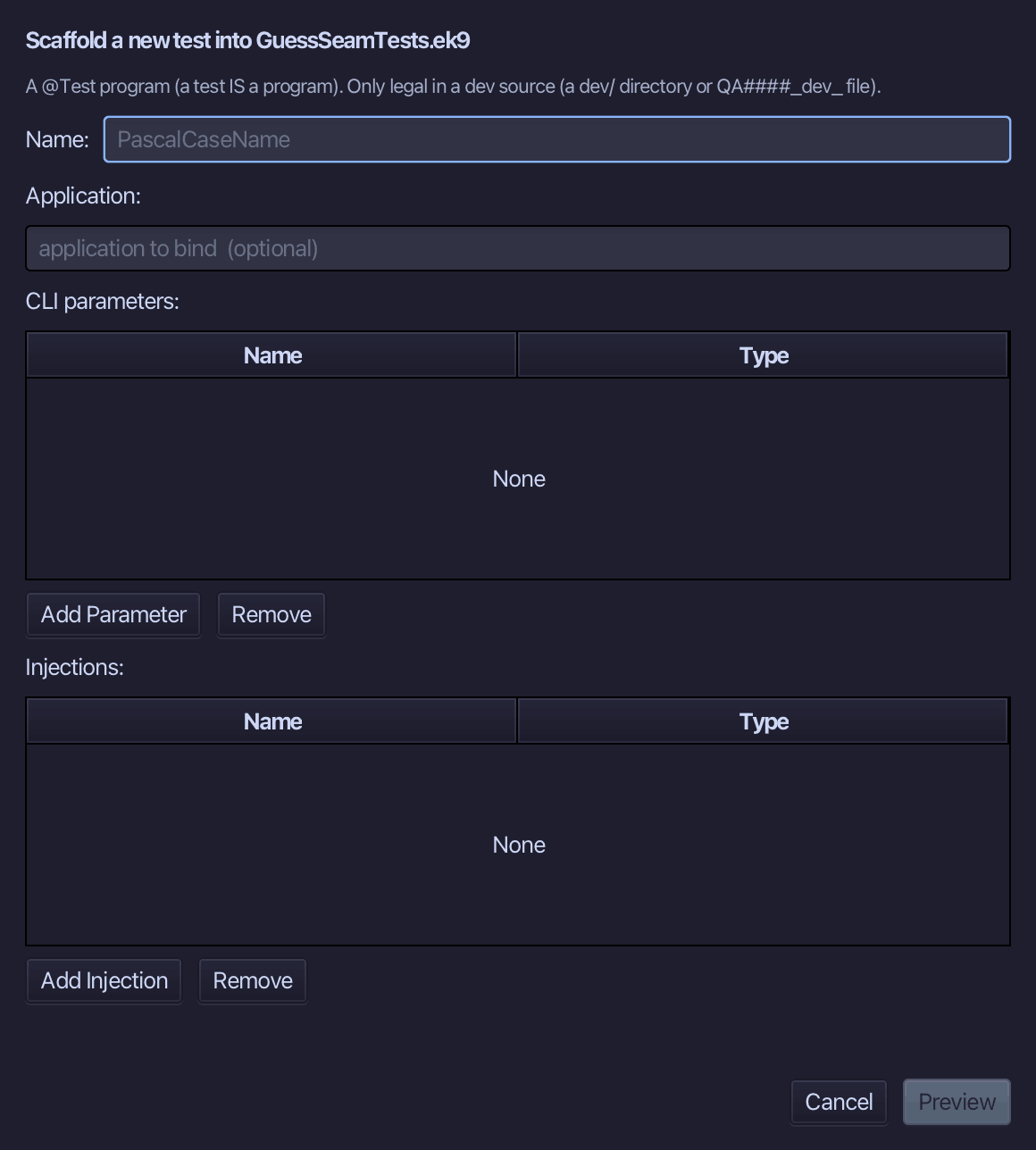
LiveSecretStaysOnTheBoard is the test's name. It tests the live component directly, with no application: a component can be constructed like any class. Choose Preview.
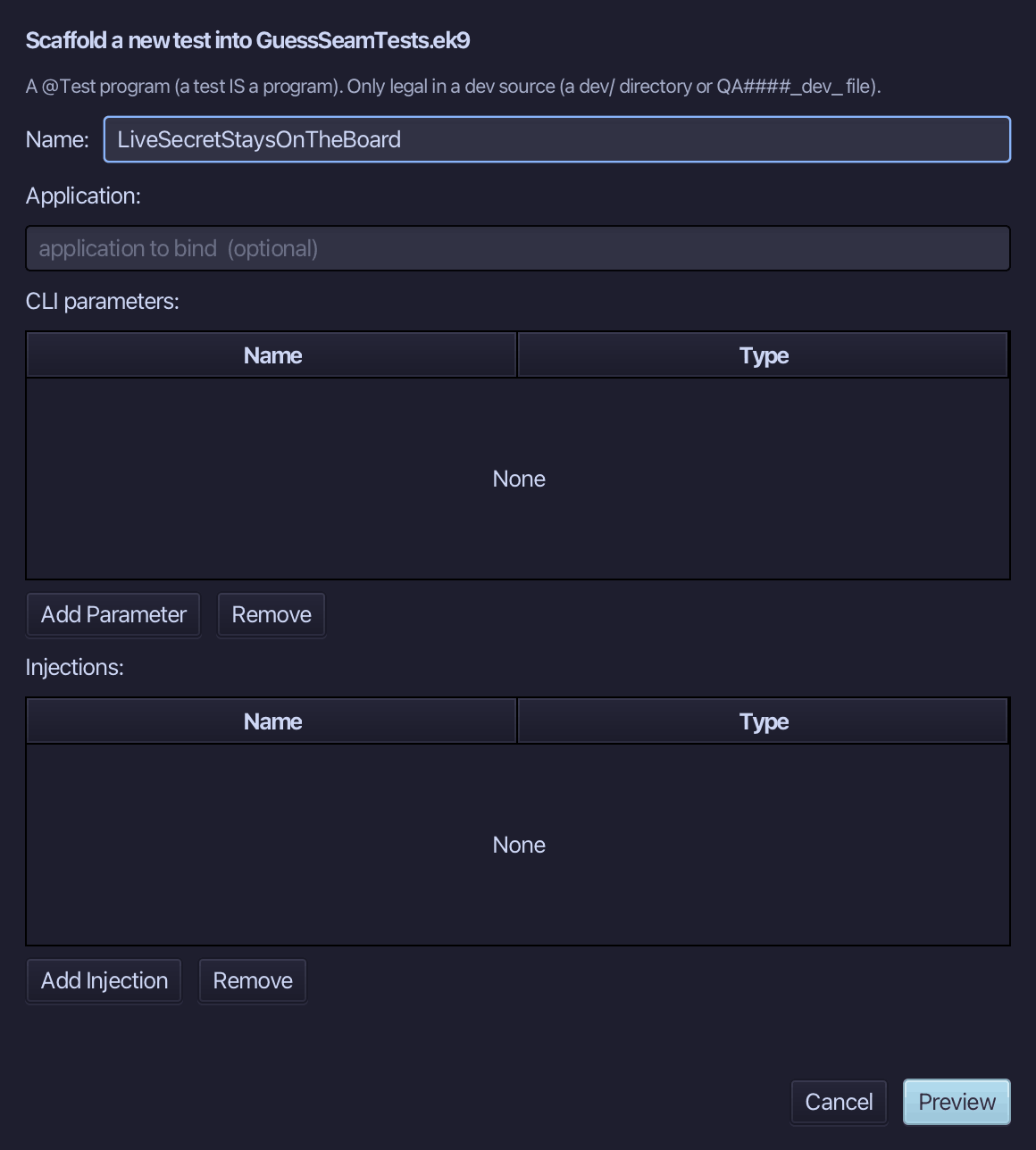
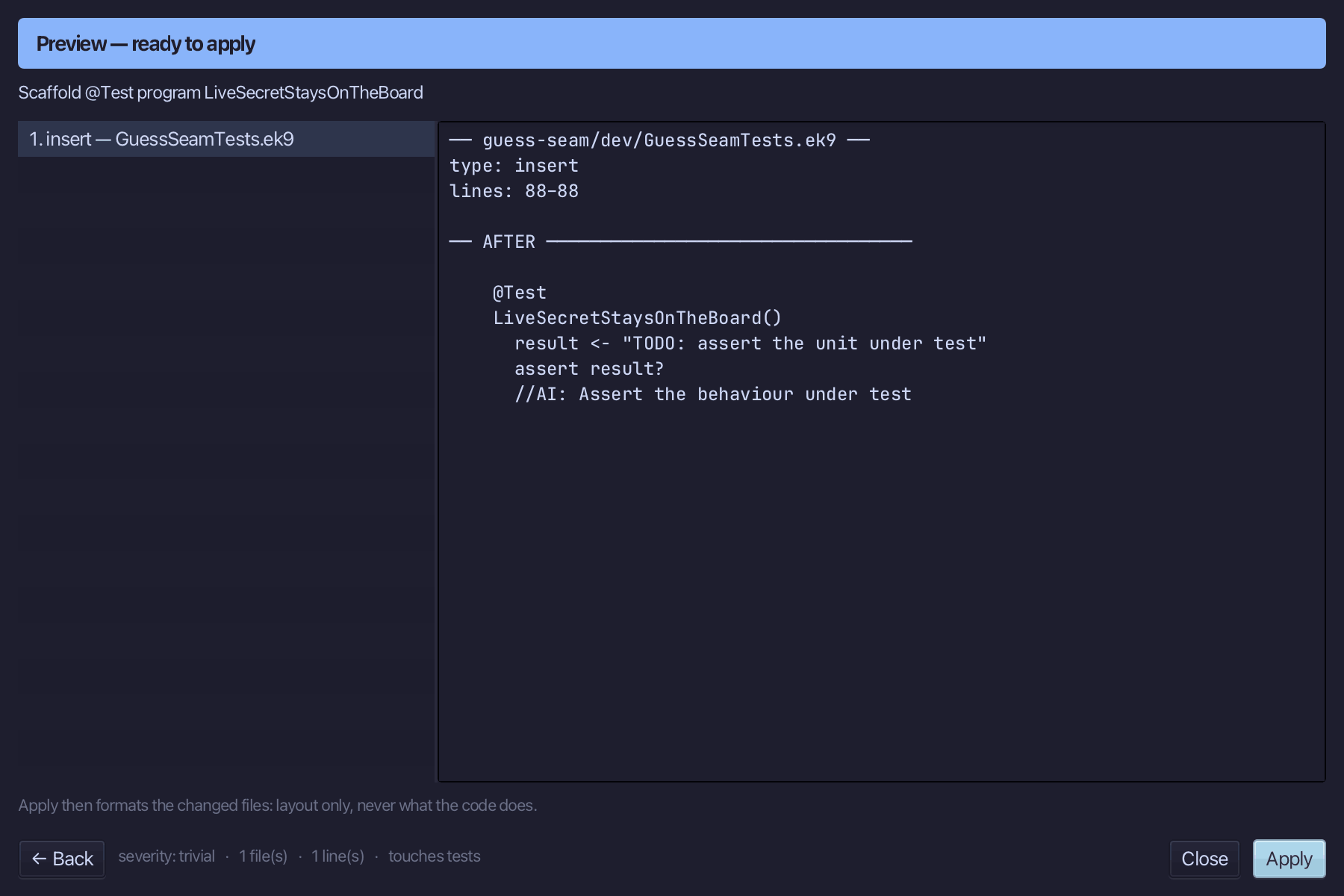
The preview shows LiveSecretStaysOnTheBoard about to be written, marked @Test, with a placeholder assertion. Choose Apply.
Select the stub and type the claims. Saves when typed.
Step 28: GameIsSet — a test
Choose Code > New Construct > Test…
GameIsSet is the test's name. Type scriptedGame into Application. Choose Preview.
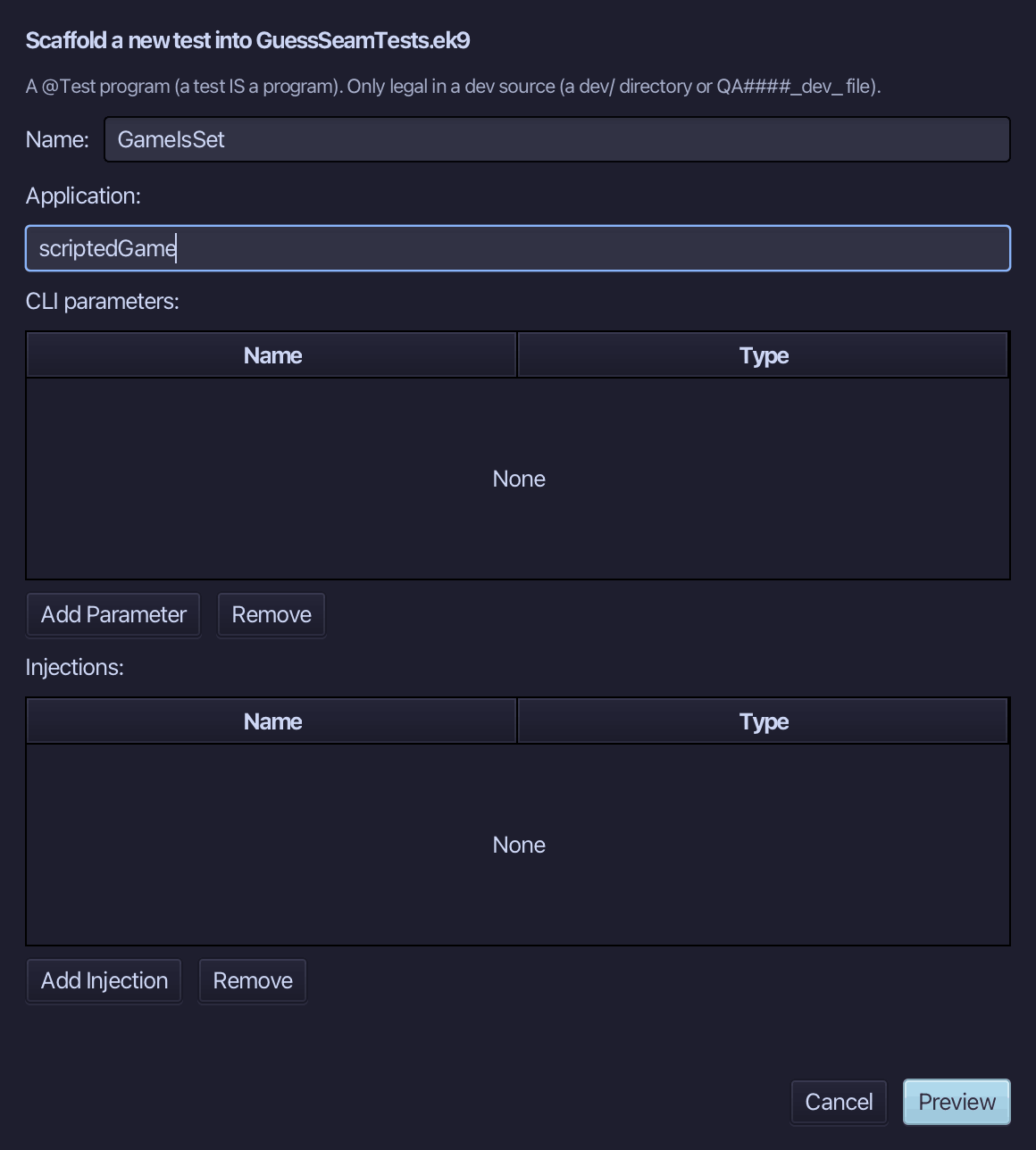
The preview shows GameIsSet about to be written, marked @Test, with application of scriptedGame and a placeholder assertion. Choose Apply.
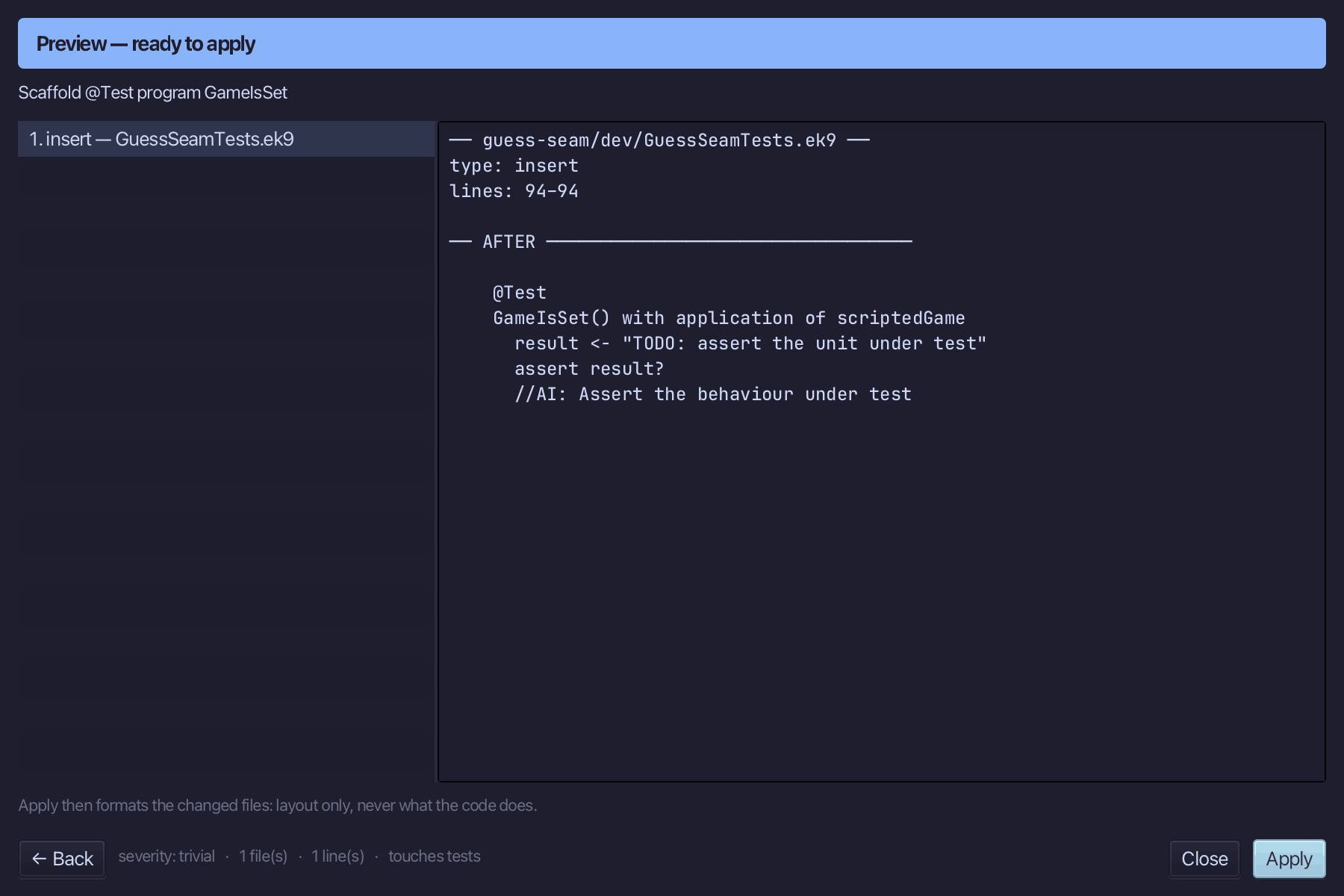
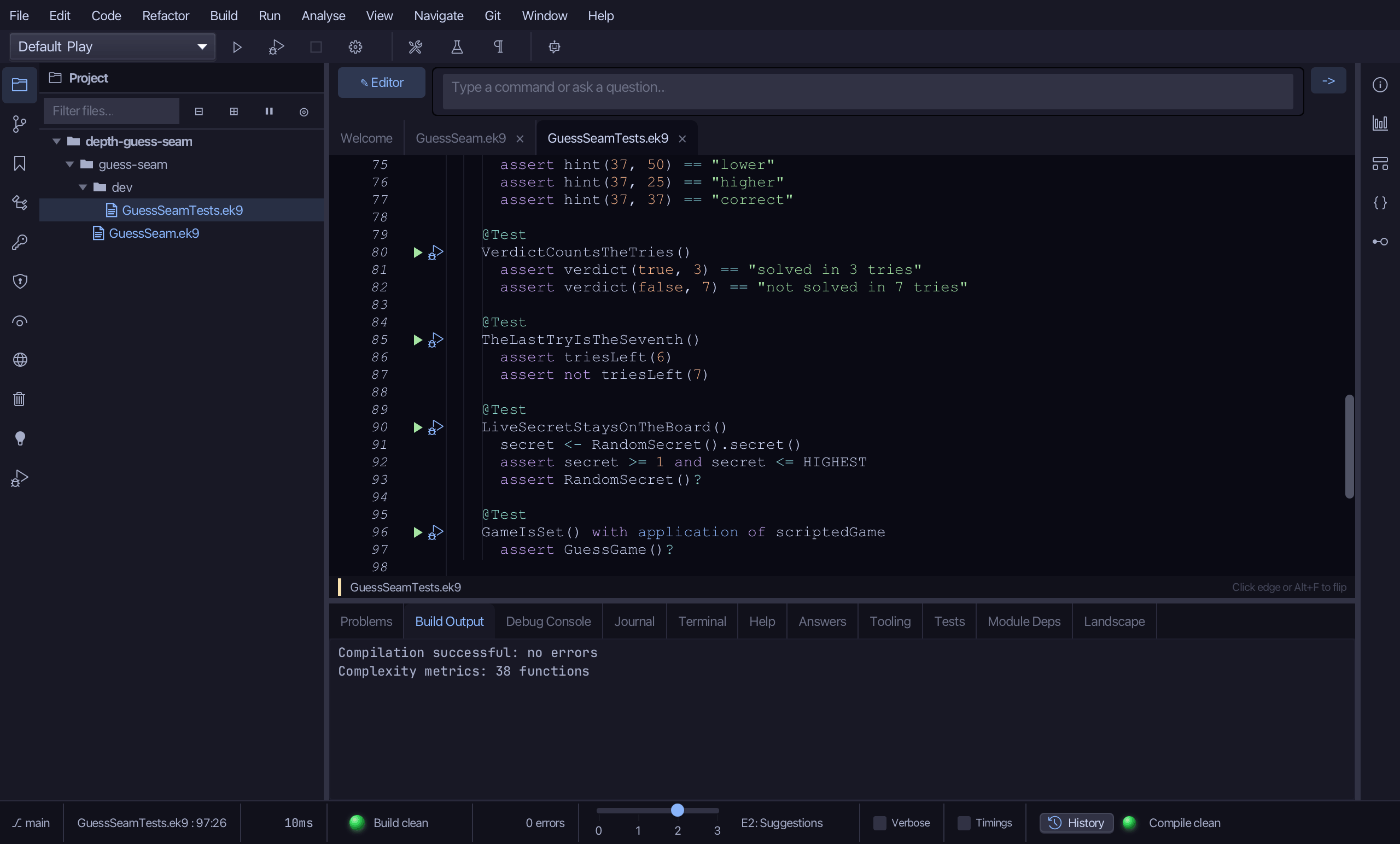
Select the stub and type the claim. Saves when typed.
Step 29: Run it
Run ▸ Run Tests (⌘T) runs every test in the project. Choose Run Tests.
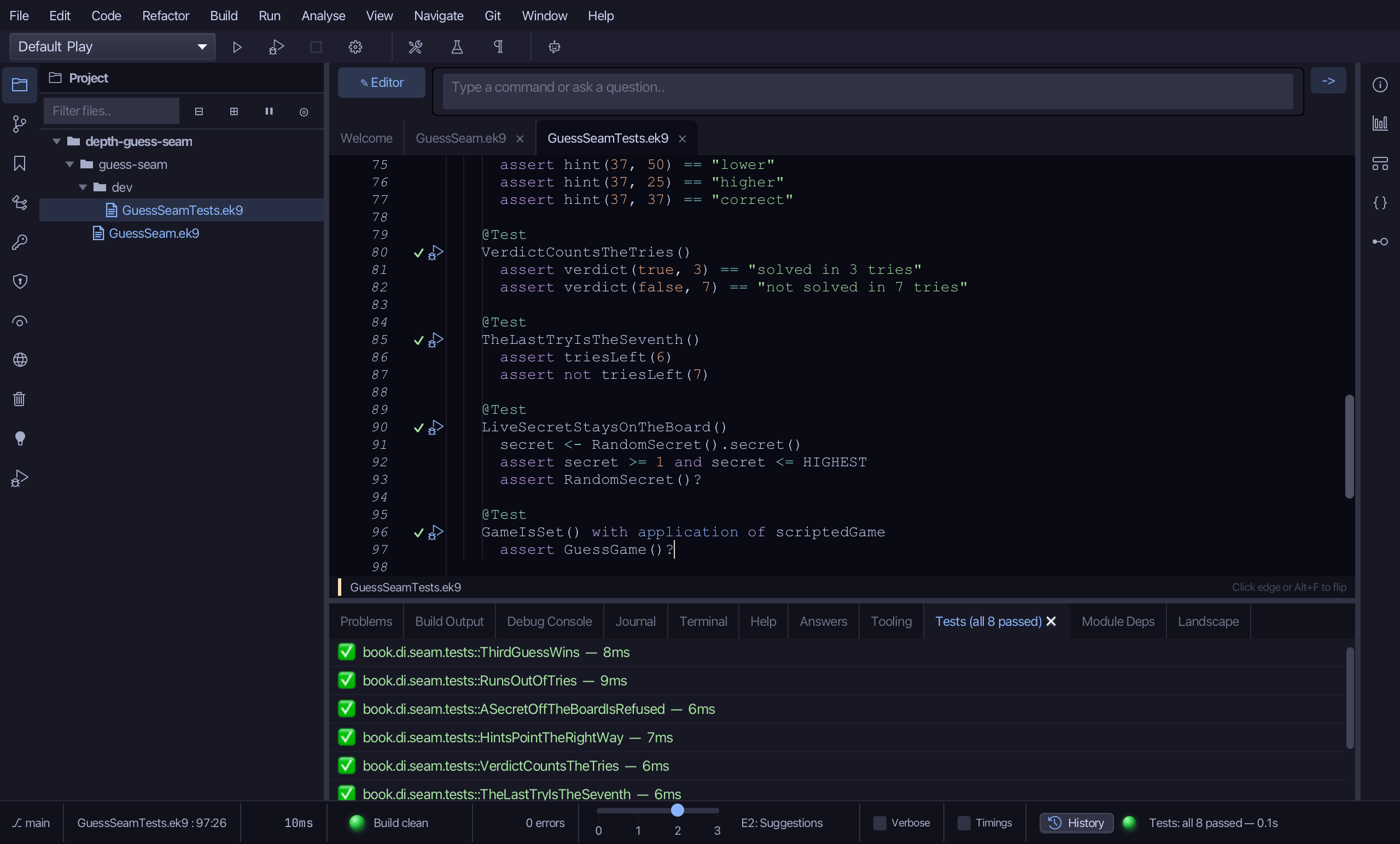
All eight pass: the same GuessGame, a different Application each time.
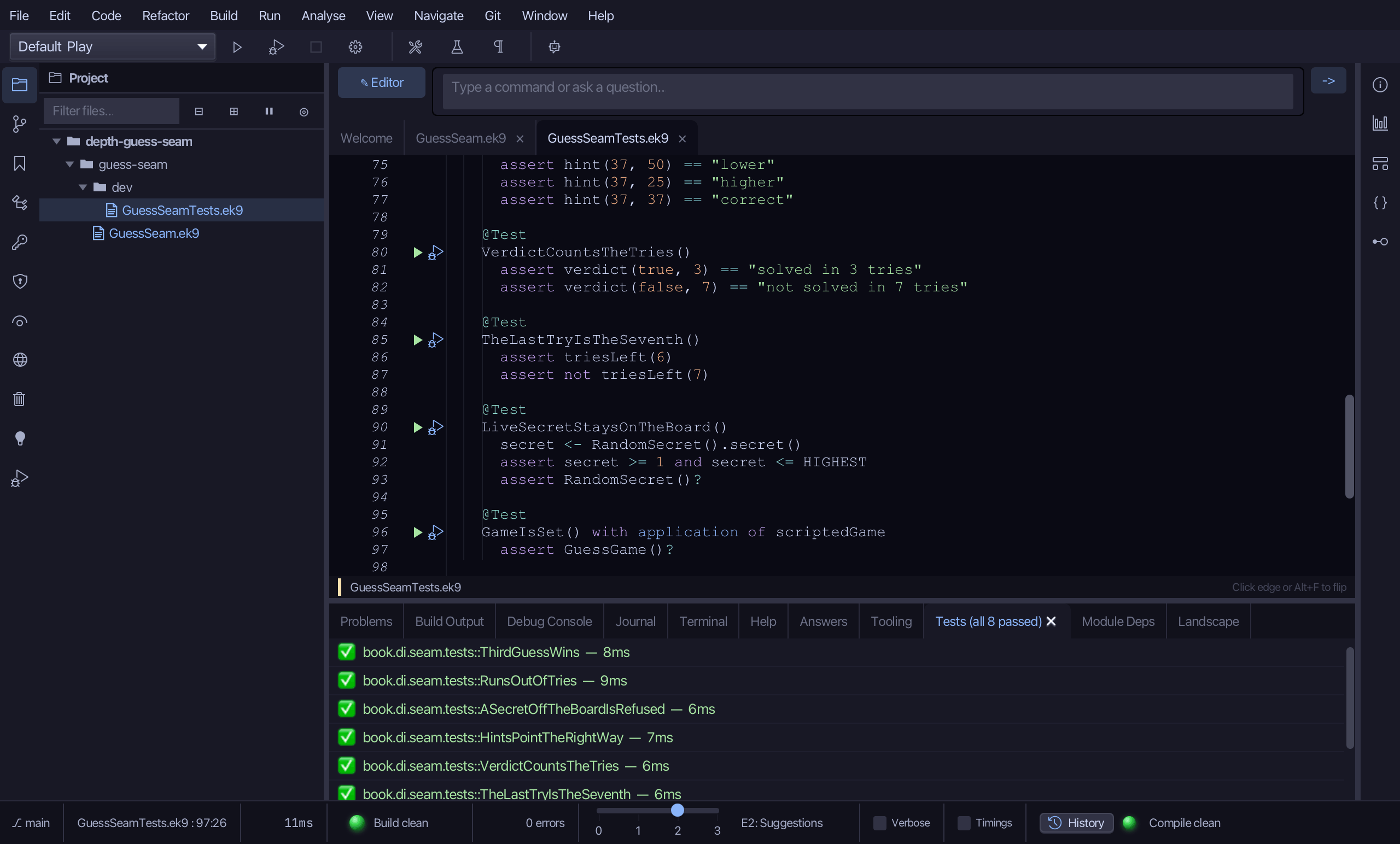
The result
GuessSeam.ek9 and dev/GuessSeamTests.ek9 now read exactly as chapter 34 of EK9 in Depth shows them. The game never changed between live and test: only the Application did. Run Tests runs all eight.
Where this lesson comes from
- For AI assistants - the MCP tool
ek9_new_construct,ek9_add_field,ek9_add_method,ek9_add_application,ek9_add_program,ek9_run_tests.