Chapter 31: a project of several files and two modules, built
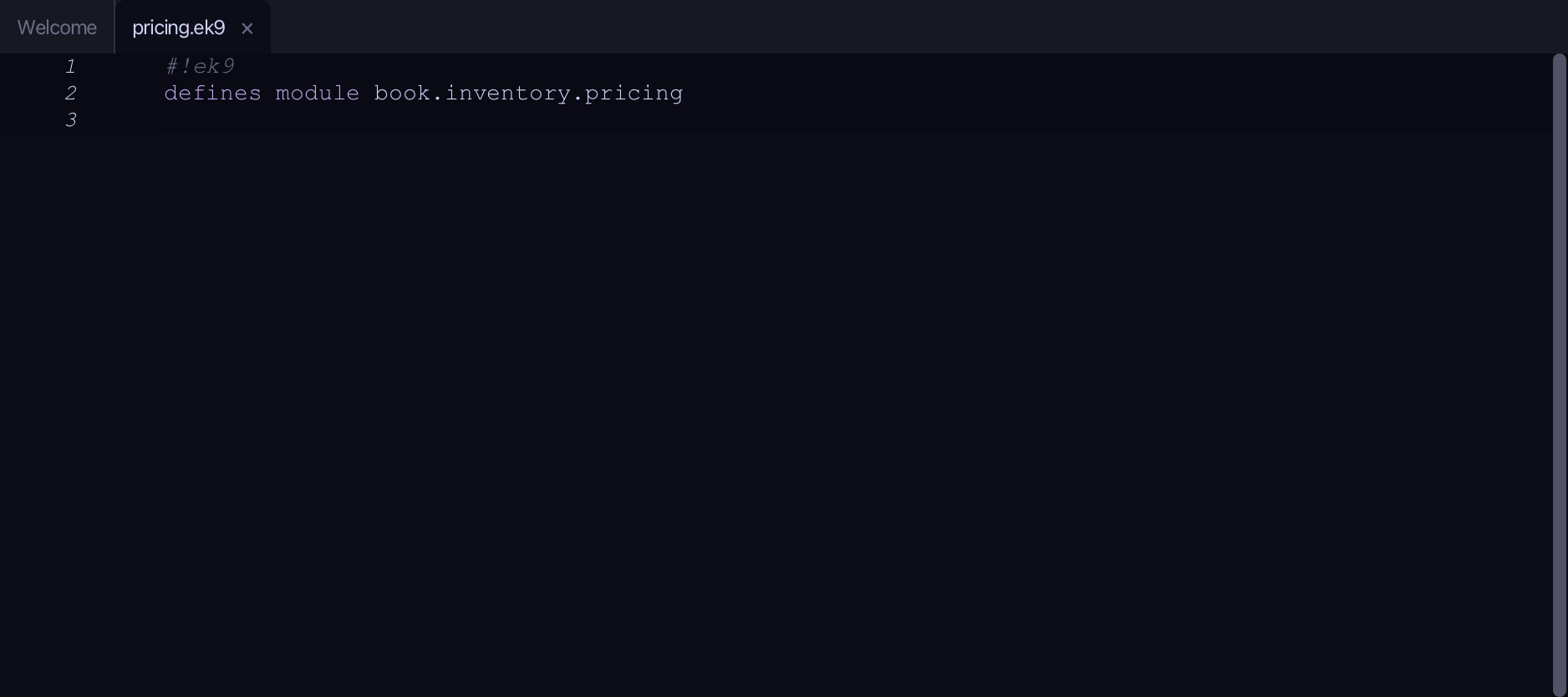
The first question a Java, Go or Rust programmer asks is where the build file lives. In EK9 it is a block inside one of your source files, and the compiler is the only build tool. This small inventory is laid out by what each file is about: pricing rules in a module of their own, the Item record in a file that declares the SAME module as main.ek9, the program and its package block in main.ek9, and the tests in dev/. The folder names mean nothing to the compiler; modules are named by defines module, never by a path. The files are already here, each with just its module line. To play it in the IDE: Help > Lessons > EK9 in Depth…, or ek9 -ide -lesson depth-inventory.
What you'll build
The lesson builds this program from a file holding only its module line - the finished file, as the book prints it.
inventory/pricing/pricing.ek9
#!ek9
defines module book.inventory.pricing

  defines constant
    VAT_RATE <- 0.2

  defines function

    priceWithTax() as pure
      -> net as Money
      <- rtn as Money: net + (net * VAT_RATE)
inventory/catalogue/items.ek9
#!ek9
defines module book.inventory

  defines record

    Item
      name <- String()
      price <- Money()

      default Item() as pure

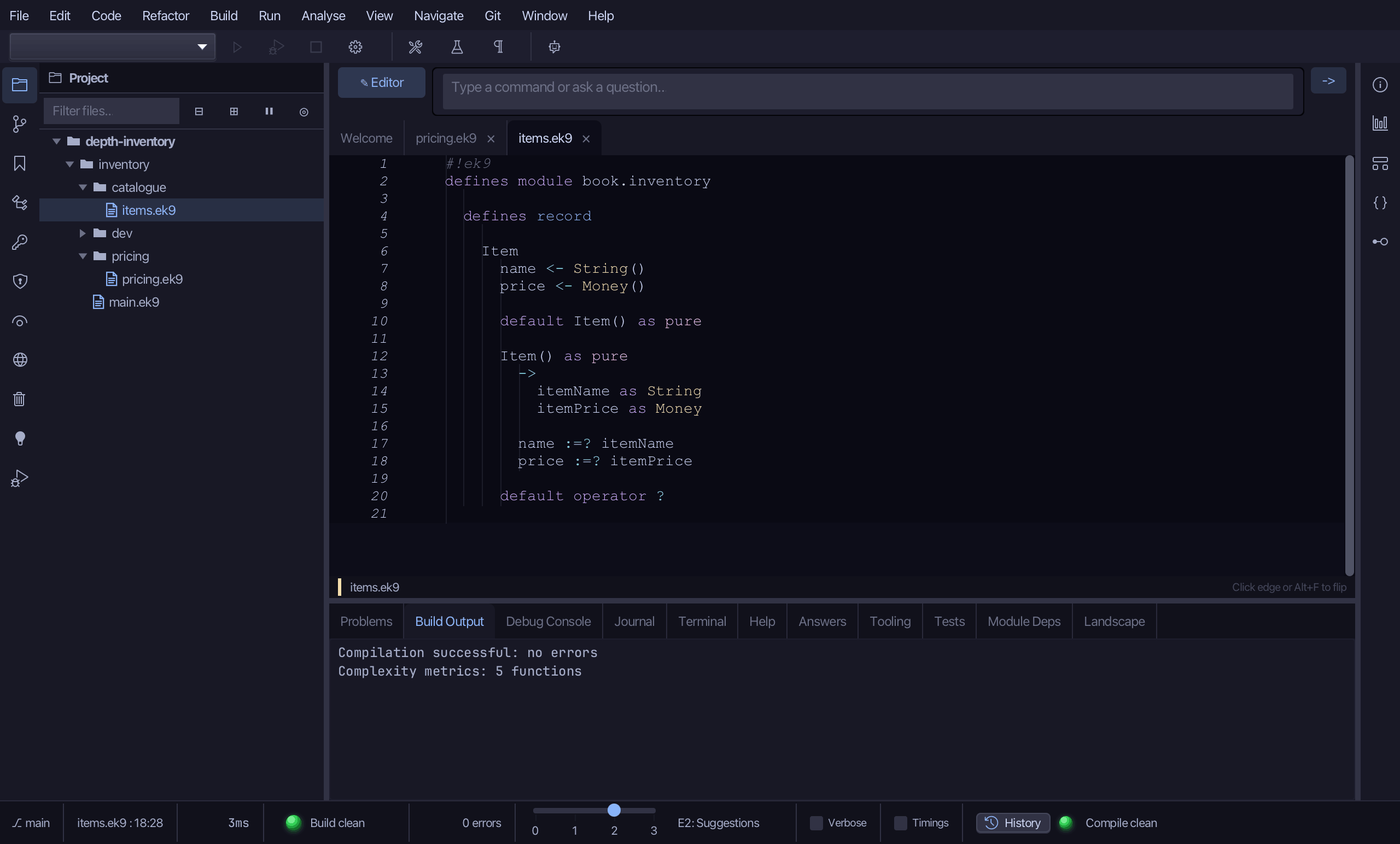
      Item() as pure
        ->
          itemName as String
          itemPrice as Money

        name :=? itemName
        price :=? itemPrice

      default operator ?
inventory/main.ek9
#!ek9
defines module book.inventory

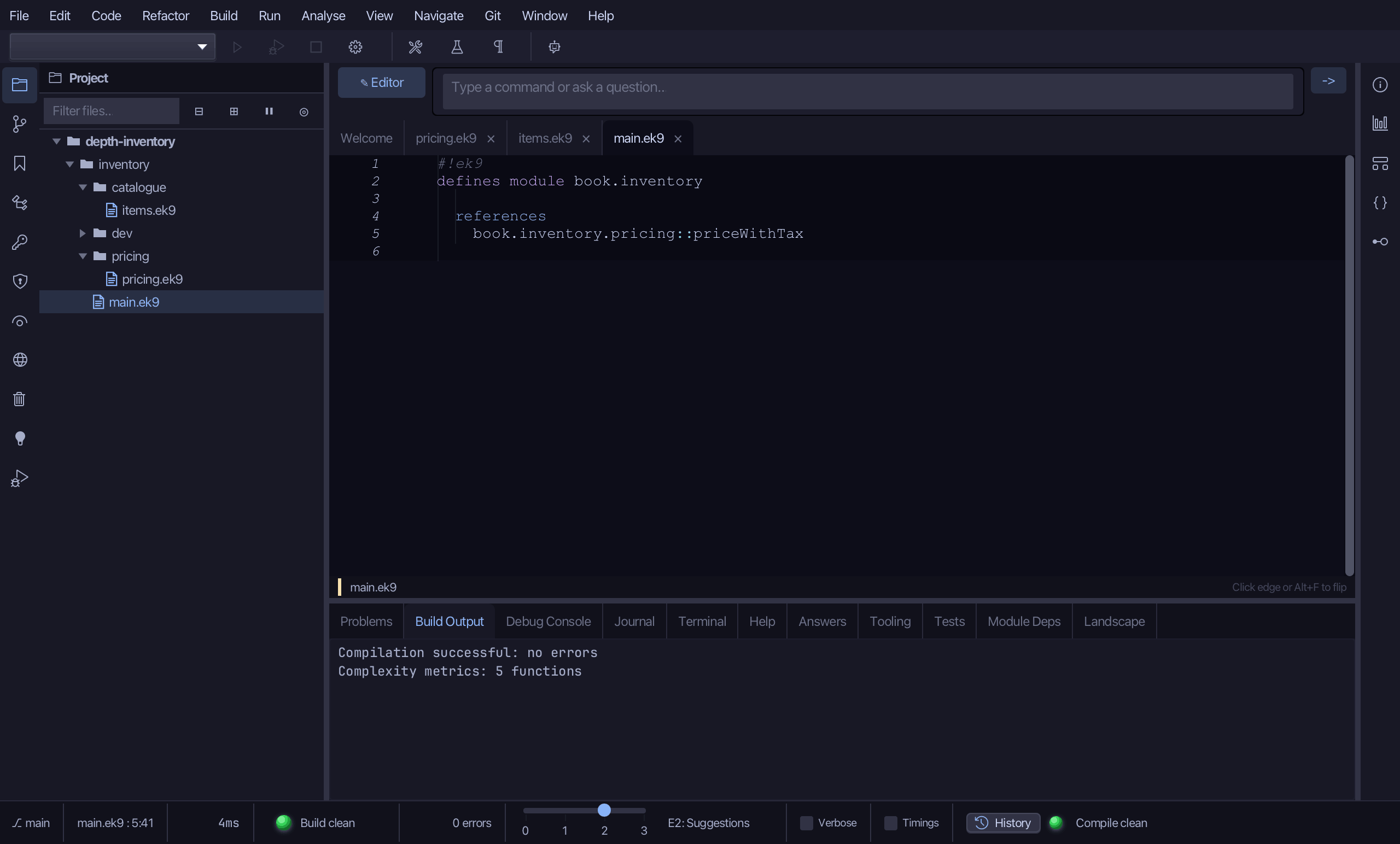
  references
    book.inventory.pricing::priceWithTax

  defines function

    stockLine() as pure
      -> item as Item
      <- rtn as String: `${item.name}: ${priceWithTax(item.price)}`

    stockLines() as pure
      -> items as List of Item
      <- rtn as List of String: cat items | map with stockLine | collect as List of String

  defines program

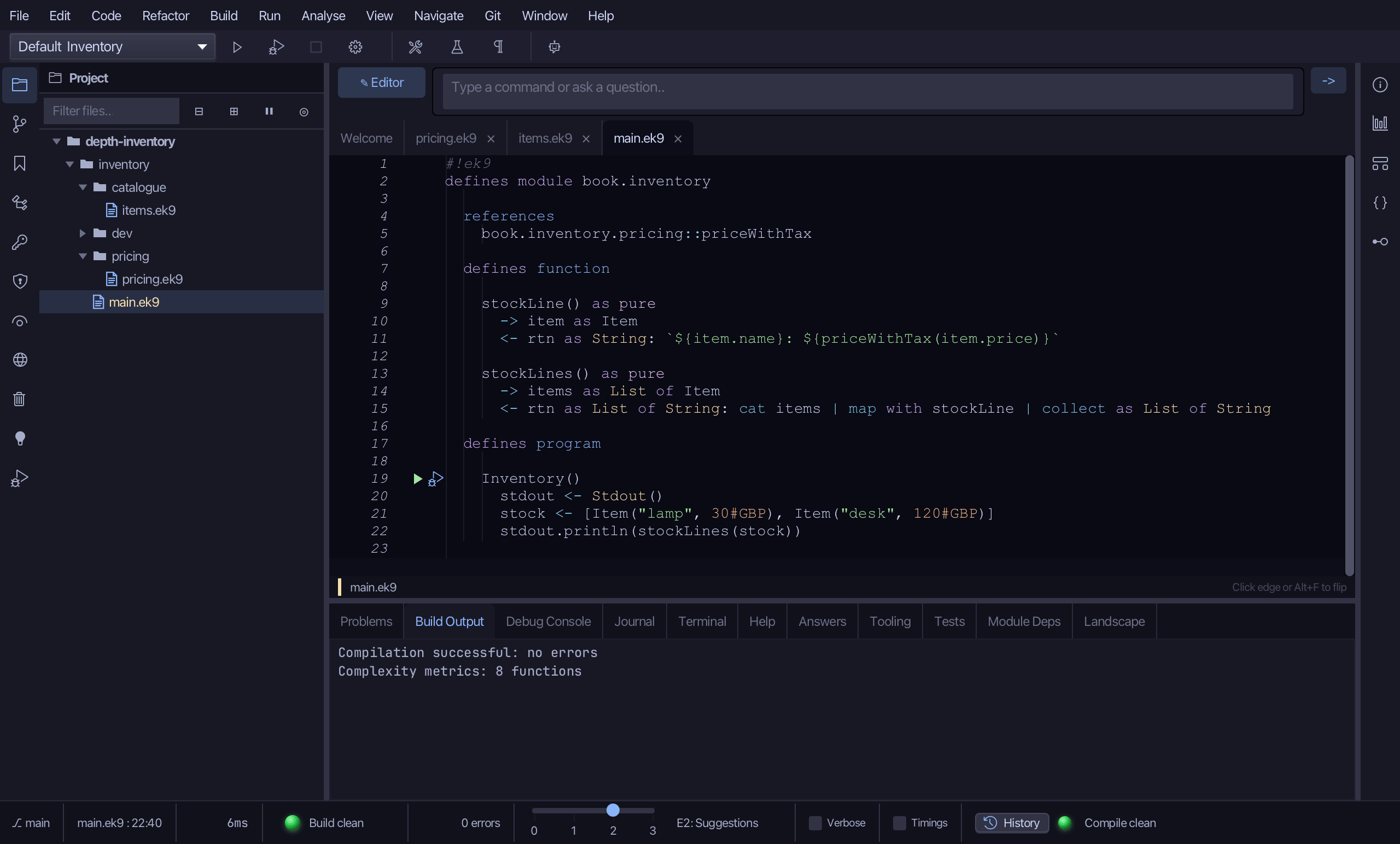
    Inventory()
      stdout <- Stdout()
      stock <- [Item("lamp", 30#GBP), Item("desk", 120#GBP)]
      stdout.println(stockLines(stock))

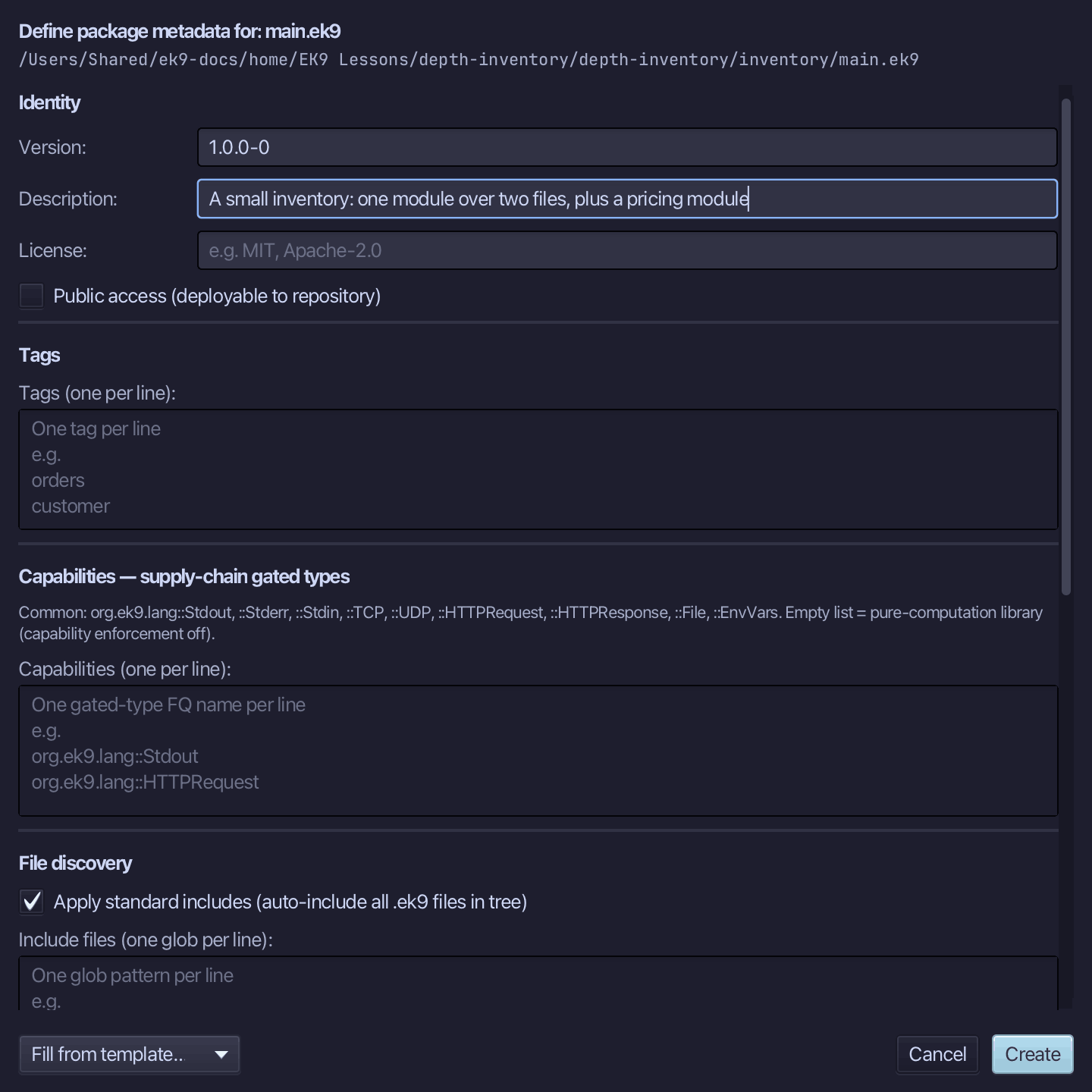
  defines package
    version <- 1.0.0-0
    description <- "A small inventory: one module over two files, plus a pricing module"

    applyStandardIncludes <- true
inventory/dev/inventoryTests.ek9
#!ek9
defines module book.inventory.tests

  references
    book.inventory.pricing::priceWithTax
    book.inventory::Item
    book.inventory::stockLine
    book.inventory::stockLines

  defines program

    @Test
    PriceWithTaxTest()
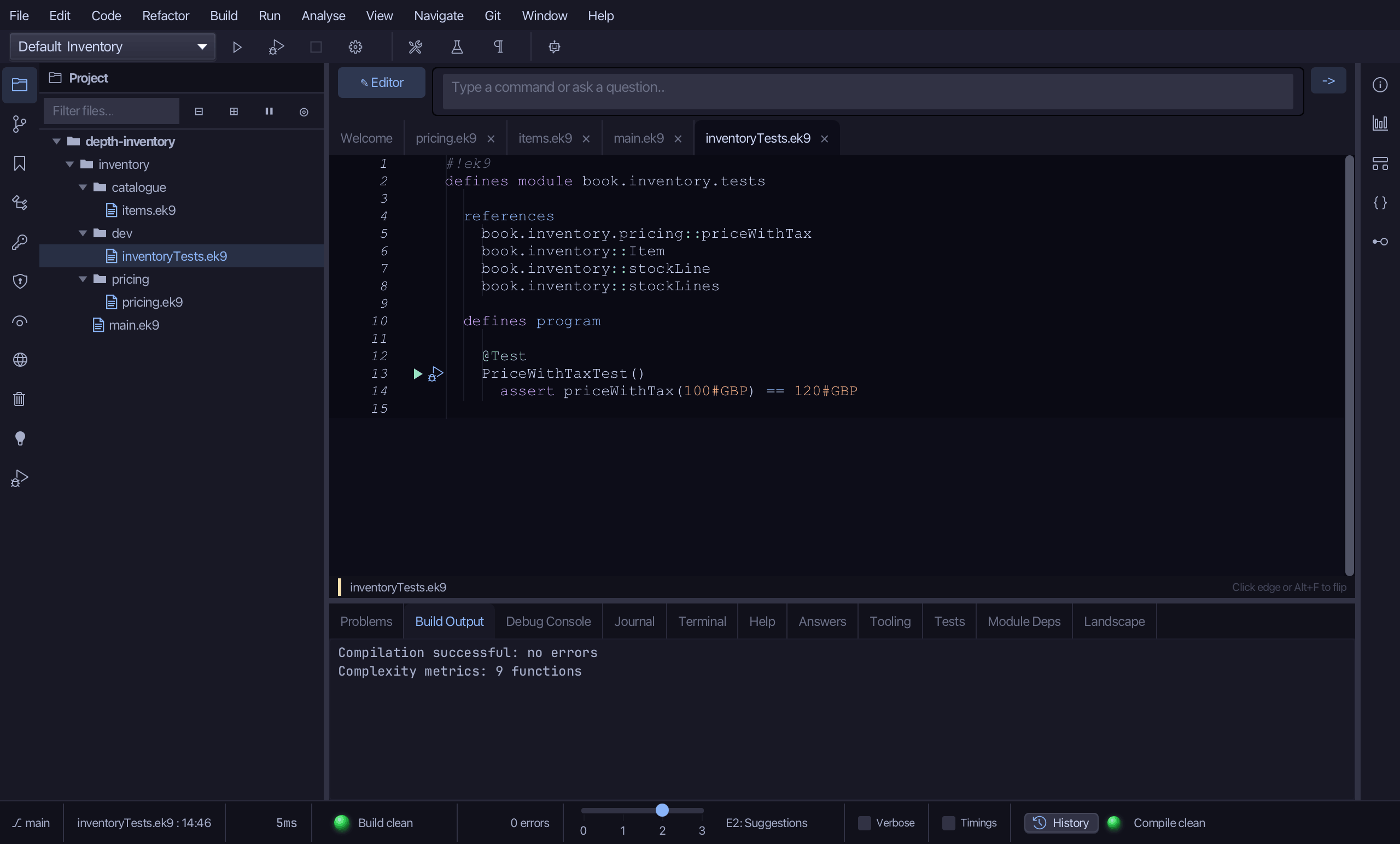
      assert priceWithTax(100#GBP) == 120#GBP

    @Test
    StockLineTest()
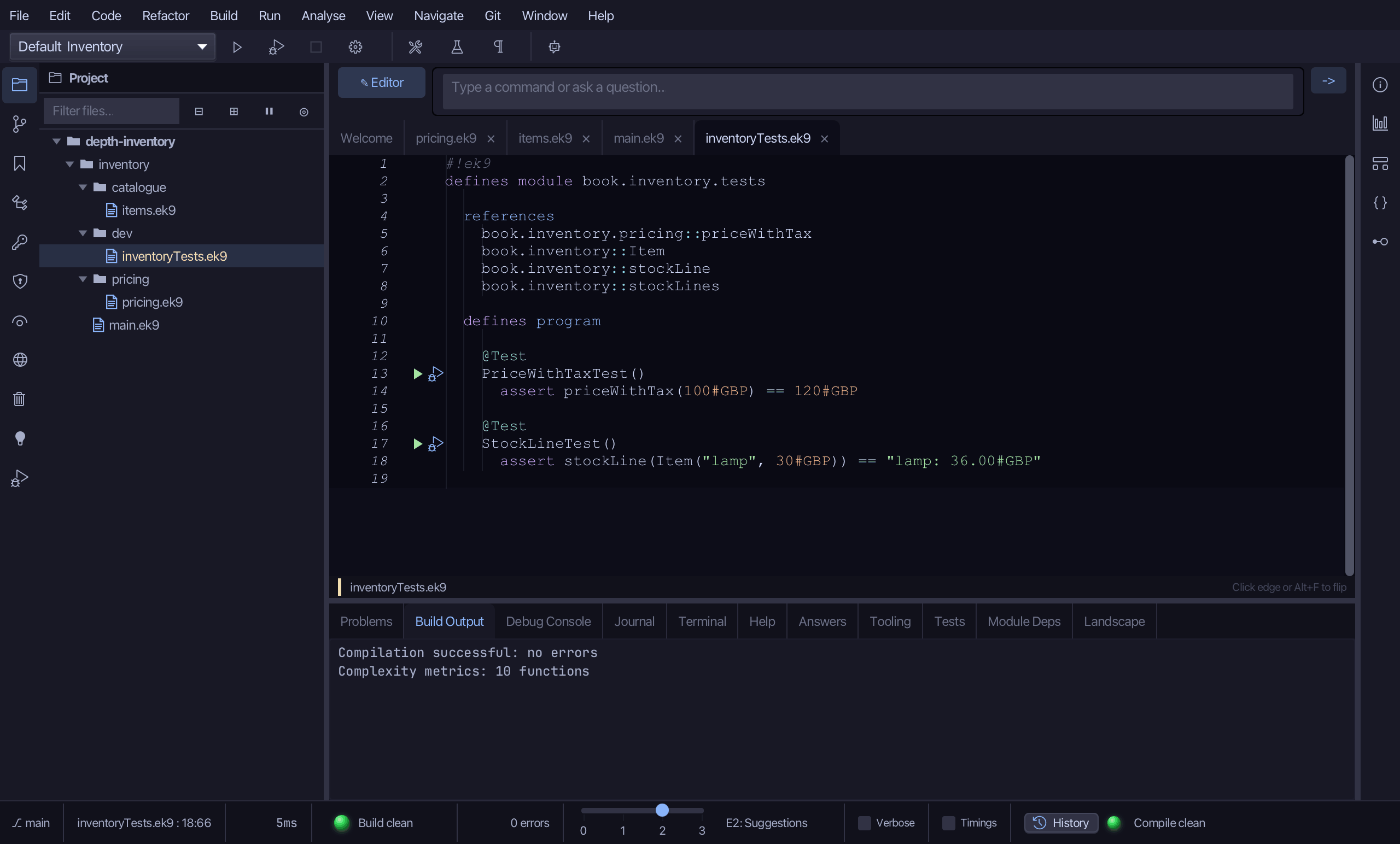
      assert stockLine(Item("lamp", 30#GBP)) == "lamp: 36.00#GBP"

    @Test
    ItemIsSetTest()
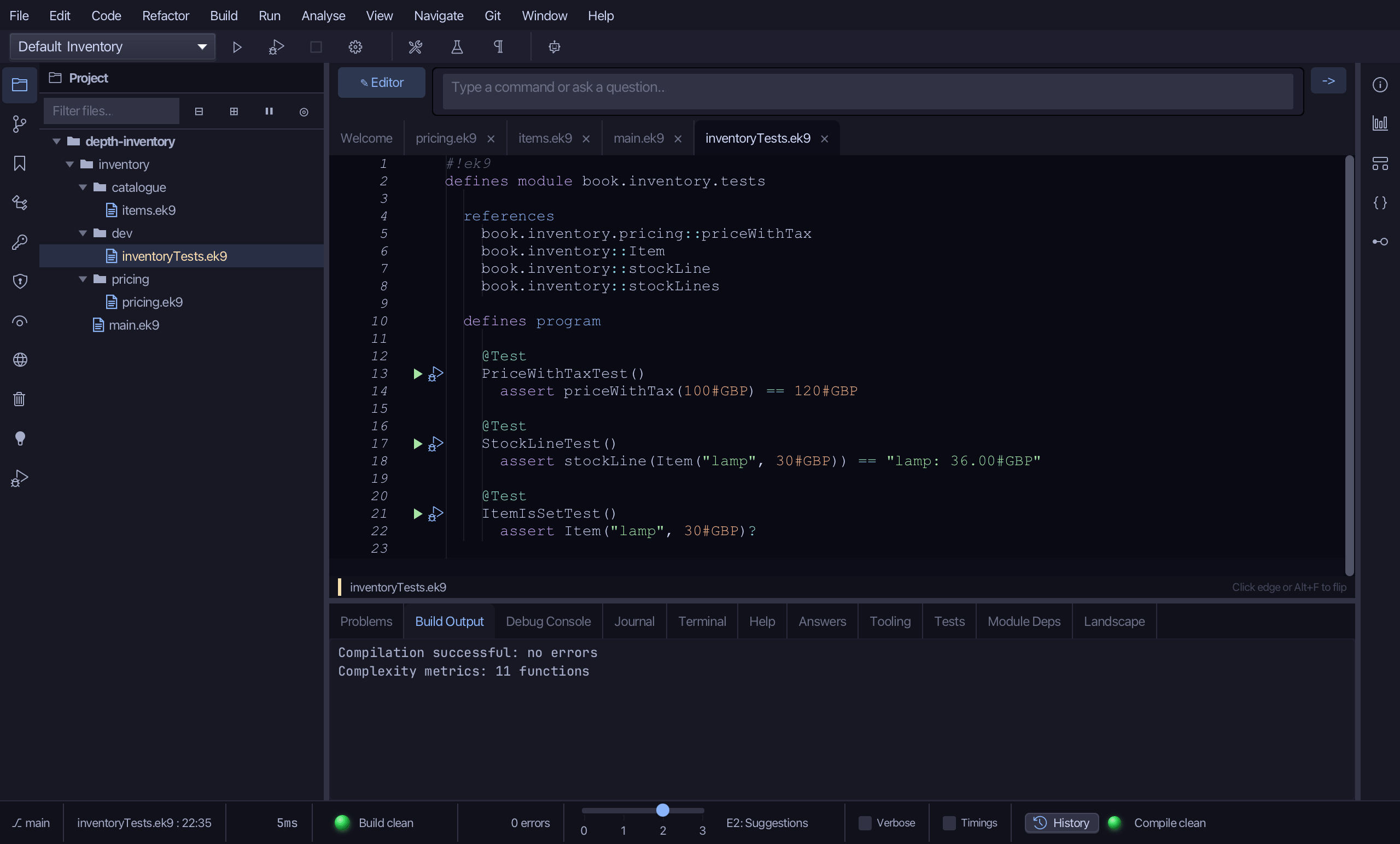
      assert Item("lamp", 30#GBP)?

    @Test
    StockLinesTest()
      stock <- [Item("lamp", 30#GBP), Item("desk", 120#GBP)]
      assert length stockLines(stock) == 2
Step 1: pricing.ek9 — the pricing rules, a module of their own
Choose Code > New Construct > Constant…
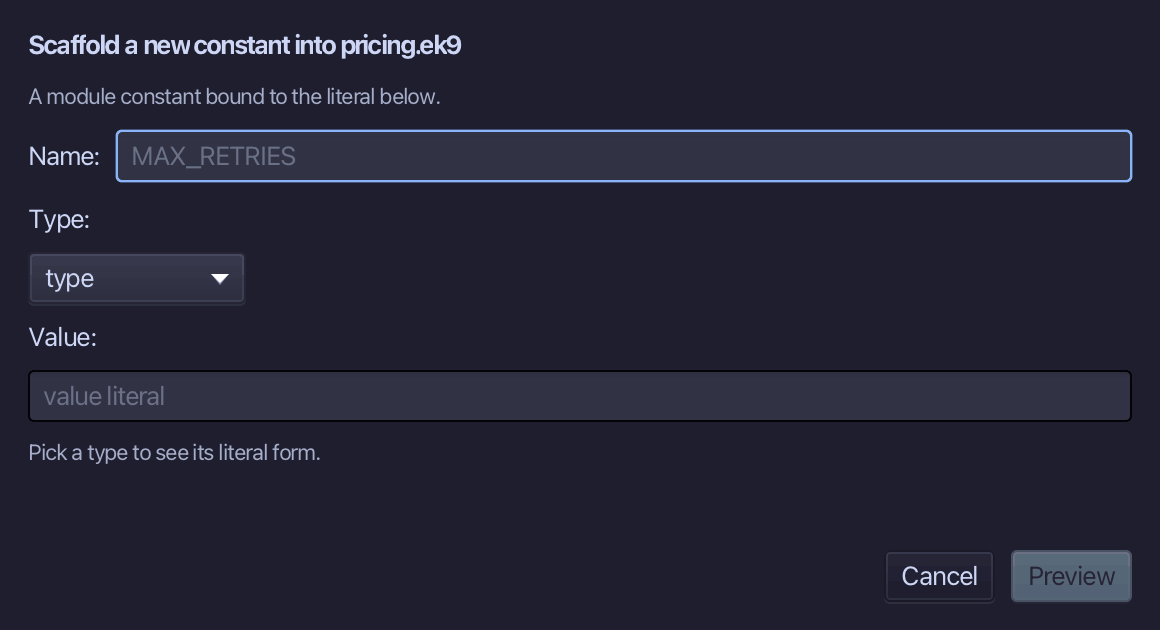
VAT_RATE is the constant's name and 0.2 its value - a literal in the Value field, from which the type is inferred. Type both and choose Preview.
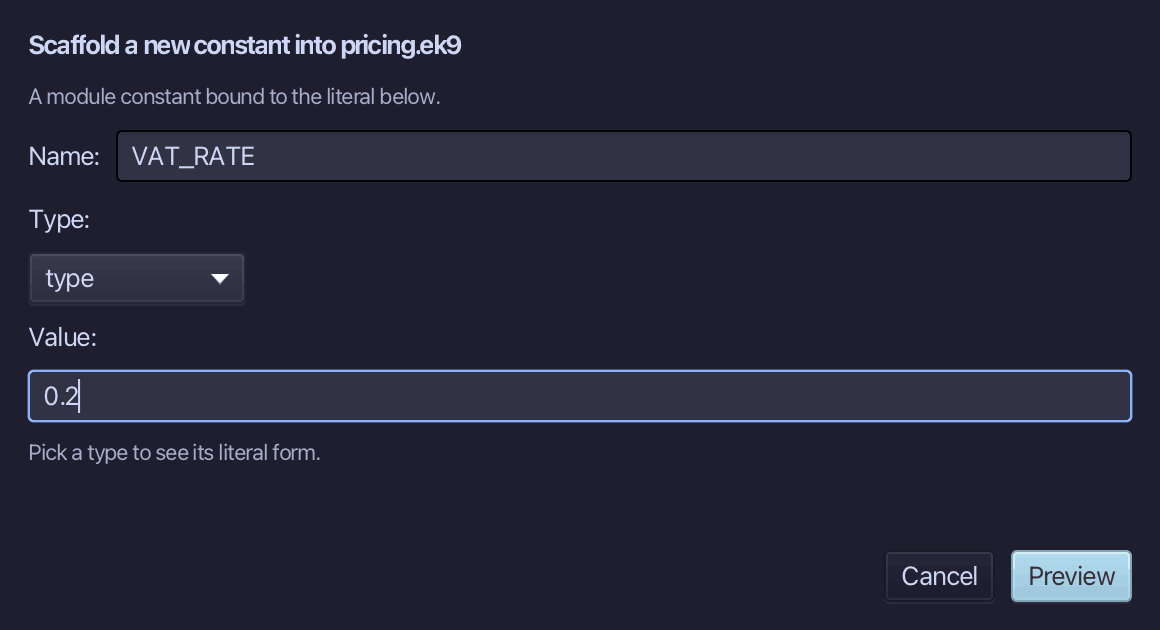
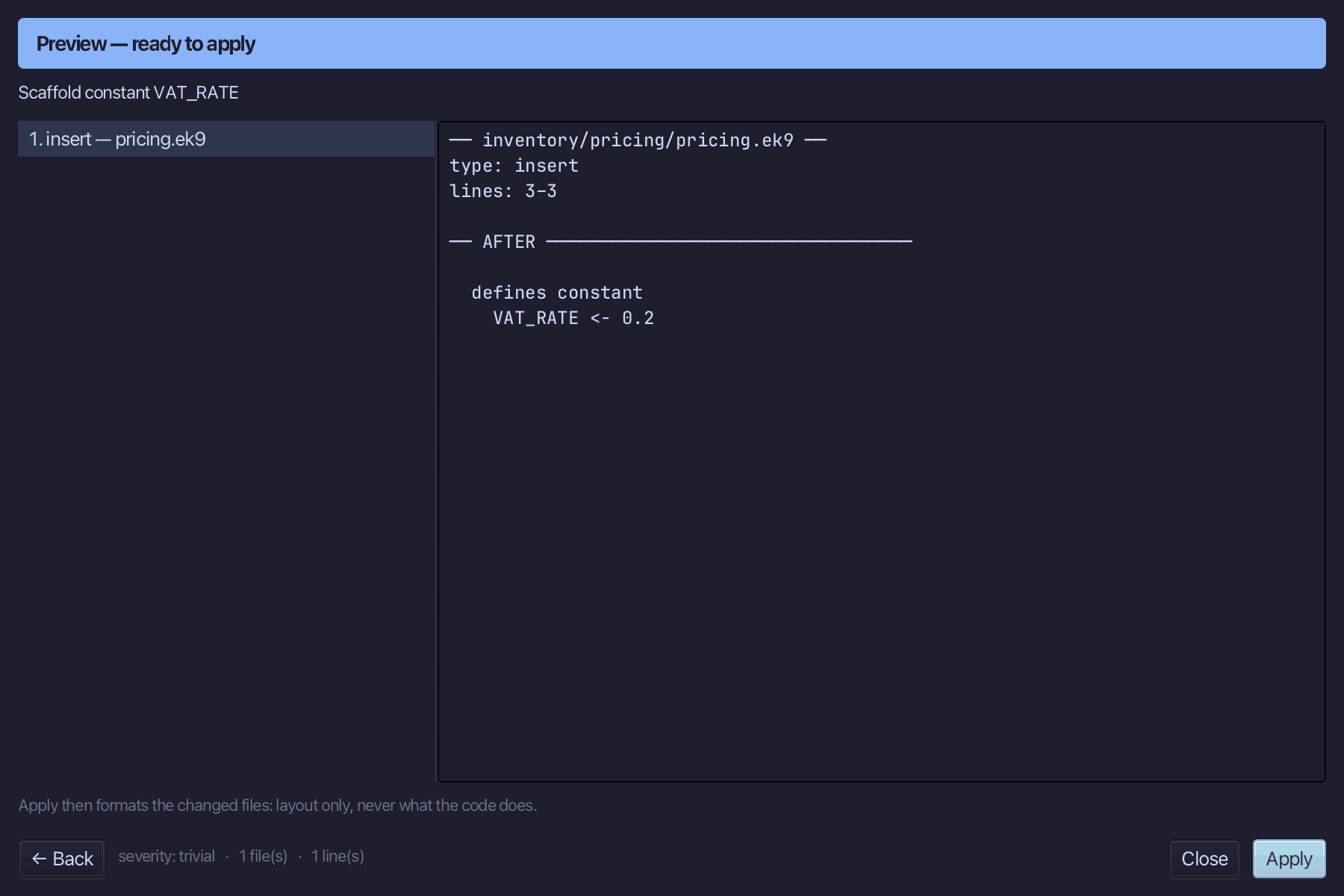
The preview shows VAT_RATE about to be written. Choose Apply.
Step 2: priceWithTax
Choose Code > New Construct > Function…
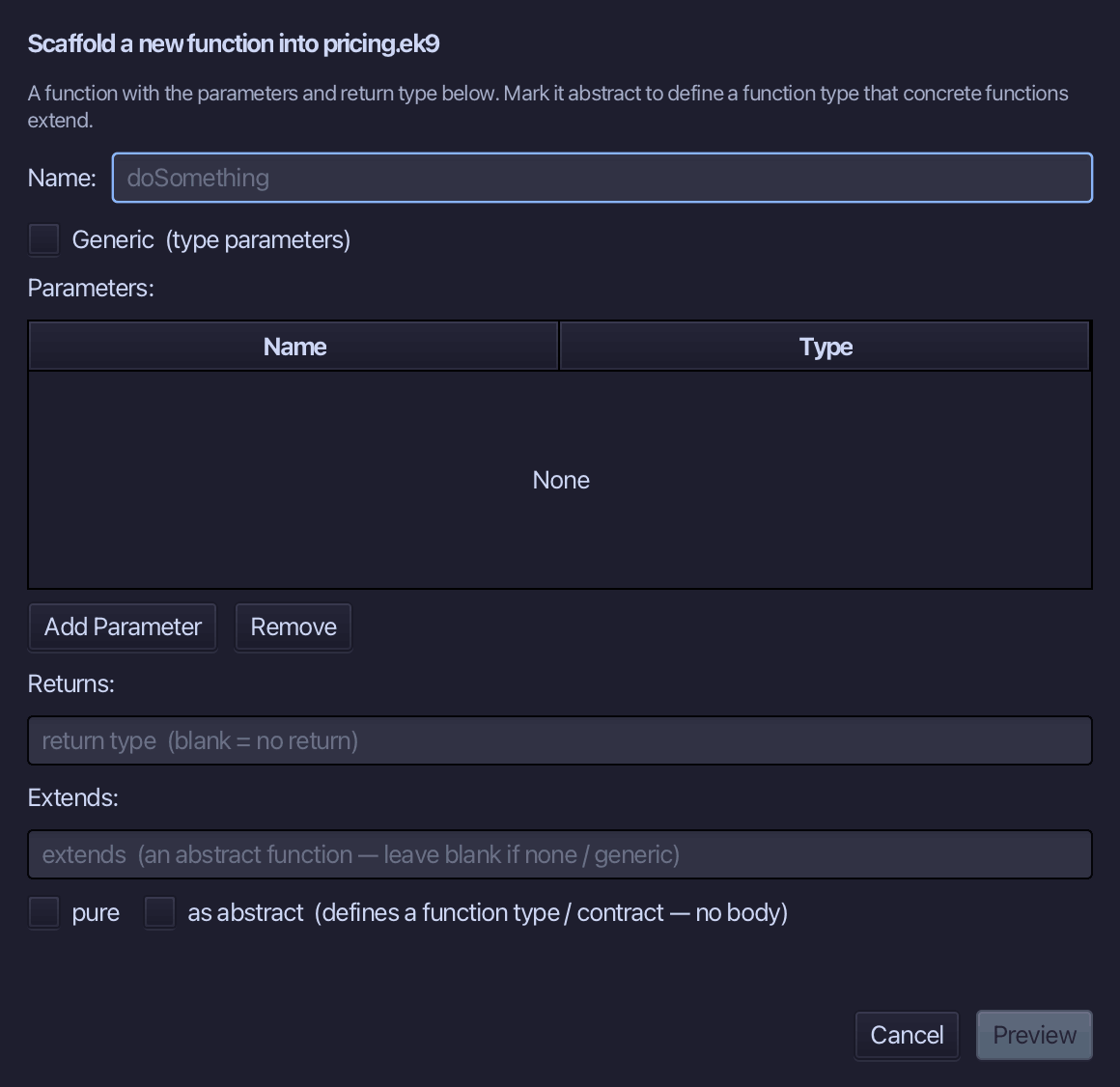
priceWithTax is the function's name. Add one parameter, net of type Money, set Returns to Money and tick pure. Choose Preview.
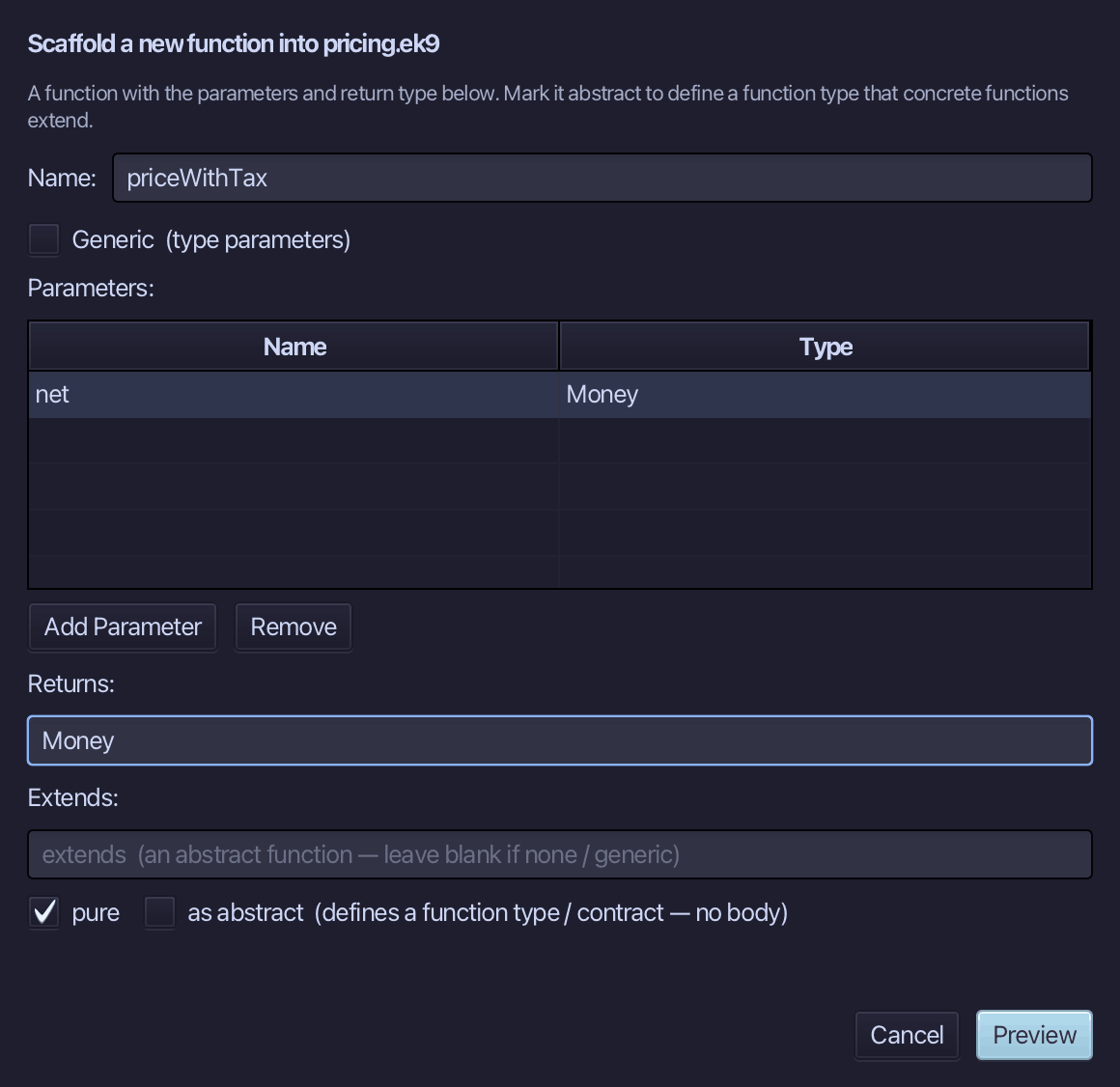
The preview shows priceWithTax about to be written. Choose Apply.
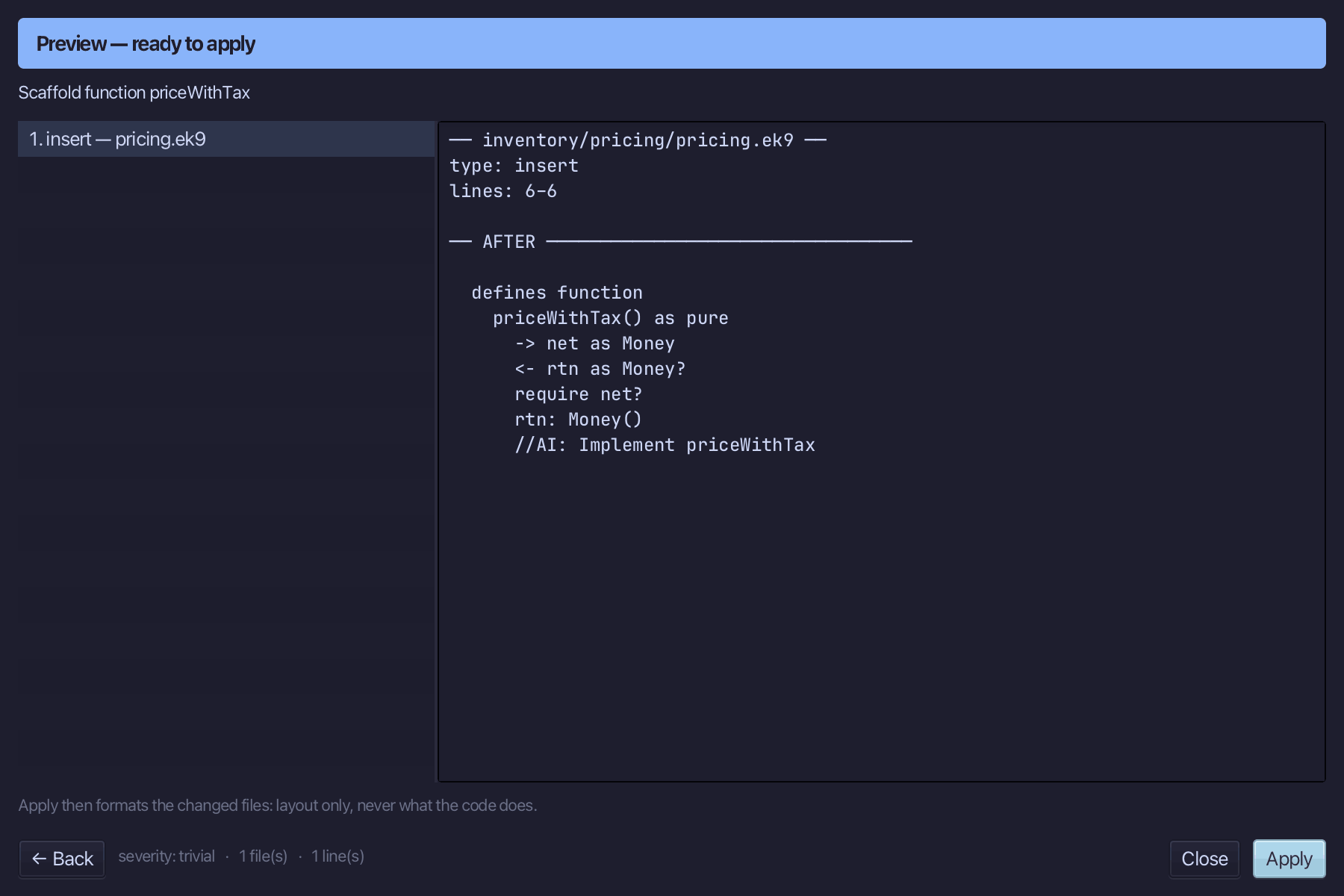
Select the priceWithTax() as pure line and, above it, type the blank line the book opens its first function with. Saves when typed.
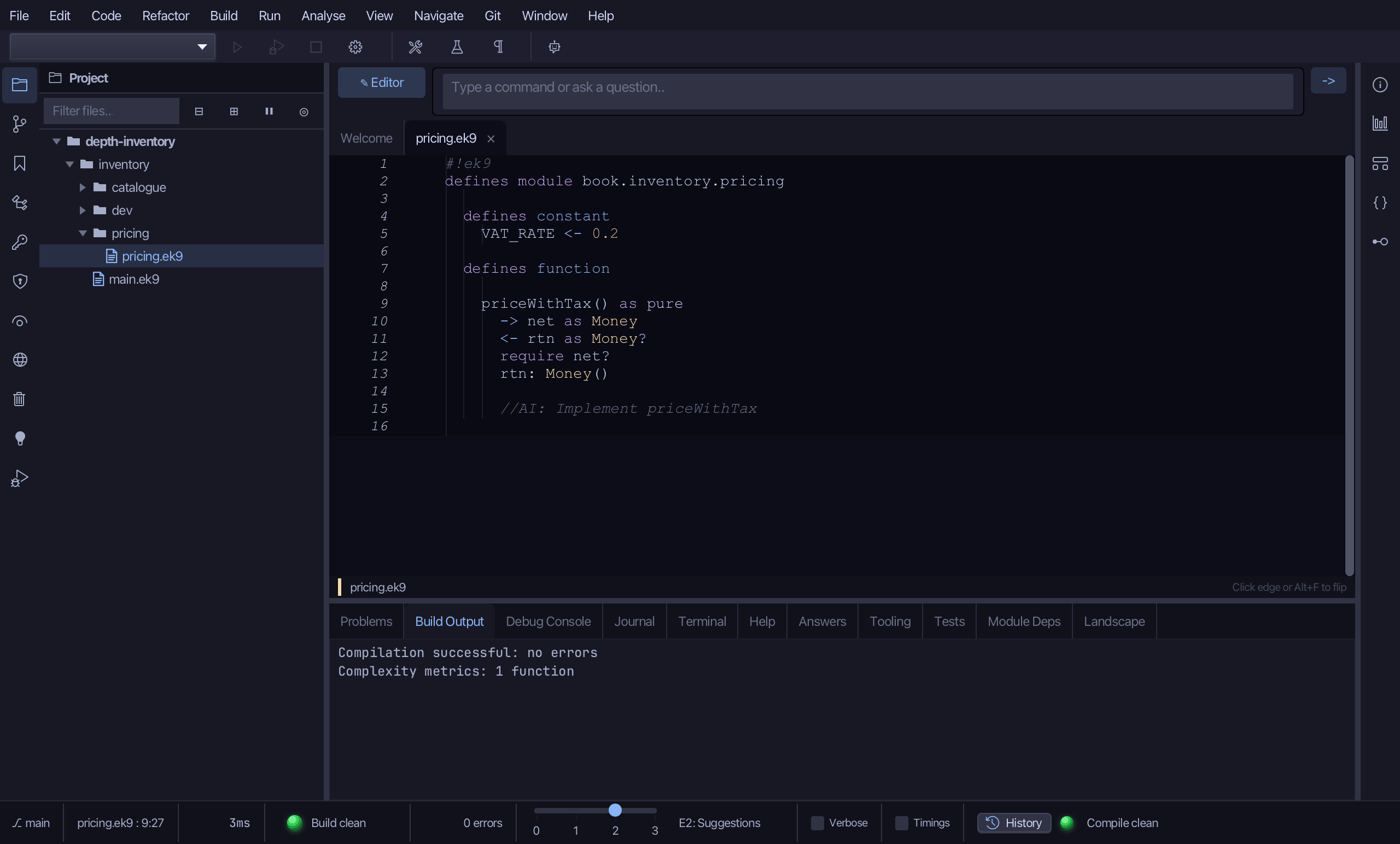
Select the stub, from <- rtn as Money? down to its //AI line, and type priceWithTax's own return and work, as the book writes them. Saves when typed.
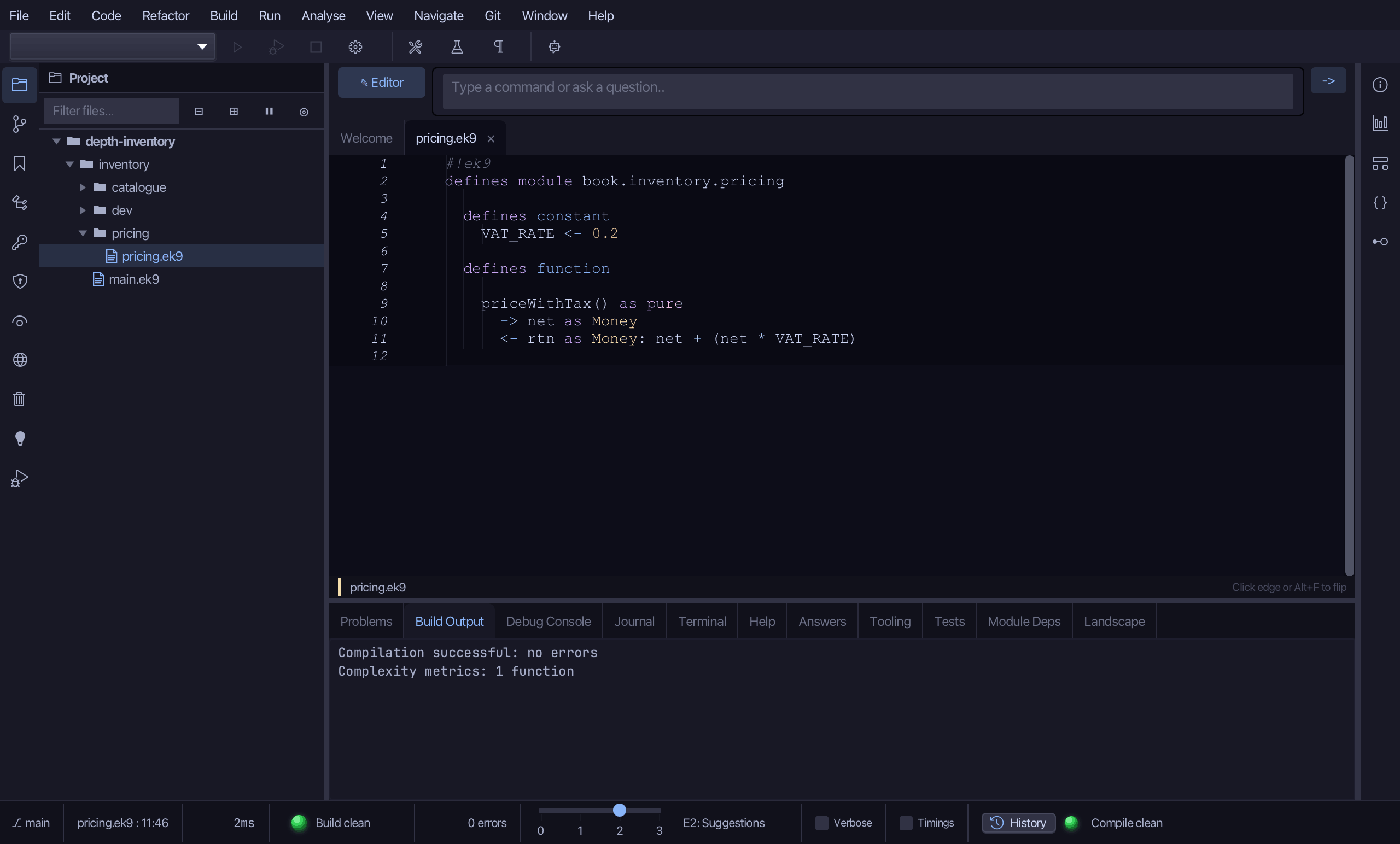
Open inventory/catalogue/items.ek9 in the Project panel - it is already there, with just its module line.
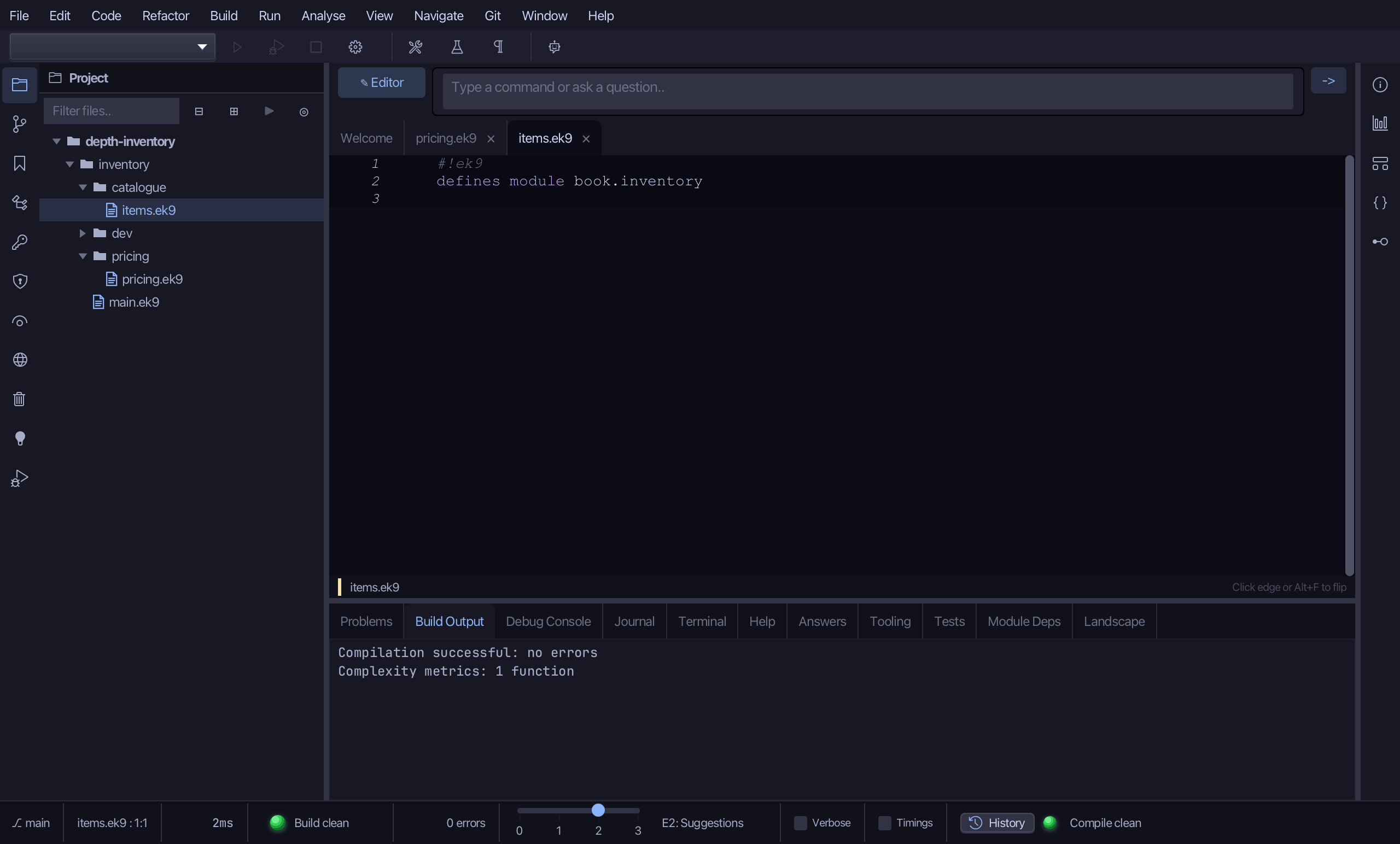
Step 3: items.ek9 — the record, in the SAME module as main.ek9
Choose Code > New Construct > Record…
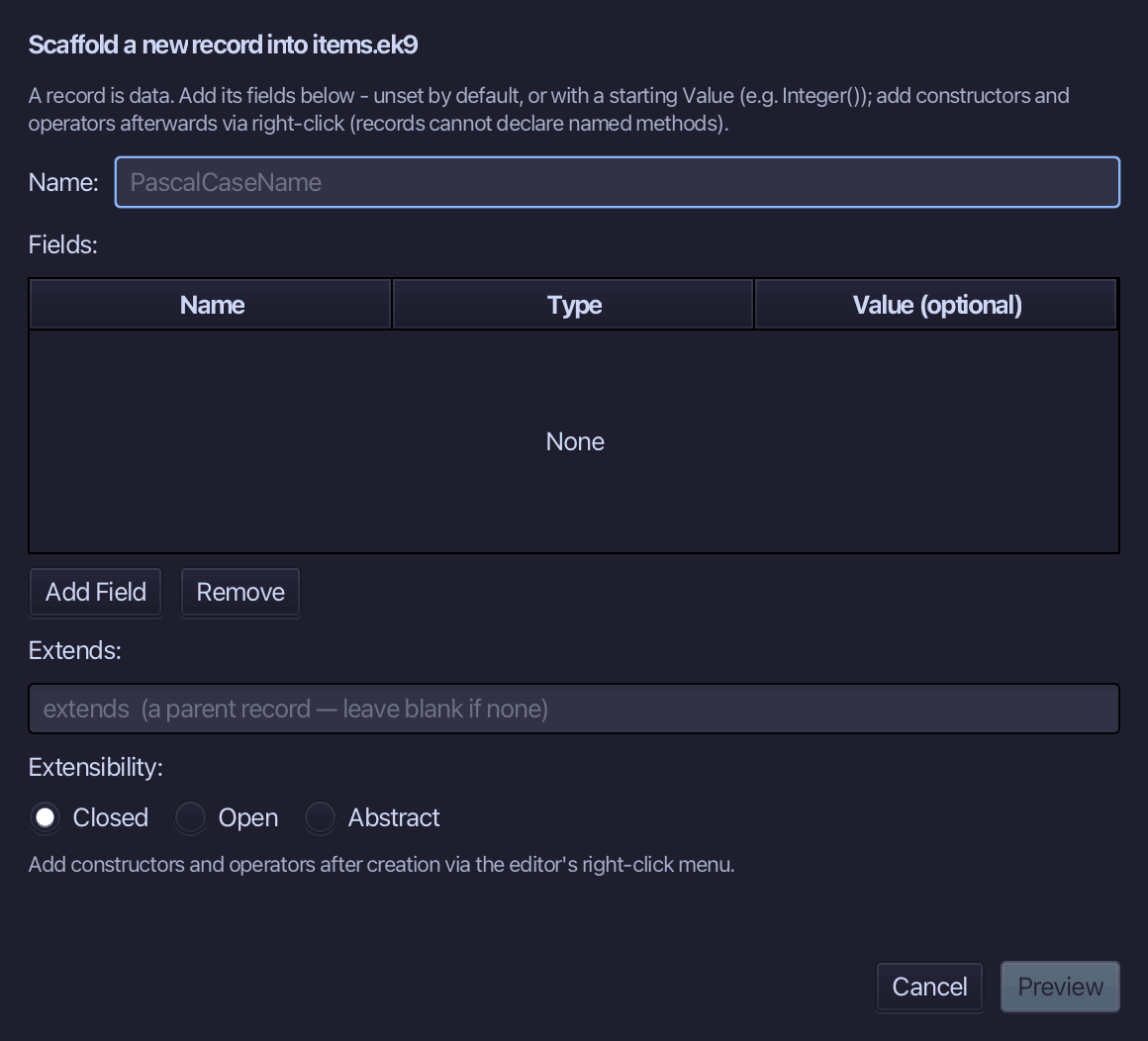
Item is the record's name. The Fields table holds name of type String, starting at String(); price of type Money, starting at Money(). Choose Preview.
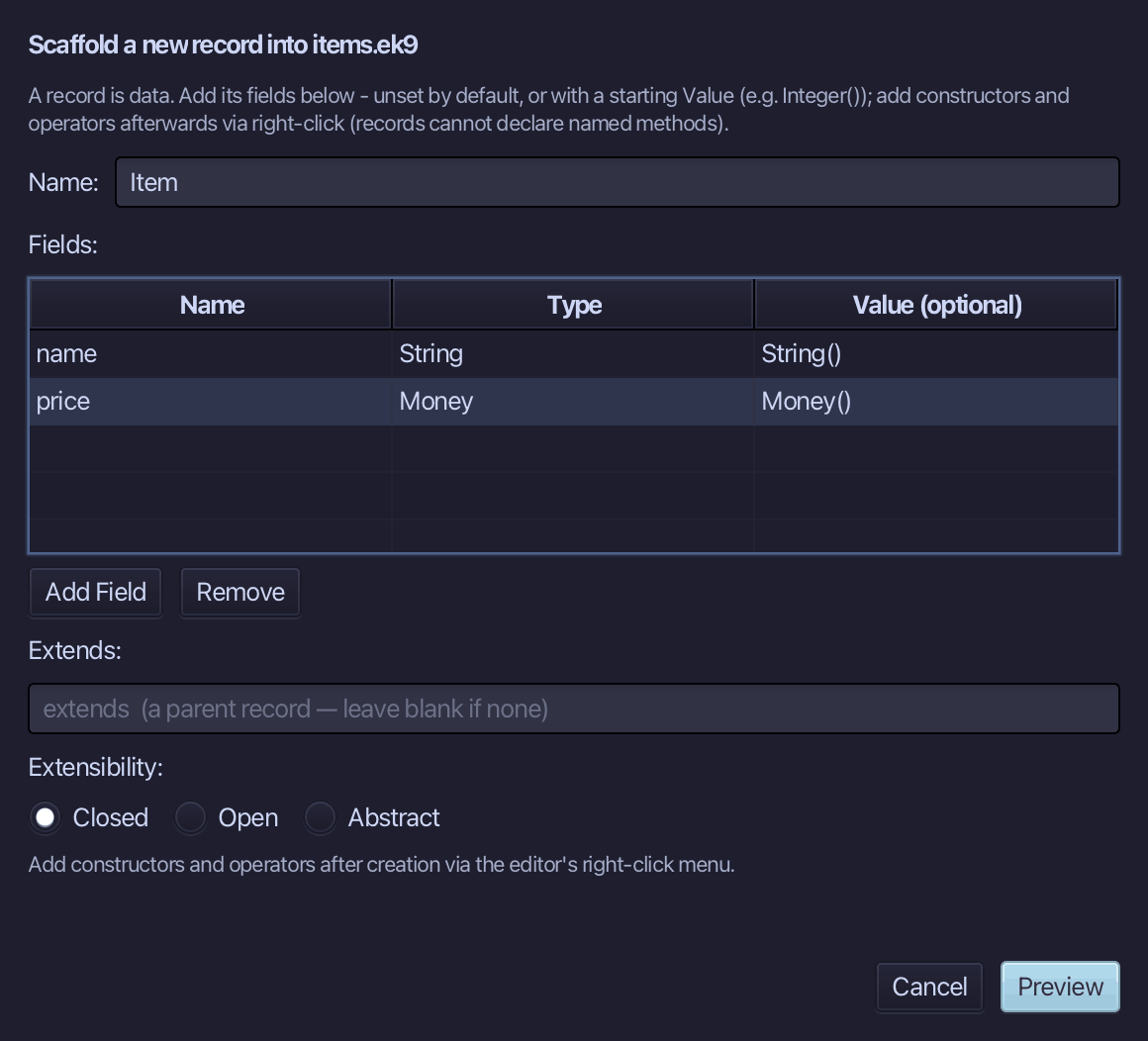
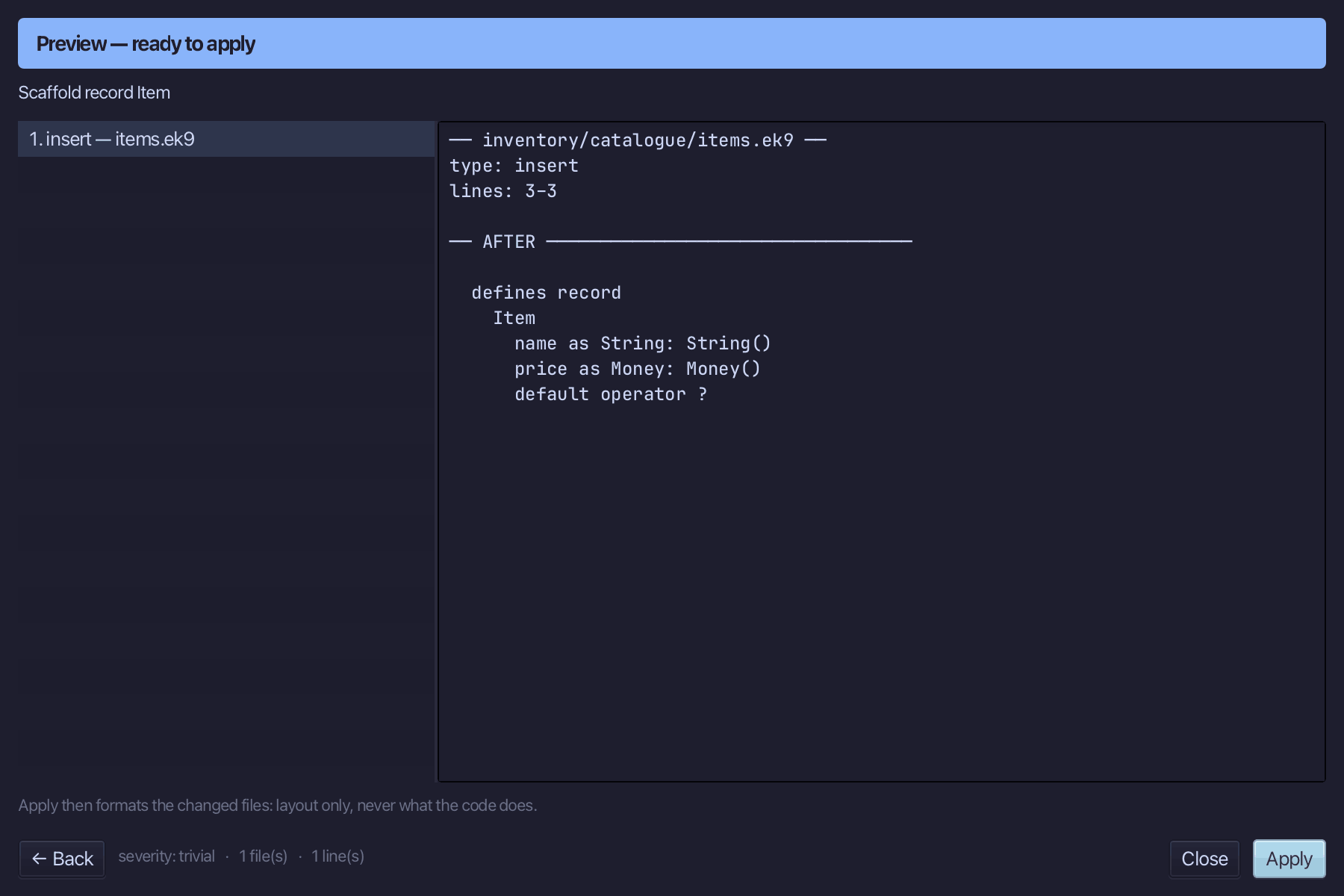
The preview shows Item about to be written - and default operator ? with them: a record that holds fields must say when it counts as set. Choose Apply.
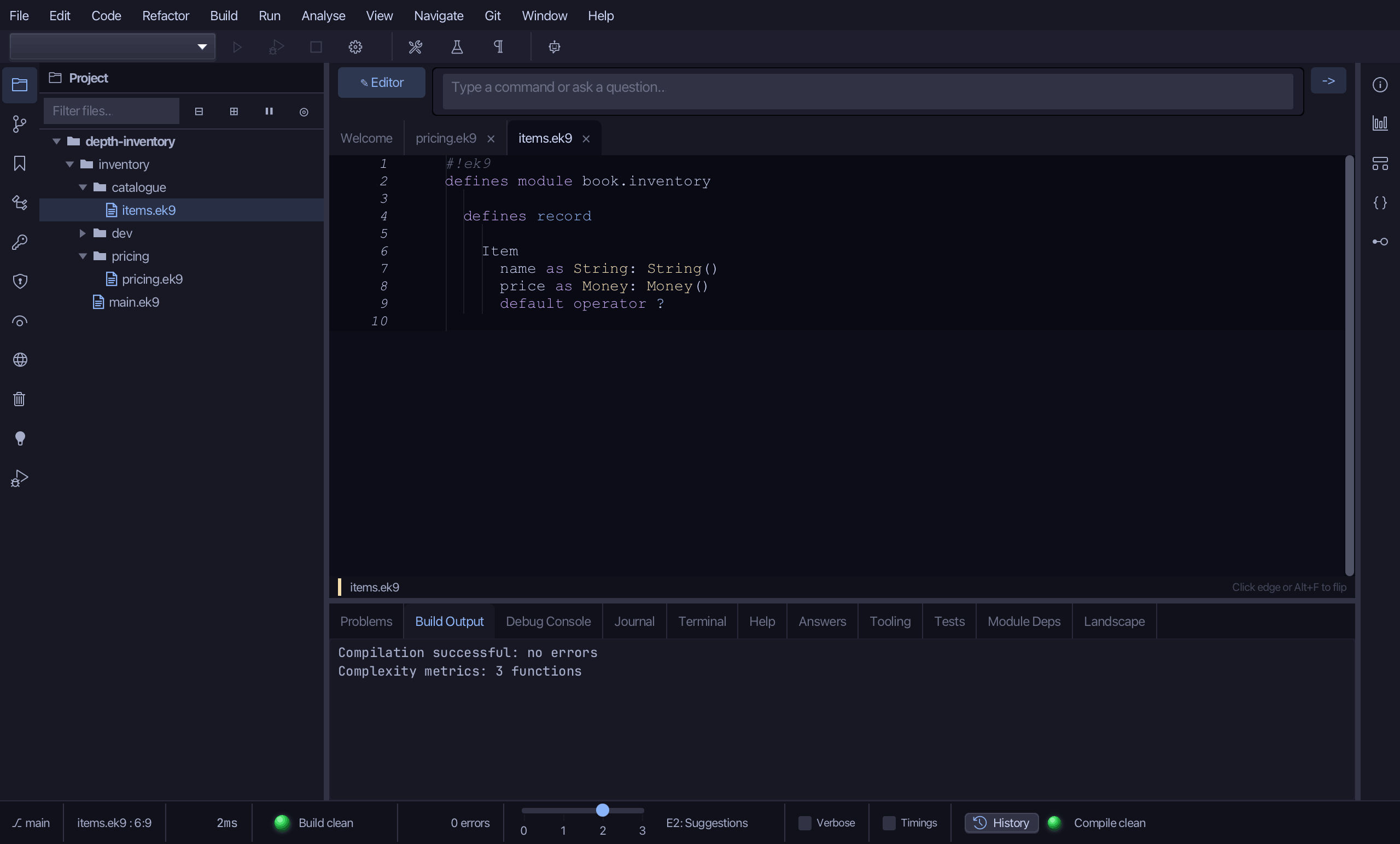
Select the Item line and, above it, type the blank line the book opens its first record with. Saves when typed.
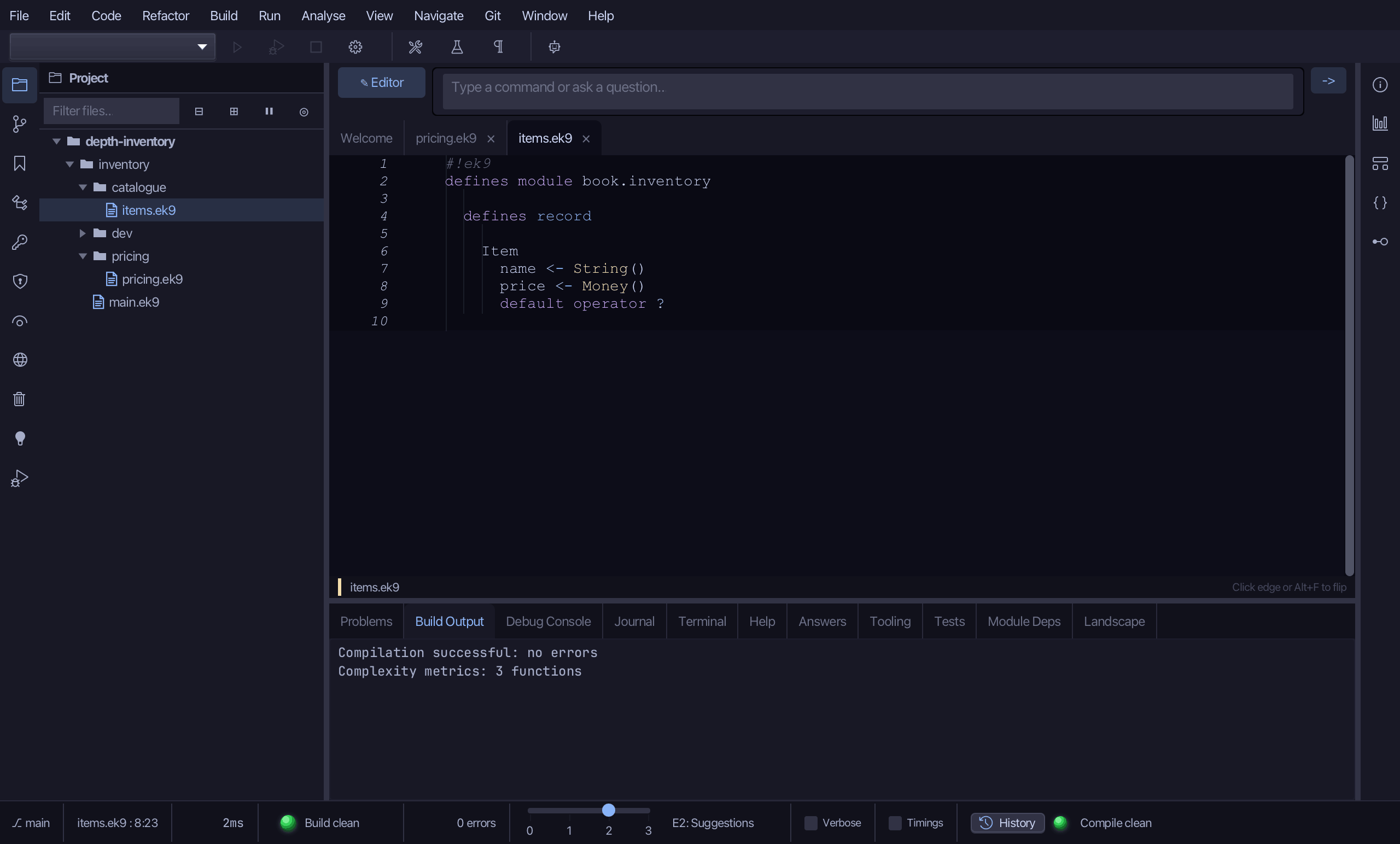
Select the two fields and type them the way the book does: the type is inferred from the value. Saves when typed.
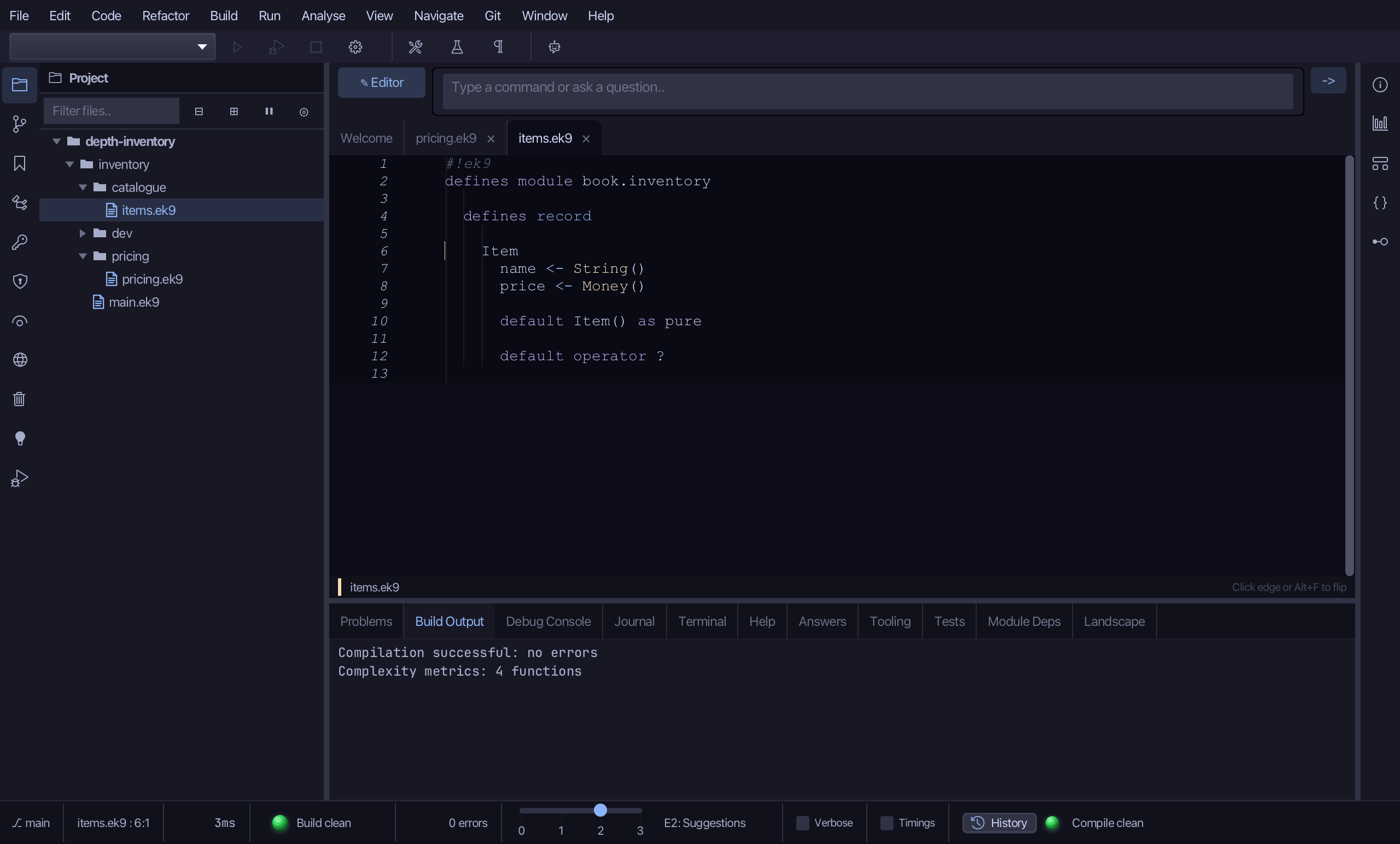
Right-click the Item line and choose Add Constructor > No-Arg (default, pure).
Right-click the Item line and choose Add Constructor > From All Fields (pure) - a constructor that takes every field.
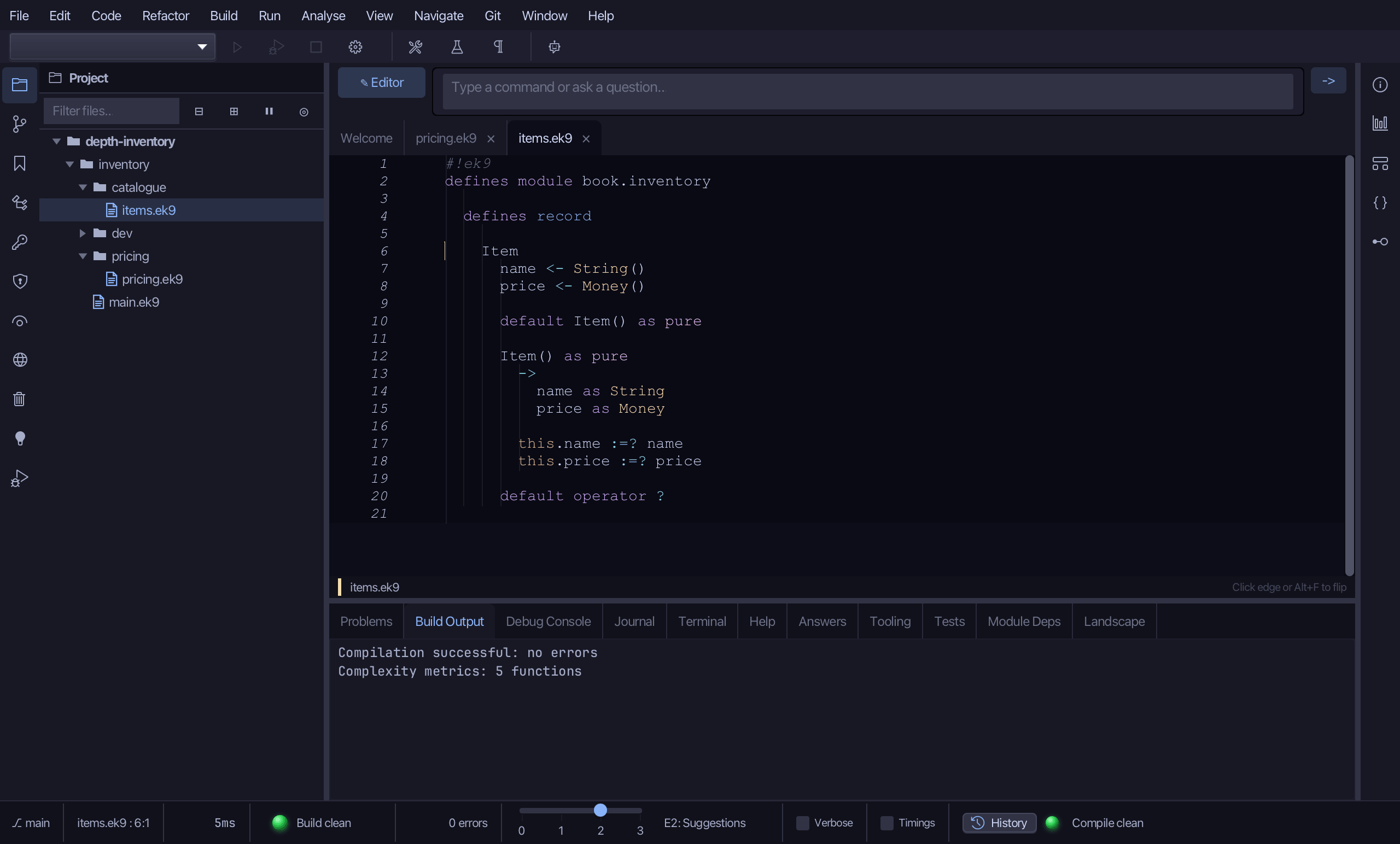
Select the constructor and type the book's: an itemName and an itemPrice in, each field set with :=?. Saves when typed.
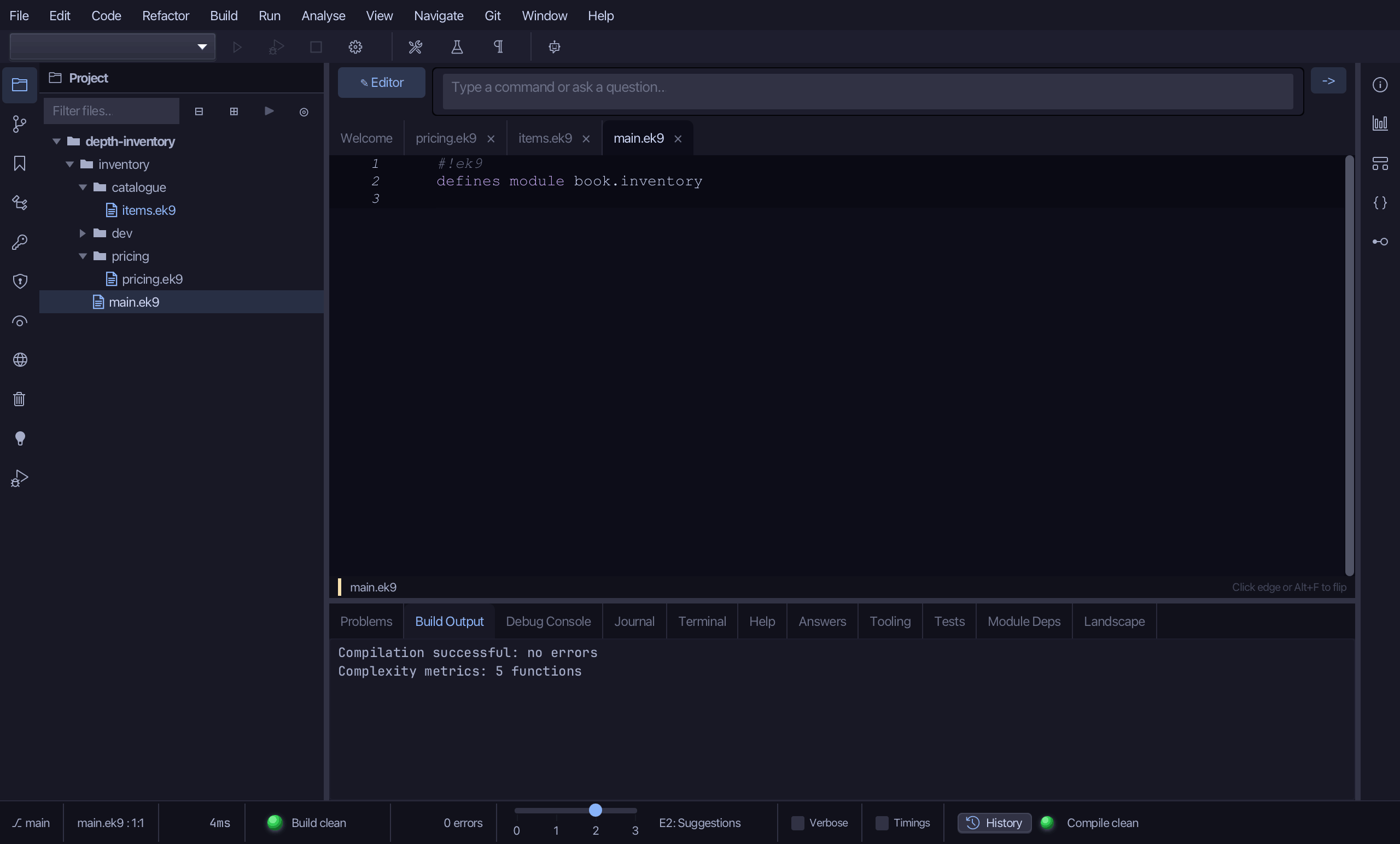
Open inventory/main.ek9 in the Project panel - it is already there, with just its module line.
Below the module line, type the references block. Item needs no entry - this file and items.ek9 are one module - but priceWithTax is another module's, and a references block is for other modules. Saves when typed.
Step 4: stockLine
Choose Code > New Construct > Function…
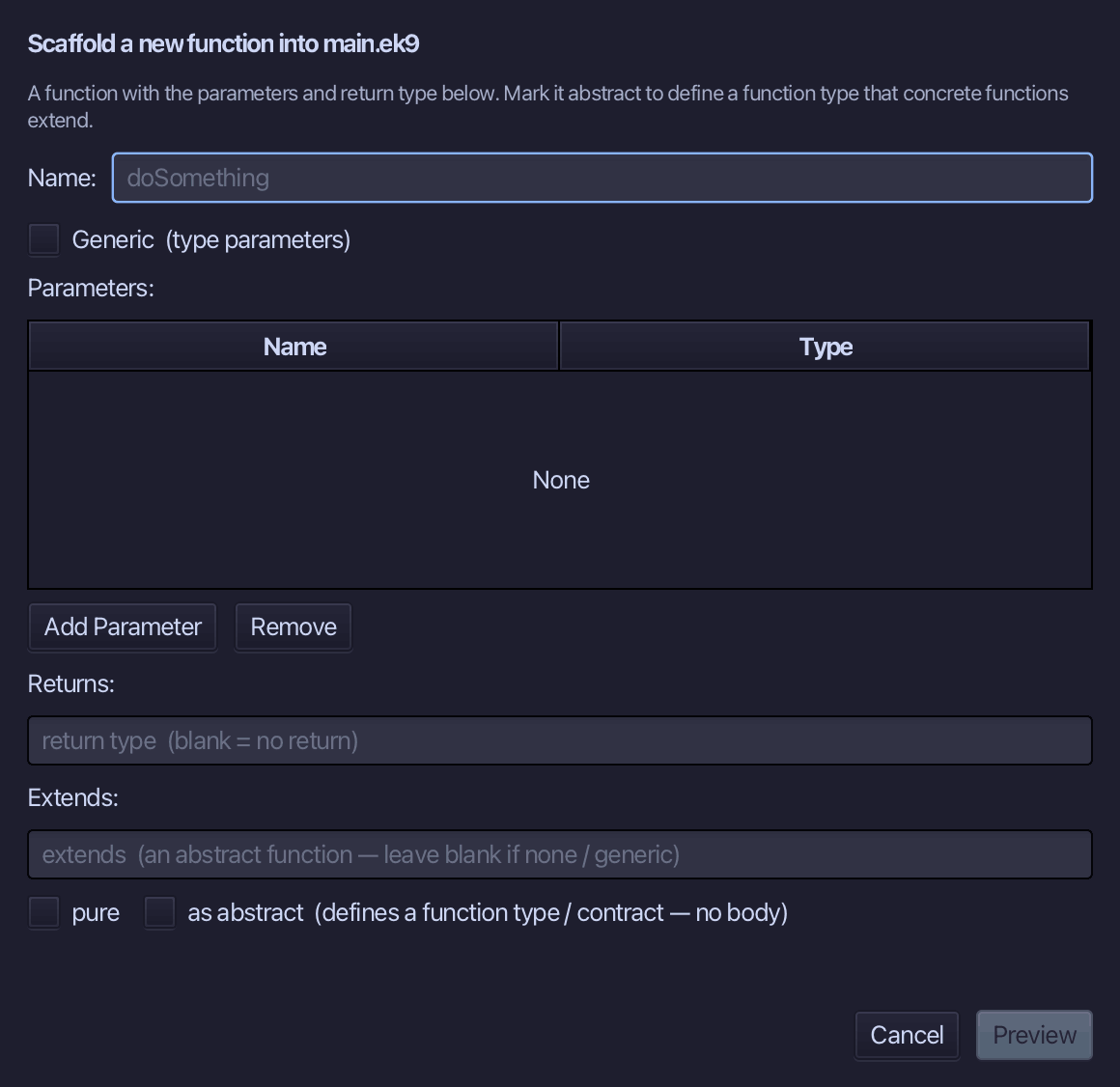
stockLine is the function's name. Add one parameter, item of type Item, set Returns to String and tick pure. Choose Preview.
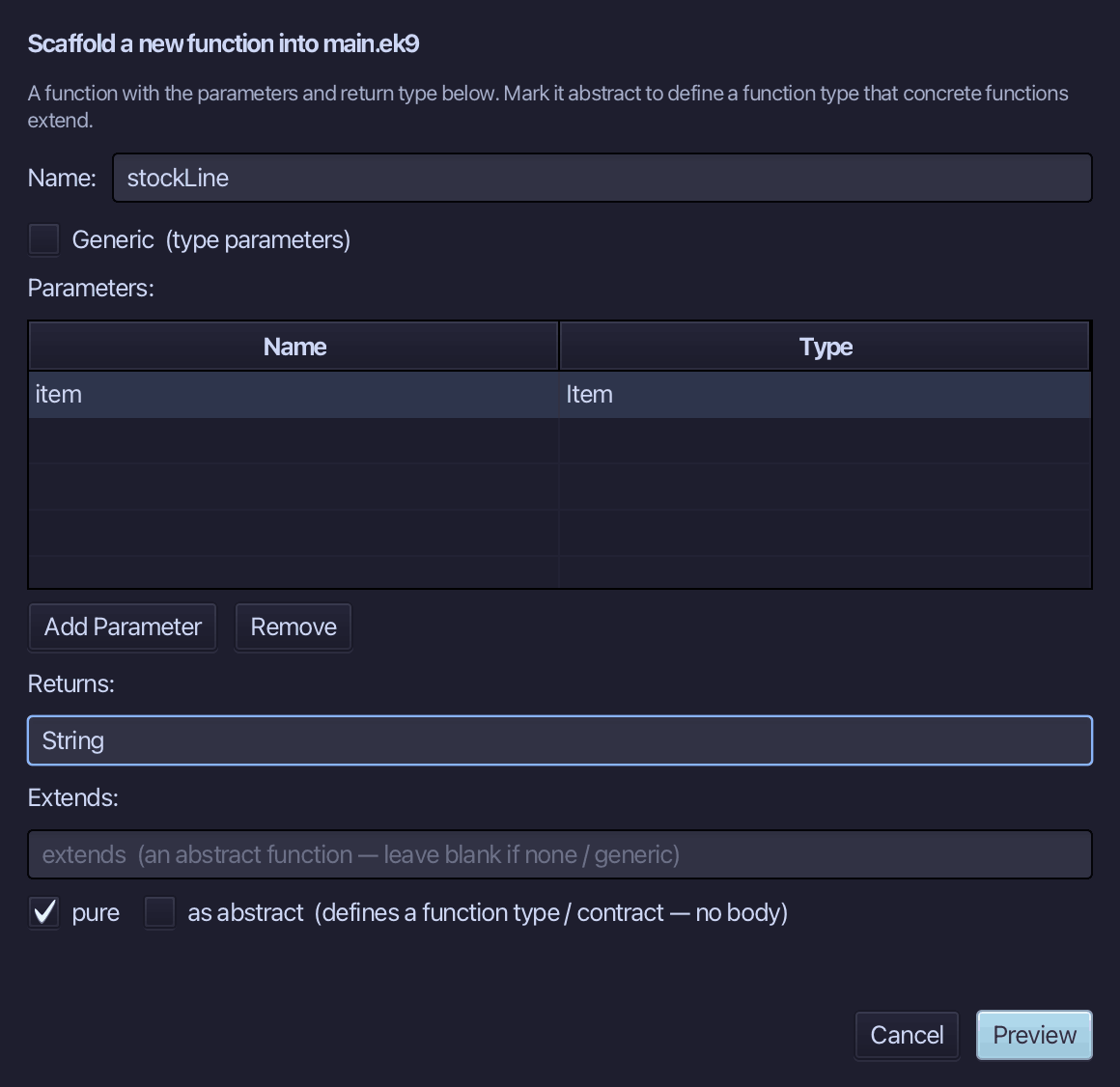
The preview shows stockLine about to be written. Choose Apply.
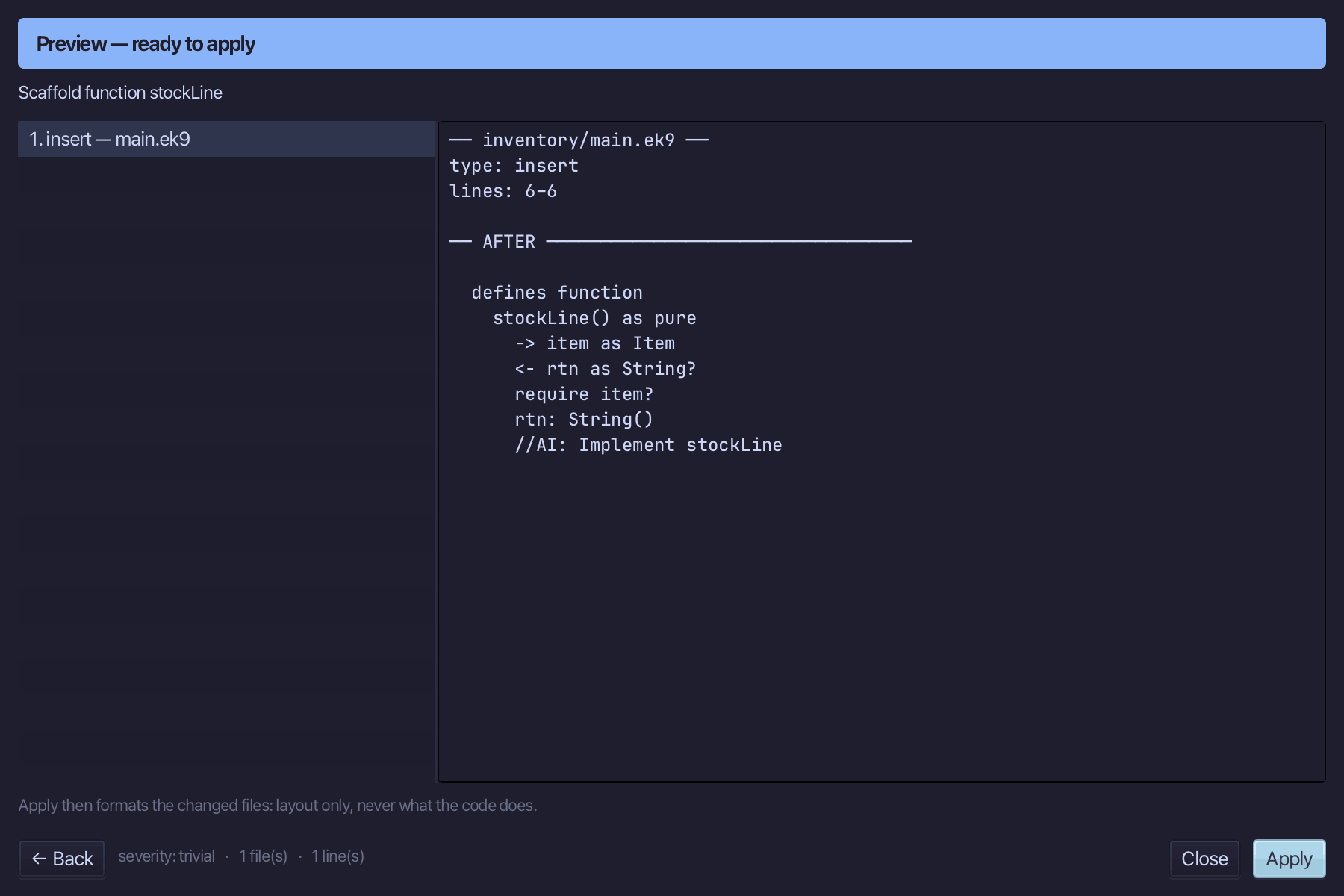
Select the stockLine() as pure line and, above it, type the blank line the book opens its first function with. Saves when typed.
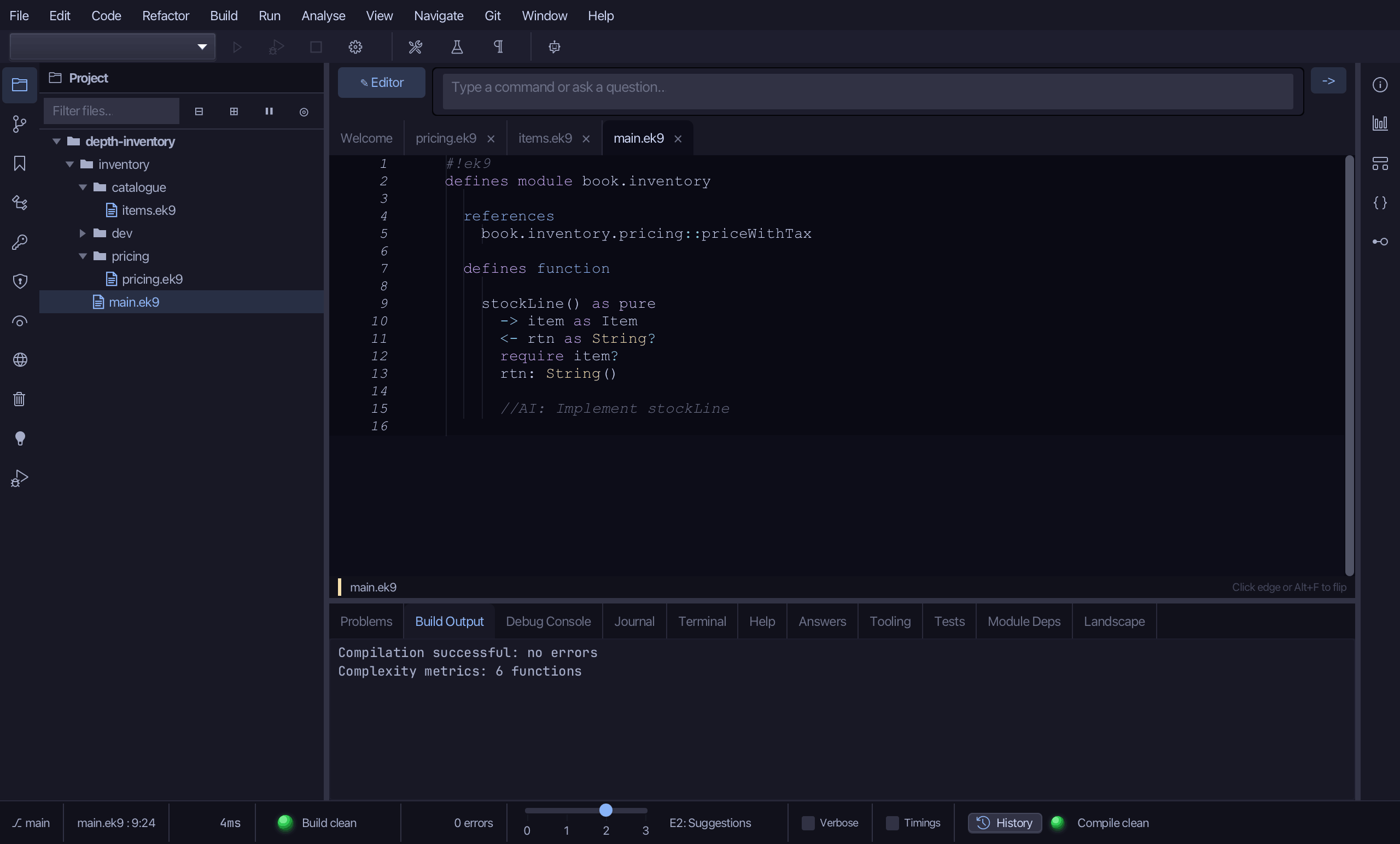
Select the stub, from <- rtn as String? down to its //AI line, and type stockLine's own return and work, as the book writes them. Saves when typed.
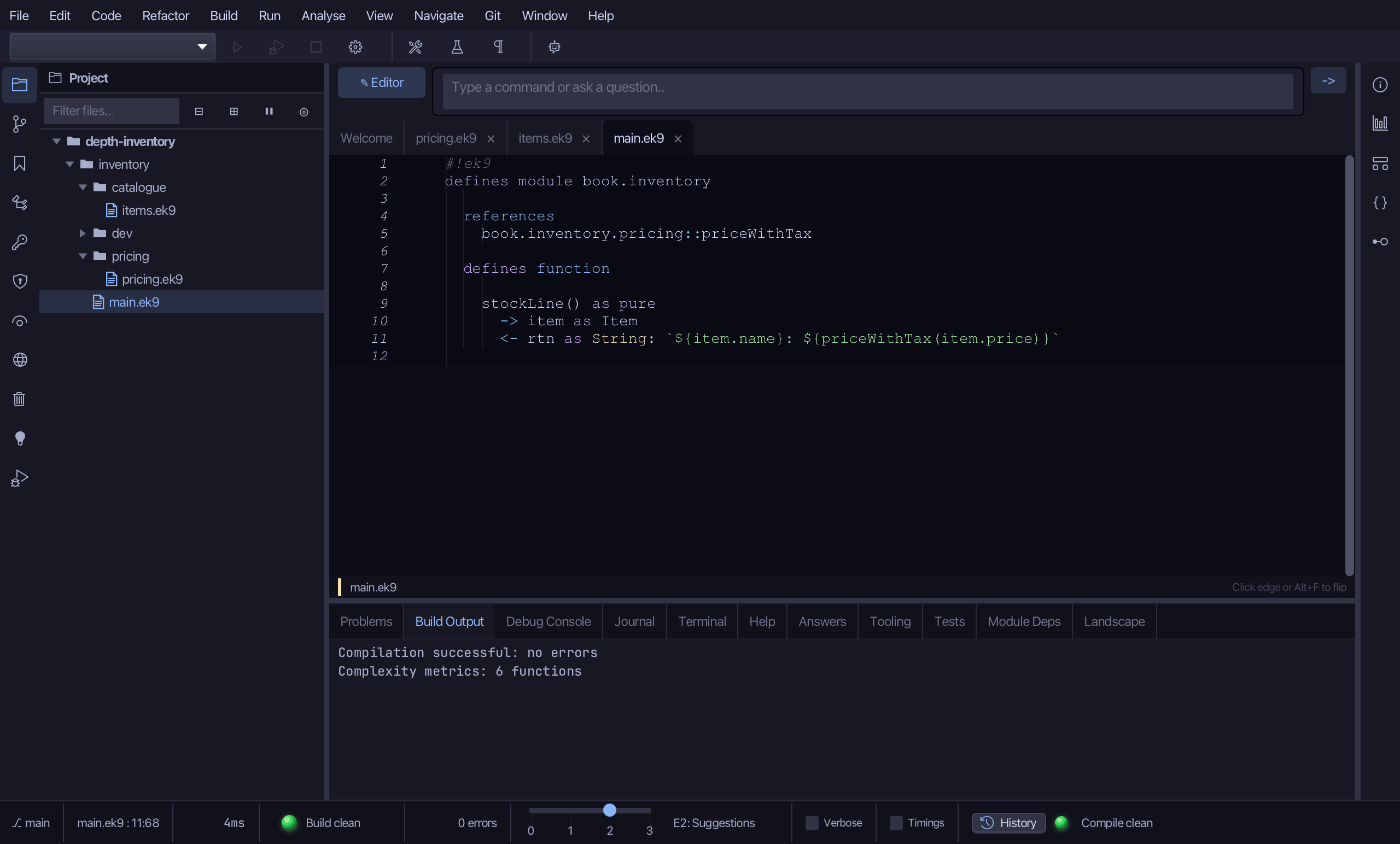
Step 5: stockLines
Choose Code > New Construct > Function…
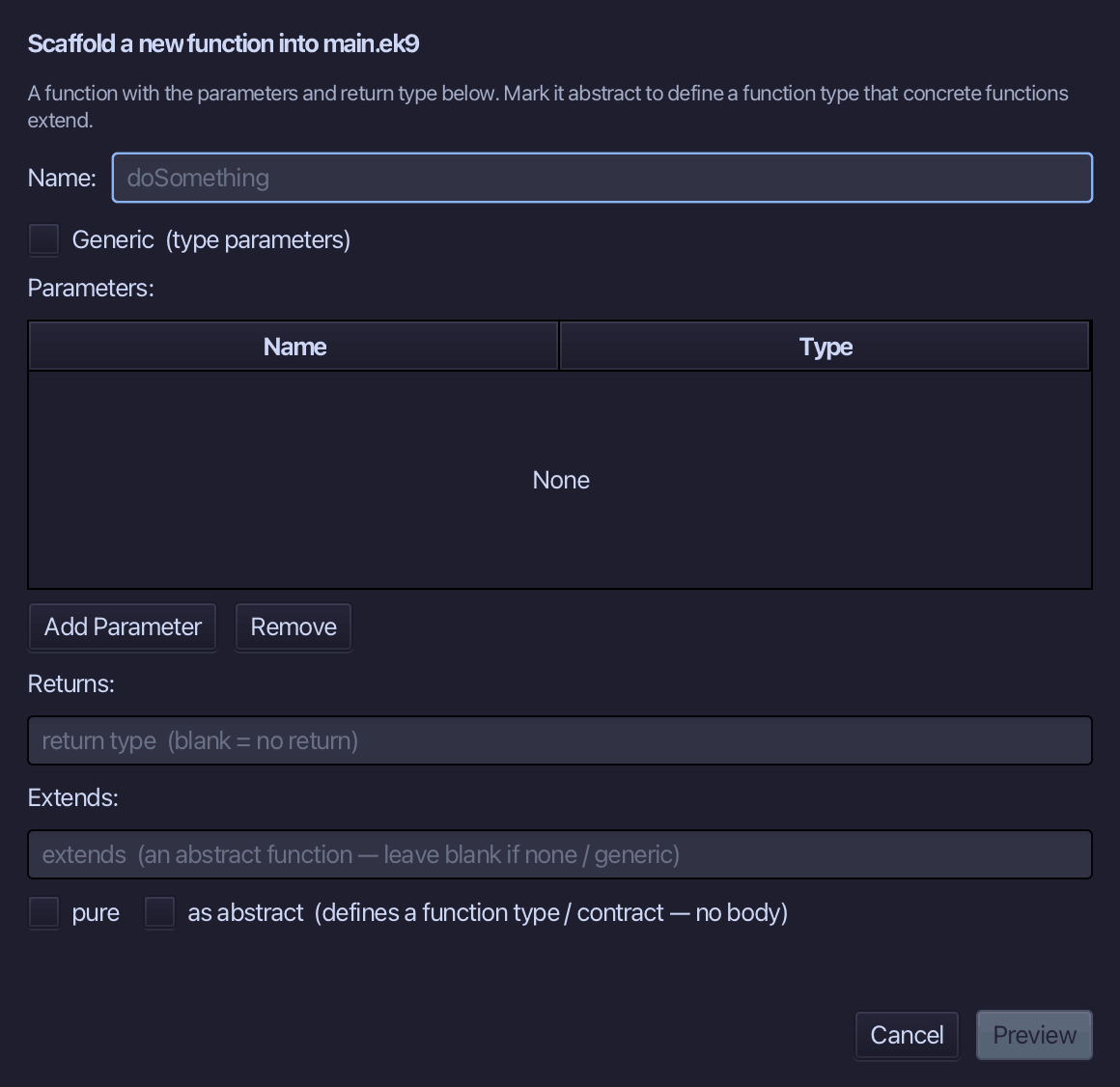
stockLines is the function's name. Add one parameter, items of type List of Item, set Returns to List of String and tick pure. Choose Preview.
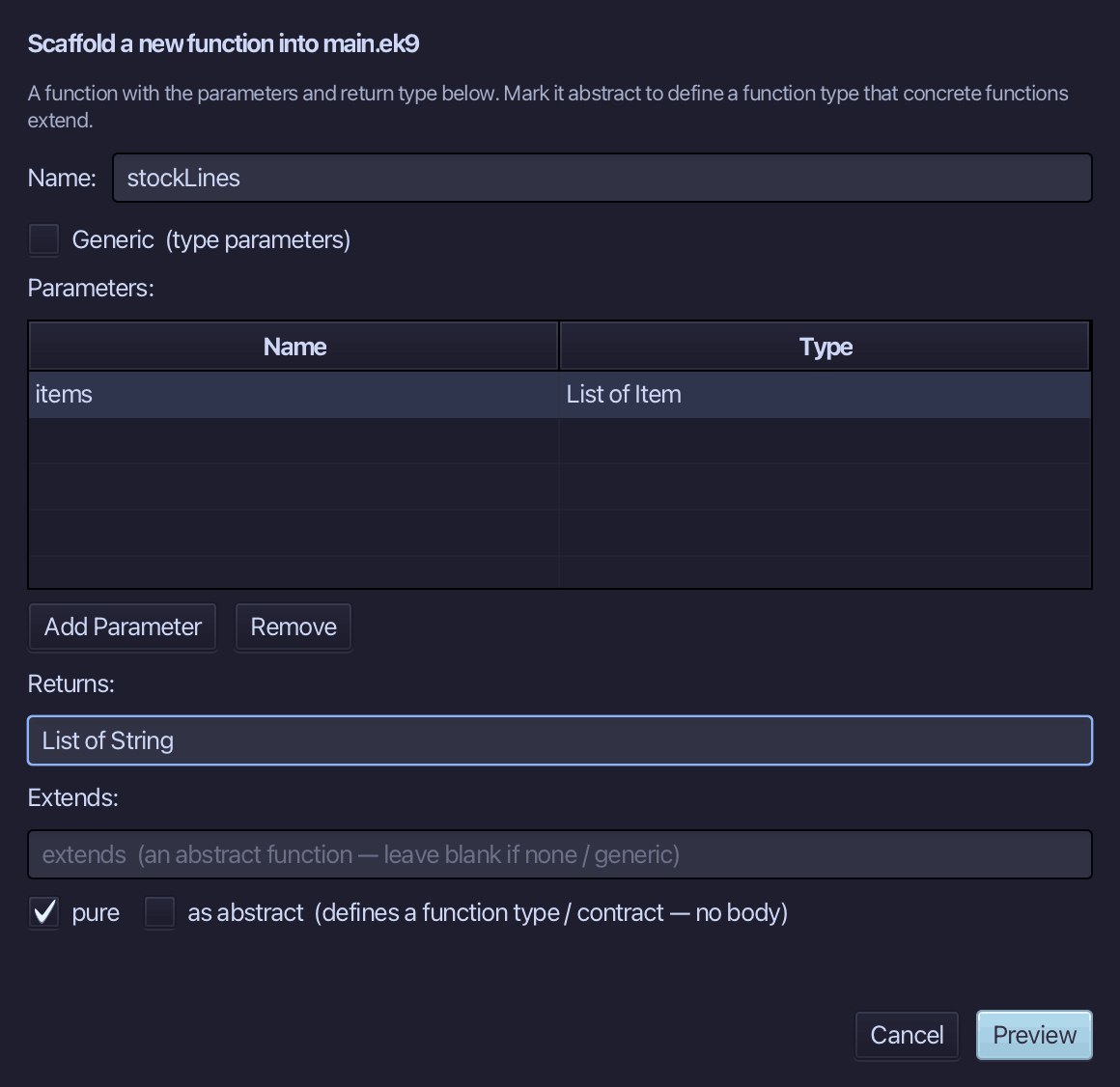
The preview shows stockLines about to be written. Choose Apply.
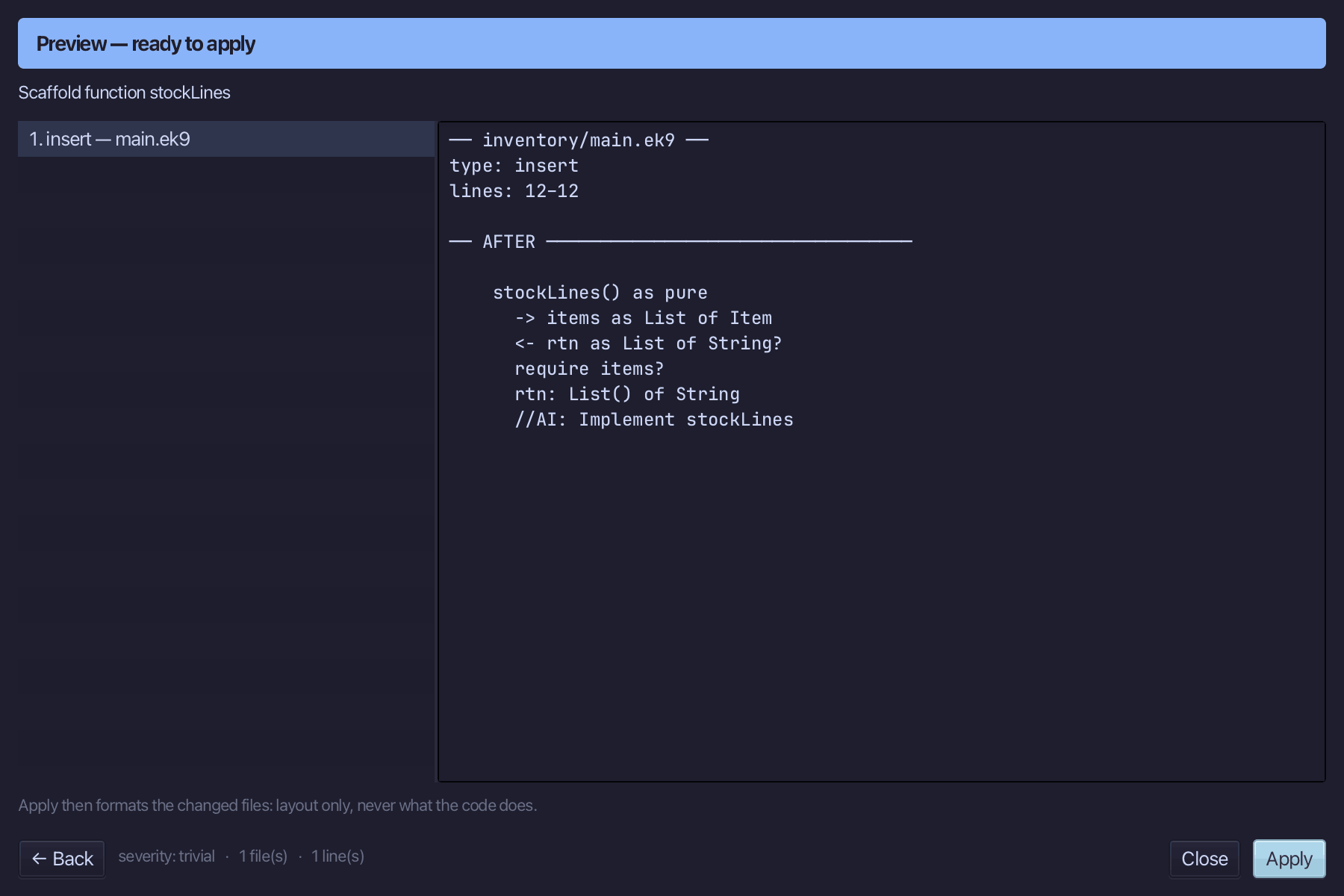
Select the stub, from <- rtn as List of String? down to its //AI line, and type stockLines's own return and work, as the book writes them. Saves when typed.
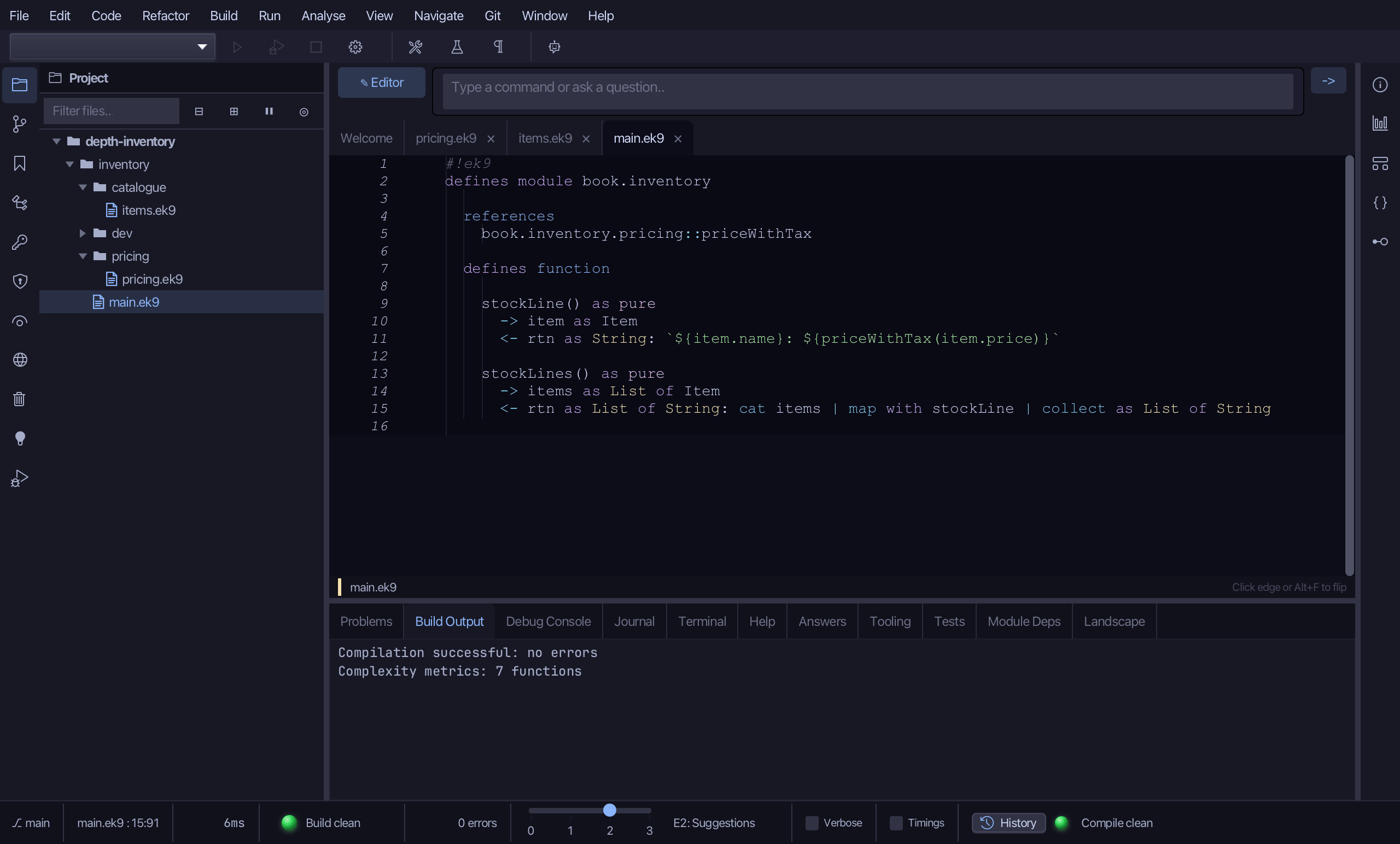
Step 6: The program
Choose Code > New Construct > Program…
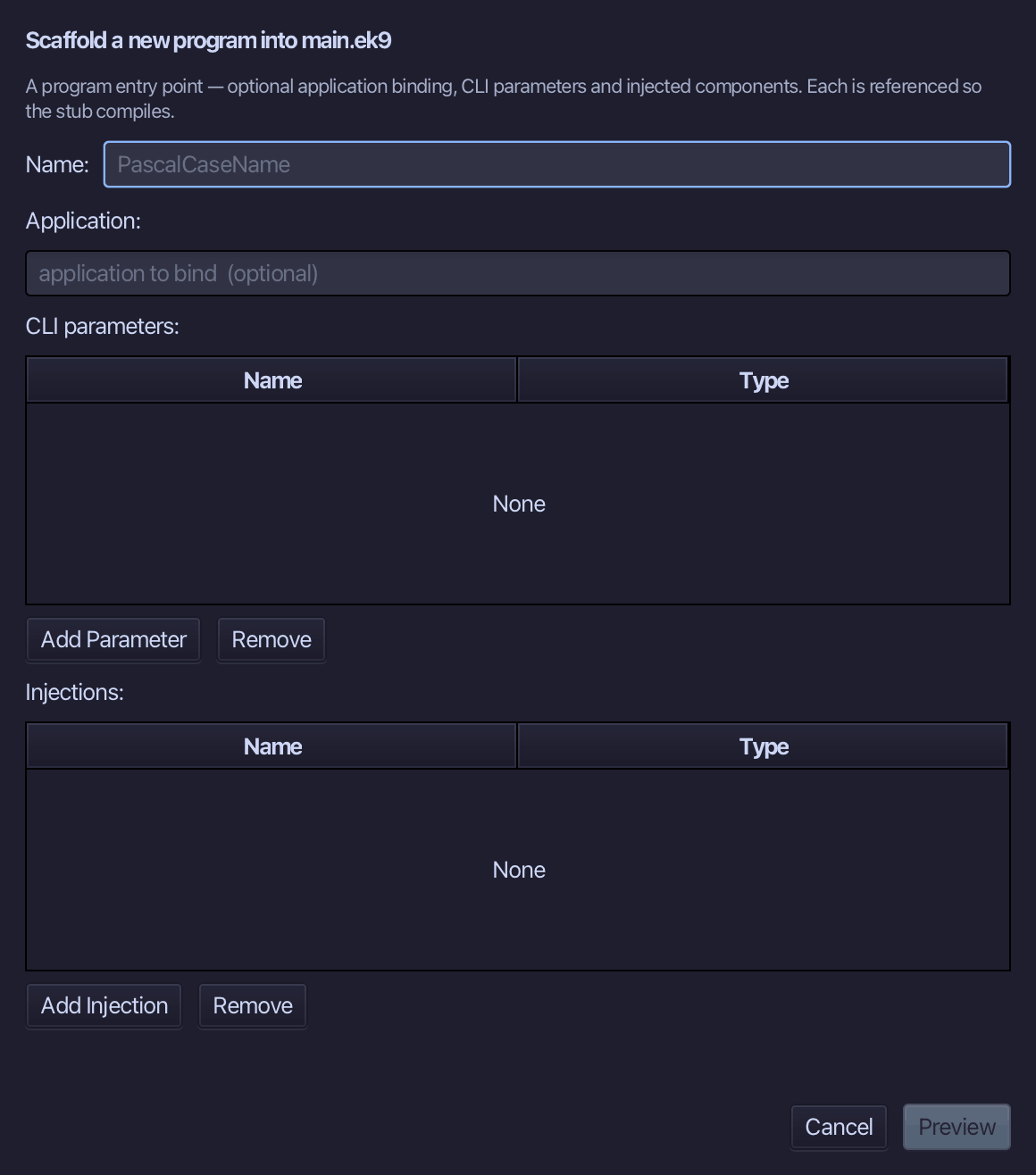
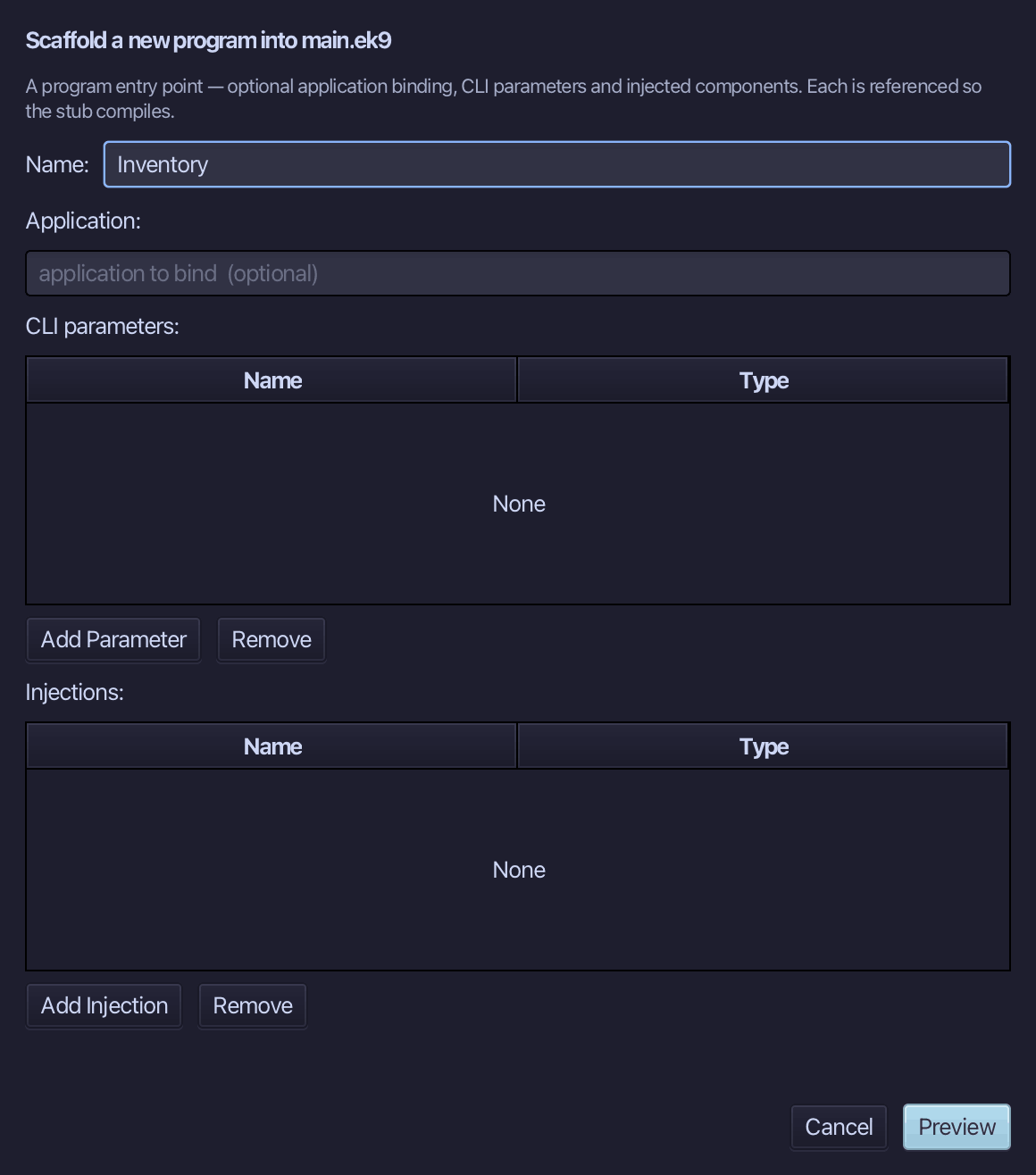
Inventory is the program's name. Choose Preview.
The preview shows Inventory about to be written. Choose Apply.
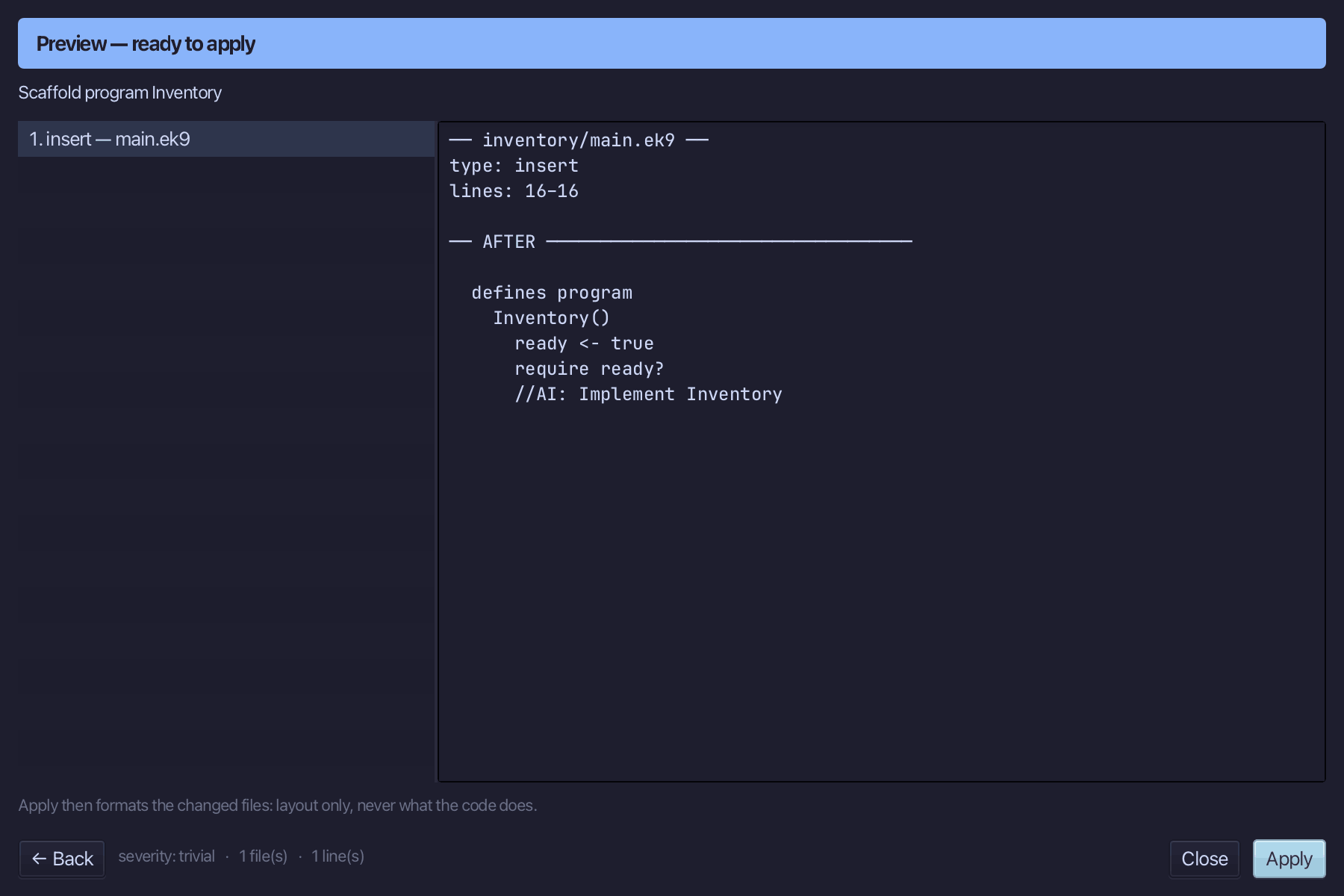
Select the Inventory() line and, above it, type the blank line the book opens the program with. Saves when typed.
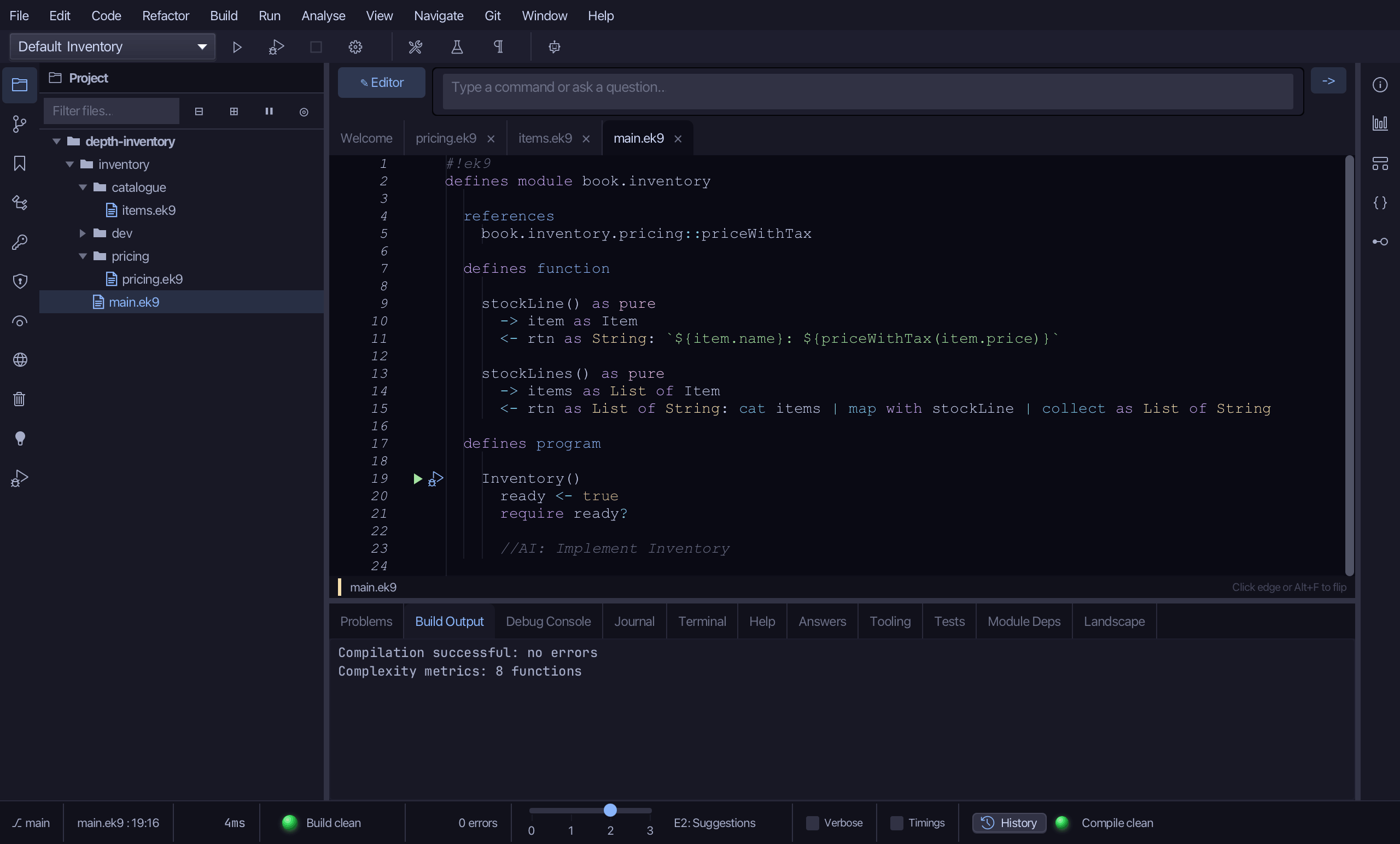
Select the stub, from ready <- true down to its //AI line, and type Inventory's body exactly as the chapter shows it. Saves when typed.
Choose Code > New Package…
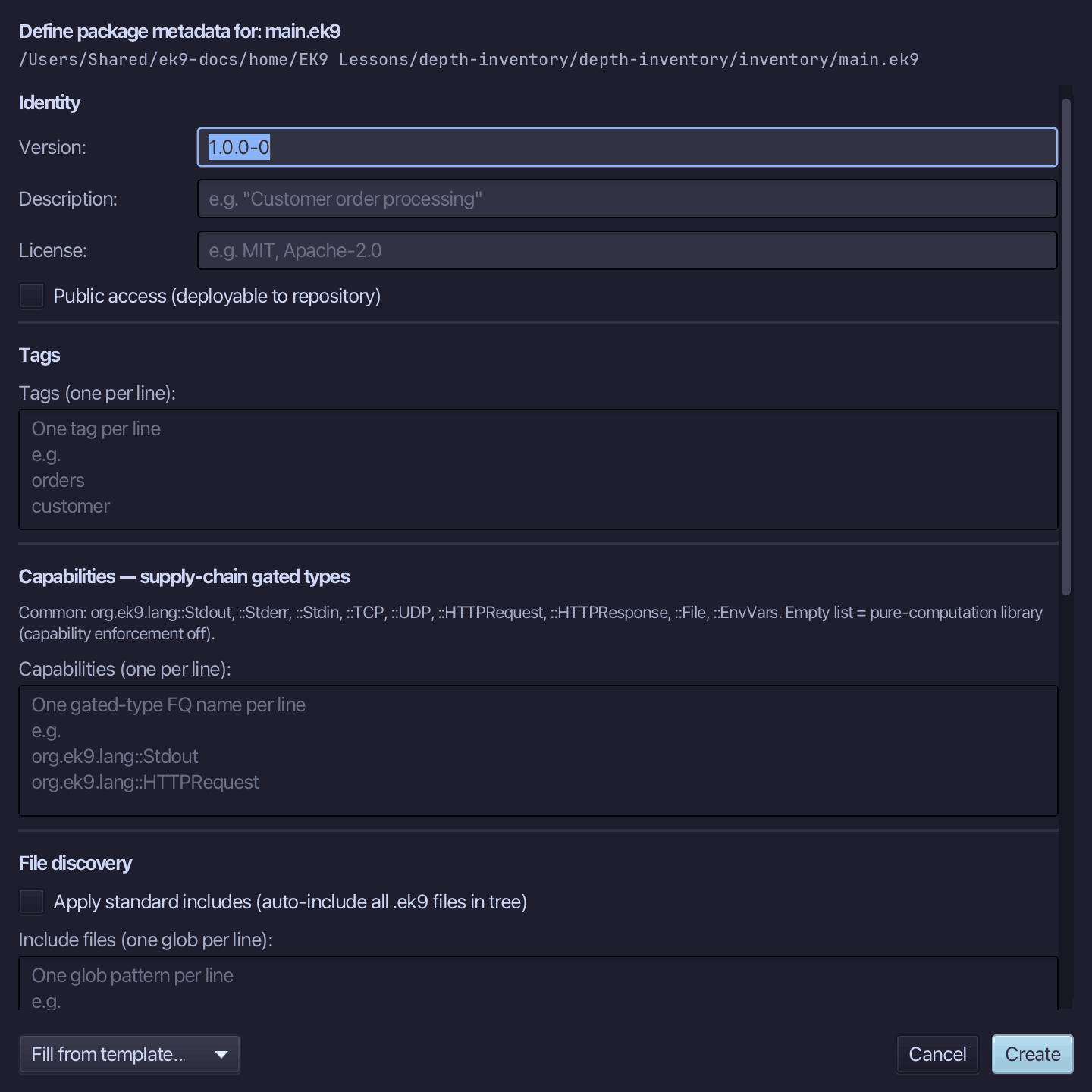
A package block holds the module's version, description and what to include. Type the description, tick Apply standard includes so every .ek9 file under this folder (and not under dev/) joins the build, and choose Create.
Open inventory/dev/inventoryTests.ek9 in the Project panel - it is already there, with just its module line.
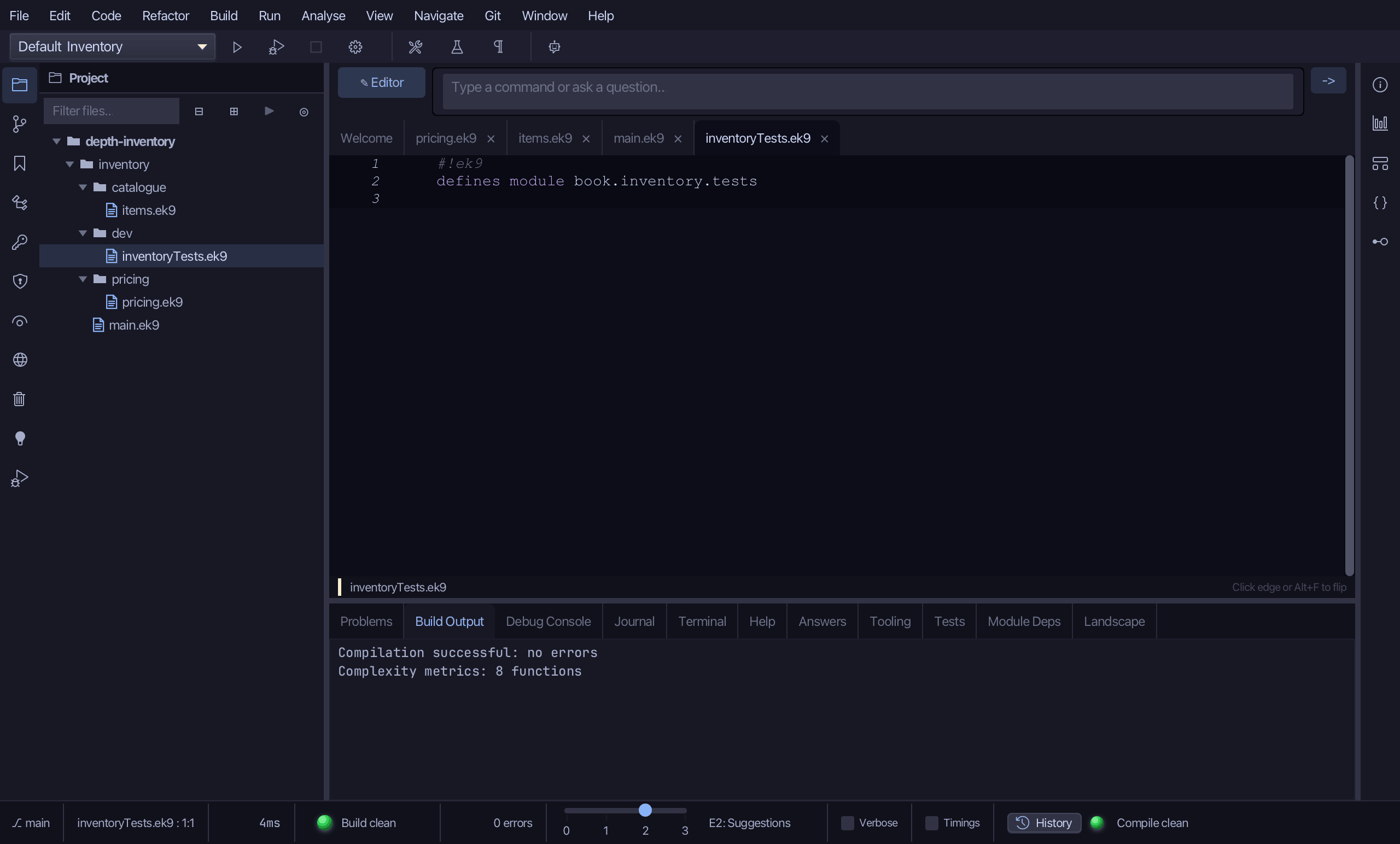
Below the module line, type the references block: a test is its own module, and names what it tests. Saves when typed.
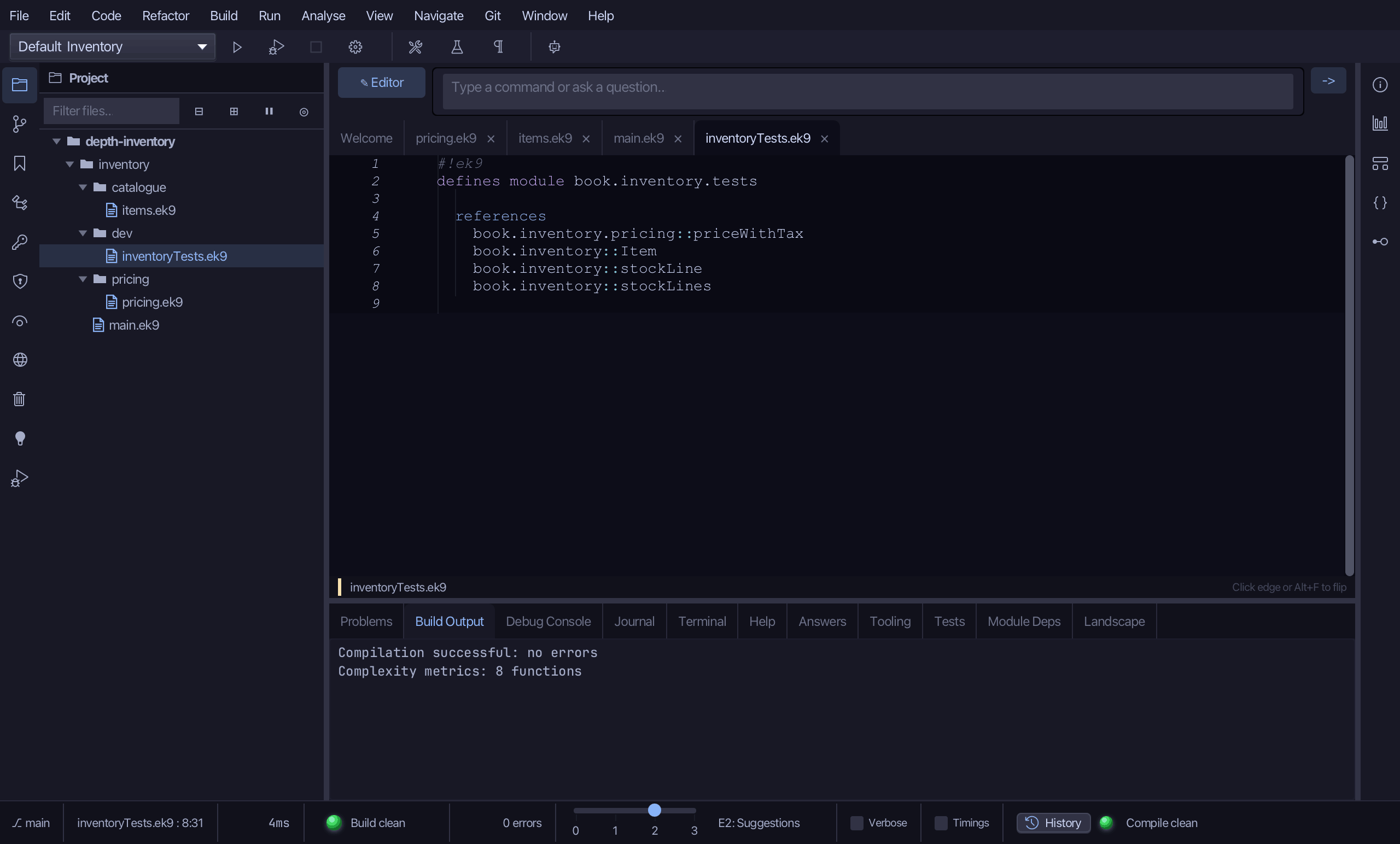
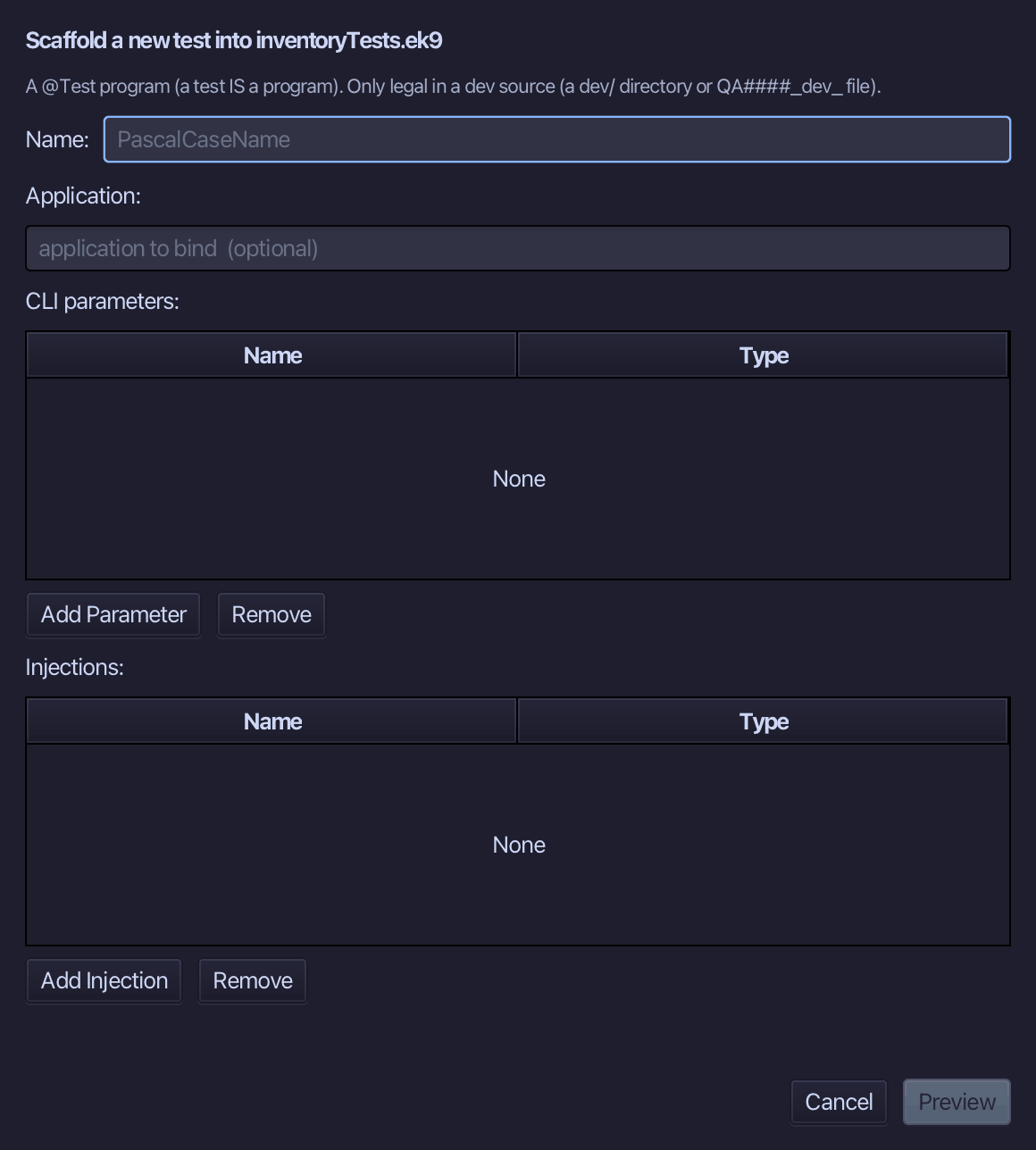
Choose Code > New Construct > Test…
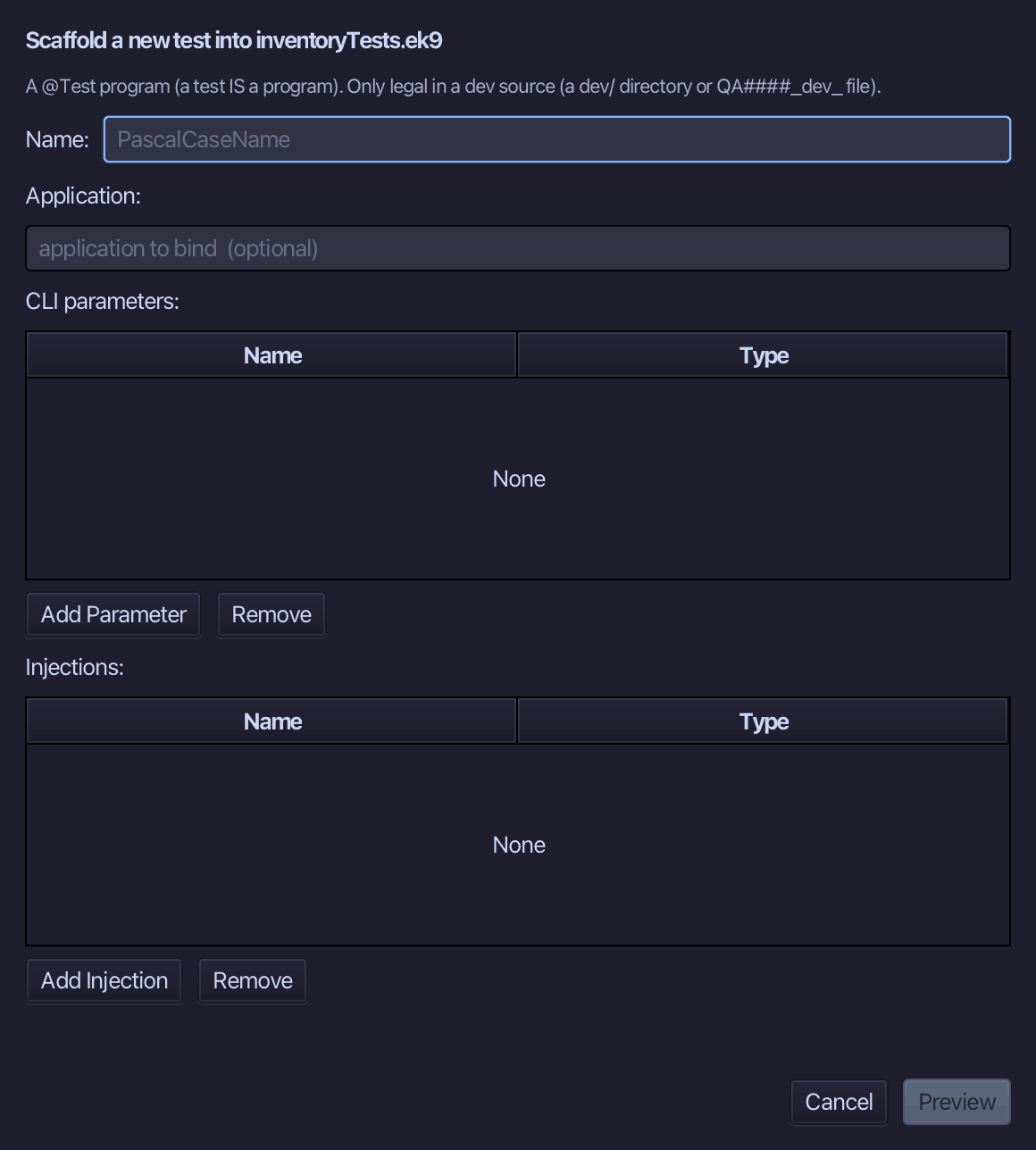
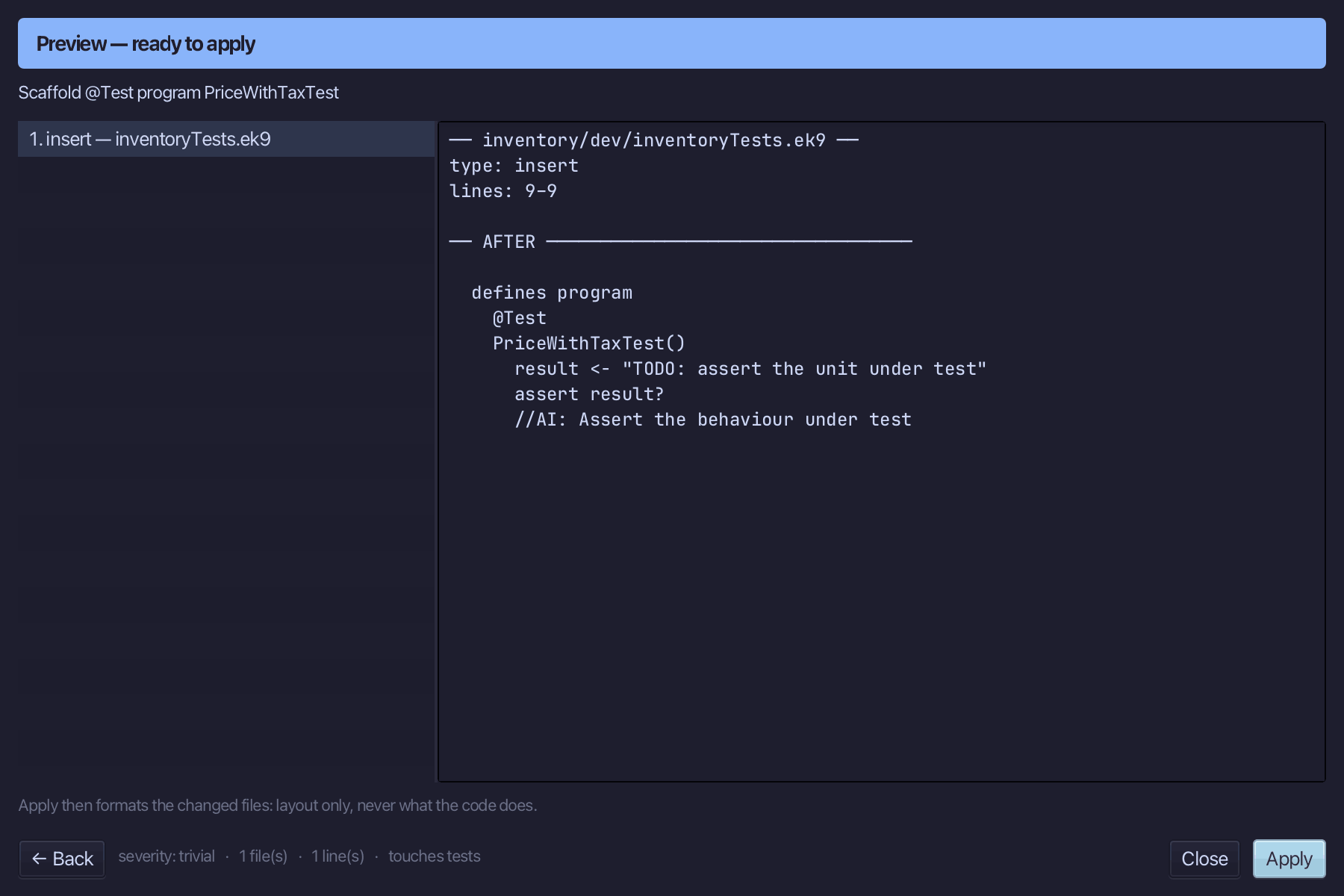
PriceWithTaxTest is the test's name. Choose Preview.
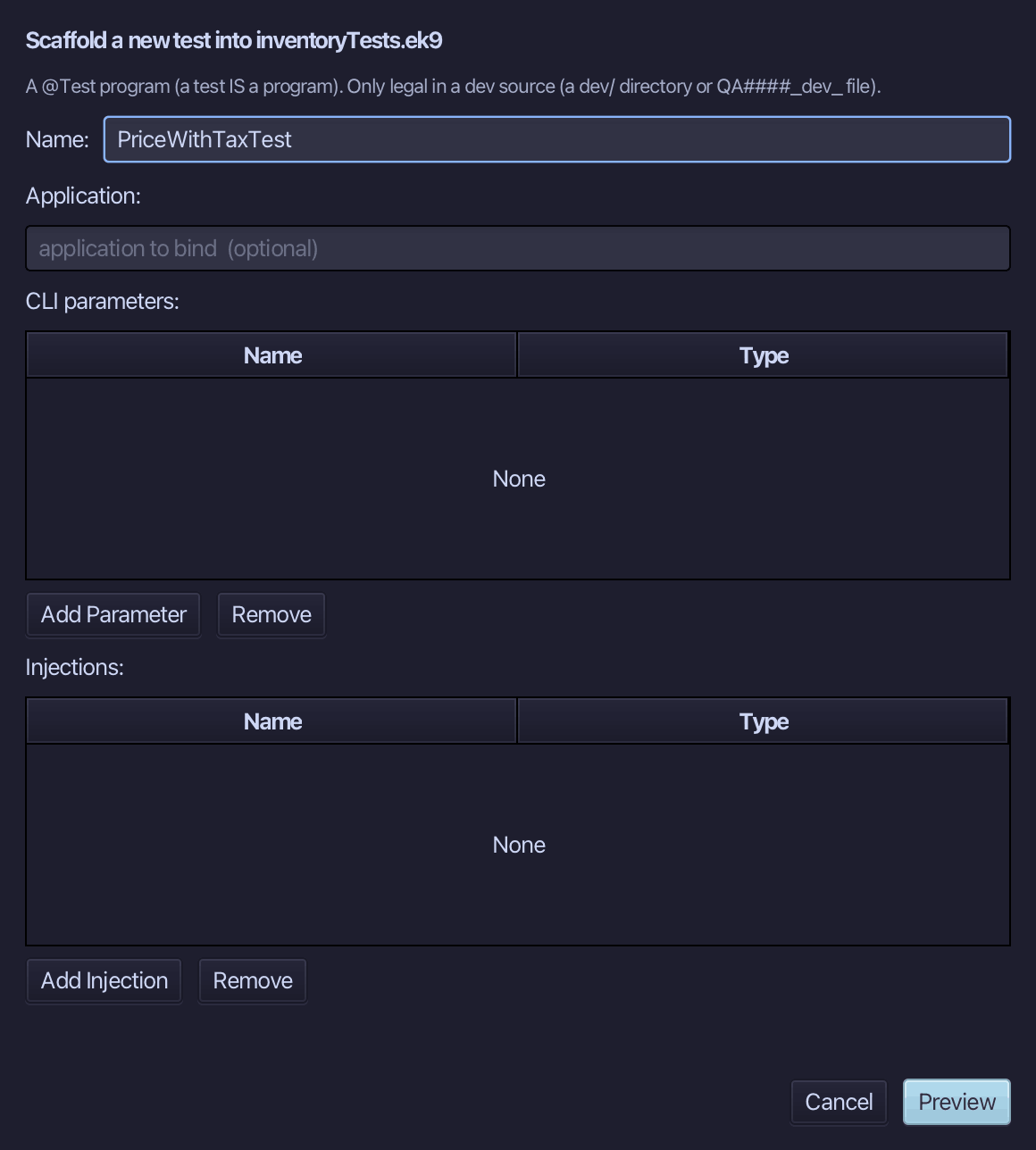
The preview shows PriceWithTaxTest about to be written, marked @Test, with a placeholder assertion. Choose Apply.
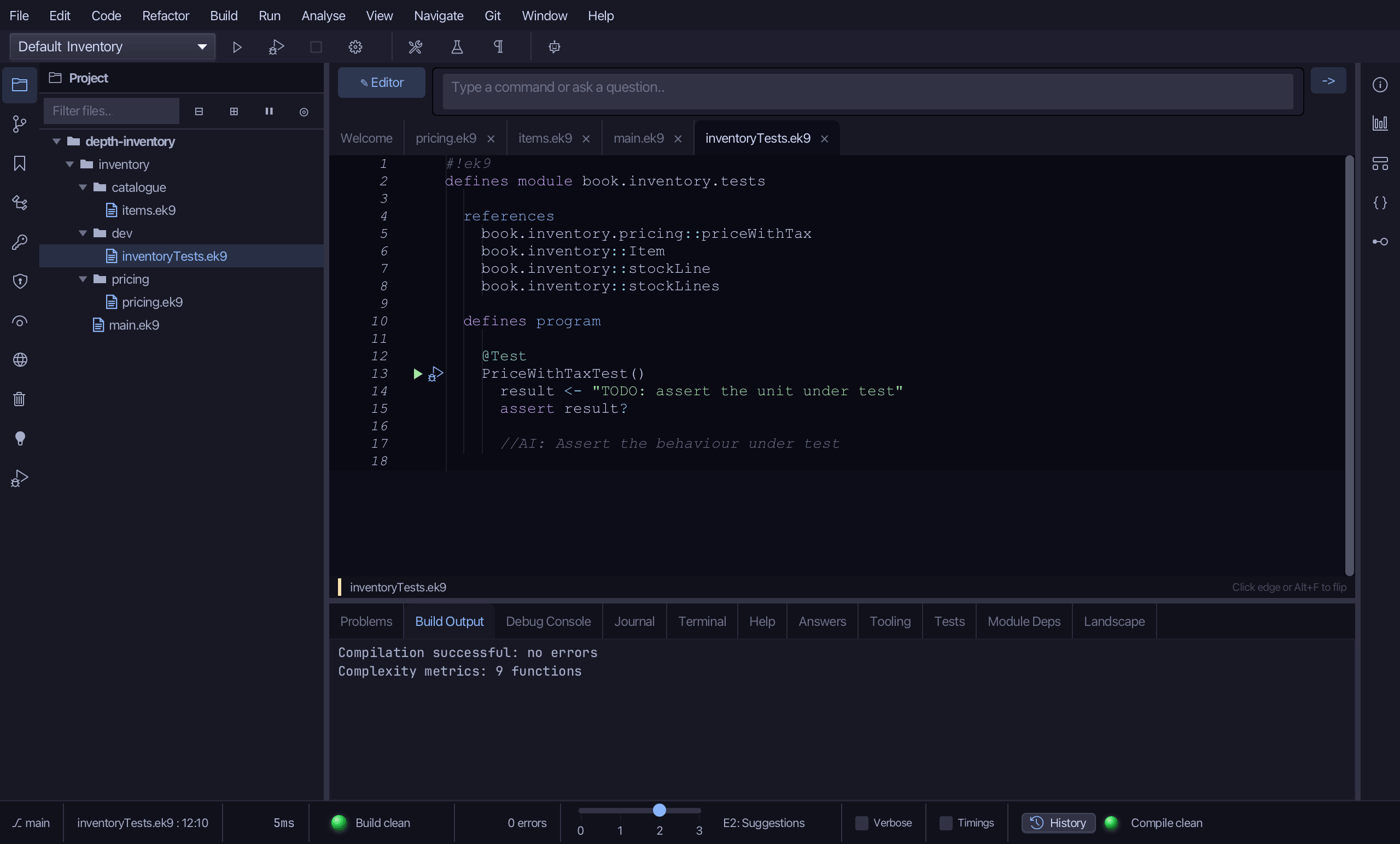
Select the @Test line, and above it type the blank line every chapter example opens its first member with. Saves when typed.
Select the stub, from the placeholder down to its //AI line, and type the claim: a hundred pounds net is 120 with tax. Saves when typed.
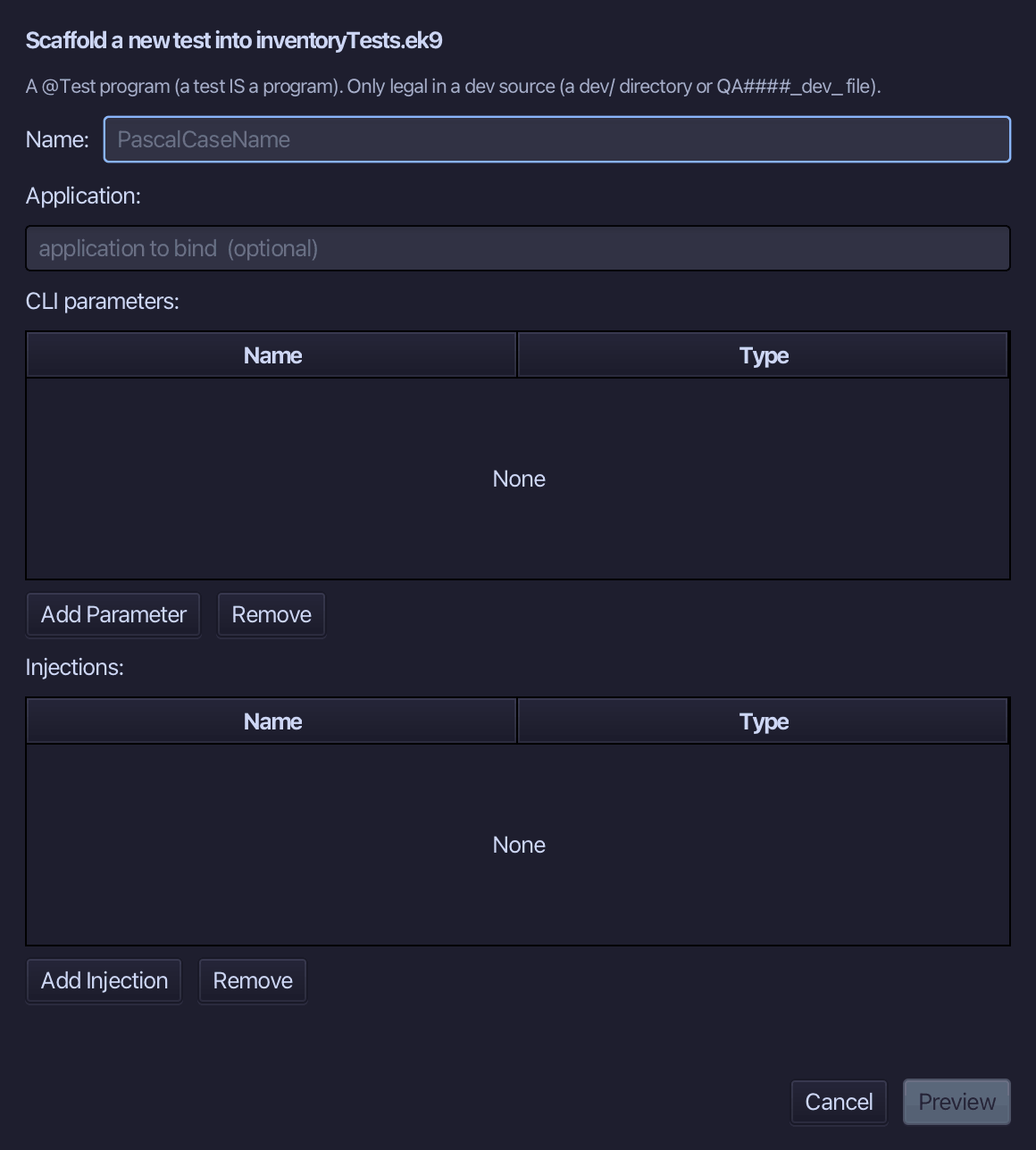
Choose Code > New Construct > Test…
StockLineTest is the test's name. Choose Preview.
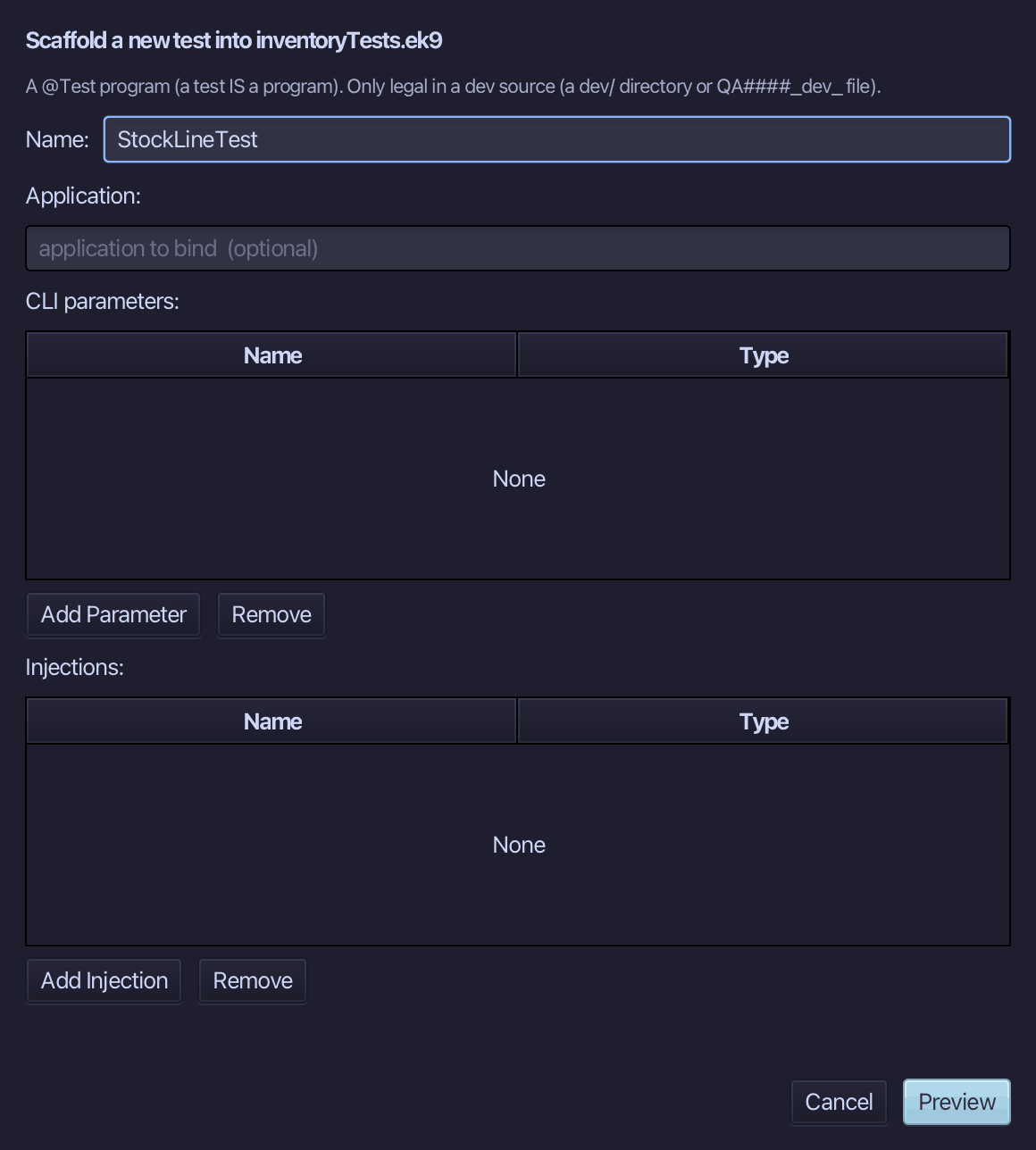
The preview shows StockLineTest about to be written, marked @Test, with a placeholder assertion. Choose Apply.
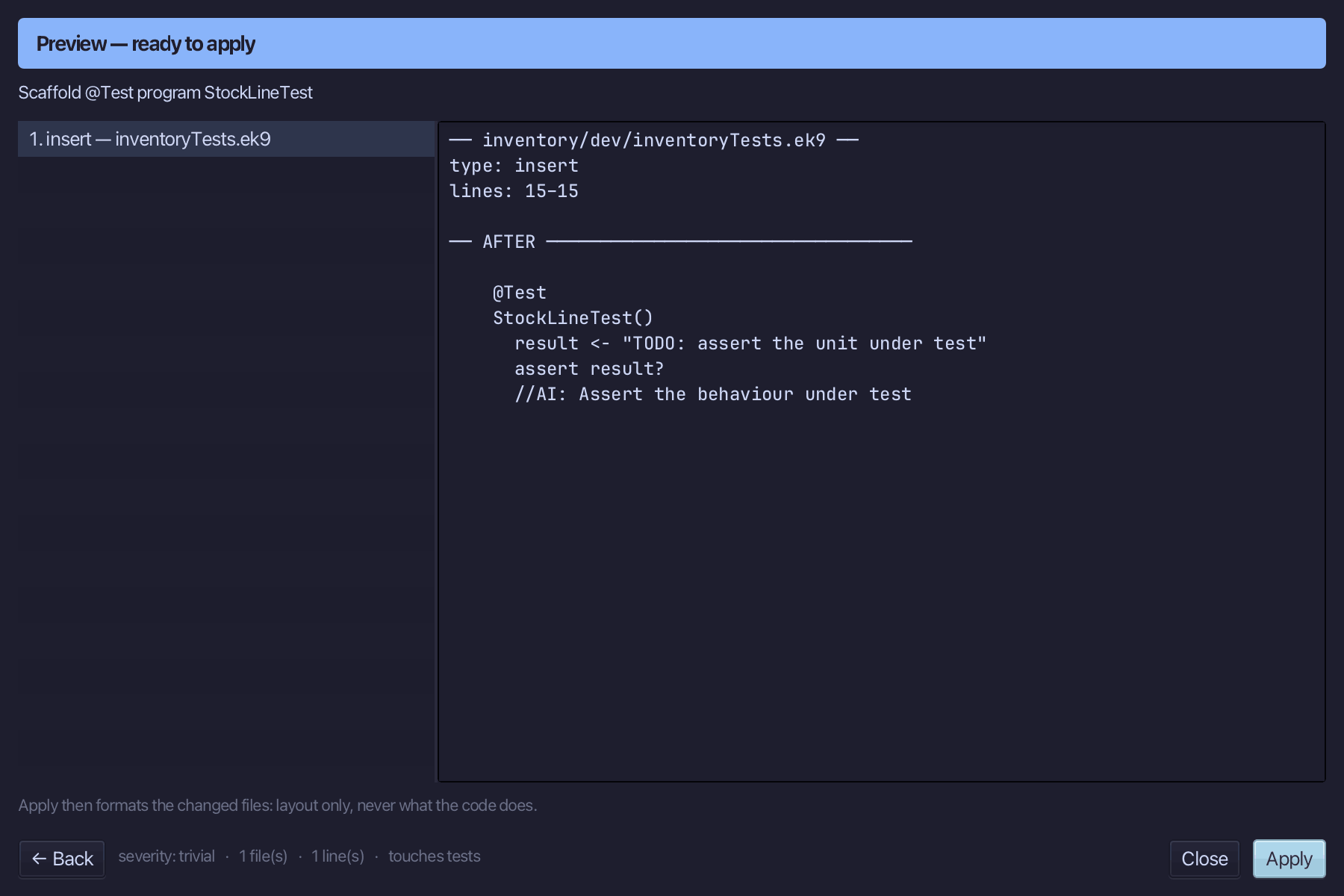
Select the stub, from the placeholder down to its //AI line, and type the claim: one line of stock. Saves when typed.
Choose Code > New Construct > Test…
ItemIsSetTest is the test's name. Choose Preview.
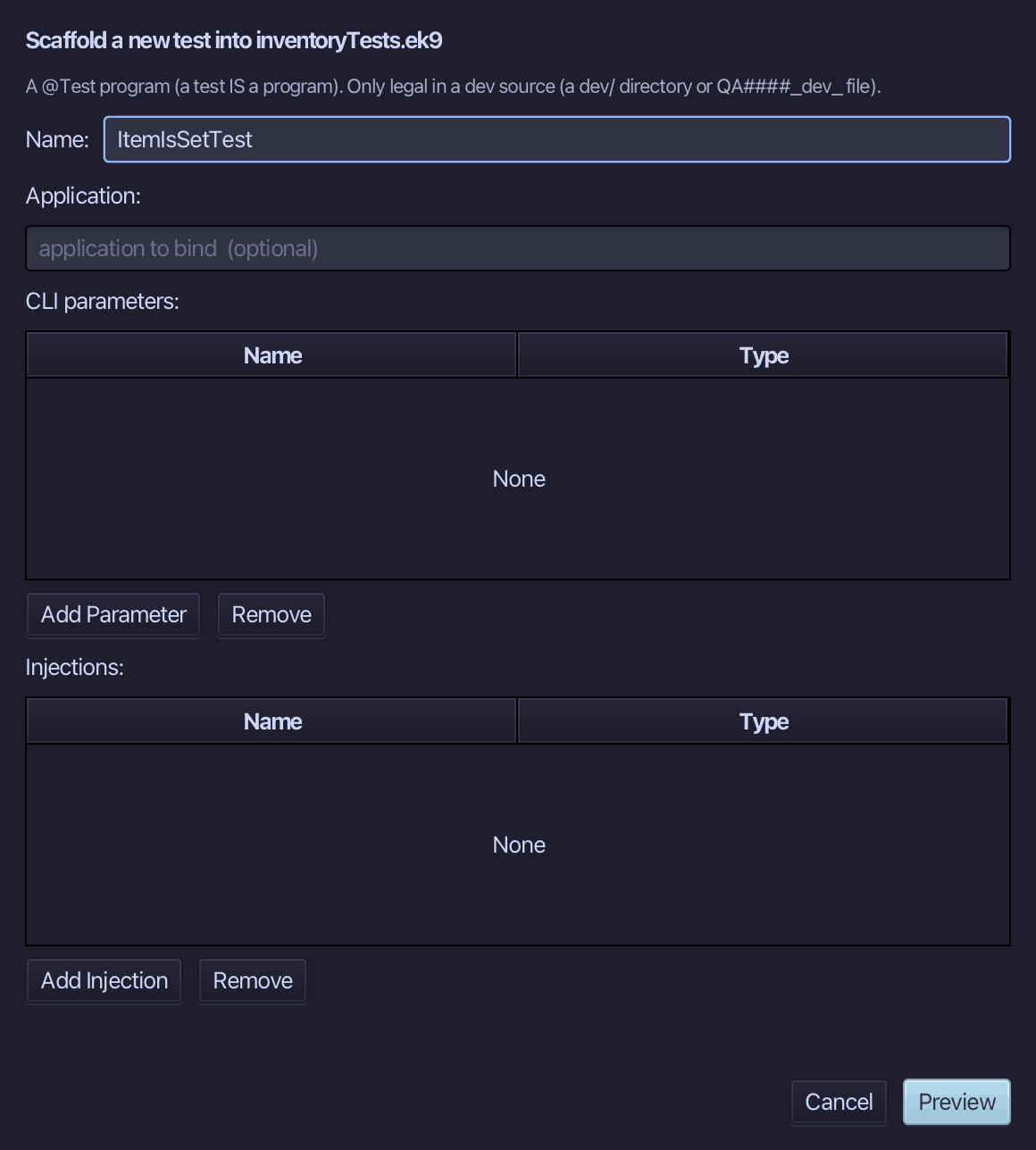
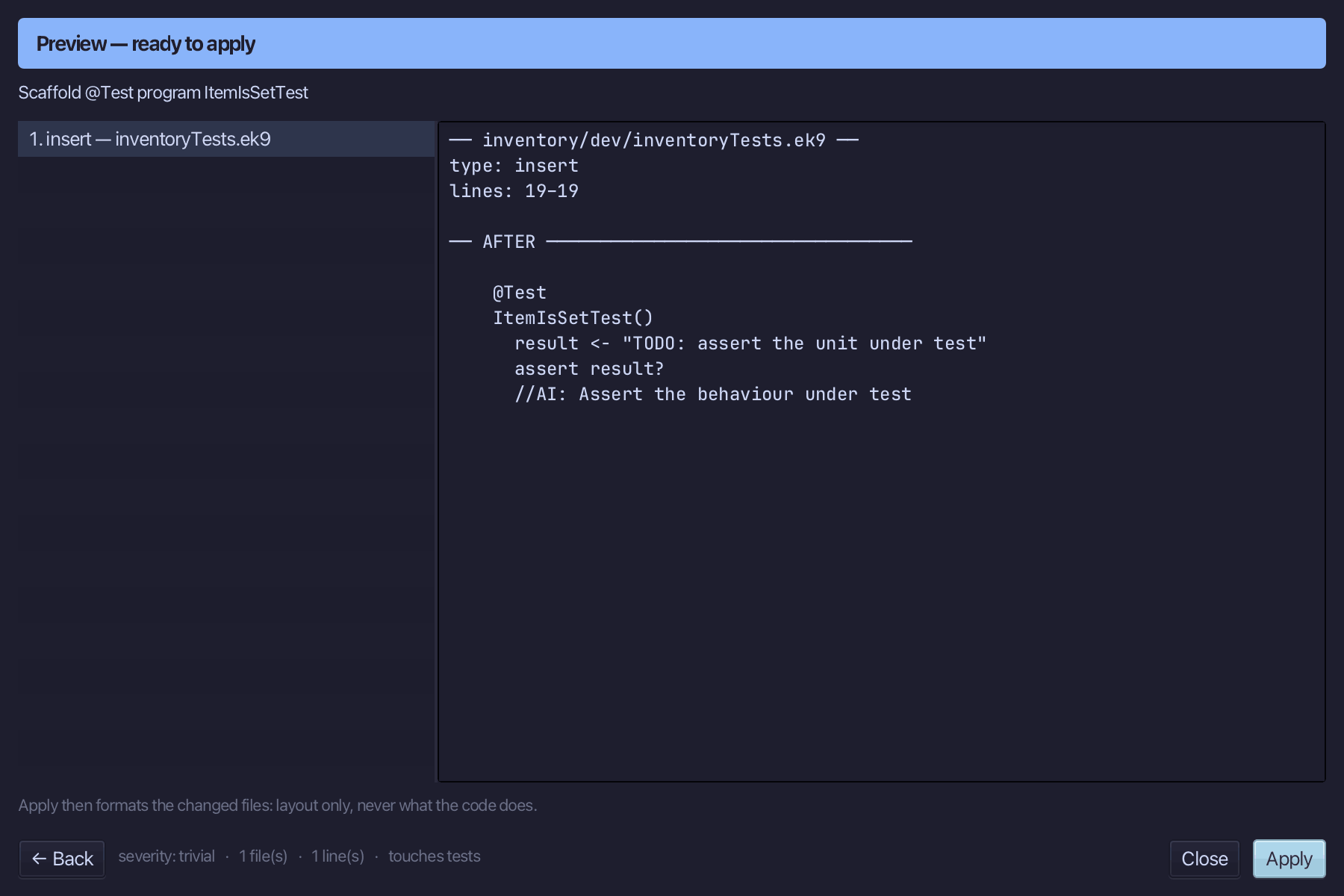
The preview shows ItemIsSetTest about to be written, marked @Test, with a placeholder assertion. Choose Apply.
Select the stub, from the placeholder down to its //AI line, and type the claim: an Item with its values is set. Saves when typed.
Choose Code > New Construct > Test…
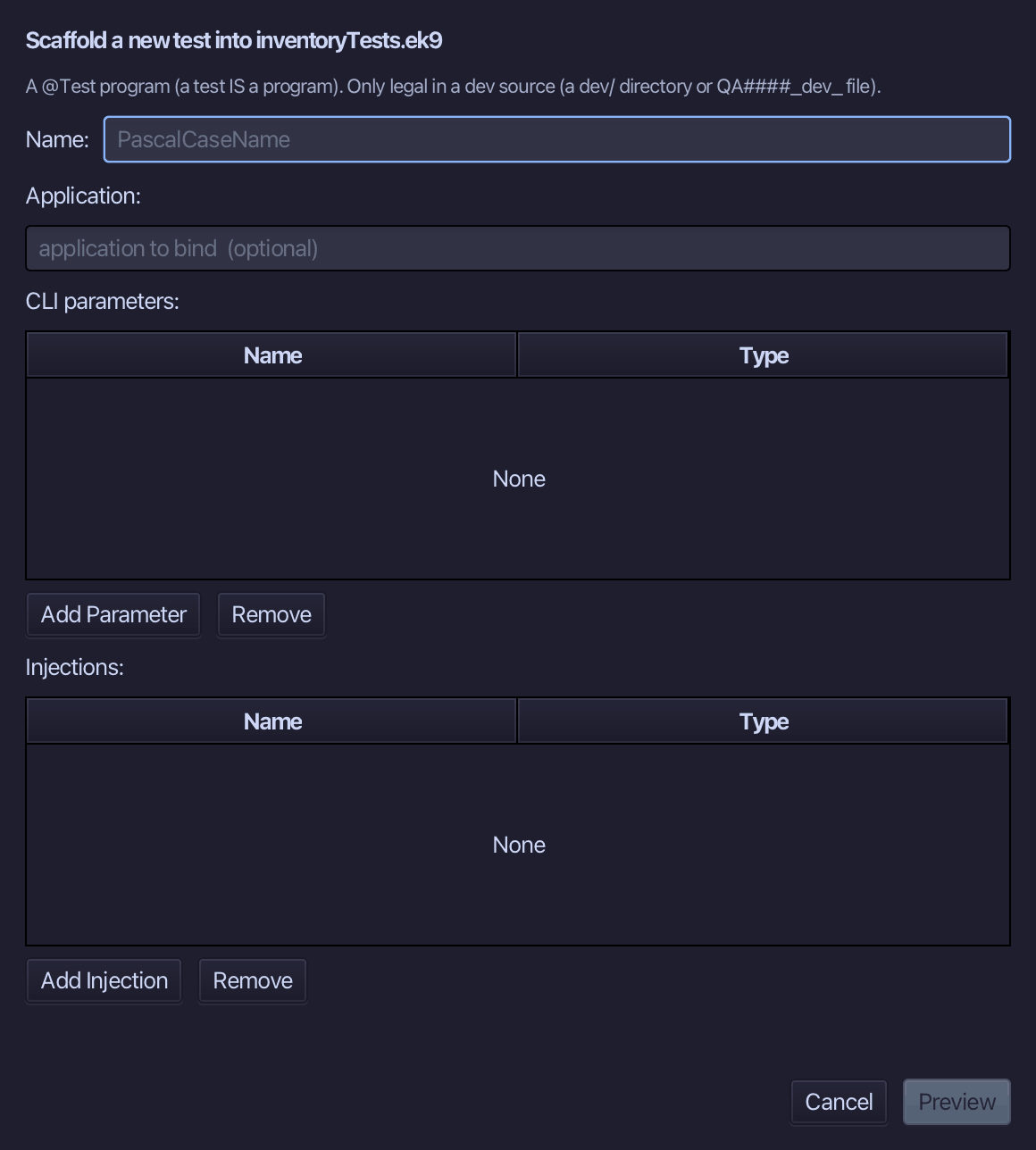
StockLinesTest is the test's name. Choose Preview.
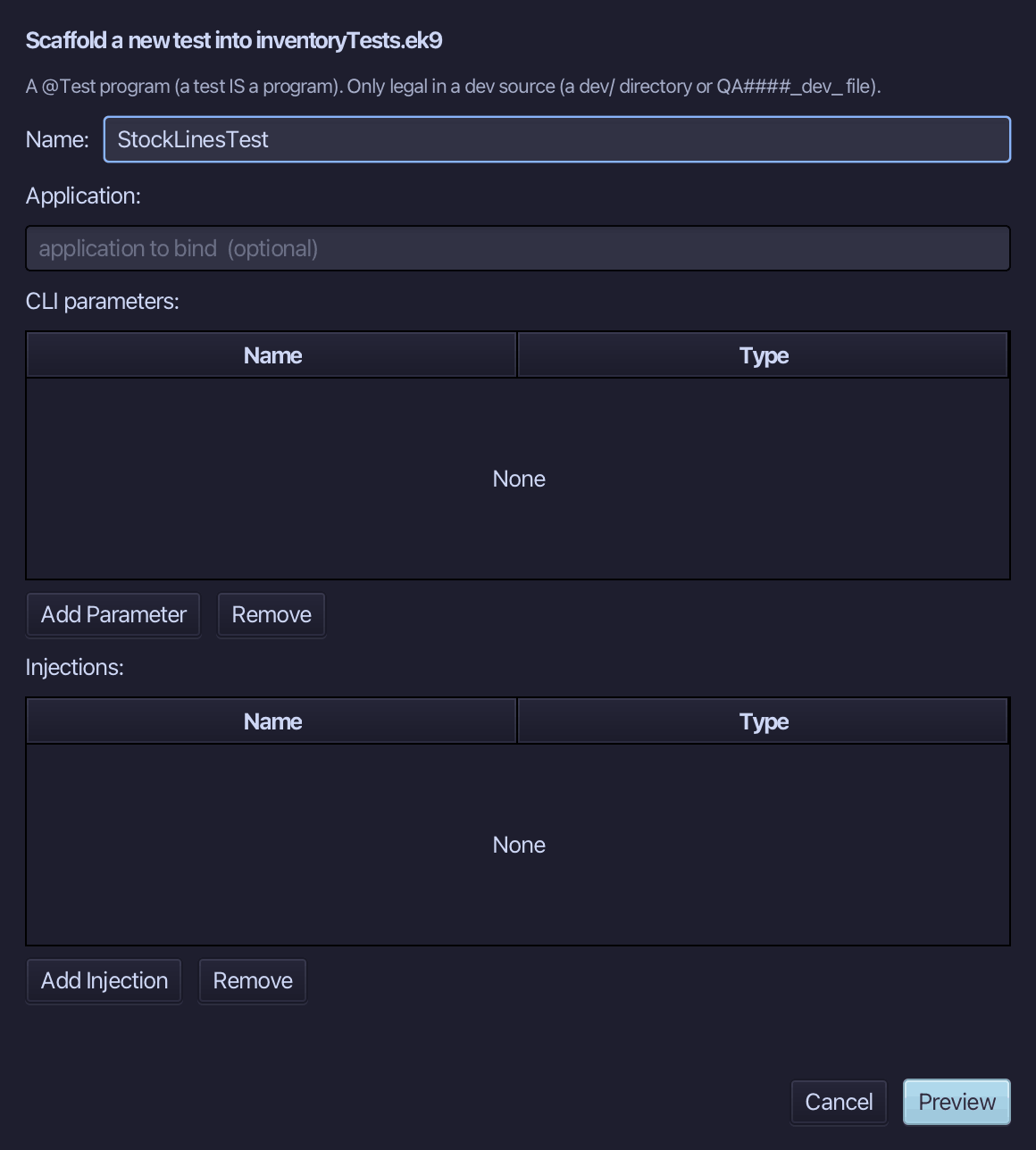
The preview shows StockLinesTest about to be written, marked @Test, with a placeholder assertion. Choose Apply.
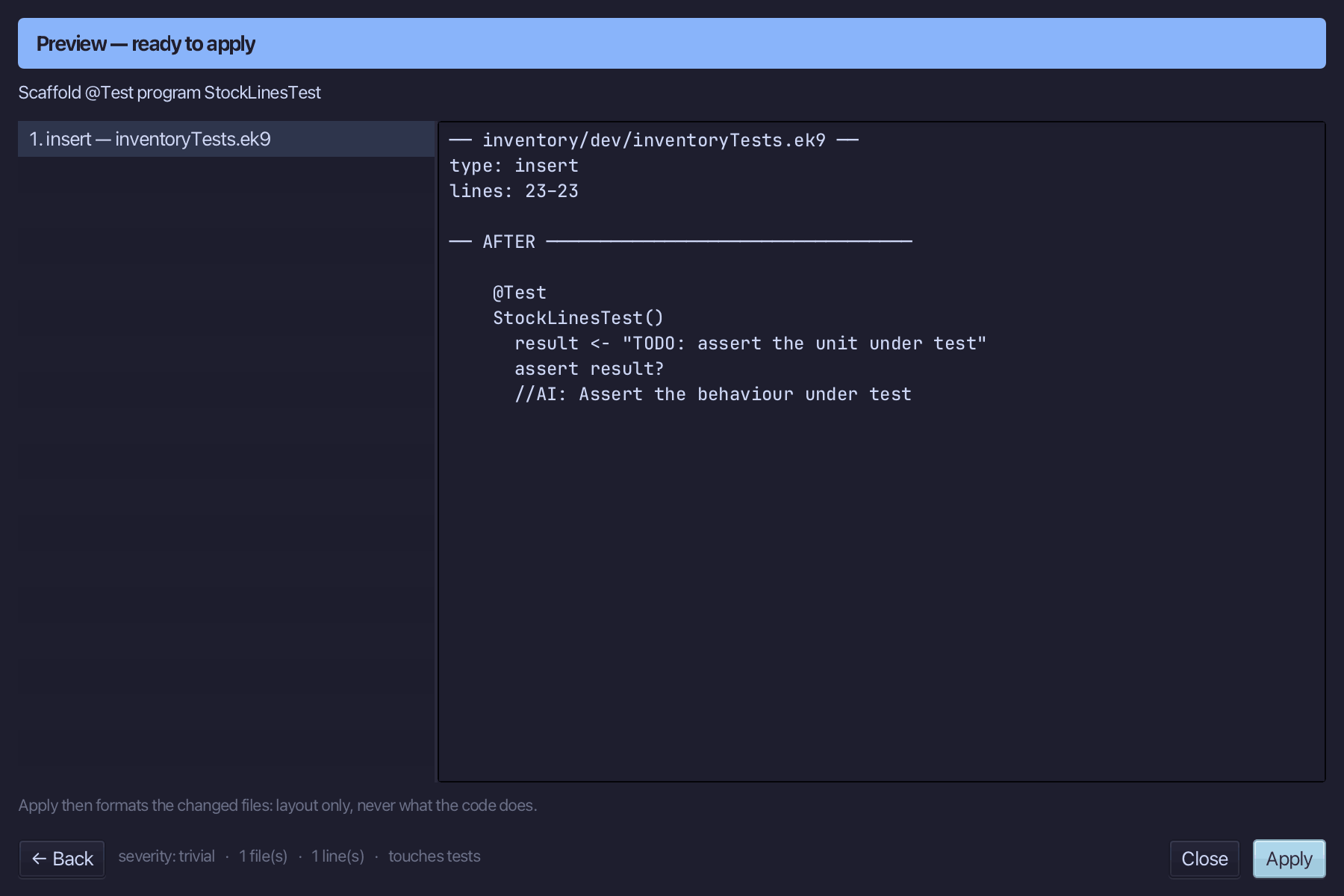
Select the stub, from the placeholder down to its //AI line, and type the claim: two items, two lines. Saves when typed.
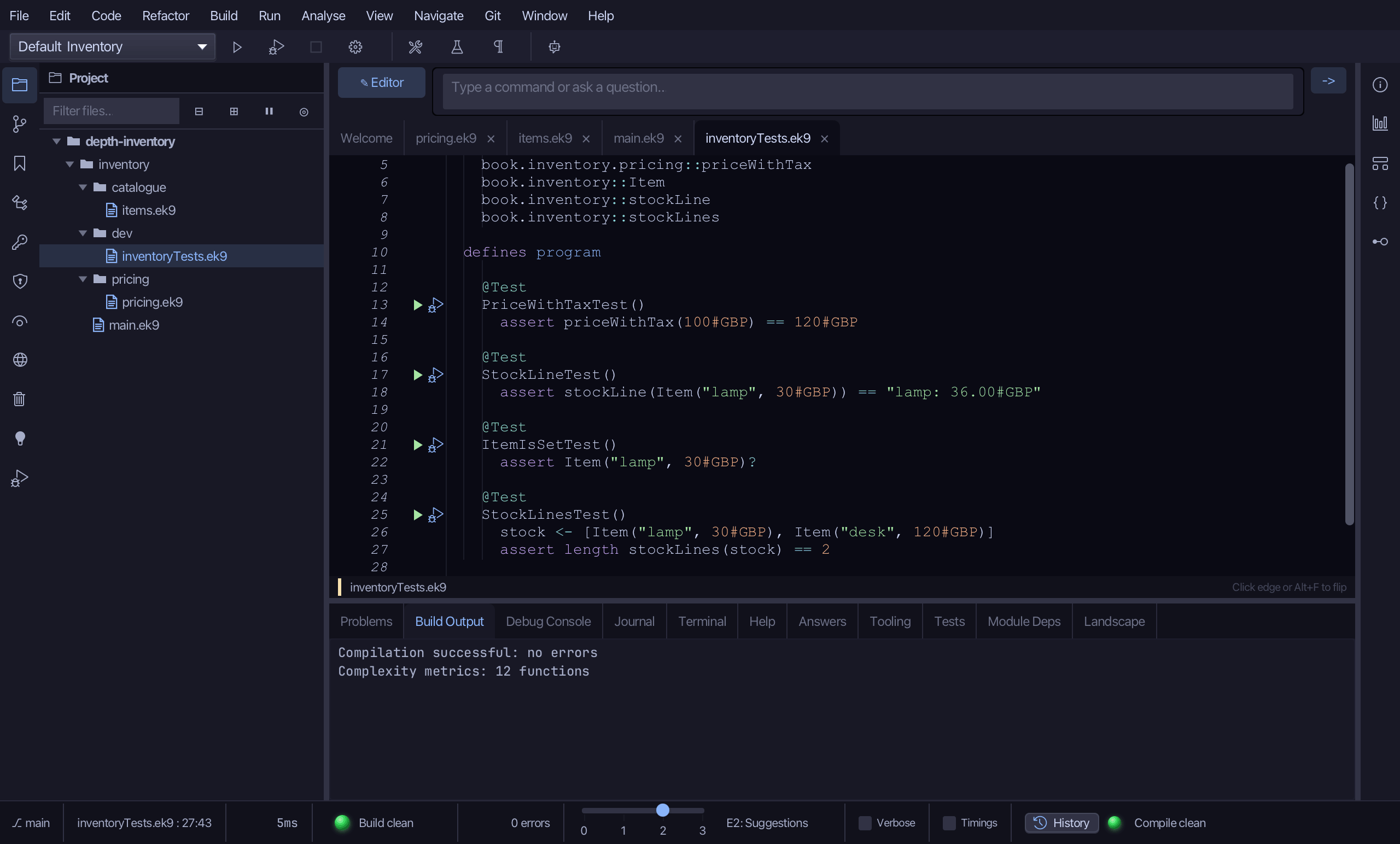
Step 7: Run it
Run ▸ Run Tests (⌘T) runs every test in the project. Choose Run Tests.
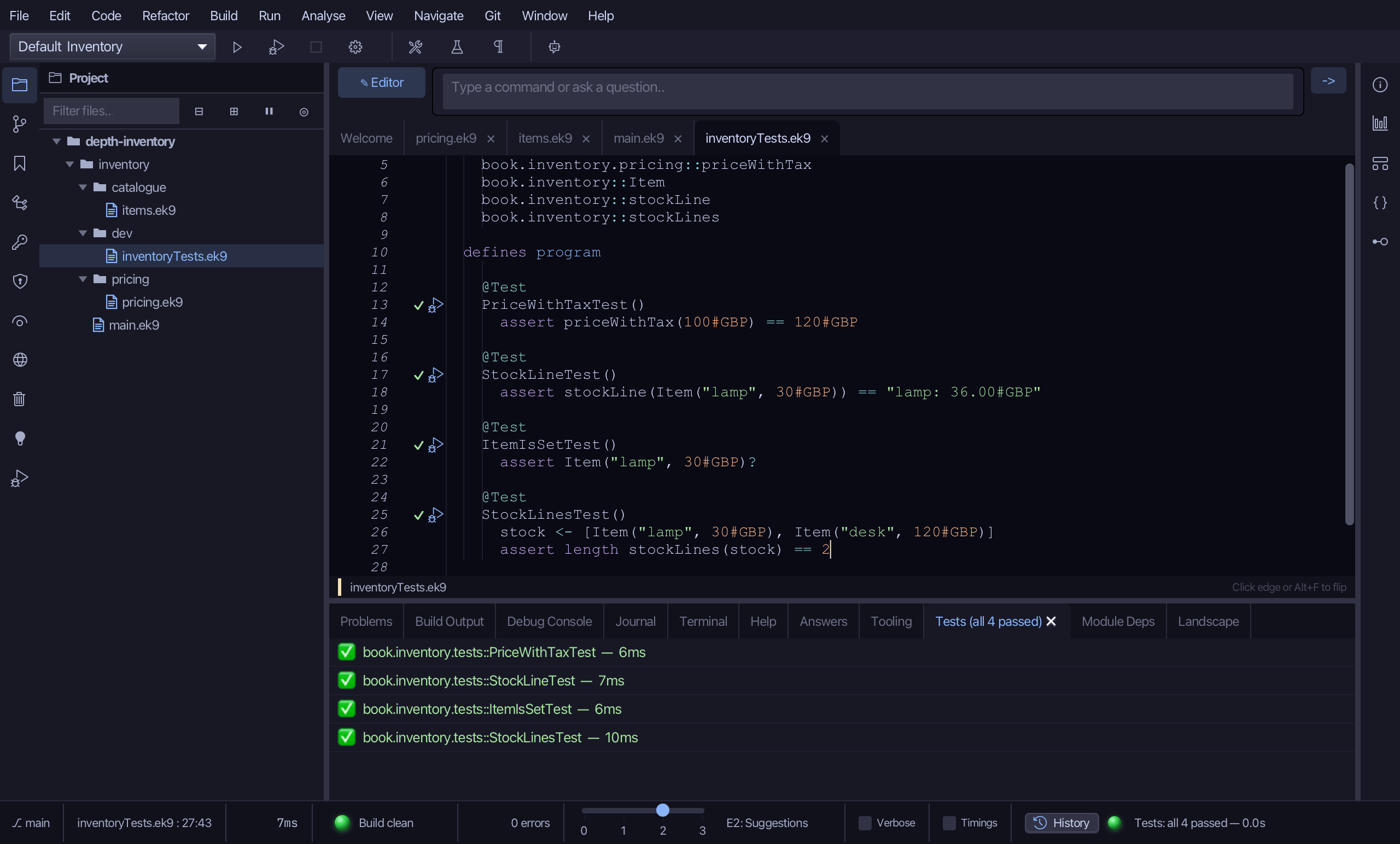
All four tests in dev/ pass - the same as ek9 -t main.ek9 at the command line.
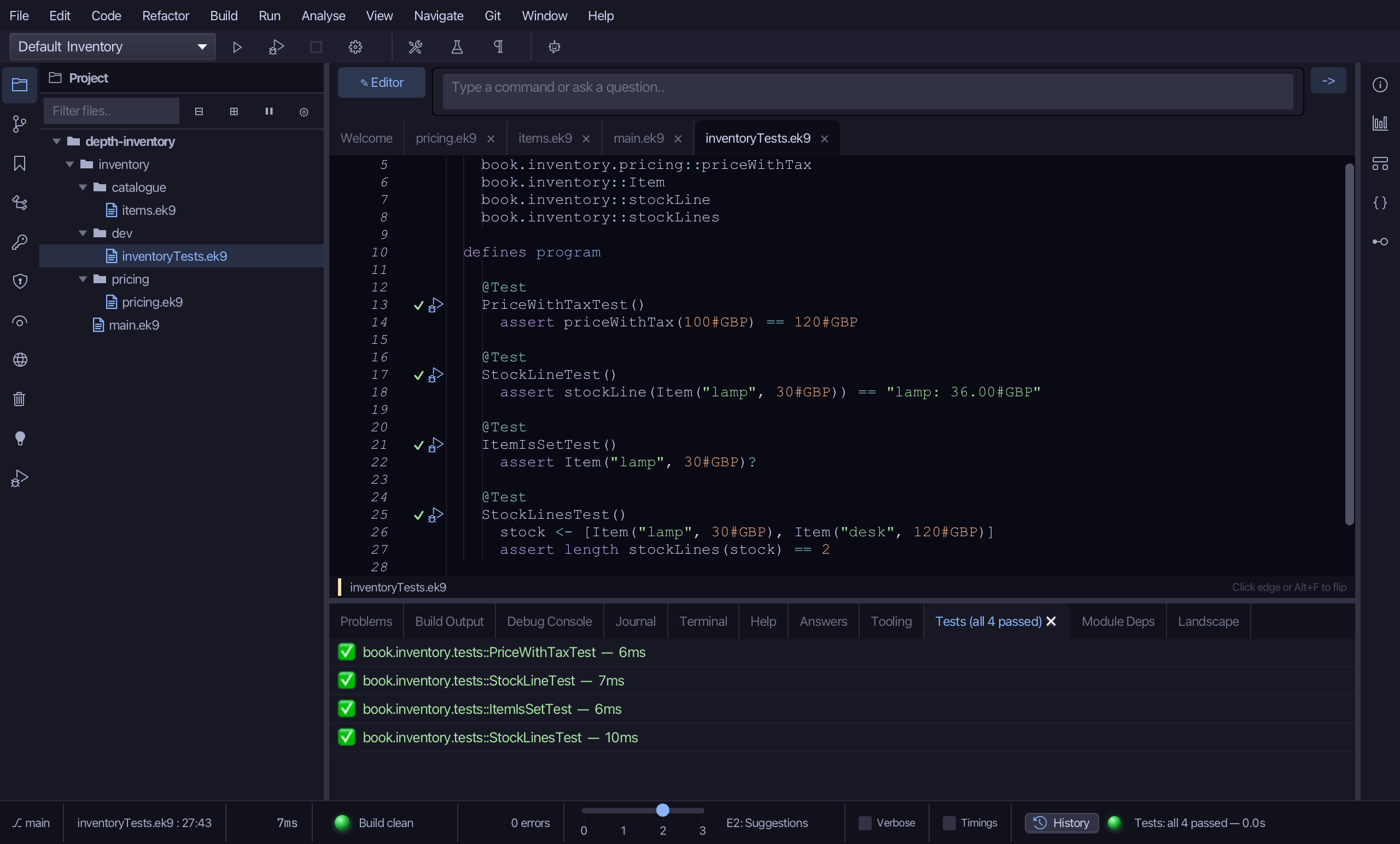
The result
The four files now read exactly as chapter 31 of EK9 in Depth shows them. stockLine uses Item with no references entry, because main.ek9 and items.ek9 are one module; it needs one for priceWithTax, because that is another. Only the package block - applyStandardIncludes - puts the other files in the build, and it leaves dev/ out of a normal one.
Where this lesson comes from
- Answers -
ek9 -qand the IDE's Answers tab: 1380, 13. - For AI assistants - the MCP tool
ek9_new_construct,ek9_add_constructor,ek9_add_program,ek9_run_tests.