Toggle Comment, Remove Comment, Reformat
Toggle Comment, Remove Comment, Reformat File and Reformat All Open Files are code-tidying actions with no dialog and no preview - each change lands at once, so each gets its own Save afterwards. Toggle Comment wraps whole lines in EK9's <!- -!> block-comment form, disabling them without deleting them - a debug print you want gone for now, not forever. Remove Comment deletes a whole comment in one go once it is truly no longer needed. Reformat File re-renders a whole file in canonical EK9 style; Reformat All Open Files does the same to every open tab at once, not just the one you are looking at. To play it in the IDE: Help > Lessons > Refactoring…, or ek9 -ide -lesson comments-and-format.
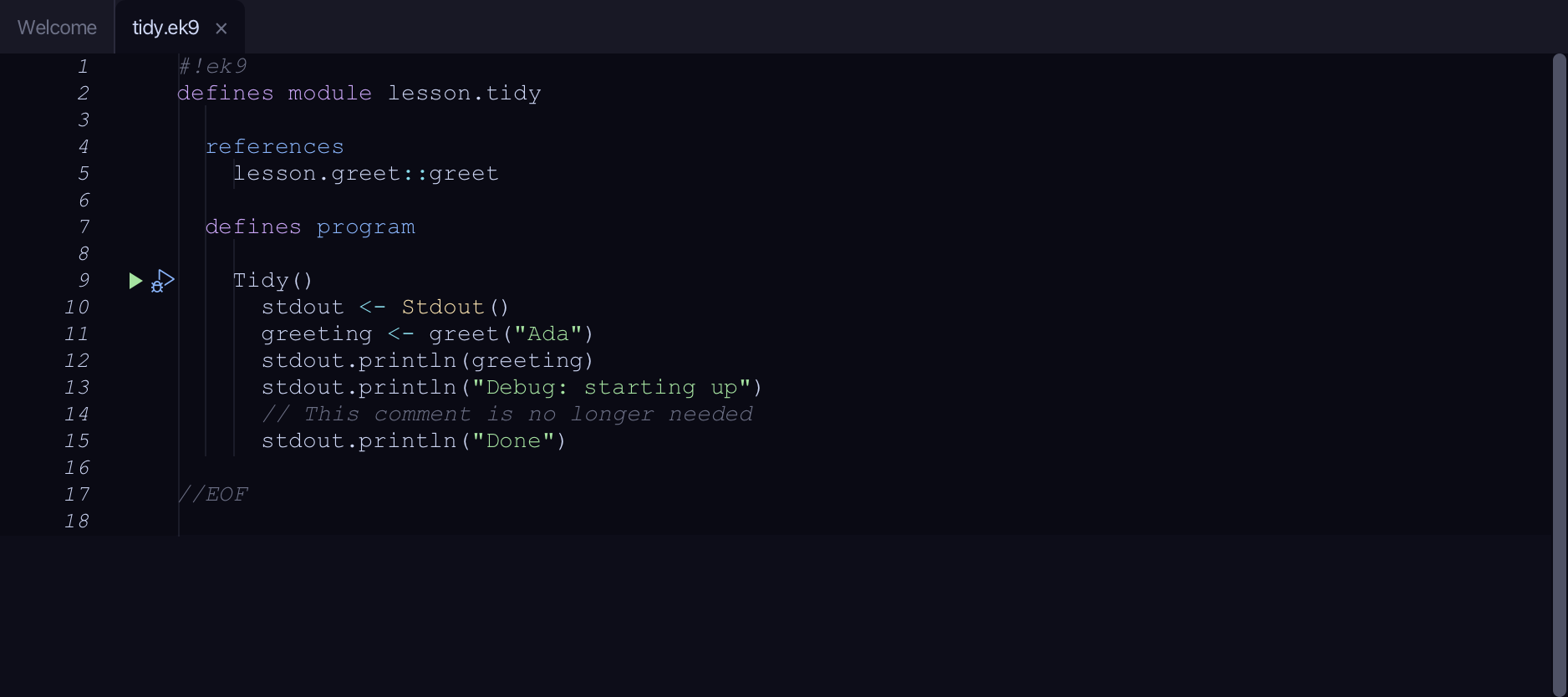
Start from
The code the lesson starts from: copy it into a file of your own and follow the steps.
tidy.ek9
#!ek9
defines module lesson.tidy

  references
    lesson.greet::greet

  defines program

    Tidy()
      stdout <- Stdout()
      greeting <- greet("Ada")
      stdout.println(greeting)
      stdout.println("Debug: starting up")
      // This comment is no longer needed
      stdout.println("Done")

//EOF
greet.ek9
#!ek9
defines module lesson.greet

  defines function

    greet() as pure
      -> name as String
      <- rtn as String: `Hello, ${name}!`

//EOF
Step 1: Toggle Comment
Put the caret on the second stdout.println line - the debug print, not the greeting - then choose Code > Toggle Comment (⌘/), also on the right-click menu. It wraps the line in EK9's <!- -!> block-comment form, so it stops running without being deleted.
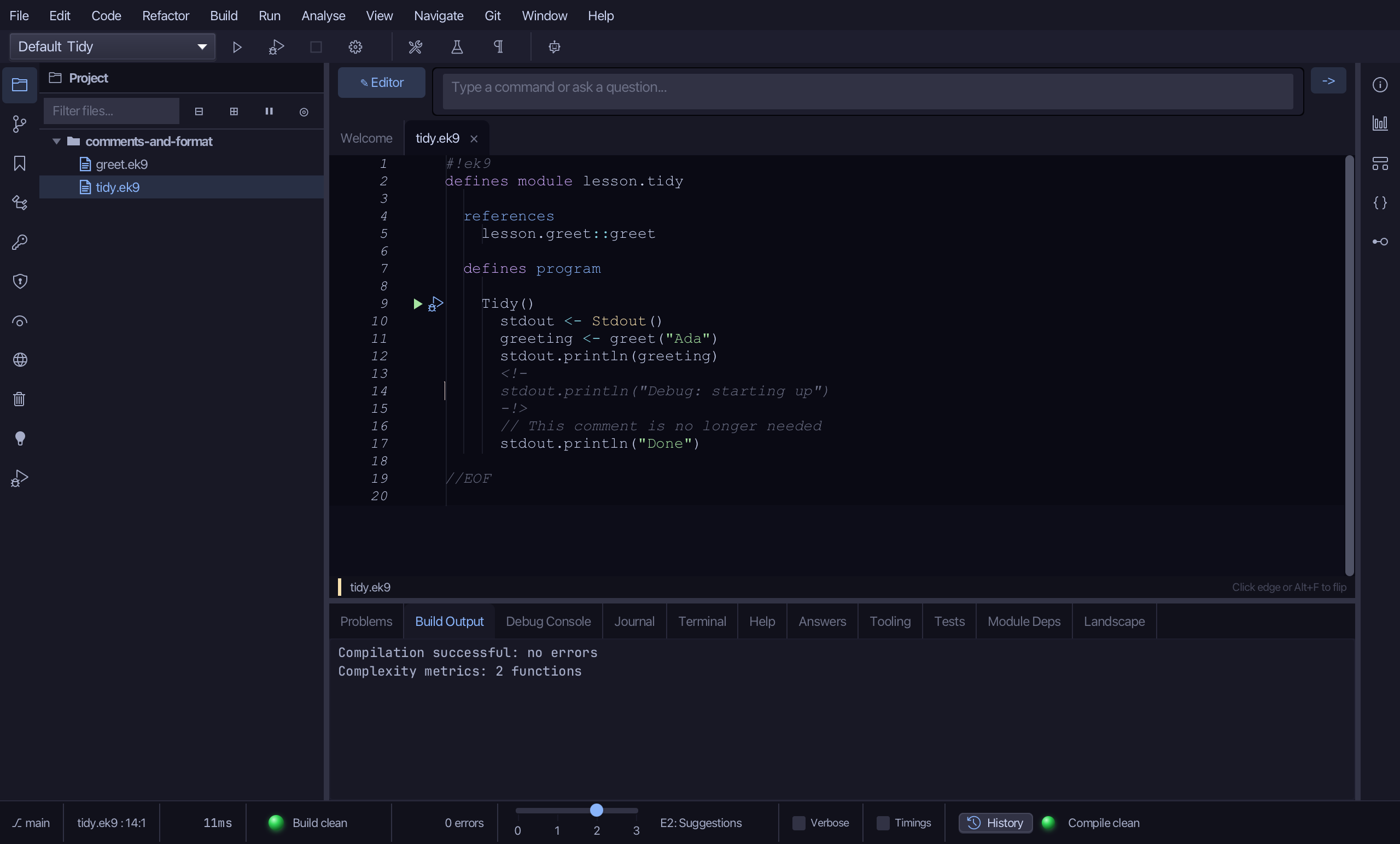
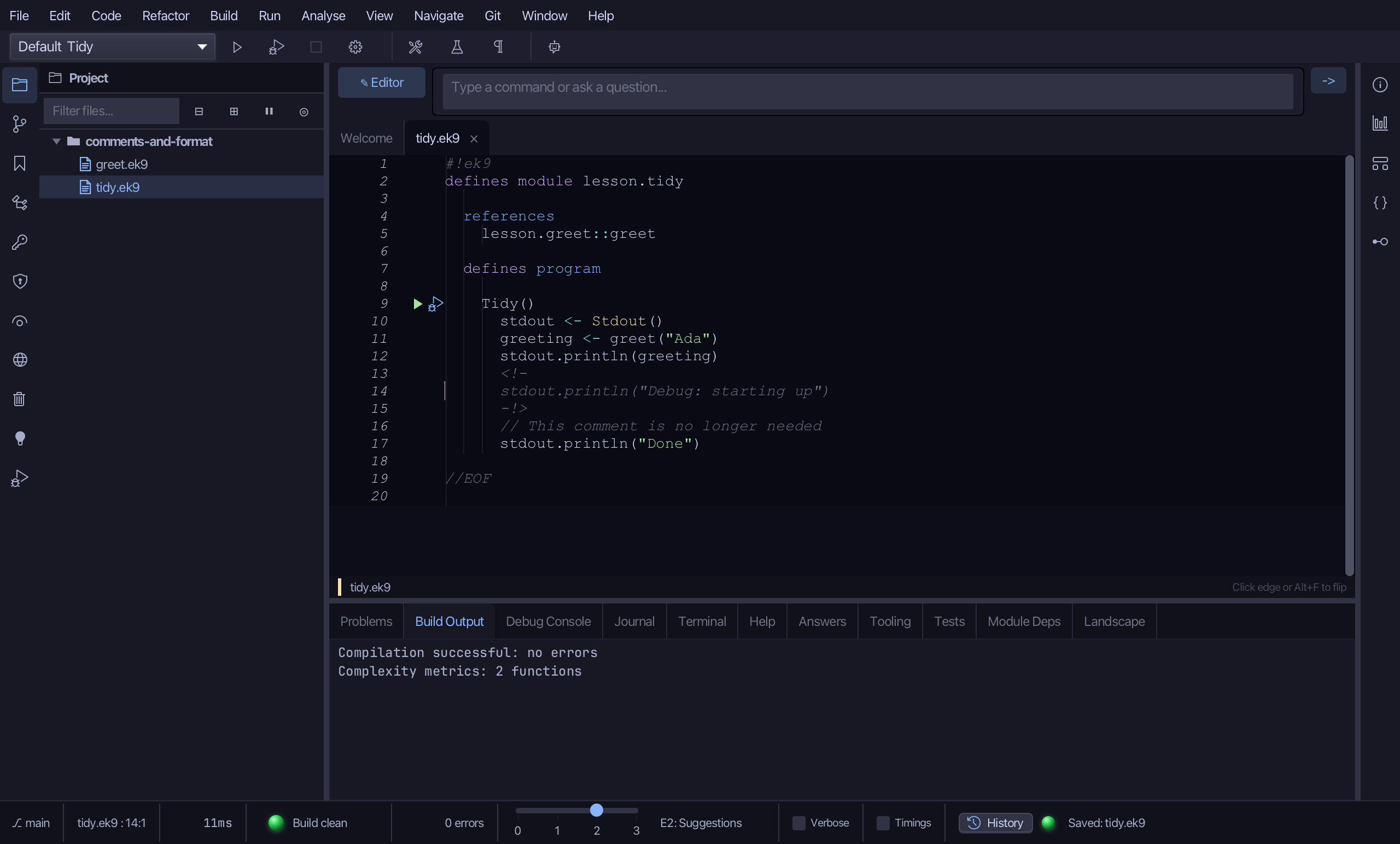
The change is in the open file, not yet saved. Choose File > Save.
Step 2: Remove Comment
Right-click the comment line - // This comment is no longer needed - and choose Remove Comment.
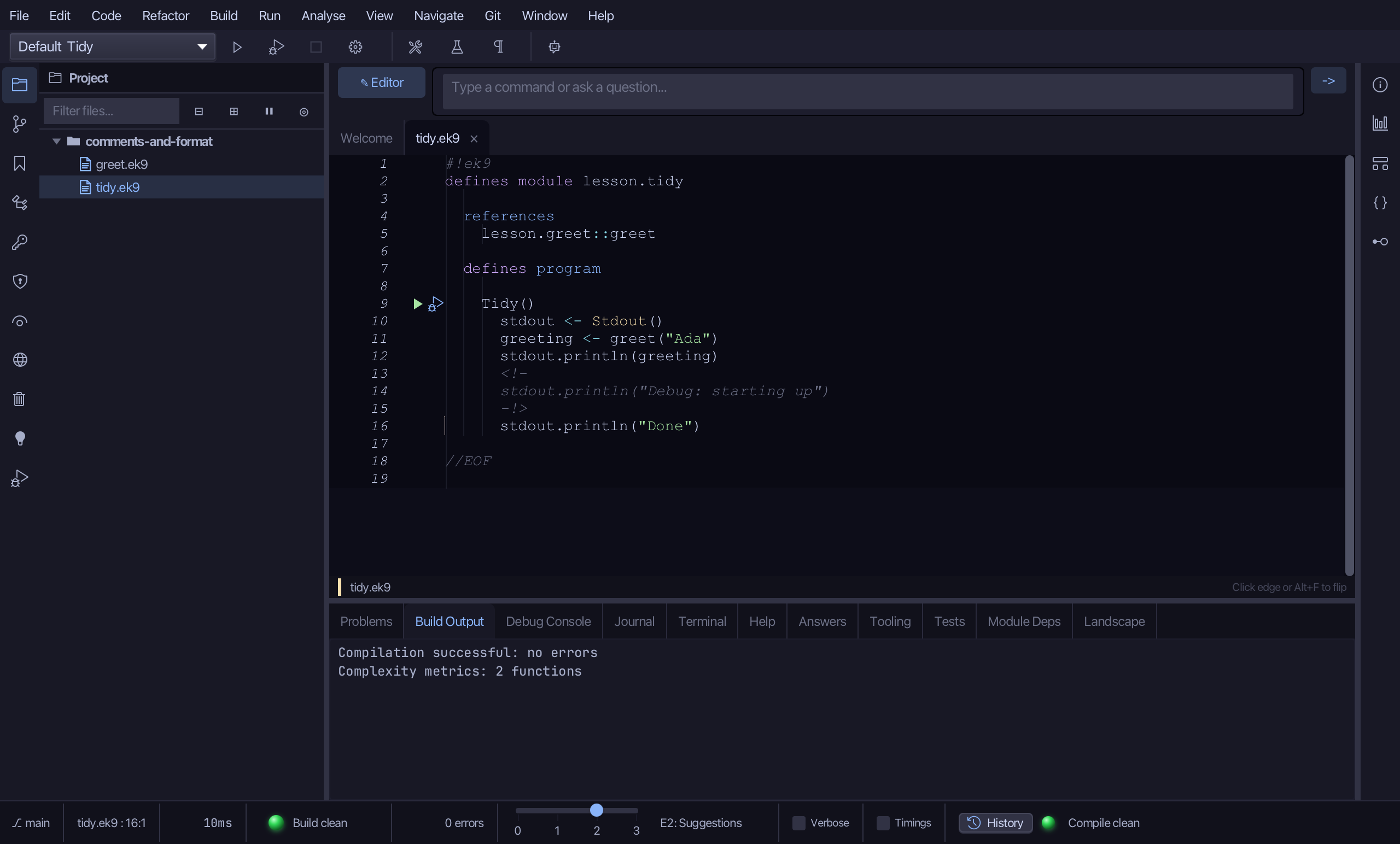
The change is in the open file, not yet saved. Choose File > Save.
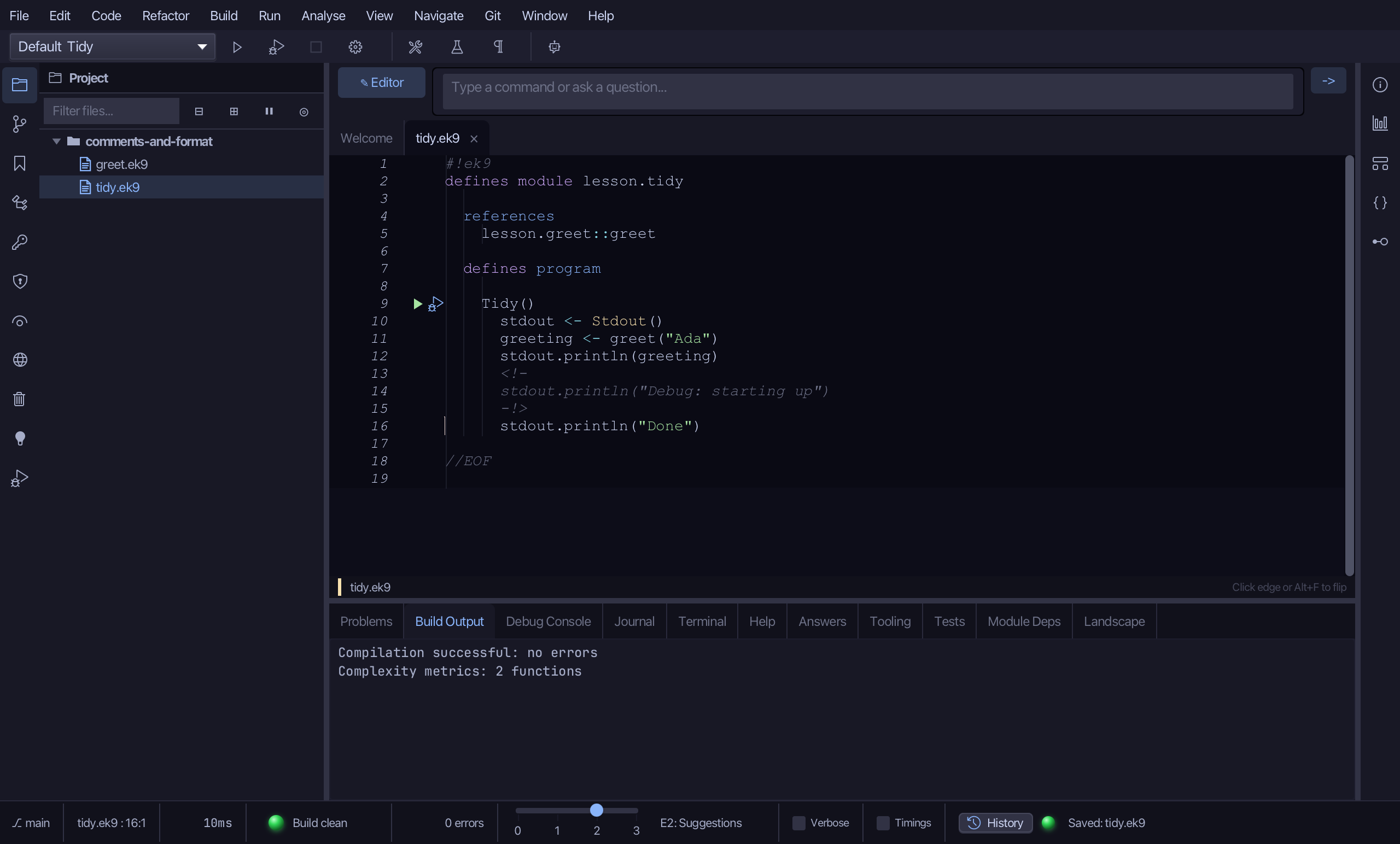
Step 3: Reformat File
A quick edit has left extra spaces inside stdout.println's brackets - stdout.println( greeting ). The program still compiles; it just no longer reads as EK9's canonical layout.
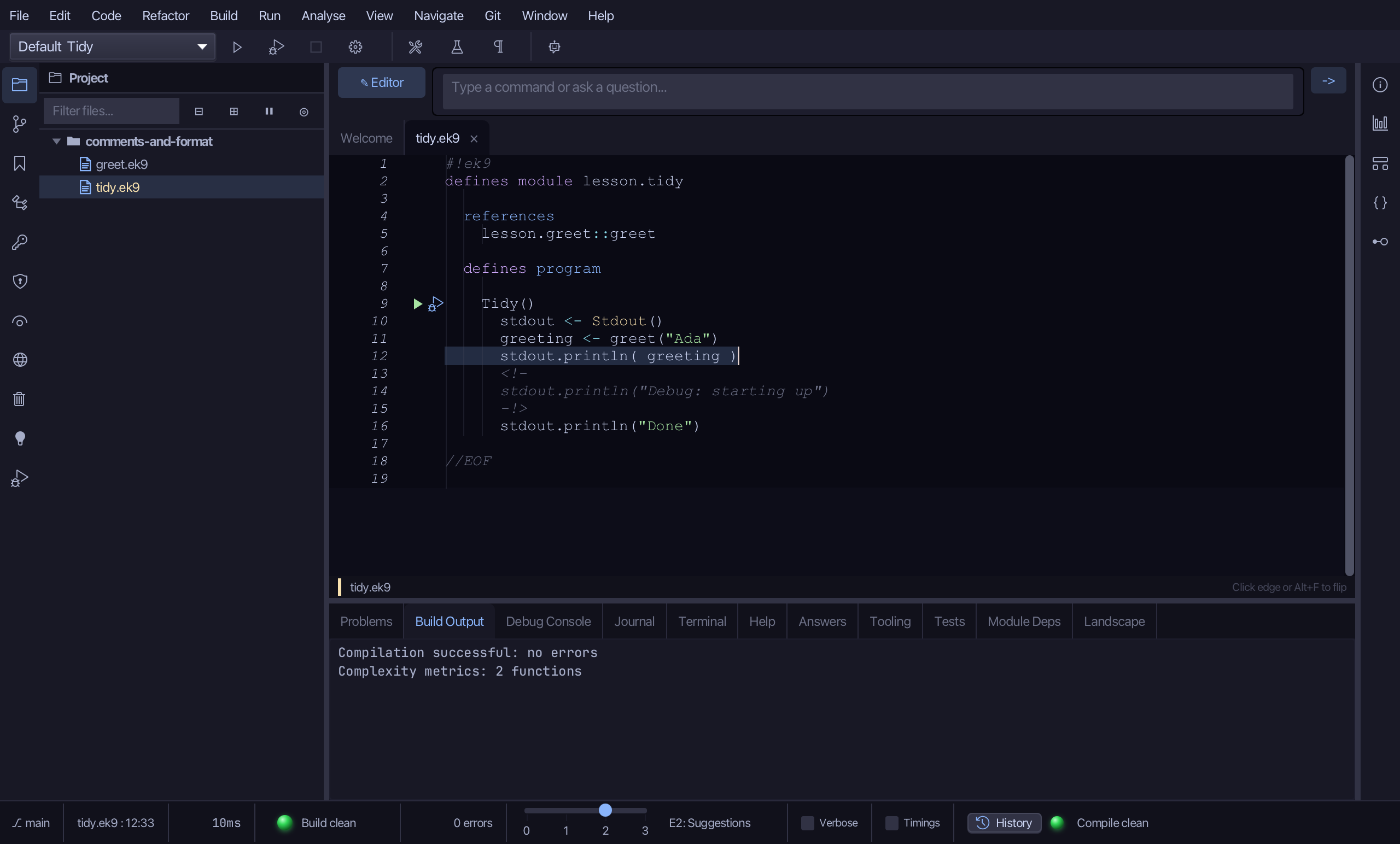
Put the caret anywhere in the file - Reformat File acts on the whole file, not just one line - and choose Code > Reformat File (⌘⌥L).
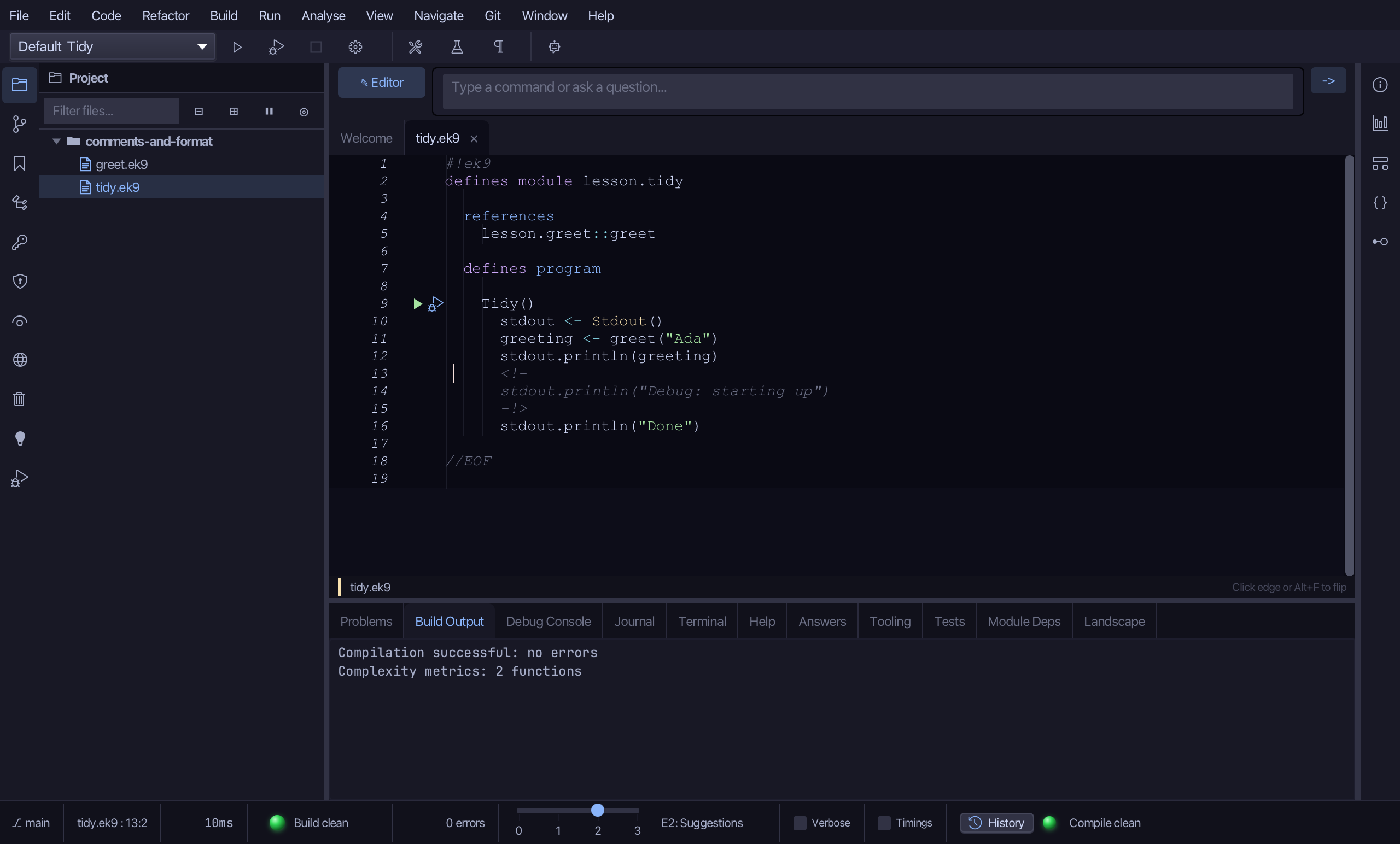
The change is in the open file, not yet saved. Choose File > Save.
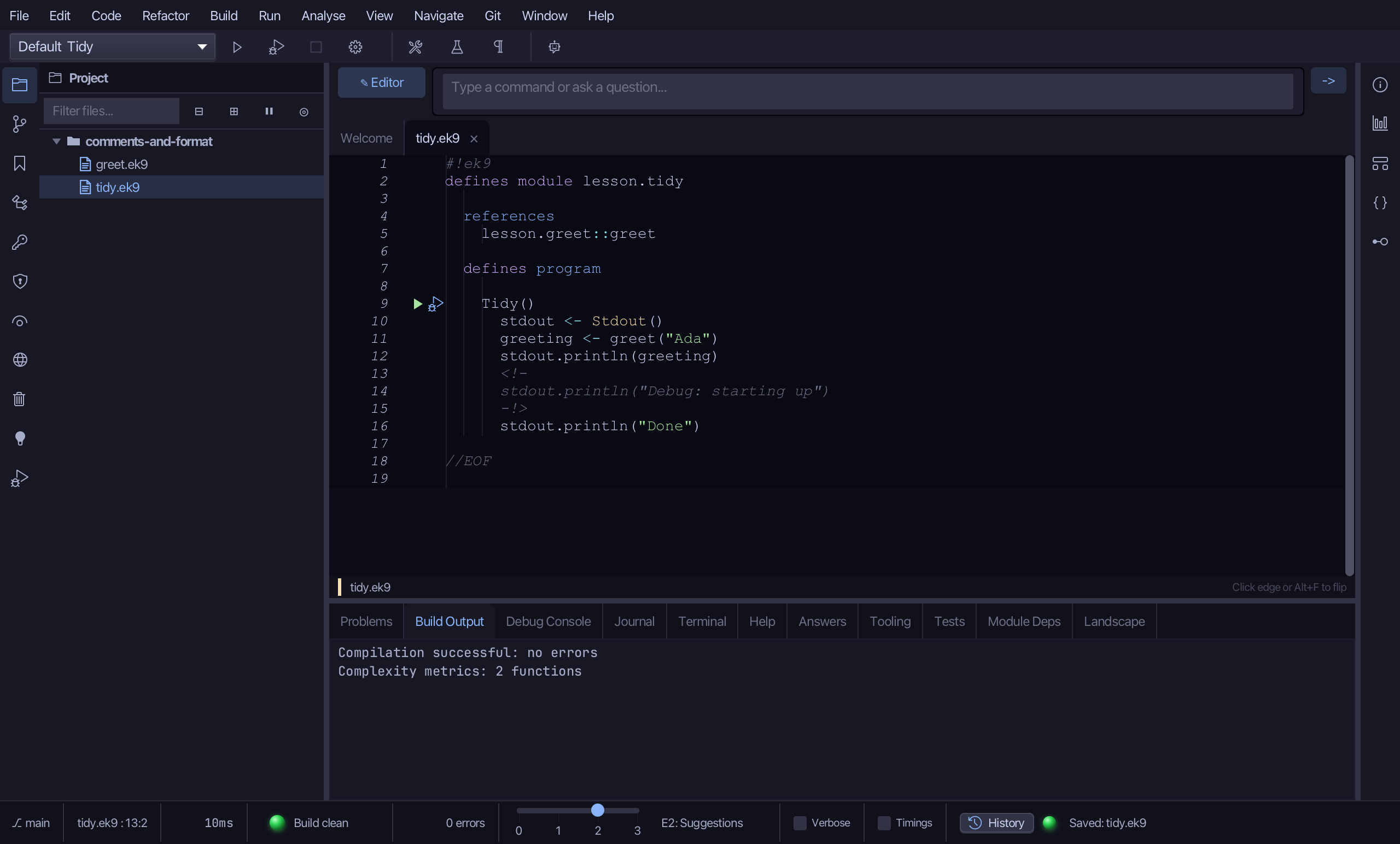
Step 4: Reformat All Open Files
greet.ek9 - the function tidy.ek9 calls - is now open too, with the same kind of extra spacing: two spaces after rtn as String:. It is not saved either.
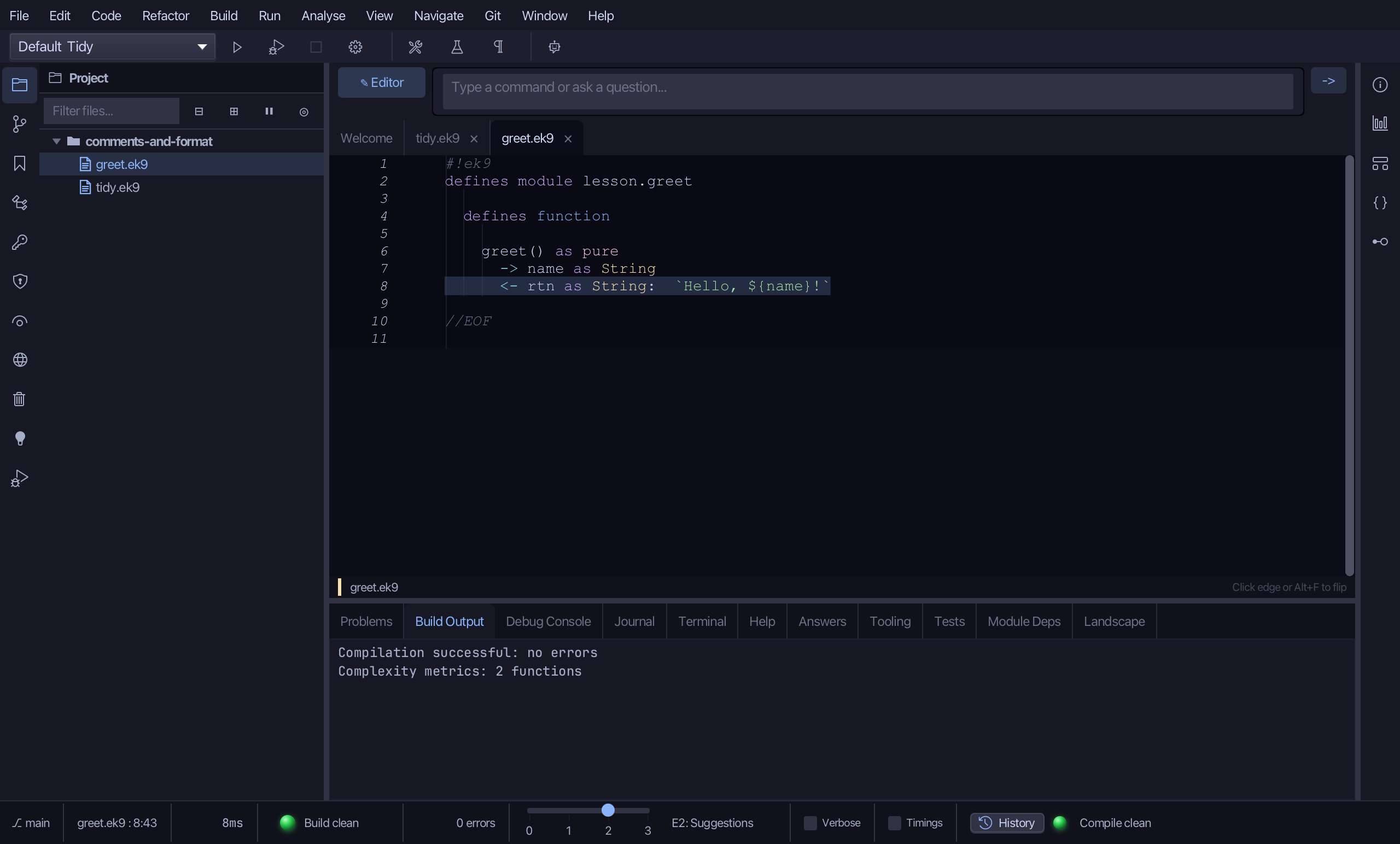
tidy.ek9 is back in front, greet.ek9 open behind it. Choose Code > Reformat All Open Files (⌘⇧⌥L): it reformats every open tab, not just the one you are looking at.
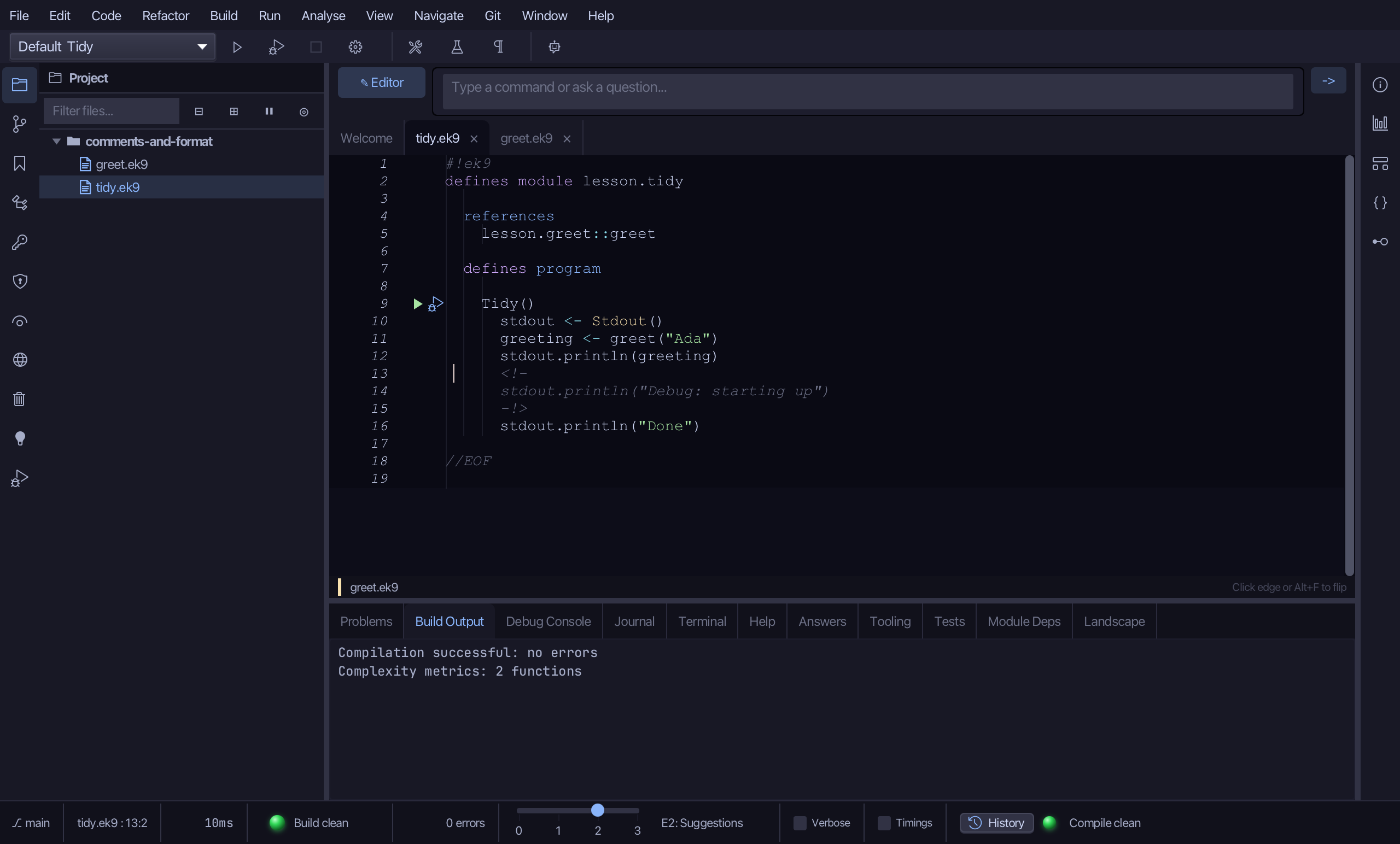
greet.ek9, behind it, was reformatted too: one space after rtn as String: again.
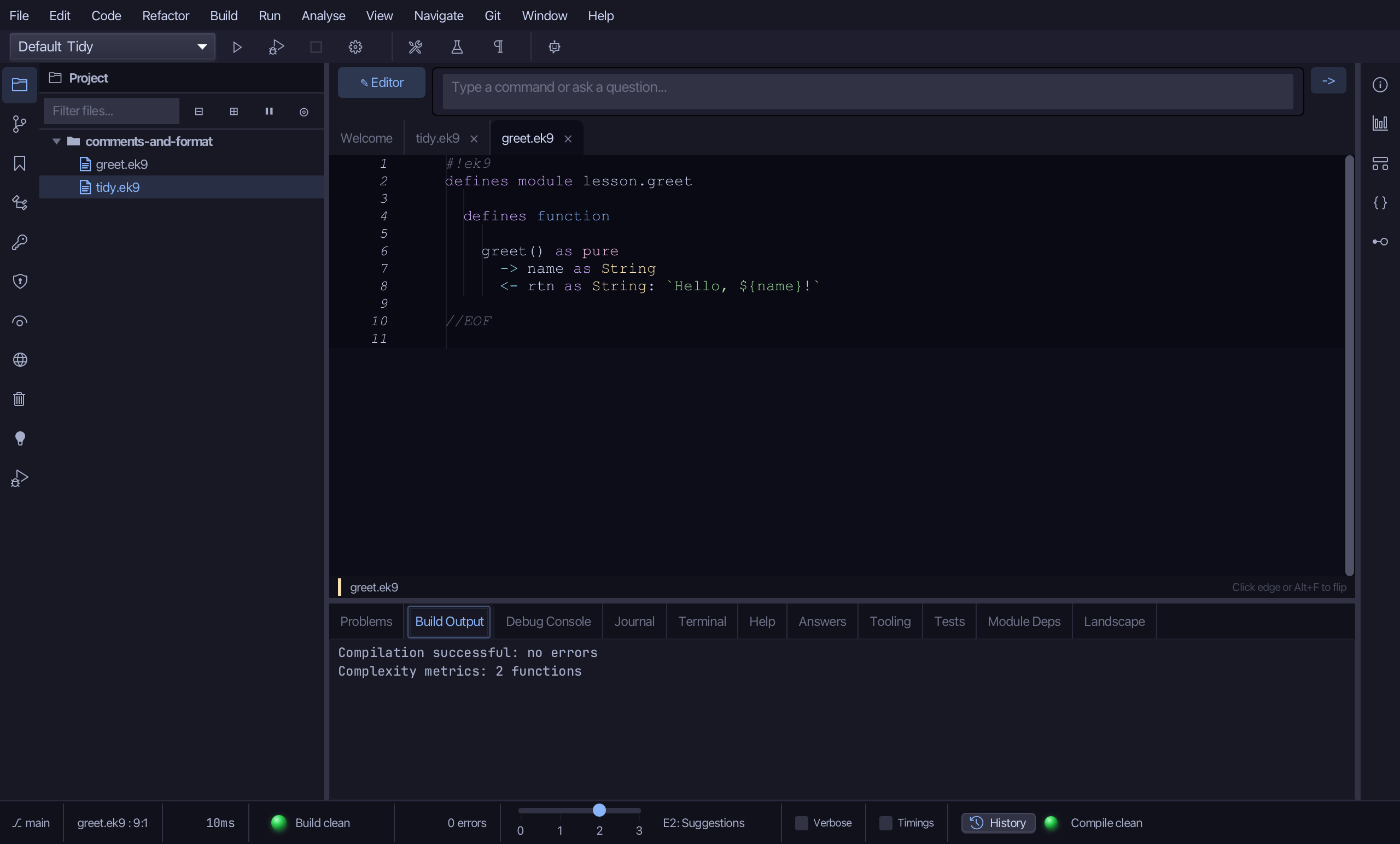
Choose File > Save All: it saves every open file with unsaved changes.
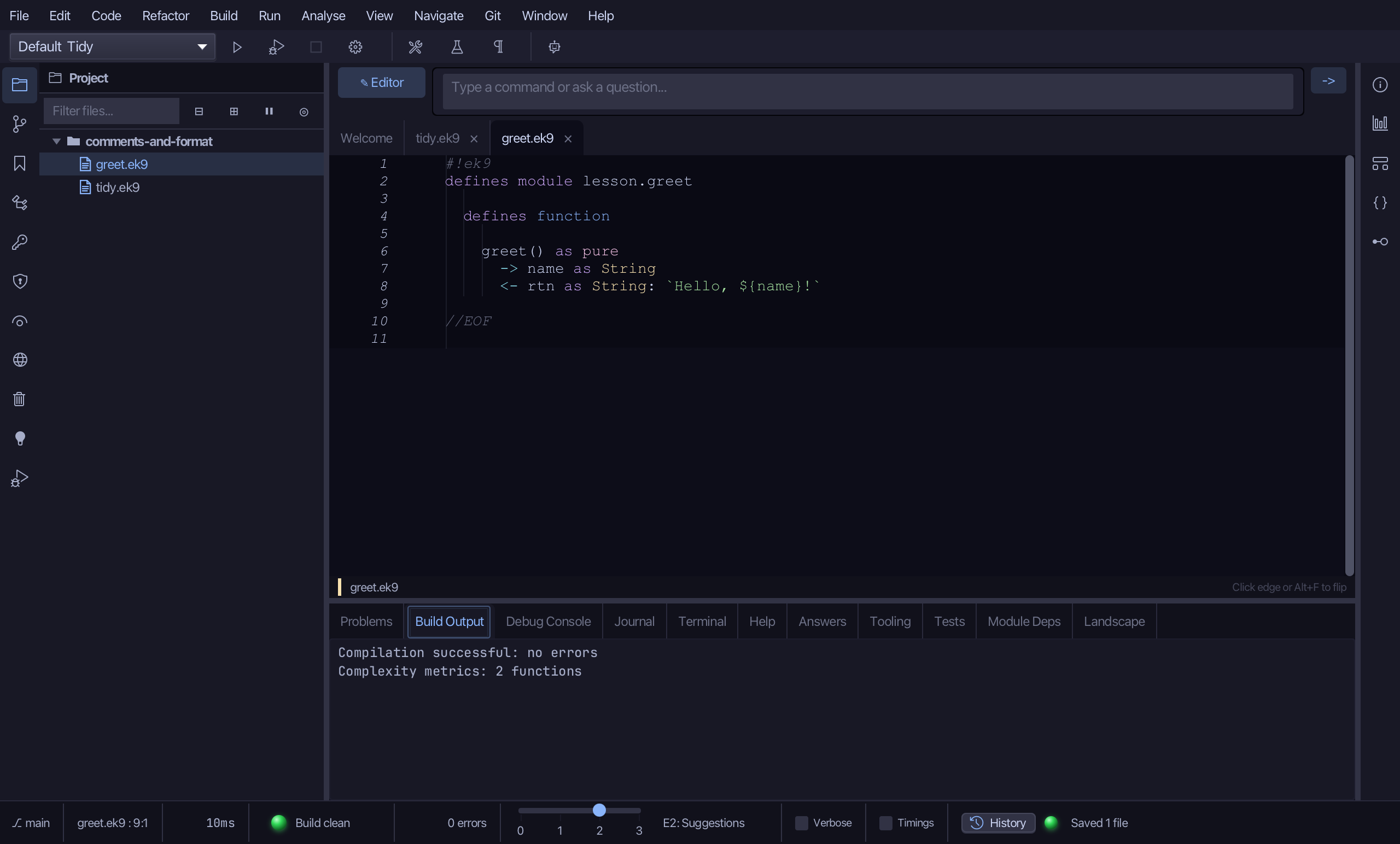
The result
That is Toggle Comment, Remove Comment, Reformat File and Reformat All Open Files: the debug print is commented out rather than deleted, the stale note is gone, and every spacing slip in both open files is back to canonical style. Toggle Comment is Code > Toggle Comment (⌘/) or the right-click menu wherever the caret sits - choose it again on a commented-out line to bring it back. Remove Comment is on the right-click menu only, and refuses a comment that shares a line with code. Reformat File (⌘⌥L) and Reformat All Open Files (⌘⇧⌥L) sit on the Code menu; the whole file - or every open file - is re-rendered in one pass, never a region, and nothing the code does ever changes. None of the four opens a preview - each change lands at once, which is why each needs its own Save. AI assistants use the ek9_toggle_block_comment, ek9_remove_comments and ek9_format tools.
Where this lesson comes from
- Answers -
ek9 -qand the IDE's Answers tab: 18, 625. - For AI assistants - the MCP tool
ek9_toggle_block_comment,ek9_remove_comments,ek9_format.