Performance Profiling in EK9
EK9's test runner profiles performance. Add p to any test format
flag to profile alongside the tests and coverage collection.
- Enabling Profiling - the
psuffix - What Profiling Measures - counts, timing, percentiles
- Output Formats - human, JSON, HTML
- Interpreting the Flame Graph - reading the picture
- Reading the Hot Function Table - what each column tells you
- Profiling Badges in Source Views - per-function performance data
Enabling Profiling
ek9 -tp main.ek9        # Human-readable output with profiling summary
ek9 -t2p main.ek9       # JSON output with profiling data (for AI/tool analysis)
ek9 -t5p main.ek9       # Verbose coverage + profiling
ek9 -t6p main.ek9       # Full HTML report with flame graph and hot function table
Profiling adds to the output; it replaces nothing. The test results, coverage and profiling are collected in the same run, and each output format shows the ones it can.
What Profiling Measures
For every function and method your tests run, profiling records call counts and wall-clock time (to the nanosecond):
- Call Count - how many times it was called
- Total Time - wall-clock time, including the functions it calls
- Self Time - time in the function itself, excluding what it calls
- Average Time - total time divided by the call count
- Min / Max Time - the fastest and slowest single call
- Percentiles (p50, p95, p99) - how call times are spread. p50 is the median call; p95 is the 95th percentile (only 5% of calls are slower); p99 is the tail latency.
Percentiles find latency outliers. A function with a low average but a high p99 is occasionally slow, which users notice and SLAs count.
Compiler-generated methods (names starting with _) are left out: you cannot see or change them,
so they would only add noise.
Output Formats
Human Format (-tp or -t1p)
The examples below profile one small project: a batch that calls a computation many times, and two tests.
#!ek9
defines module site.profiling.batch

  defines function

    //The expensive one: most of the time is spent here, in its own loop
    computeResult()
      -> seed as Integer
      <- result as Integer: 0
      for step in 1 ... 200
        result += seed * step

    //The orchestrator: its time is mostly in the calls it makes
    batchProcess()
      -> count as Integer
      <- total as Integer: 0
      for item in 1 ... count
        total += computeResult(item)
#!ek9
defines module site.profiling.batch.tests

  references
    site.profiling.batch::batchProcess

  defines program

    @Test
    SmallBatch()
      assert batchProcess(3) > 0

    @Test
    LargeBatch()
      assert batchProcess(2000) > 0
Download profiling_batch_tests.ek9
Profiling is reported with the coverage results, so the p suffix implies -tC. After
the coverage summary come the top five functions by total time, each with its own self time and
call count:
$ ek9 -tp profiling_batch.ek9
ℹ️ Found 2 tests:
  2 assert (unit tests with assertions)

Executing 2 tests...

✅ PASS site.profiling.batch.tests::LargeBatch [Assert] (nms)
✅ PASS site.profiling.batch.tests::SmallBatch [Assert] (nms)

Summary: 2 passed, 0 failed (2 total)
Types: 2 assert
Duration: nms

📊 Coverage Summary
  ✅ Methods:  100.0% (2/2)
  ✅ Lines:    100.0% (10/10)
  ✅ Branches: 100.0% (2/2)

  ✅ Overall: 100.00% (10/10 probes hit)

📦 By Module:
  ✅ site.profiling.batch: 100.00% (10/10)

Profiling: 2 functions profiled
  batchProcess                        Self: nms  Calls: 2
  computeResult                       Self: nms  Calls: 2003
batchProcess comes first because its total includes the calls it makes; its self time is small.
computeResult is where the time is spent.
For totals, averages and percentiles, use the JSON or HTML format.
JSON Format (-t2p)
Writes .ek9/test-results.json and .ek9/coverage.json; the profiling
section is in coverage.json, beside the coverage it was collected with:
$ ek9 -t2p profiling_batch.ek9 && cat .ek9/coverage.json
{
  "coverage" : {
    "methods" : {
      "percentage" : 100.0,
      "covered" : 2,
      "total" : 2
    },
    "lines" : {
      "percentage" : 100.0,
      "covered" : 10,
      "total" : 10
    },
    "branches" : {
      "percentage" : 100.0,
      "covered" : 2,
      "total" : 2
    },
    "overall" : 100.0,
    "probesHit" : 10,
    "probesTotal" : 10,
    "probeTypes" : {
      "FUNCTION_ENTRY" : {
        "hit" : 2,
        "total" : 2
      },
      "LOOP_BODY" : {
        "hit" : 2,
        "total" : 2
      },
      "STATEMENT" : {
        "hit" : 6,
        "total" : 6
      }
    },
    "modules" : {
      "site.profiling.batch" : {
        "coverage" : 100.0,
        "hit" : 10,
        "total" : 10
      }
    },
    "metrics" : {
      "avgComplexity" : 2.0,
      "maxComplexity" : 2,
      "totalComplexity" : 4,
      "coveredComplexity" : 4,
      "avgCognitive" : 1.0,
      "maxCognitive" : 1
    },
    "readability" : {
      "./profiling_batch.ek9" : "9"
    }
  },
  "profiling" : {
    "summary" : {
      "functionsProfiled" : 2,
      "totalCalls" : 2005
    },
    "hotFunctions" : [ {
      "name" : "batchProcess",
      "module" : "site.profiling.batch",
      "file" : "./profiling_batch.ek9",
      "startLine" : 14,
      "endLine" : 19,
      "totalMs" : n,
      "selfMs" : n,
      "calls" : 2,
      "avgMs" : n,
      "minMs" : n,
      "maxMs" : n,
      "p50Ms" : n,
      "p95Ms" : n,
      "p99Ms" : n
    }, {
      "name" : "computeResult",
      "module" : "site.profiling.batch",
      "file" : "./profiling_batch.ek9",
      "startLine" : 7,
      "endLine" : 13,
      "totalMs" : n,
      "selfMs" : n,
      "calls" : 2003,
      "avgMs" : n,
      "minMs" : n,
      "maxMs" : n,
      "p50Ms" : n,
      "p95Ms" : n,
      "p99Ms" : n
    } ],
    "callGraph" : [ {
      "caller" : "batchProcess",
      "callee" : "computeResult",
      "calls" : 2003,
      "totalMs" : n
    } ]
  }
}
Use the JSON for automated analysis, tracking trends in CI/CD, and AI-assisted performance work. The percentile fields are what latency SLA monitoring needs.
HTML Format (-t6p)
Writes the interactive HTML report with profiling added:
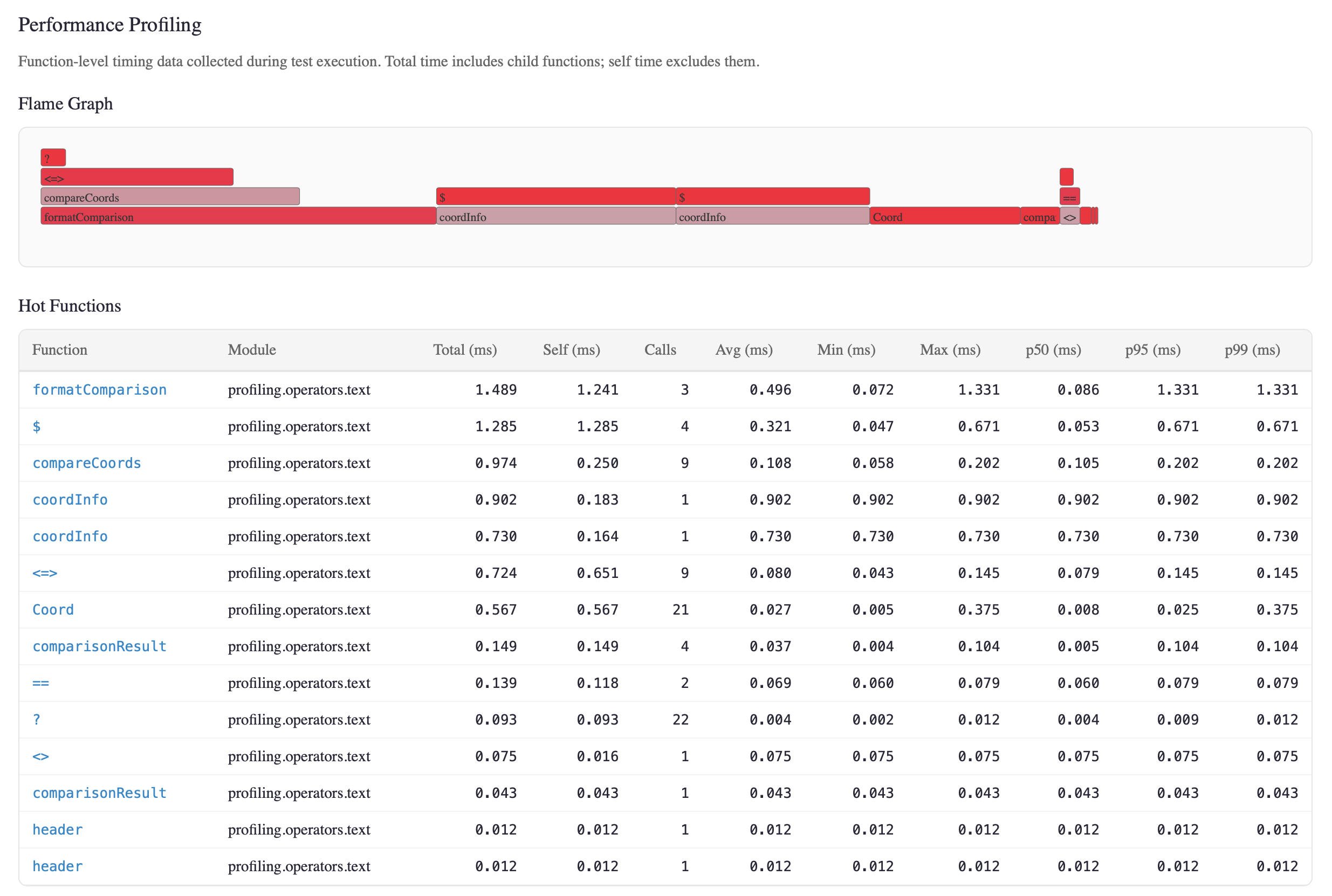
- Flame Graph - an SVG picture of the call hierarchy. Width is execution time, colour is the share of self time; hover for the timings.
- Hot Function Table - the top 25 profiled functions, ranked by total execution time.
- Profiling badges in the source view - each function's call count and average time.
Interpreting the Flame Graph
Read the flame graph from the bottom up:
- Bottom row - the functions your tests called directly. The tests themselves, in
dev/, are not profiled. - Higher rows - the functions called by the row below
- Width - in proportion to total execution time (wider means more time)
- Colour - the share of self time. A red frame spends most of its time in its own code; a blue frame spends most of it calling other functions.
What to look for:
- Wide red frames take a lot of time in their own code. They are the best places to optimise.
- Wide blue frames at the bottom are orchestrators that hand the work on. Optimise their callees, not them.
Reading the Hot Function Table
The hot function table gives the figures behind the flame graph, for the top 25 functions ranked by total execution time:
| Column | What It Tells You |
|---|---|
| Function | The function or method name. |
| Module | The EK9 module it is in. |
| Total (ms) | Wall-clock time including callees. A high total with a low self time is an orchestrator. |
| Self (ms) | Time in this function only. A high self time is a place to optimise. |
| Calls | The number of calls. Many calls with a low average is a hot loop body. |
| Avg (ms) | The mean time per call. It misleads when the times are skewed. |
| Min / Max (ms) | The best and worst case. A large gap means inconsistent performance. |
| p50 (ms) | The median: a typical call. More representative than the average. |
| p95 (ms) | The 95th percentile: 1 call in 20 is this slow or slower. A key SLA figure. |
| p99 (ms) | The tail latency: the slowest 1% of calls. What matters for user-facing code. |
Where to start optimising:
- Sort by Self (ms) to find where the time is actually spent.
- Sort by p99 to find latency outliers. A function with
avg=0.5msbutp99=50mshas an intermittent problem that the average hides.
Profiling Badges in Source Views
In the HTML report's source view, each function has a quality line above its declaration, starting with its complexity, and a profiling badge at the end of the declaration line:
// CC:3
processOrder()      12× 3.77ms
  -> order as Order
  <- result as OrderResult
  // ... the body
The badge shows call-count× avg-time. Hover over it for the full profile:
Performance Profile

Calls: 12
Total: 45.2ms | Self: 12.1ms
Avg: 3.77ms | Min: 1.20ms | Max: 8.50ms
p50: 3.20ms | p95: 7.80ms | p99: 8.50ms
So one page shows which code runs, how often and how fast, beside its coverage and complexity.
See Also
- Testing - test types, assertions, test runner commands
- Code Coverage - threshold enforcement, quality metrics, HTML reports
- Compiler Fuzzing - grammar-based fuzzer with error code coverage dashboard
- Test Generation - automated edge-case test generation and mutation testing
- Command Line - all flags and exit codes
- For AI Assistants - machine-readable JSON profiling schema